How to Build a Tour

Chateau How To

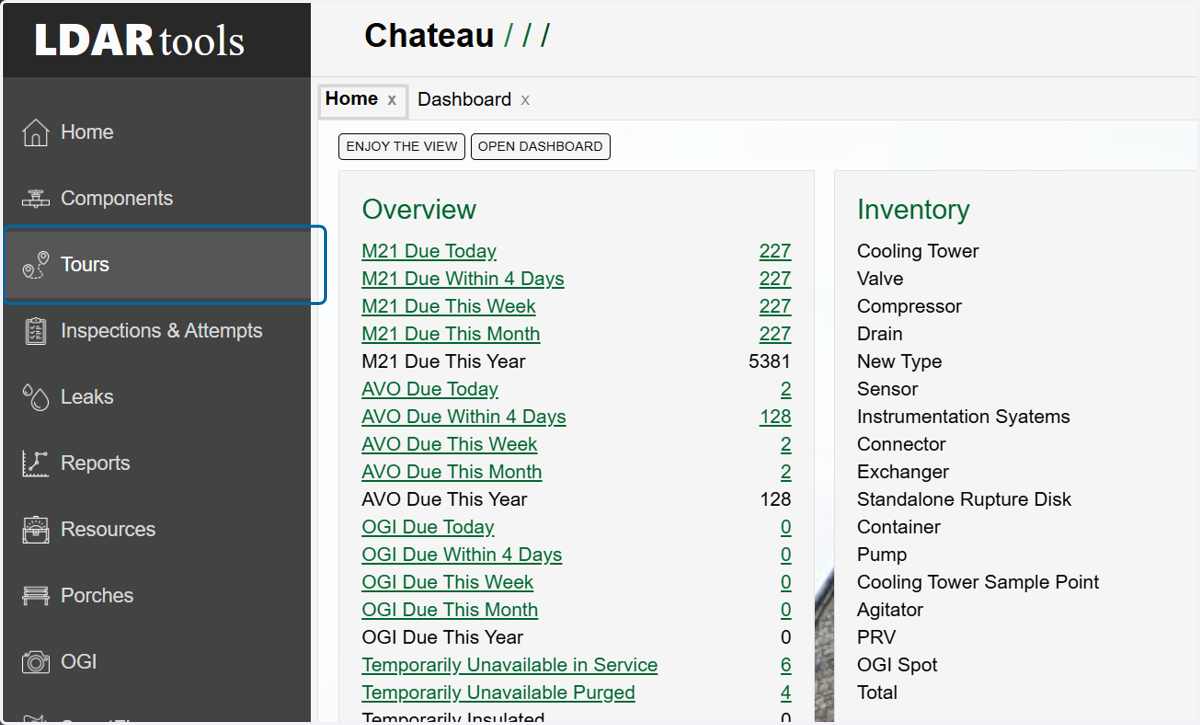
  1. 1. Click on Tours

    Click on Tours
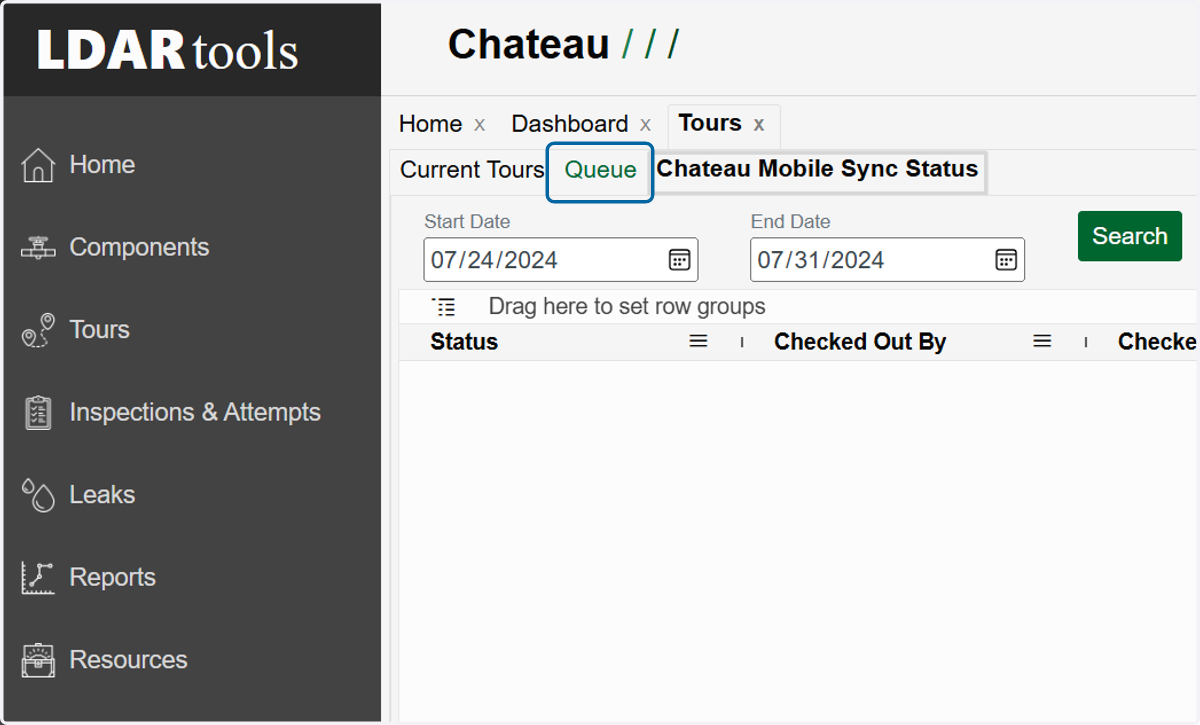
  2. 2. Click on the Queue tab.

    Click on the Queue tab.
  3. 3. How many Normal to Monitor components do you want in a tour?
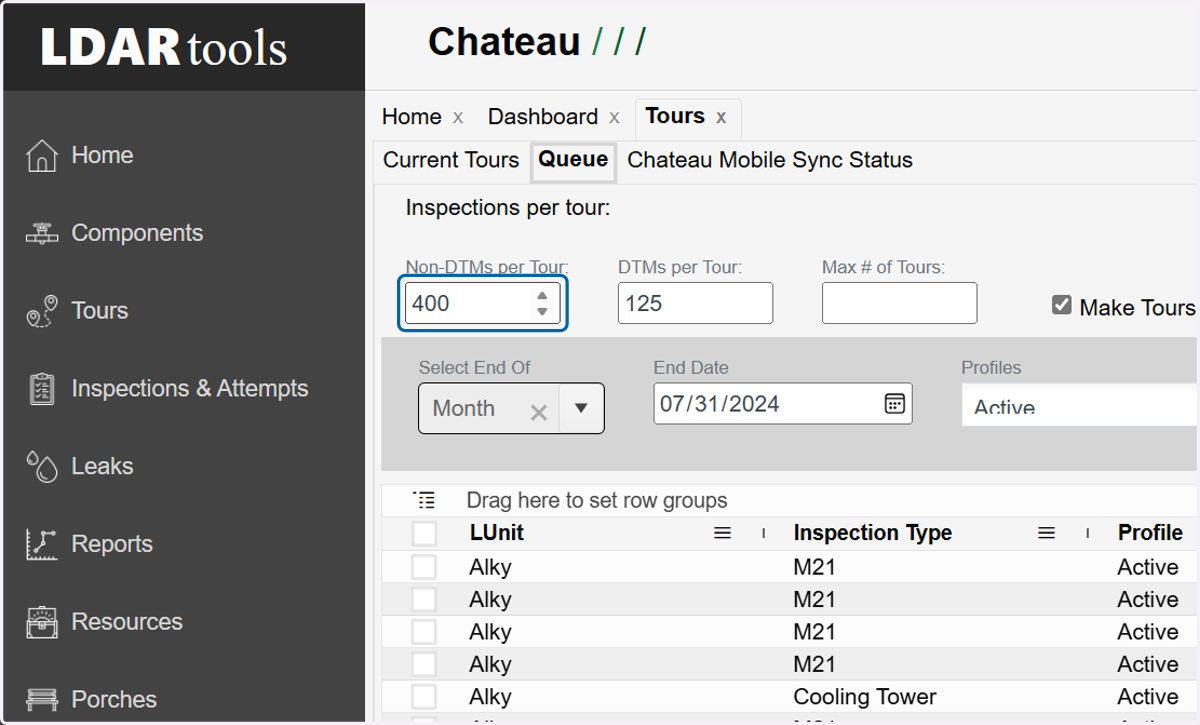
    How many Normal to Monitor components do you want in a tour?
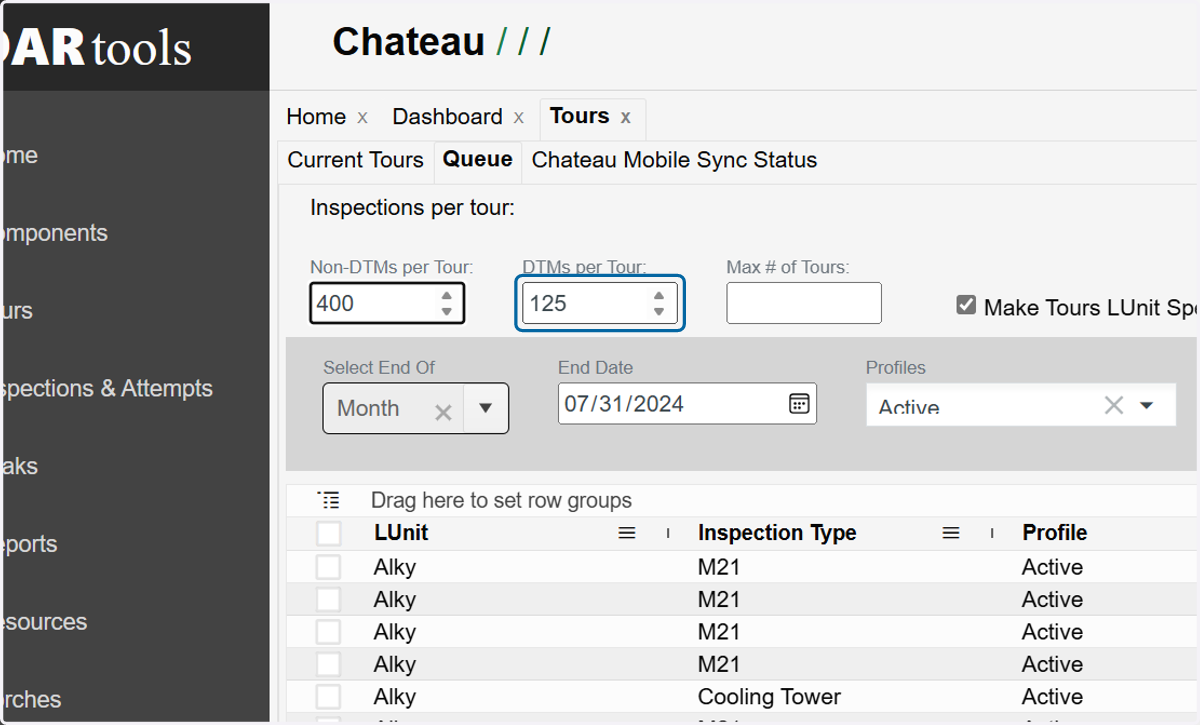
  4. 4. How many Difficult to Monitor components do you want in a tour?

    How many Difficult to Monitor components do you want in a tour?
  5. 5. How many tours do you want to build?
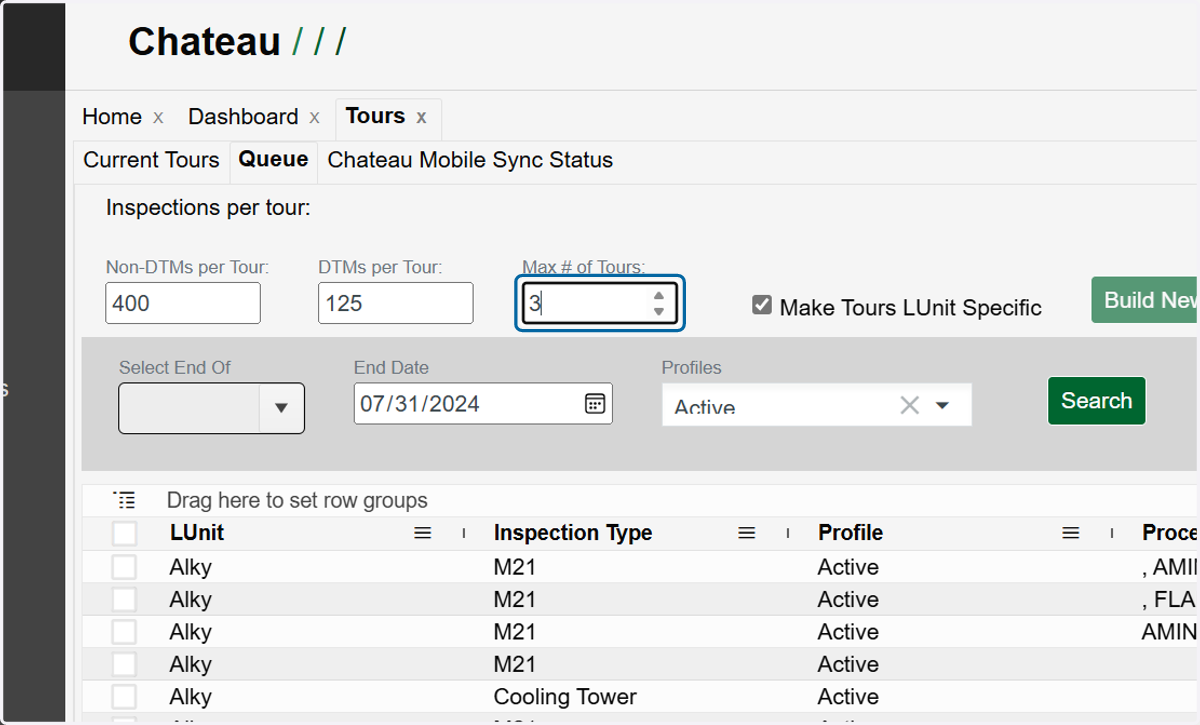
    How many tours do you want to build?
  6. 6. Use Select End of if you want to search for components by frequency. Click the X to clear this dropdown and ignore it if you don't.
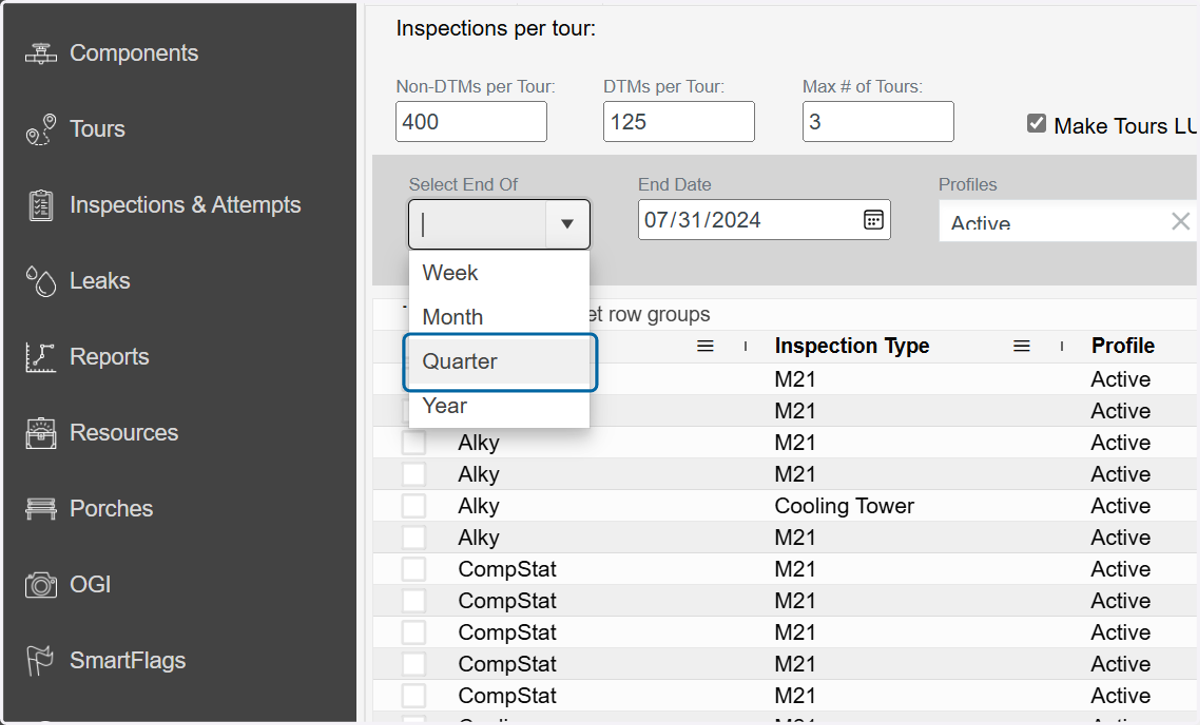
    Use Select End of if you want to search for components by frequency. Click the X to clear this dropdown and ignore it if you don't.
  7. 7. Use the End Date field if you want to search for components due on OR BY a specific end date.
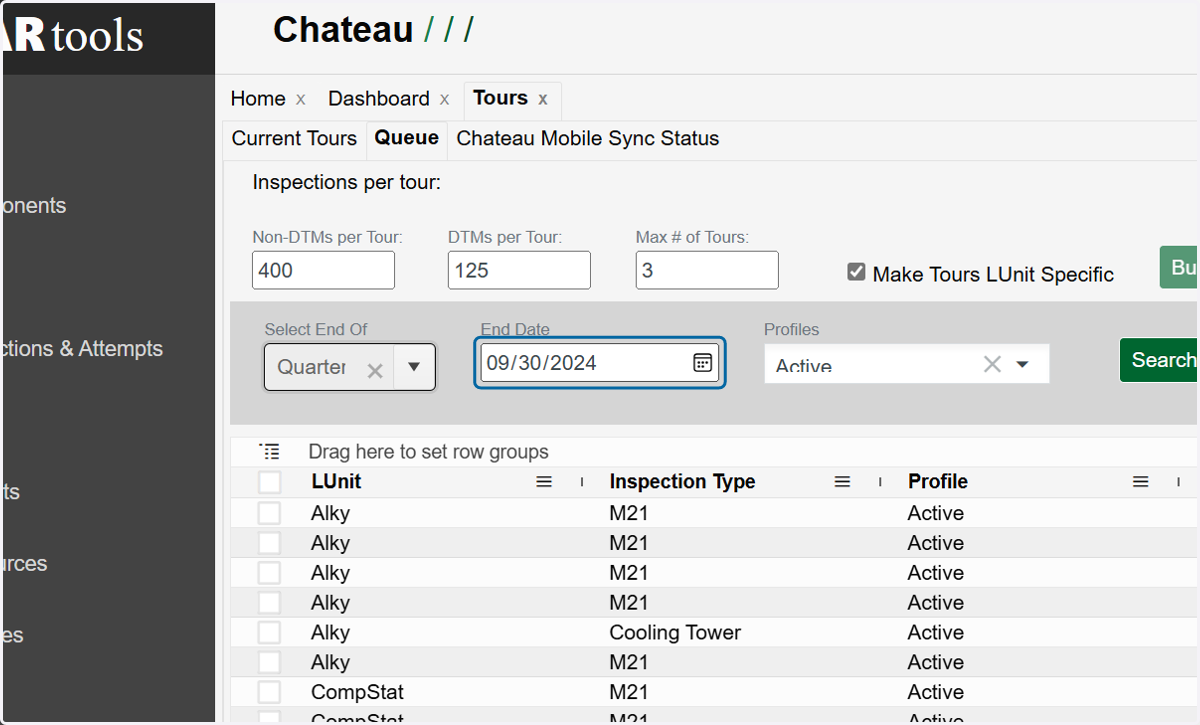
    Use the End Date field if you want to search for components due on OR BY a specific end date.
  8. 8. Use the Profiles dropdown if you want to exclude specific profiles like TUx components (out of service) from the tours.
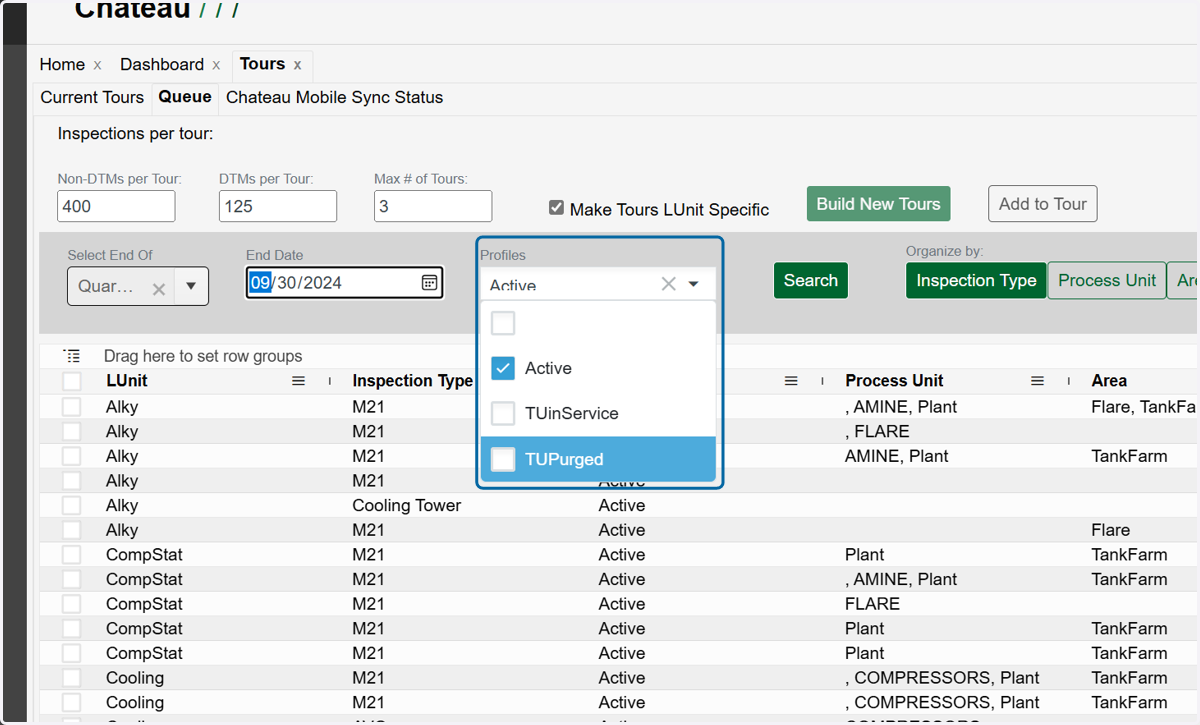
    Use the Profiles dropdown if you want to exclude specific profiles like TUx components (out of service) from the tours.
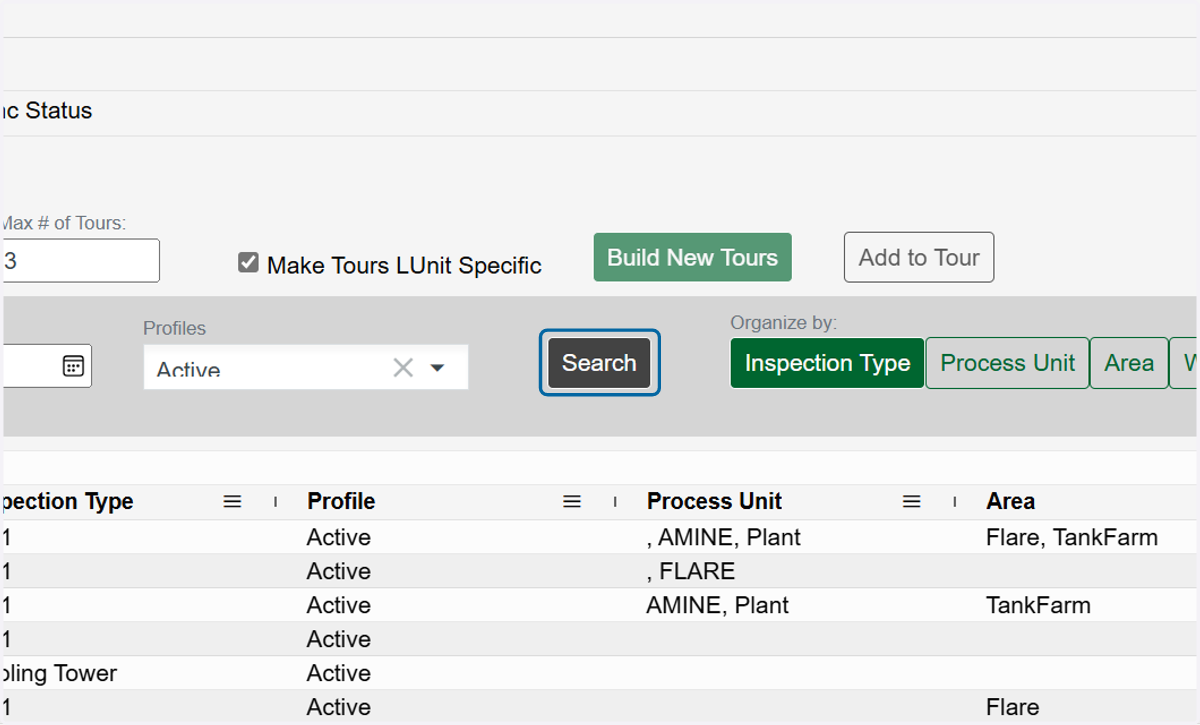
  9. 9. Click on Search

    Click on Search
  10. 10. Select the rows you want to add to tours. Note: Each row can represent multiple components, Look for the Inspections column if you're curious.
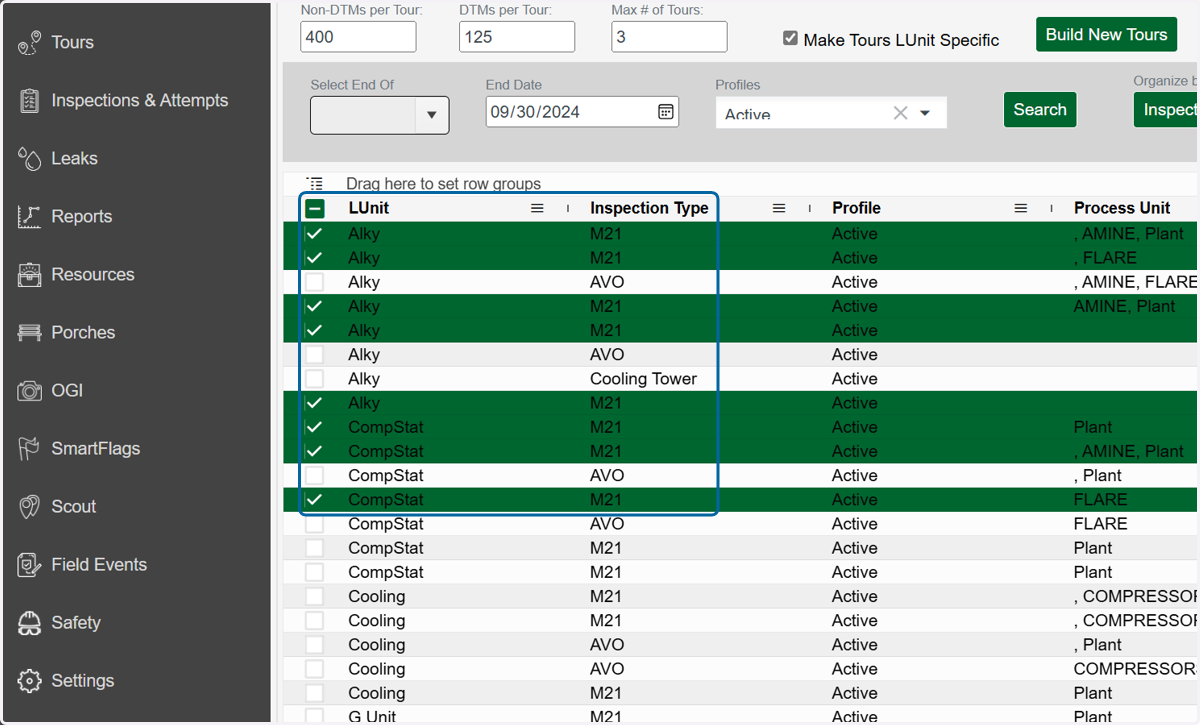
    Select the rows you want to add to tours. Note: Each row can represent multiple components, Look for the Inspections column if you're curious.
  11. 11. Click on Build New Tours and you're done.
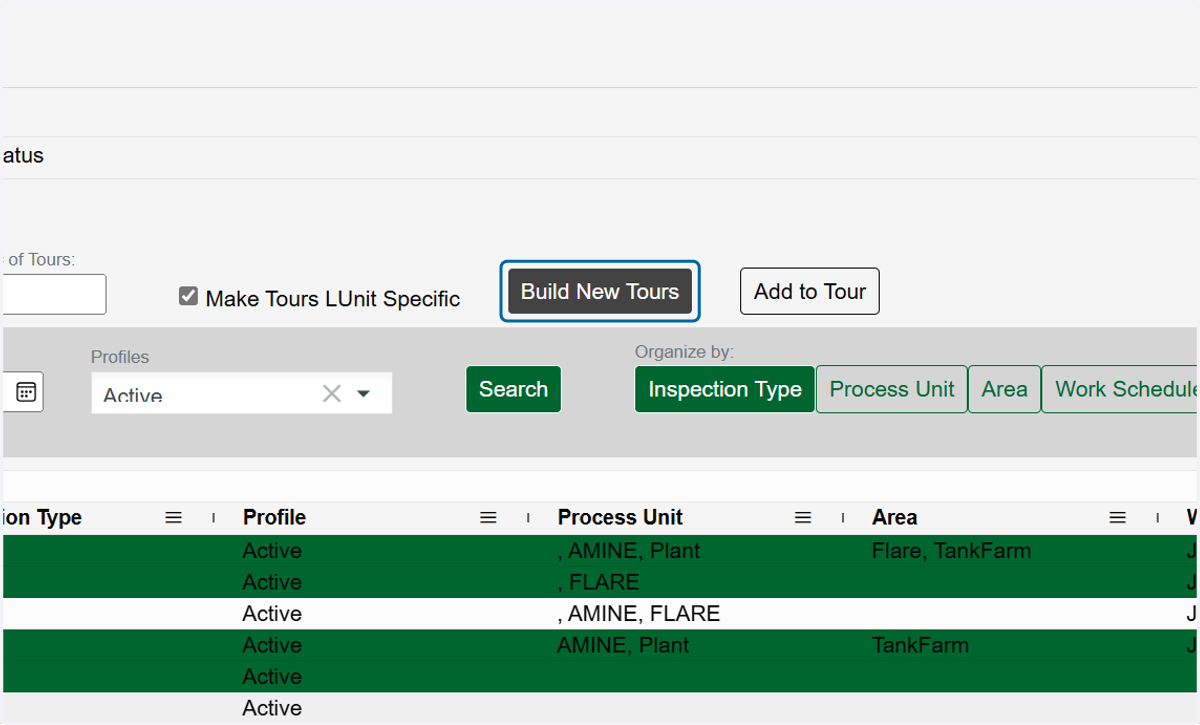
    Click on Build New Tours and you're done.
  12. 12. If you want to add to an existing tour instead, click on Add to Tour.
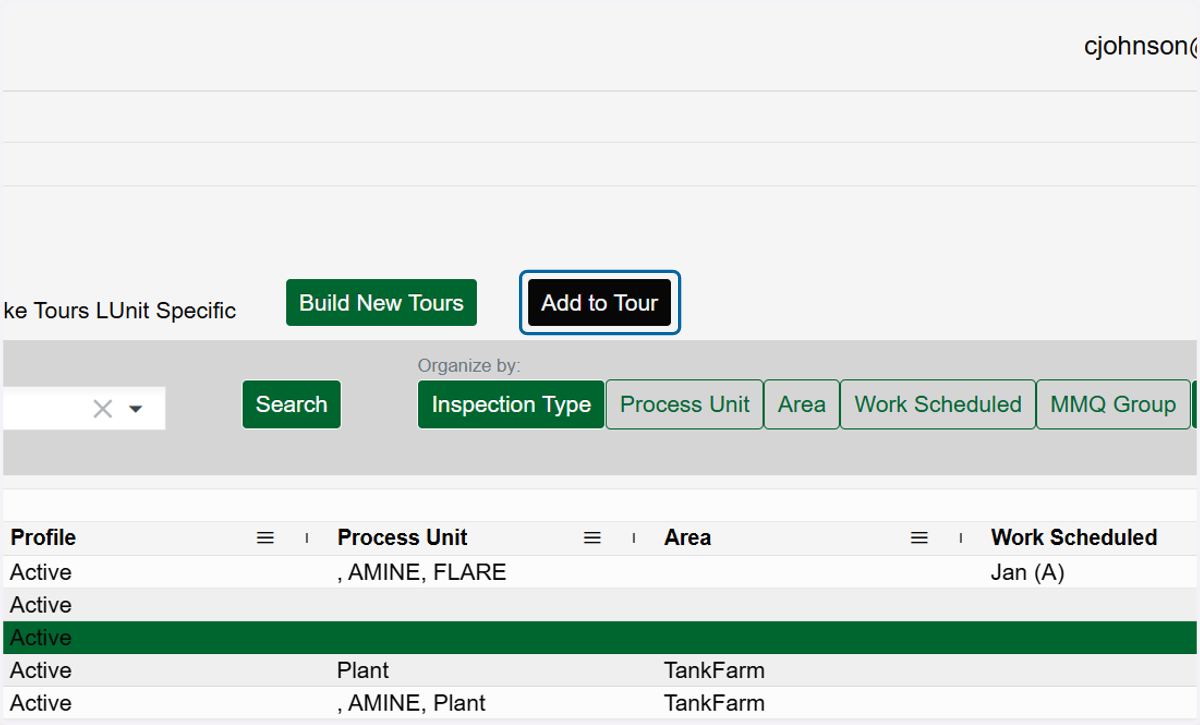
    If you want to add to an existing tour instead, click on Add to Tour.
  13. 13. Select the tour to which you wish to add the components.
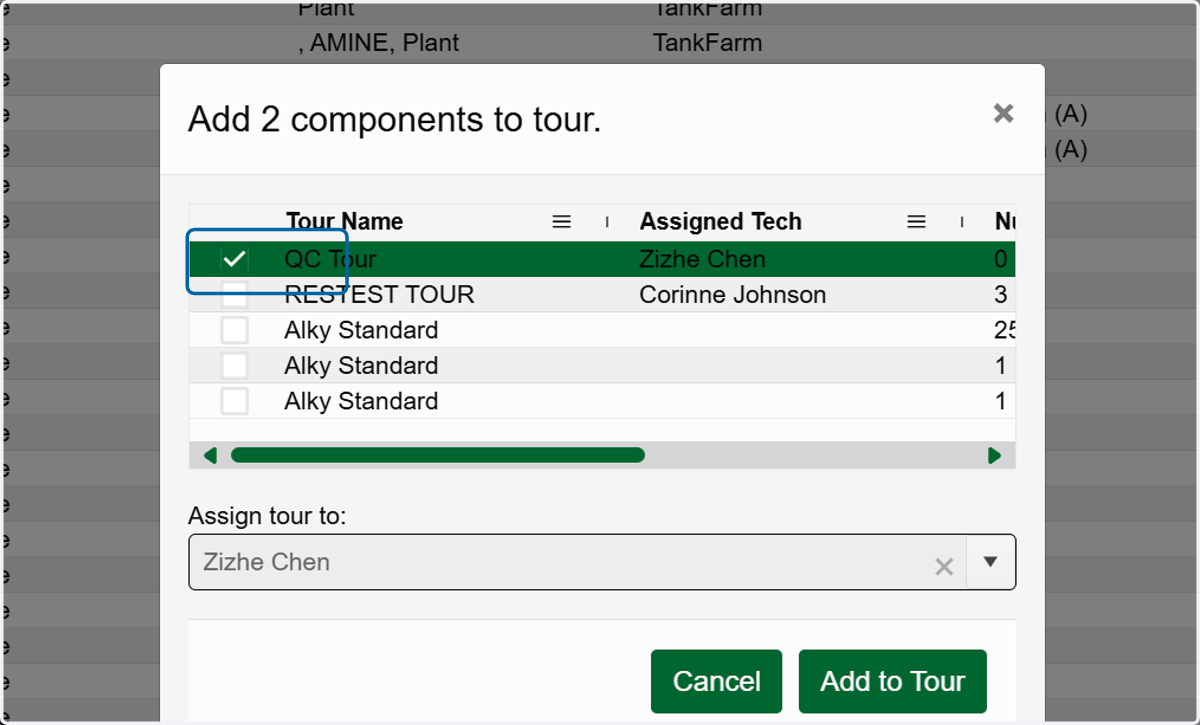
    Select the tour to which you wish to add the components.
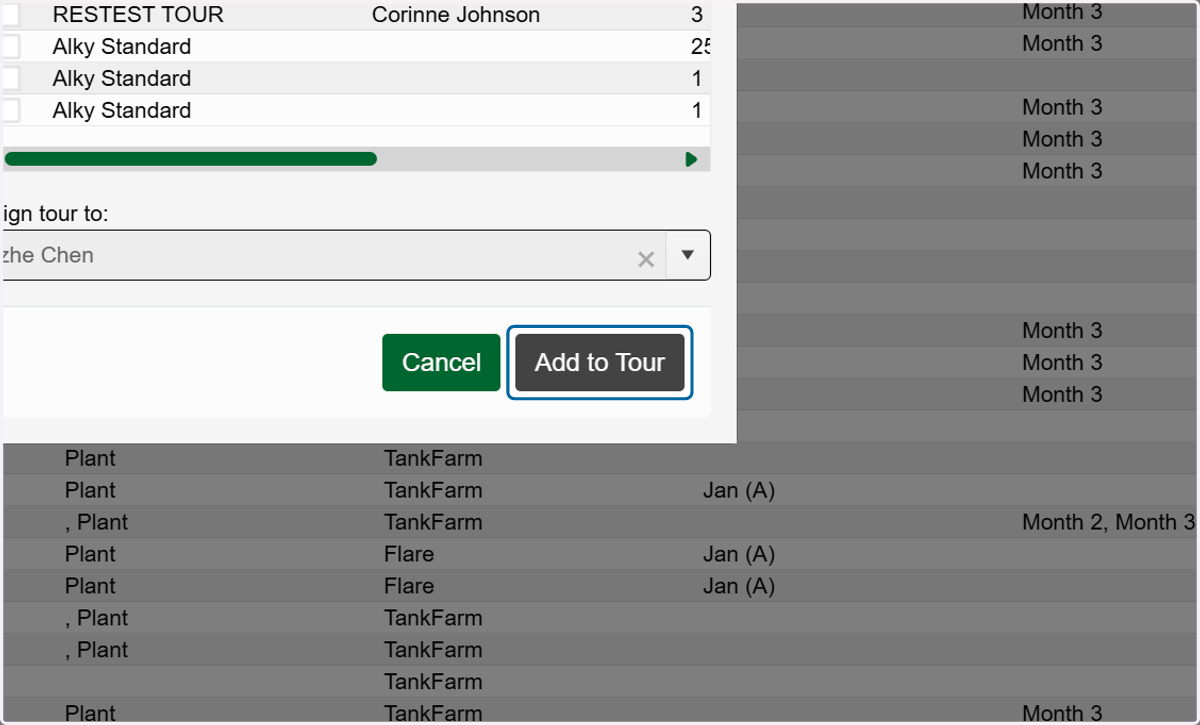
  14. 14. Click on Add to Tour

    Click on Add to Tour