Workflow with Resellerratings

Resellerratings

  1. 1. Go to www.resellerratings.com

  2. 2. Click on RR User

    Click on RR User
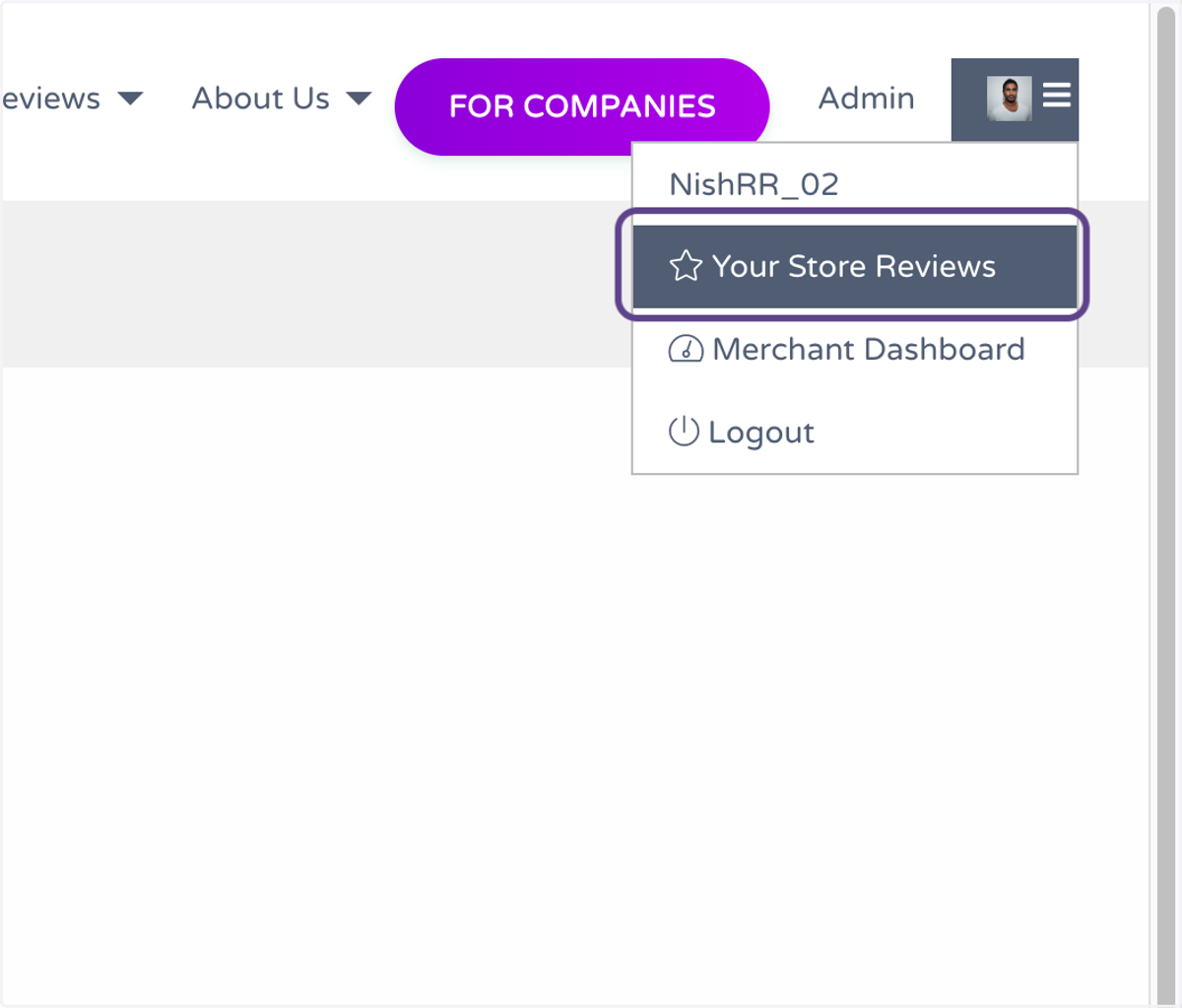
  3. 3. Click on  Your Store Reviews

    Click on Your Store Reviews
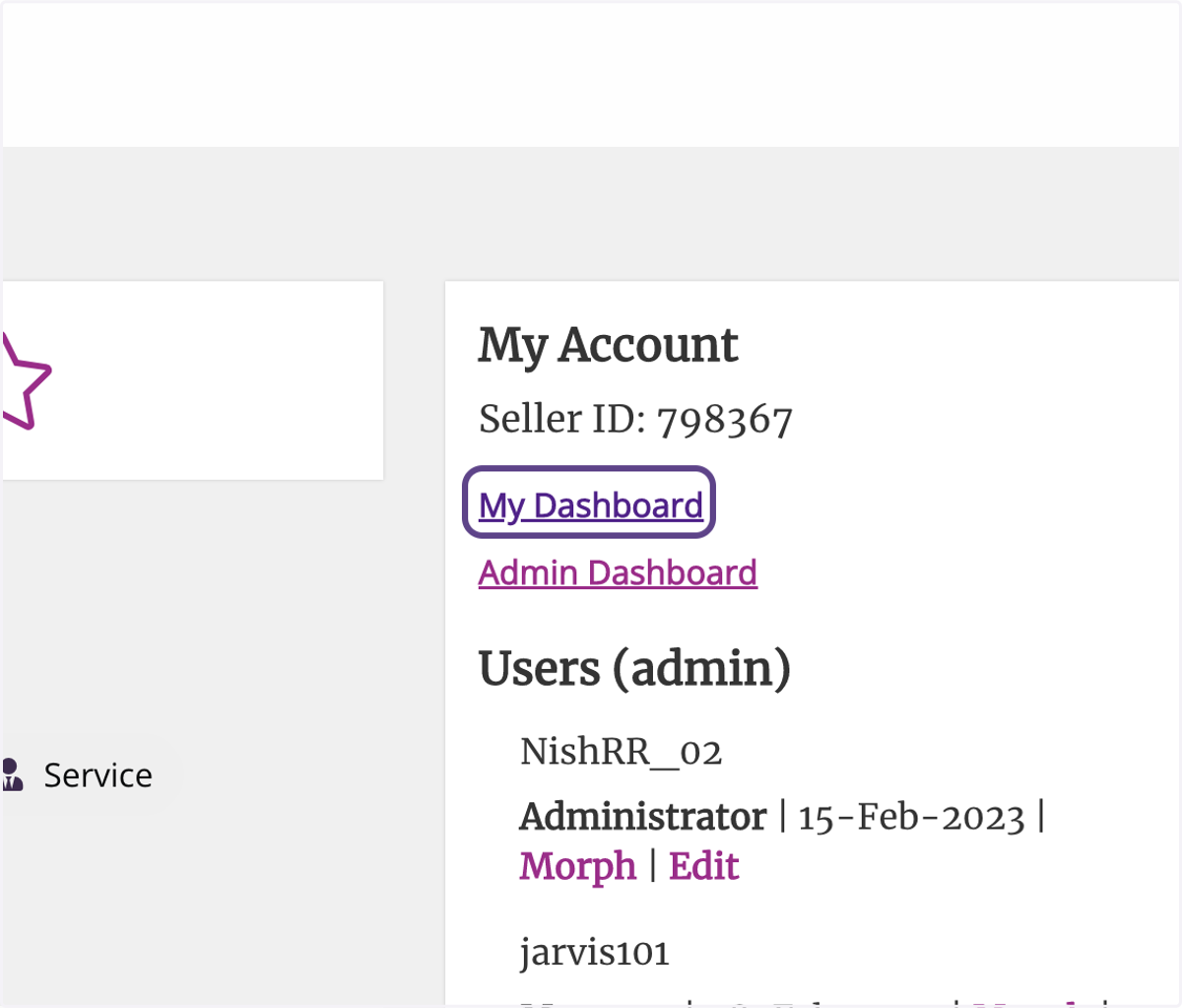
  4. 4. Click on My Dashboard

    Click on My Dashboard
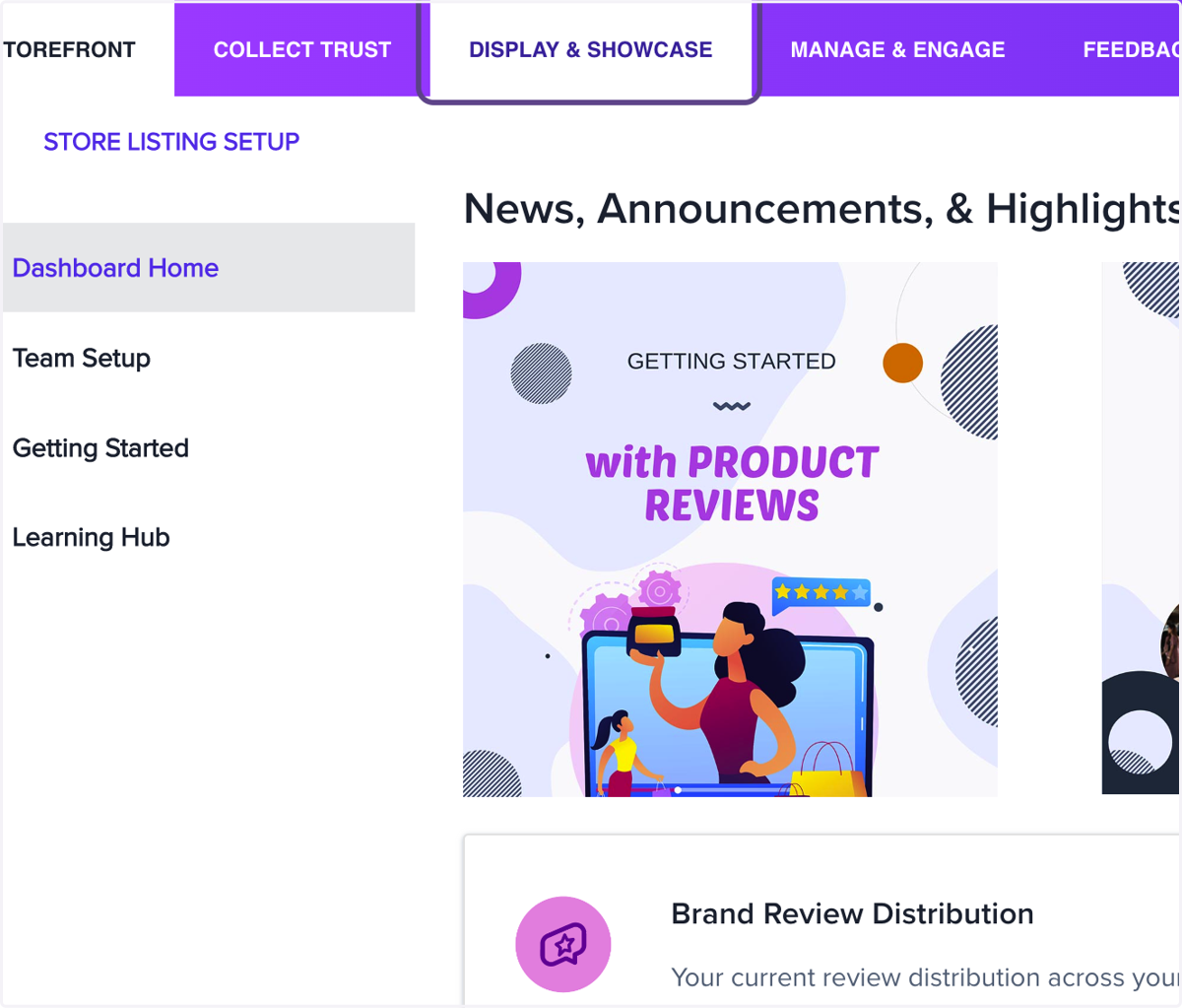
  5. 5. Click on Display & Showcase

    Click on Display & Showcase
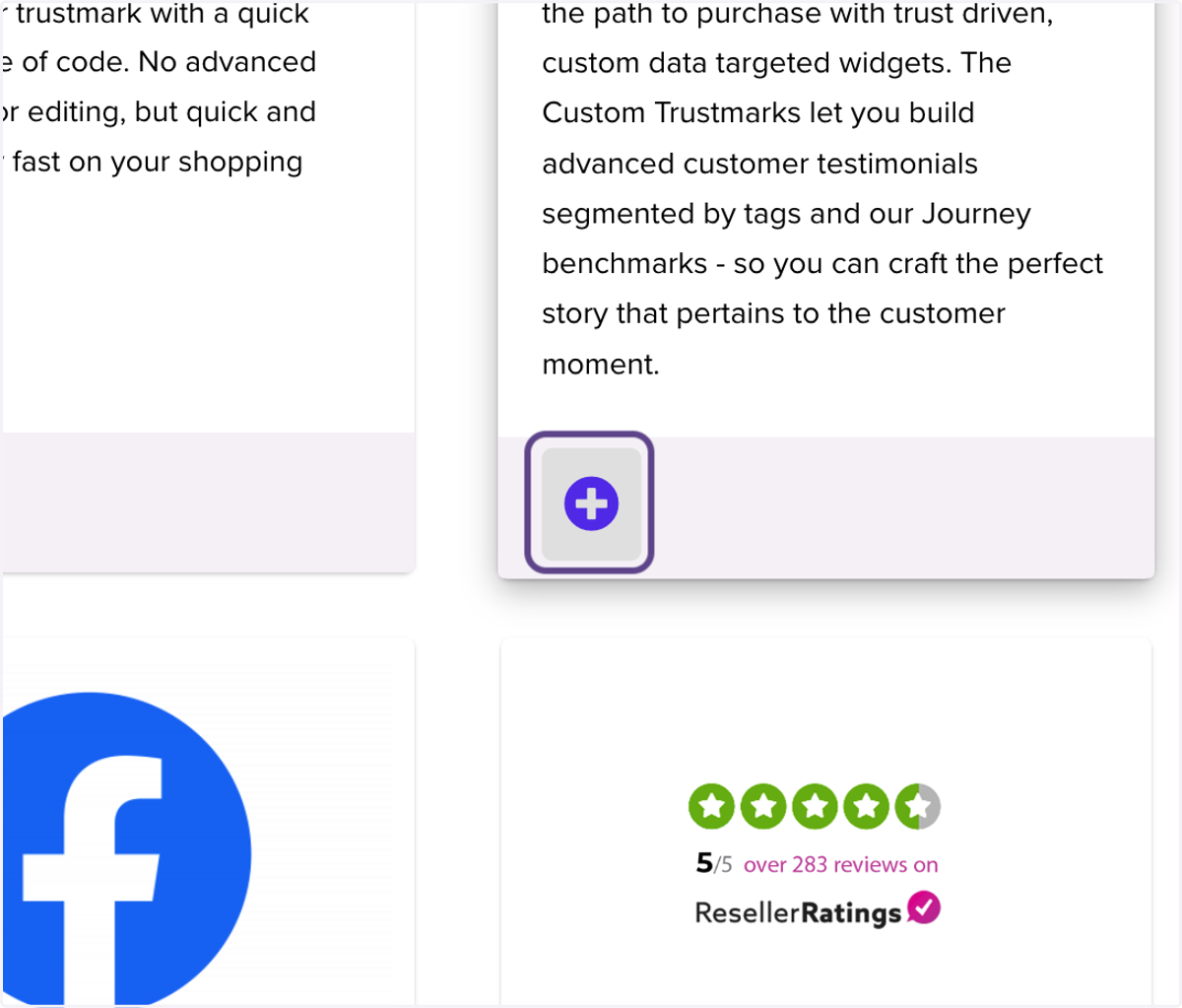
  6. 6. Click on highlight

    Click on highlight
  7. 7. Click on Customize and Create this Widget
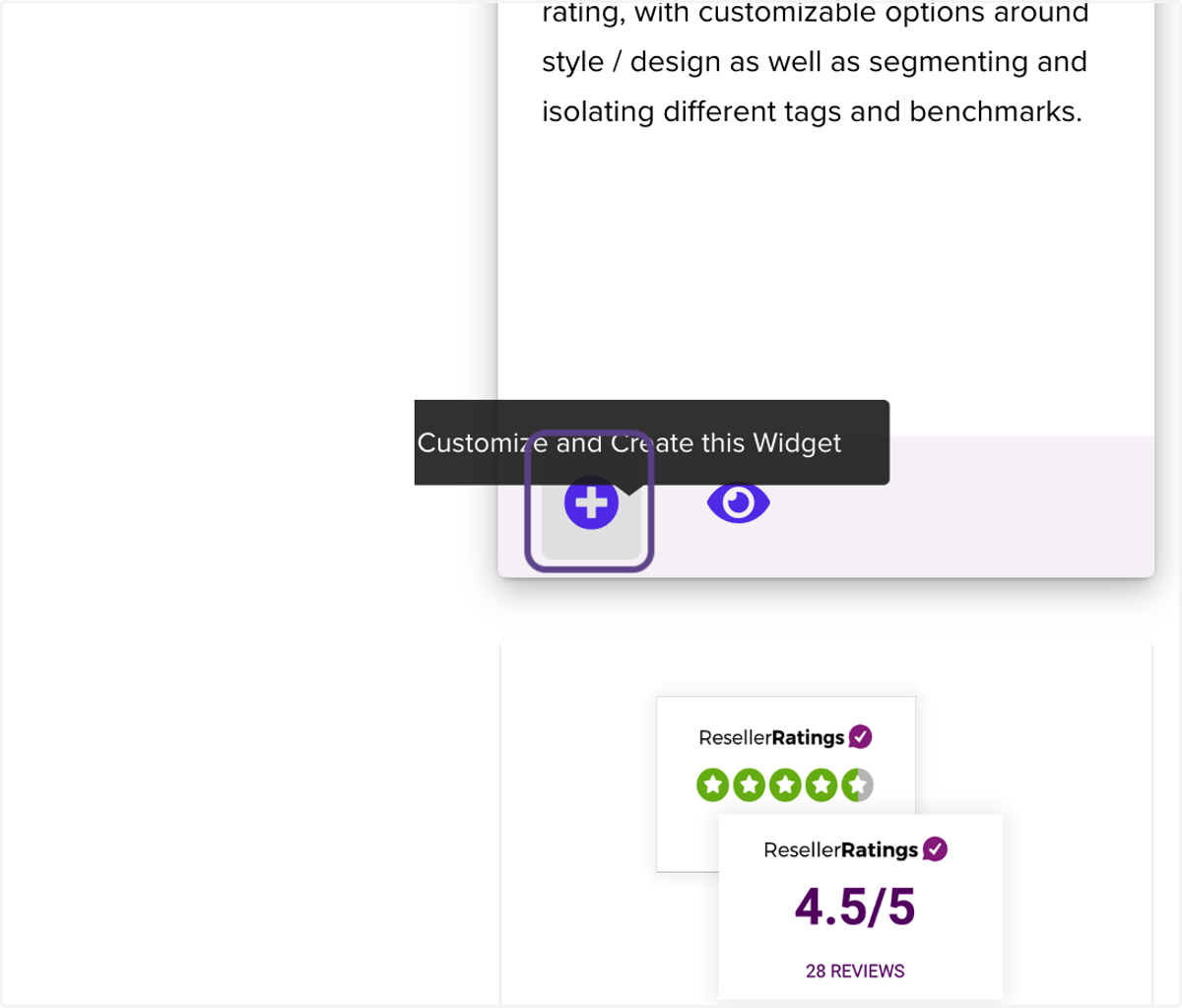
    Click on Customize and Create this Widget
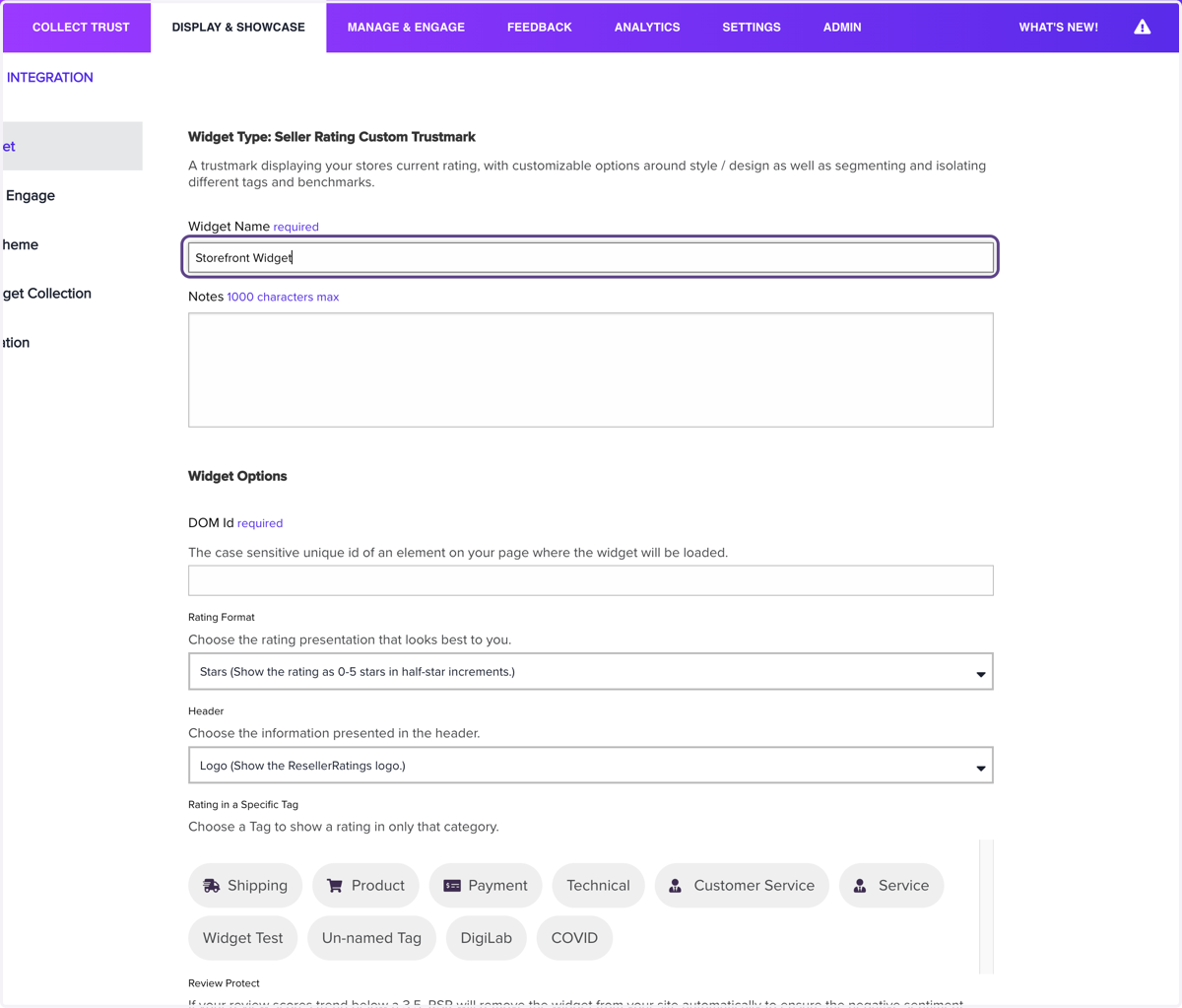
  8. 8. Type "Storefront Widget"

    Type "Storefront Widget"
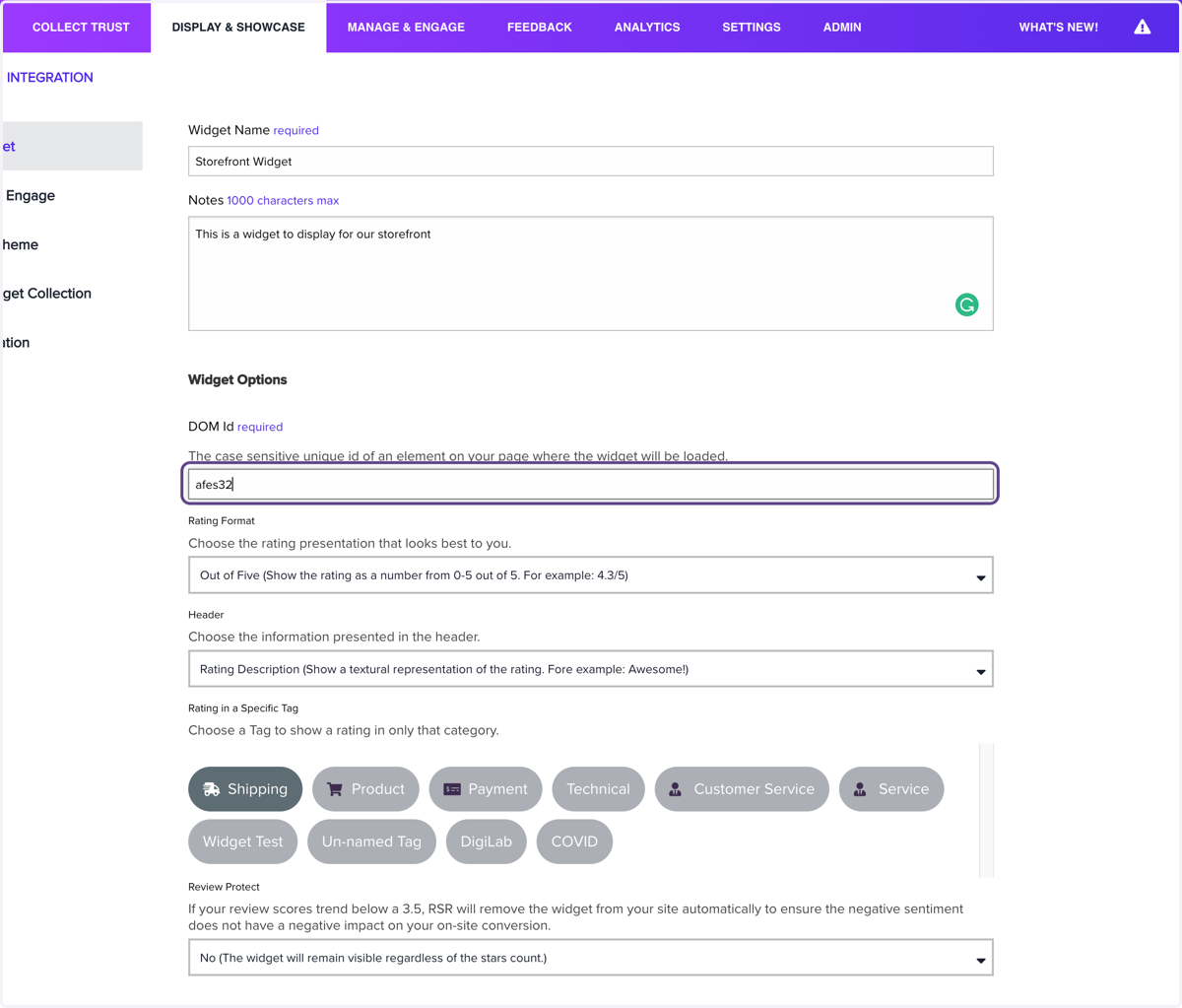
  9. 9. Type "This is a widget to display for our storefront"
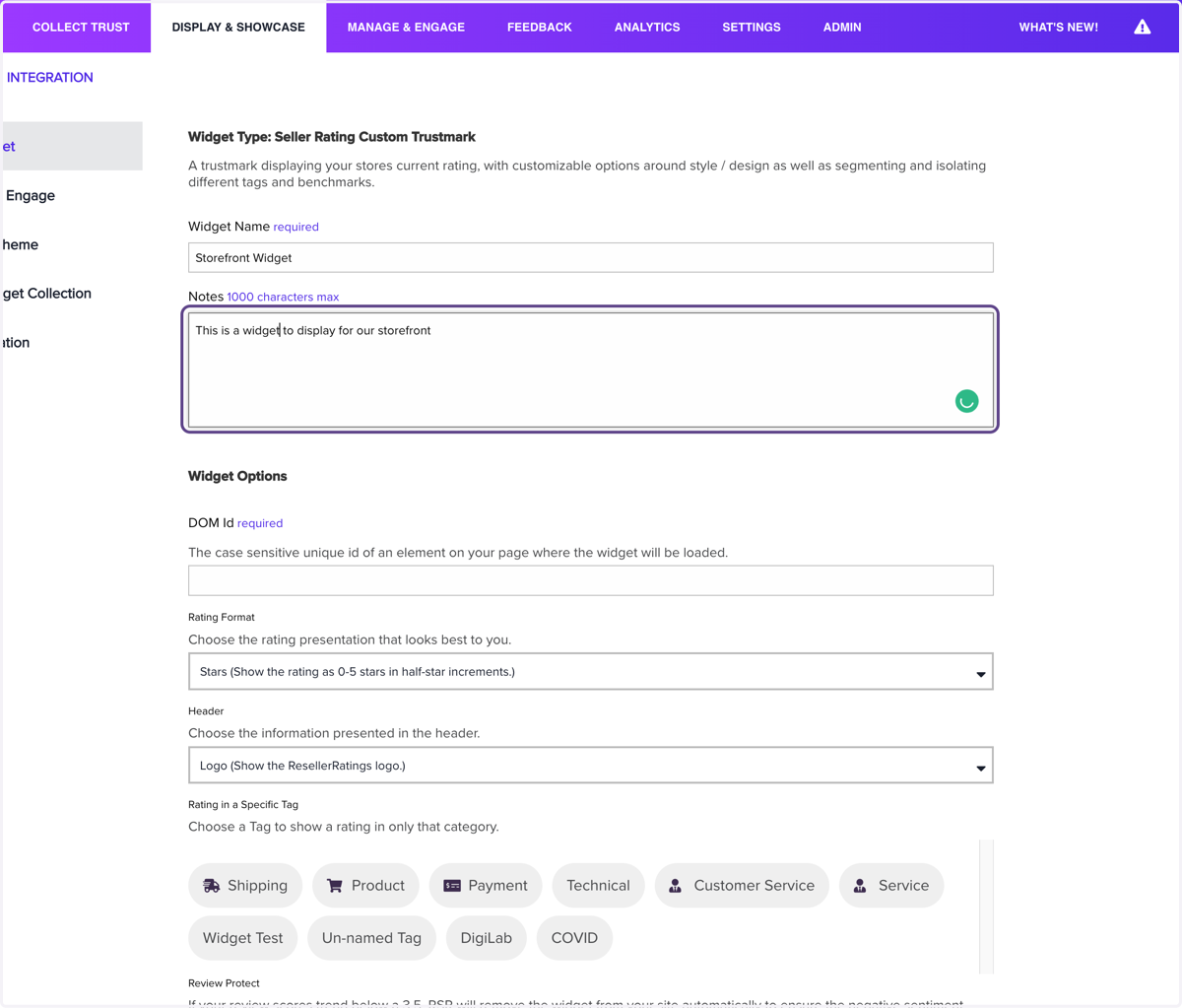
    Type "This is a widget to display for our storefront"
  10. 10. Click on Stars (Show the rating as 0-5 stars in half-star increments.)
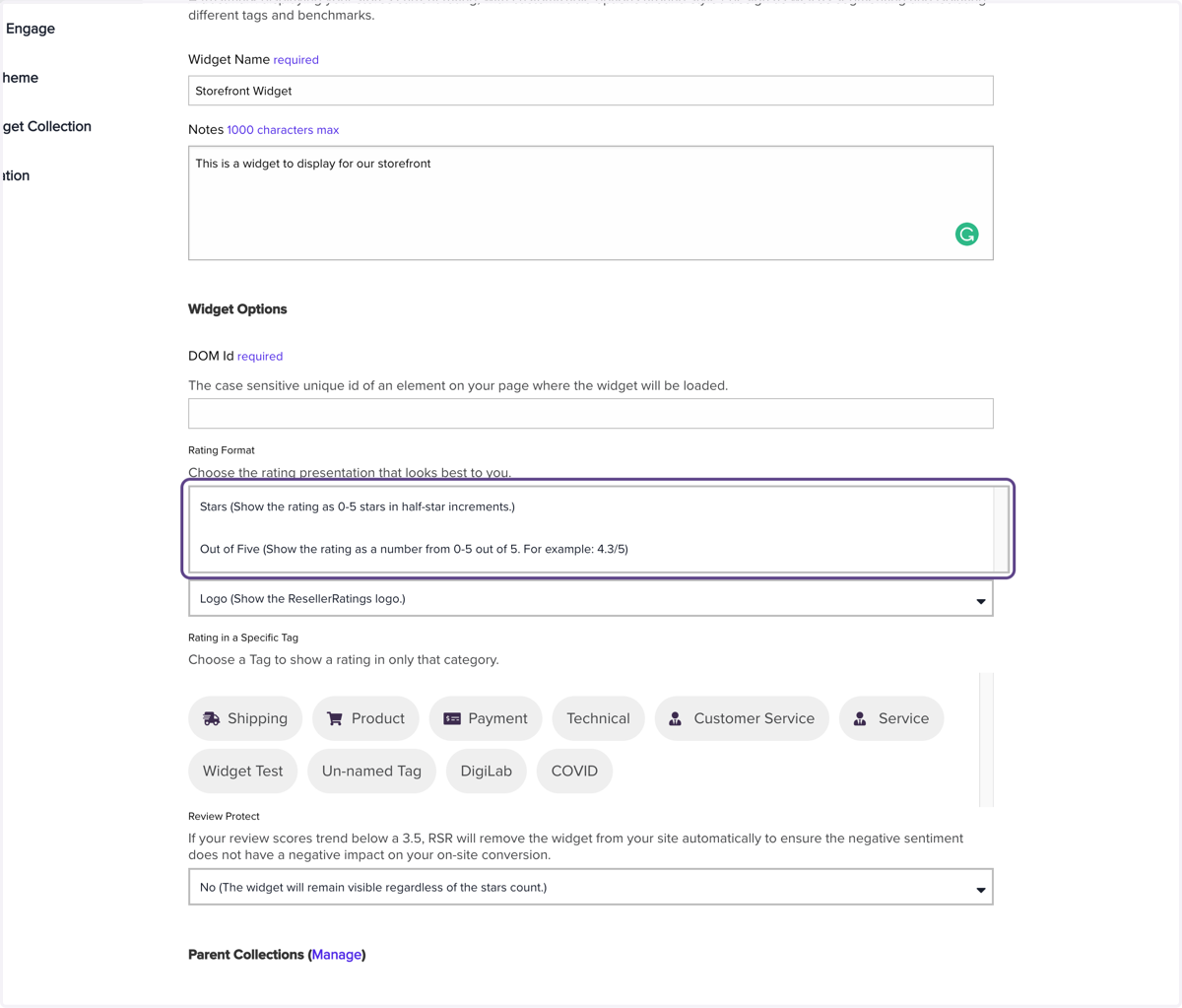
    Click on Stars (Show the rating as 0-5 stars in half-star increments.)
  11. 11. Click on Out of Five (Show the rating as a number from 0-5 out of 5. For example: 4.3/5)
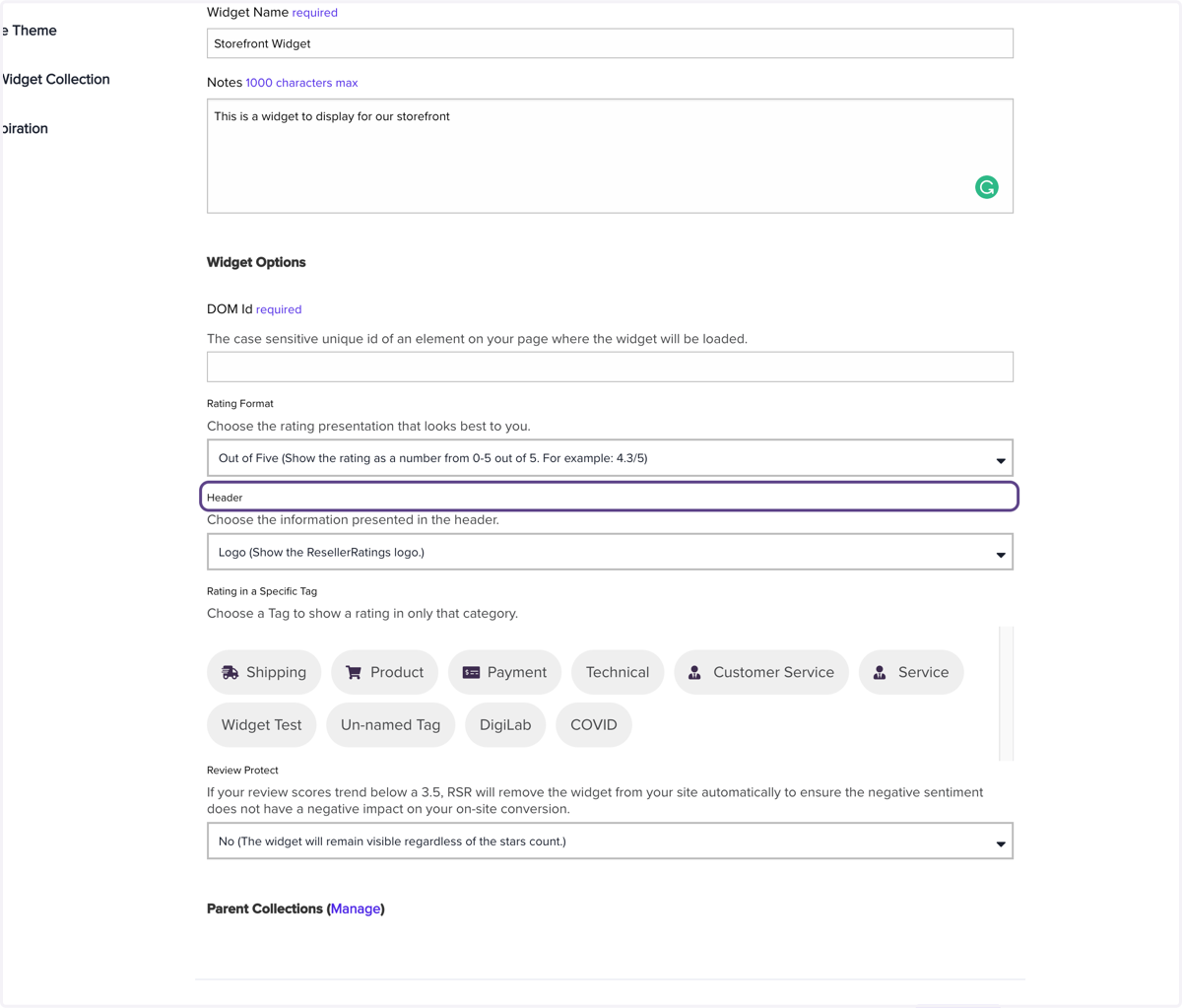
    Click on Out of Five (Show the rating as a number from 0-5 out of 5. For example: 4.3/5)
  12. 12. Click on Logo (Show the ResellerRatings logo.)
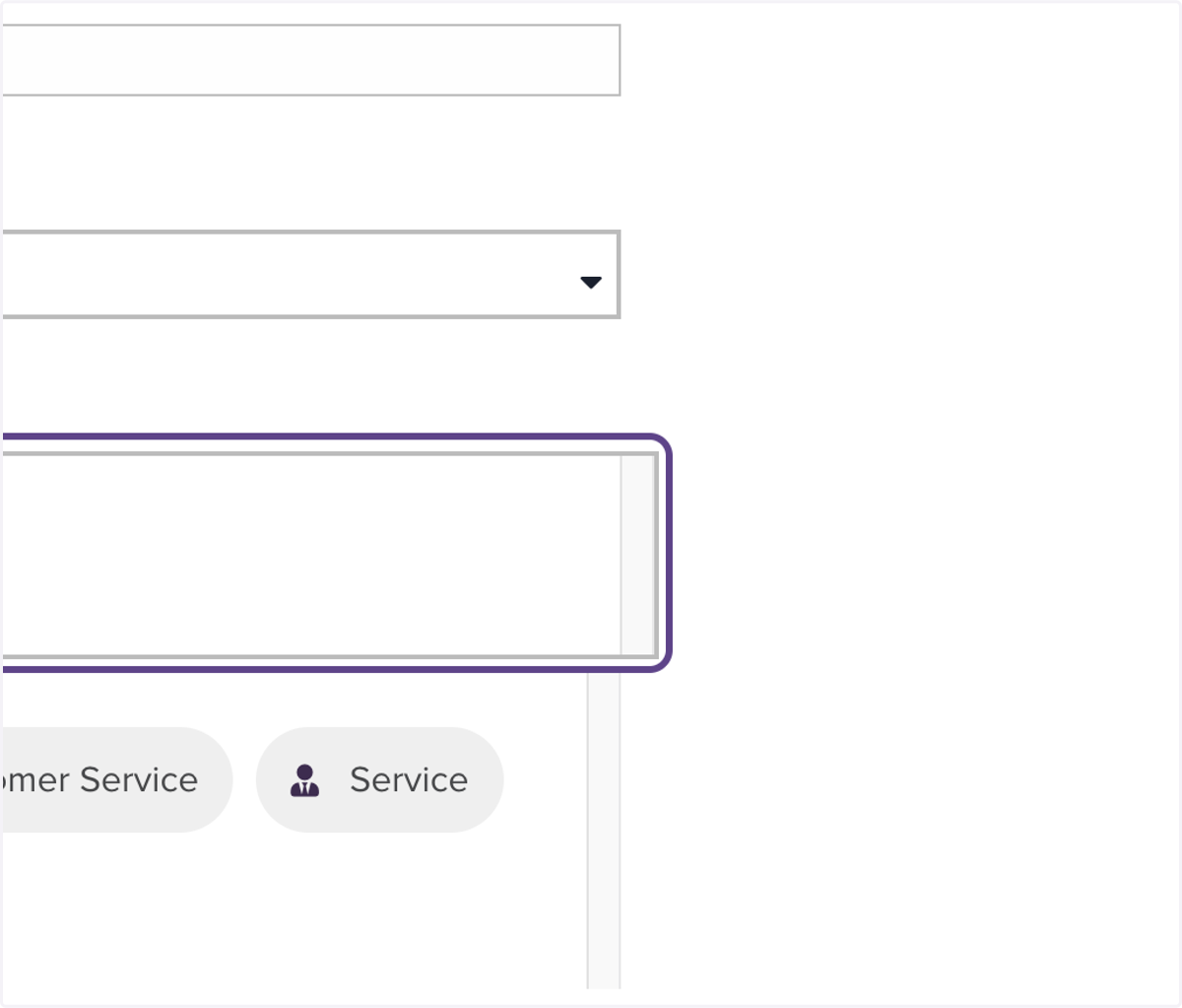
    Click on Logo (Show the ResellerRatings logo.)
  13. 13. Click on Rating Description (Show a textural representation of the rating. Fore example: Awesome!)
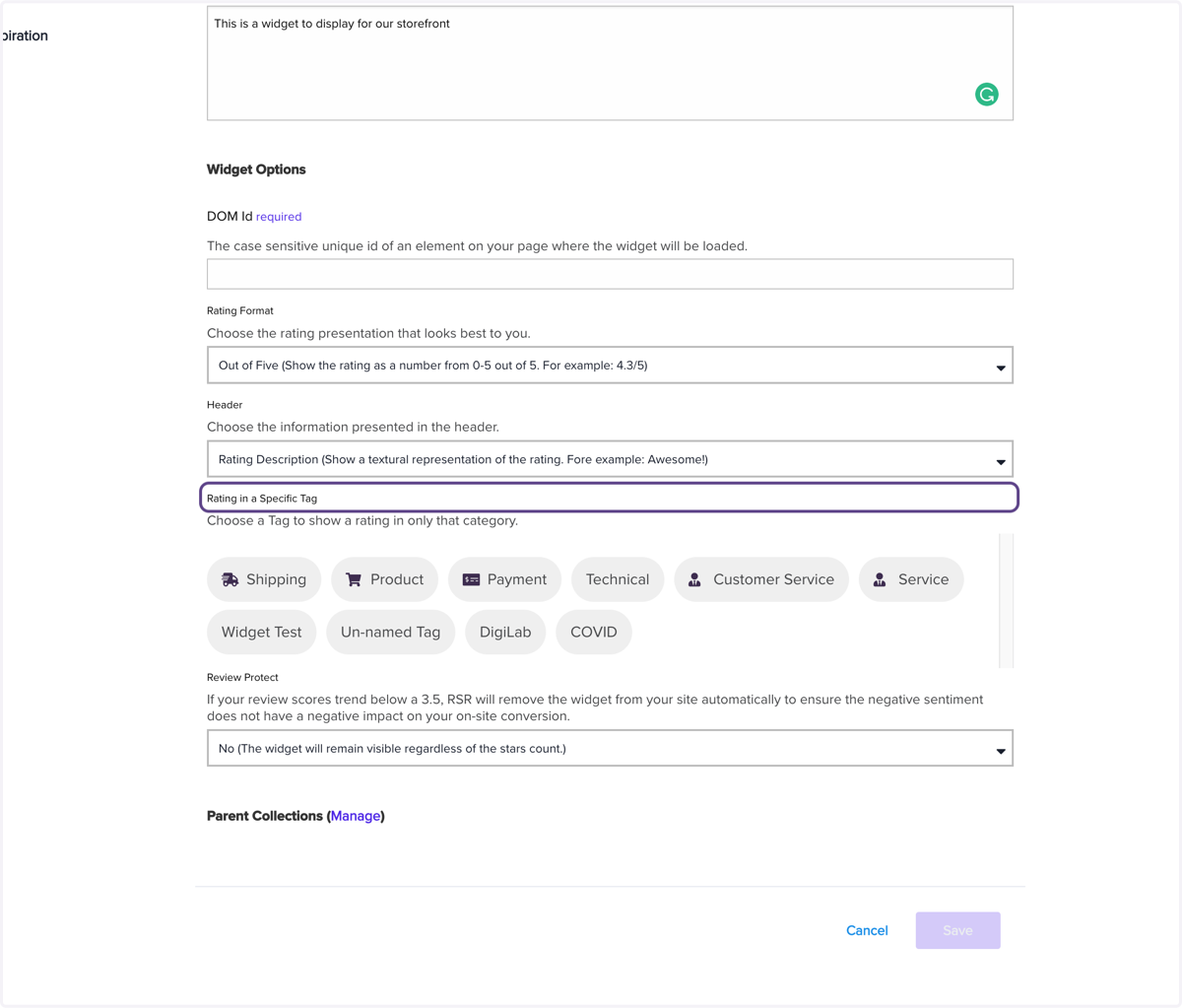
    Click on Rating Description (Show a textural representation of the rating. Fore example: Awesome!)
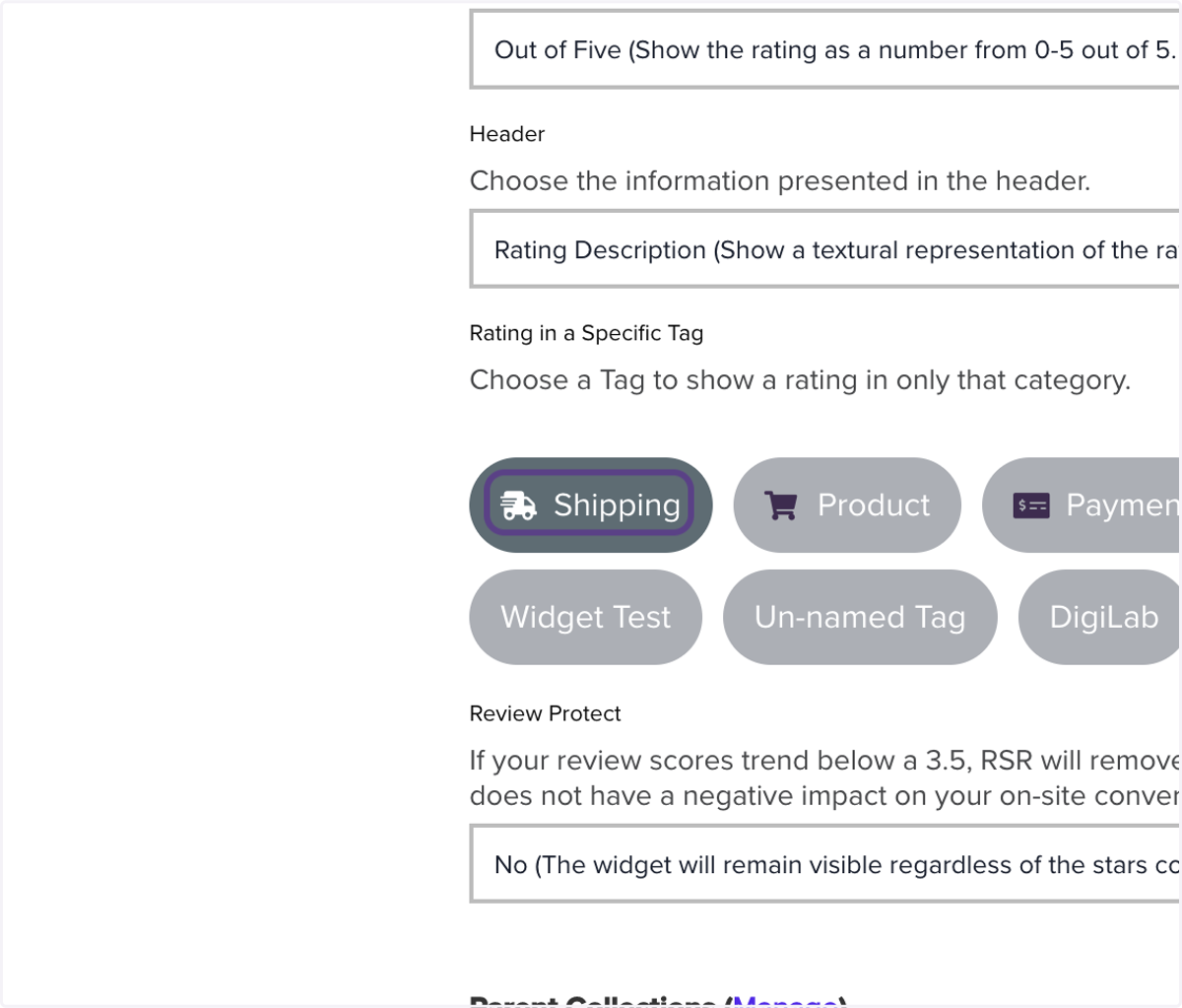
  14. 14. Click on Shipping

    Click on Shipping
  15. 15. Type "23213"

  16. 16. Click on Widget Type: Seller Rating Custom Trustmark…
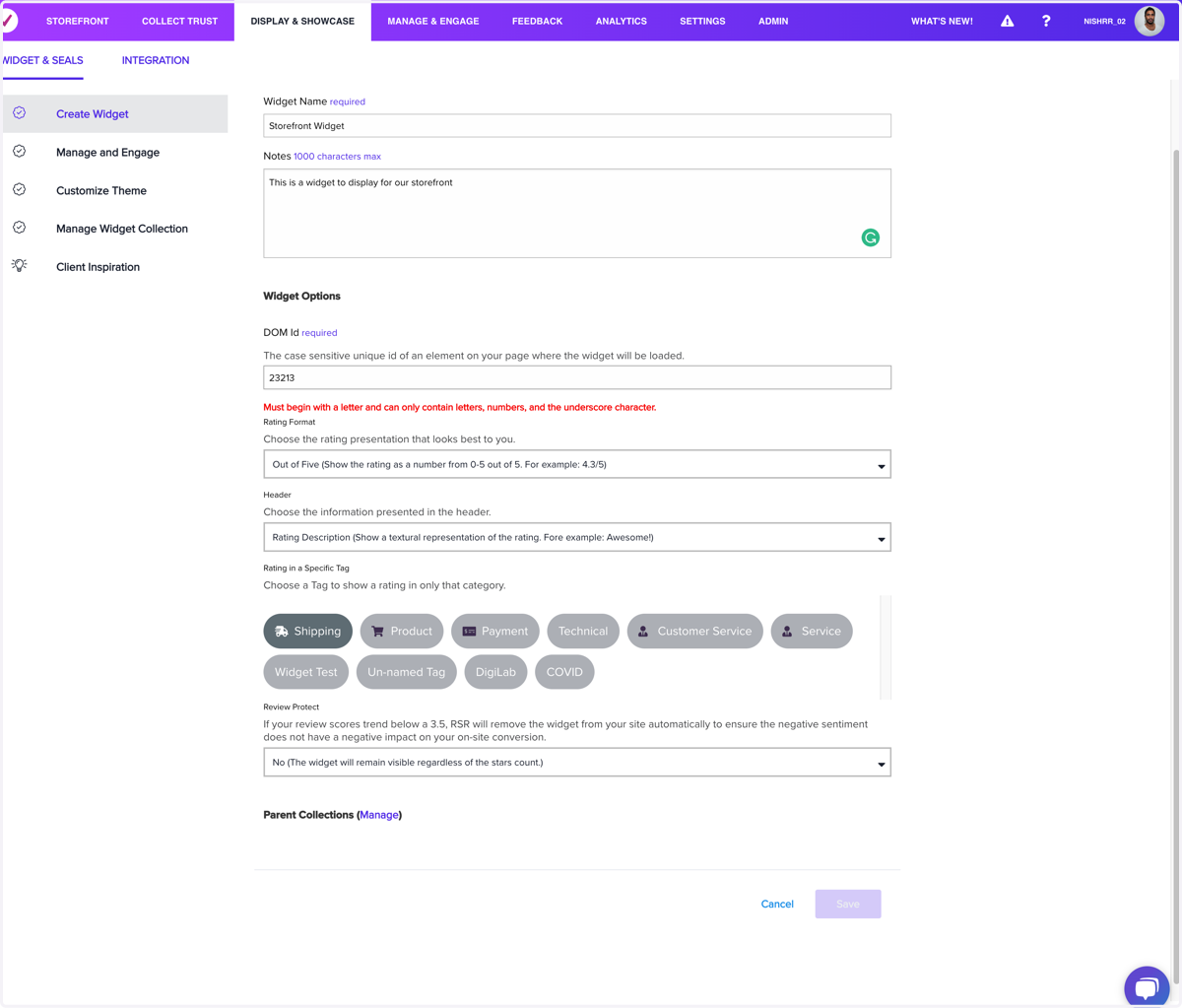
    Click on Widget Type: Seller Rating Custom Trustmark…
  17. 17. Type "afes32"

    Type "afes32"
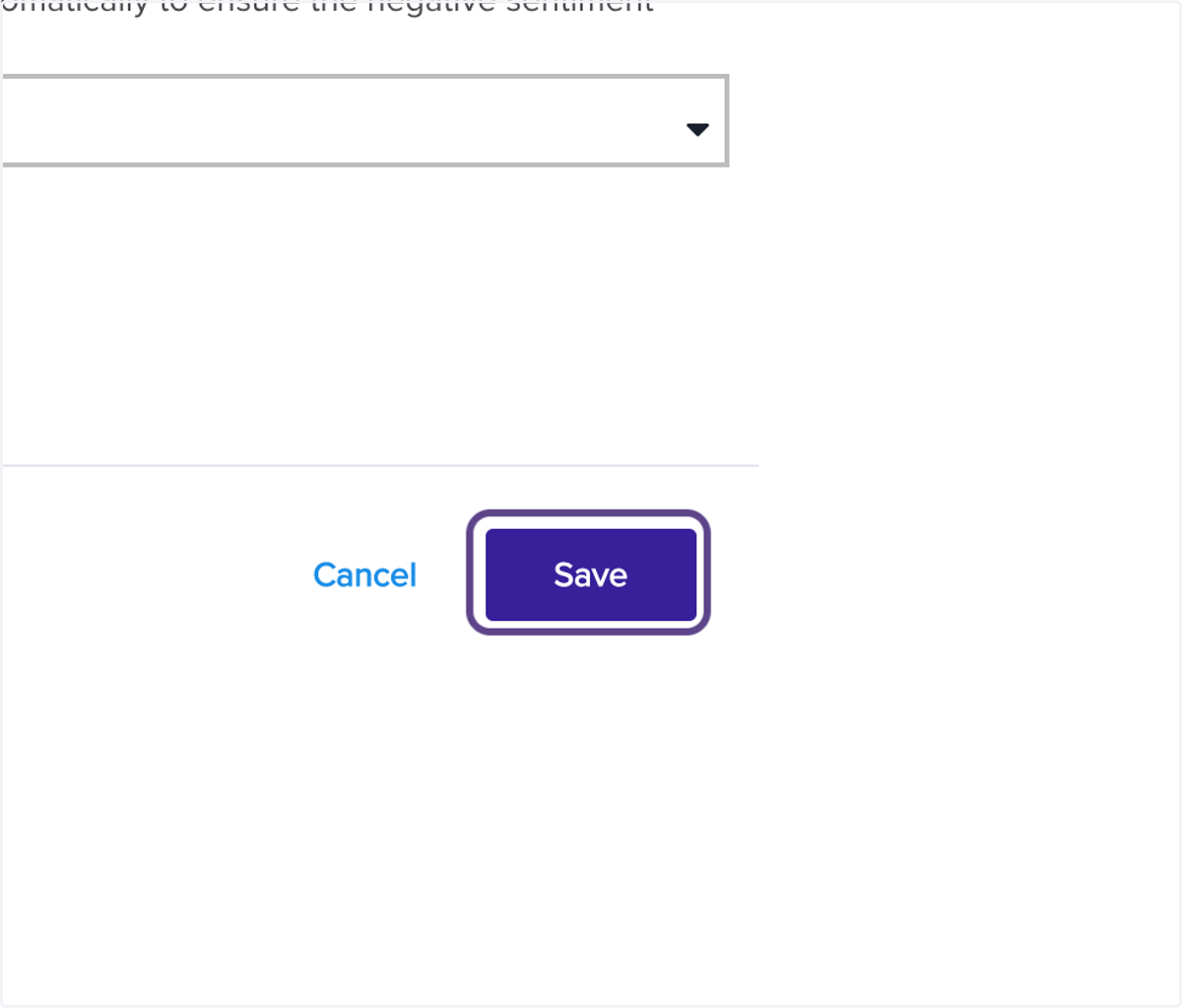
  18. 18. Click on Save

    Click on Save
  19. 19. Click on Manage and Engage

    Click on Manage and Engage
  20. 20. Click on highlight

    Click on highlight