Add a website link
You can add text links to help visitors find important information. The steps are the same for all Navigator items. This includes news, alerts, clinics, services, policies, common questions and jobs.
Login to your website dashboard to create or edit an item. In this example we will add a website link a new news item.
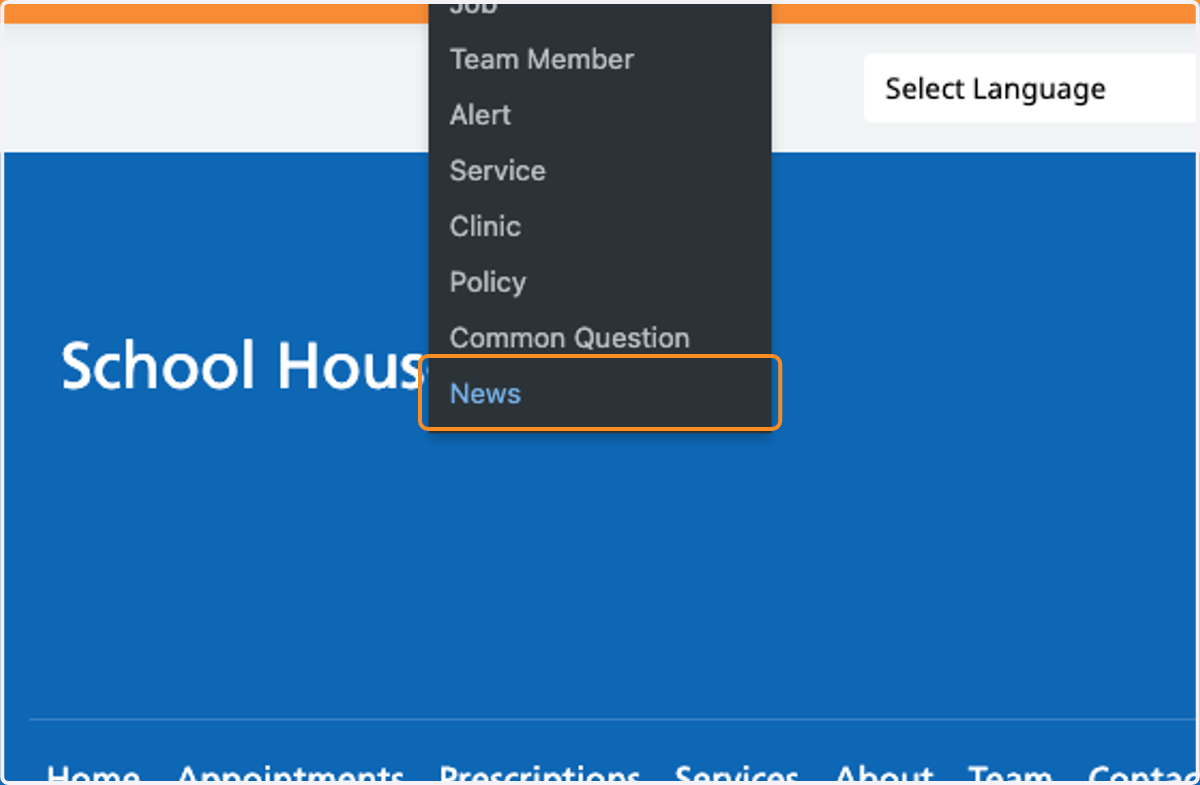
1. Click on News in the +New menu in the black bar.
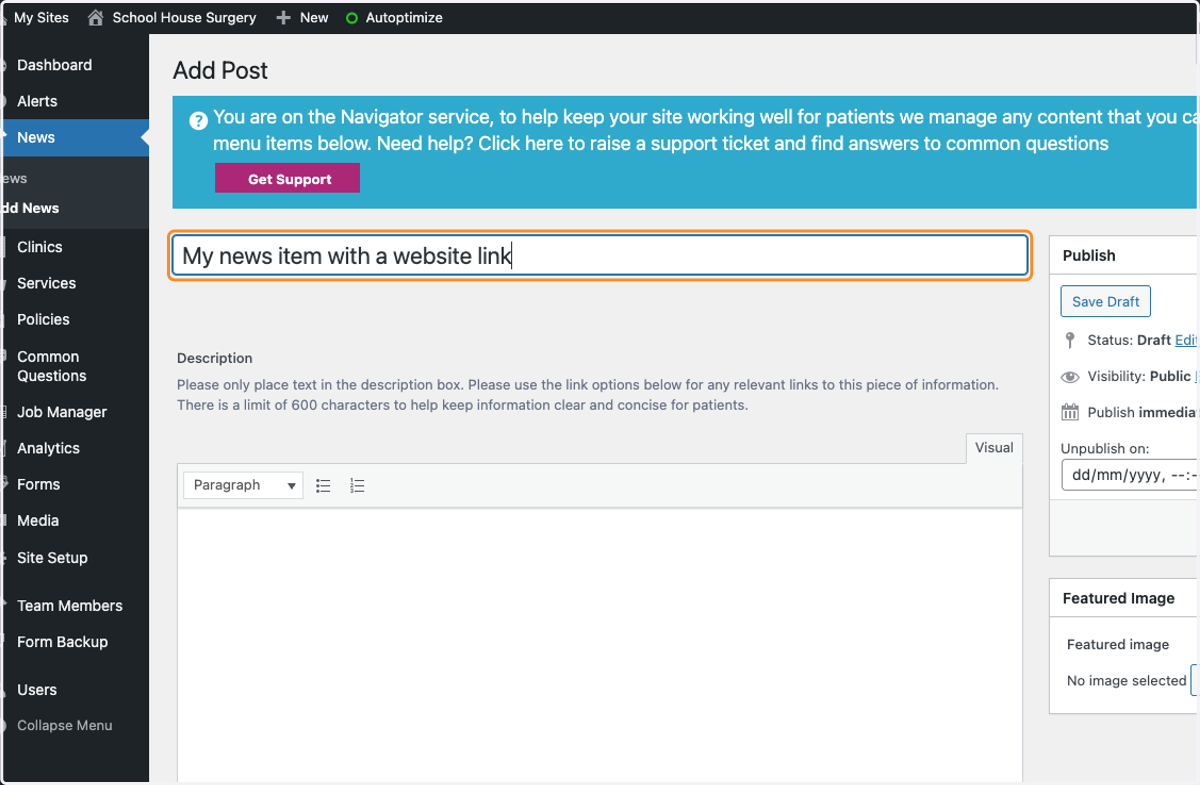
2. Type in your title. In this example "My news item with a website link"
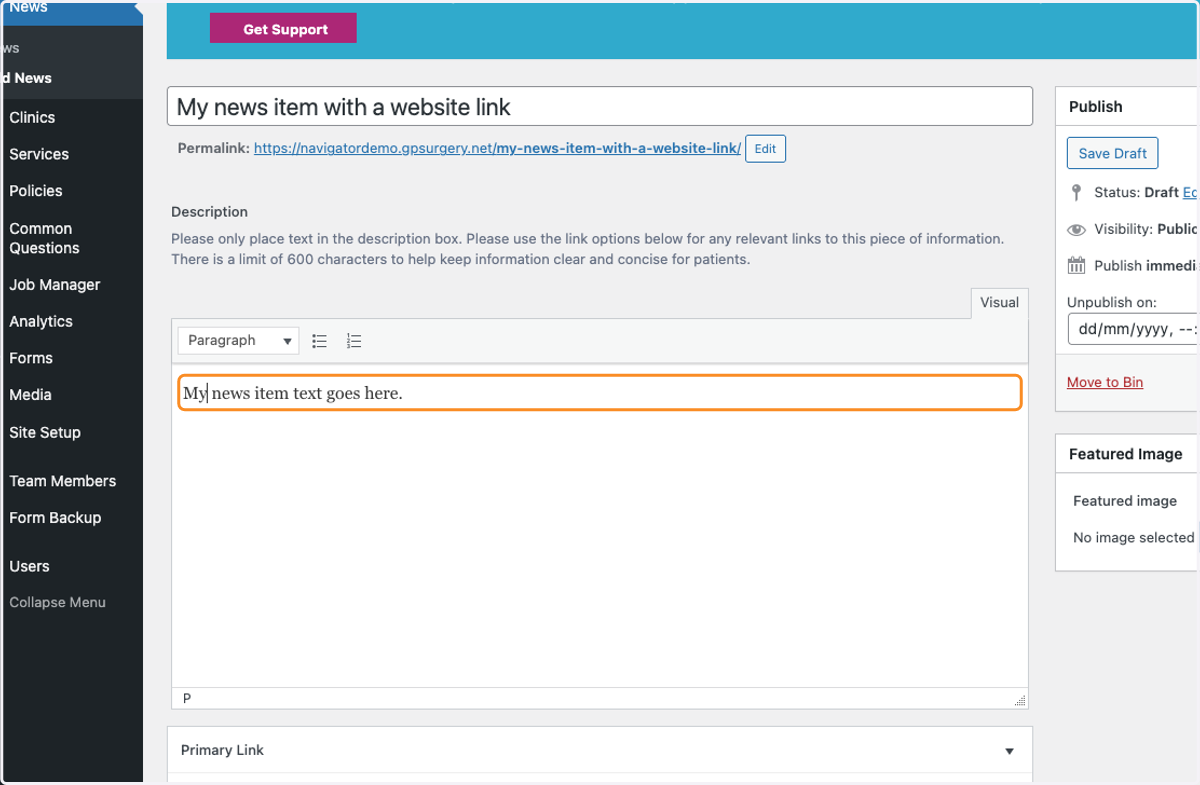
3. Add the main information by typing into the large text box. You can include headings and bullet points here.
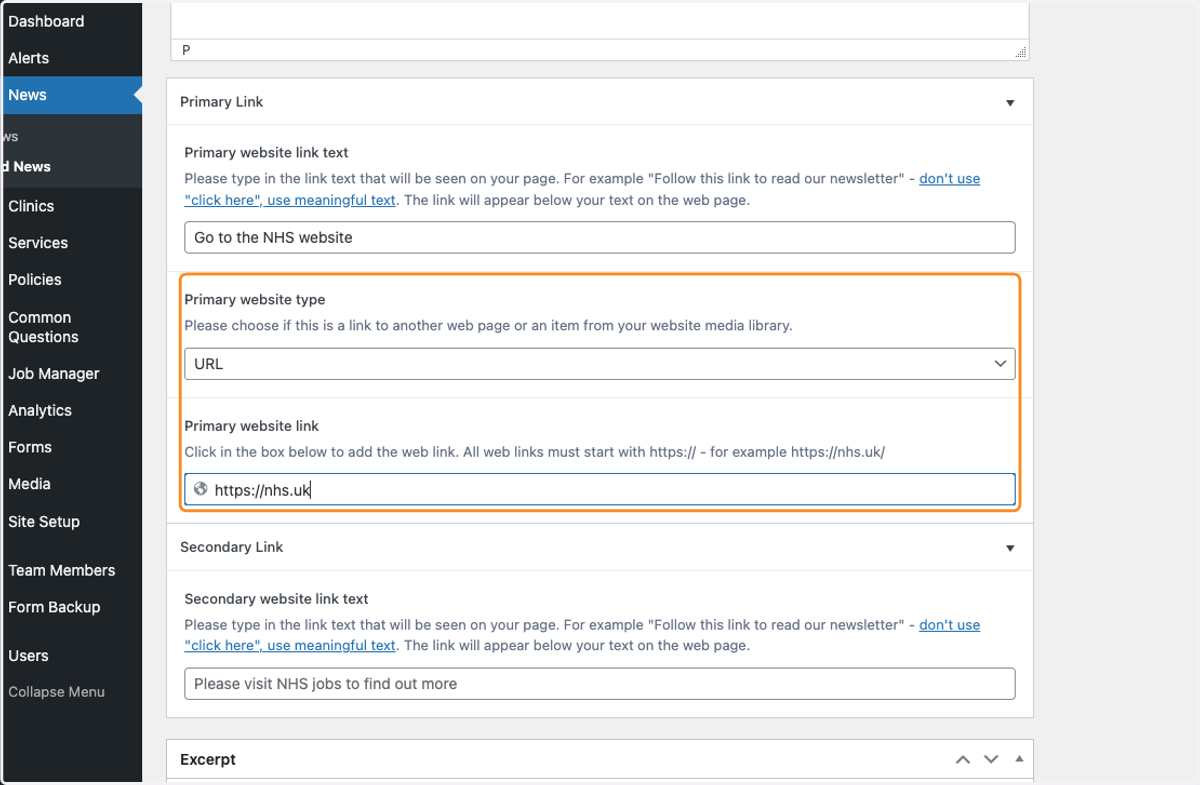
4. Scroll down to the Primary Link section. Add the text that will become the link. Don't use "click here". Your link text should explain what the link is for. In this example we are adding a link allow a visitor to go to the NHS website. "Go to the NHS website"
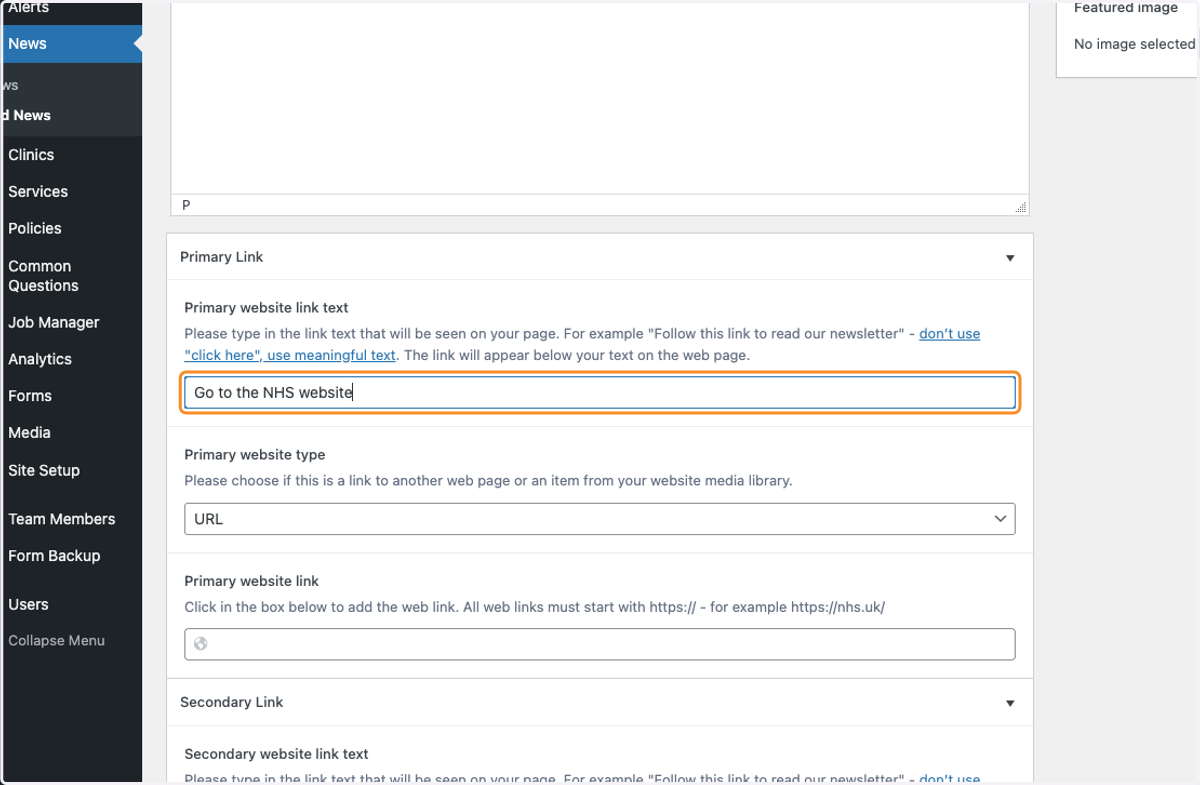
5. Choose the type of link from the drop down options. In this case select URL as we are adding a website link. In the Primary website link box type or paste in the link. "https://nhs.uk/". You can repeat this step if you wish to add a second link.
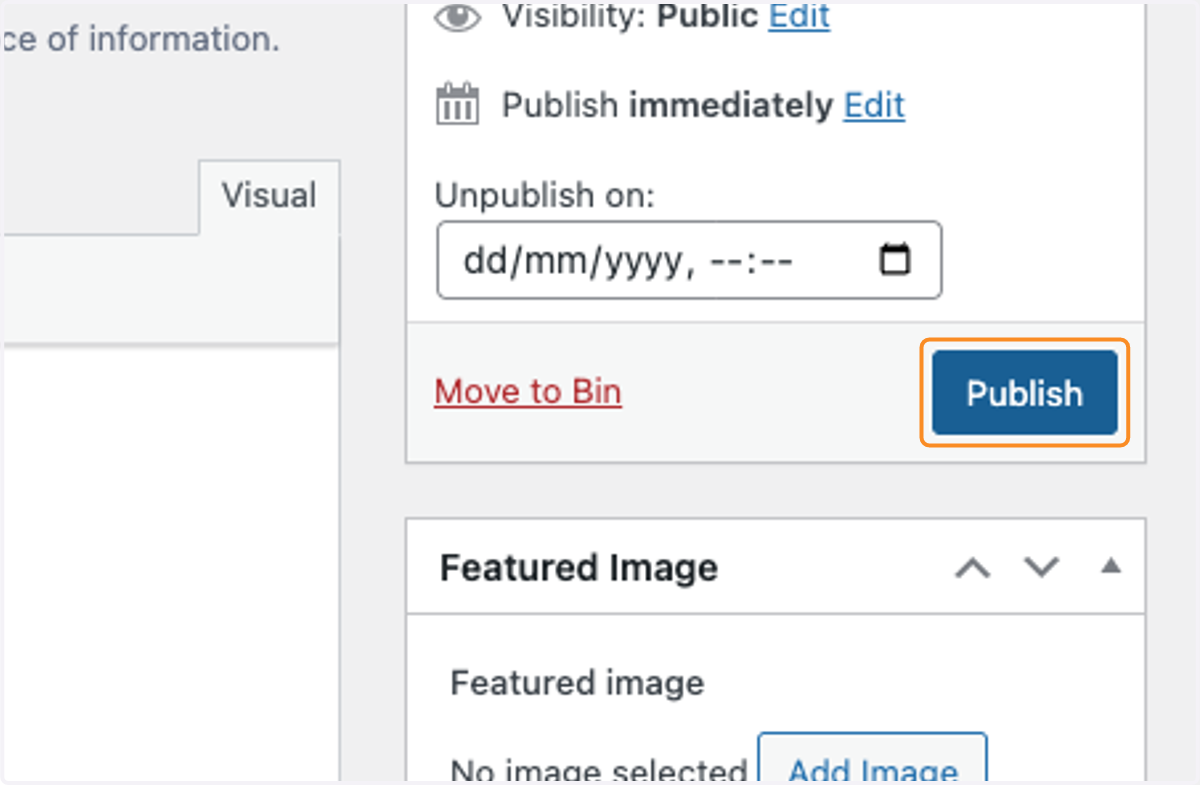
6. Scroll back up and use the Publish button to make your new item visible on your website.
7. View your item and test the link(s).