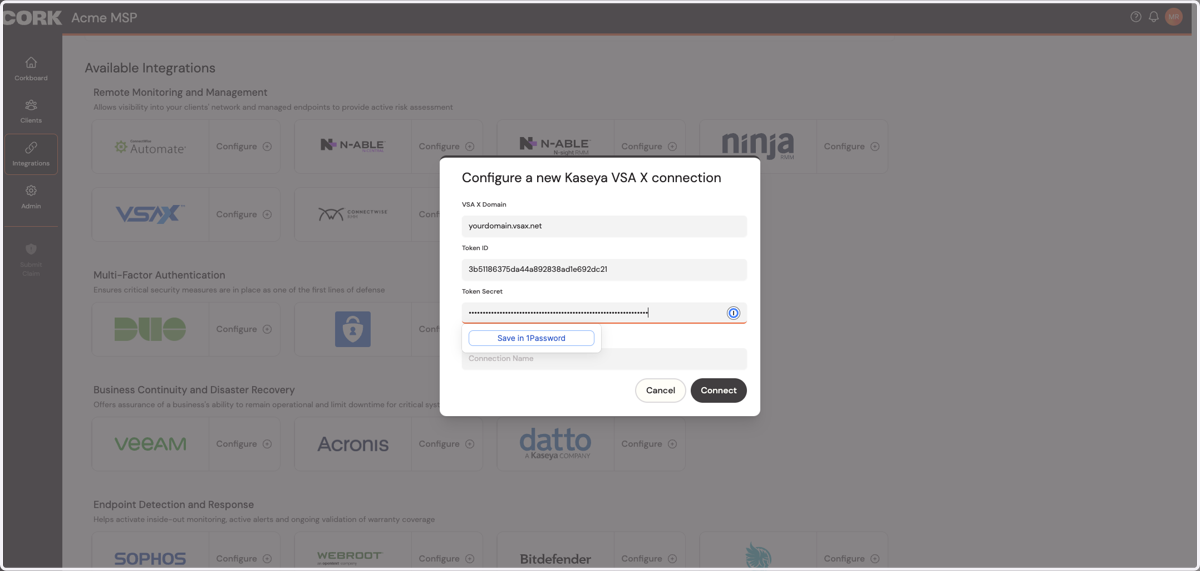
VSA X
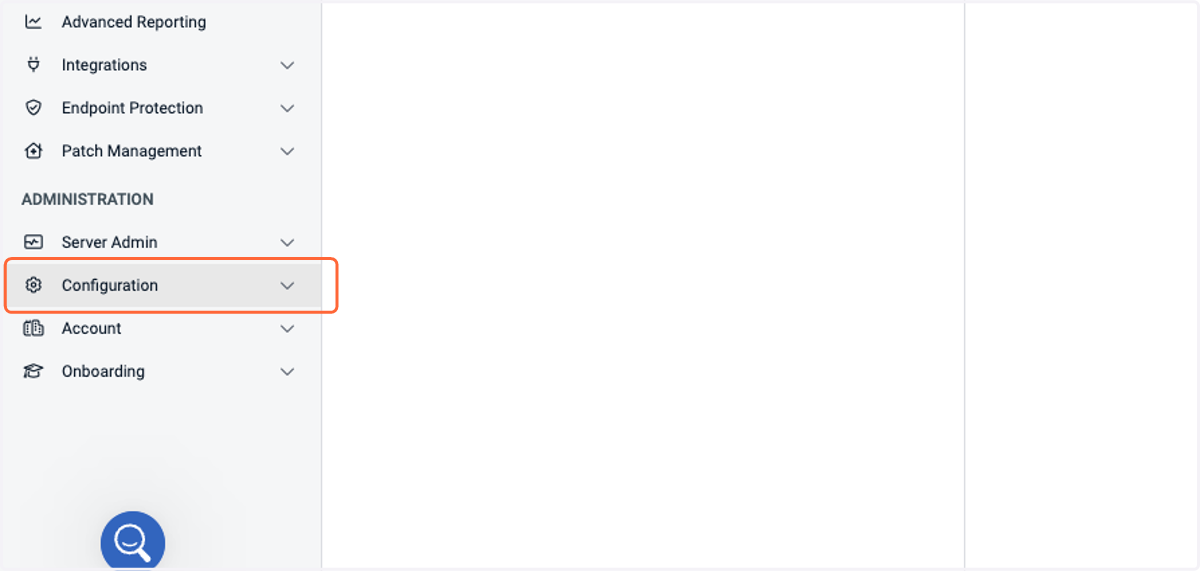
1. Click on Configuration
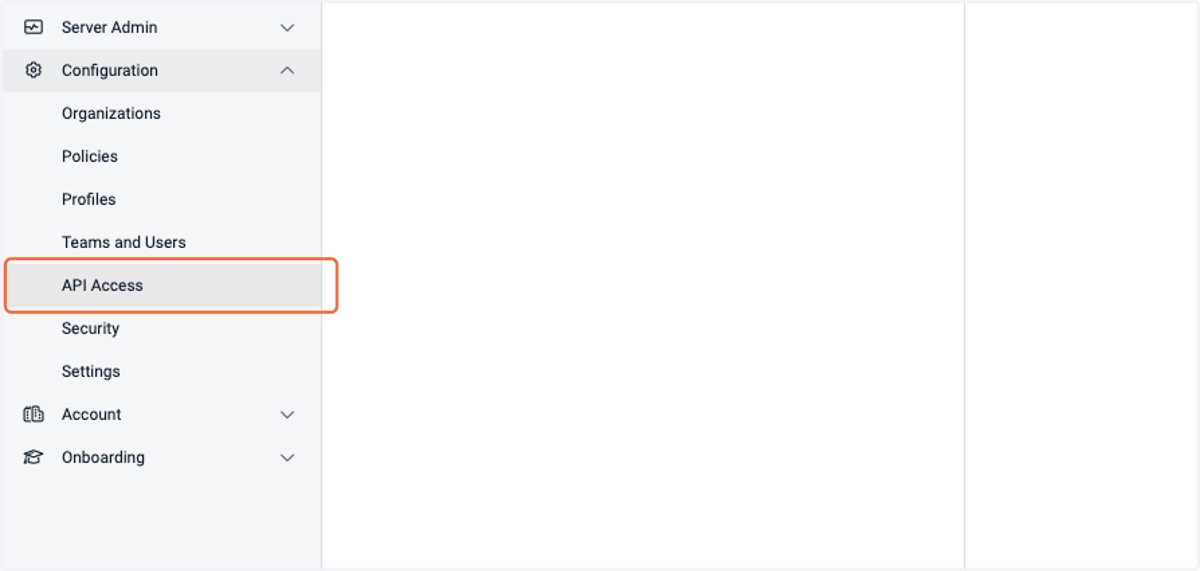
2. Click on API Access
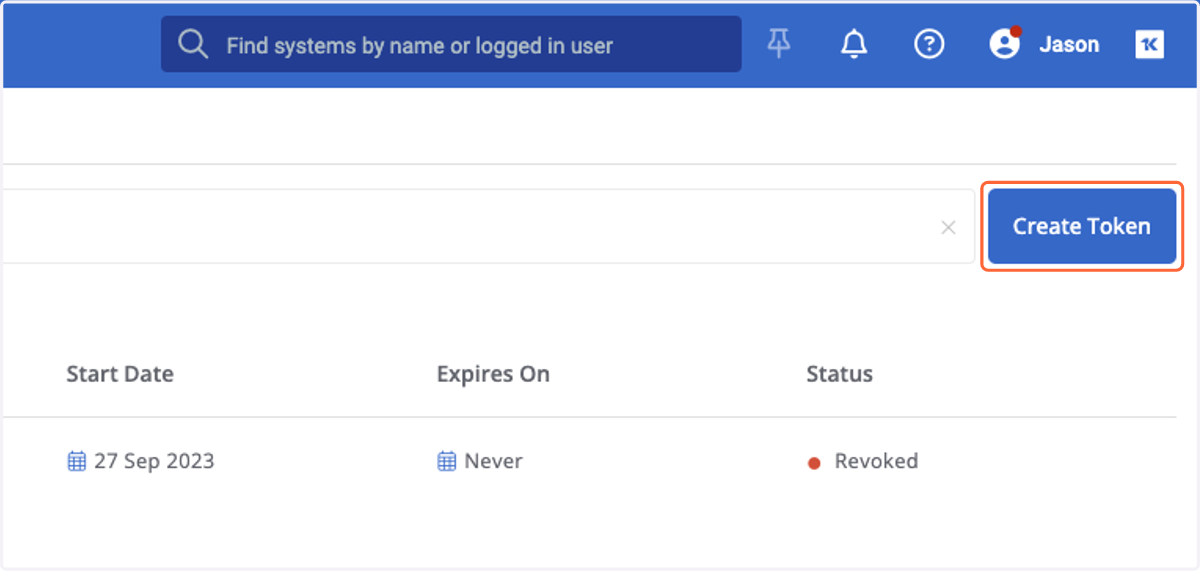
3. Click on Create Token
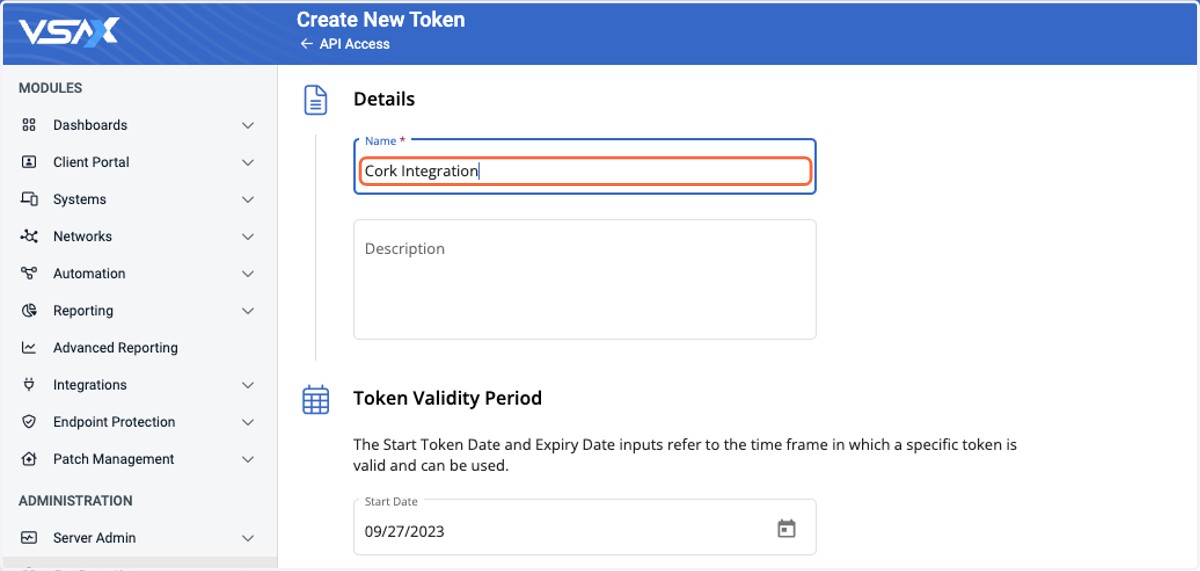
4. Type "Cork Integration"
5. Click on Next
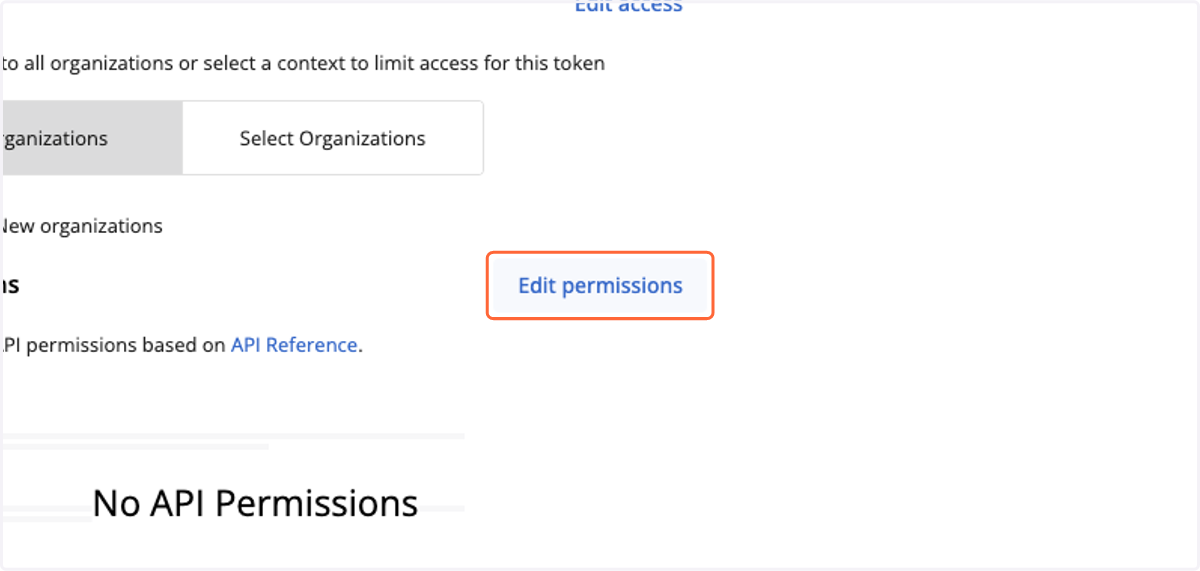
6. Click on Edit permissions
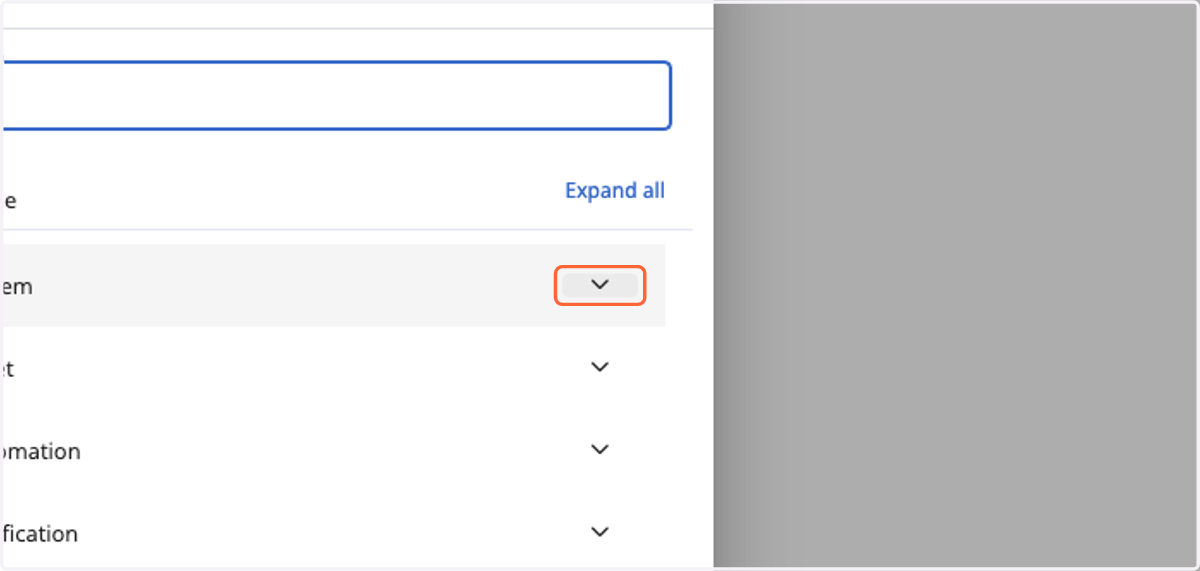
7. Click on System/Device
8. Click on Get All Systems/Devices
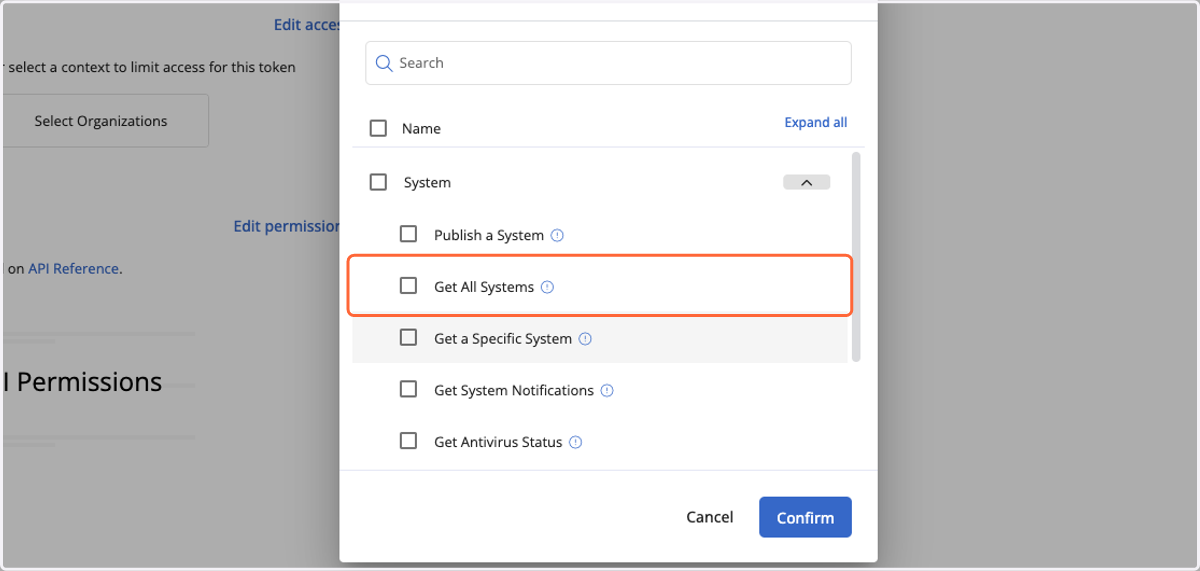
9. Click on Get a Specific System/Device
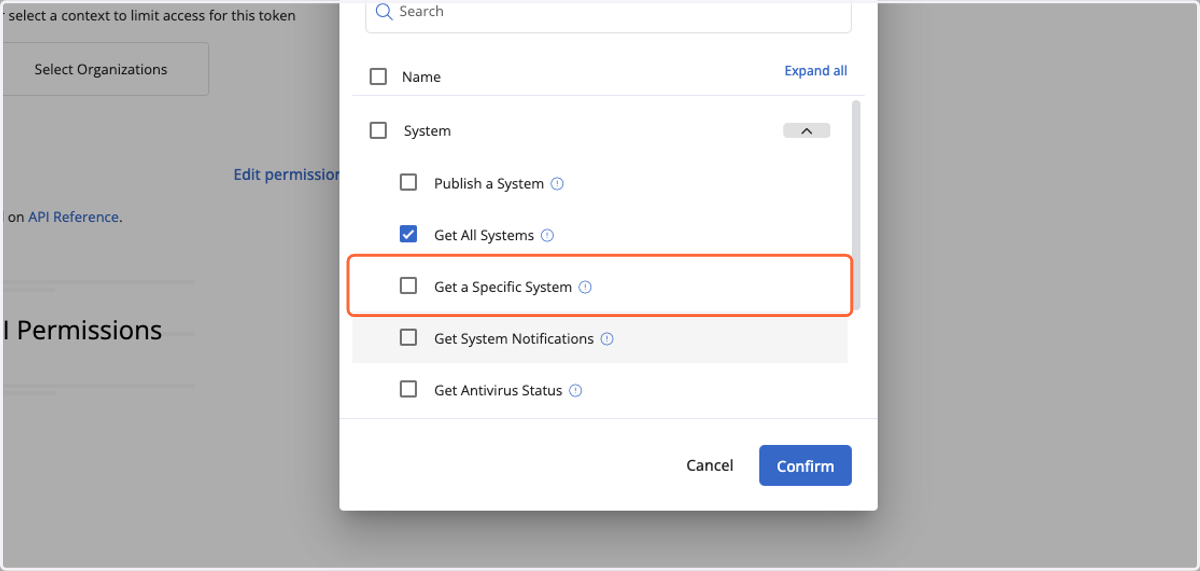
10. Click on Get System/Device Notifications
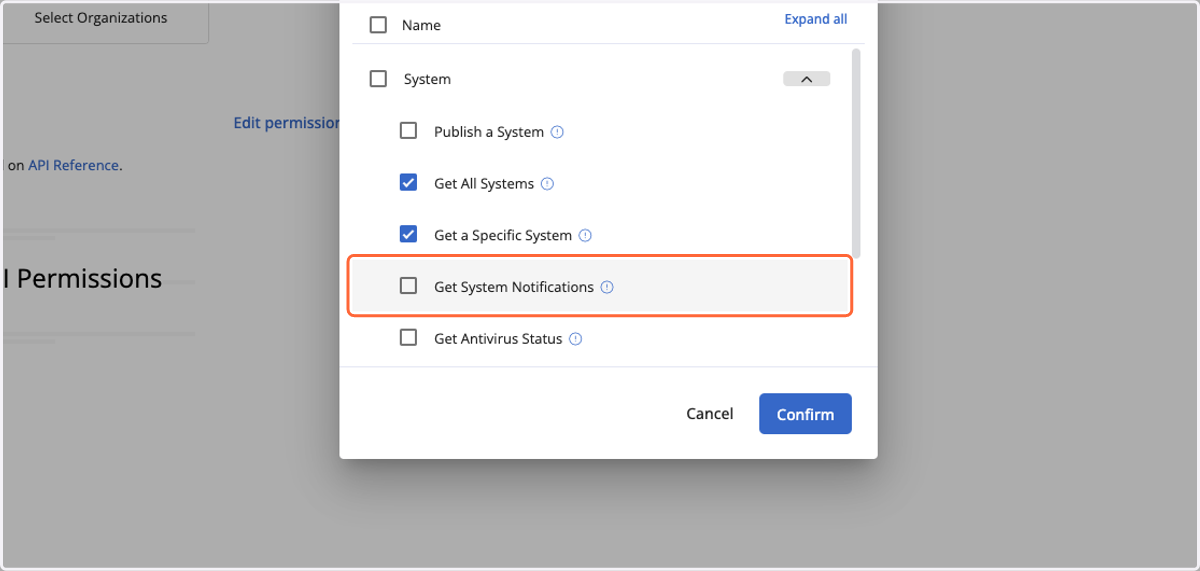
11. Click on Get Antivirus Status
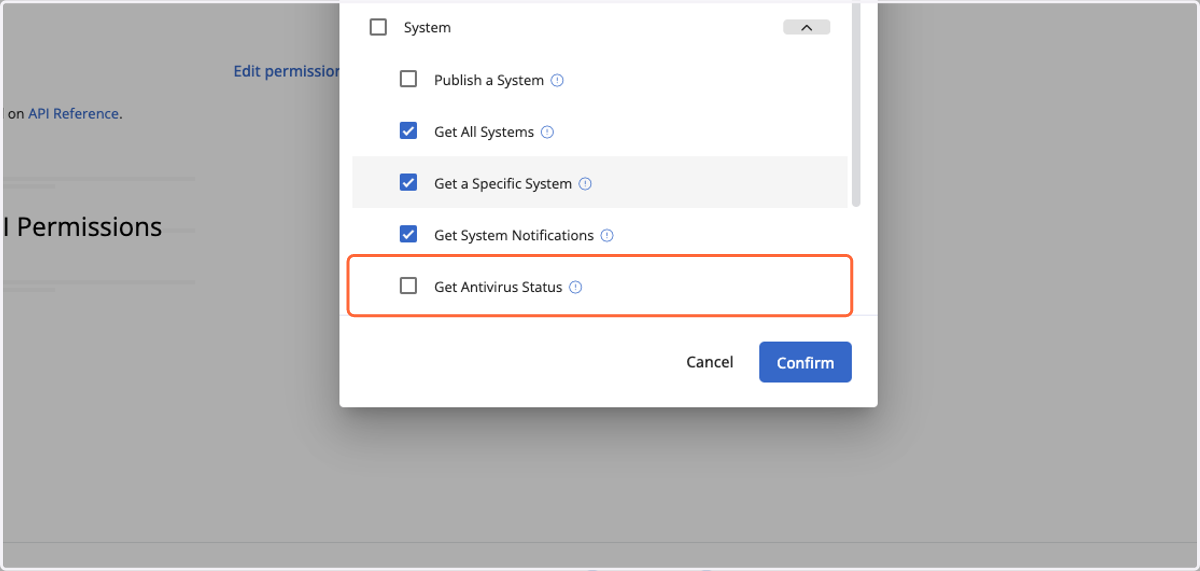
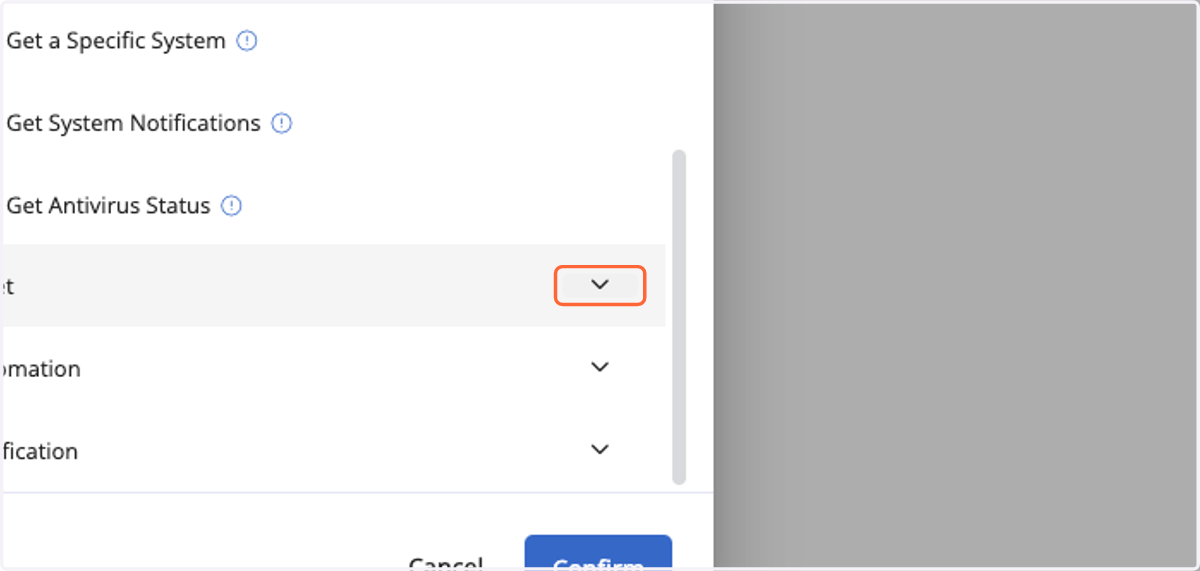
12. Click on Asset
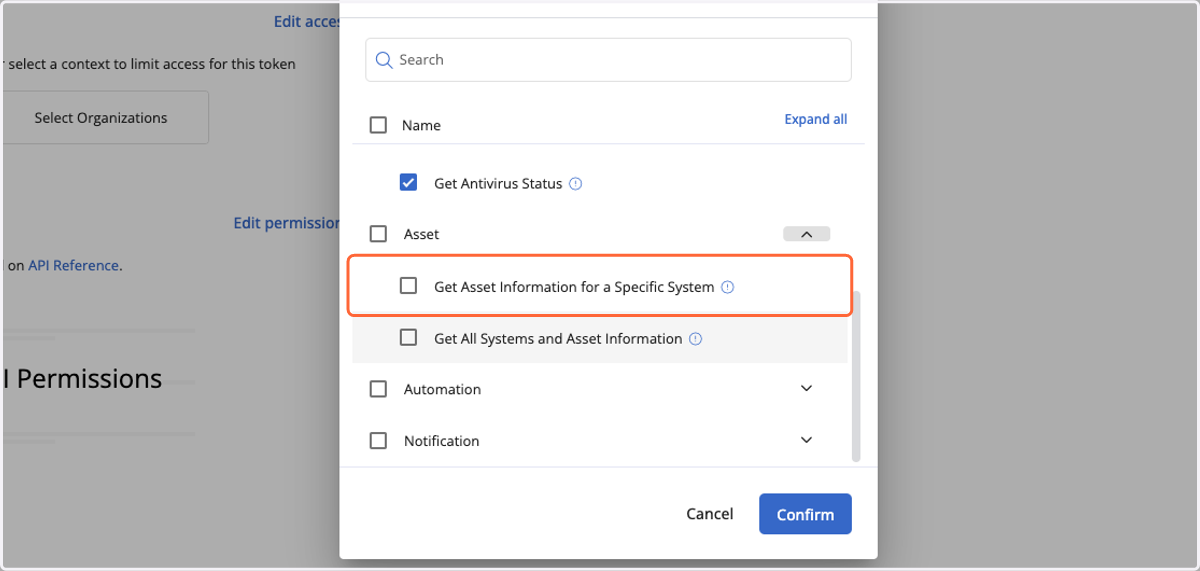
13. Click on Get Asset Information for a Specific System
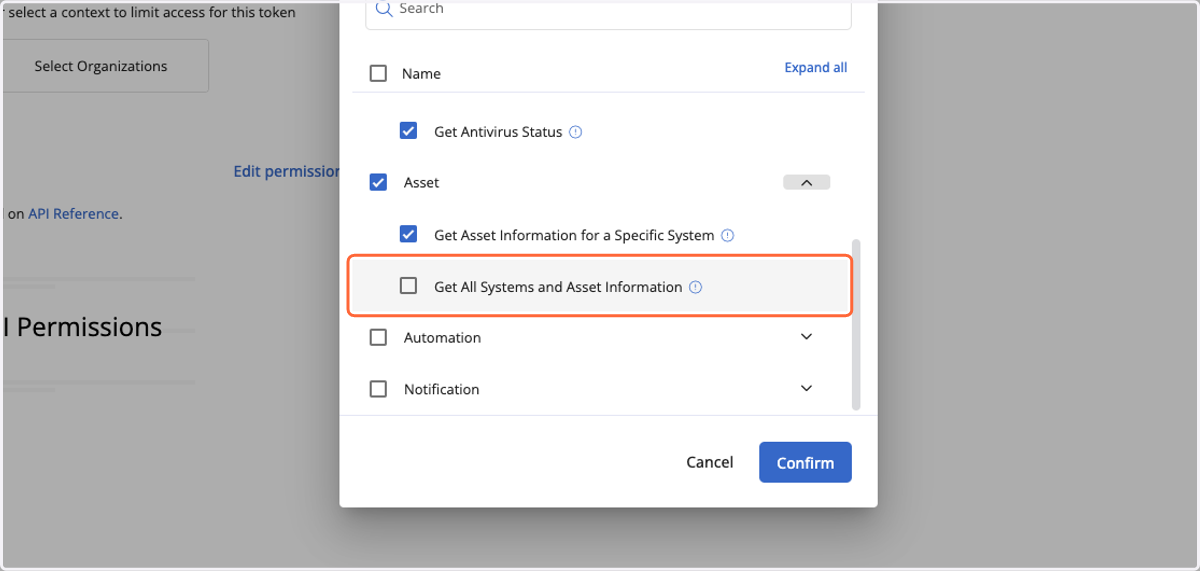
14. Click on Get All Systems and Asset Information
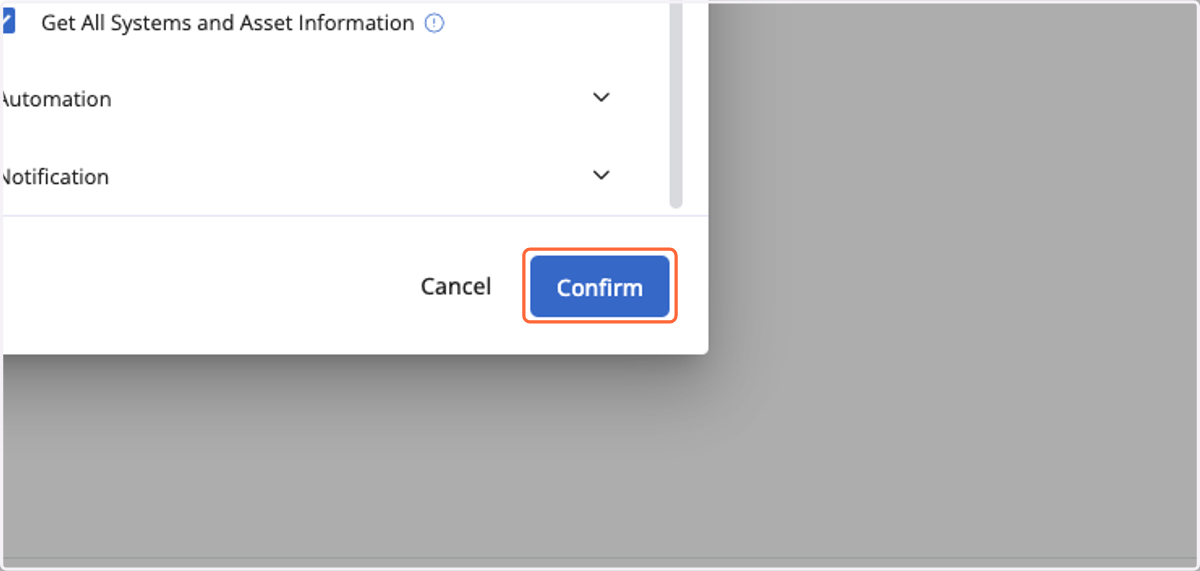
15. Click on Confirm
16. Click on Create
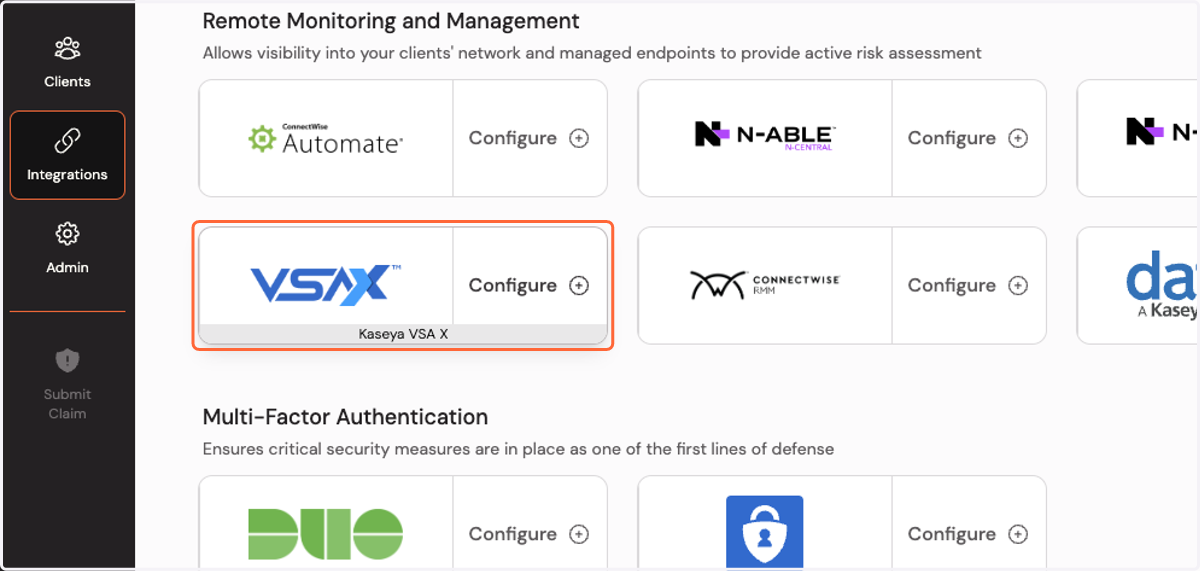
17. Click on Configure Kaseya VSA X integration…
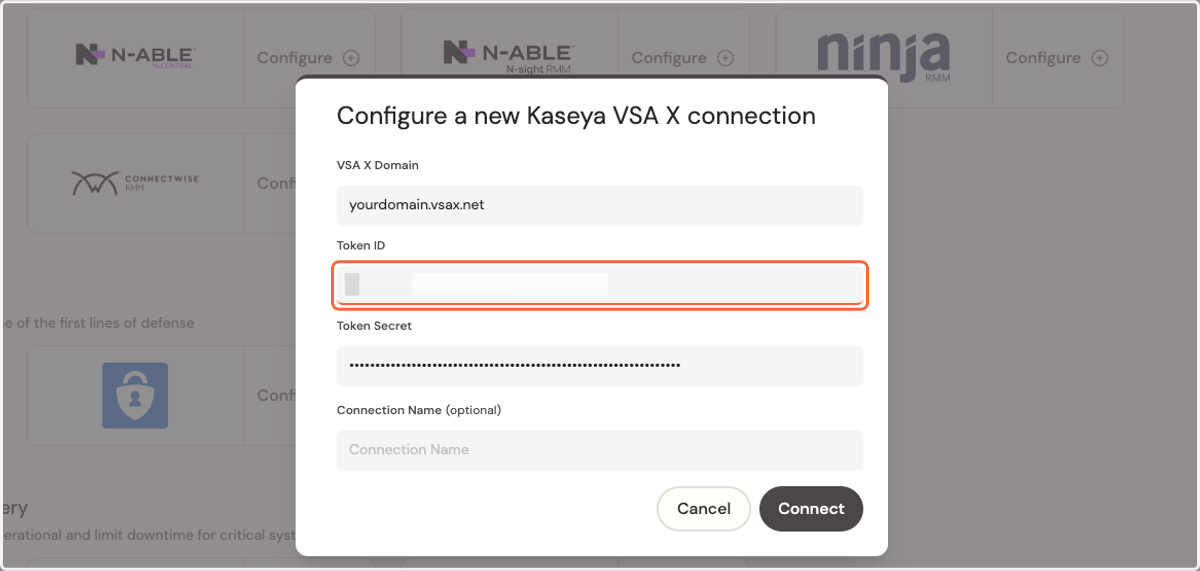
18. Type "[YOURDOMAIN].vsax.net"

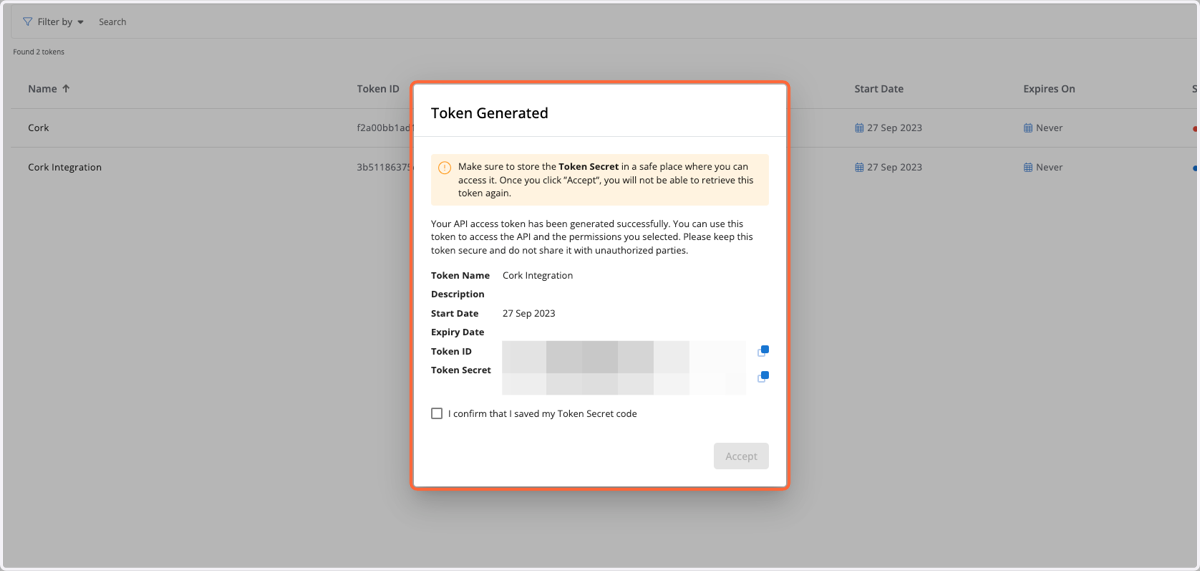
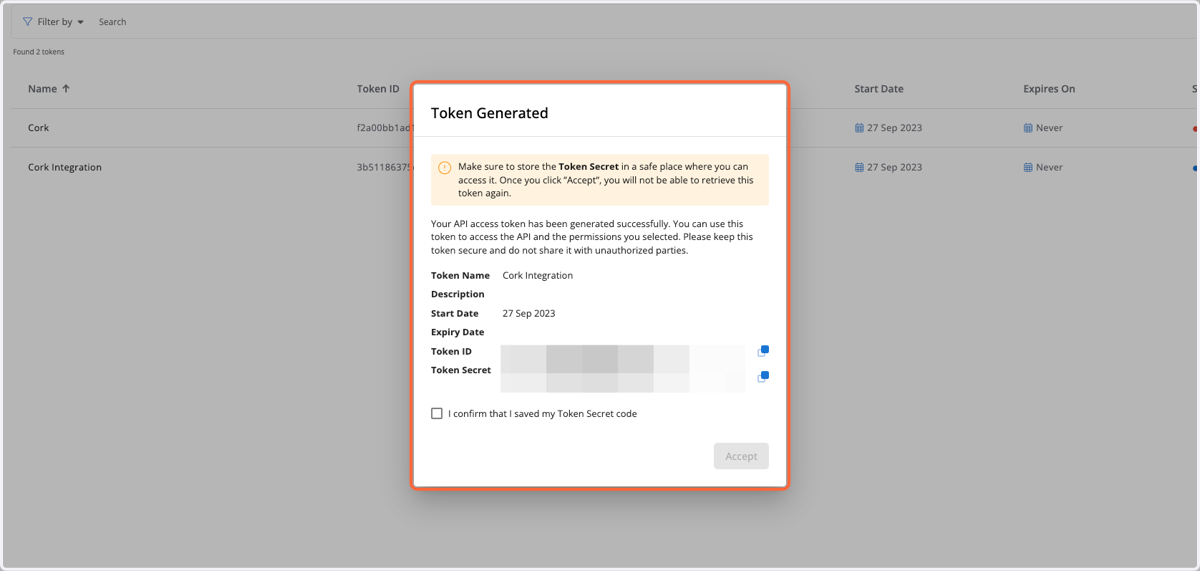
19. Copy the Token ID
20. Paste input
21. Copy the Token Secret
22. Paste input
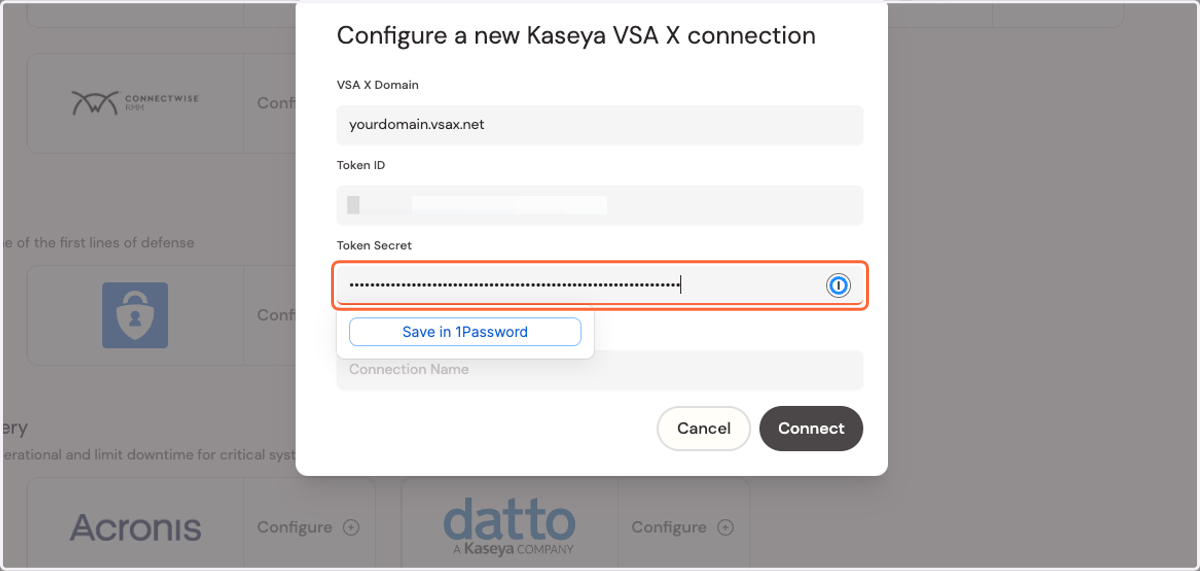
23. Click Connect