Uploading Documents to an existing Request

Carevalidate

  1. 1. Log in to your account

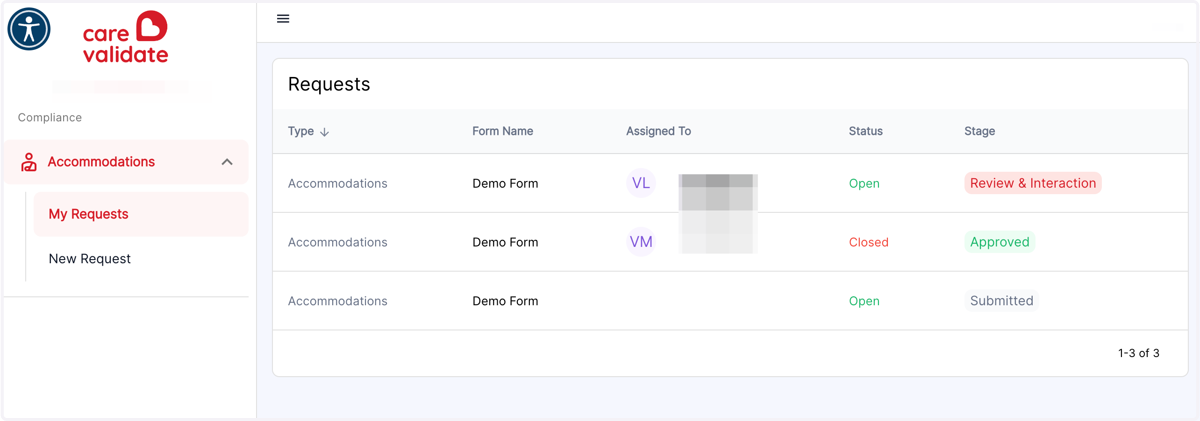
  2. 2. Click on My Requests

    Click on My Requests
  3. 3. Click on the Request you need to upload a document to
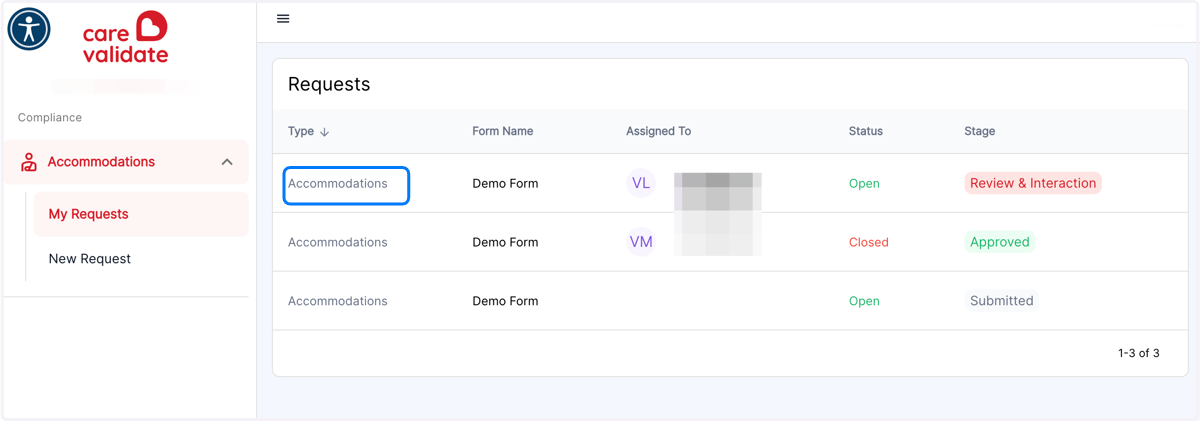
    Click on the Request you need to upload a document to
  4. 4. Click on the Documents tab (* The Documents and Communications sections are disabled once the case is assigned and accepted for processing.)
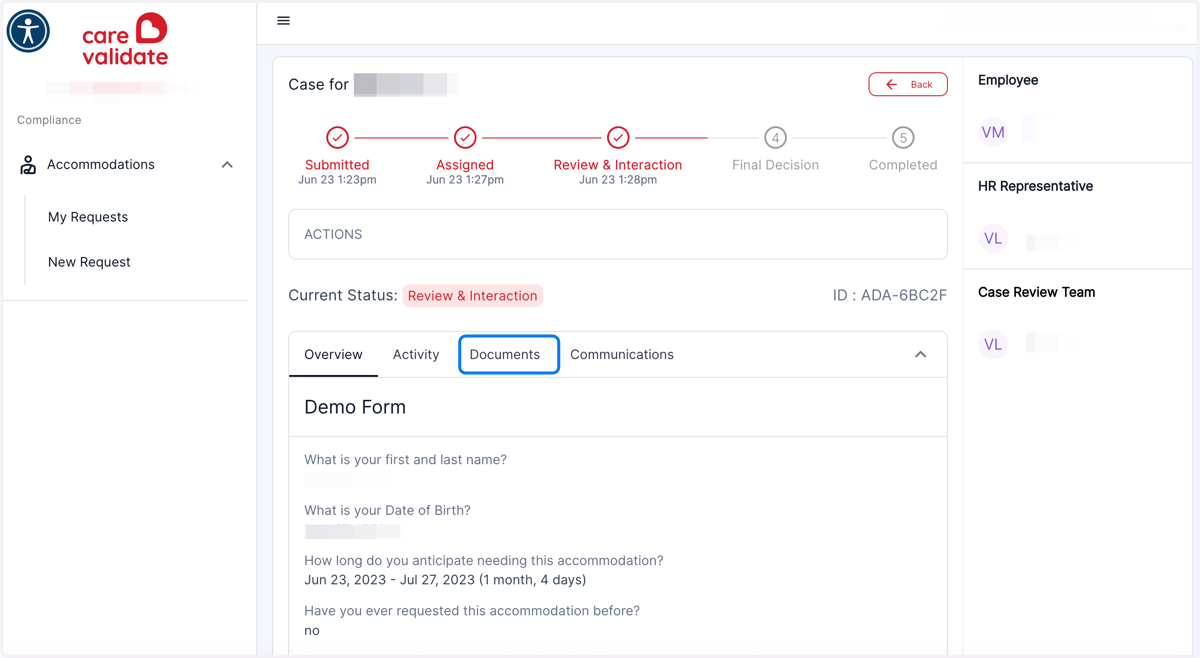
    Click on the Documents tab (* The Documents and Communications sections are disabled once the case is assigned and accepted for processing.)
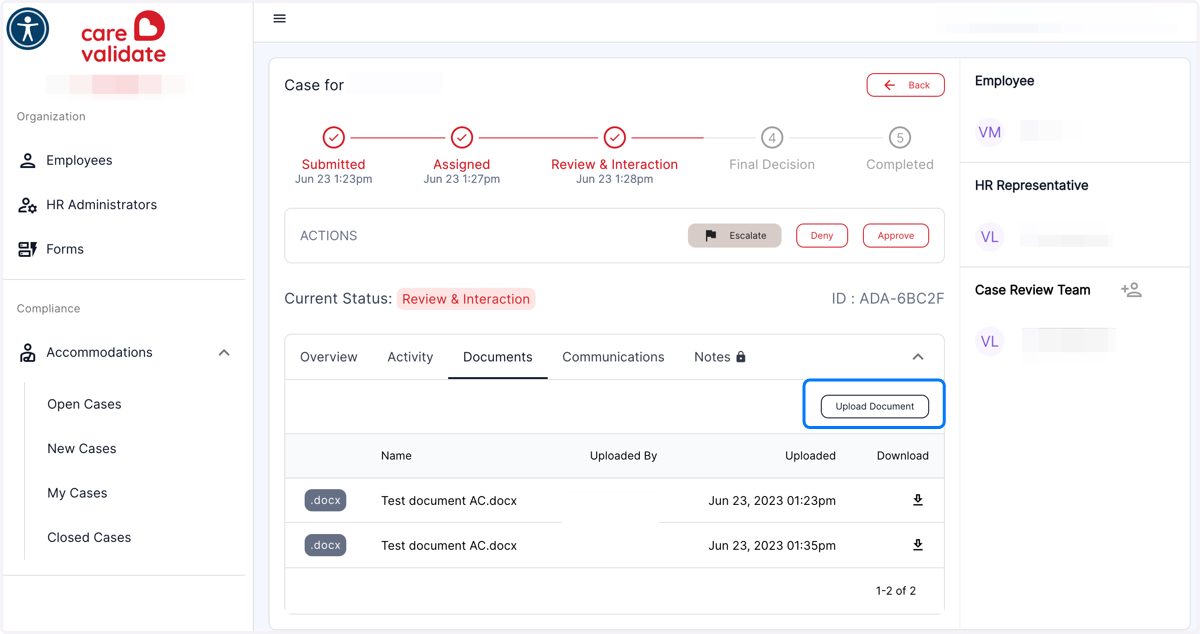
  5. 5. Click on Upload Document

    Click on Upload Document
  6. 6. Choose your file to upload; it must be in a .docx or .pdf format. Then click Open
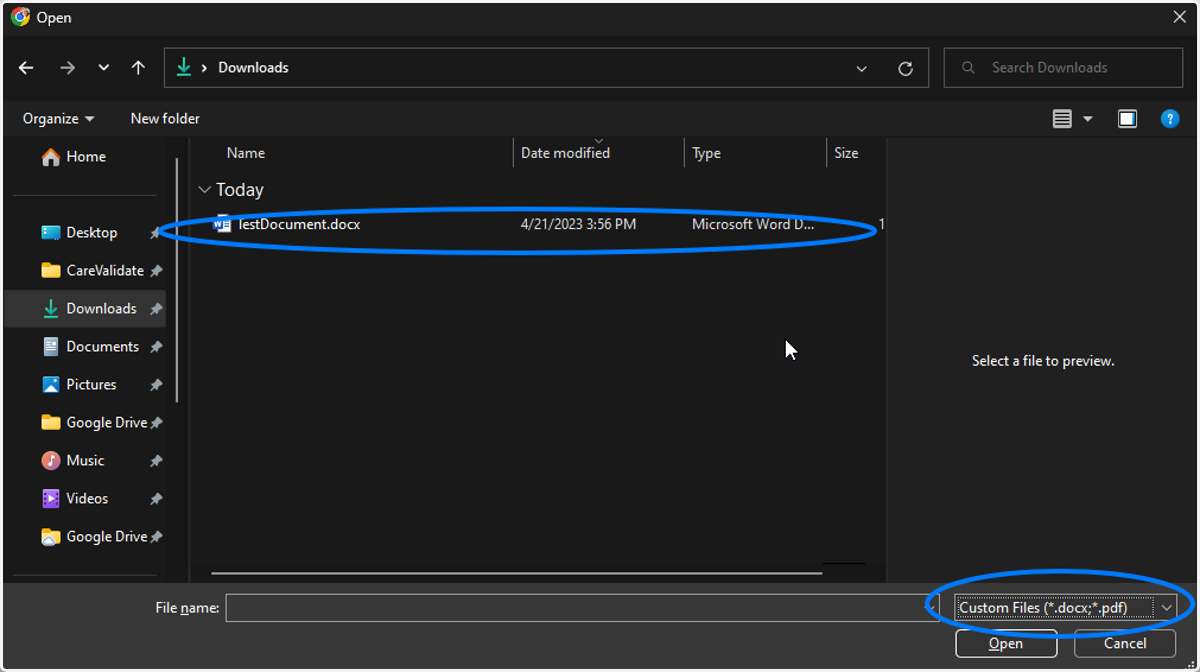
    Choose your file to upload; it must be in a .docx or .pdf format. Then click Open
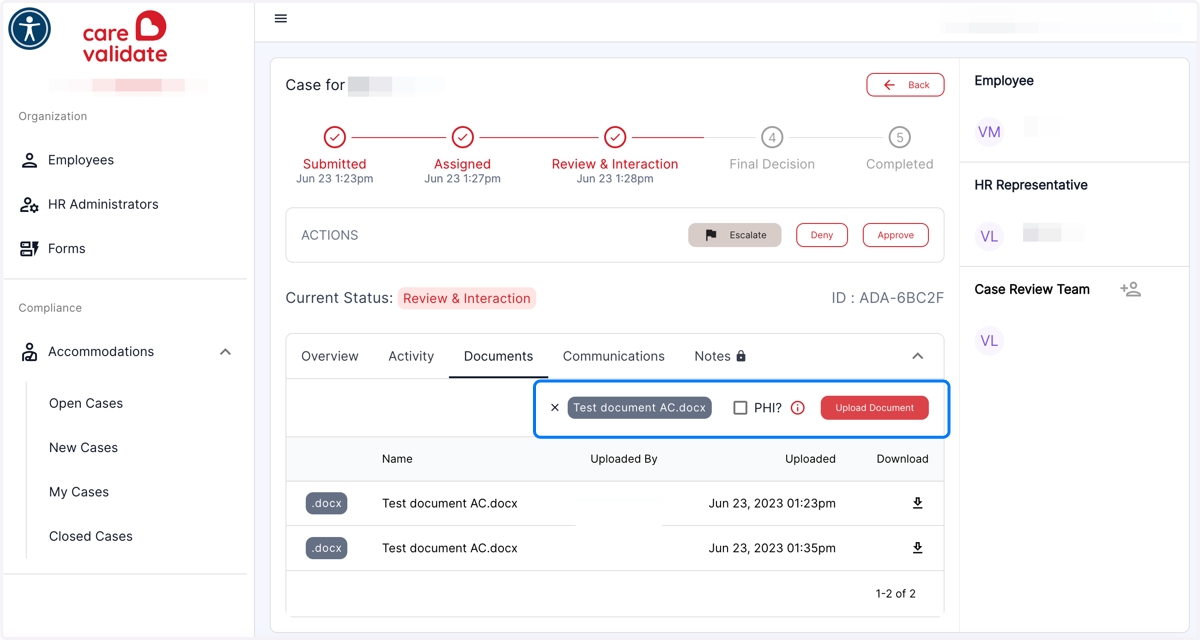
  7. 7. Your file is ready to upload

    Your file is ready to upload
  8. 8. If your document contains Protected Health Information, use the check box before clicking Upload to limit access to it
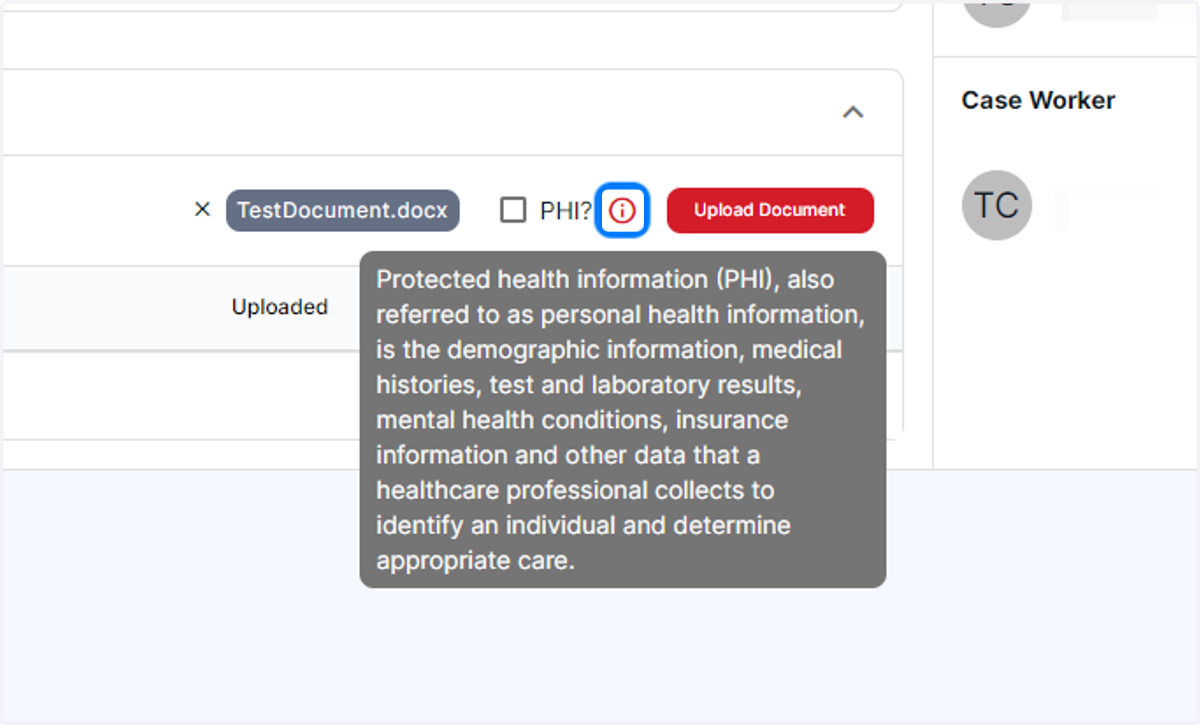
    If your document contains Protected Health Information, use the check box before clicking Upload to limit access to it
  9. 9. When you are ready, click the Upload Document button
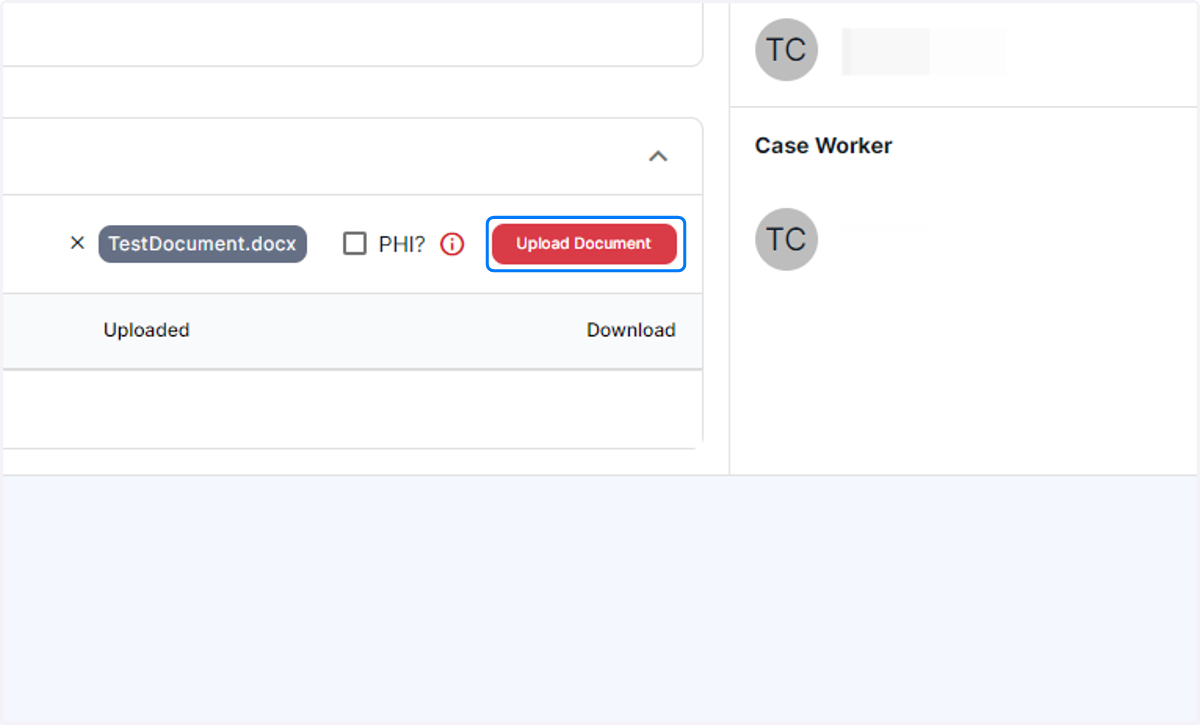
    When you are ready, click the Upload Document button
  10. 10. When complete you will see an announcement that your file has been uploaded at the top of your screen

    When complete you will see an announcement that your file has been uploaded at the top of your screen