Mobile Service User Unassignment - Connect Platform
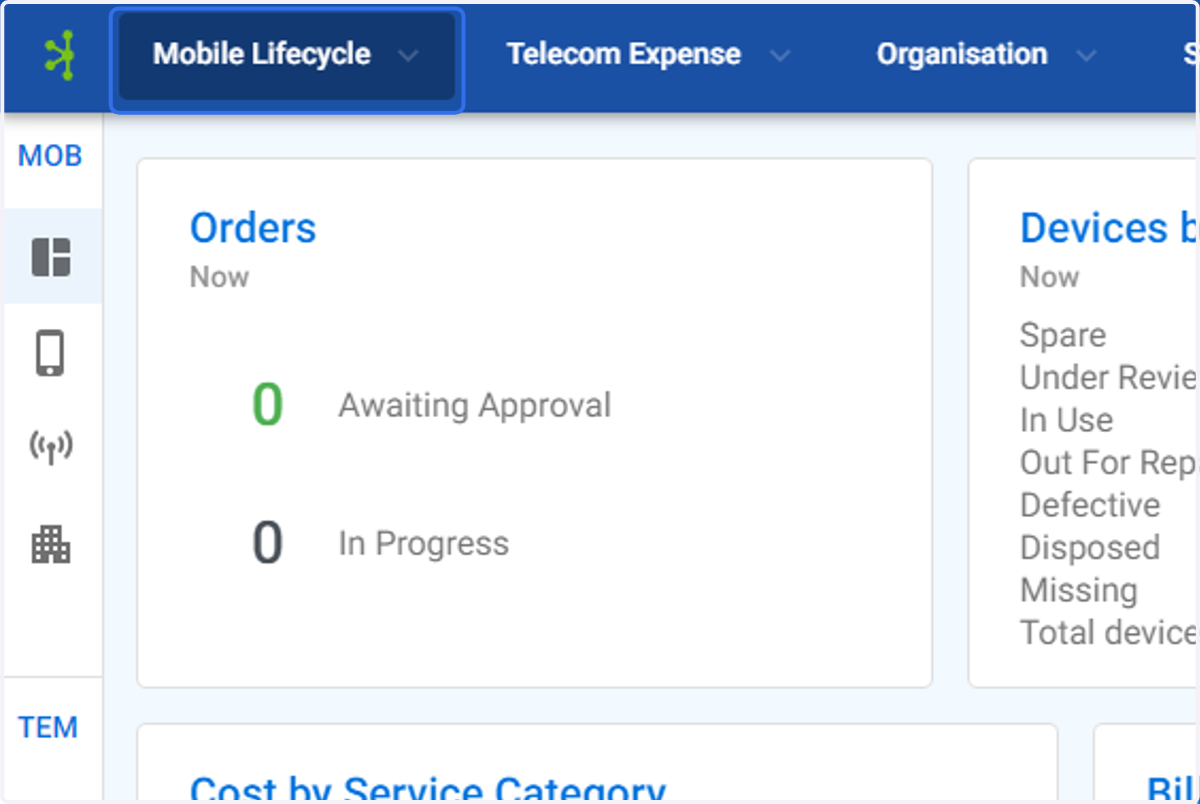
1. Click on Mobile Lifecycle
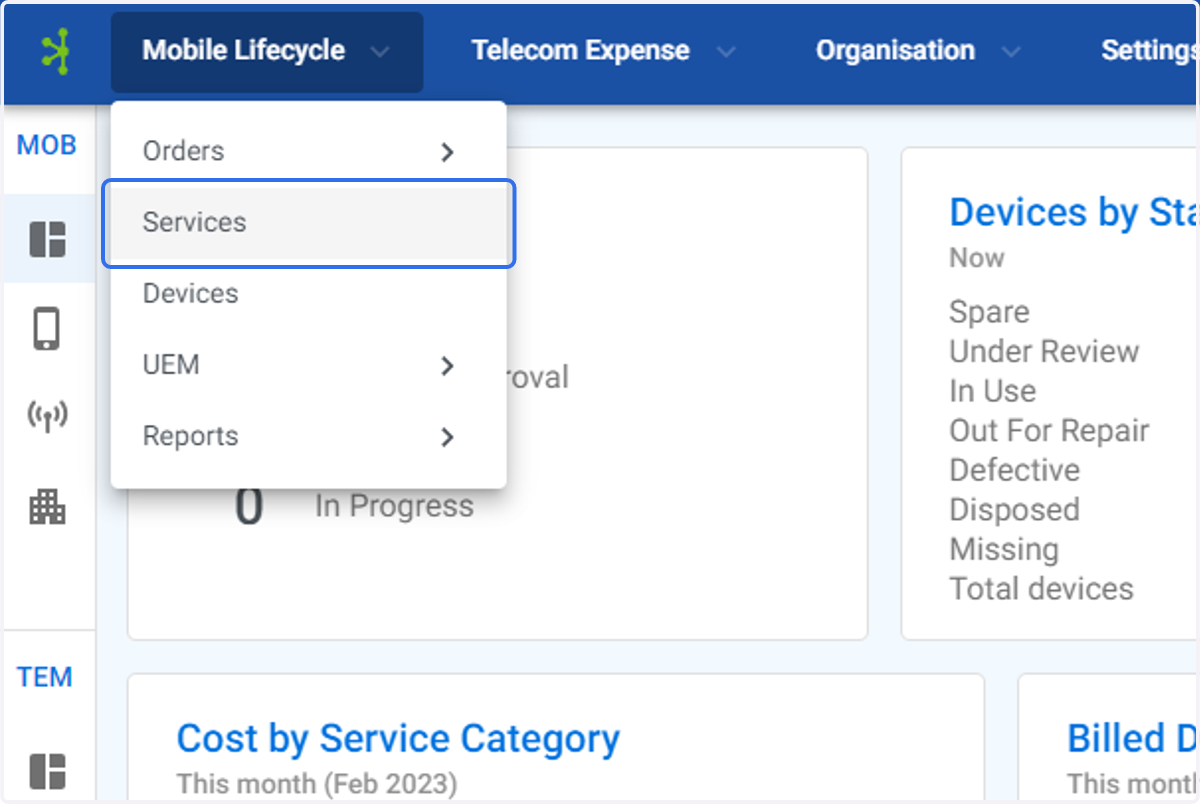
2. Click on Services
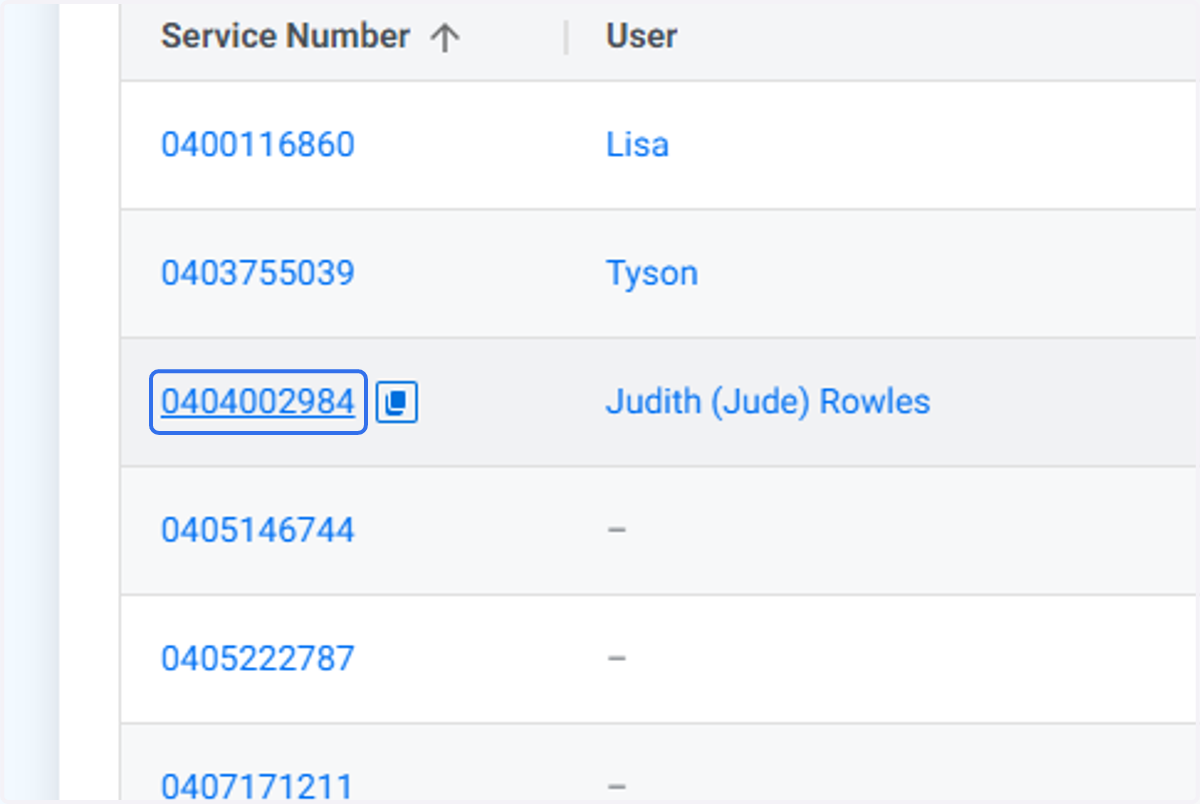
3. Find the service you wish to unassign the user from. Click on the service.
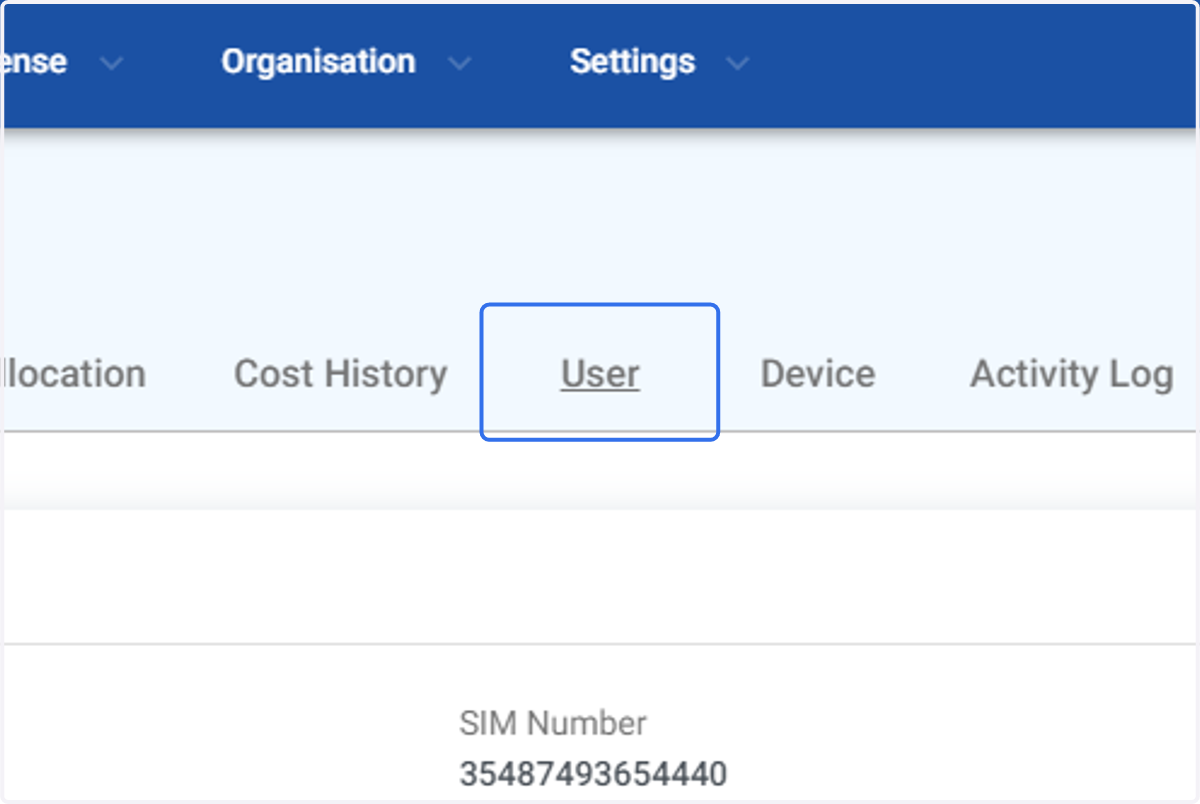
4. Click on User
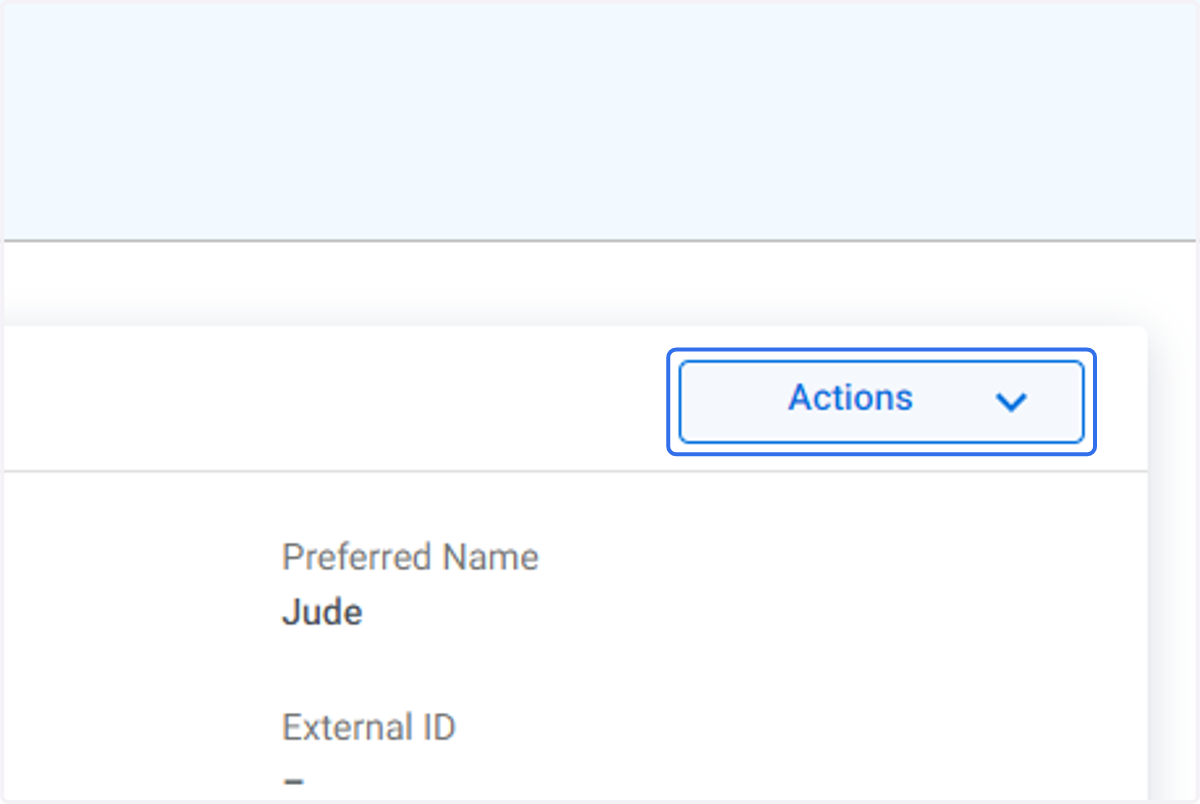
5. Click on Actions
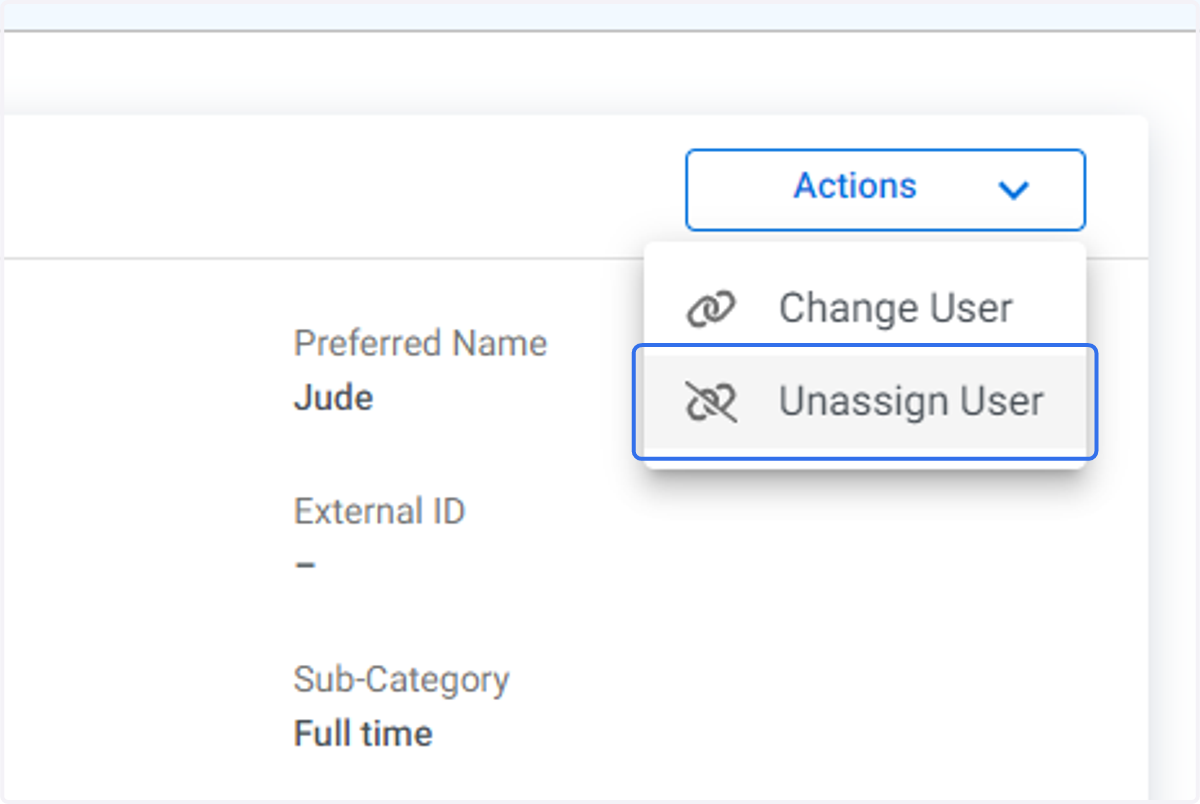
6. Click on Unassign User
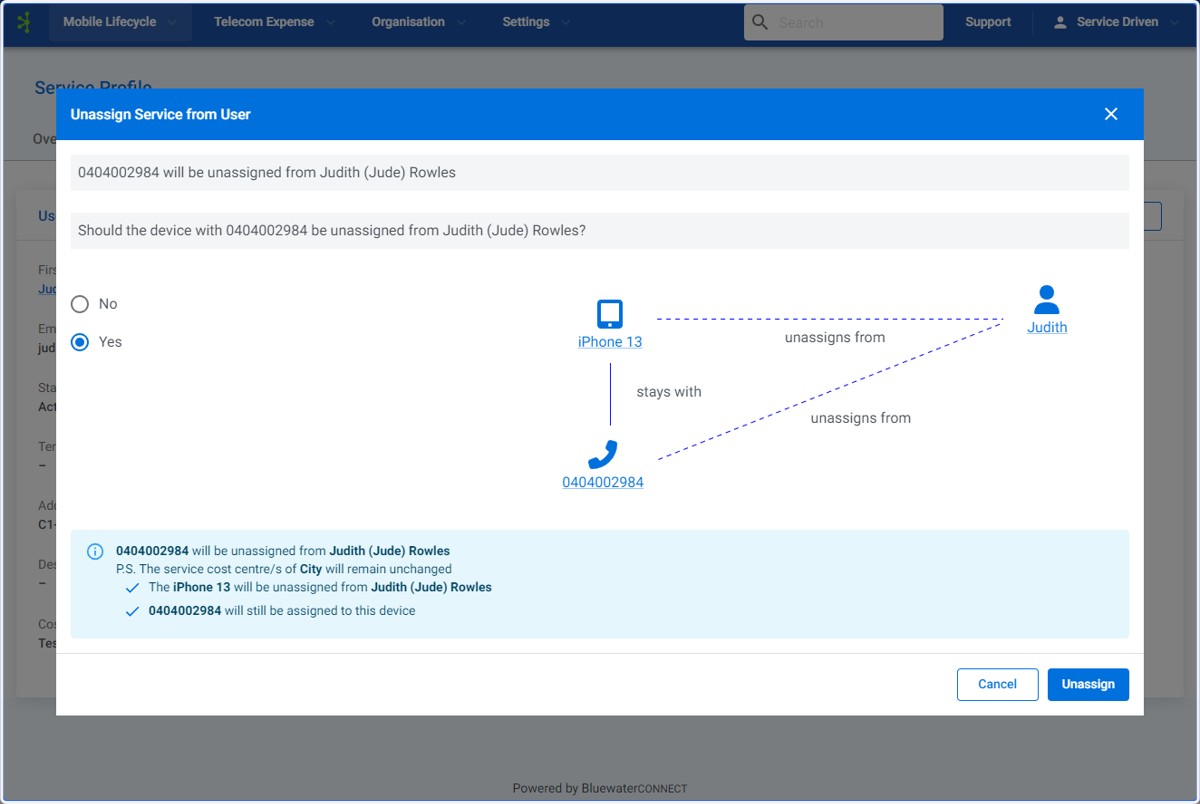
7. The Unassign Service From User screen will be displayed. If there is a device also assigned to the service and you select "No" then the user will be unassigned from the service and the service unassigned from the device.
If a device is assigned to a service, both the service and the device must have the same user assignment.
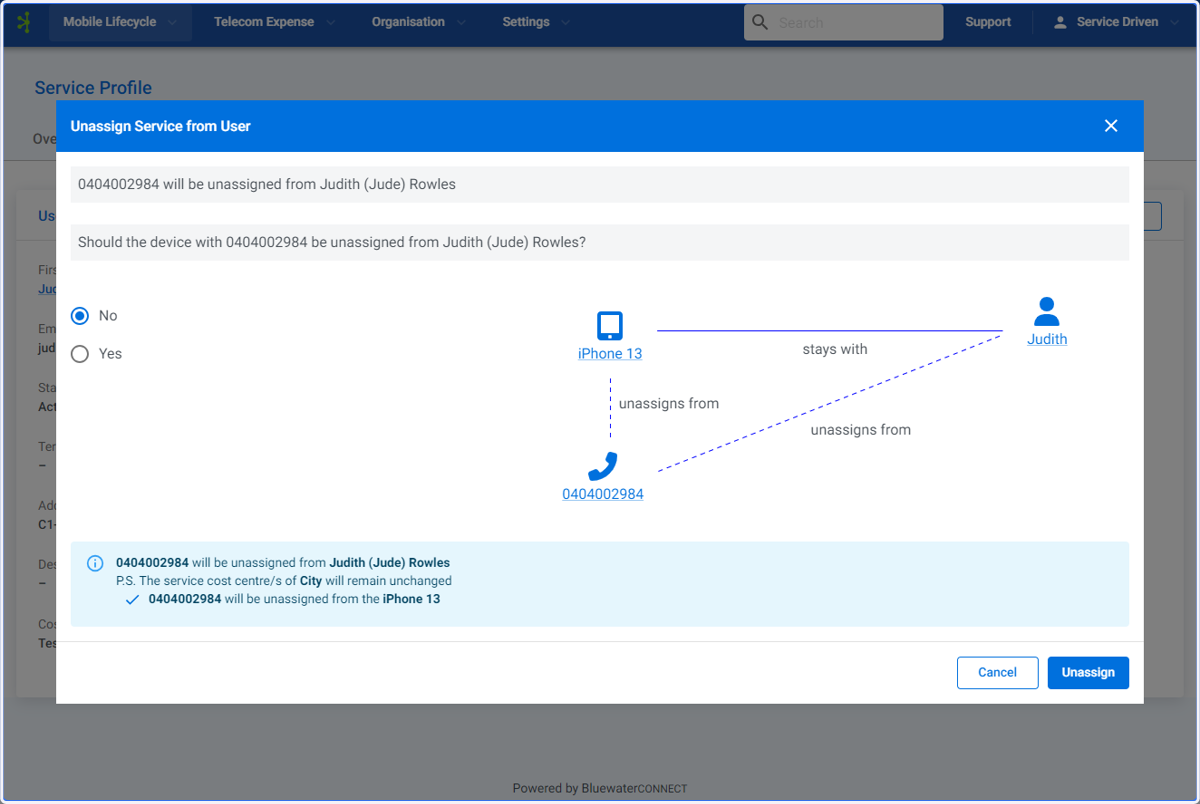
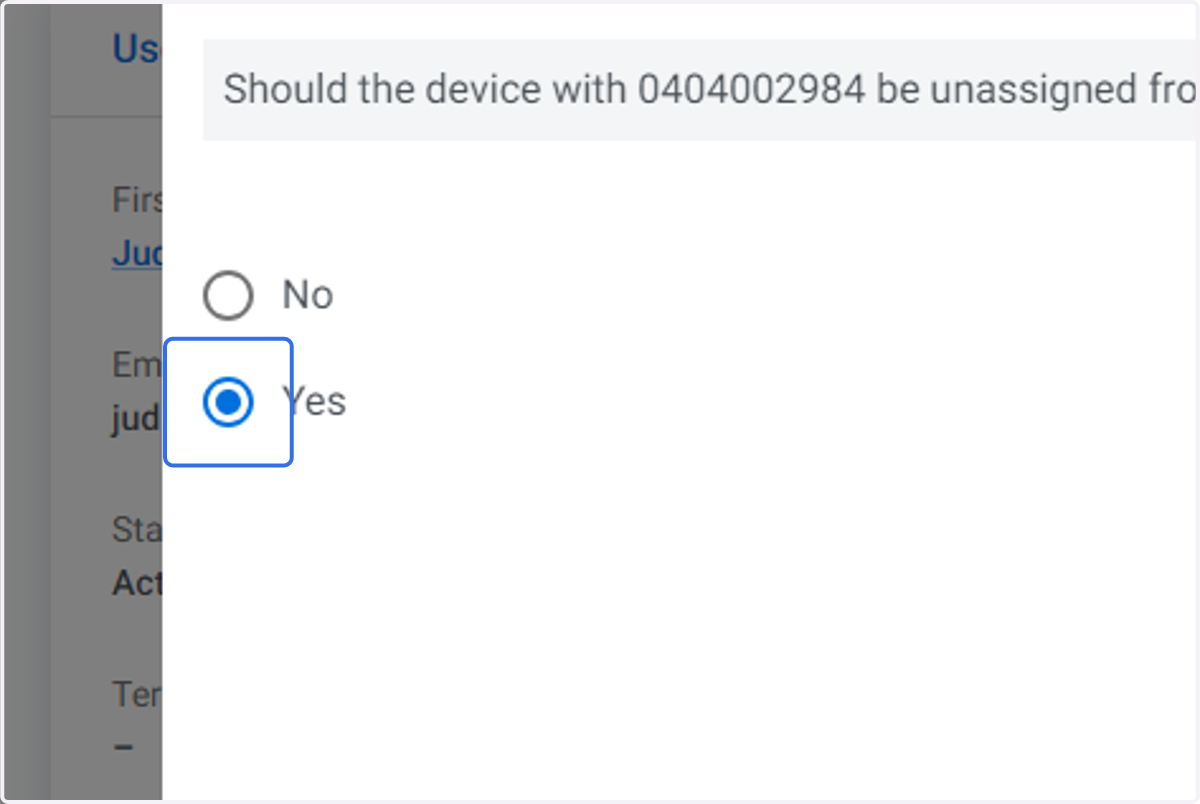
8. In this example Yes is selected
9. The Unassign Service from User screen will now display that the service and device will remain assigned, and the user will be unassigned from both the service and device.
10. Click on Unassign
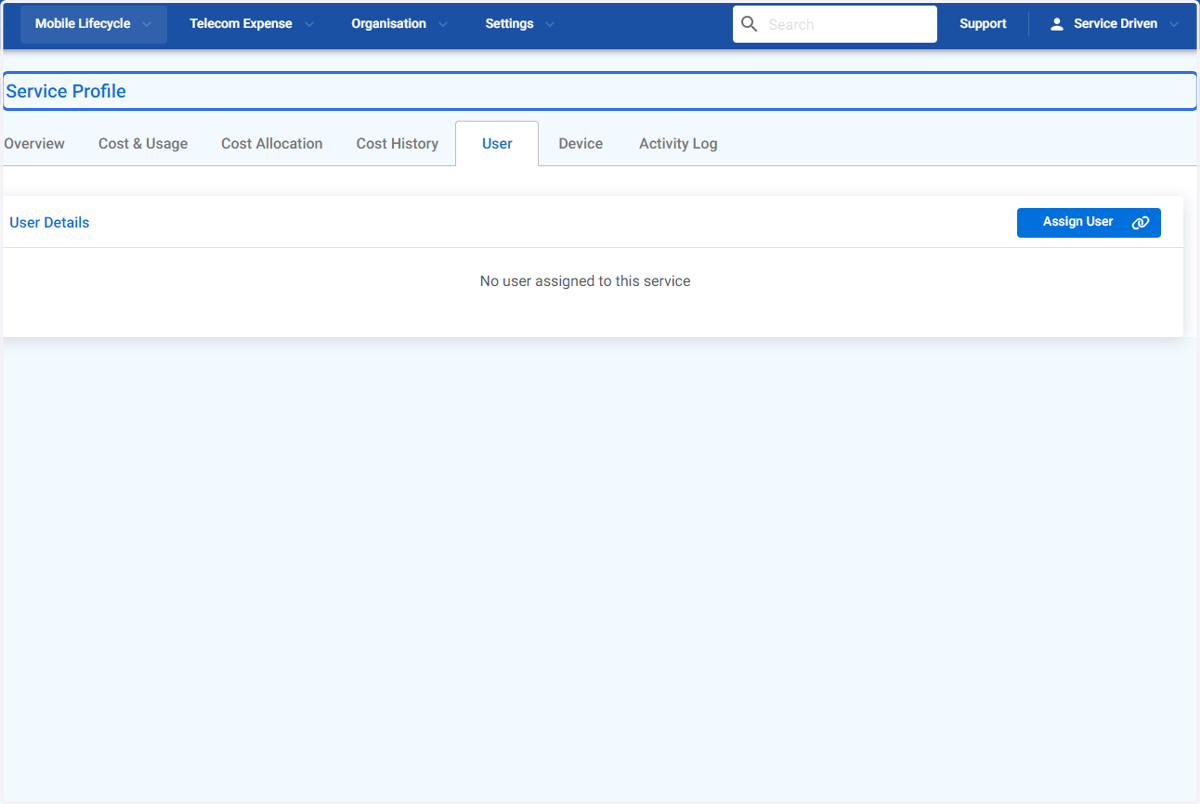
11. The User Service Profile screen now displays no user assigned.