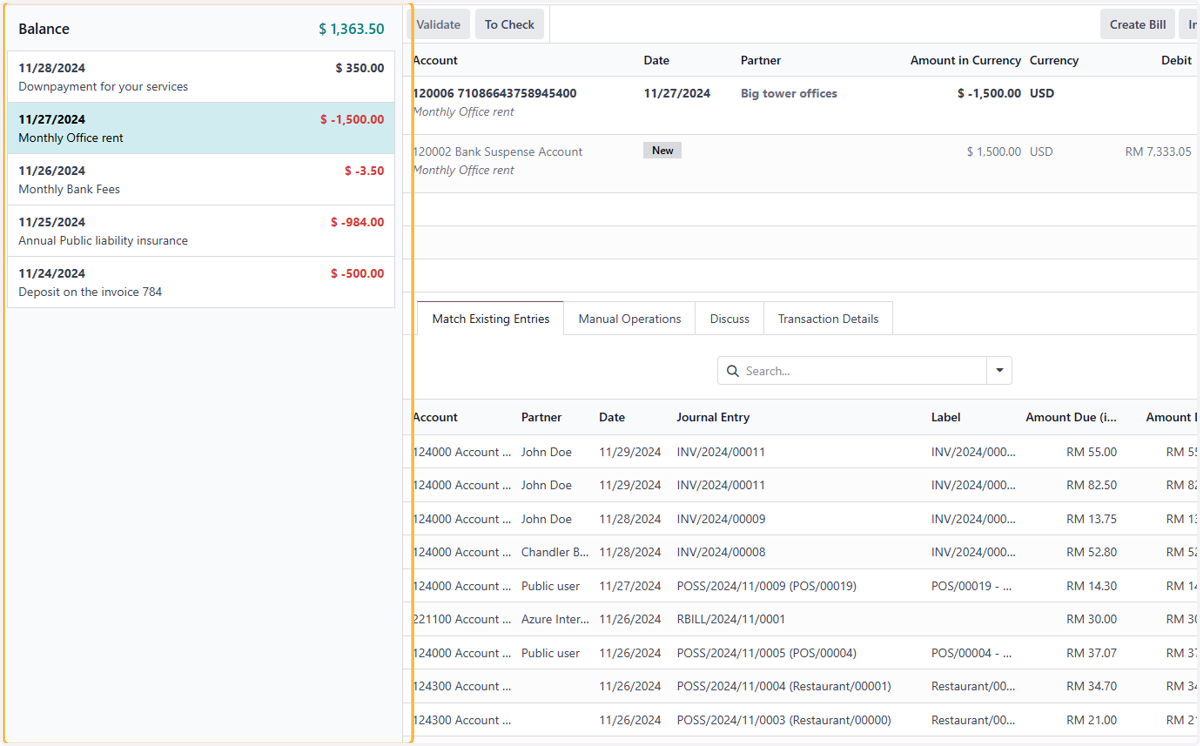
2.4 How to upload and reconcile bank transactions
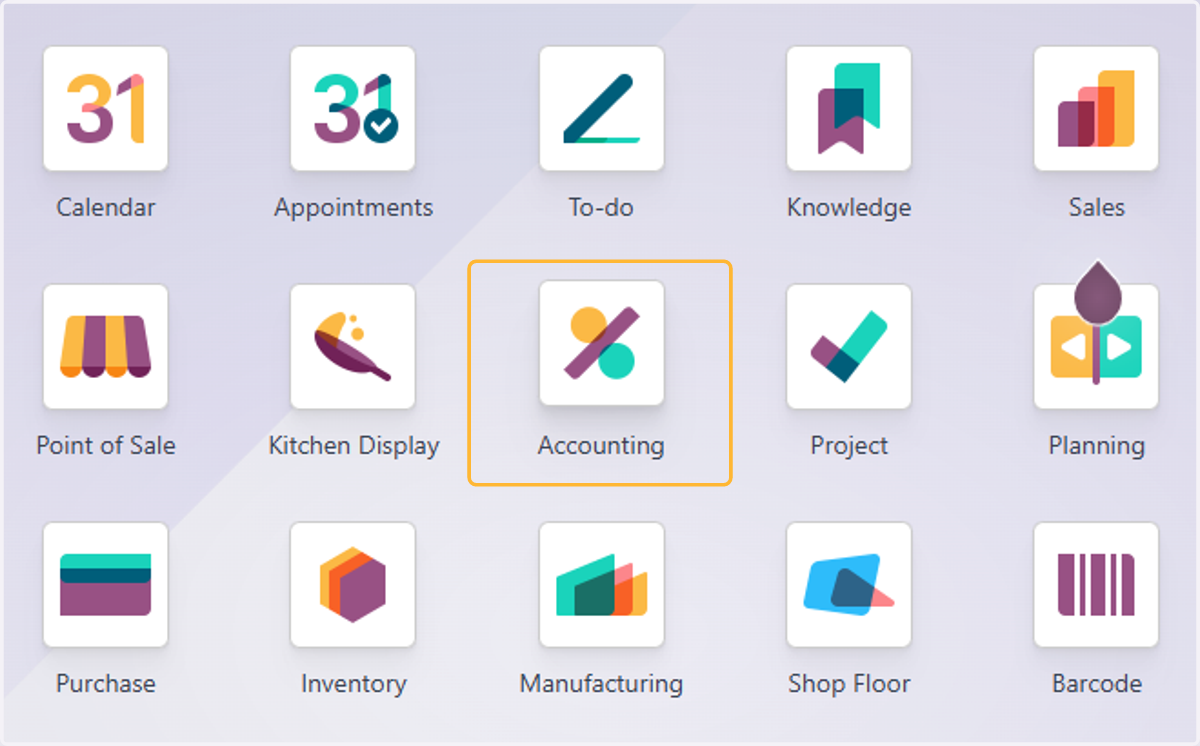
1. Click on Accounting
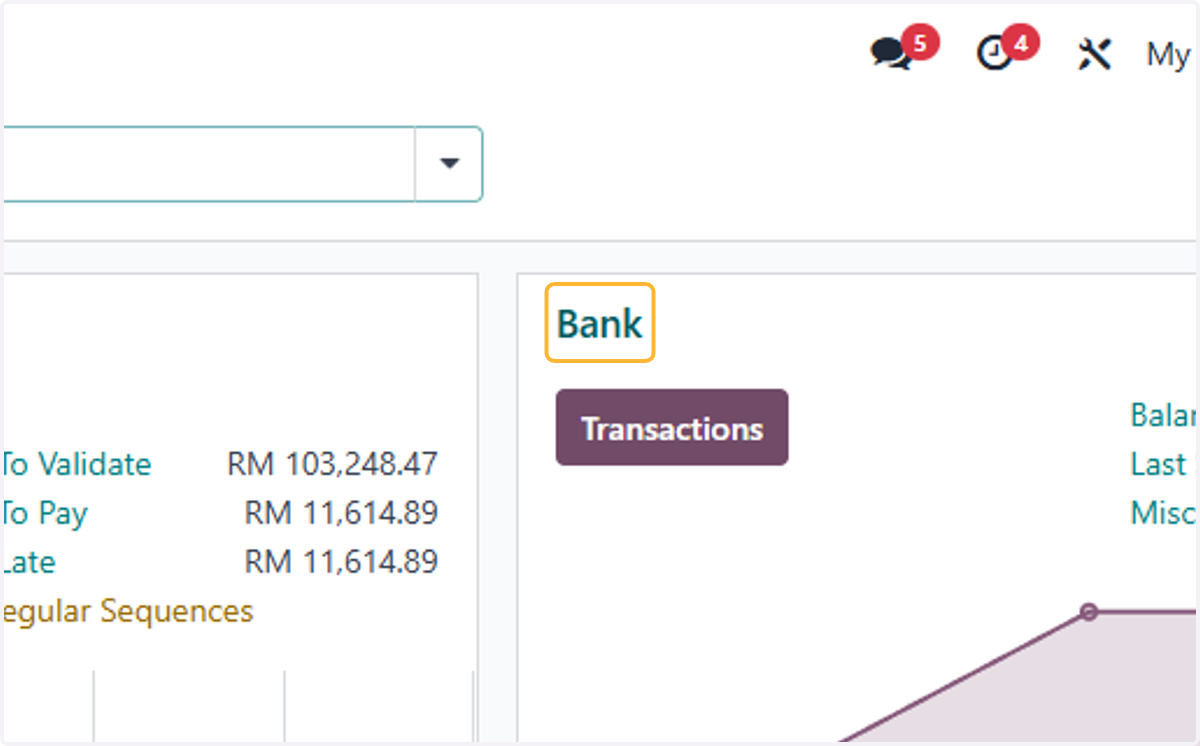
2. Click on Bank
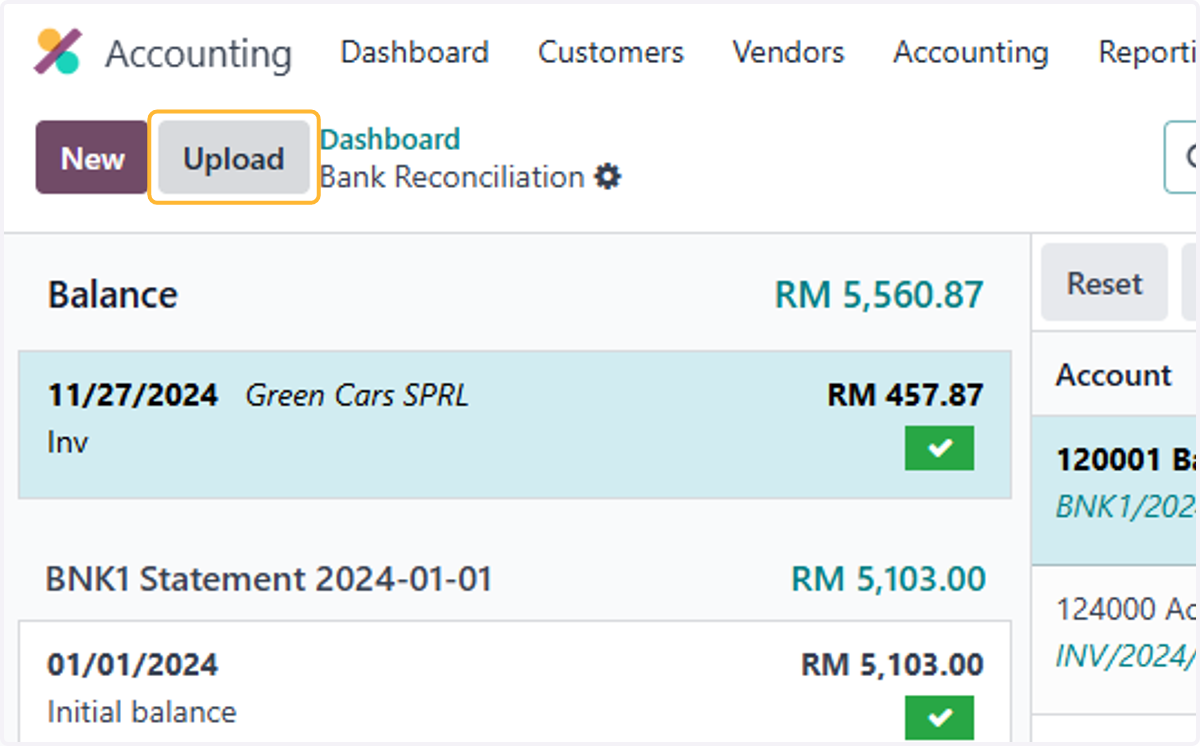
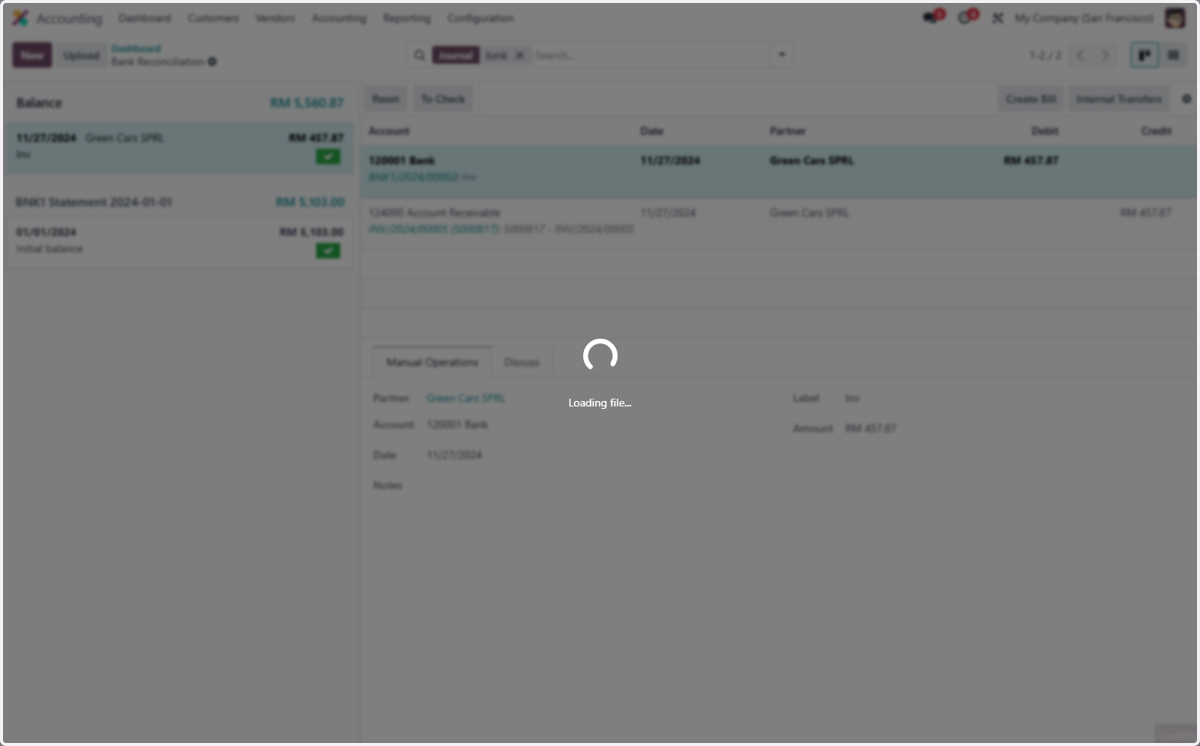
3. Click on Upload
4. Select a file from upload menu
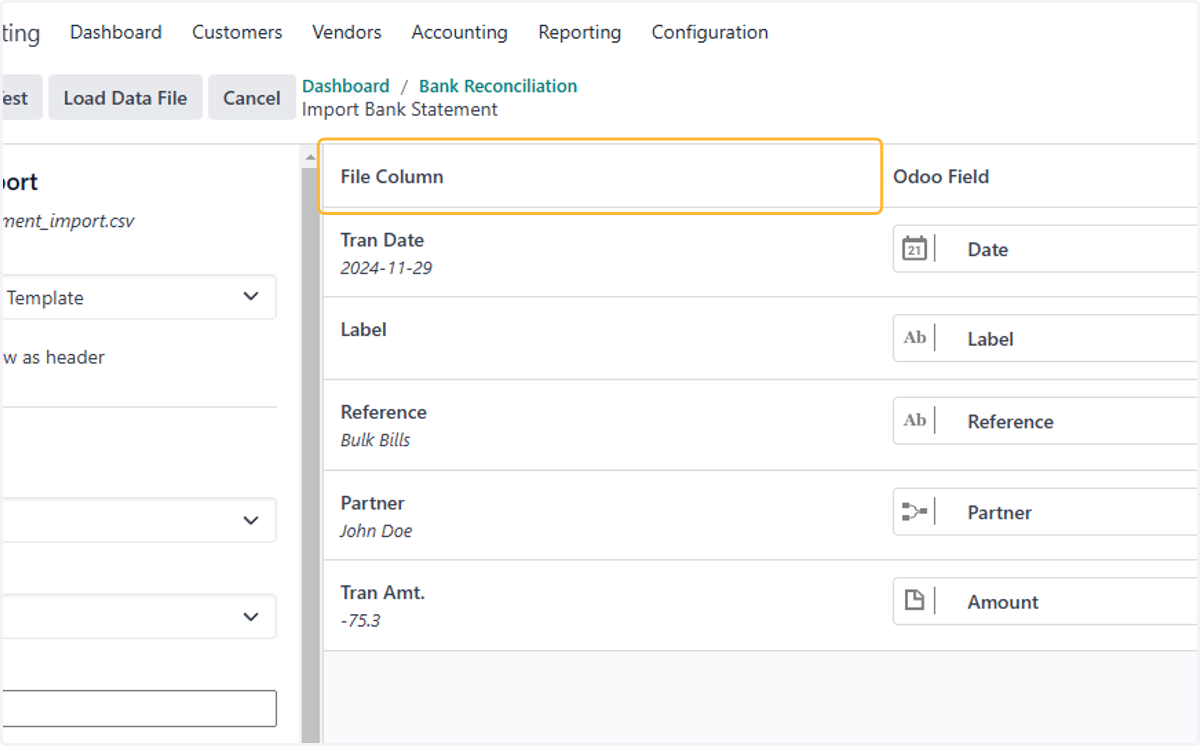
5. Check the File column has an appropriate Odoo Field
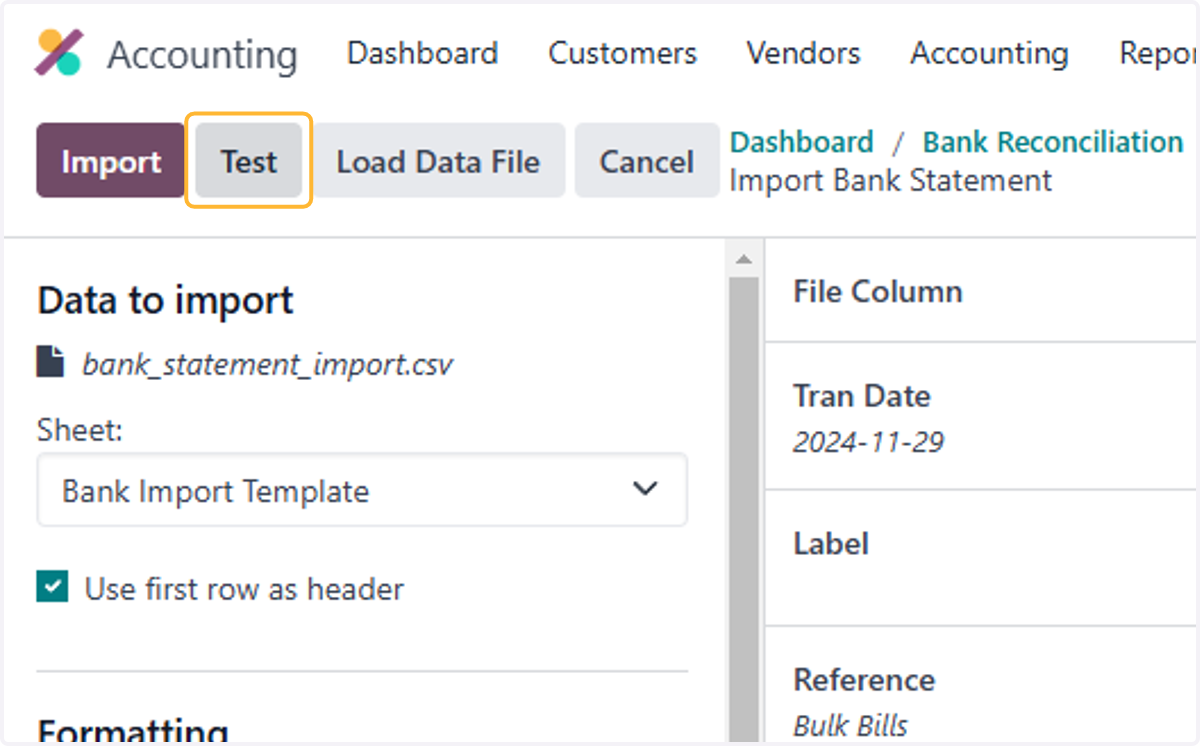
6. Click on Test
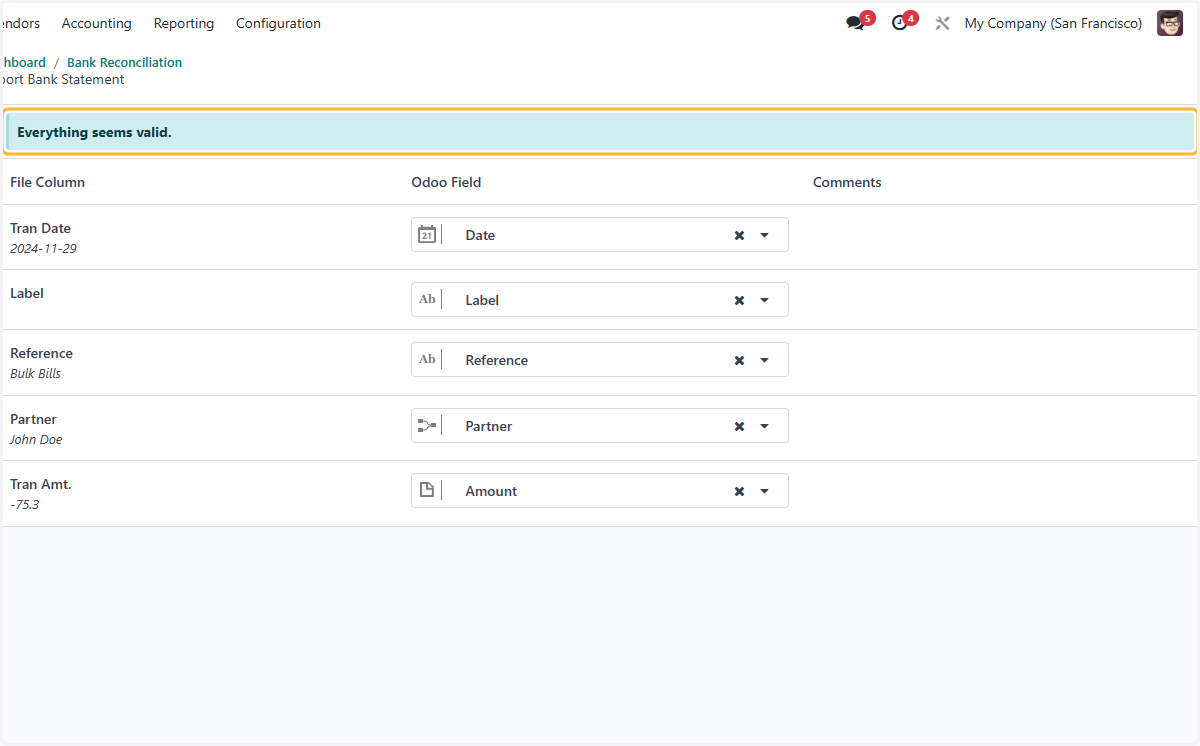
7. Click on Everything seems valid.
8. Click on Import
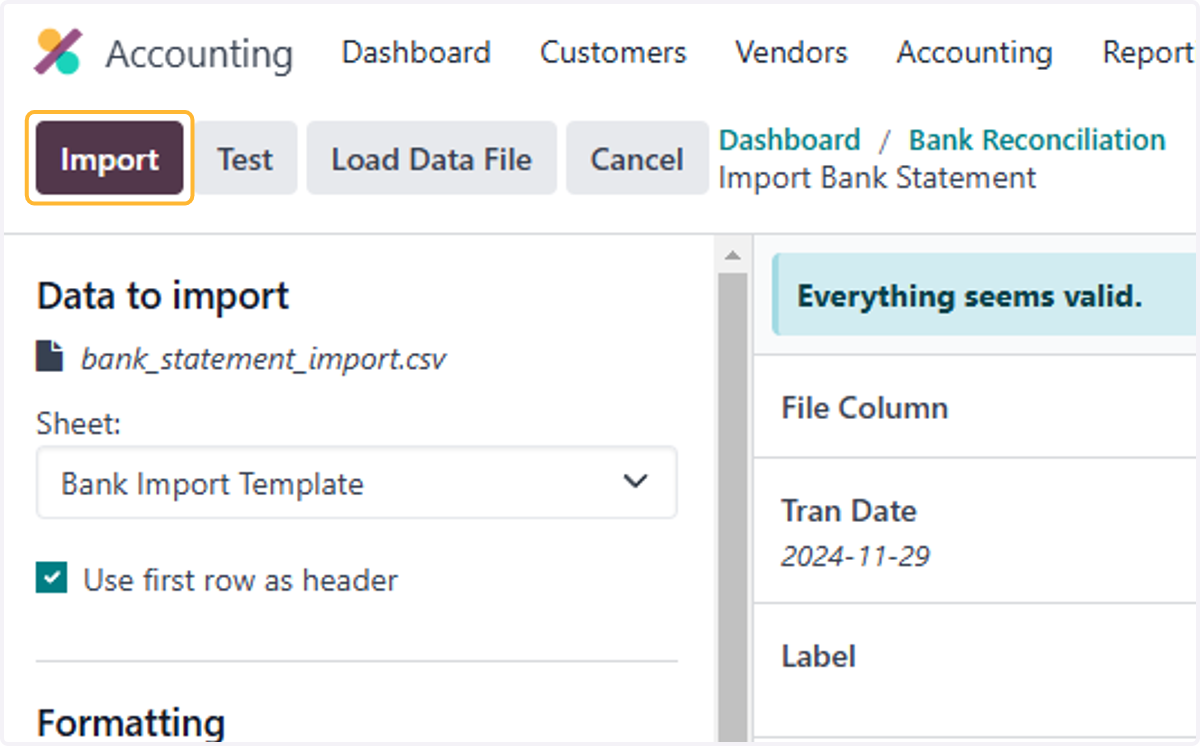
9. Select a transaction.
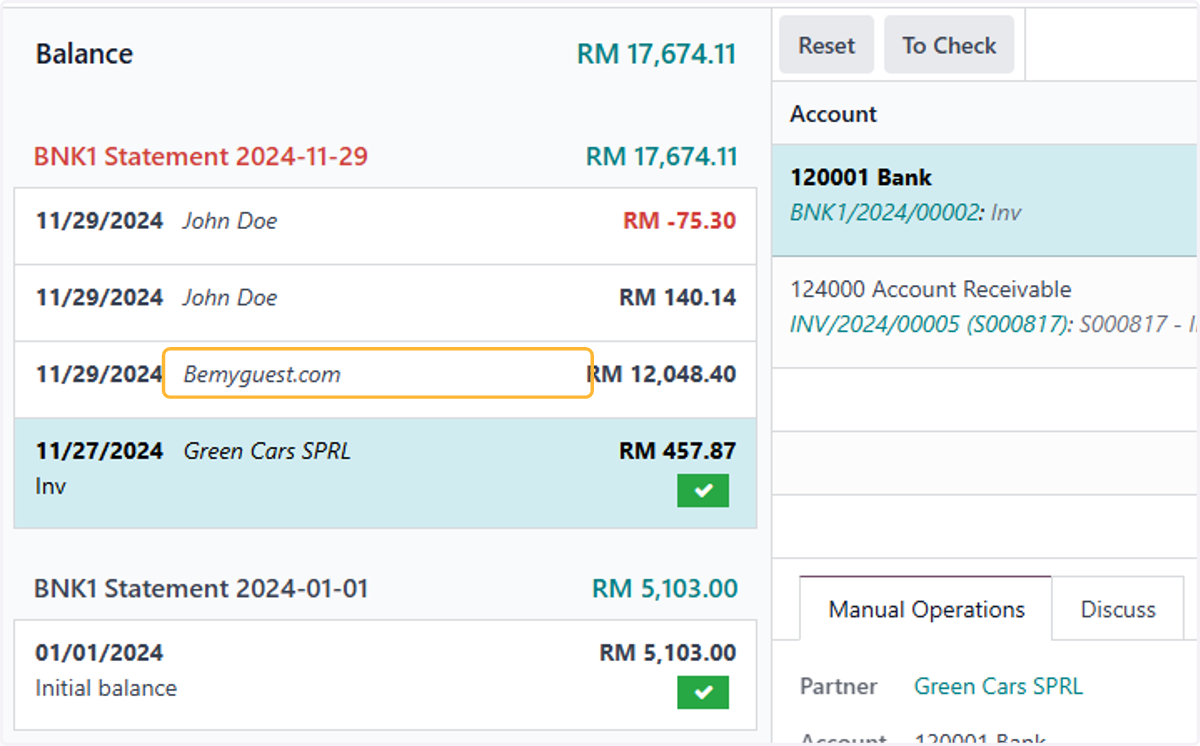
10. If all details in the file are matched, Odoo will automatically suggest the invoice to be reconciled
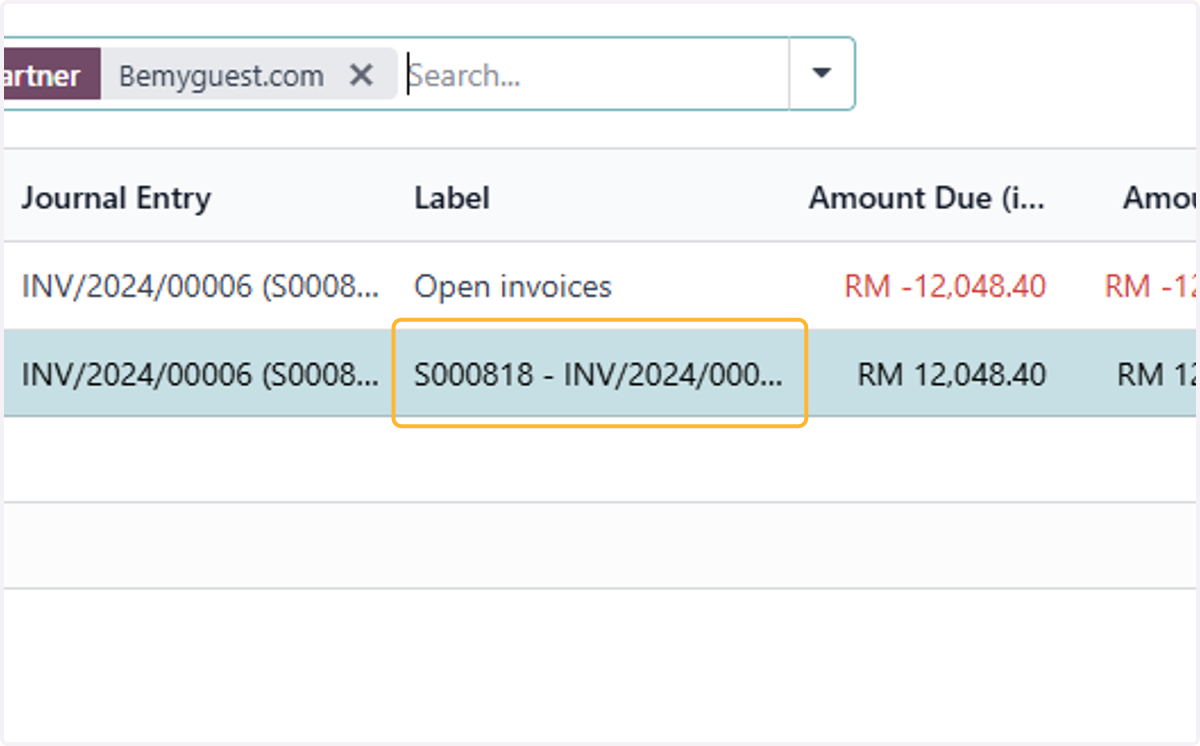
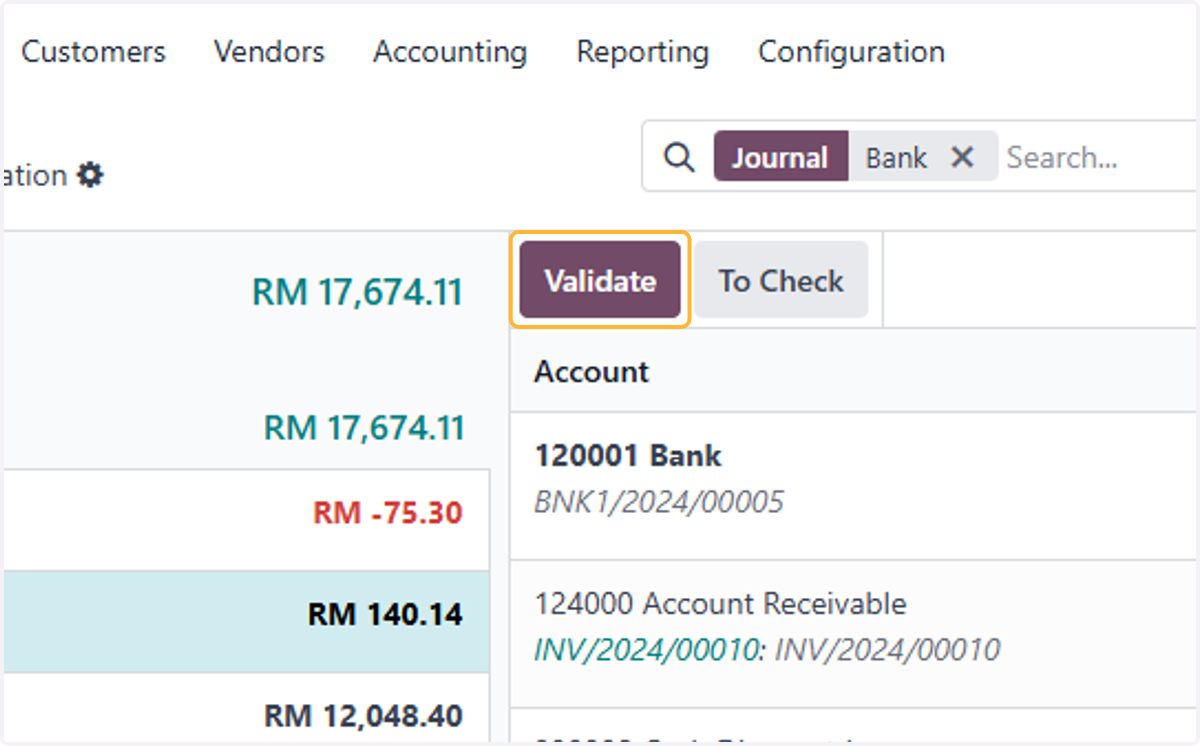
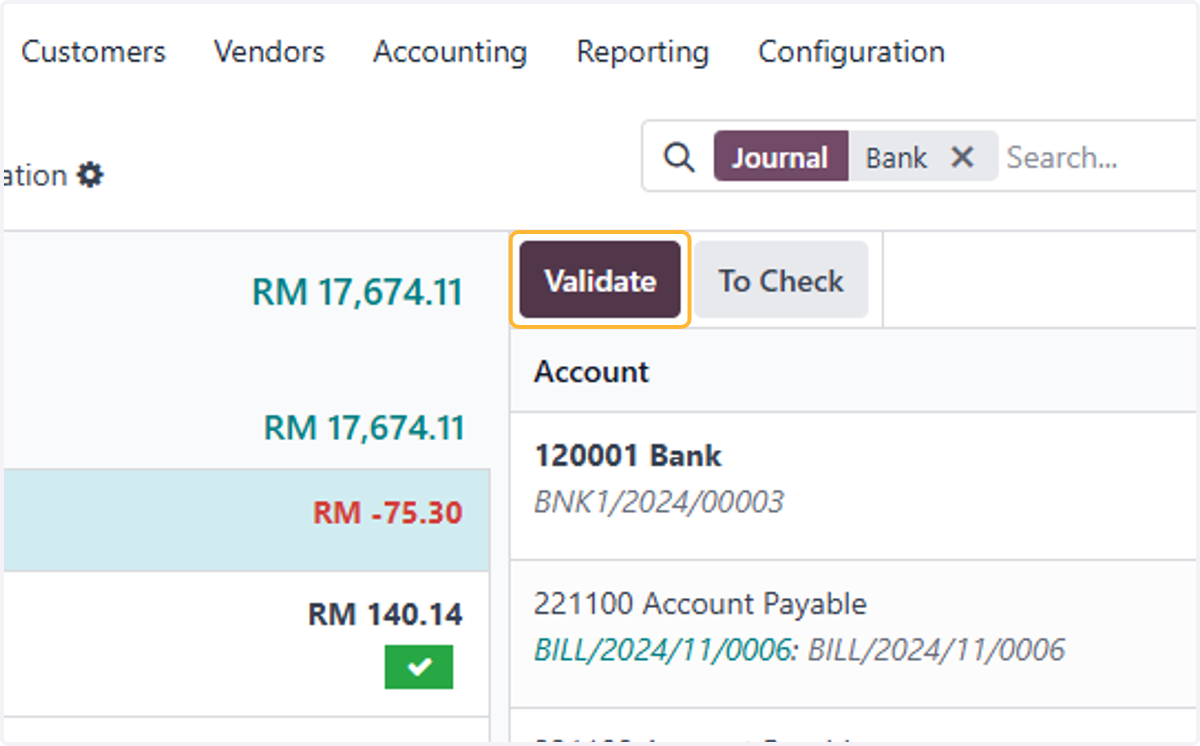
11. Click on Validate
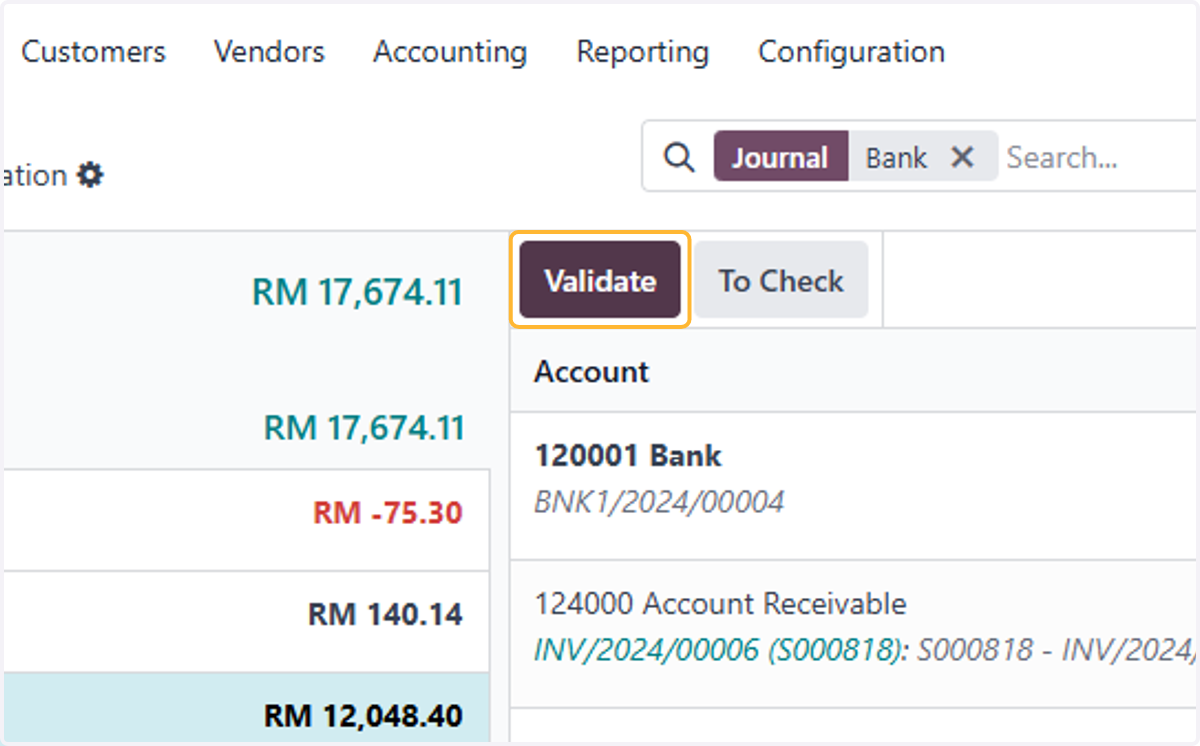
12. Select another transaction (Repeat step 9-10)
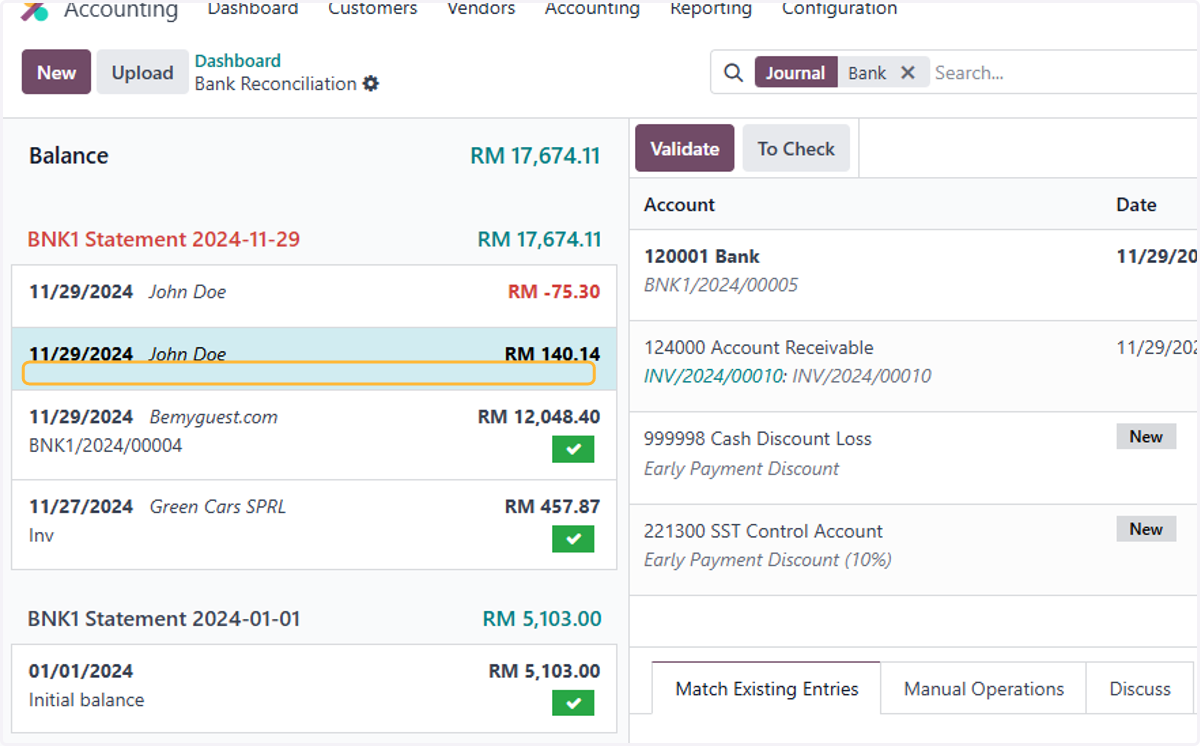
13. The cash discount was automatically calculated based on the invoice shown in Cash Discount Tutorial.
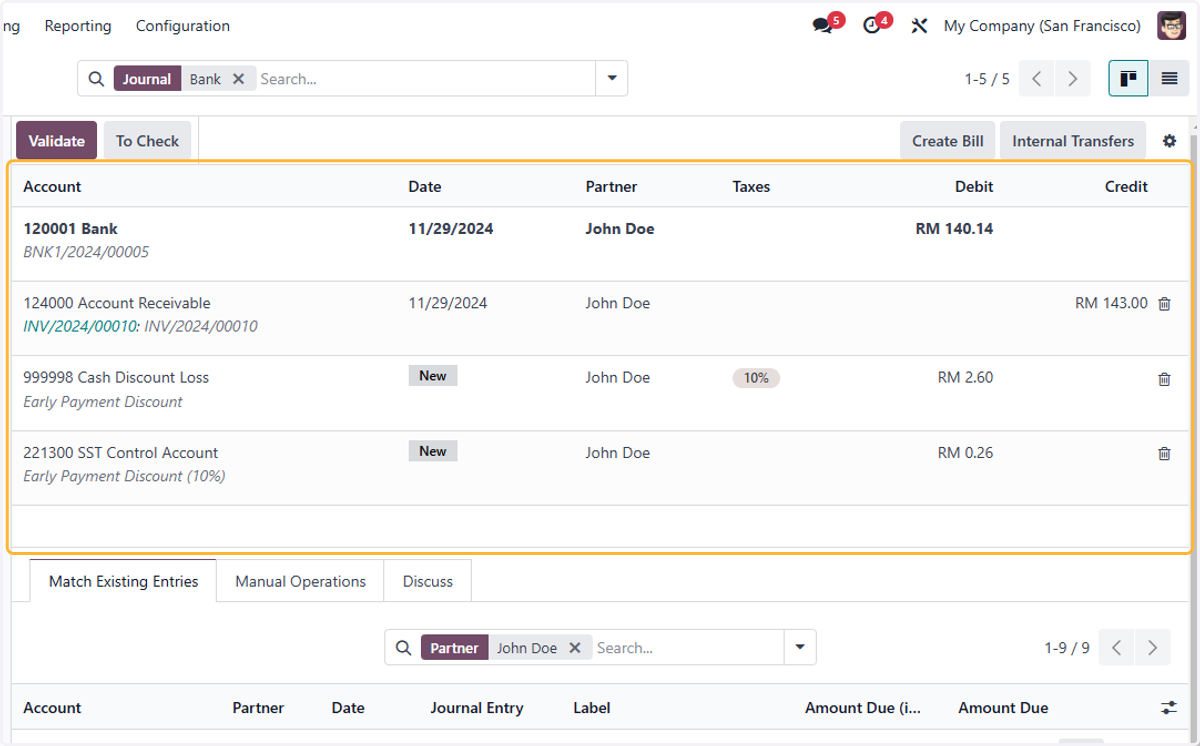
14. Click on Validate
15. By default, it Will reduce the oldest invoice amount first
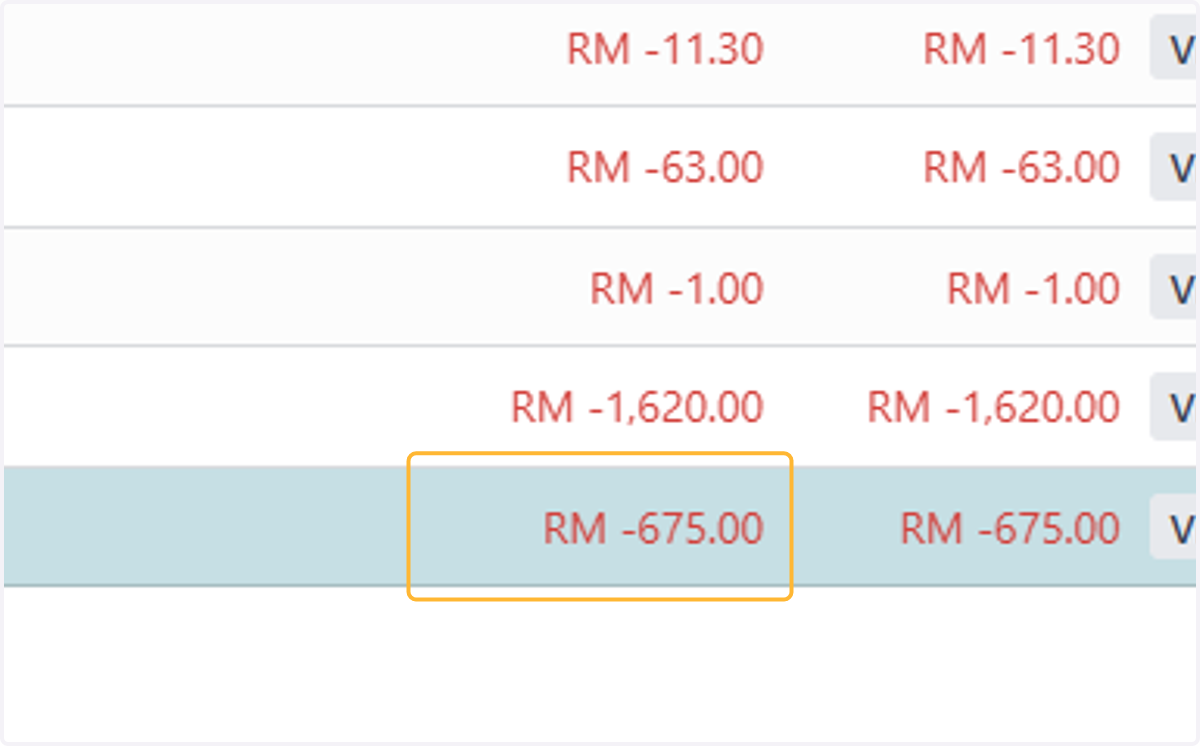
16. Amend if needed. Select the corresponding invoices involved
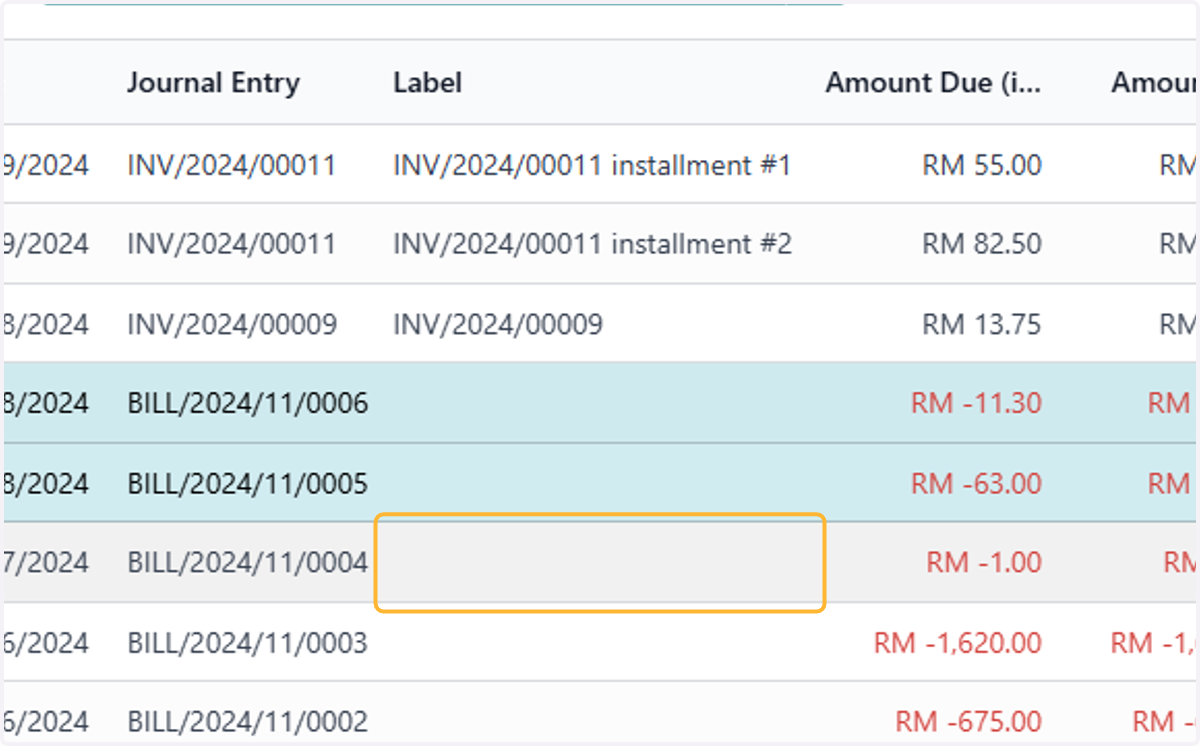
17. Click on Validate
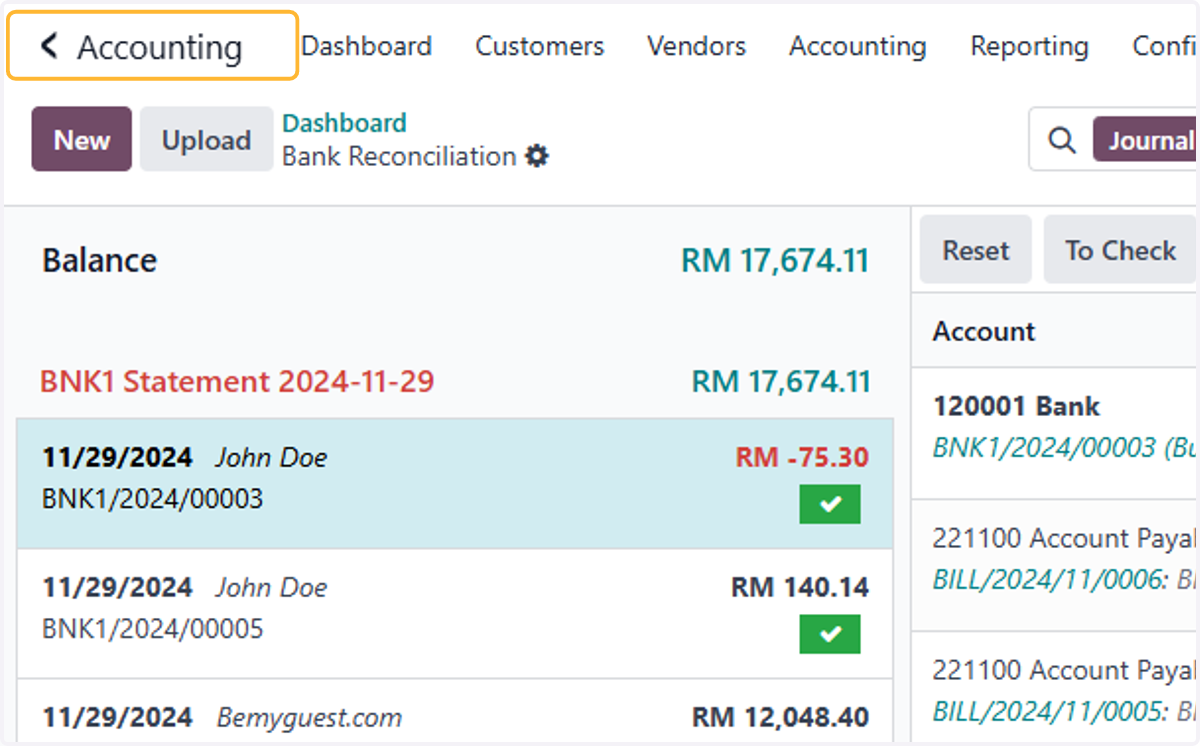
18. Click on Accounting
Setting up Online Bank Synchronization
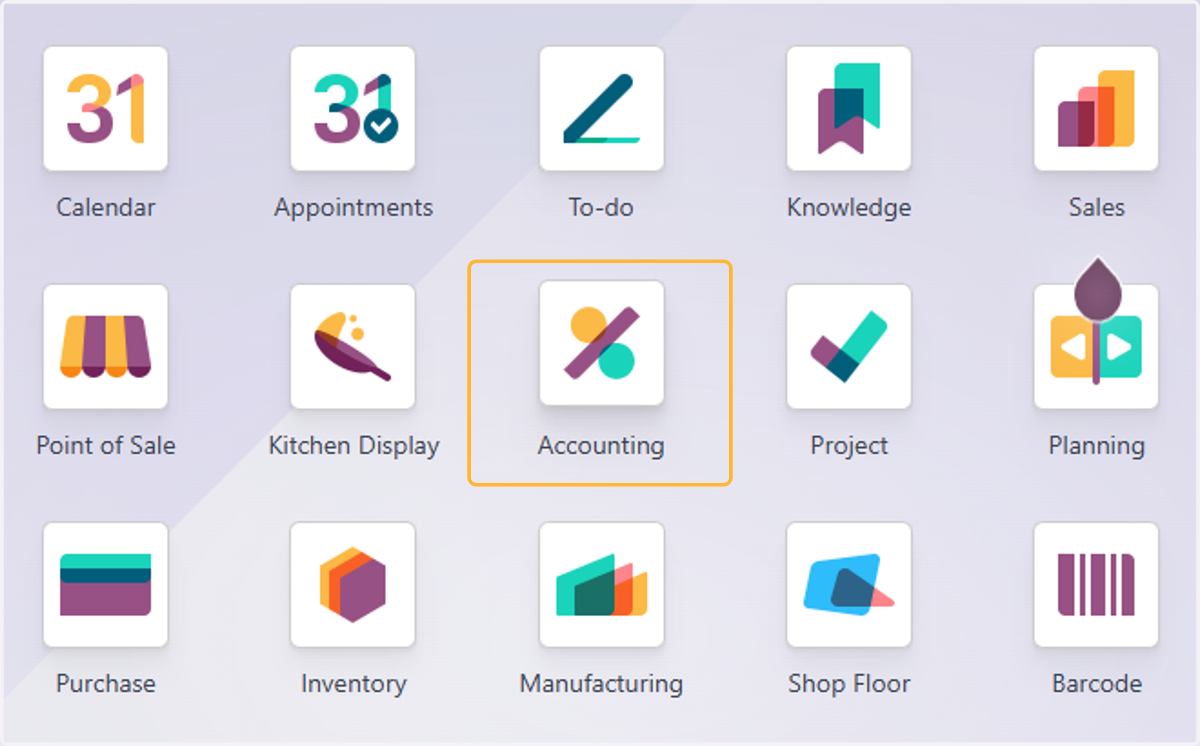
19. Click on Accounting
20. Click on Configuration
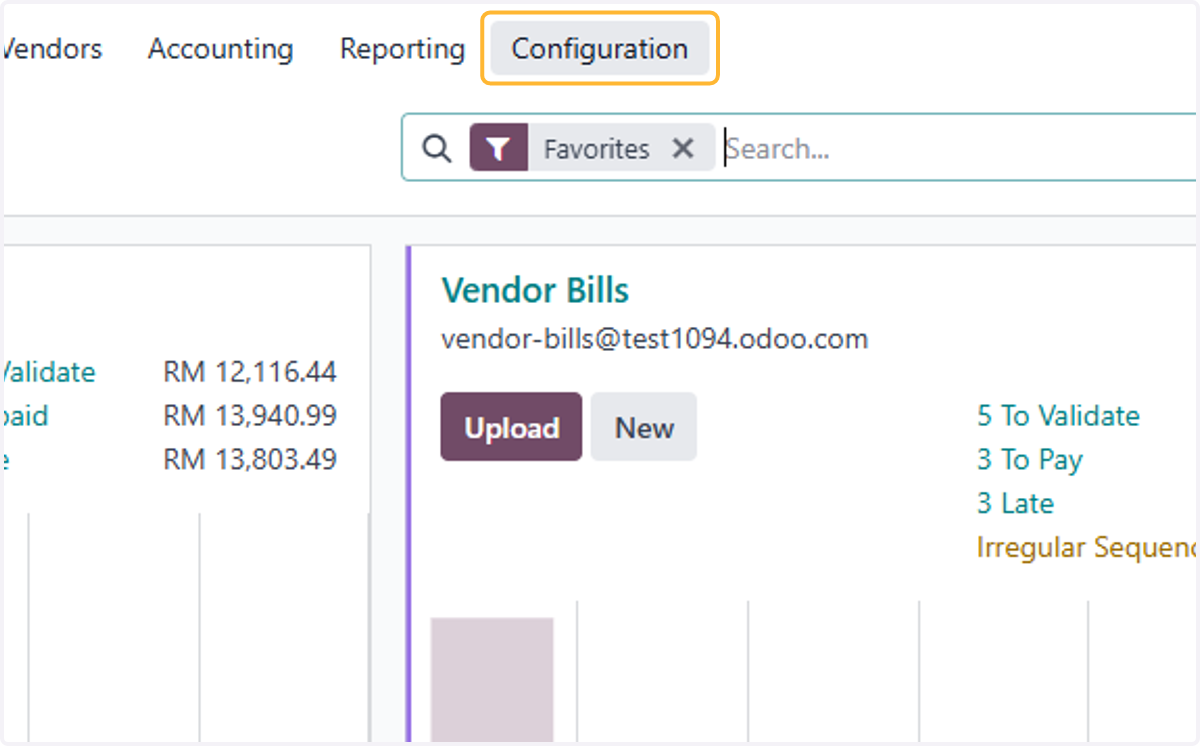
21. Click on Add a Bank Account
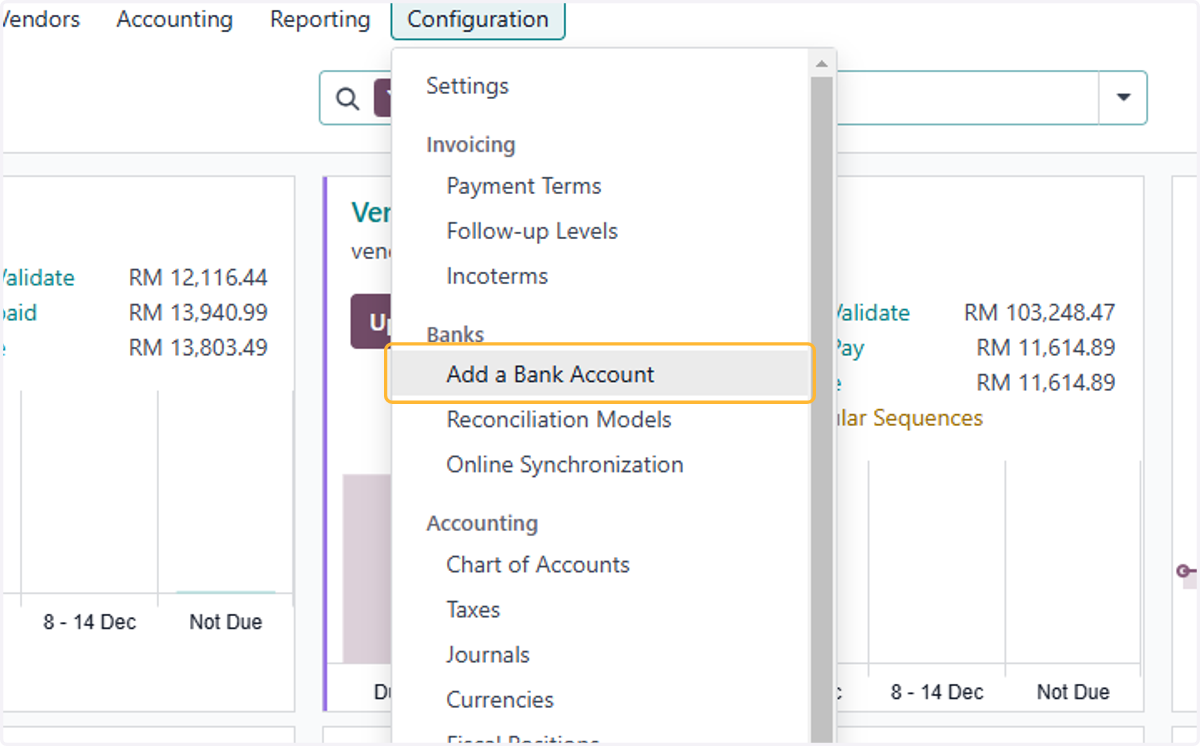
22. List of bank institution available for bank synchronization on Odoo
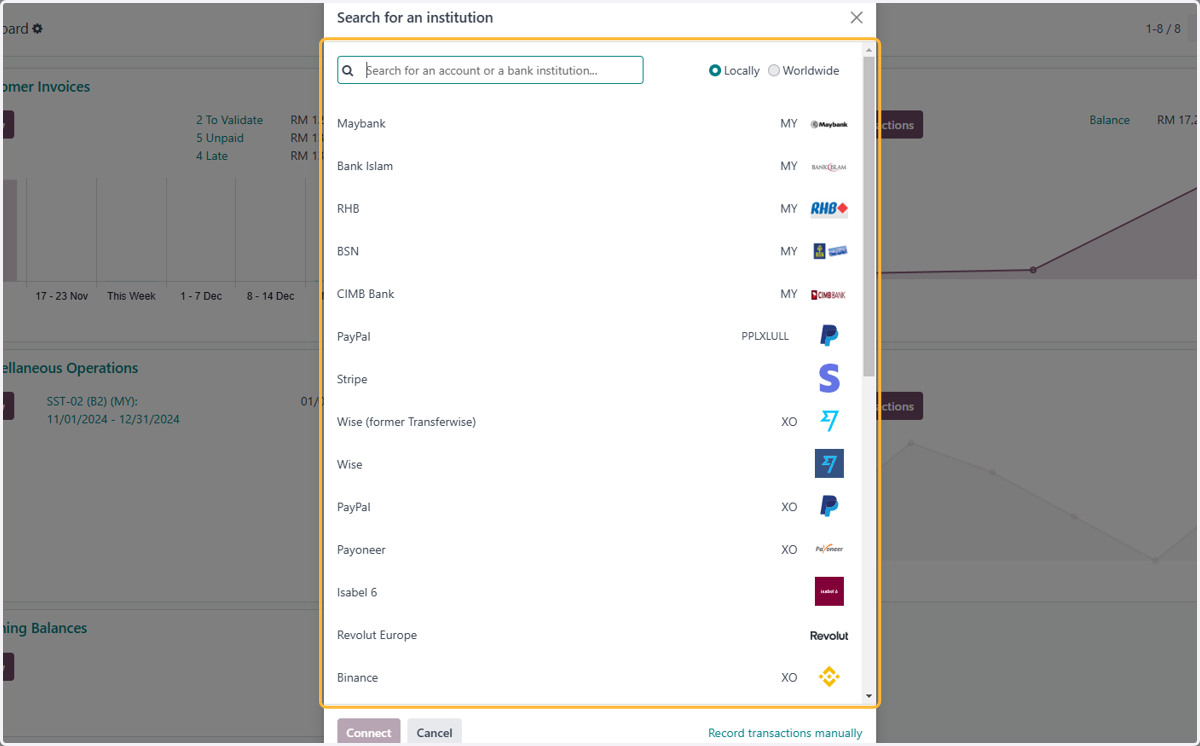
23. Search relevant institution. For example, Odoo Bank Sync Demo will be used
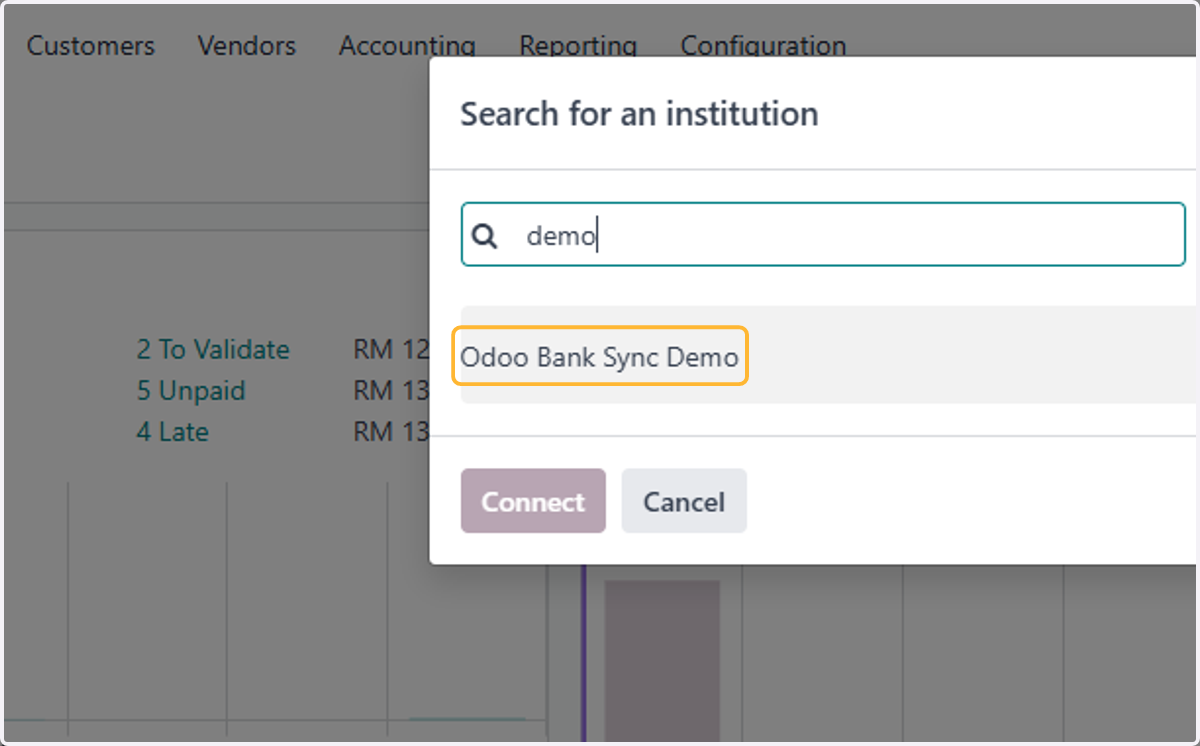
24. Click on Connect
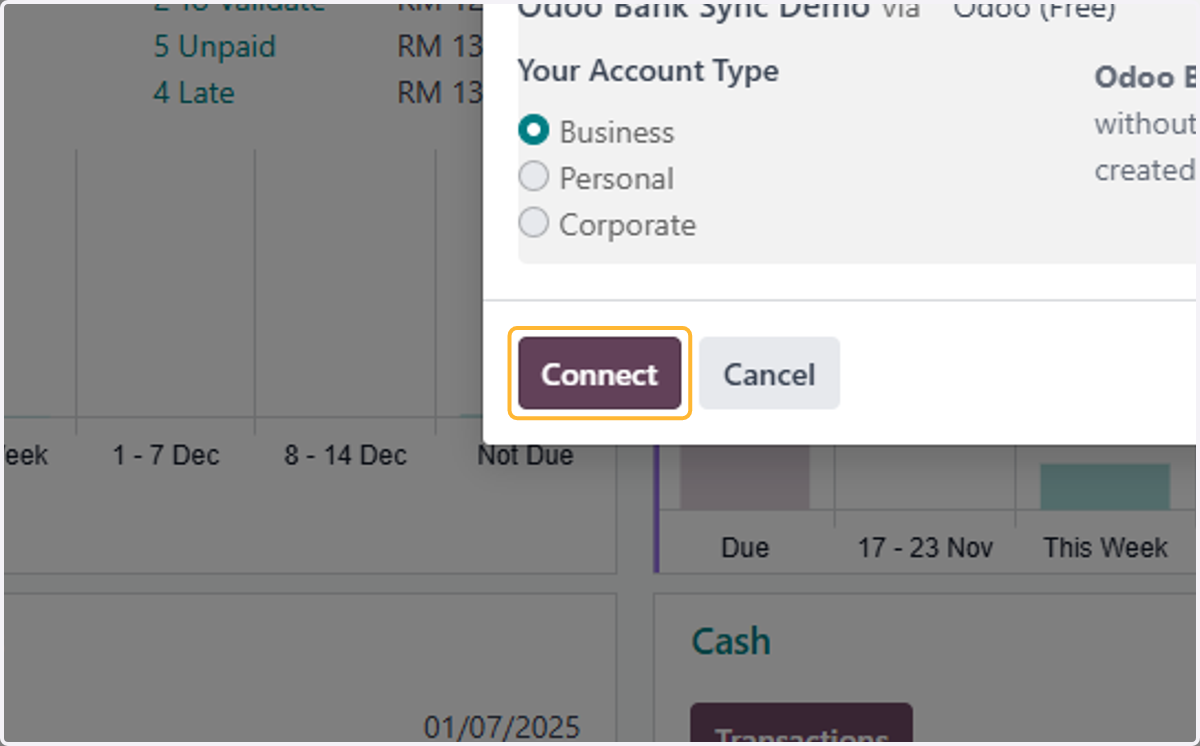
Connect with Odoo Bank Sync Demo
25. Will be redirected to the appropriate institution & API for intergration.
This is a demo/sandbox version
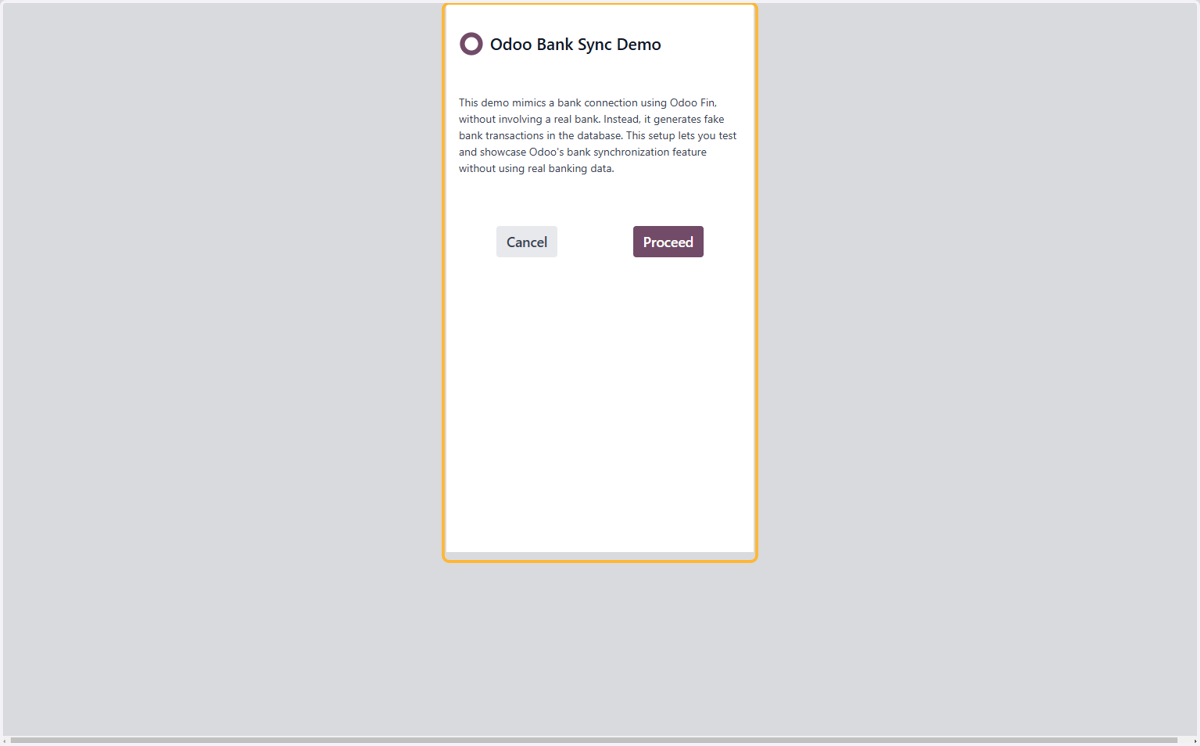
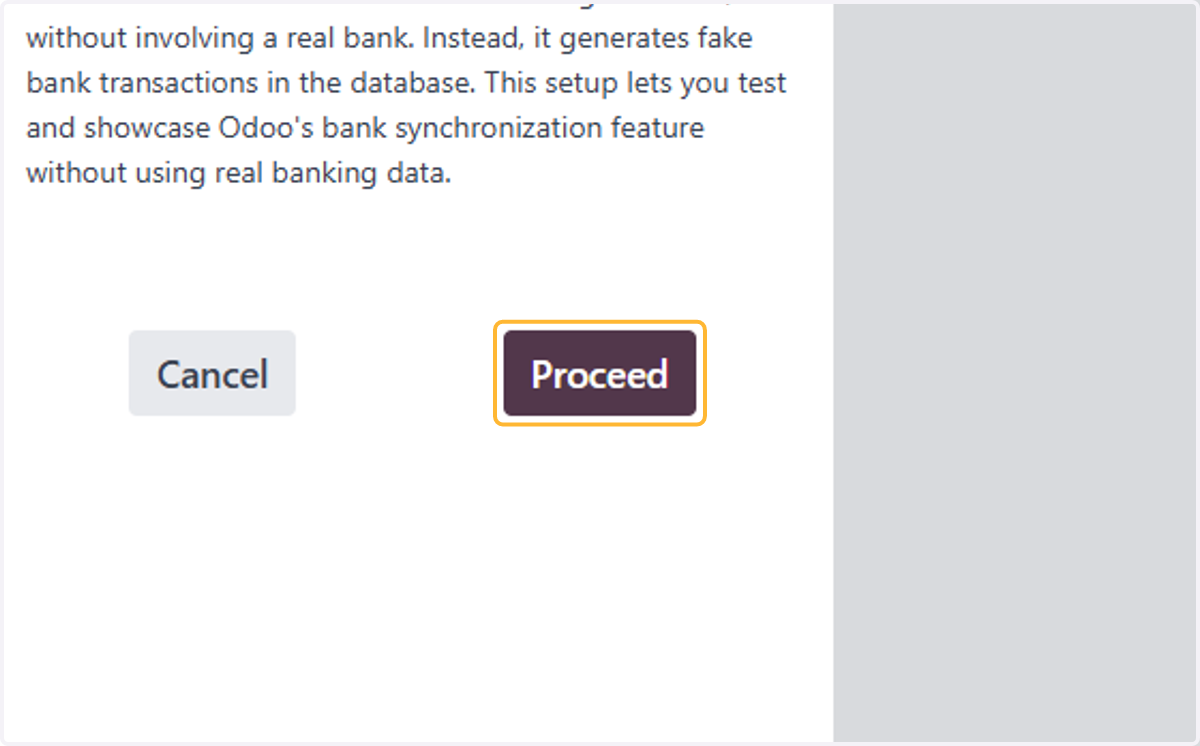
26. Click on Proceed
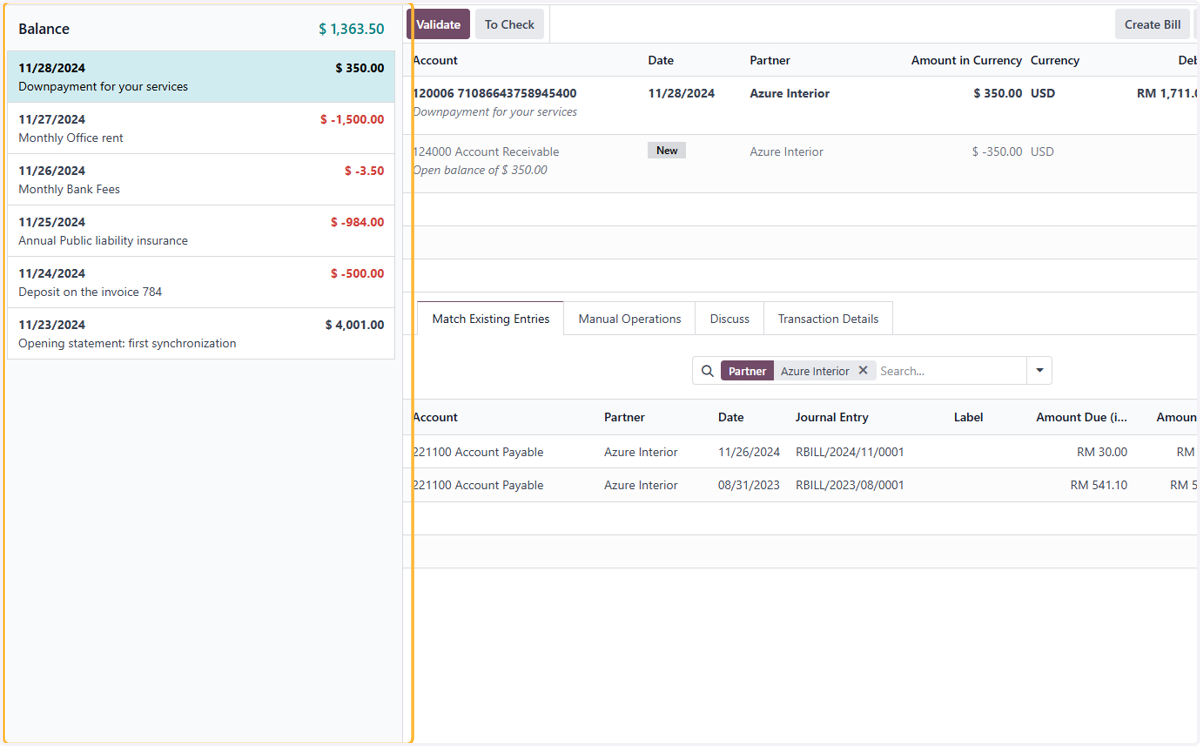
27. Once logged-in/synced, bank transactions will automatically be updated ready for reconcilation.
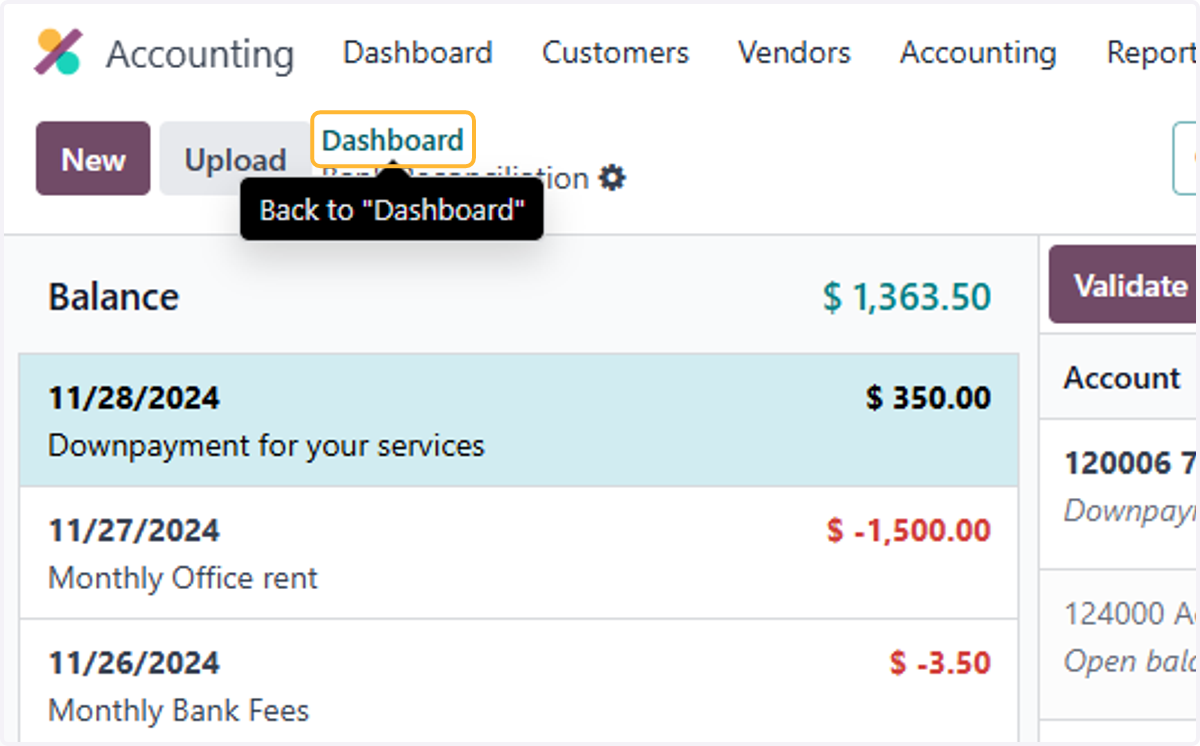
28. Click on Dashboard
29. Click on Fetch Transactions to fetch & update transactions to date.
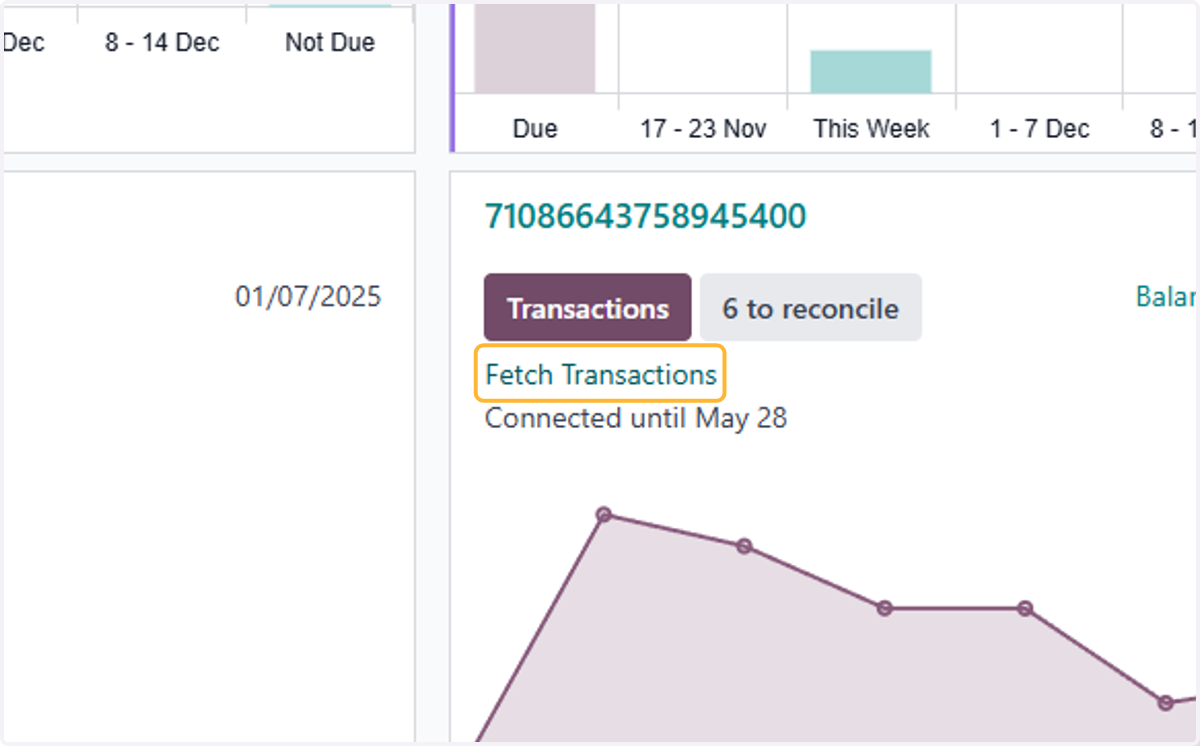
30. Updated transactions will appear ready for reconciliation.