Logging in as a New User for the first time
These are the steps to take when a User receives their CMIS Invitation email.
CMIS
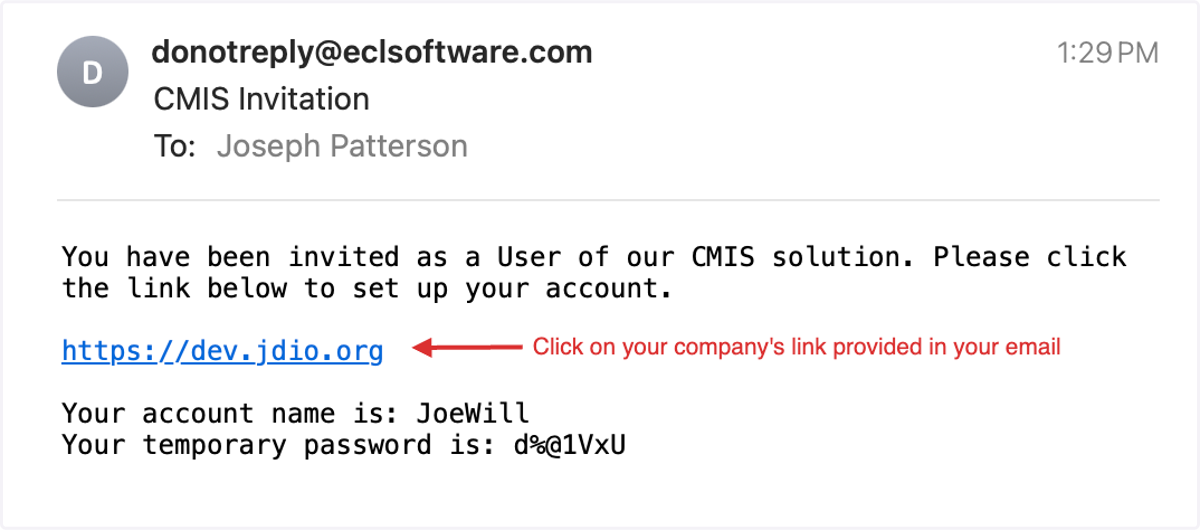
1. CMIS Invitation
You'll receive a CMIS Invitation email that will give you the URL that you are to follow, your Account Name, and your temporary password.
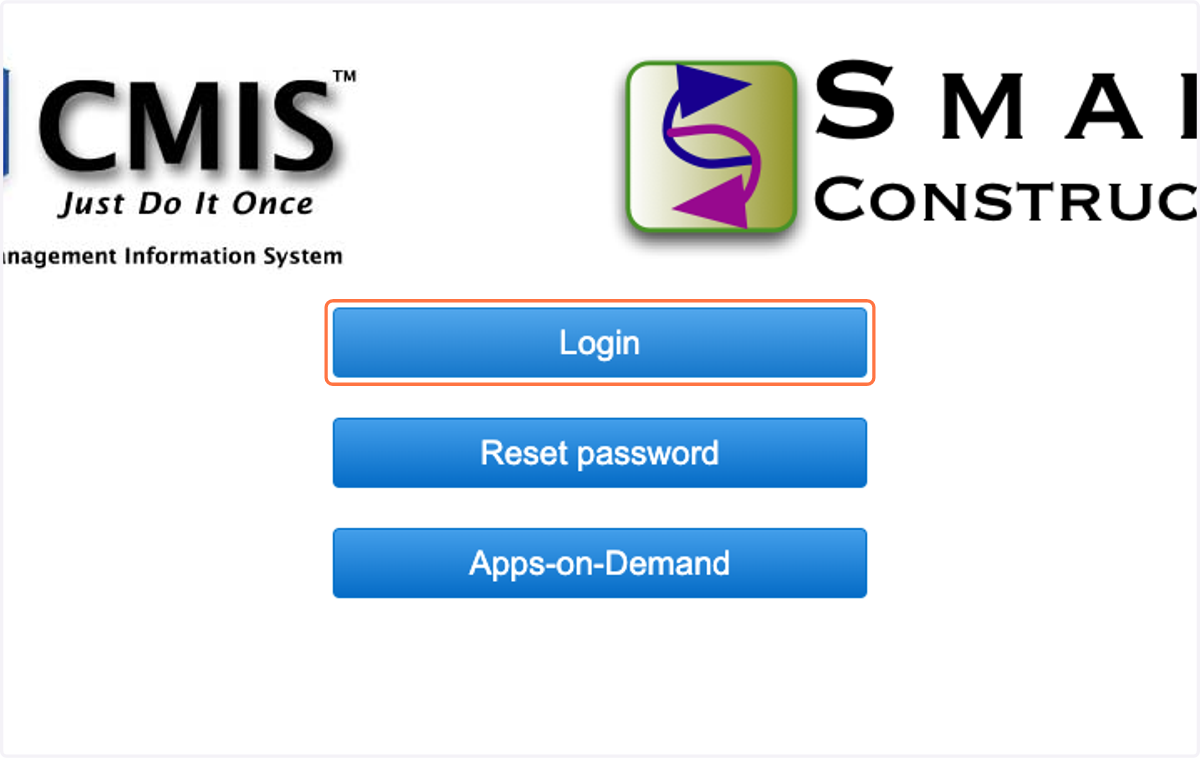
2. Click on Login
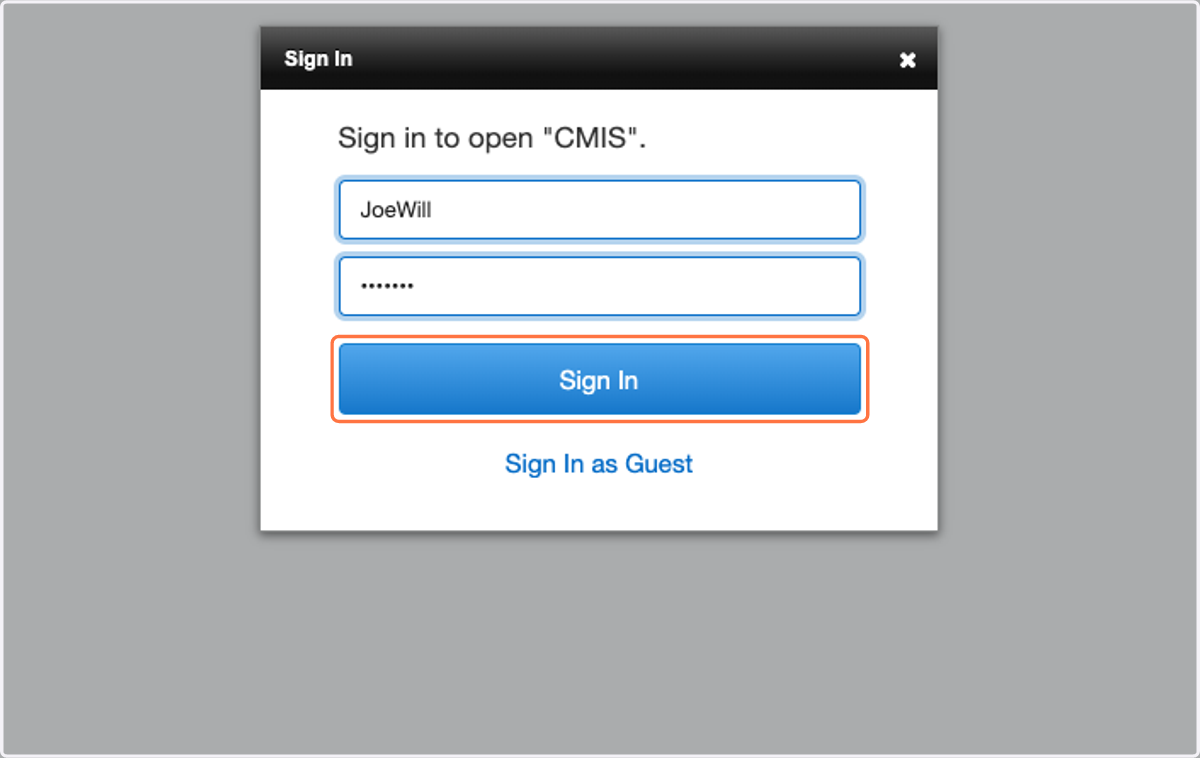
3. Type in your Account Name and temporary password
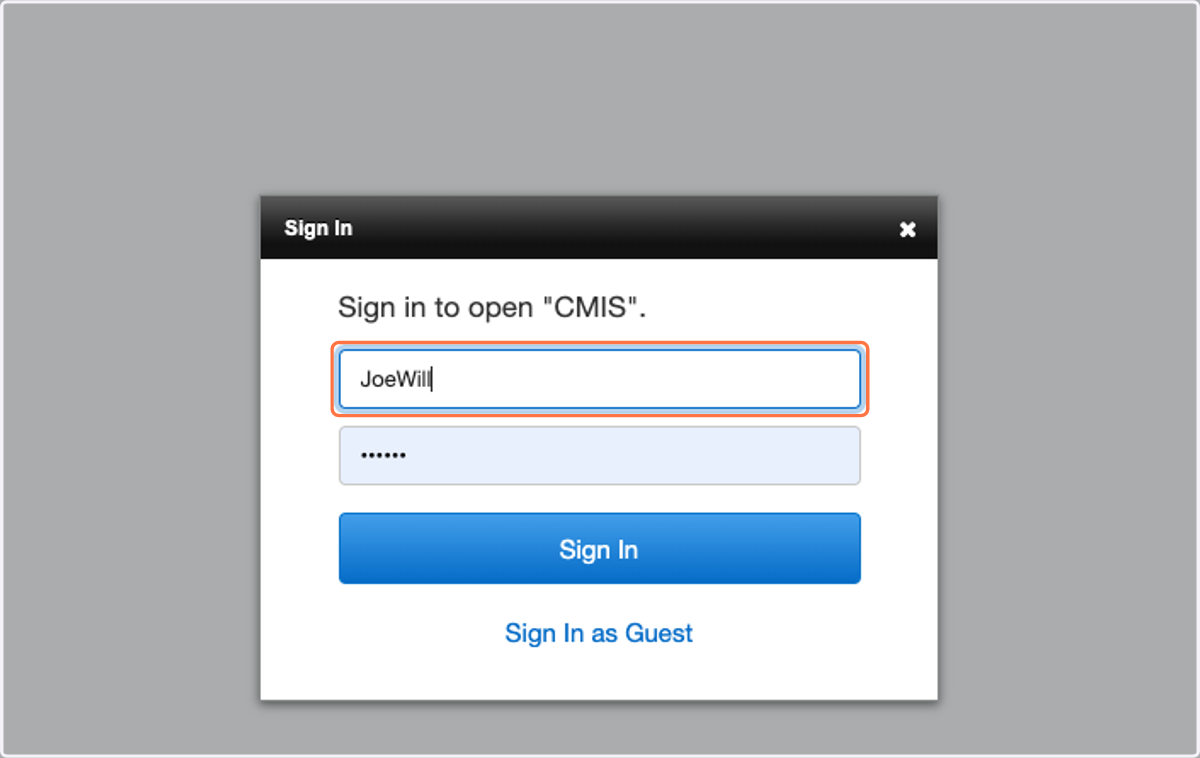
4. Click on Sign In
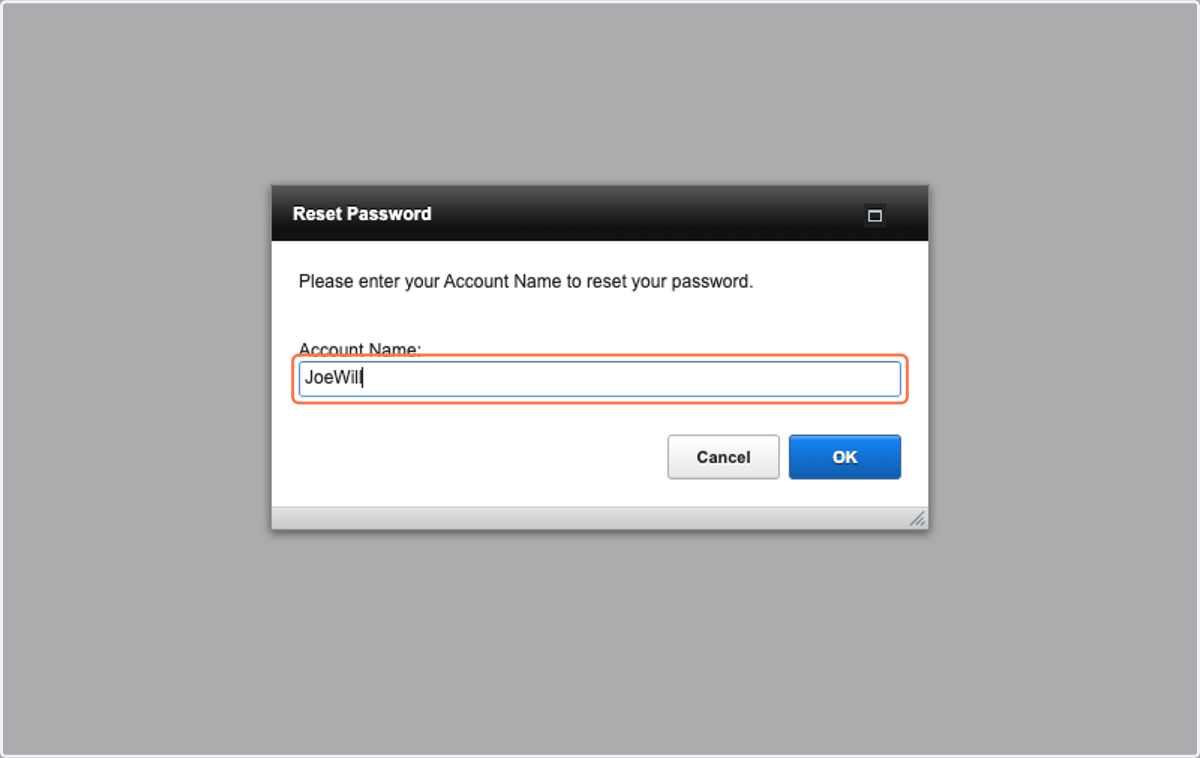
5. Type in your Account Name to reset your password
This will validate you again and will then send a code to your email address to confirm who you are.
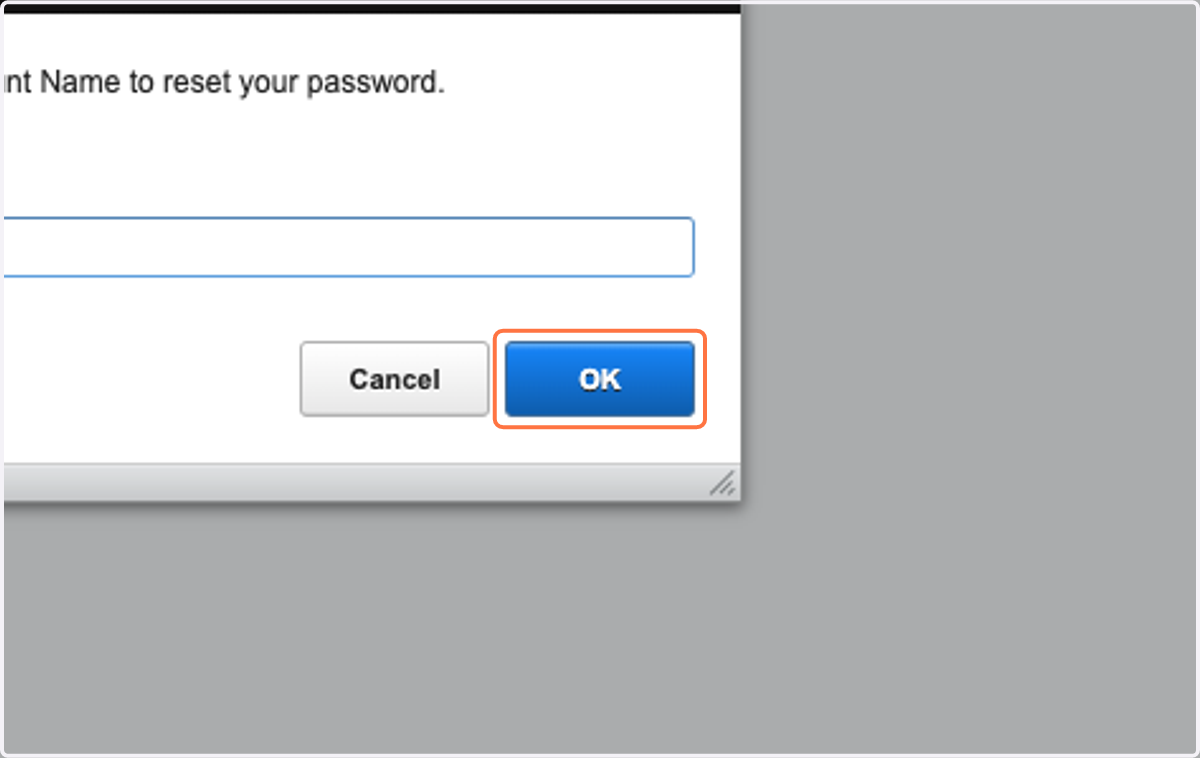
6. Click on OK
7. You will then receive a Code sent to your email address.
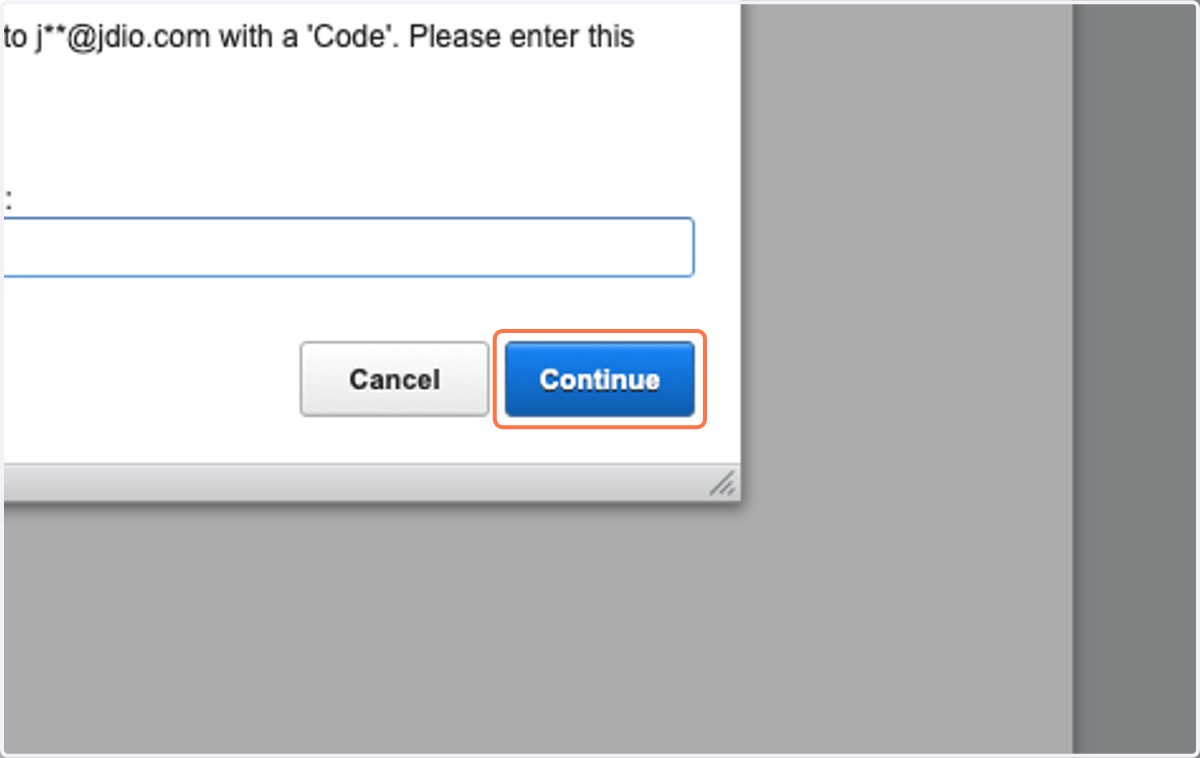
Copy the code from your email and paste it in the "Enter number code here:" field ie where the 3164 is.
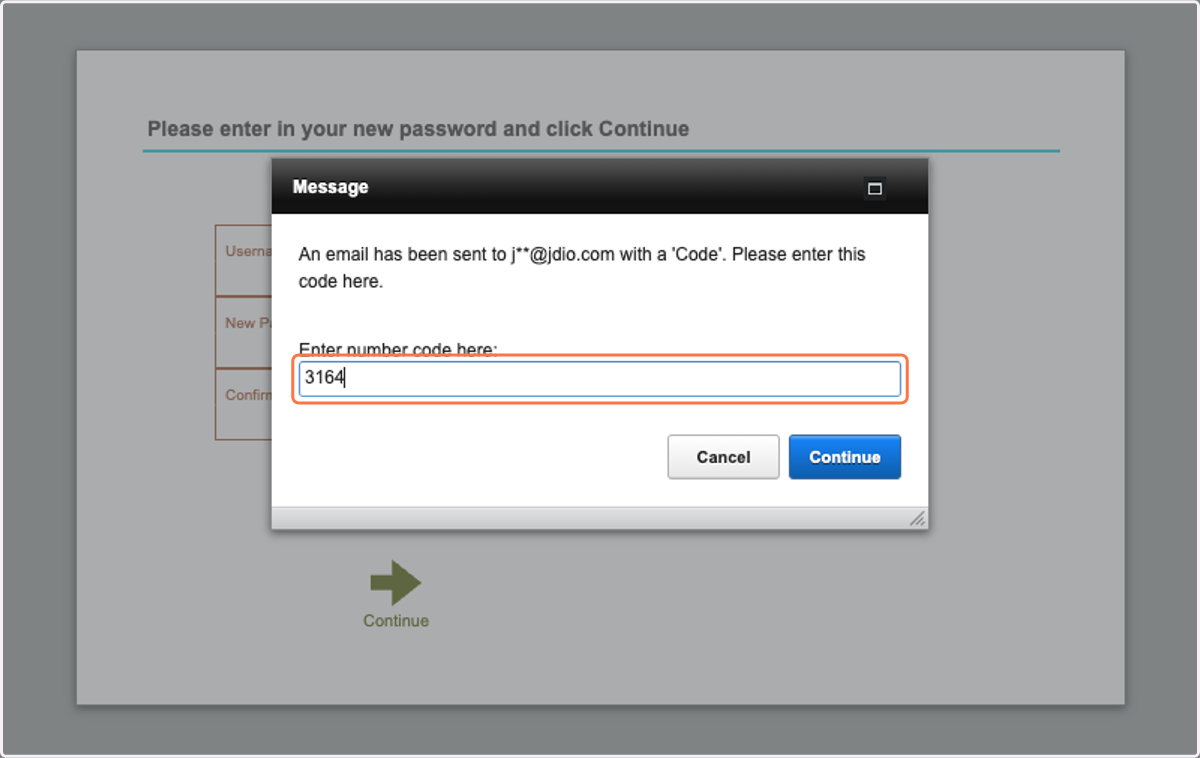
8. Click on Continue
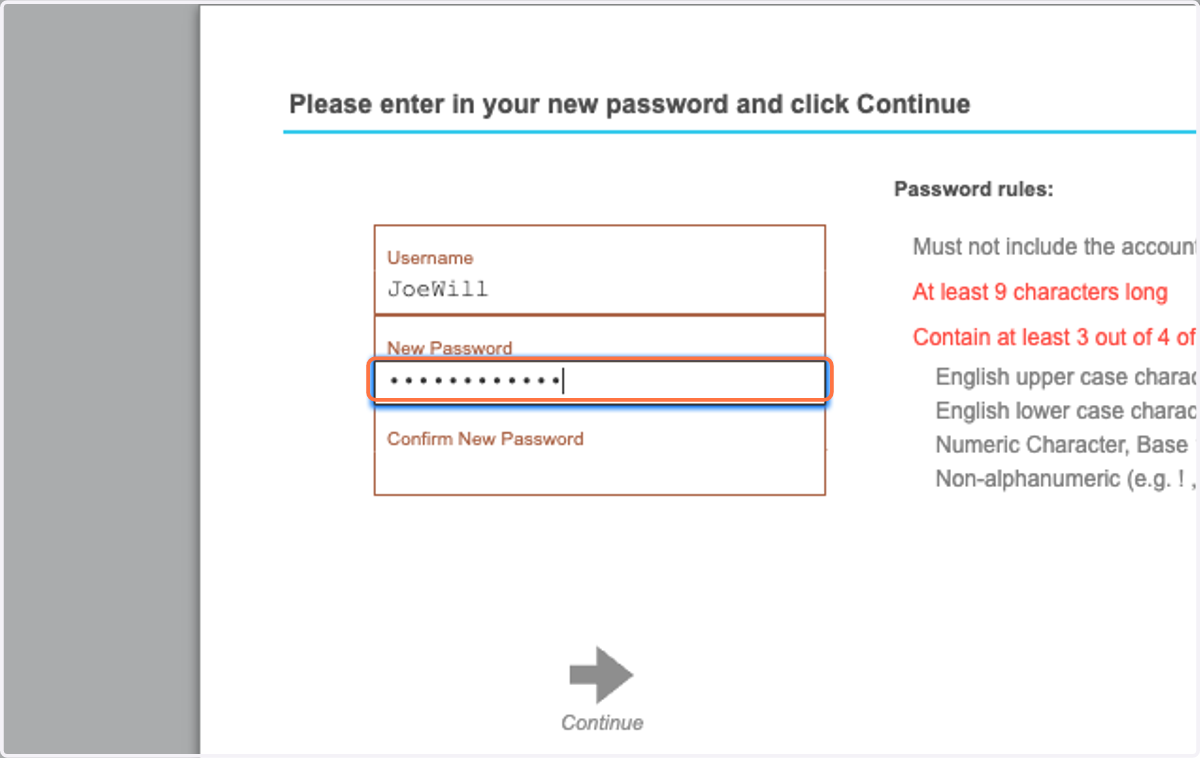
9. Type in your new password
Follow the prompts to the right. It must be 9 characters long and Contain specific character types.
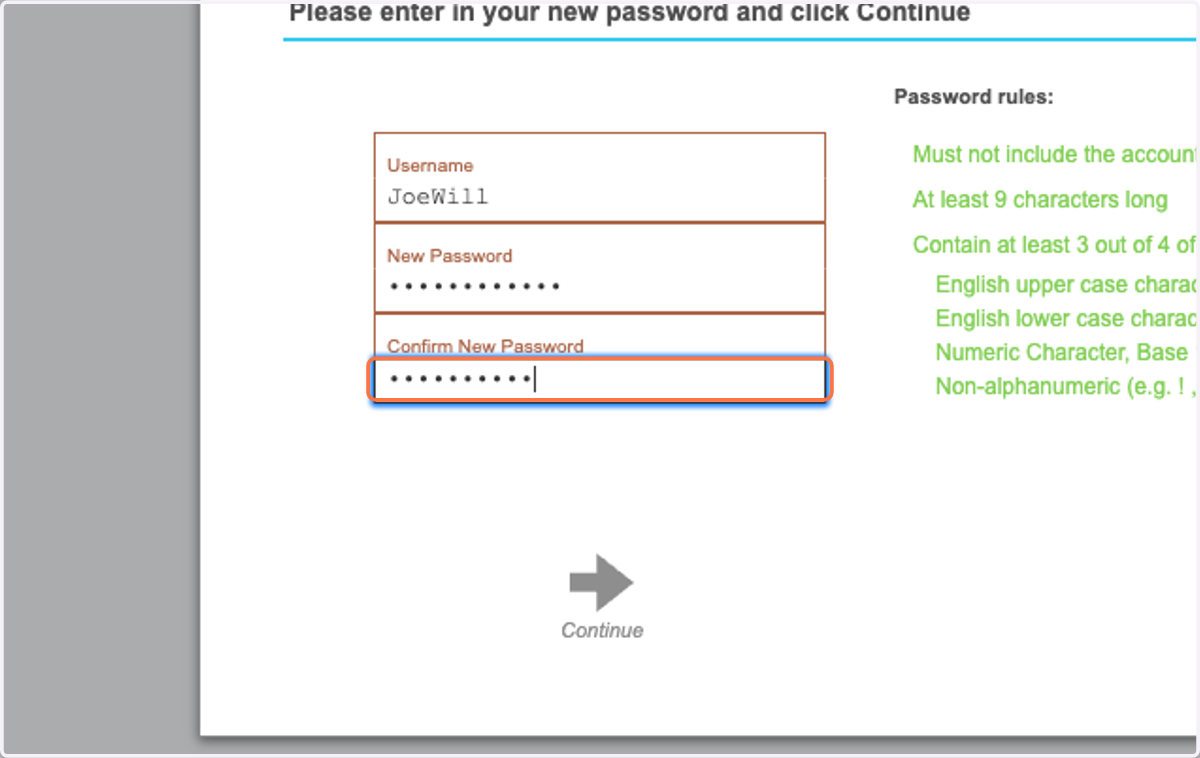
10. Confirm the new password by typing it again
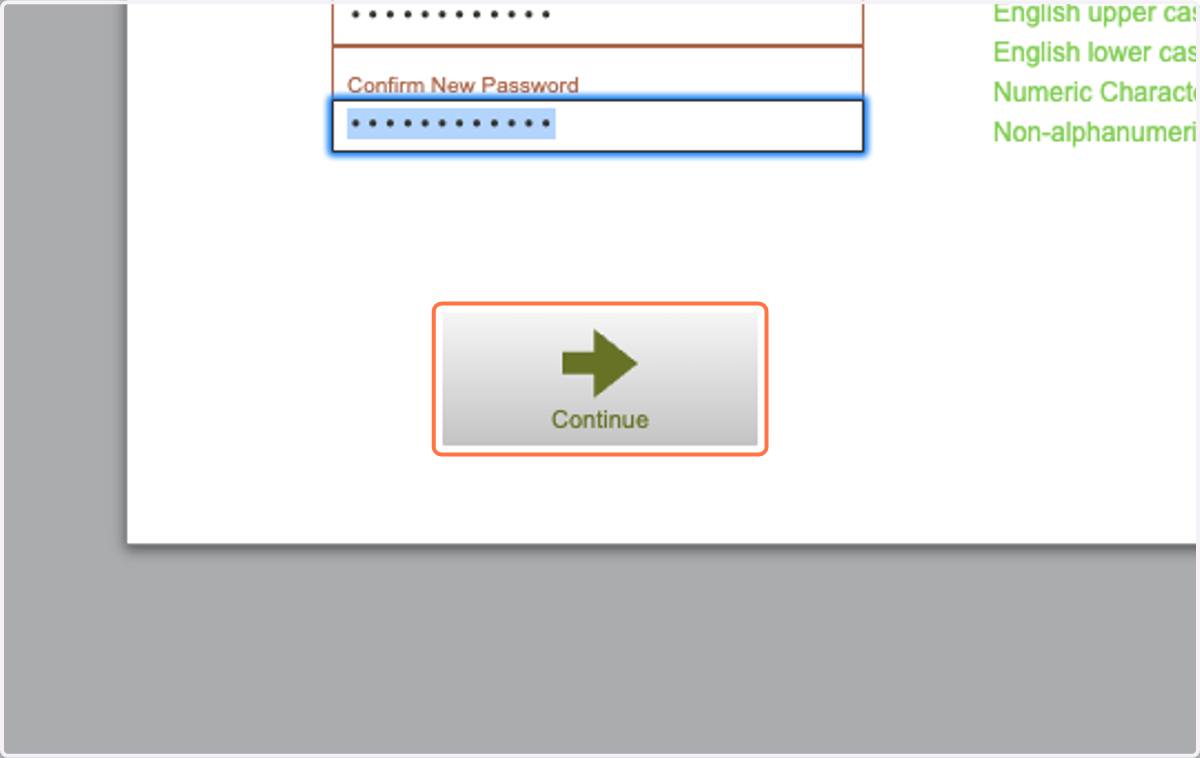
11. Click on Continue
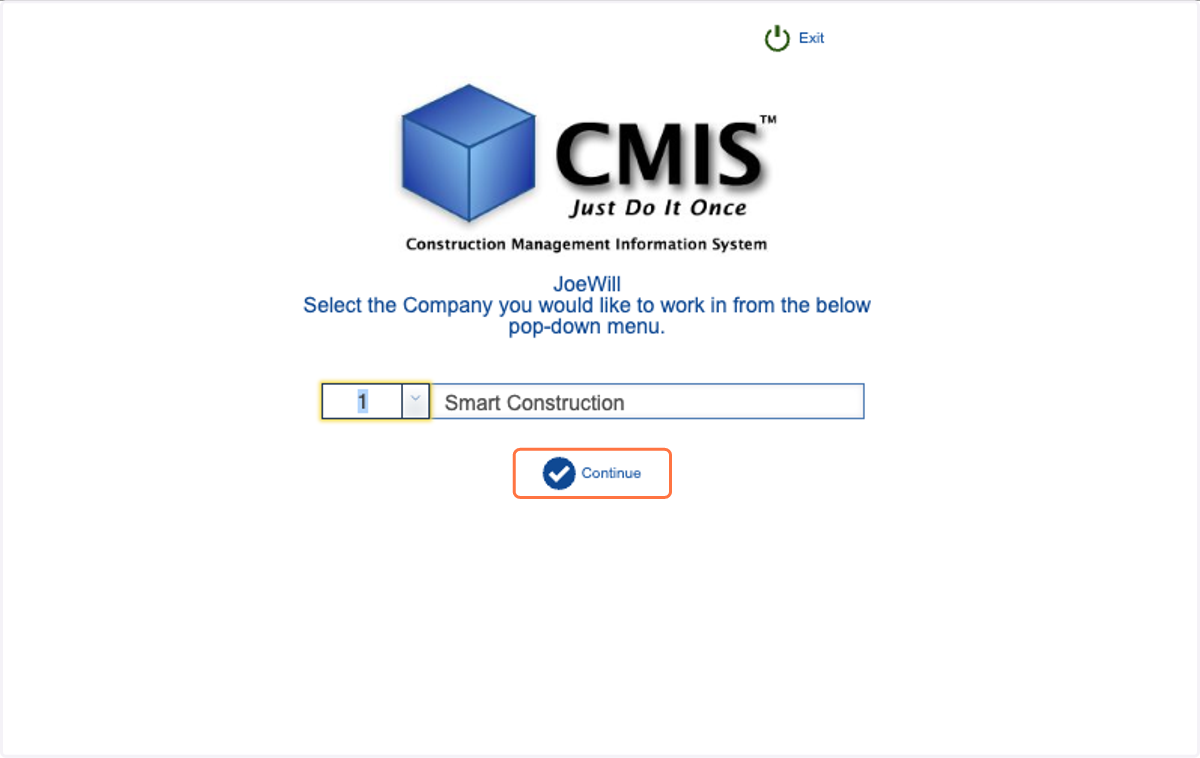
12. You now will be in the normal CMIS Log in process. If you have more than one company you'll receive this screen to select the company that you would like to work in.
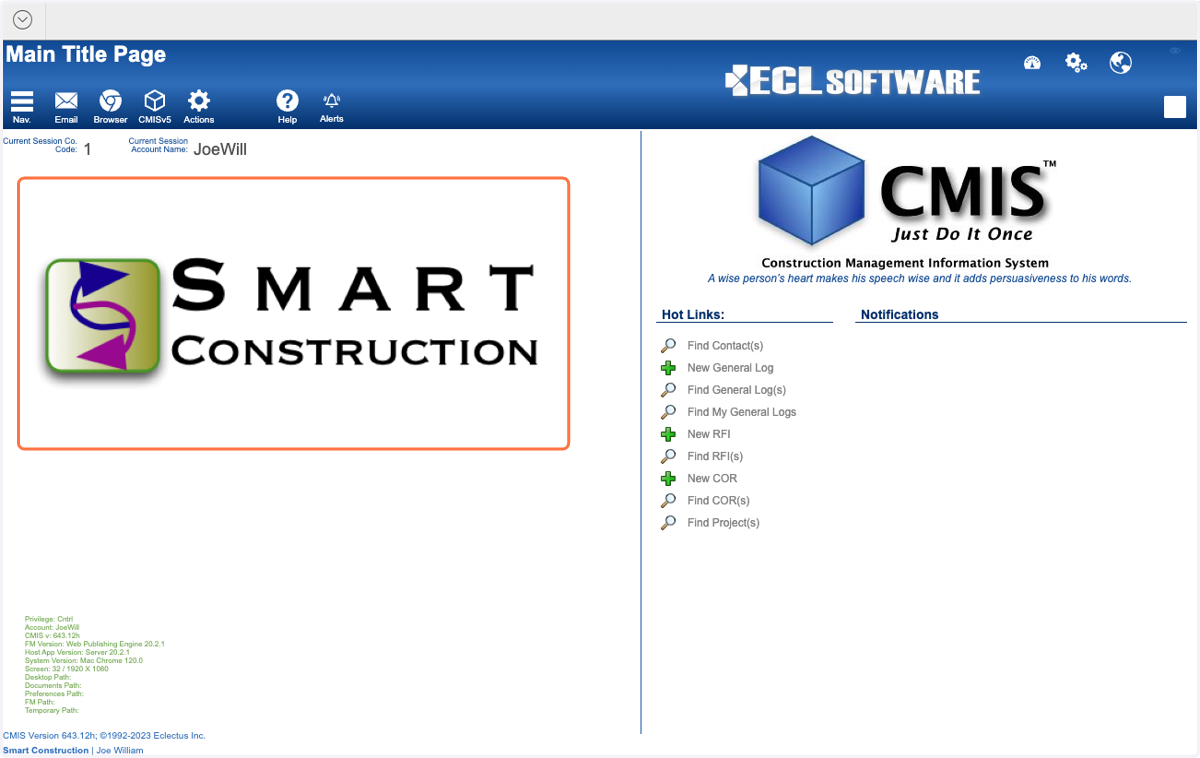
13. You are now logged into CMIS