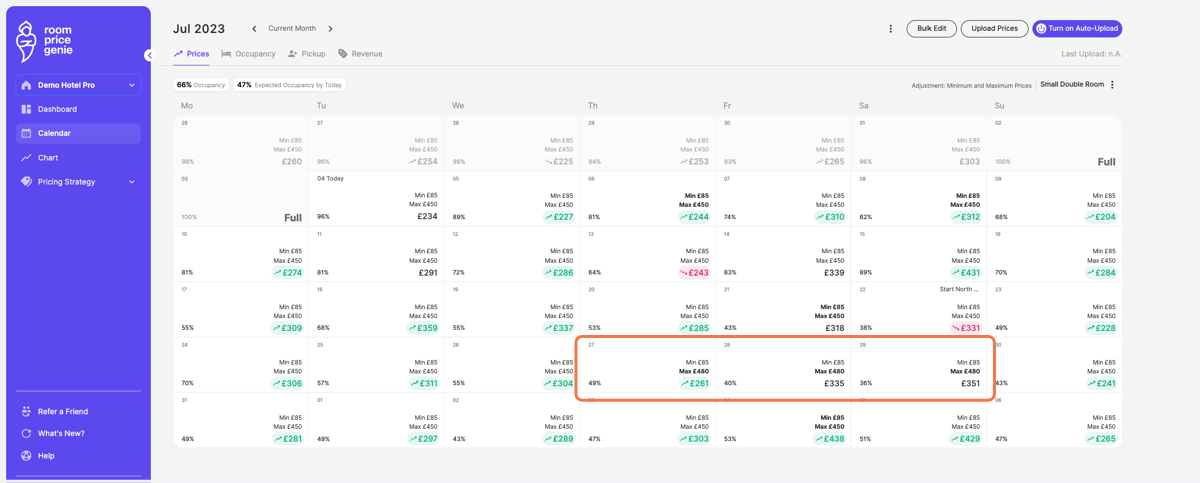
Apply custom minimum and maximum prices for several consecutive days
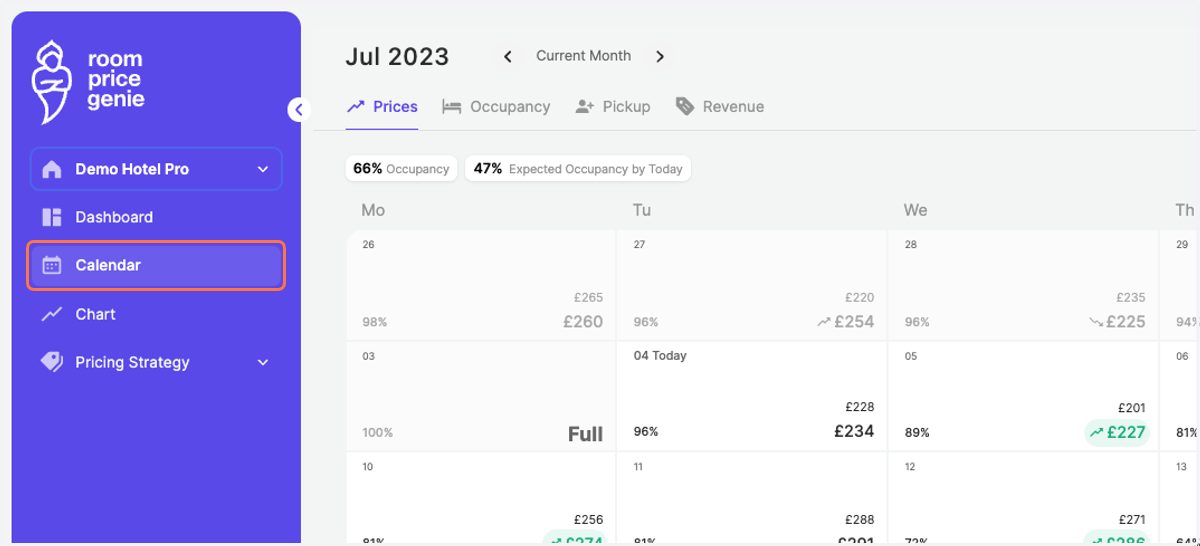
1. Click on "Calendar" in the navigation bar
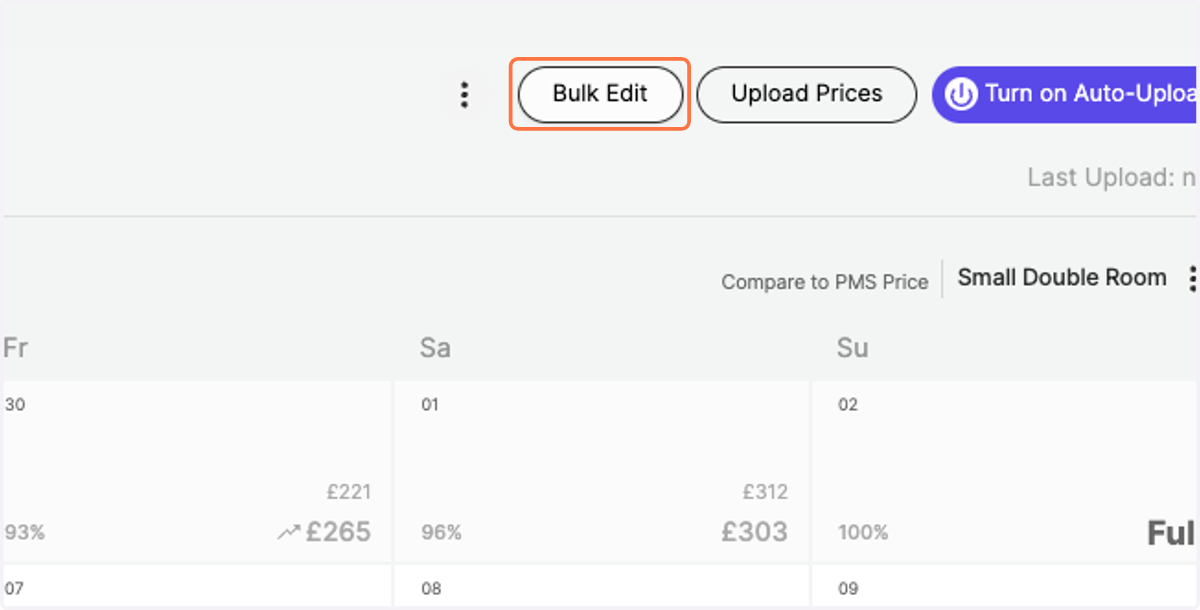
2. Click on "Bulk Edit" on the top right
3. Define the Start Date of the consecutive days
You're interested in applying changes to non-consecutive days? Check out the help walkthrough below.
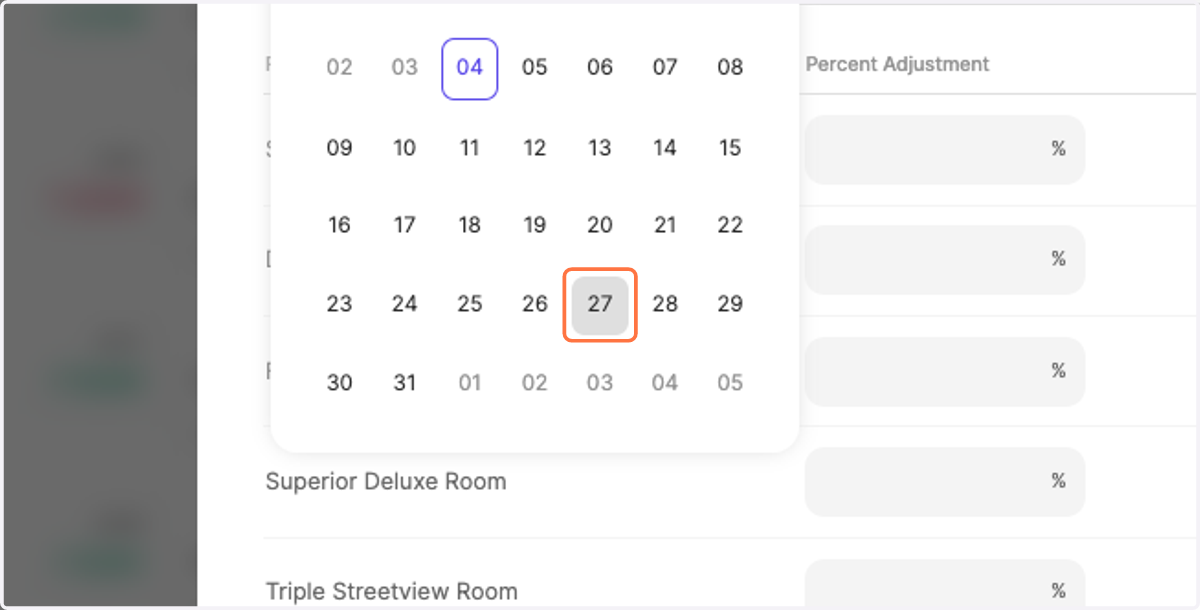
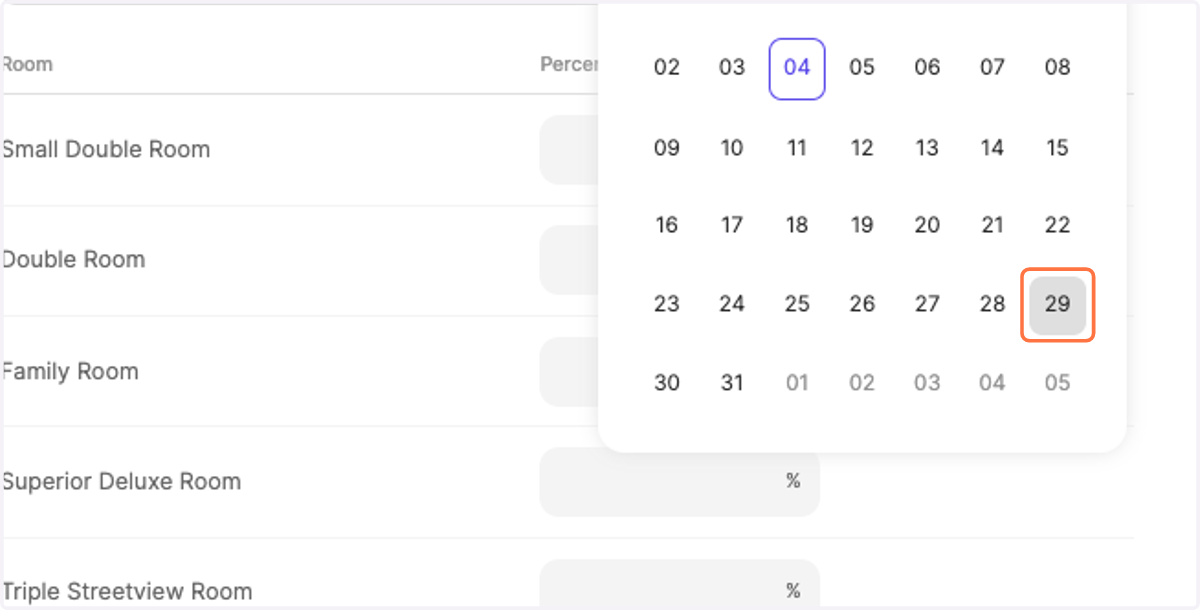
4. ... as well as the End Date
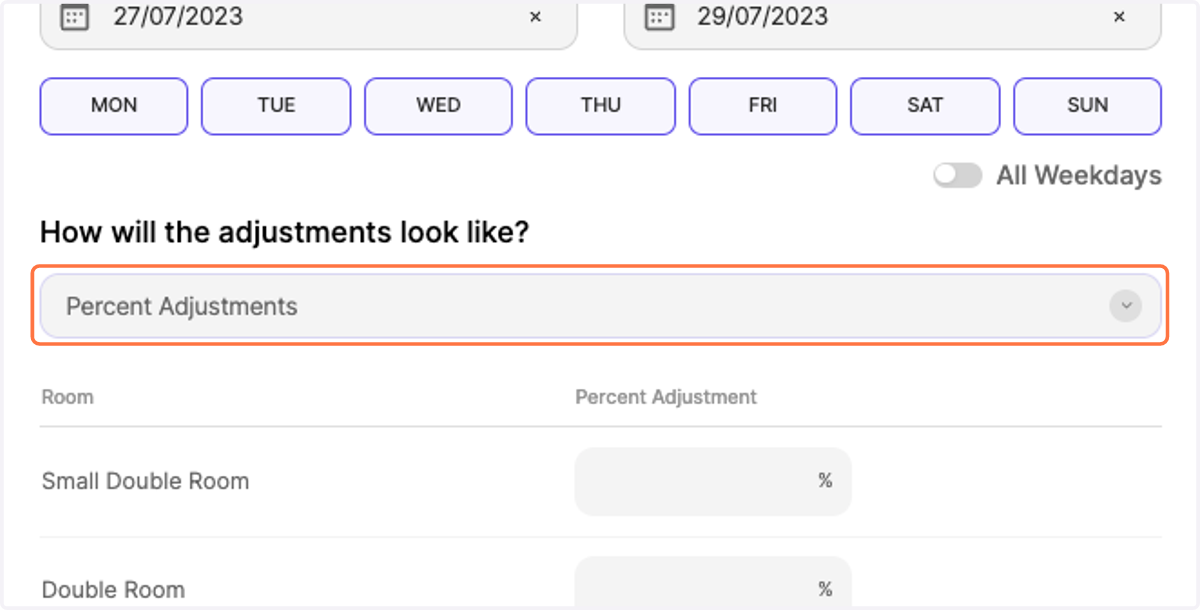
5. Choose the adjustment type by clicking on the drop-down "Percent Adjustments"
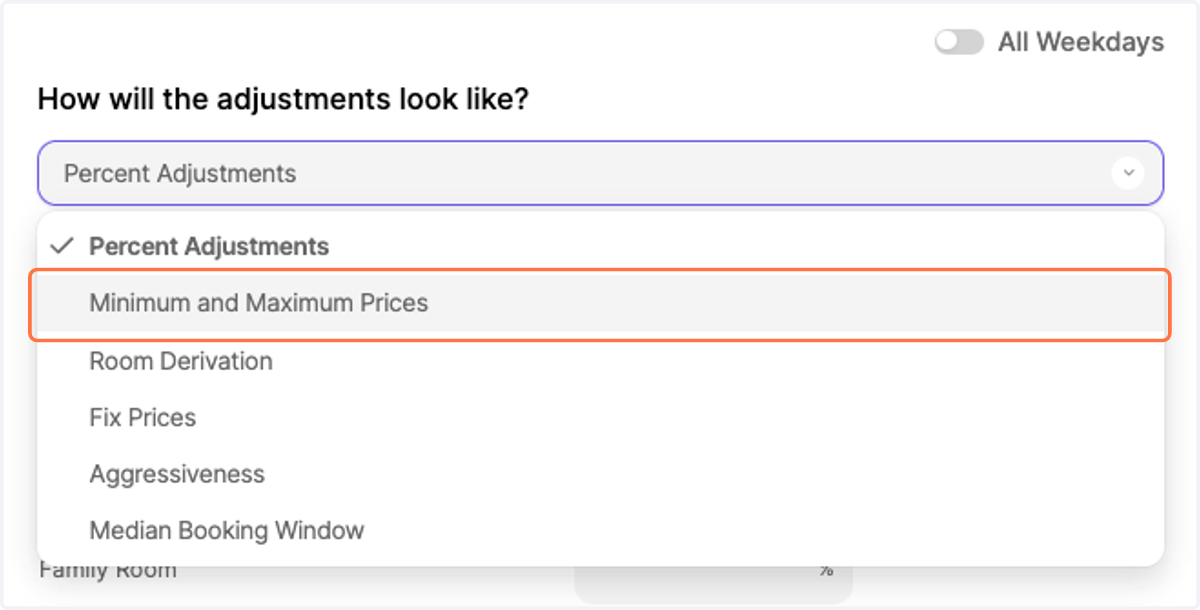
6. Select the adjustment "Minimum and Maximum Prices
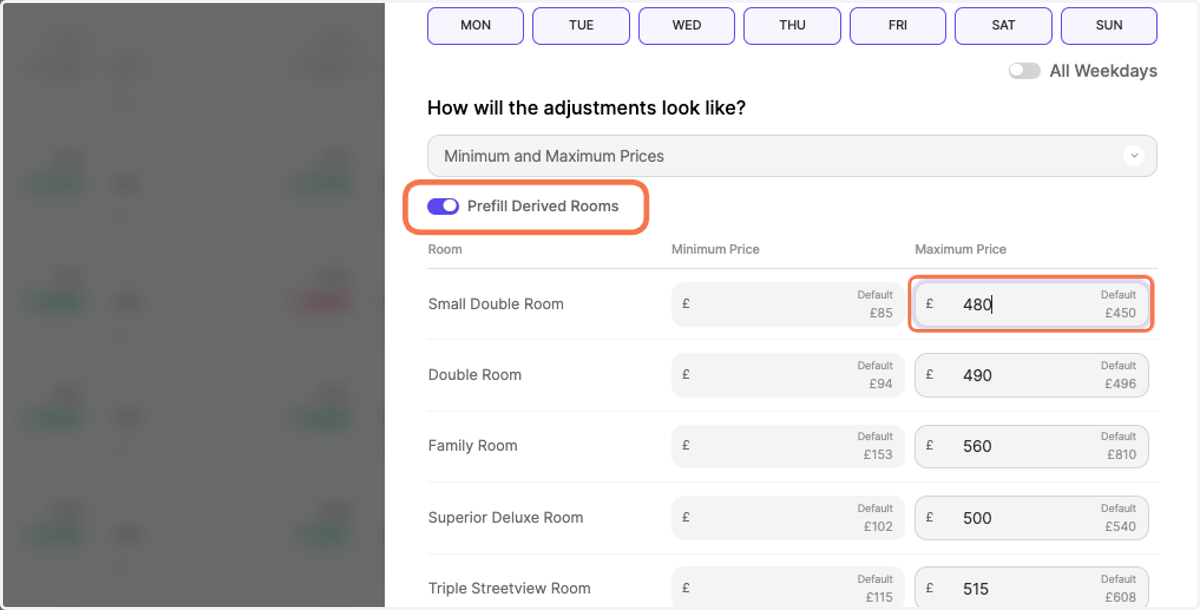
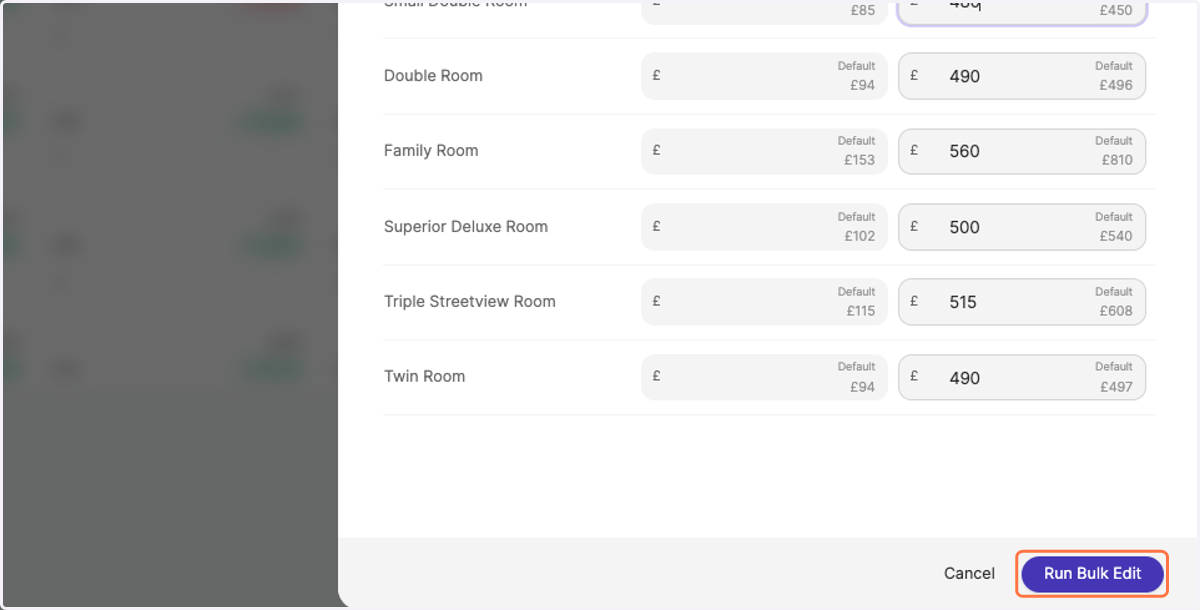
7. In the list, enter your new minimum and maximum prices.
Your derived rooms will be prefilled automatically based on applied changes to your reference room.
8. Click on "Run Bulk Edit"
9. Notice how your new minimum and maximum prices are visualized in the price calendar