How to Join a Telehealth Session from the Patient Portal
1. https://carecounseling.portal.opusehr.app/welcome
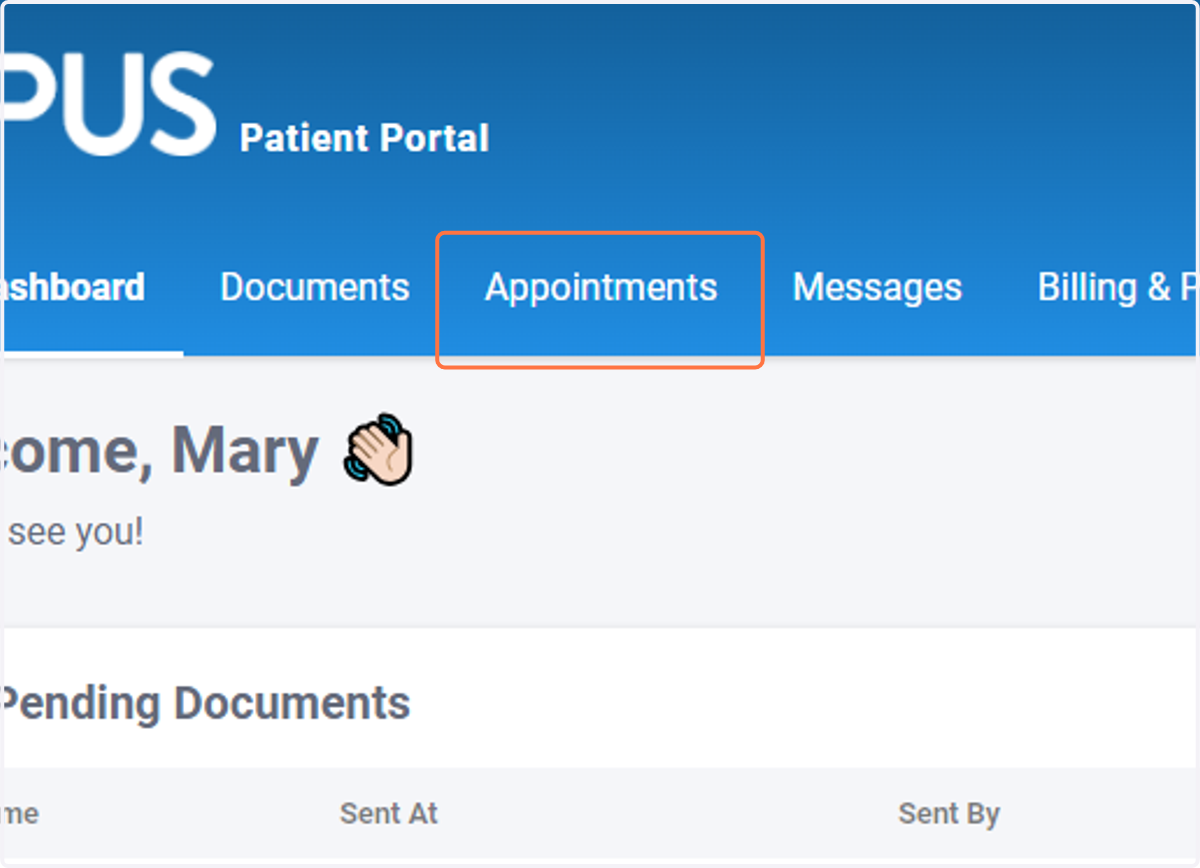
2. Option 1: Click on Appointments
Join a Teams meeting via the Appointments tab
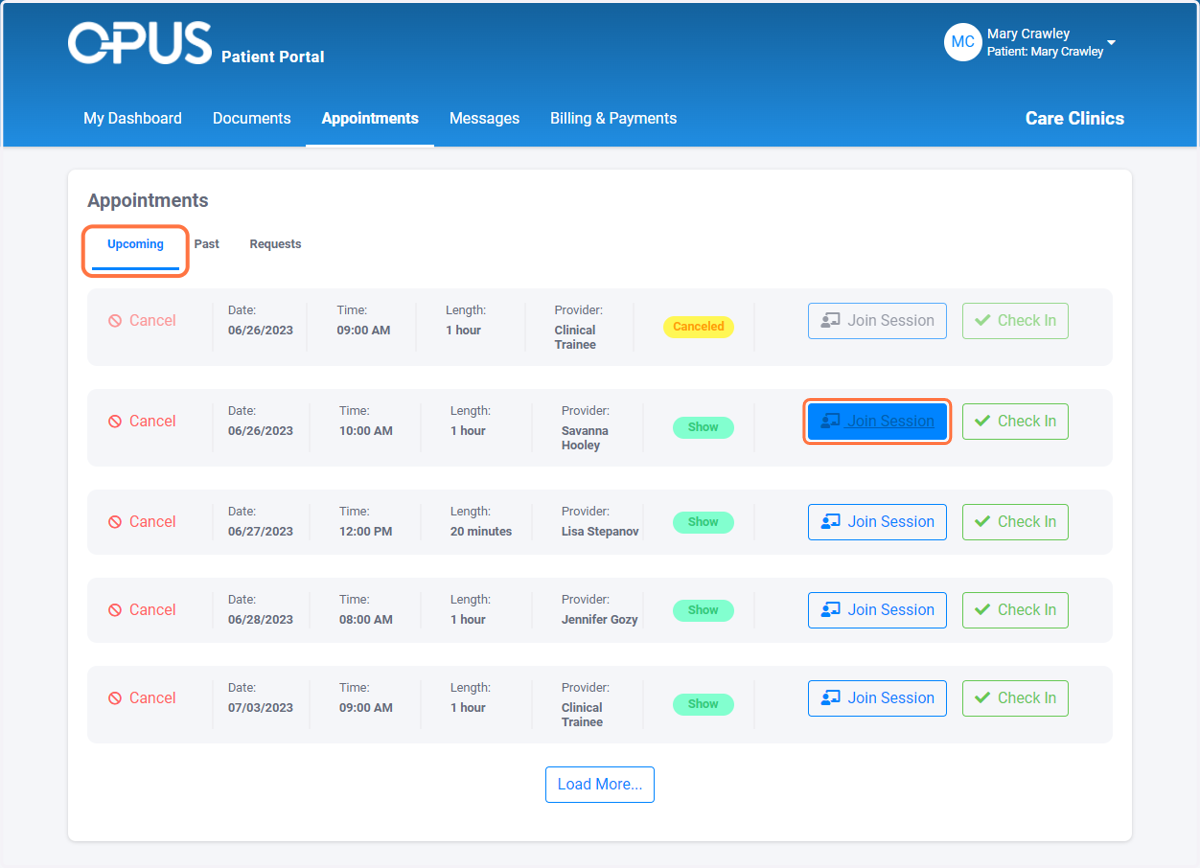
In this tab, it displays ALL the appointments of the Patient as opposed to just showing the next scheduled appointment like in OPTION 1.
3. Make sure you are in the Upcoming section and Click on Join Session
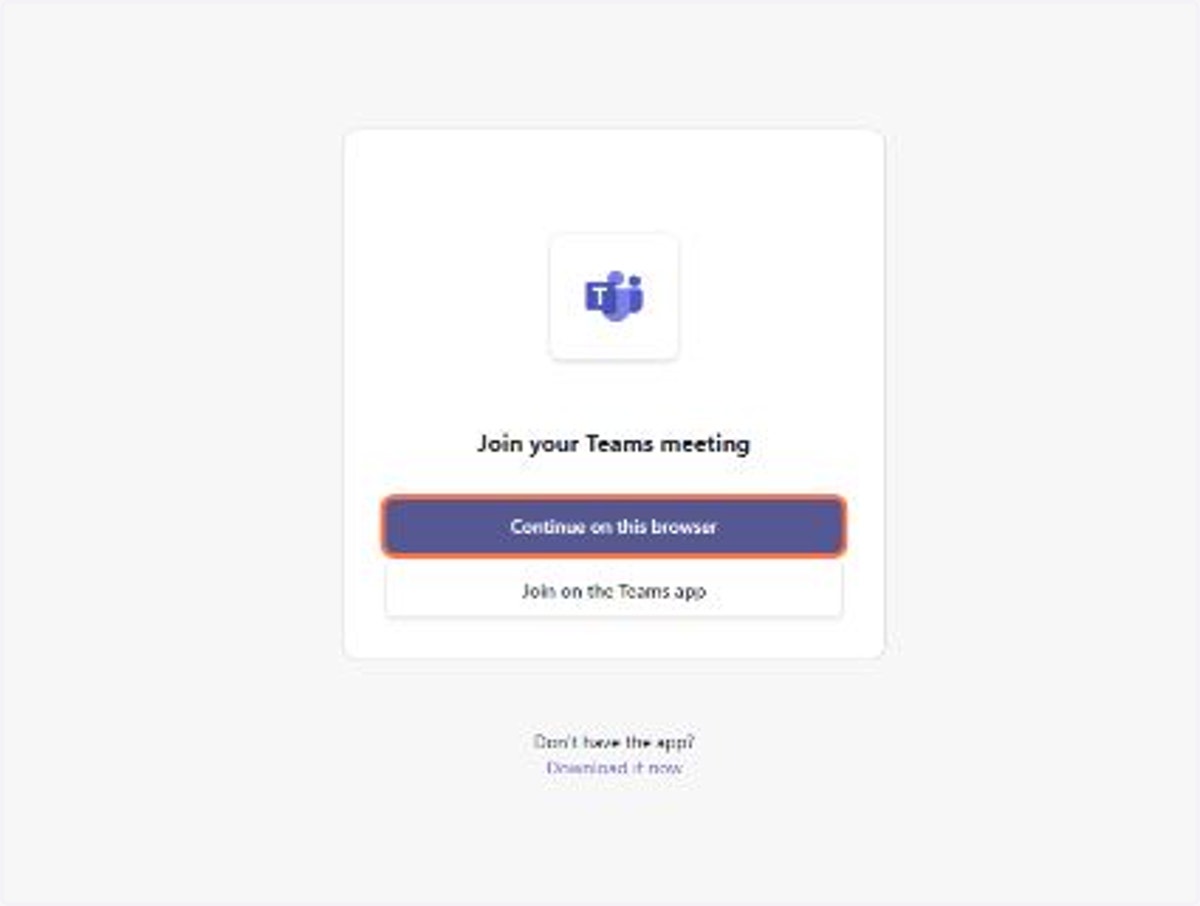
4. After clicking Join Telehealth Session, patient will be redirected to a new page.
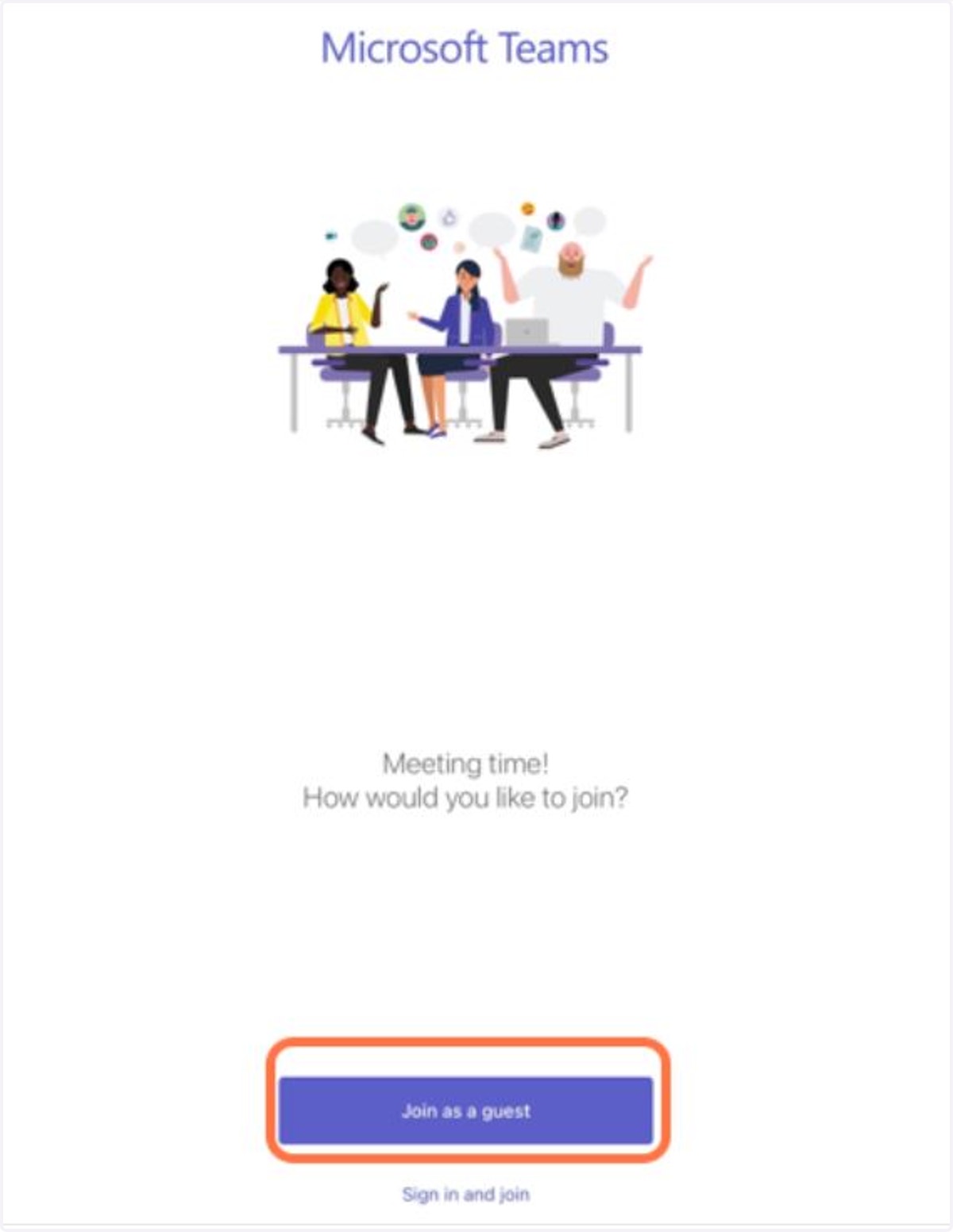
On this page, the Patient can opt to join using the browser (if you are joining from a computer) or using the Teams app (required if you are joining from a mobile device).
Note: If you are joining from a computer you can opt to download the app or just continue on the browser.
5. Select Join as Guest
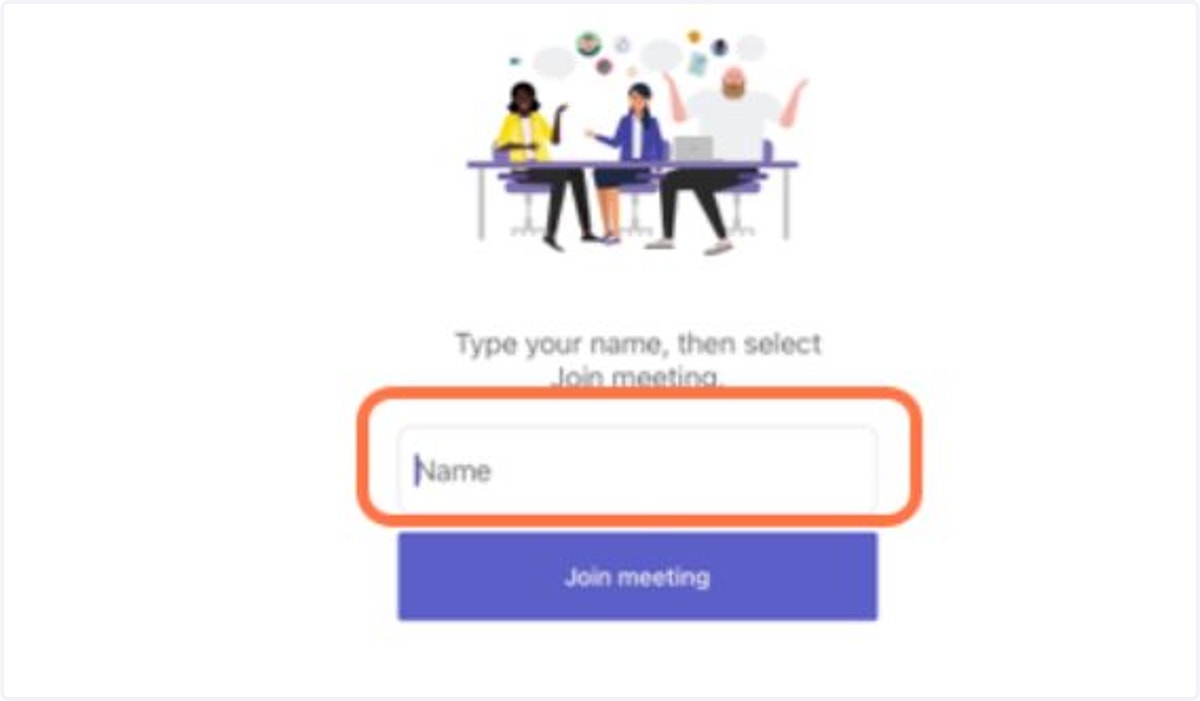
6. Enter your Name
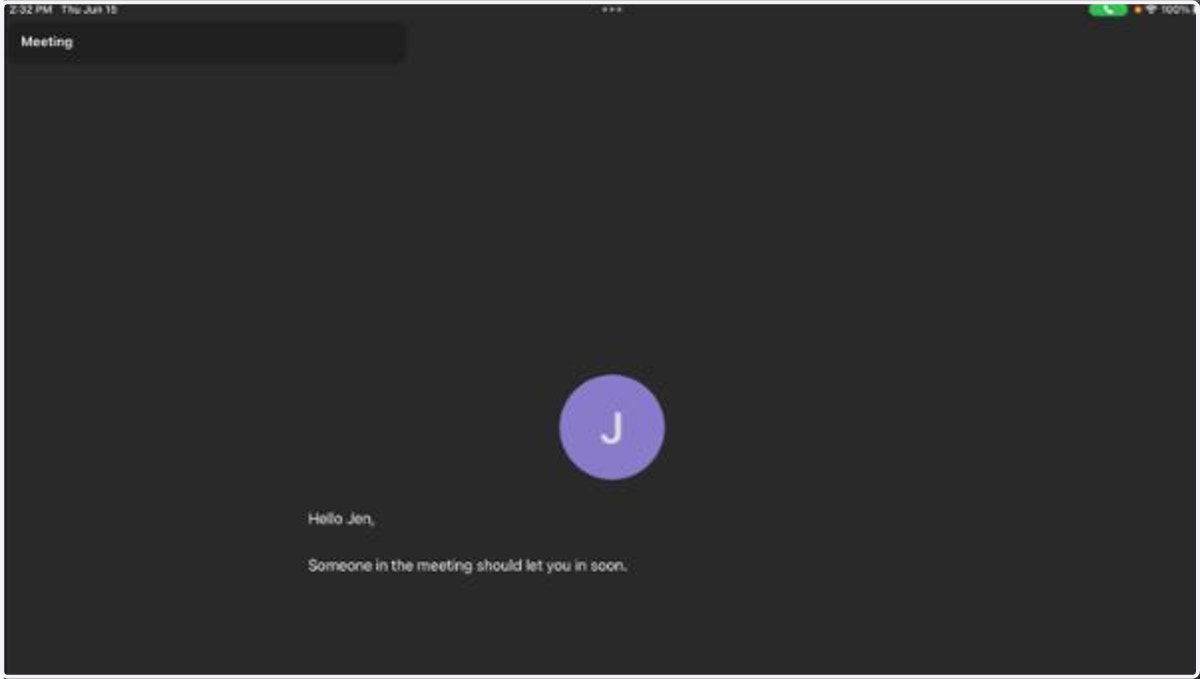
7. Your provider will let you into the meeting once you've joined!
8. Option 2:
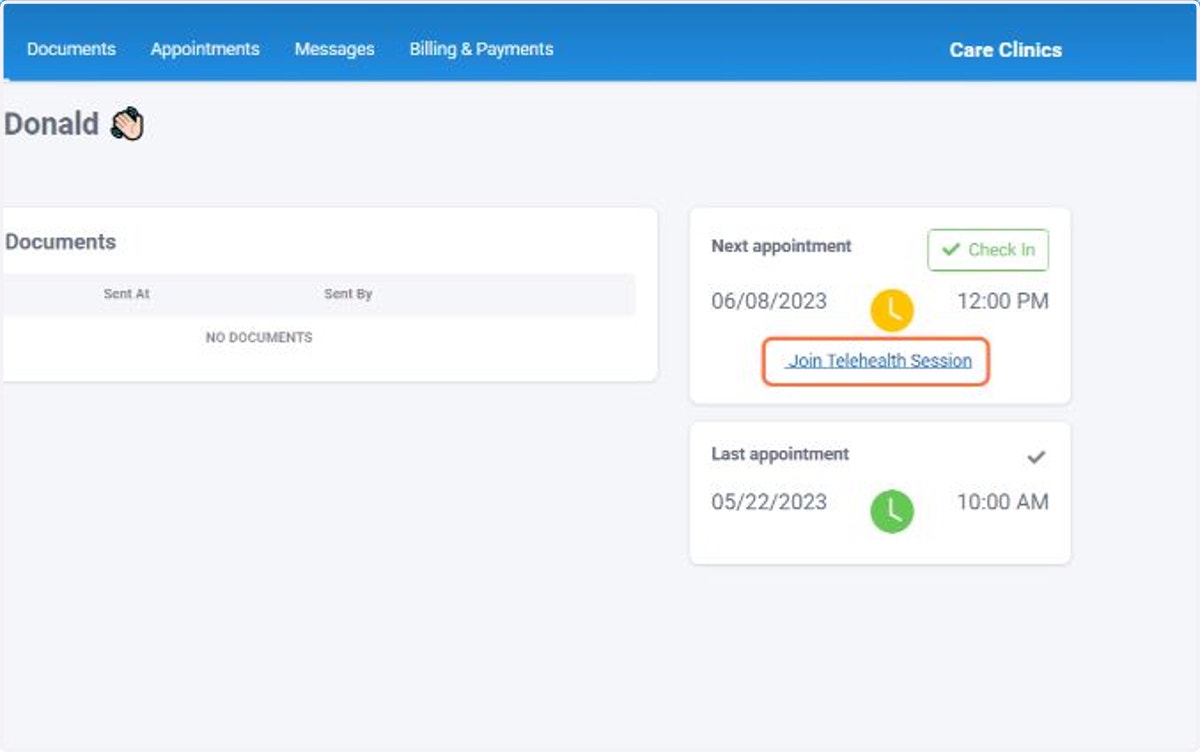
Once you are logged in into the Portal, you can join a Teams meeting via the Next Appointment section on the Home Screen
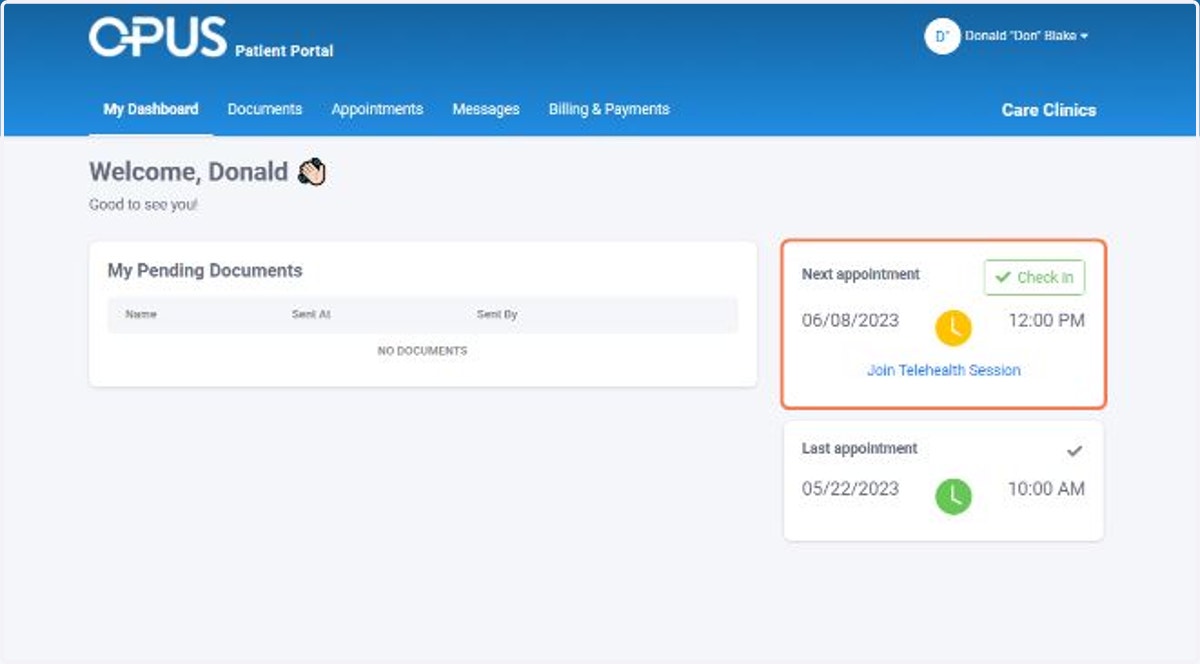
9. Click on Join Telehealth Session
Please note that sometimes, this link does not work. If you have difficulties doing it this way, simply go to the appointments tab and join that way instead.
Additionally, sometimes, you will get a pop up regarding a payment that you cannot bypass - if this occurs, please go through the appointments tab where there is a "Pay Later" option.