Last Updated Reports - Organizations
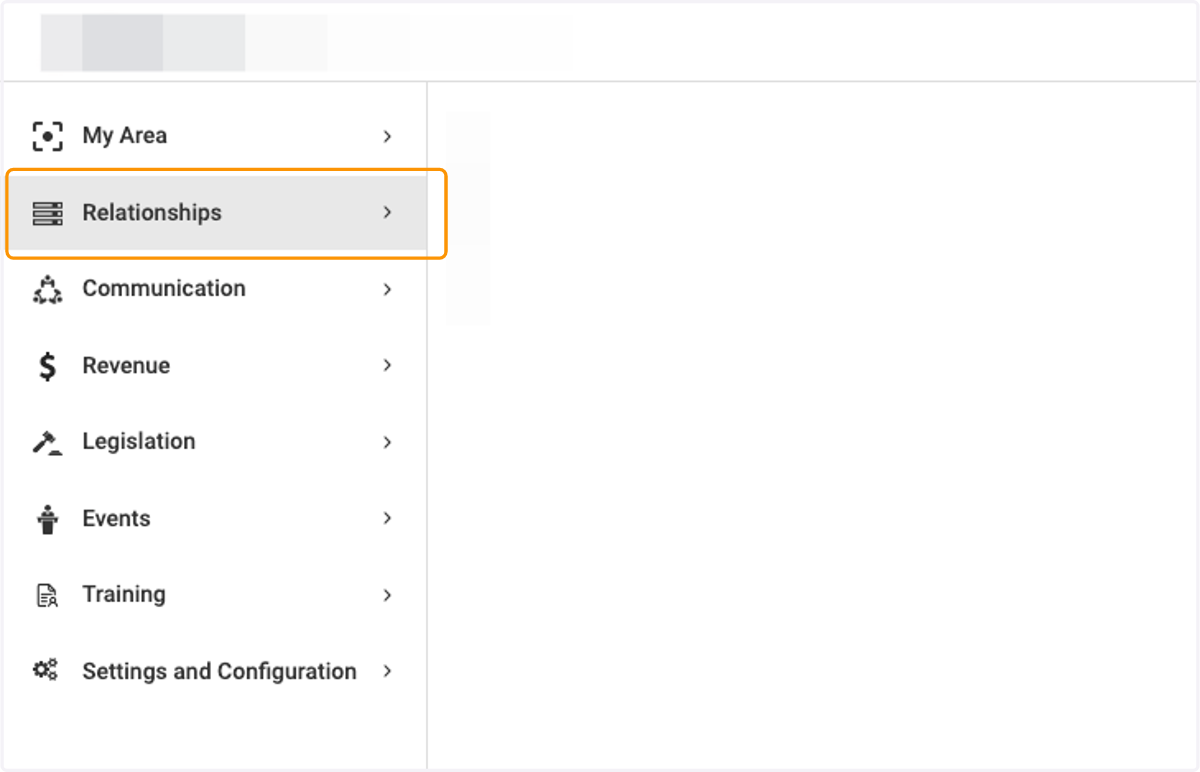
1. Click on Relationships
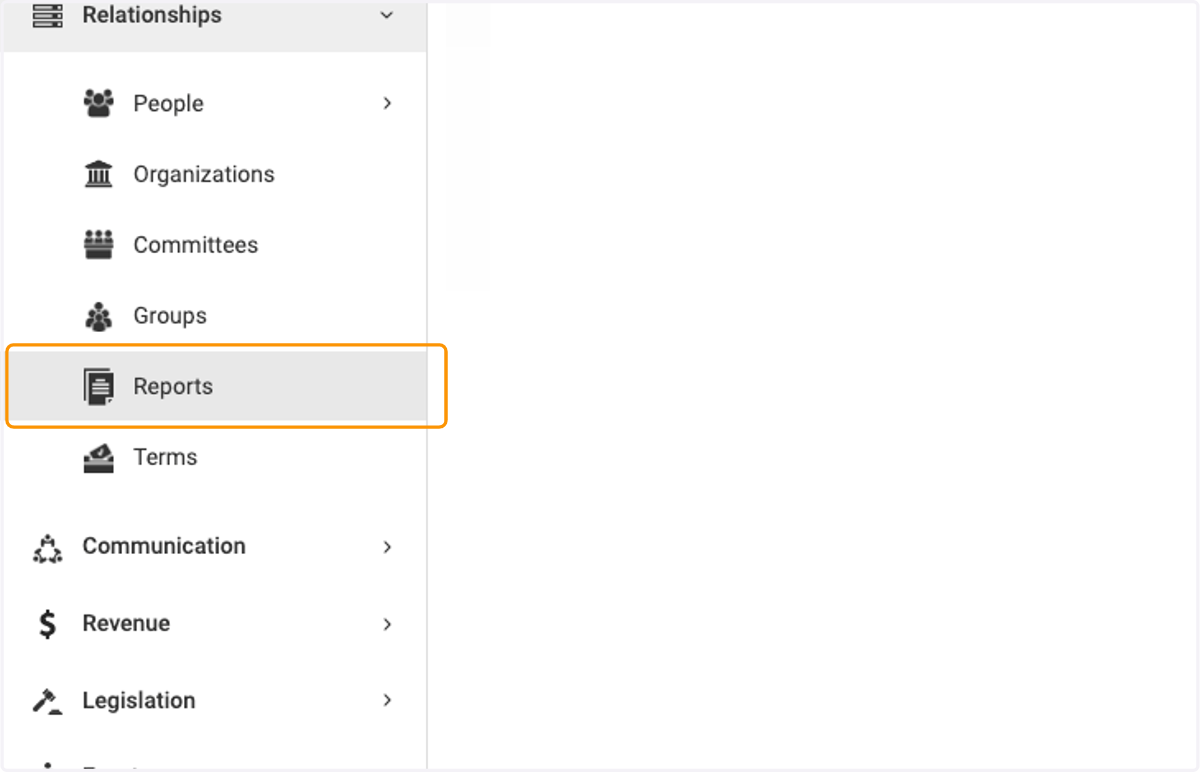
2. Click on Reports
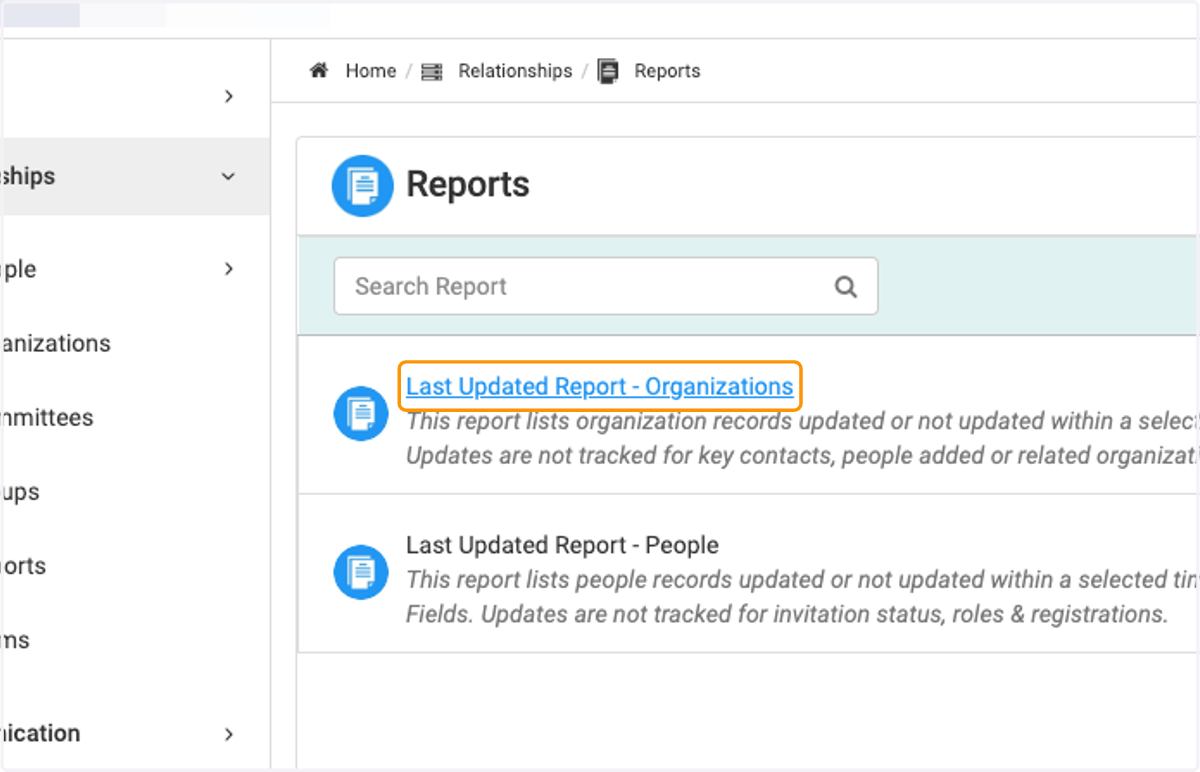
3. Here are the two types of Last Action Report available - for People and Organizations.
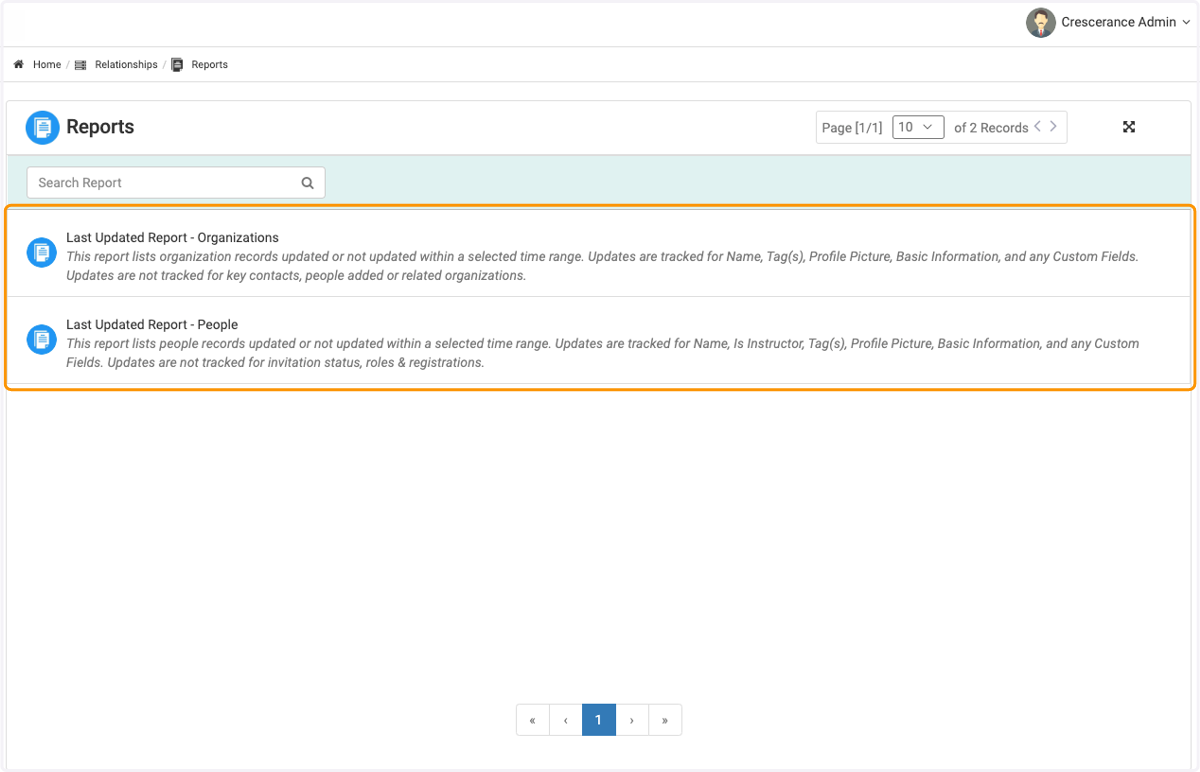
4. Click on Last Updated Report - Organizations
5. Click on Select to create your report parameters

6. Click on Updated
7. Click on Select date range
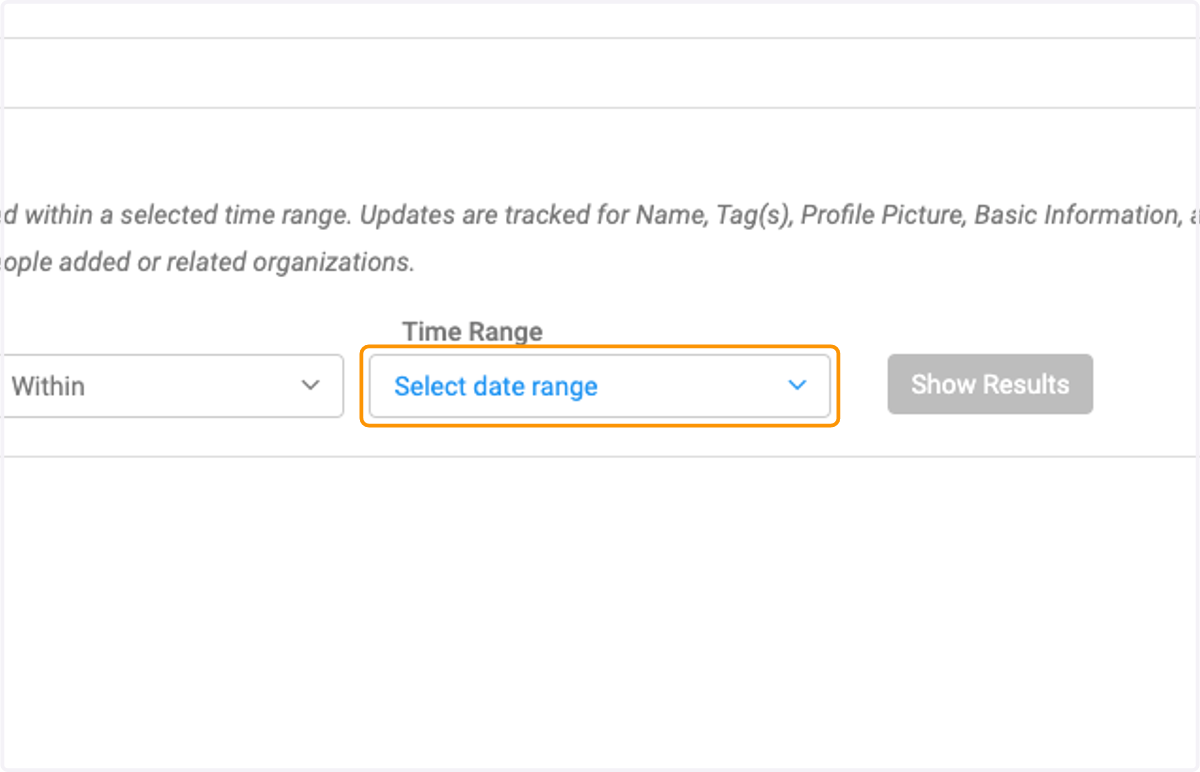
8. Click on Show Results when finished making selections

9. Check the box to Select All and then click the Request Update to send a mass request to update email.
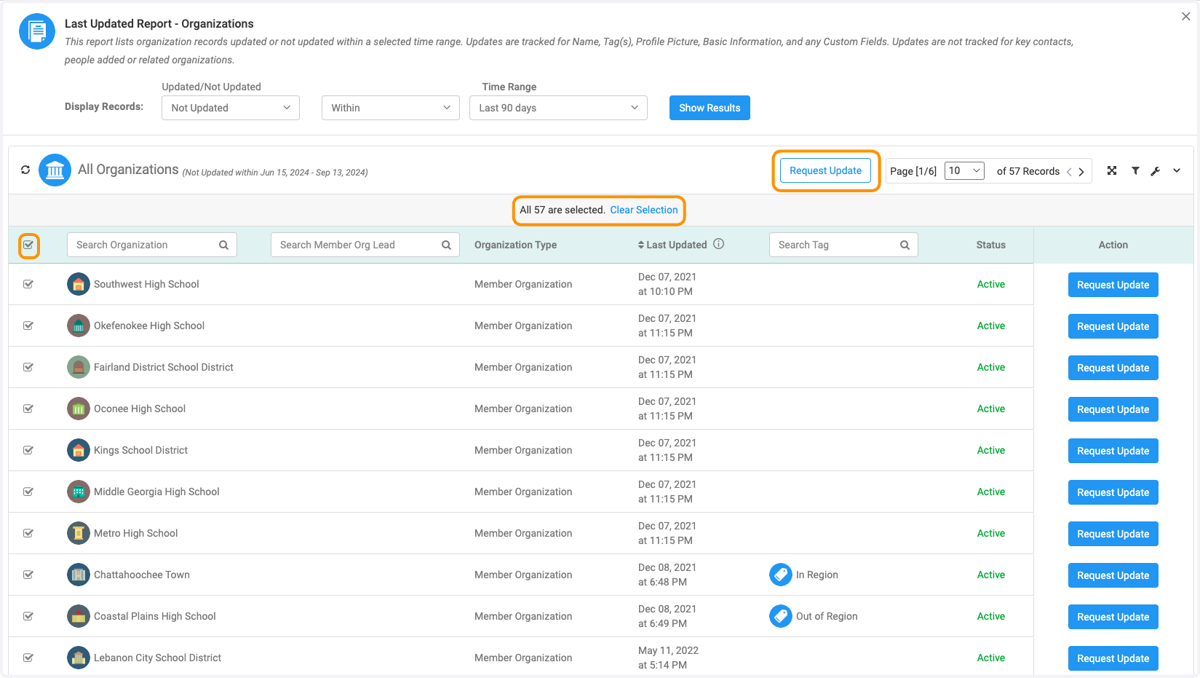
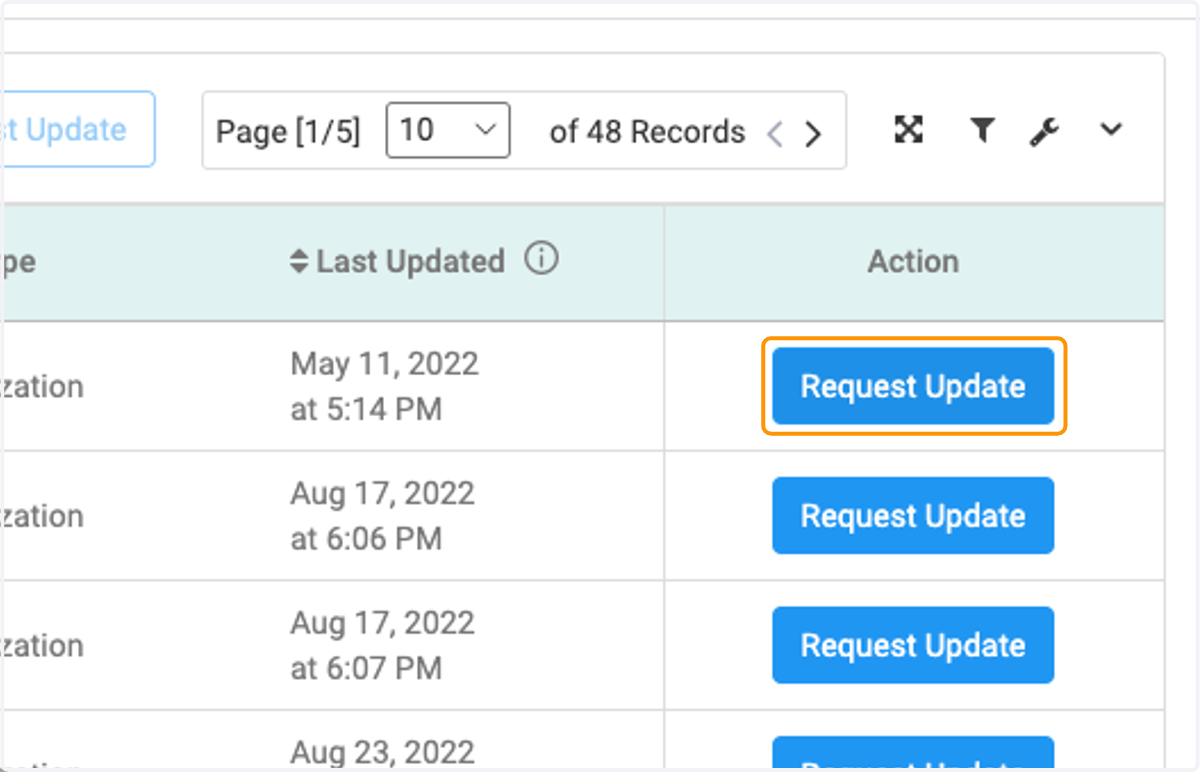
10. Or click on Request Update to send an email requesting the organization contact to request an individual update.
11. Select email sending options (now or later) and then either Preview Email or Finish
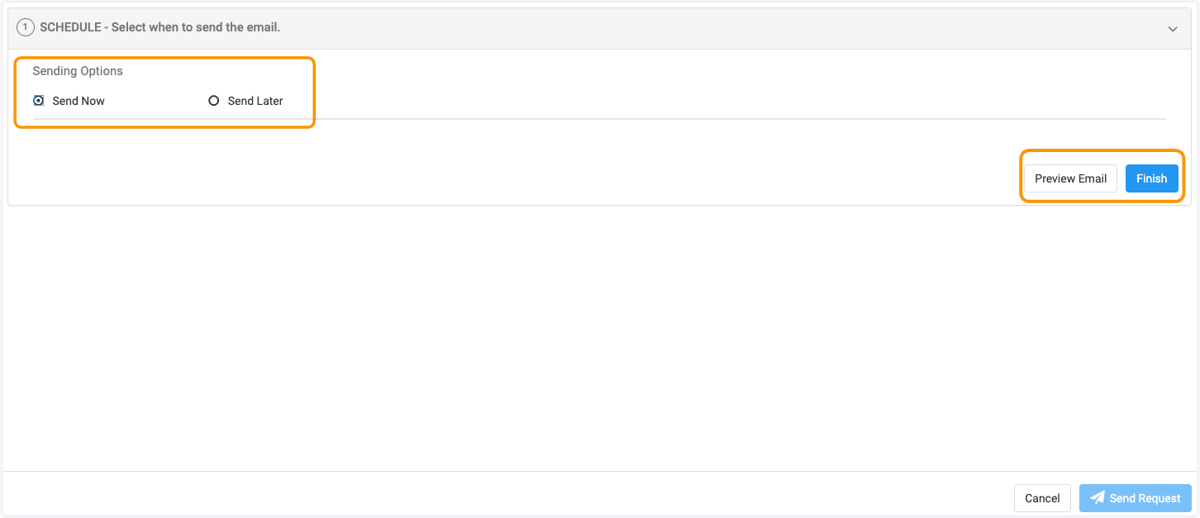
12. Click on Send Request when finished

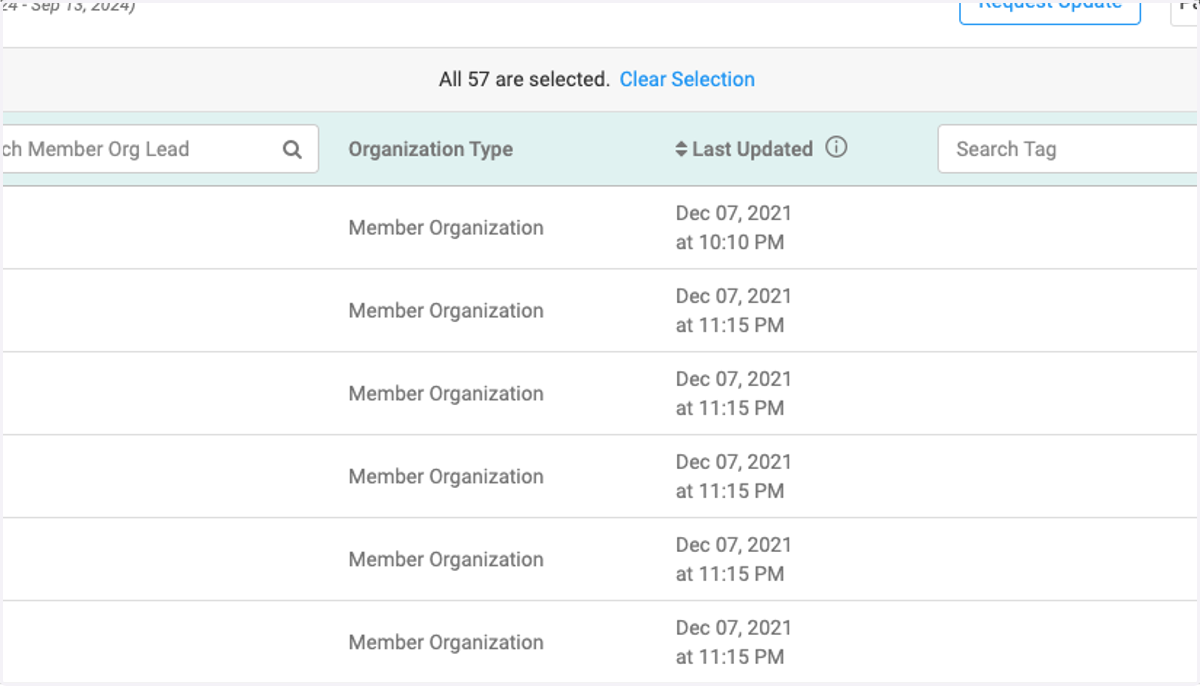
13. Select All to export a report and click on Select all
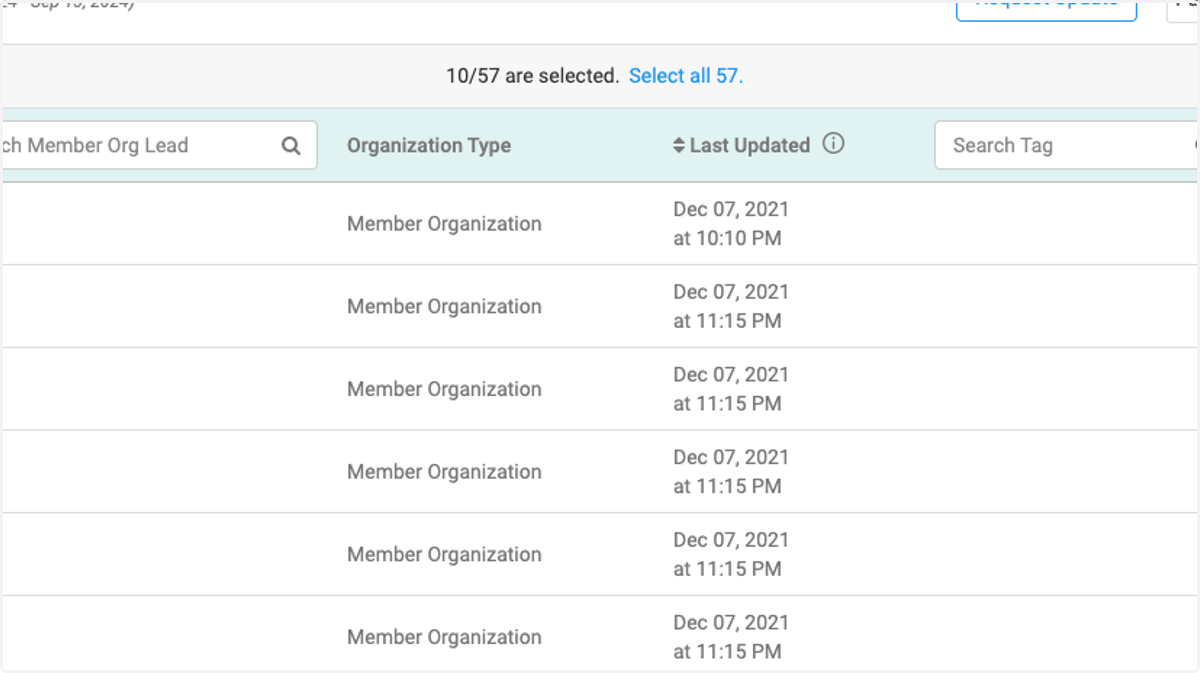
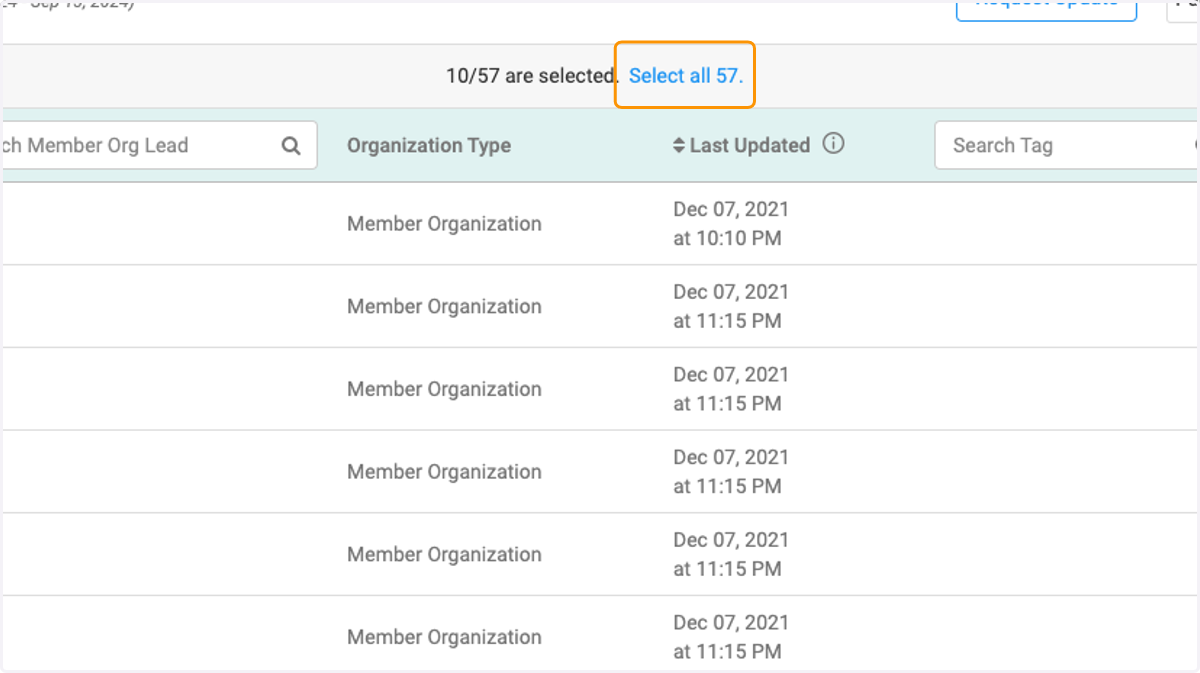
14. Click on Select all to make sure all are included in the export
15. Click on wrench icon to open the settings
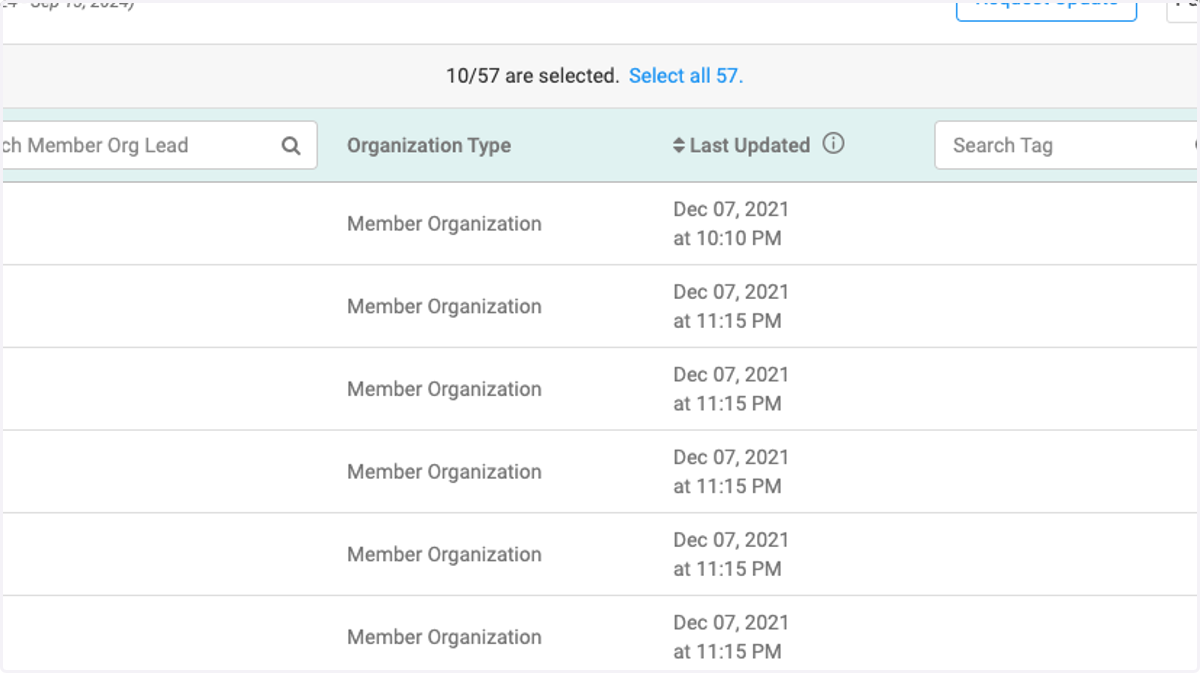
16. Click on Export (XX Selected)
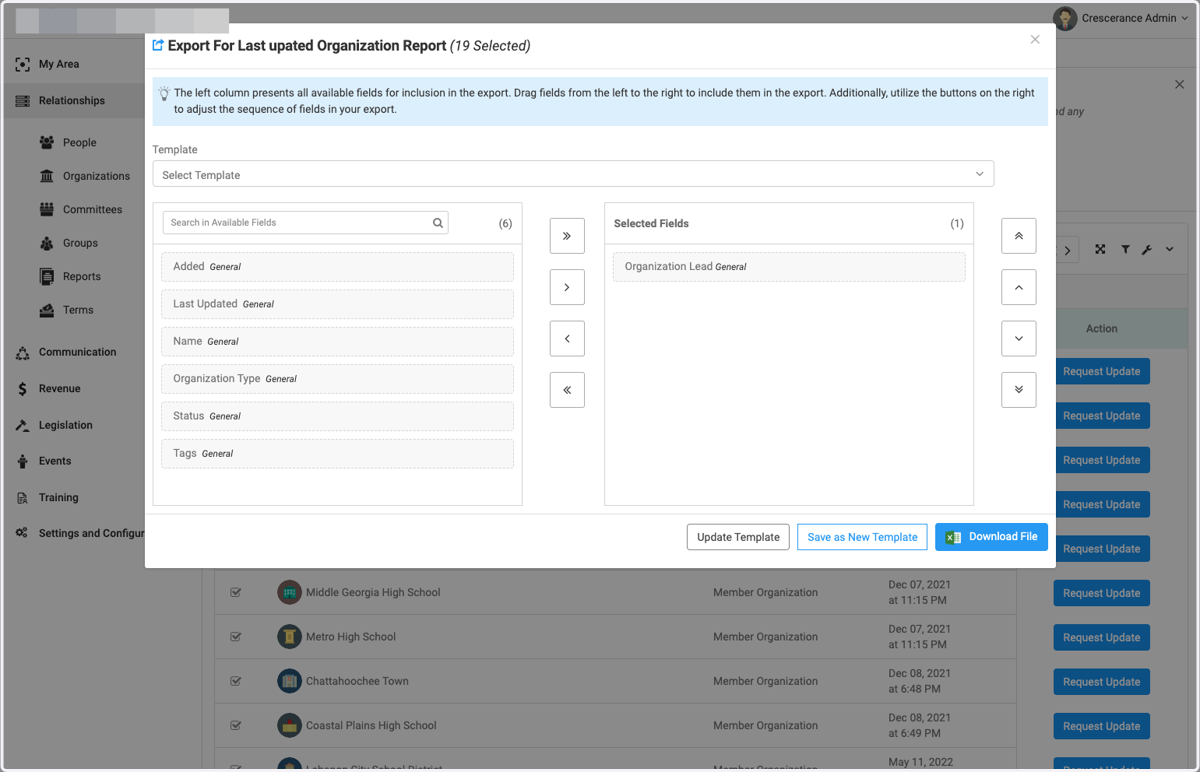
17. A pop up will open for you to select your fields for the export report
18. Select a previously created template (if available)
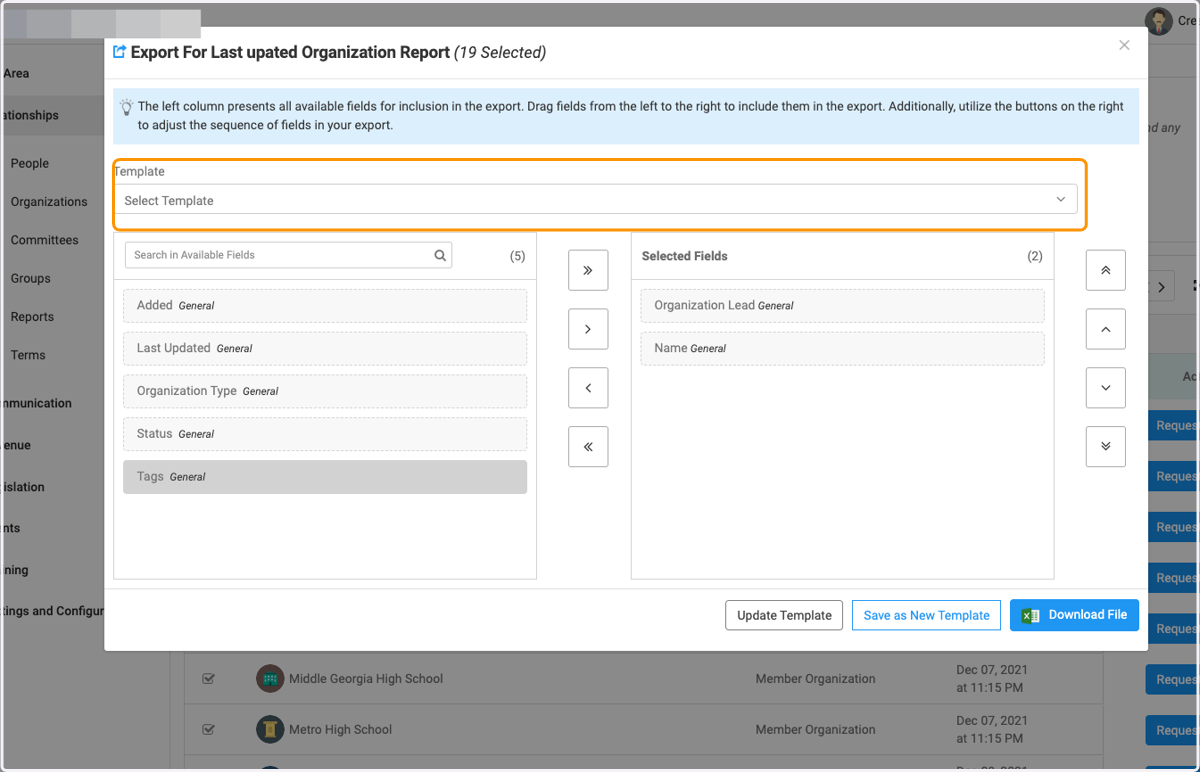
19. Begin typing field criteria and drag over to right box
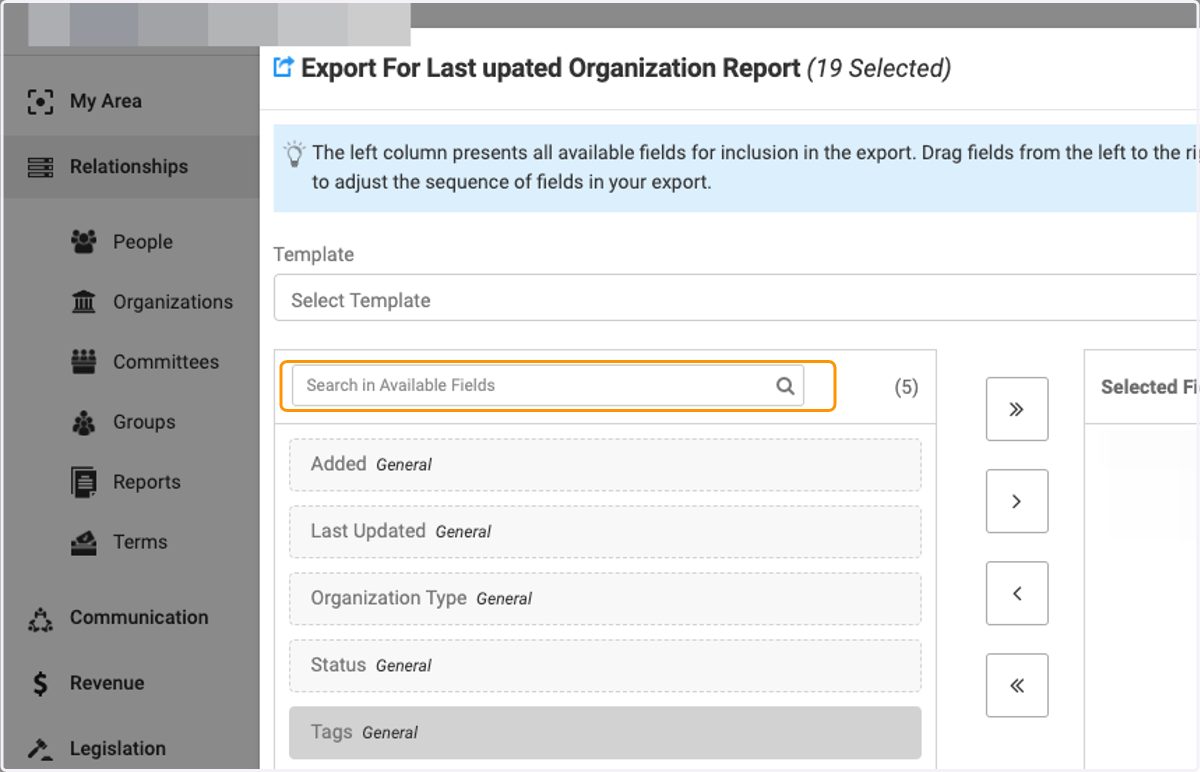
20. Drag highlighted option
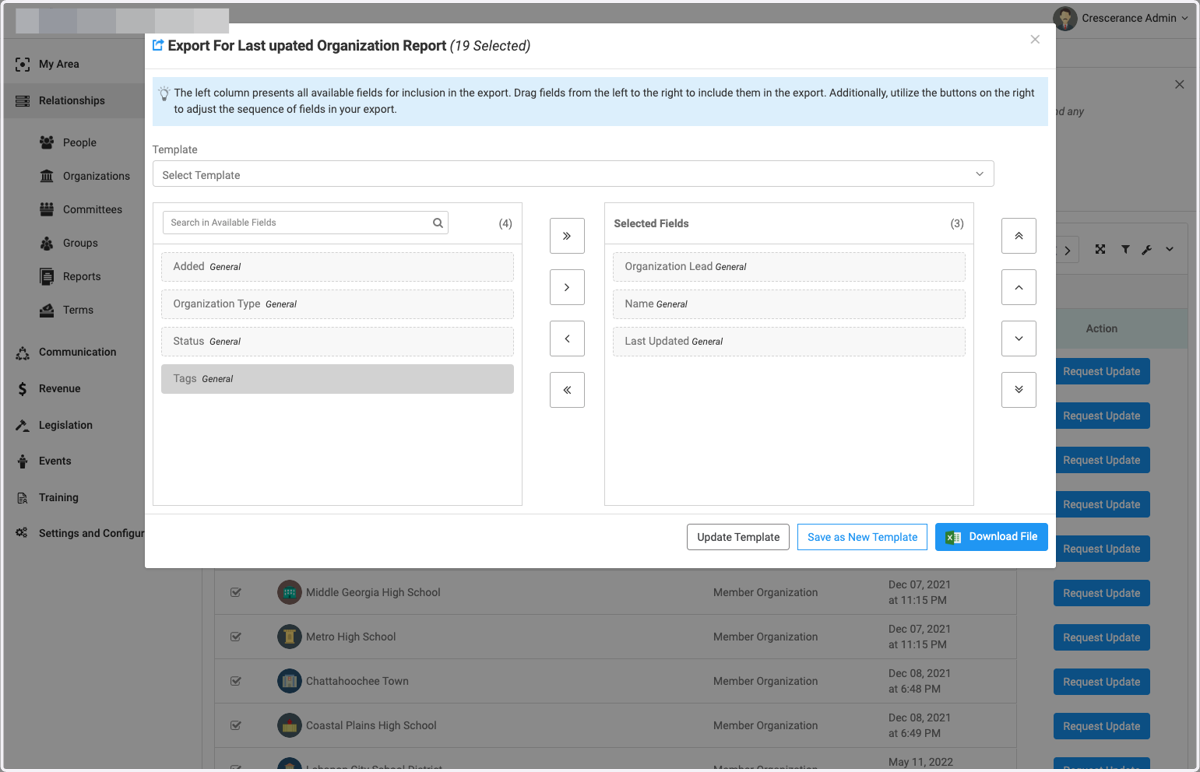
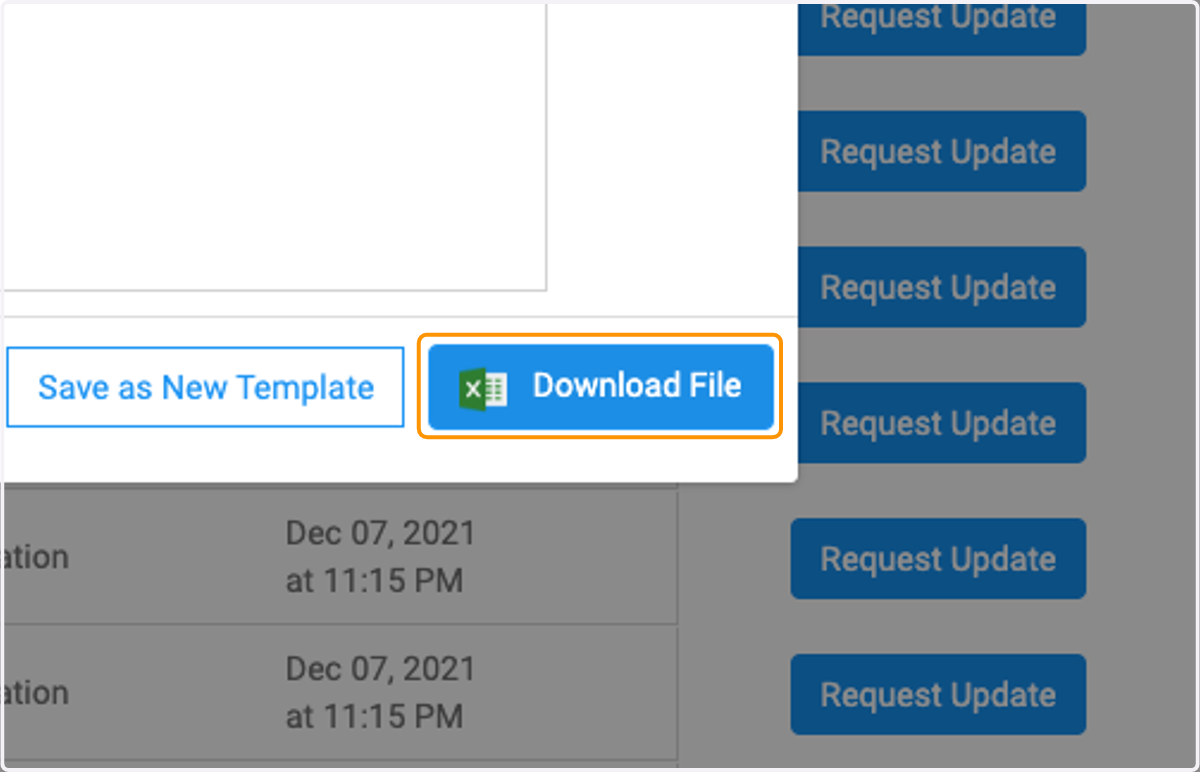
21. Click on Download File when finished making selections
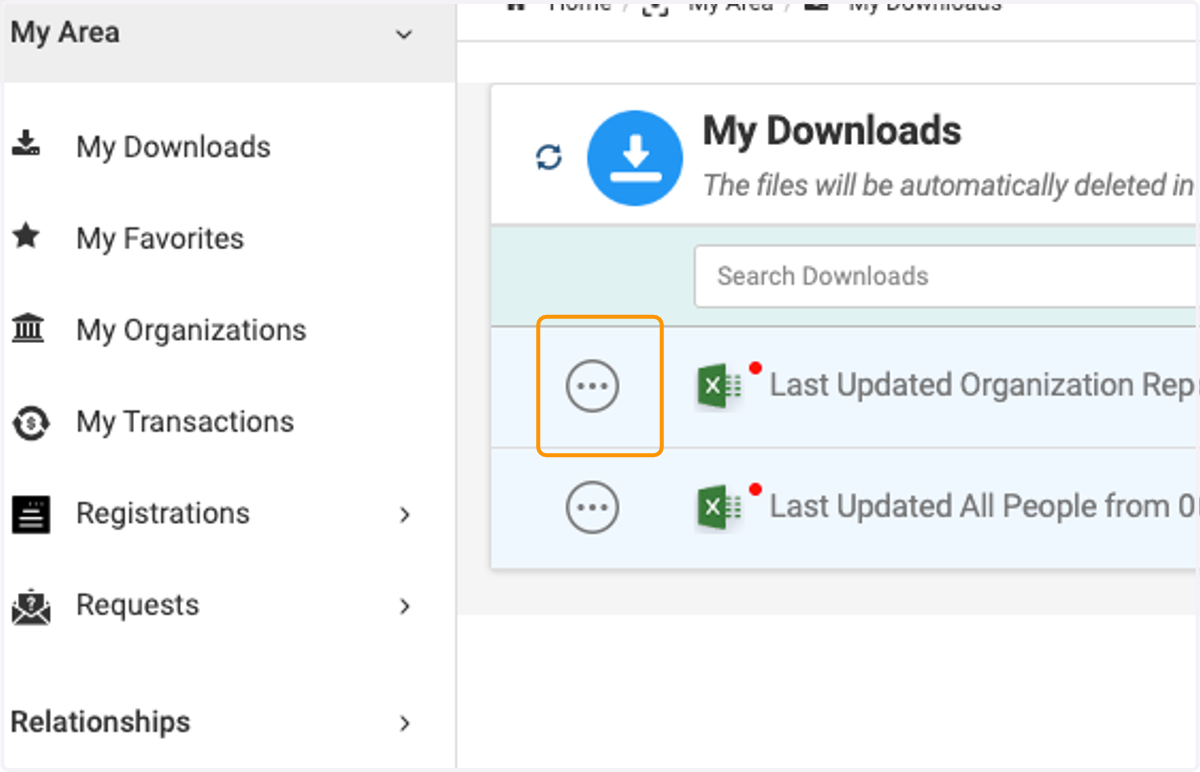
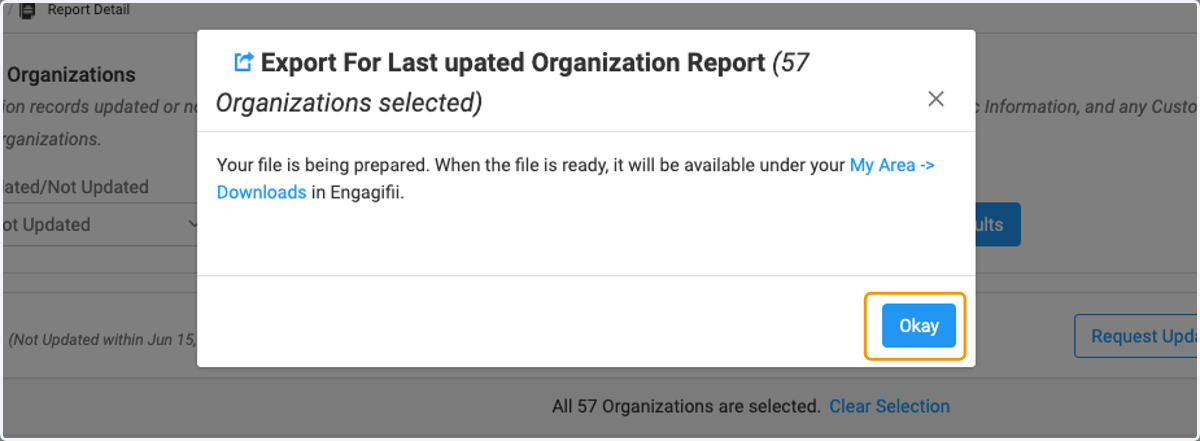
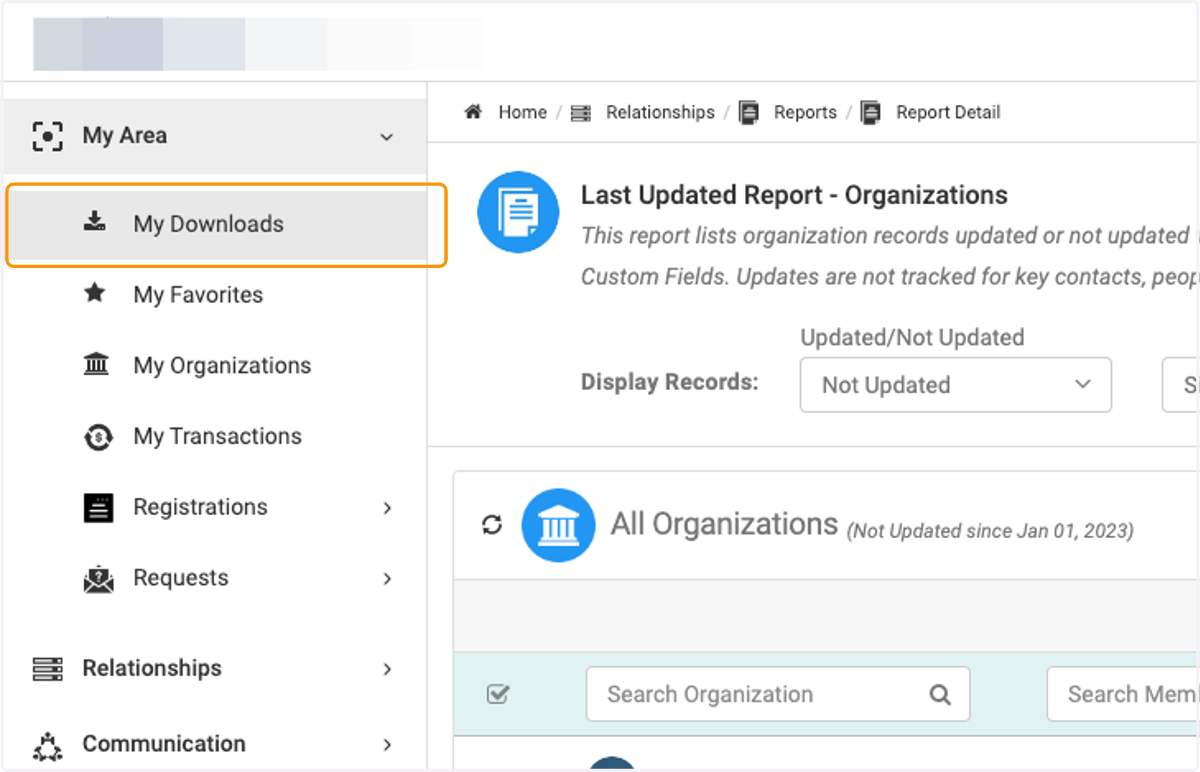
22. Your report is being generated and will be available in My Area / My Downloadss
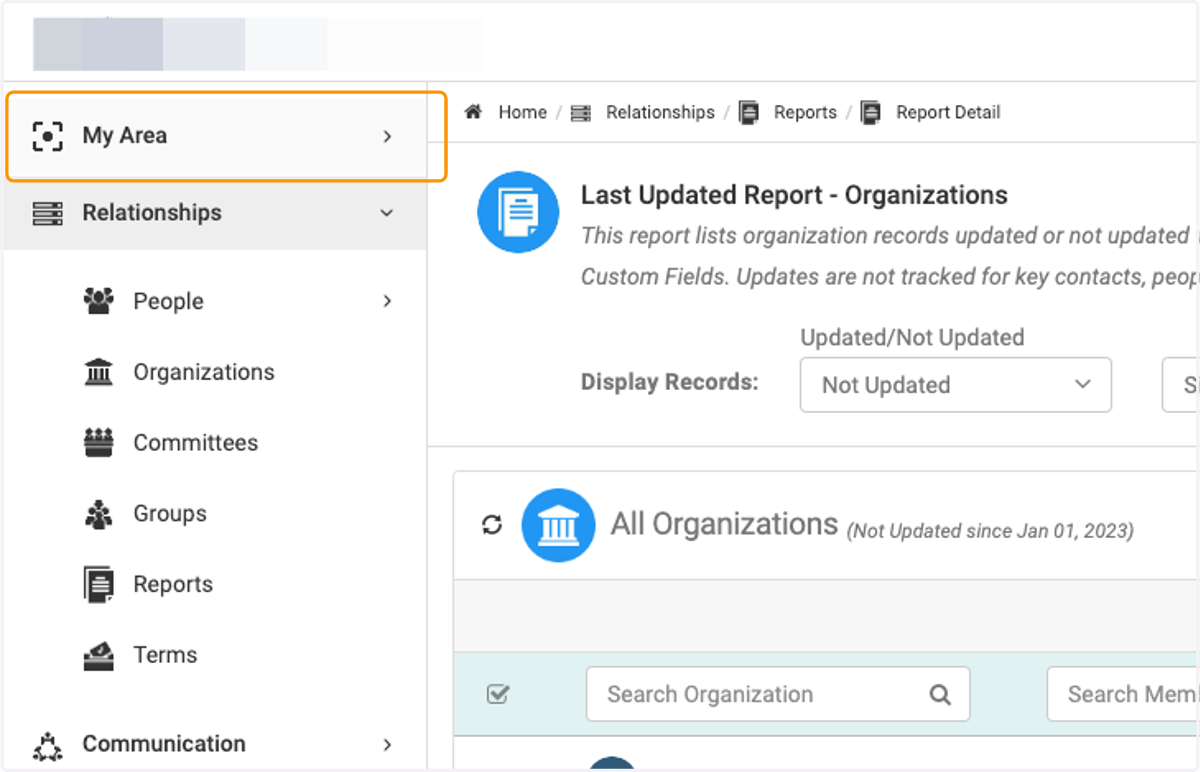
23. Click on My Area
24. Click on My Downloads
25. Click on your report