Applying for Payment Processing for DACdb
DACdb.com
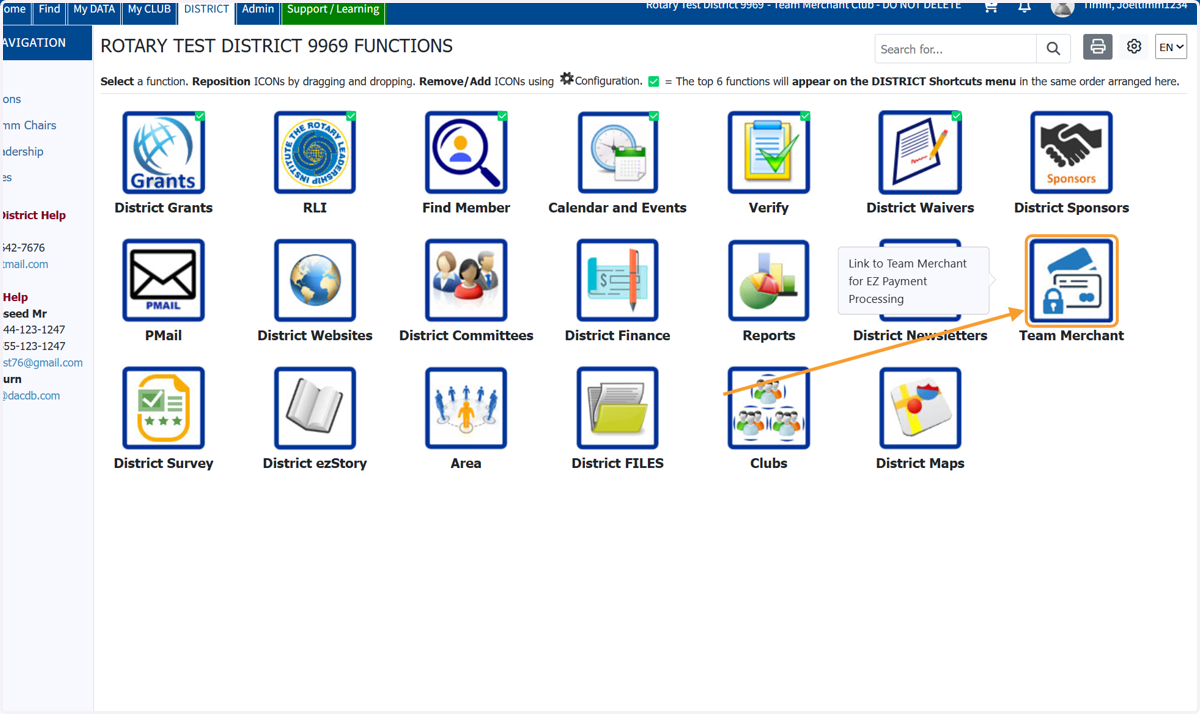
1. Click on Link to Team Merchant for EZ Payment Processing
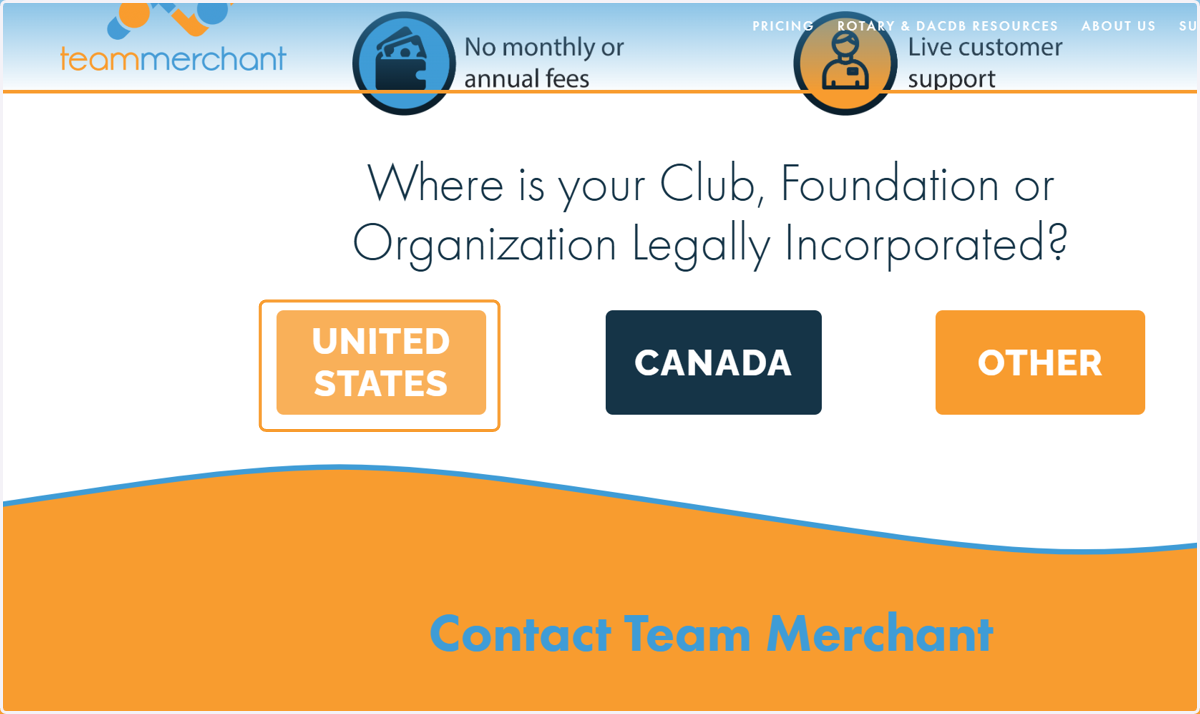
2. Click on UNITED STATES if you're in the United States
If you are in Canada, select Canada to book an onboarding appointment as that setup is a little different
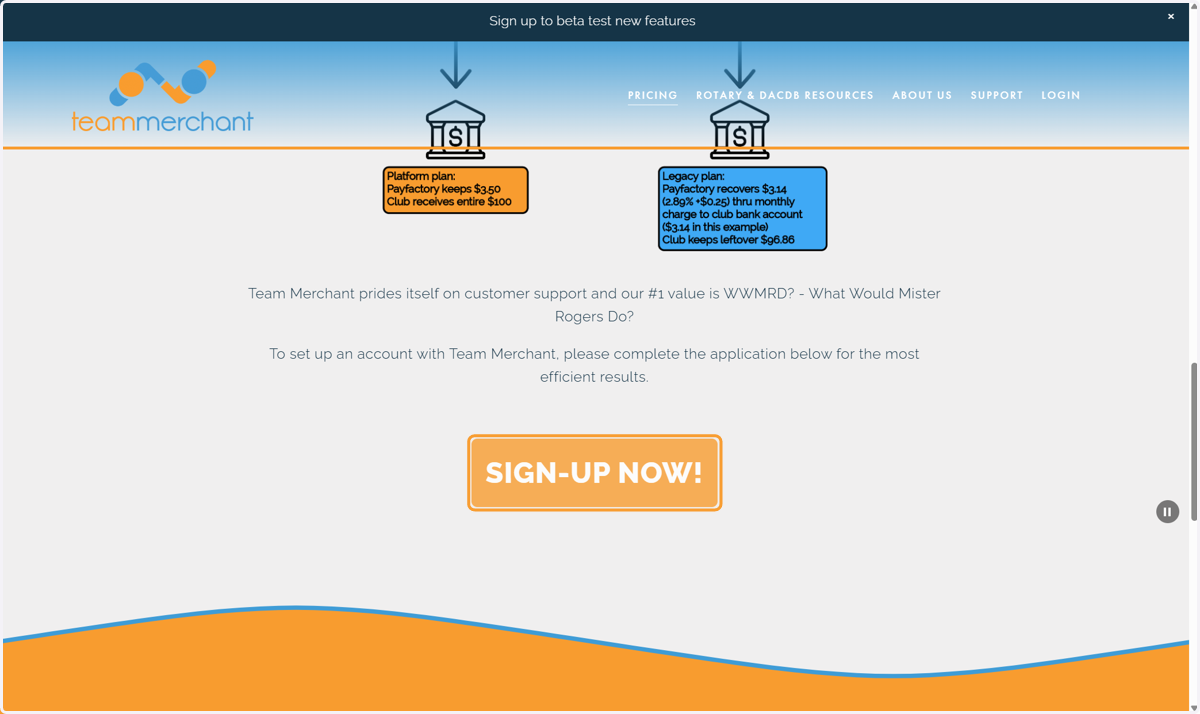
3. Scroll down to read the fee options and click on SIGN-UP NOW!
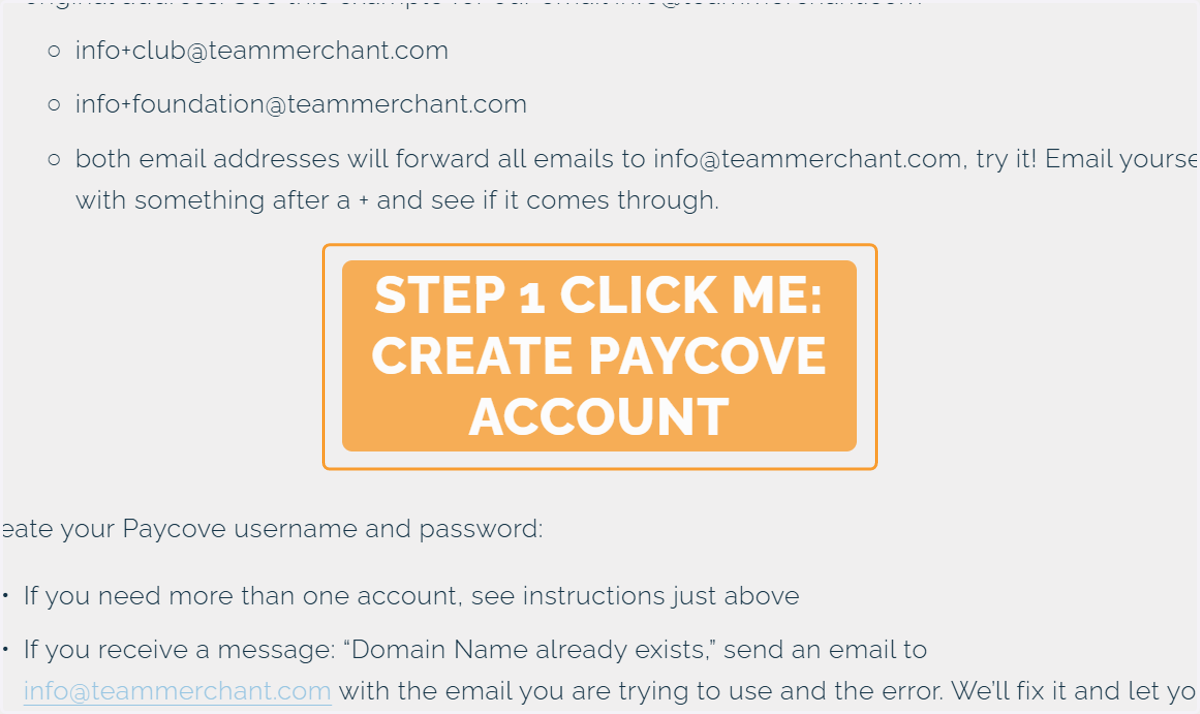
4. Scroll Down and Click on STEP 1 CLICK ME: CREATE PAYCOVE ACCOUNT
Paycove
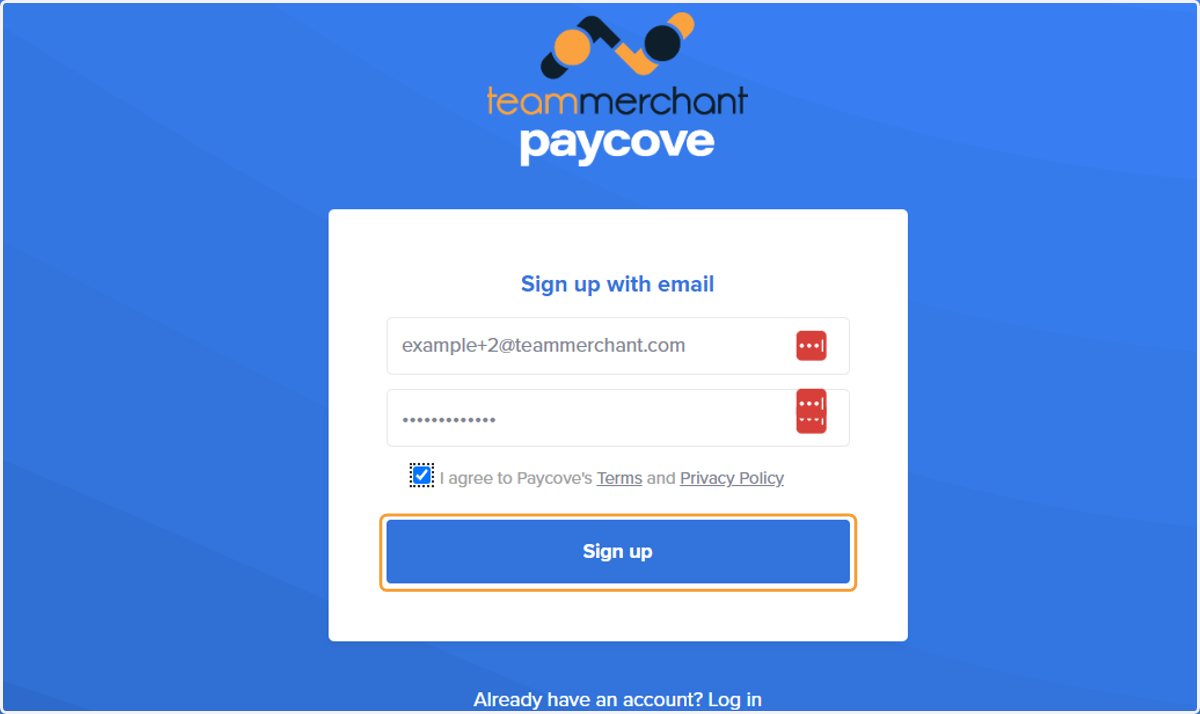
5. Enter the email you would like to use as your username for Paycove and make a password
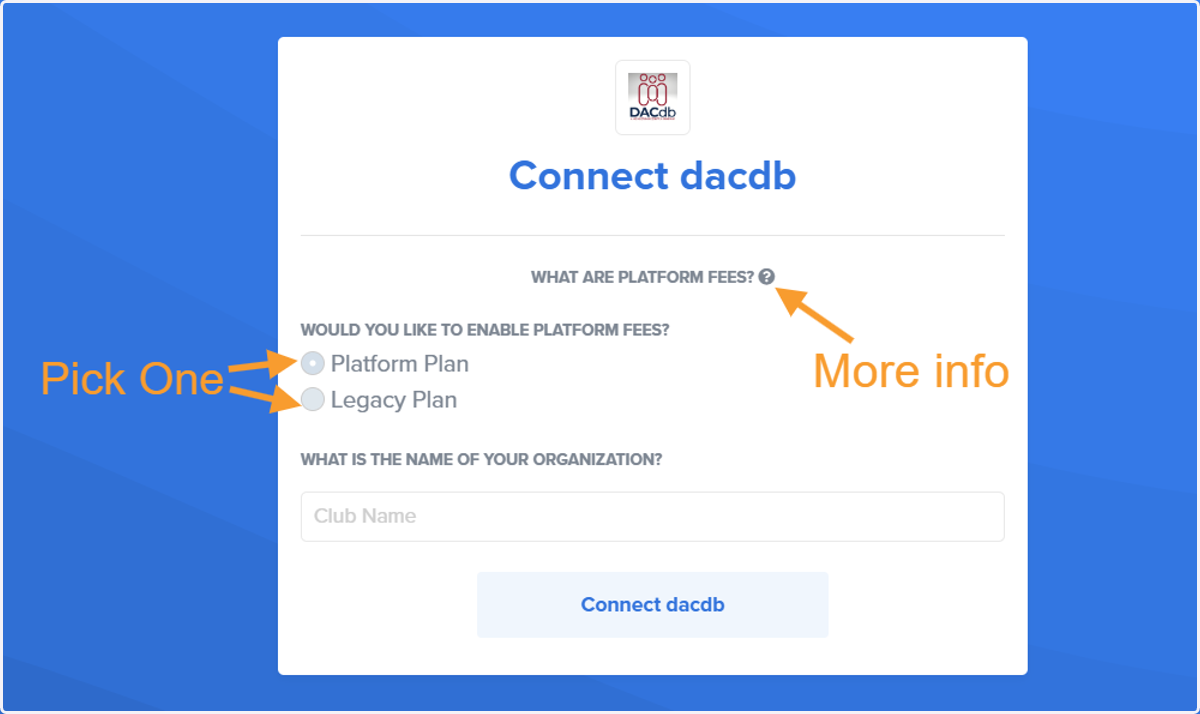
6. Select Platform Plan OR Legacy Plan and put the name of your organization
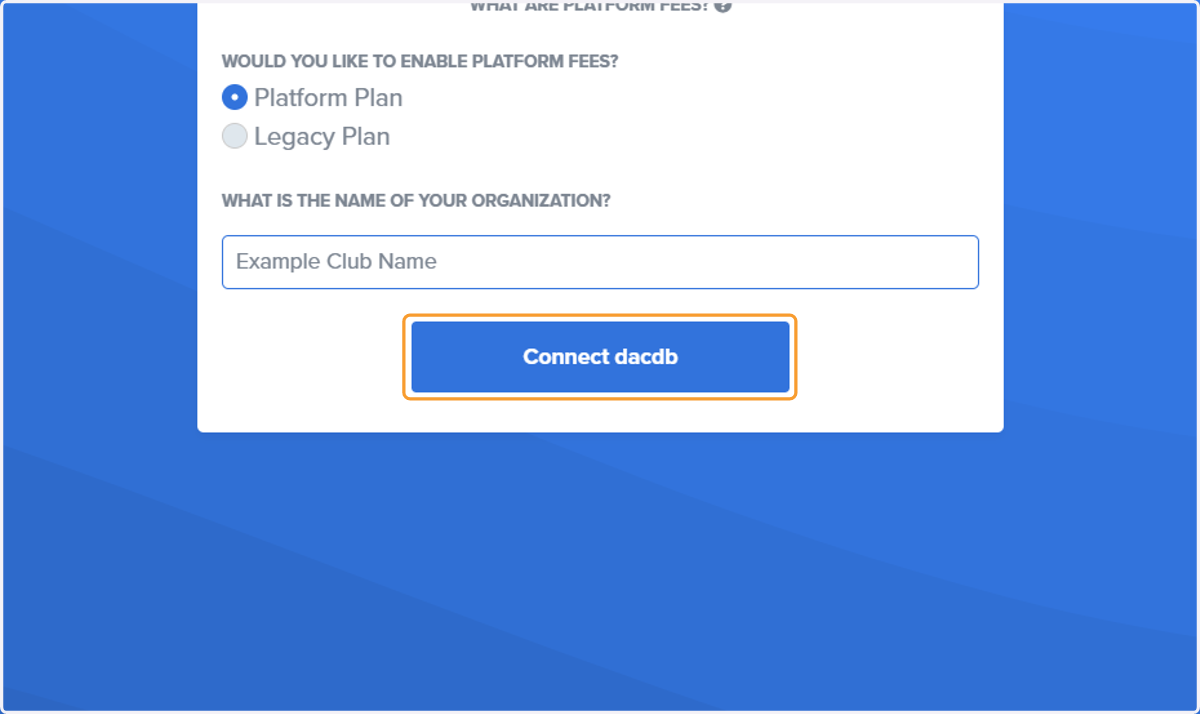
7. Click on Connect dacdb
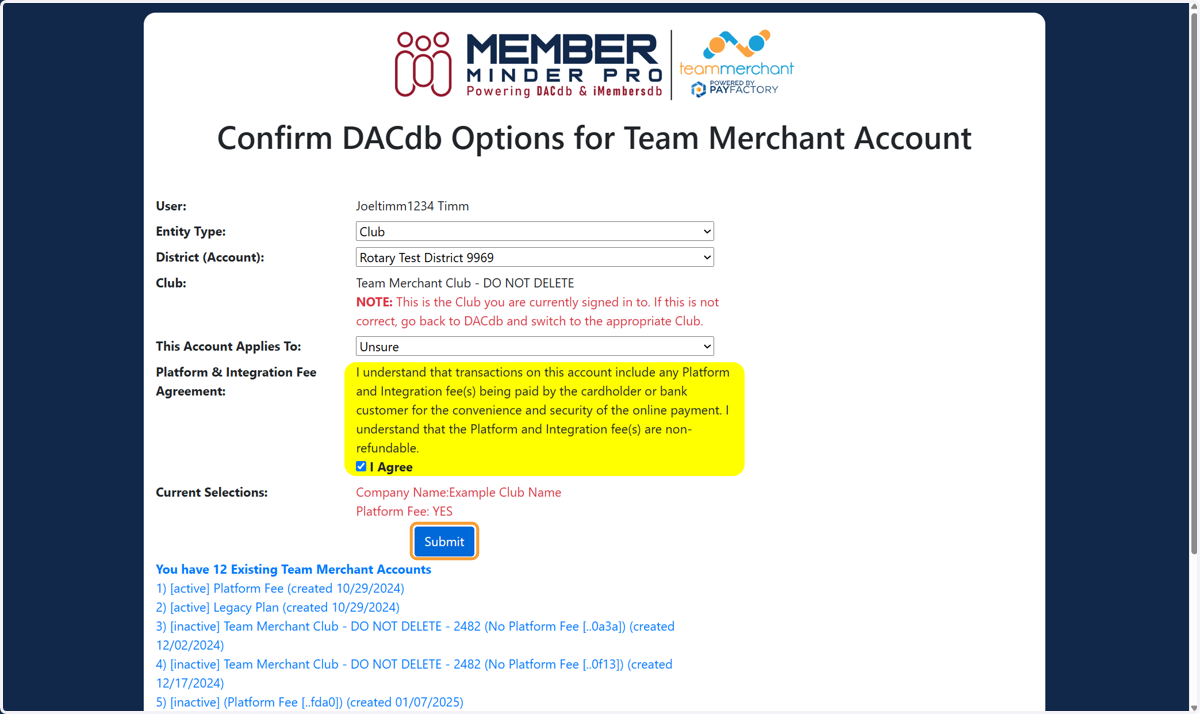
Confirm DACdb Club and District
8. Select Entity Type, Account, Click Consent and Submit
Paycove
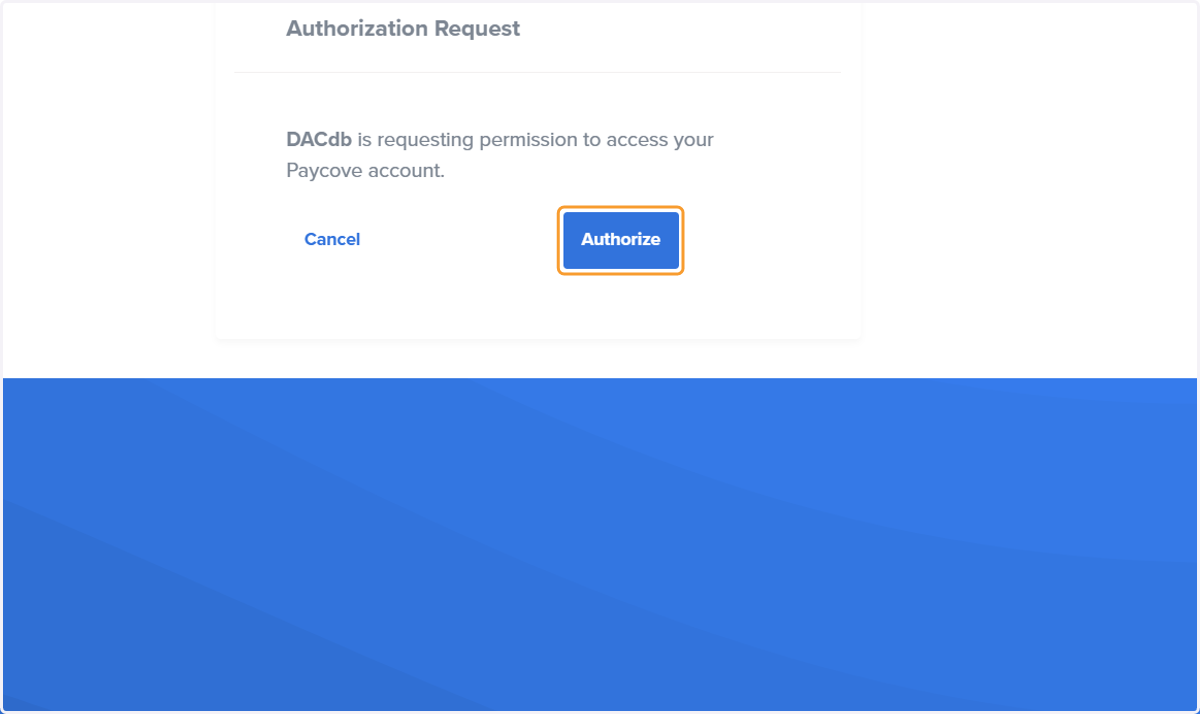
9. Click on Authorize
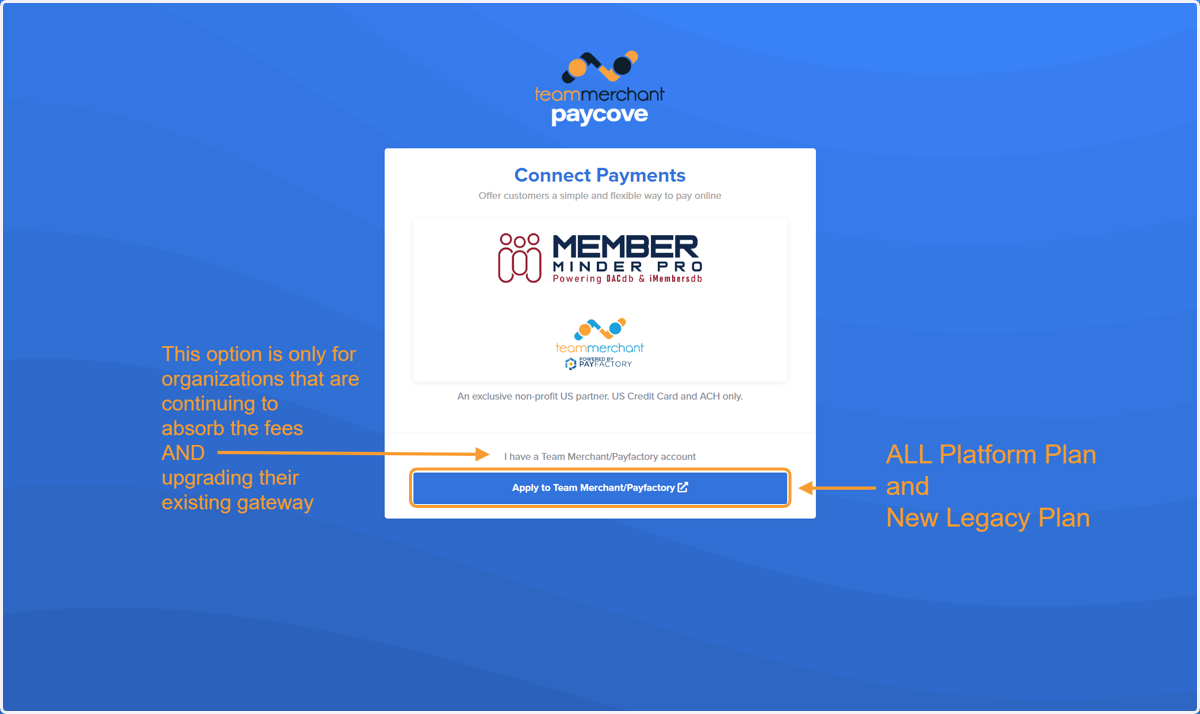
10. Choose which option applies to your organization
Platform Plan accounts require their own agreement, so upgrading a gateway to a Platform Plan requires a new application
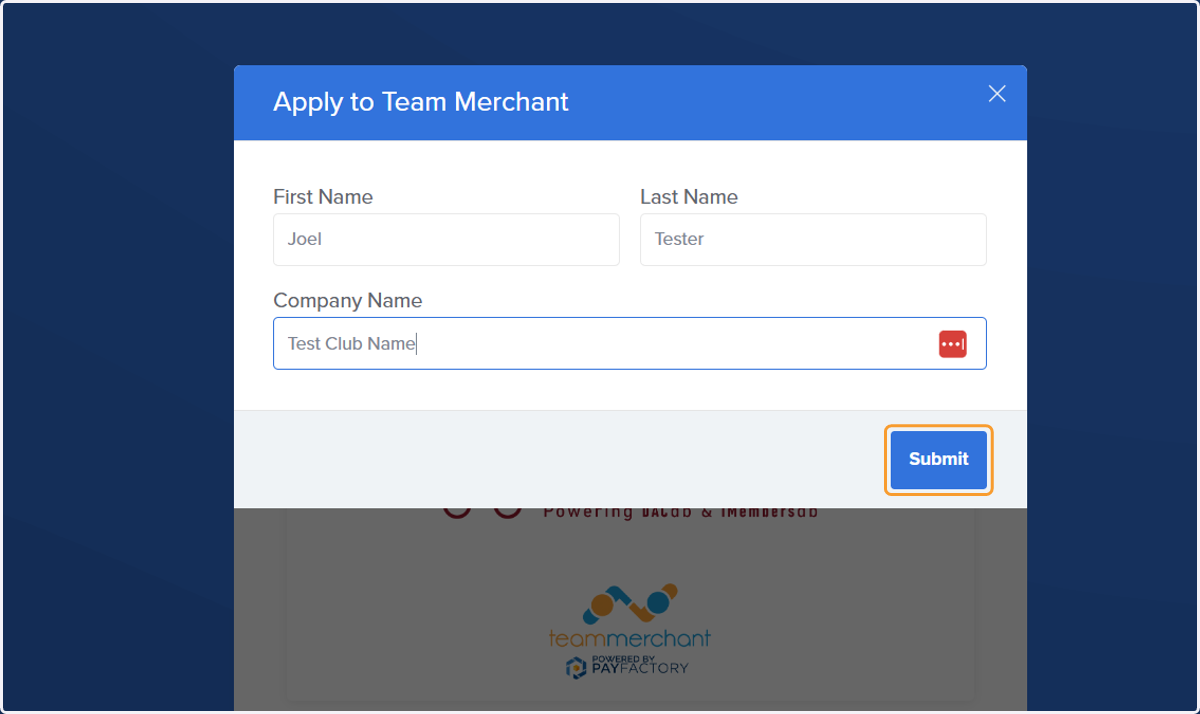
11. Fill Out and Click on Submit
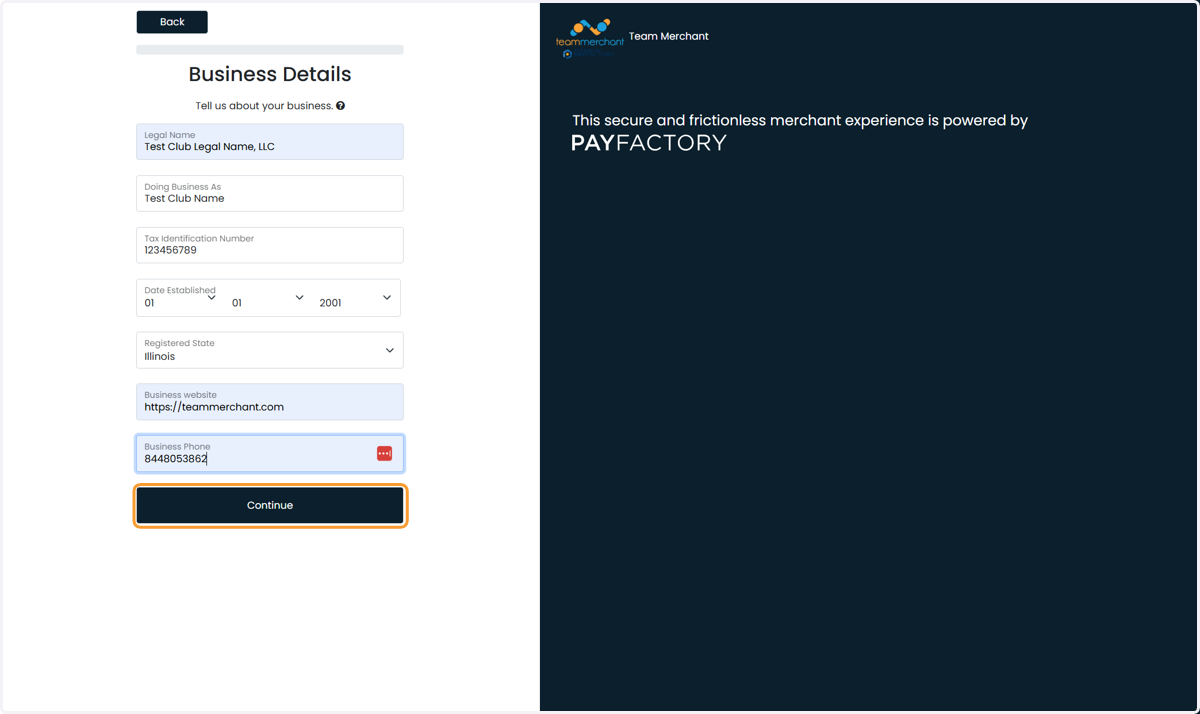
Enter Business Details and Click Continue
12. Click on Continue
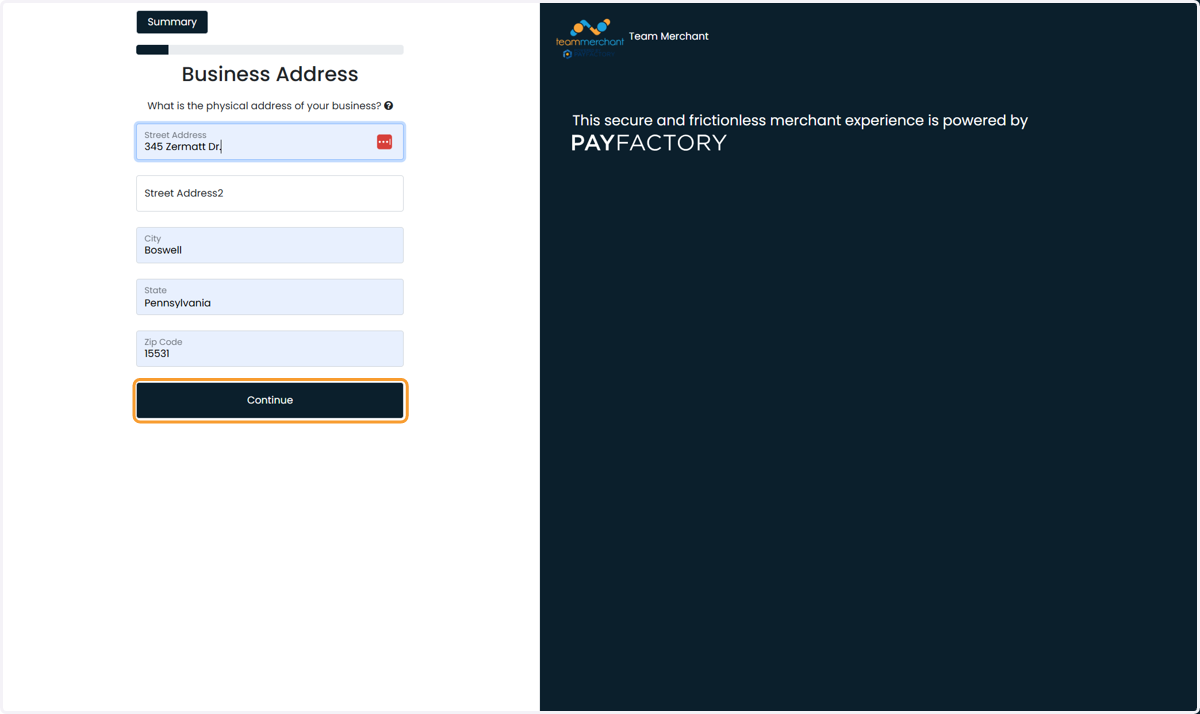
13. No PO Boxes or UPS Boxes etc.
If your business only has a PO BOX, put your signer's home address
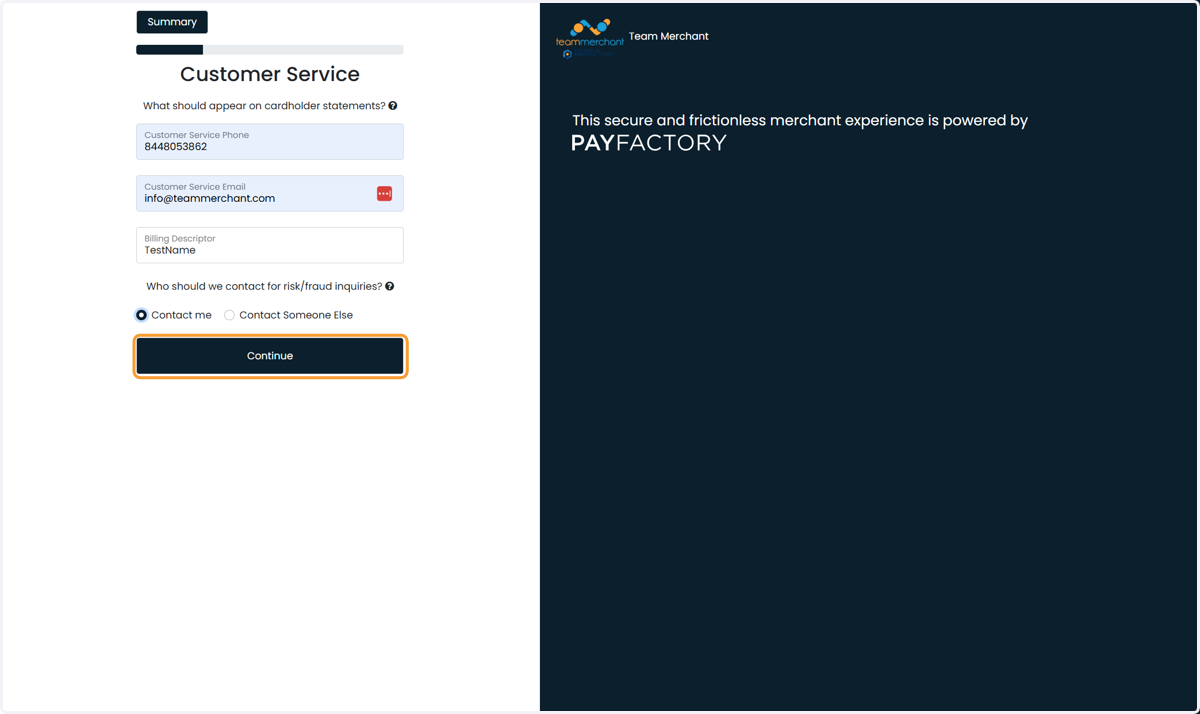
14. Enter Customer Service Details
A billing descriptor is the short text that appears on a customer's credit or debit card statement, identifying the business and transaction, and is also known as a merchant descriptor, billing name, or statement descriptor.
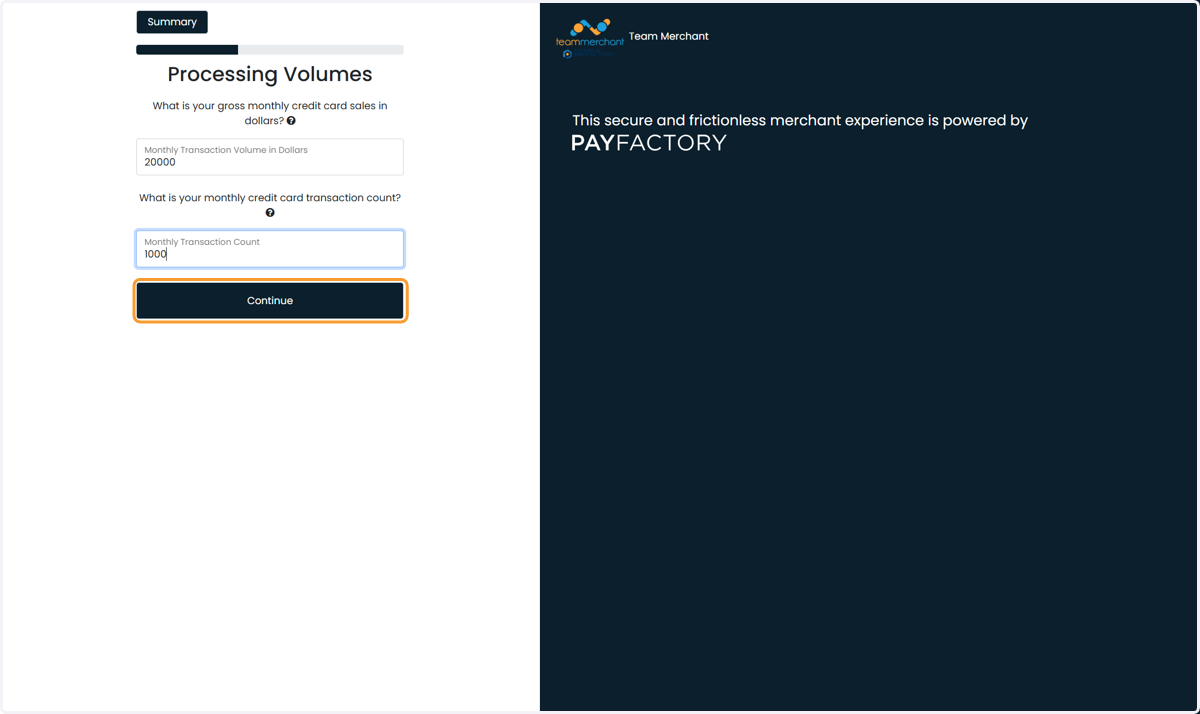
15. Fill in the dollar amount and count of transactions for your biggest month
Payfactory will set a guardrail "ceiling" which can be adjusted later. This example club has a big fundraiser in December that usually processes $18,000 in 800 transactions. A little padding puts the limit at $20,000 and 1,000 respectively
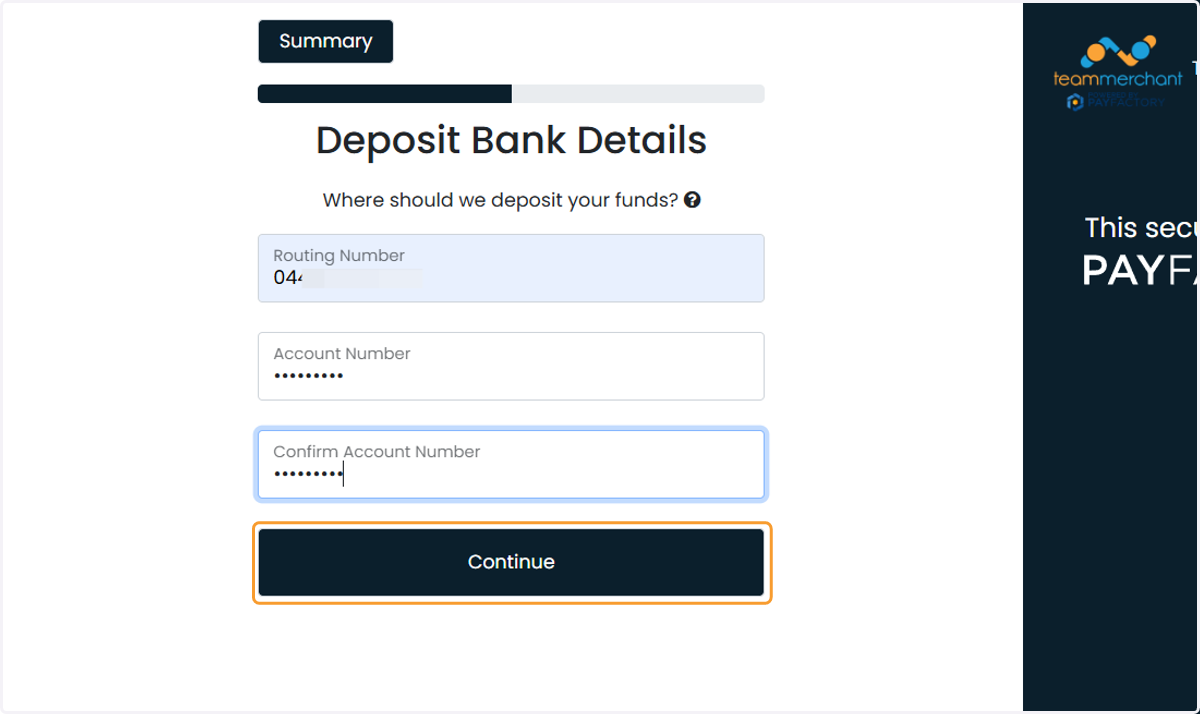
16. Type routing and account number for deposits
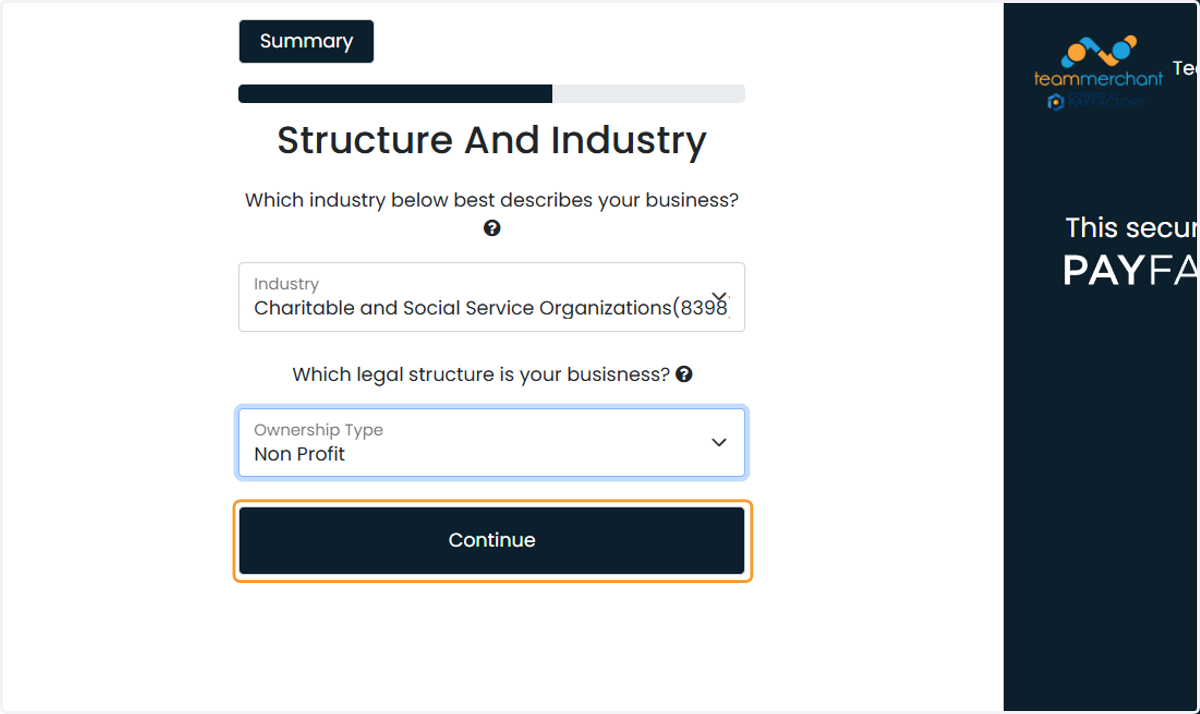
17. Select Non Profit from Ownership Type
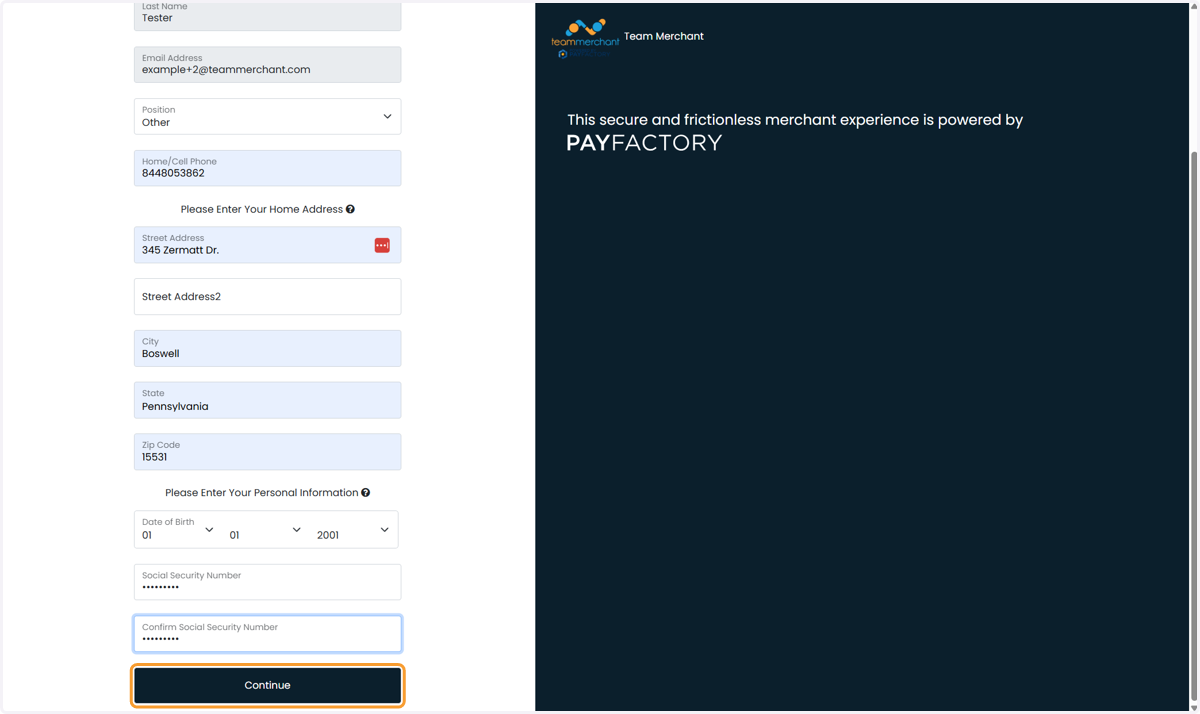
18. Fill out the personal details for the account signer
A payment processing account is a kind of bank account. The Underwriters will do an identity verification on the signer to see the name/address/DOB/SSN match what the government has on file
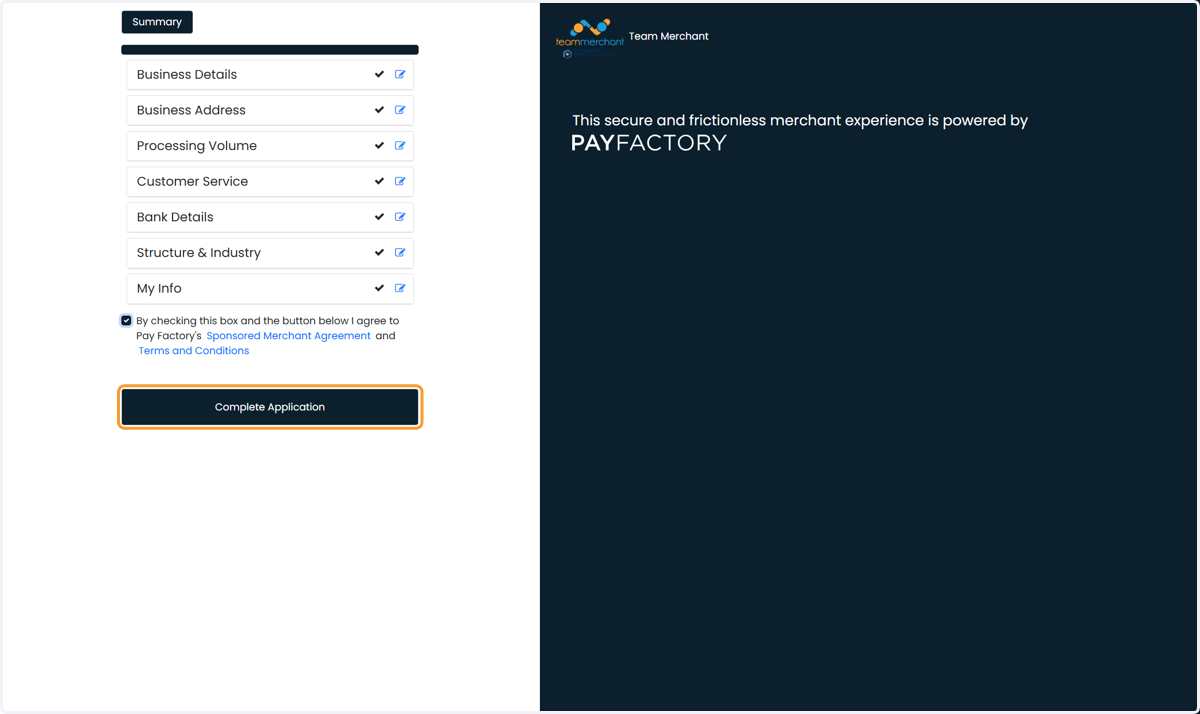
19. Check the box and click the link to download your merchant agreement
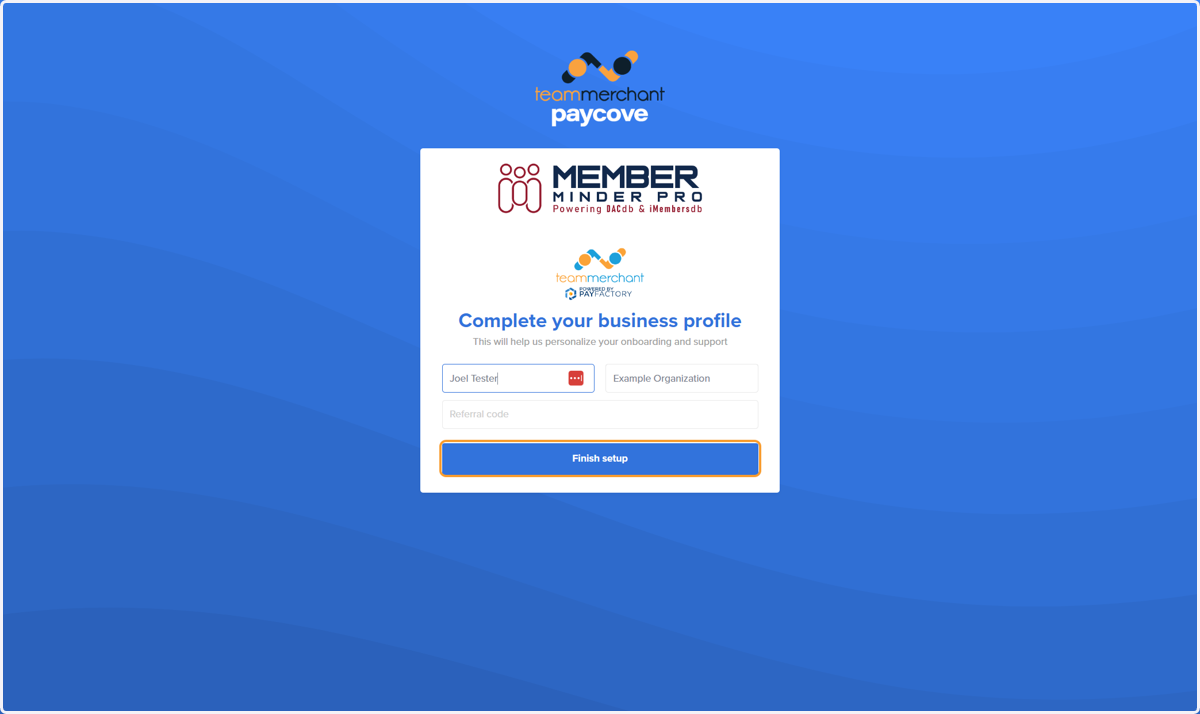
20. Enter your name and Click on Finish setup