How to Create Medical Insurance Journals and Employee Loan in Odoo-iLines HR

  1. 1. Click on iLines HR

    Click on iLines HR
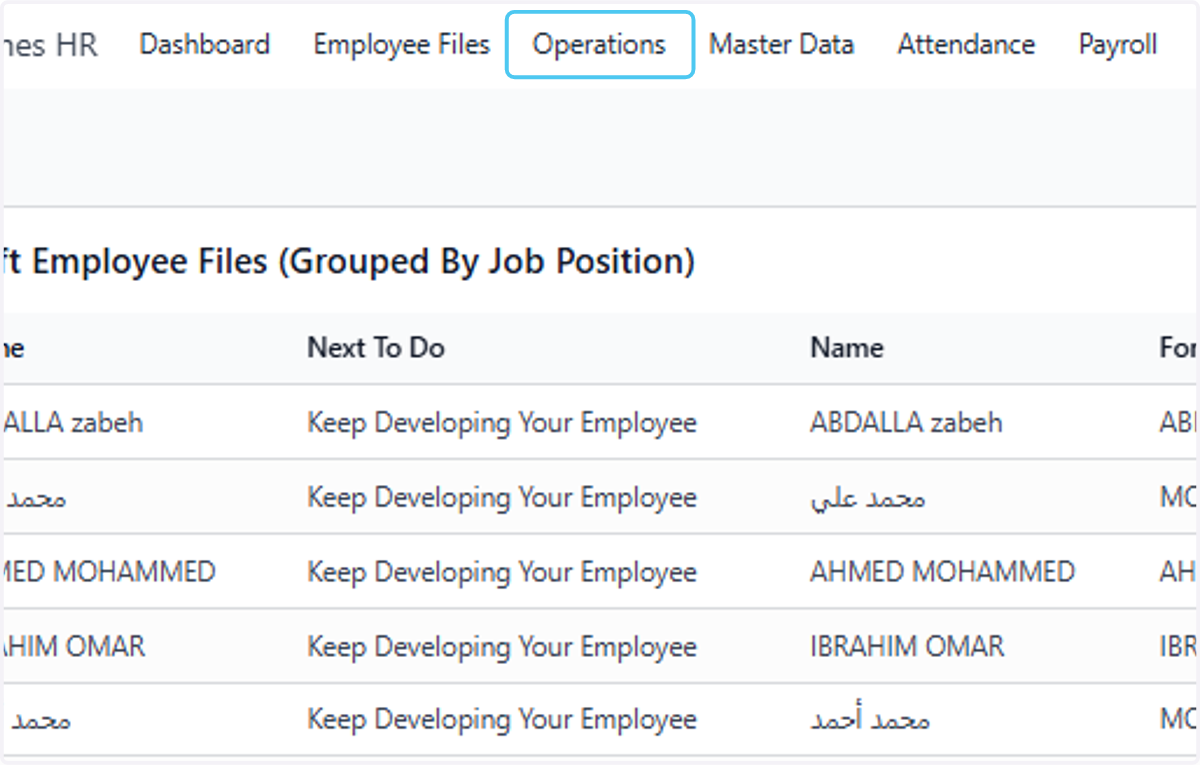
  2. 2. Click on Operations

    Click on Operations
  3. 3. Click on Medical Policies

    Click on Medical Policies
  4. 4. Click on Medical Policy 2025

    Click on Medical Policy 2025
  5. 5. Click on Employee Charge Settings

    Click on Employee Charge Settings
  6. 6. Click on Loans Start Date?

    Click on Loans Start Date?
  7. 7. Click on September 2025…

    Click on September 2025…
  8. 8. Click on 1

    Click on 1
  9. 9. Now enter the Loan installments Type "6"

    Now enter the Loan installments Type "6"
  10. 10. Uncheck Approve Loans Automatically? ig you want to make the draft entries of the Loan

    Uncheck Approve Loans Automatically? ig you want to make the draft entries of the Loan
  11. 11. Click on Create Journals to create the Journals of medical insurance and employee loan

    Click on Create Journals to create the Journals of medical insurance and employee loan
  12. 12. Here you can see the details of the Journals

    Here you can see the details of the Journals
  13. 13. Click on Statusbar and check that it is now in posted state

    Click on Statusbar and check that it is now in posted state
  14. 14. Click on Journals to check the journals

    Click on Journals to check the journals
  15. 15. Click on highlight and group by it by medical insurance items

    Click on highlight and group by it by medical insurance items
  16. 16. Select Add Custom Group

    Select Add Custom Group
  17. 17. Here you can see the detais of the employee medical items

    Here you can see the detais of the employee medical items
  18. 18. Click on 0.00 1,700.00

    Click on 0.00 1,700.00
  19. 19. Click on DEFE/2026/07/0001

    Click on DEFE/2026/07/0001
  20. 20. Here you can now see the Journal entry of the employee medical

    Here you can now see the Journal entry of the employee medical
  21. 21. Click on Medical Policy 2025

    Click on Medical Policy 2025
  22. 22. Click on Journals

    Click on Journals
  23. 23. Click on DEFE/2025/08/0003

    Click on DEFE/2025/08/0003
  24. 24. here You can see employee loan Journal

    here You can see employee loan Journal
  25. 25. Click on Medical Policy 2025

    Click on Medical Policy 2025
  26. 26. Click on Journal Items to Check the overall Journal items details

    Click on Journal Items to Check the overall Journal items details
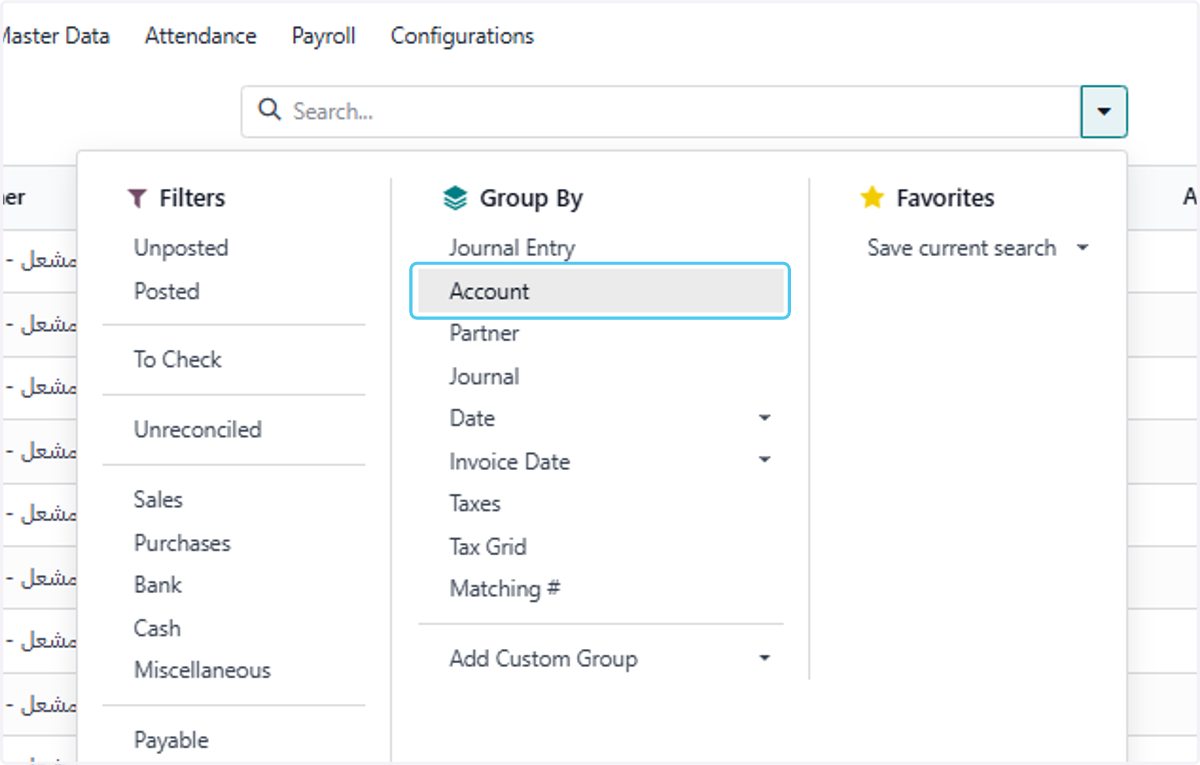
  27. 27. Click on highlight to create a group by or filter

    Click on highlight to create a group by or filter
  28. 28. Click on Account

    Click on Account
  29. 29. Here You will see now all the details of Accounts and there amount

    Here You will see now all the details of Accounts and there amount
  30. 30. Click on Account

    Click on Account
  31. 31. Select Add Custom Group

    Select Add Custom Group
  32. 32. Click on Employee

    Click on Employee
  33. 33. Click on 1000202 Employees Loans (1)

    Click on 1000202 Employees Loans (1)
  34. 34. here now you can see the details of employee

    here now you can see the details of employee
  35. 35. Click on Medical Policy 2025

    Click on Medical Policy 2025
  36. 36. Click on Loans

    Click on Loans
  37. 37. Click on Abdlrahman Meshal

    Click on Abdlrahman Meshal
  38. 38. Click on Approve Loans to apporve it

    Click on Approve Loans to apporve it
  39. 39. Click on Ok

    Click on Ok
  40. 40. Click on Loans Items you can now see the details of all the loan entries

    Click on Loans Items you can now see the details of all the loan entries
  41. 41. Click on the Statusbar. Finally, you can see the Running State of the Employee's loan

    Click on the Statusbar. Finally, you can see the Running State of the Employee's loan