New CompPass Distributions View Available in Pass Management
You can now see and manage every distribution you have sent out from one place — no more digging through individual passes one by one.
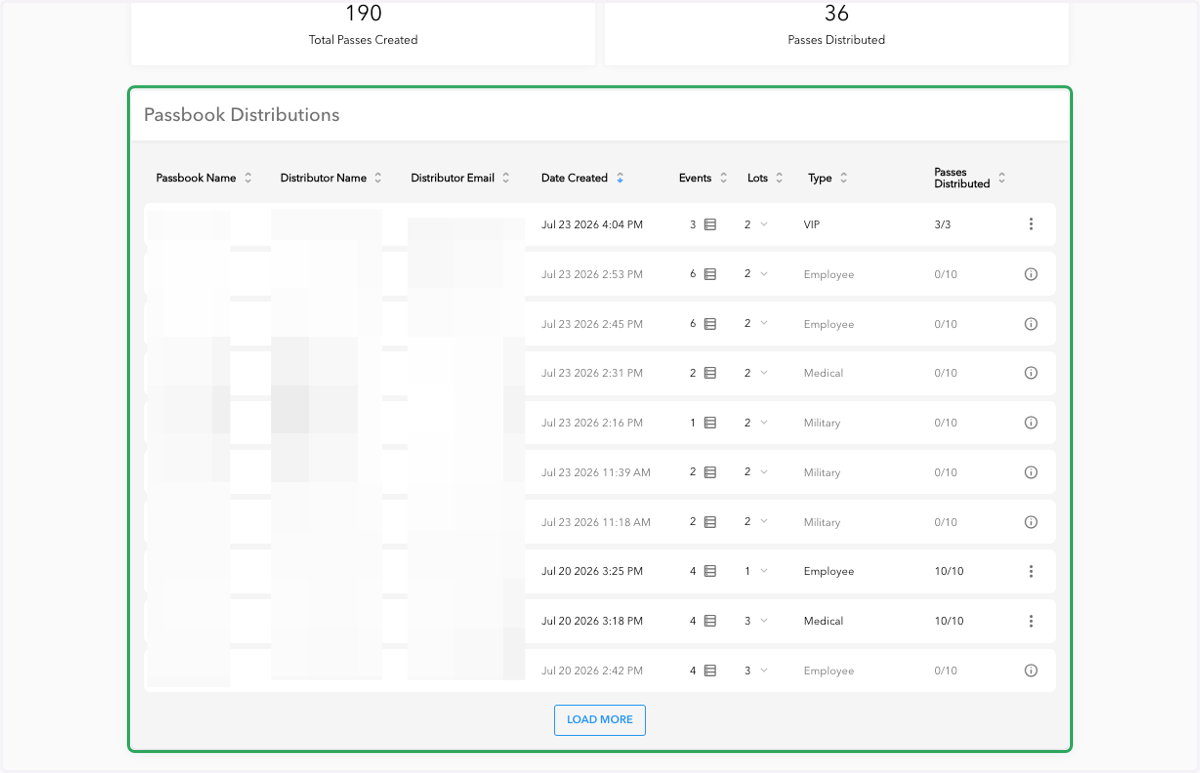
The new "Distributions" view shows each passbook distribution, who it went to, when, and how many passes were distributed. Use the keyword search and filters to quickly find what you are looking for. From the same screen, you can resend a batch, deactivate it if something has changed, or export your results as a CSV.
Log in to JustPark Suite
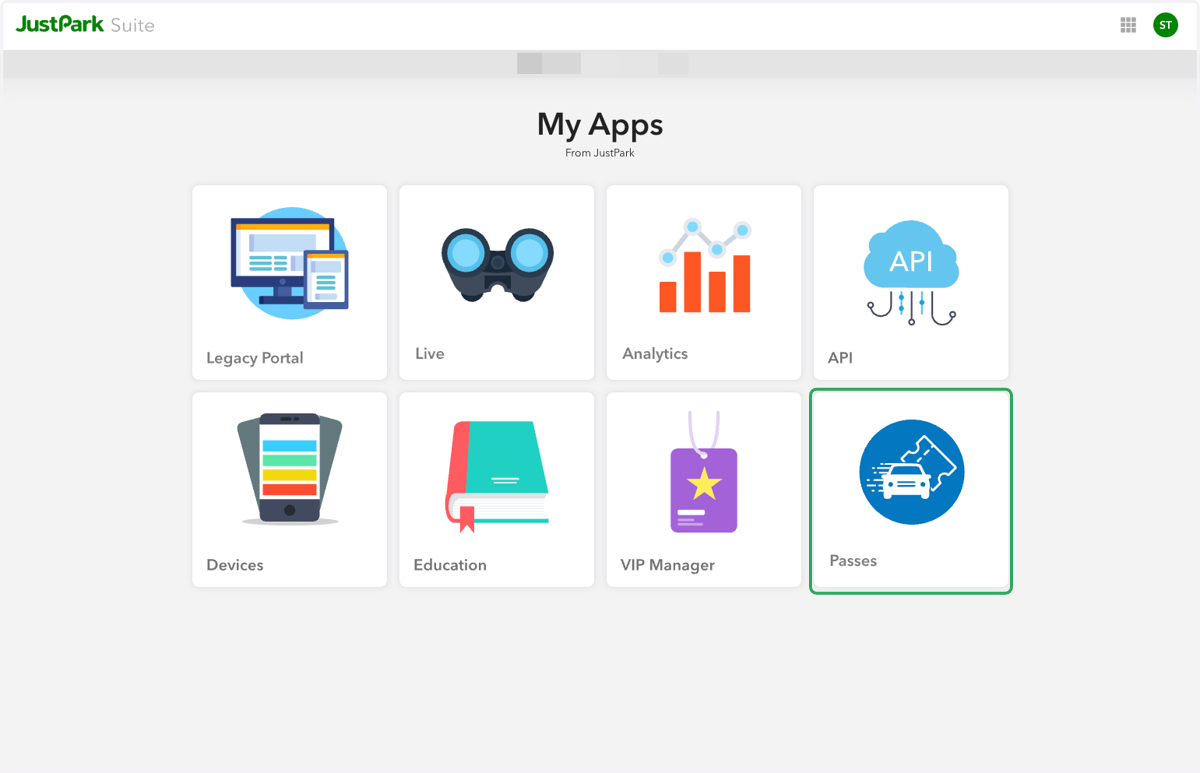
1. Click on the Passes tile
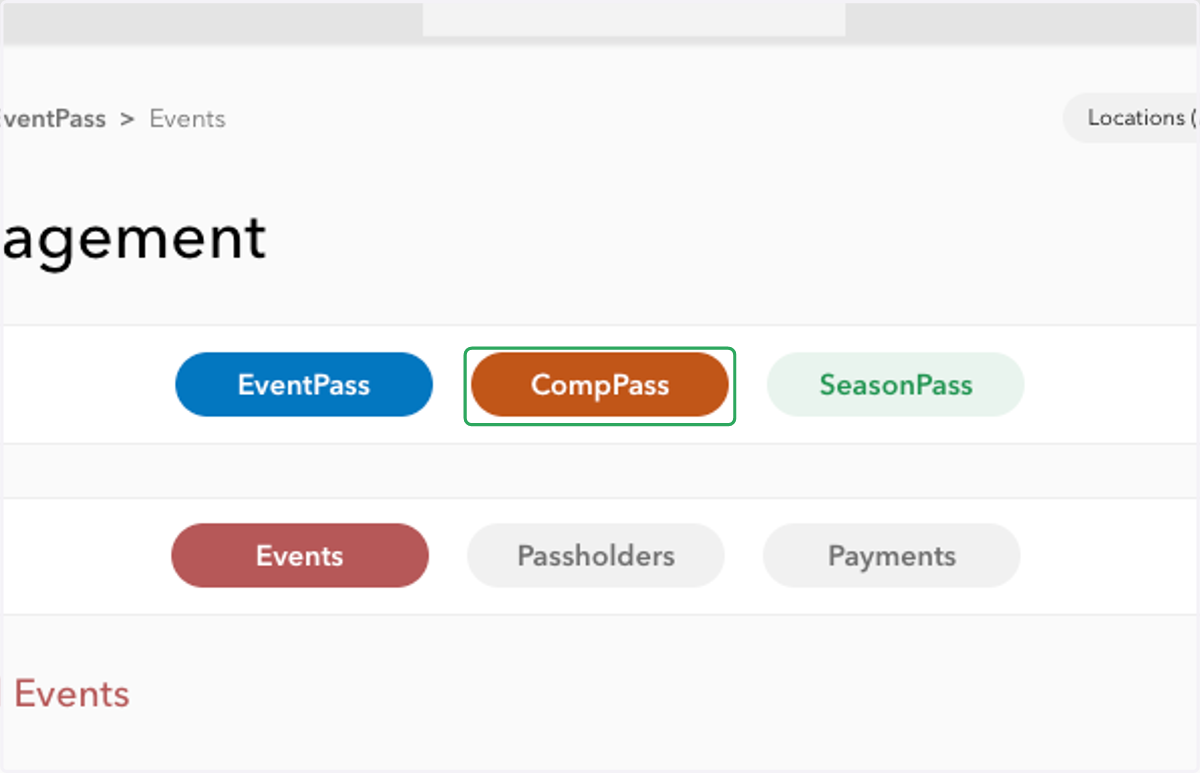
2. Click on the CompPass pill
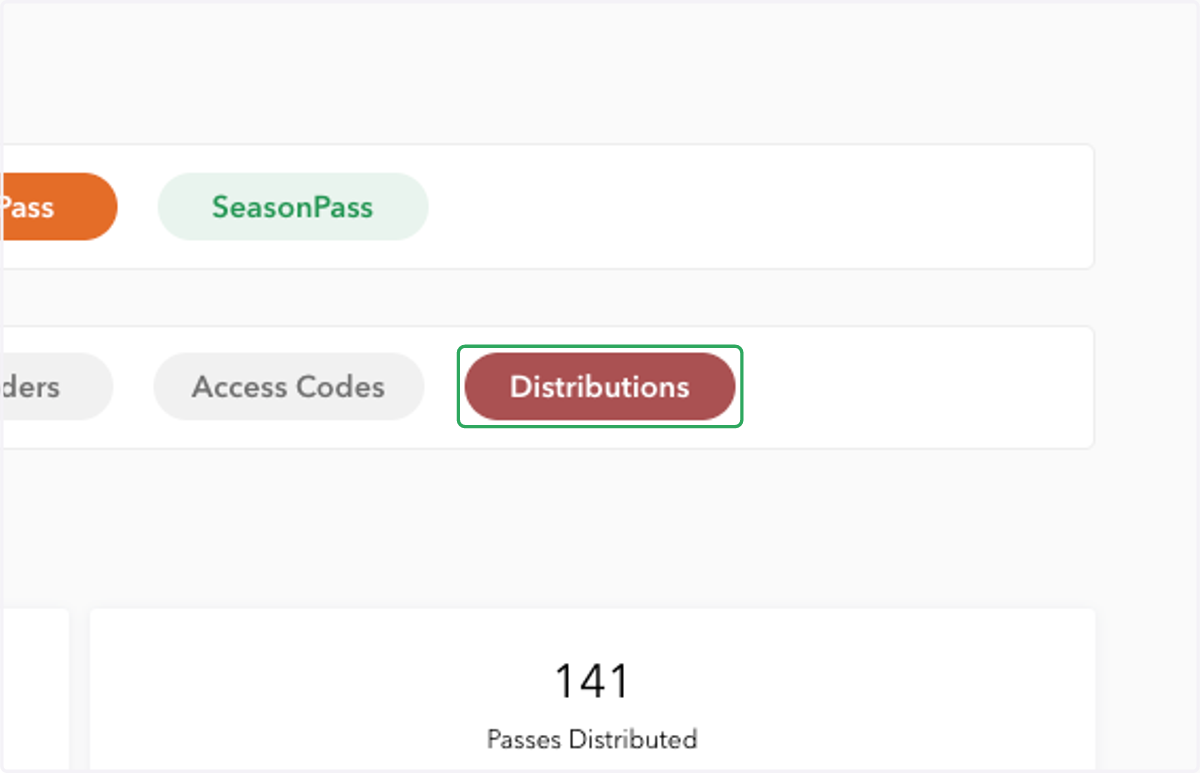
3. Find the new Distributions pill
Click on the Distributions pill to explore the feature.
4. Review your Passbook Distribution details
At a high level, you will see:
Total Passes Created
Passes Distributed
The Passbook Distributions table also shows:
Passbook Name
Distributor Name
Distributor Email
Date Created
Number of Events
Number of Lots
Passbook Type
Passes Distributed
From here, you can also resend or deactivate a passbook distribution.
Note: a passbook with multiple distributions will be displayed as multiple rows in this table.
5. View events included in a passbook distribution
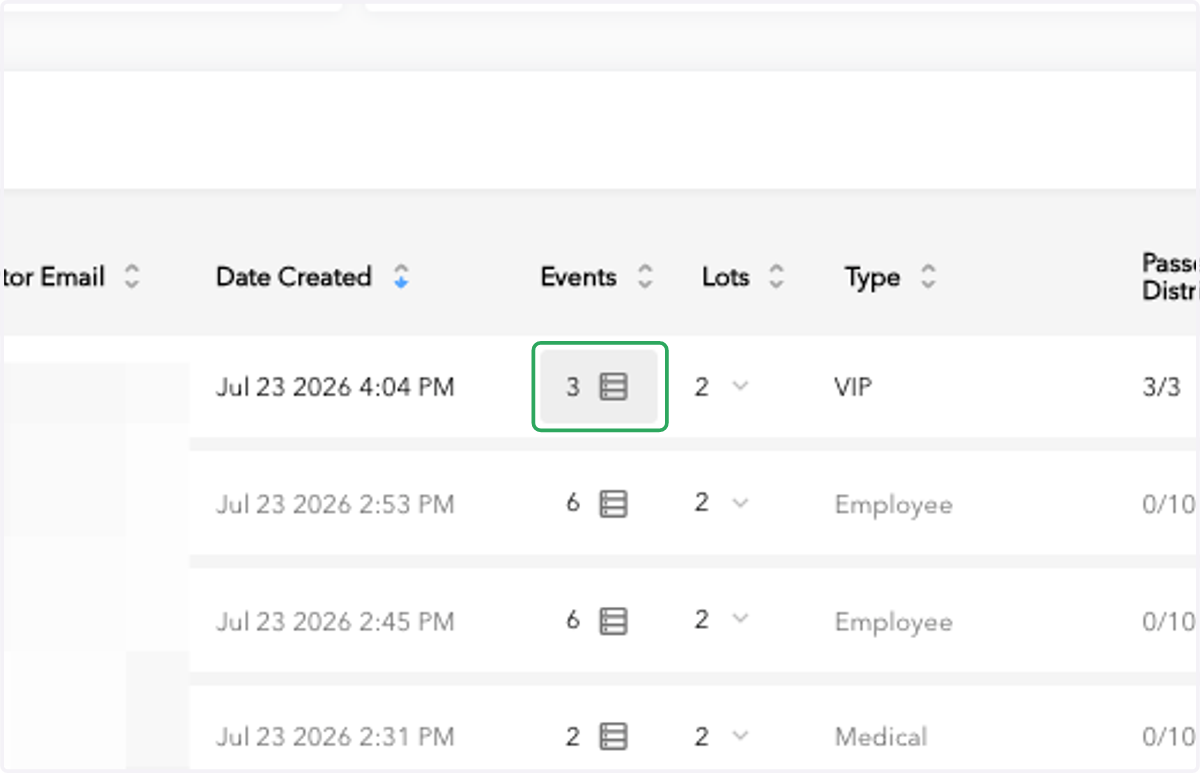
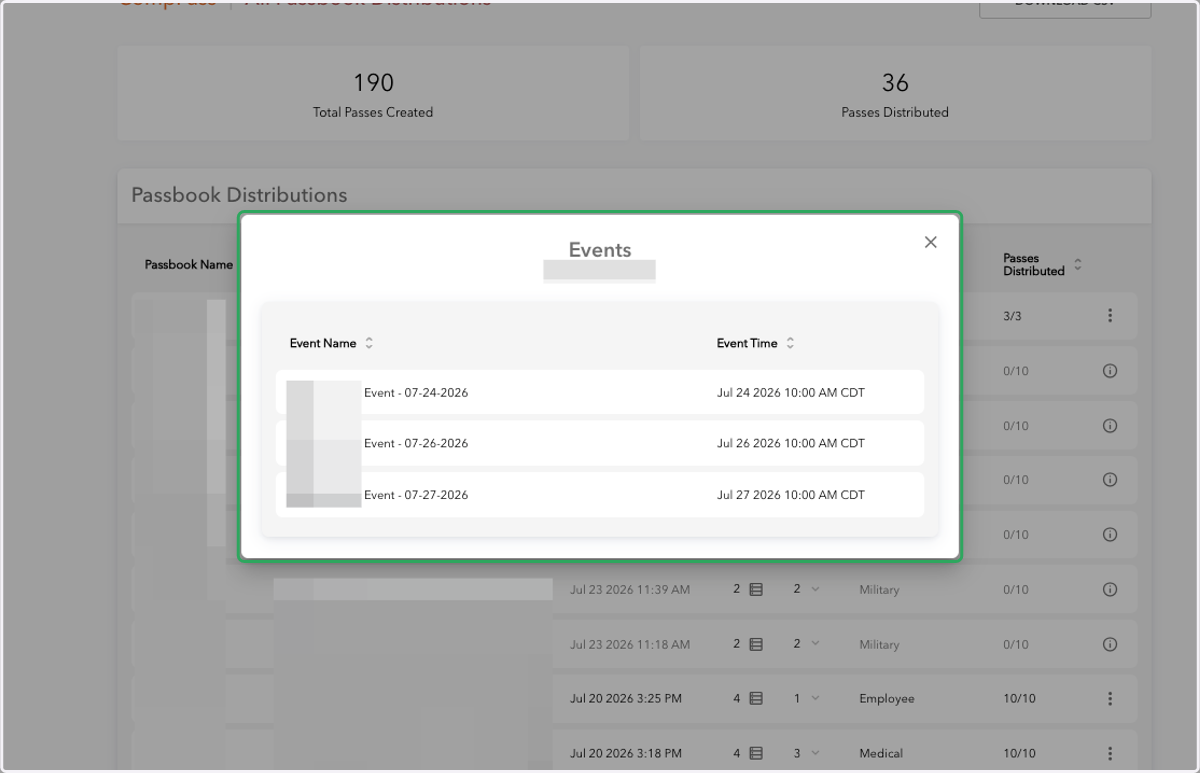
Click the Events count for any row to see which events are tied to that passbook distribution.
6. A pop-up displays the full list of events included in the passbook distribution
7. View lots included in a passbook distribution
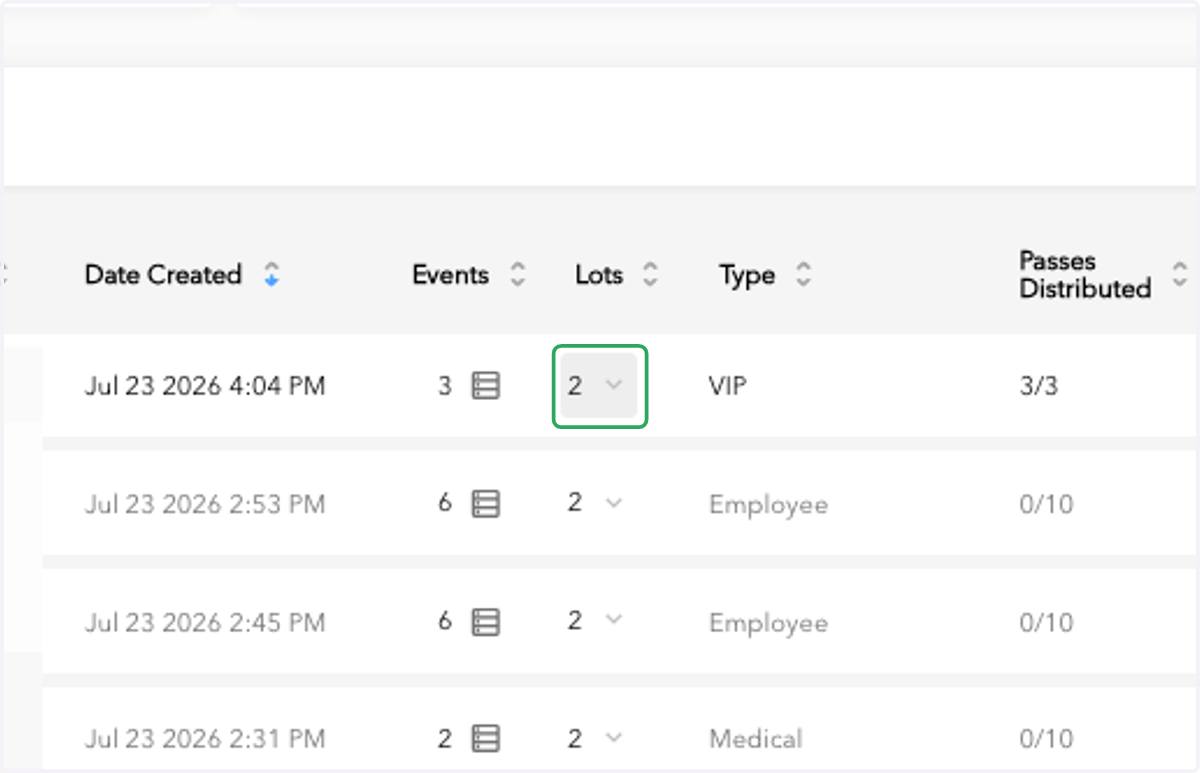
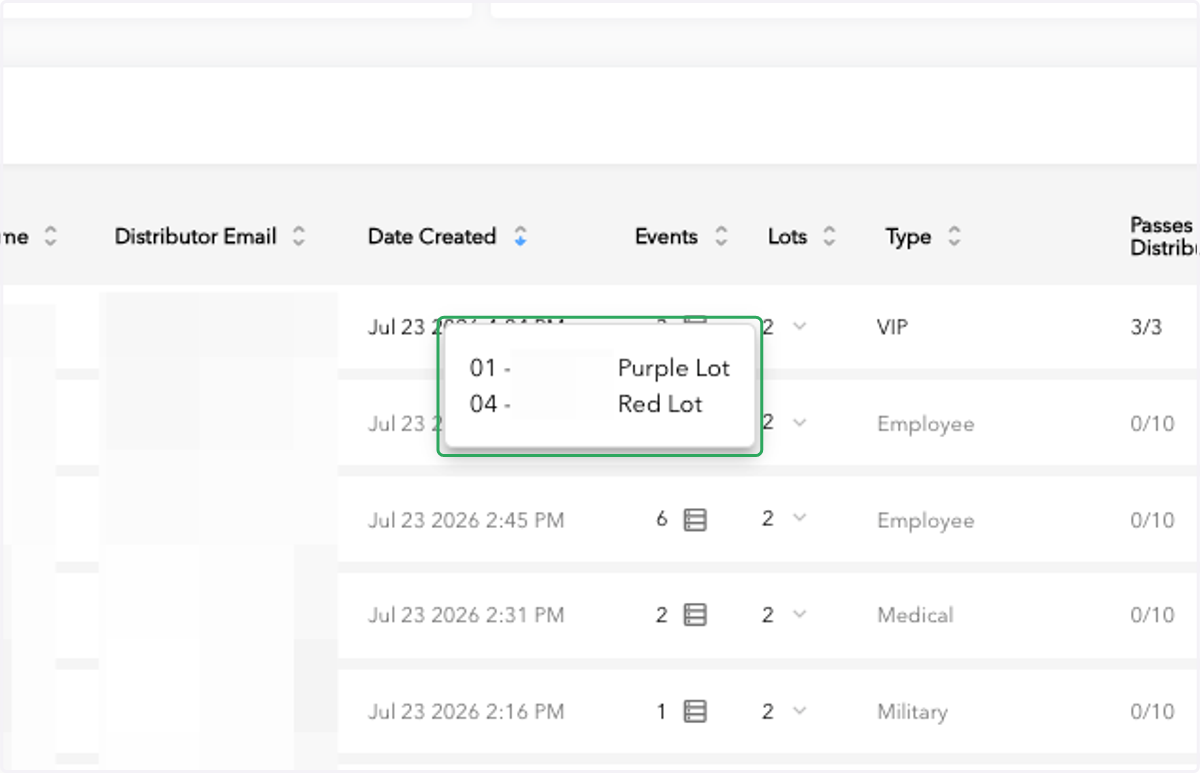
Click the Lots dropdown for any row to see which lots are included passbook distribution.
8. A pop-up displays the full list of lots included in the passbook distribution
9. Resend or deactivate a passbook distribution
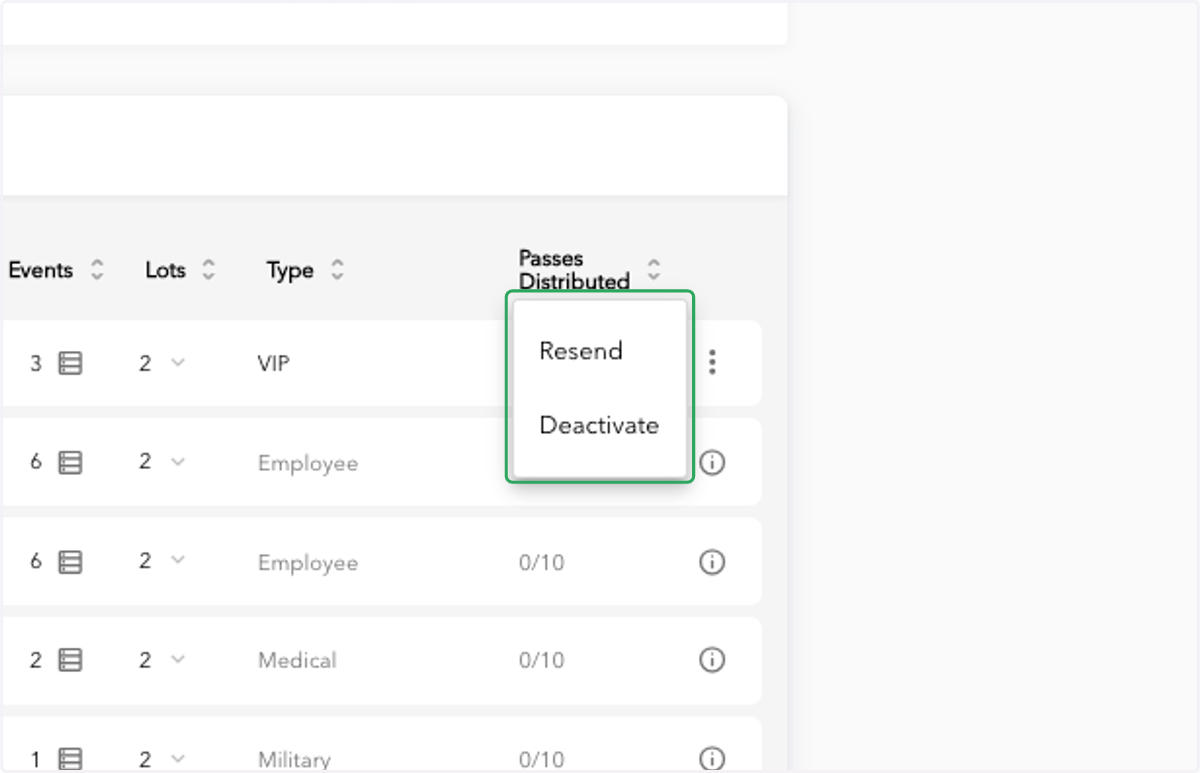
Click the three-dot menu next to a passbook distribution row to bring up your options.
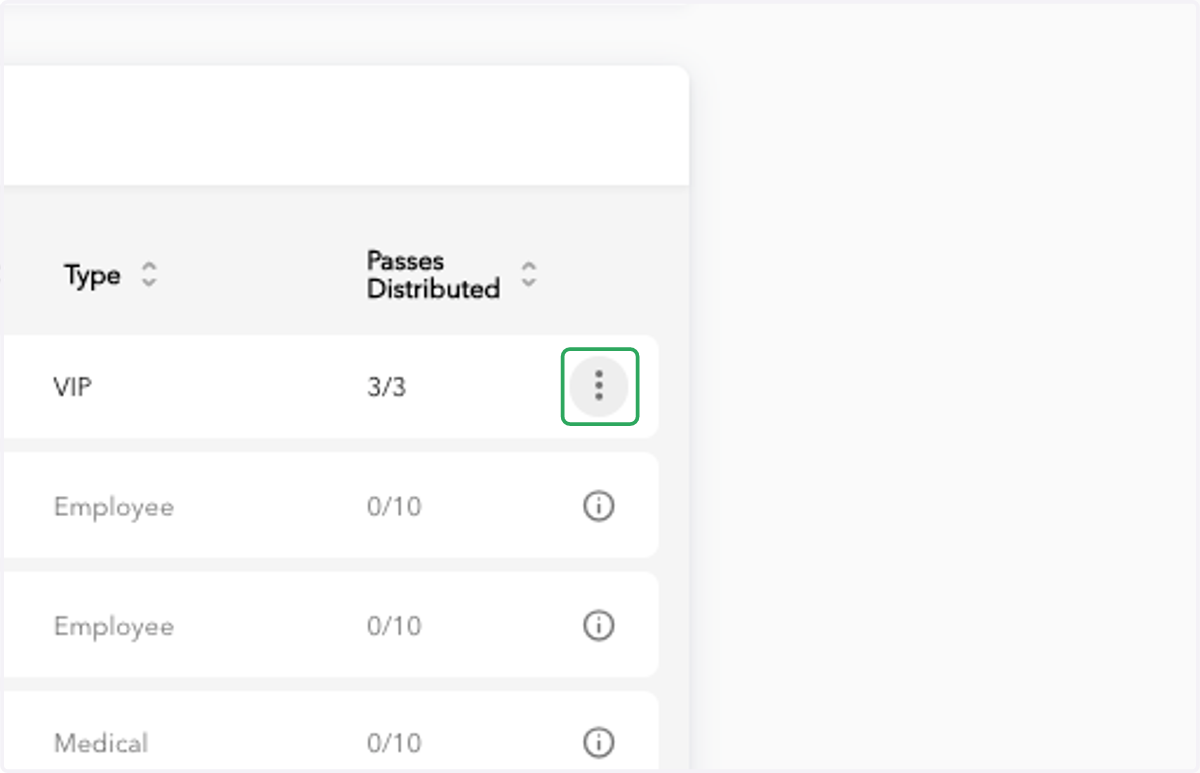
10. Select either Resend or Deactivate for that passbook distribution
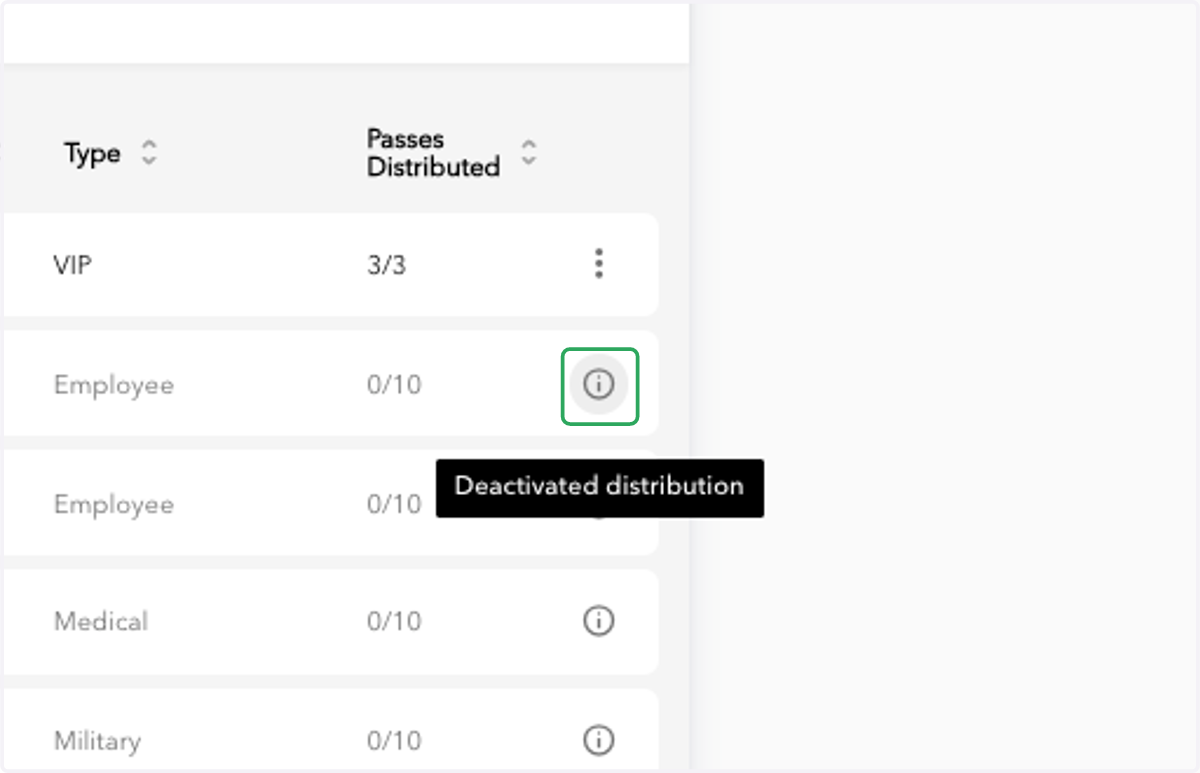
11. Spot deactivated passbook distributions
If a passbook distribution has been deactivated, the row will be greyed out and an info icon will appear.
12. Export your data
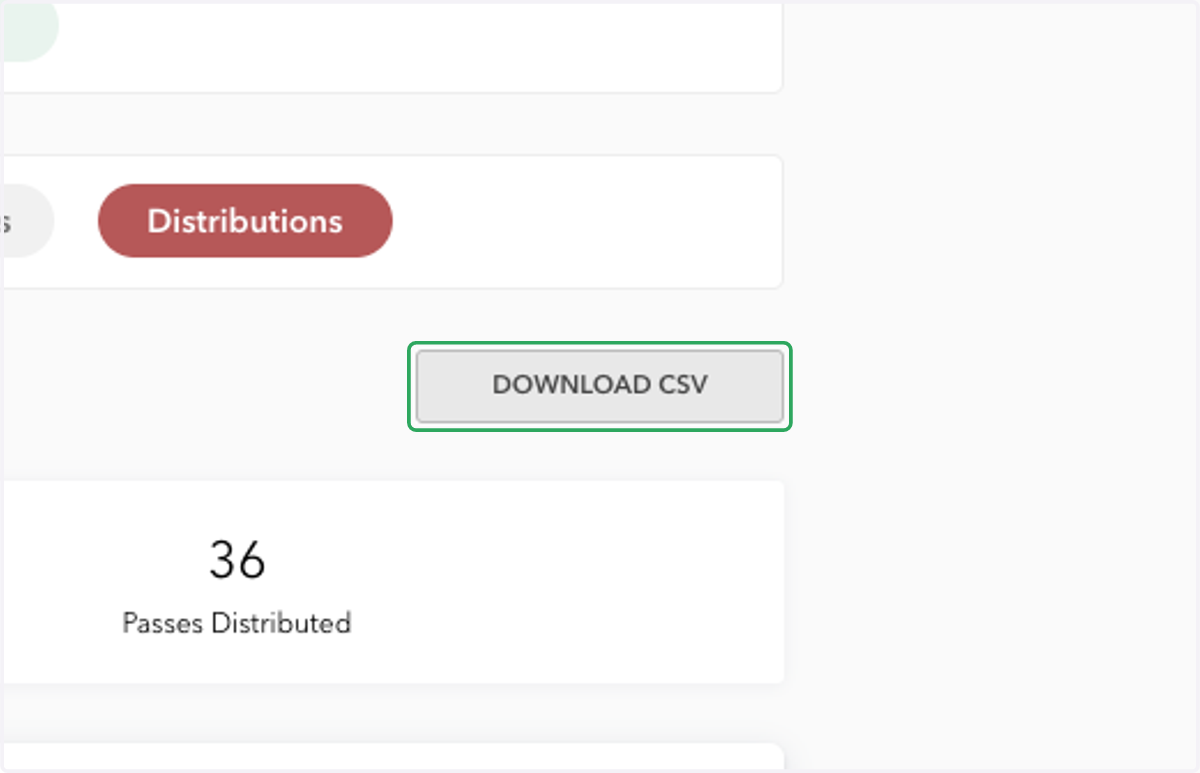
Download your full CompPass distribution report as a CSV at any time.