Bulk Edit - Pricing and Night Minimums
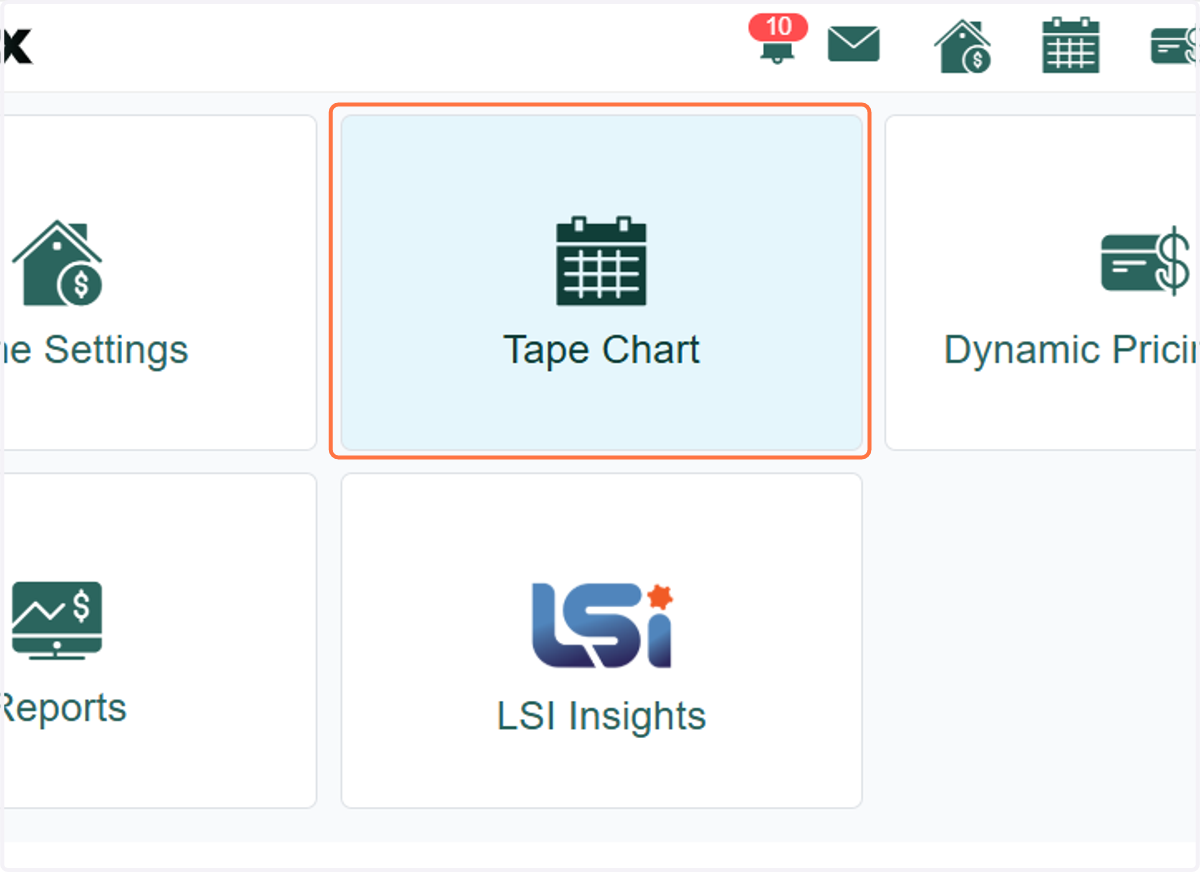
1. From the RevMax homepage, click on Tape Chart
2. A 'Days of the Week' filter is also available for you to select specific days you'd like to update
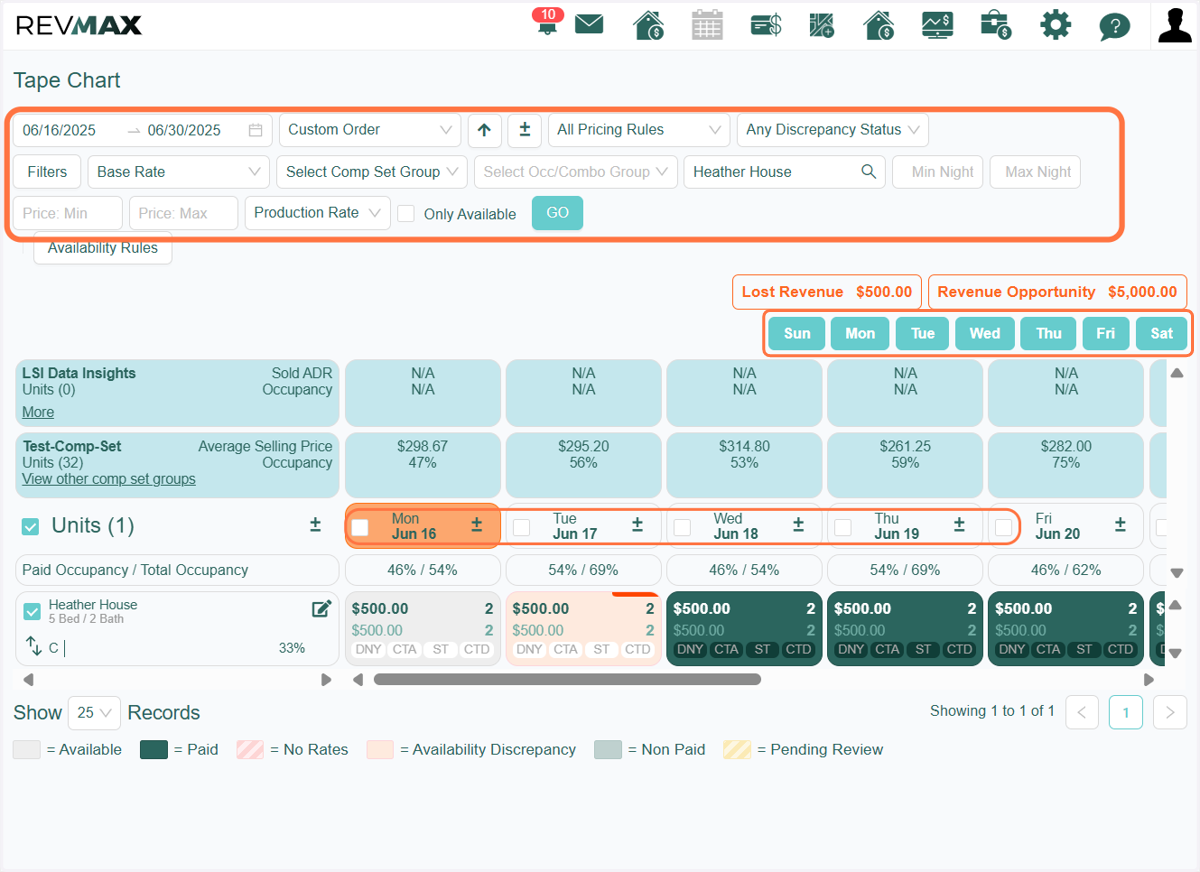
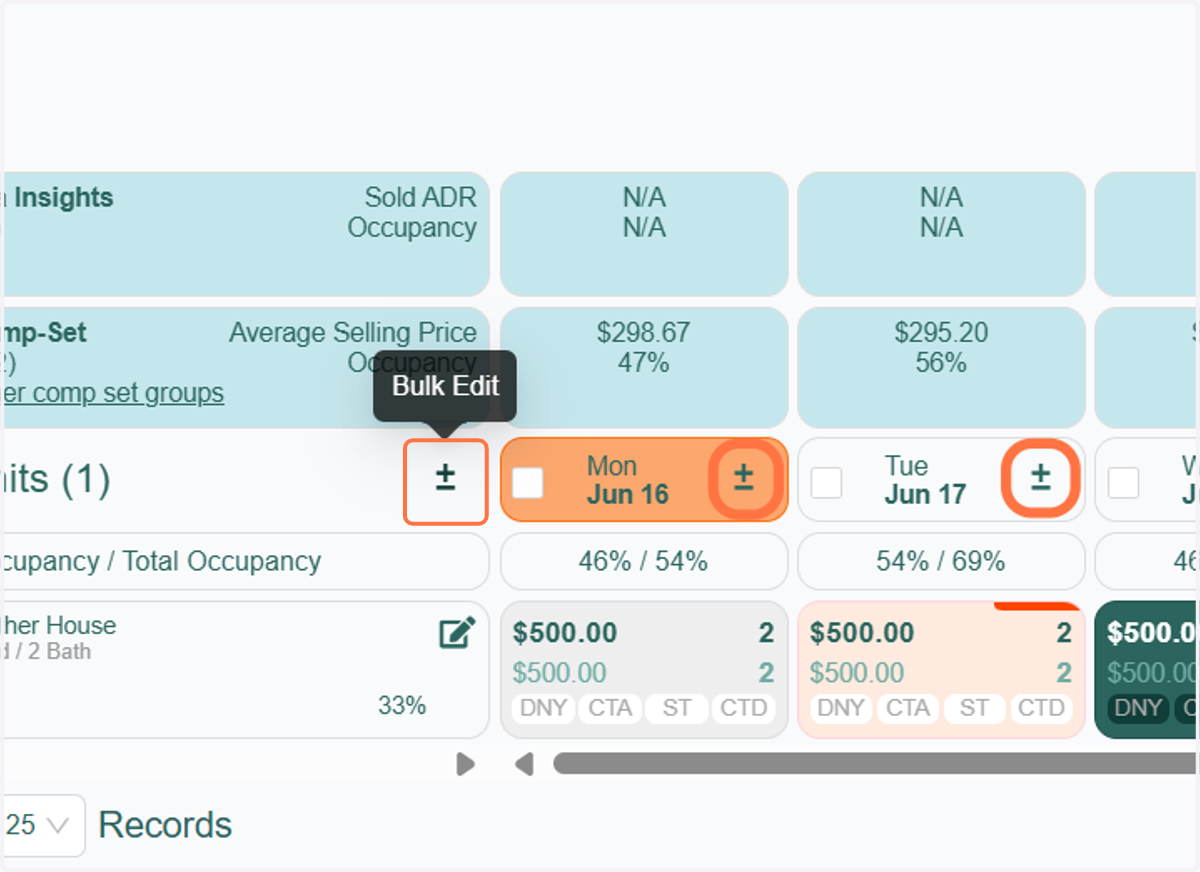
3. After selecting the unit and dates for which you want to update, click the 'Bulk Edit' icon.
** If you prefer to reset a specific date for the selected units, you can also use the bulk edit icon located on each date.
4. A Bulk Update box will open. On the Price tab, the default is "Price Override". This option will apply pricing changes to the Final/Production Rate (top number)
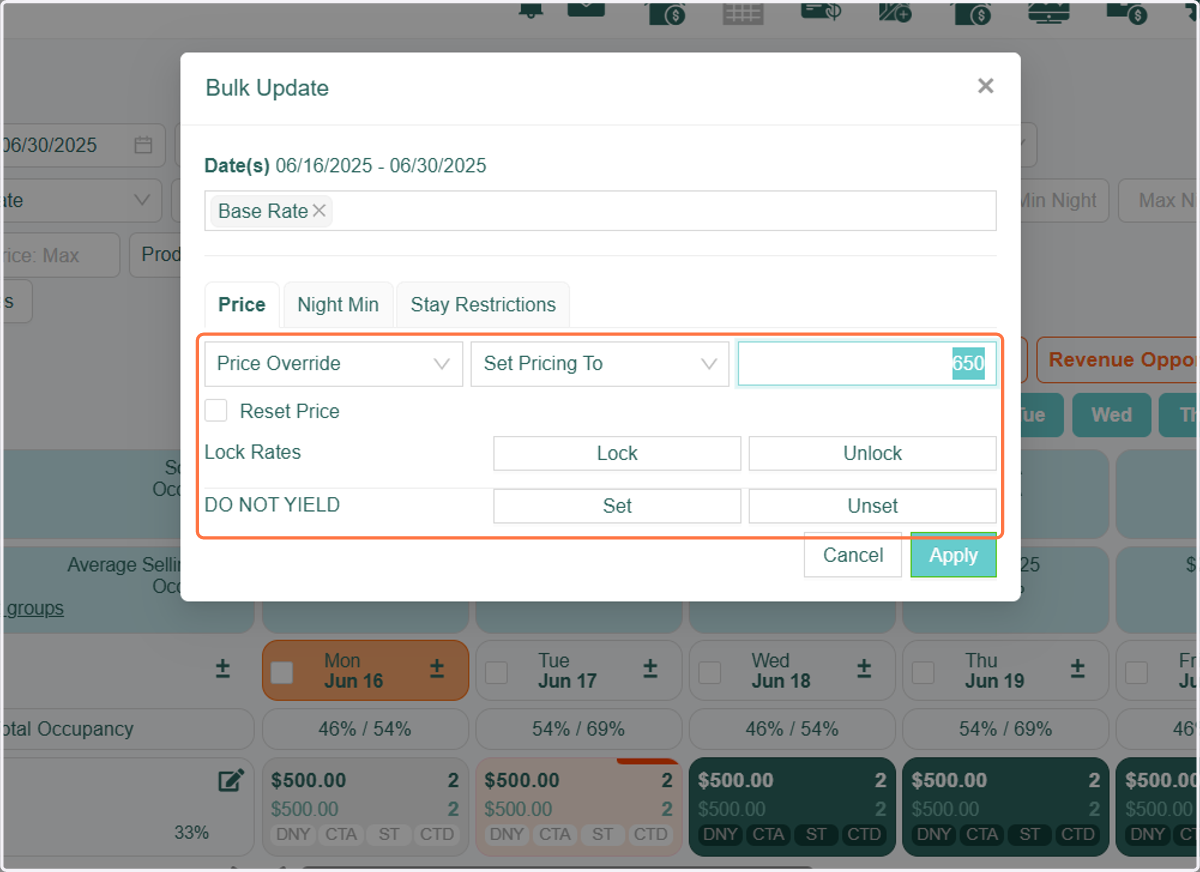
5. You can apply a price updates as follows.
Adjust by %: enter the percentage you'd like to adjust rates by. To adjust down, enter the minus (-) symbol before the percentage.
Adjust by $: enter the $ amount you'd like to adjust rates by. To adjust down, enter the minus (-) symbol before the $ amount.
Set Pricing To: enter the amount you'd like to set the price to
Set Pricing To The Floor: This will apply the floor rate as the price
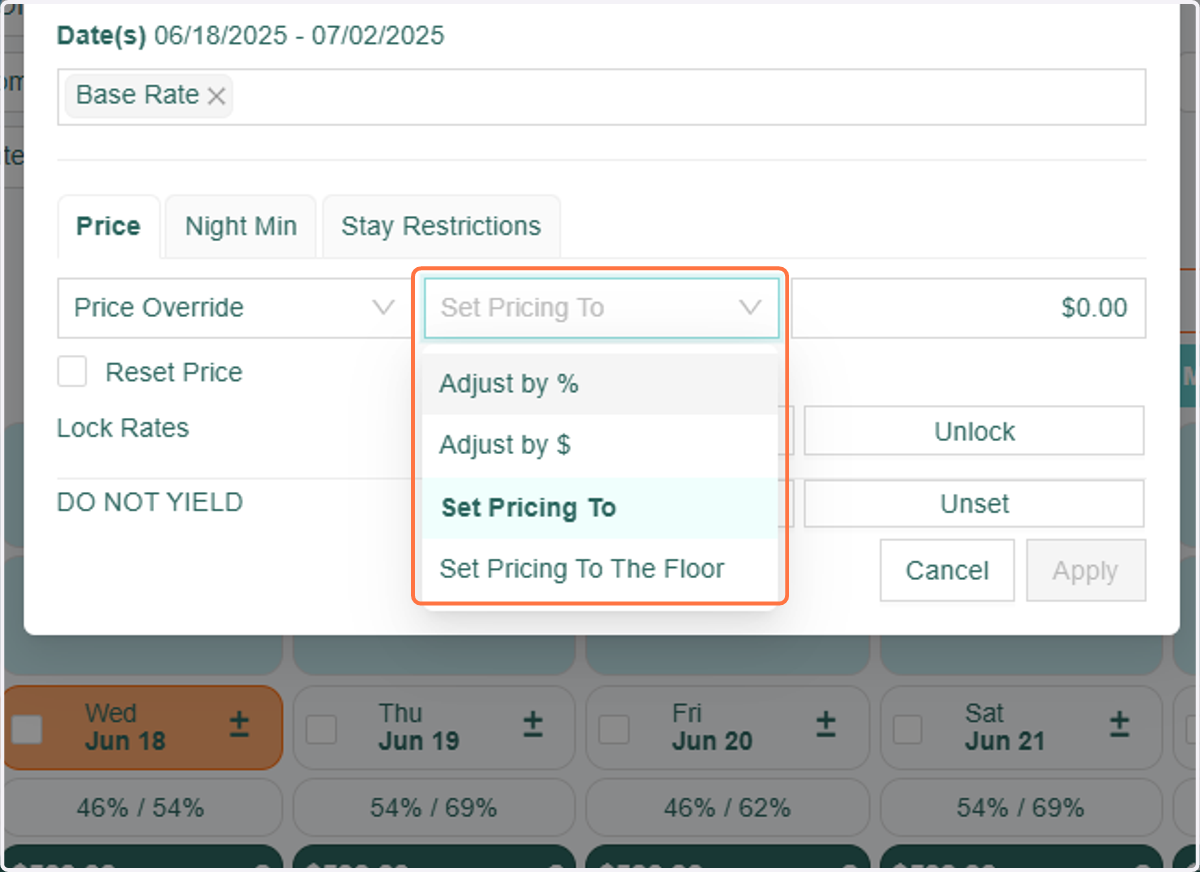
6. Once you've set the pricing, click “Apply” to save your changes.
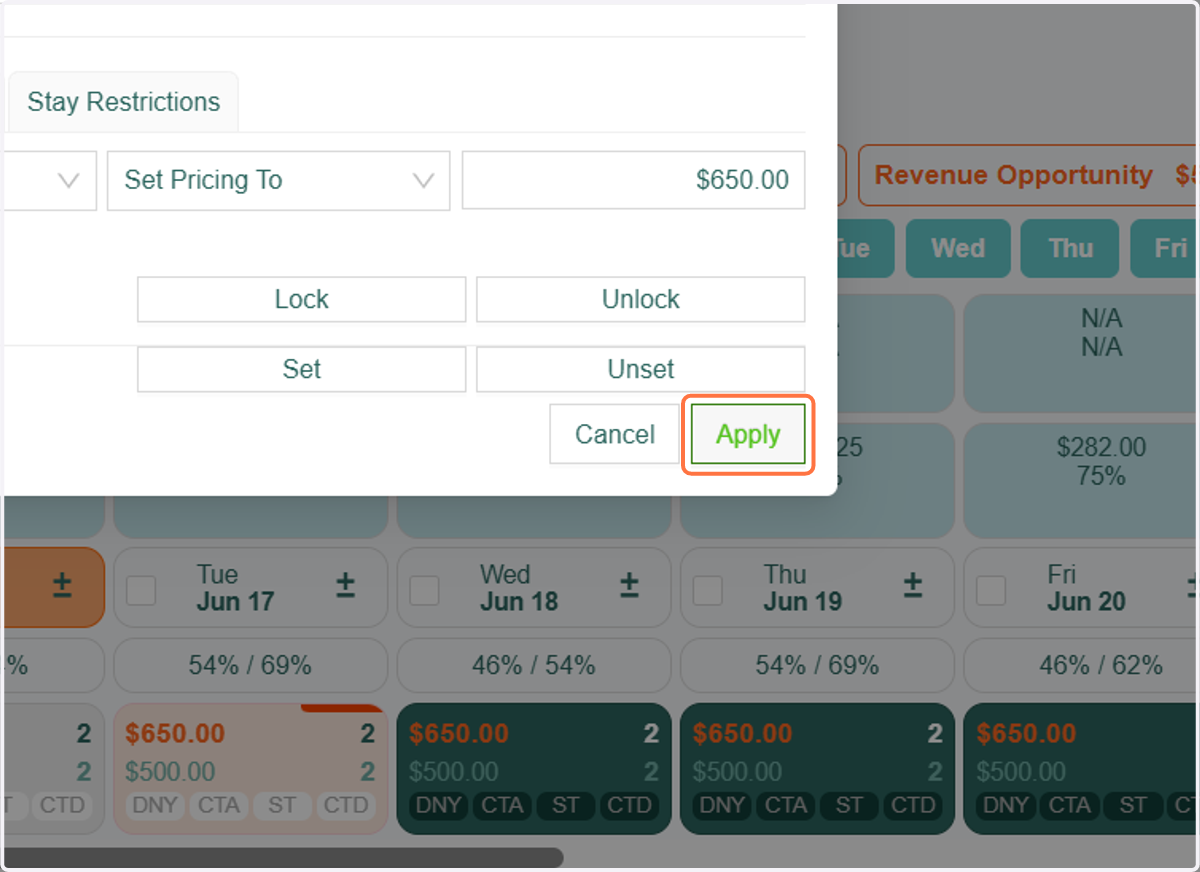
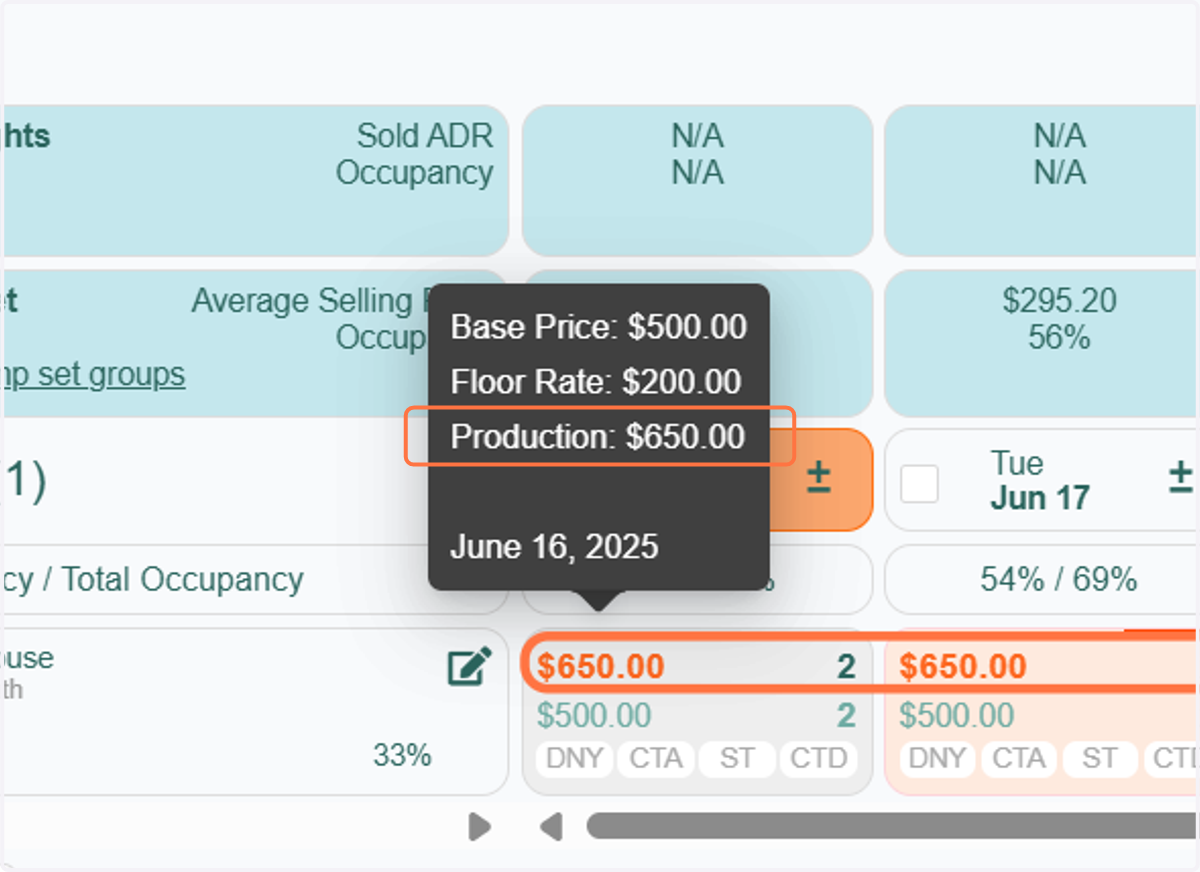
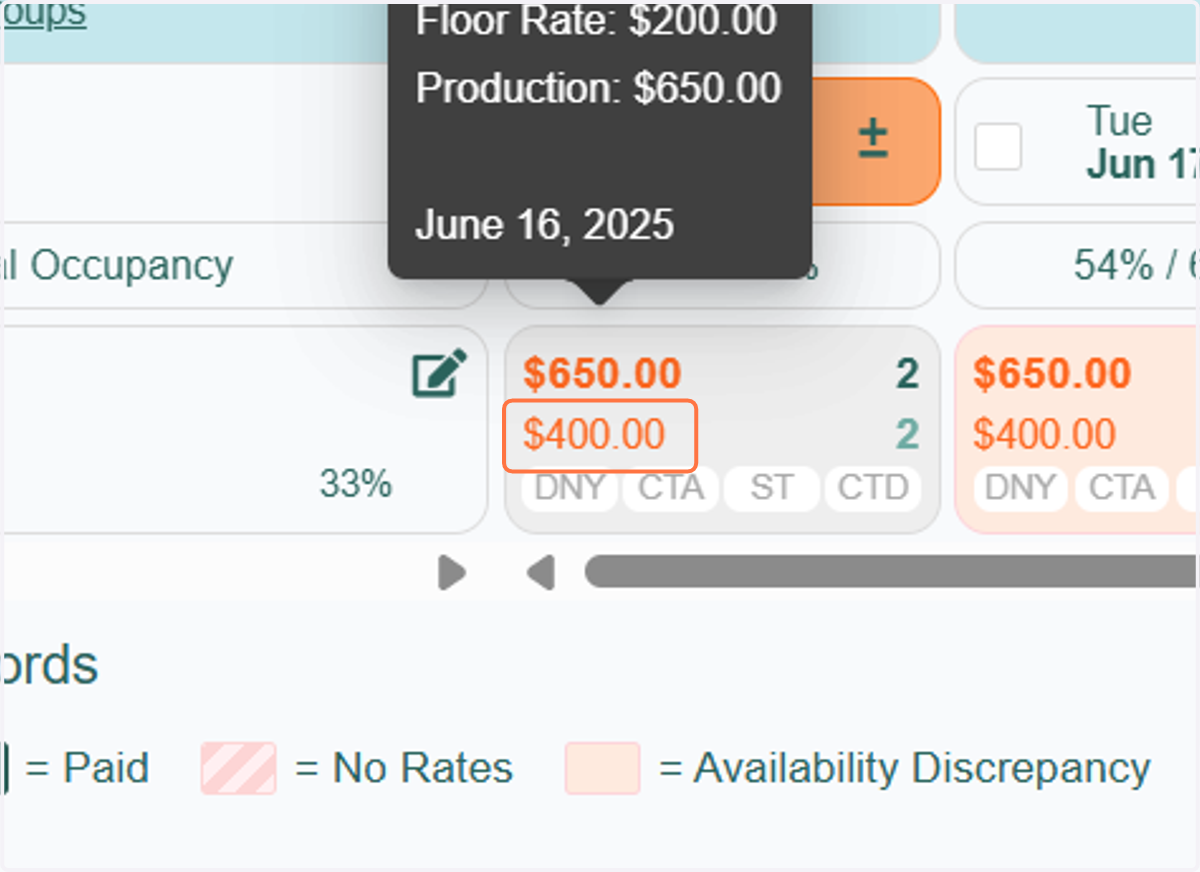
7. You’ll notice that the Top/Final Rate has updated to reflect the amount you set, now displayed in bold orange text. Additionally, when you hover over the rate, you’ll see that your manual override is shown as the “Production Rate.”
8. Another option is to update the Base Rate. To do this, click the “Bulk Edit” icon and select “Base Price” in the dropdown. You can apply a price updates as follows.
Adjust by %: enter the percentage you'd like to adjust rates by. To adjust down, enter the minus (-) symbol before the percentage.
Adjust by $: enter the $ amount you'd like to adjust rates by. To adjust down, enter the minus (-) symbol before the $ amount.
Set Pricing To: enter the amount you'd like to set the price to
Once you've set the pricing, click “Apply” to save your changes.
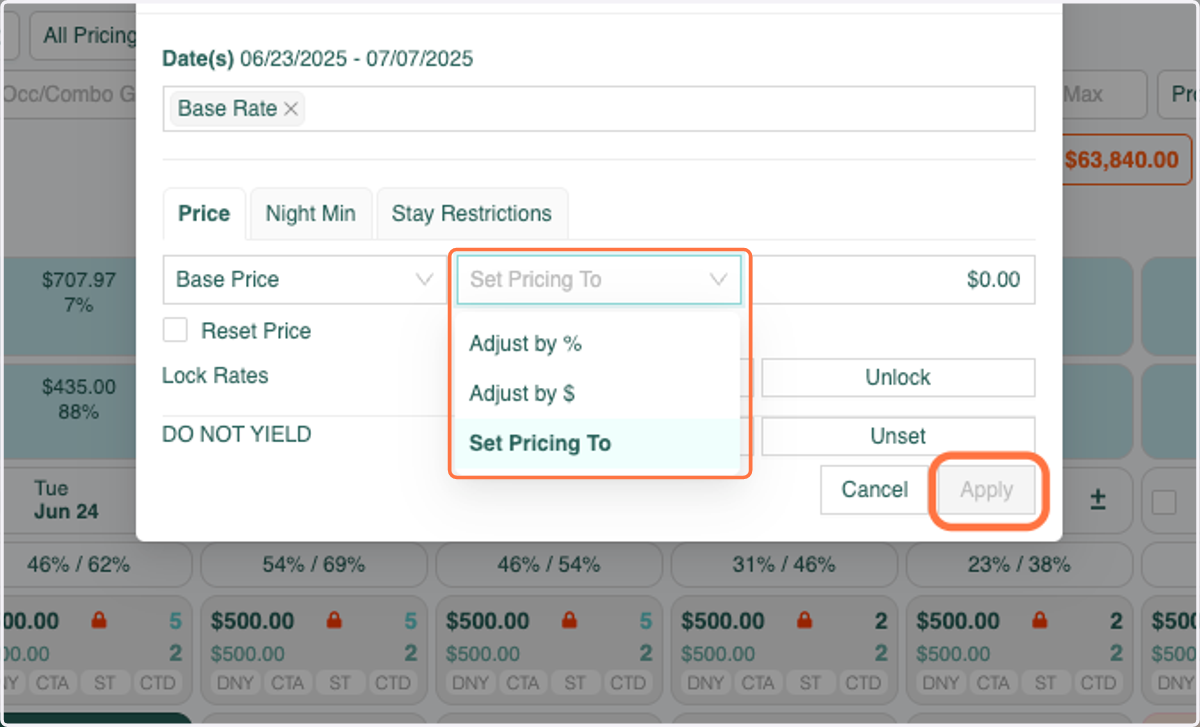
9. You’ll now see that the Base Rate has updated to the amount you set, and it’s displayed in bold orange text as well.
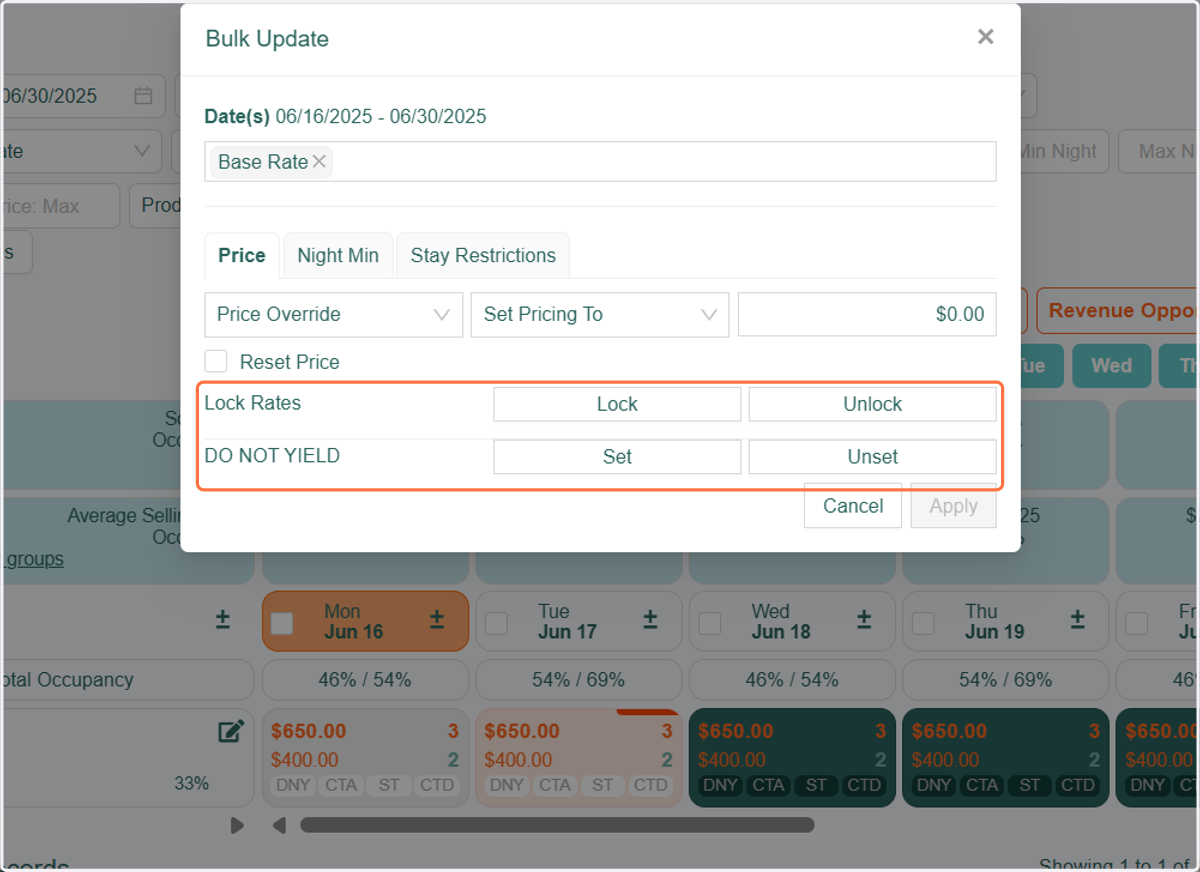
10. In the Bulk Edit > Price tab, you will also find options to 'Lock' rates and to pause yielding for the selected date range using the 'Do Not Yield' (DNY) feature.
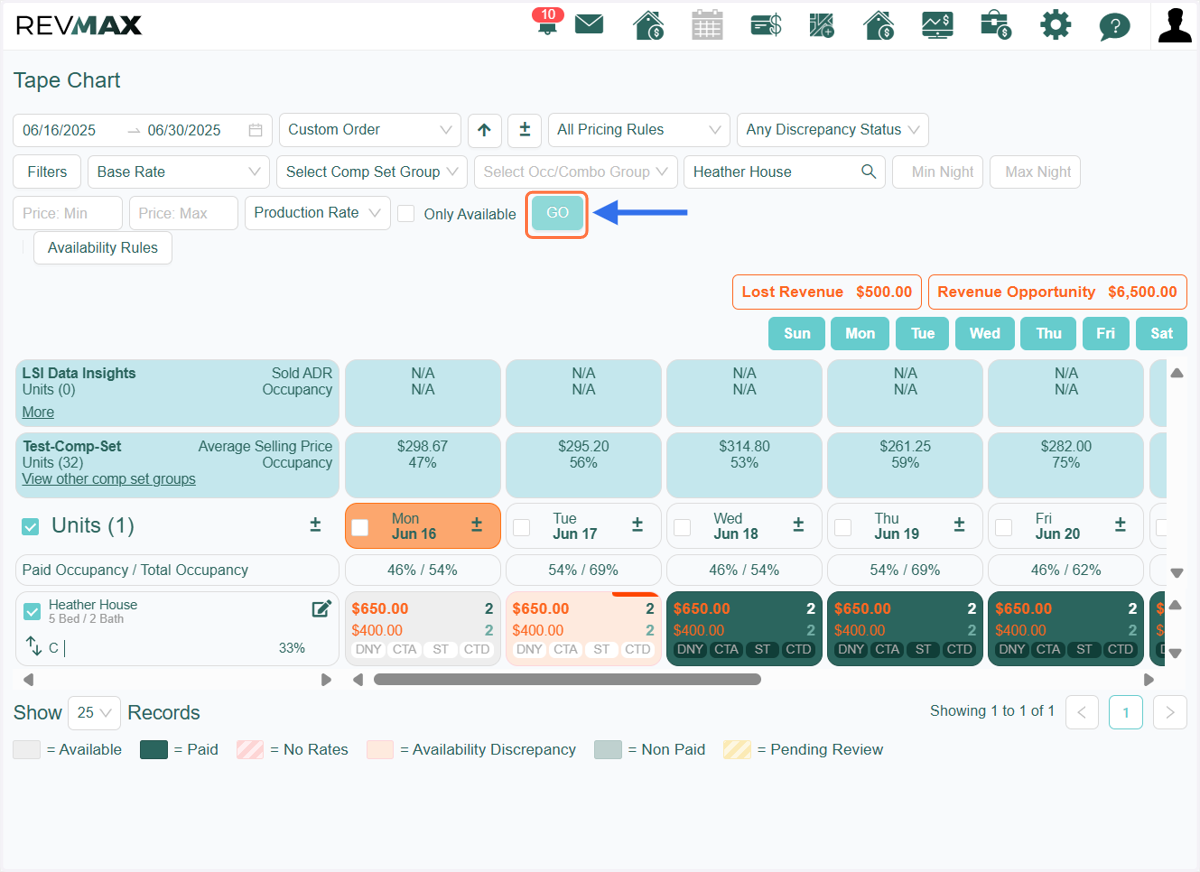
11. To ensure all changes are properly reflected, you can also click the “GO” button to refresh the view.
12. You can also perform a bulk manual override on Night Minimums. In the Bulk Edit window, navigate to the Night Min tab. From there, you can manually override either the Final Night Minimum (top value) or the Base Night Minimum (bottom value).
Once you've selected one of these options, simply enter the preferred Night Minimum value and click 'Apply' to save your changes.
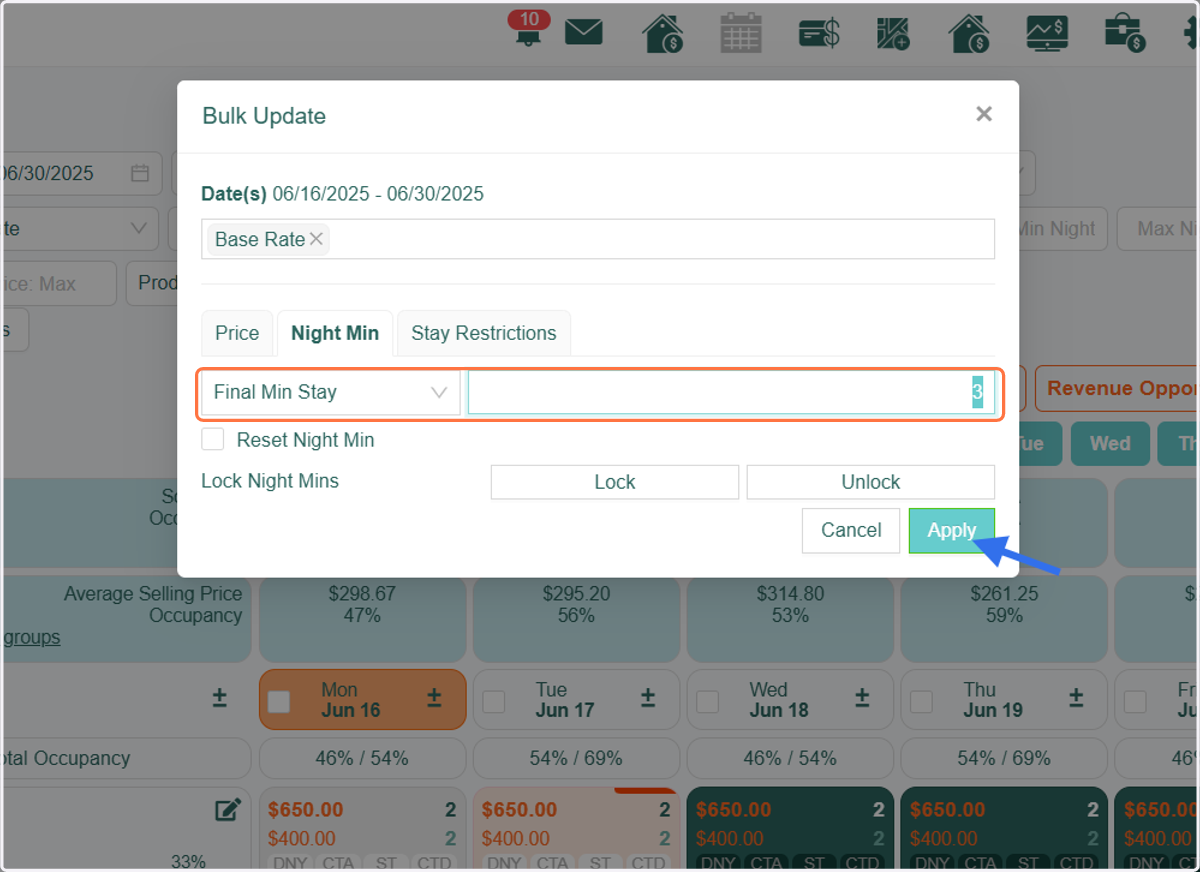
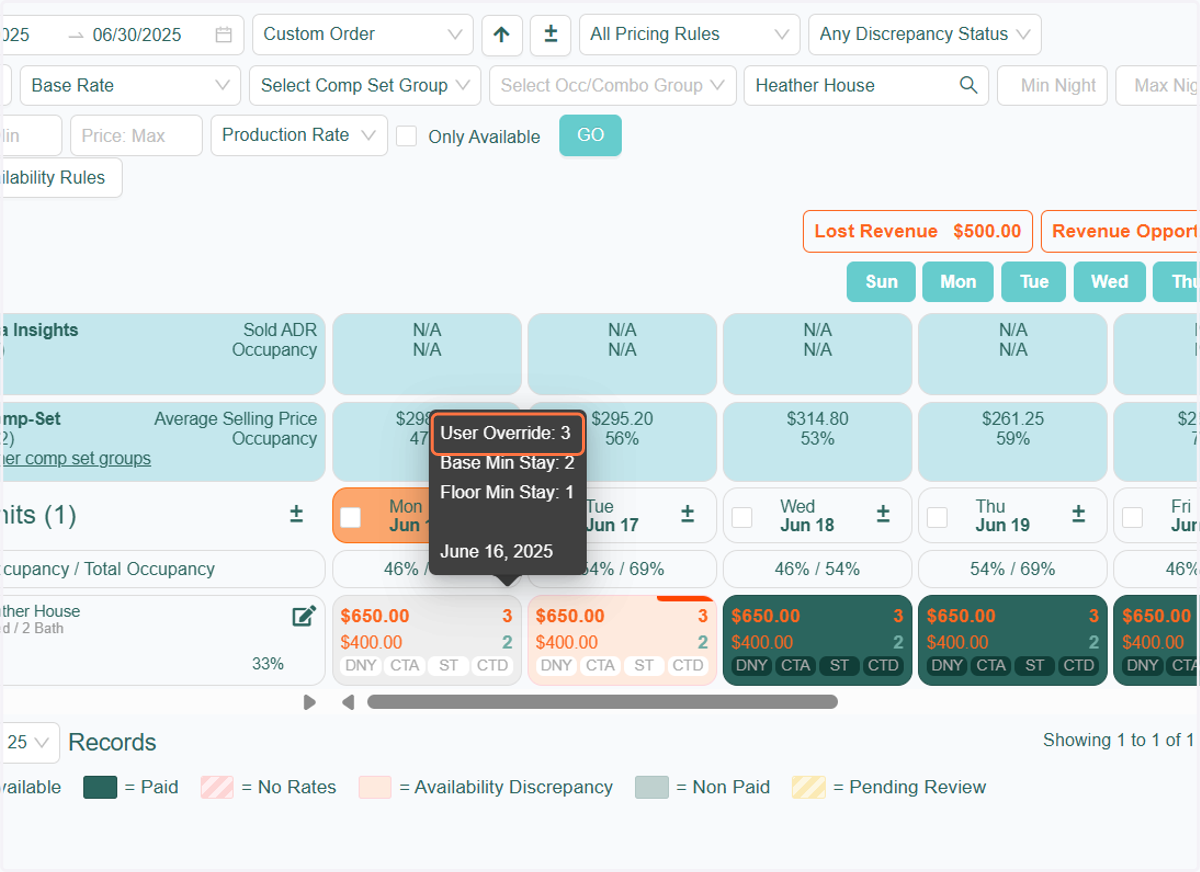
13. On the tape chart, you'll now see that the overridden Night Minimum appears in bold orange text, indicating it was manually adjusted. If the override was applied to the Final (top) Night Minimum, hovering over it will display as 'User Override'.
14. Another feature available in the Bulk Edit > Night Min tab is the ability to lock Night Minimums. Please note that when a Night Minimum is 'Locked,' it will override any active settings for Gap Logic and Dynamic Minimum Night rules for that specific unit.
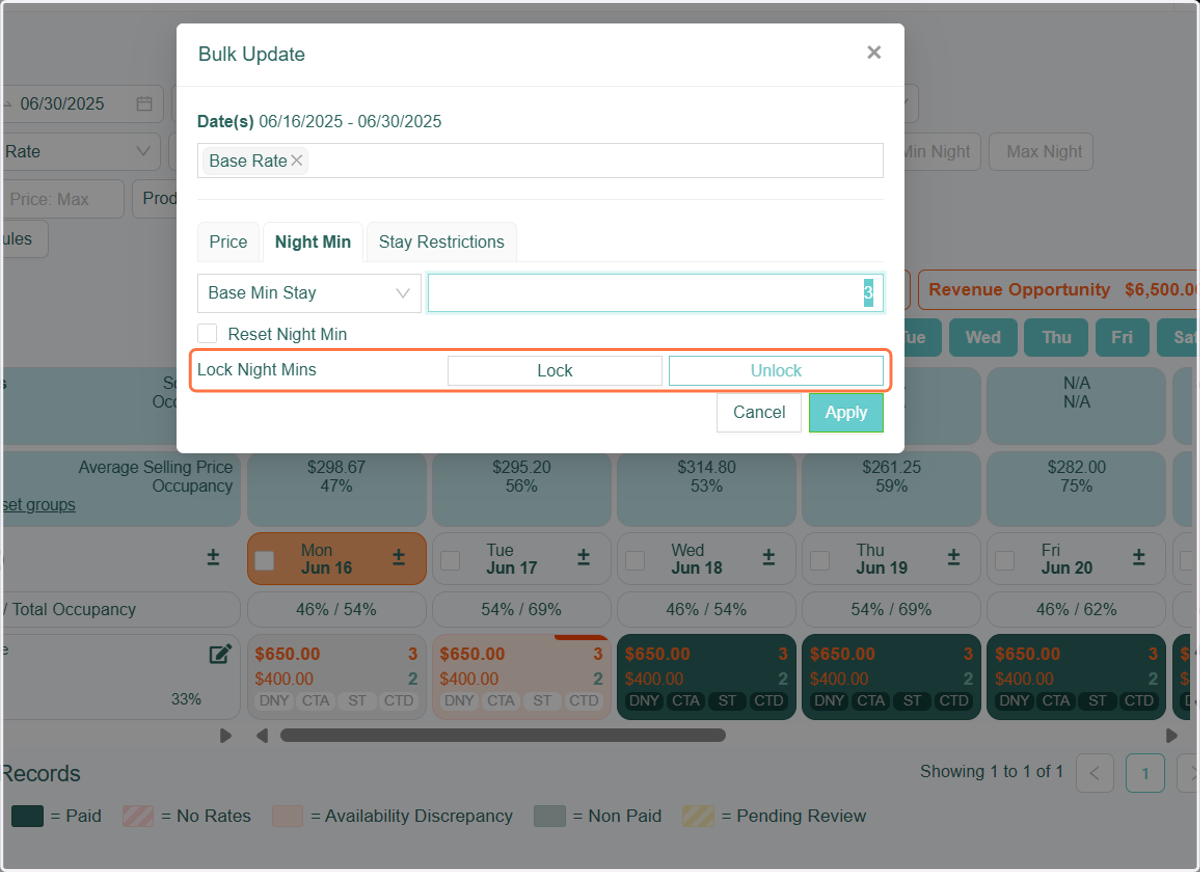
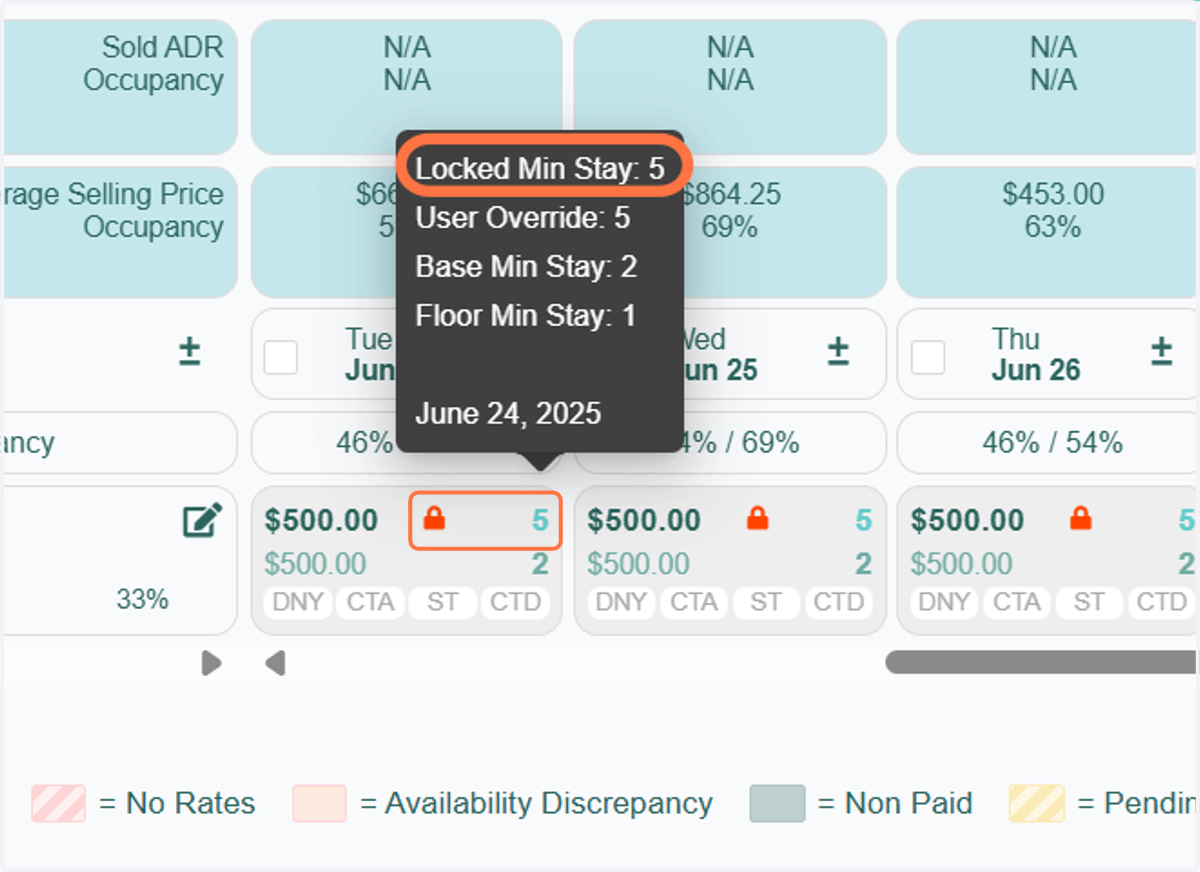
15. On the Tape Chart, a 'Lock' icon will appear next to the Night Minimum, indicating that the lock feature is active. When you hover over the Night Minimum, it will display the label 'Locked Min Stay' along with its corresponding value.