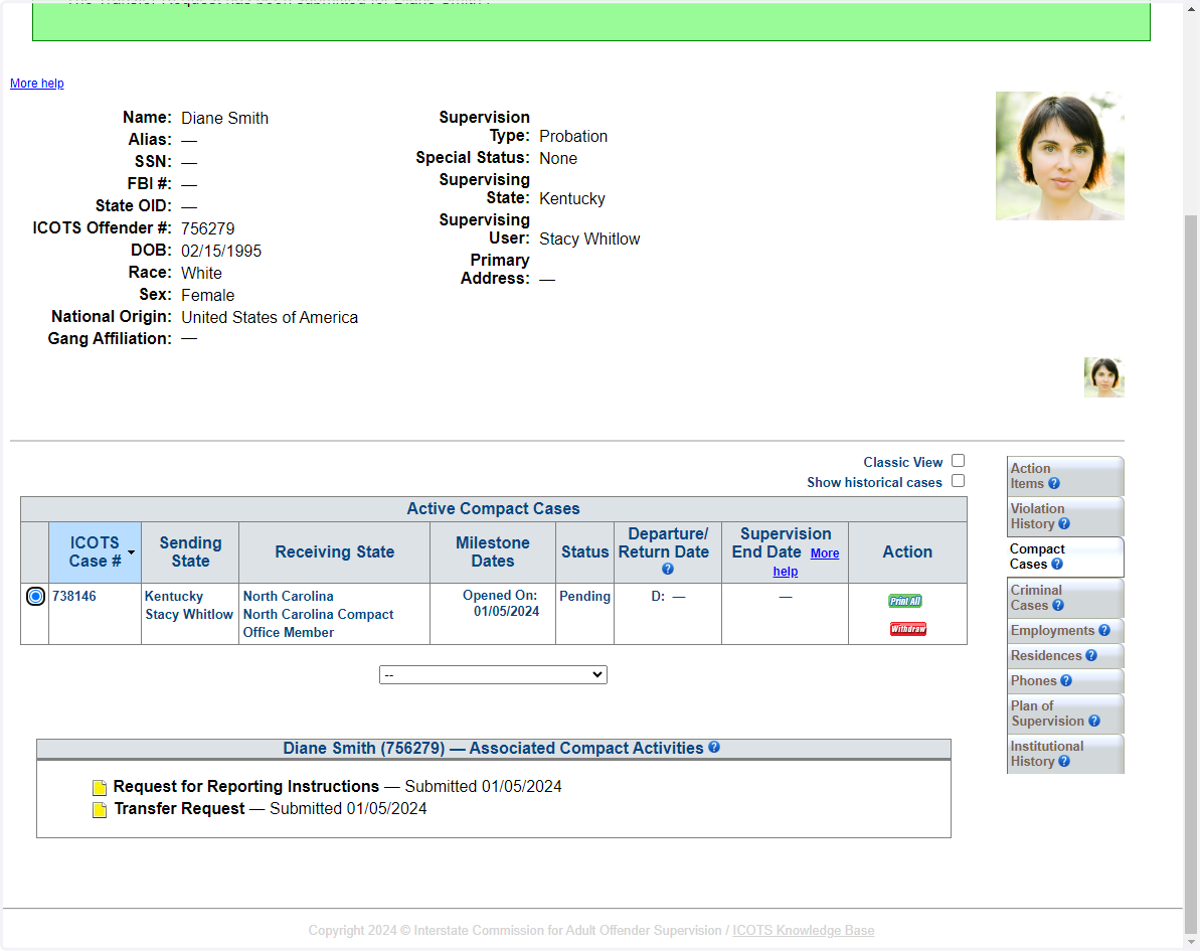
Transfer Scenario #2
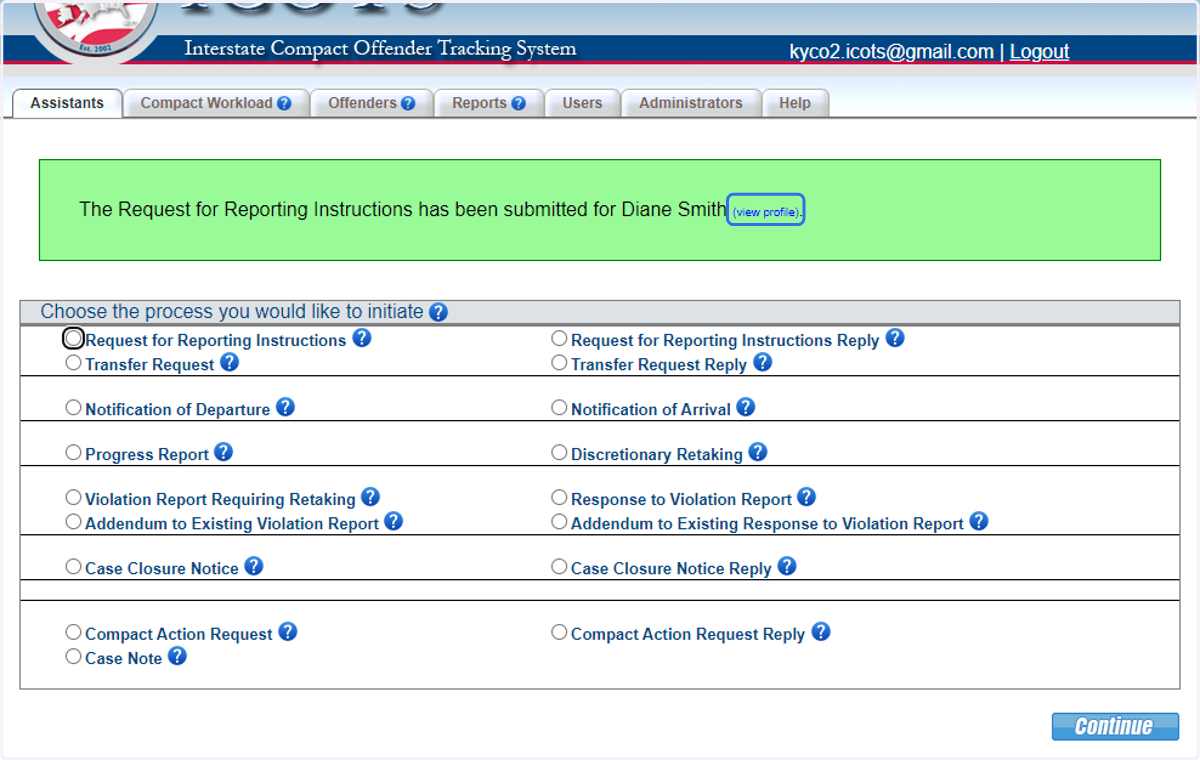
1. Select Request for Reporting Instructions.
As you proceed through the Request for Reporting Instructions and Transfer Request, ICOTS saves your progress and allows edits. Resume your work anytime from your compact workload or searching for the profile via the Offenders tab.
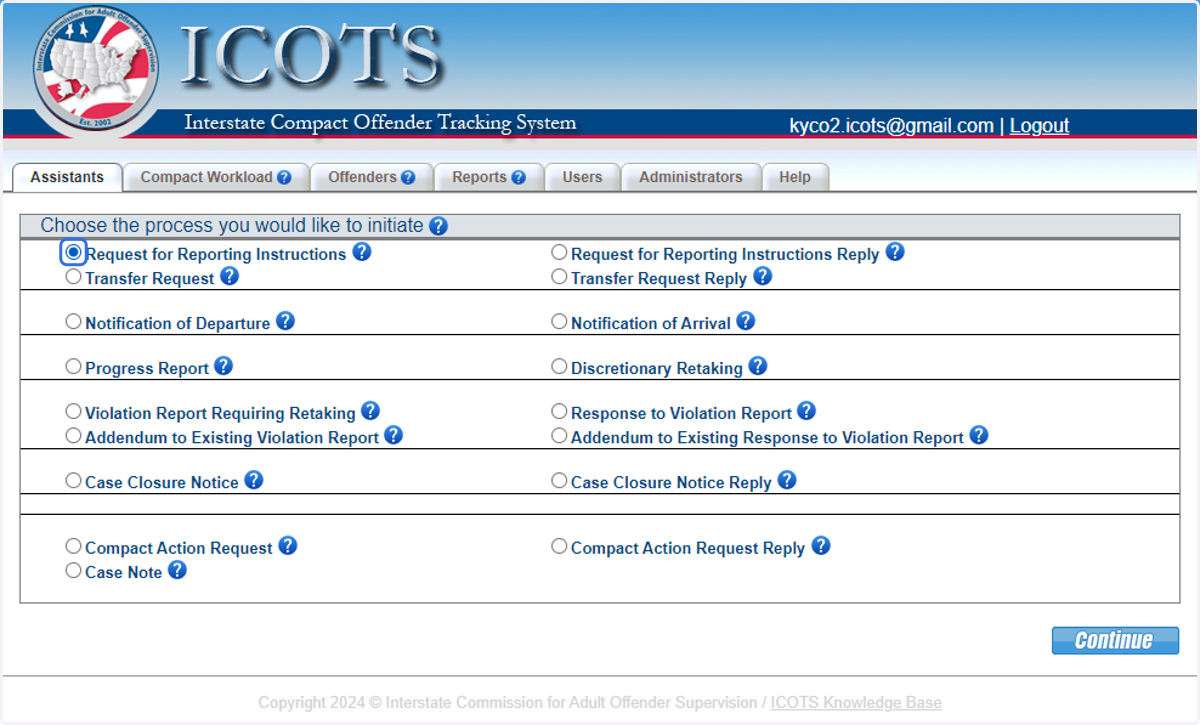
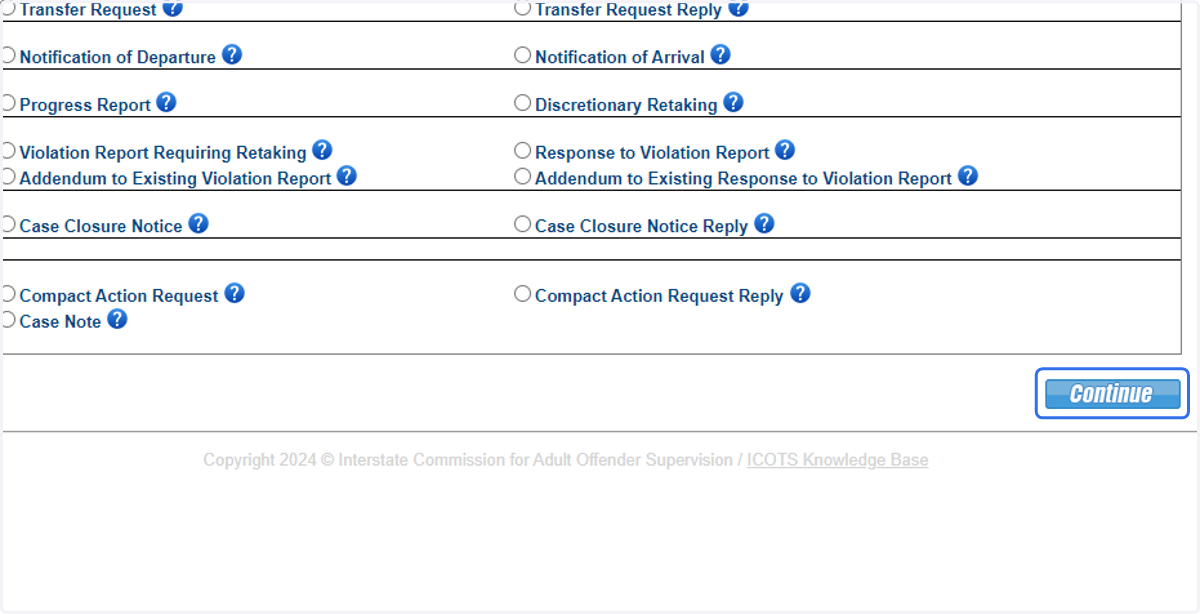
2. Click 'Continue.'
3. Select 'for an offender for whom no Transfer Request has been submitted by your state?'
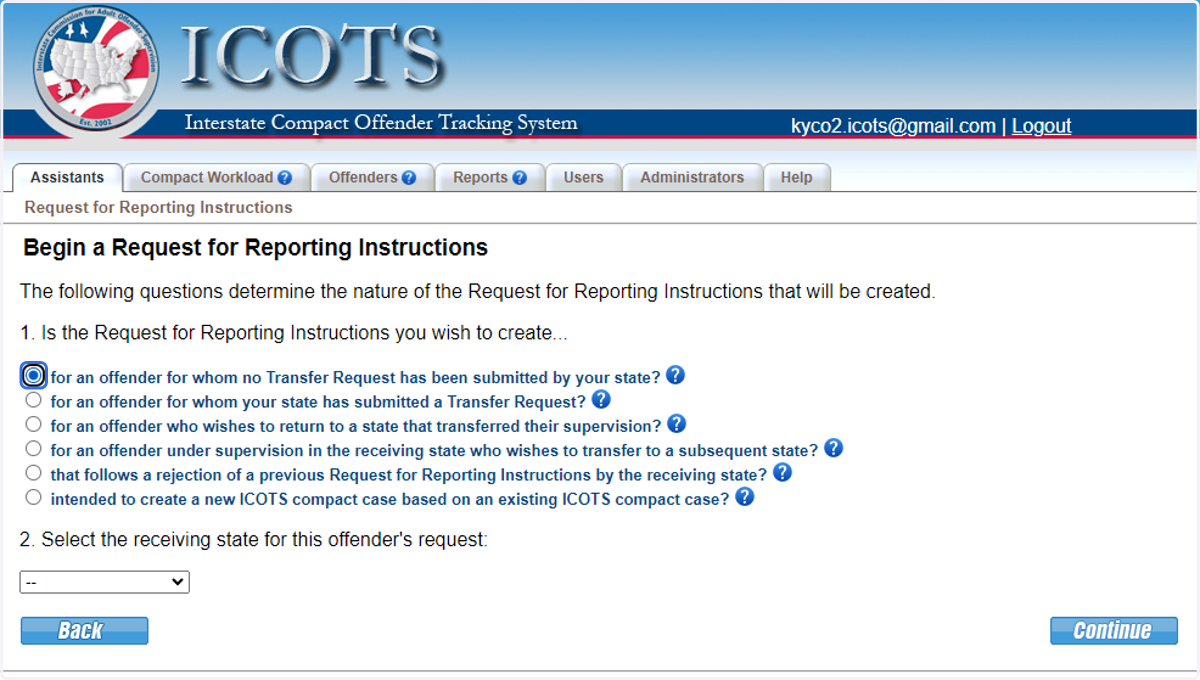
4. Select North Carolina.
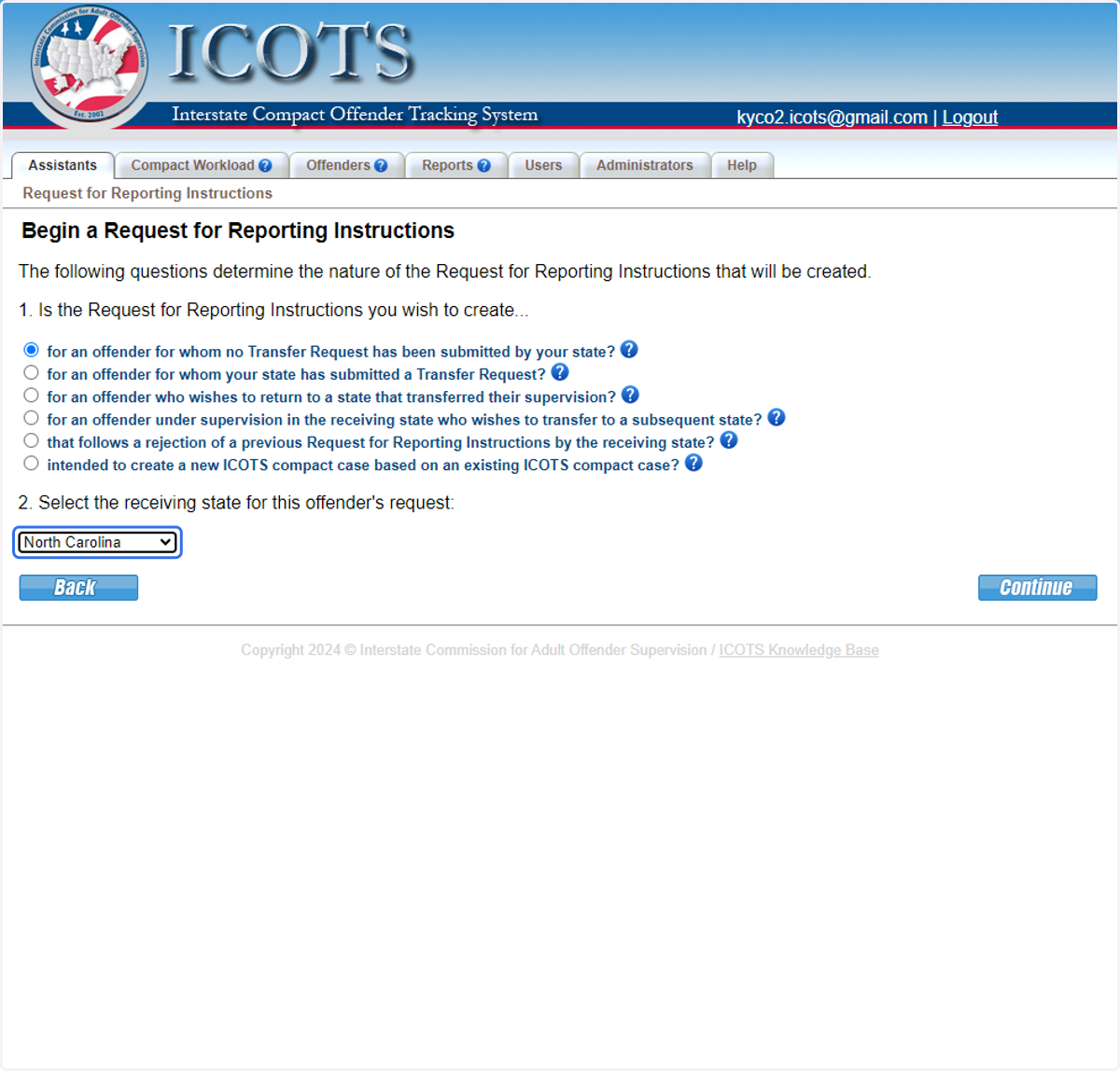
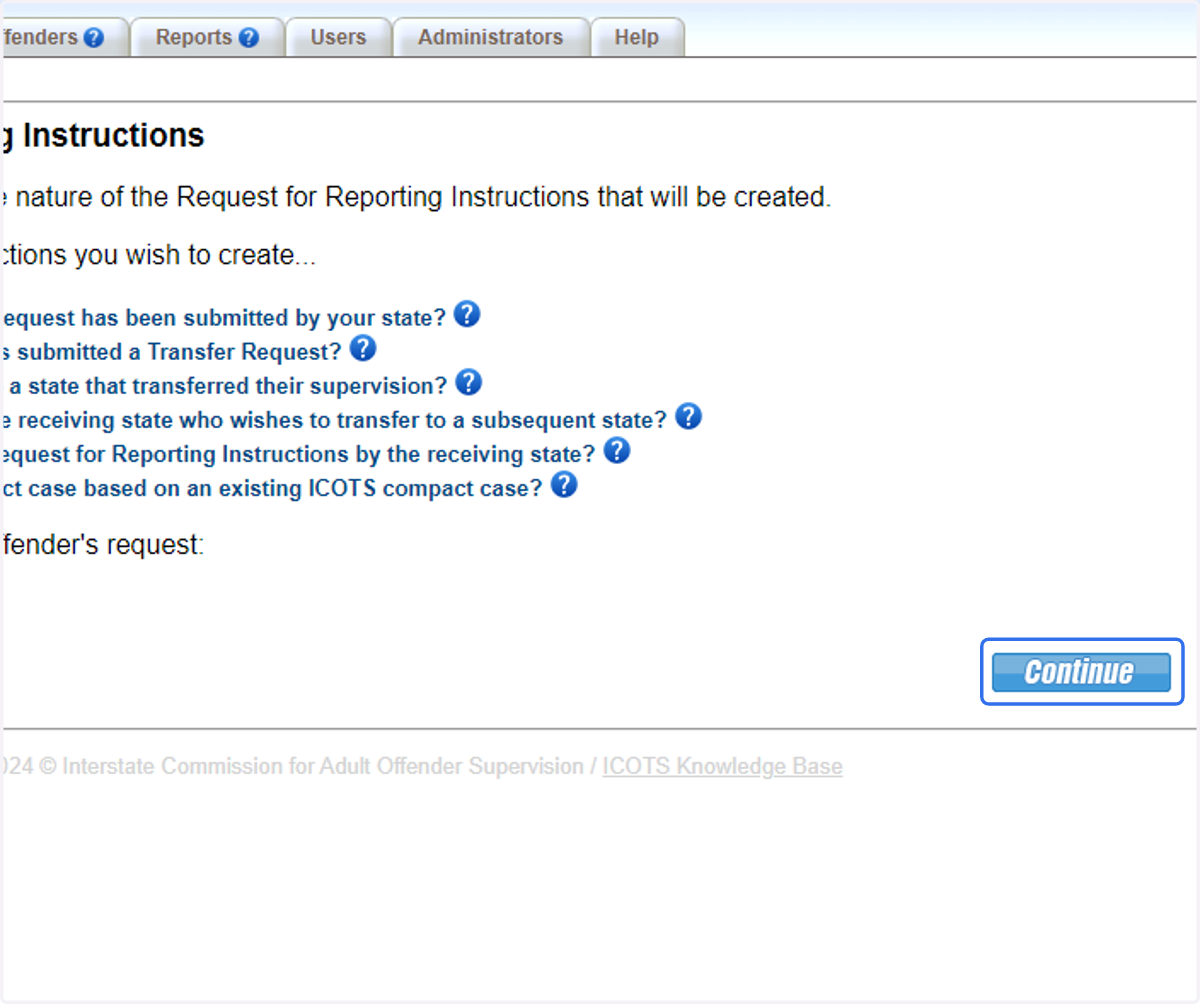
5. Click Continue.
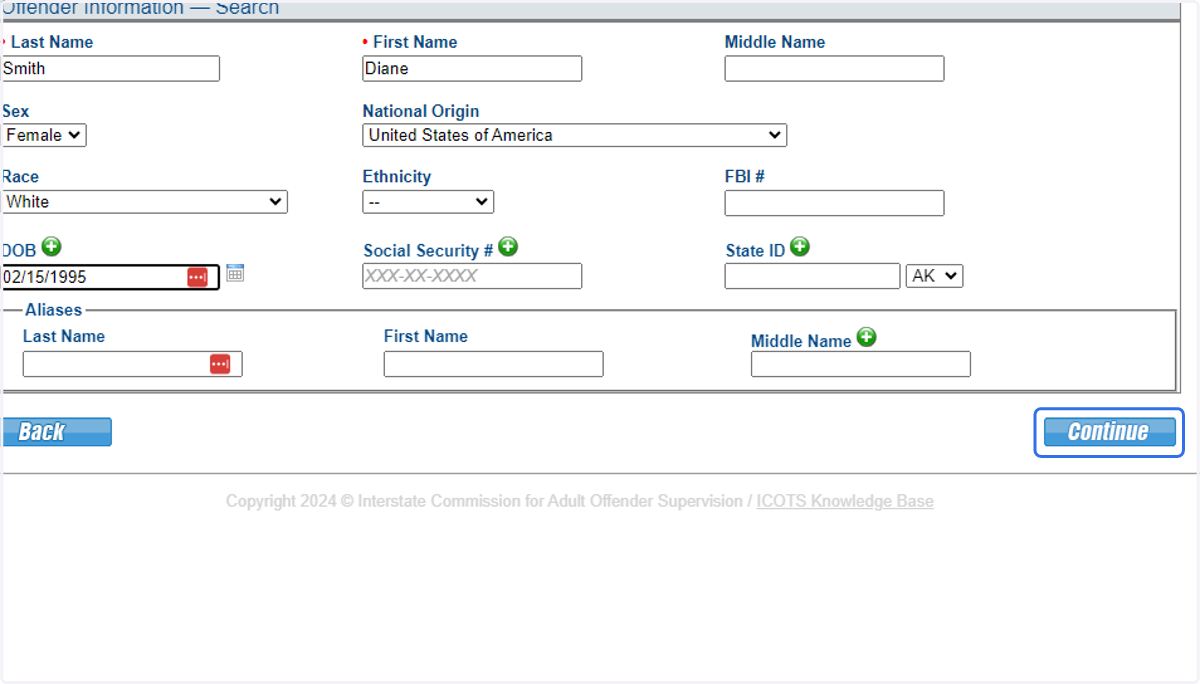
6. After entering demographic details, click continue.
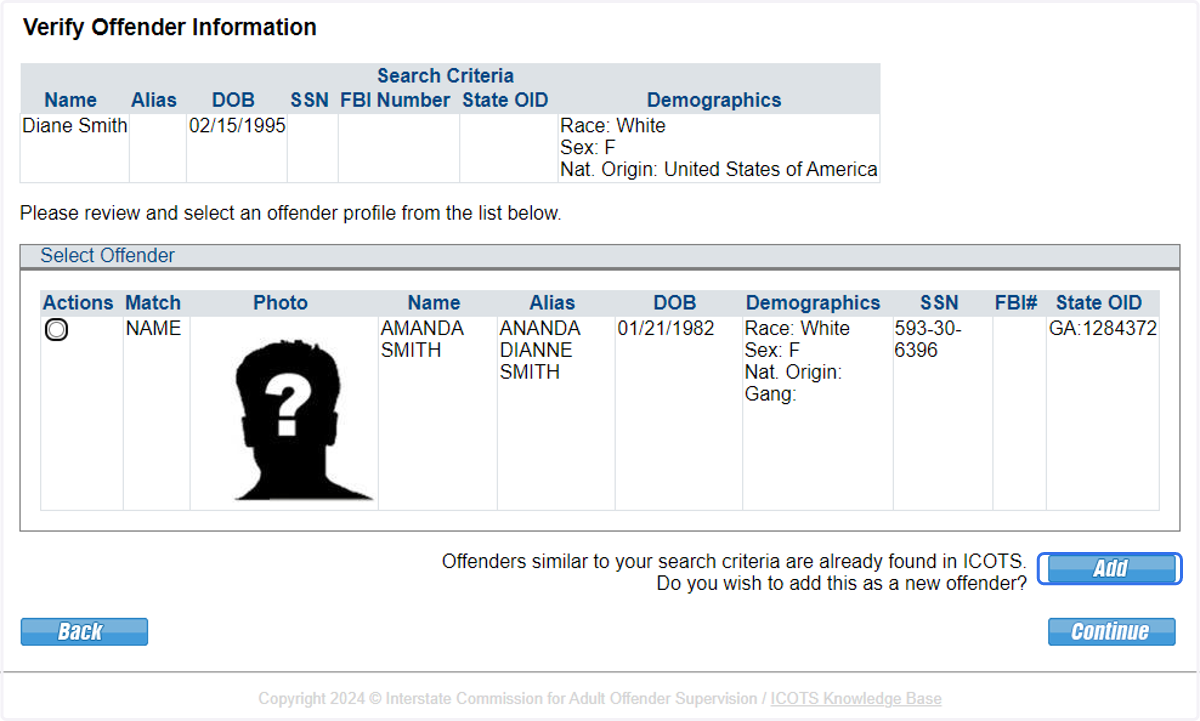
7. After confirming the individual does not have a prior record in ICOTS, click Add to create a new profile for the individual and begin the request for reporting instructions
8. Proceed to Departure Date and Reason for RIs by clicking Start
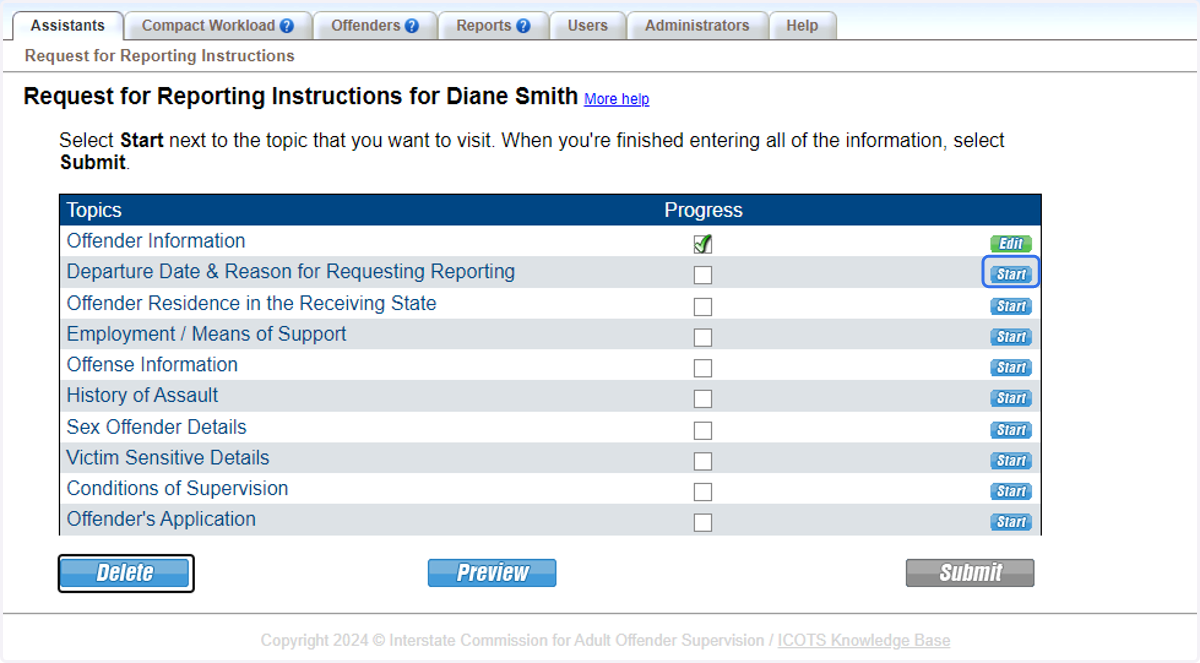
9. Select Probationer living in receiving state at time of sentencing or after disposition of a violation or revocation proceeding
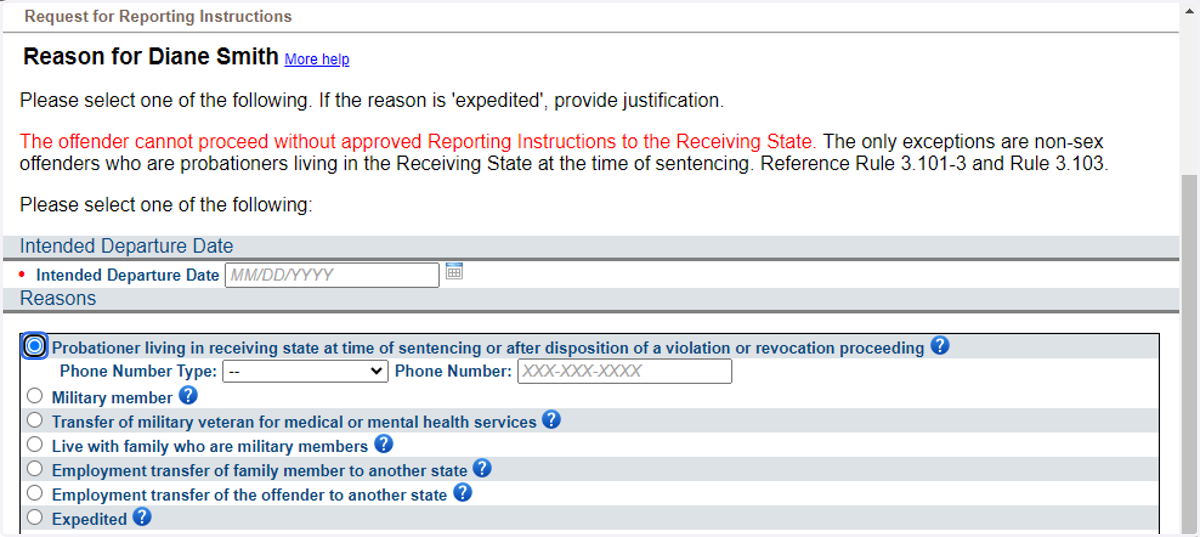
10. Provide Departure Date (or current date if individual is in receiving state,) contact number and justification.
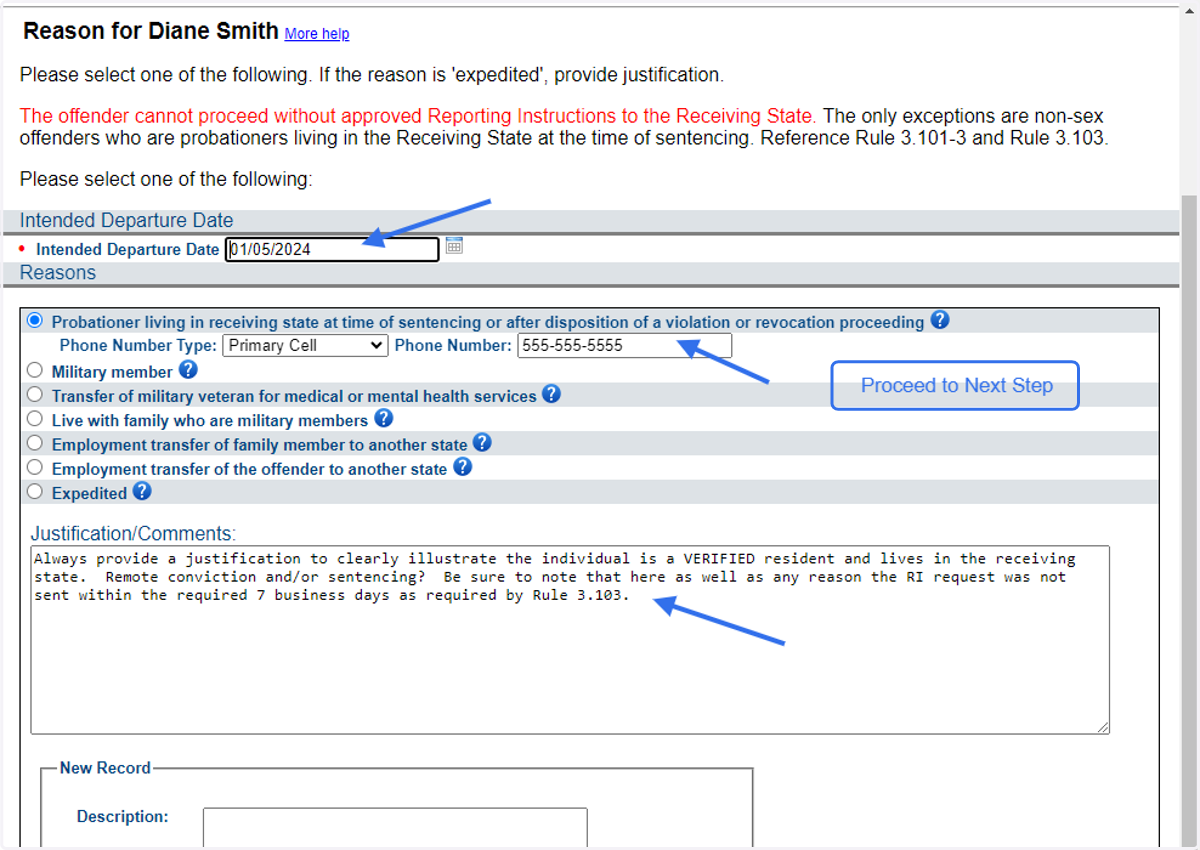
11. Proceed through each section by clicking Start
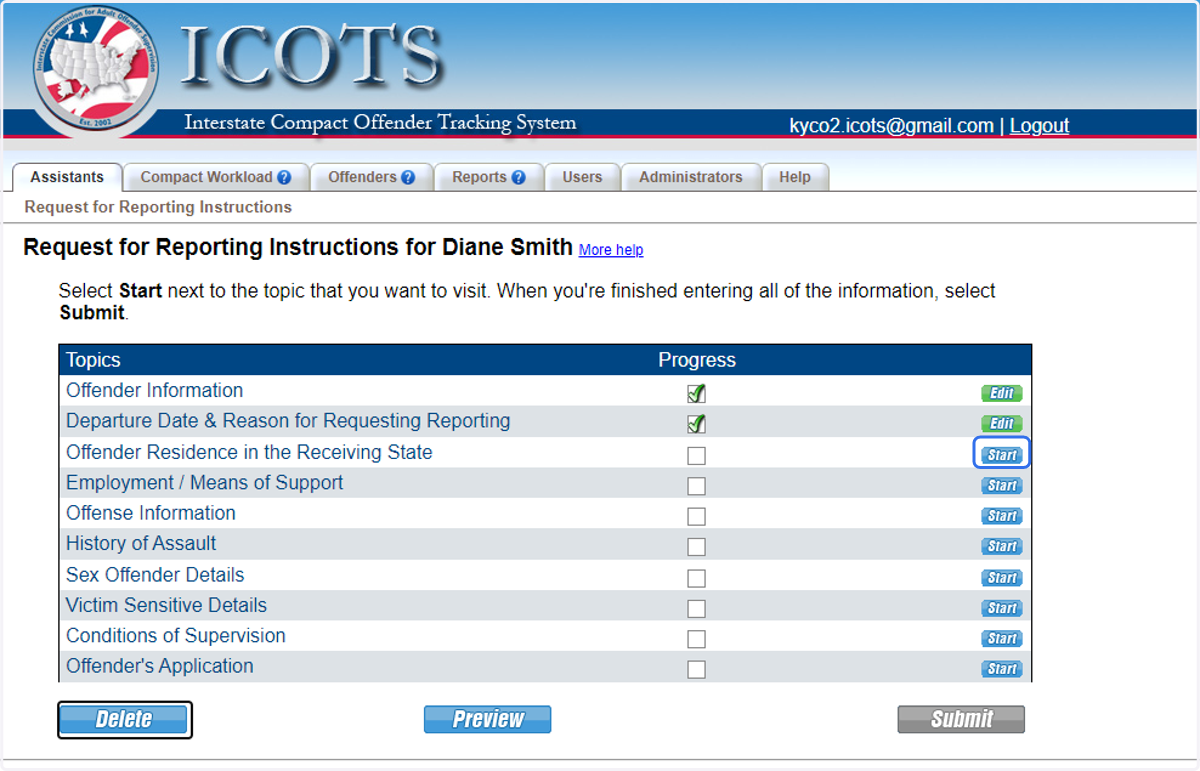
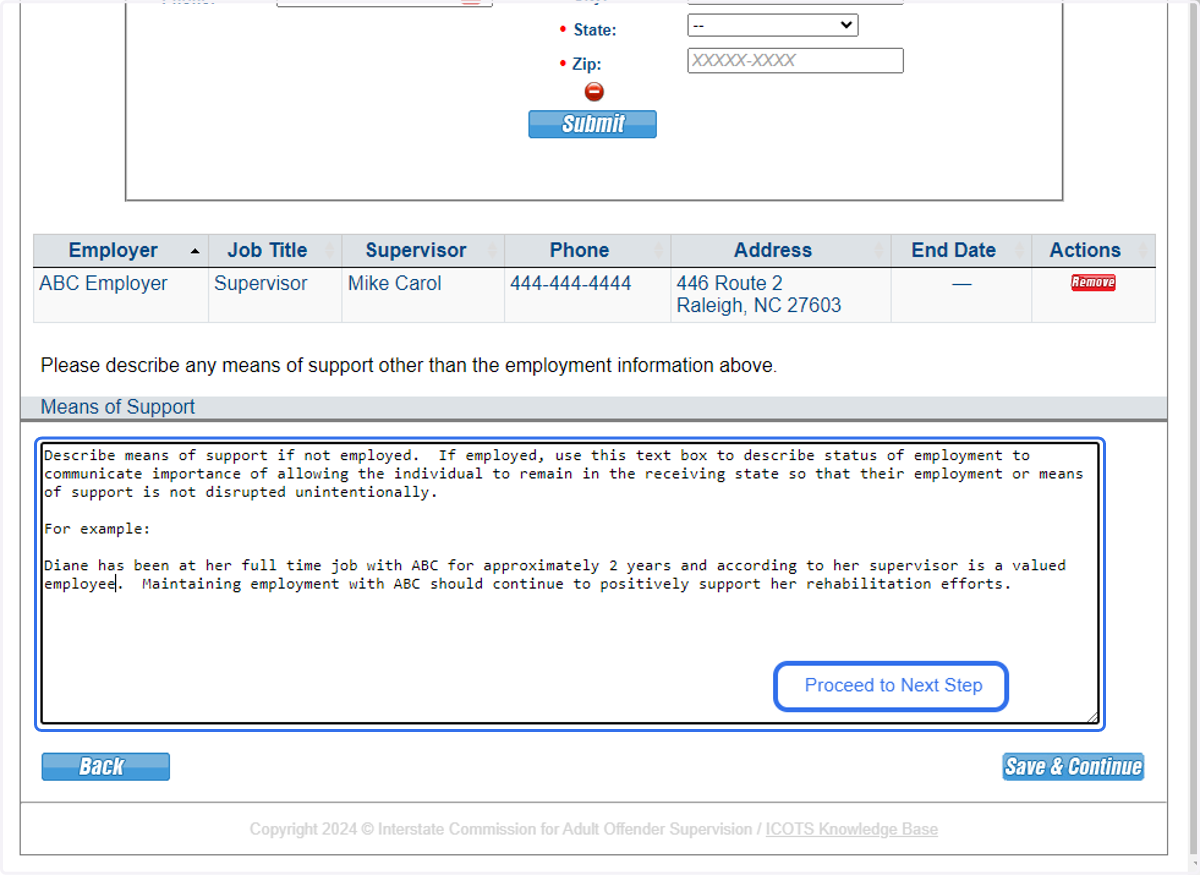
12. In the employment/means of support section be sure to illustrate how allowing the individual to remain at their residence to continue employment or have access to resources in receiving state will support in rehabilitation efforts
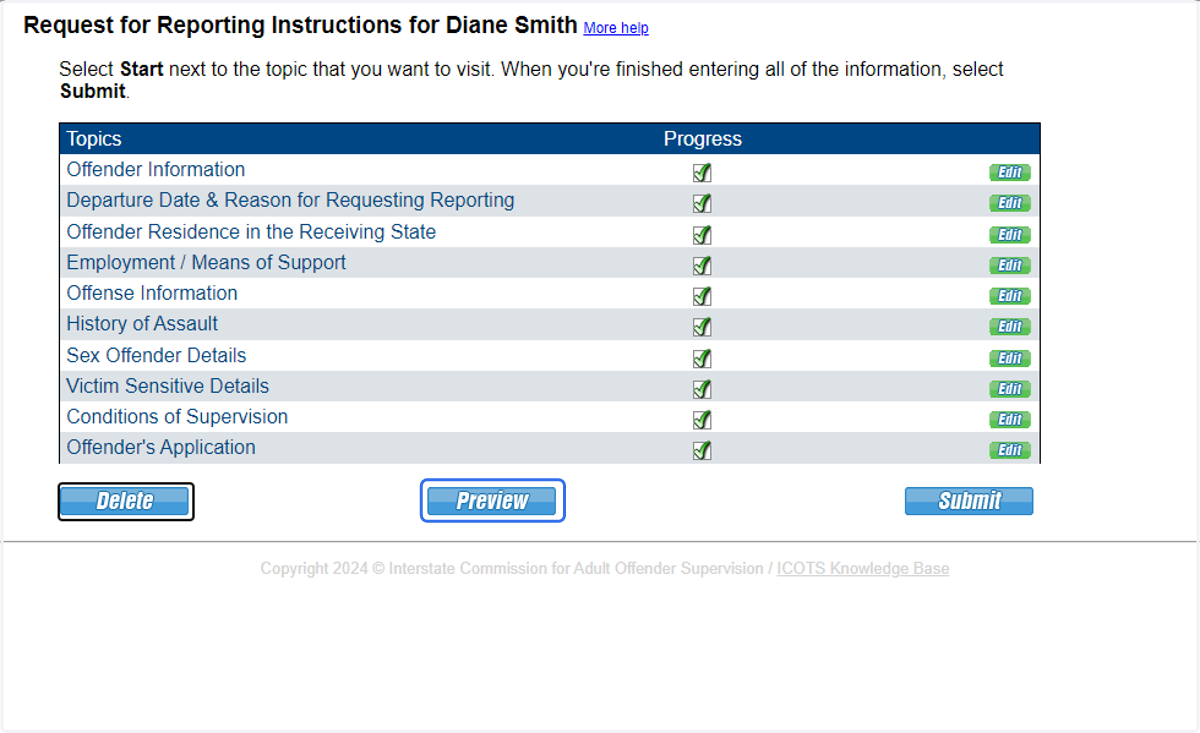
13. Once completed and ready for submission, be sure to Preview the Reporting Instructions Request. This shows how the documentation will appear for review.
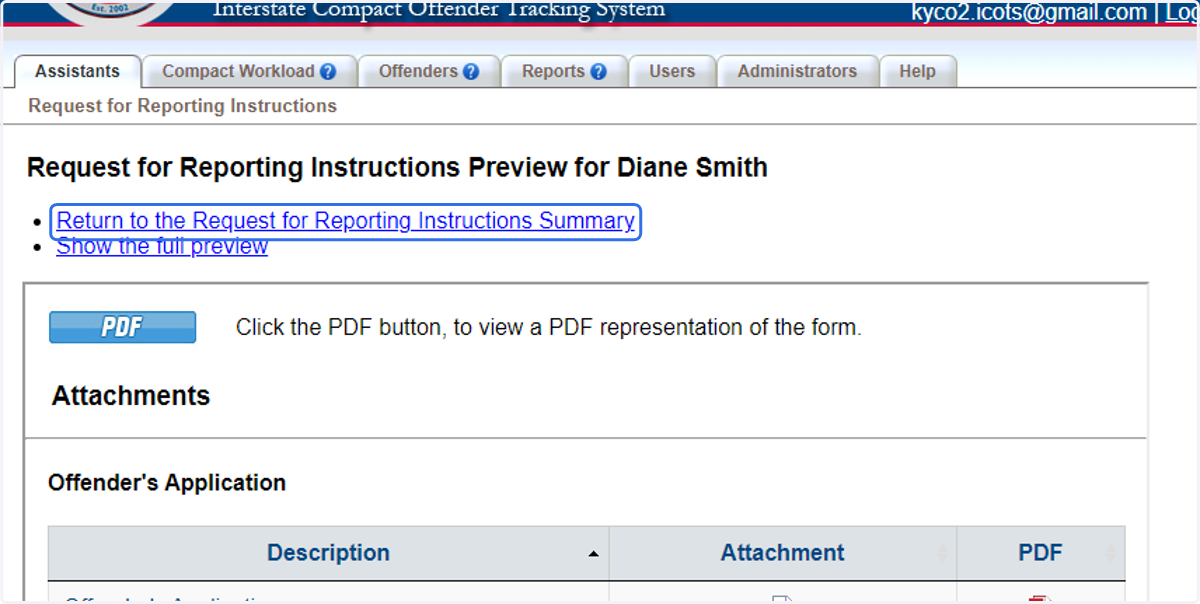
14. Once reviewed, return to the Request for Reporting Instructions Summary
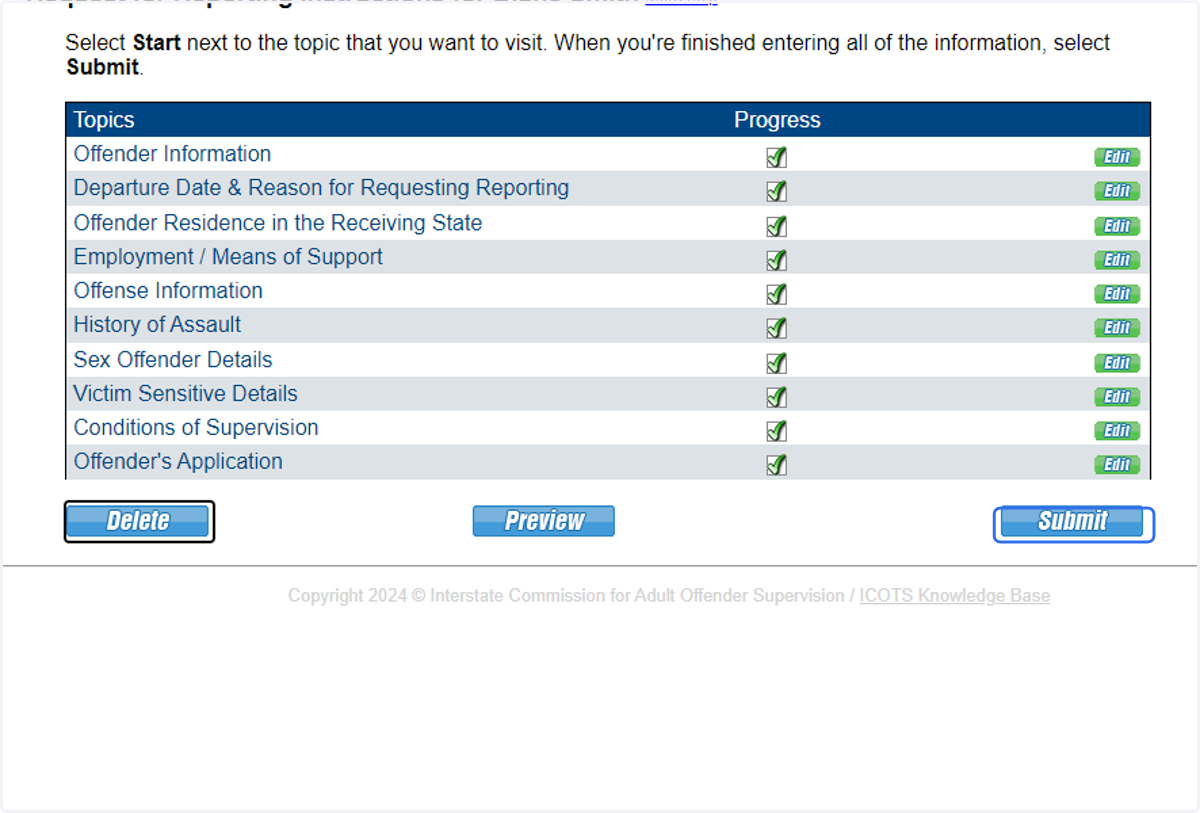
15. Submit the Request for Reporting Instructions
16. Click 'view profile' to start the subsequent Transfer Request
Or log in later to the Profile screen navigating from your compact workload
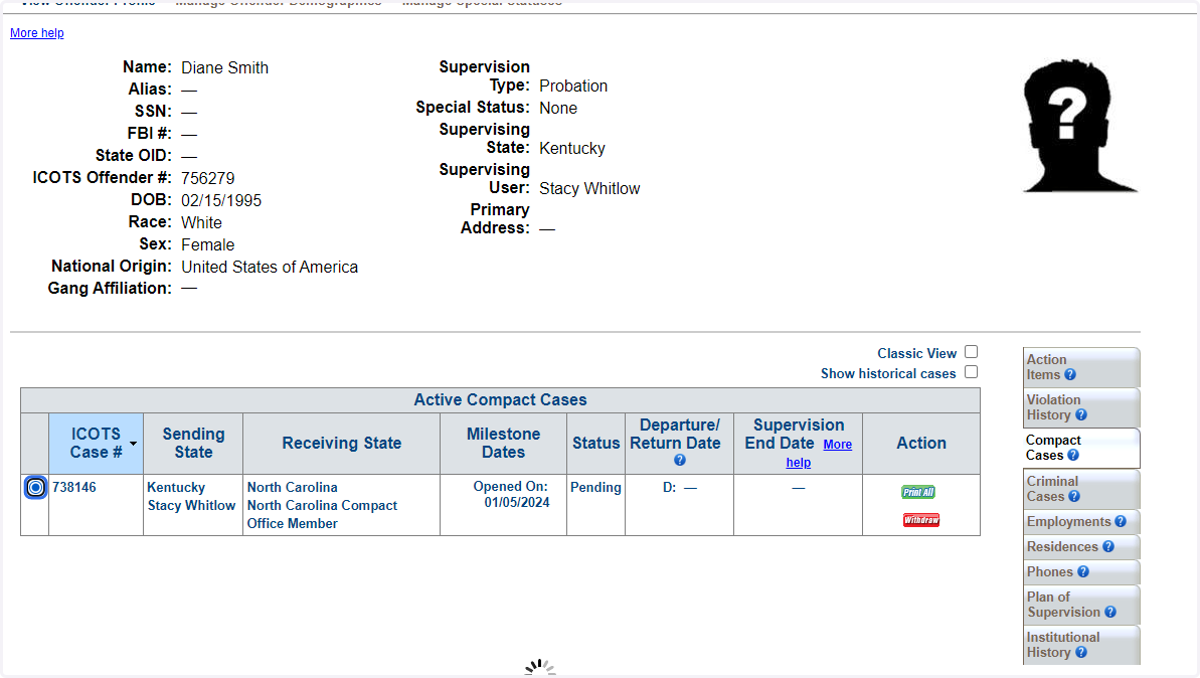
17. To create the transfer request, select the compact case from the Compact Cases menu
As a reminder the transfer request in this scenario must be sent within 15 business days following the reporting instructions response.
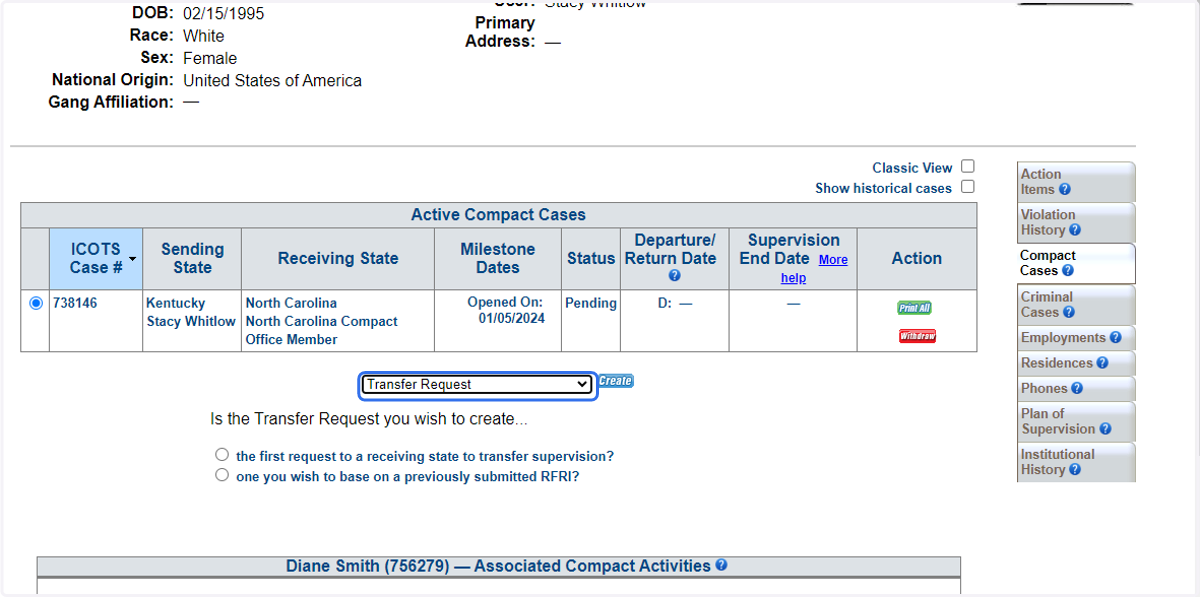
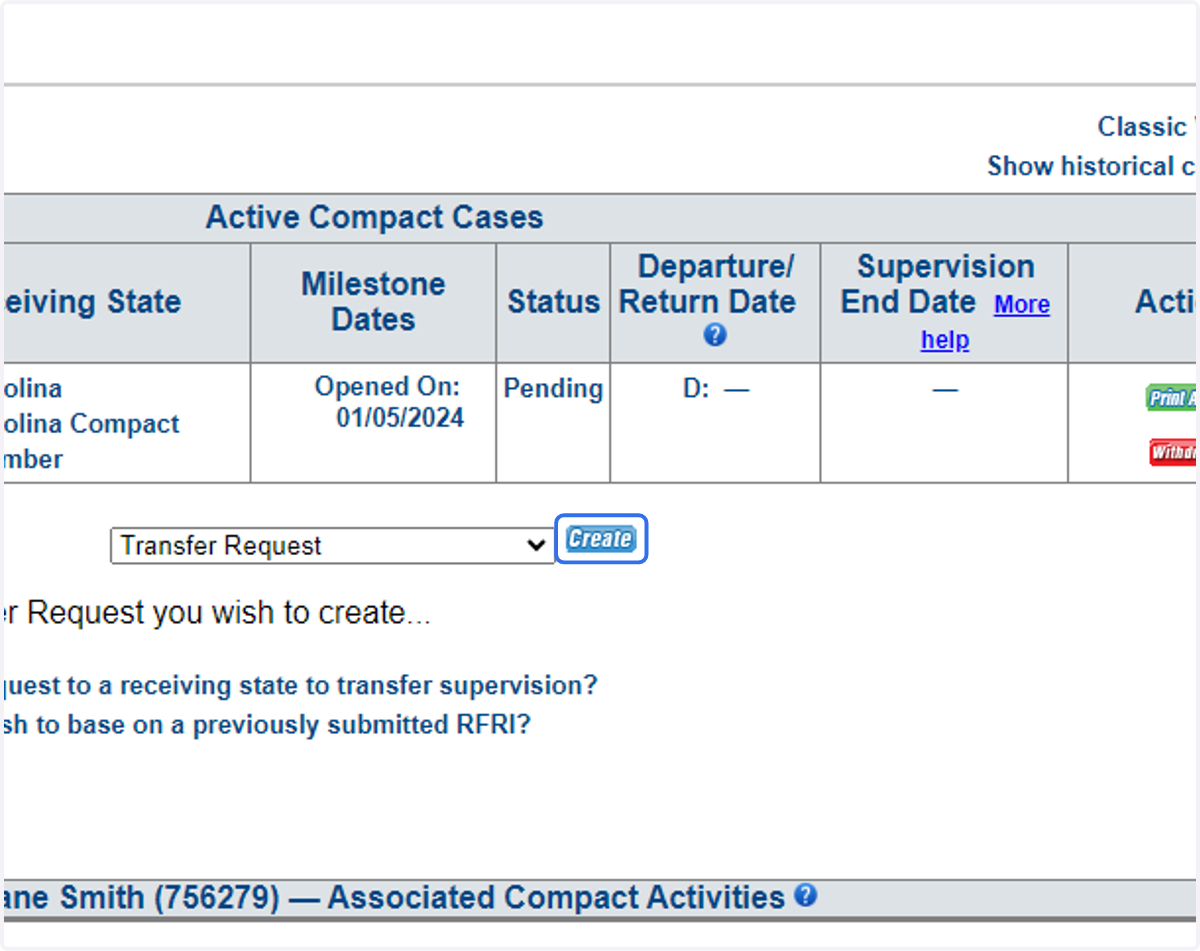
18. Choose 'Transfer Request' from the dropdown
19. Select 'one you wish to base on a previously submitted RFRI?' and ICOTS will pull existing data to avoid duplicate data entry
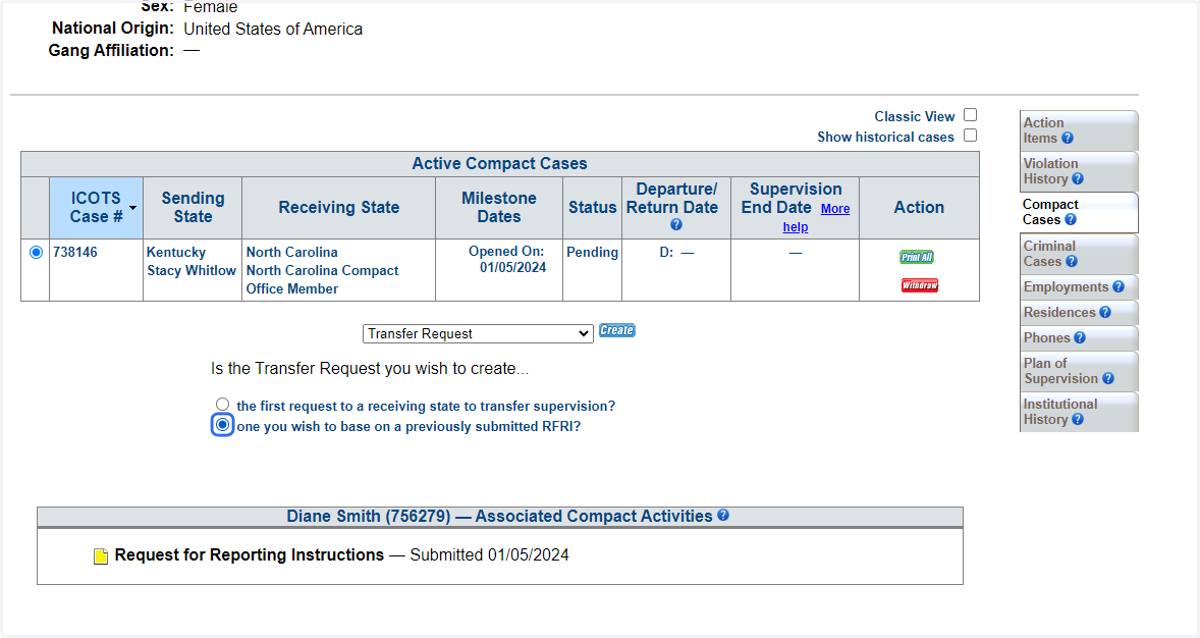
20. Click 'Create'
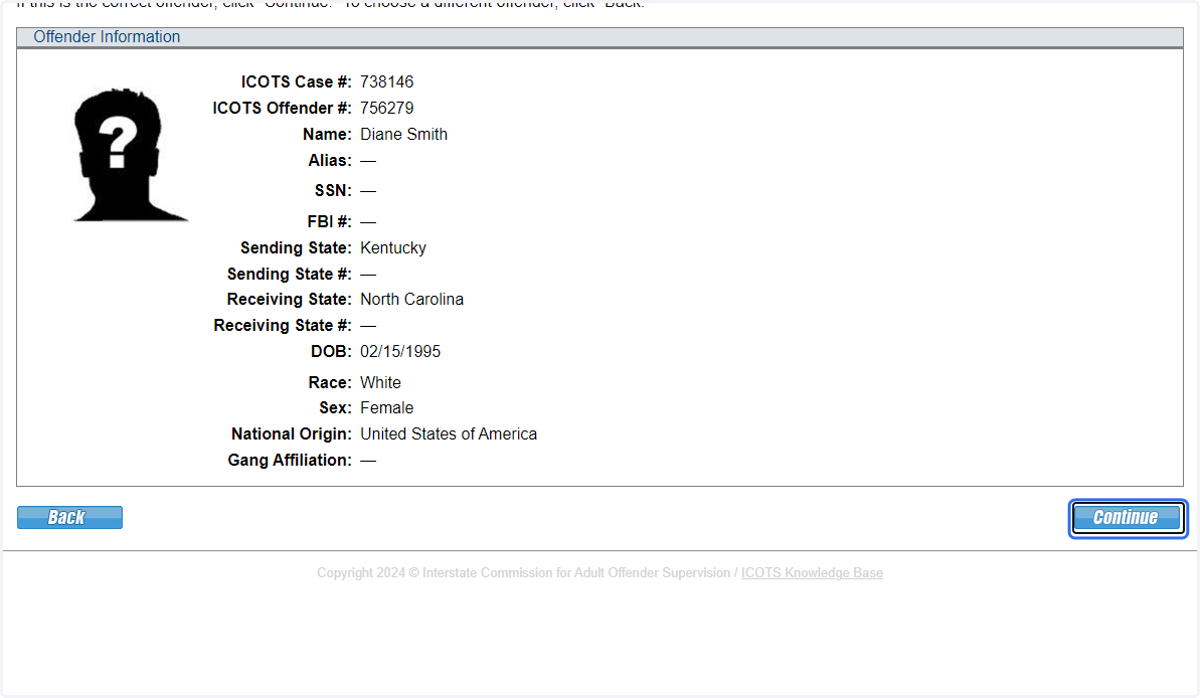
21. Confirm, ensuring the correct profile is selected
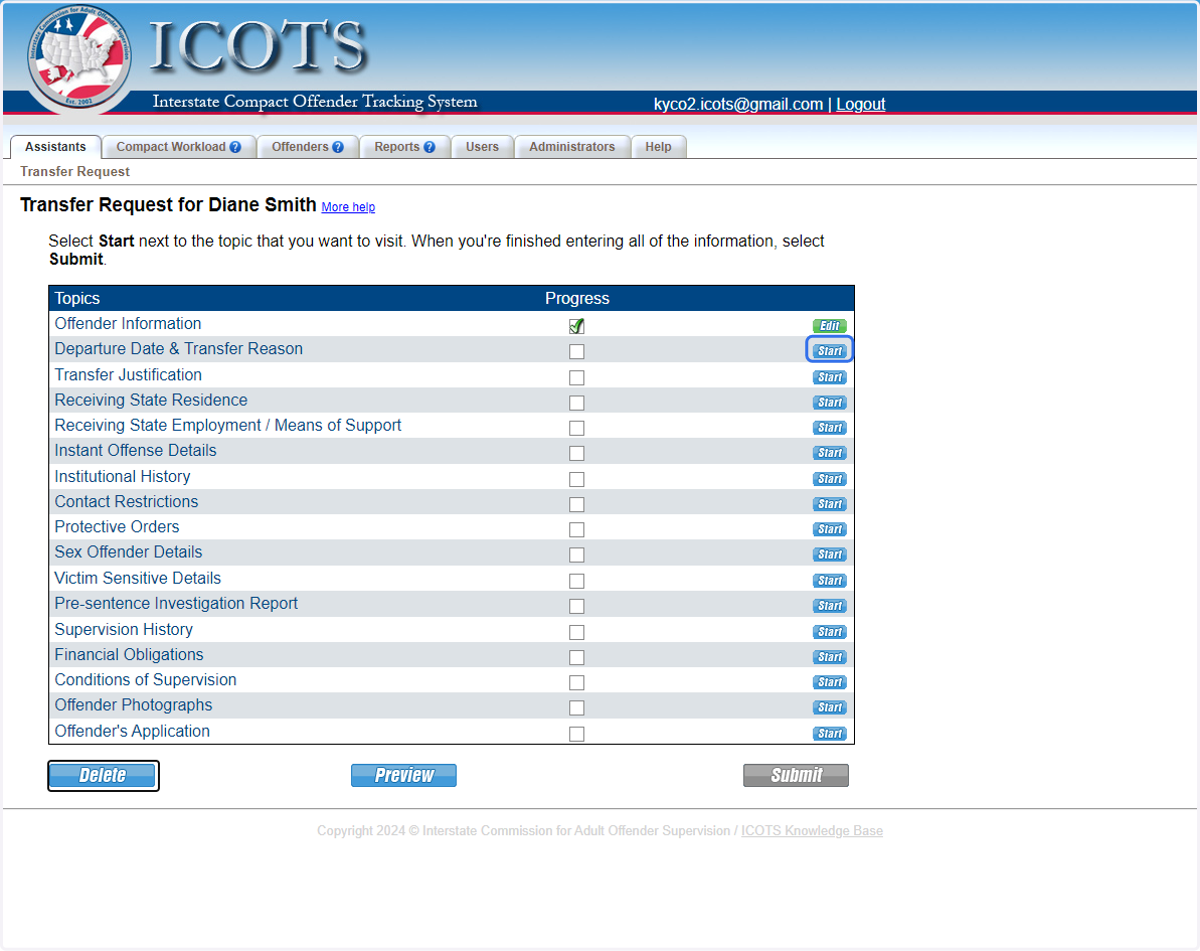
22. Proceed to 'Departure Date & Transfer Reason'
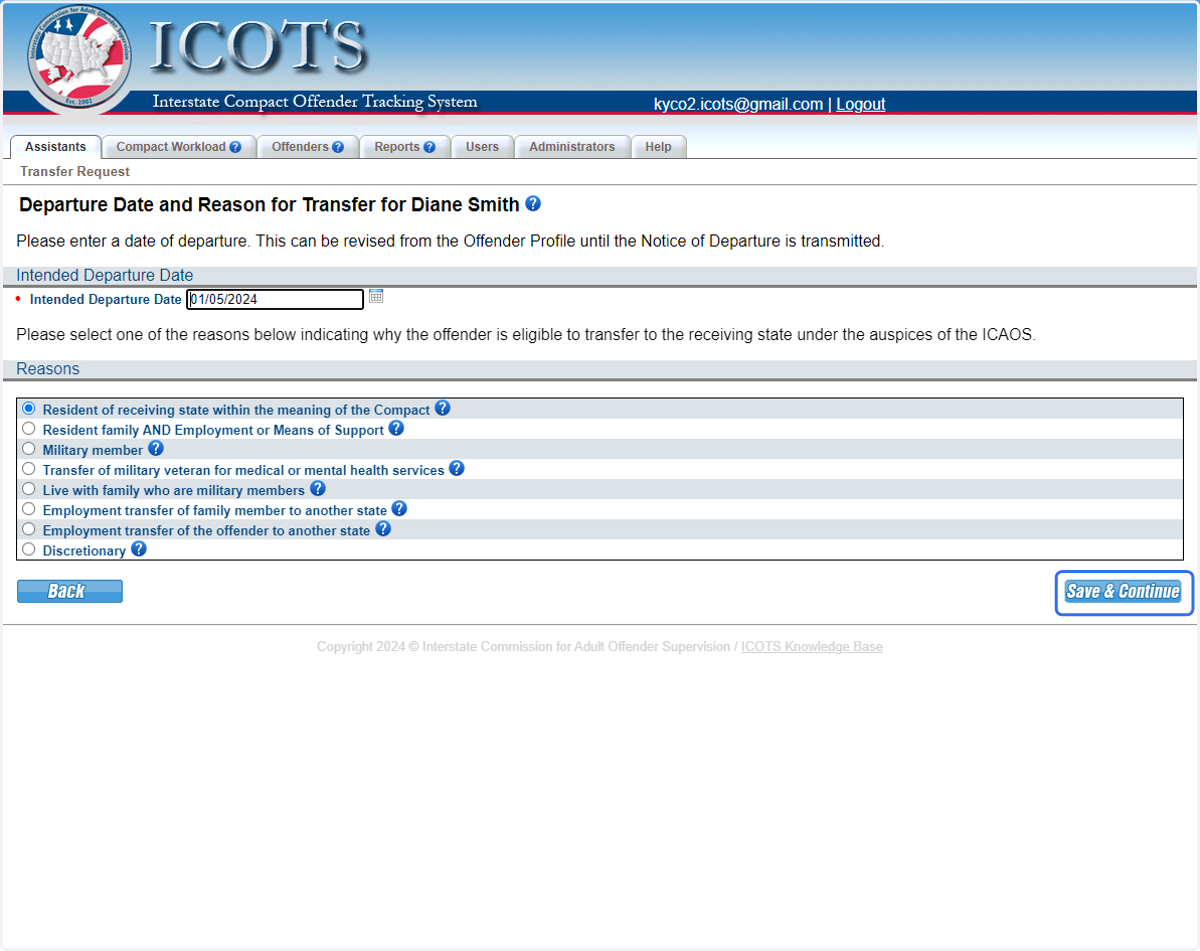
23. Select the appropriate reason for transfer. For this scenario, the individual is considered a 'resident' since she has lived in the receiving state more than 1 year prior to sentencing
Note: Reasons for reporting instructions are not the same as reason for transfer in most transfer situations.
24. Proceed to Transfer Justification
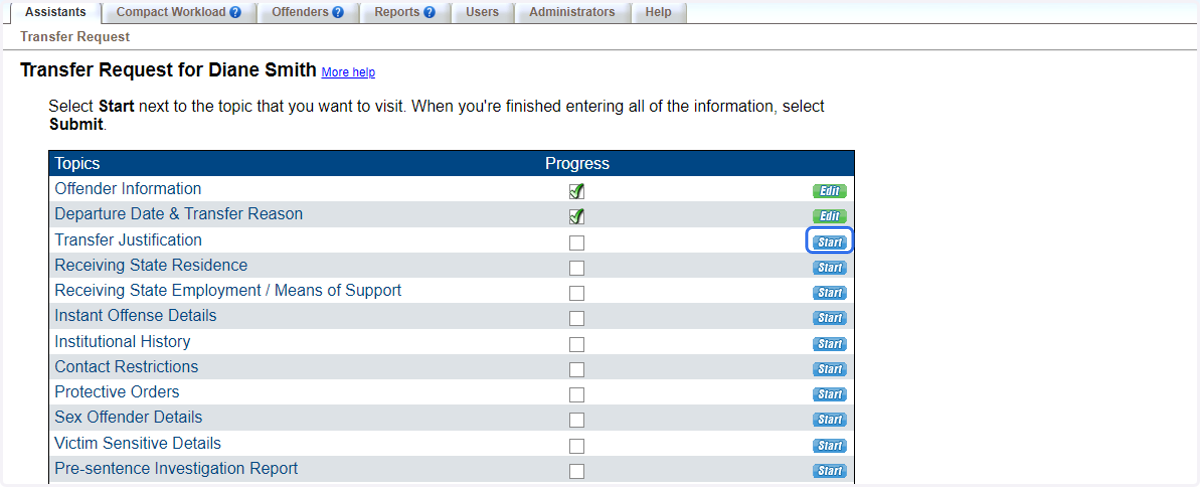
25. Provide a detailed justification. If a resident of the receiving state, provide details such as how long they have been a resident, what does their social support look like in the receiving state? How did you verify?" Once complete, click 'Continue'
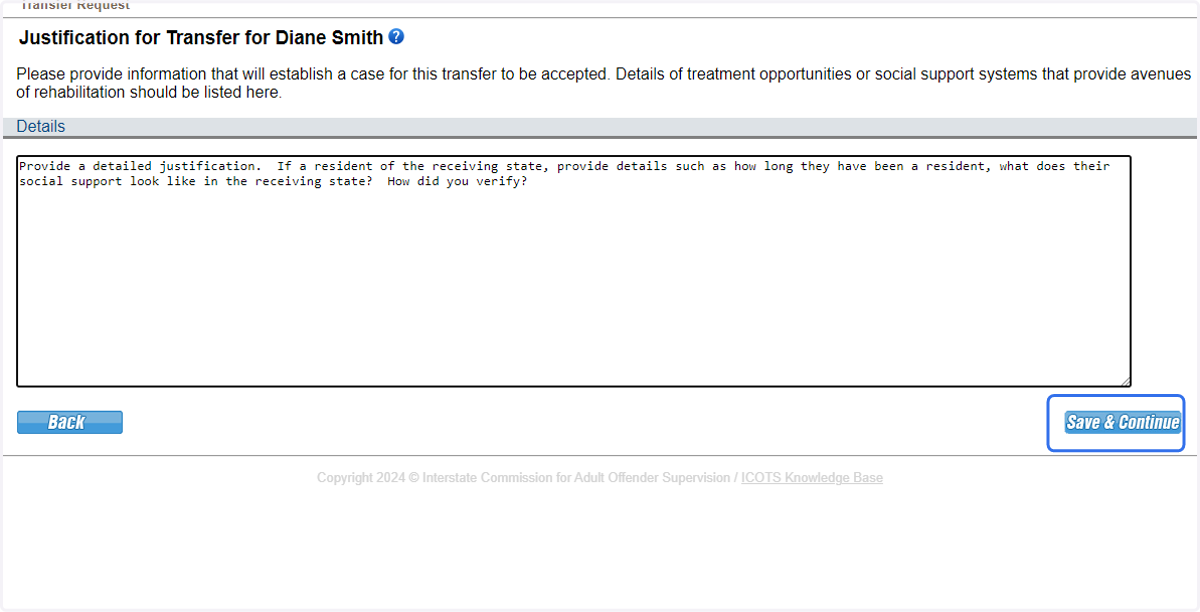
26. Proceed to Receiving State Residence Information
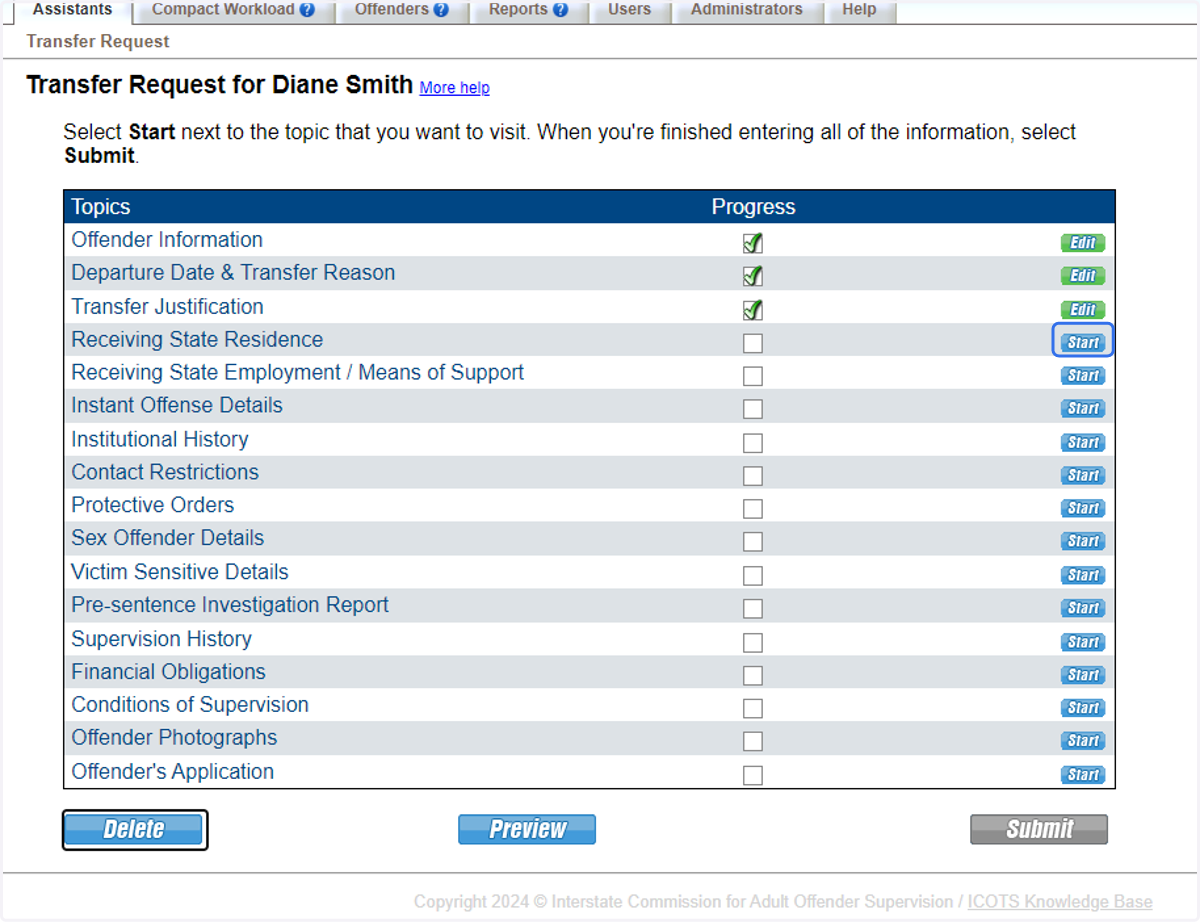
27. Notice, ICOTS pre-populates the data previously entered on the Request for Reporting Instructions. Confirm the data and click 'Save & Continue'
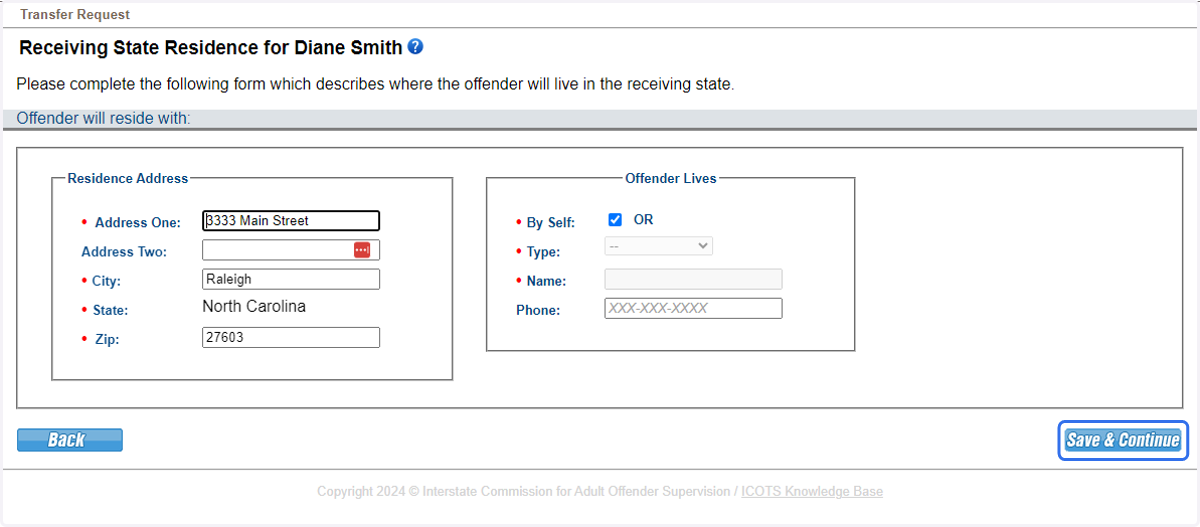
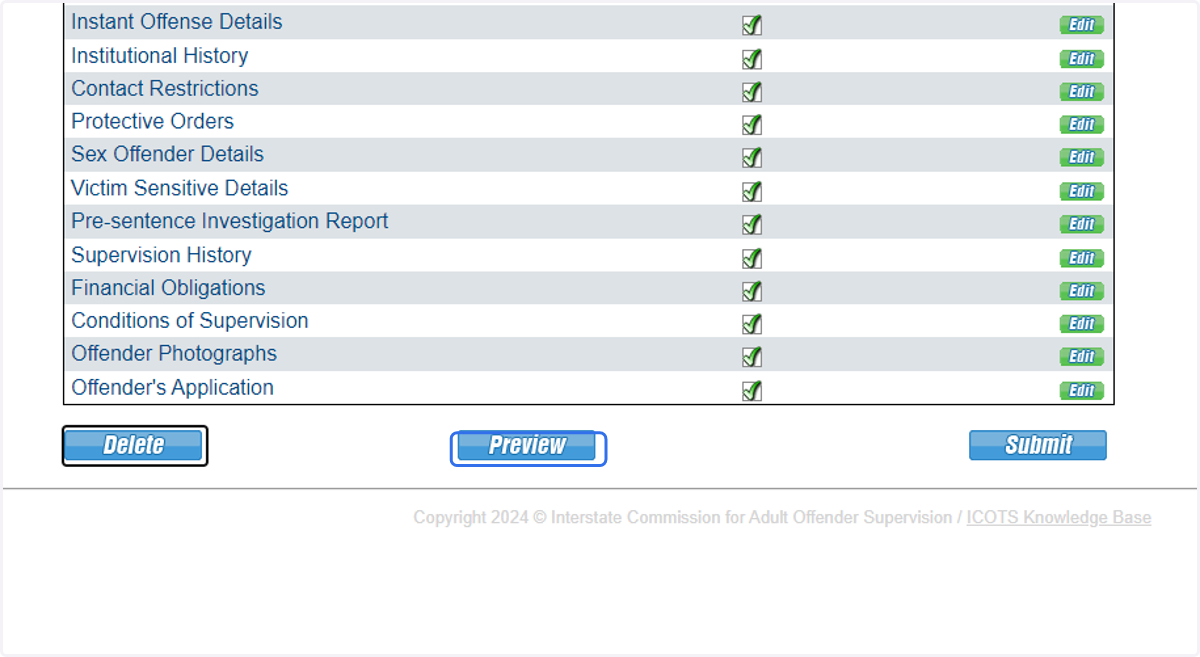
28. Proceed through the remaining topics. Once complete, be sure to Preview prior to submission
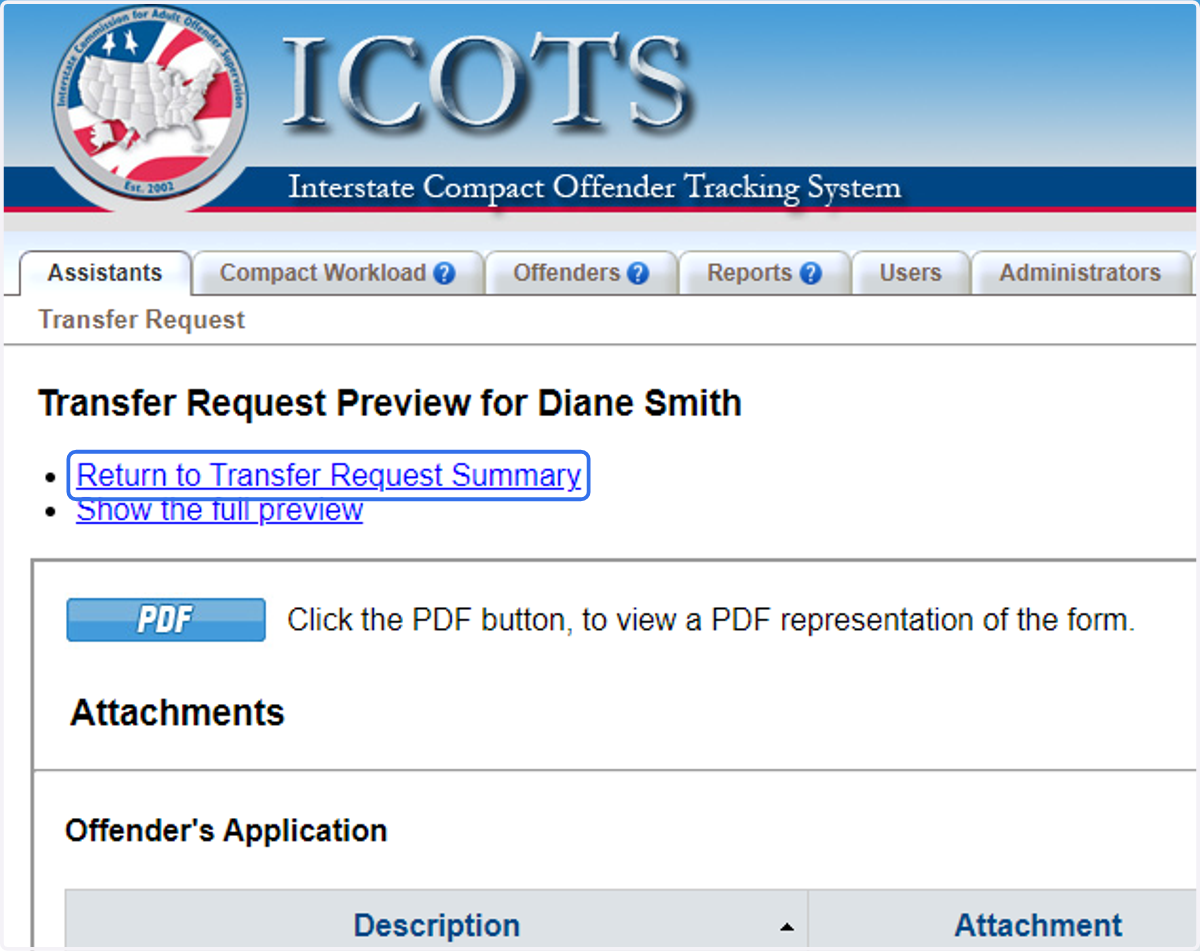
29. Once reviewed, click 'Return to Transfer Request Summary'
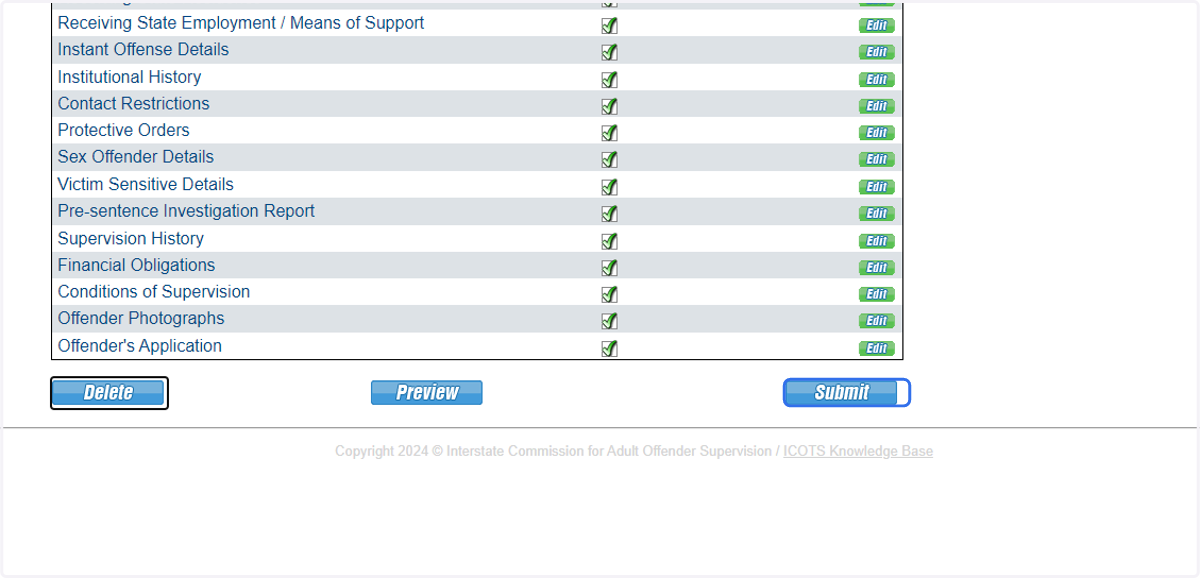
30. Submit the Transfer Request
31. View activities and status of activities from the Profile screen or your Compact Workload. Once decision is made, an email will be generated to all associated users in the sending state.