Customise Dynamic Post Text
Dripflow.io | Dashboard
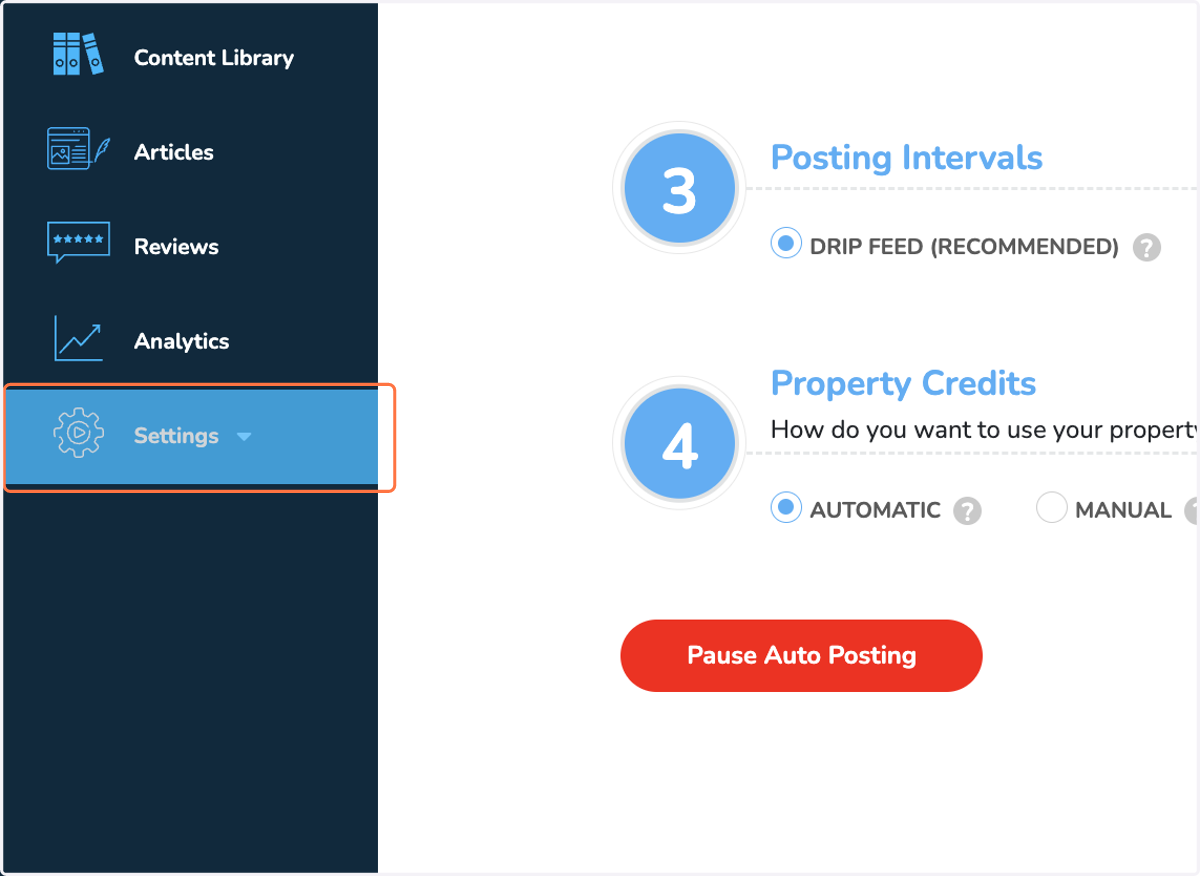
1. Click on Settings
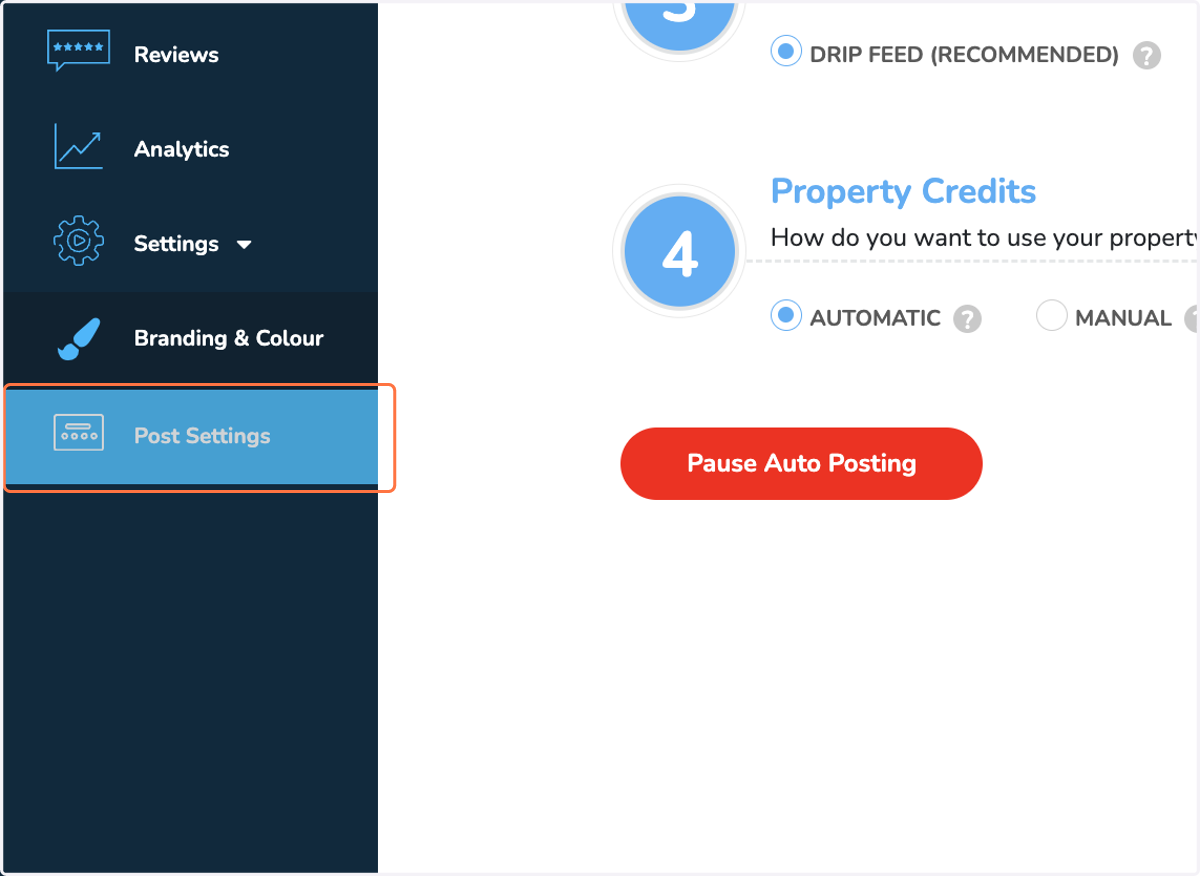
2. Click on Post Settings
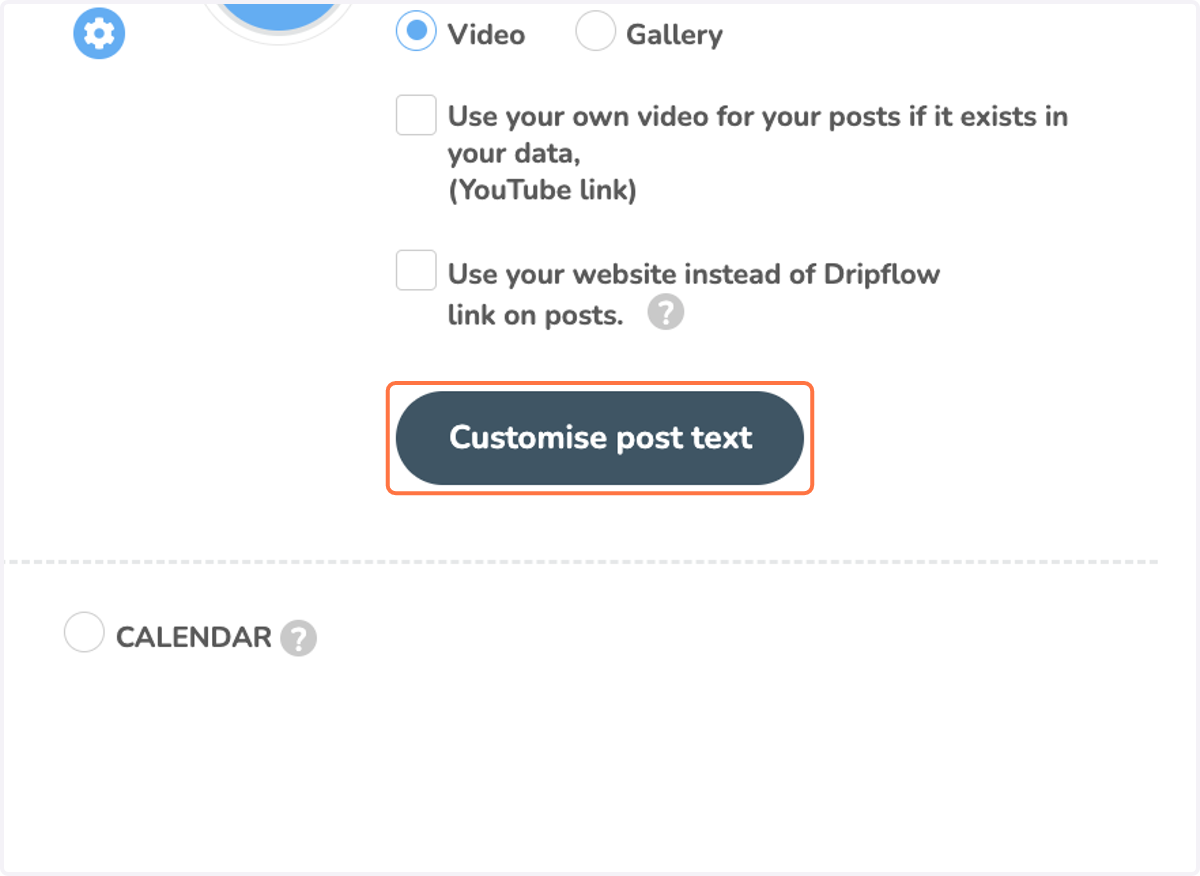
3. Click on Customise post text
4. Toggle off 'Use default text' to show all options
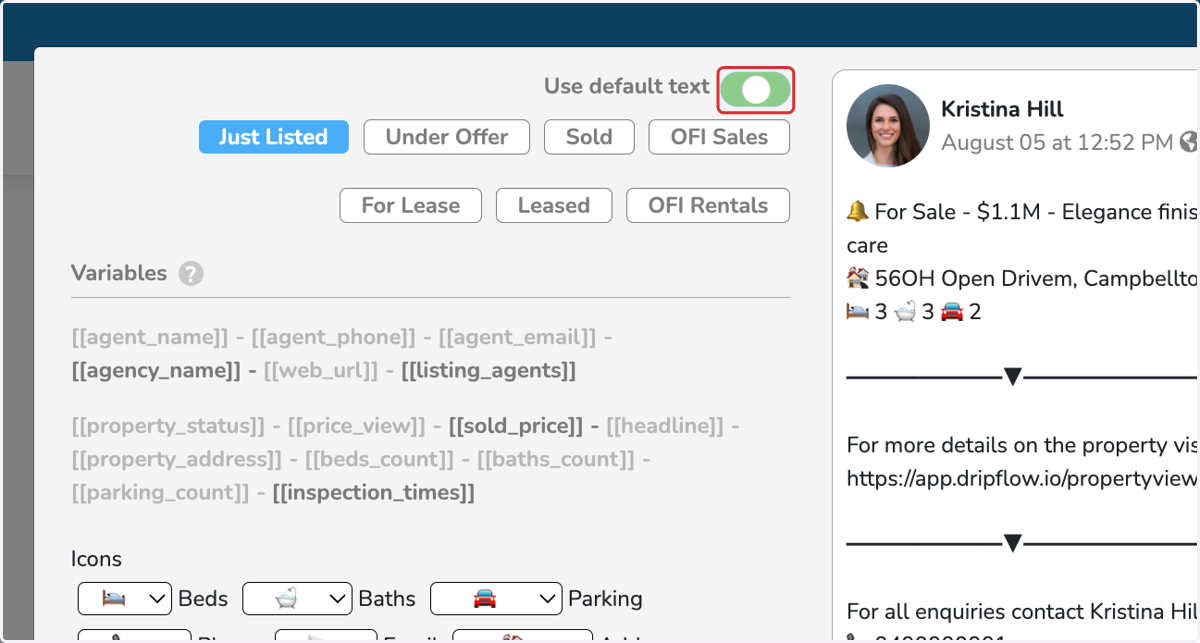
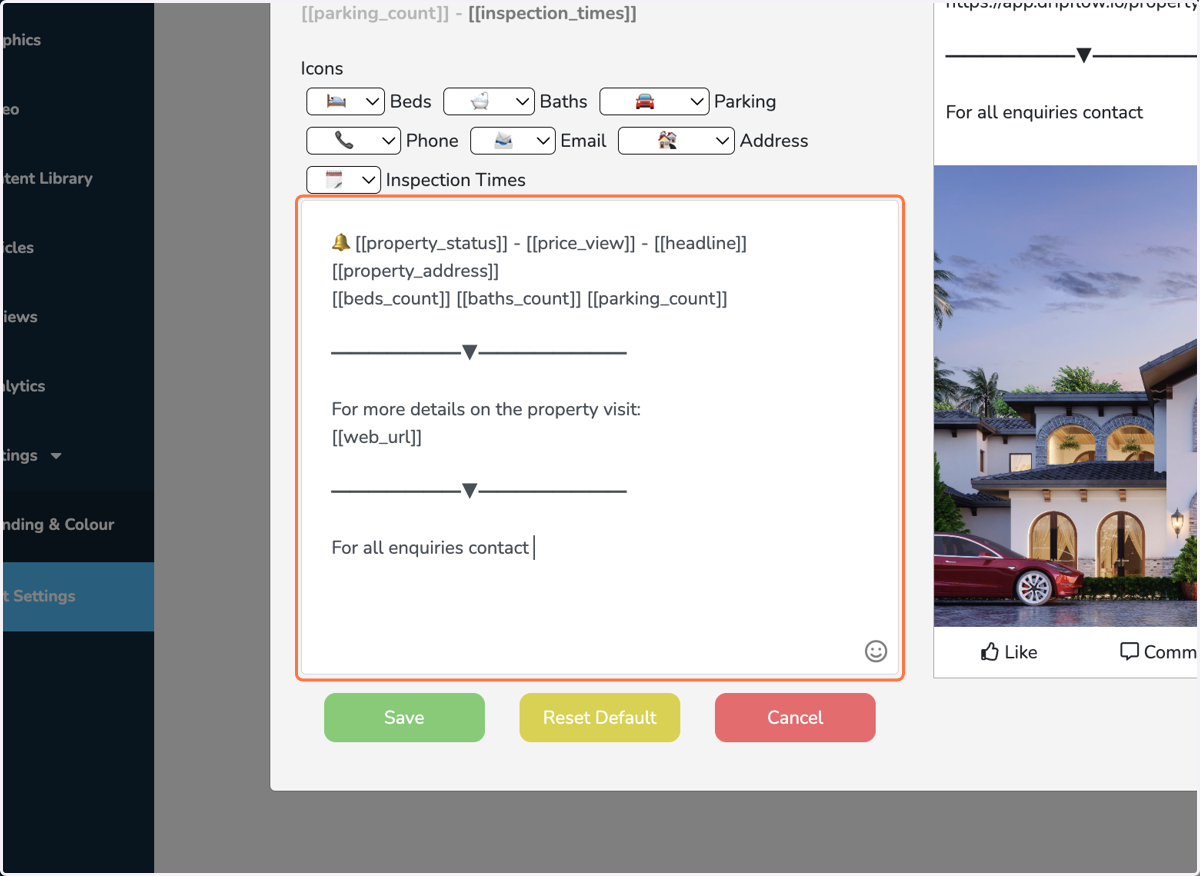
5. Make edits in text area by deleting and inserting variables or writing static text.
Any words inside brackets [[price_view]] are variables, these will replace with actual values from the property data / account. Pressing on a variable with your cursor will highlight the variable, you can then use the backspace button on your keyboard to delete it.
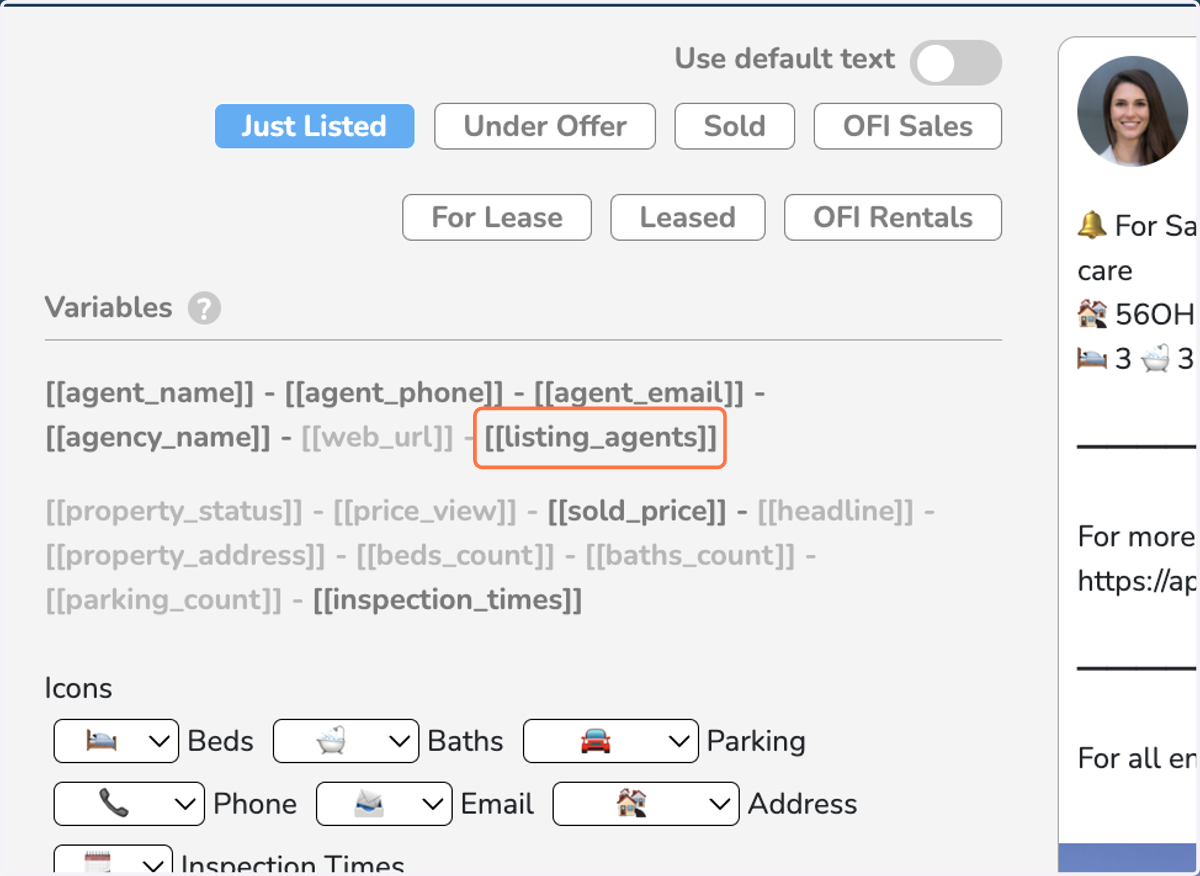
6. Click on a variable to insert it in text area
Please your cursor in the text area field where you want the variable inserted, then simply press on an available variable (bold) to insert it.
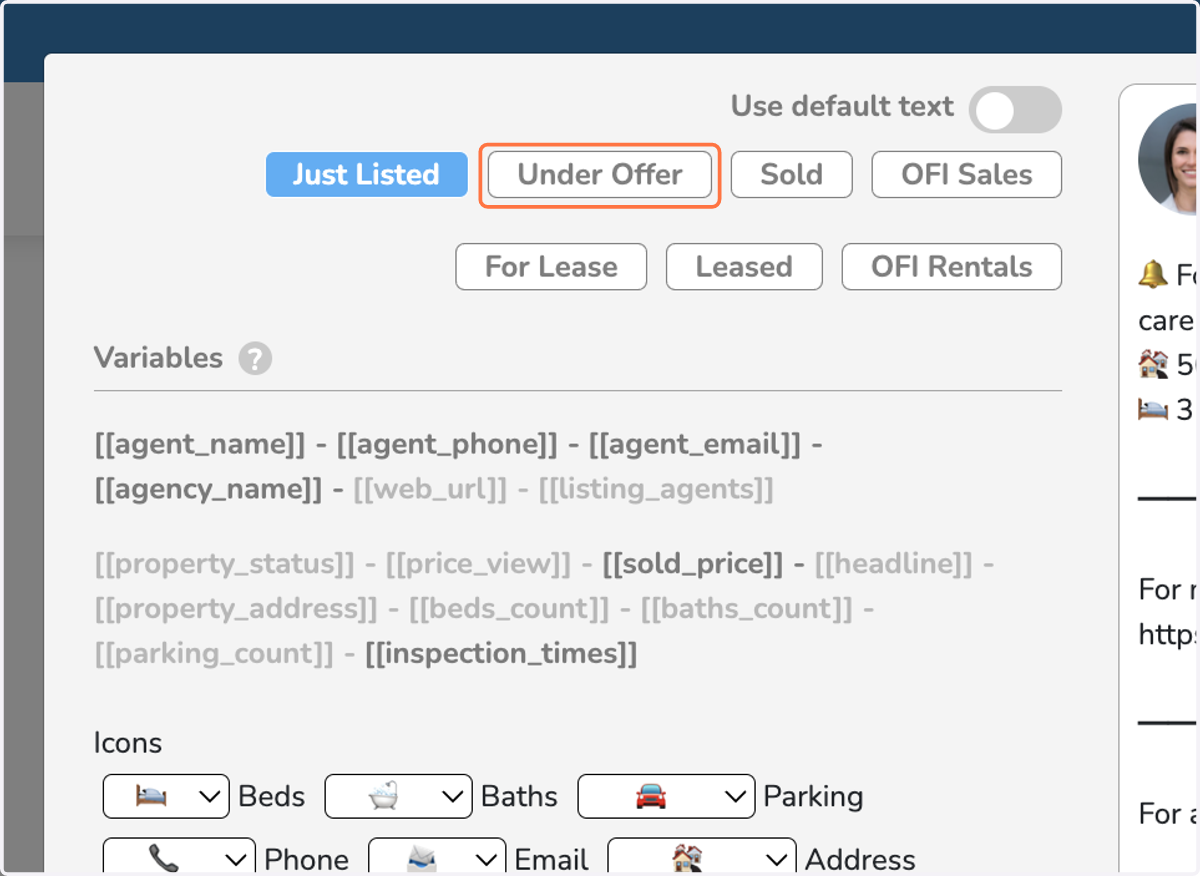
7. You can modify the post text for each status.
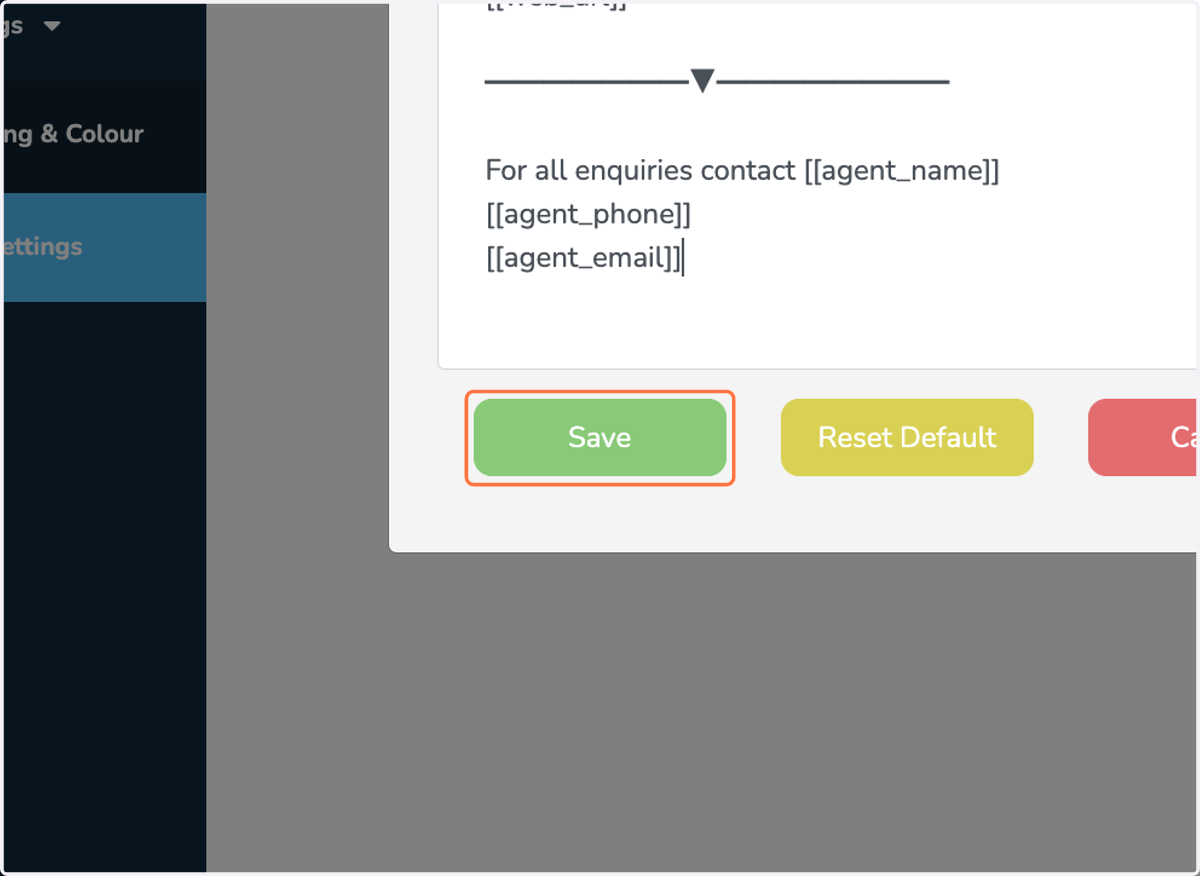
8. Click on Save