Conducting a Pre Start
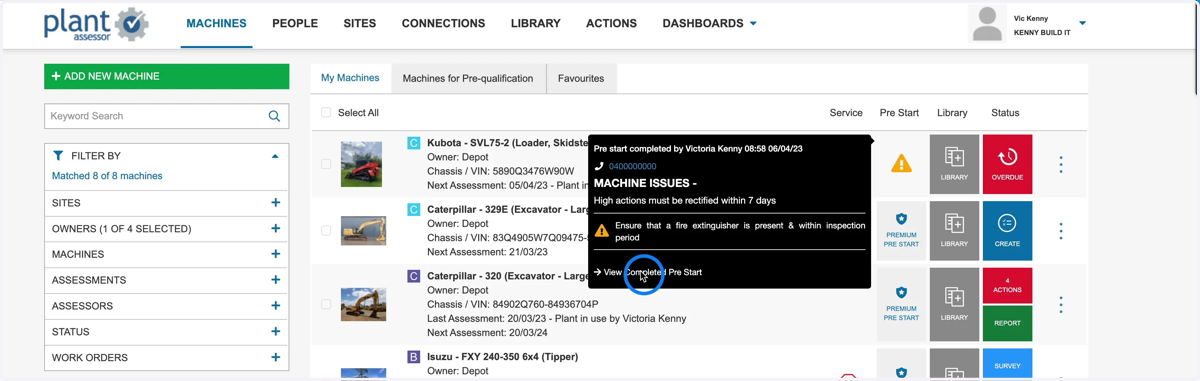
1. Once logged into the Asset Guard app click the Pre Start button on the machine you'd like to inspect
2. Update the usage reading
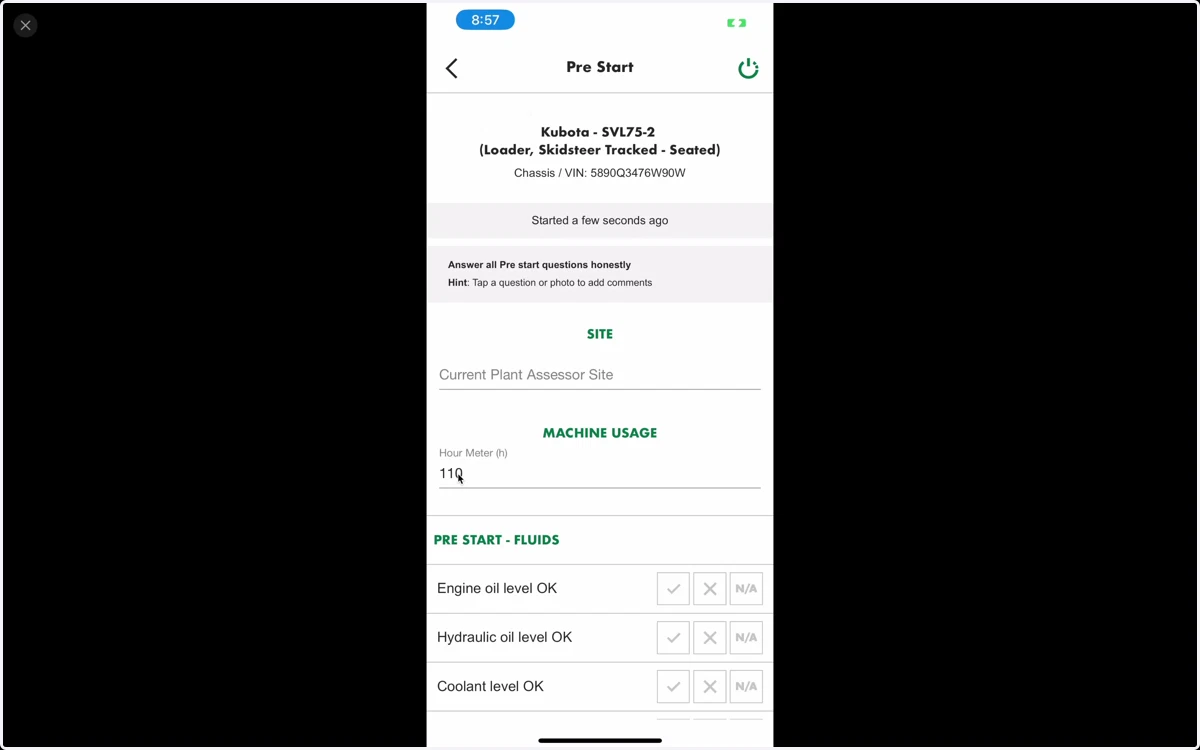
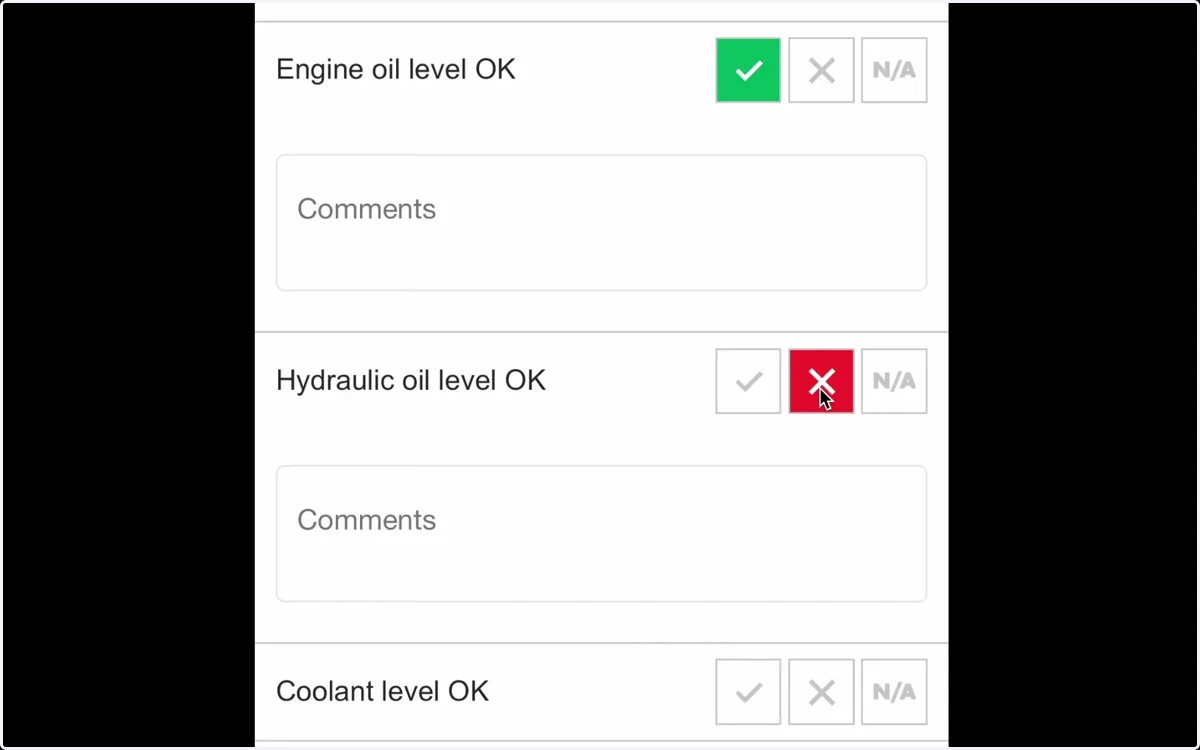
3. To add a comment, click on the question
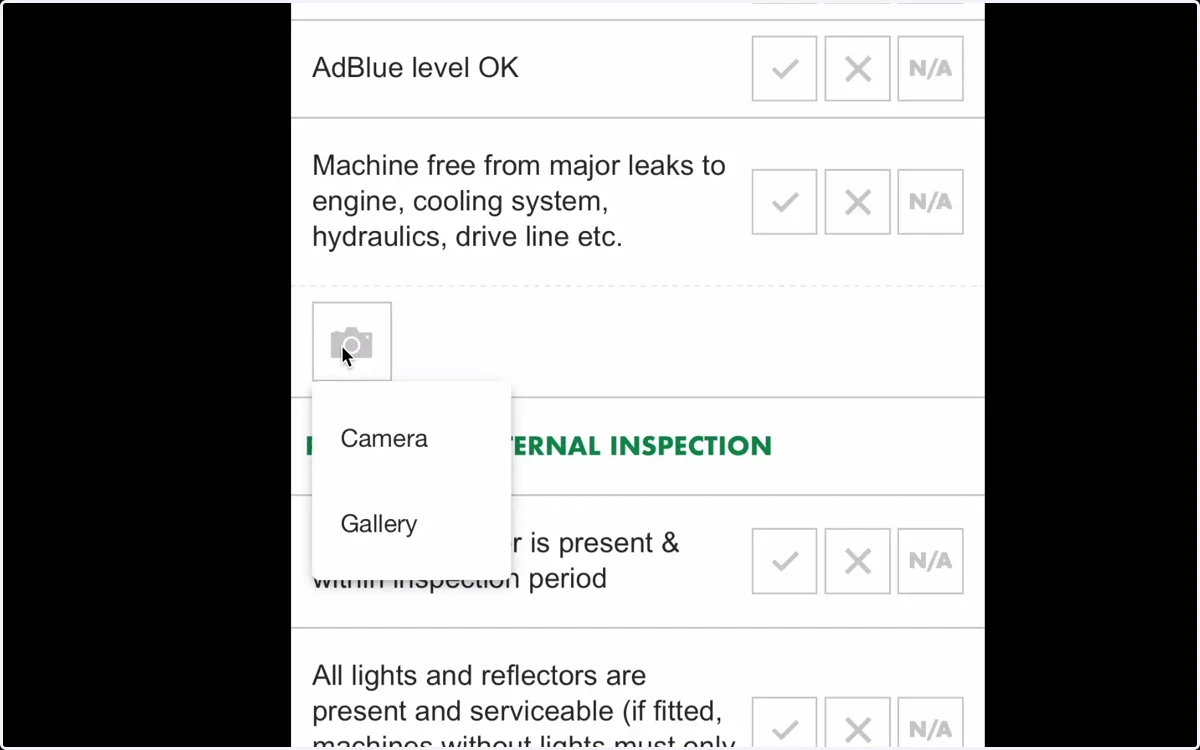
4. To add a photo, click the camera icon at the end of each checklist section
5. Once you have answered all checklist questions, click complete
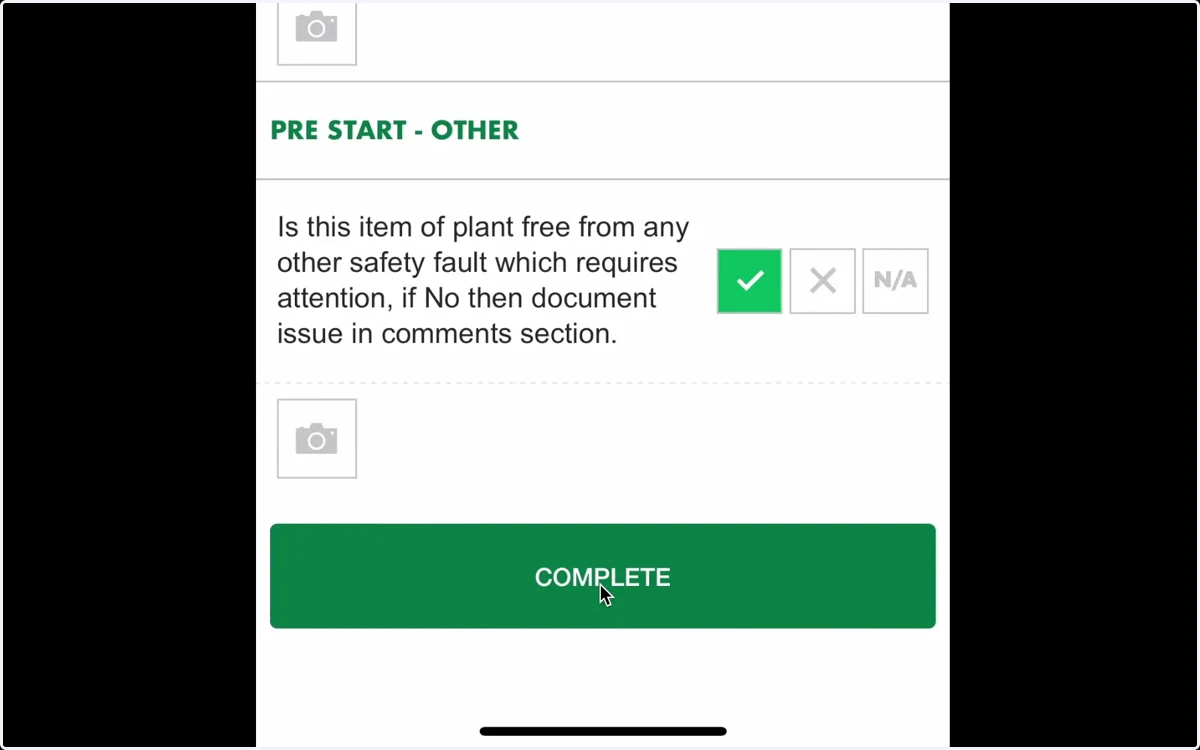
6. Your operational status and pre start report
Once you have completed your pre start inspection, you will be given an operational status.
Green = Machine is right to operate
Orange = Non-critical issues identified, machine is still right to operate but actions are required.
Red = Do NOT operate. Critical issues have been identified and must be actioned immediately.
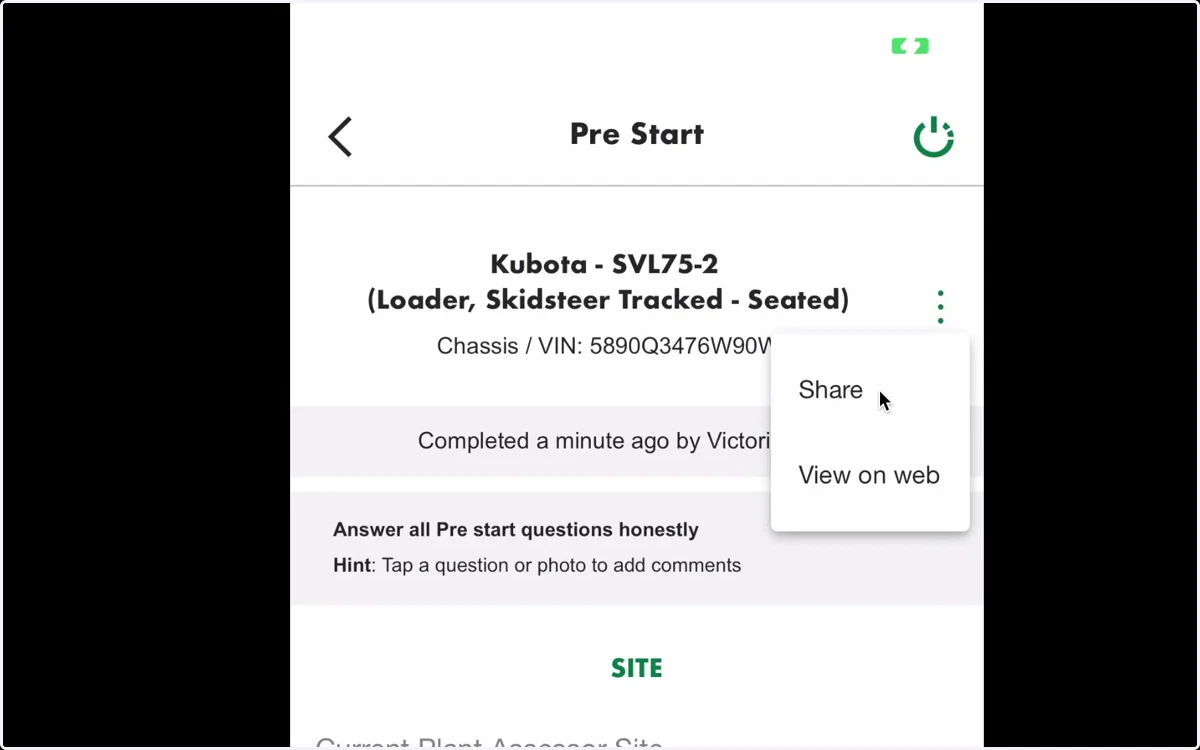
To share the Pre Start report, click the Share Pre Start button. You will have the option to share a link via SMS, email or social apps.
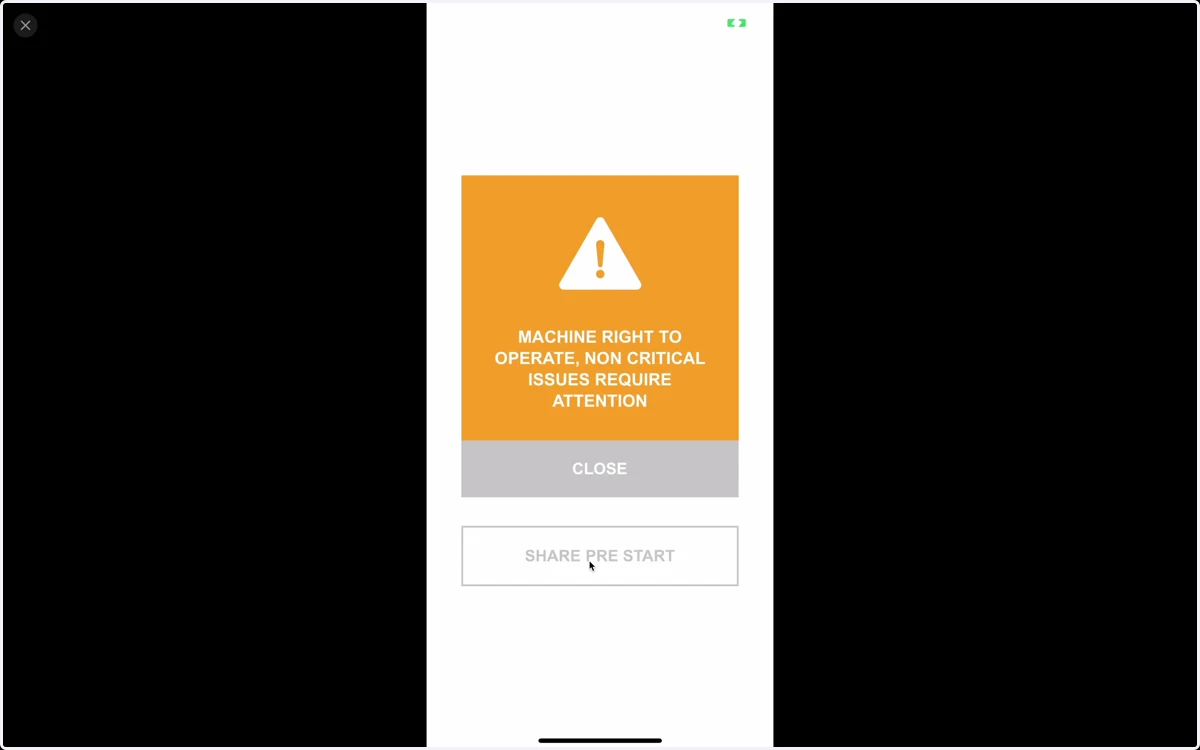
7. Click on the clock icon to view the machine's Pre Start history
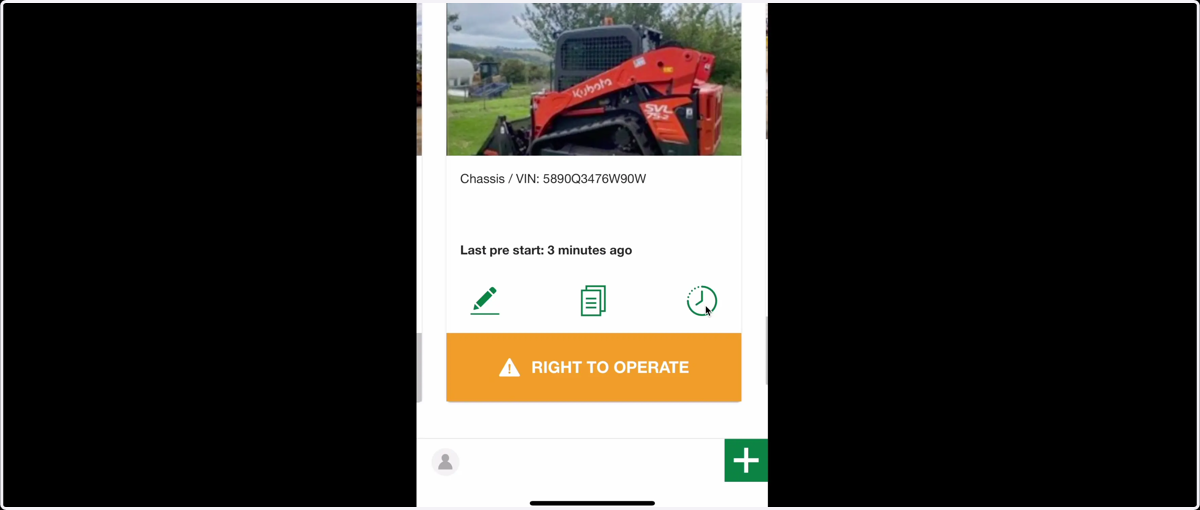
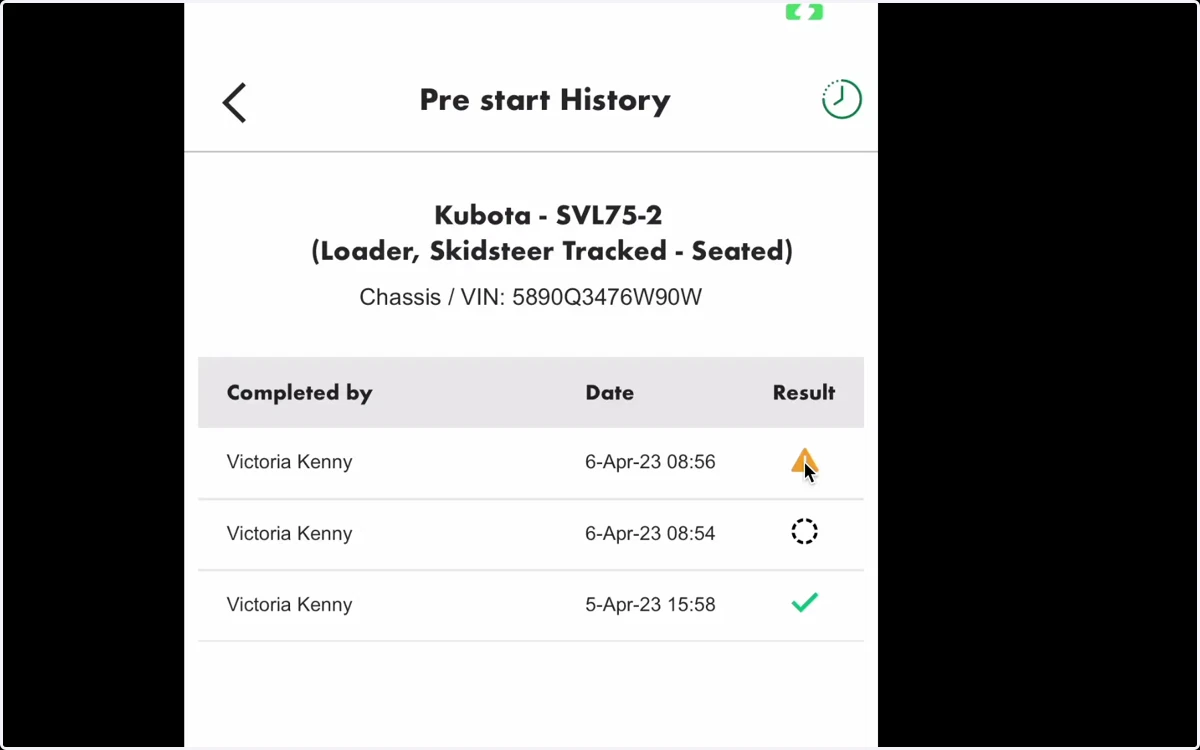
8. Viewing previous reports
Clicking the Clock icon shows you the history of all pre starts recorded against a machine.
Each pre start is time stamped and records the name of the person who conducted the pre start.
To view the report, click the icon in the Result column.
9. Share the report by clicking the ellipsis menu and clicking share
Assessor
10. All pre start data is automatically synced to your Plant Assessor account.
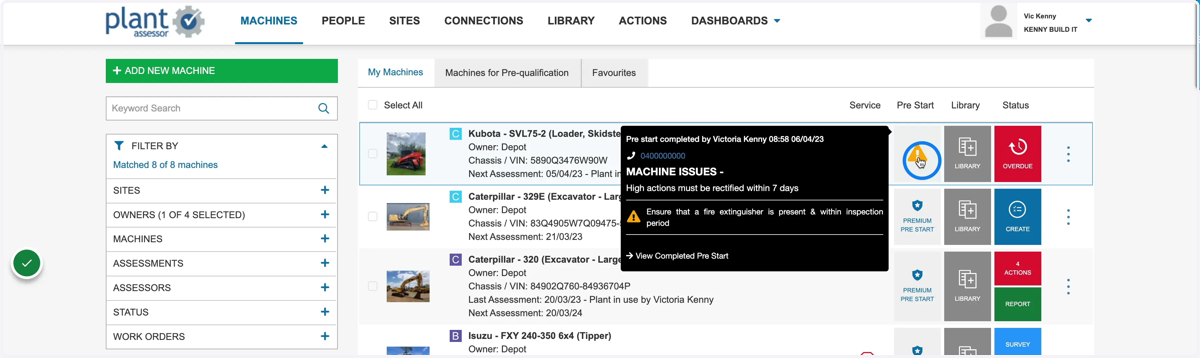
11. Click View completed Pre Start to view the full report