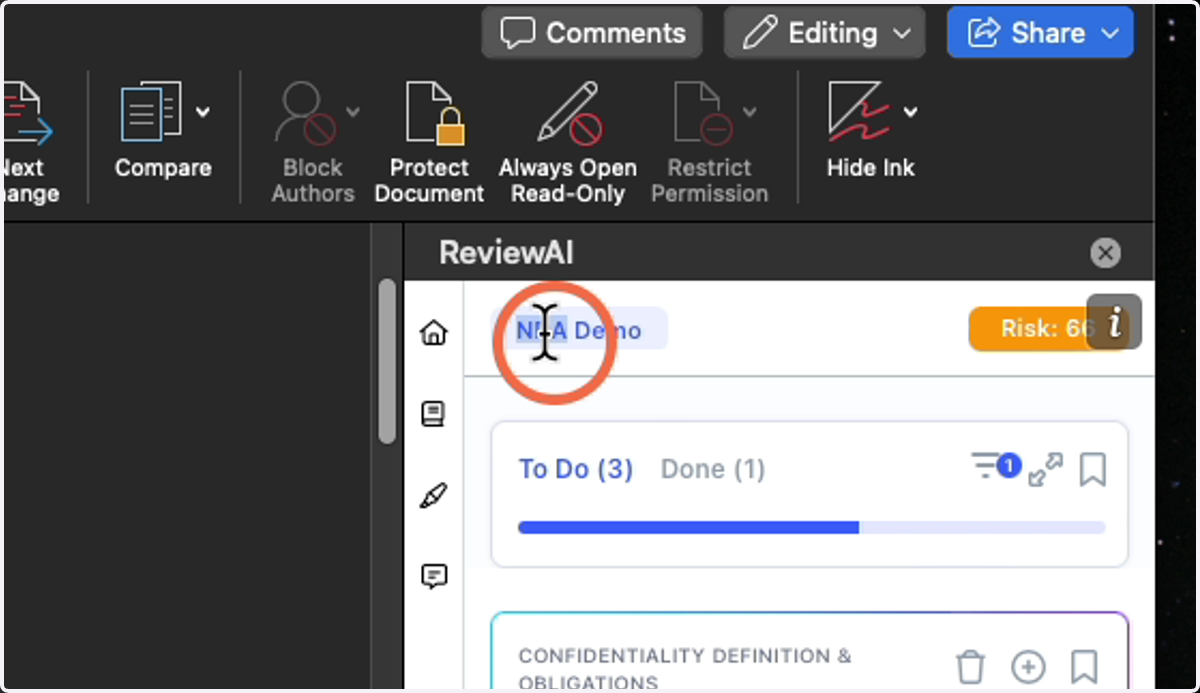
ReviewAI: User Interface Navigation and Features
This guide is an overview of Catalyst for Contracts - Review
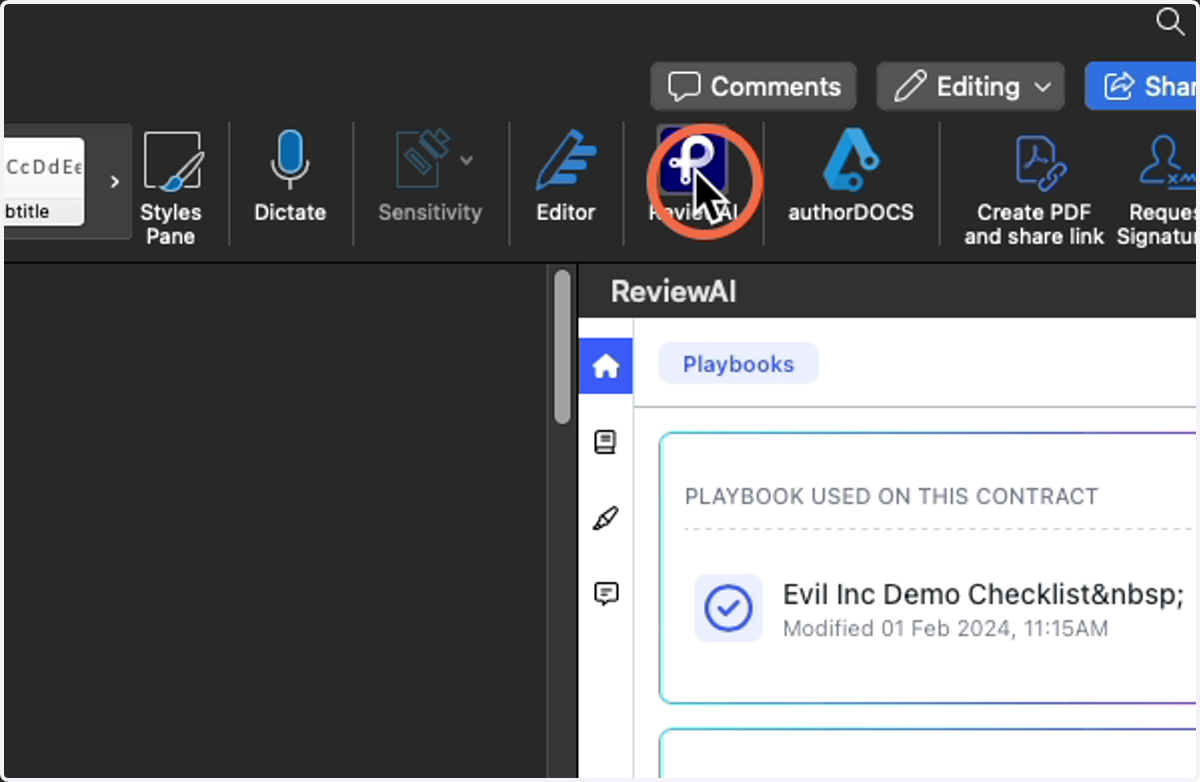
1. To open Catalyst for Contracts
Click on the icon in your Menu Bar
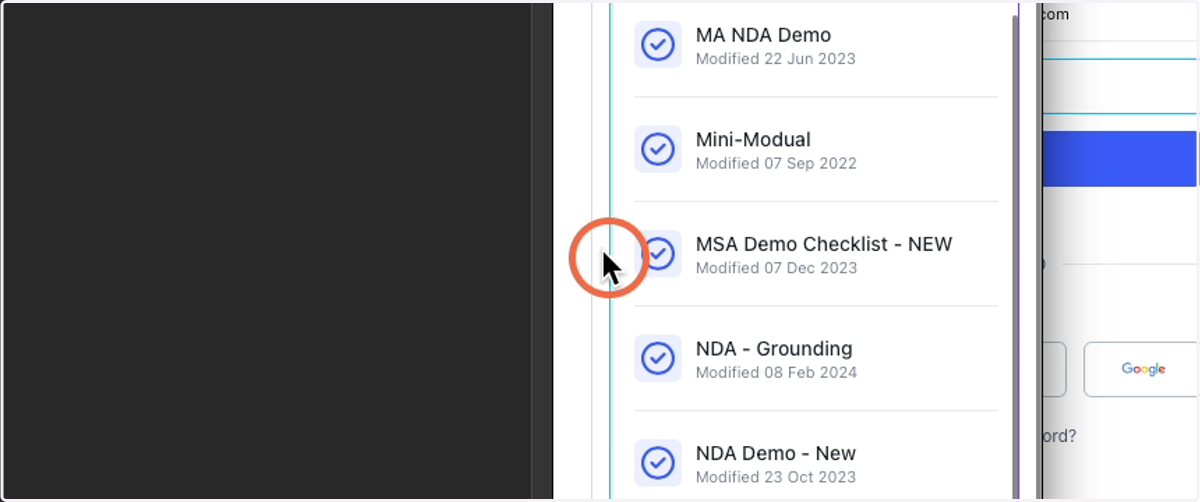
2. Home Screen
Here you will see a list of all of your organization's Checklists, listed in alphabetical order.
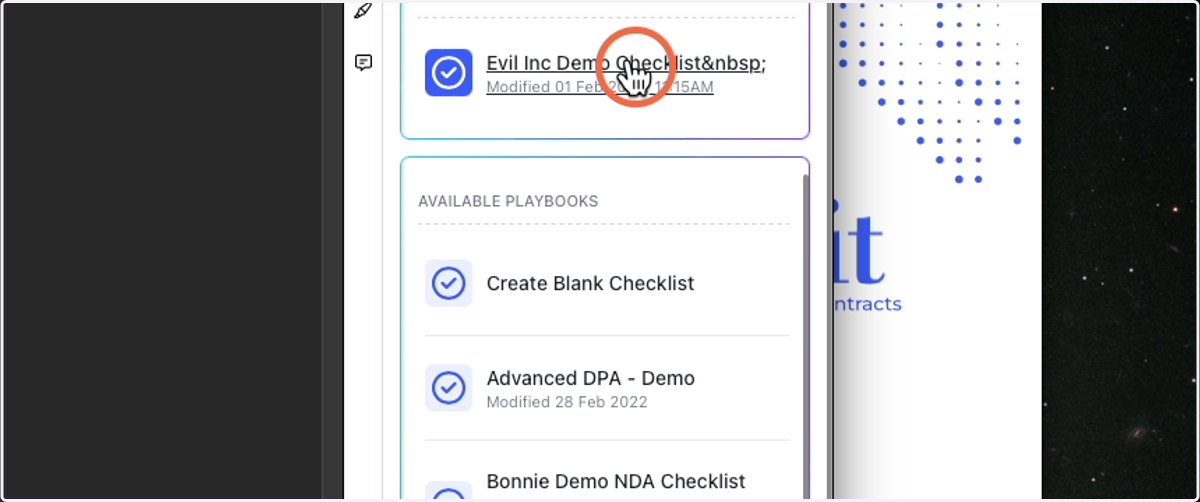
3. Click on the Checklist you want to Run
It will start to process the contract. It usually takes about a couple of minutes to process.
***The checklist will fail after 10 minutes, letting you know something went wrong.
4. After Processing
ReviewAI will display some things in the sidebar for you:
Dashboard
Groups
Issues
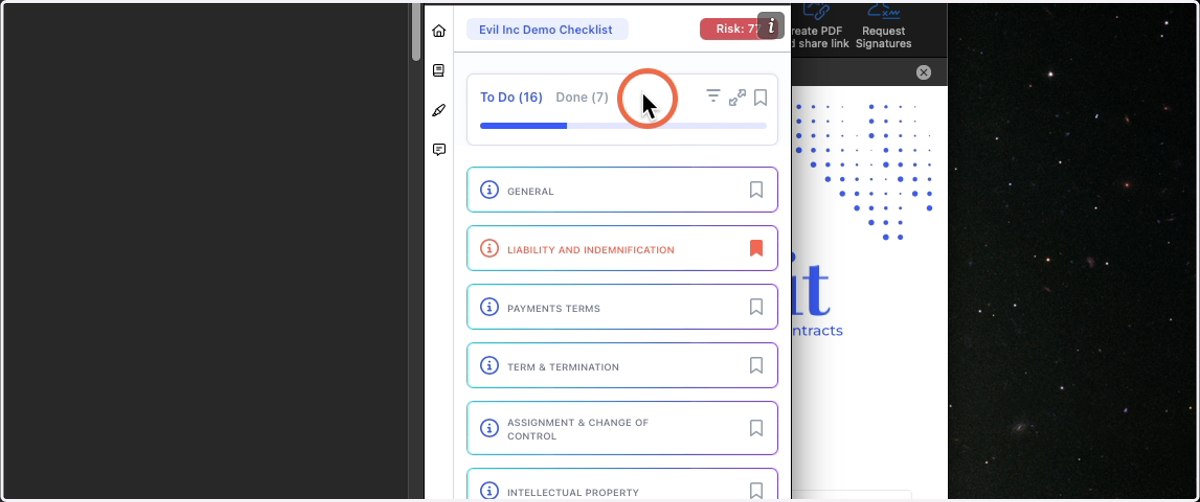
5. Dashboard
The Dashboard is home to a few things:
Risk Score
A 0-100 Score of how risky this contract is in comparison to the Ideal version of that contract type
To-Do and Done List
Progress Bar
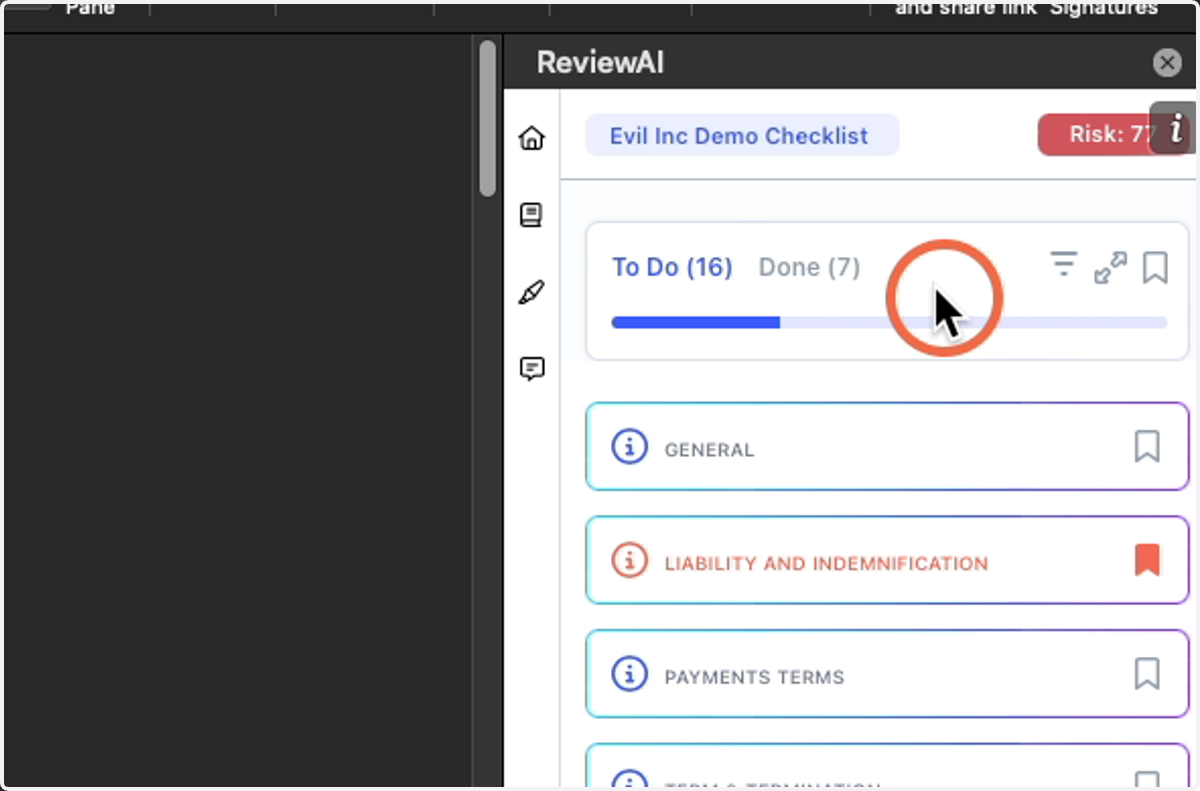
6. Done
This list will show the items that the AI has already taken care of, and as you work through the Checklist, the items you have checked off. You can always come over here to validate what the AI has done or move the items you have checked off back in to To-Do
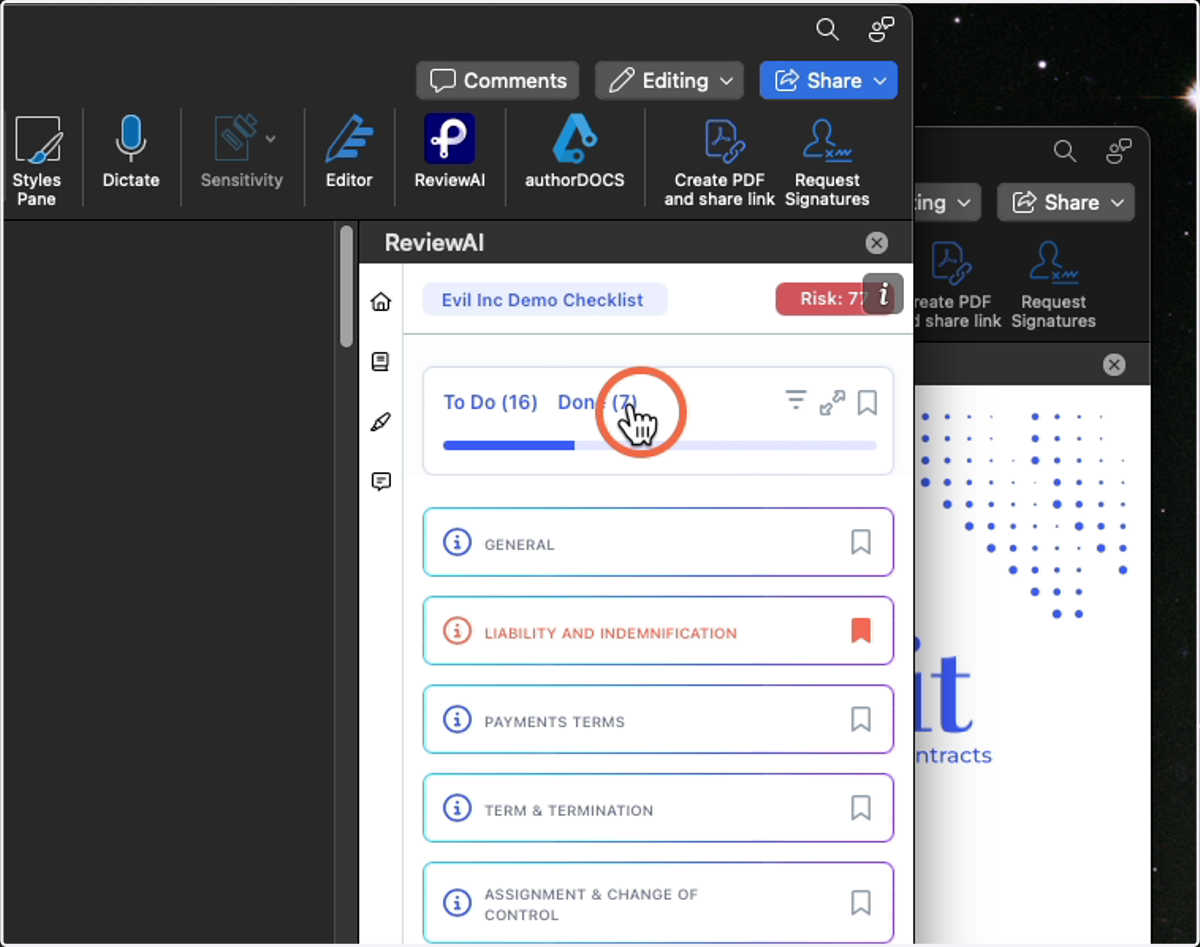
7. To-Do
To-Do will be your working space. The items listed here will be the items you need to check in the contract.
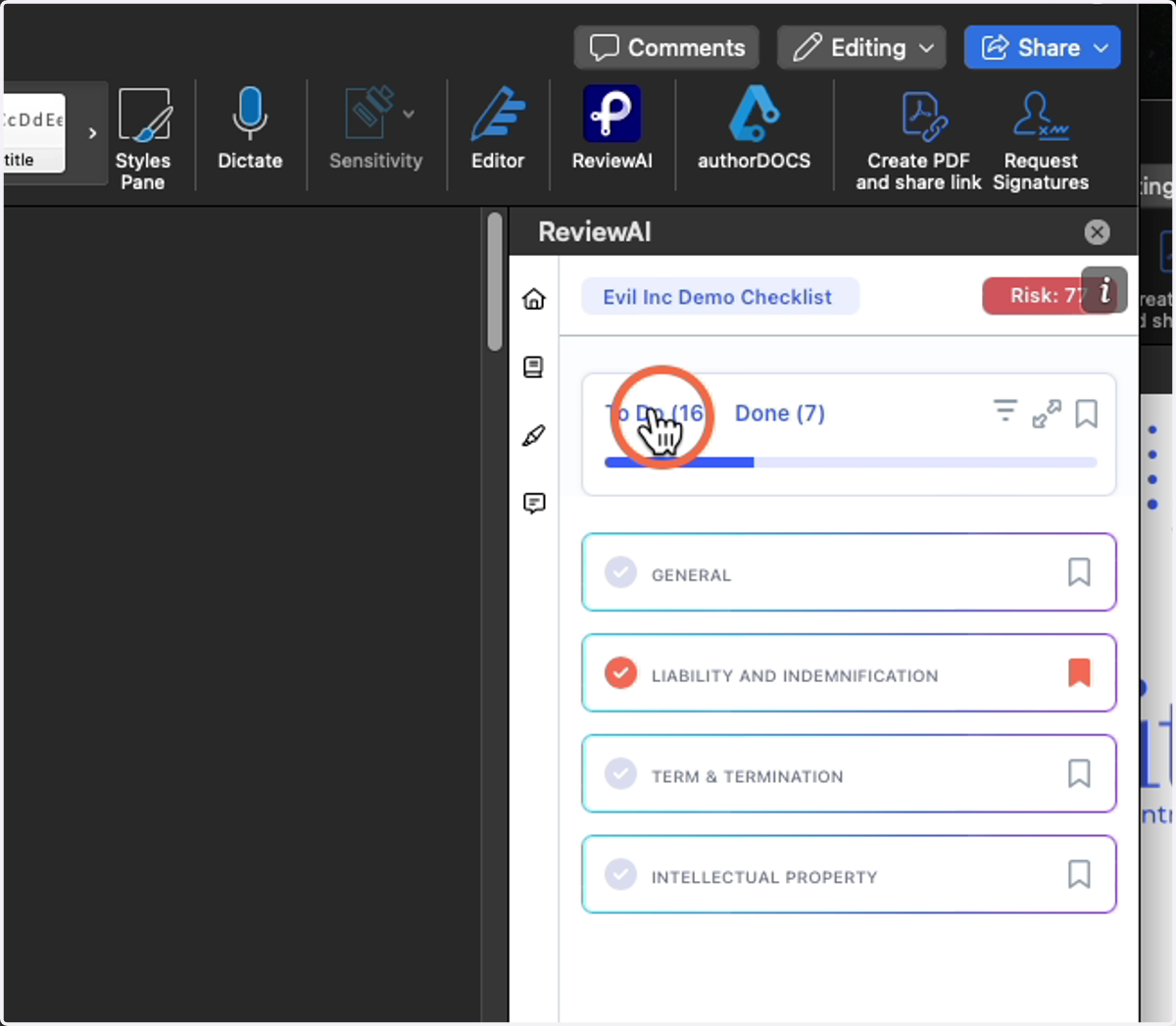
8. Progress Bar
Visual representation of how much work is left to be done in the Checklist.
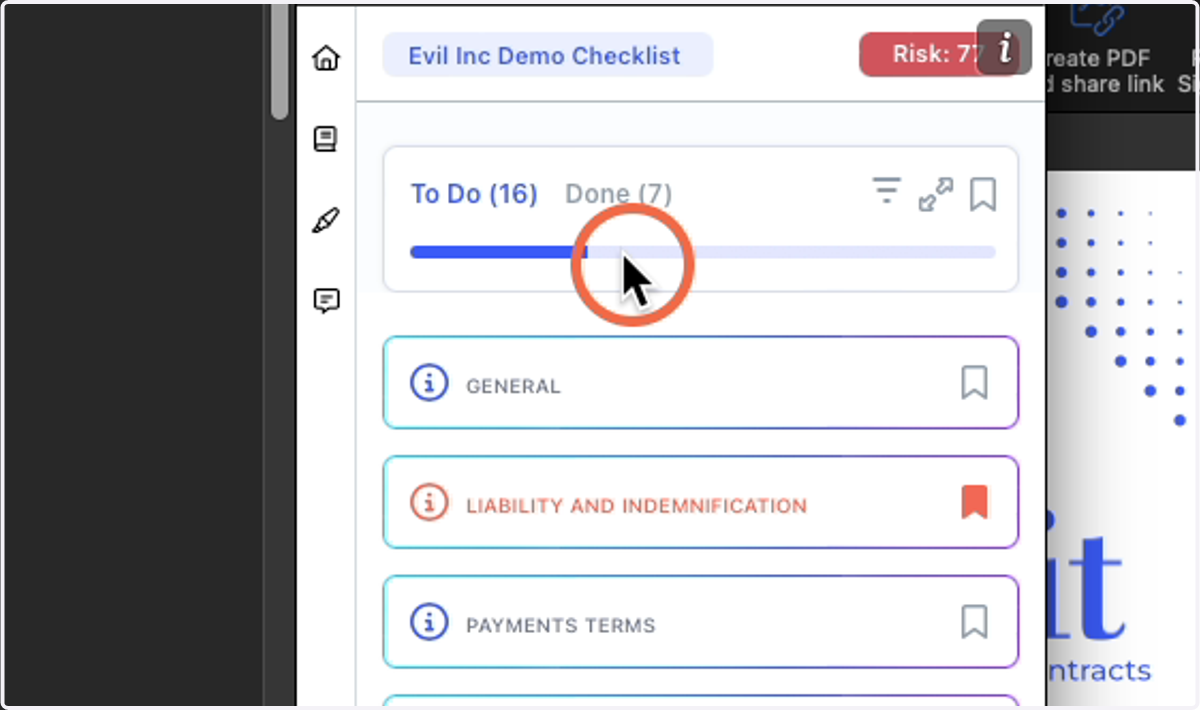
9. Groups
These are your groups, and they contain all of your issues. You can think of groups as folders to help organize the Issues within. Groups are notated with a "ℹ"
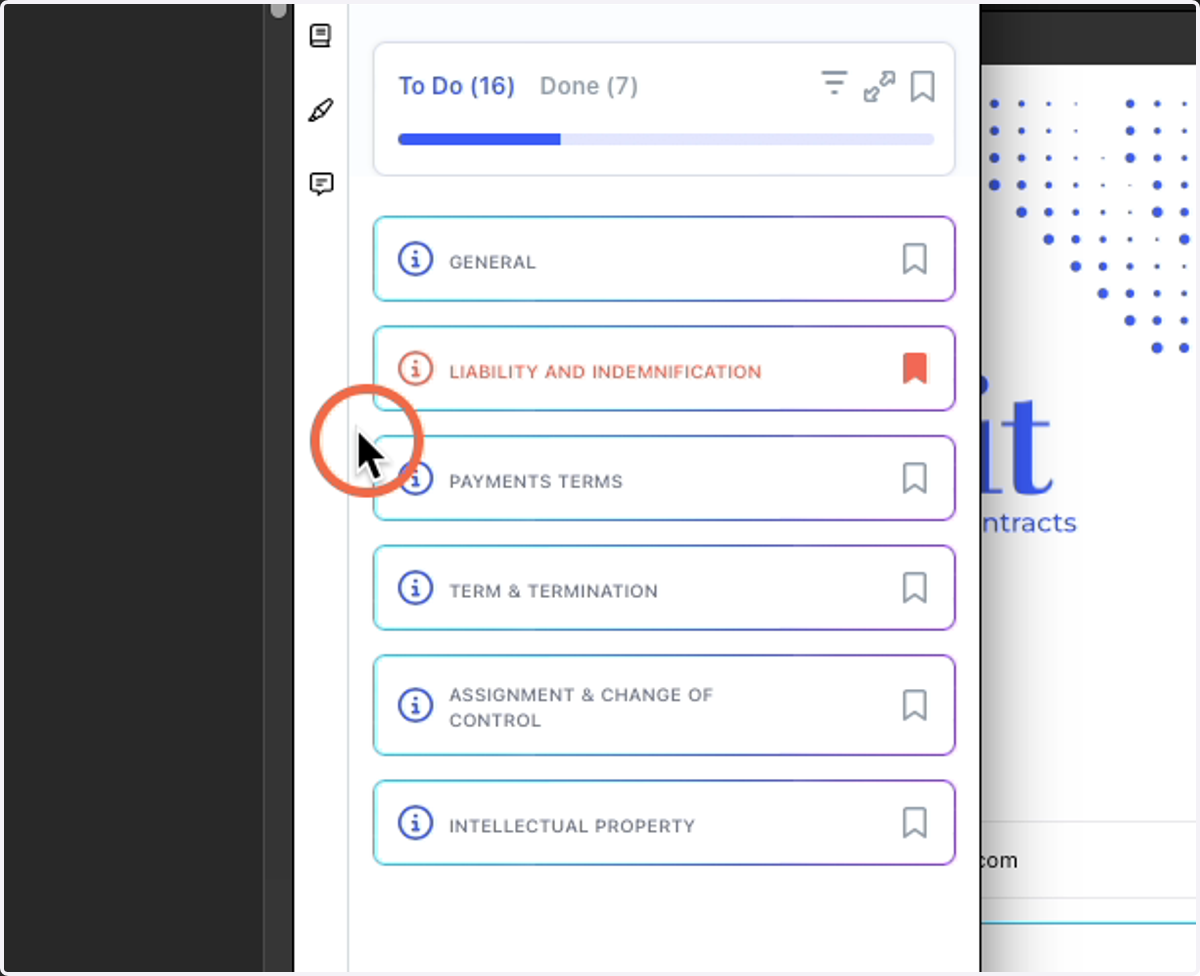
10. Click a Group to Expand it
This will allow you to see the Issues that are inside.
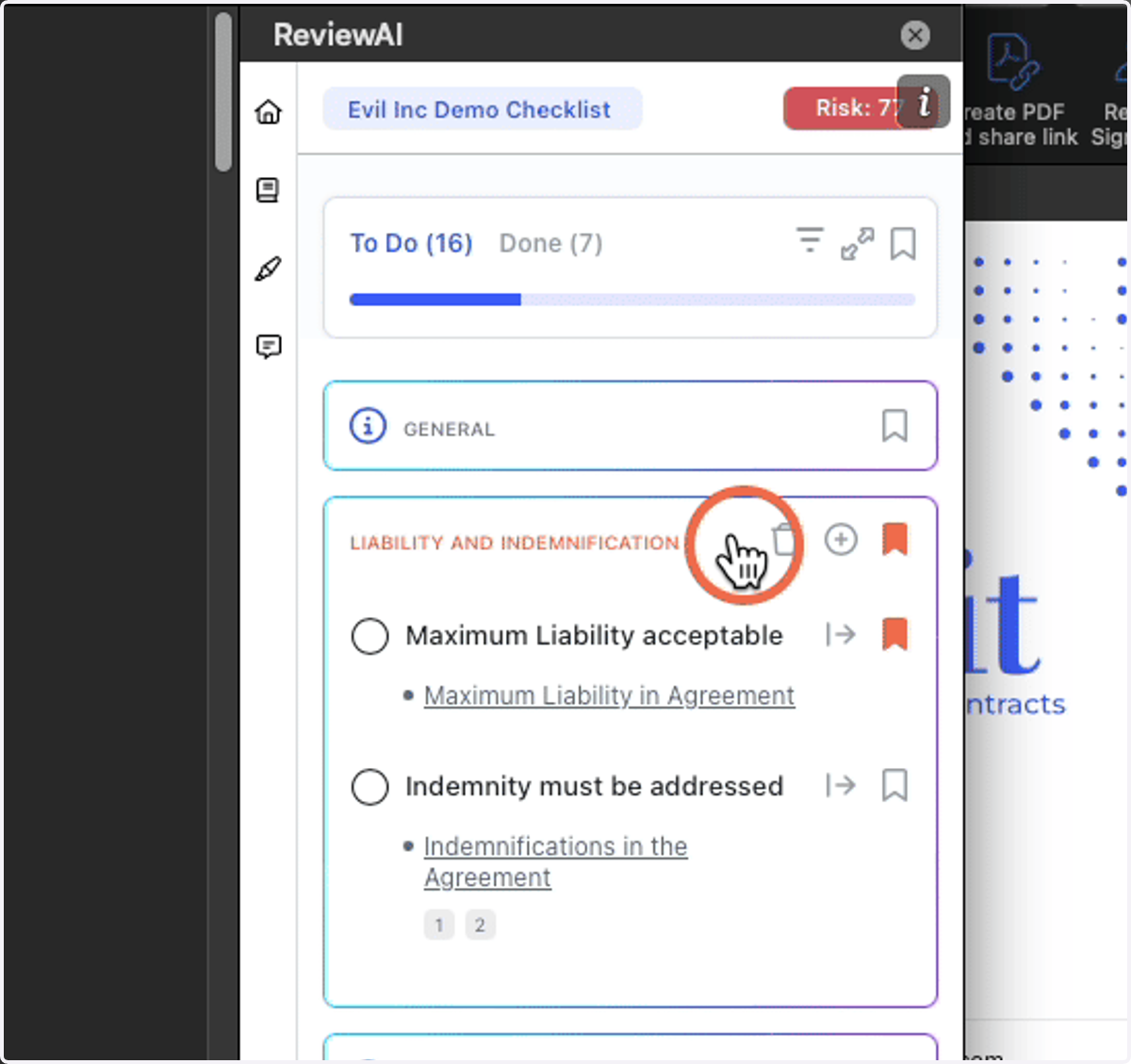
11. Issues are your Action Items
You are able to check off issues as you work your way through the contract. This will move them to Done
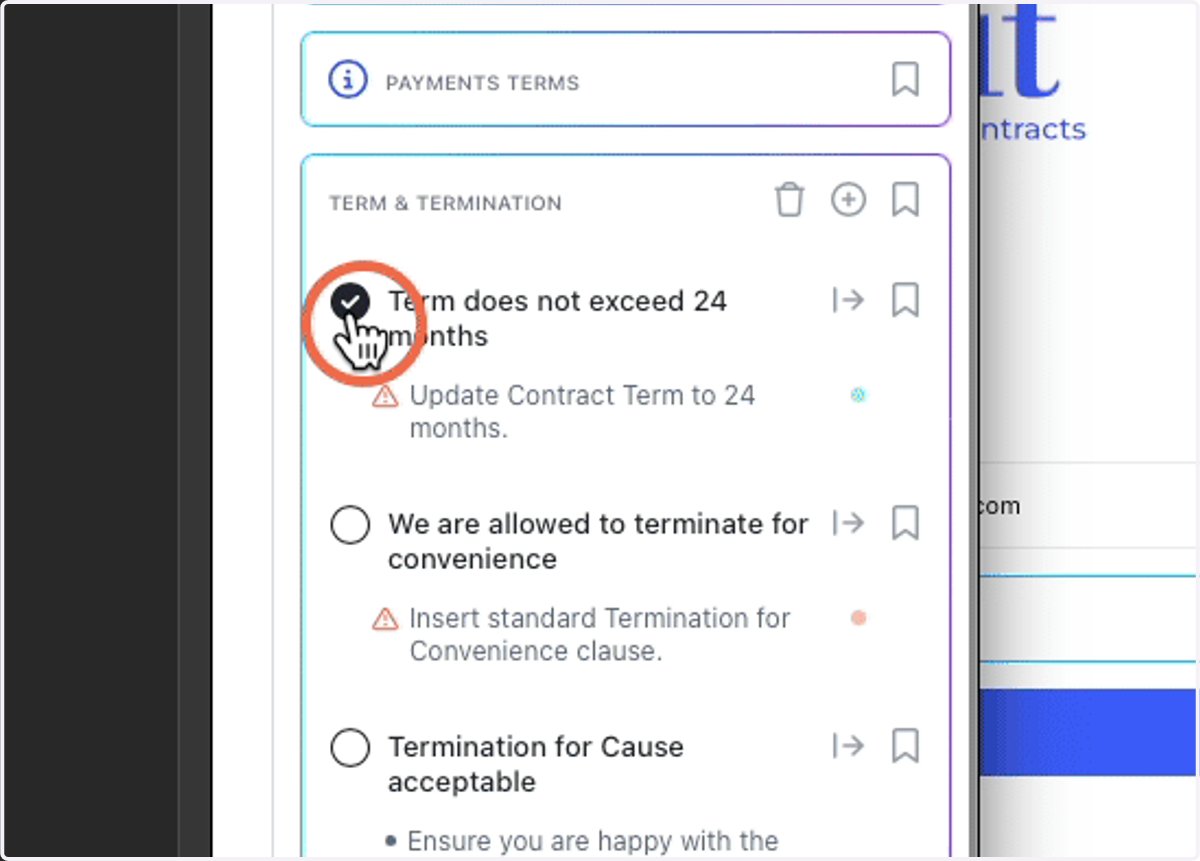
12. Issue Titles
Issues will have a Title in bold
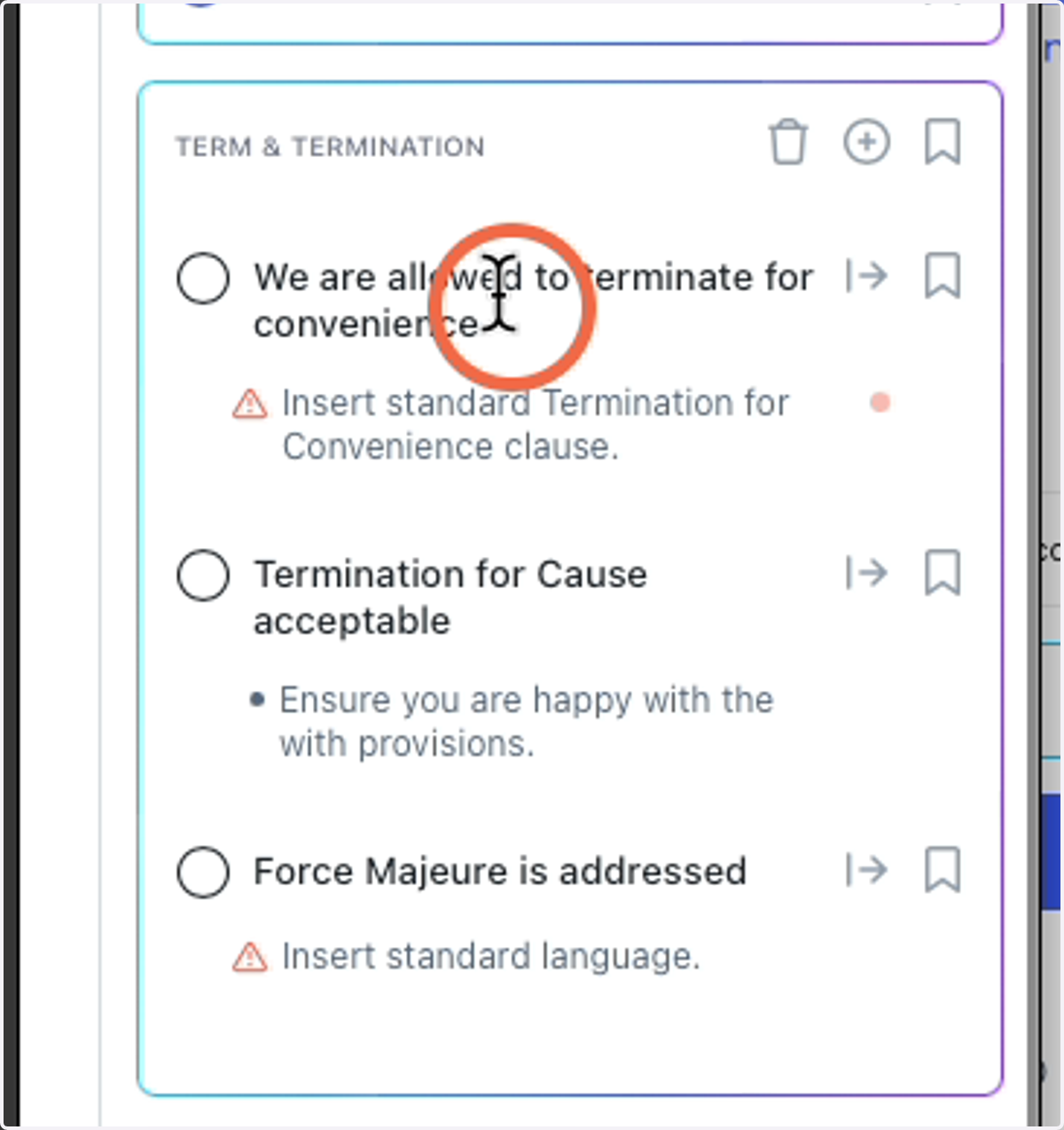
13. Issues: In-app Comments
Under the titles, you will see In-app comments. These guide the reviewer in the actions they should take for each question that was asked of the AI.
***If you need to see the full question that was asked of the AI, you can find it in the Details Page (more to come on the Details page).
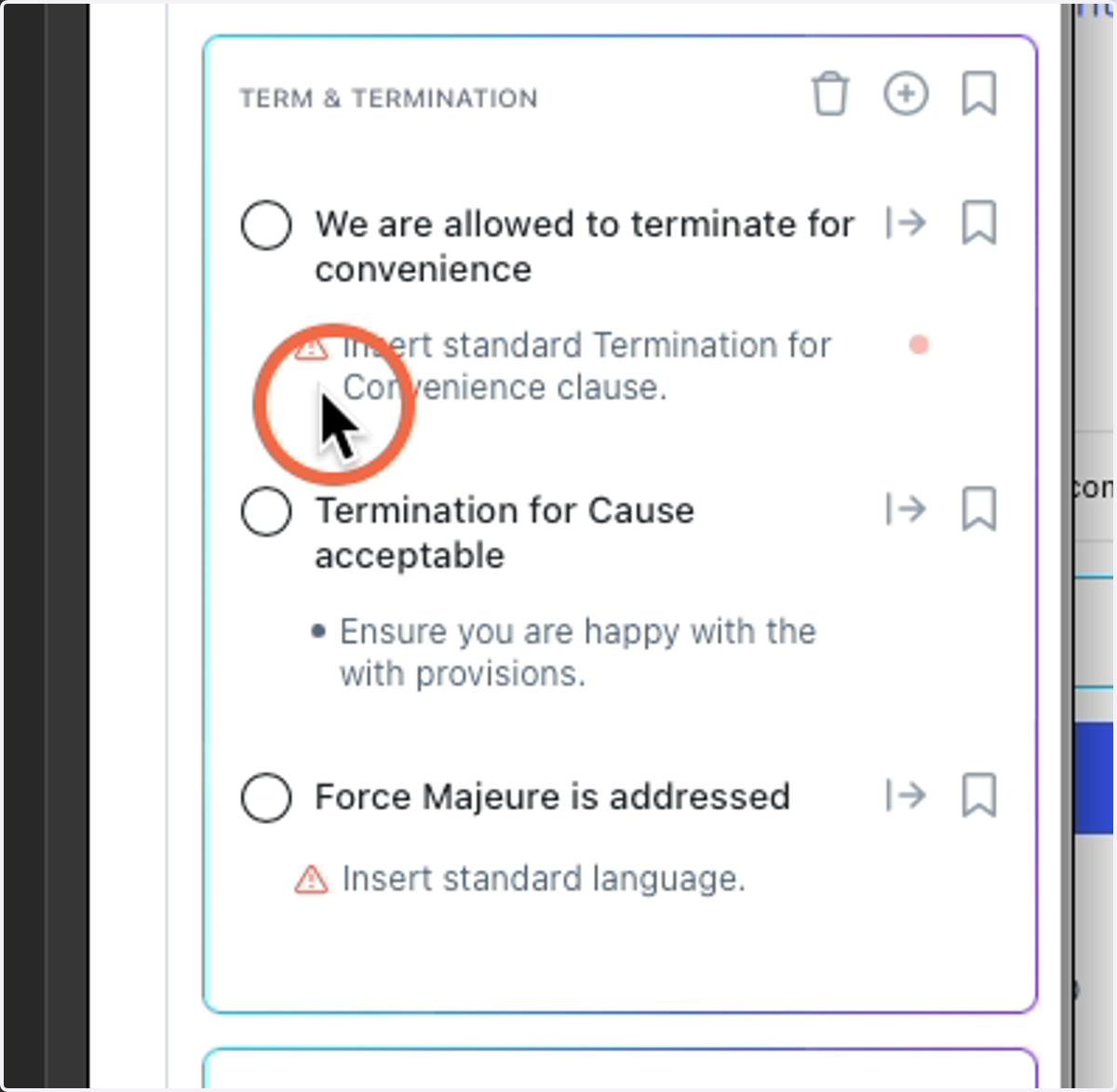
14. Issues: References
You may notice that an In-ap Comment could be underlined, this means that it has a reference that you can jump to, in the contract. When there is more than one reference, they will be listed as footnotes.
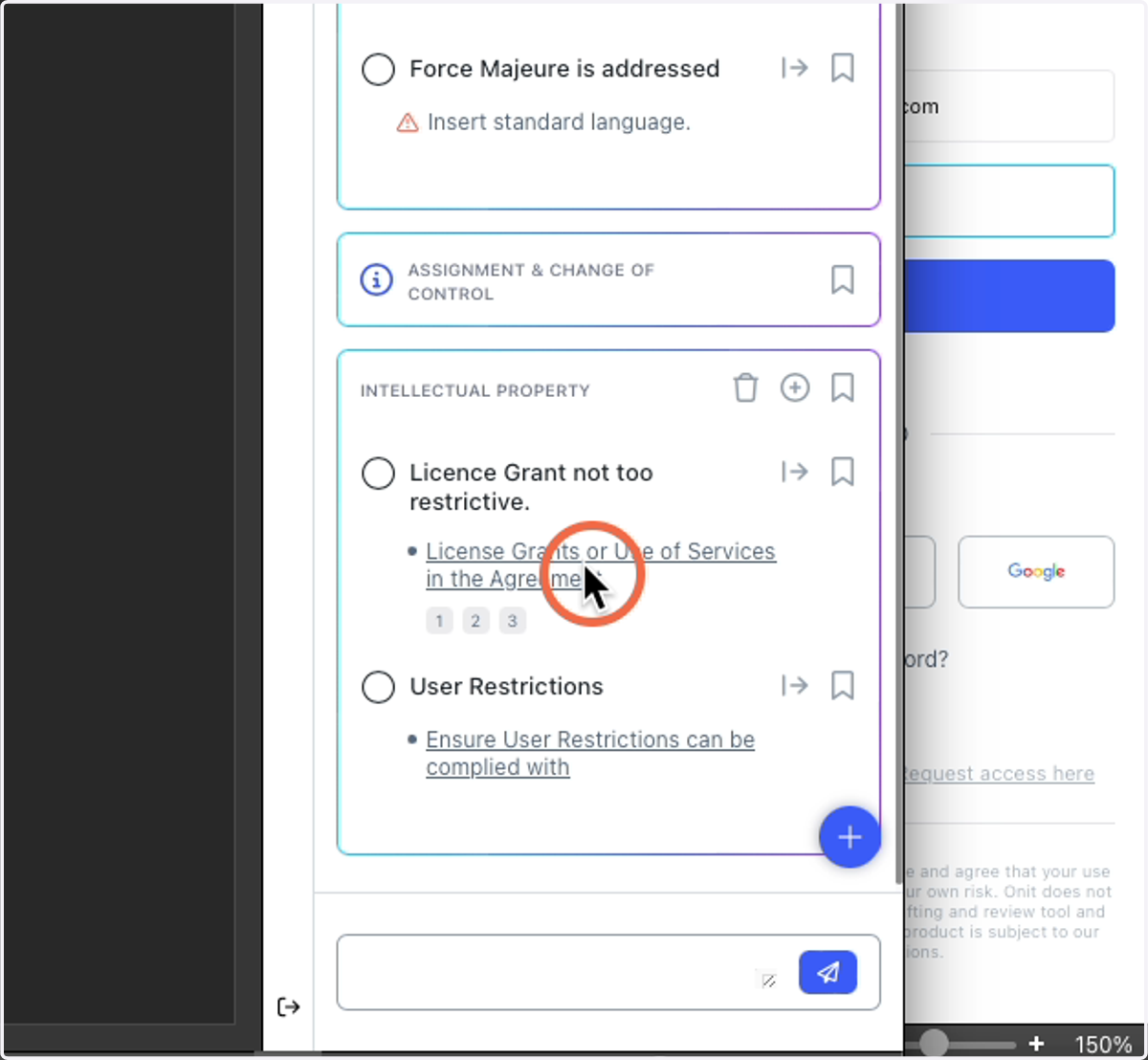
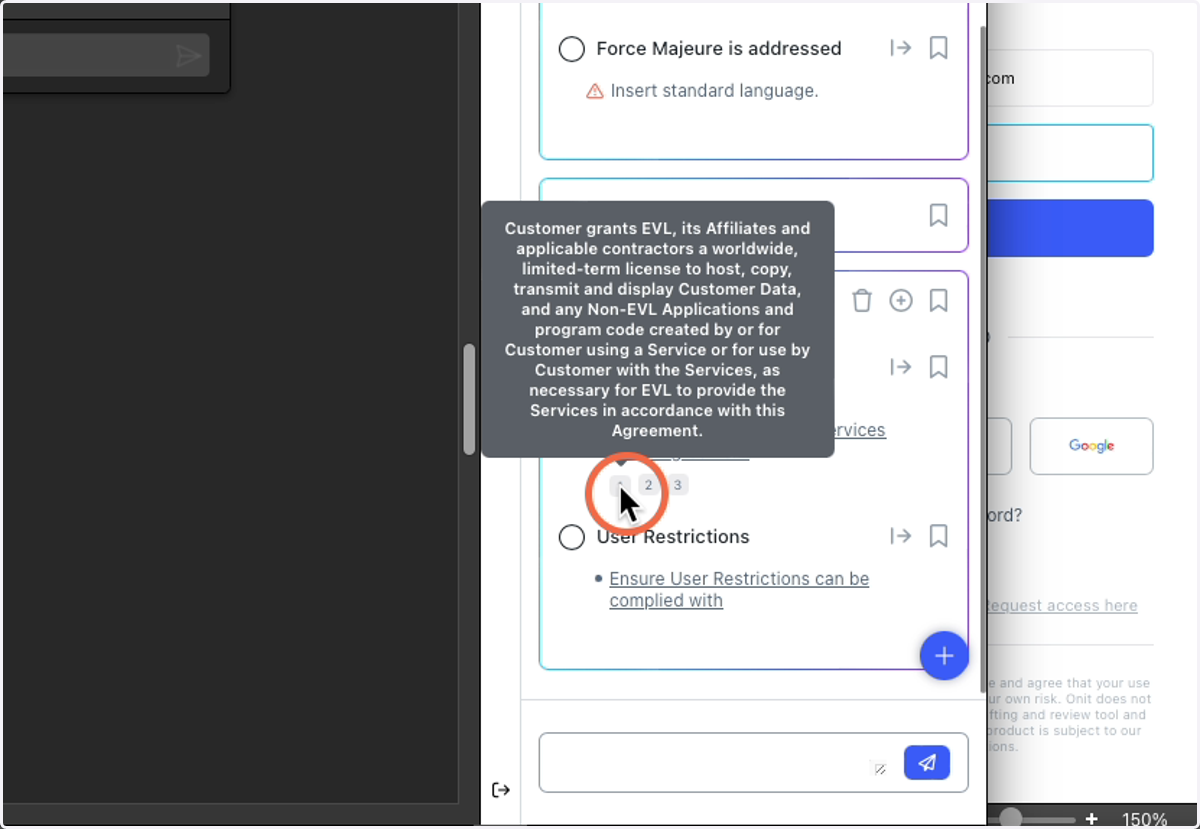
15. Issues: References continued
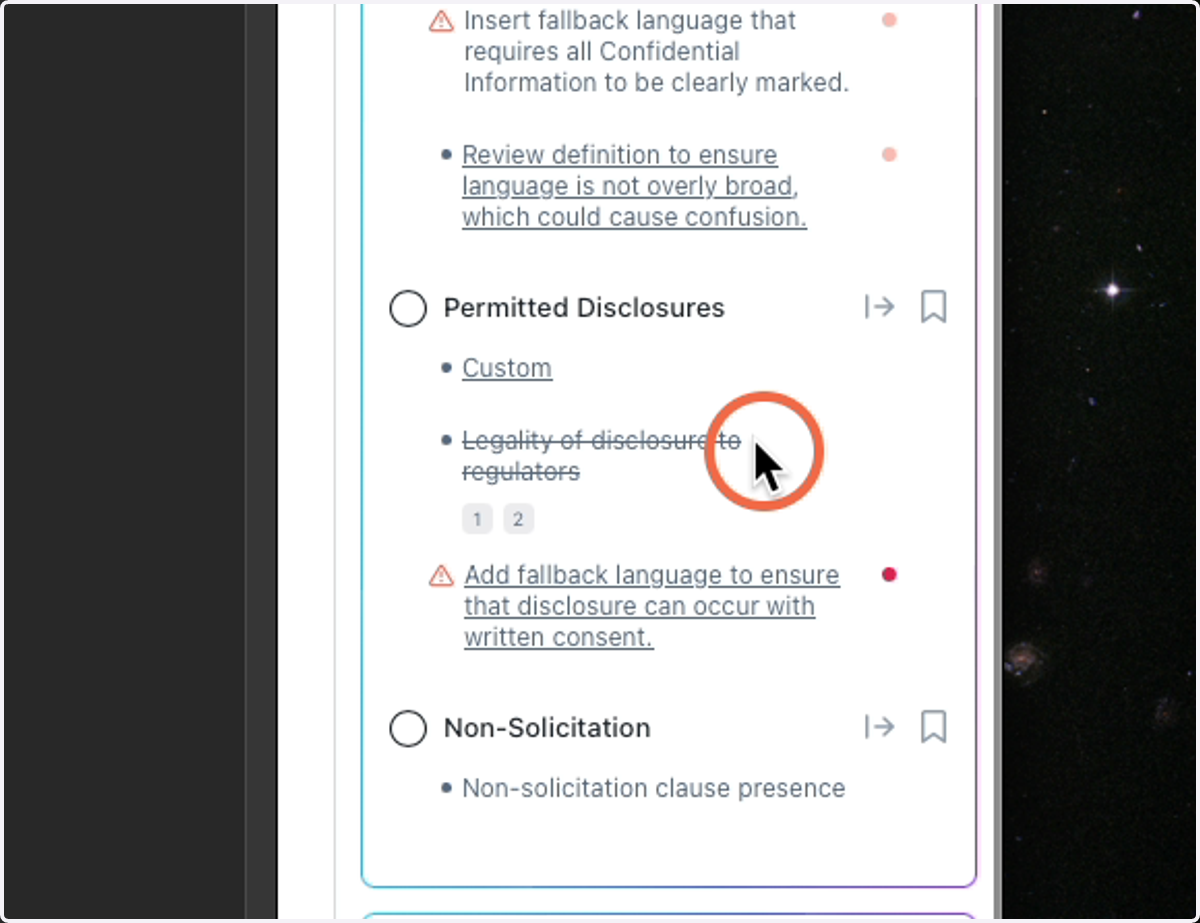
You are able to hover over the footnote to read the reference, or you can click and jump to that part of the contract.
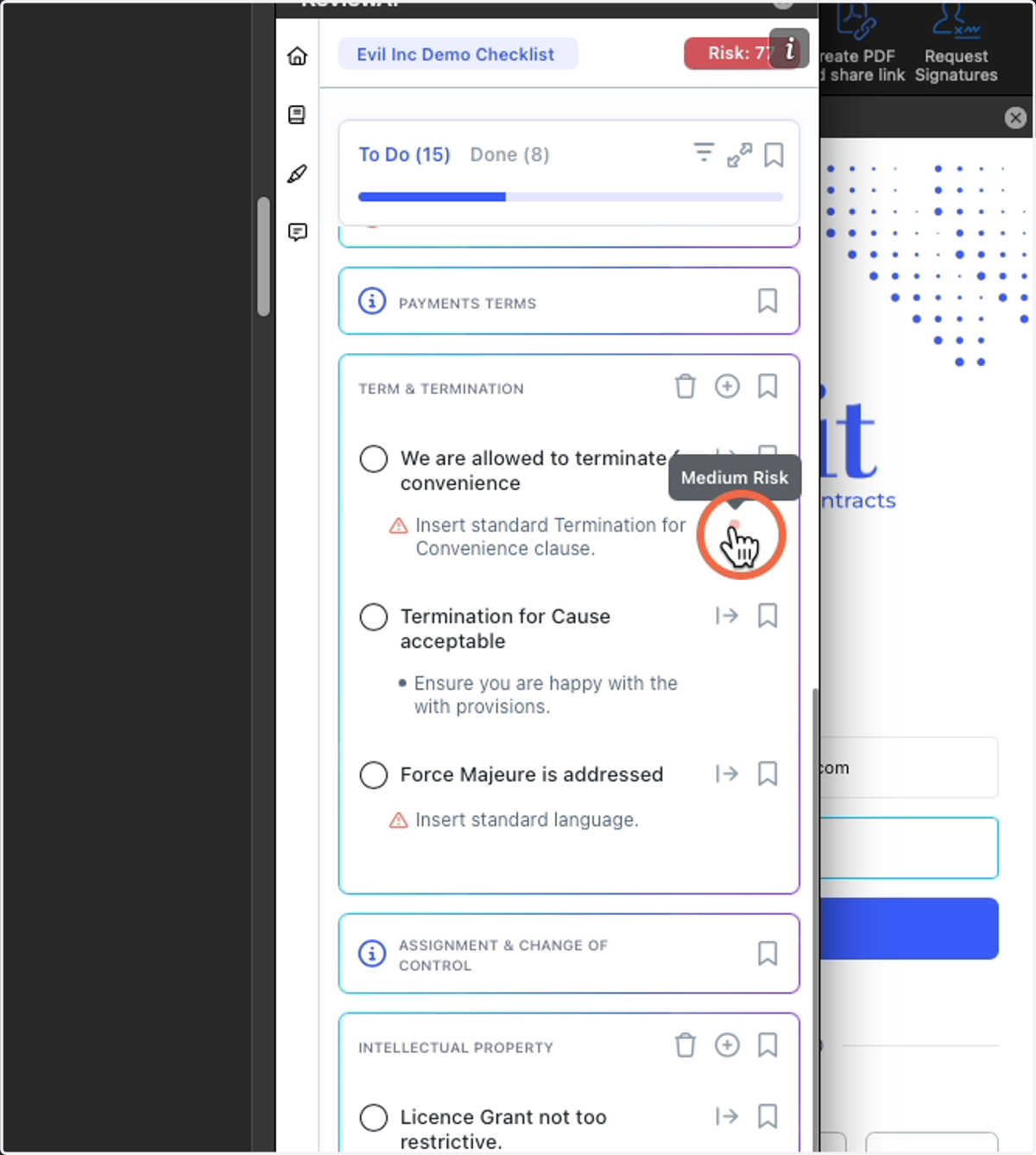
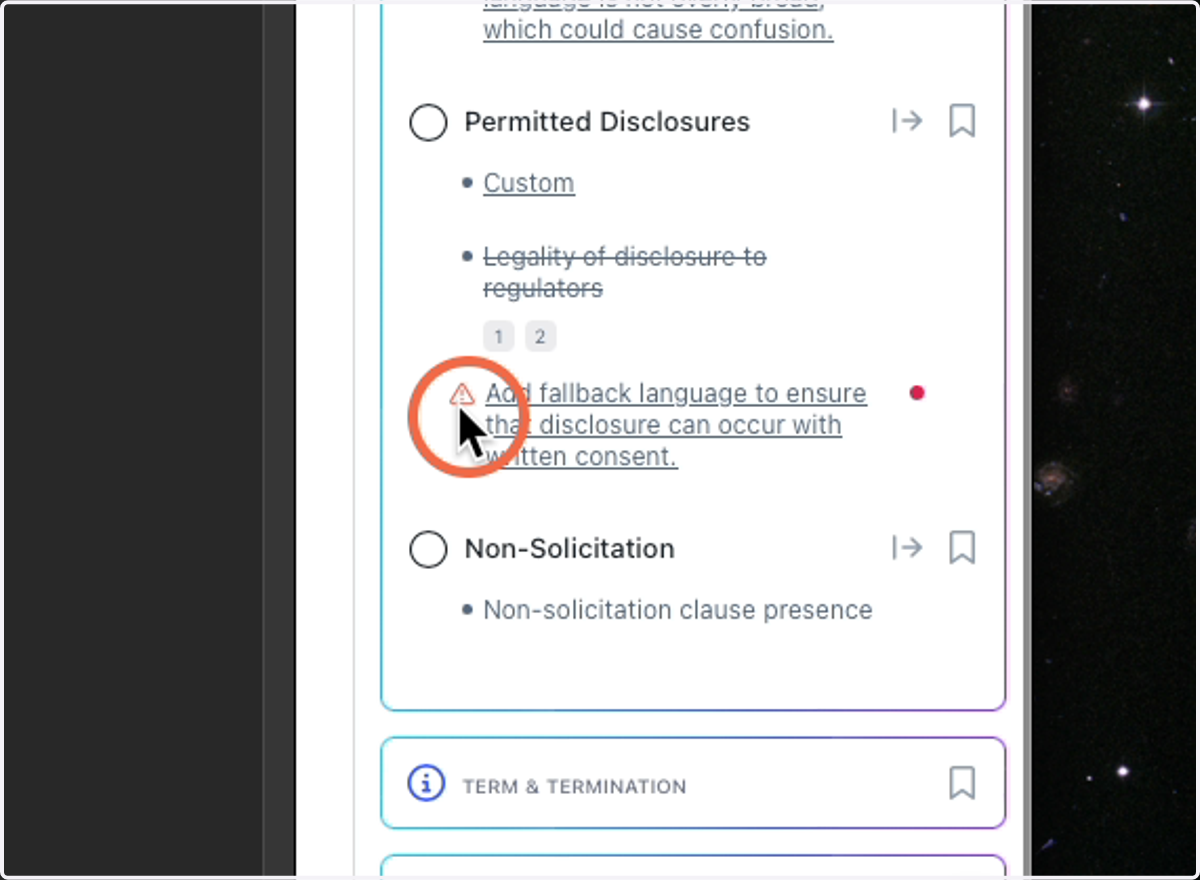
16. Issues: Risk Indicator
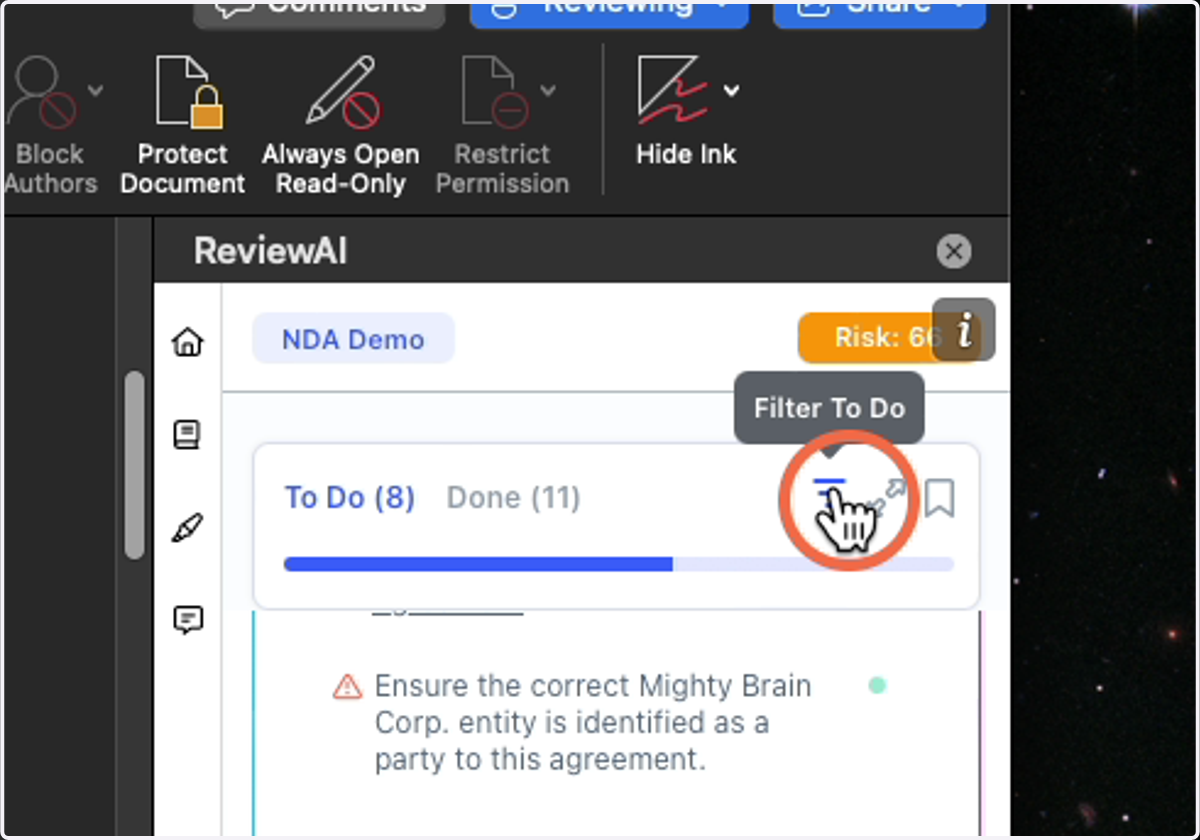
Let's you know how risky an Issue has been determined to be. There are 4 Levels of Risk, but only 3 have indicators.
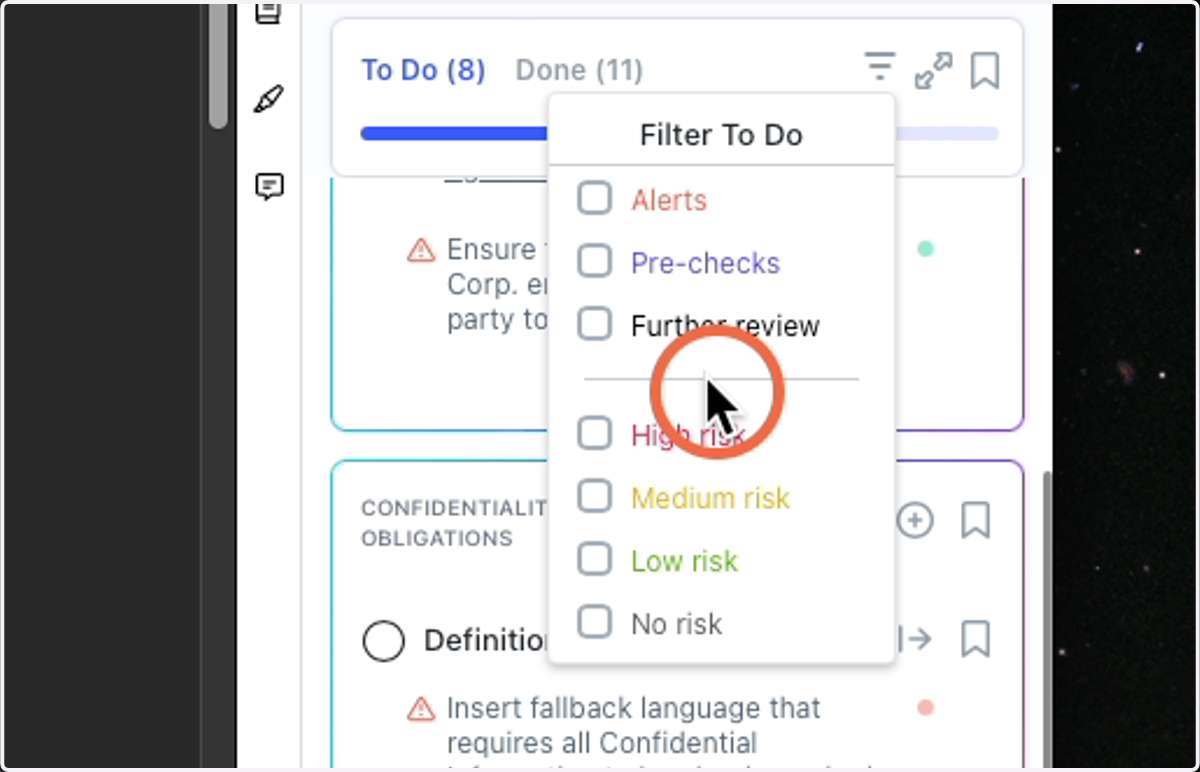
No Risk
Green - Low Risk
Orange - Medium Risk
Red - High Risk
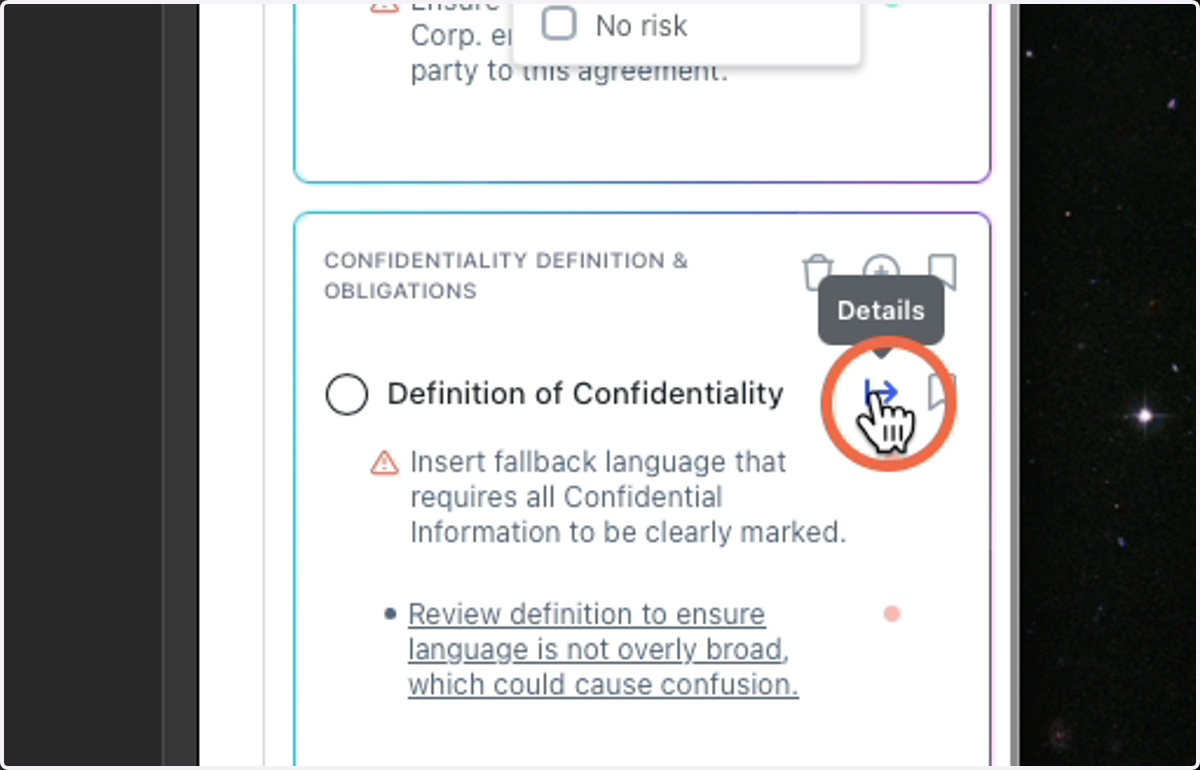
17. Issues: Details Page
Sometimes you need more information about an Issue than what is provided at this top level. We have a place to help you with that, it's called the Details Page. You get to it by clicking the arrow in the top right of an issue.
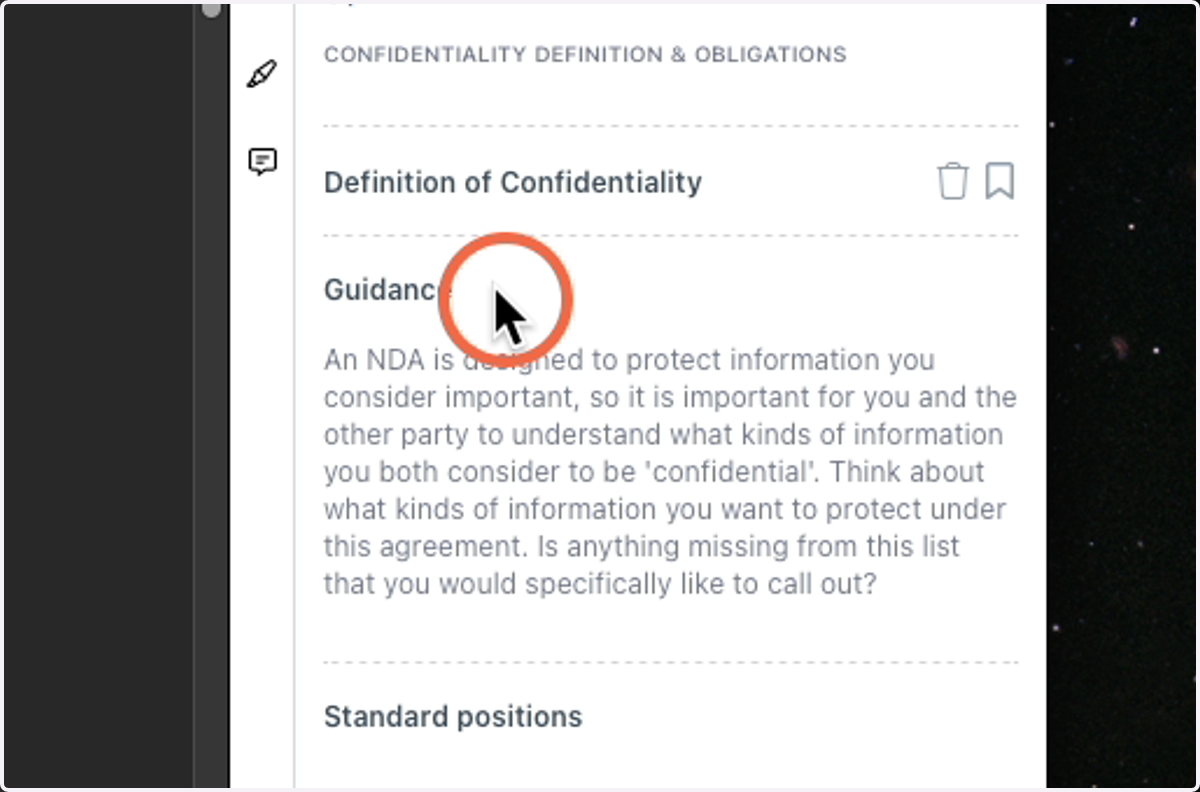
18. Details: Guidance
Within the details page, you will find an area for typing in Notes, and some Issues could have prefilled Guidance for the reviewer.
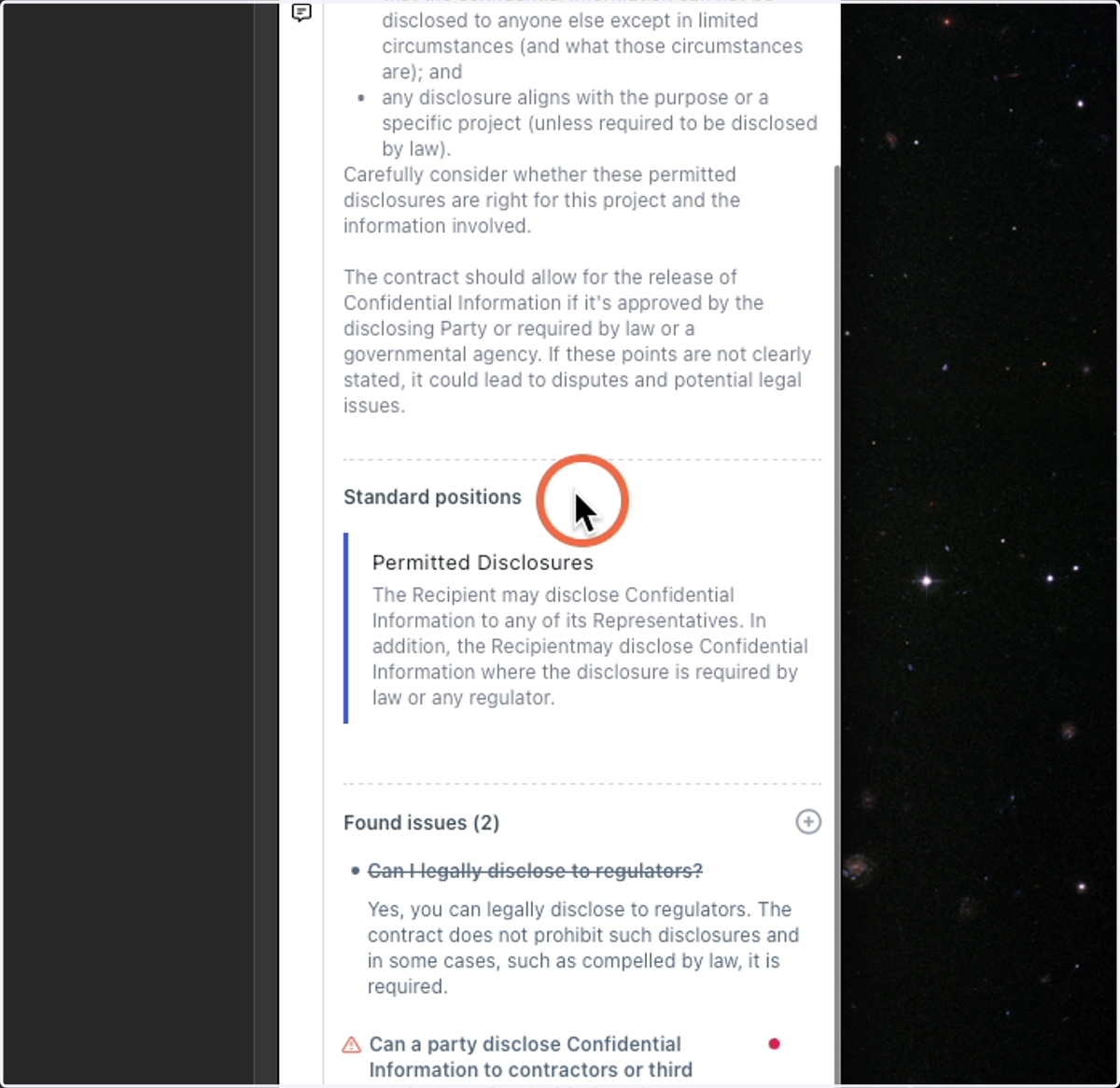
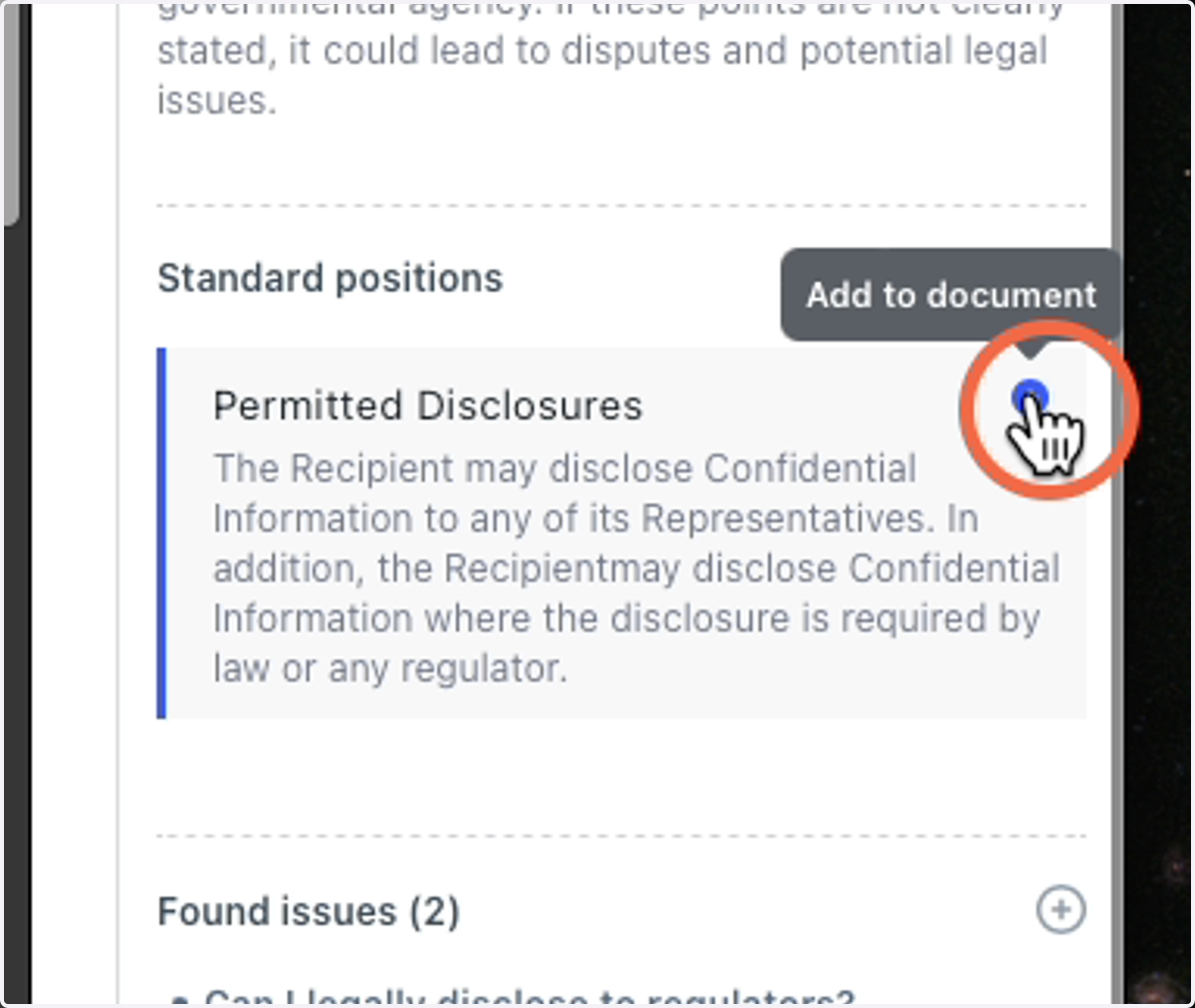
19. Details: Standard Positions
On the Details Page, you will also find your Positions. This is your organization's standard language for the Issue at hand.
20. Details: Positions - Insert
You can Insert the language into the document. Click the Plus sign to add to document
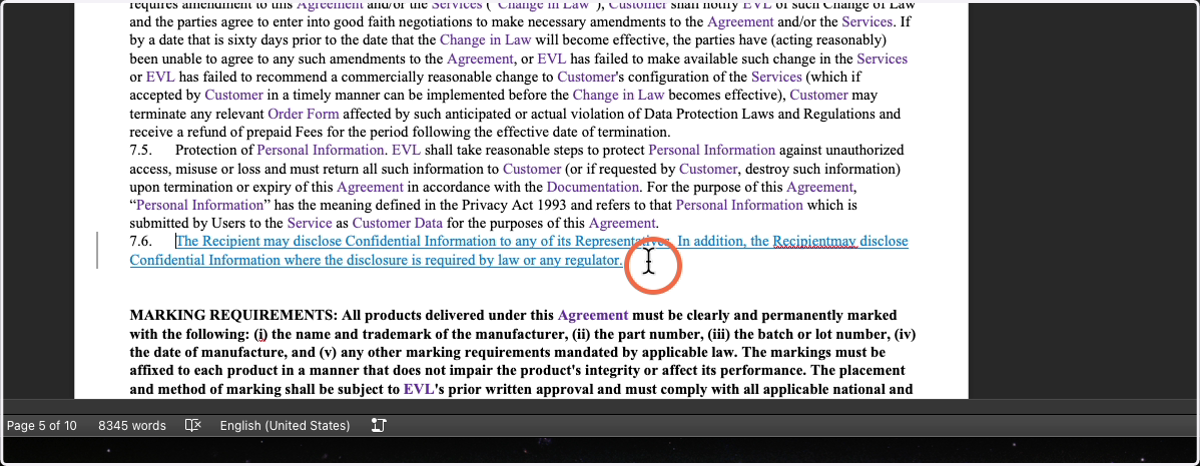
21. Details: Positions - Insert (continued)
Click in the document where you want to insert the text, or highlight over text you wish to replace.
22. Details: Found Issues - Question
Here you will see the full question of what has been asked of the AI in Bold.
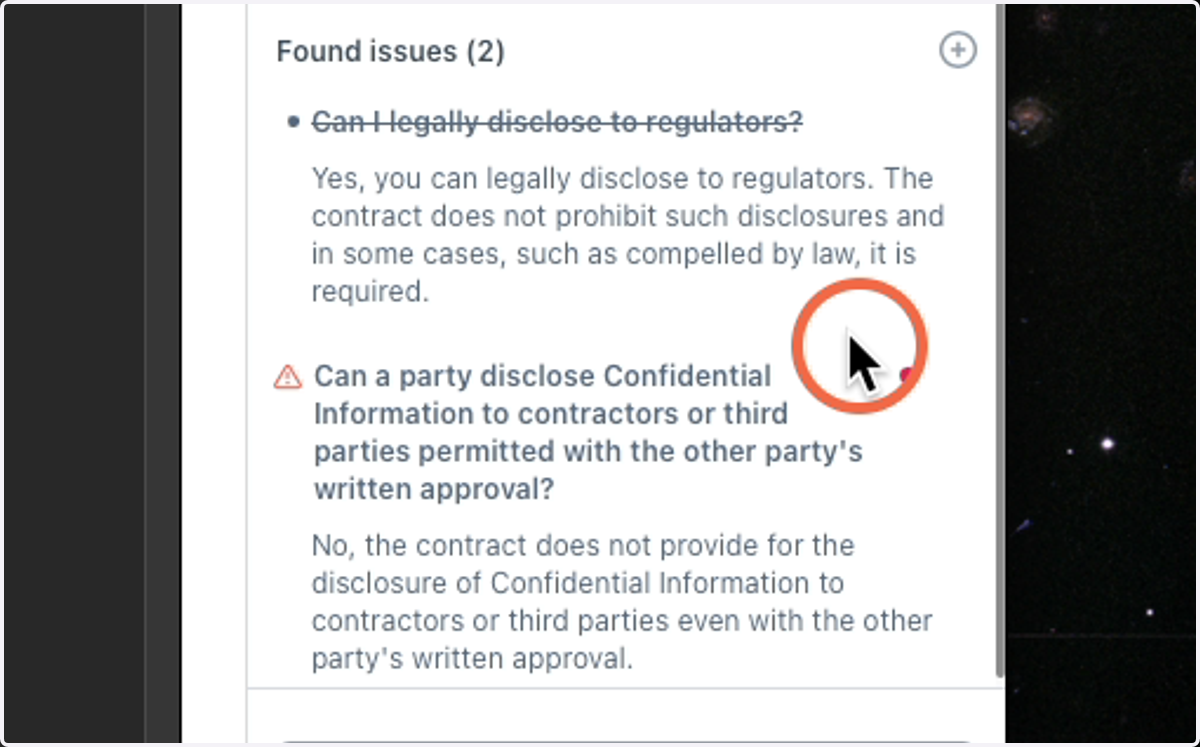
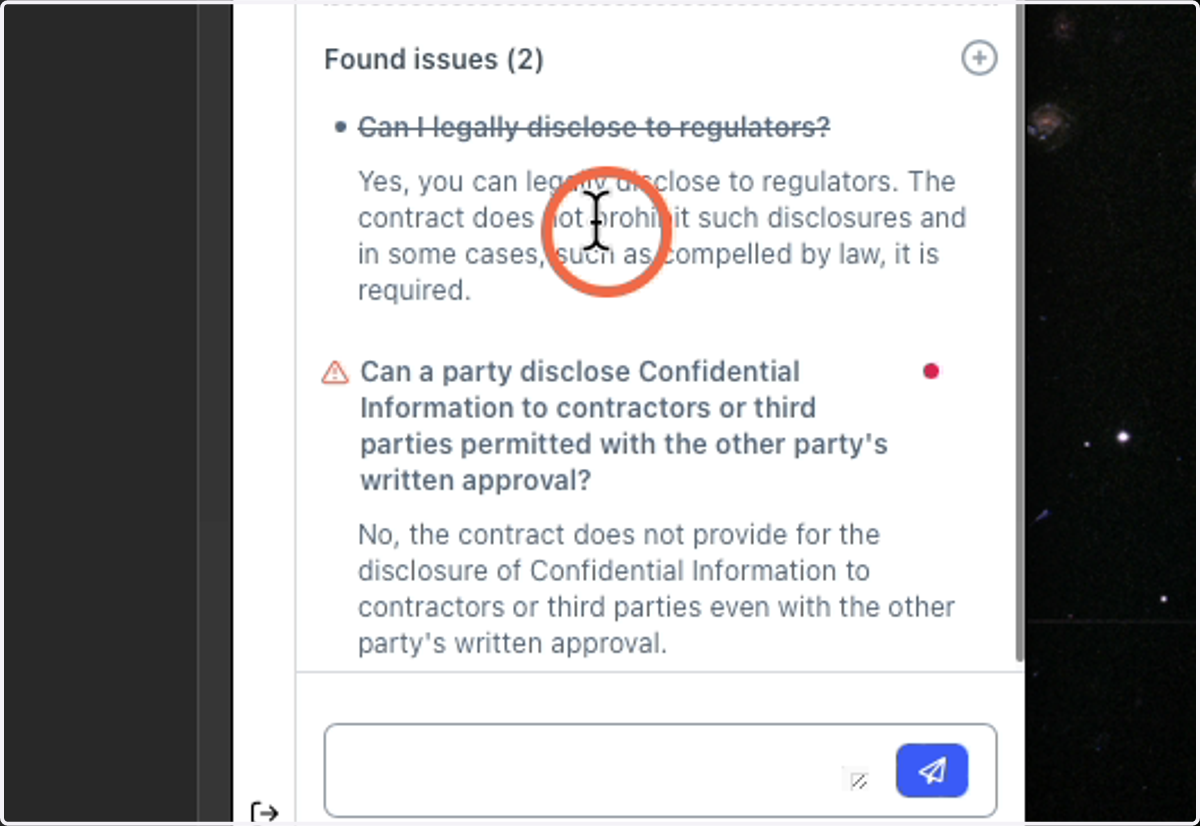
23. Details: Found Issues - AI Answer
The text underneath the question is the AI response. It should be a small description of why it has answered it that way.
24. Details: Found Issue - Add your own Reference
You can add your own reference to an issue so that you can jump back to it. Copy the text you want to refer to.
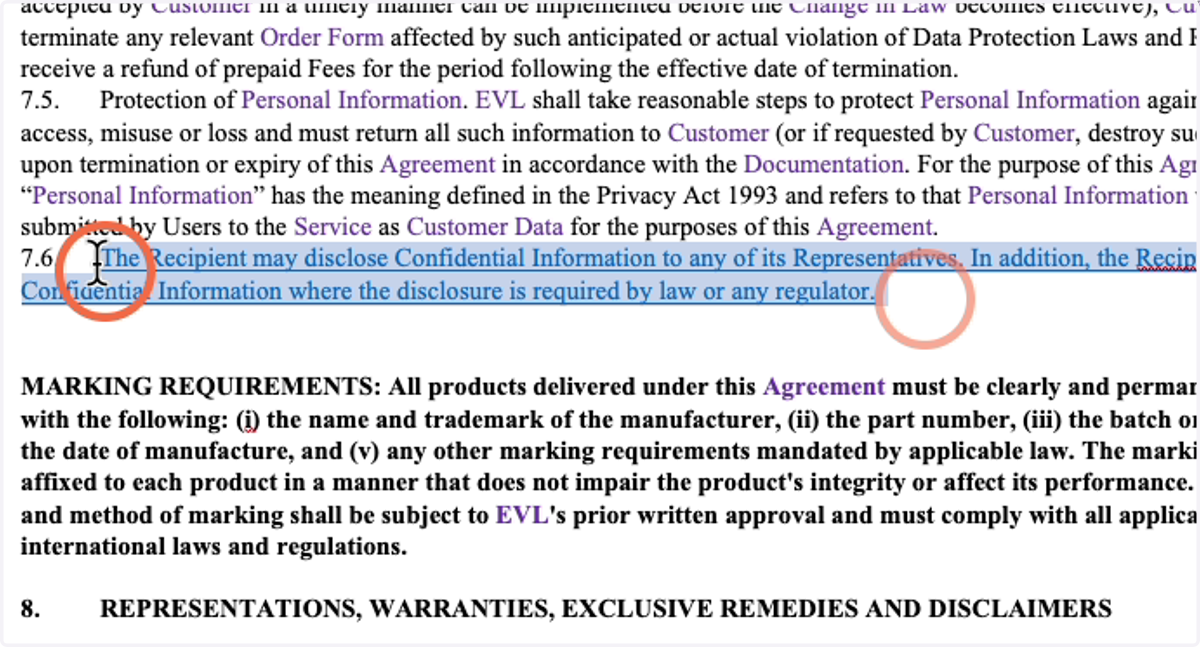
25. Details: Found Issue - Add your own Reference
After highlighting the text, click the plus sign to add your own custom reference
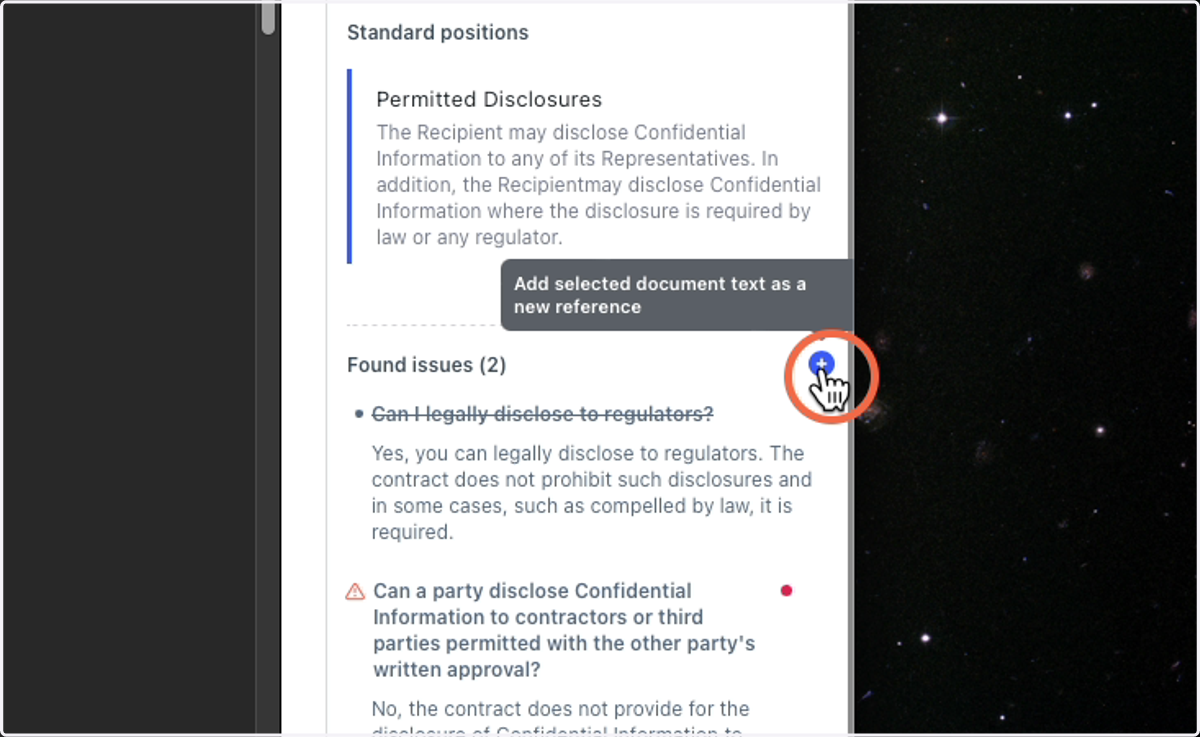
26. You will see it added with a 'Custom' title
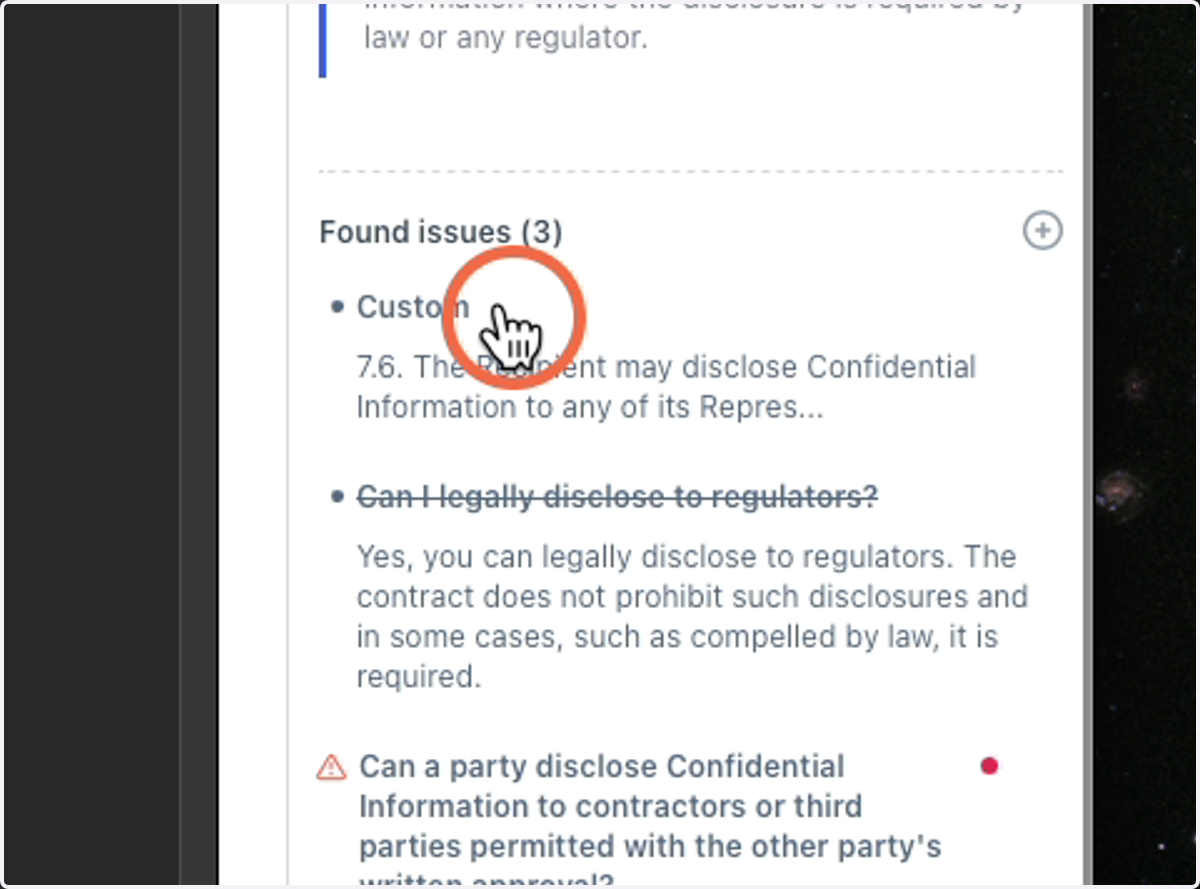
27. Clause Library
If you need to find your standard language and it's not attached in the Details Page, you have another place to find it. It's called the Clause library and you can find it by clicking the book icon.
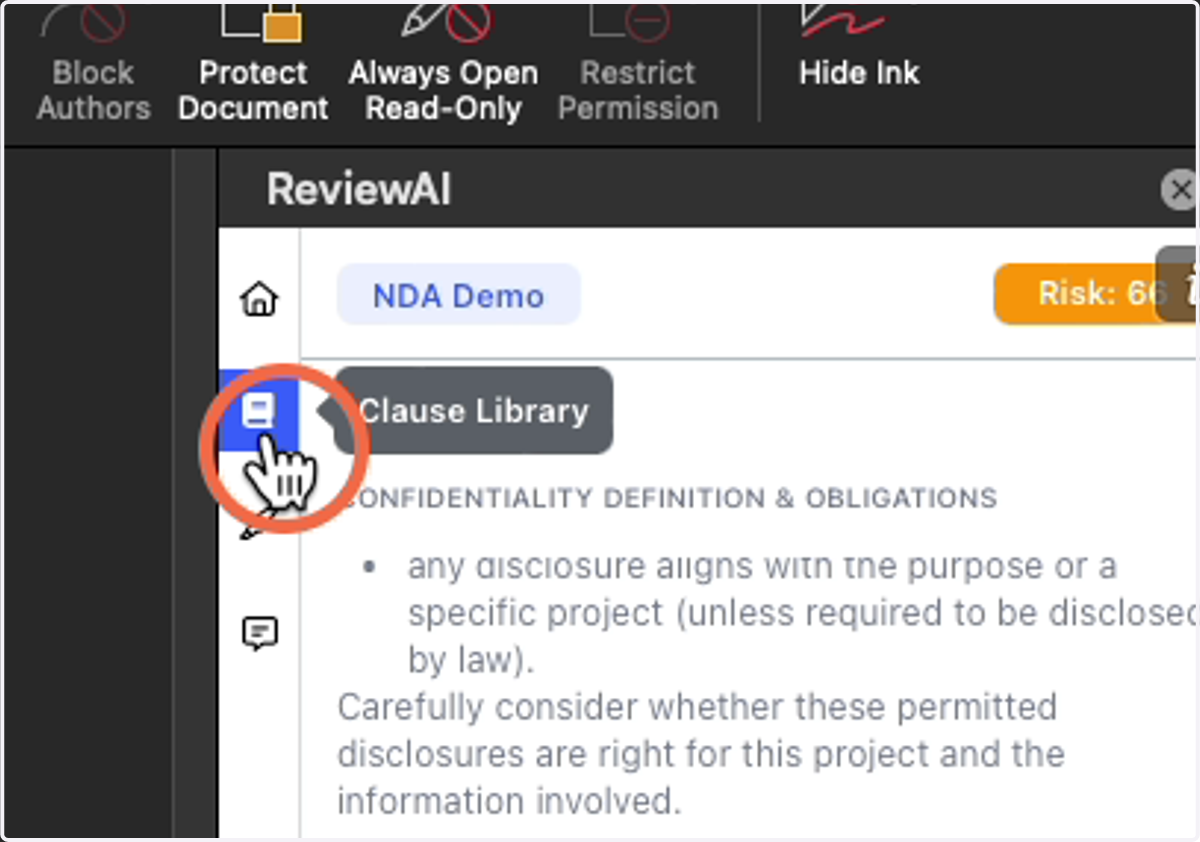
28. Clause Library continued
You will see your clauses listed in alphabetical order, by clause type.
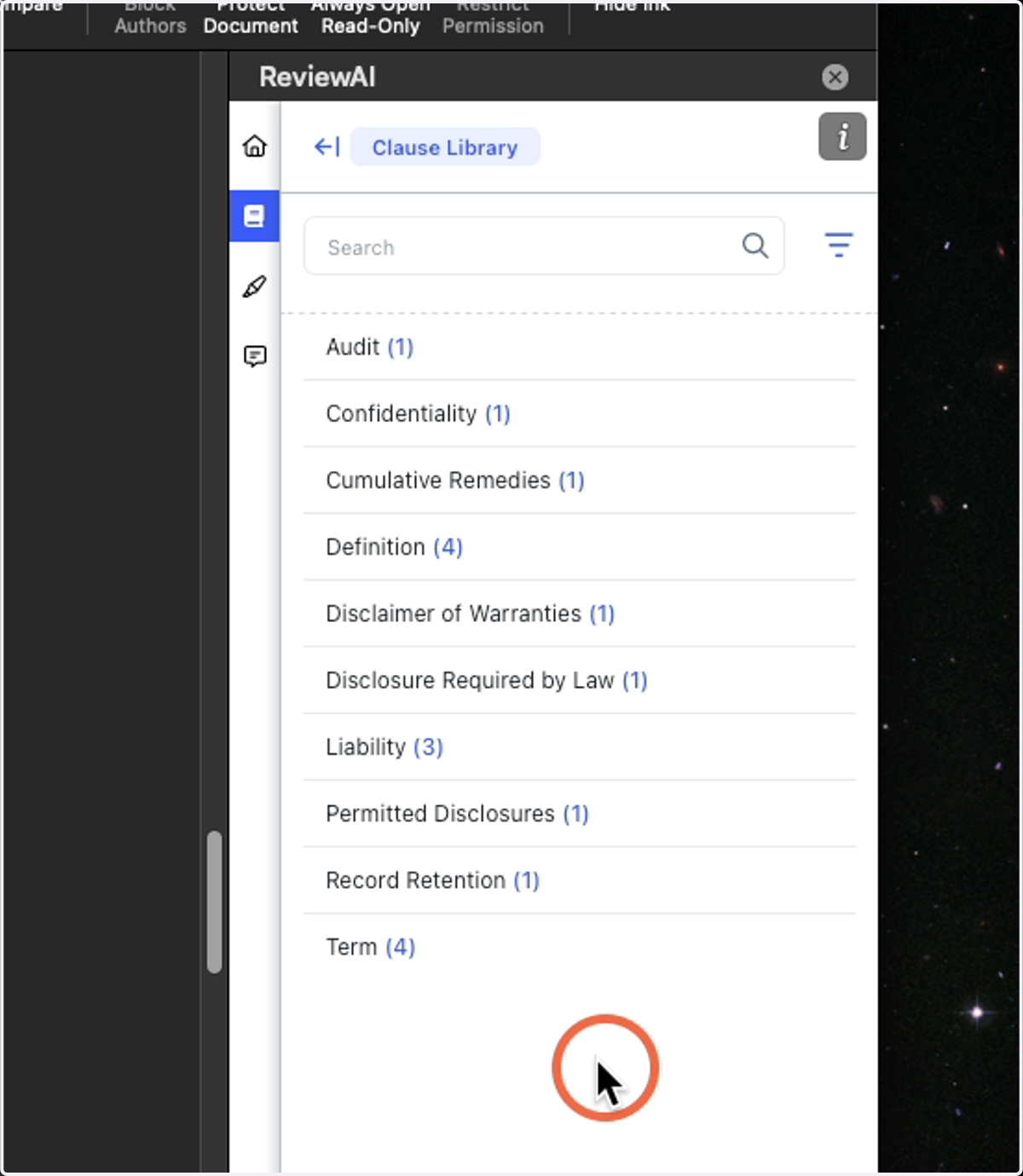
29. Click on the Clause Type to expand out all the clauses inside
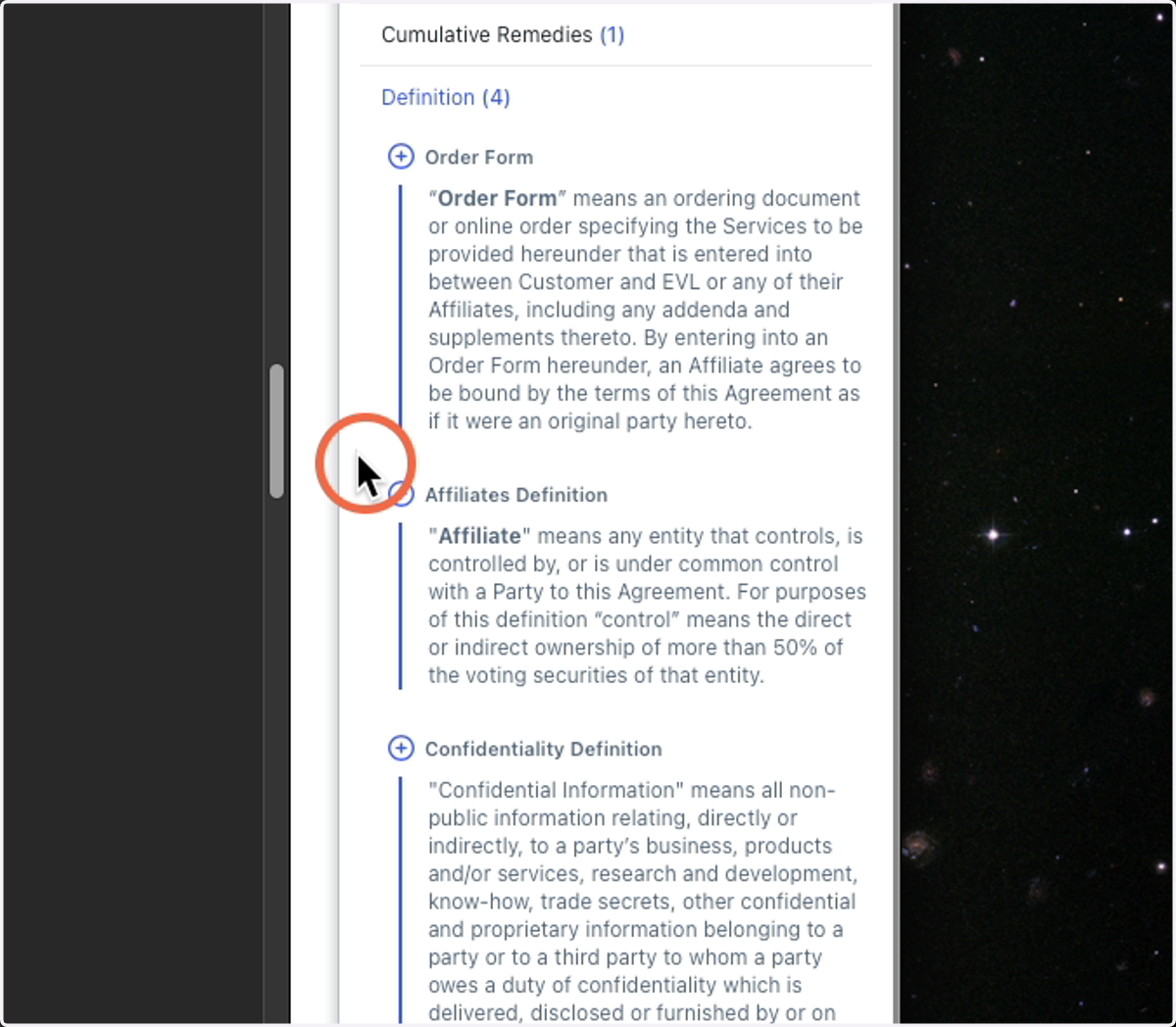
30. Edit Clauses by Clicking the Pencil
Depending on access, you can edit clauses by clicking the Pencil icon in the top right.
***When editing clauses you will be updating the clause for EVERYONE in the organization.
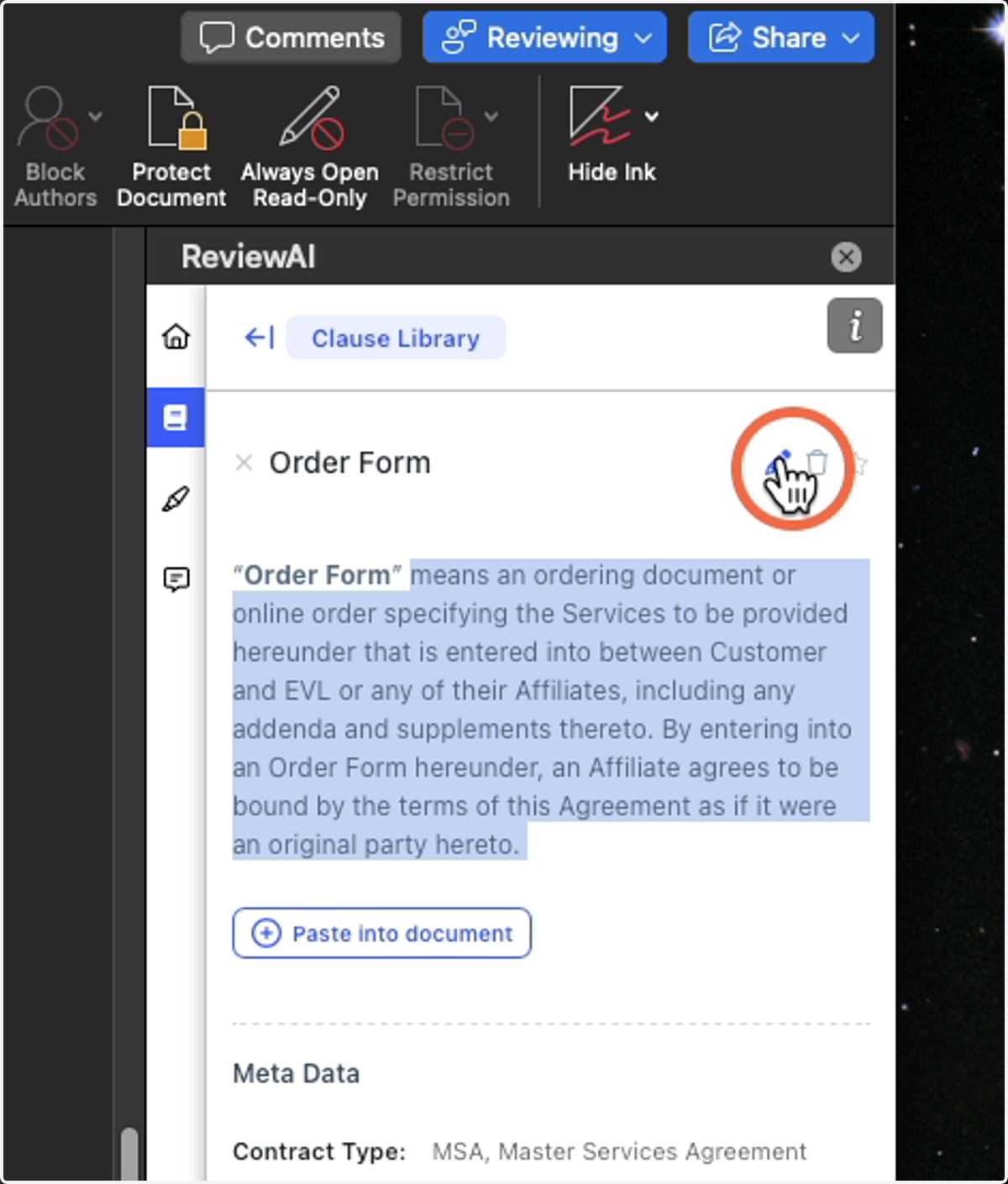
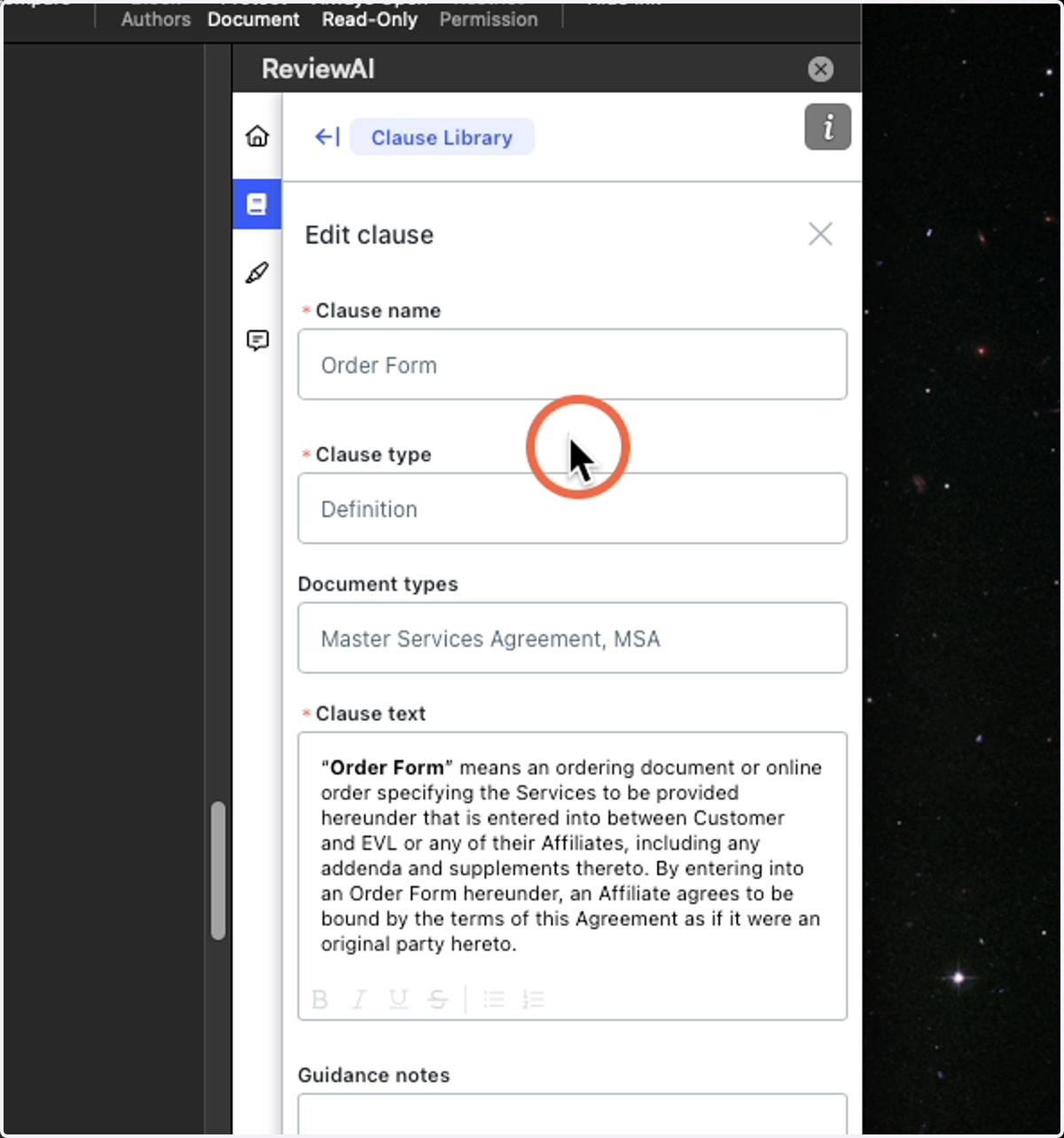
31. Editing/Creating a Clause
When editing or creating a clause, you have 3 fields that must have information in them.
Clause Name - Identifier for the clause
Clause Type - How the Clause should be organized. You are free to create your own.
Clause Text - This is the body of the clause, the actual language that would be in the contract.
32. Clause Guidance
You are also able to put in clause guidance, just like you can for Issues. This can give the reviewer more context on when to use the clause or other negotiation techniques.
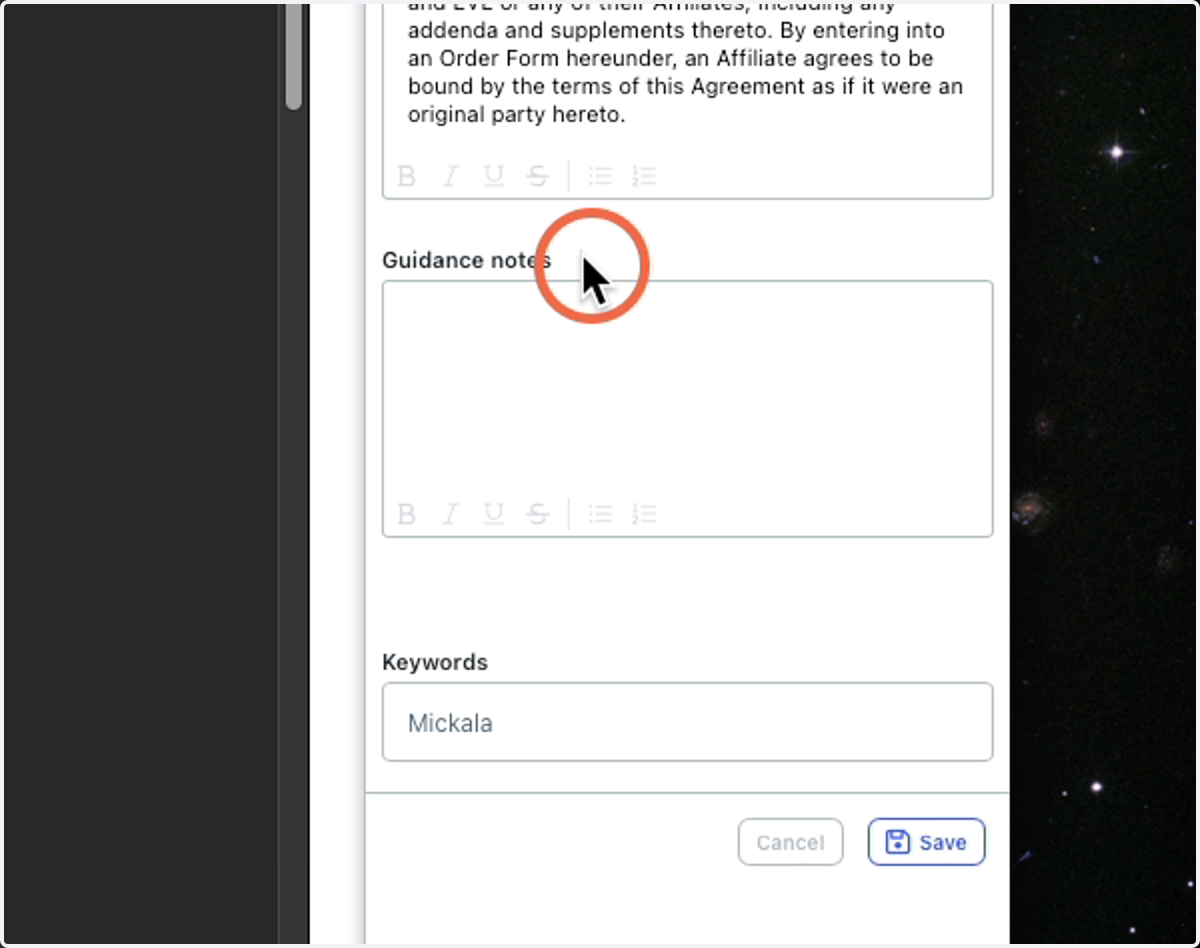
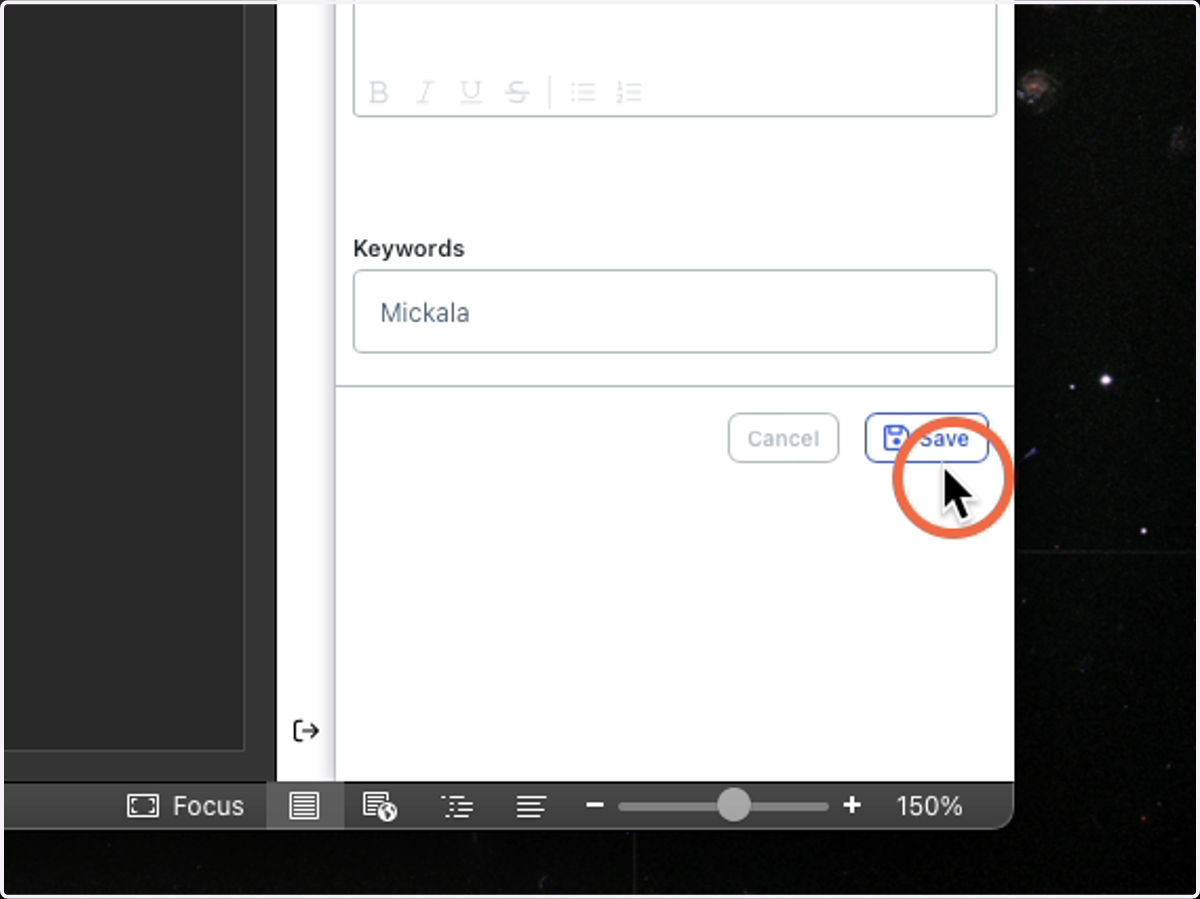
33. When finished updating/creating the clause click save.
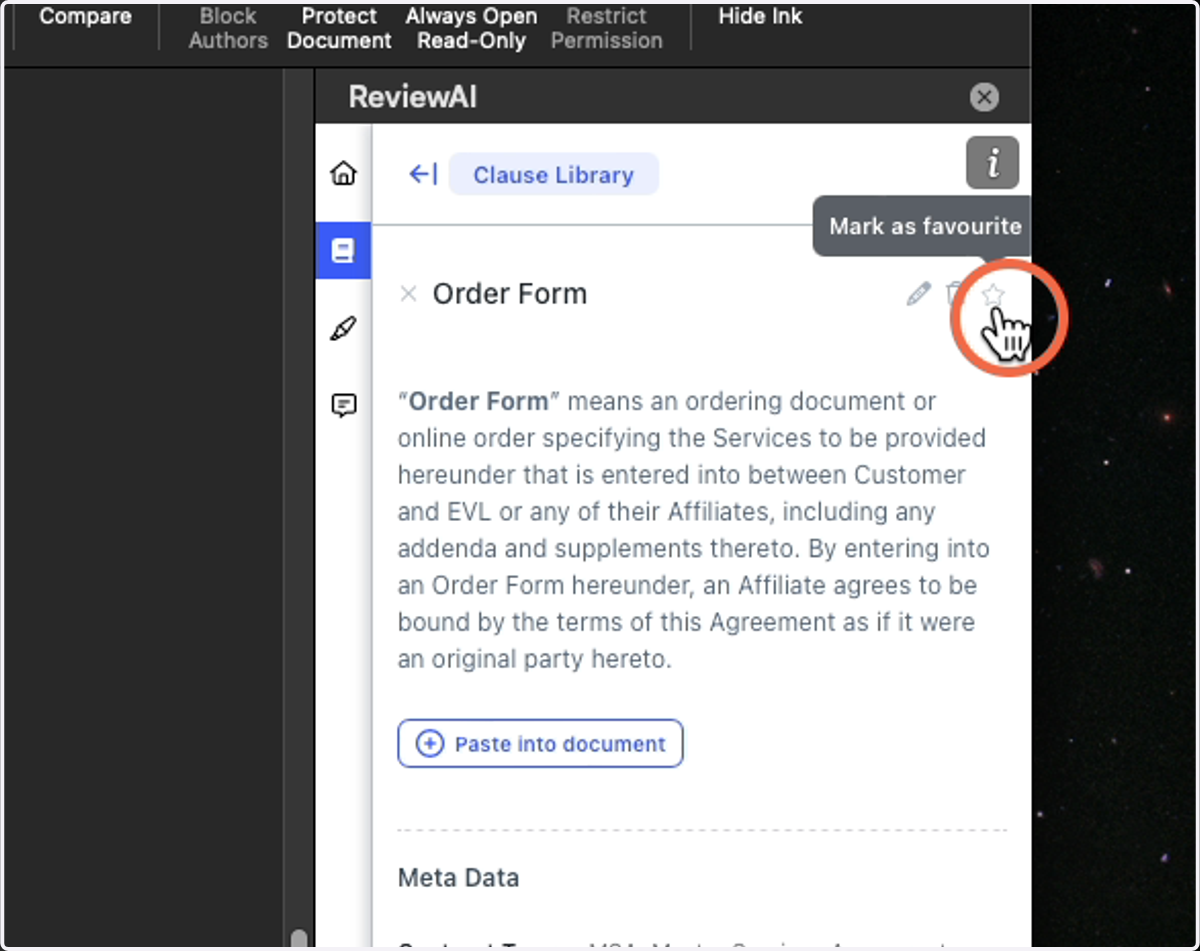
34. Mark a Clause as Favorite
Click the star to mark a clause as a Favorite. This makes it easy to pull up later if you find yourself referencing it a lot.
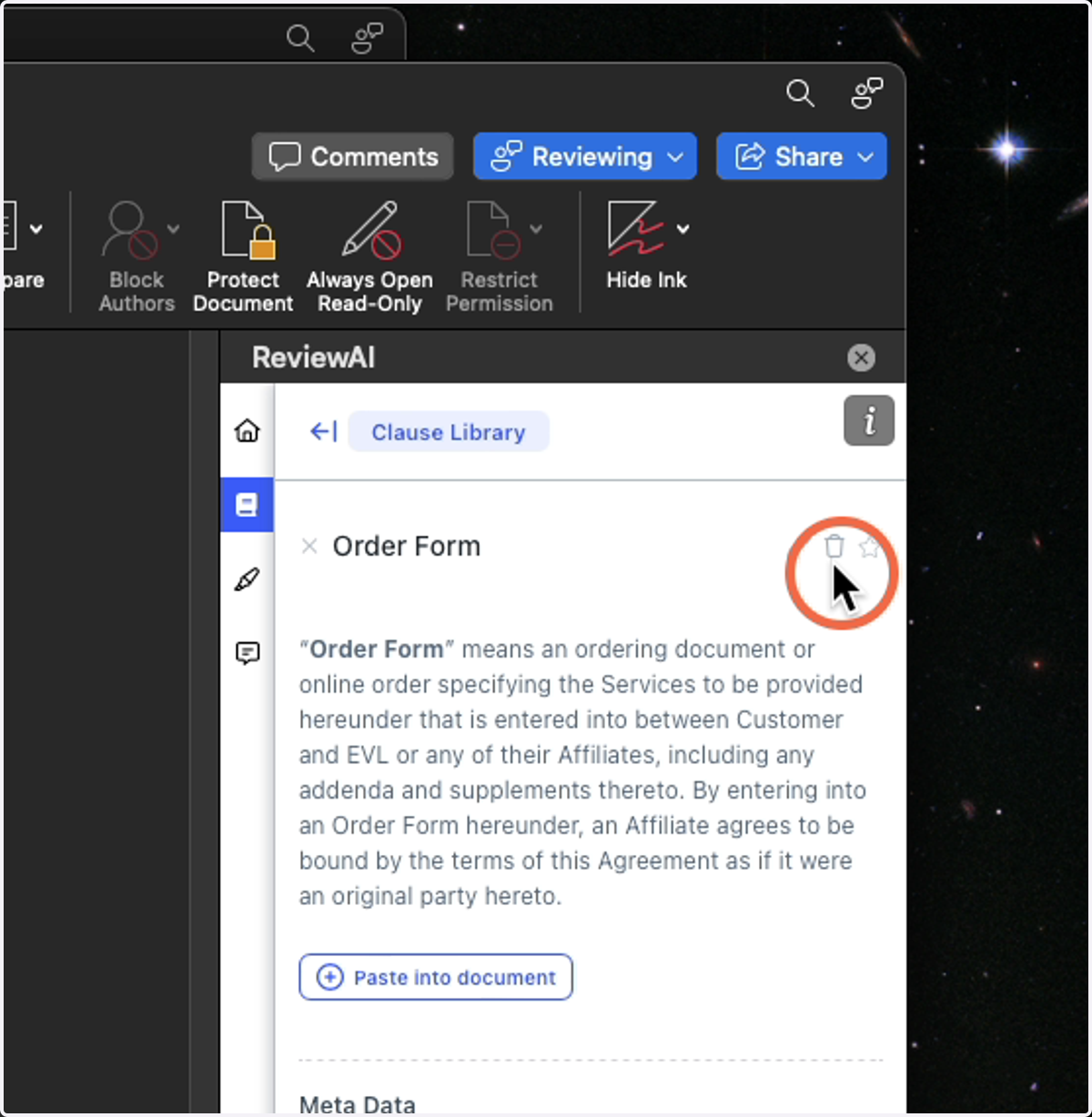
35. Delete a Clause
By clicking the trashcan icon you can delete a clause
****This will delete the clause for EVERYONE
36. Purple Words - Definitions and Cross References
The Purple words are called Definitions and cross-references.
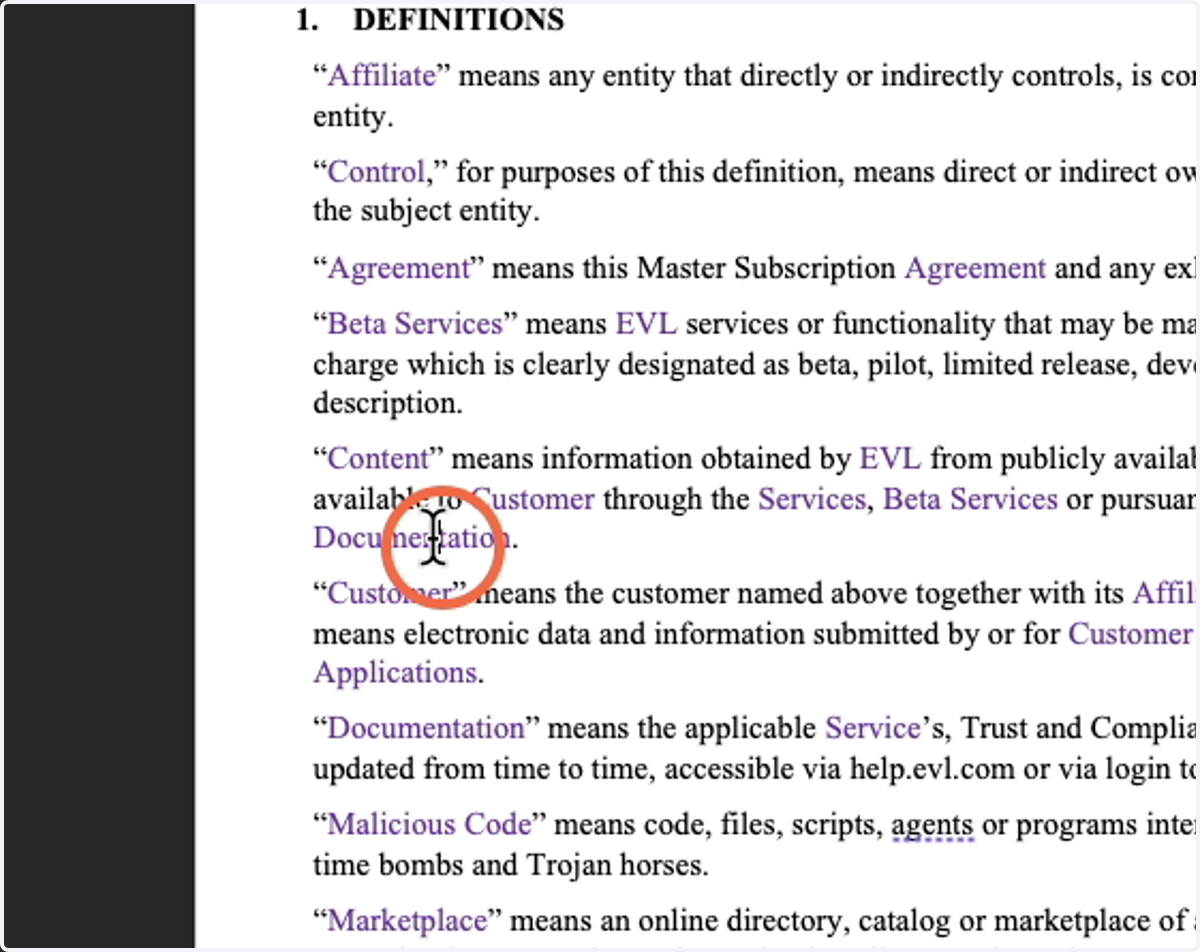
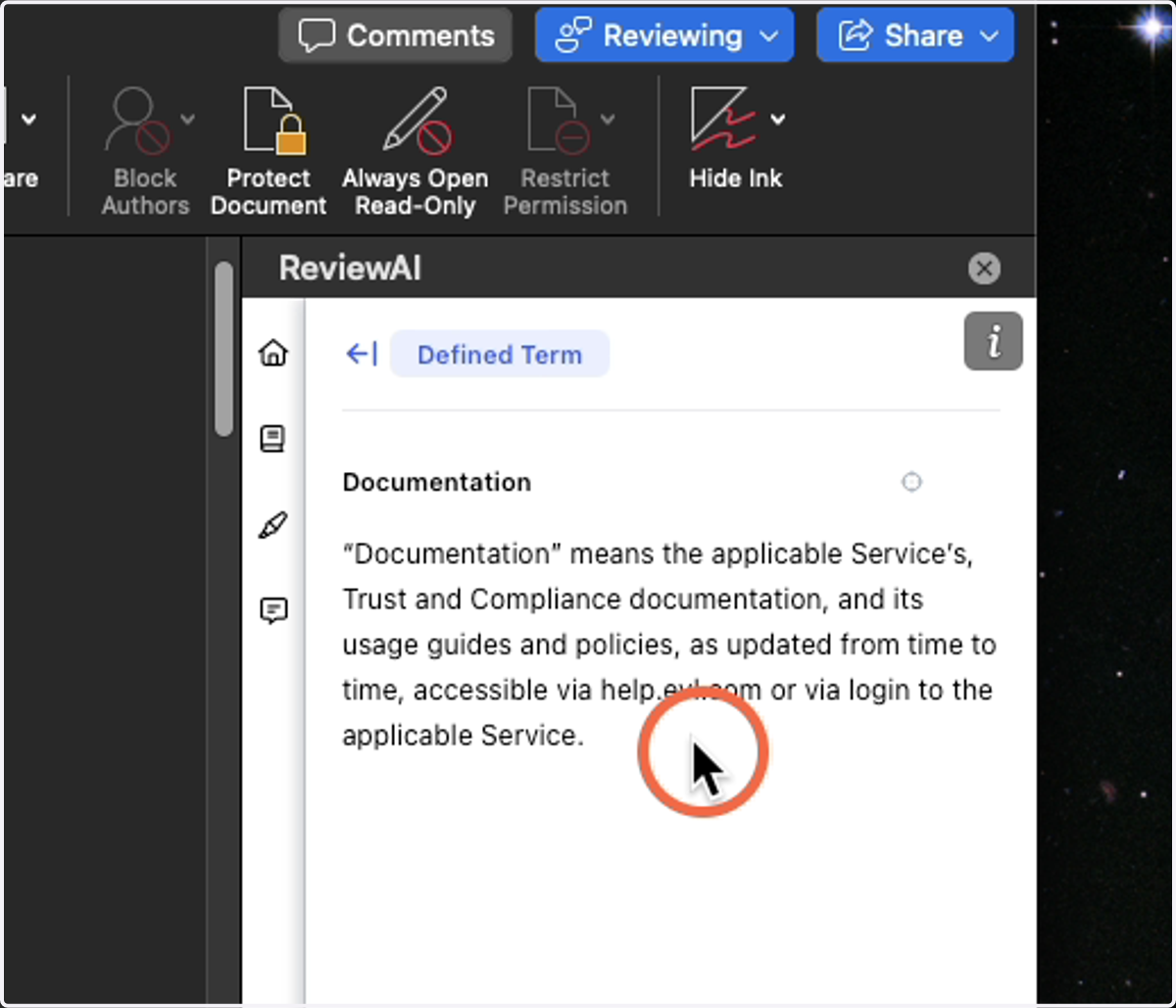
37. Definitions and Cross References
When you click on them, it will define the term for you in the sidebar, without having to leave where you are. Great for times when a document does not have a definition section or you just can't remember how something was defined.
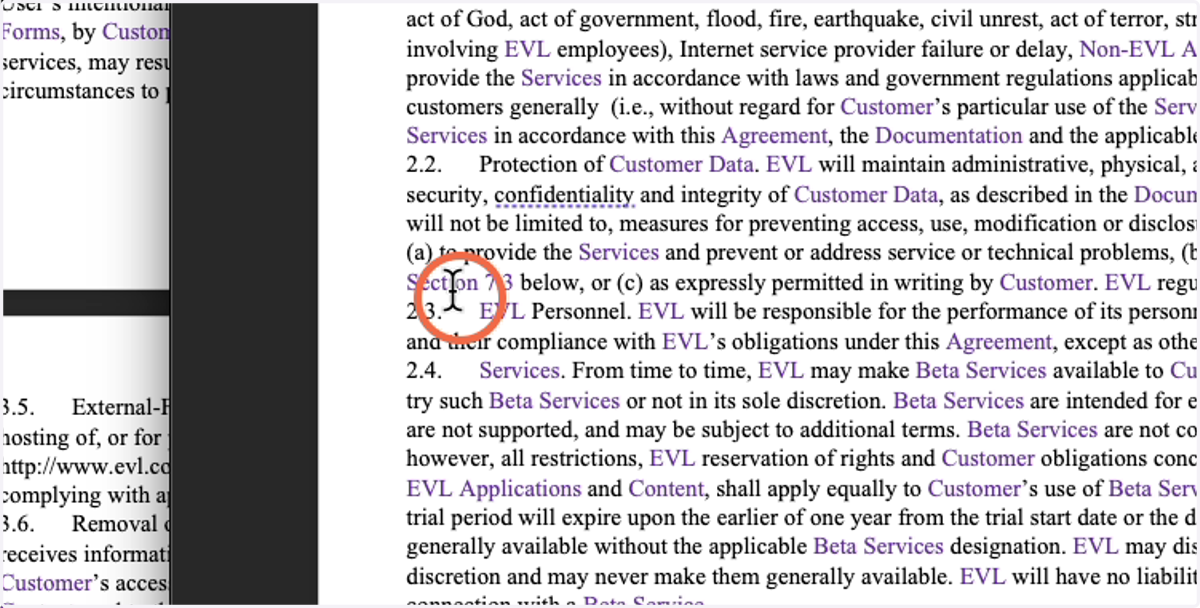
38. Cross Reference
When referencing a different section of the document, you can click on it.
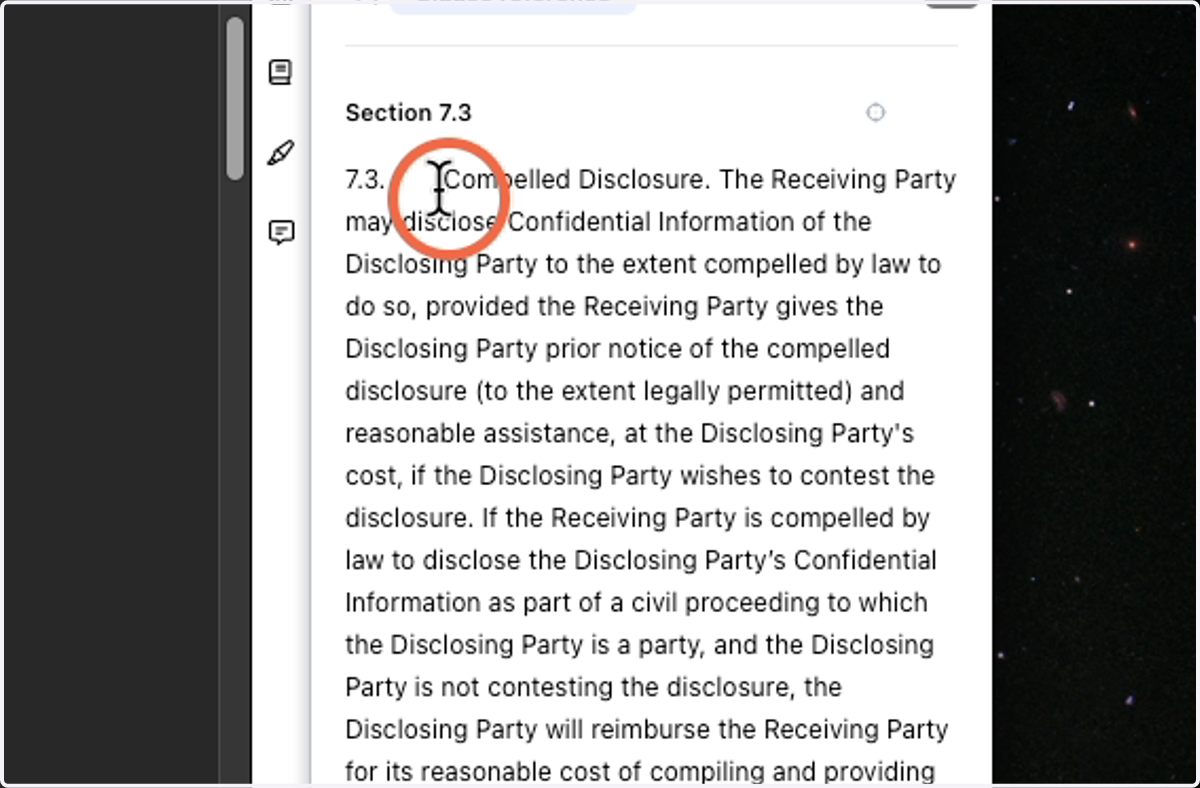
39. Cross Reference (continued)
It will pull up the whole section that is being referenced for you in the sidebar.
40. Crossed out items
These are generally items that the AI has checked and marked off as ok. However, it is a part of some other questions that have been asked, so it has not been moved to Done.
41. Issue Alerts
You will see an ⚠ (exclamation point), in red, for particular issues that have been marked as breaking your Playbook standards.
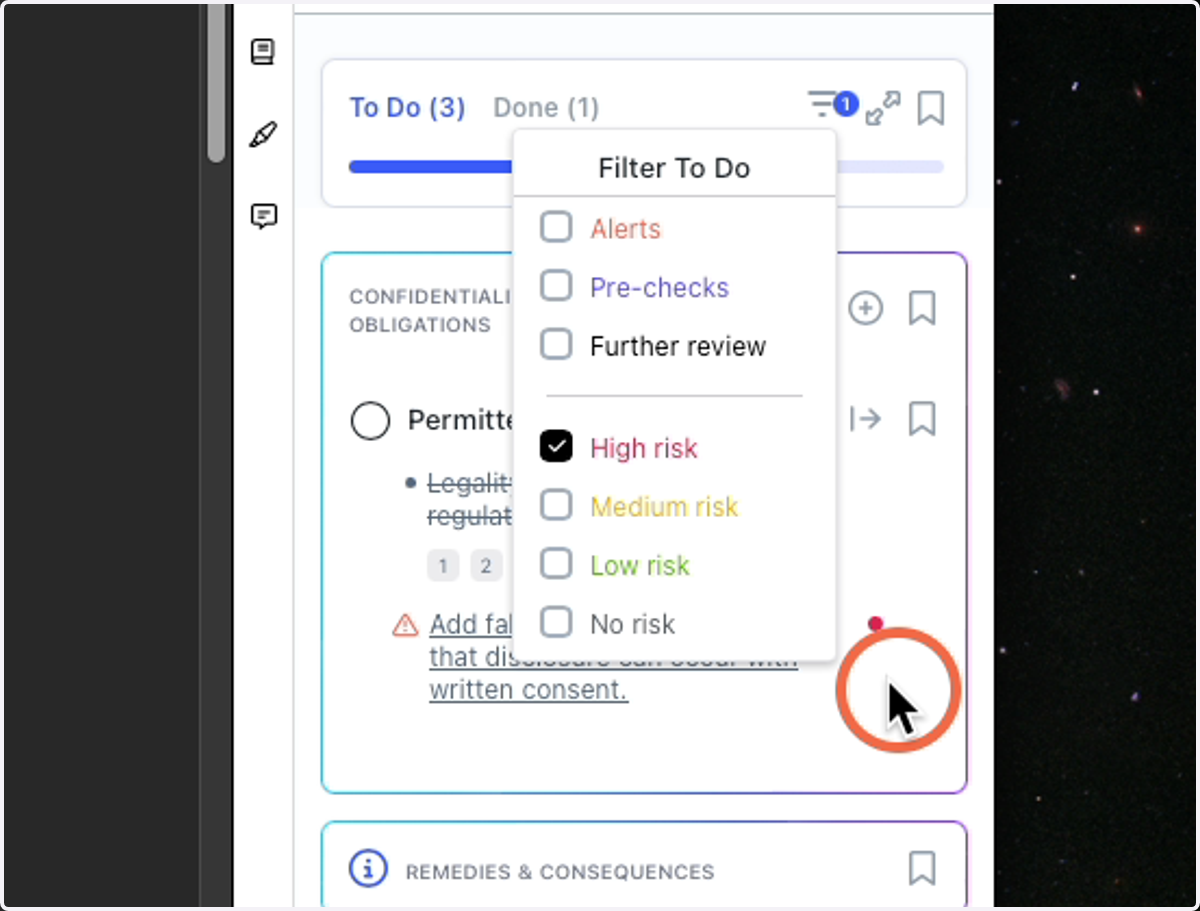
42. Filters
You can filter your issues.
43. You can Filter by
Issue Type
Alert - Issues Breaking your playbook
Pre-Check - Issues marked as Completed
Further Review - Issues that are being brought to your attention, without a determination of good or bad
and/or
Risk Level
None
Low Risk
Medium Risk
High Risk
44. Just want to see High-Risk Issues?
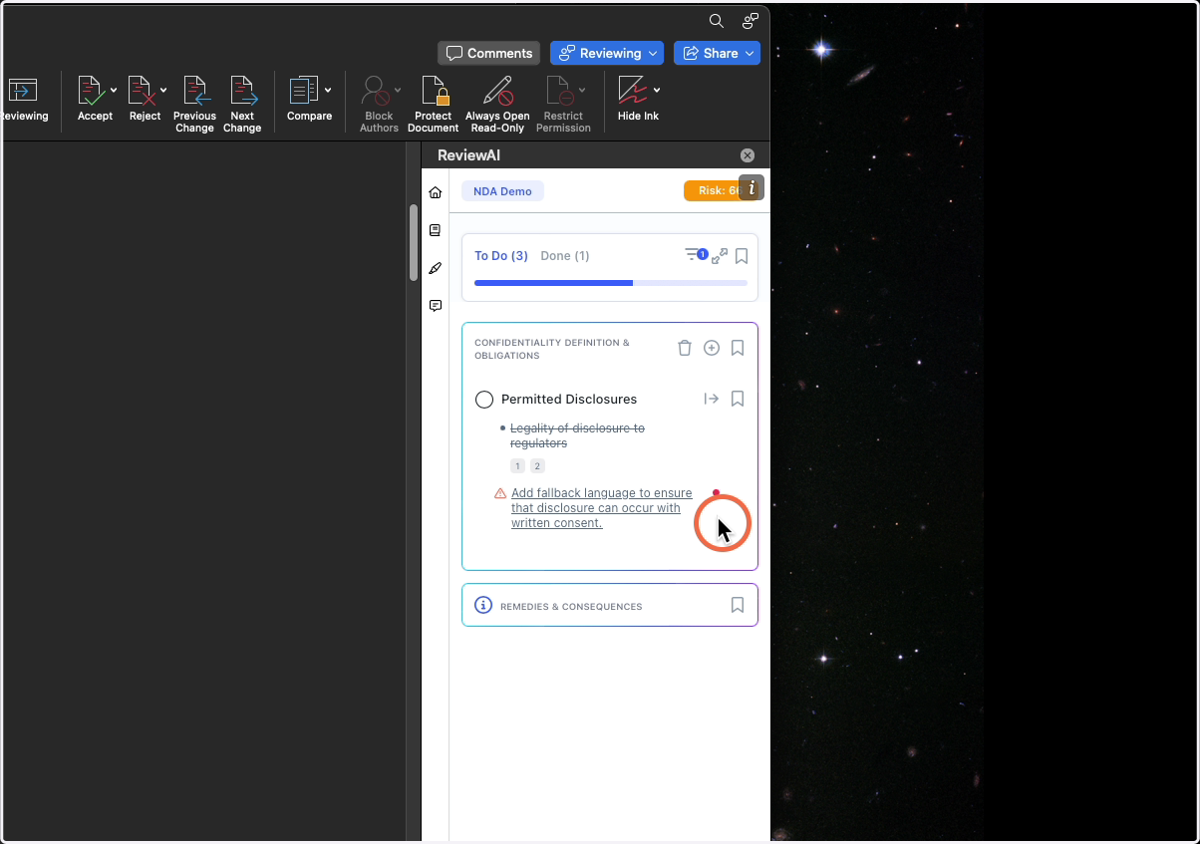
45. Click High risk
And just those Issues will be shown to you.
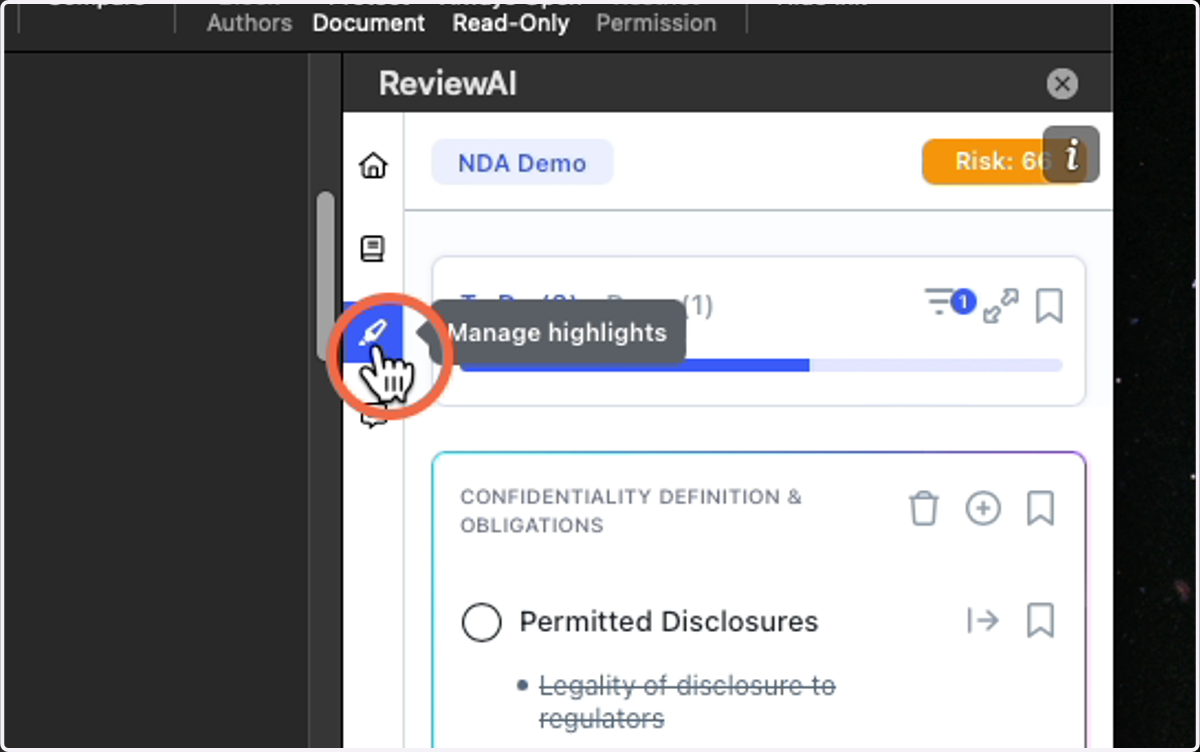
46. Highlights
The purple words might be distracting, you can turn them off by going to the highlight icon in the top left.
47. Click the Toggle to turn it Off
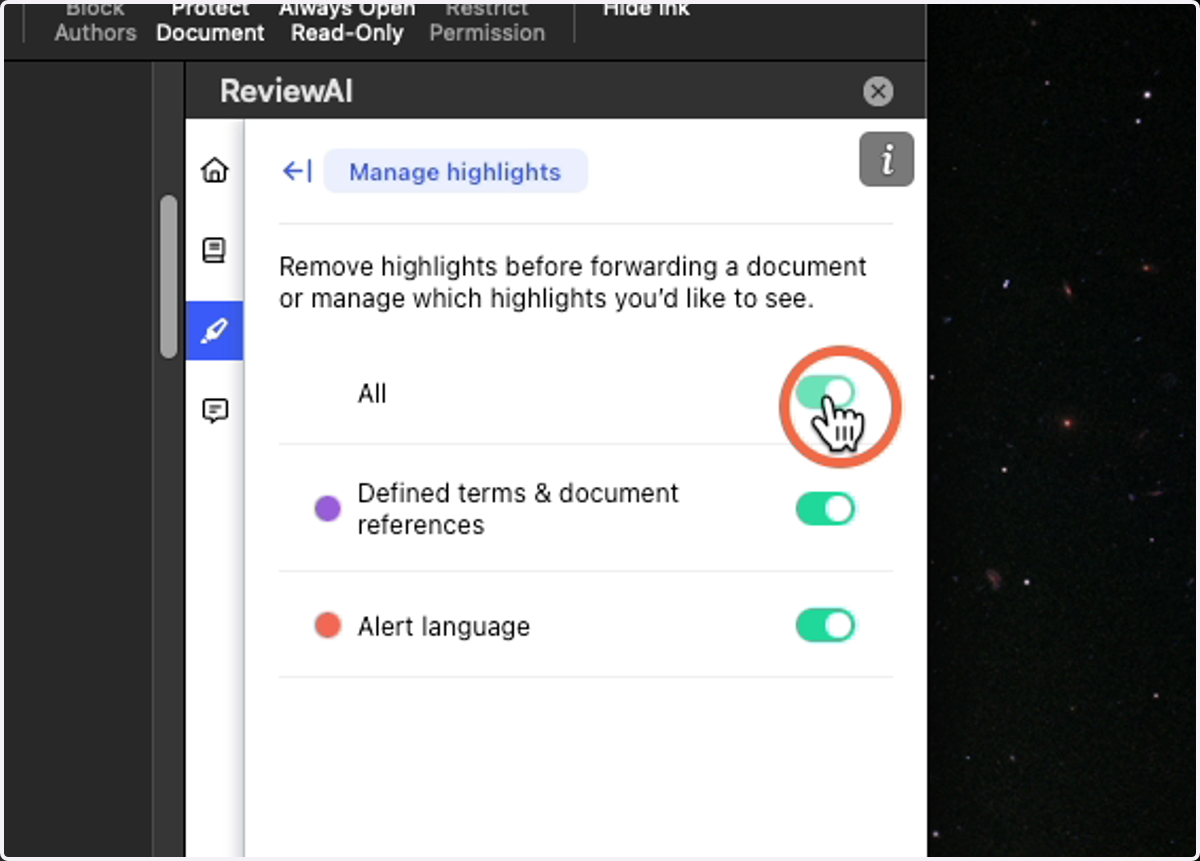
48. Turns off Highlights
49. Contract Chat
You can chat with the contract by using the Catalyst Chat
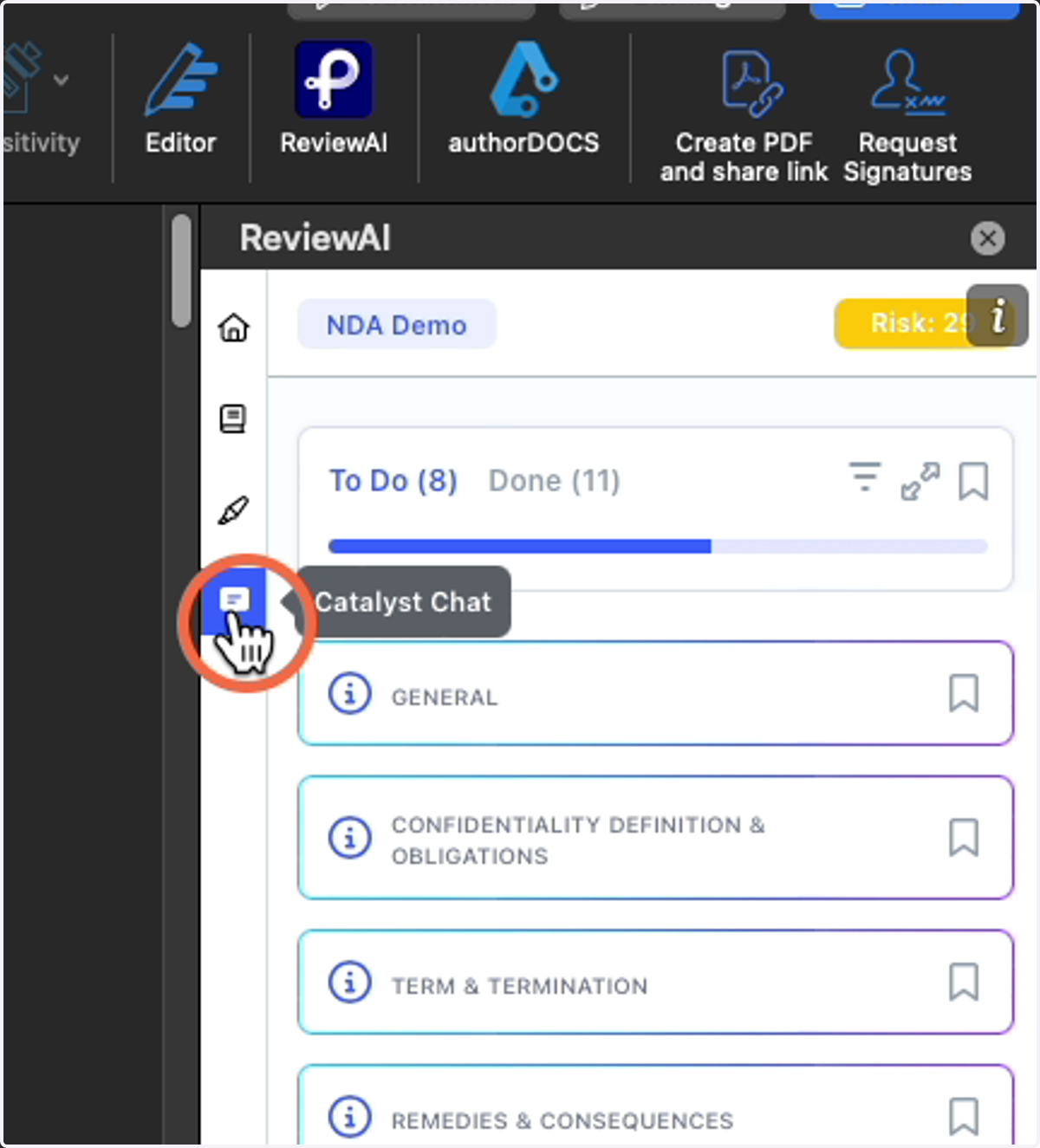
50. This is Chat
You will be able to have an open dialogue about the contract as if you were talking to your 24/7 paralegal
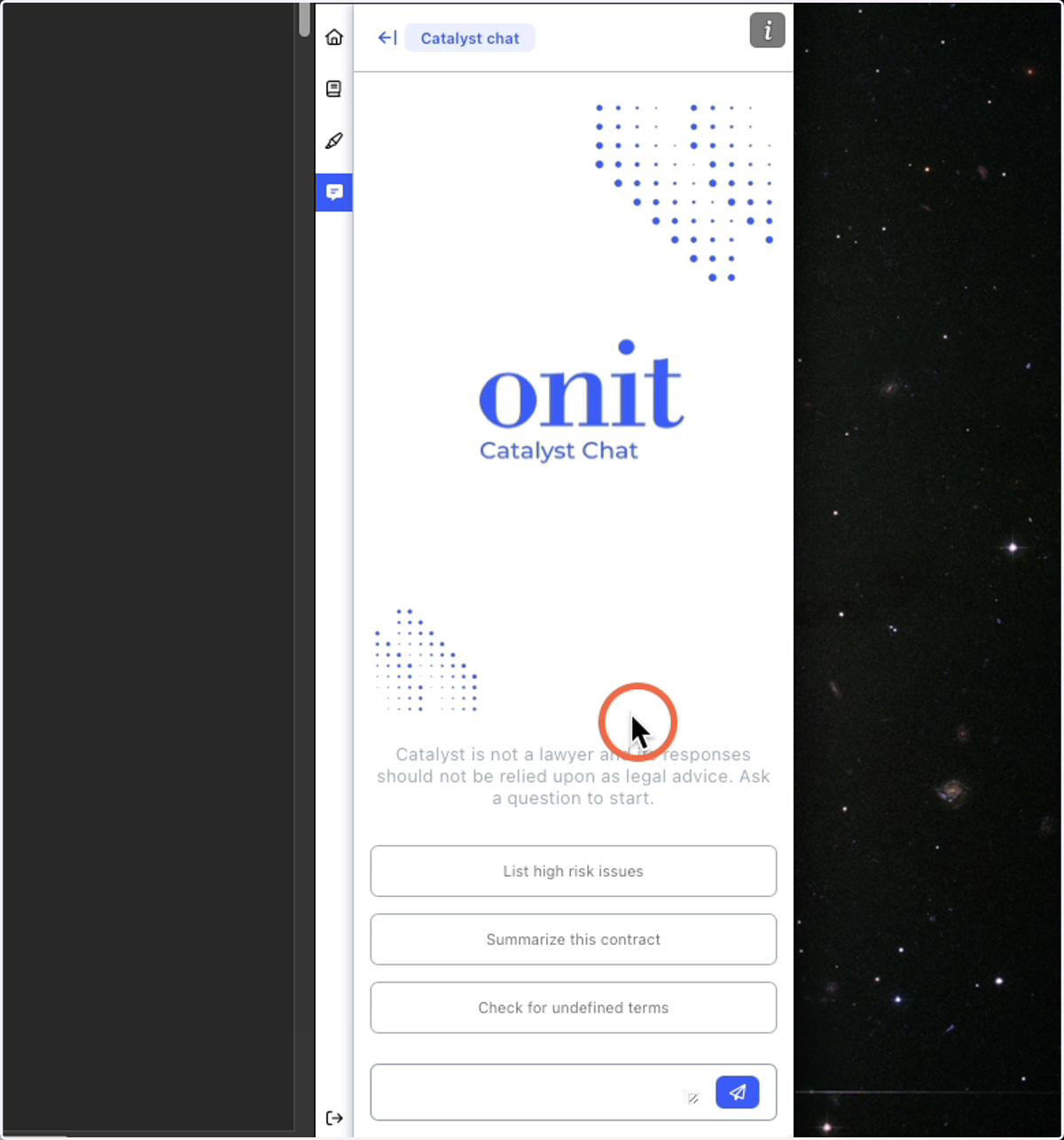
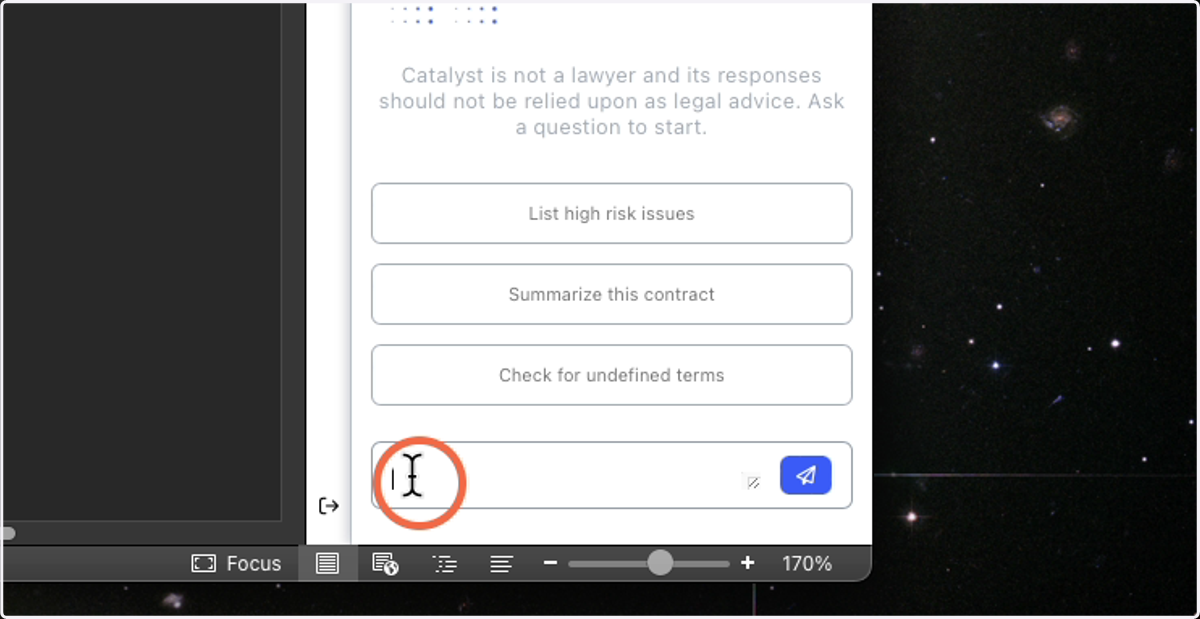
51. You have some Pre-Generated Items to select and help you with chat
These give you an idea of things that you can ask of the AI
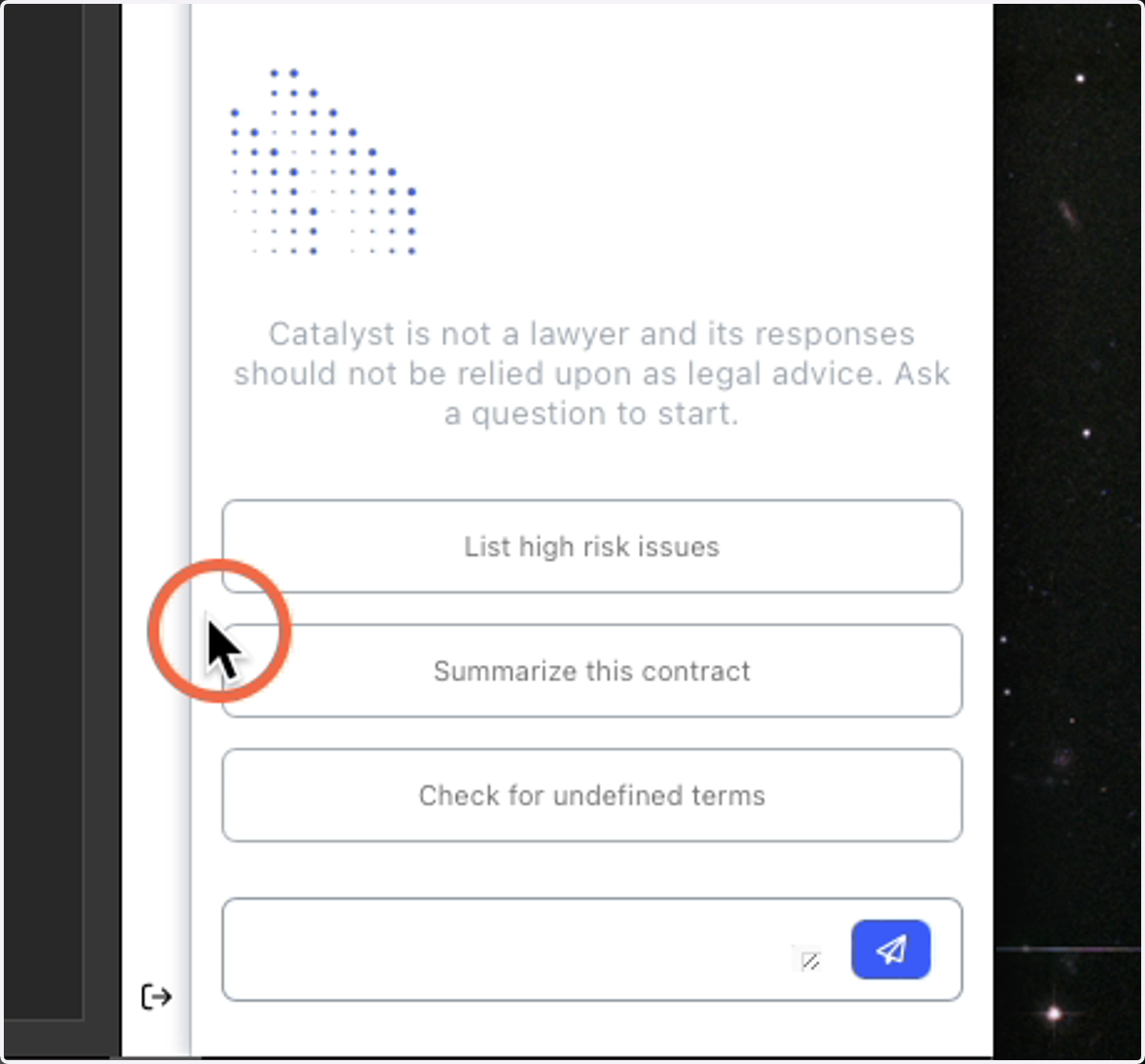
52. You click on that chat bar to ask your questions
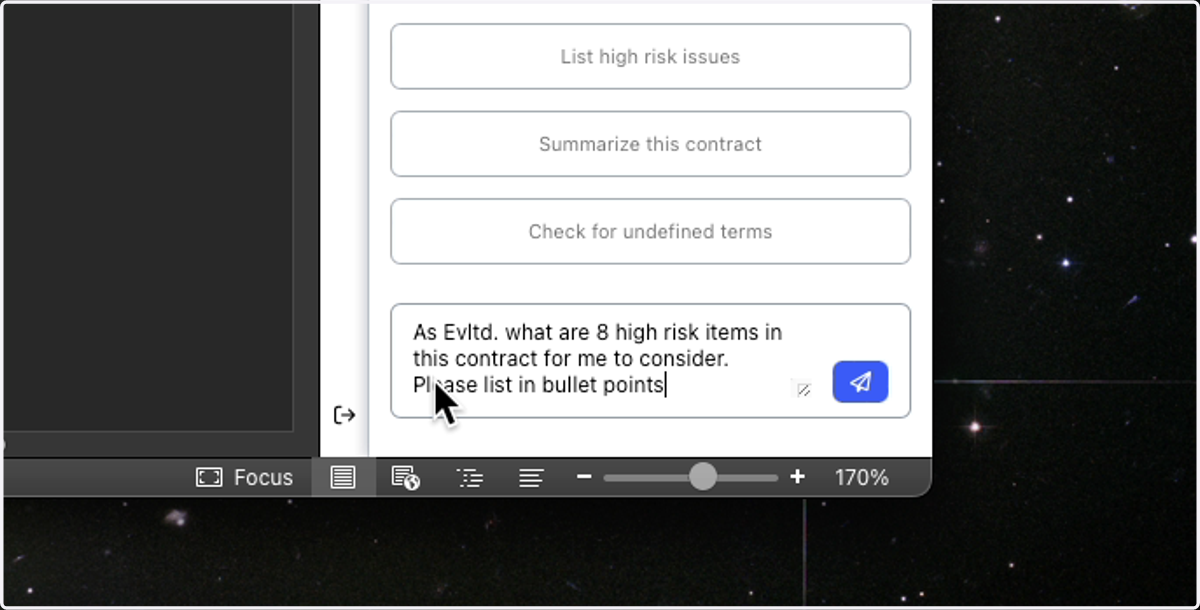
53. We can ask questions like...
As Company X what are 8 high-risk items in this contract for me to consider? Then I can ask for some formatting options as well. Such as, list these in bullet points.
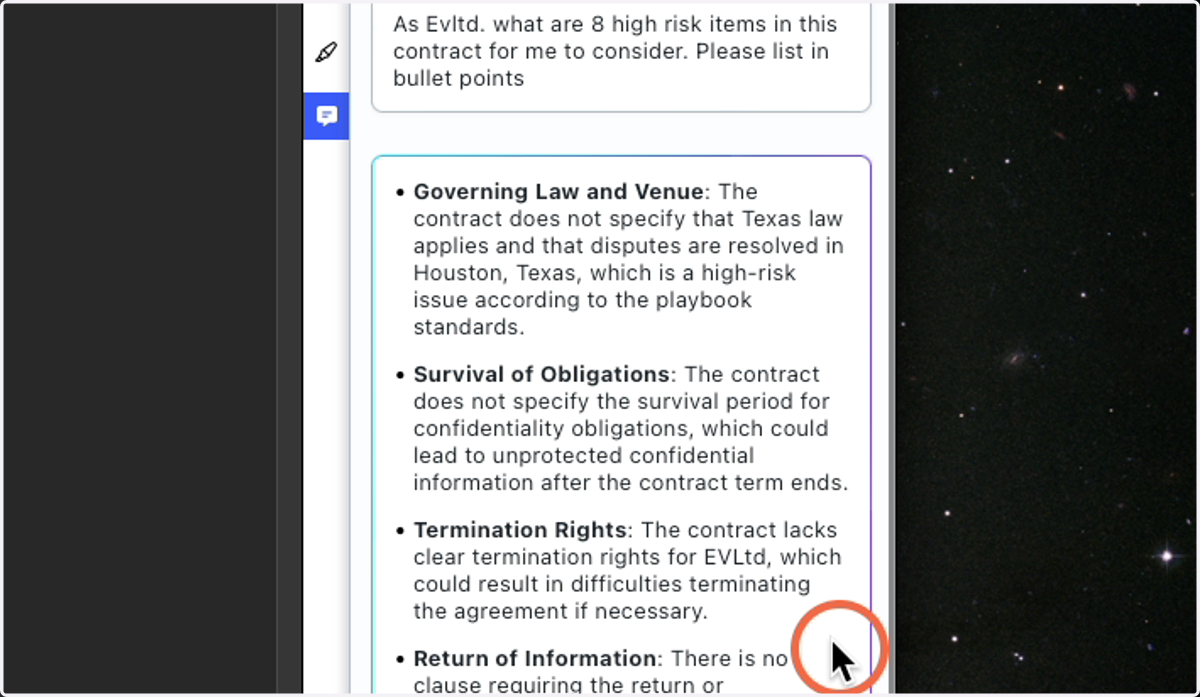
54. Results
We can see our answer listed in bullets.
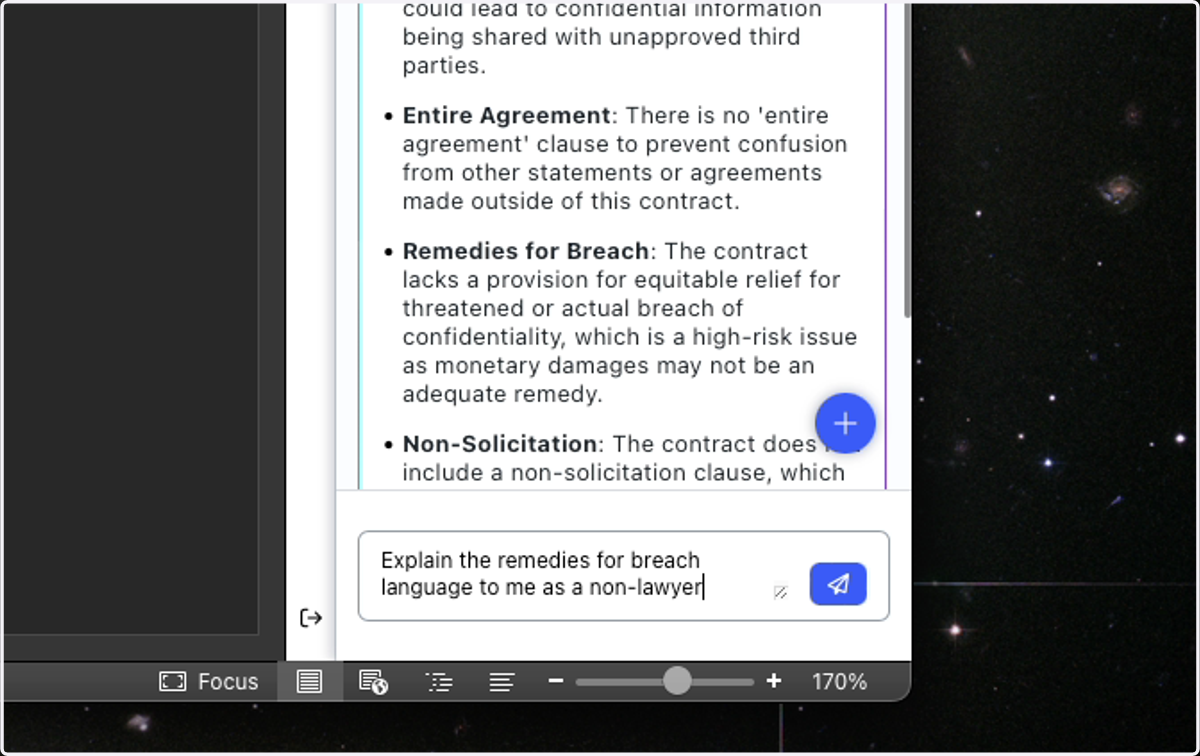
55. Chat Example 2
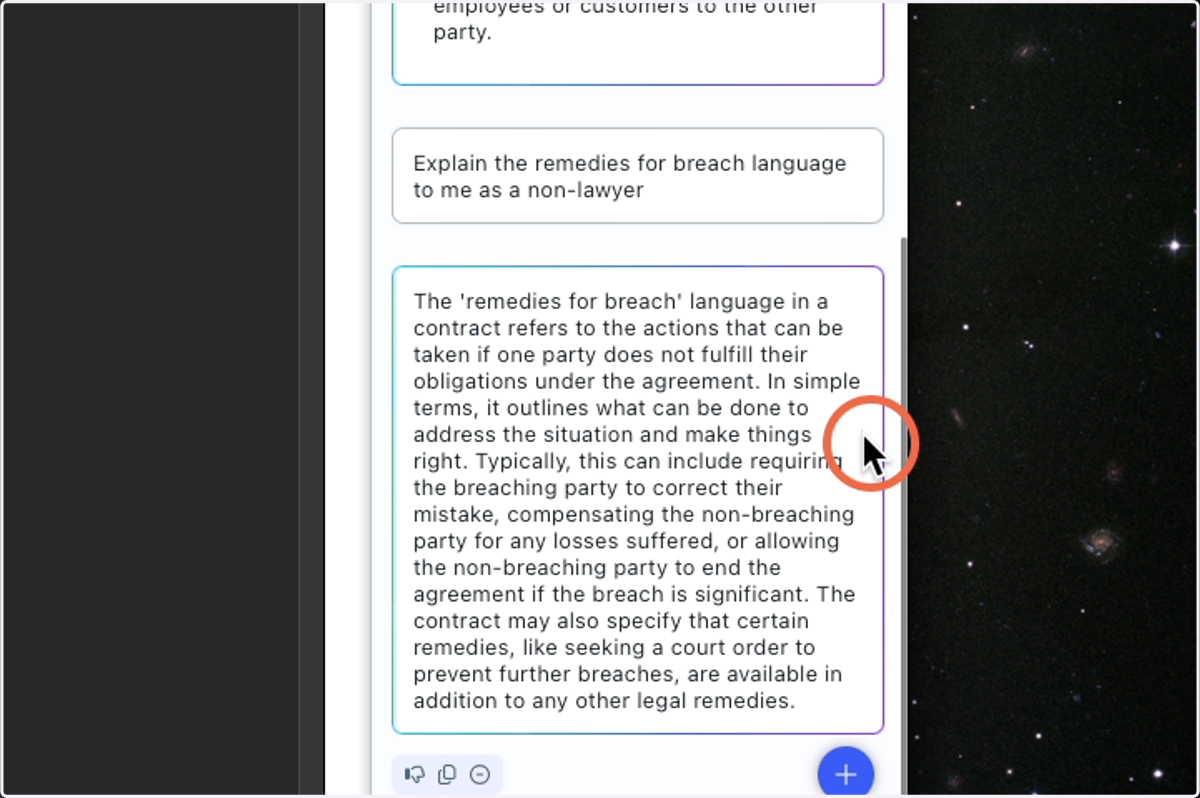
I can have Chat explain something to me as a non-lawyer. Chat can empower users of all skill levels.
56. Chat Example 2: Results
57. Chat Example 3
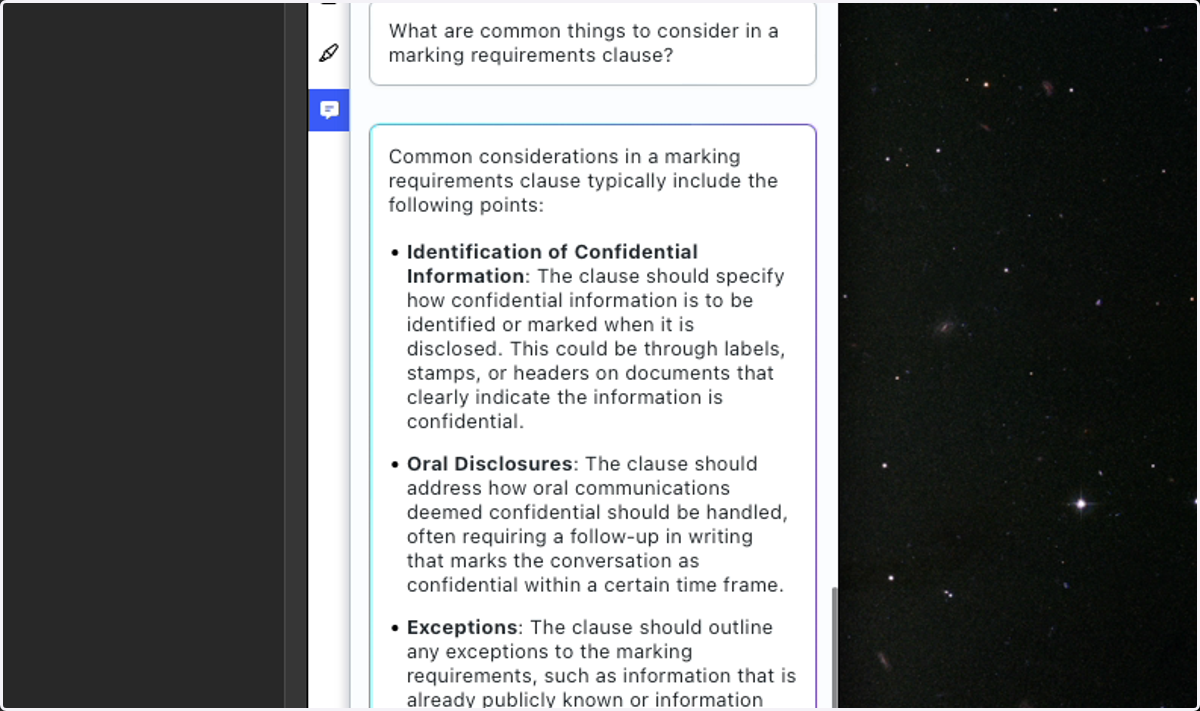
Ask for helpful things to consider. Such as, what are helpful things to consider in a marking requirements clause.
58. Change Checklist Title
By Clicking on the Checklist title, you can change the name to give it a more specific name or even add a date to it.