Add Fuel Sensor Attachment to a Machine
This guide is about adding a fuel sensor attachment to a machine. Please note that a fuel sensor attachment can only be attached if a maxtracker is already present on the machine. In this guide, a fuel probe type sensor is added. But a cango fuel sensor can be added as well using the same steps
Machine Max
1. Search for the machine on which you want to attach a fuel sensor.
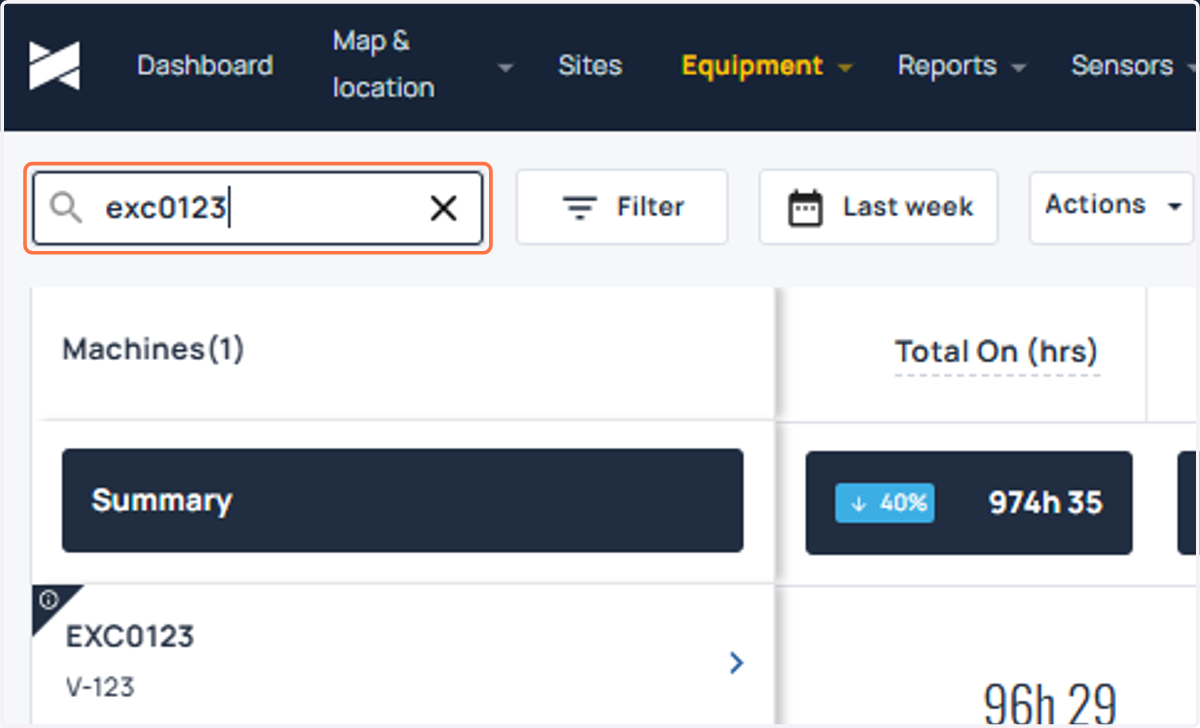
2. Click on the machine to go in the "Info and Location" page of the machine.
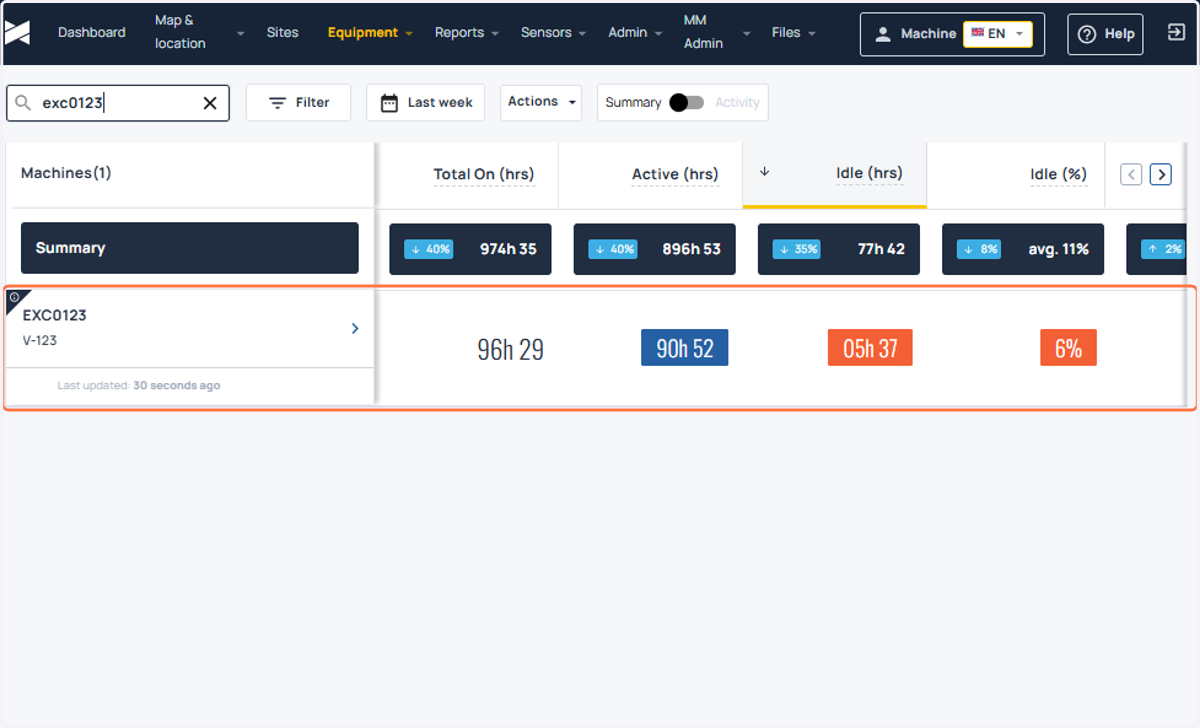
3. Click on Info & Location.
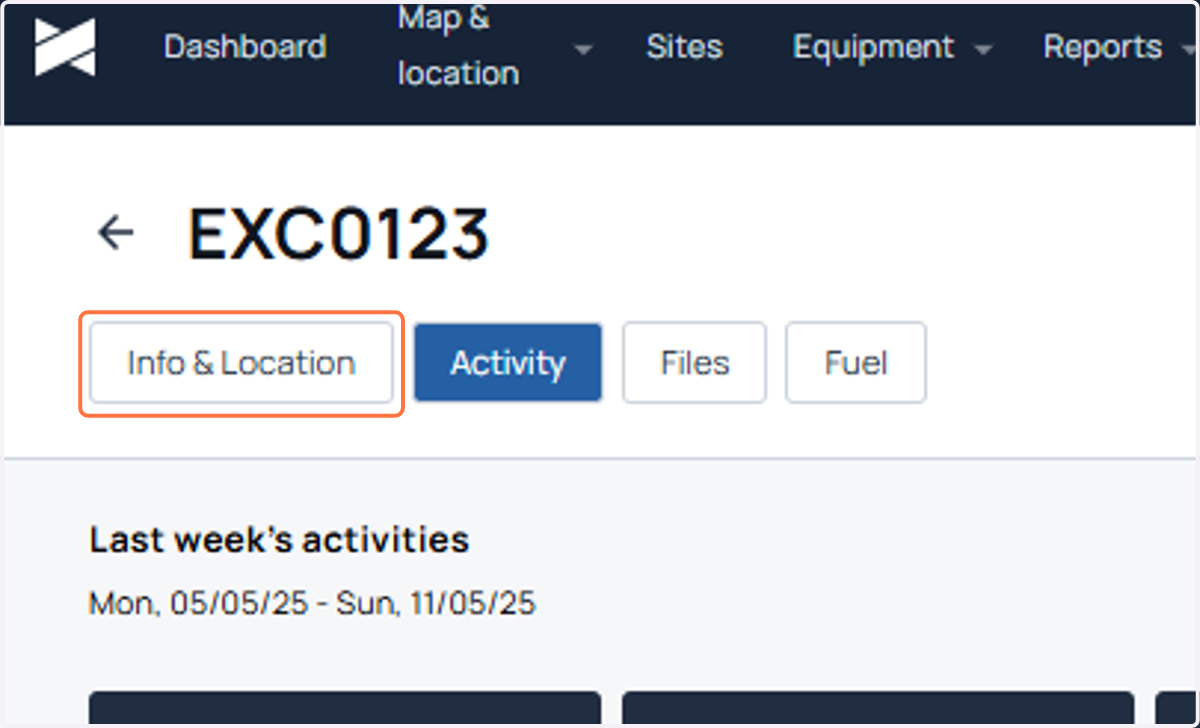
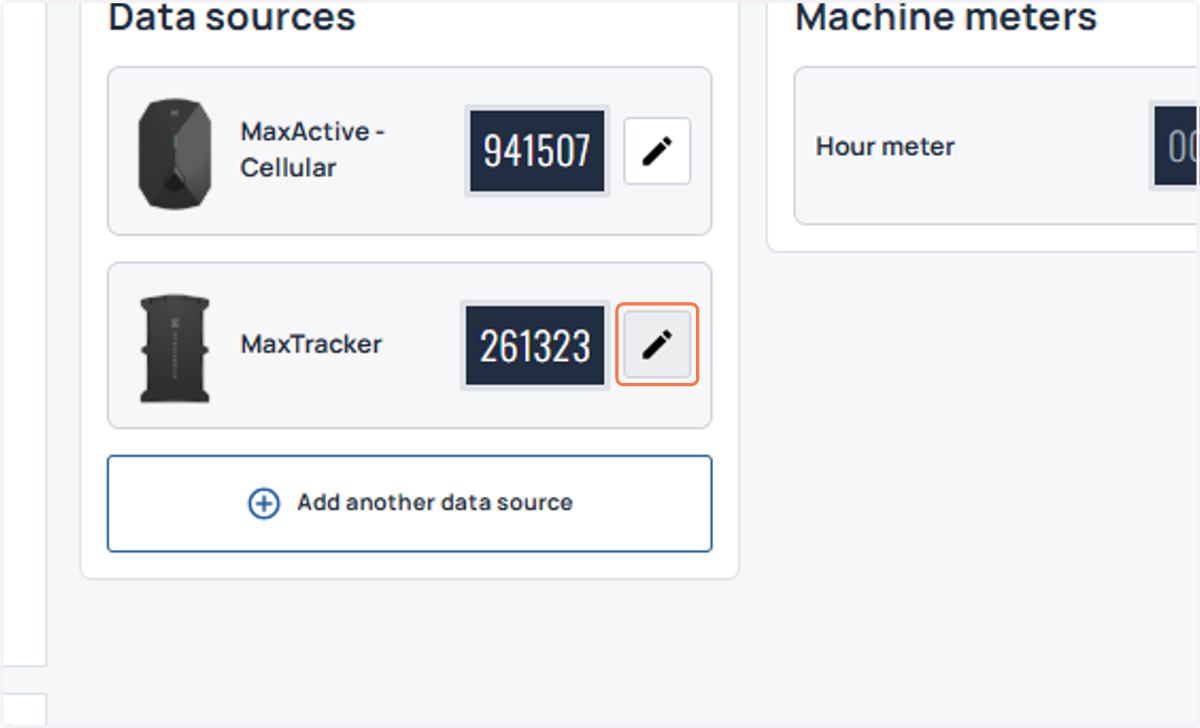
4. First identify a maxtracker amongst all the datasources added to the machine. Click on edit icon for the maxtracker.
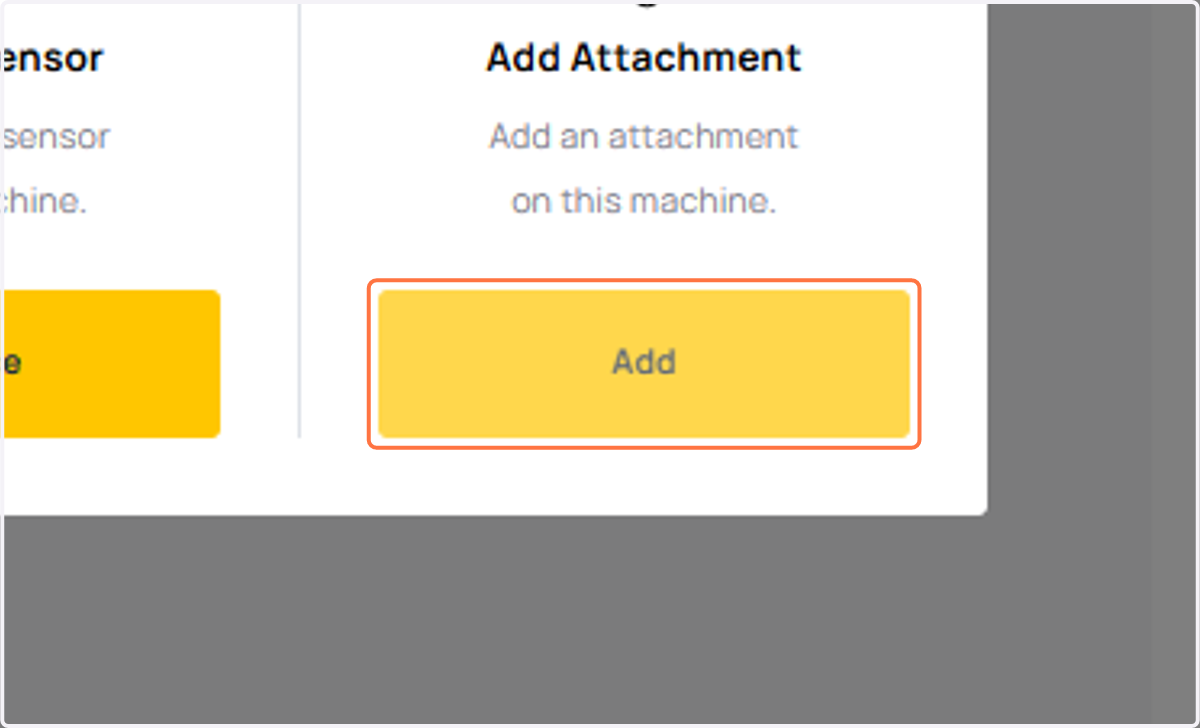
5. Click on "Add", to add a fuel sensor attachment.
6. Check primary checkbox, to toggle on the FUEL flag for the machine.
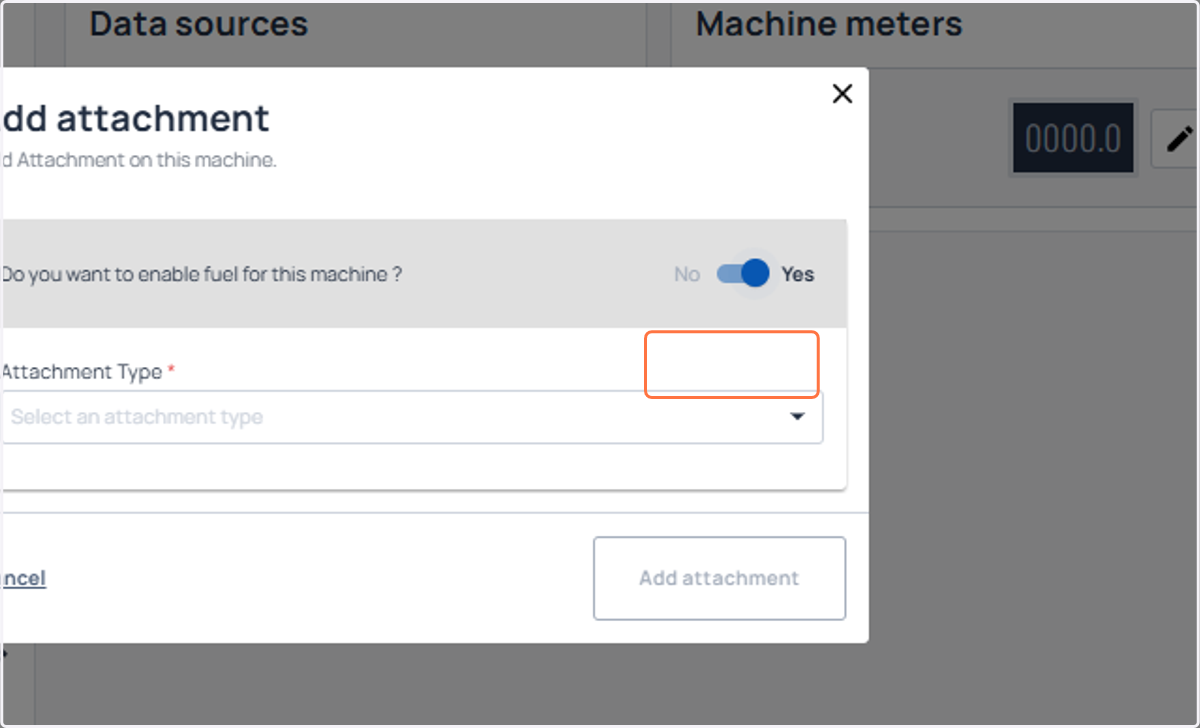
7. Select Probe from Attachment Type. Here you can select Cango, if you would want to attach a Cango Fuel sensor.
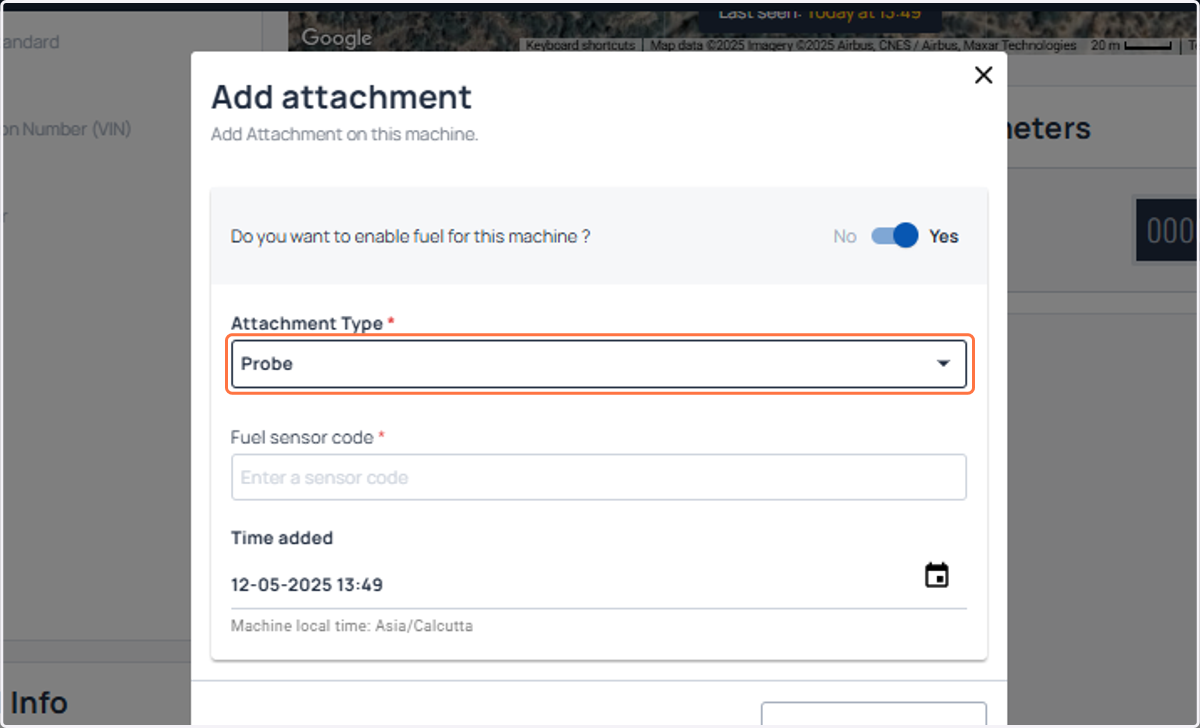
8. Paste the fuel sensor code into the input.
Please note that you need to onboard all fuel sensor attachements to our backend, just like you onboard TT sensors to our backend through support channel. Once onboarded, you can use the sensor code
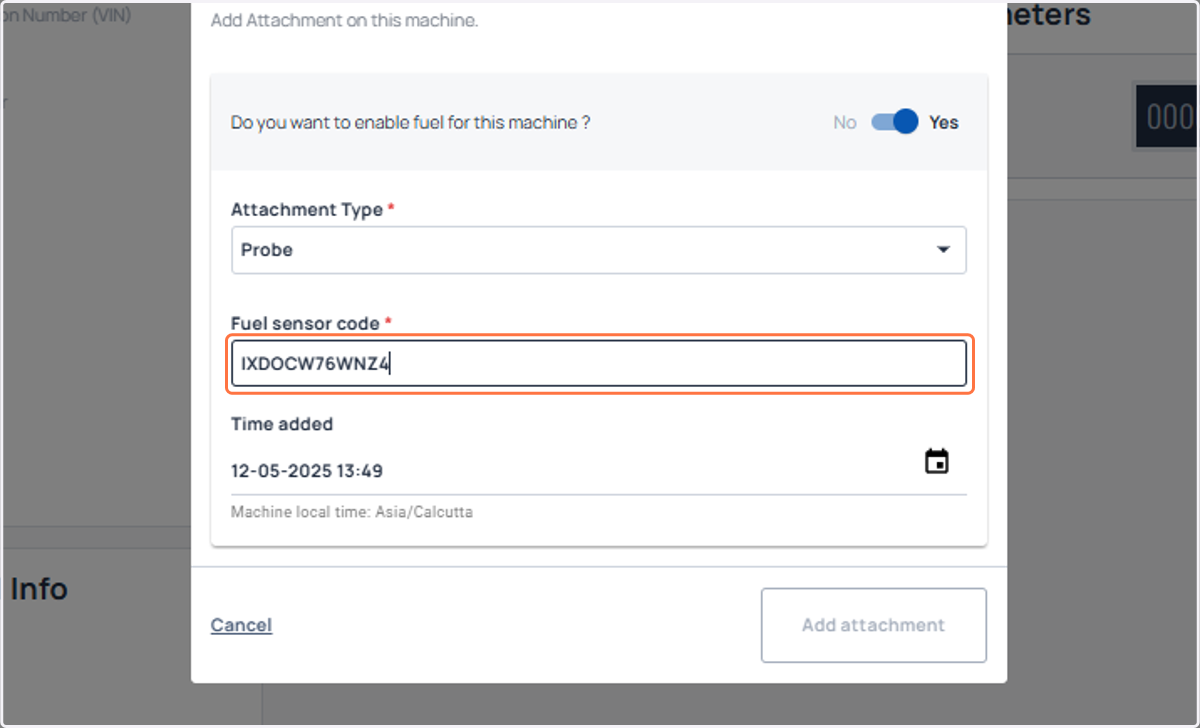
9. You can also select a past date while attaching a fuel sensor to retrieve past data.
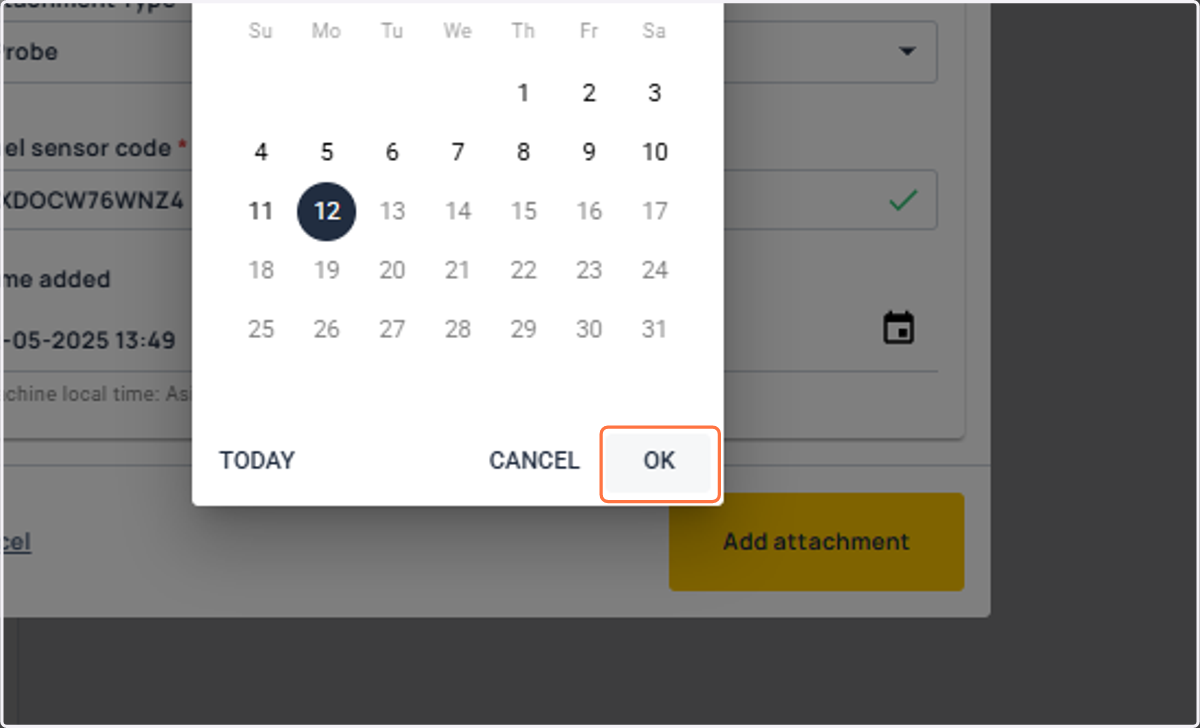
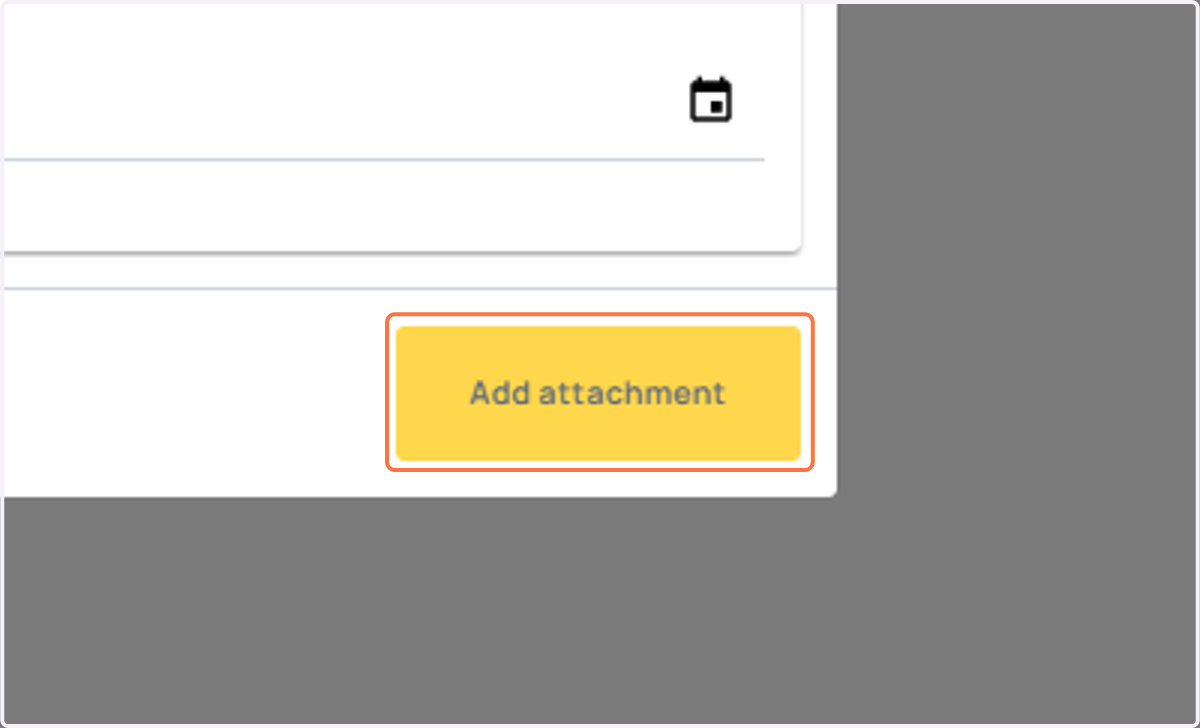
10. Finally, click on add attachment.
11. Notice the bottom left message, that "attachment added successfully". It completes fuel sensor attachment process.
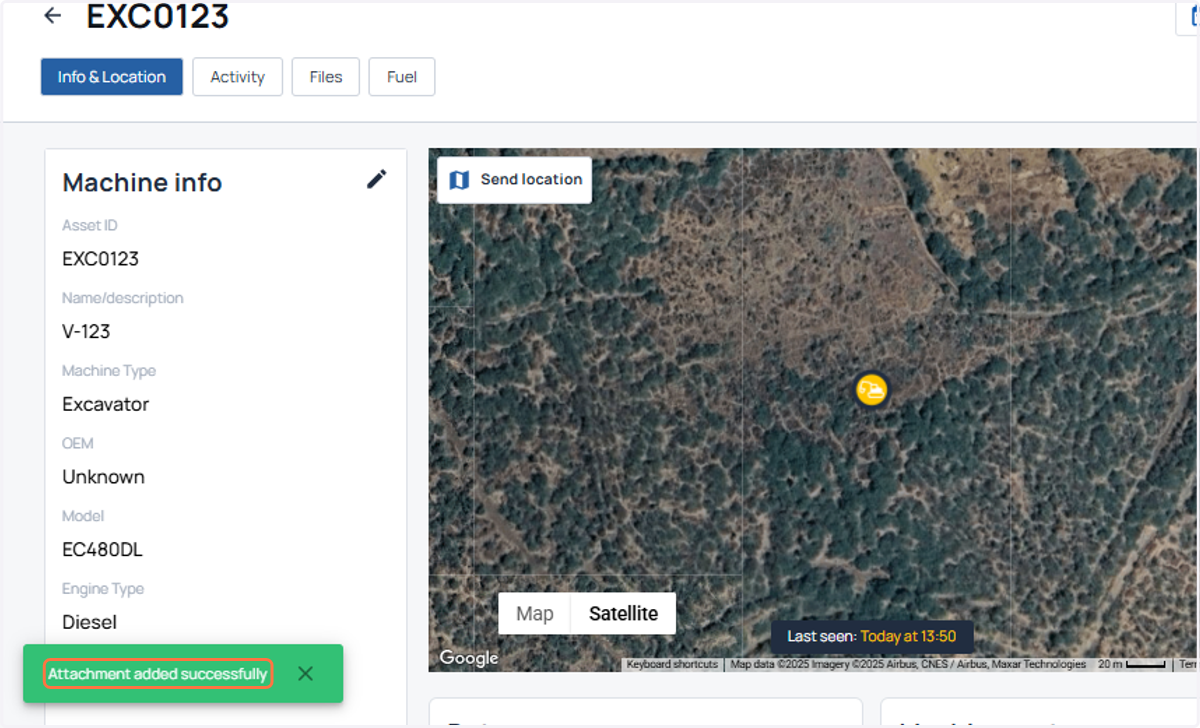
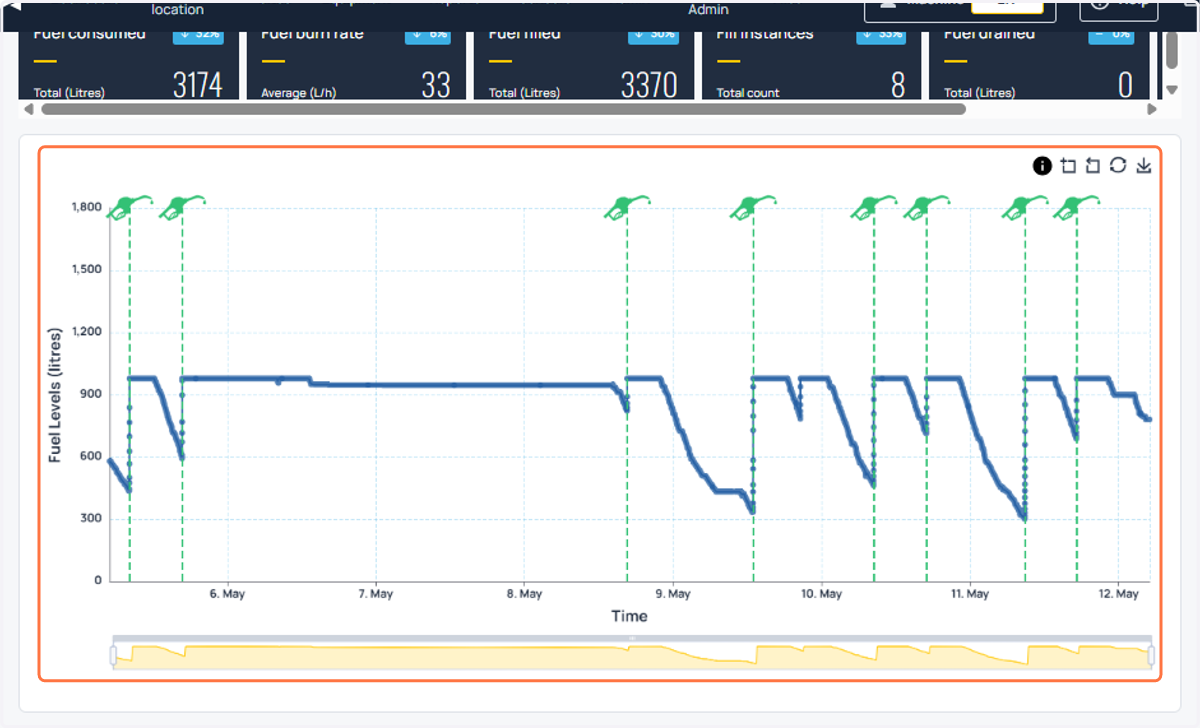
12. You can go to fuel tab and verify that the data is coming through for the machine.