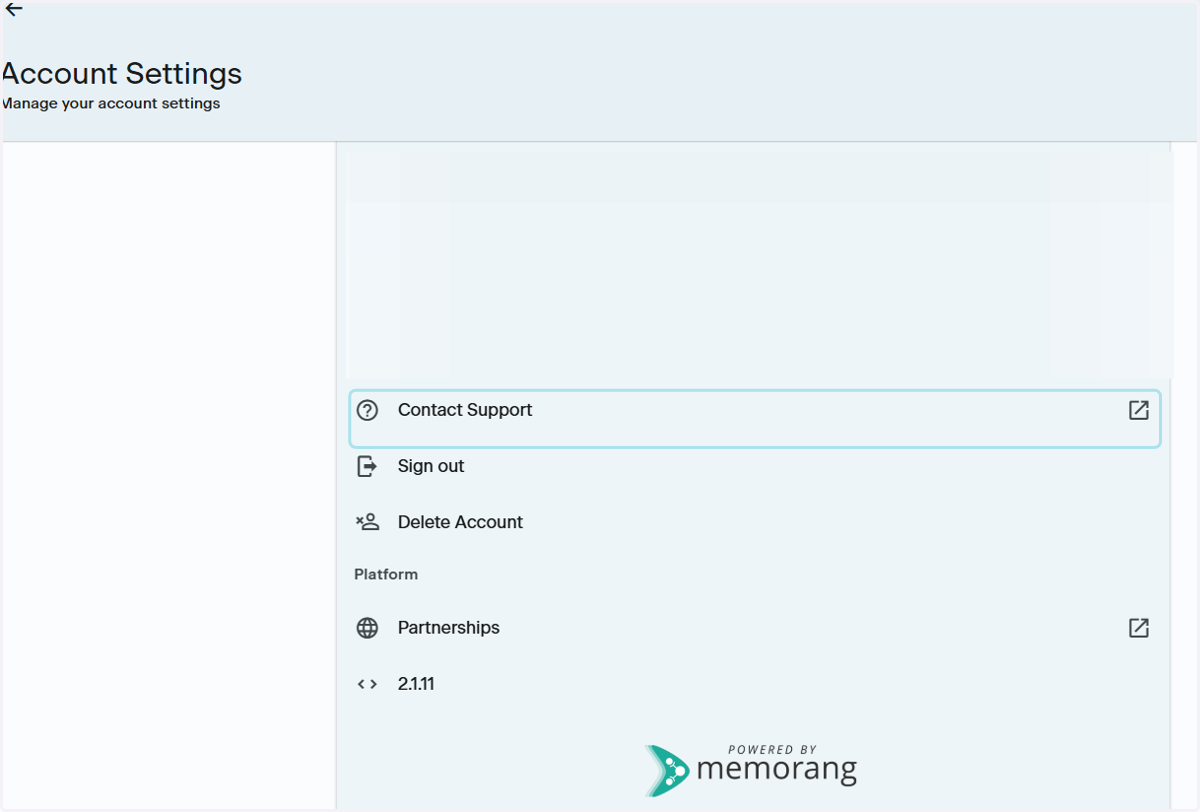
Navigating Account Settings
How to get to Account Settings and using the settings
Locating Account Settings
1. Start on the Home page
To get to Account Settings, start on the Home page
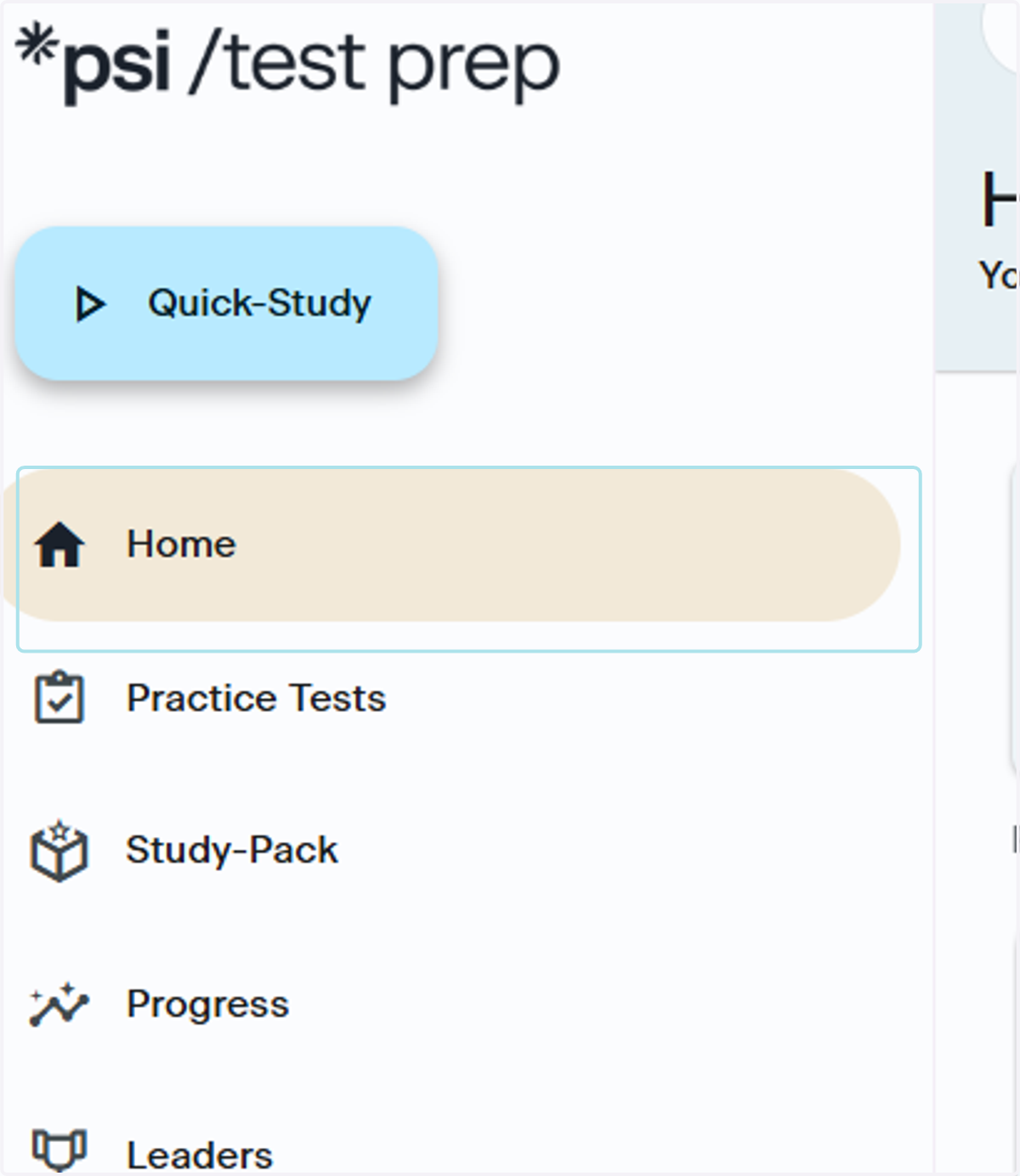
2. Lefthand Navigation on Mobile
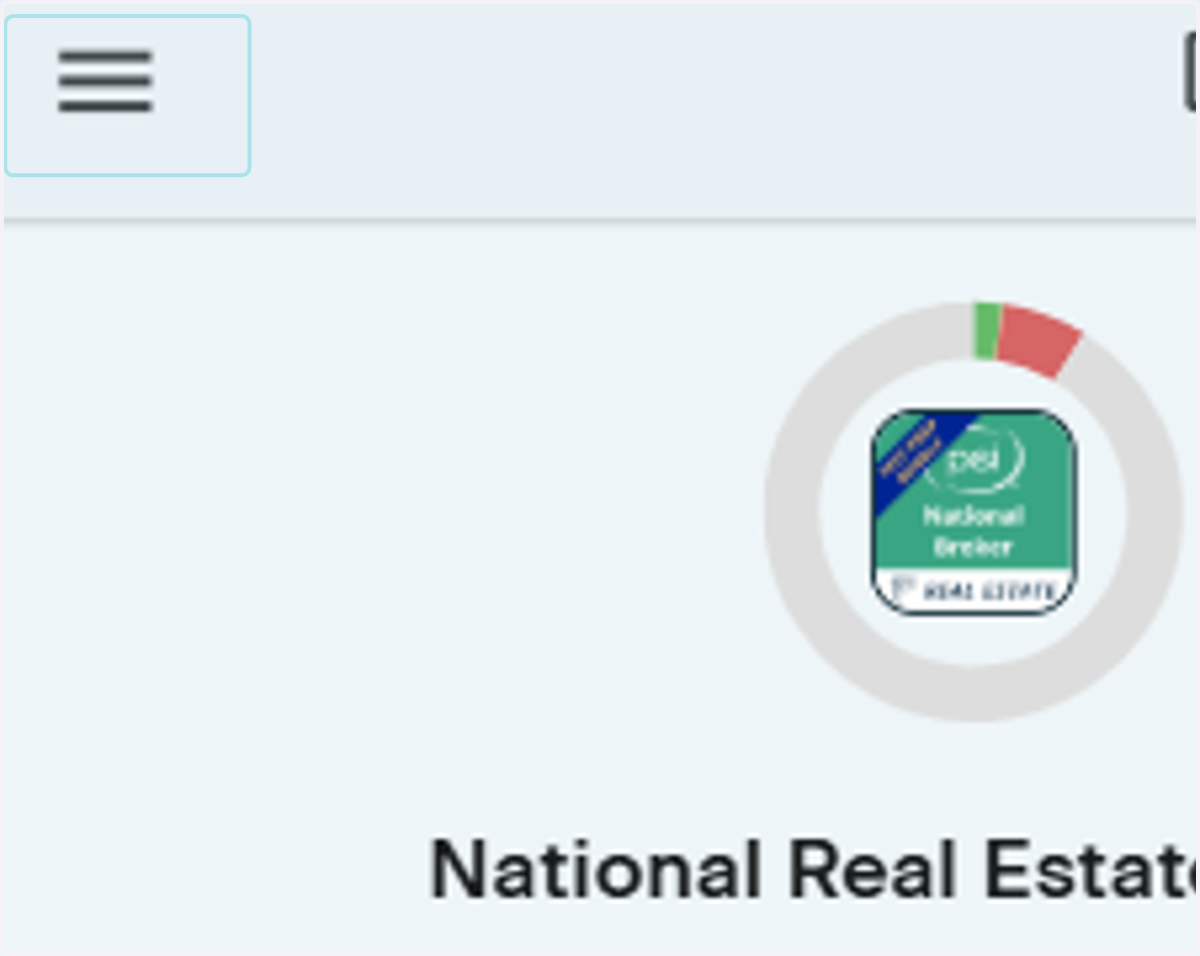
For mobile users, click the Hamburger icon in the top lefthand corner of your screen
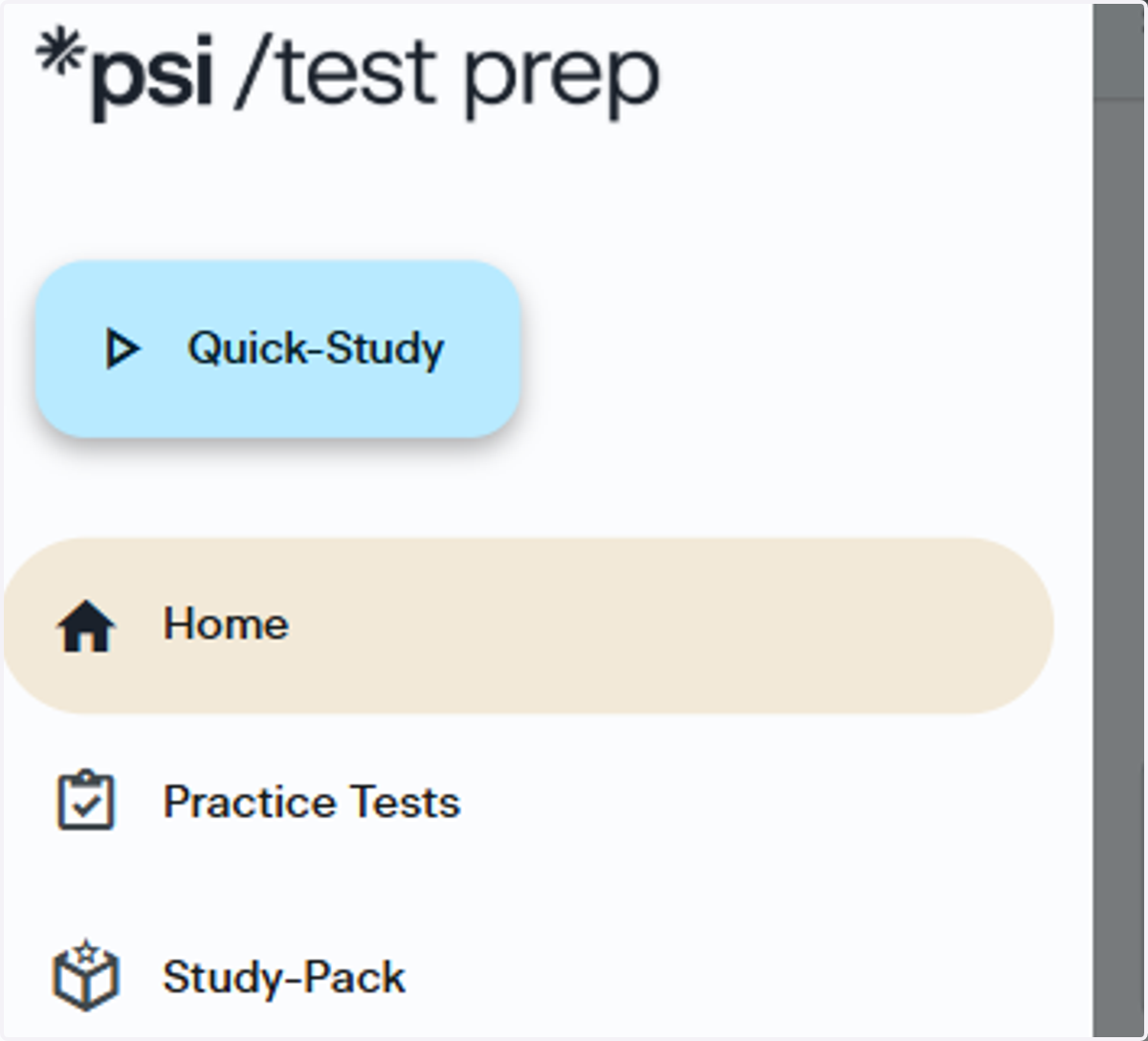
3. Click Home
Once you click the Hamburger icon, the lefthand navigation menu will populate
4. Go to the Gear Icon
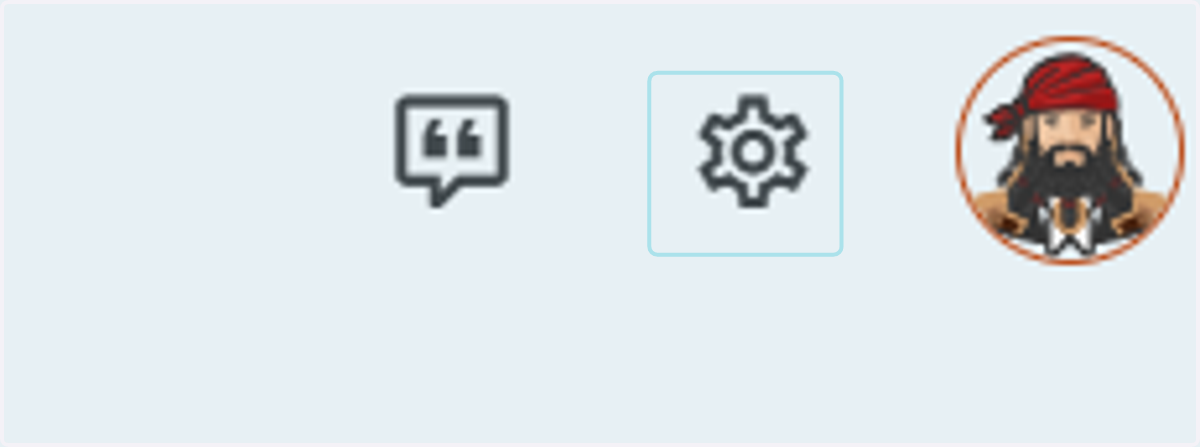
Click the gear icon in the upper righthand corner, next to your Avatar
5. Gear Icon on Mobile
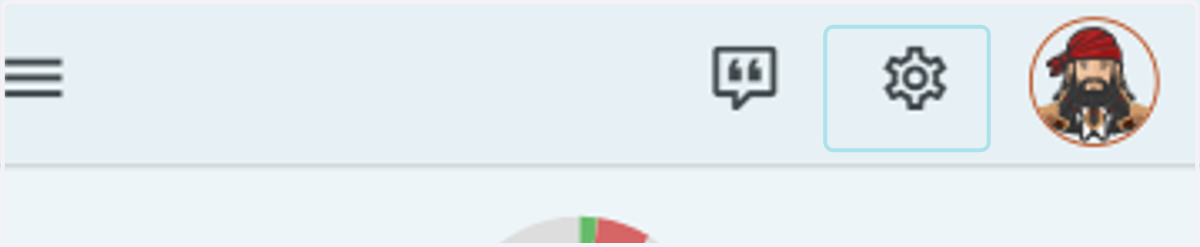
The Gear icon will be on the top right of your phone screen, next to your Avatar
Switching Products
How to switch to a different product in the App
6. Select the Arrows
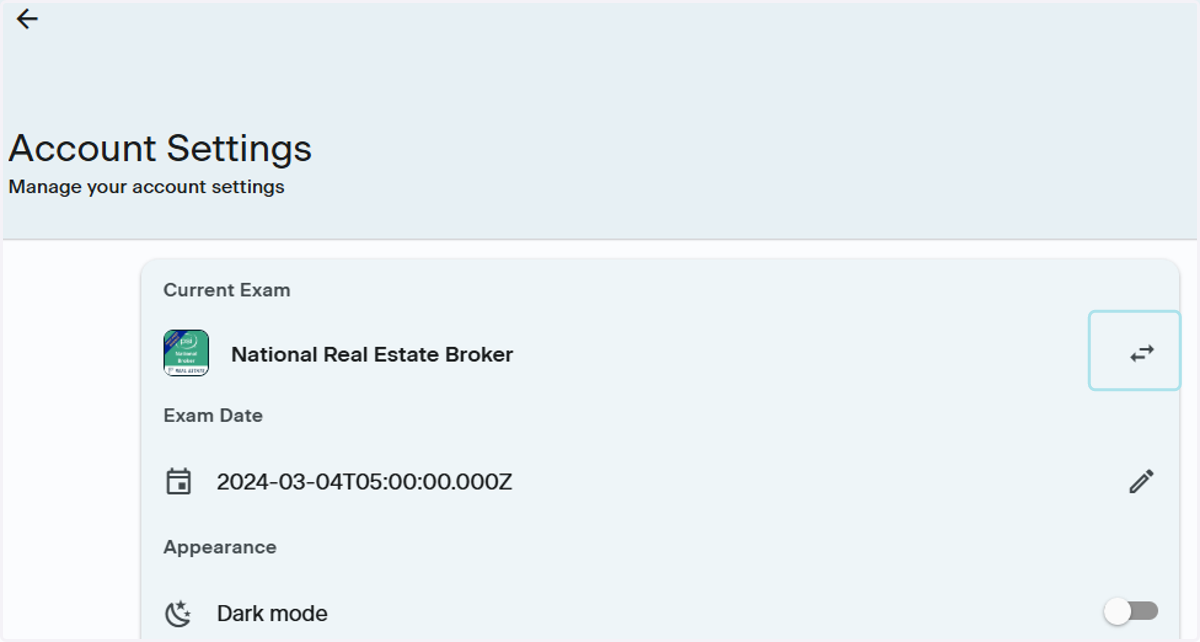
Next to the name of the product you are currently on, you will see a set of arrows. Click the arrows to begin
7. Find the Product You Want to Switch To
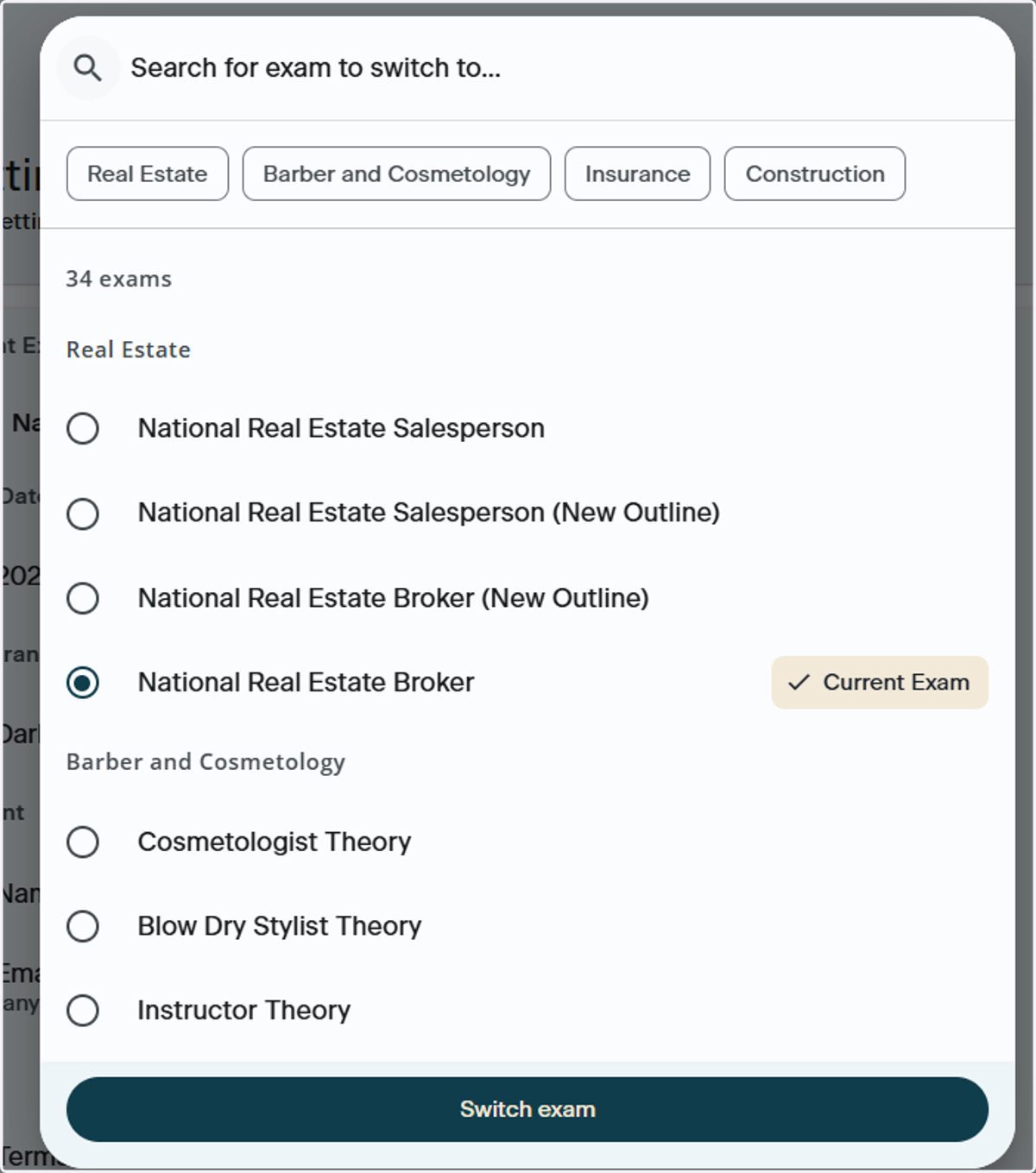
You may use the search bar at the top if you know the name of the product. You will also notice the industry titles at the top. Select the industry that your product is under to follow this method.
8. Locate the Name of the New Exam
After you click on the industry your desired product belongs to, like Real Estate, you'll see subcategories. For instance, if you clicked on Real Estate and you want to switch to Broker, just pick the name of that specific subcategory you're interested in.
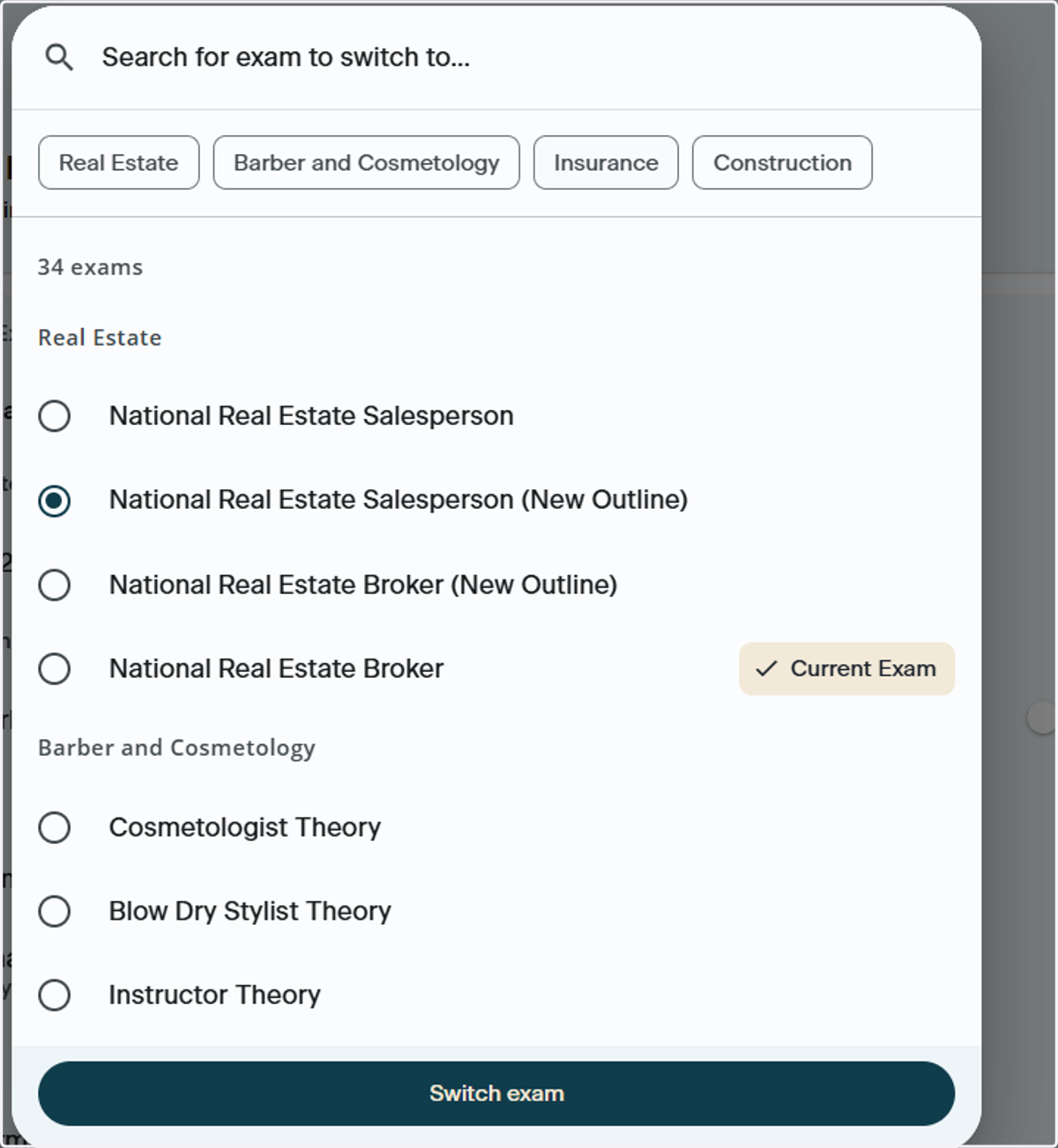
9. Click on Switch exam

Change Exam Date
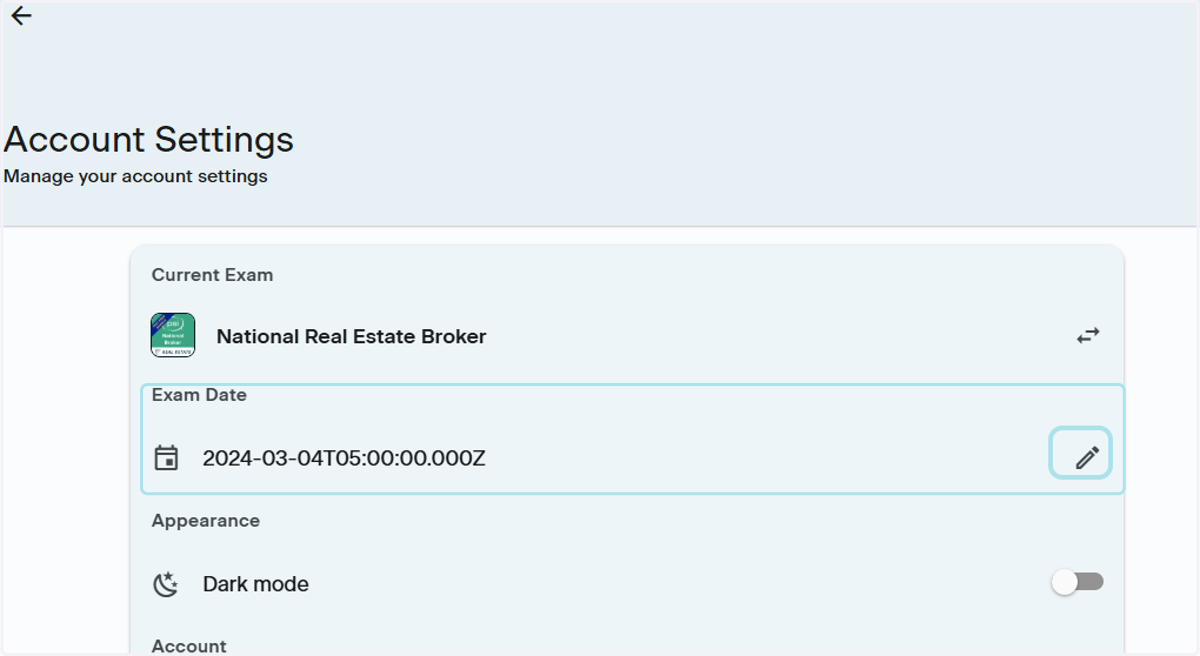
10. Change Exam Date
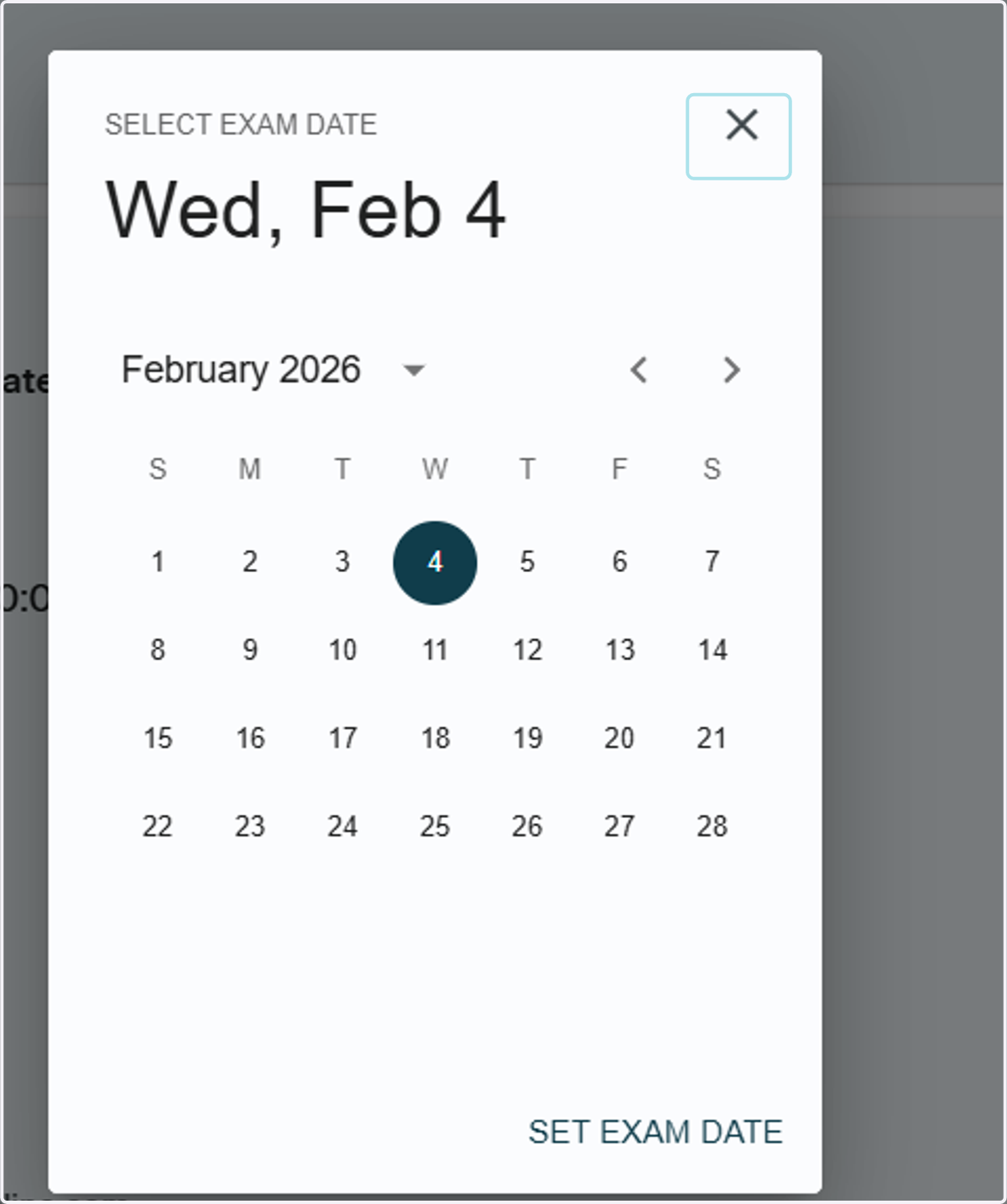
Navigate to Exam Date under the name of your product. Click the pencil icon on the righthand side of he Select date portion to update your exam date.
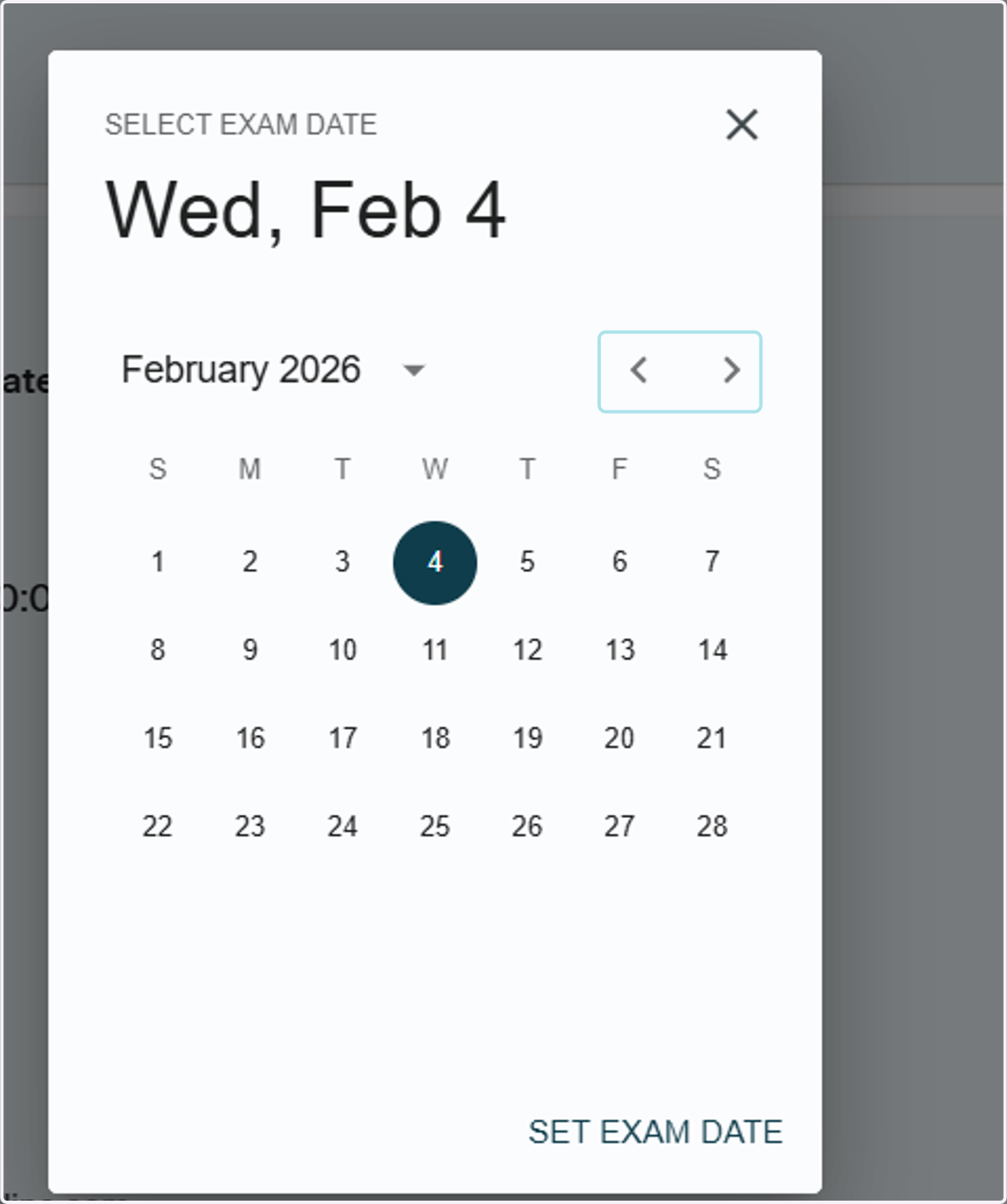
11. Choose the Date
Use the arrow navigation at the top of the calendar to find your date
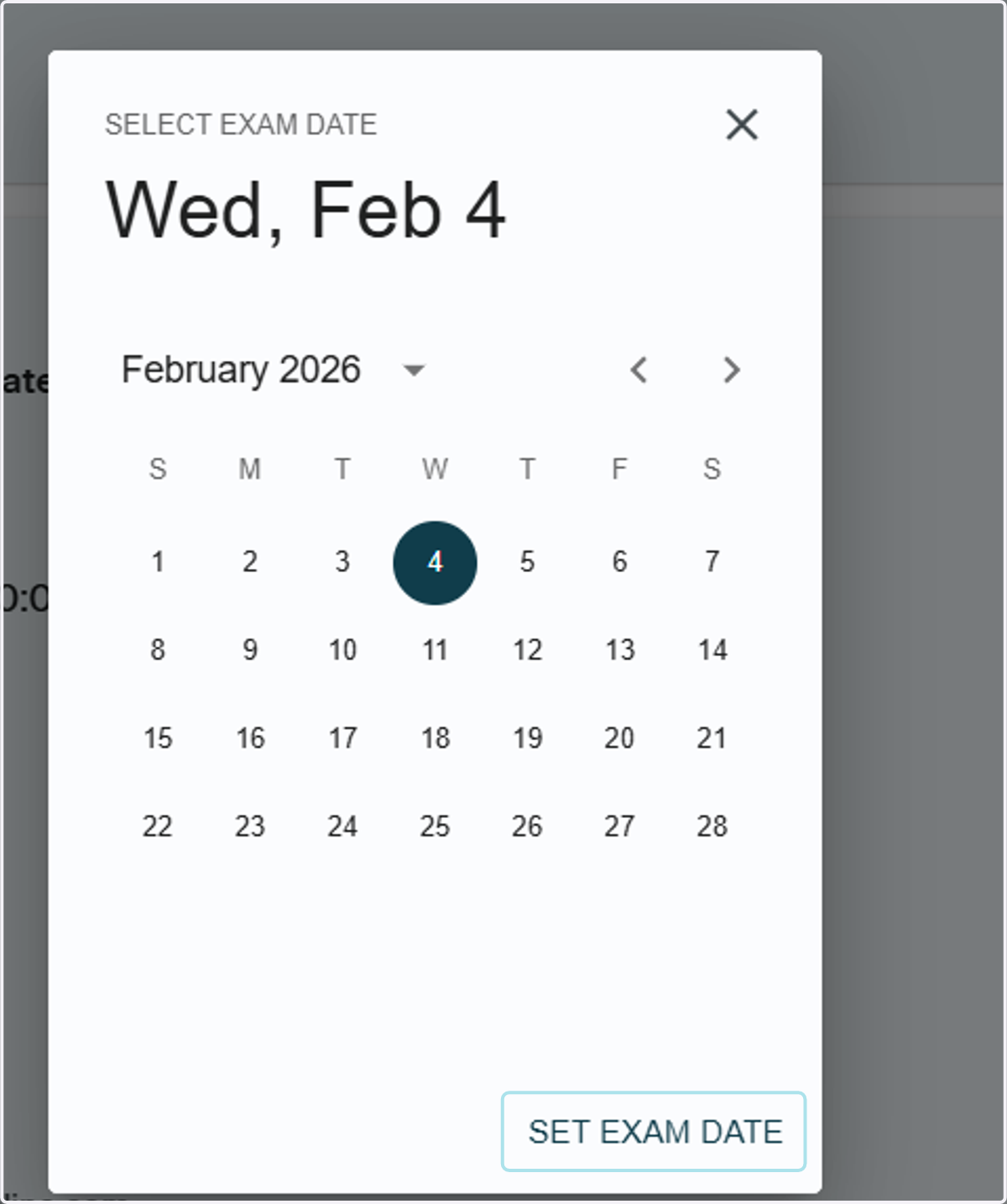
12. Click on Set Exam Date
Click Set Exam Date at the bottom righthand corner of the calendar to confirm your selection
13. Exit Select Your Exam Date
Once you have confirmed your exam date, click the X in the top righthand corner of the calendar to be brought back to your Account Settings
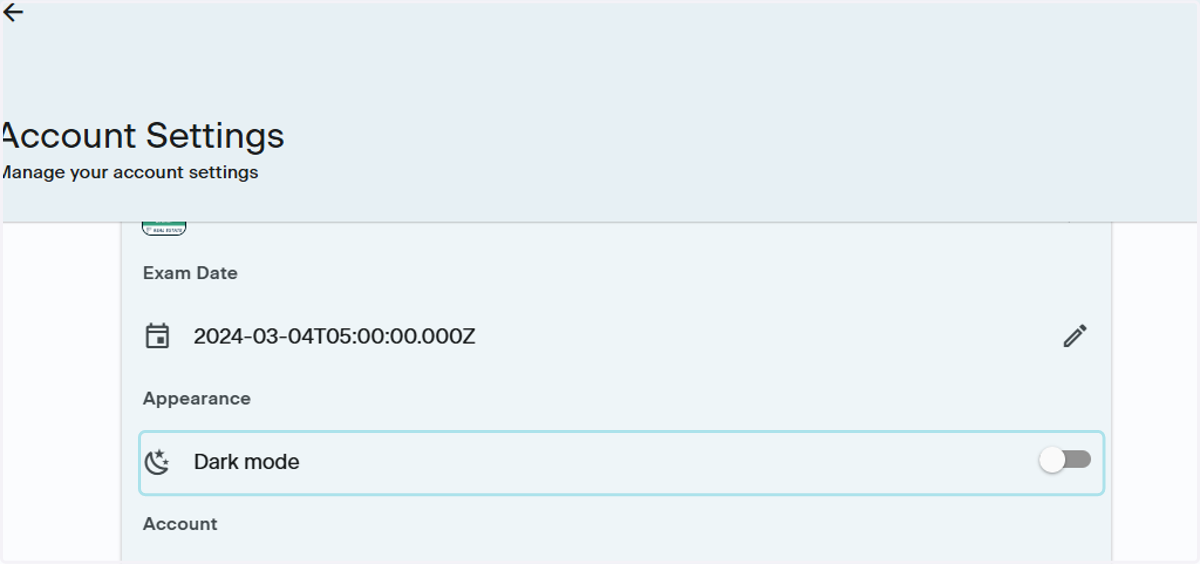
Appearance
This is where you can switch to dark mode
14. Dark Mode
Go to the Appearance section and click the switch button to change to dark mode
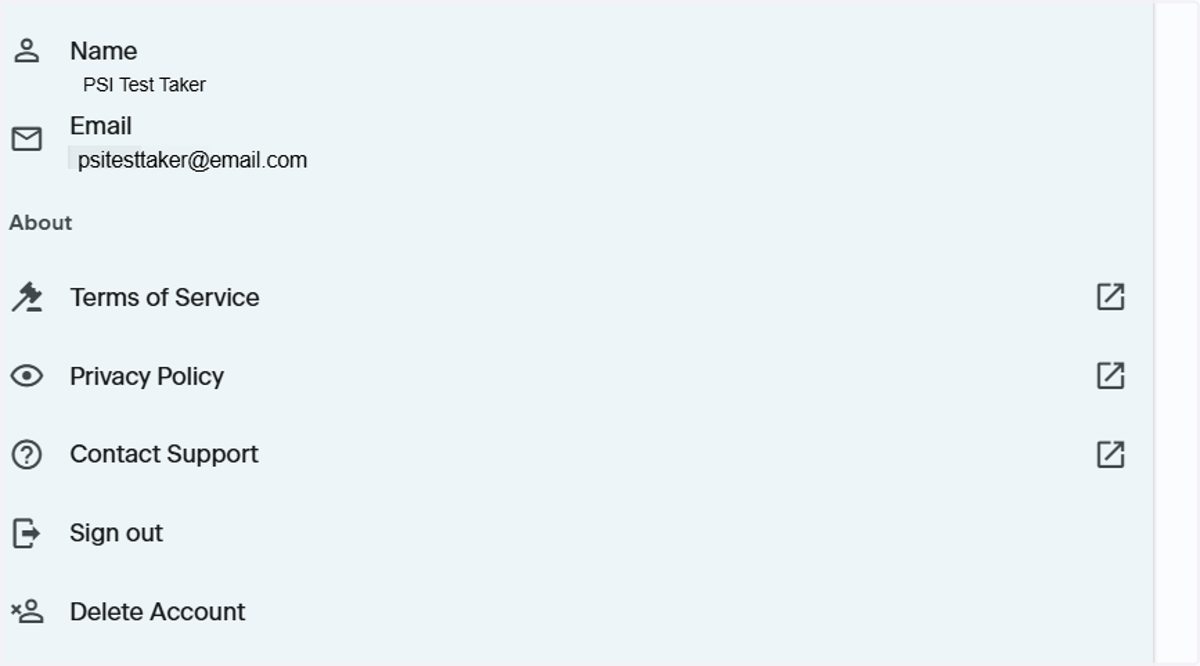
Account
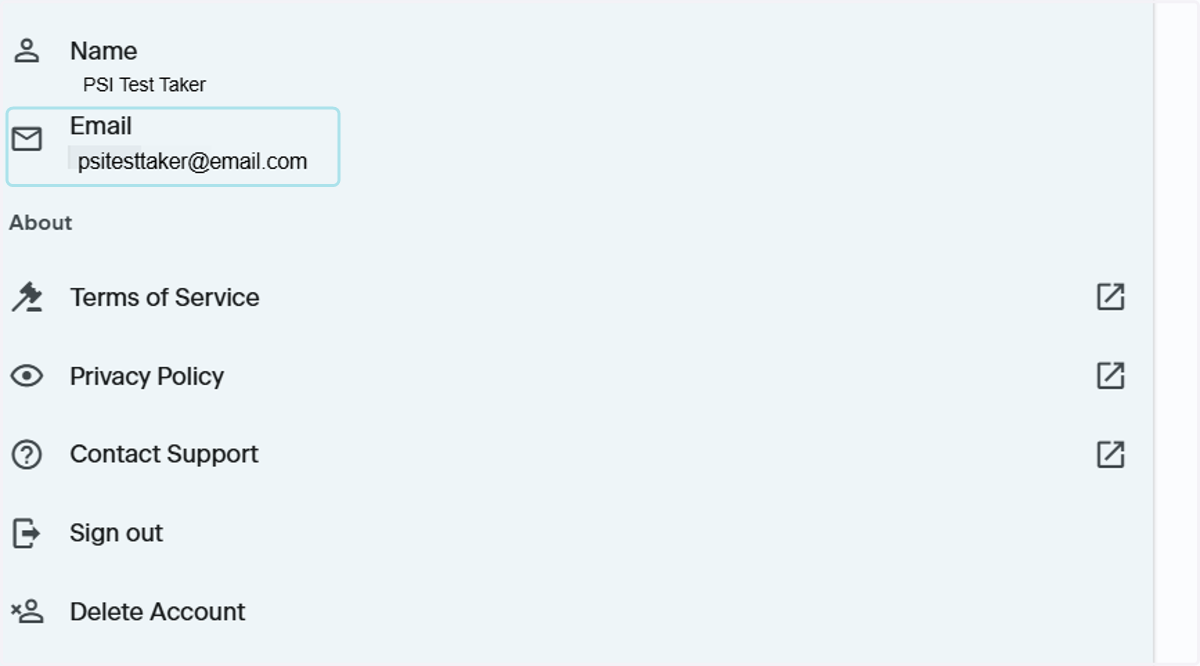
This is where your name and email information are located
15. Account Details
This section shows what your Username and Email are. You are not able to change your Username or Email. Please view the next steps for details.
16. Request to Change Username
Please reach out to ptsupport@psionline.com to request a change to your username. Please include the following details:
First name
Last name
Email associated with your account
New username you wish to use
Note: Any username requests that are deemed inappropriate, lewd or offensive will not be honored. Remember that usernames are public facing. Please use your best judgement if wish to change your username to something outside of your name
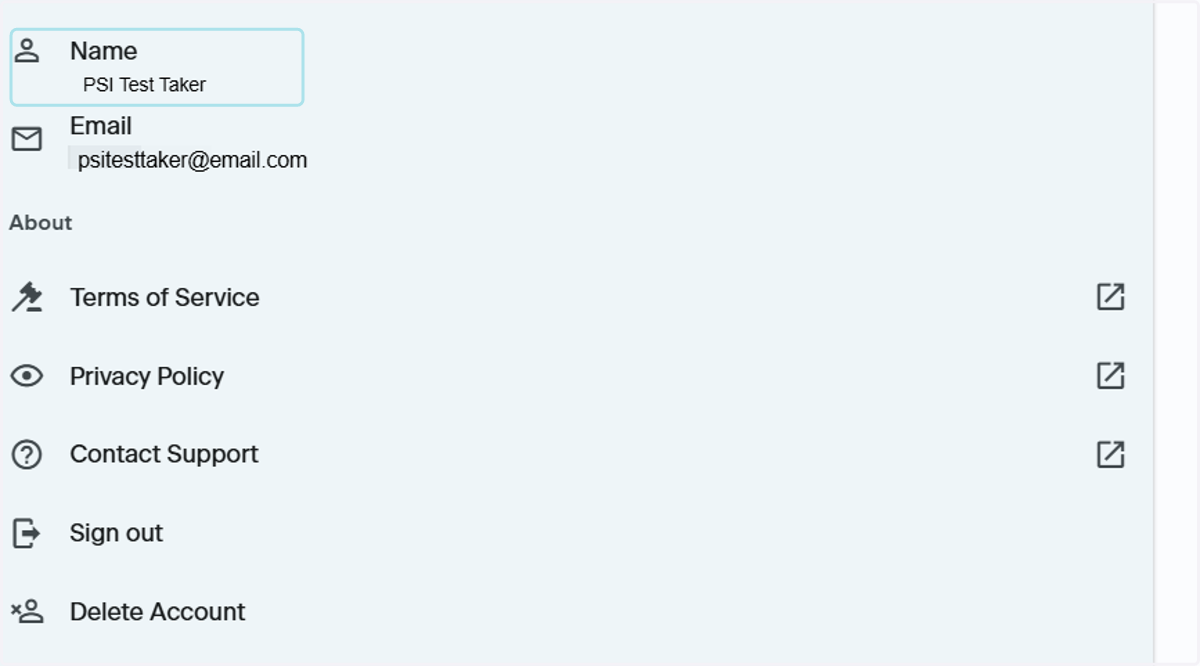
17. Request to Change Username
Please reach out to ptsupport@psionline.com to request a change to your username. Please include the following details:
First name
Last name
Email associated with your account
New email you wish to use
Exit Account Settings
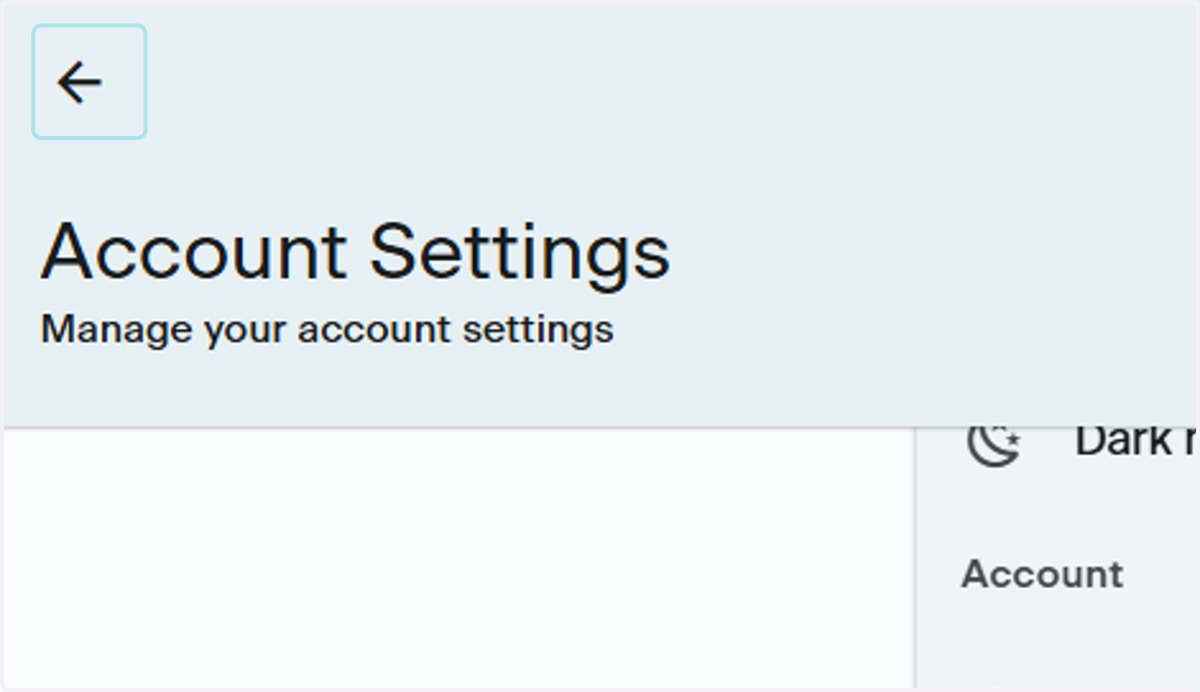
18. Exit Account Settings
Click the navigation arrow at the top lefthand corner of the screen above the words Account Settings to be brought back to the Home page
Contact Support
19. Where to Contact PSI Support
Go to your Account Settings by clicking the Gear icon in the upper righthand corner of the App and click Support. This will launch an email to the PSI Support Team, ptsupport@psionline.com
For help with:
Profile details
Order related issues
Access code assistance
Change username
Errors
Please be sure to take screenshots of any errors
Please include the following in your email:
First name
Last name
Email associated with your order
Order Number
Order Confirmation
Note: If you have made a purchase in-app, or through the App Store or Google Play Store, the PSI team will not be able to assist you with order related issues such as:
Copy of order confirmation
Refunds of purchases made through the App Store, Play Store or in-app