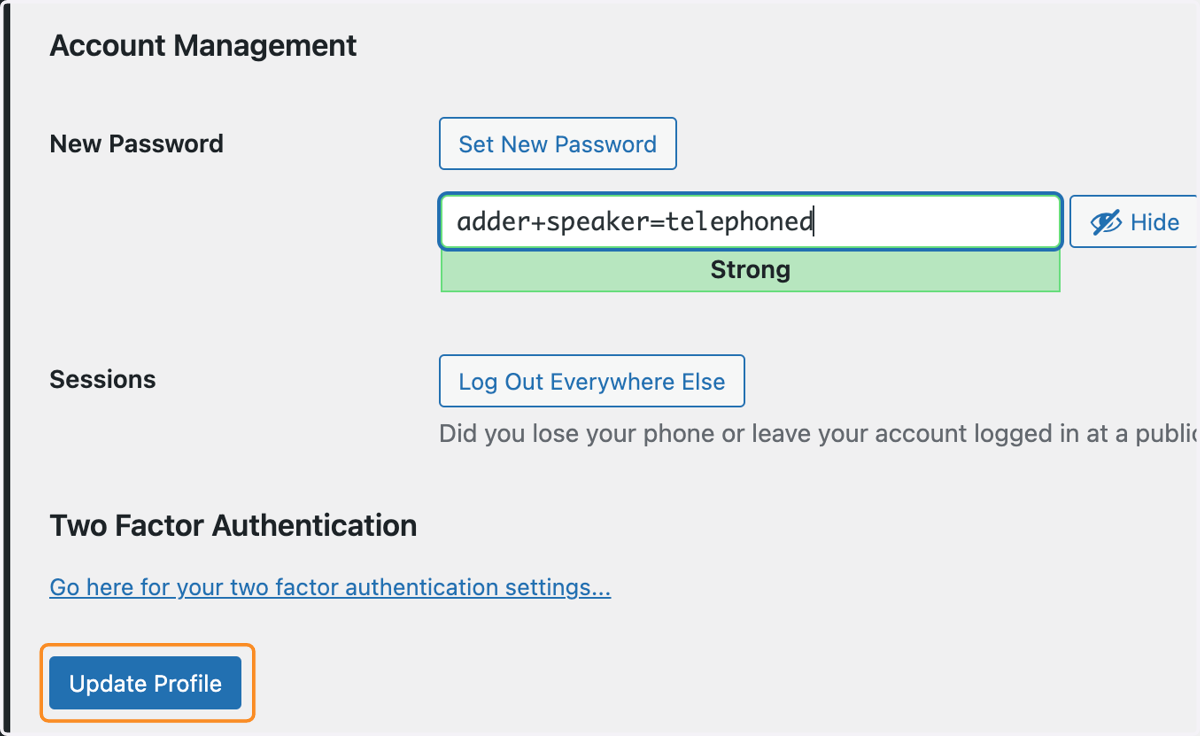
Change your password on a Navigator website
This tutorial explains how to change your password on a GPsurgery.net website. You can move through the tutorial at your own pace using the NEXT button.
Lost your password? Learn how to reset your password.
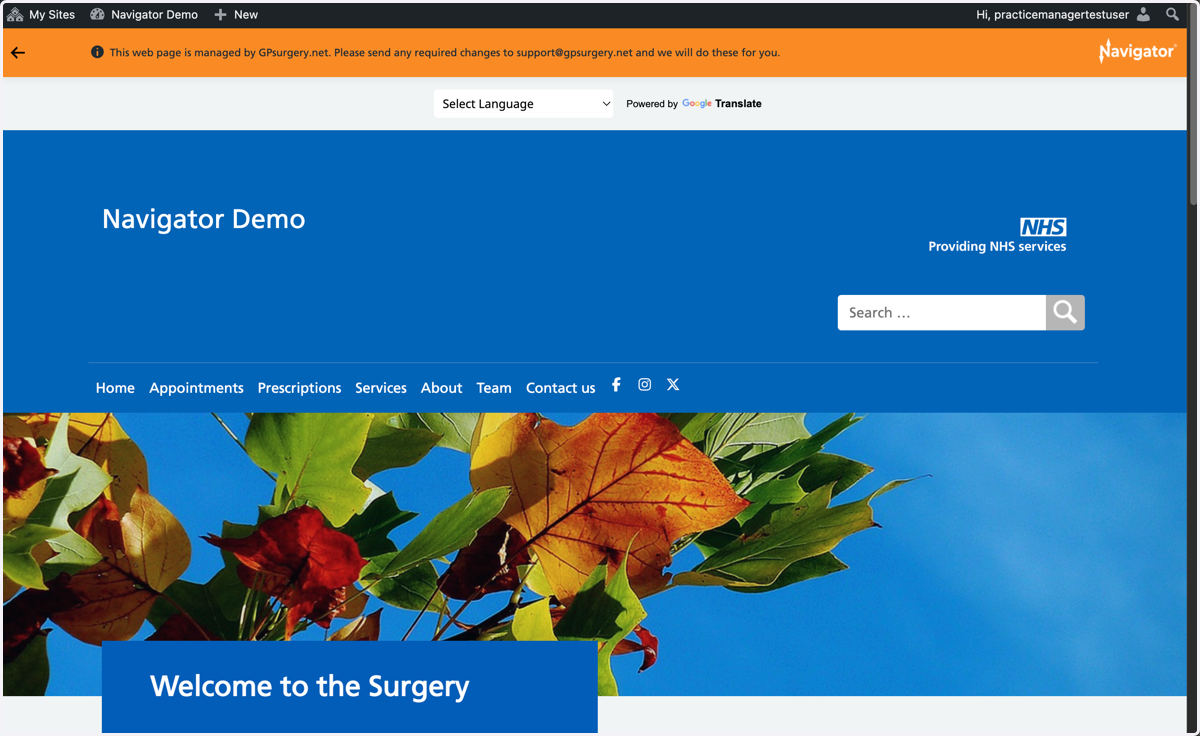
1. Ensure that you are logged into your Navigator website. The black admin toolbar will be visible at the top of the screen.
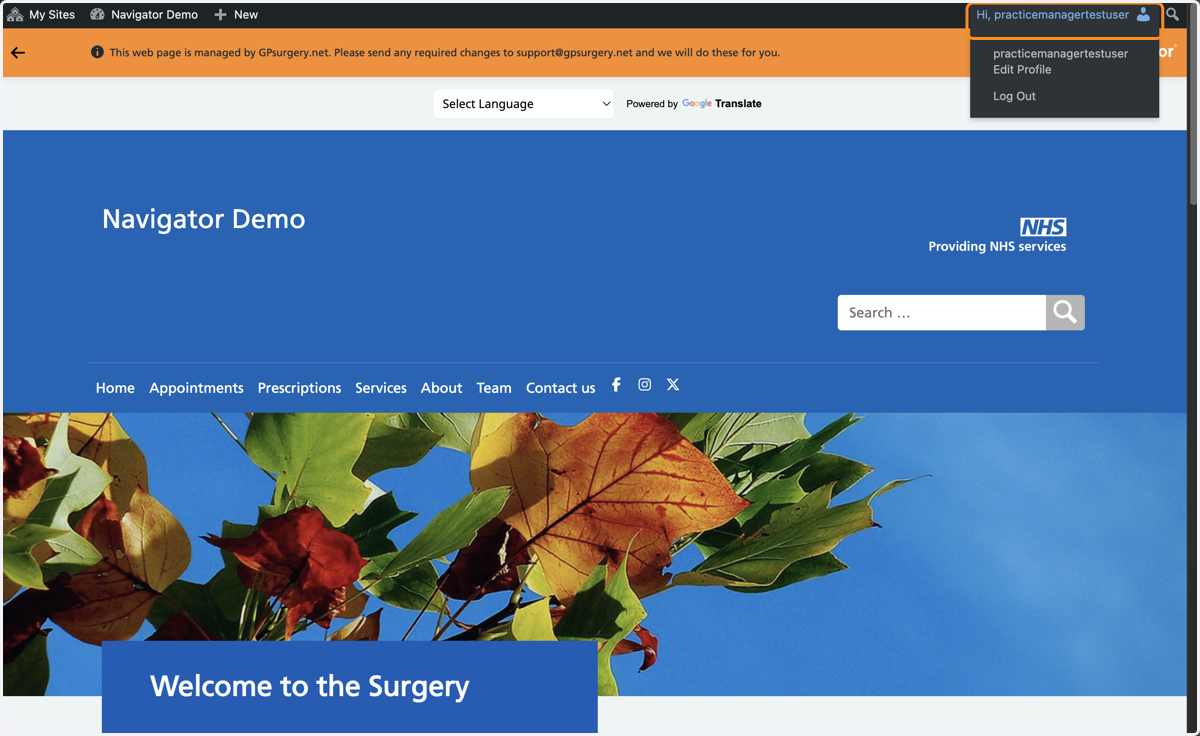
2. Select your username in the top right-hand corner of the screen, in the admin toolbar.
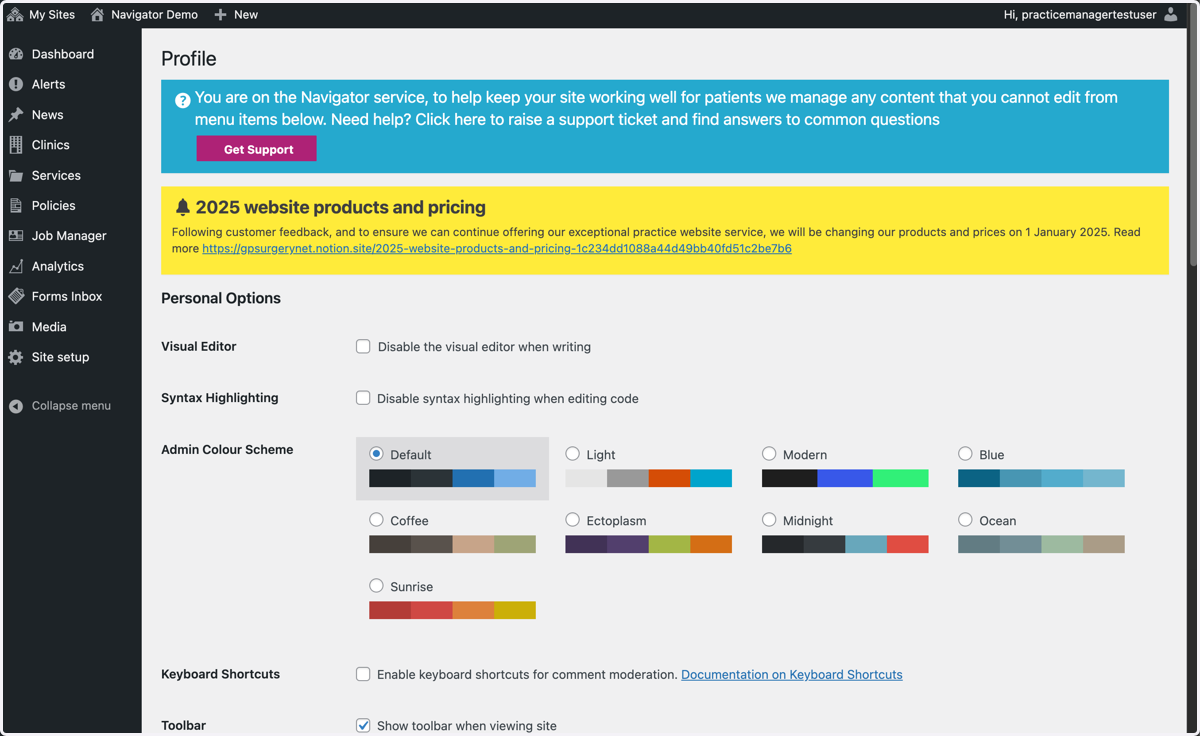
3. You are now in the Profile section of the Dashboard.
4. Scroll down to the bottom of the page, where you will see a subsection called Account Management
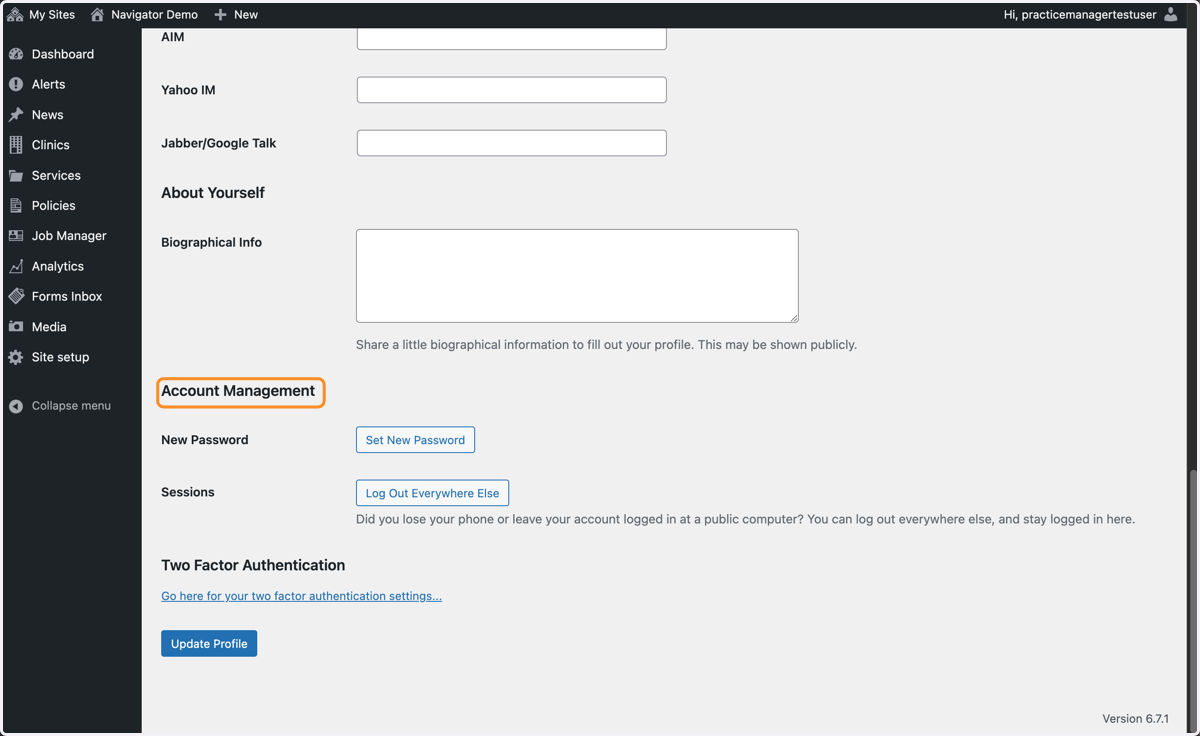
5. Select the Set New Password button
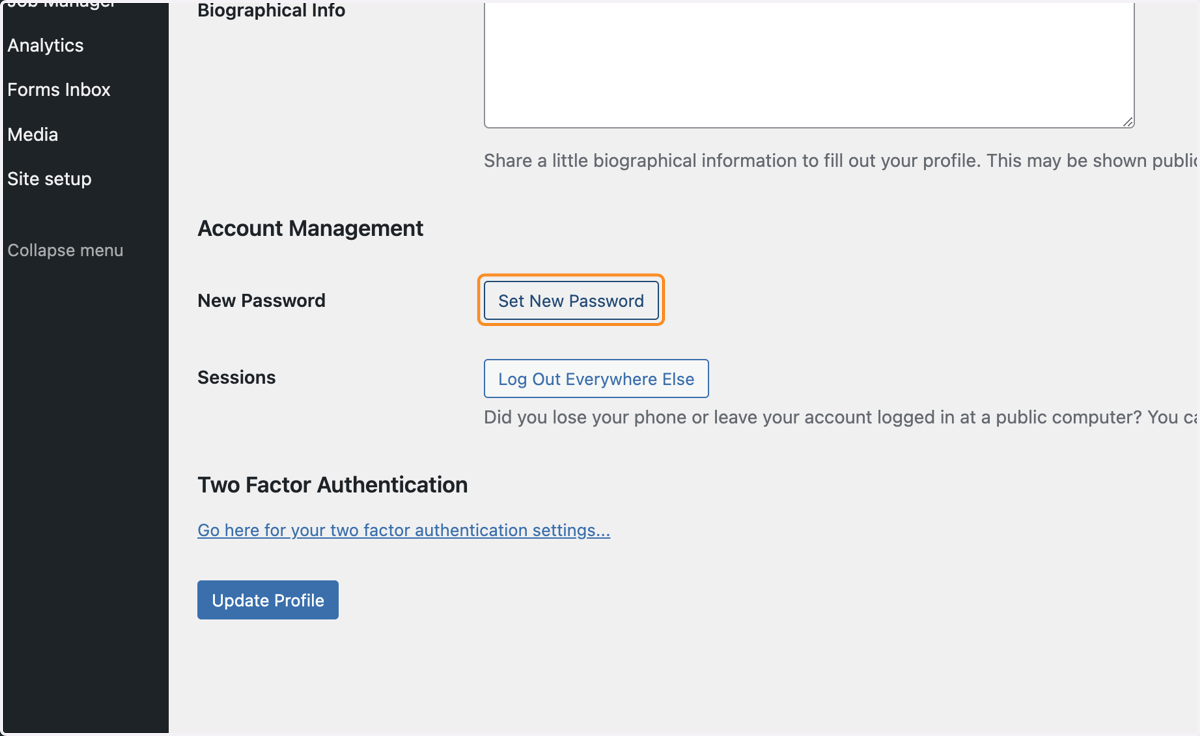
6. This automatically generates a new password. This will be very secure, but difficult to remember.
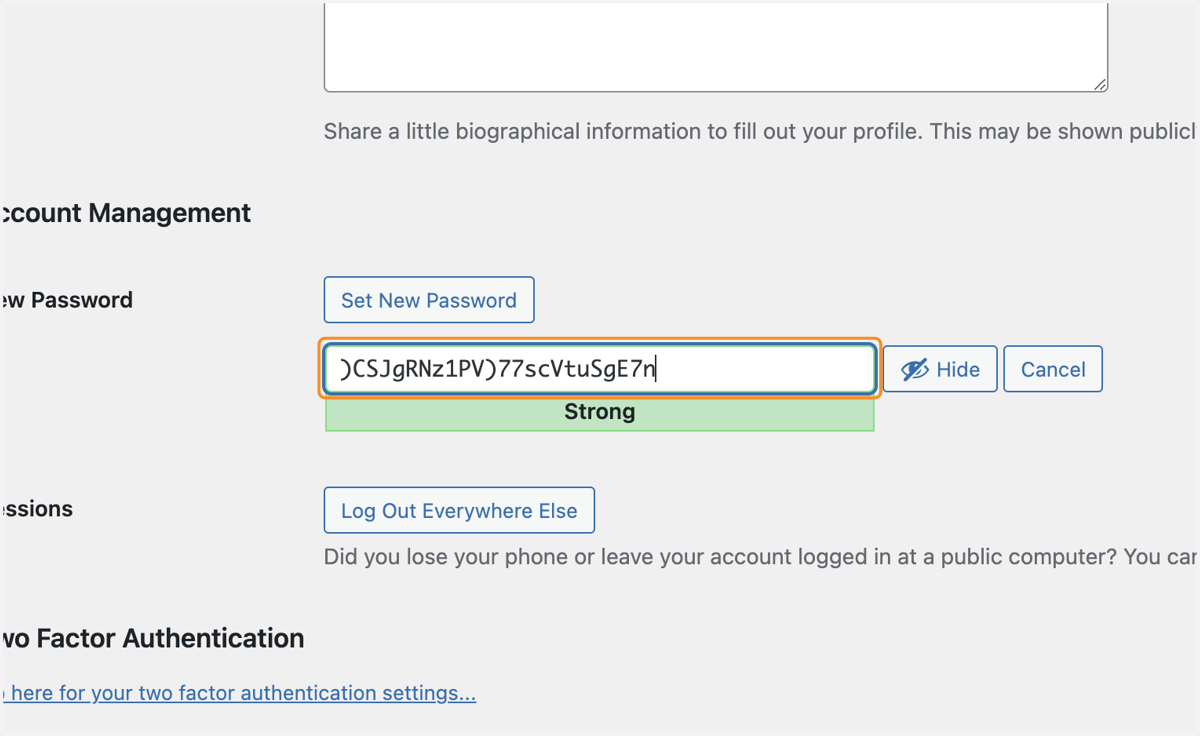
7. You can set your own password by typing into this box.
TIP: you can make up a secure password by creating a string of words separated by punctuation.
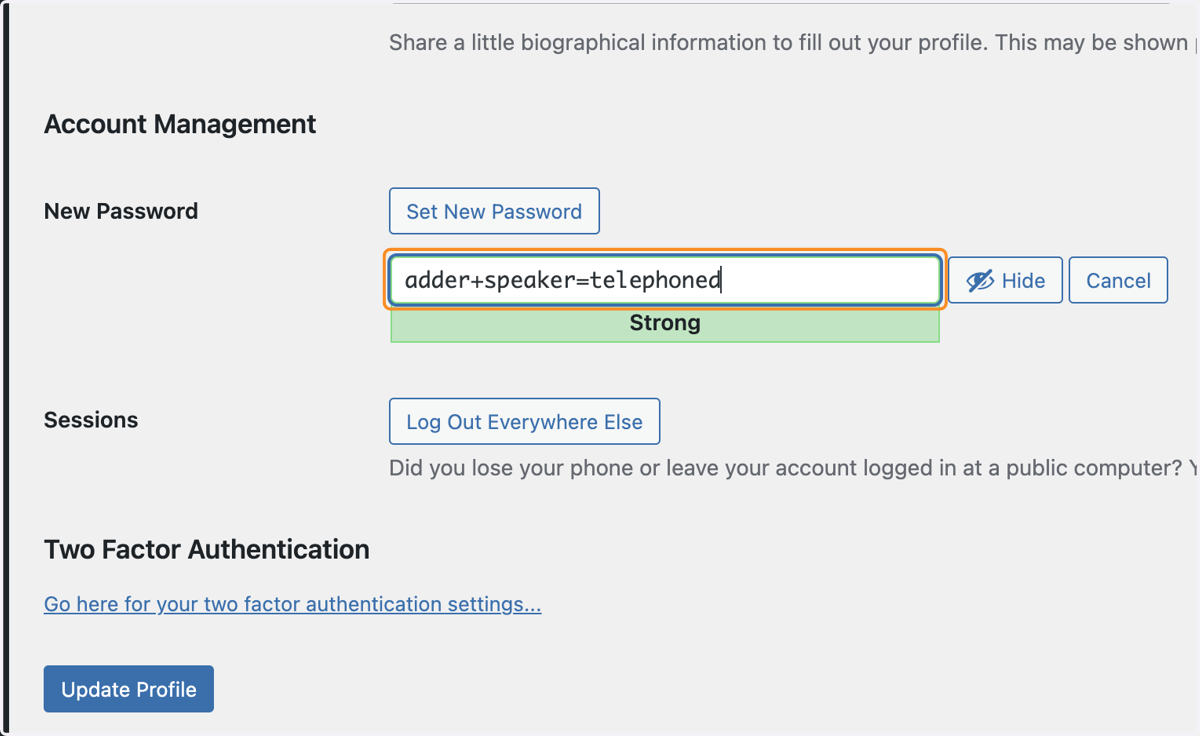
8. Once you are happy with your new password, select the blue Update Profile button at the bottom of the page. You should now be able to login with your new details.
TIP: if you have any trouble with this, contact support@gpsurgery.net and we can help you to get back into your website.