Find policy citations of articles using DOIs other identifiers
Start your search from the 'Start' page or from the 'Scholarly Articles' search. This process covers both starting points. You can search with DOIs, PubMed IDs, or ISBN's.
Option 1: From the Start page
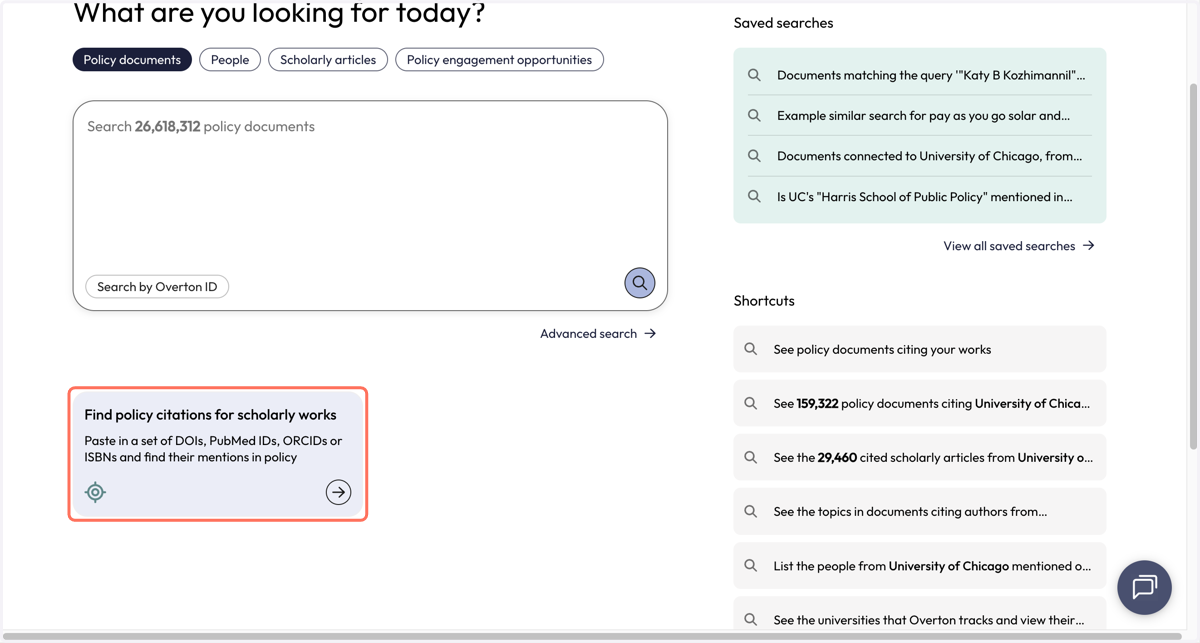
1. Click on 'Find policy citations for scholarly works'
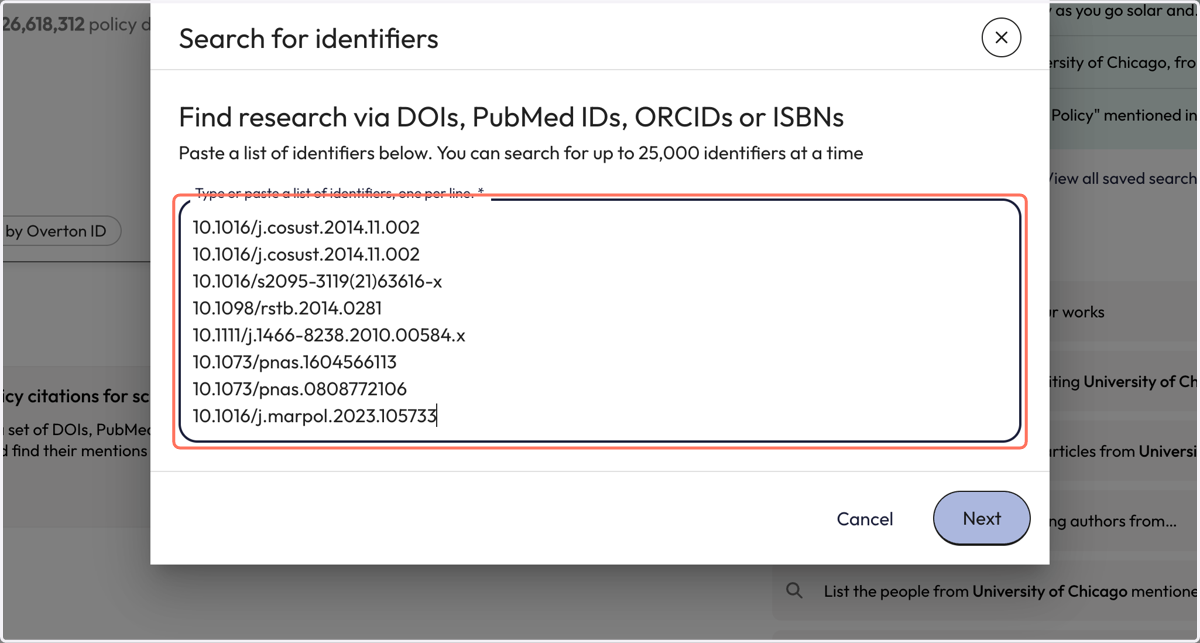
2. Paste identifiers into the pop-up box
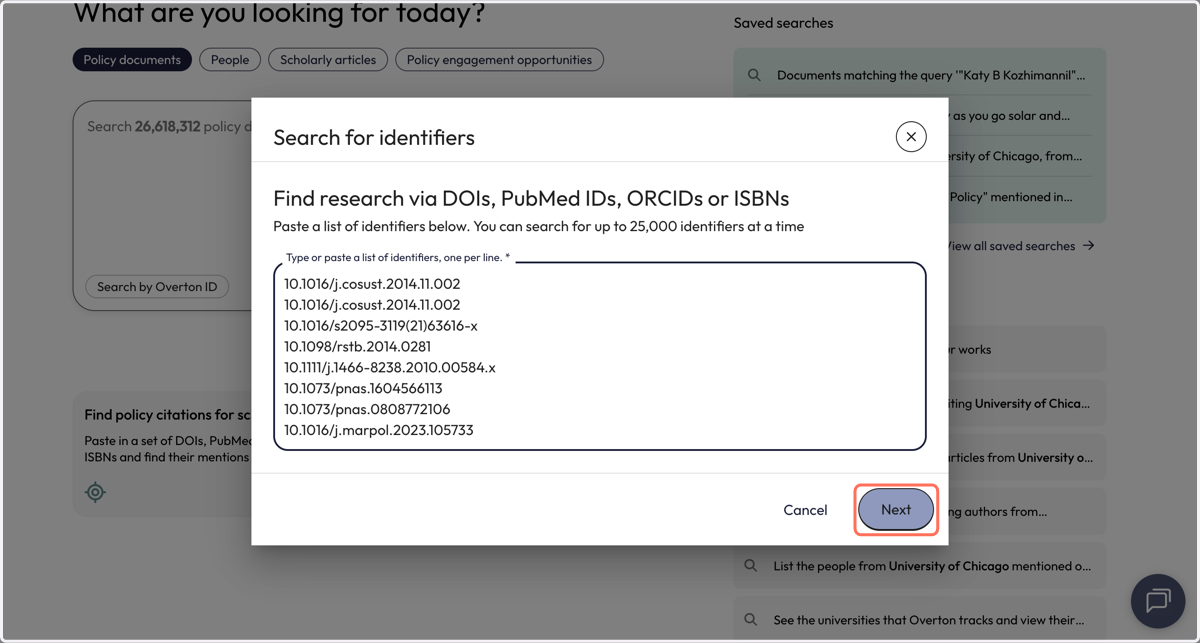
3. Click on 'Next' to start the search
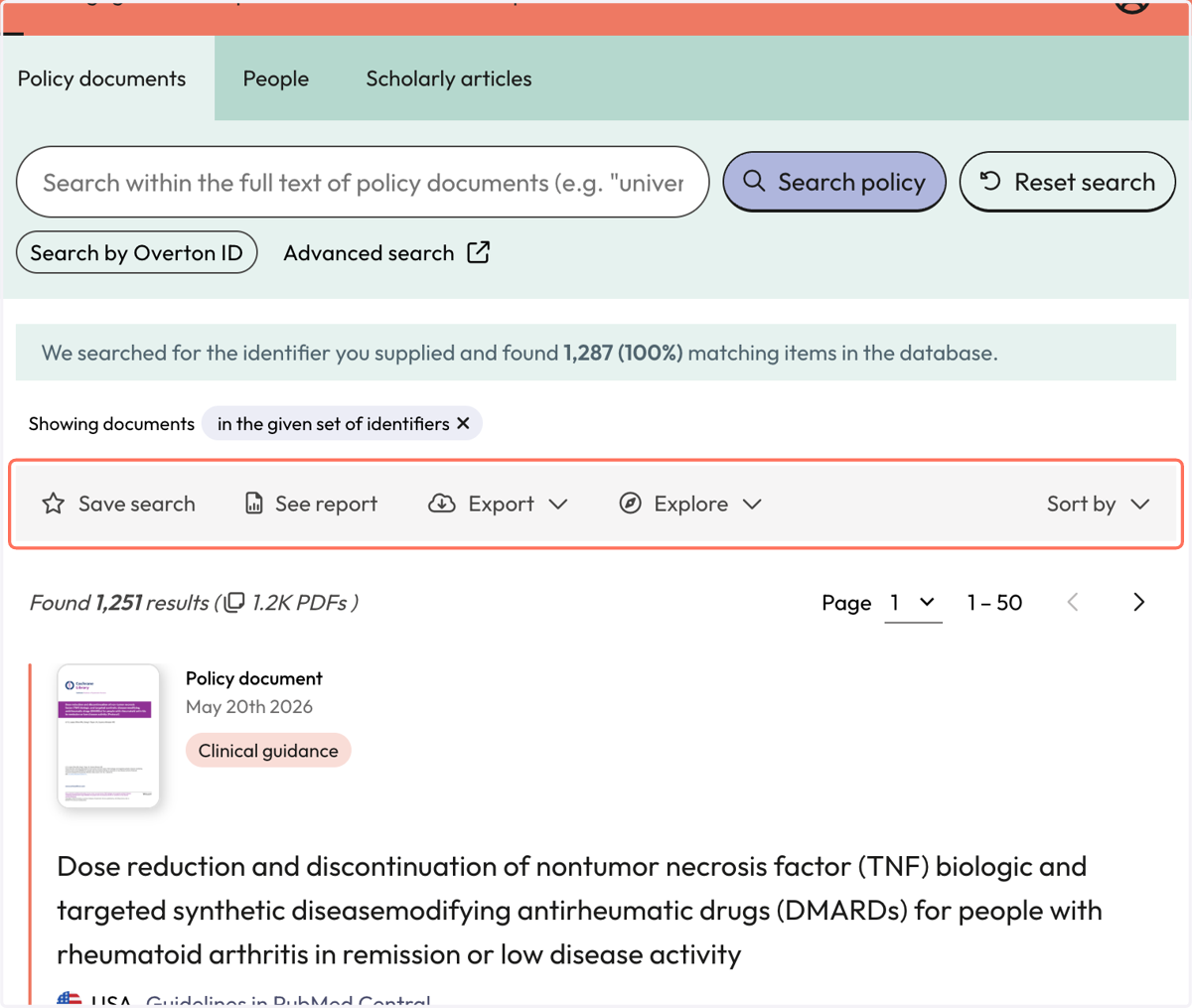
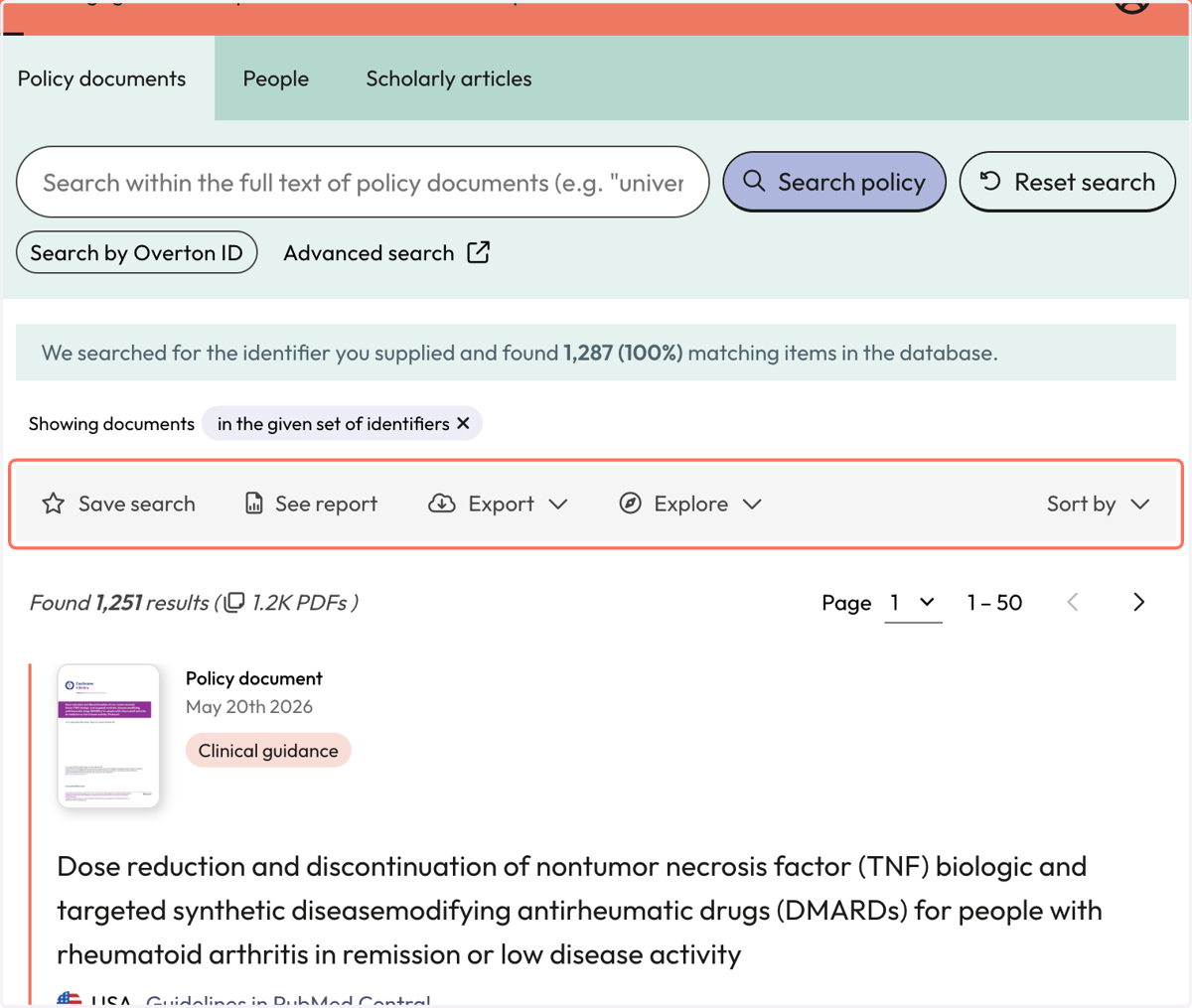
4. You will be taken to the 'Policy Documents' search page to view the policy documents citing your identifiers
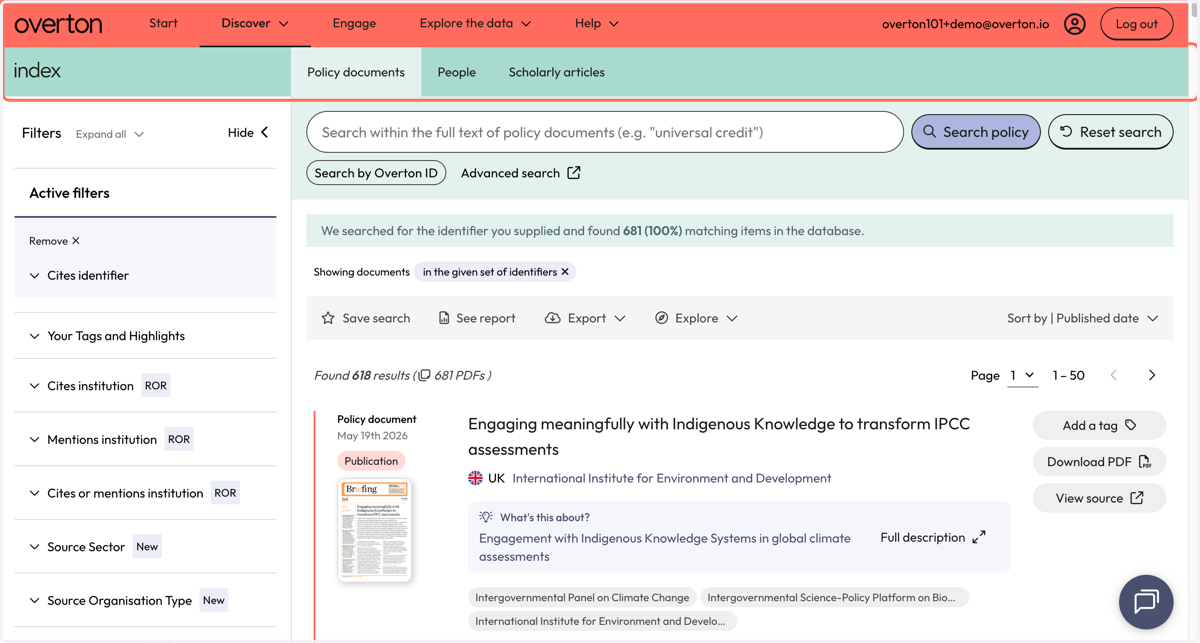
5. Overton tells you how many policy documents cite your identifiers
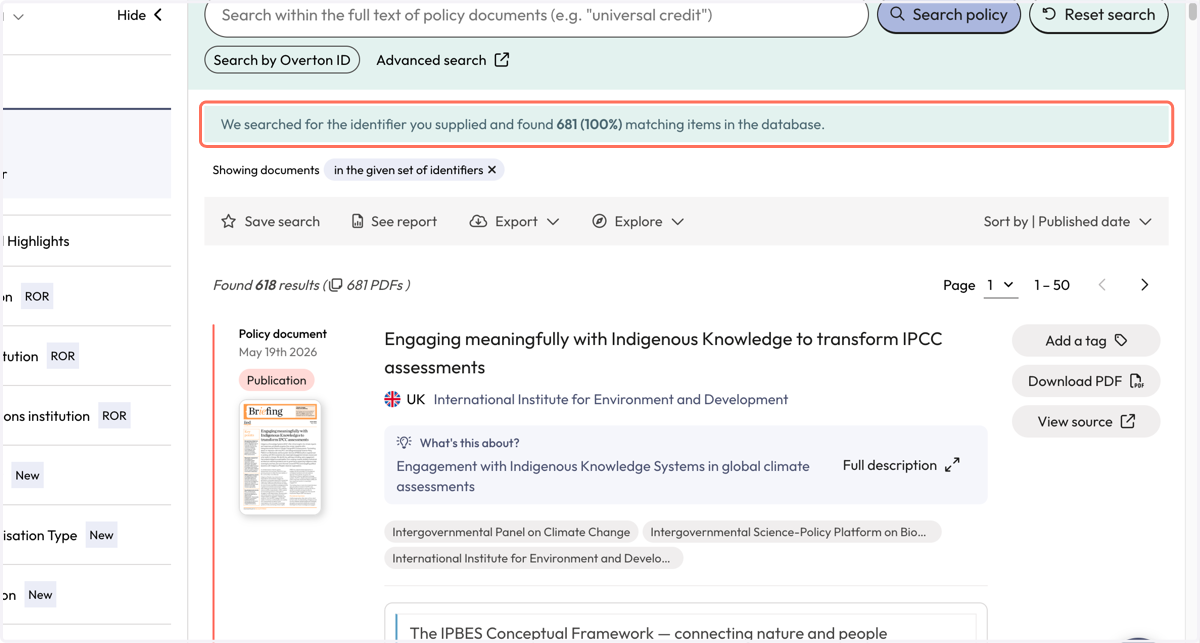
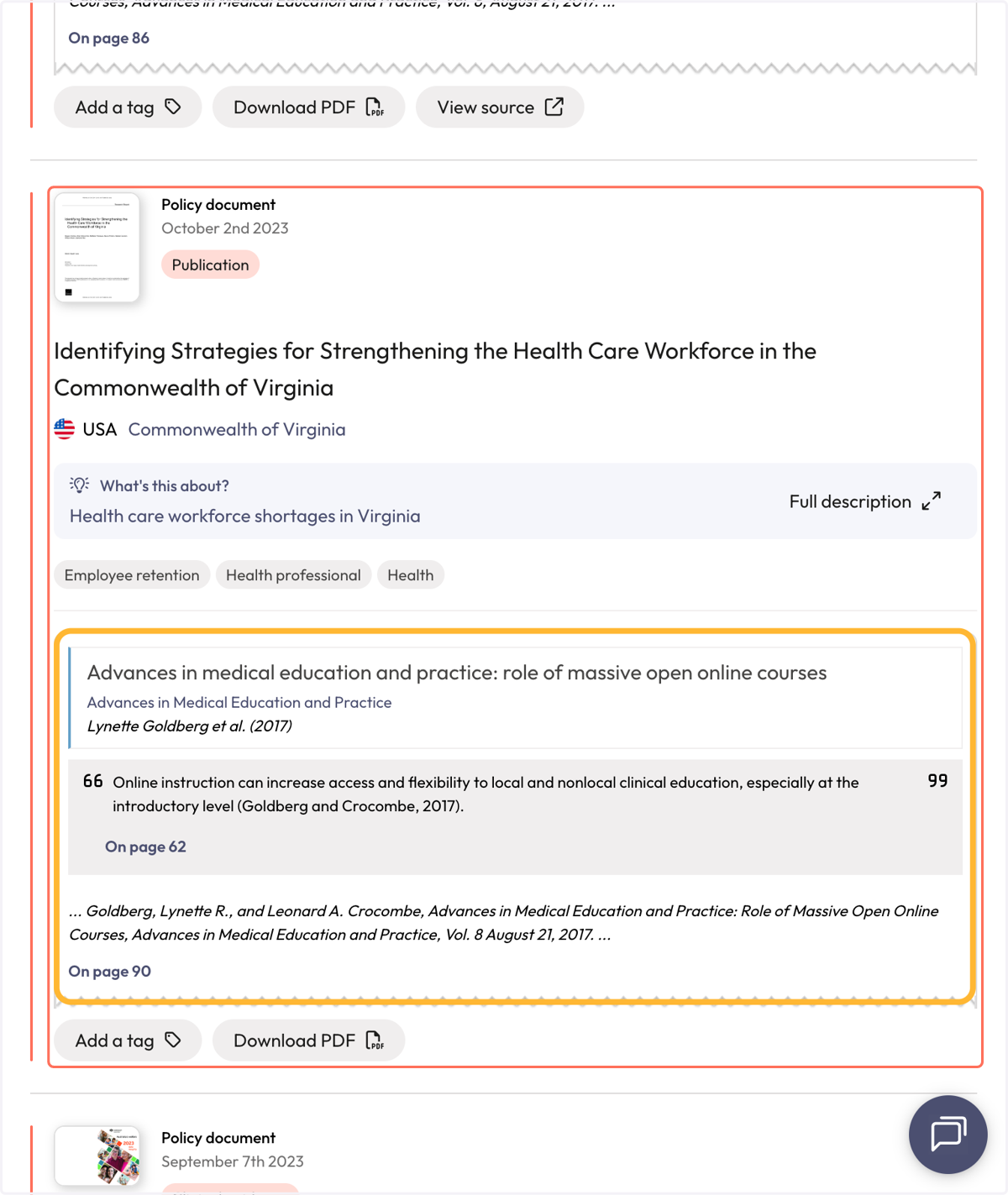
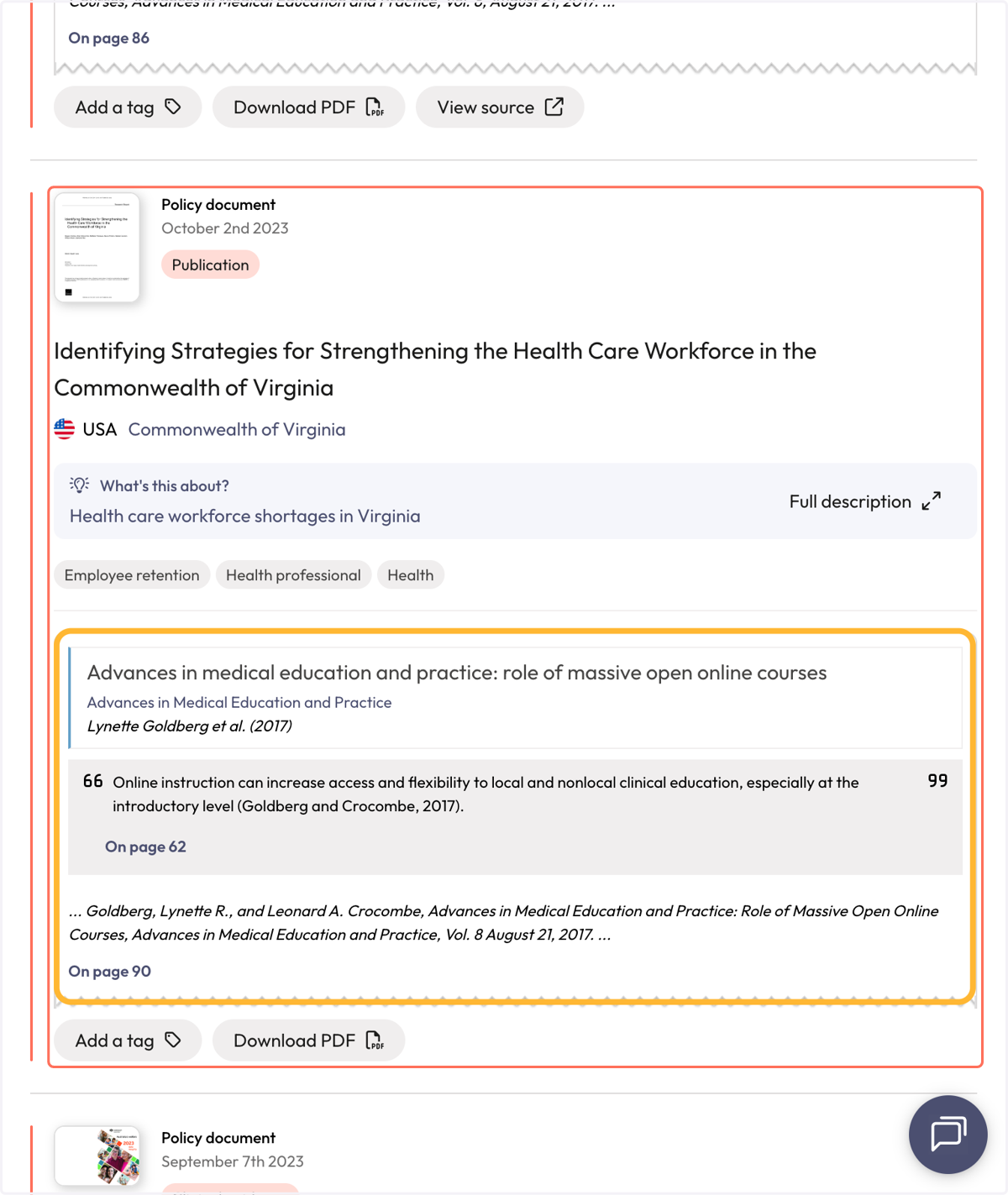
6. Each policy document result displays the name of the cited article, author and information about the citation from the full-text
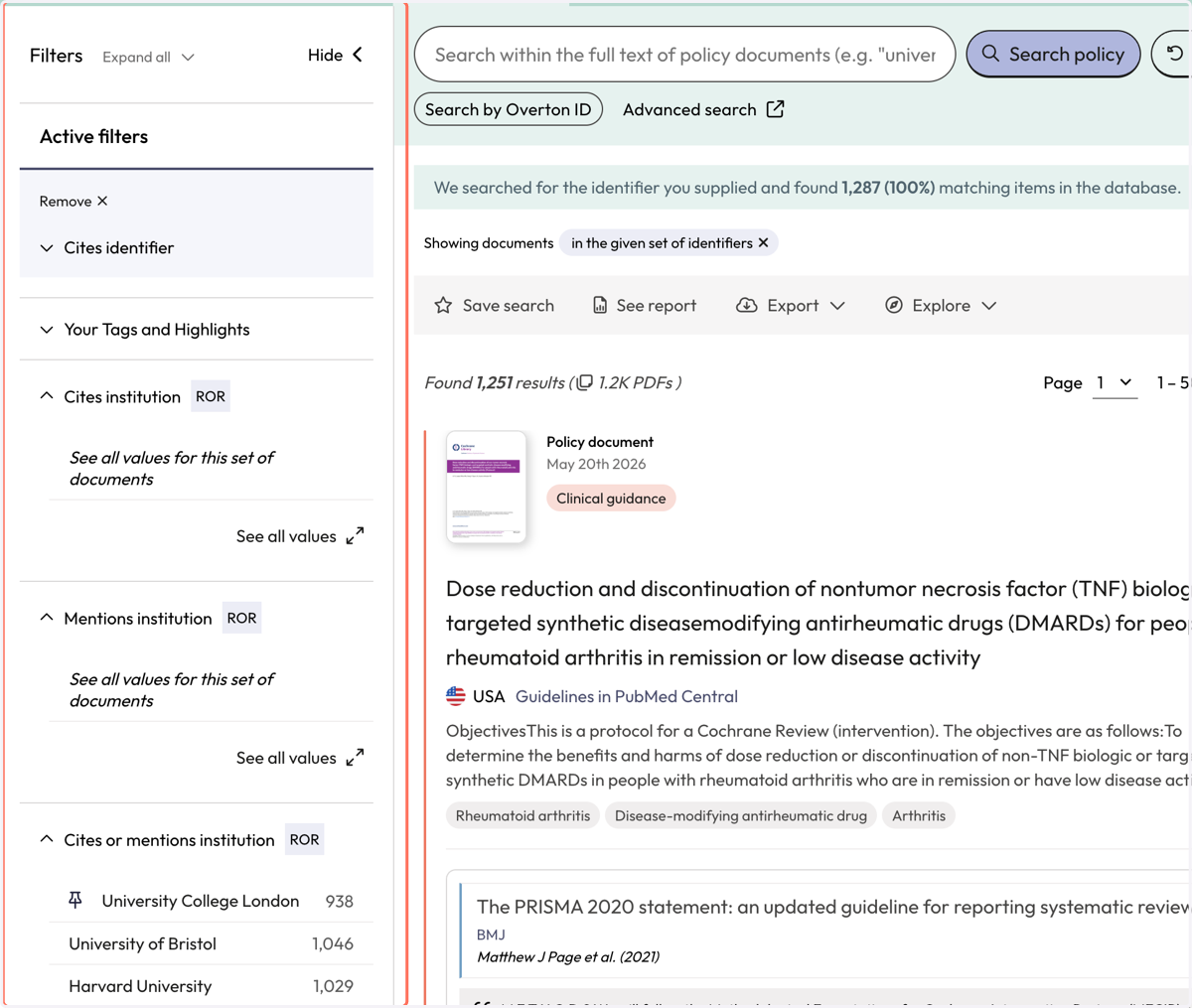
7. Apply filters to narrow down results
8. Use the action bar to save a search, generate a summary report, export or explore further
Option 2: From the 'Scholarly Articles' search
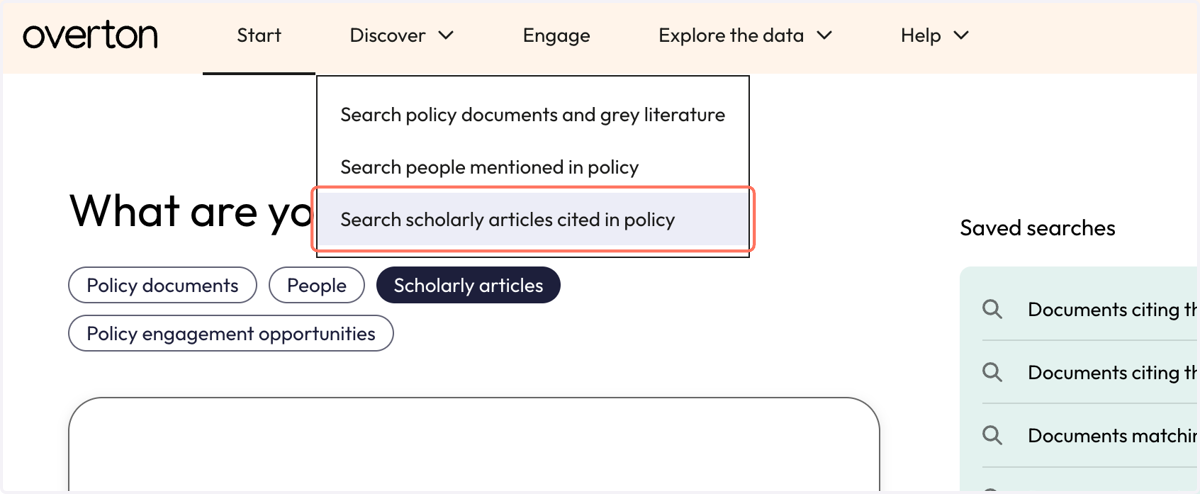
9. From the Discover menu, click on 'Search scholarly articles cited in policy'
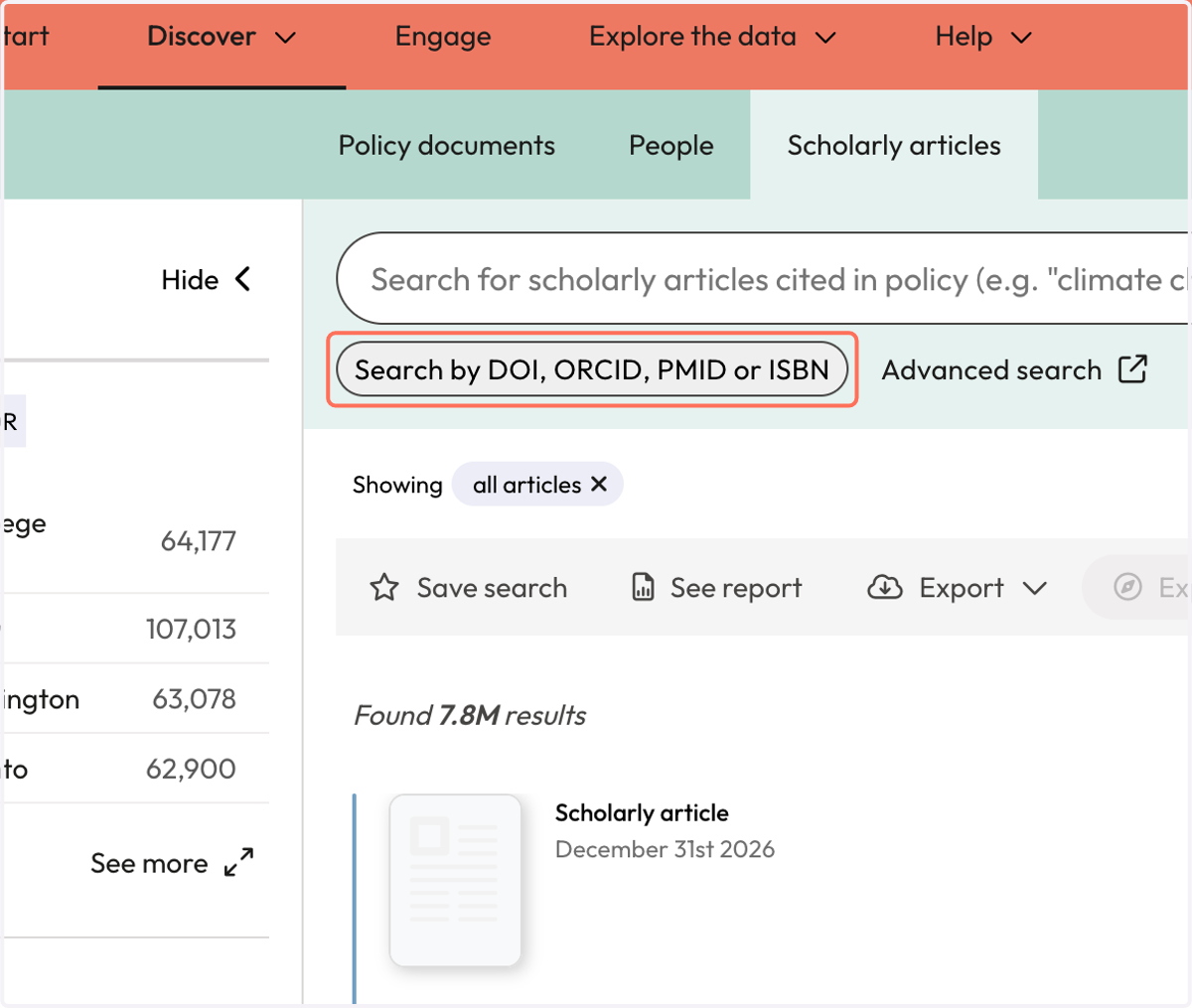
10. Click on the 'Search by DOI, ORCID, PMID or ISBN' button
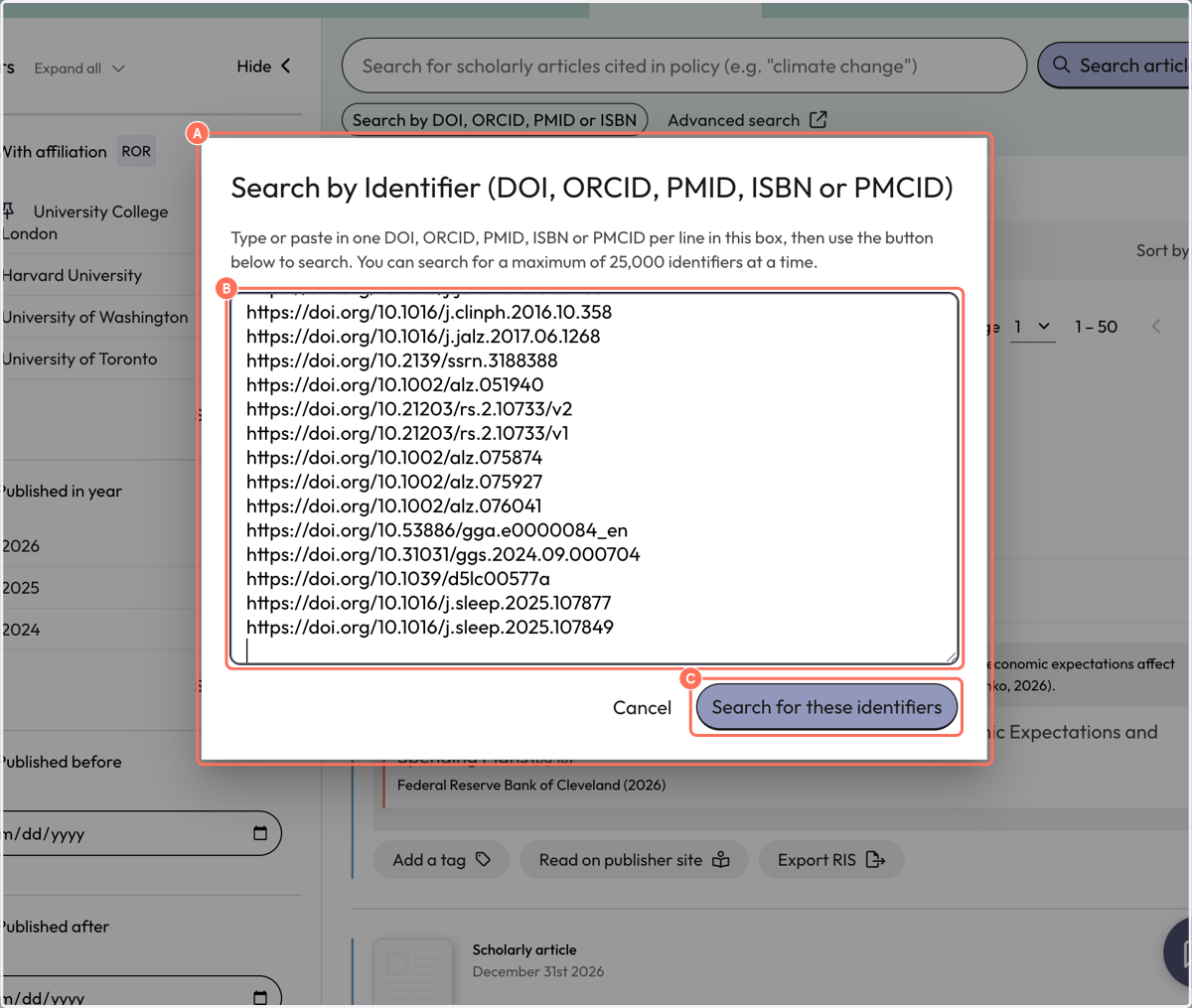
11. A. A pop-up search box appears
11. B. Paste your list of identifiers into the search box
11. C. Click on 'Search for these identifiers'
12. The results are for articles cited in policy. We tell you how many of the identifiers have been cited in policy so far
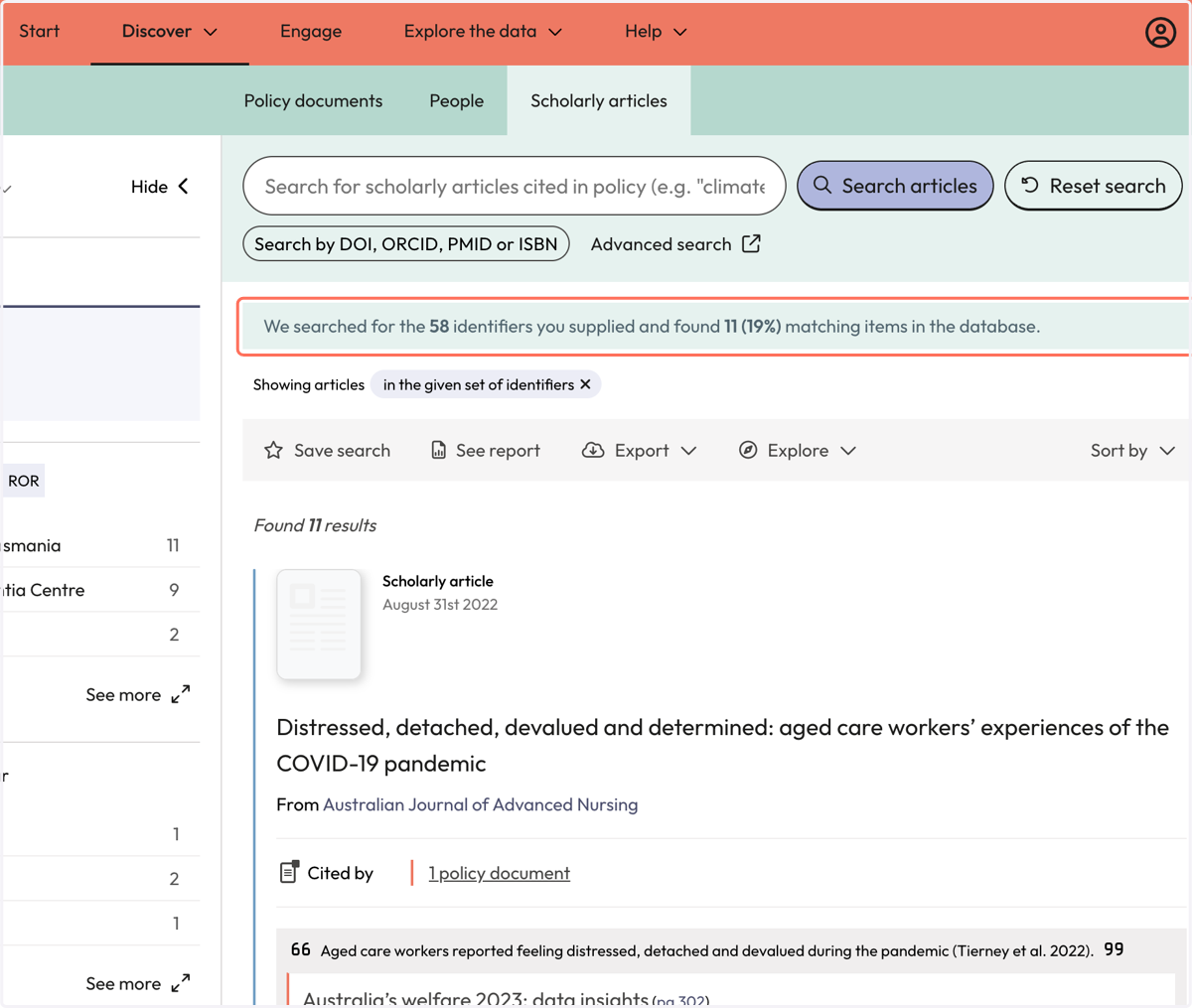
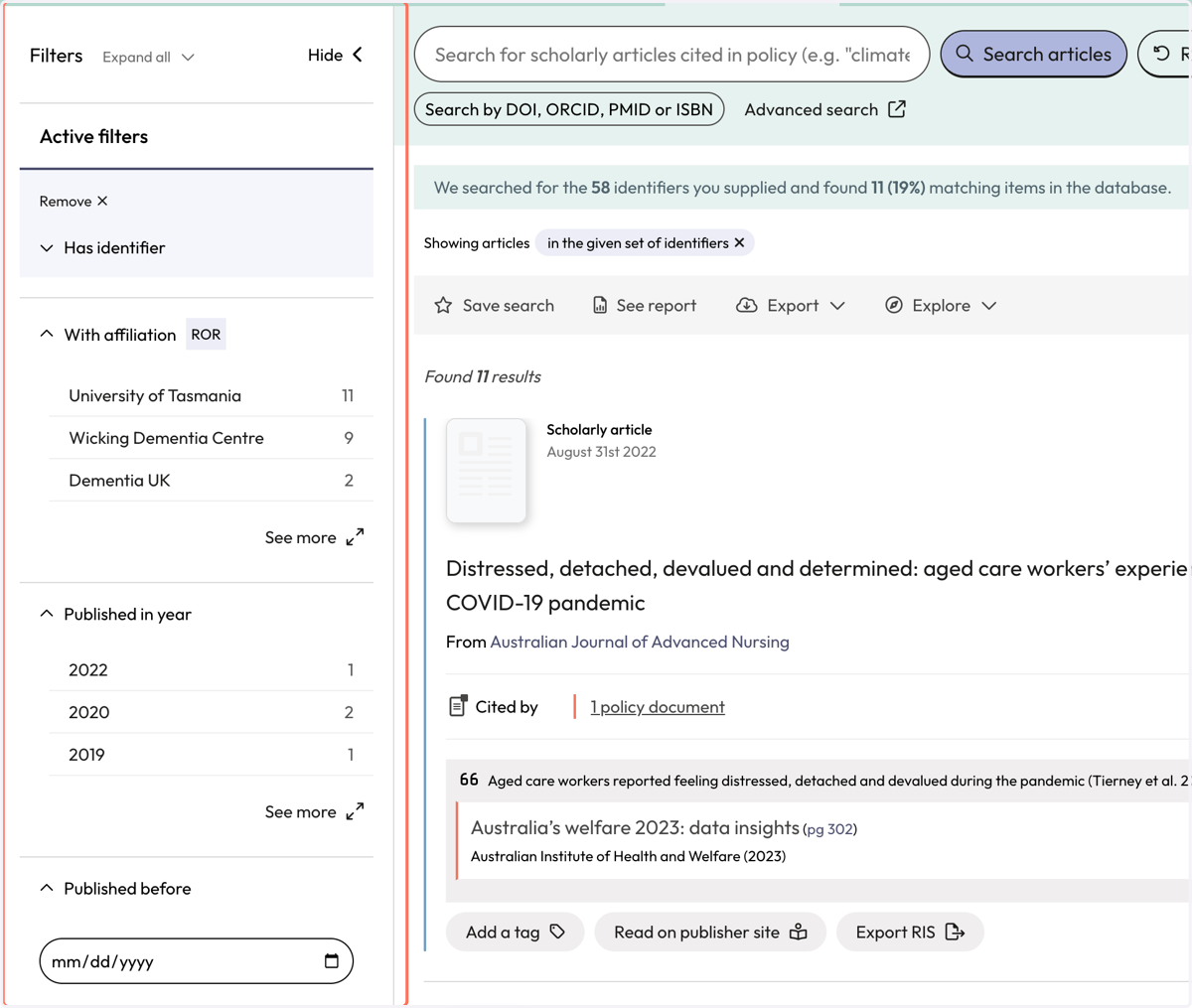
13. Apply filters to narrow down your results
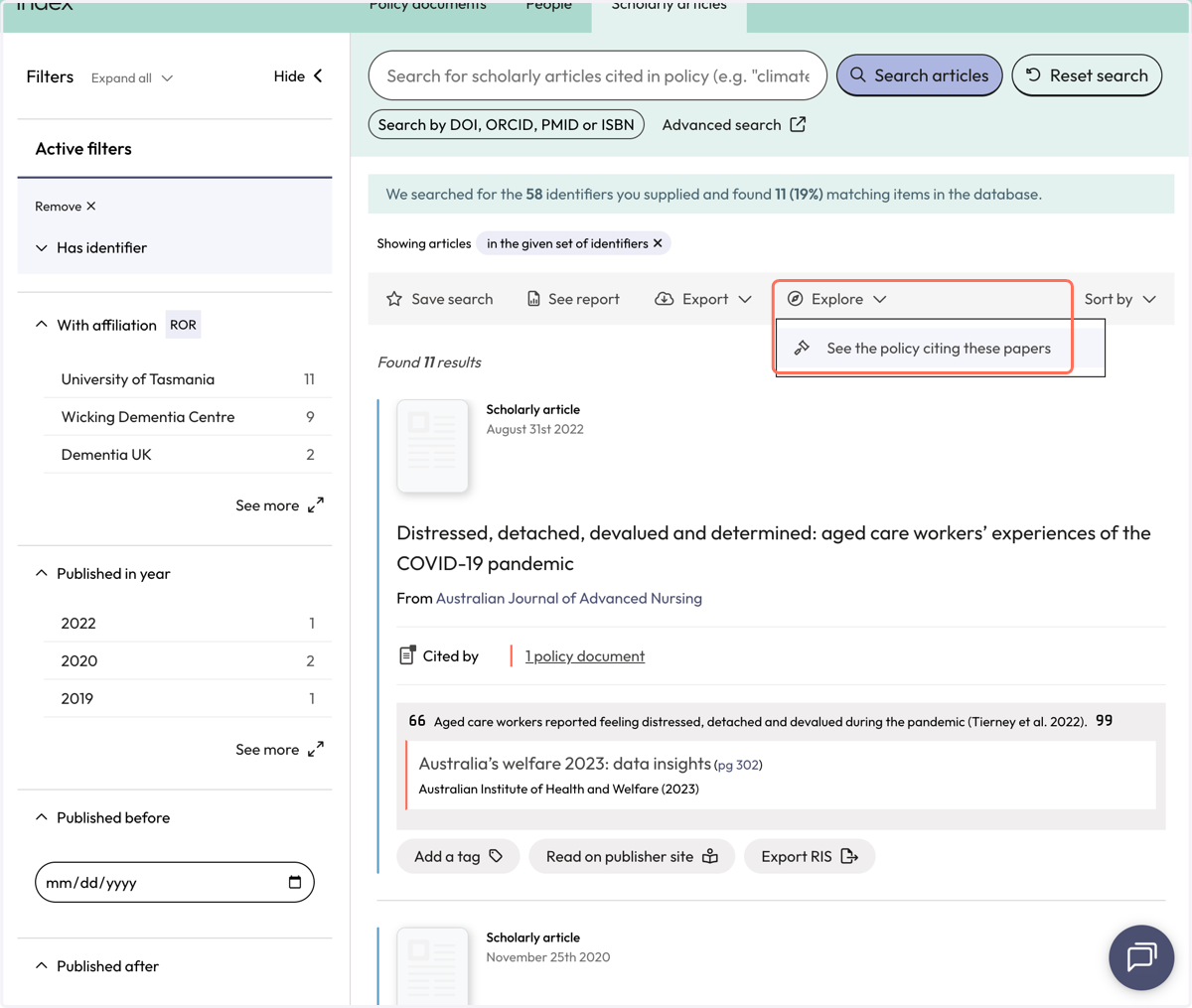
14. Use the action bar option 'Explore' to navigate to the policy documents that cite your articles. Click on 'See the policy citing these papers'
15. You will be directed to the 'Policy Documents Search' where you can view, filter, save or export the policy documents that cite your articles
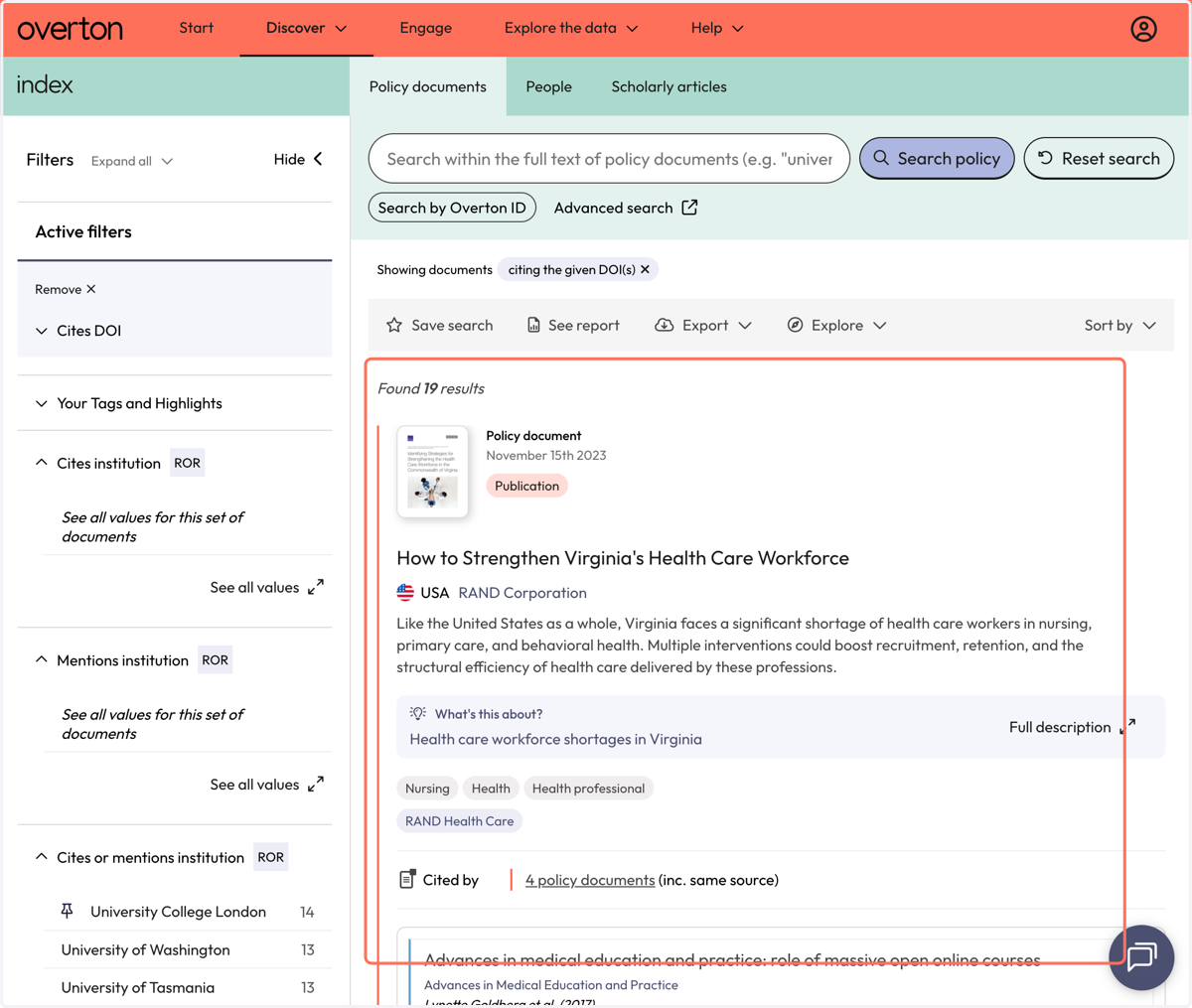
16. Each policy document result displays the name of the cited article, author and information about the citation from the full-text
17. Use filters to narrow down results
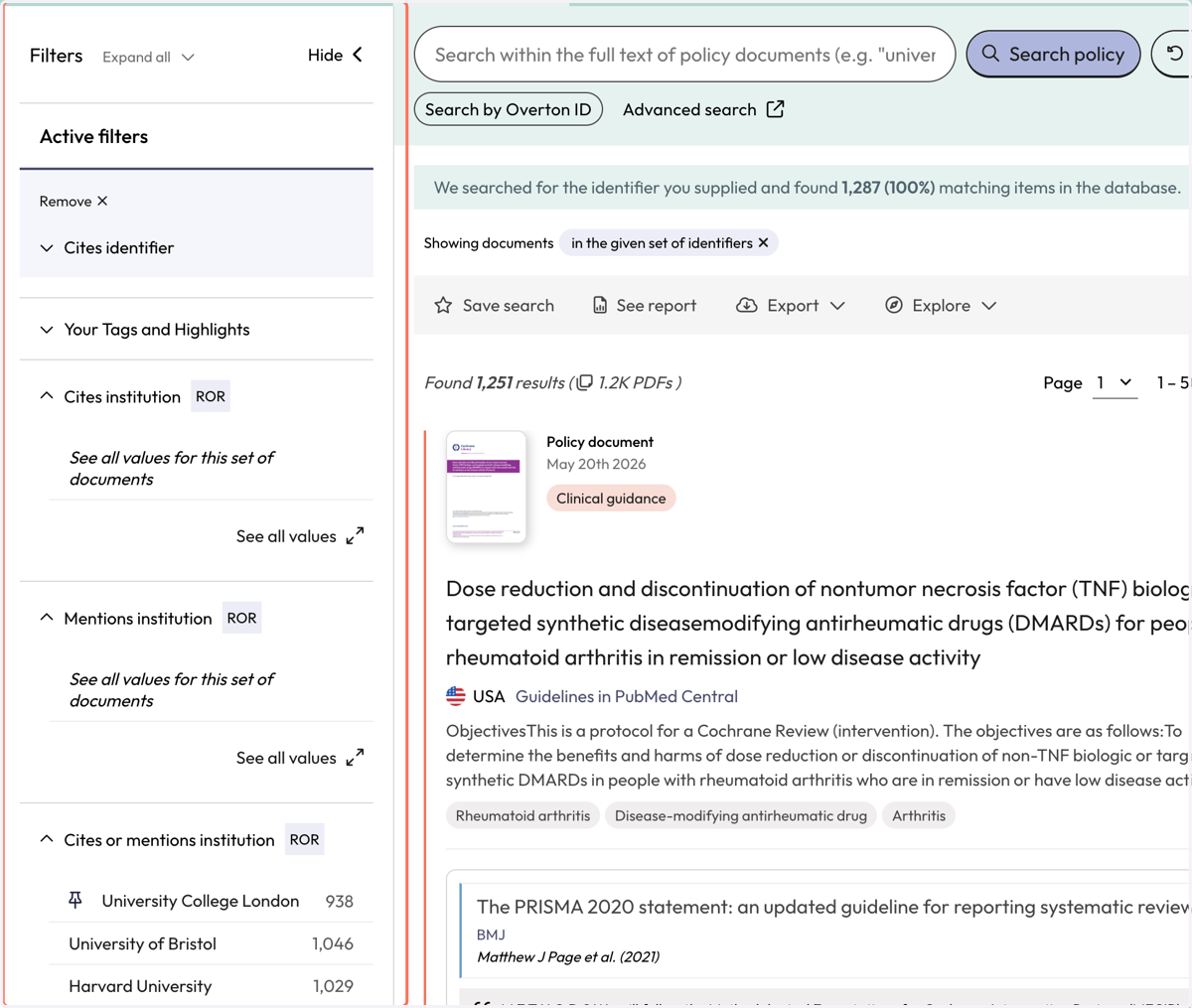
18. Use the action bar to save a search, generate a summary report, export* or explore further