Payment

  1. 1. You will receive this email with invoice attached once payment has been assigned to your application
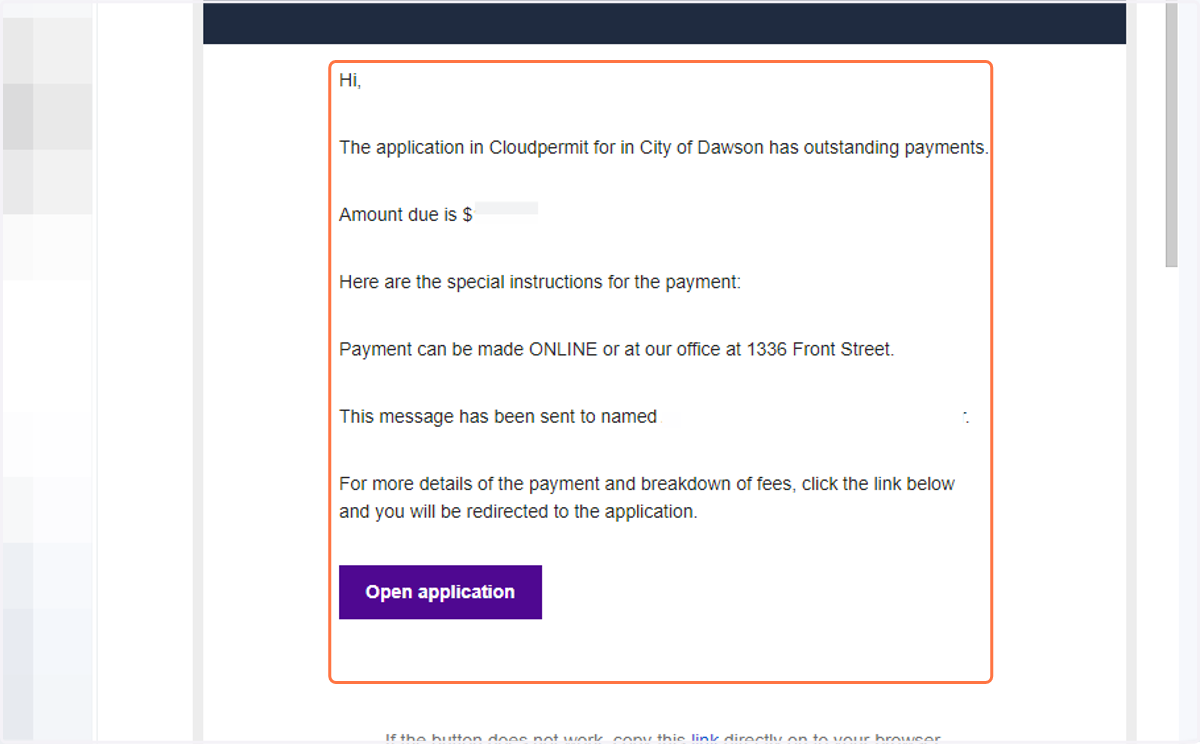
    You will receive this email with invoice attached once payment has been assigned to your application
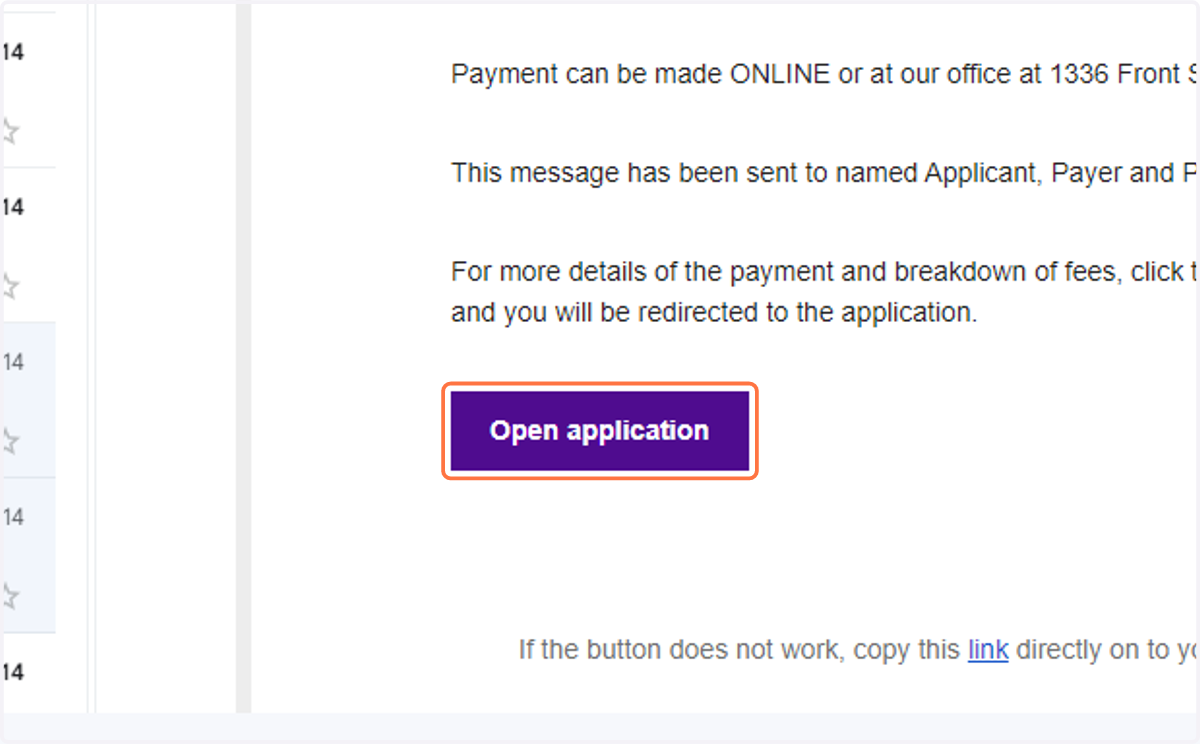
  2. 2. Click on Open application

    Click on Open application
  3. 3. The FEES & PAYMENTS section will appear in your workspace
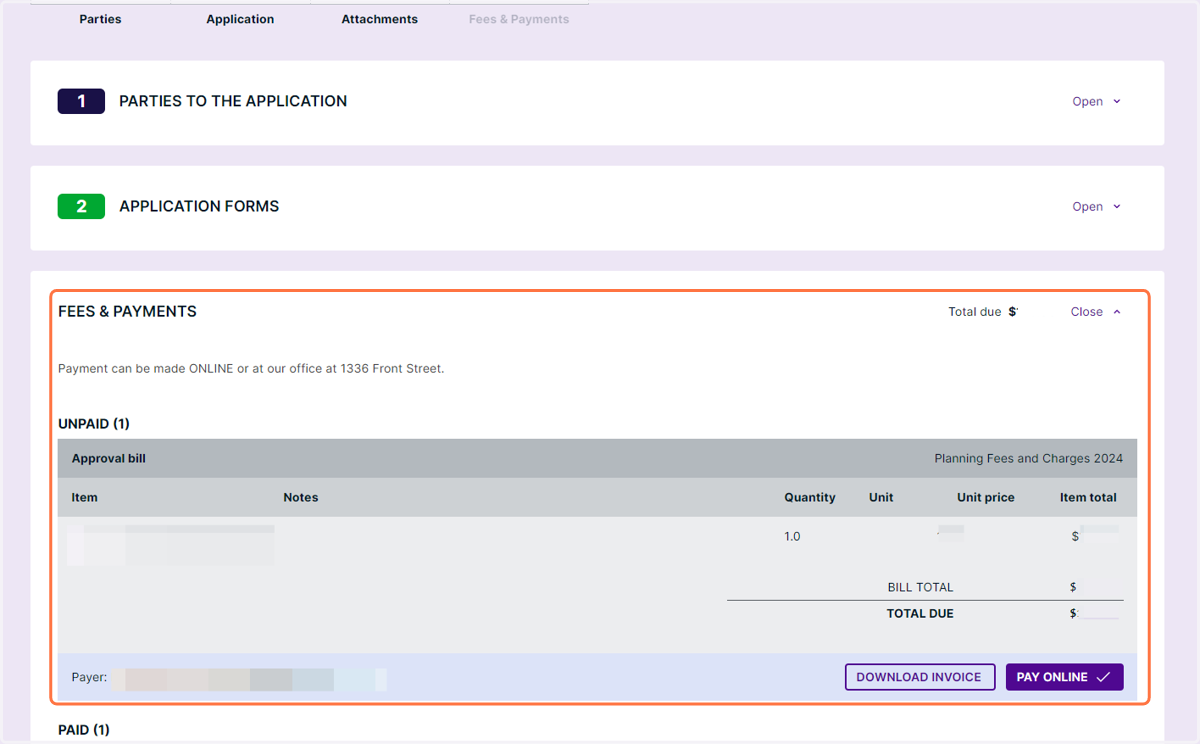
    The FEES & PAYMENTS section will appear in your workspace
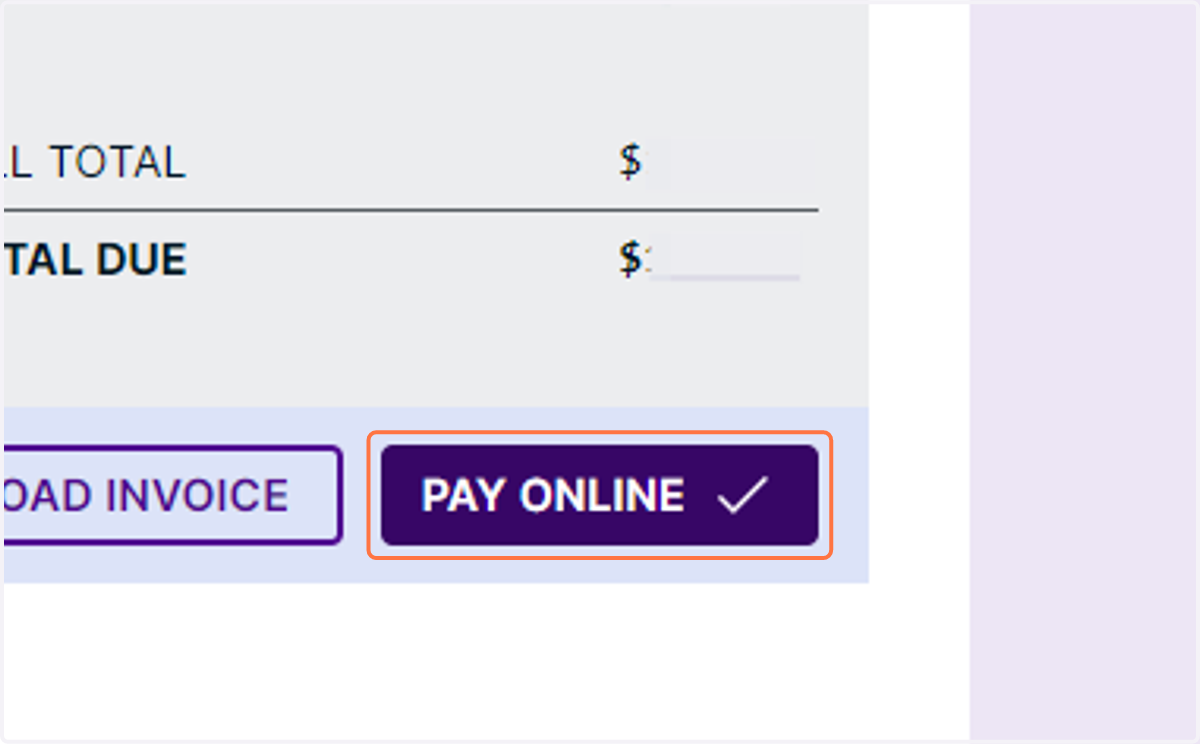
  4. 4. Click on PAY ONLINE

    Click on PAY ONLINE
  5. 5. Fill in your bank details and pay for your permit
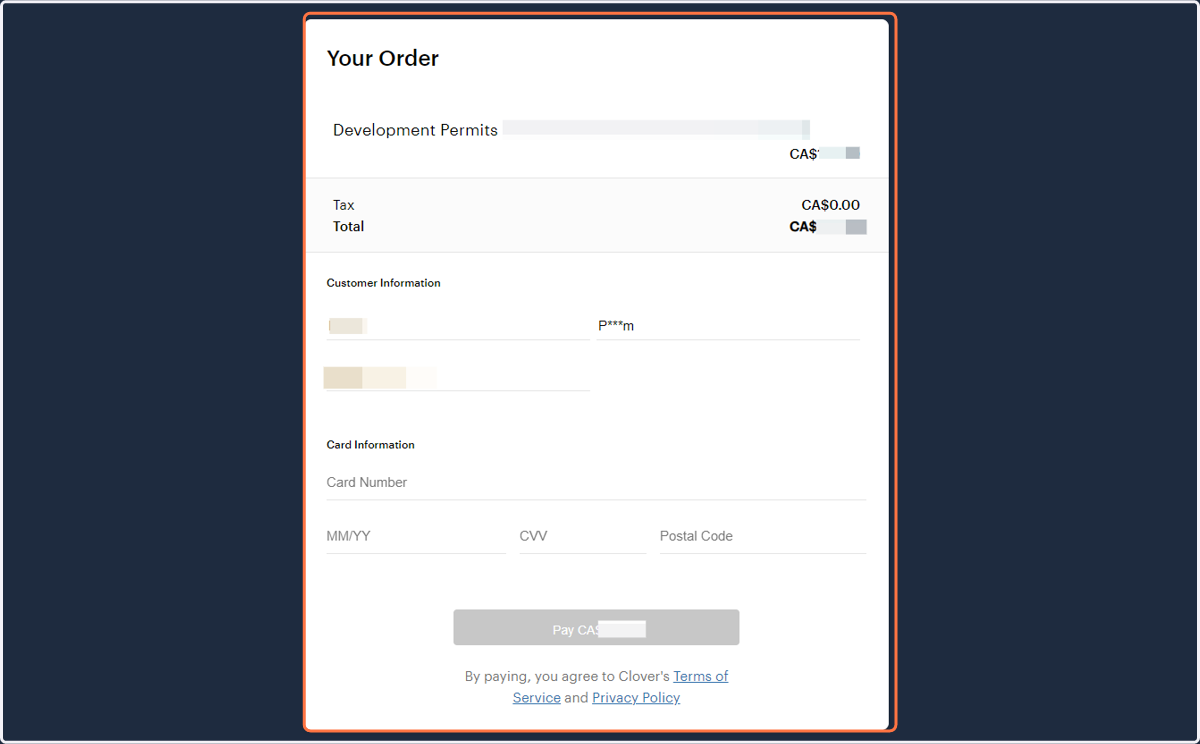
    Fill in your bank details and pay for your permit