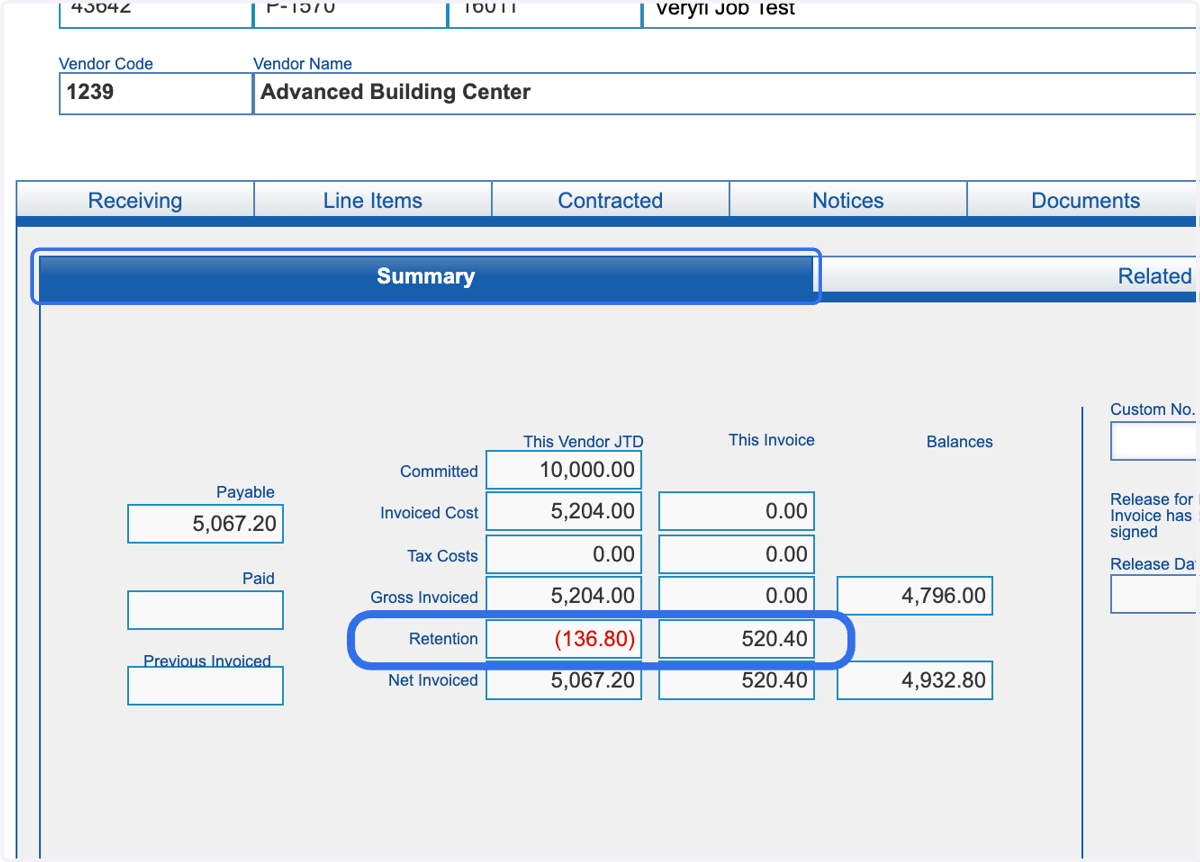
Paying Out Retention
You are most likely aware of how to "hold" retention in CMIS by simply entering a negative retention value like -10%, but this shows how to pay out the retention you have held.
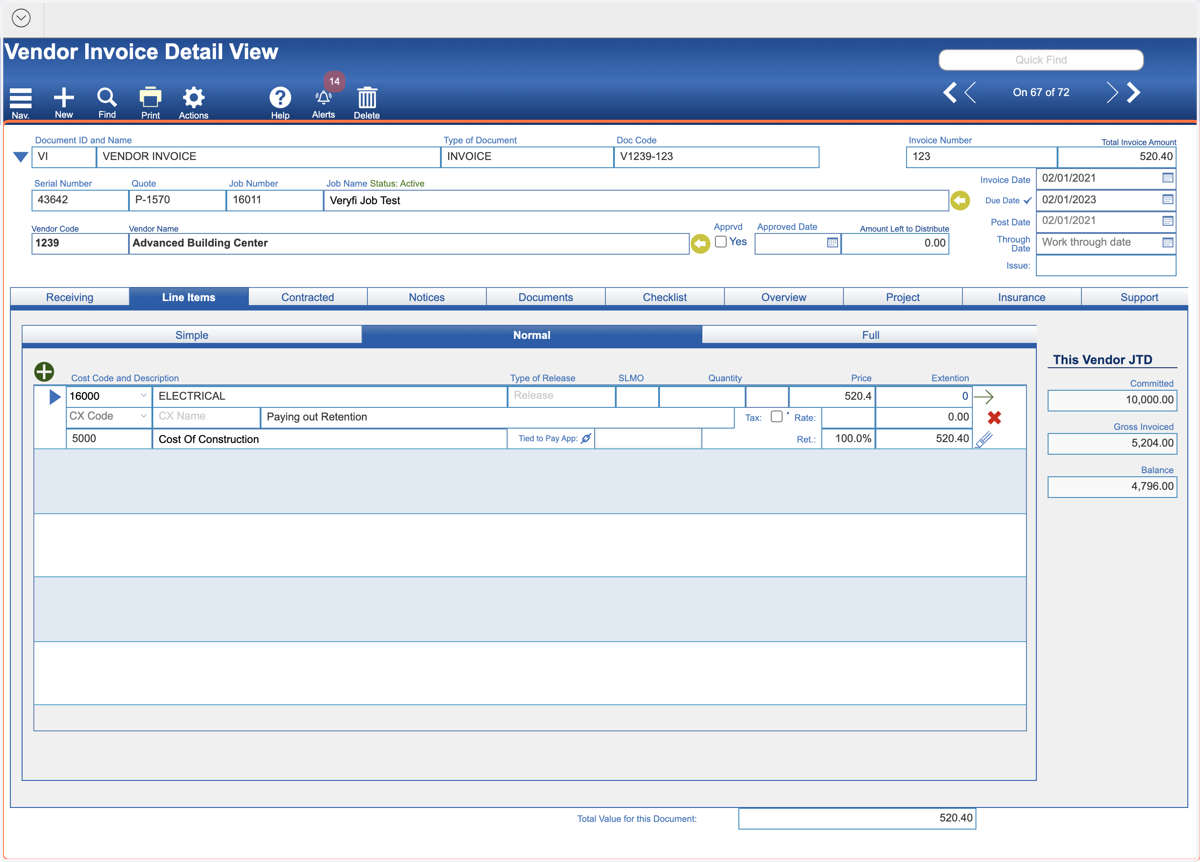
1. Create a Vendor Invoice as normal
Create a Vendor Invoice for the Vendor that you would like to pay out retention on.
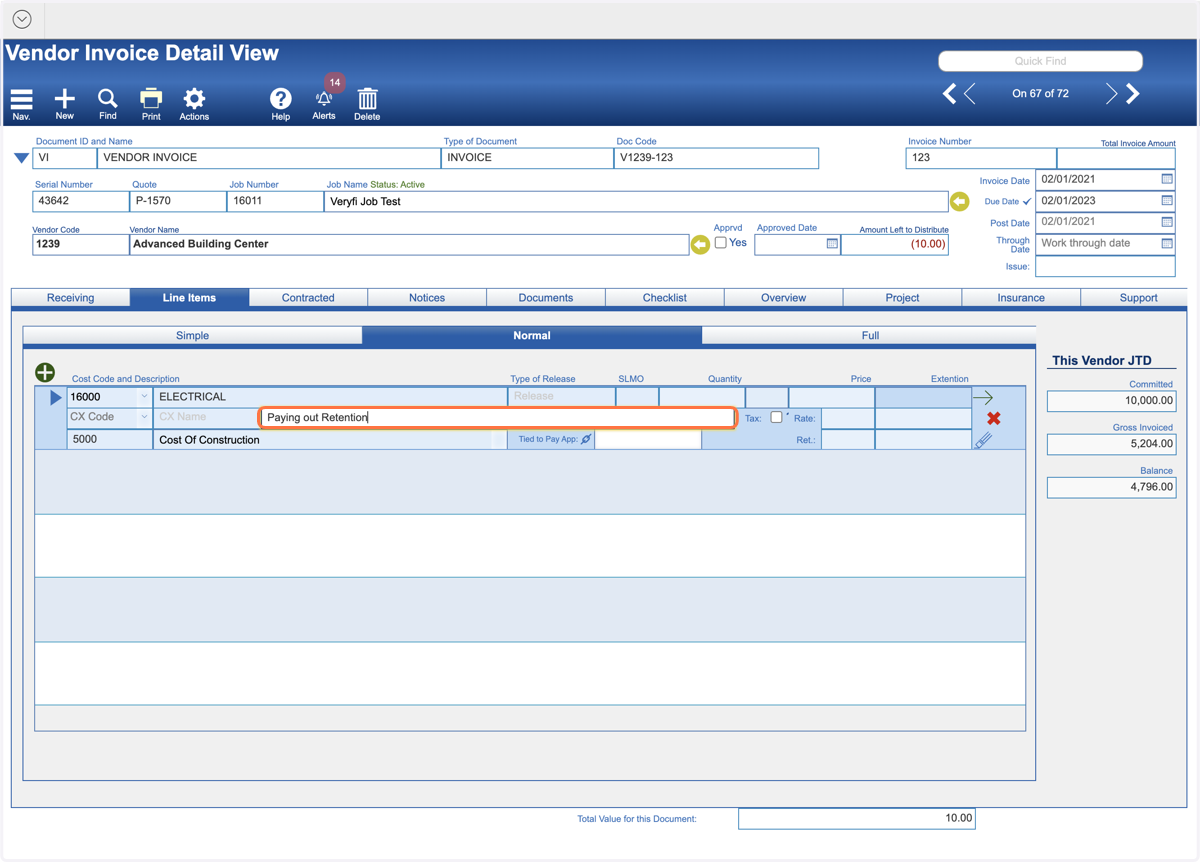
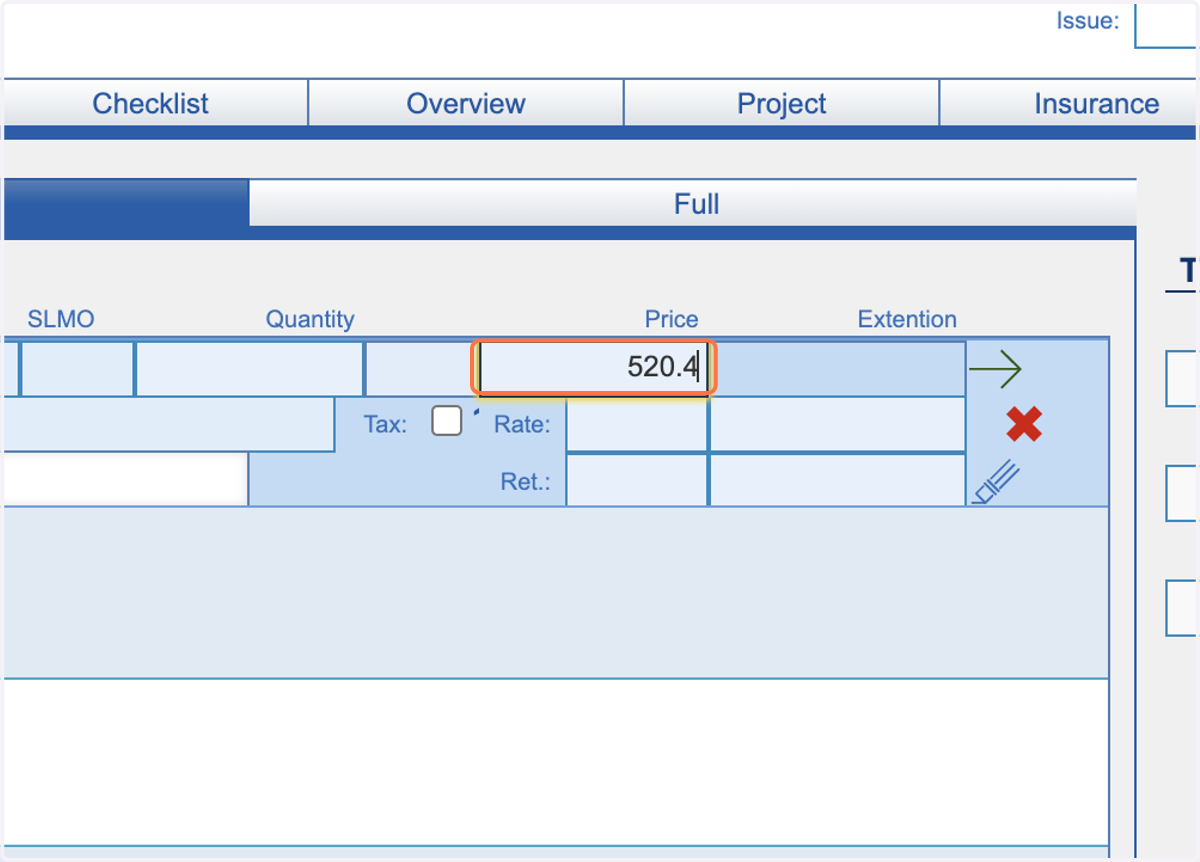
2. Type the "retention" value in the Price field.
Make sure you leave the Quantity field blank!
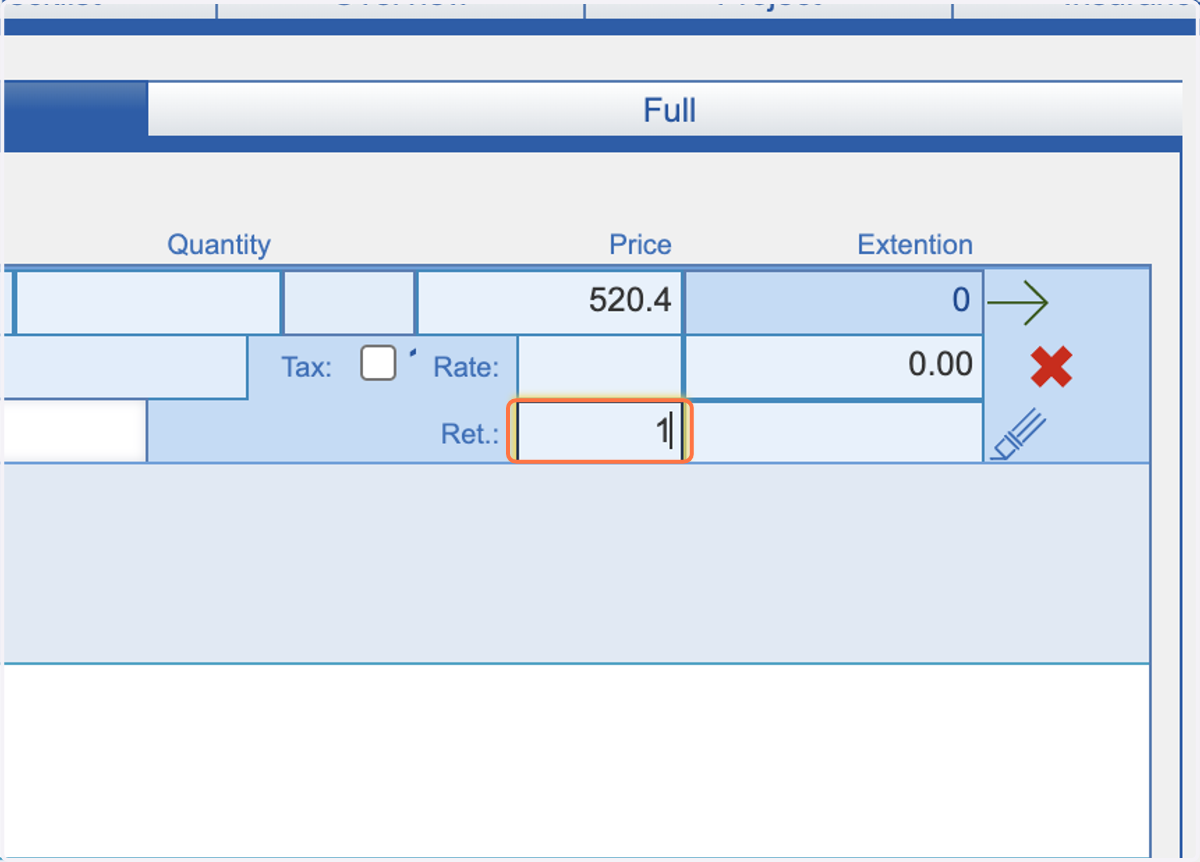
3. Next, type a ONE in the Retention Percentage field.
This tells CMIS that this Price value is 100% towards "Retention," thereby paying out the previously held retention.
4. You now have recorded a Retention pay-out.
This shows that the net value does not affect the gross invoiced values.
5. Click on Overview > Summary
You can confirm the balance of Retention that is bing held Job to Date and the retention being paid out or held on this current Vendor Invoice.