Webassessor Catalog Creation
Create your catalog for your exams
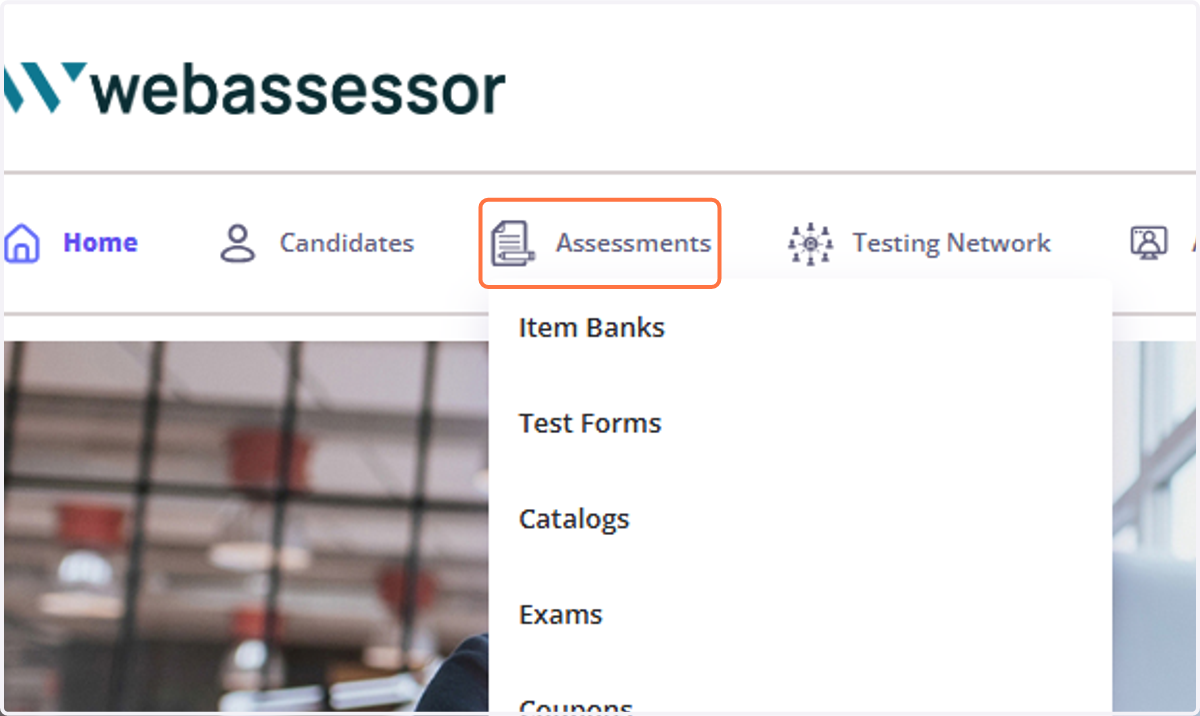
1. Click on Assessments
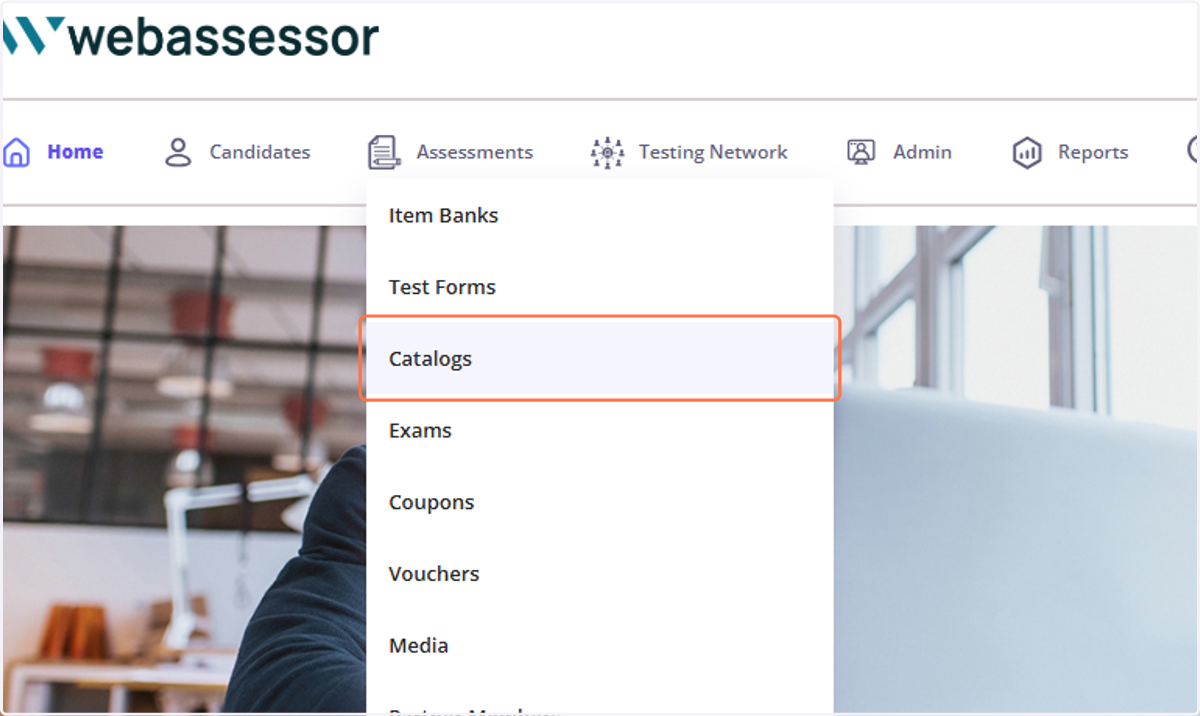
2. Click on Catalogs
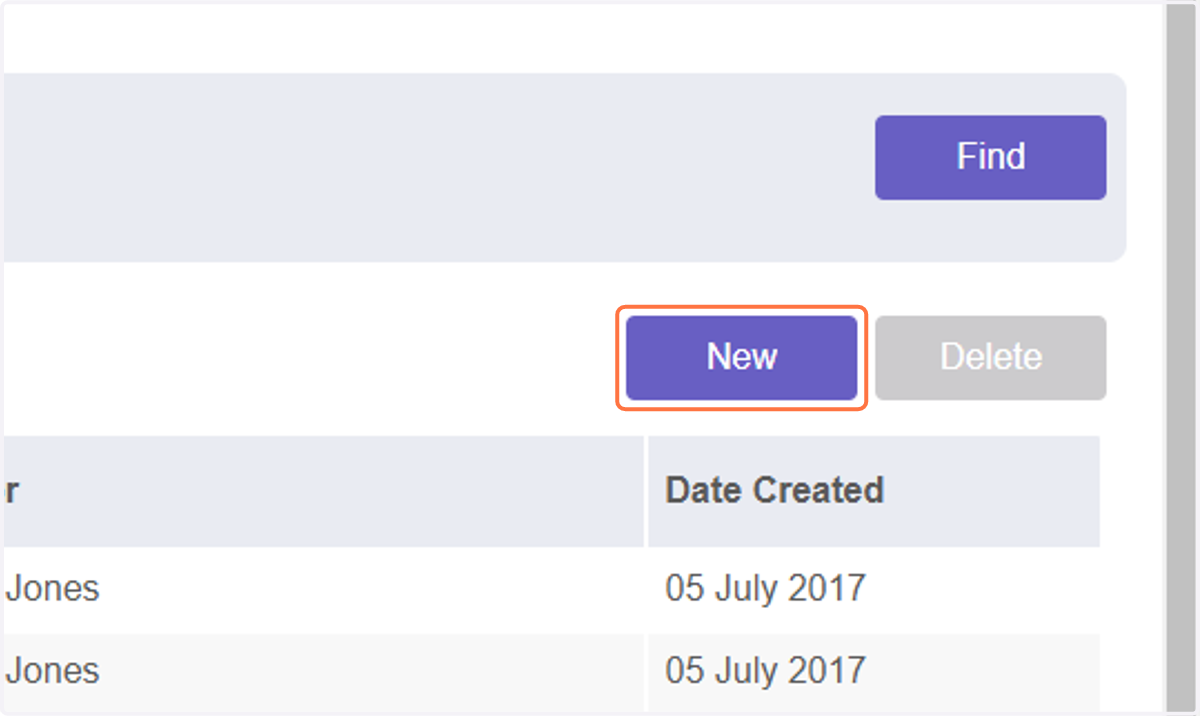
3. Click on New
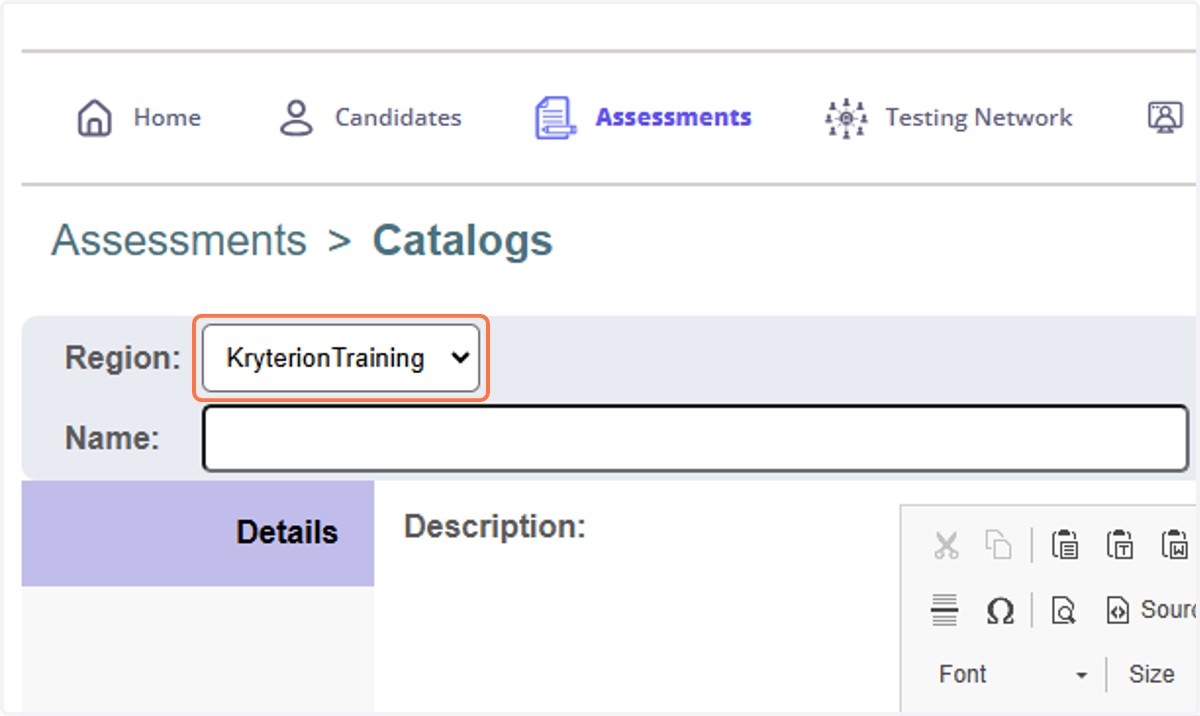
4. Select the region that you want the catalog created for.
If you only have one region, this will default to that region.
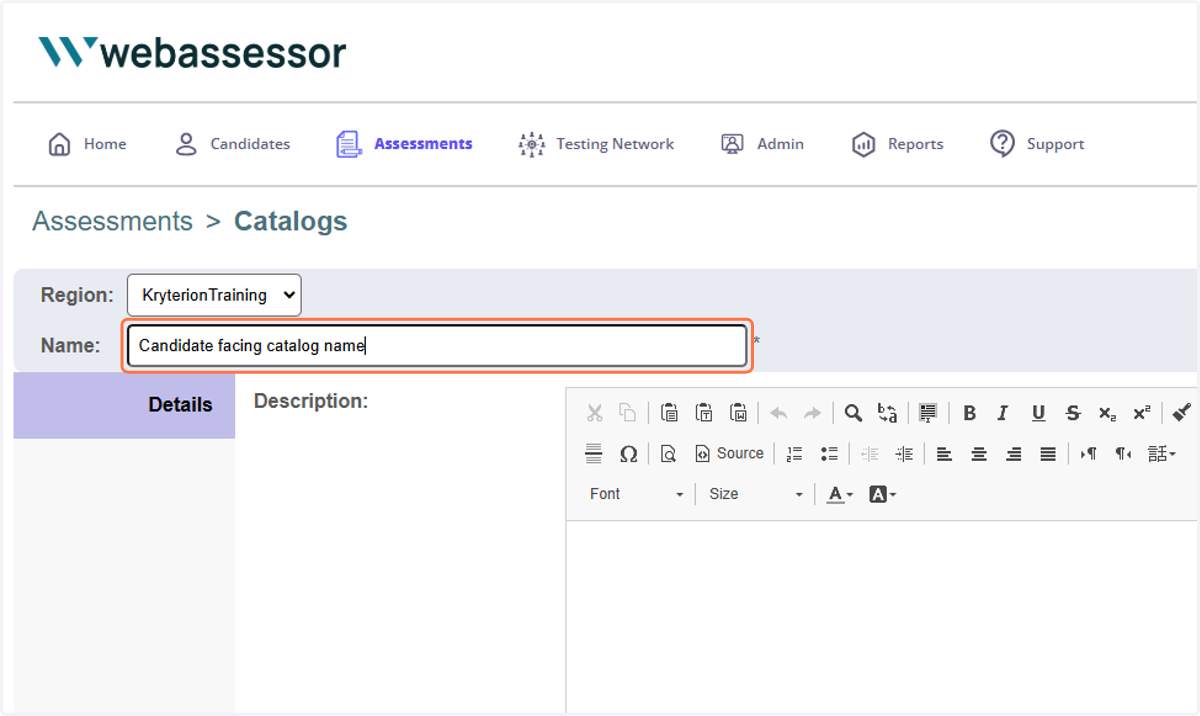
5. Type the catalog name as you would like it to appear to candidates.
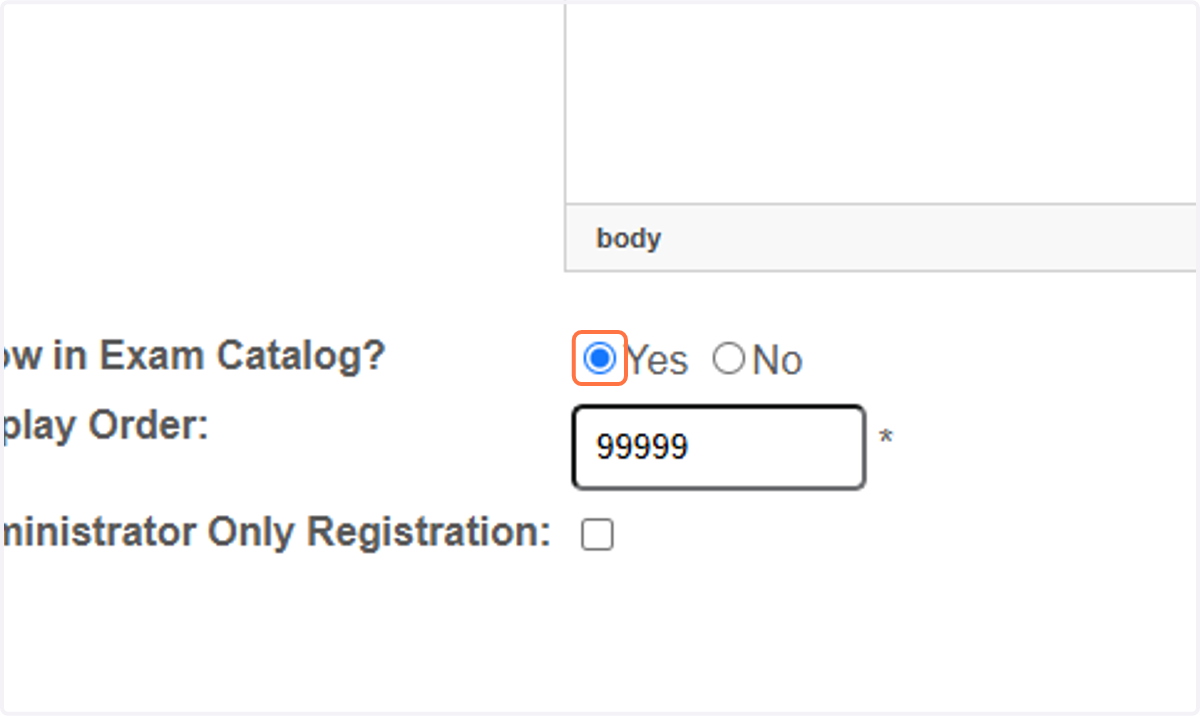
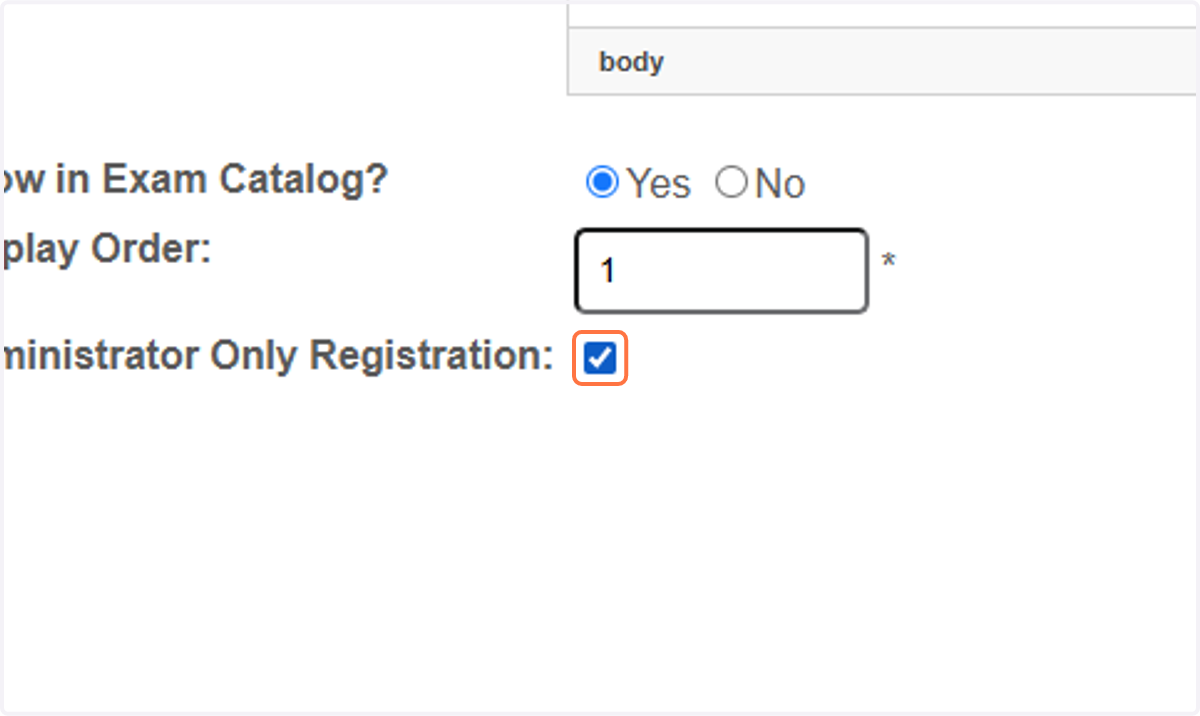
6. Select 'Yes' if you would like the catalog to show to candidates.
7. Set the order number in which you would like your catalog to show.
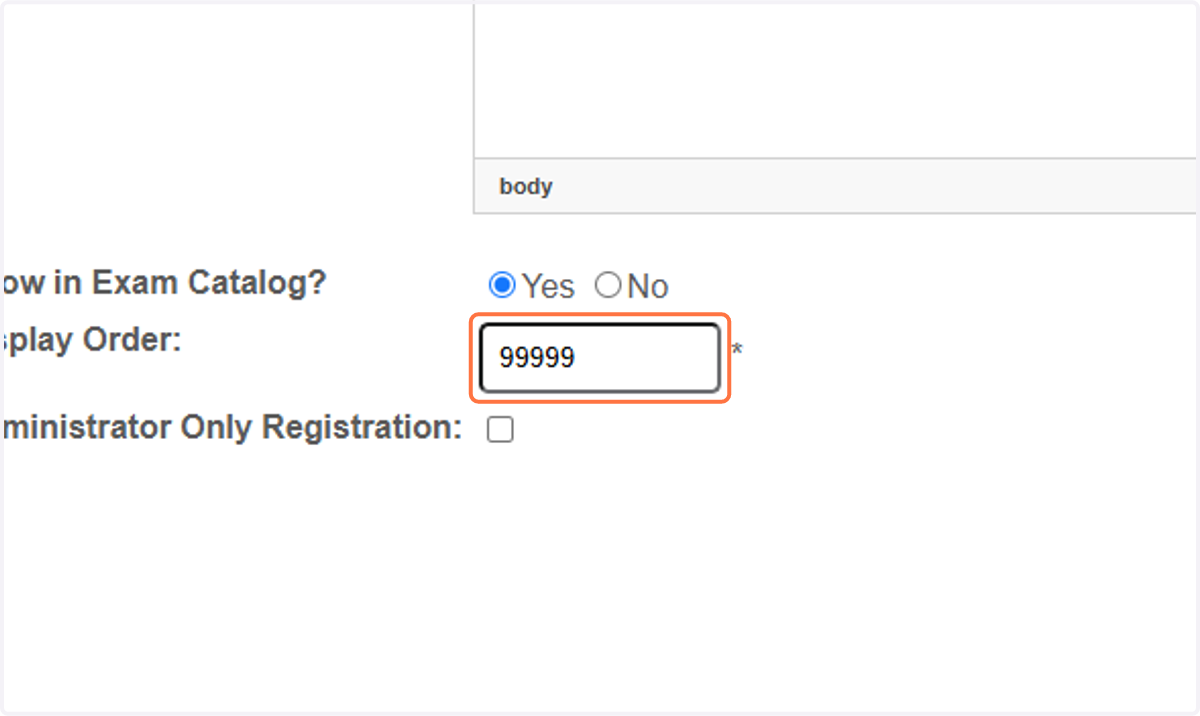
8. Option: You can set the catalog to "Administrator Only Registration", if desired.
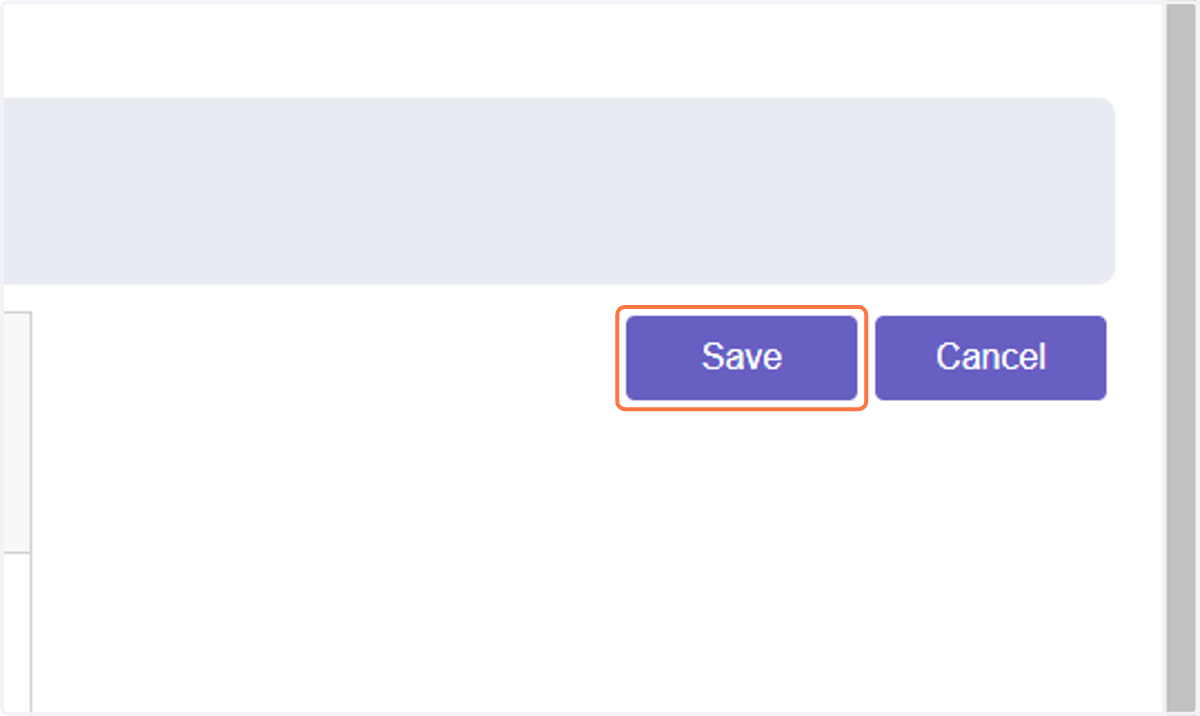
9. Click on Save