Review Budget in Purchase Requisition
🛒 BV Marketplace
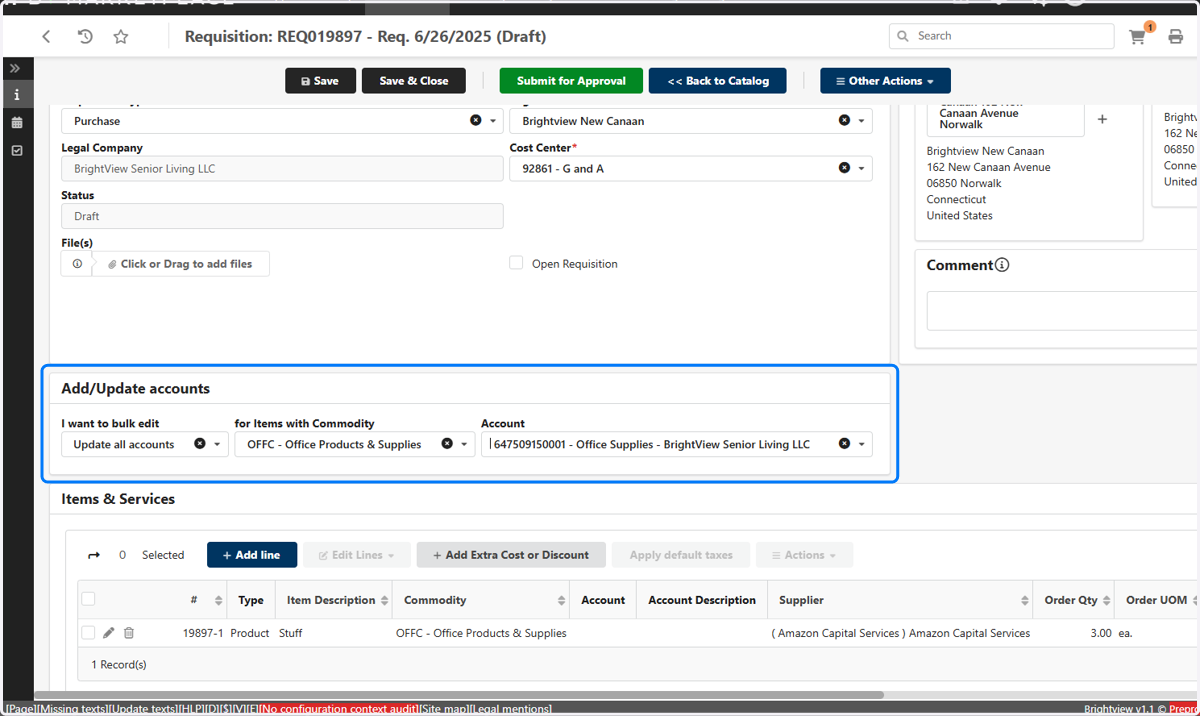
1. Add/Update accounts
Add your GL accounts to your purchase requisition line items then Save.
2. Review Allocations
Scroll down to the Allocations table and observe that your line items automatically assign the current fiscal year once the GL accounts have been assigned.

3. Review Budgets
Scroll down to the Budgets table and review the Available and Consumed budget amounts for each GL account on your requisition.
Please note that the Available and Consumed % only factors in orders that have been placed. It will not include the value of your order until it has been submitted for approval.

📑 How to update budget timeframe for annual contracts
Follow the below steps
4. Edit Line Item
Select the Edit (pencil) icon for the line you want to update.
(You can also complete the following steps as you're initially entering your line item).

5. Update Budget Information
In the Budget Information section, select
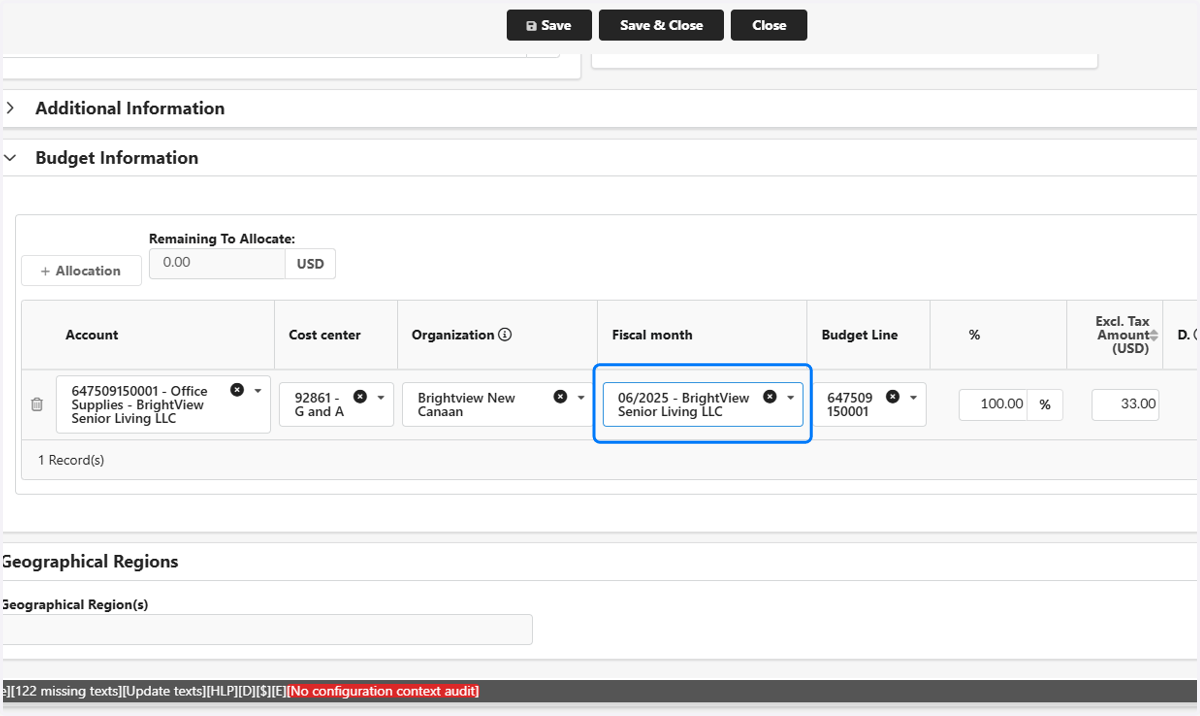
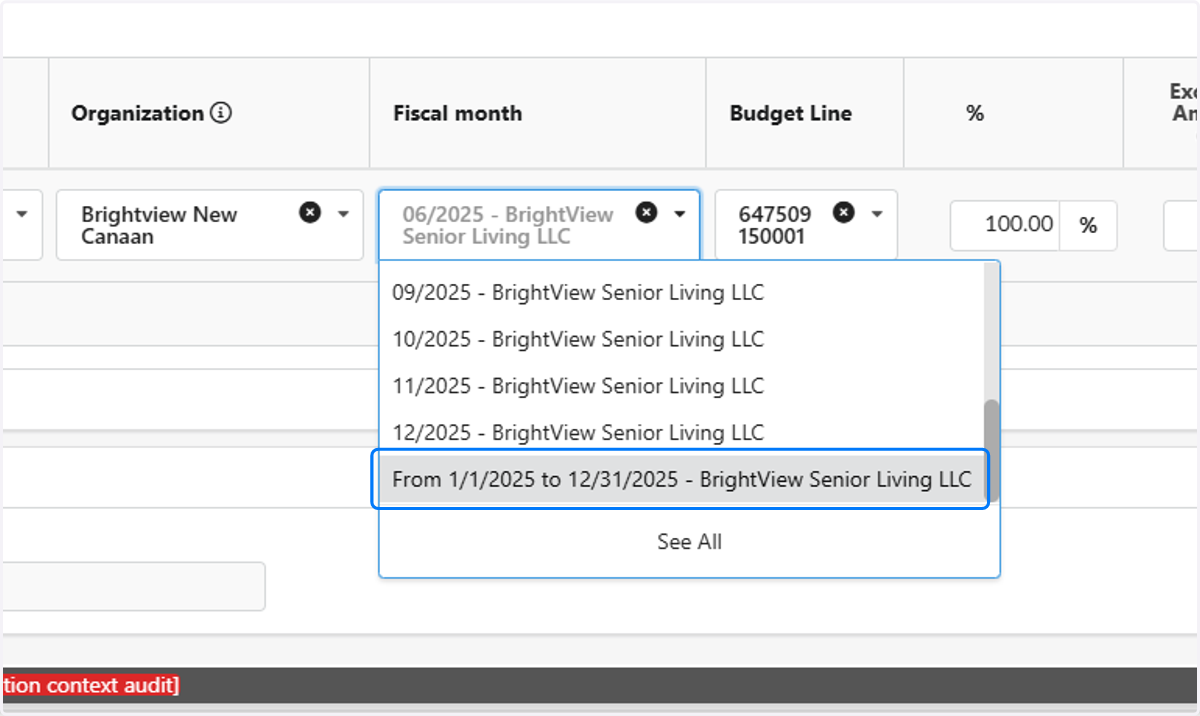
6. Update Budget Information
Scroll down to the Budget Information section and select the full year option from the Fiscal Month dropdown list.
7. Click Save & Close
Scroll back up and click Save & Close to return to your Purchase Requisition. Repeat the necessary steps for applicable line items, then Submit for Approval when the order is ready to be placed.
