Creating a Repository Pointing to a Network Share in QScan
Repository configuration is a key step in QScan before you start running any analysis.
Repositories allow you to have direct access to content the lives in your local drives or in network shares without the need to browse everytime you want to start a new QC Job
Furthermore, network shares can only be accessed by using Repositories, and since windows has some limitations when it comes to accessing network shares, certain specific steps need to be followed for a successful configuration of network shares.
Here is how you do this basic task that will allow to access content stored in your local network.
localhost
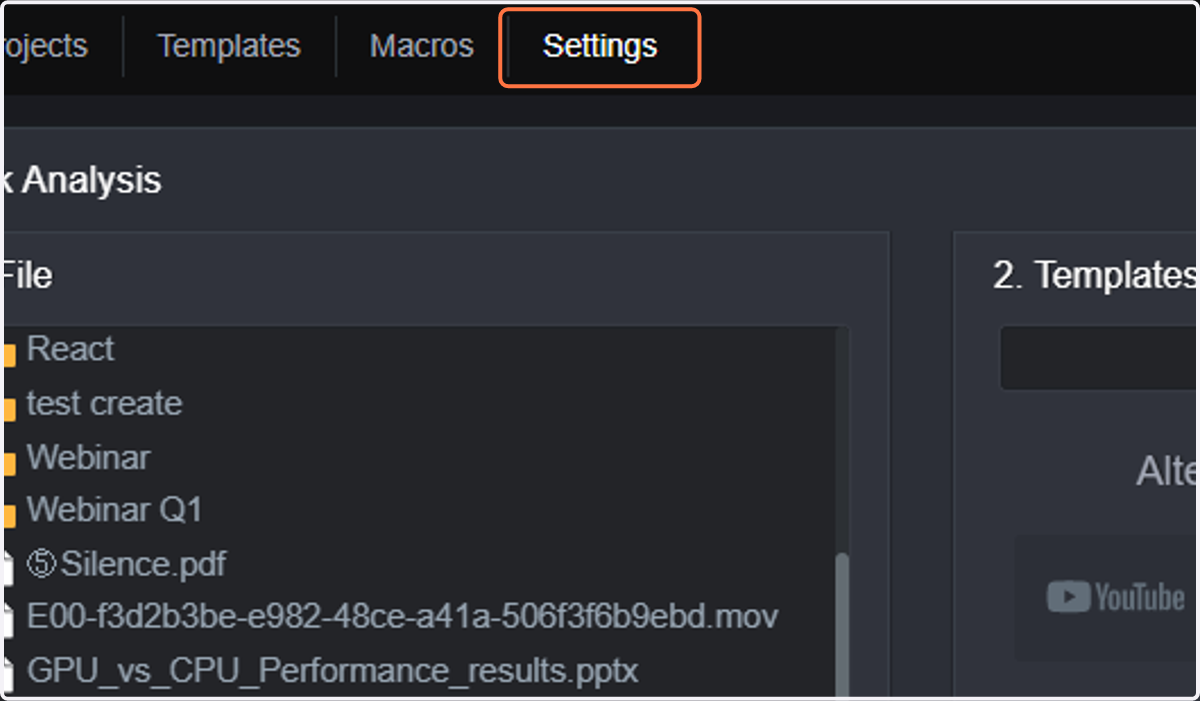
1. Click on Settings.
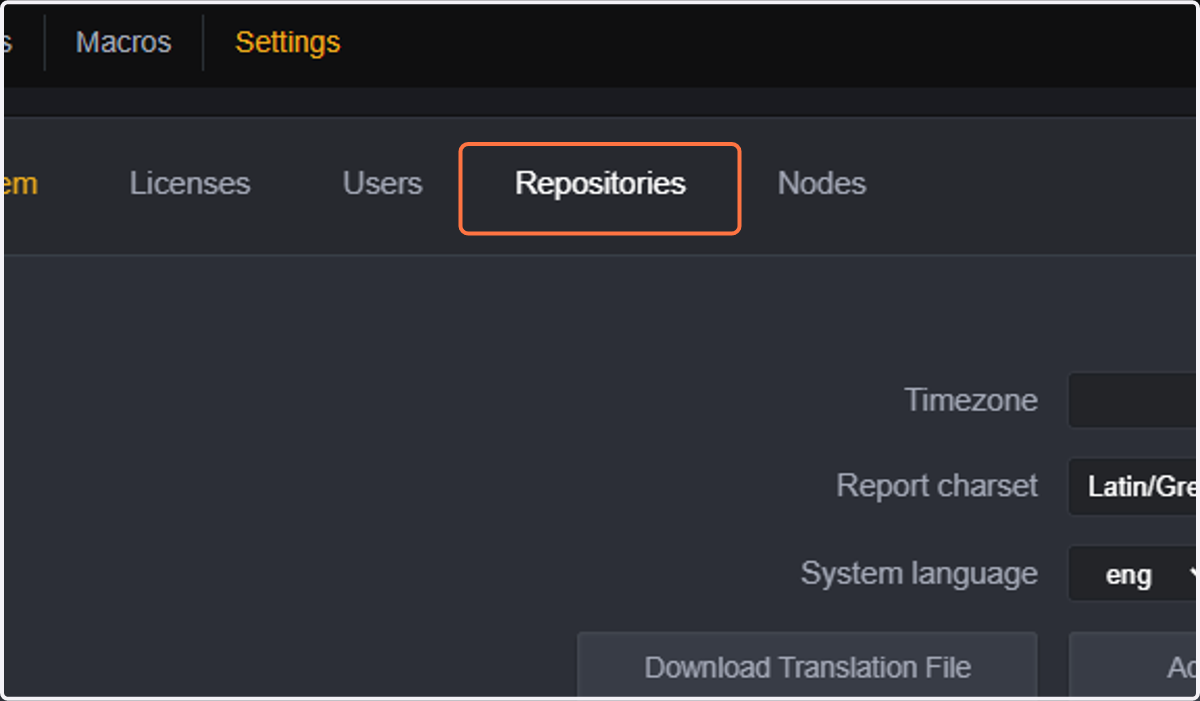
2. Click on Repositories.
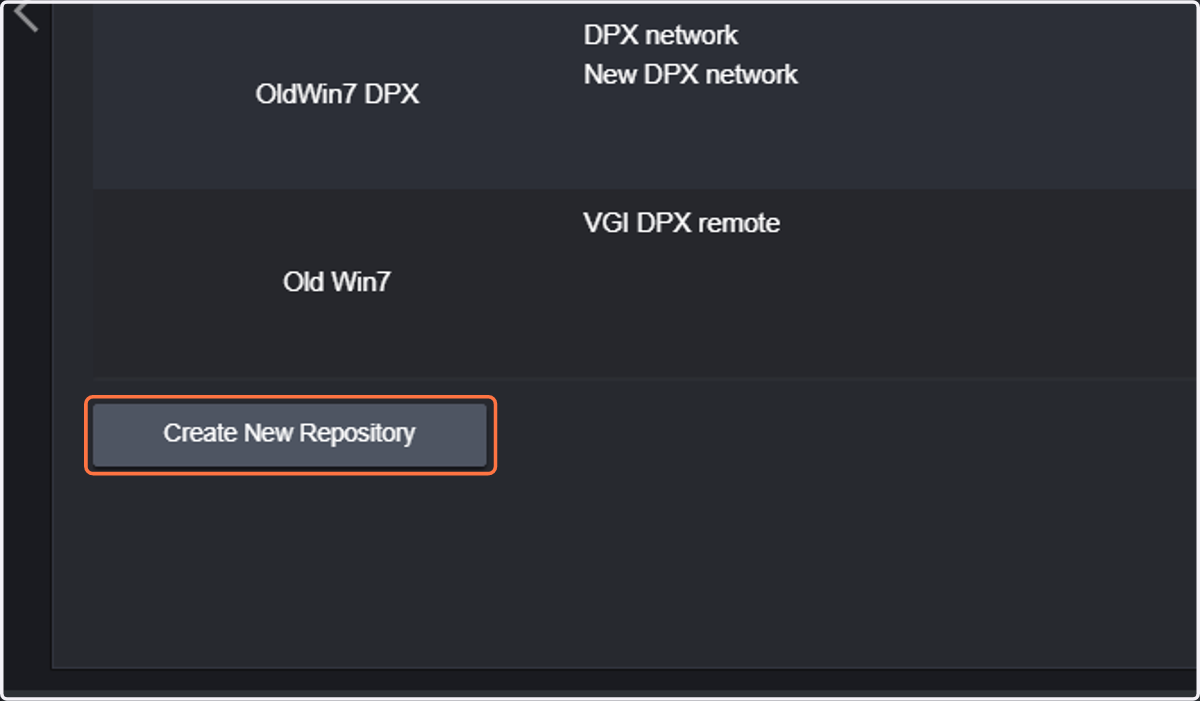
3. Click on Create New Repository.
4. Type the name of your choice that will identify the repository.
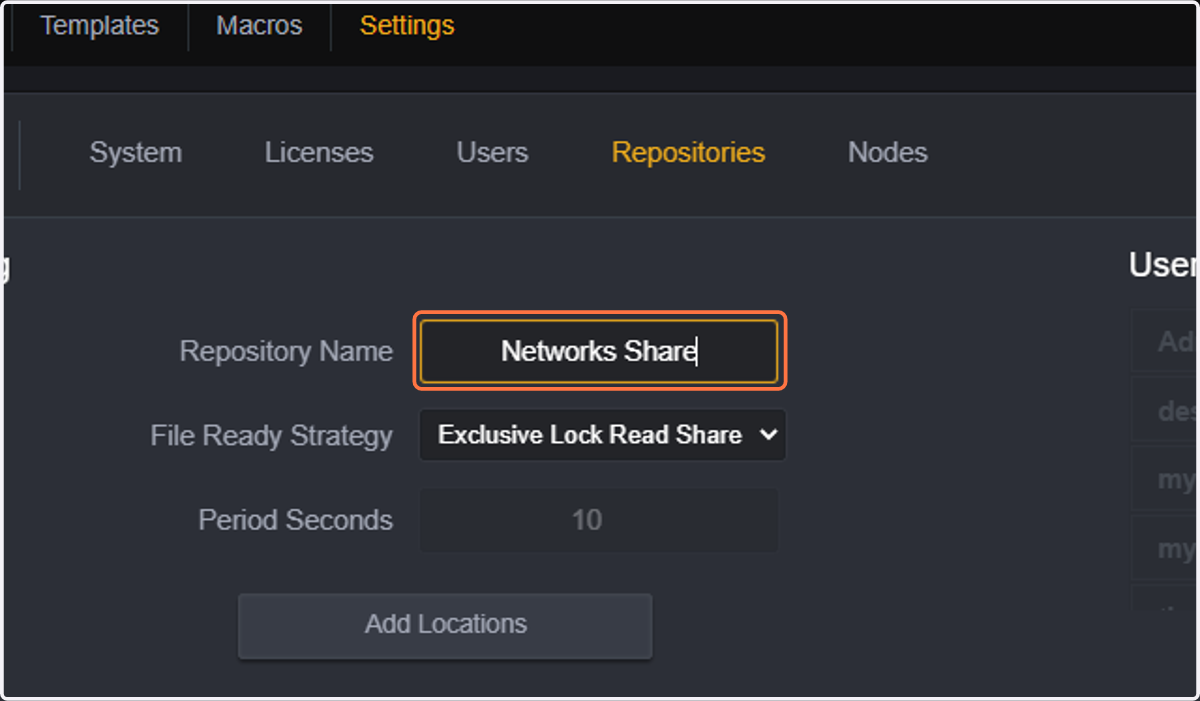
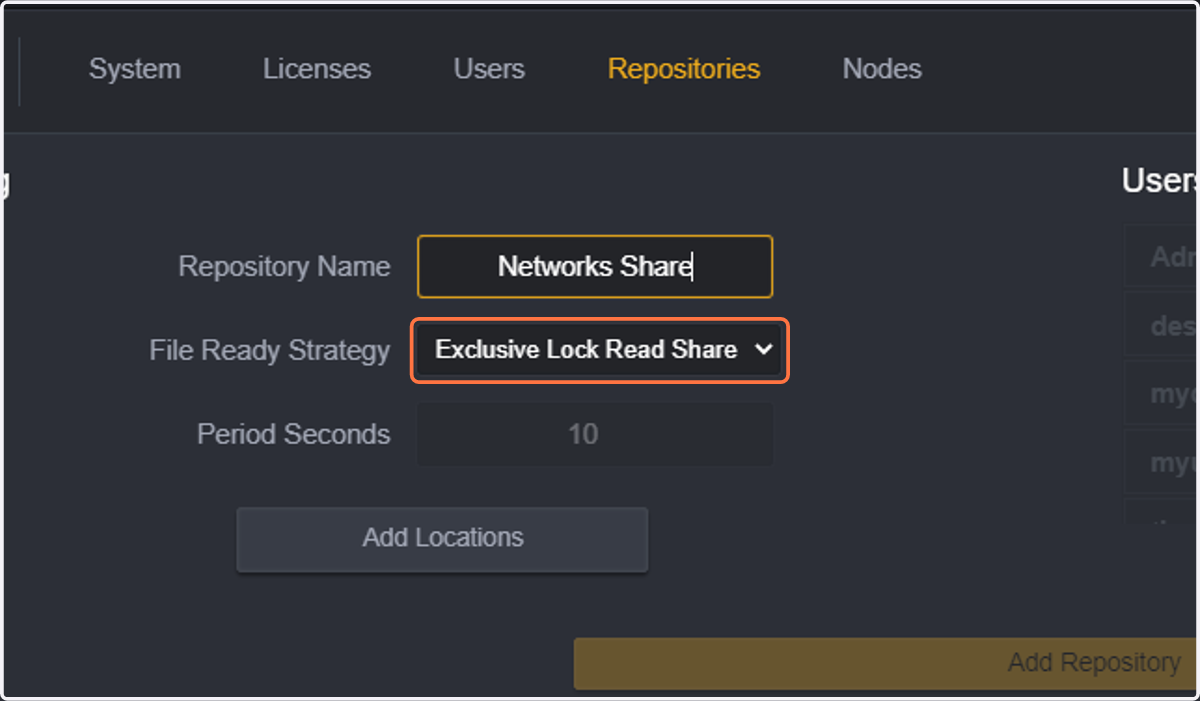
5. Select the File Ready Strategy.
This configuration prevents files from being analysed while exporting/copying. There are now 4 different options for file-ready strategy:
Exclusive lock read share: will only analyse a file when the file is completely copied/exported, but will allow the file to be open in another application (such as video editors)
Exclusive lock: will only analyse a file when the file is completely copied/exported, but no other application can have that file open in the meantime
File growing: will check if the file is still growing every N seconds (user defined): this will prevent the file from being analysed while it is still growing
Last modified date: will check if the last modified date has changed every N seconds (user defined)
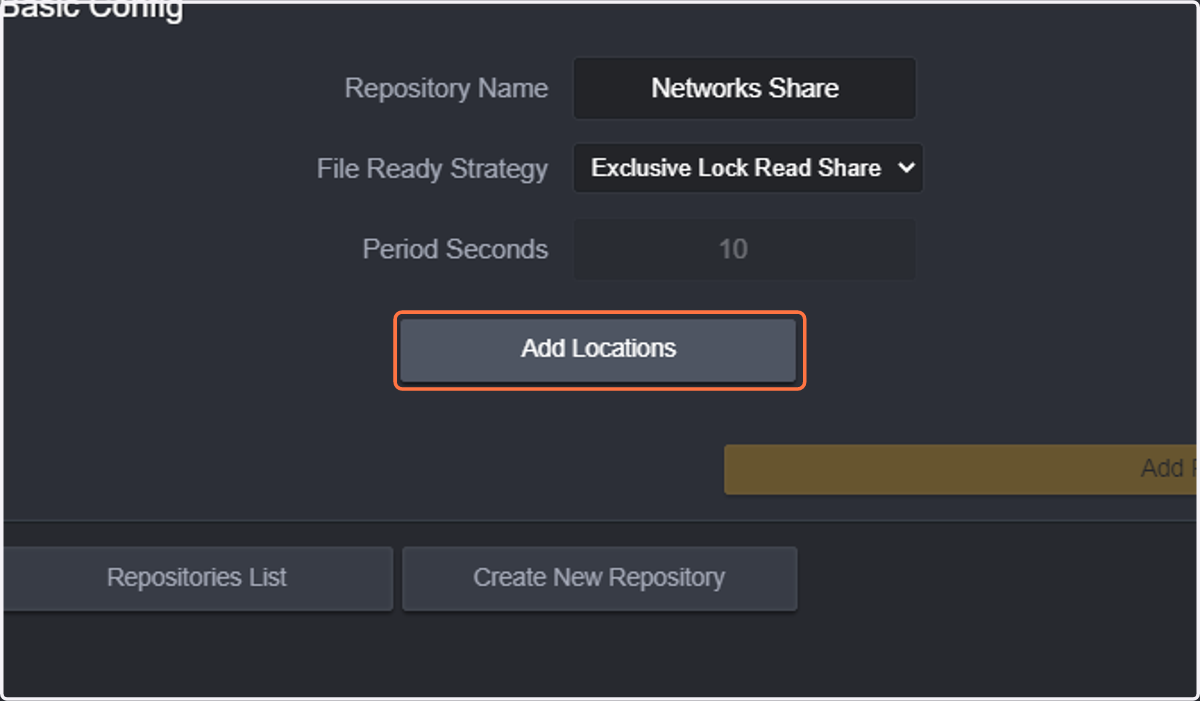
6. Click on Add Locations.
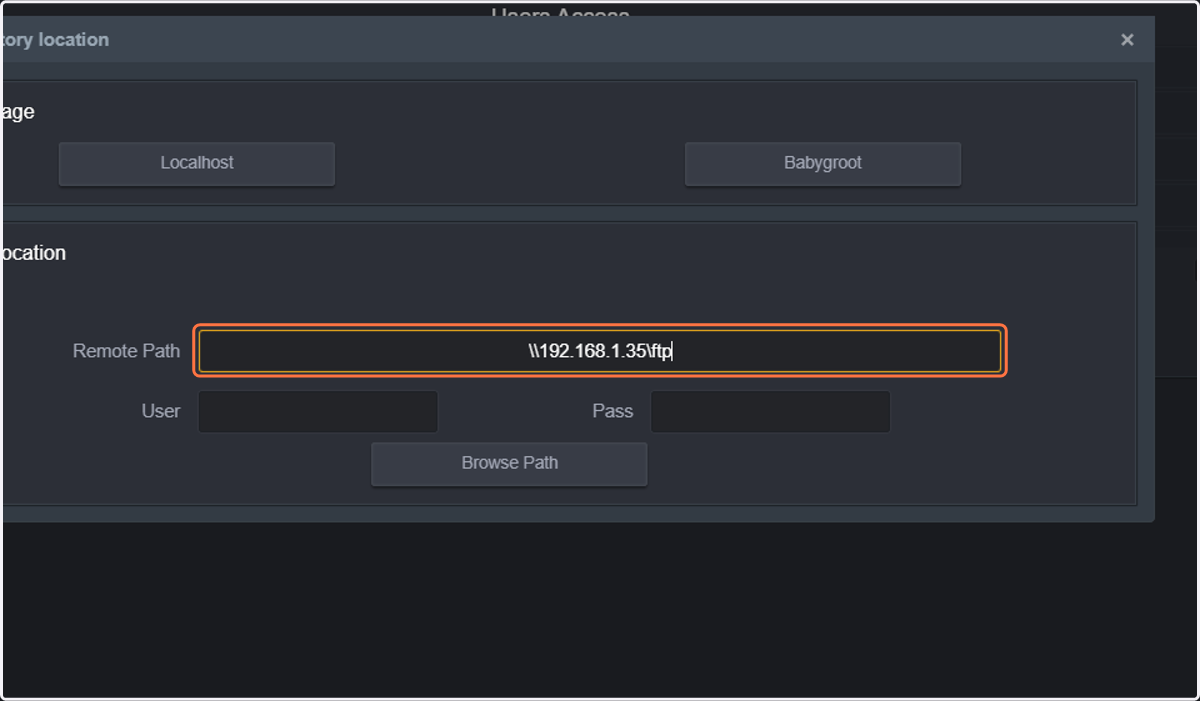
7. Type the UNC path to access the network folder.
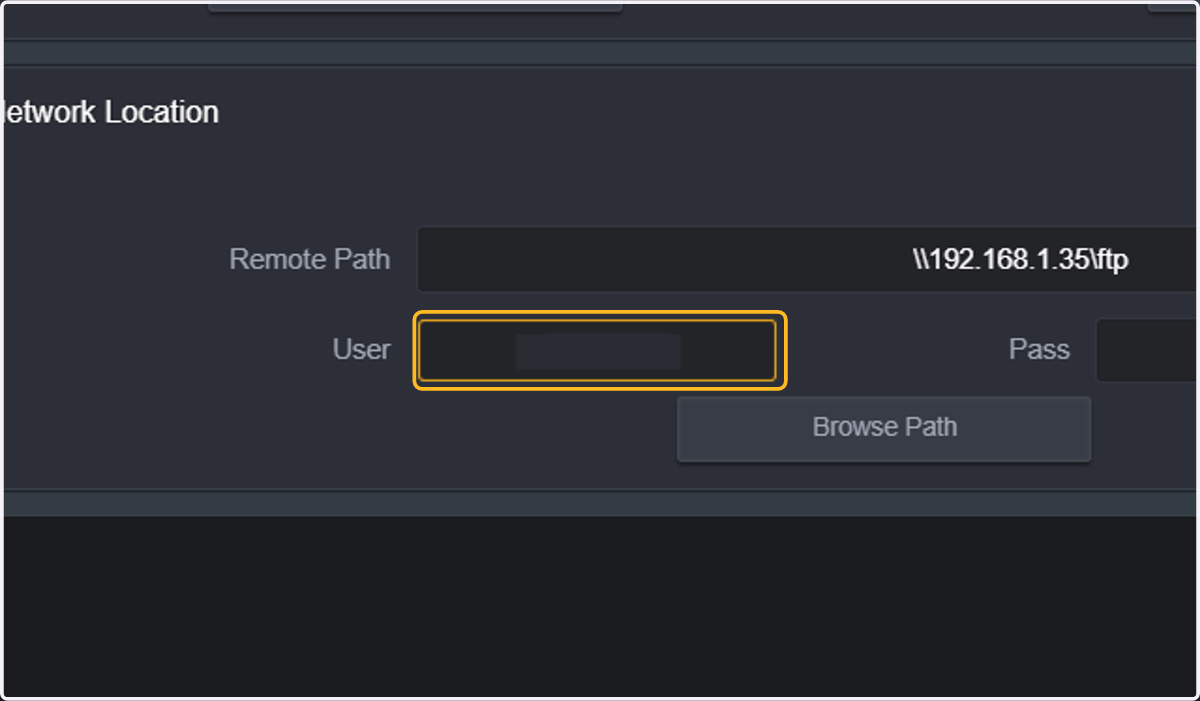
8. Type the username that has access permissions to network share.
9. Type the password for the user with access permissions to network share.
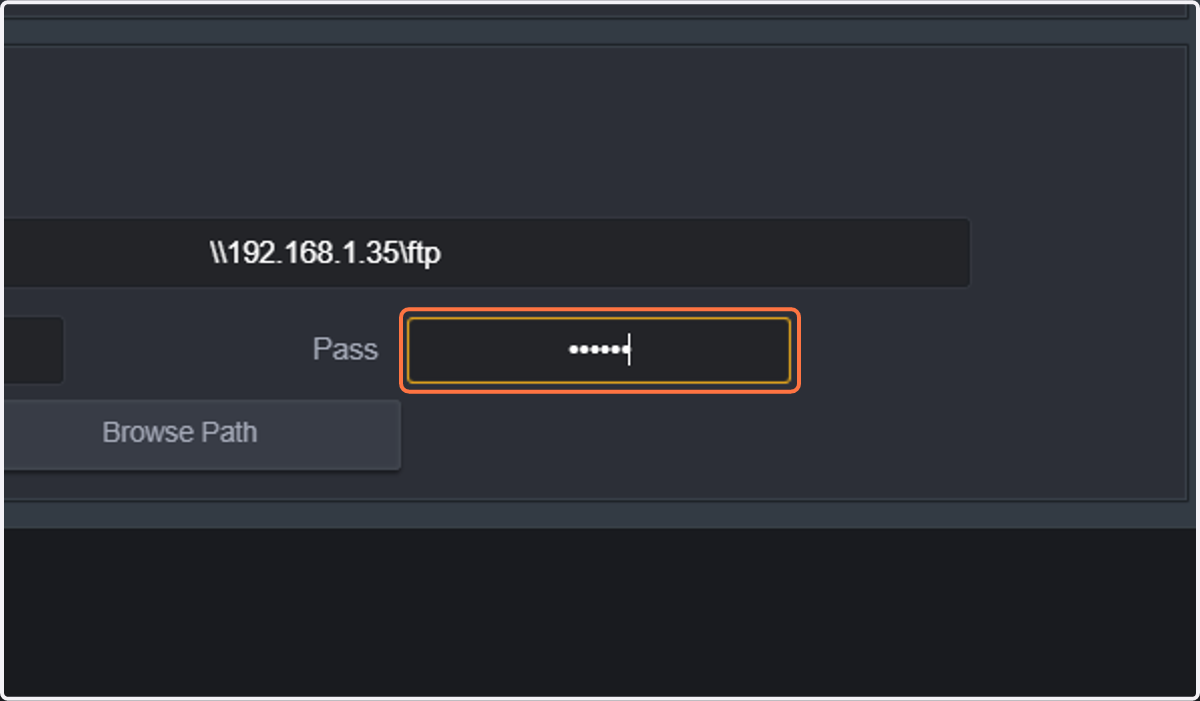
10. Click on Browse Path.
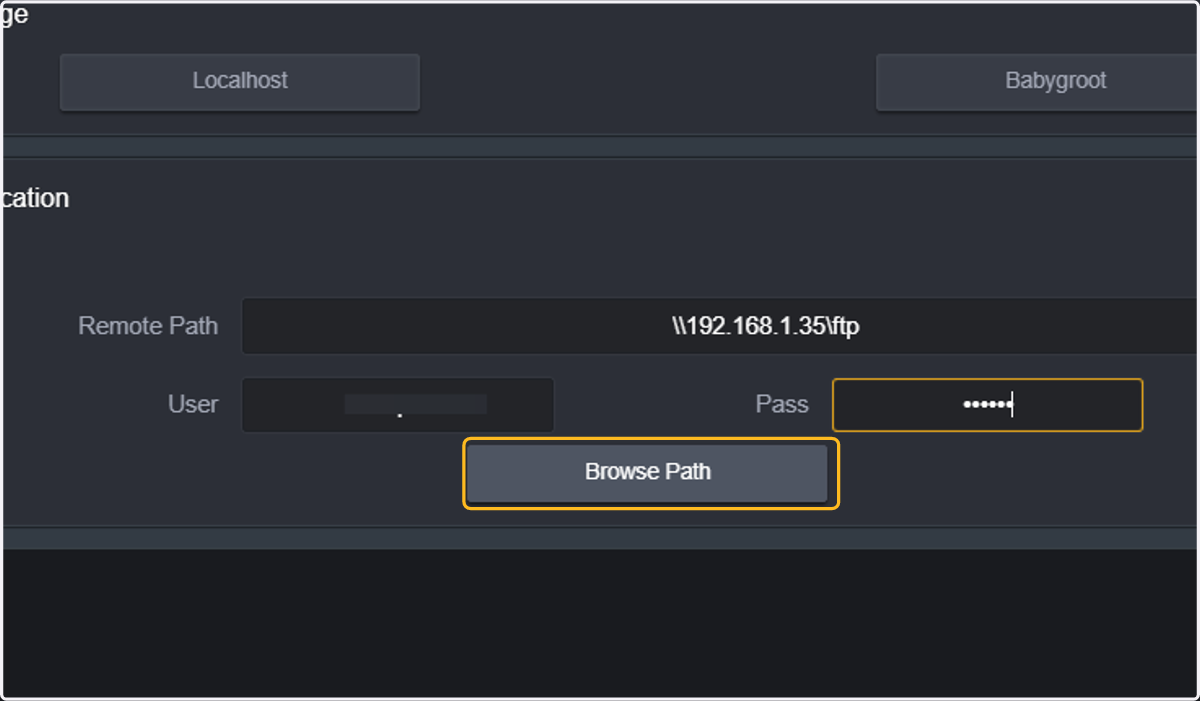
11. Browse through the folders and subfolders to select where your content will be stored and click "select."
In case you want to add the root UNC path as the repository, click on select next to the UNC path.
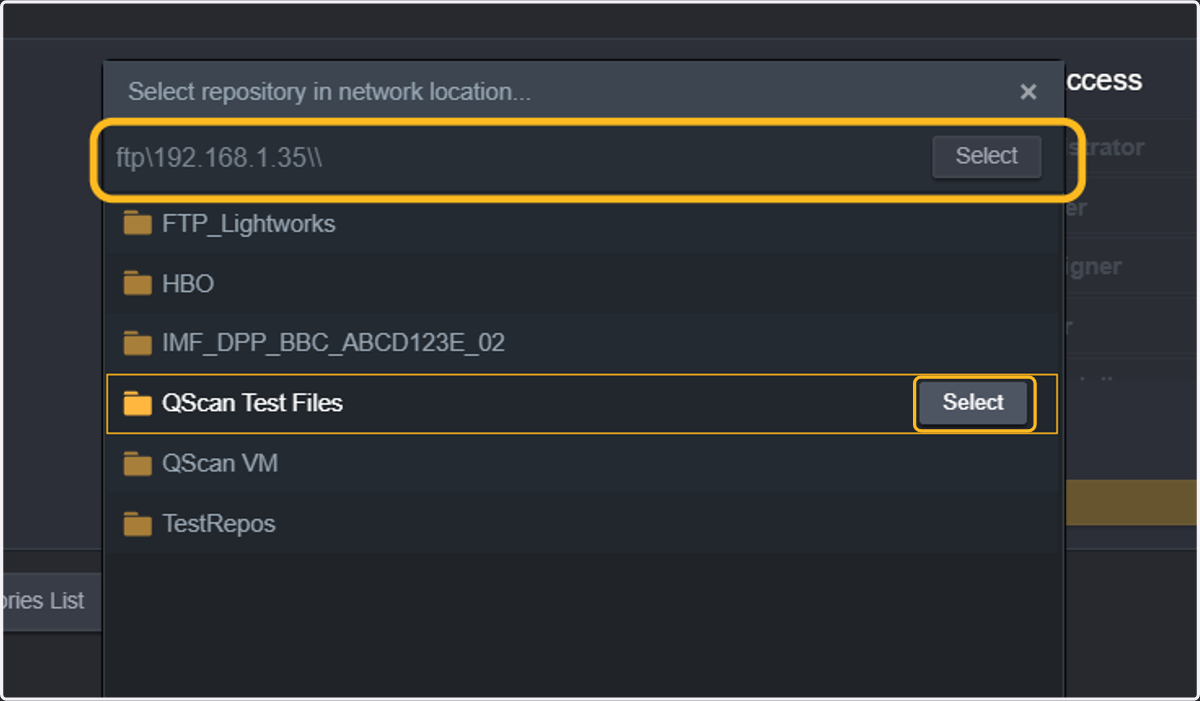
12. Click on Add Repository.
In the event that you have nodes available, the UNC path for the node should be the UNC path that connects the node to the network share.
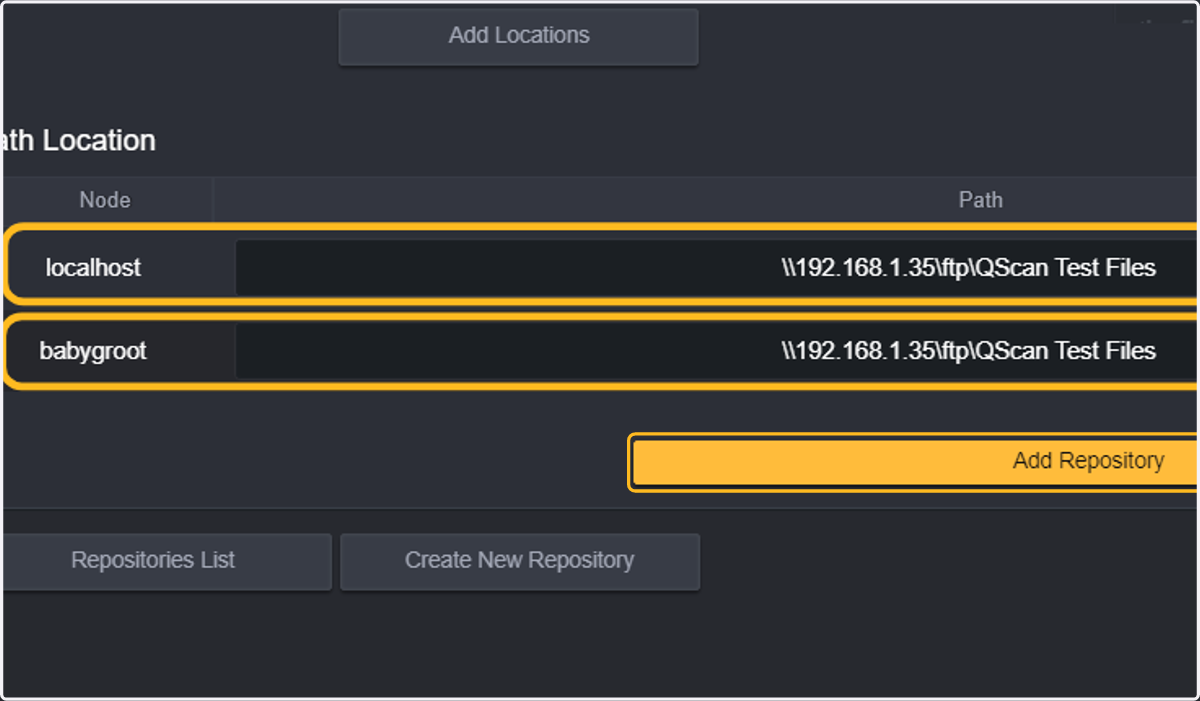
13. You can now check whether the repository and the contents is visible. Click on the QScan Icon.
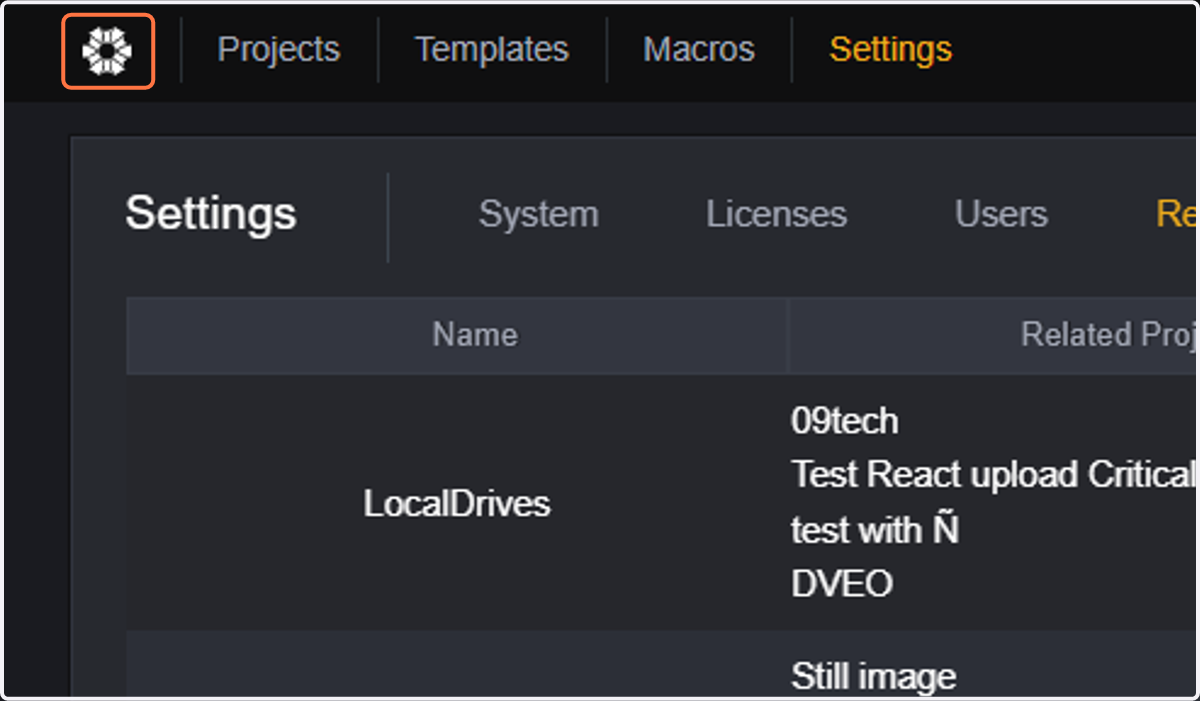
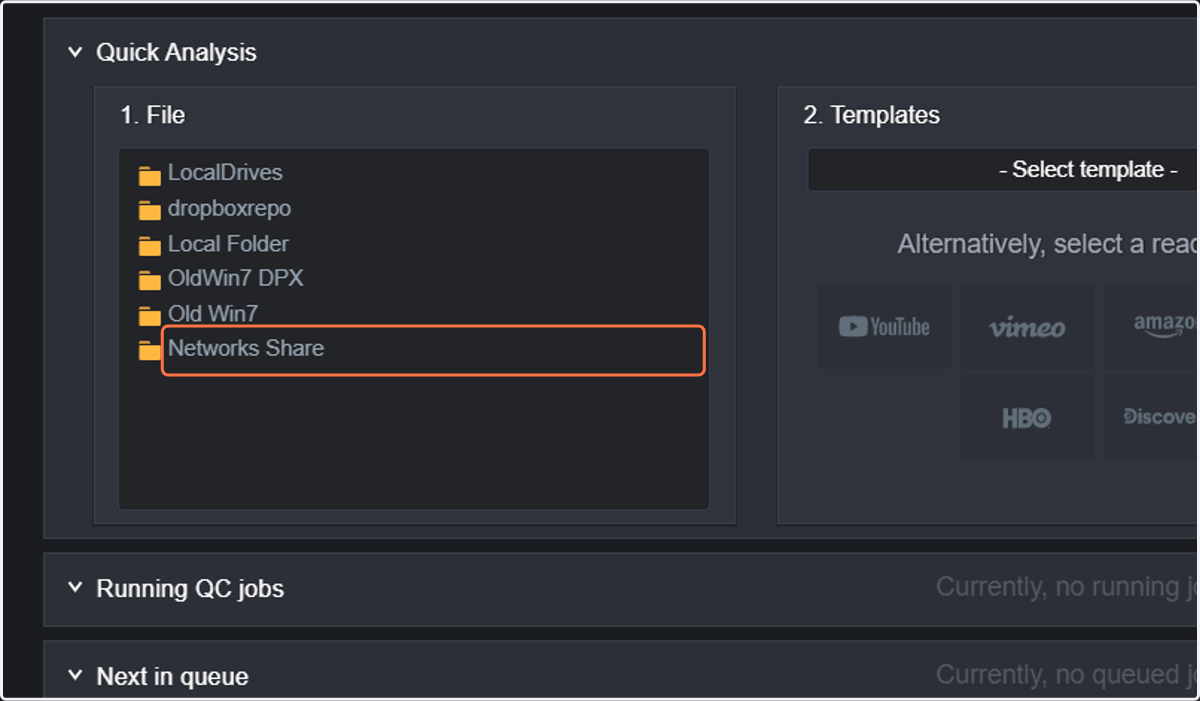
14. Under Quick Analsys Click on the name of your new networked repository.
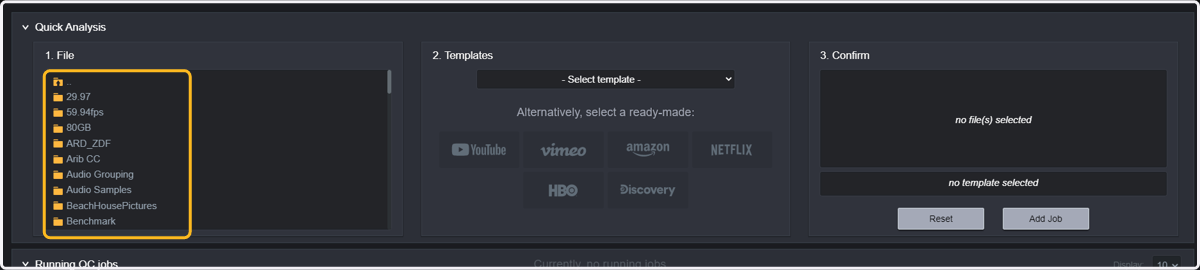
15. If the repository is correctly configured, you should see the contents of that repository.
16. ADDITIONAL TIPS: In case you cannot see the contents of the UNC path in step 11, you probably need to do some additional configuration.
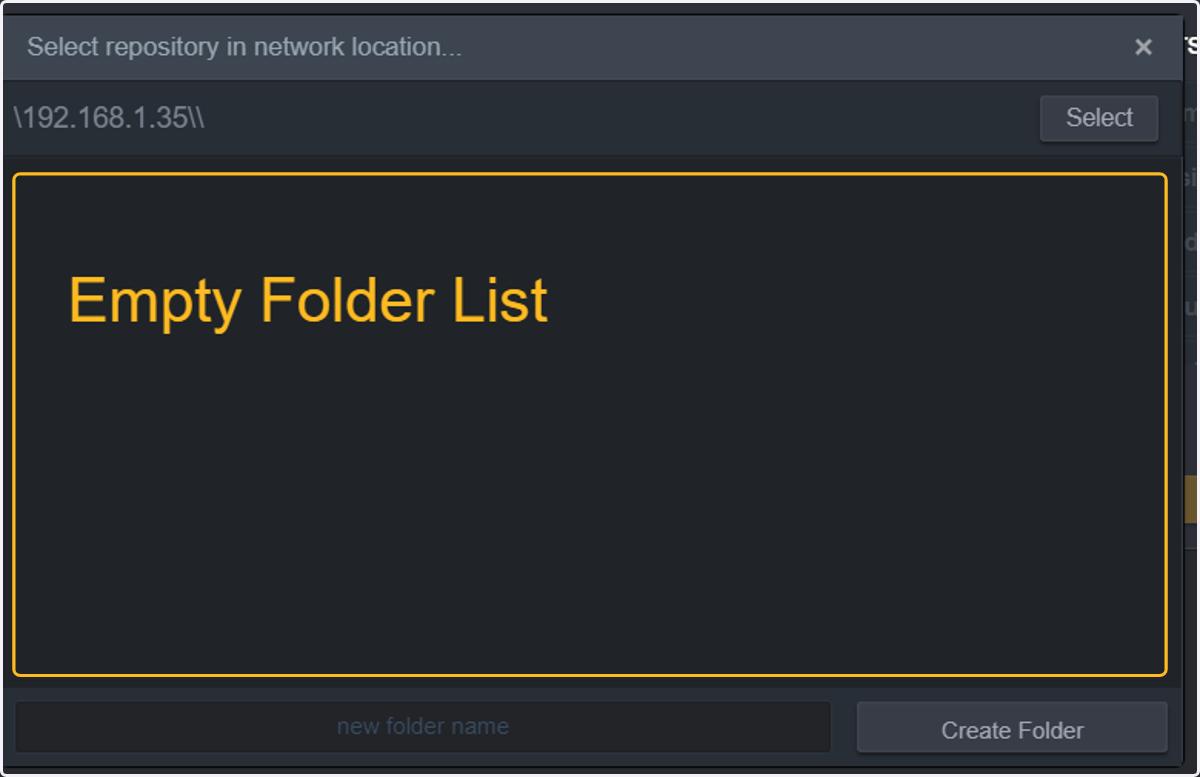
17. Create a new Windows user in the machine where QScan is running and provide administrator privileges to that user.
If the user with access to the network share does not exist in the windows where QScan is installed, the most straightforward option is creating a new user with the same username (and password when possible).
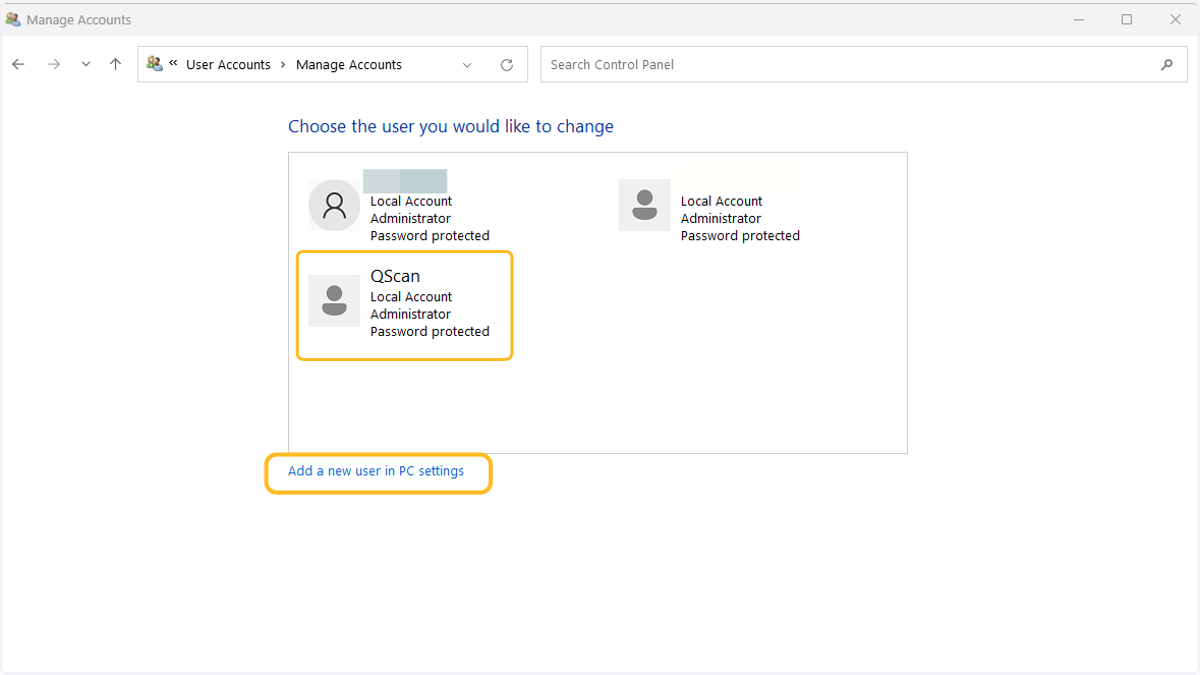
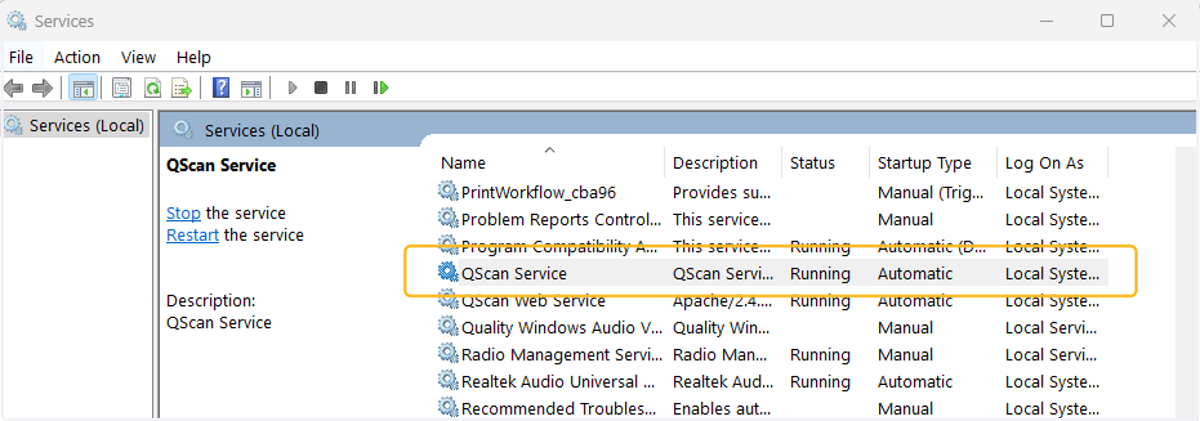
18. Open Windows Services by typing services in the search box in the task bar. Find QScan Service.
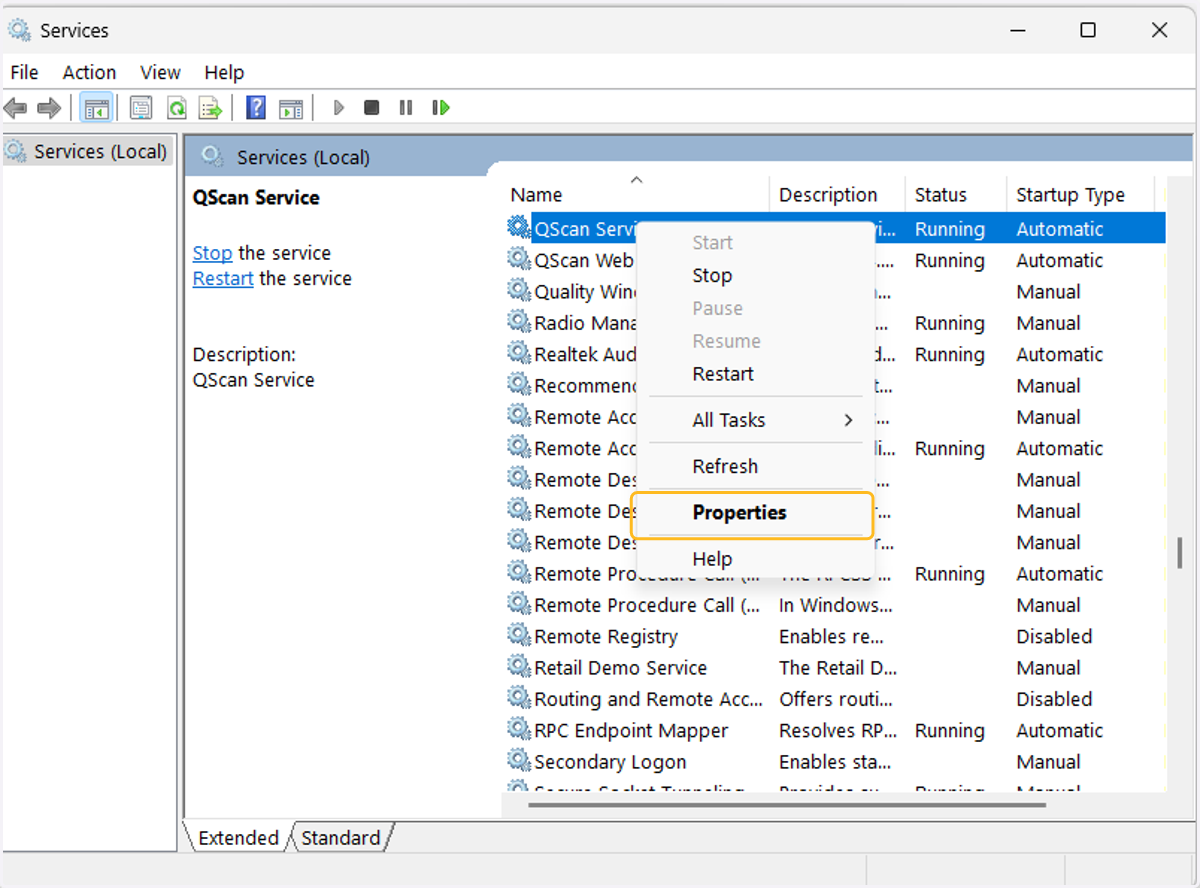
19. When QScan service is selected, right click and open the properties.
20. Select the Log On tab.
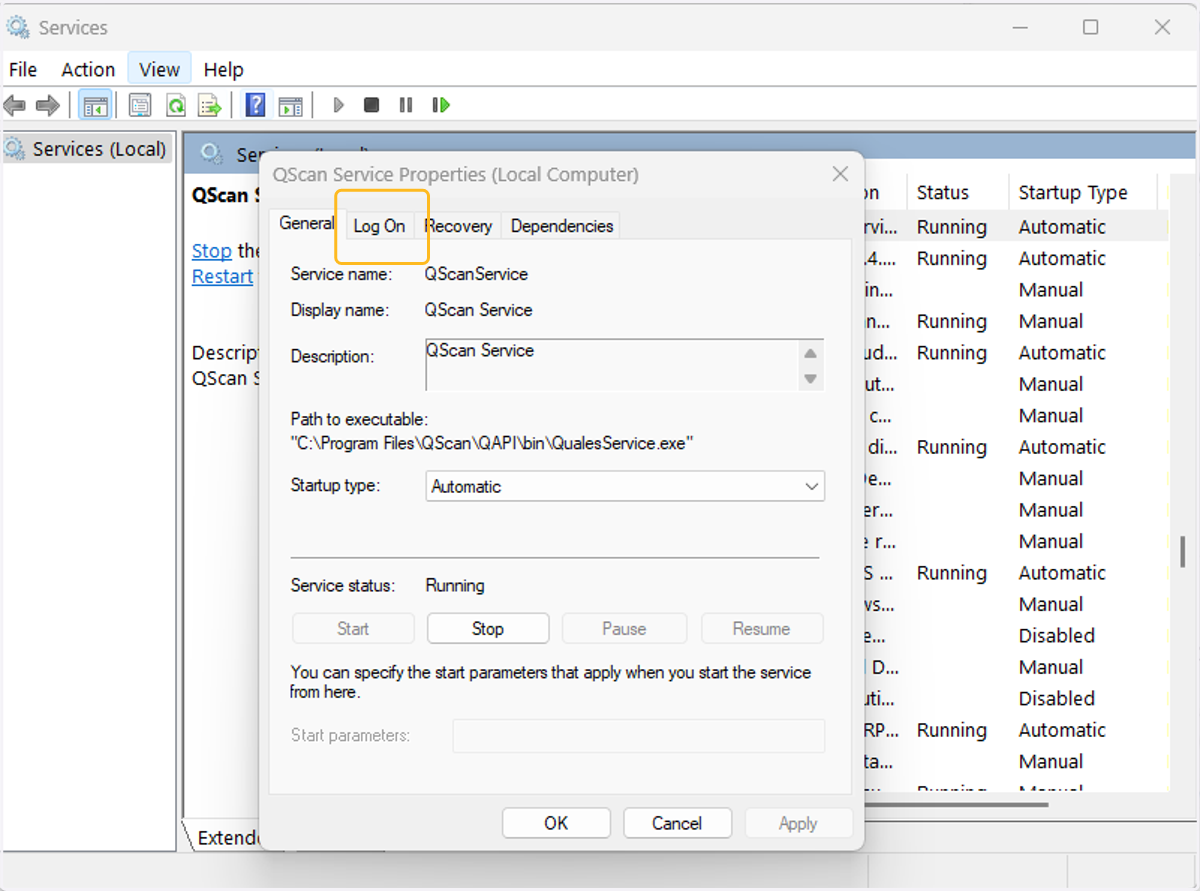
21. Select This Account.
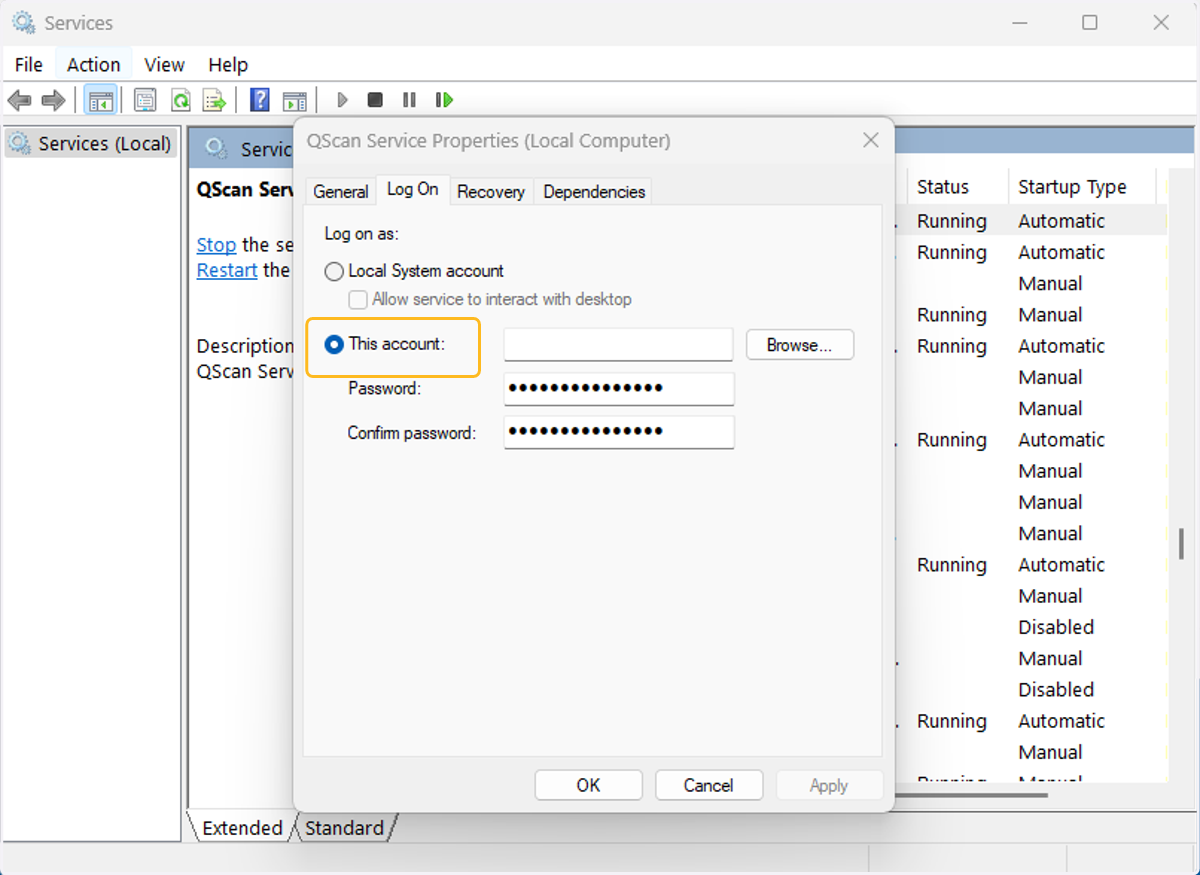
22. Enter the username and password of the new user with administration privileges and click on apply.
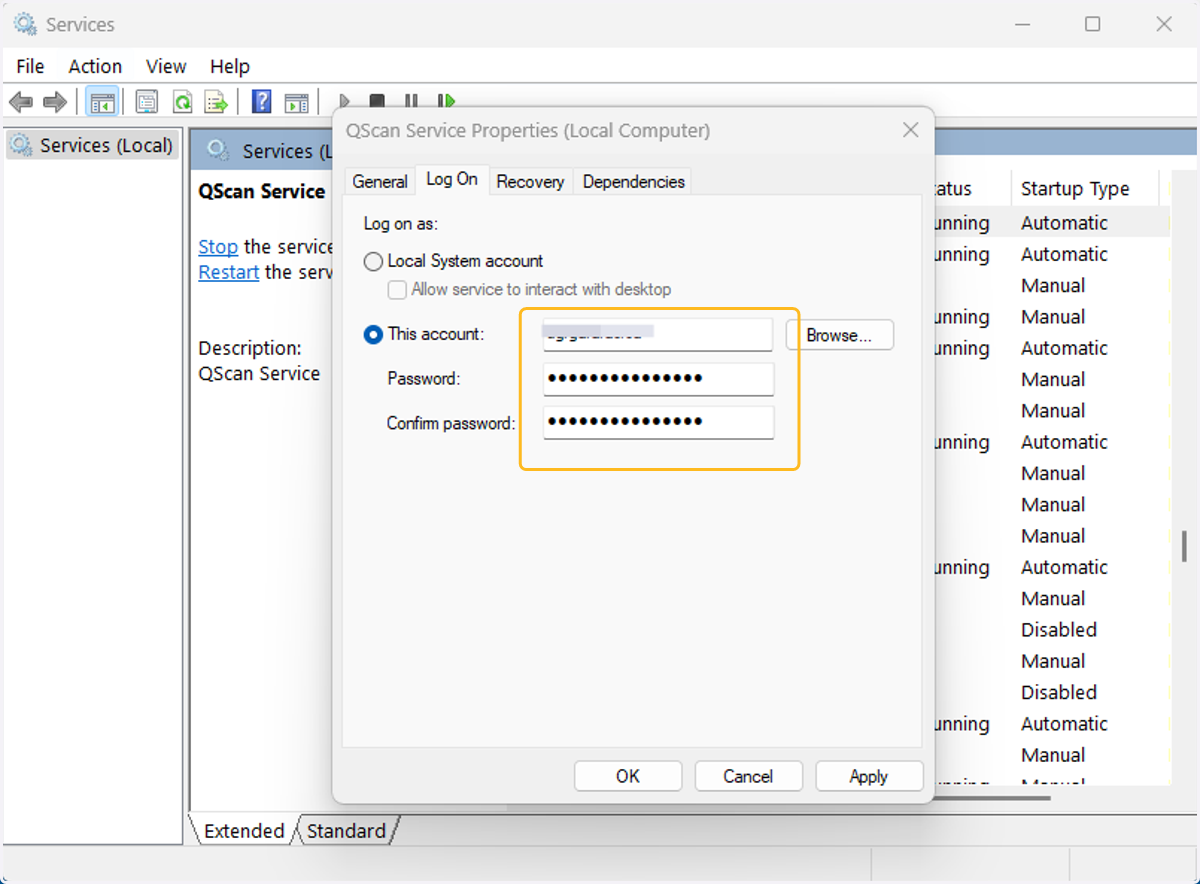
23. Then click OK, and stop and start QScan Service and QScan web service. You should now see that the selected user is running QScan service.
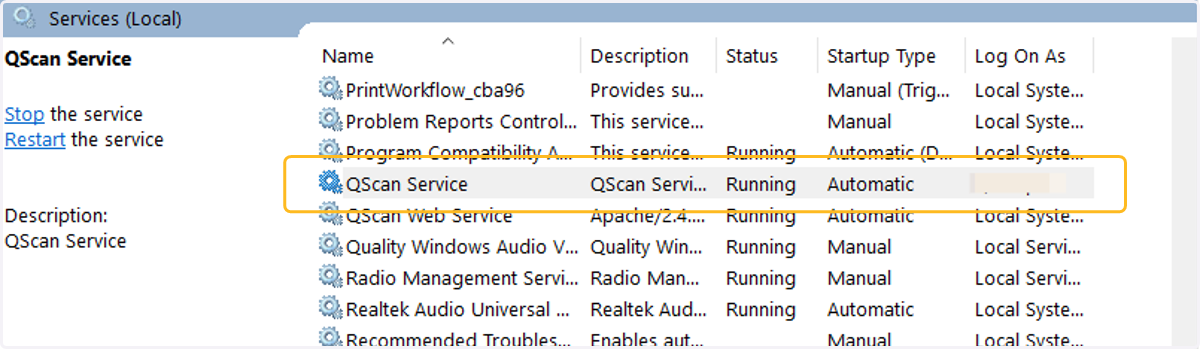
24. Now, proceed with the network repository from step 1, and your repository will be ready to be used in QScan.