Opago | How to Raise a Maintenance Service
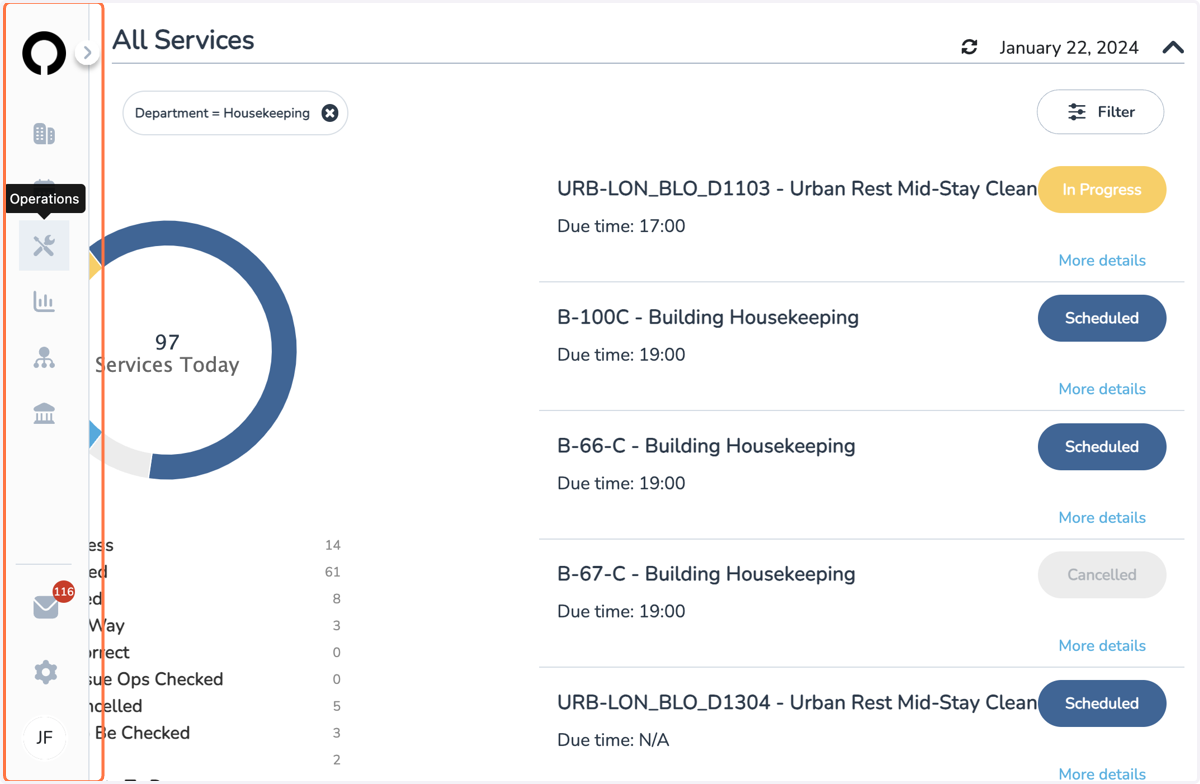
1. On your Opago App
Select Operations from the side bar on the left
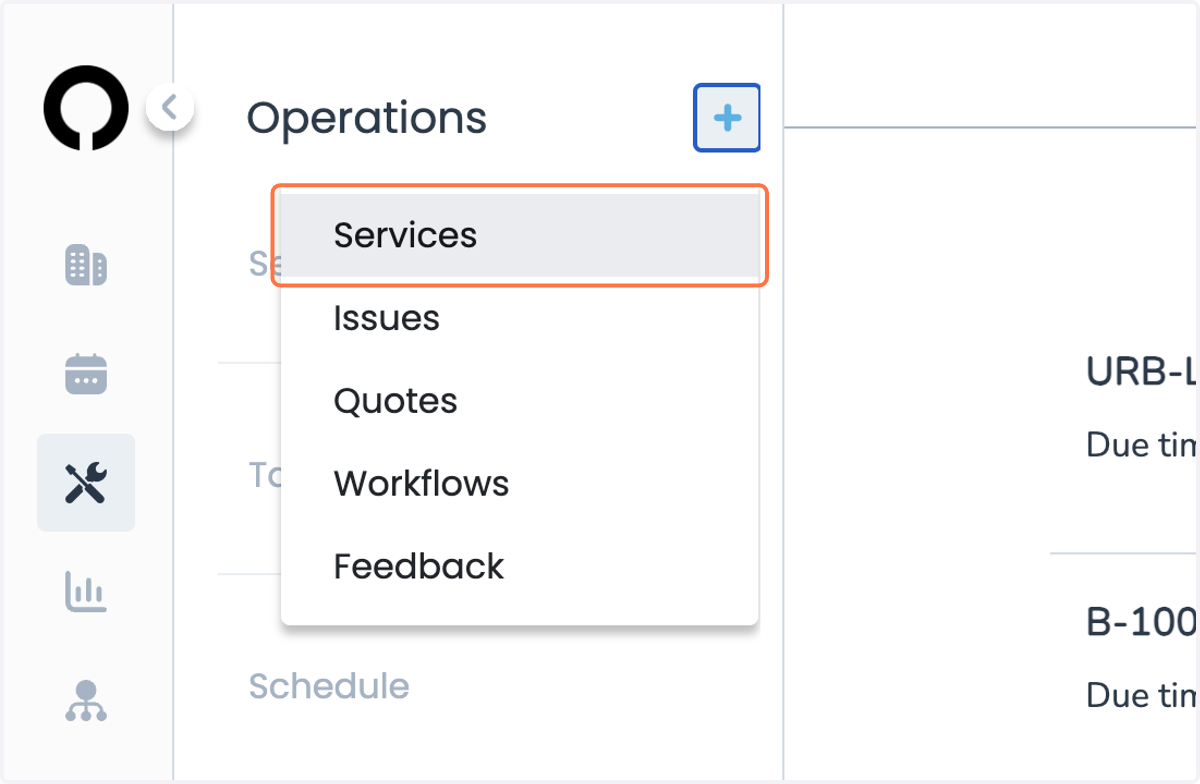
2. Click on the blue + button and select Services
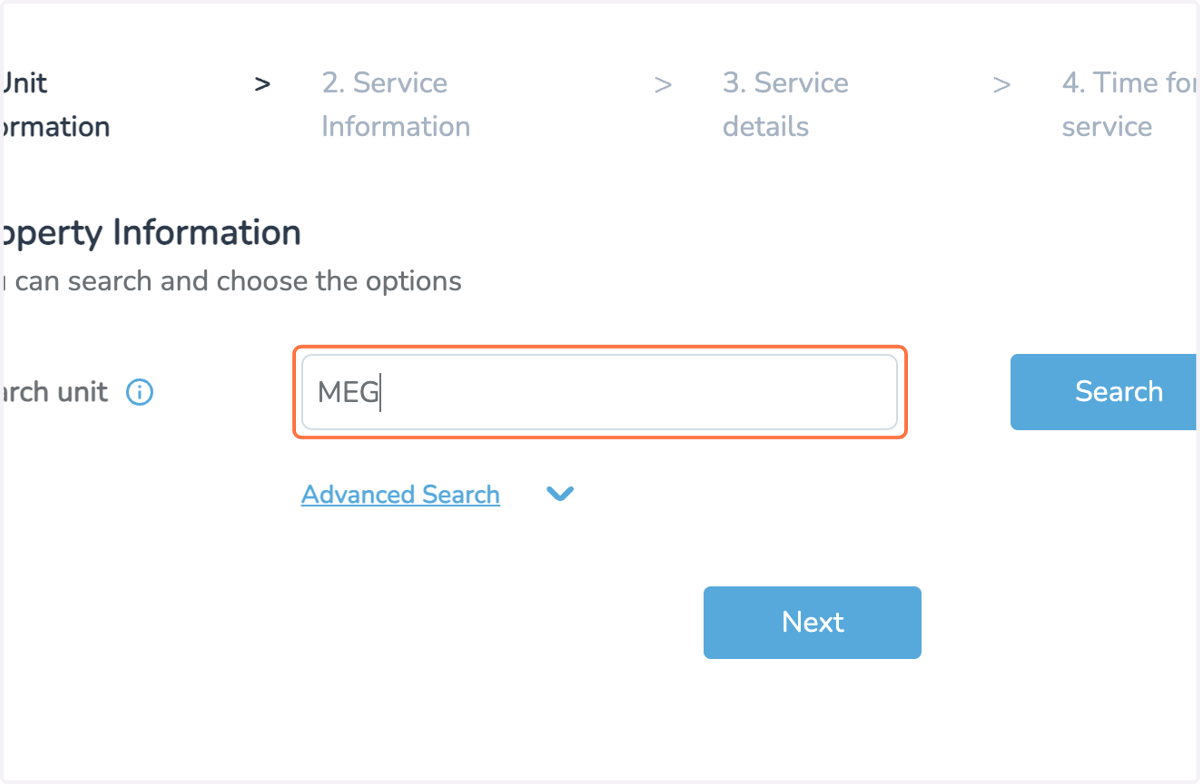
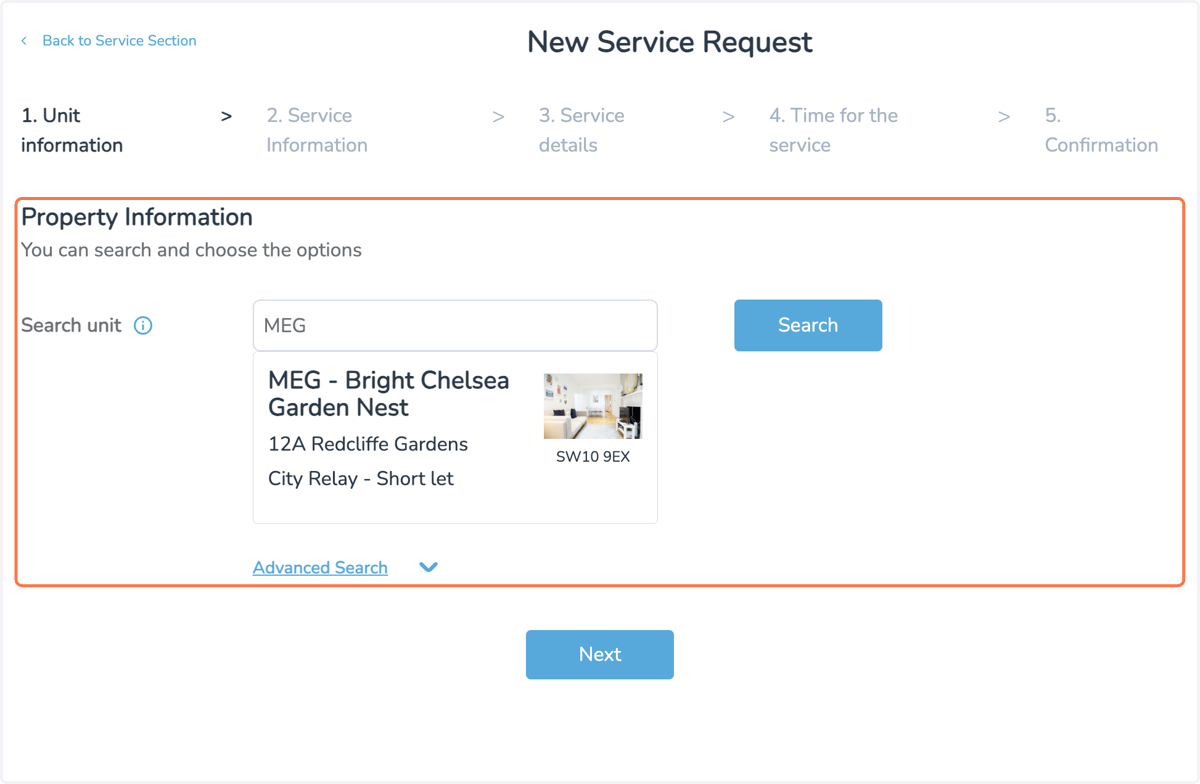
3. Unit Information
You can search for your unit in various different ways but below will be the quickest
Unit Code
First line of address
4. Unit Information
5. Choosing a Department
Once you have hit the Next button
Select Advanced Search
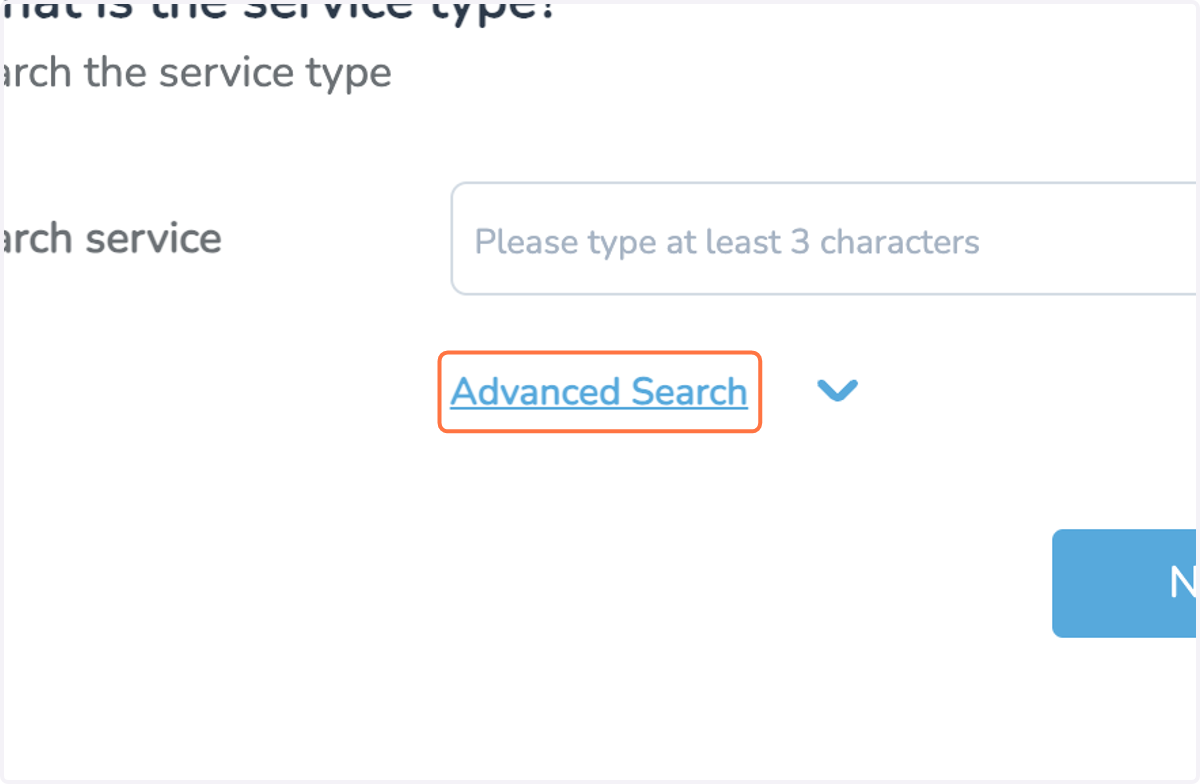
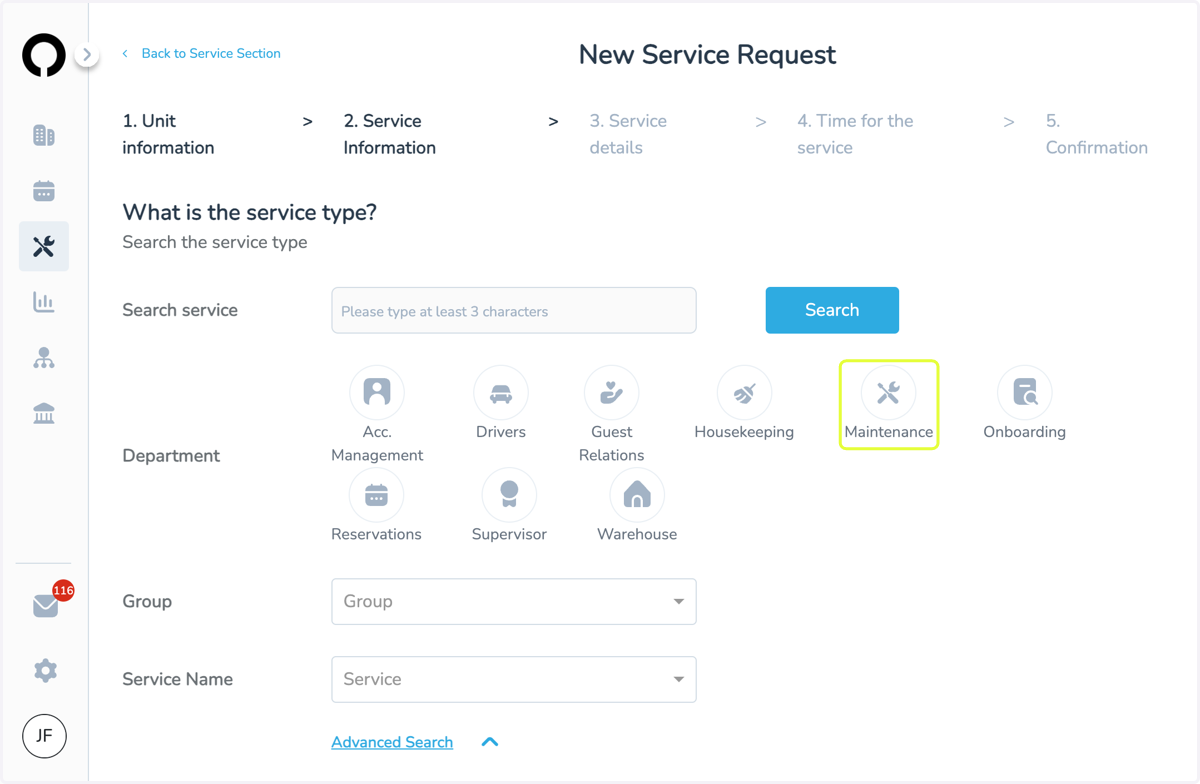
6. Choosing a Department
This will bring up all of the departments in which you can raise a service for
Select Maintenance
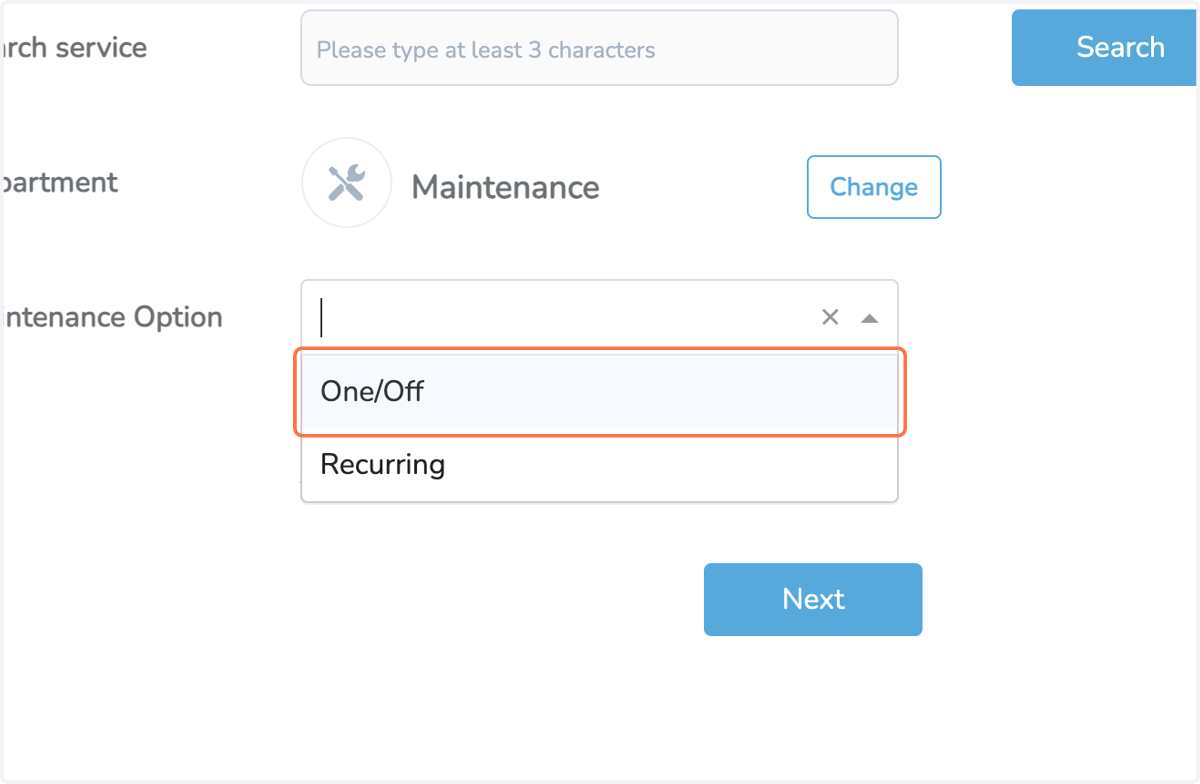
7. Click on One/Off
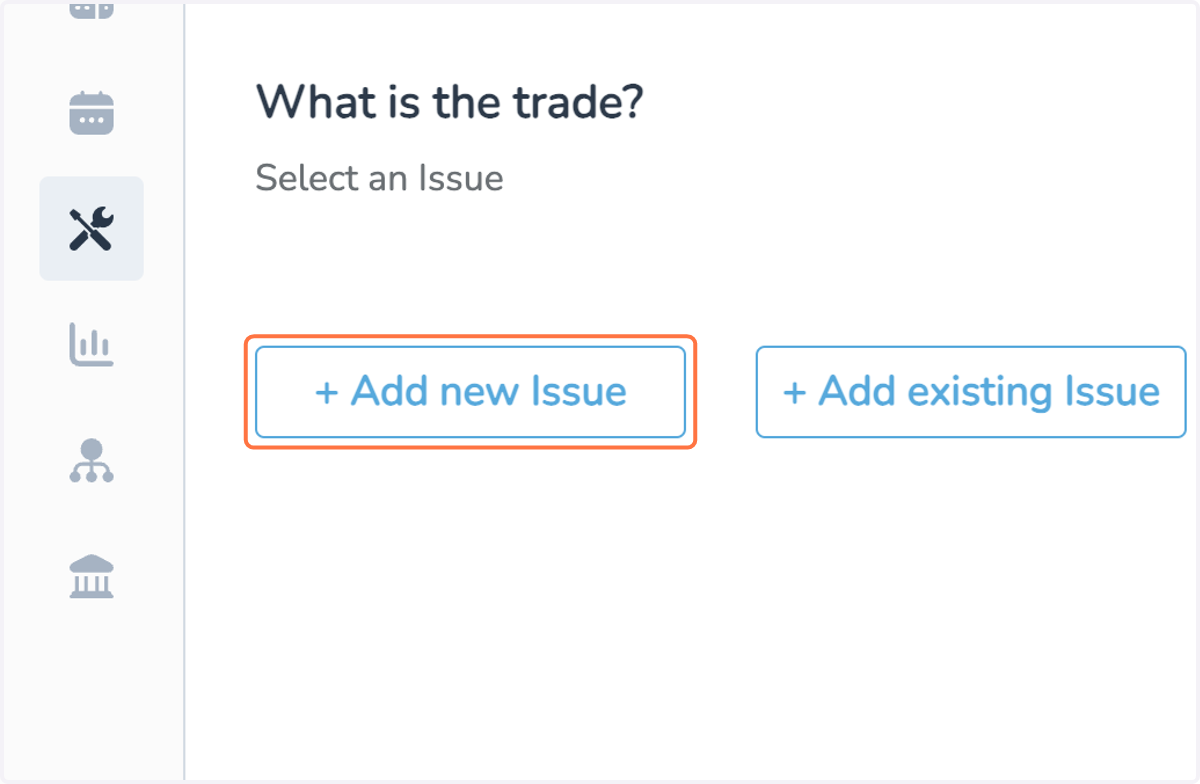
8. Adding a New Issue
Here you will have the option to either add a new issue or an existing issue that has already been raised on the app
9. Choose The Trade
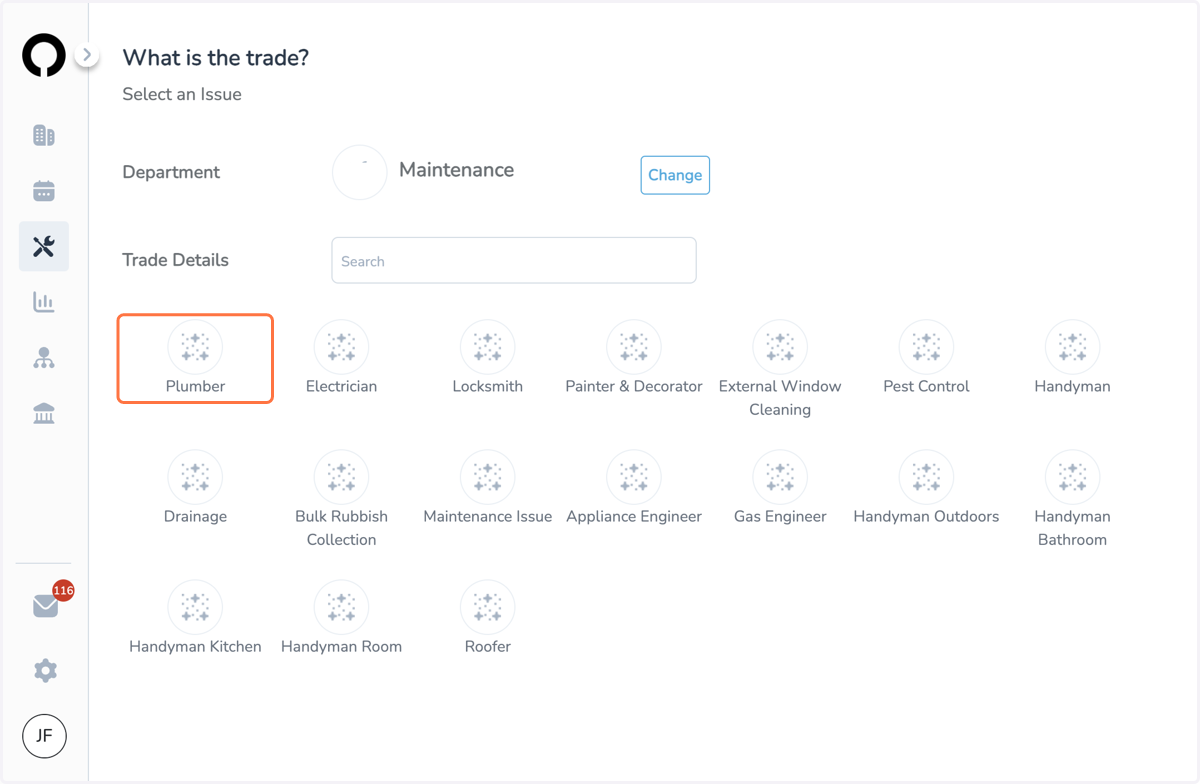
One you have selected to Add a New Issue
All Maintenance Trade types will appear for you to select
10. Issue Types
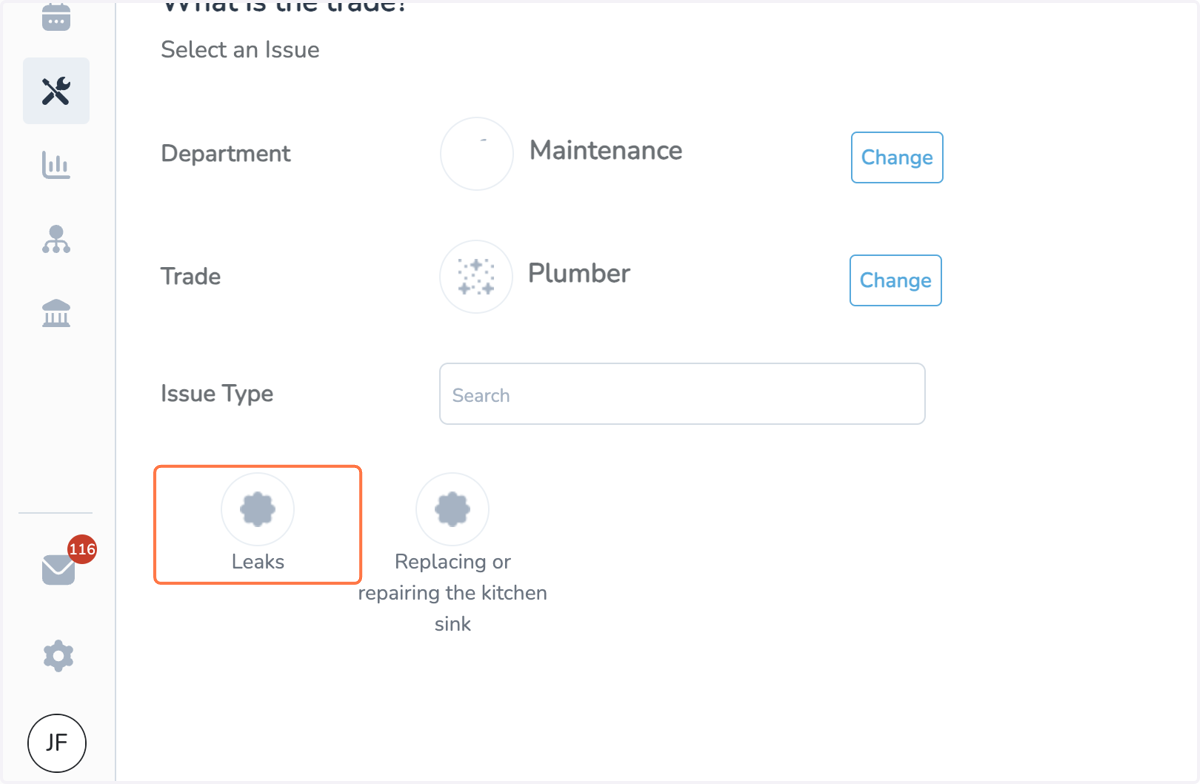
Issue Types related to your selected trade will appear
Choose the issue you need
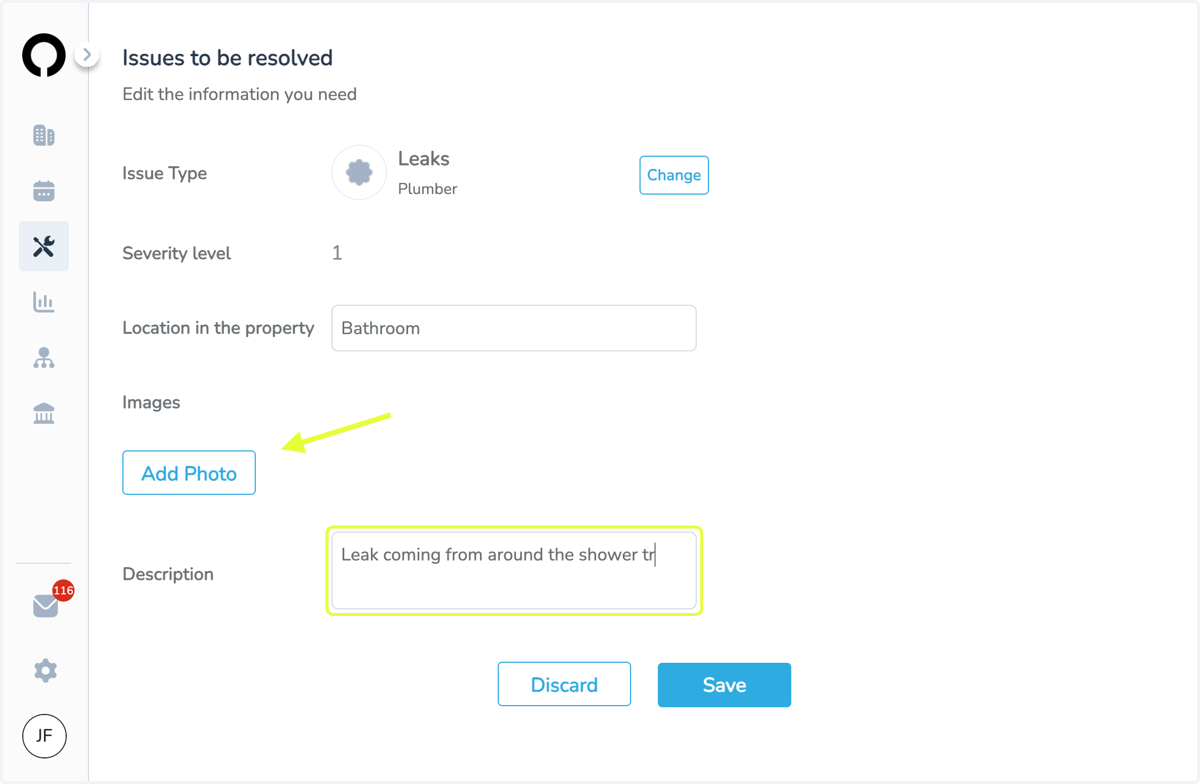
11. Issue Location
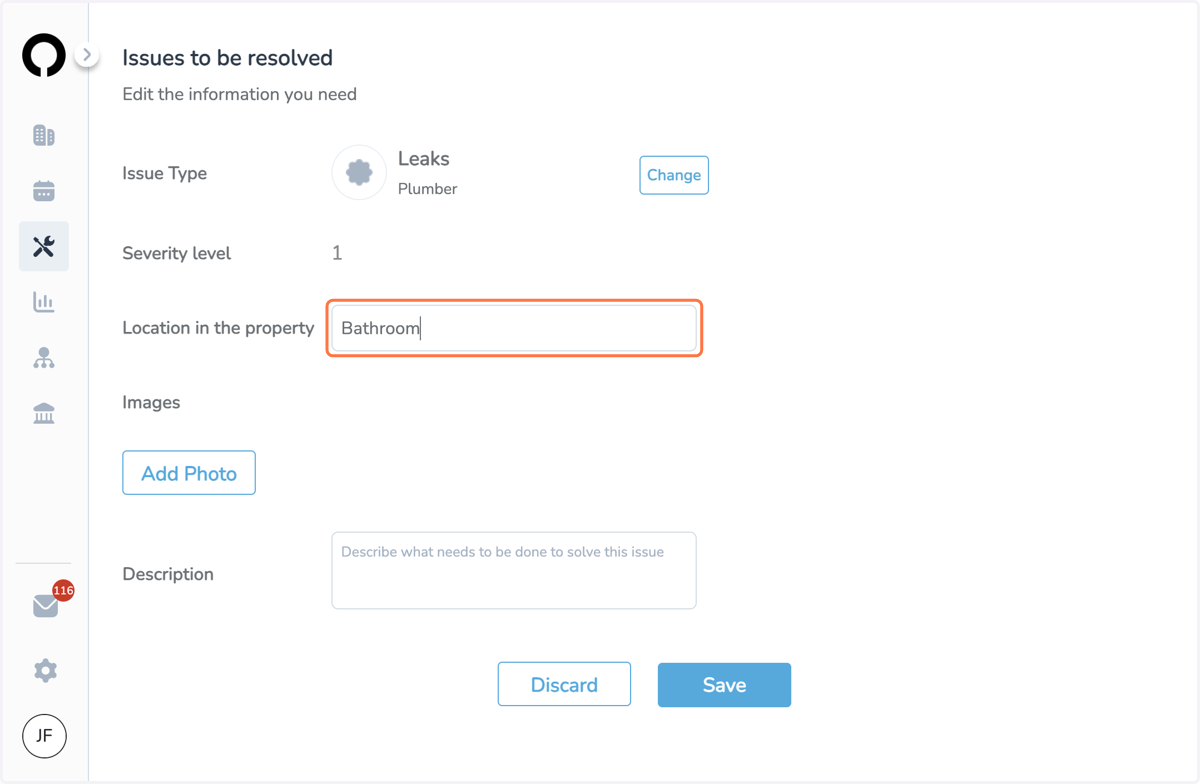
Include the location of the Maintenance Issue
Try to be as specific as possible with the location (master bathroom, bathroom on first floor, en suite)
12. Issue Information
Add as much detail as possible about the Maintenance Issue
Include clear photos of exactly where the issue is
Hit Save
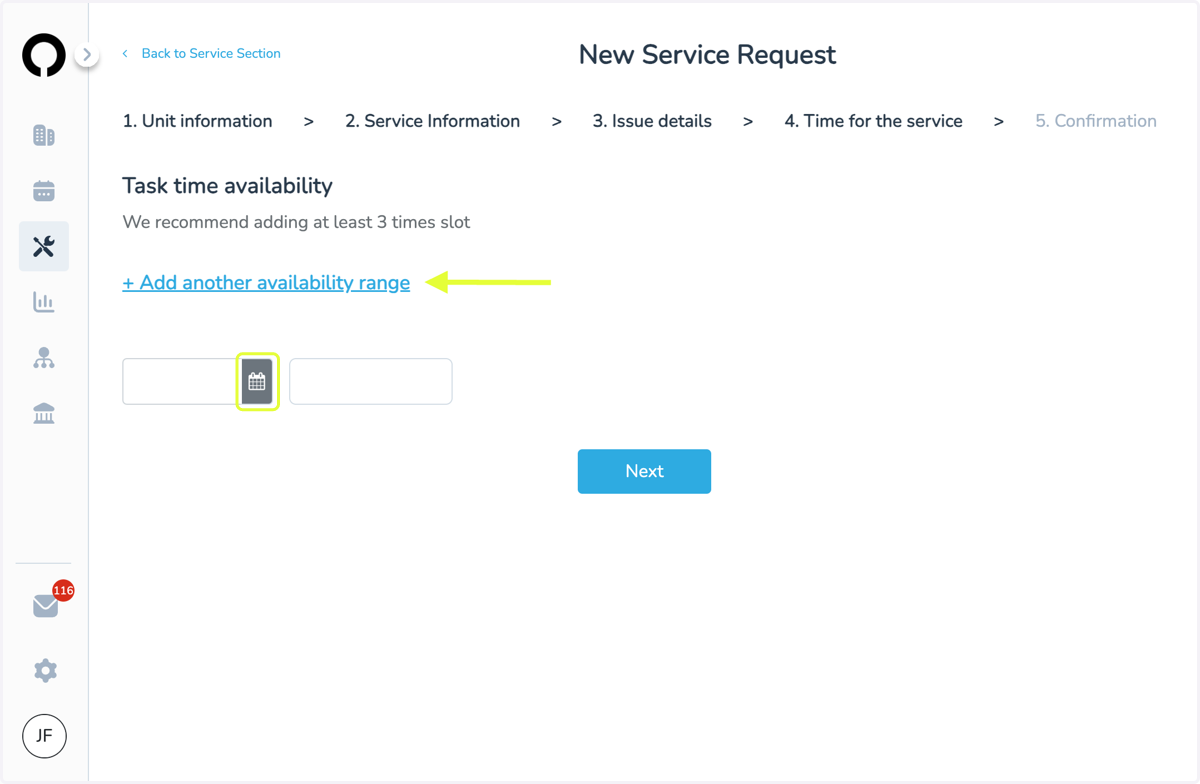
13. Adding Availability
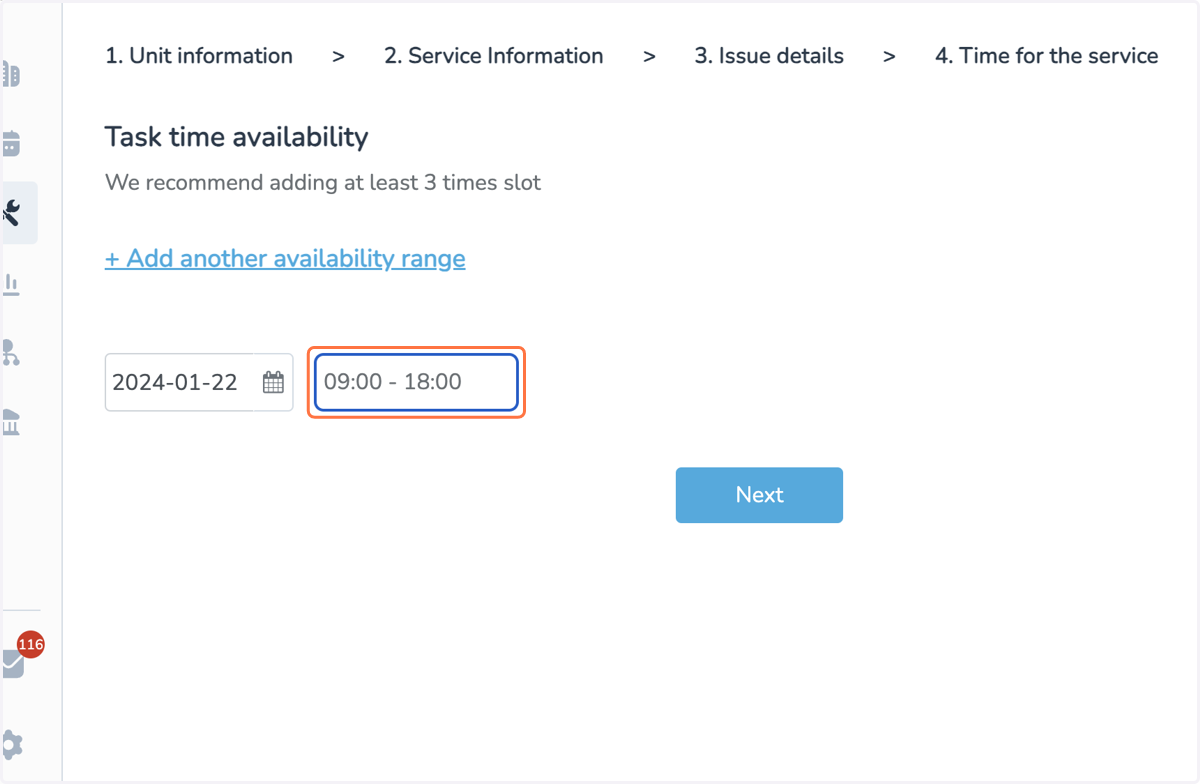
Select the date and time slot you would like this to be attended to
You have the option to add up to 3 availability ranges
14. Adding Availability
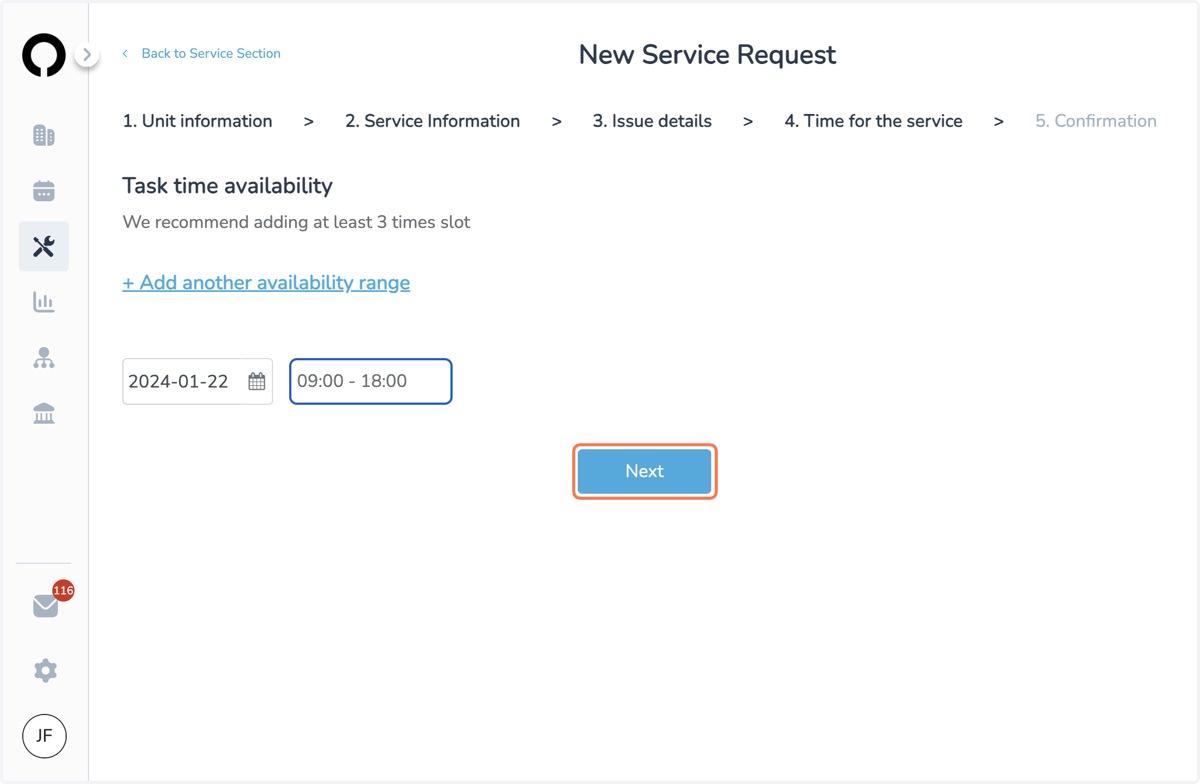
15. Click on Next
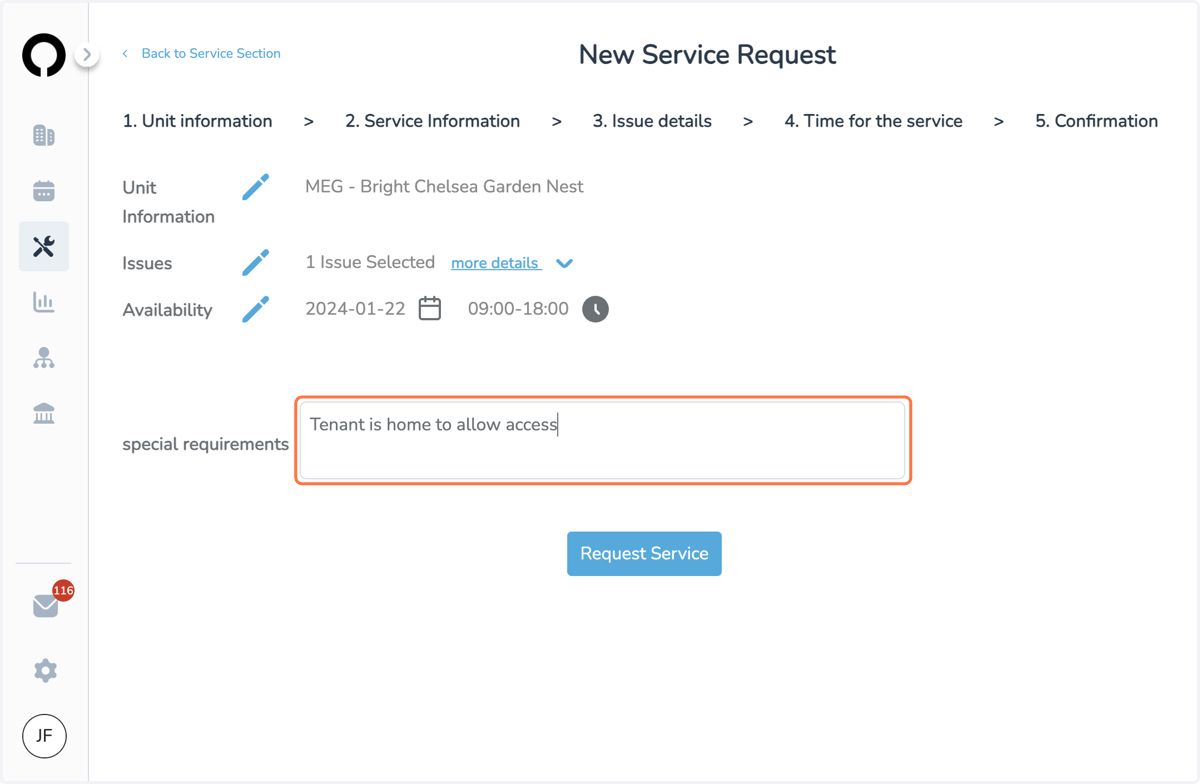
16. Service Request Overview
You may use the blue pencils to edit your service request
You may use the special requirements to add any instructions that are related to this specific service, such as access
Once everything has been added you may hit Request Service to submit