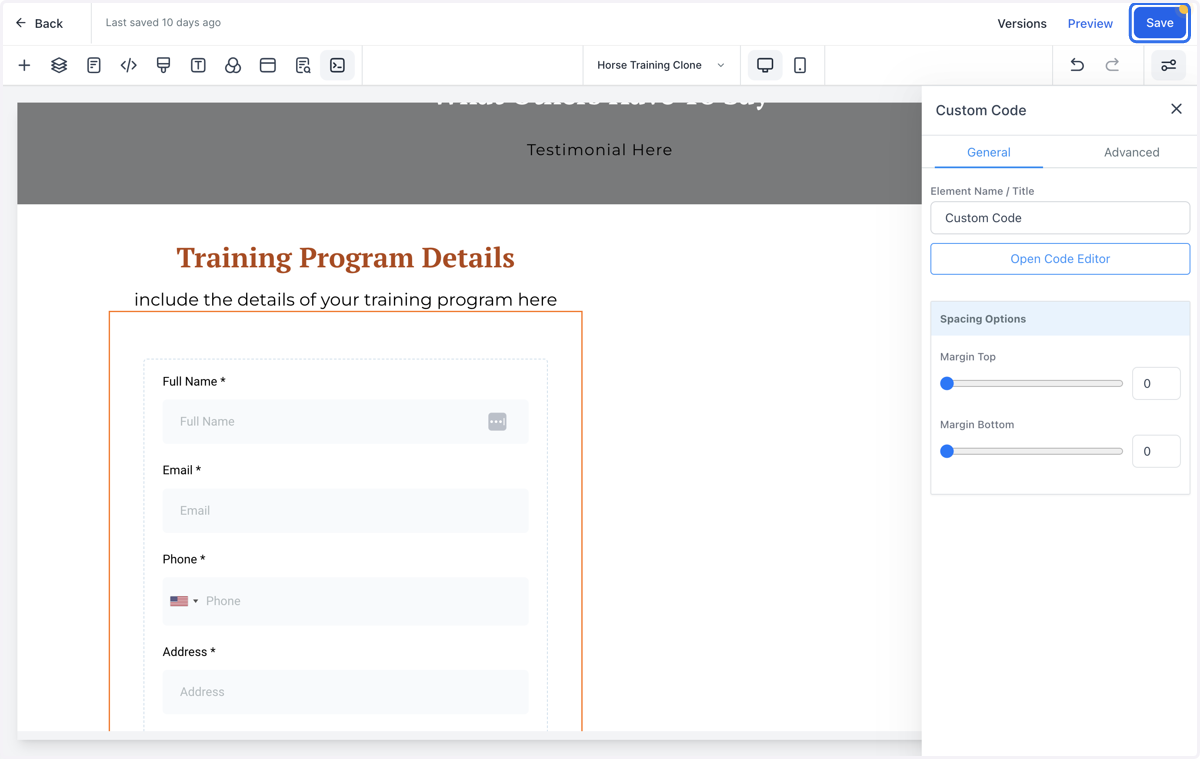
Sharing your form with Embed Code
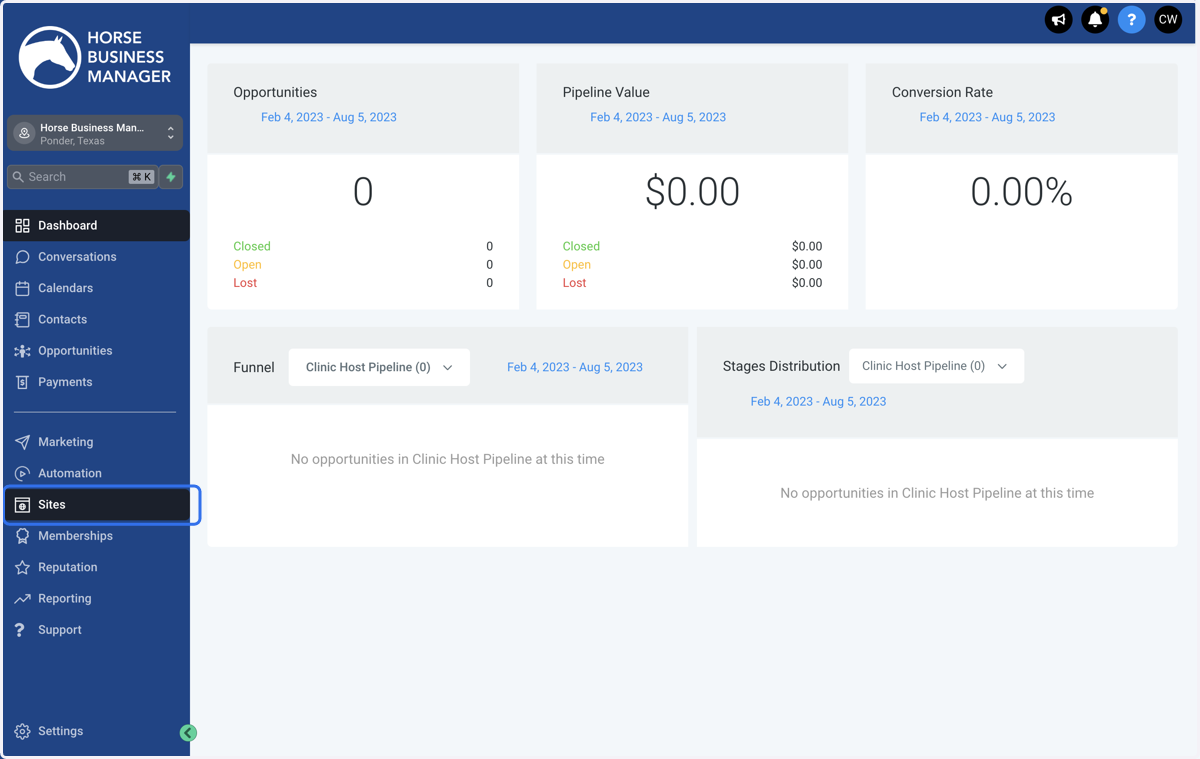
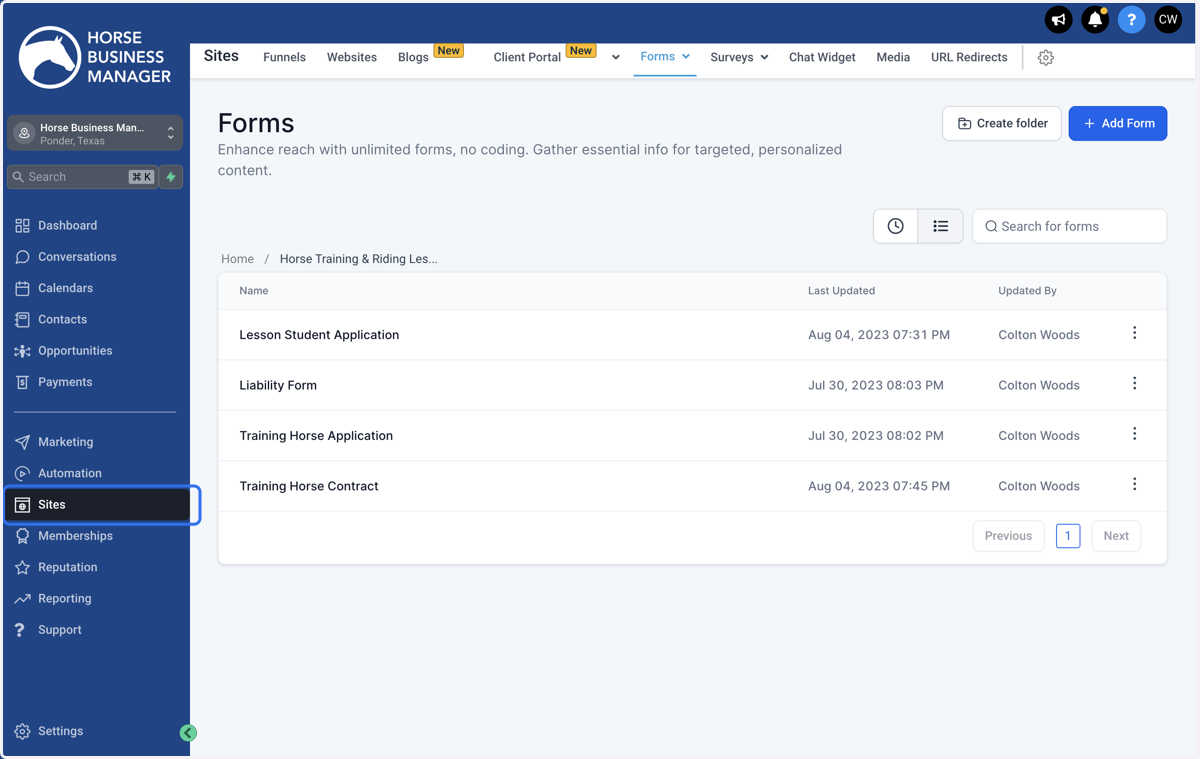
1. Click on Sites
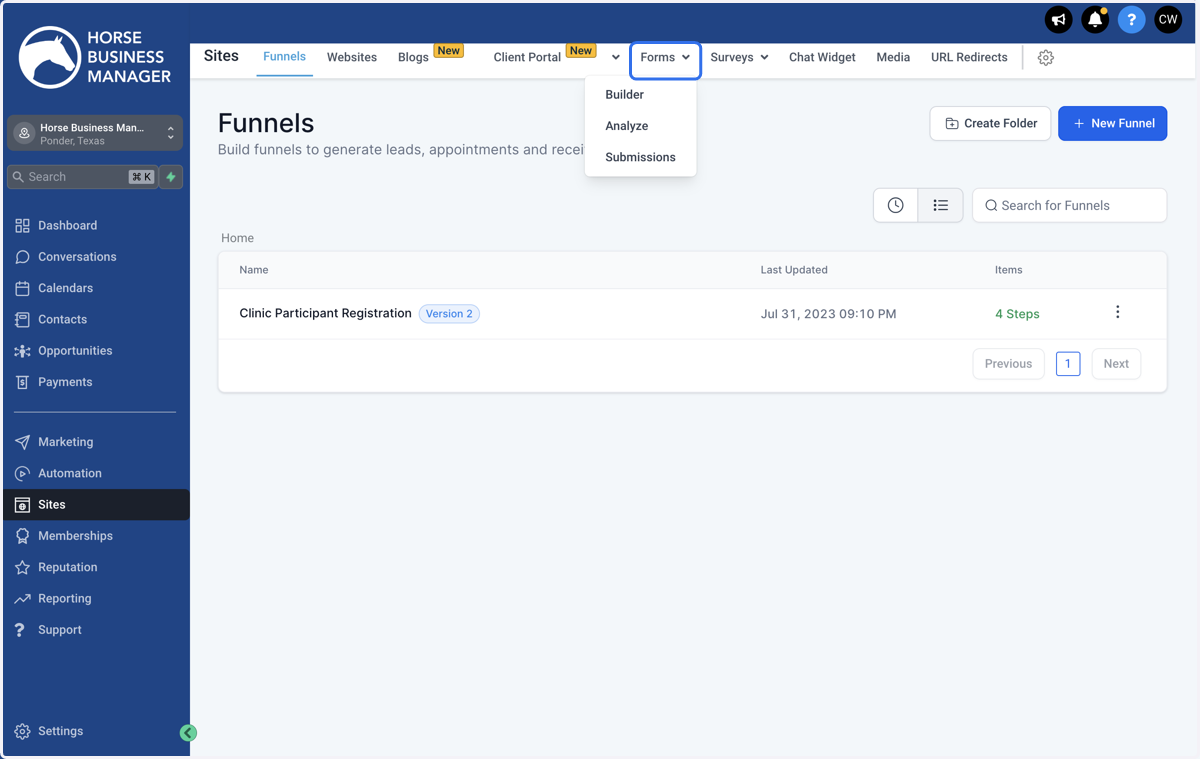
2. Click on Forms
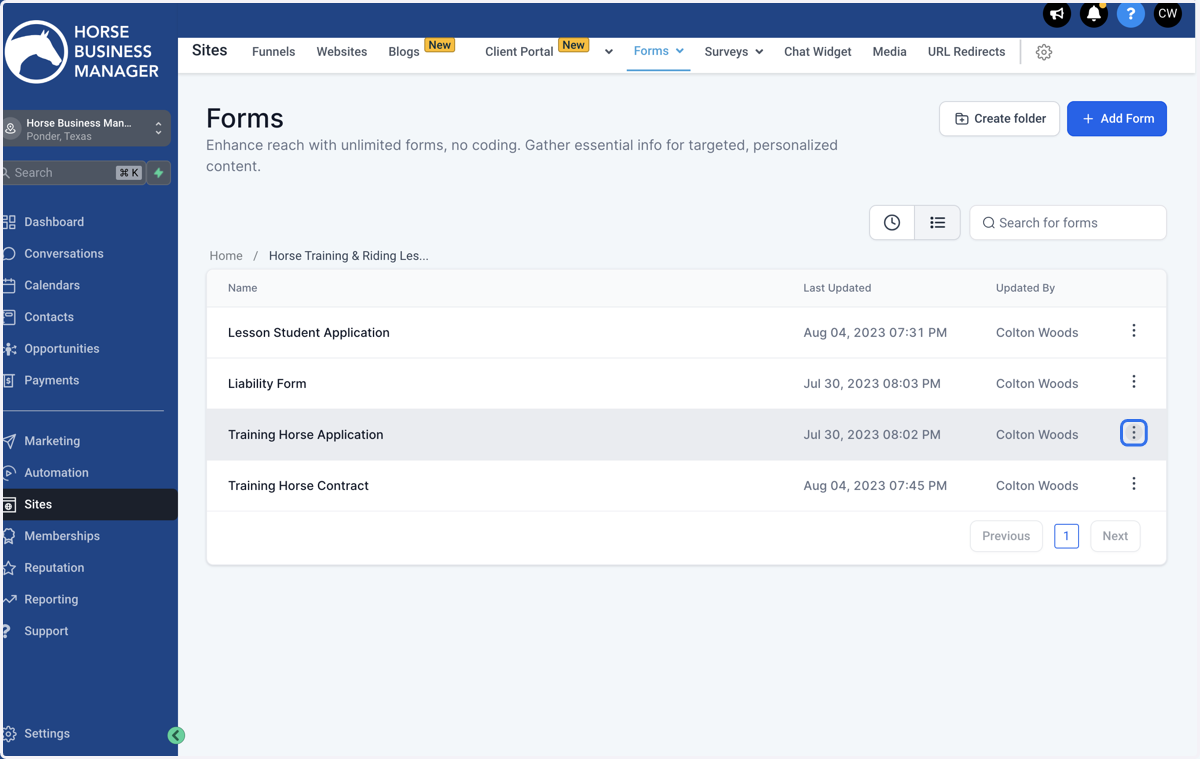
3. Select the form you want to share
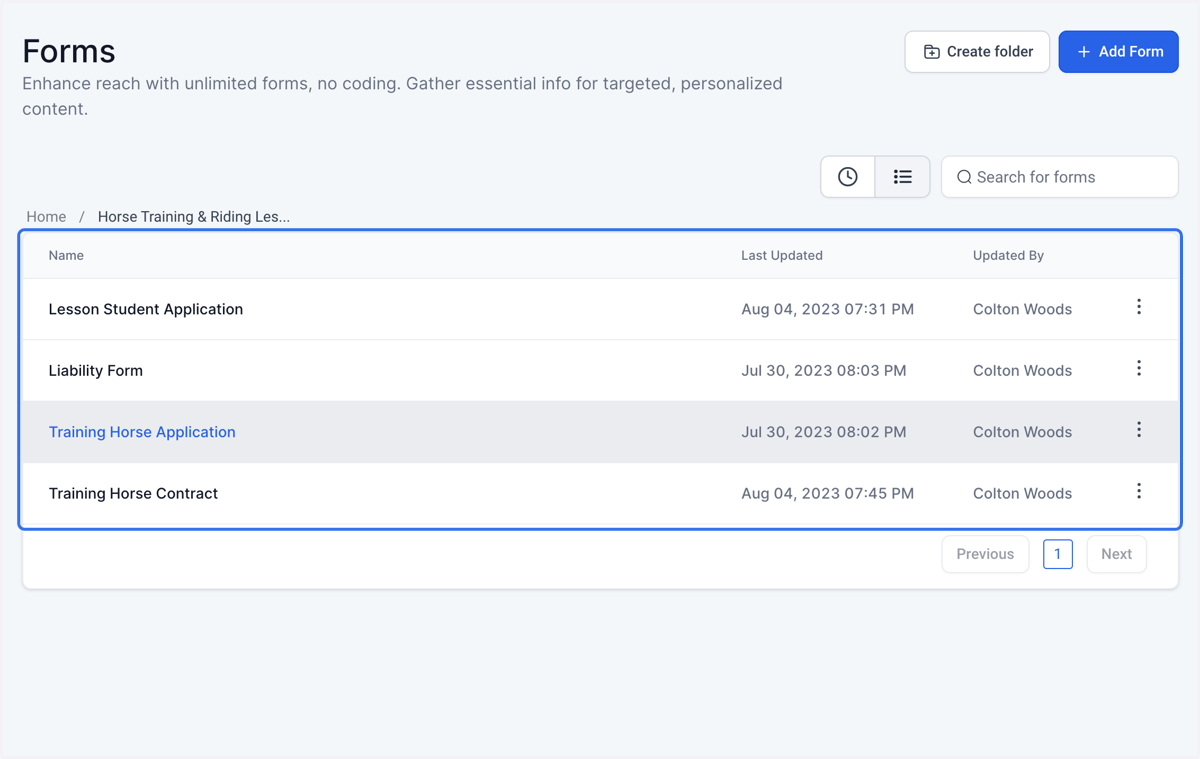
4. Click on the three dots
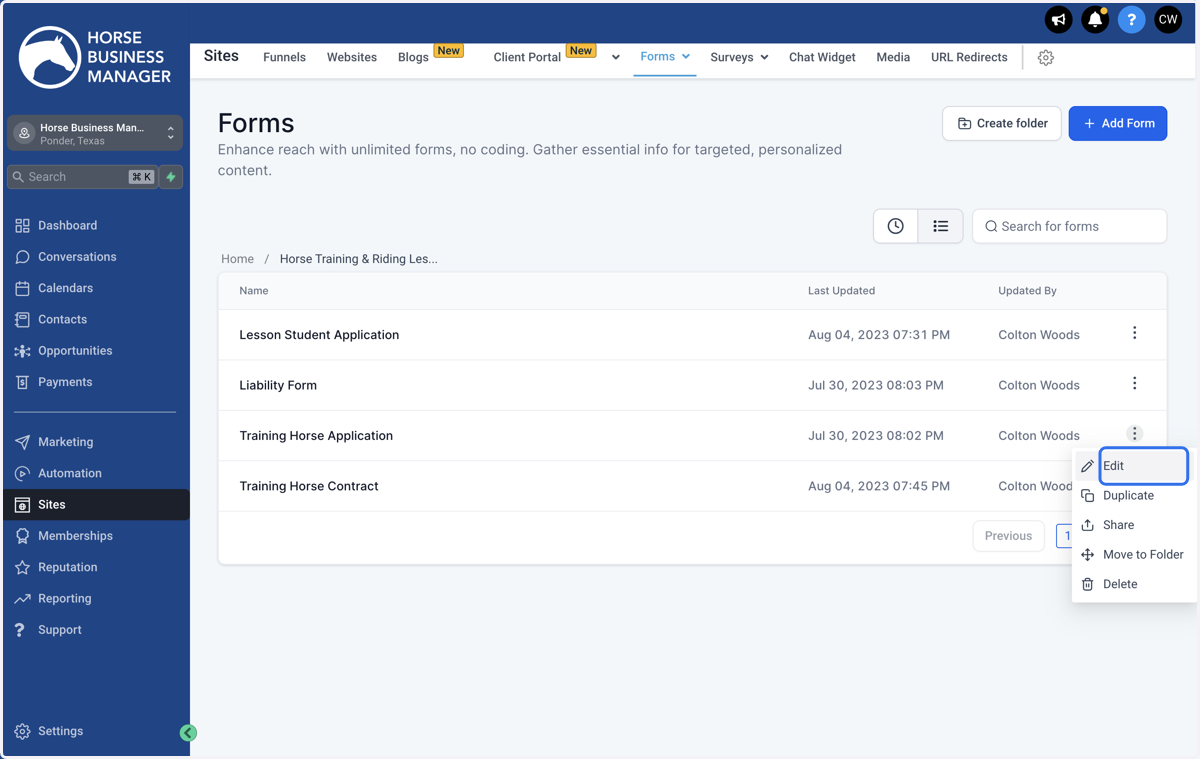
5. Click on Edit
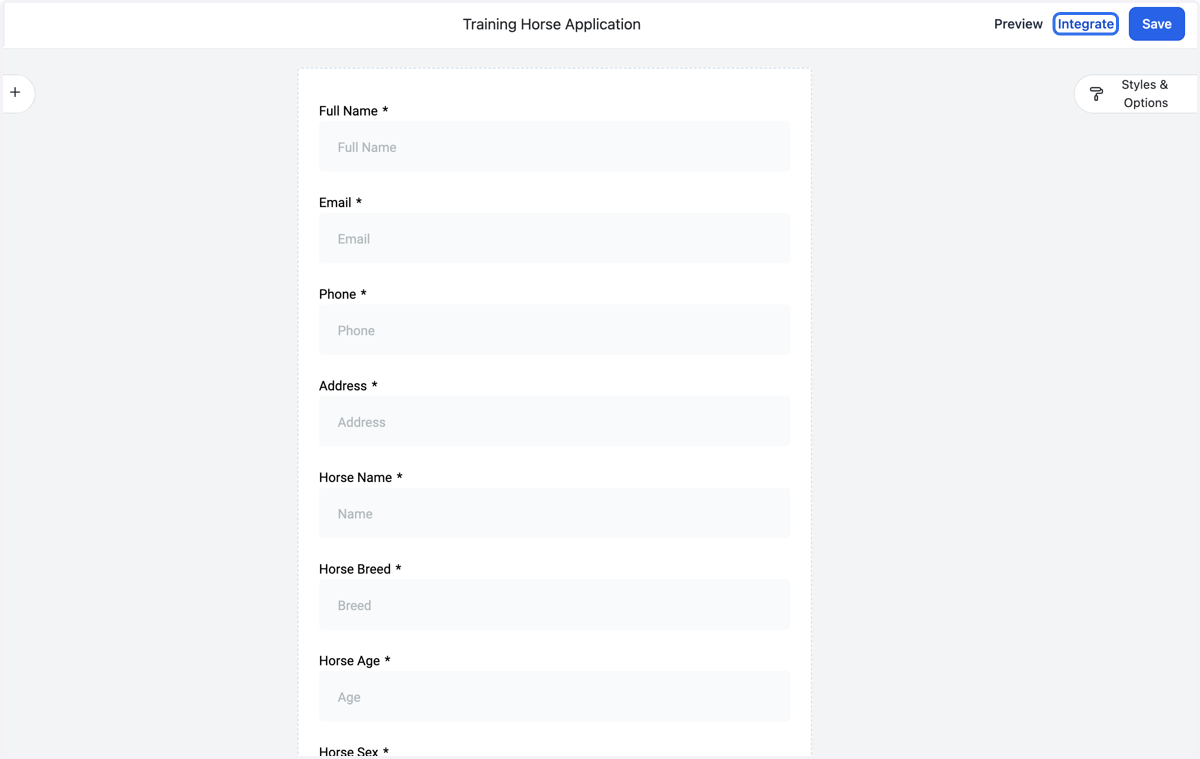
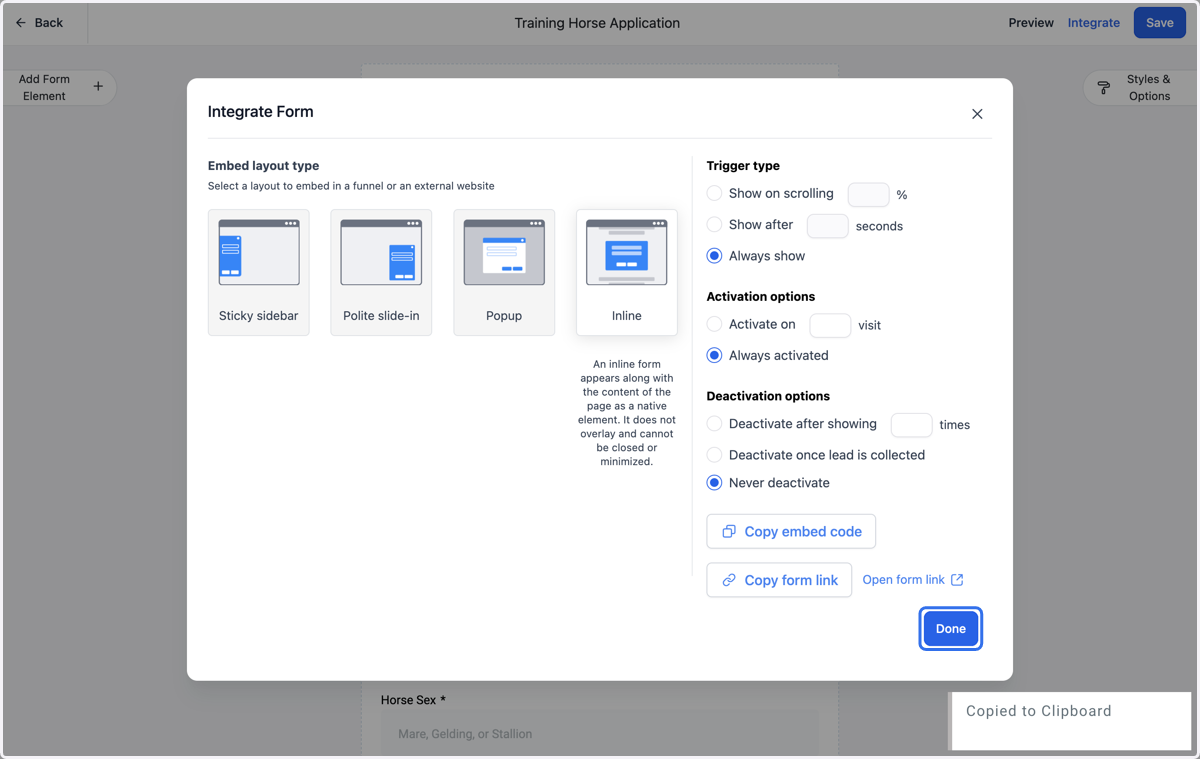
6. Once the form is open, click on Integrate
7. Click on Copy embed code
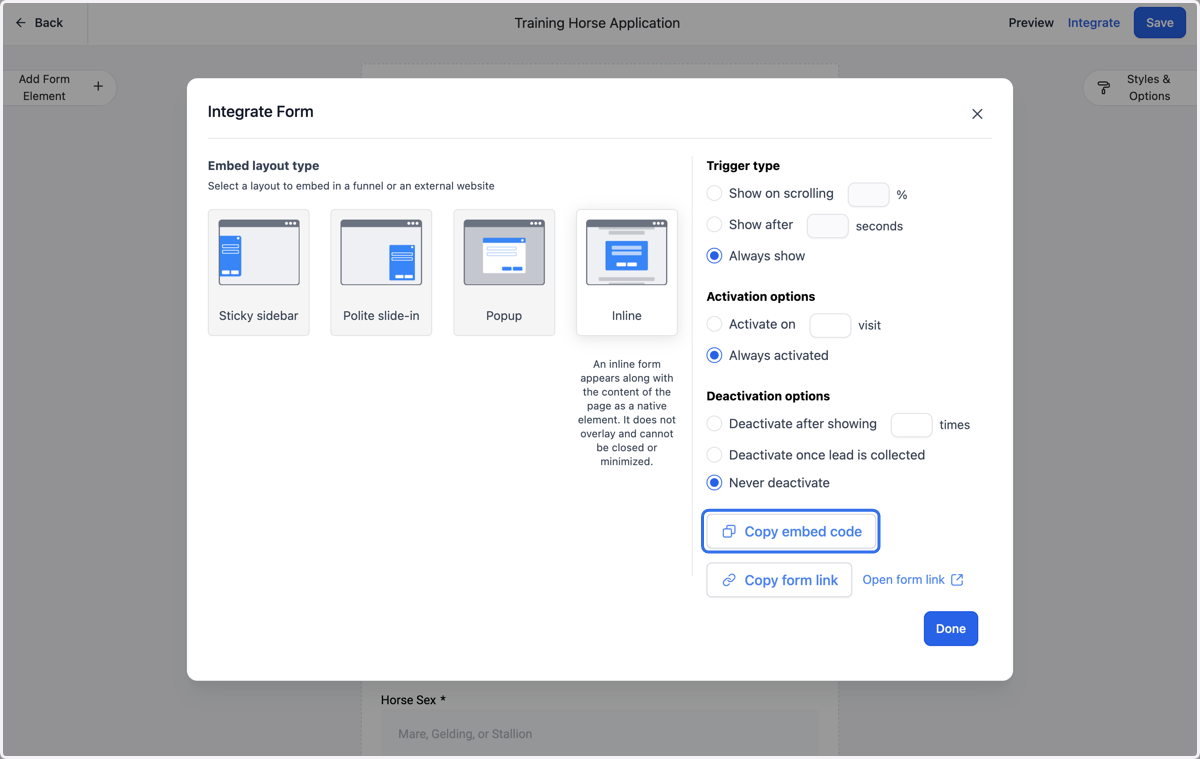
8. Click on Done
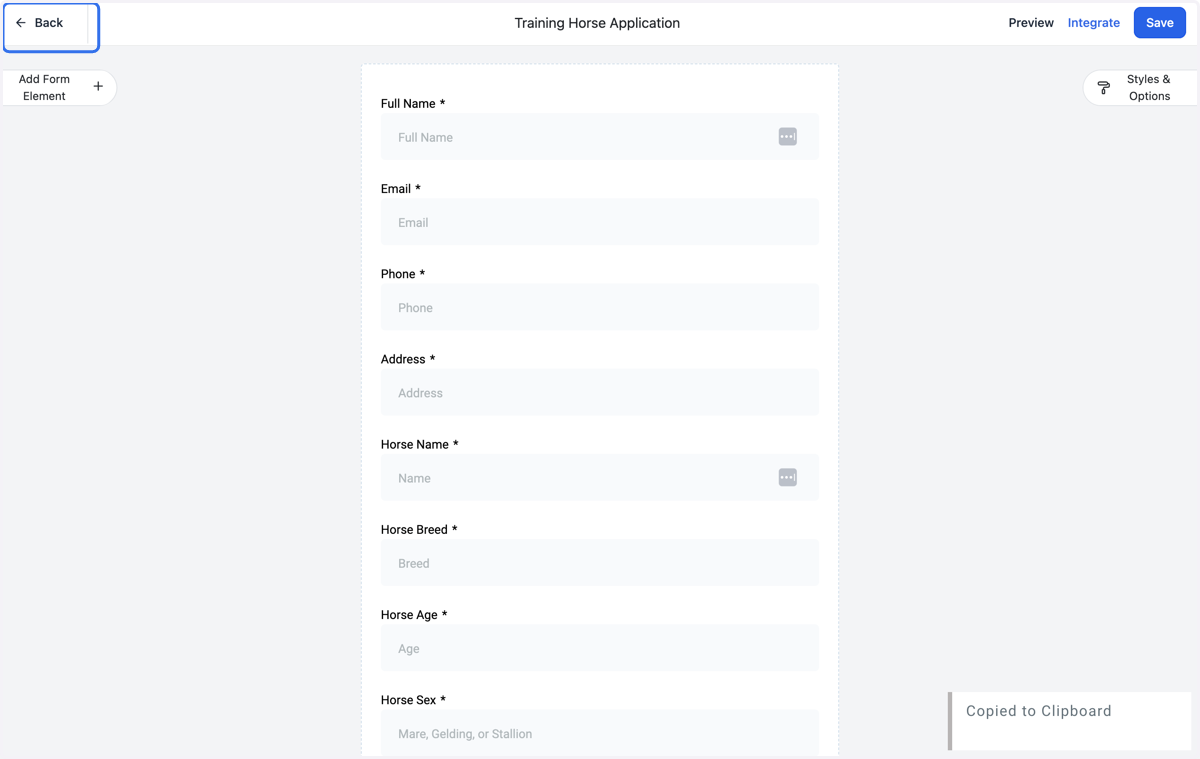
9. Click on Back
10. Click on Sites
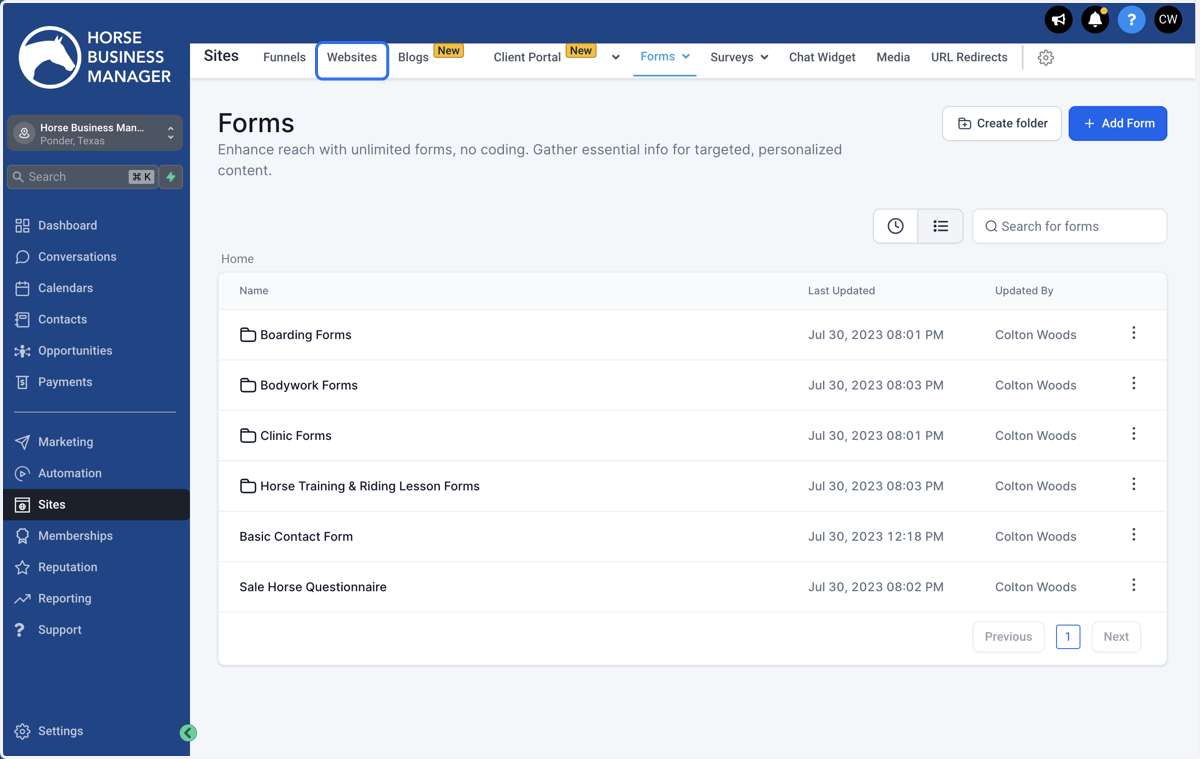
11. Click on Websites
12. Open the site that you want to embed the form into
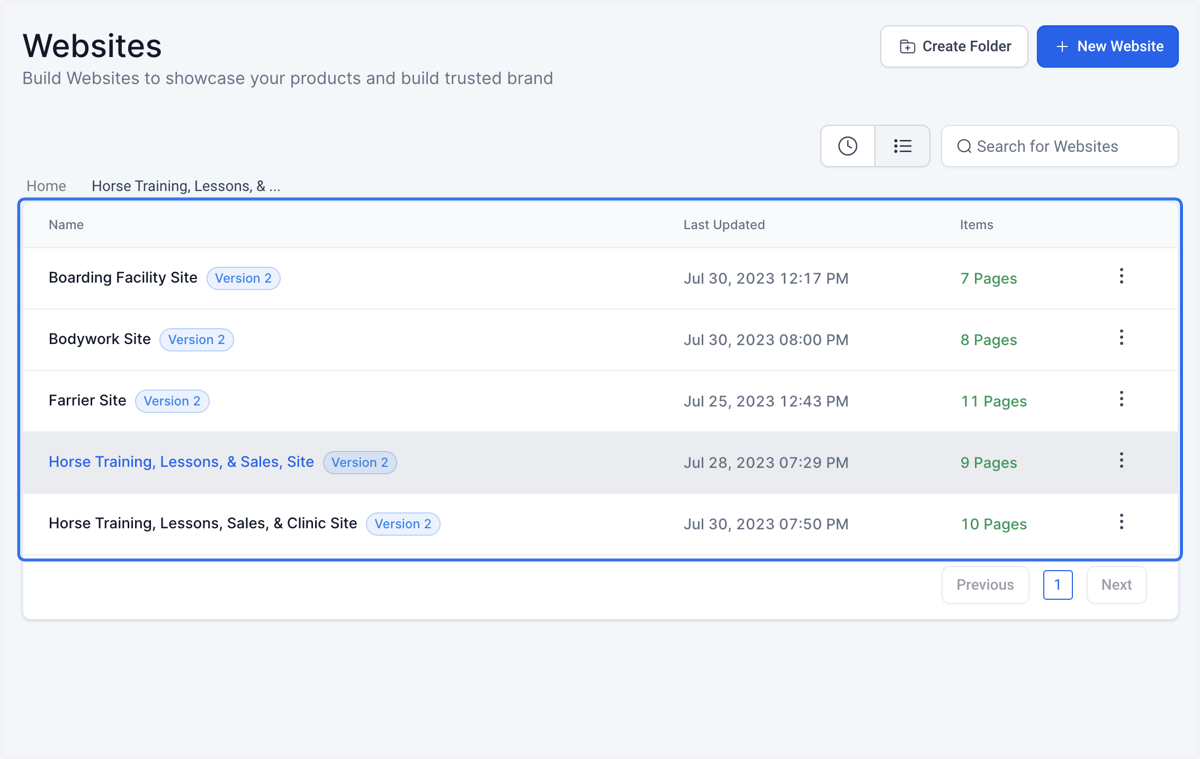
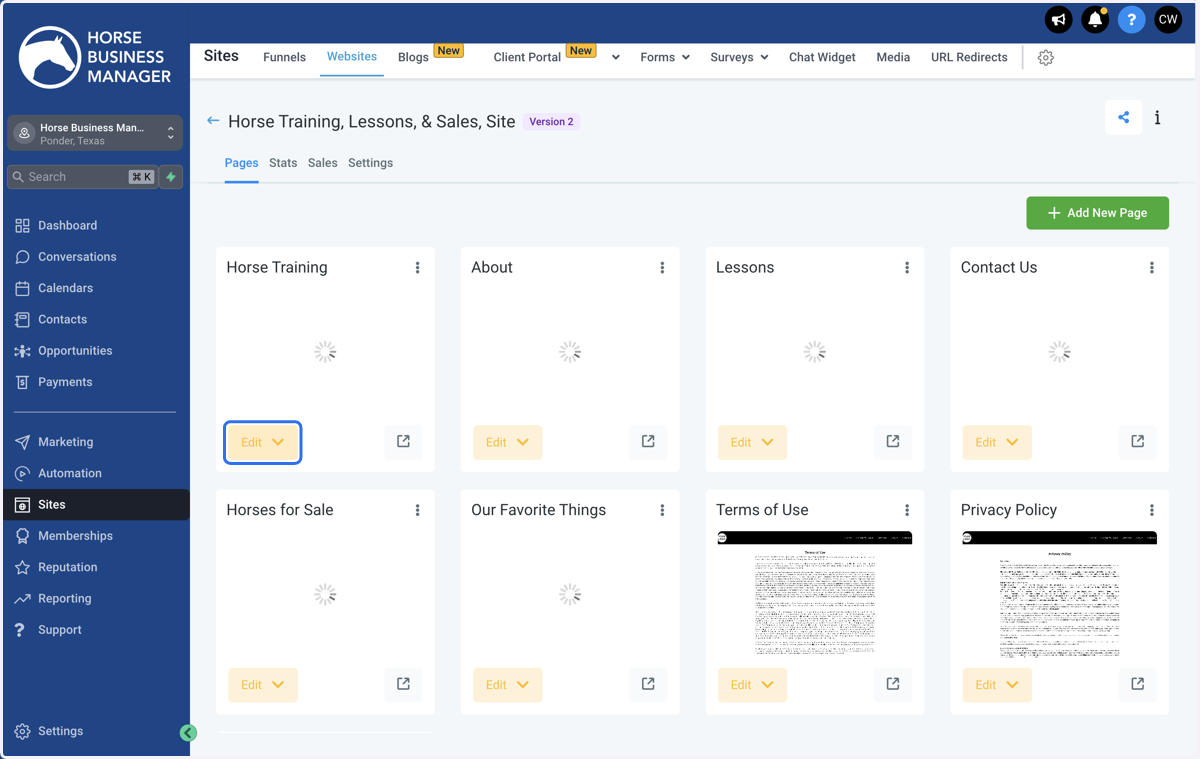
13. Locate the page that you want to embed the form onto
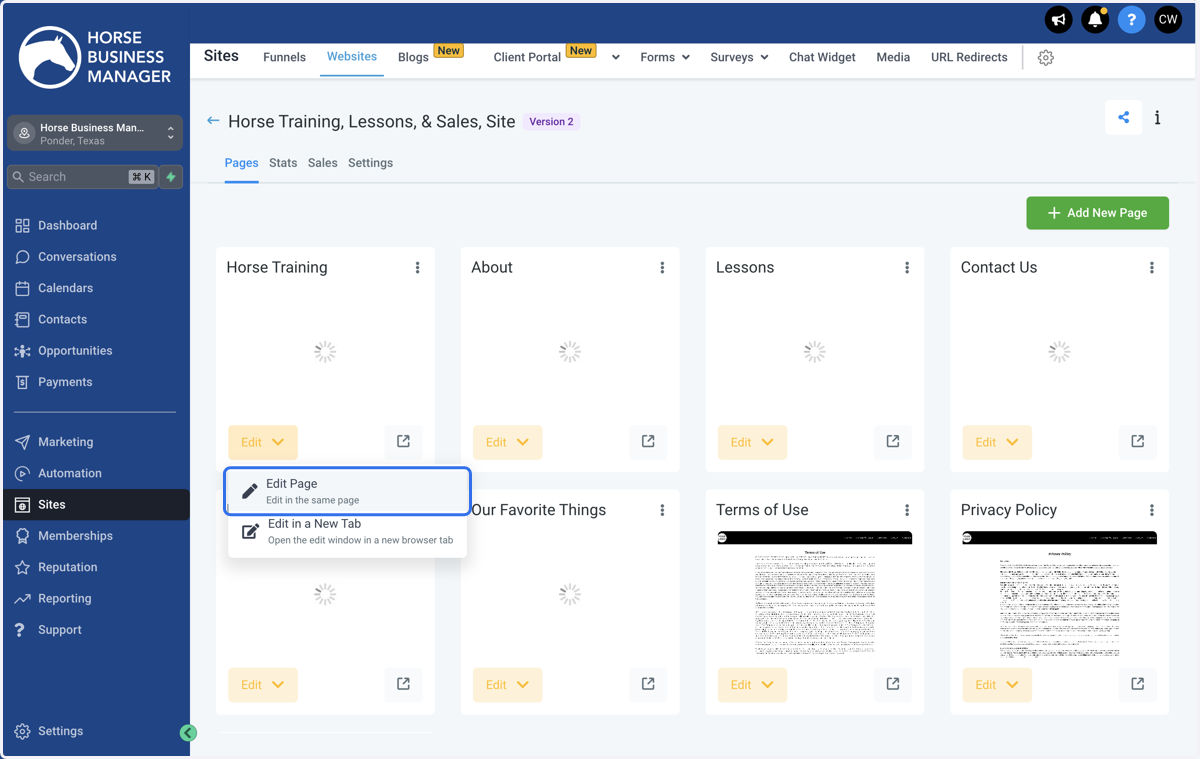
14. Click on Edit Page…
15. Click on + to add an element
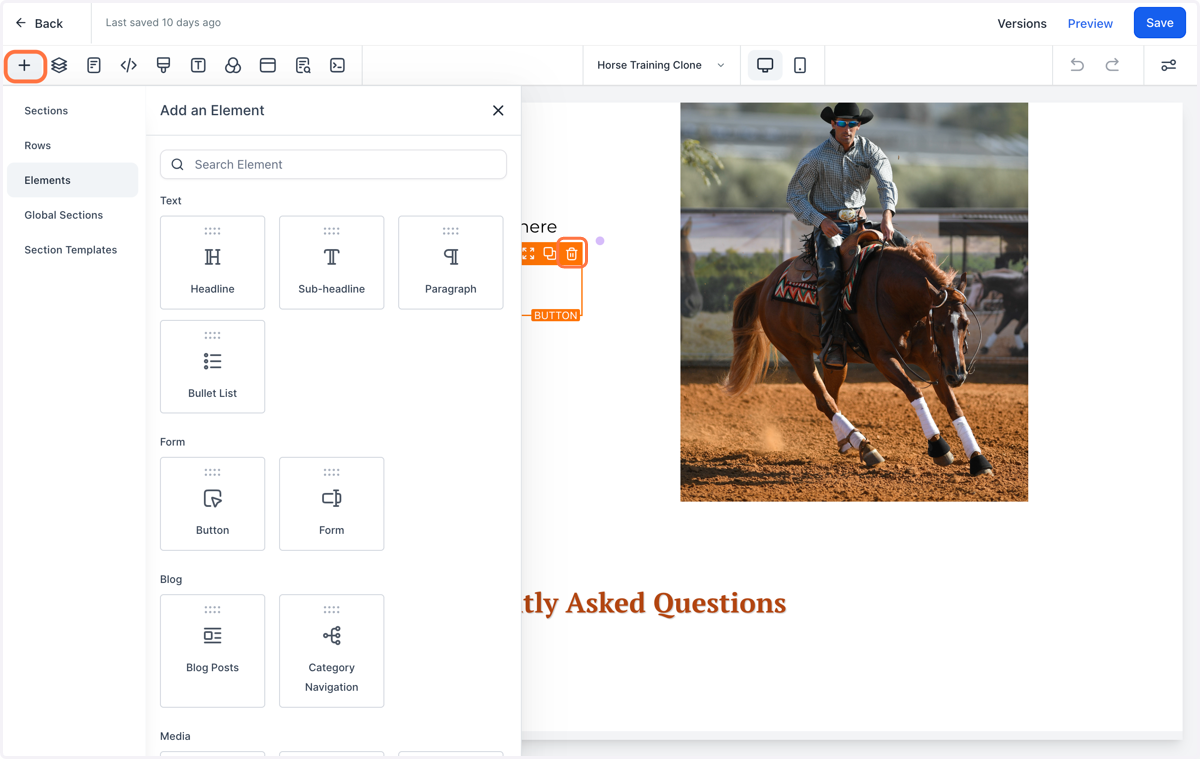
16. Scroll through the Elements to located "Code"
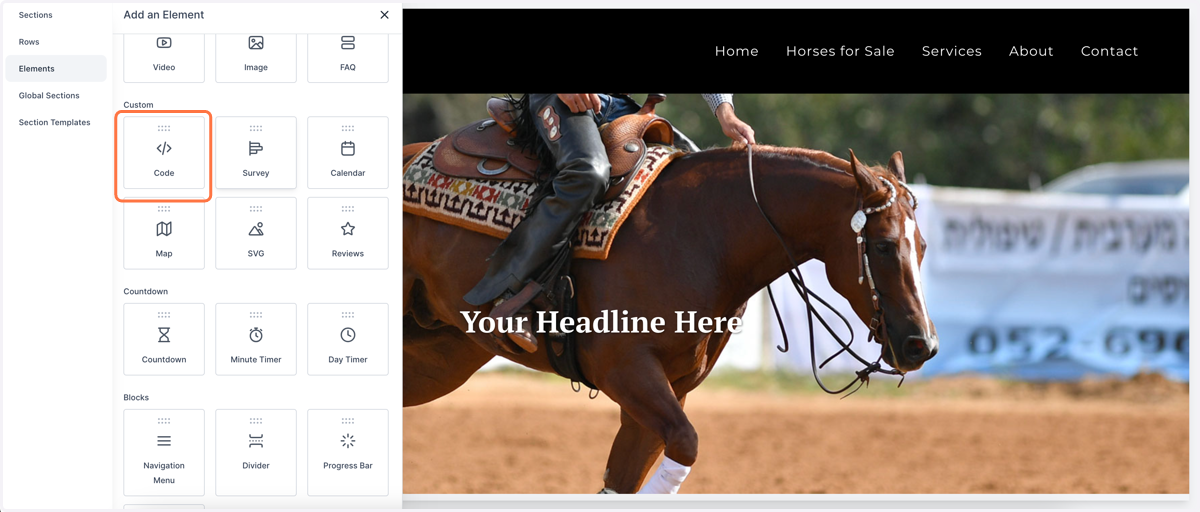
17. Drag the code element onto the page where you want to place it
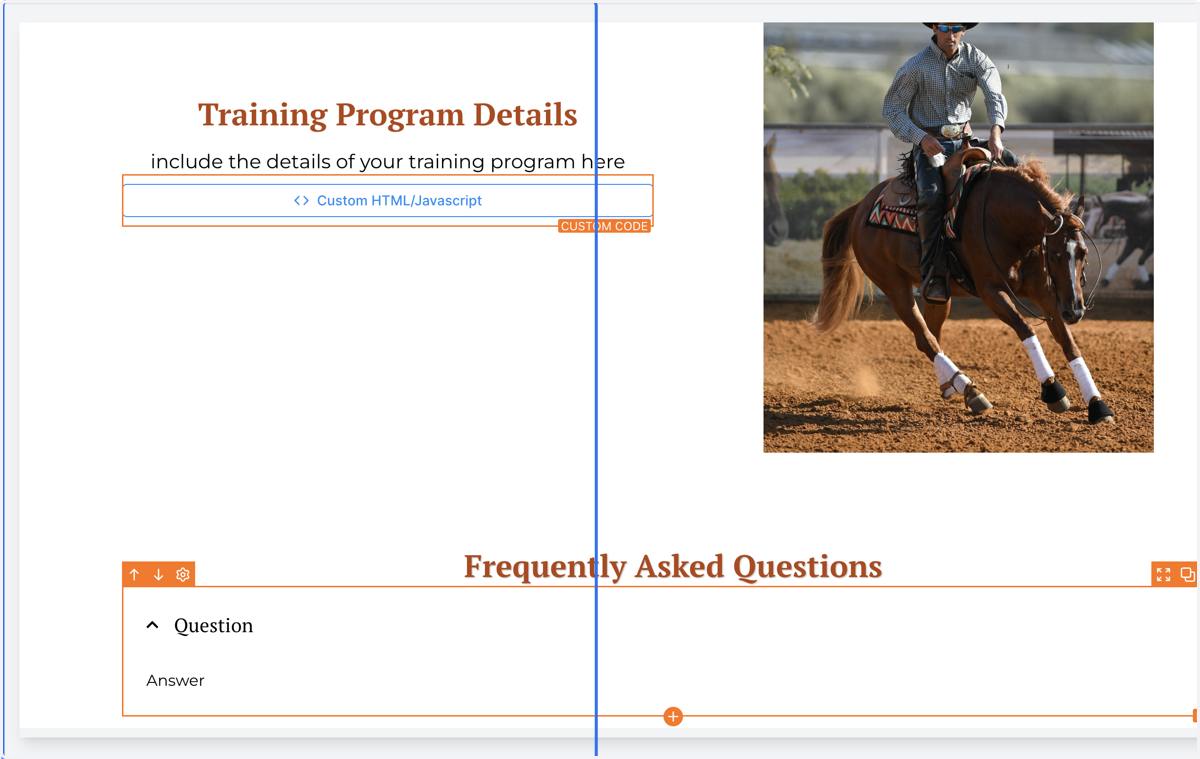
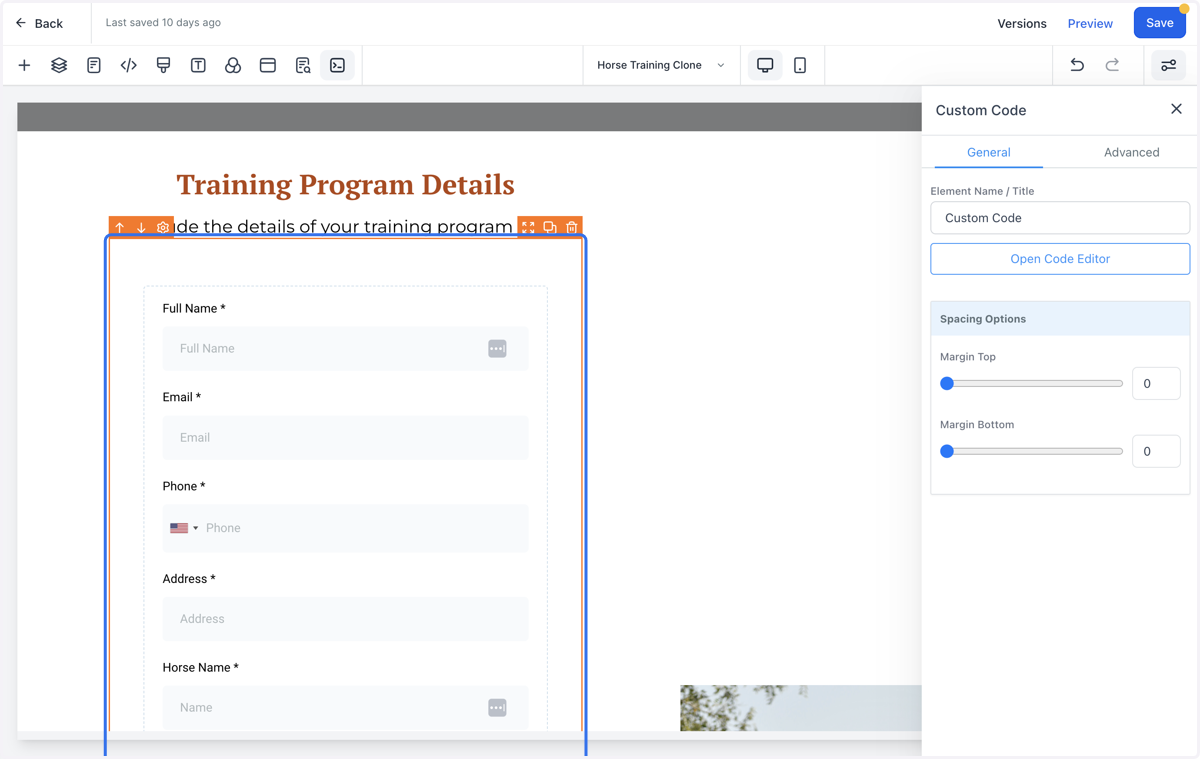
18. Click on the Custom HTML/Javascript element
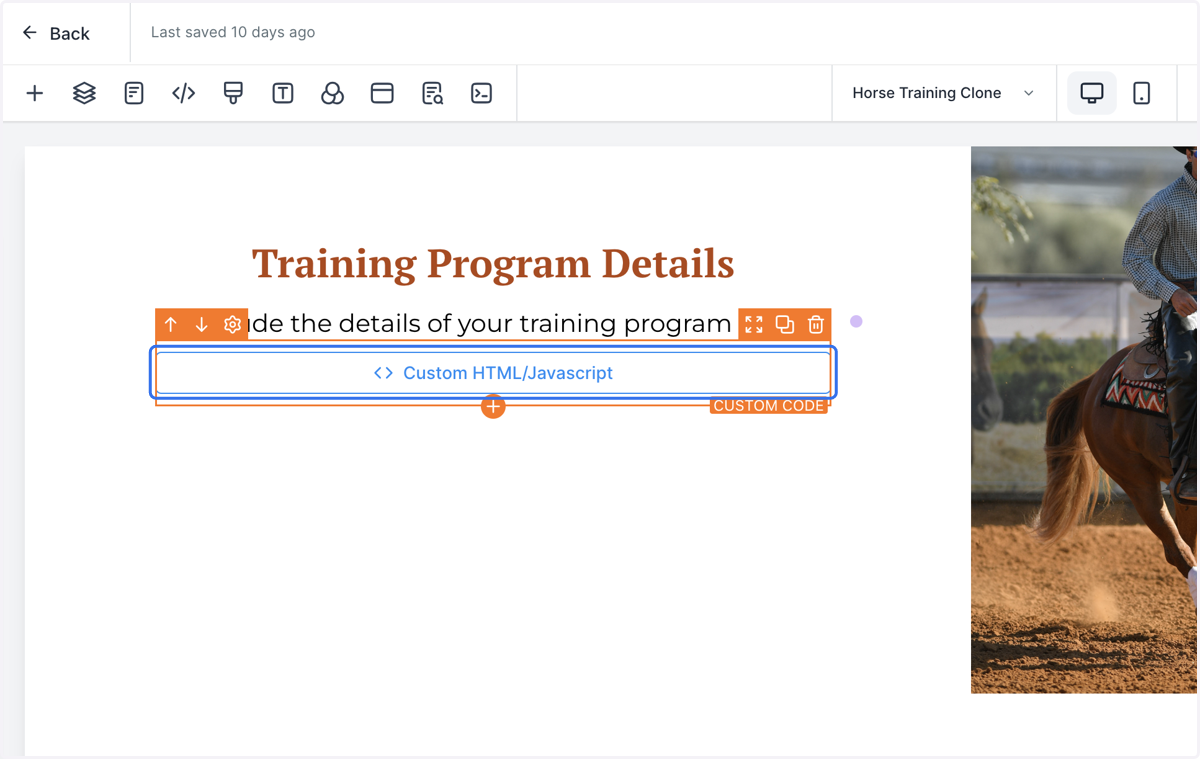
19. Click on Open Code Editor
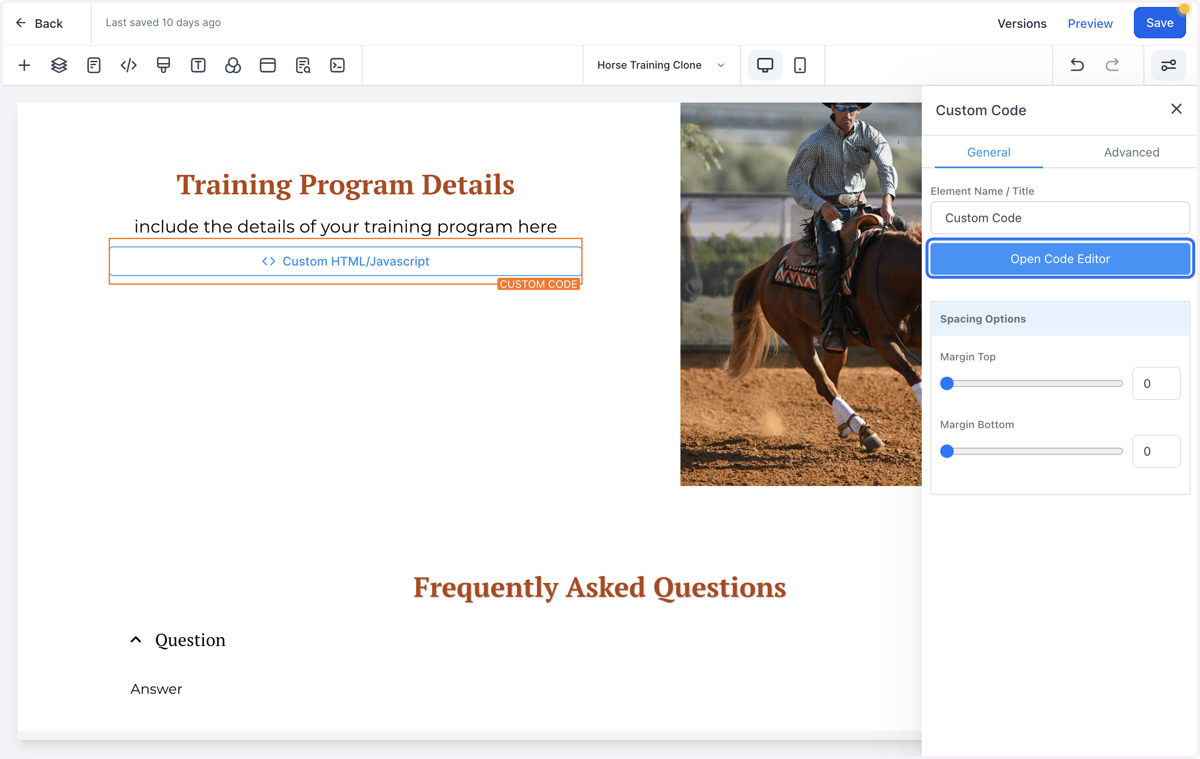
20. A box will open to paste your embed code
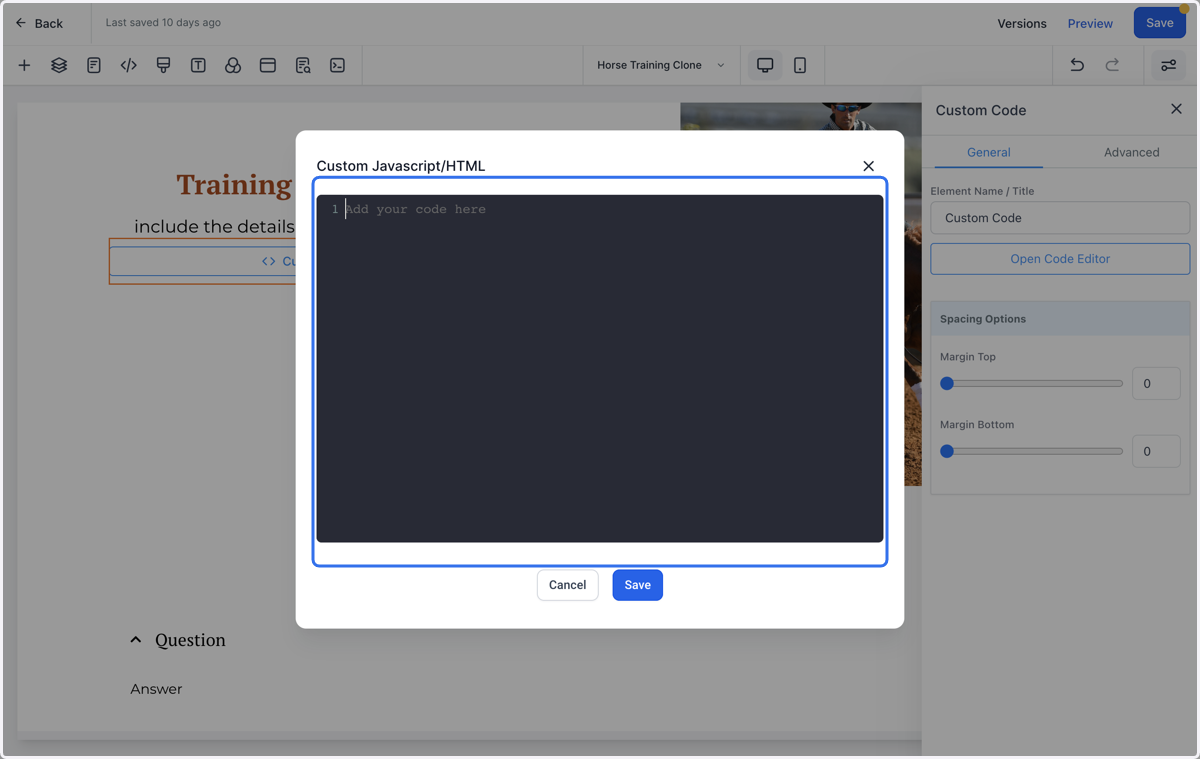
21. Paste in the embed code
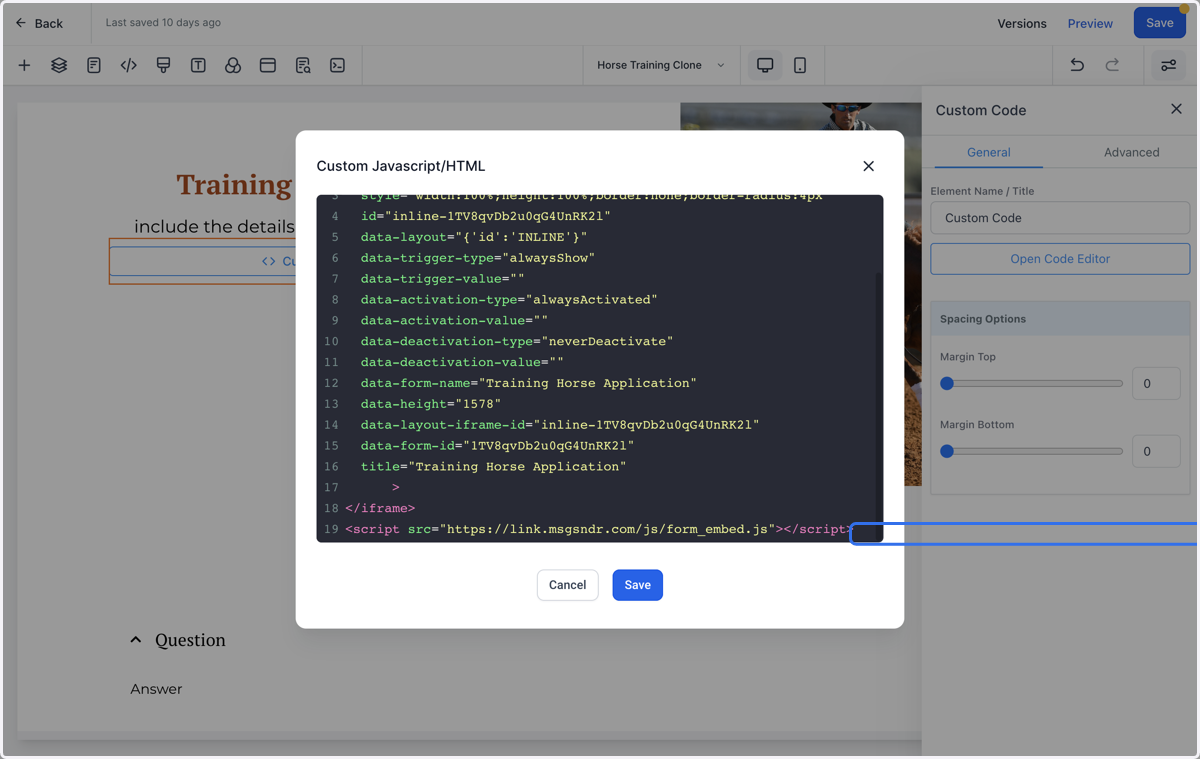
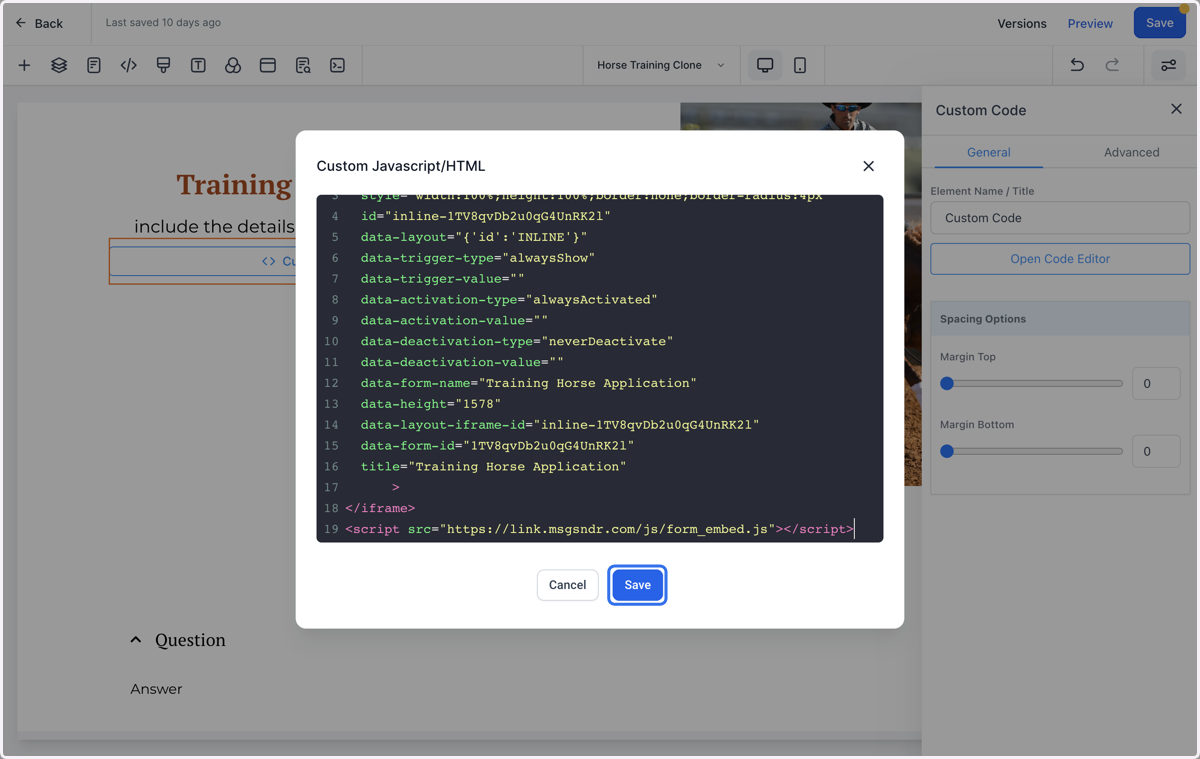
22. Click on Save
23. You can click the Preview Custom Codes button to preview the form on the webpage
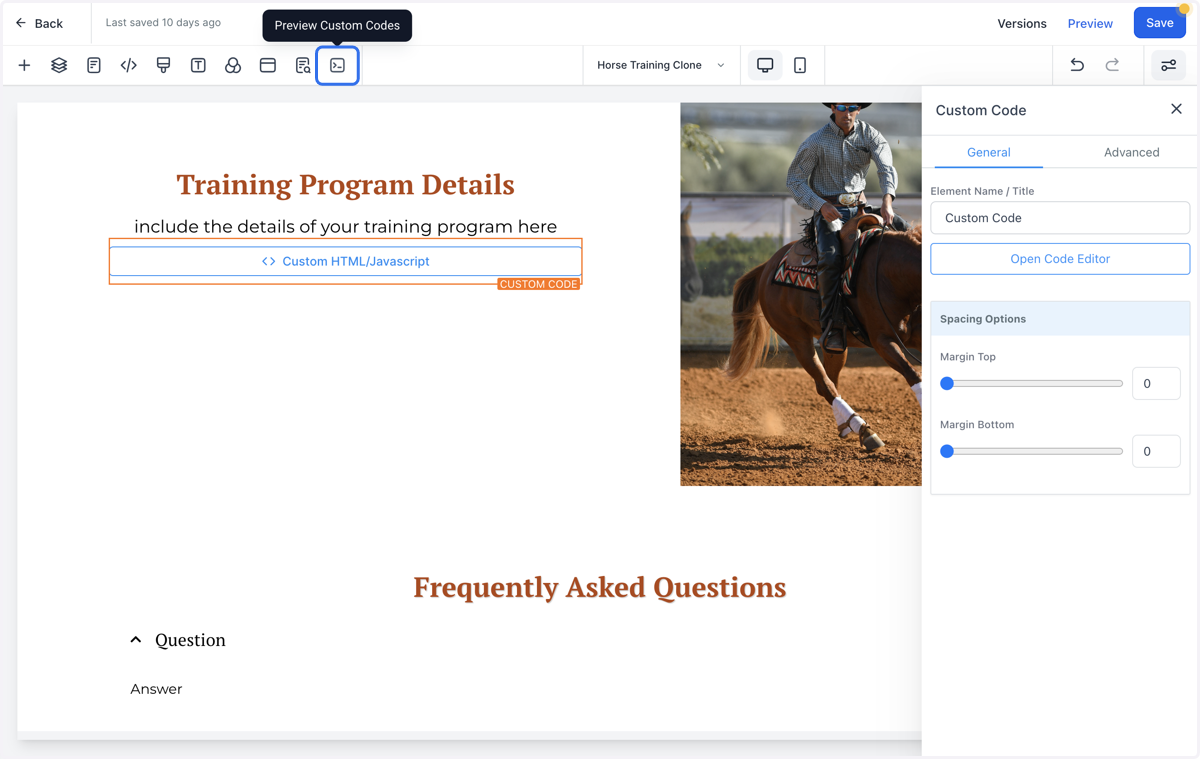
24. Review the formatting. To make adjustments, go to Forms > Builder > Select your form > Edit the Styles and Options
25. Click on Save