Viewing and Editing Committee Members for an Individual Case
The steps below will show you how to view and edit the committee members for an individual case.
Interfolio
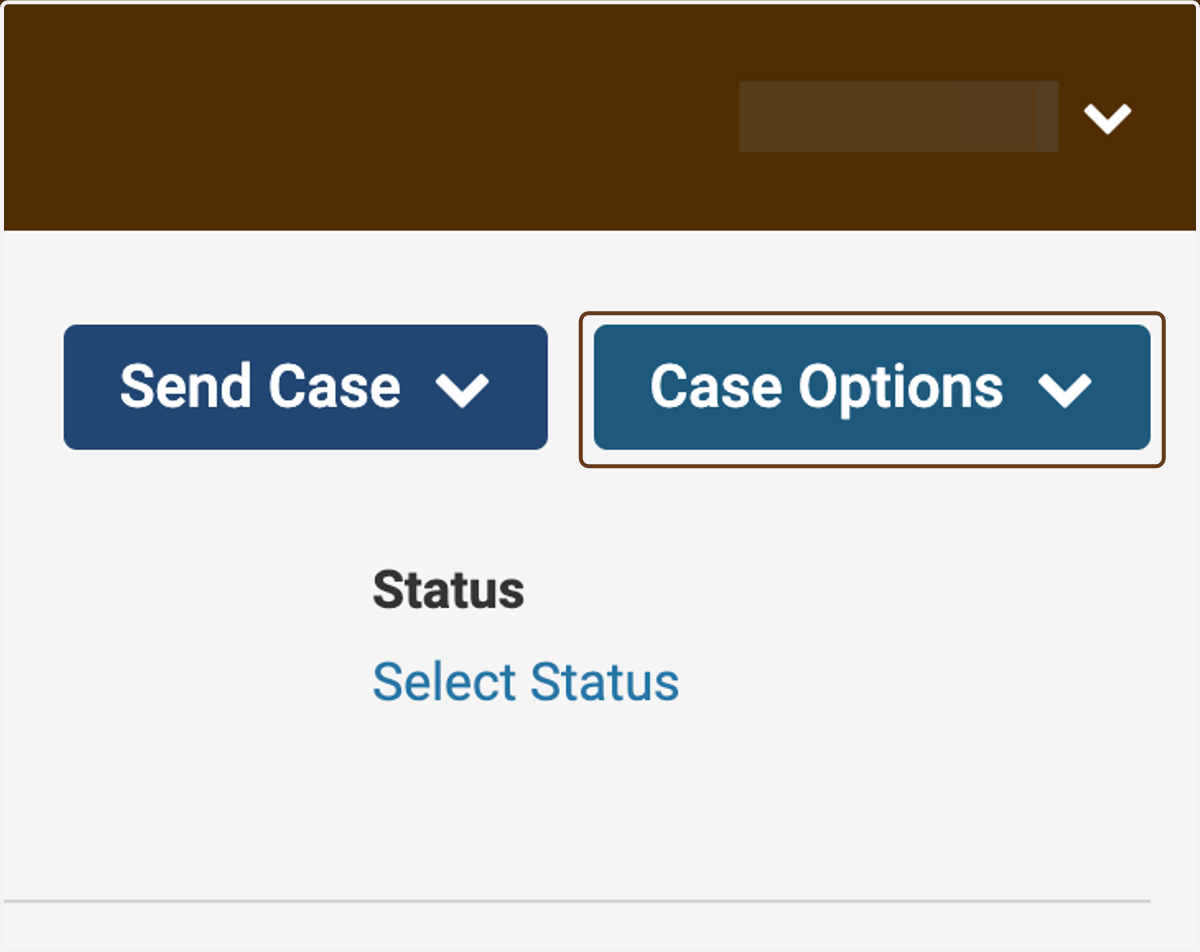
1. Click on Case Options
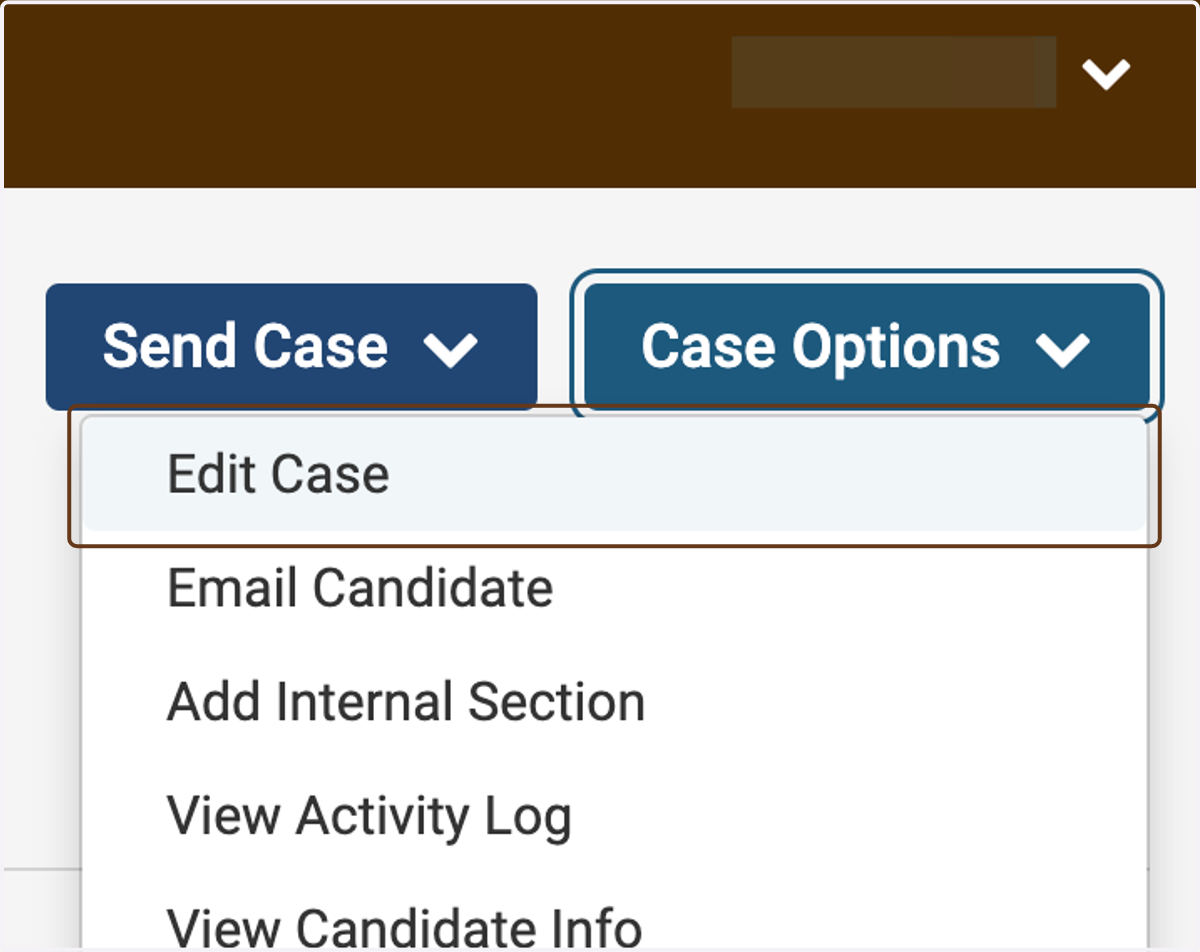
2. Click on Edit Case
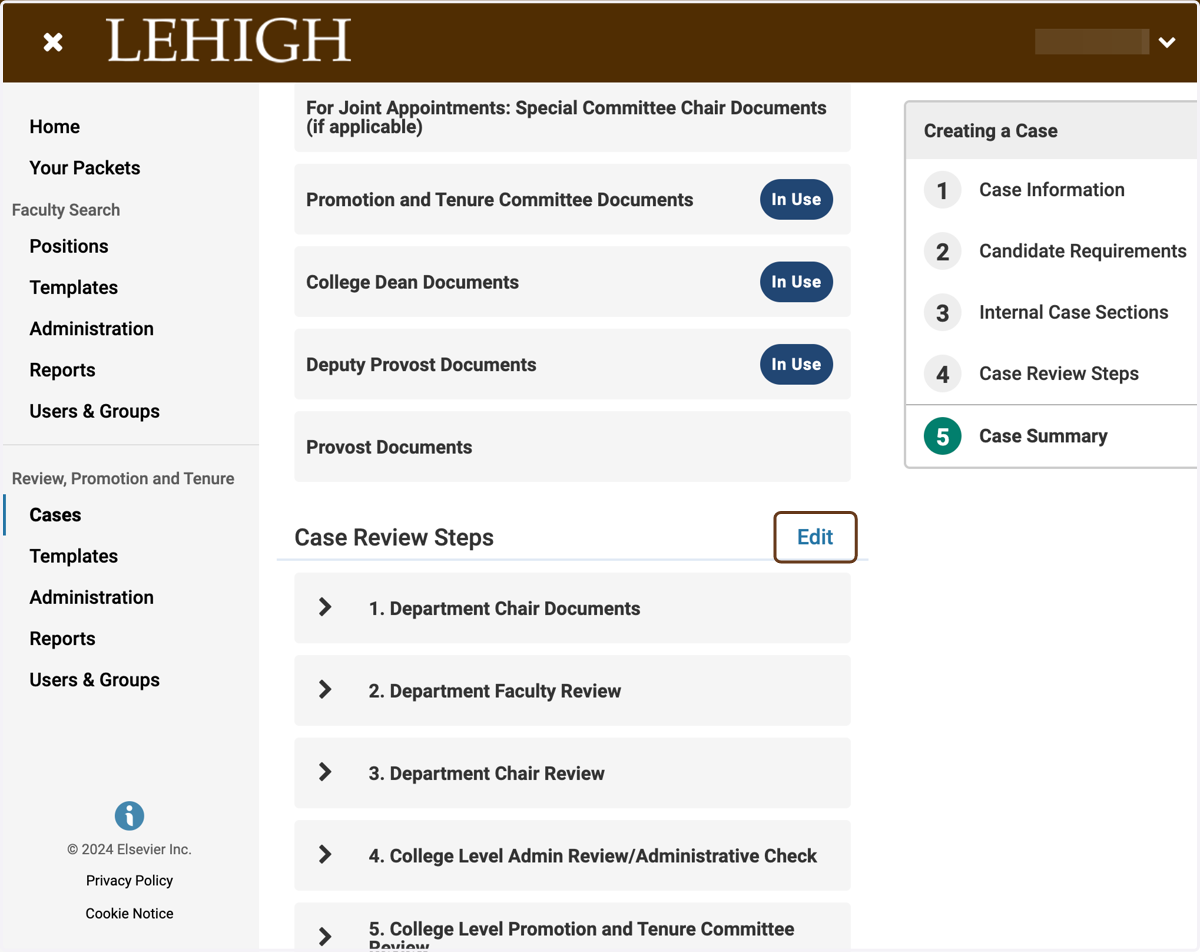
3. Click on Edit next to Case Review Steps
4. Click on Edit next to the step whose committee you wish to edi
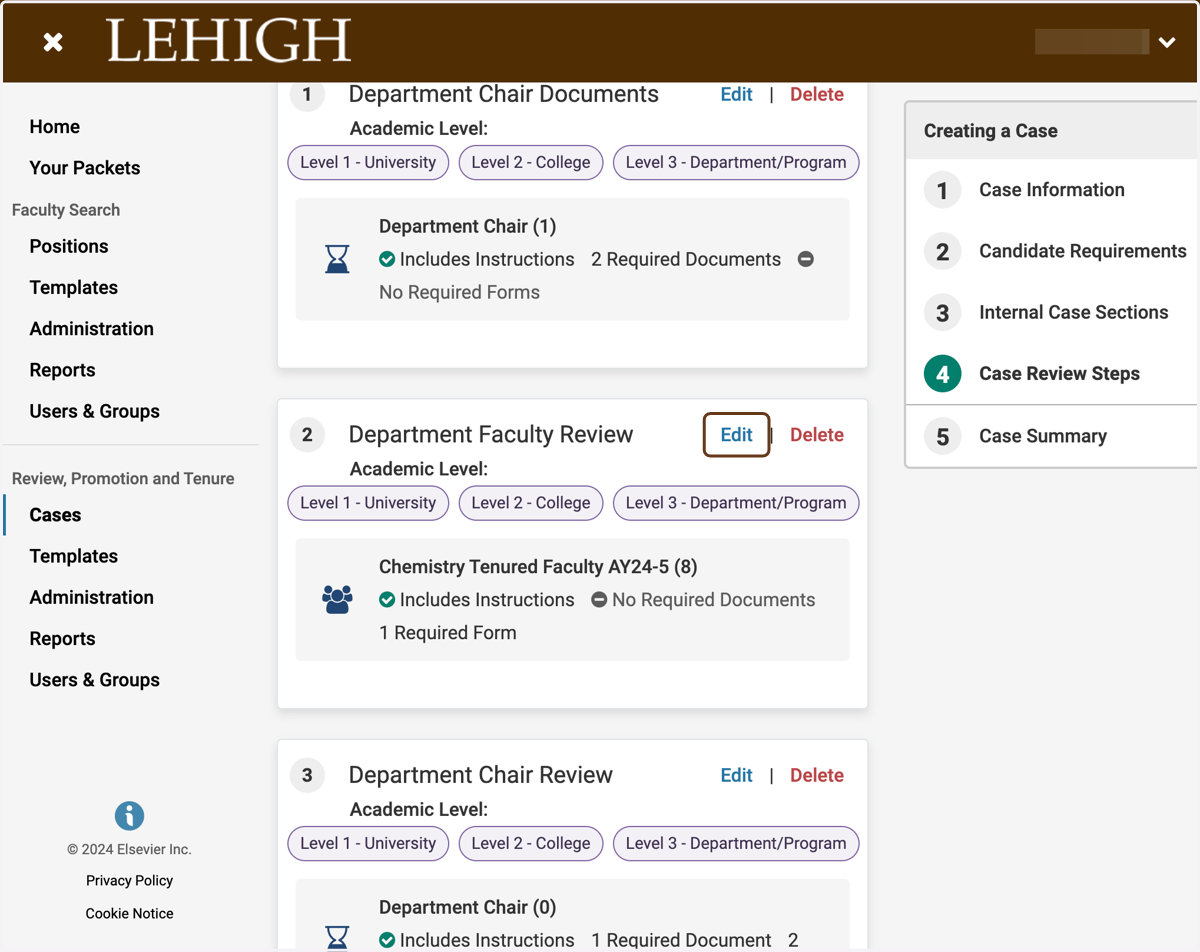
5. Click on Manage Members
The names of the committee members will appear here. (They are blurred out in the screenshot.) Check to make sure they are correct.
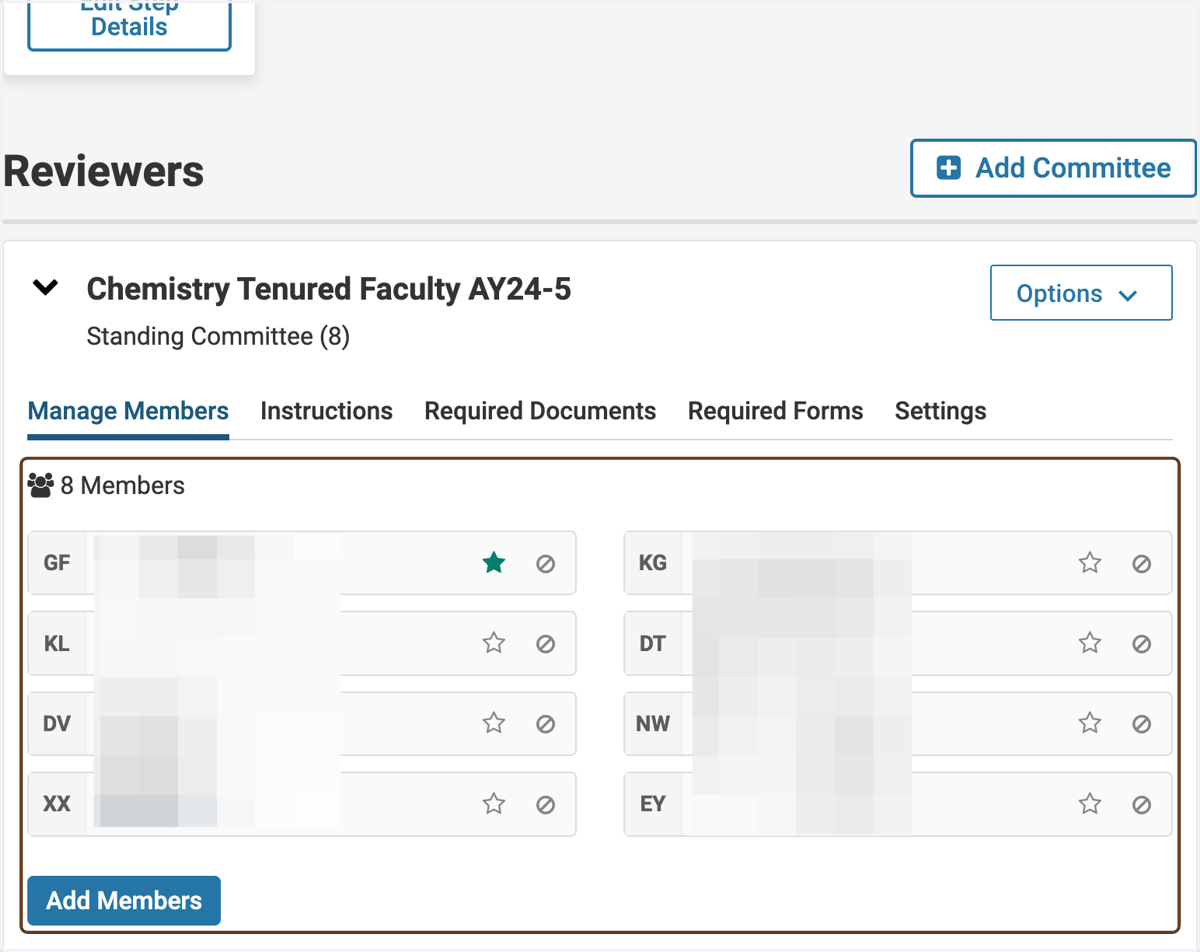
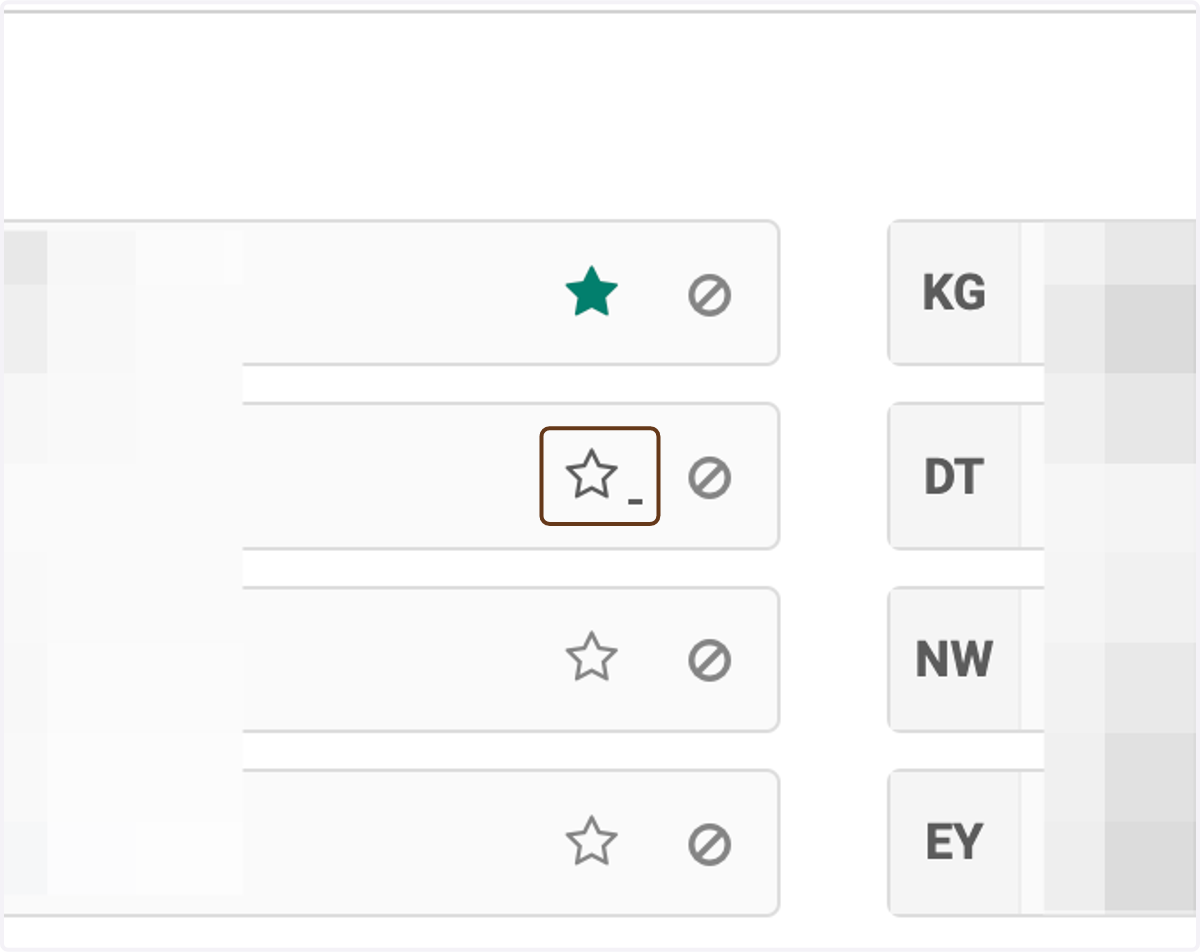
6. Toggle the green star next to a name to toggle whether they are a Committee Manager
A Committee Manager has certain privileges within Interfolio that committee members do not have. The main one in this case is the ability to move the case forward to the next step (or backward to the previous one).
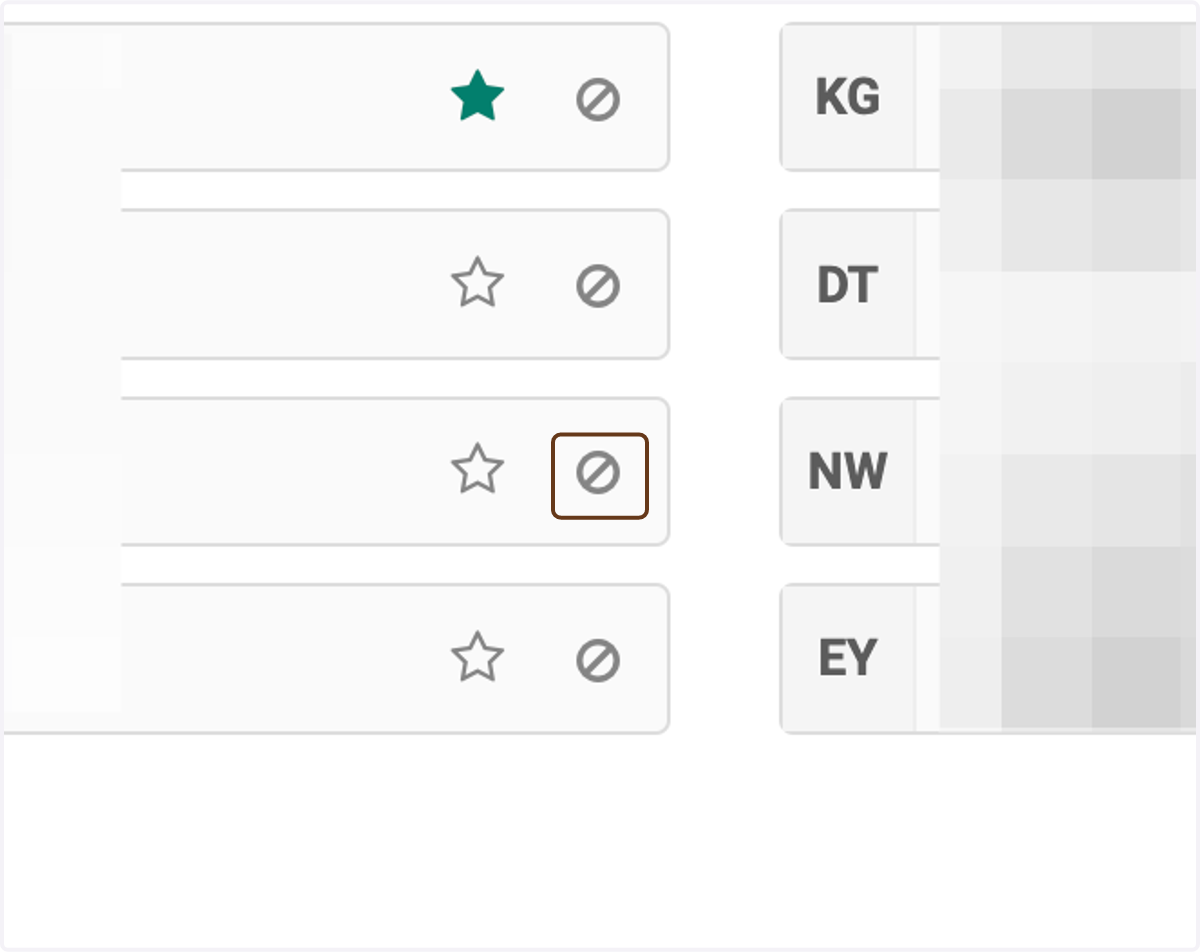
7. Click on the "No" icon to recuse someone from the committee
This is how you would remove someone from the committee for a specific case, but not remove them from the committee entirely.
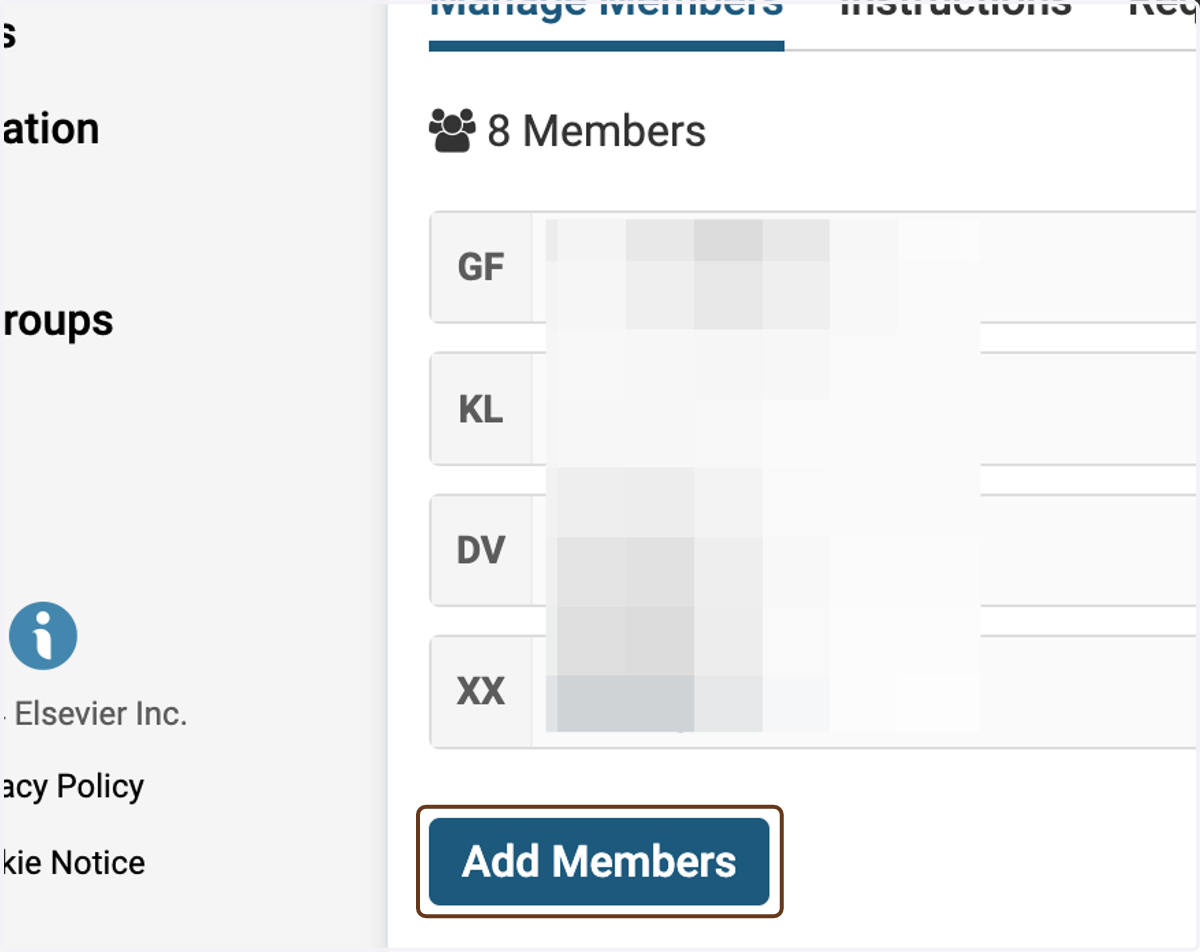
8. To add additional committee members, click on Add Members
This will add someone to the committee for this specific case, but not add them to the committee in general.
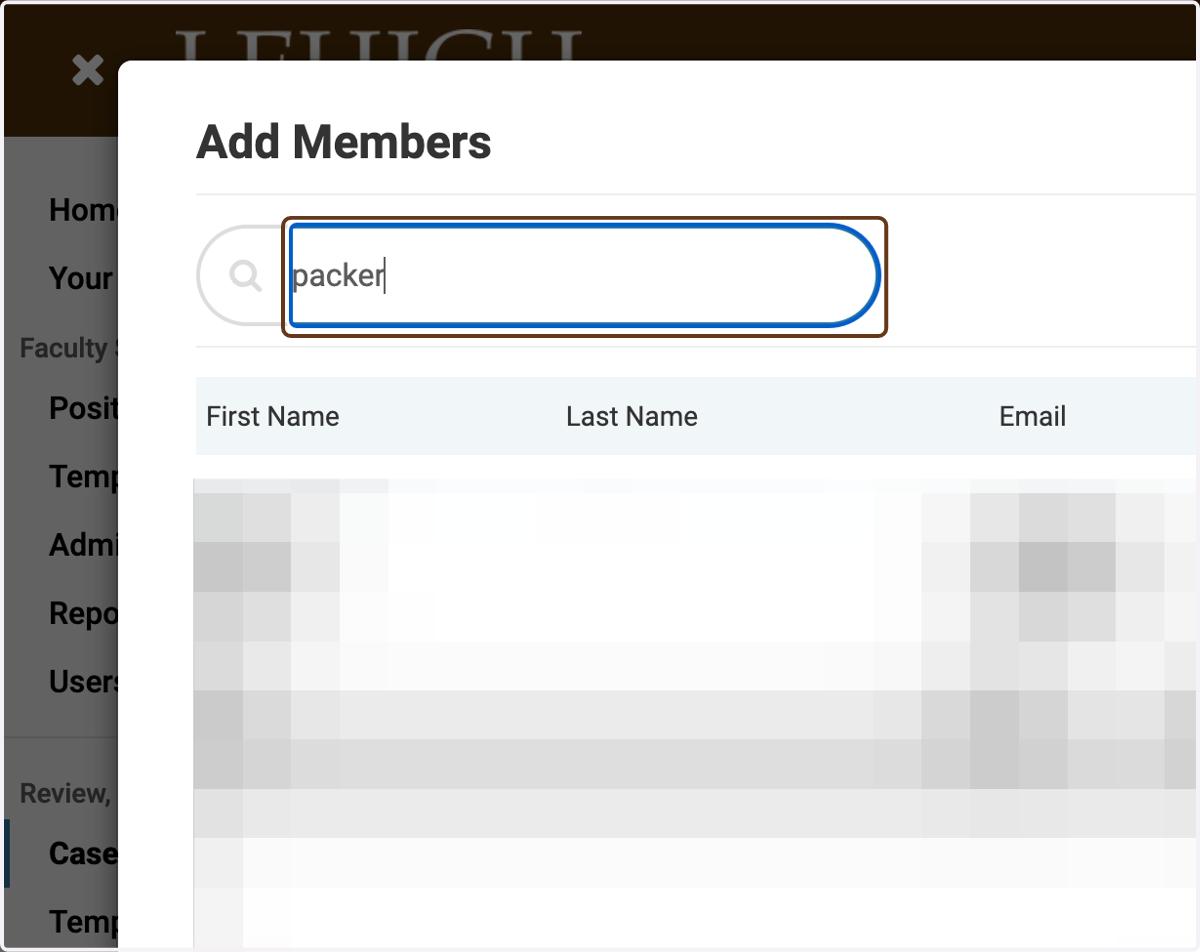
9. Search for the name of the person you want to add
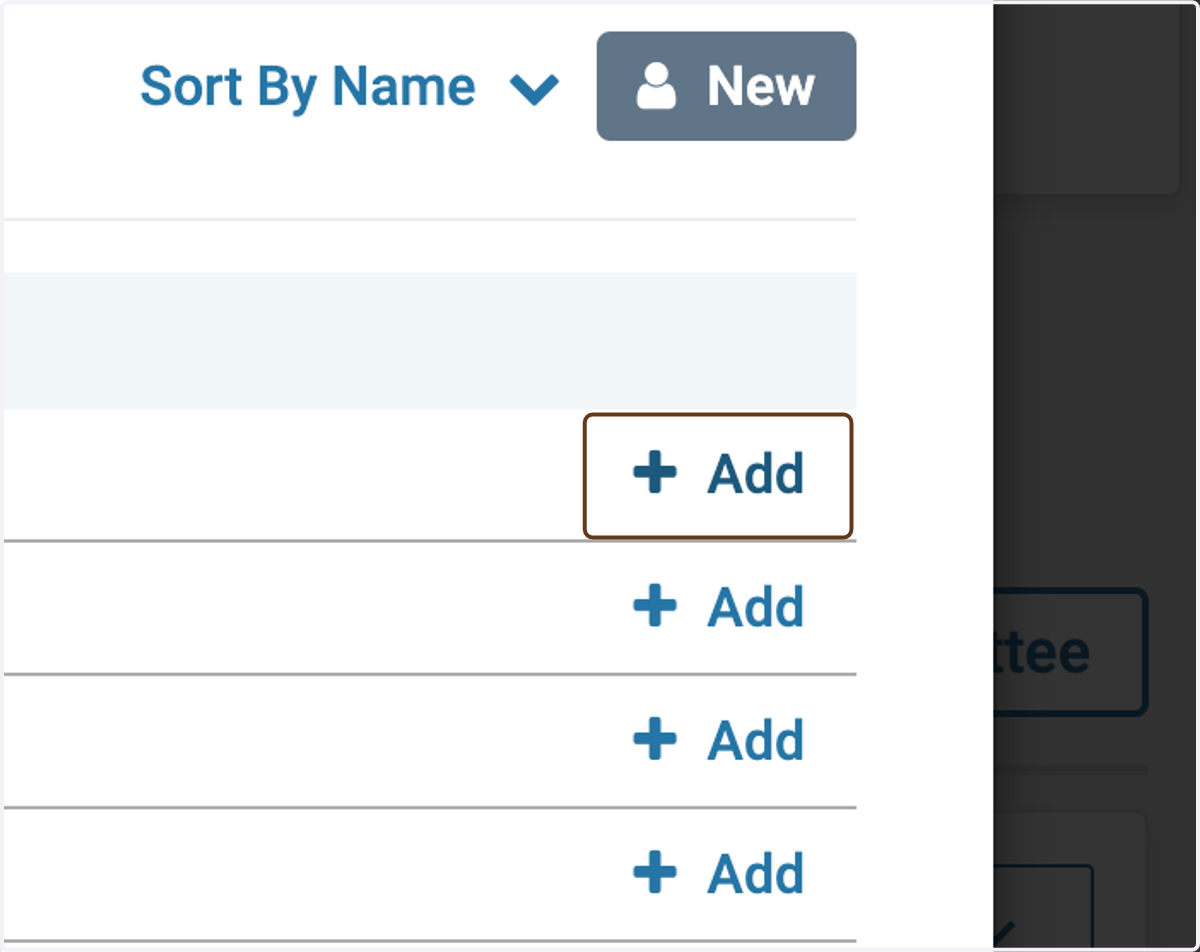
10. Click on Add next to their name
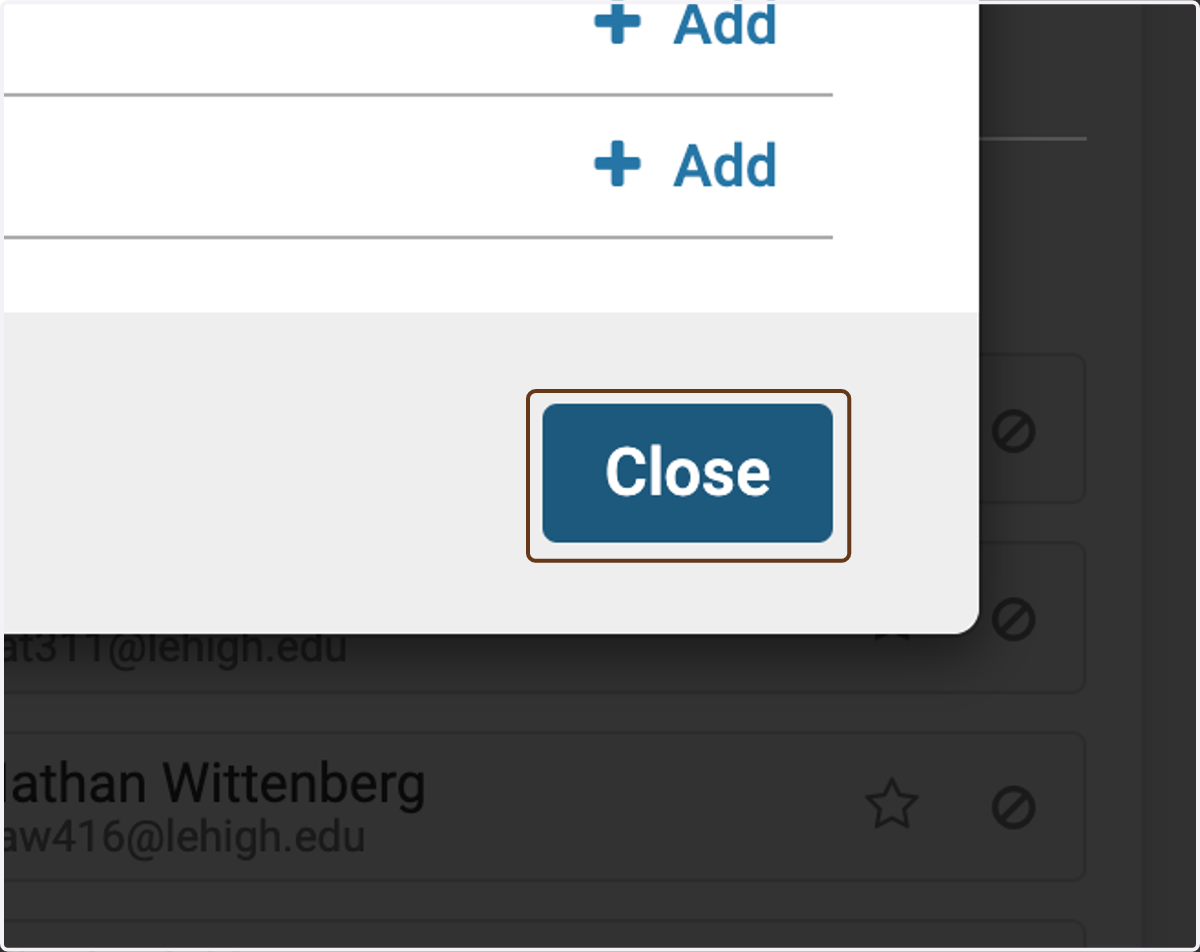
11. Click on Close
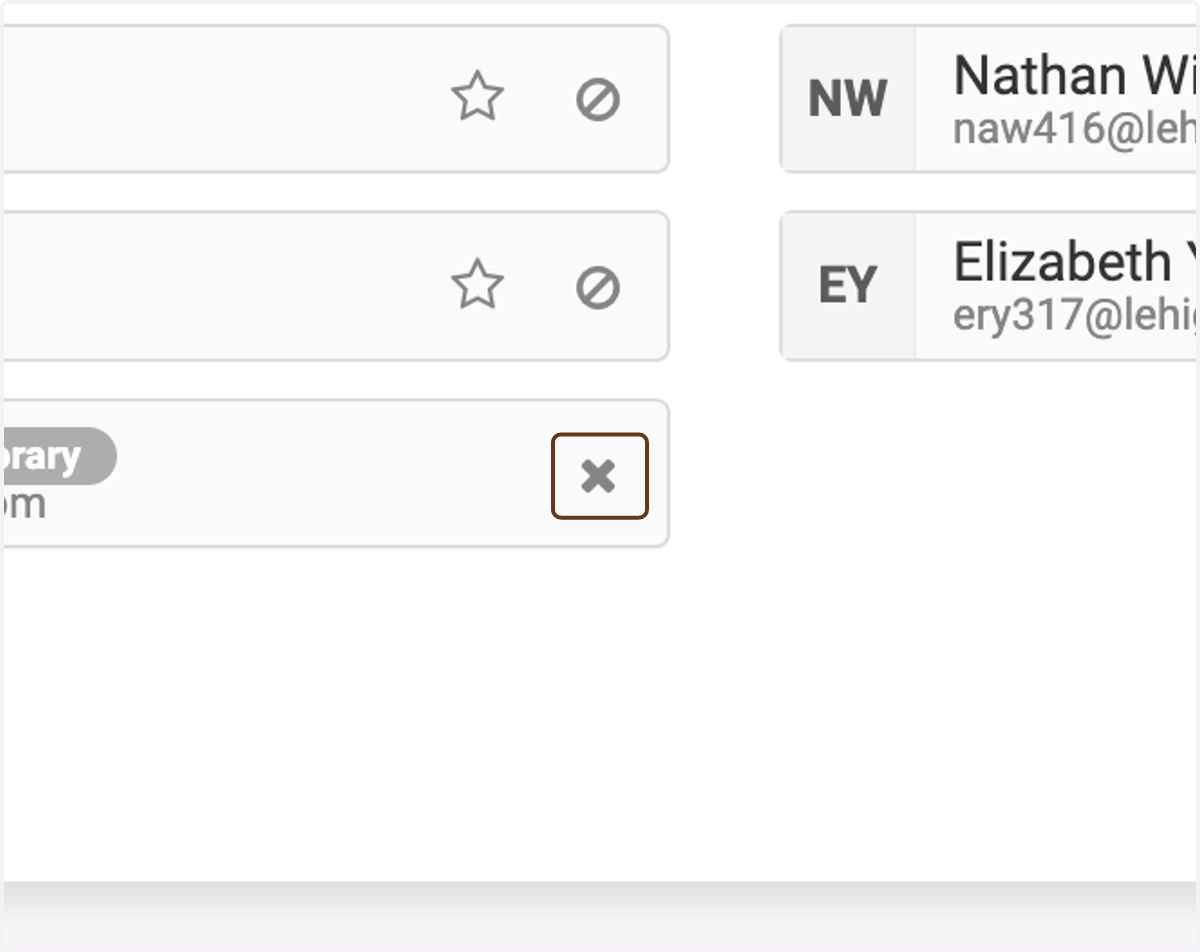
12. To remove someone you added to this specific case, click the x next to their name
You cannot remove someone from the committee in general in this way. To remove someone from the committee in general, go to Users & Groups > Committees. (See instructions.)