Predict Program Size - Pro Forma User Guide
This guide will walk through how to create a pro forma financial model for a program. If you are looking for instructions on either the Predict Program Size or Build or Buy functionality please see our other guides.
All numbers in this guide are illustrative.
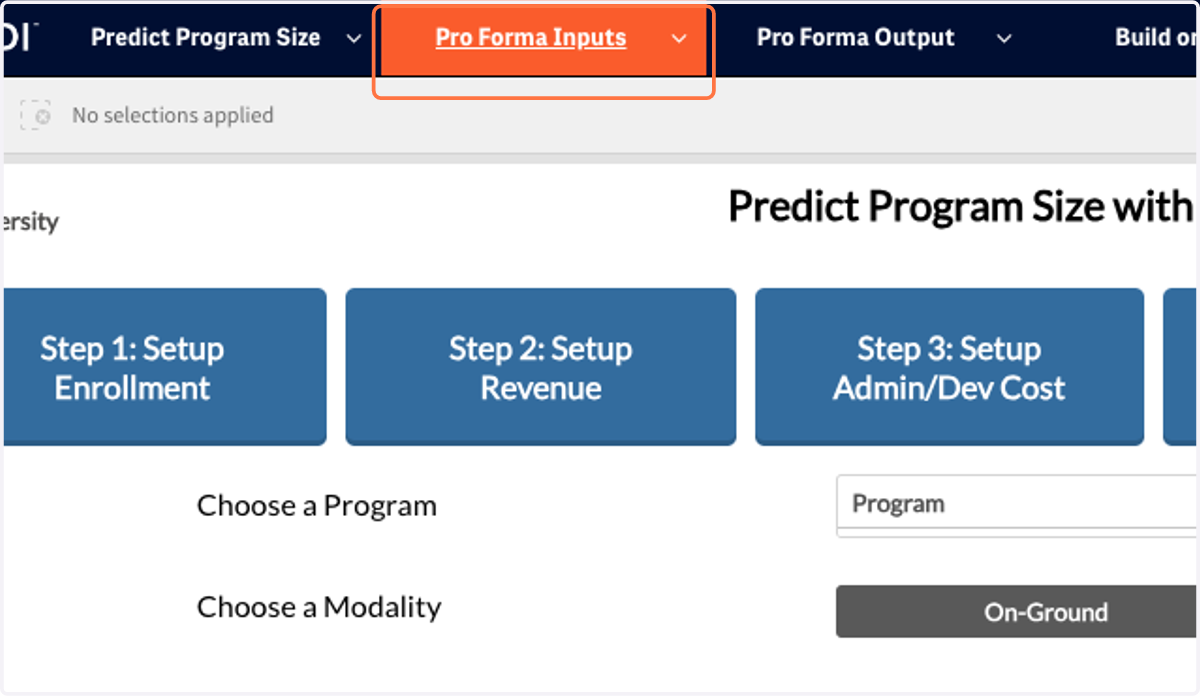
1. To create a Pro Forma, use the dropdown menu at the top of your screen.
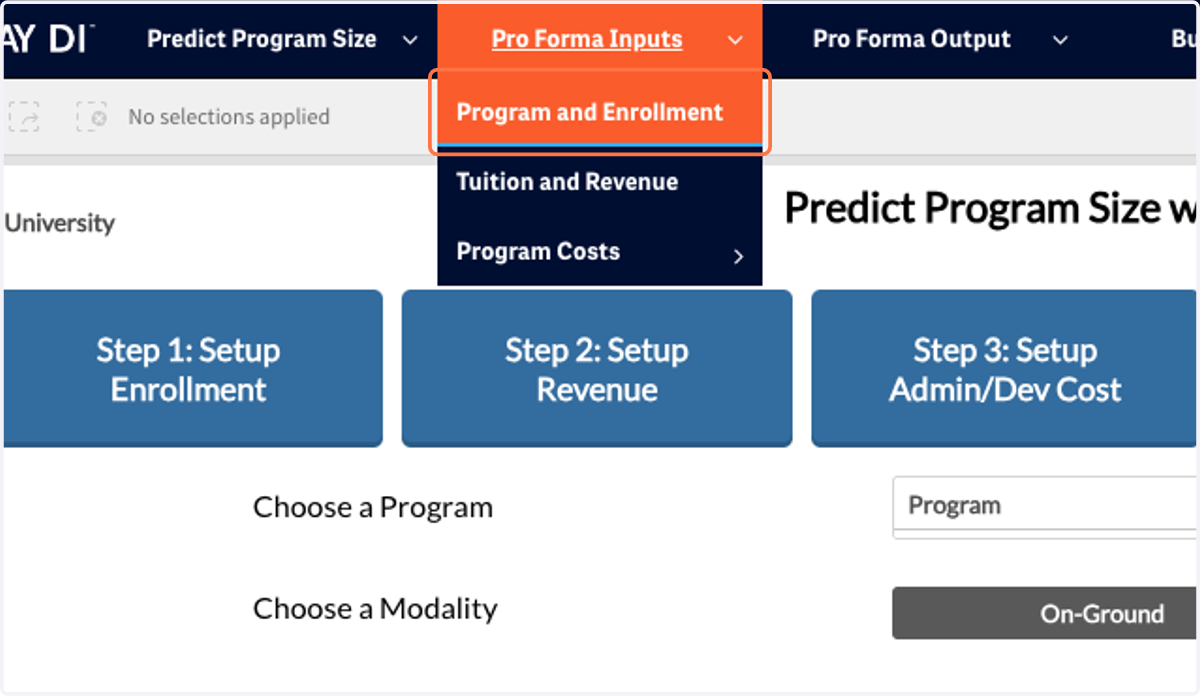
2. Start with Program and Enrollment.
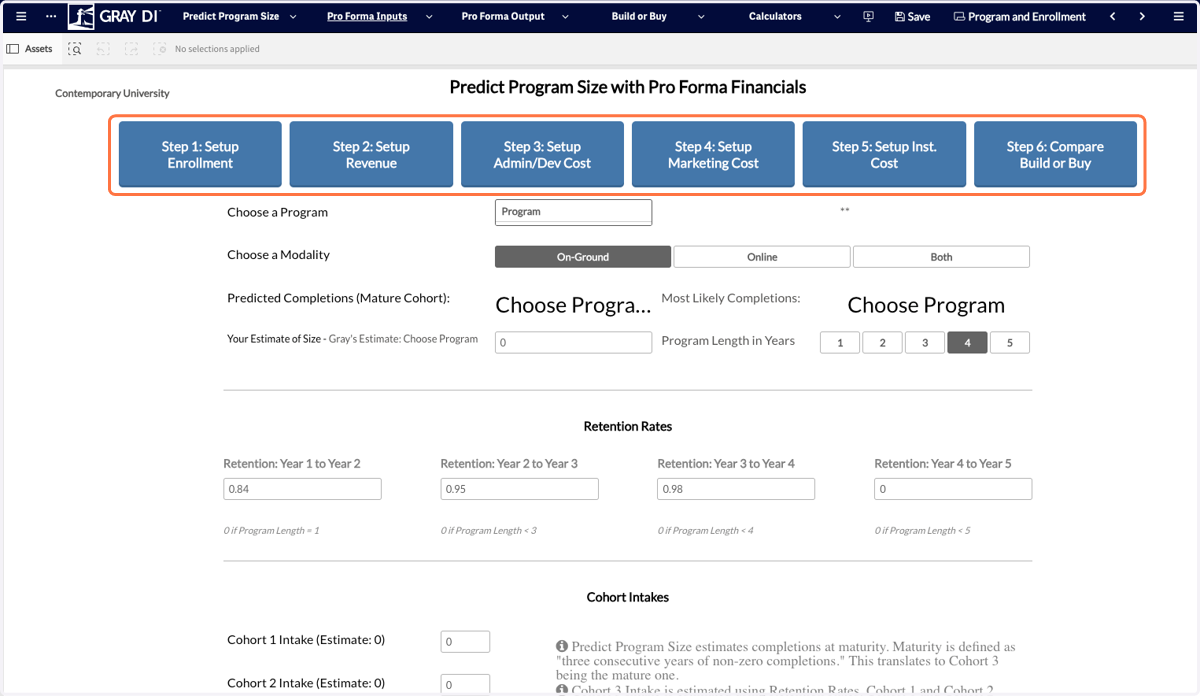
3. You can navigate through the Pro Forma inputs by using the buttons at the top of each sheet.
4. Start by selecting a program.
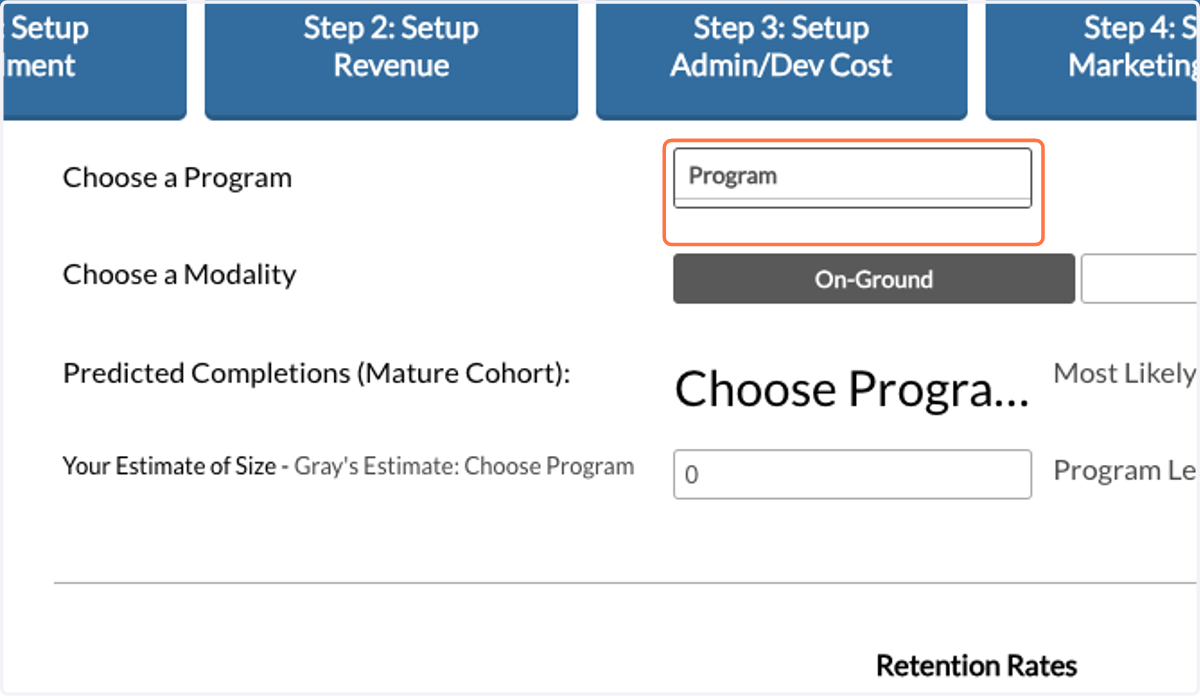
5. You can either search for a phrase or type in a CIP code.
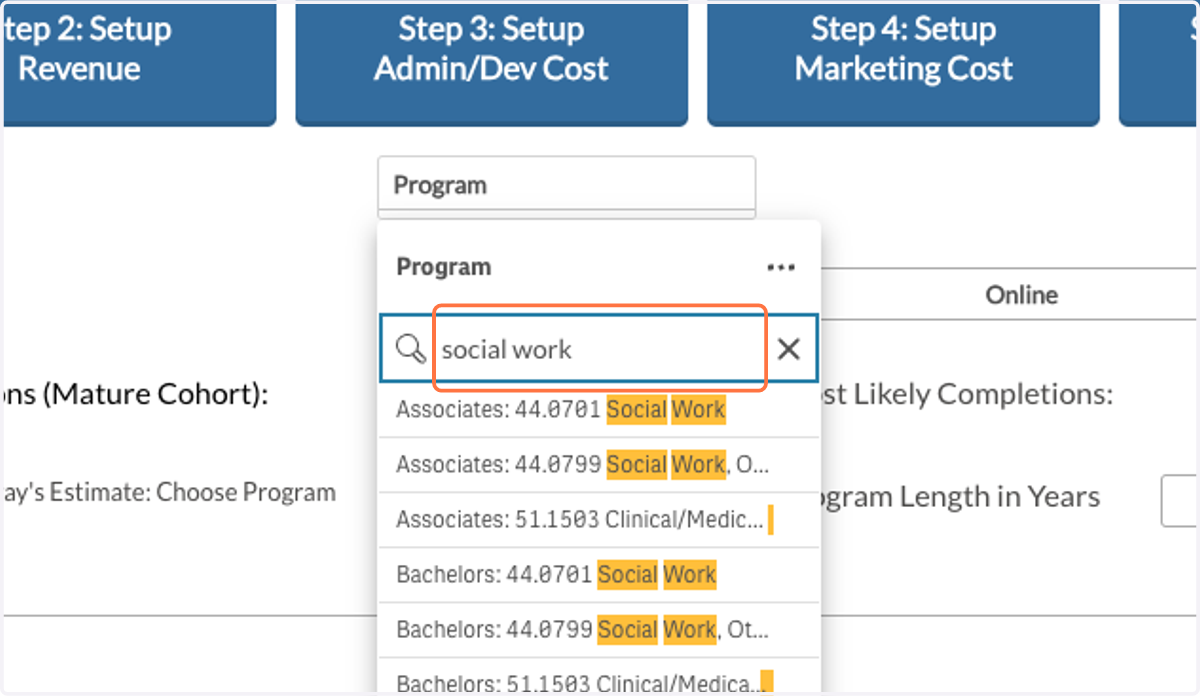
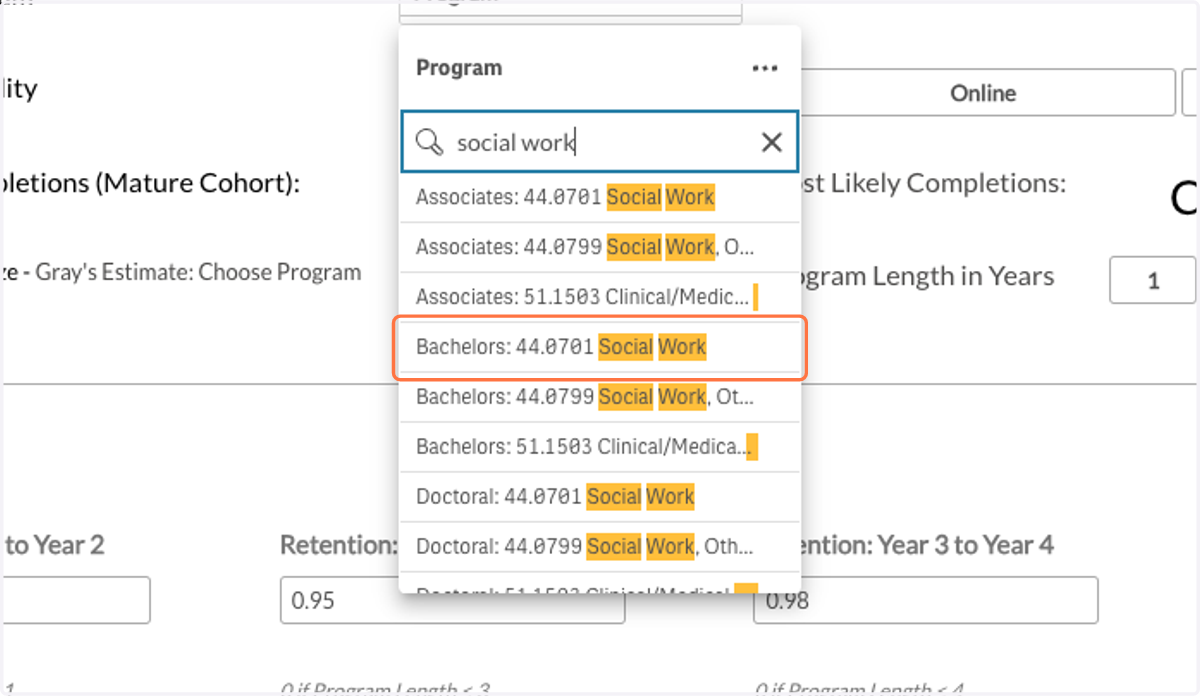
6. Once you have found the program you would like to use click on it to select it.
7. Select the predominant modality for your program.
Modality refers to the predominant modality. For example, if you select Online modality, it indicates that your program will be offered mostly online.
Note: Both modalities indicate that both an online and an on-ground option will be offered, not that this will be a hybrid program.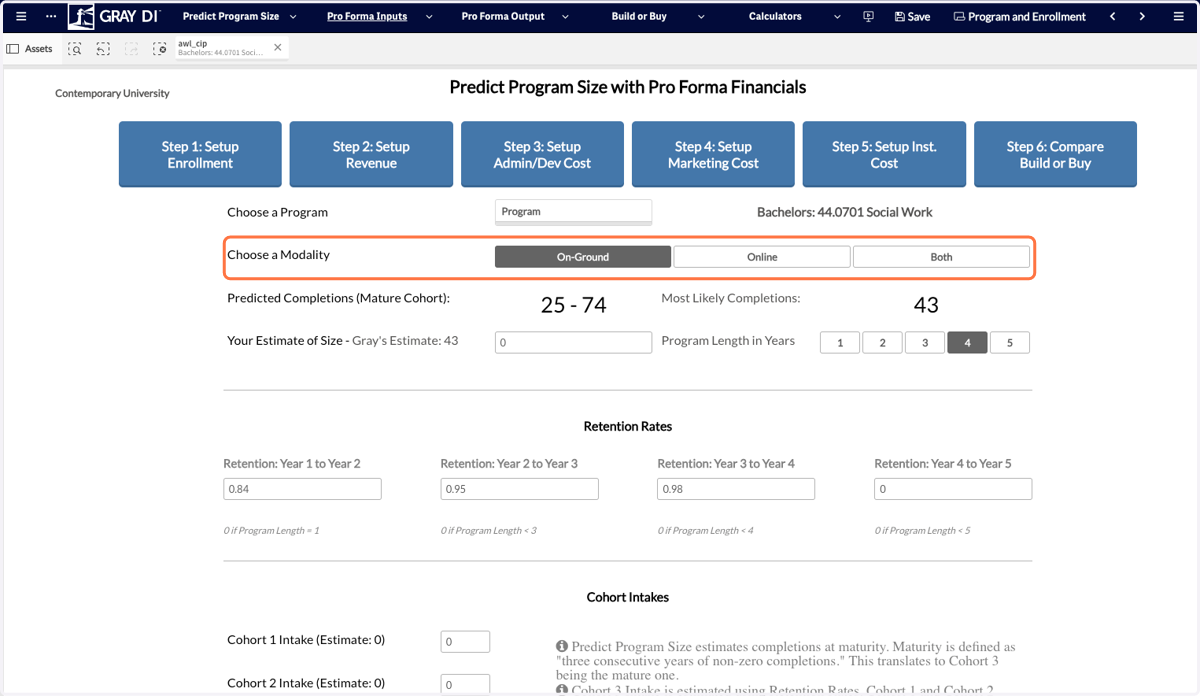
8. Once you choose a program and modality, the model will show you the Predict Program Size model output both with a range and the most likely number of completions to use for your Pro Forma.
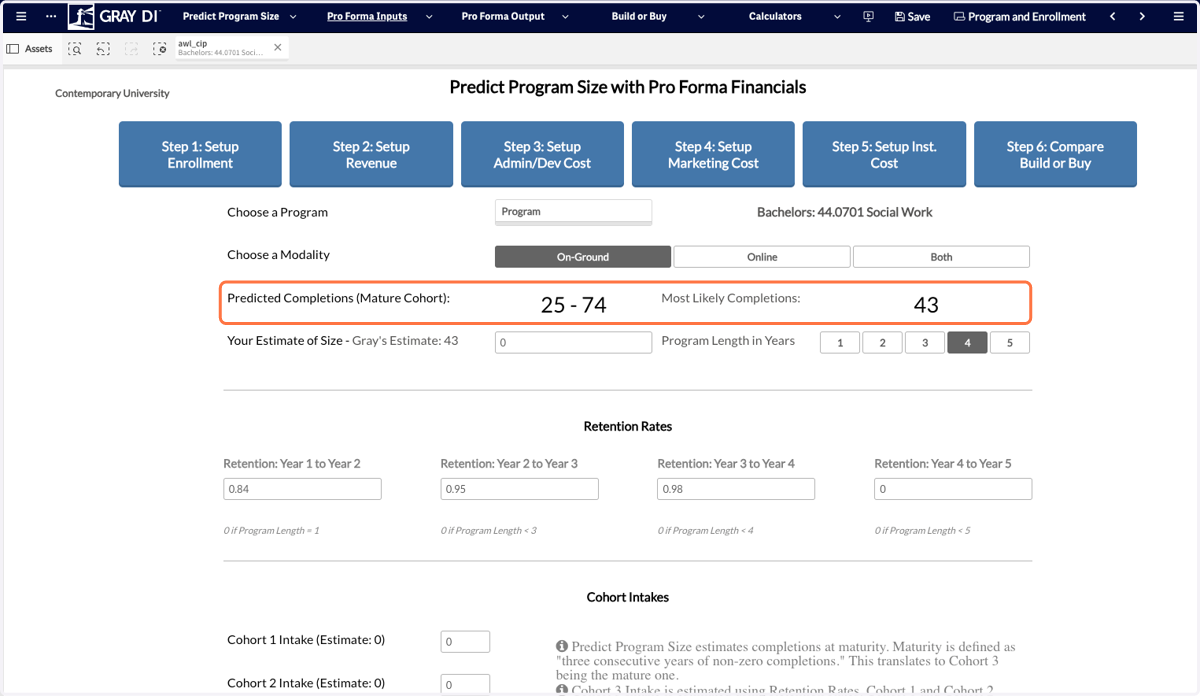
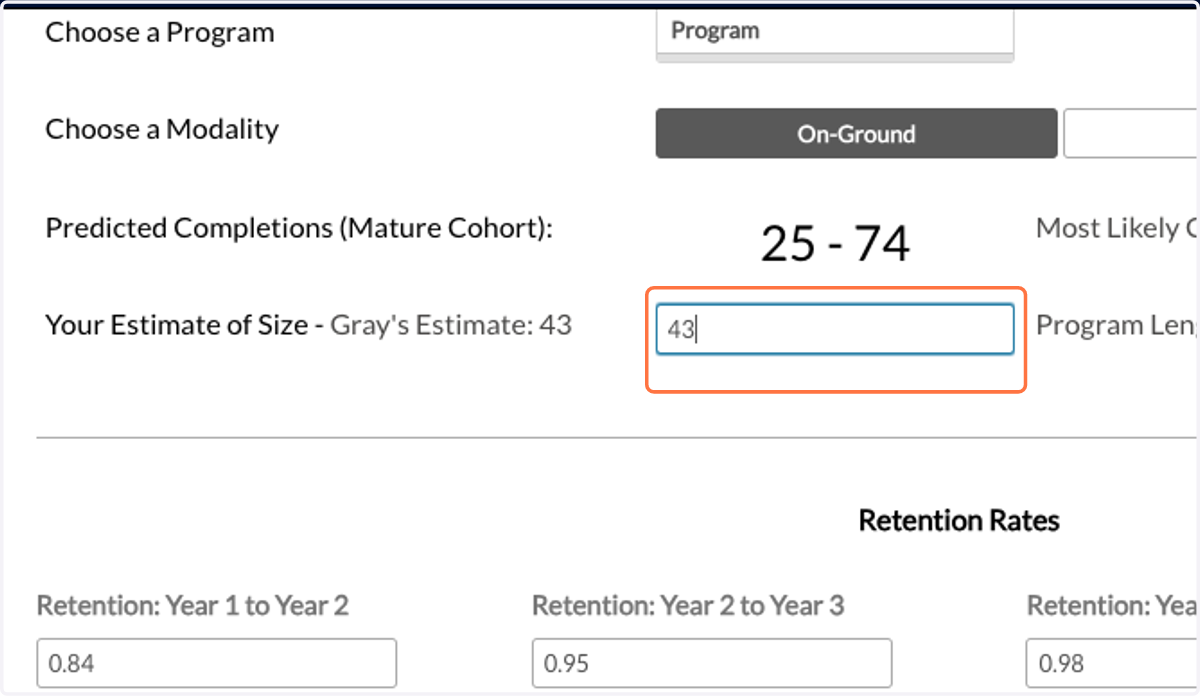
9. Input the number of completions (at maturity) that you would like to use for the Pro Forma model.
Note: You have the option to input any number of completions that you would like to model with this Pro Forma.
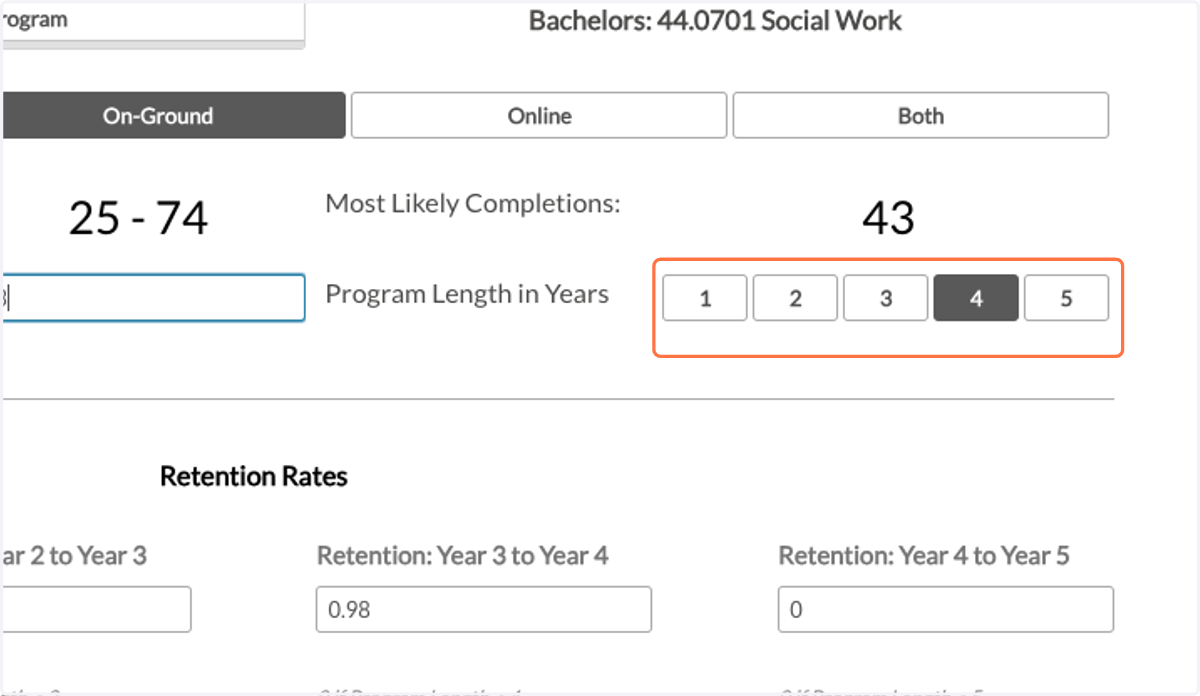
10. Next, select the intended program length in years. This will translate into the number of co-existing cohorts each year.
For example, if you choose 2 years that means that there will be two cohorts enrolled at the same time.
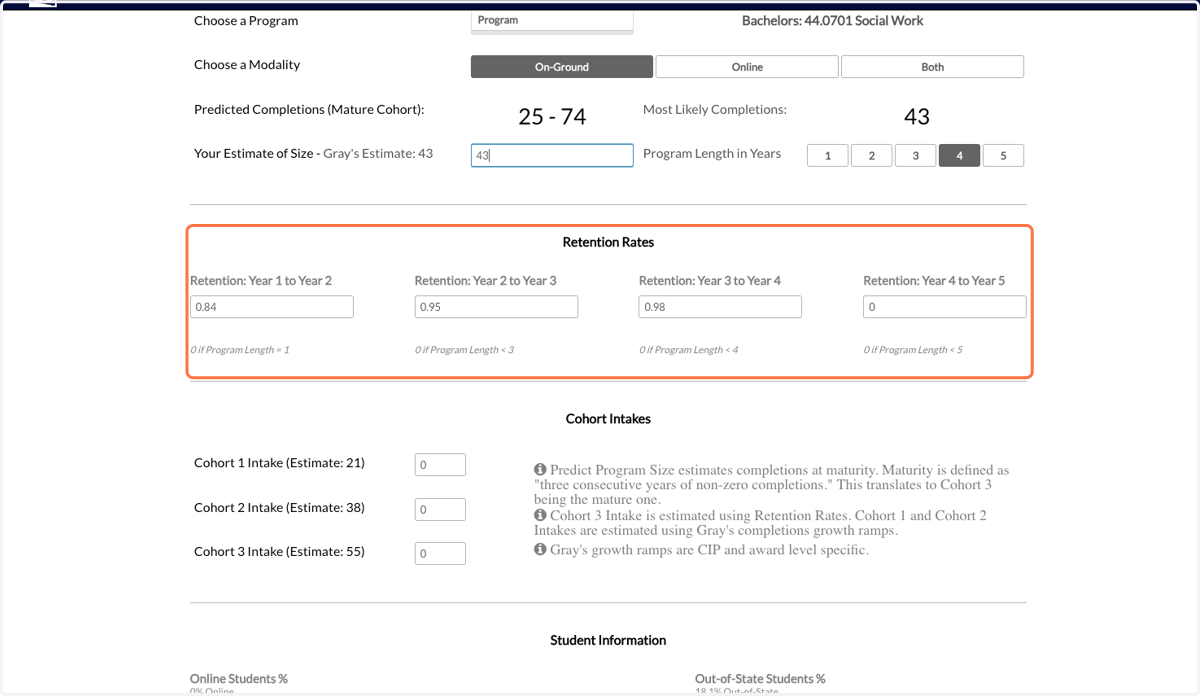
11. Next, enter the retention rates you would like to use.
These retention rates could be based on your institution's historical rates, the target retention rates that you aim to achieve, or the minimum retention rates set by your program accreditor.
If you are subscribed to the PES Economics and Outcomes module, you can find your historical retention rates by program and award level using that app.Note: You will be prompted to zero out retention rates beyond your selected program length.
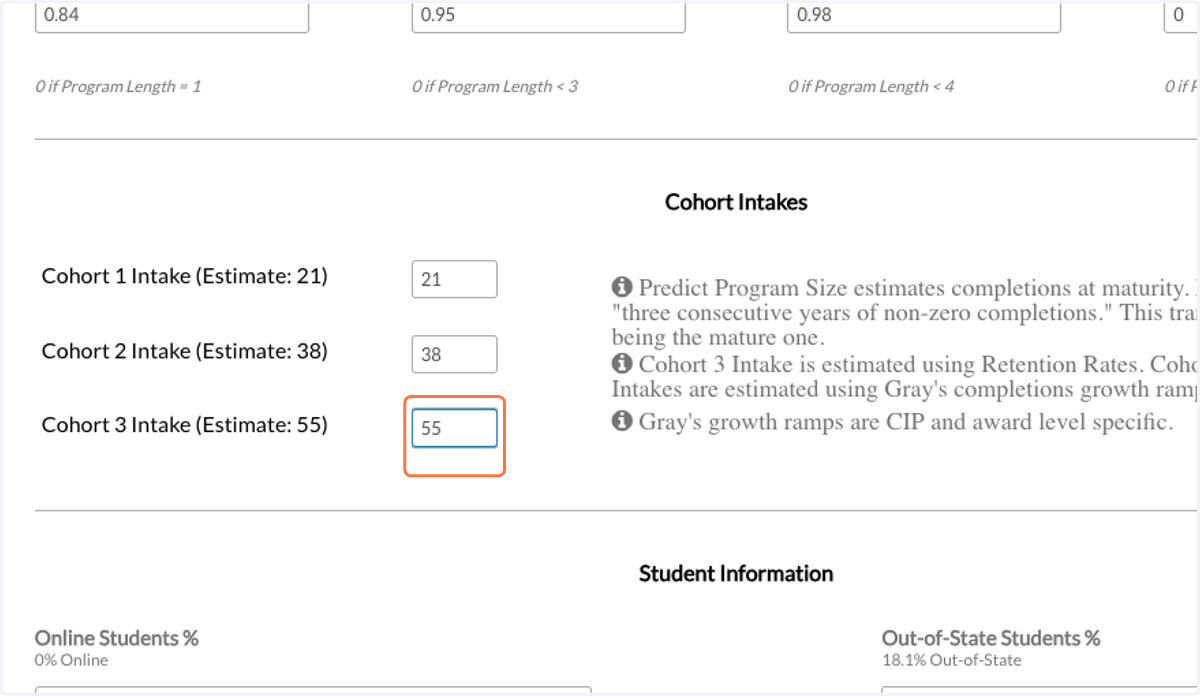
12. Based on the program size and retention rates you have entered, the model will provide an estimate for each cohort. Enter the values you would like to use.
The estimated cohort intake is calculated using your selected program size (see step 9), the retention rates (see step 11), and growth ramps derived from new program completions data since 2010.
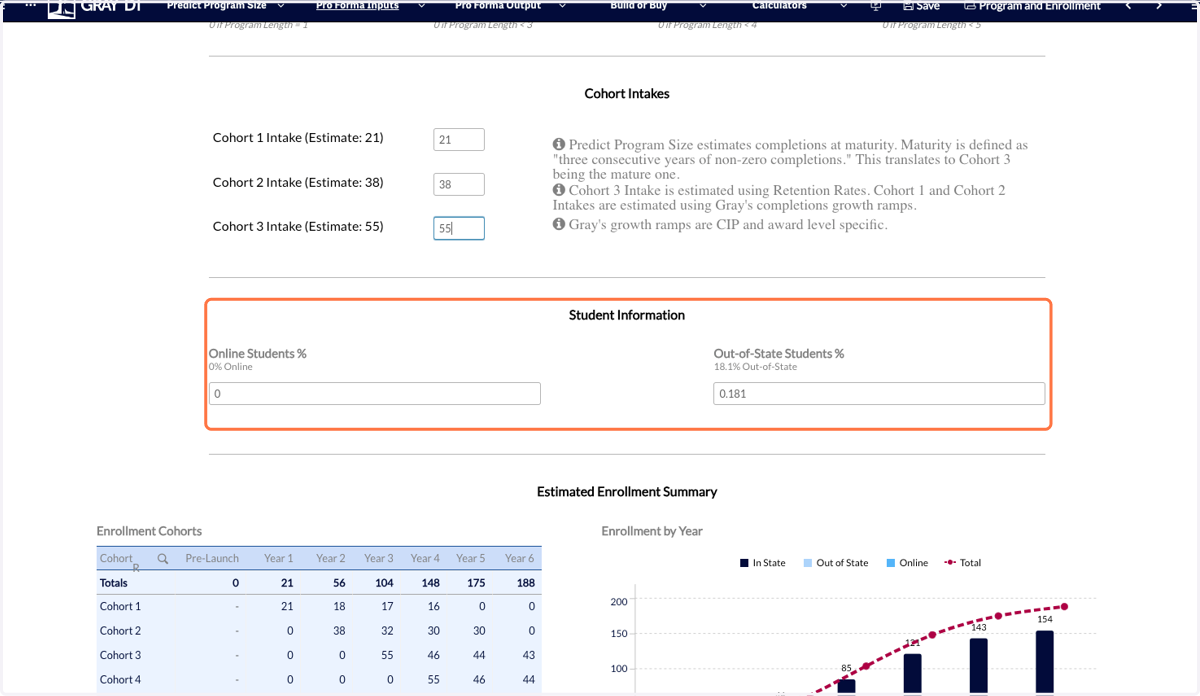
13. Enter the share of online or out-of-state students.
These splits will be used to calculate tuition later in the Pro Forma.
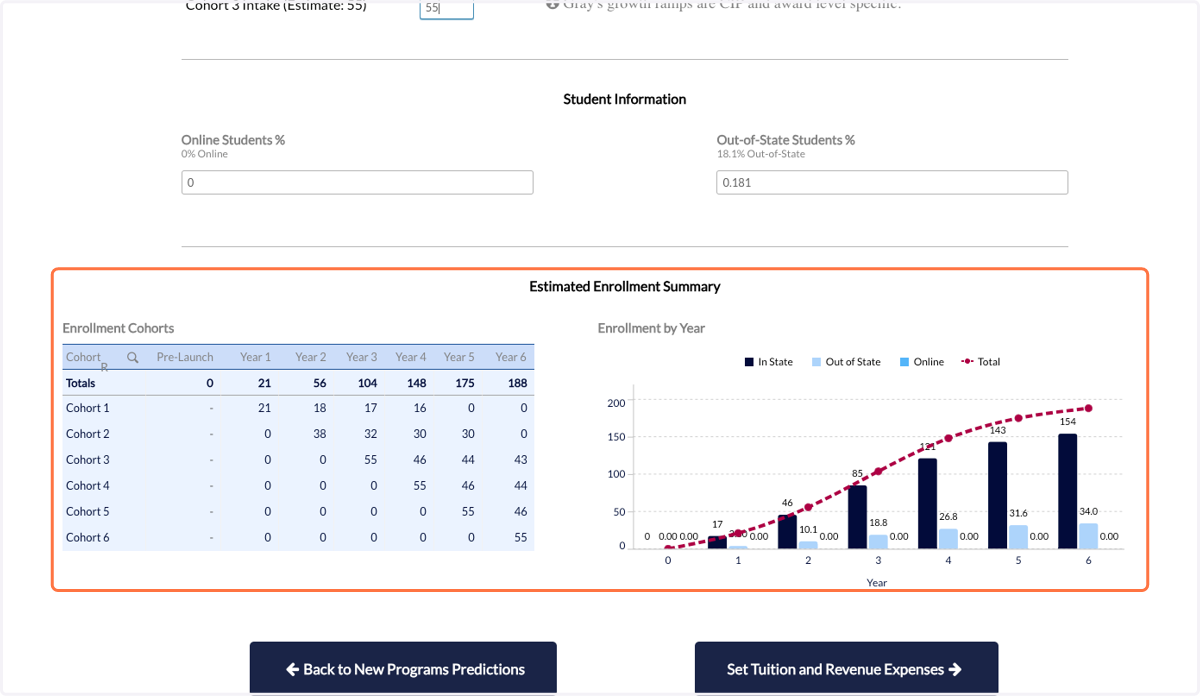
14. At the bottom of the sheet you will see an Enrollment Summary.
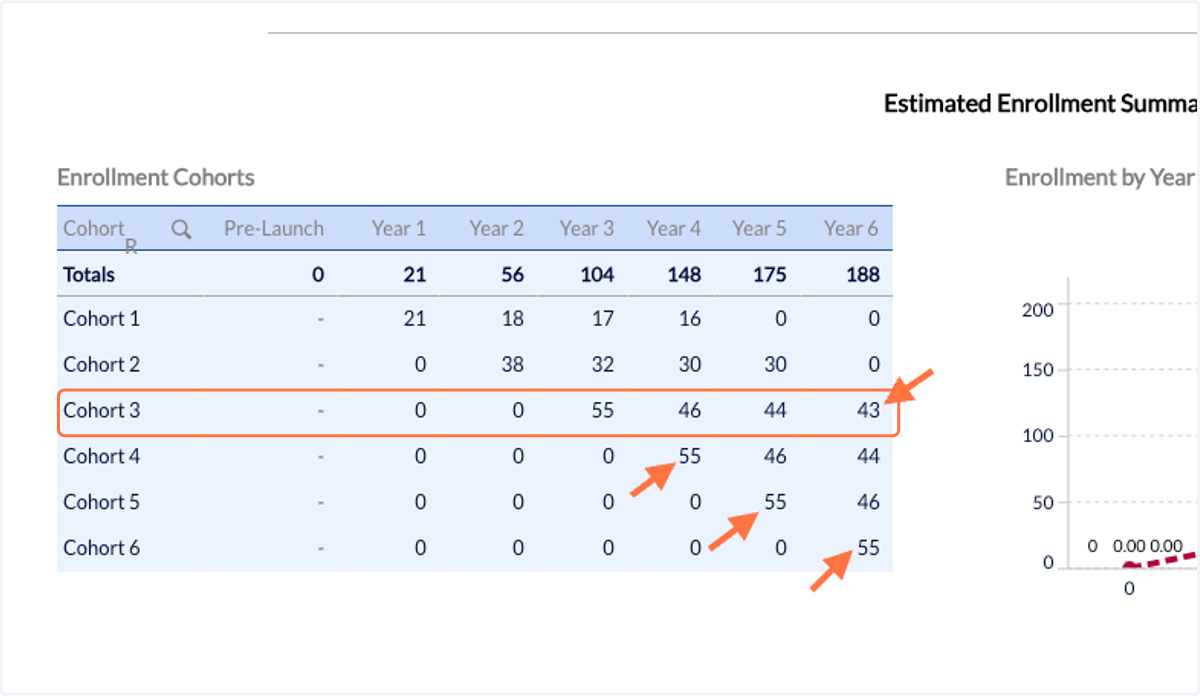
15. Cohort 3 is the mature cohort; we plateau intake growth beyond the third cohort.
Note: Students in the last year of each cohort are assumed to graduate.
Note: The number of graduates from the third cohort matches your input for the number of completions at maturity (selected in step 9).
16. Click on the Set Tuition and Revenue Expesnes button to move on.
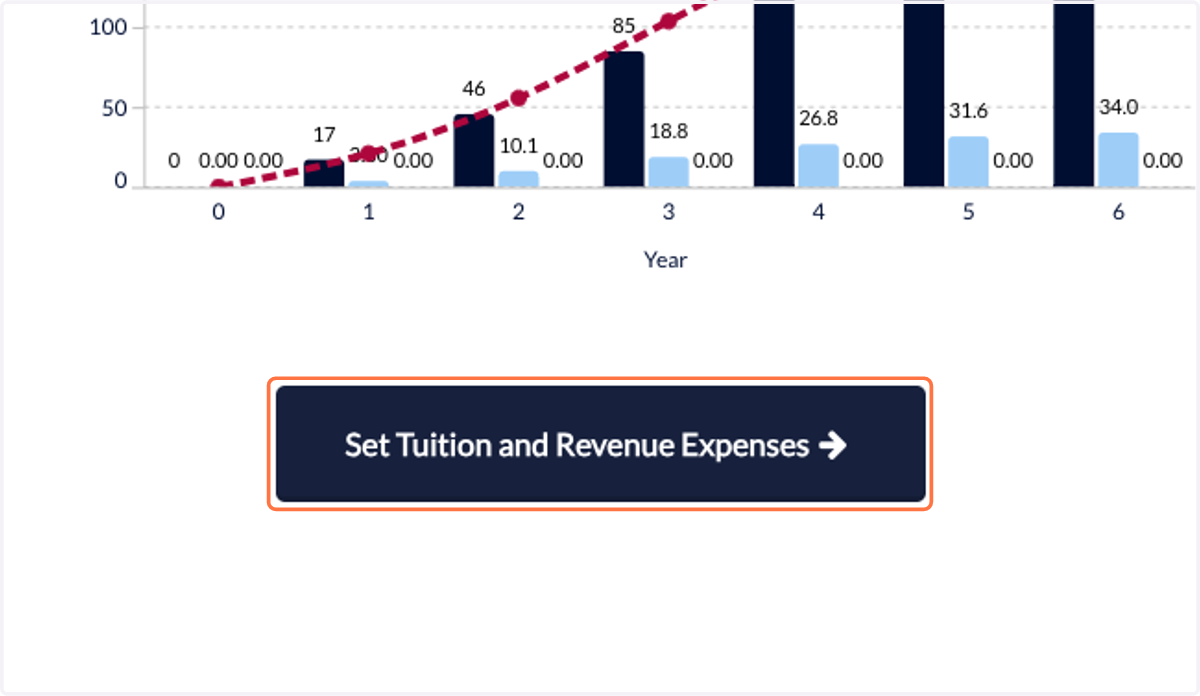
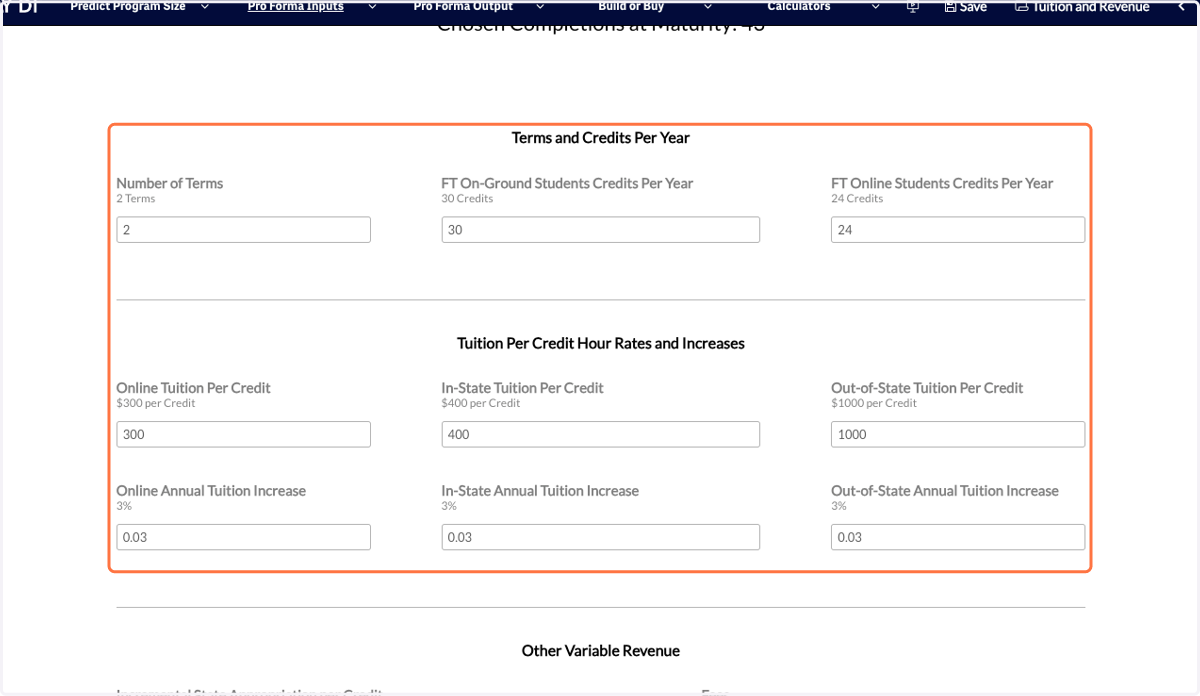
17. This is where you can enter information about the number of credits and tuition information for this program.
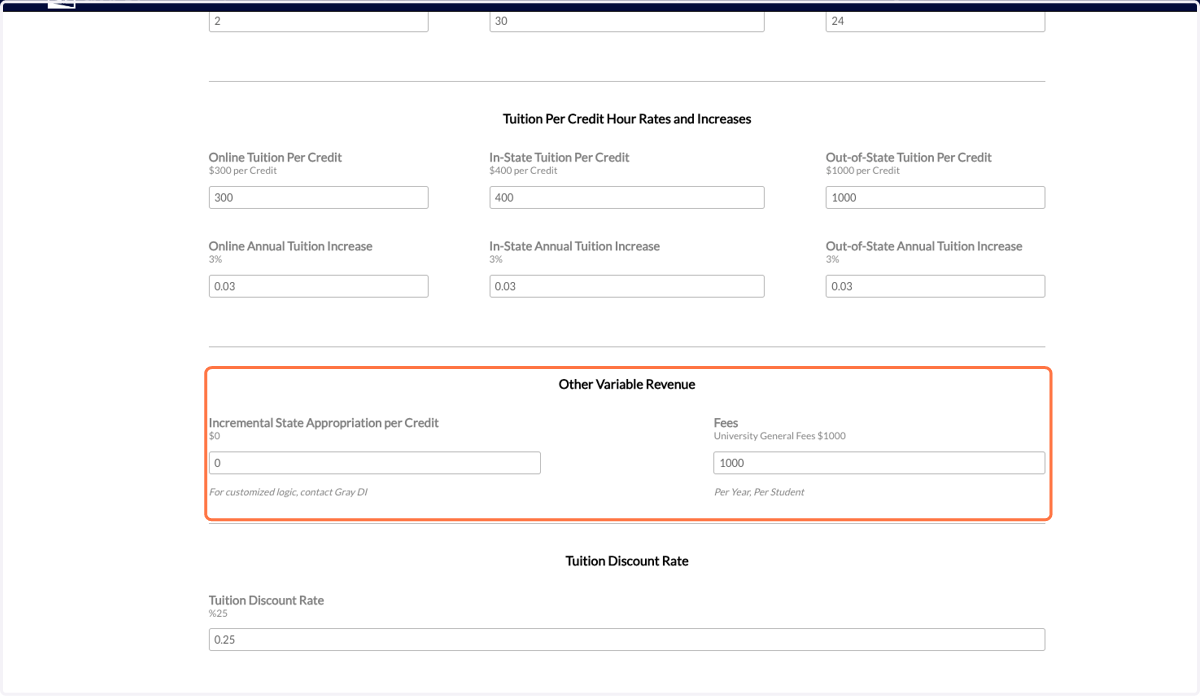
18. You can also input informaiton about other variable revenue such as fees or state appropriations.
19. Next, input the expected average discount rate for students in this program.
This discount rate should only include institutional scholarships and grants, not financial aid or outside grants.
If you are subscribed to the PES Economics and Outcomes module, you can find your historical discount rates by program and award level using that app.
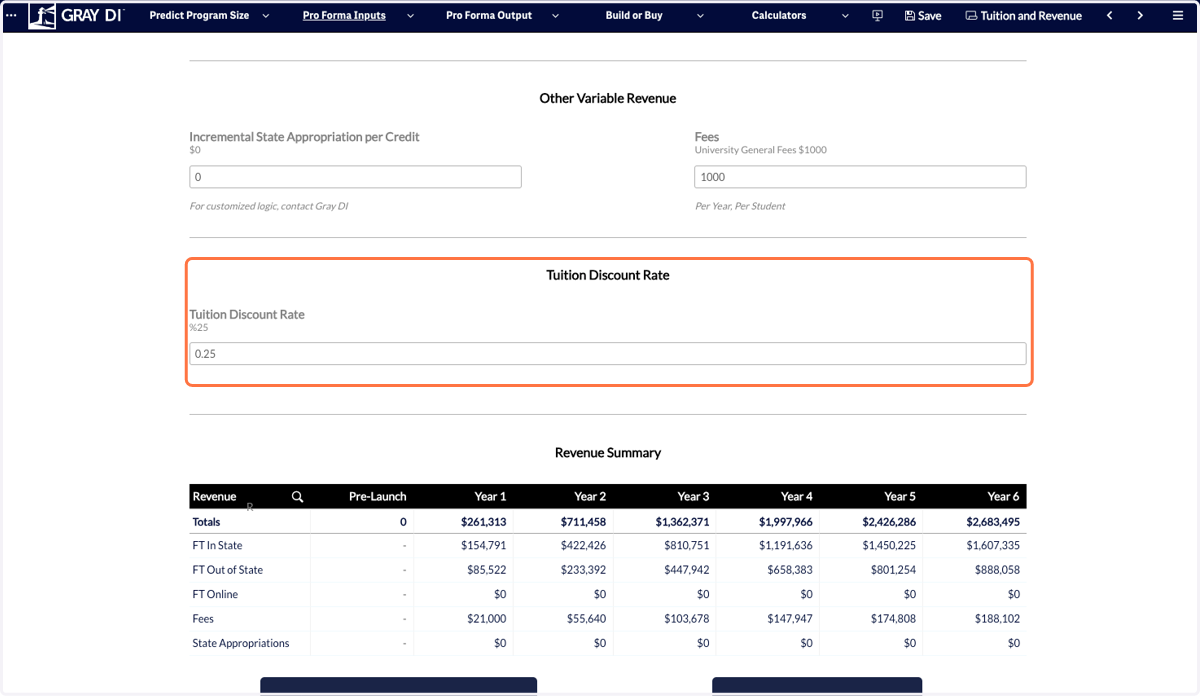
20. At the bottom of the screen you will see a Revenue Summary.
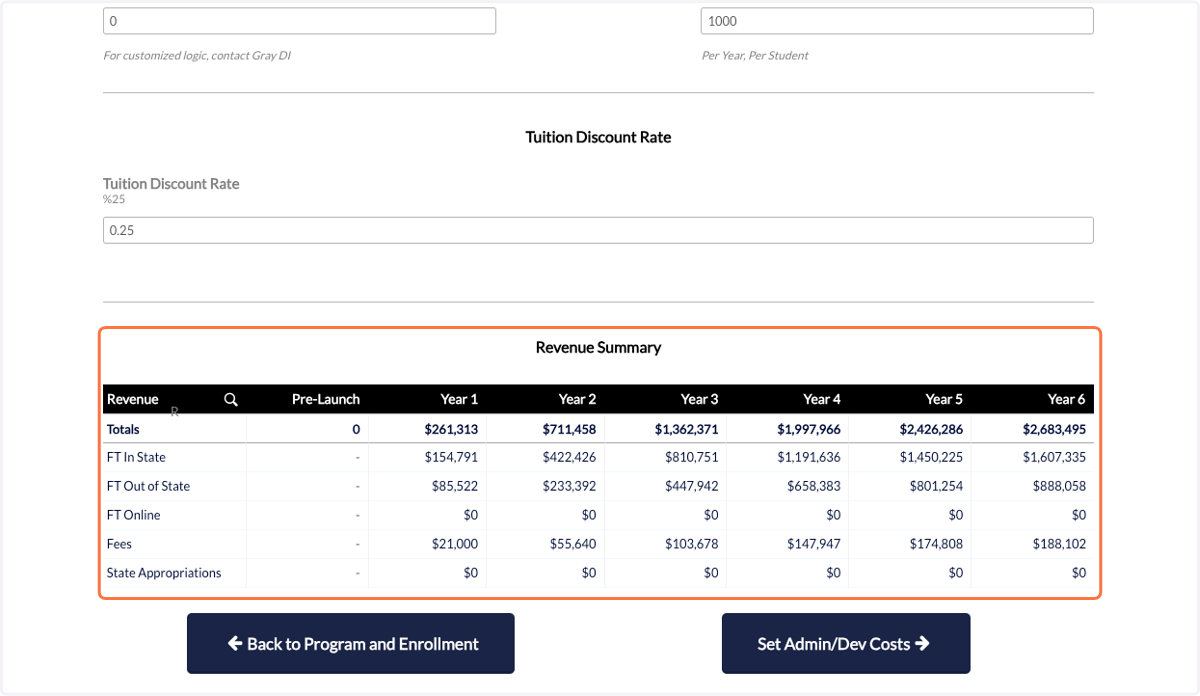
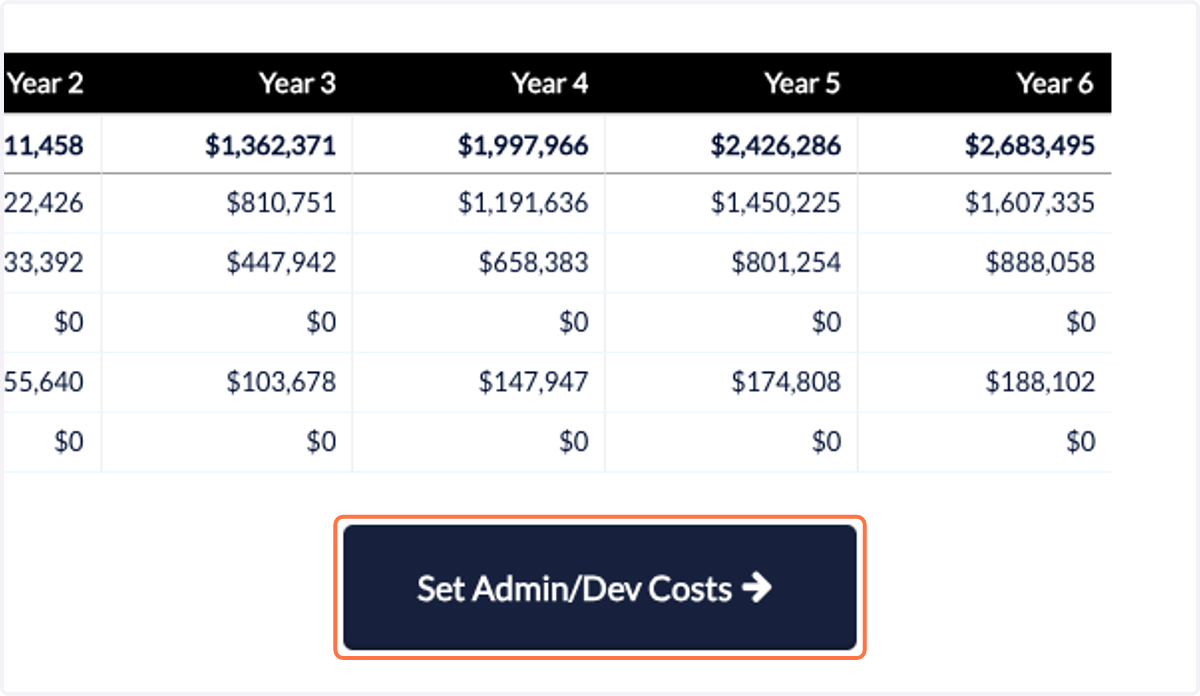
21. Click on the Set Admin/Dev Costs button to move on to the next step.
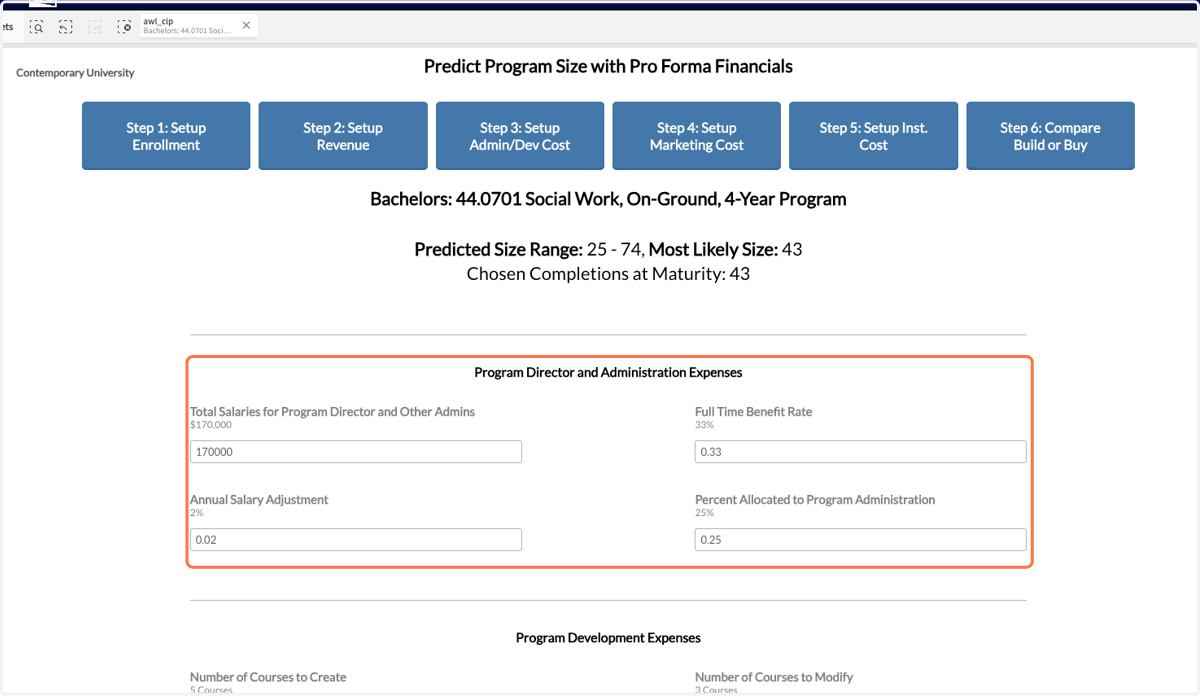
22. To input the expenses related to this program, start by entering the program director and admin salaries and benefits information.
If a program director will manage multiple programs or will have teaching responsibilities, you can use the Percent Allocated to Program Administration input to allocate the share of their compensation to administer this program.
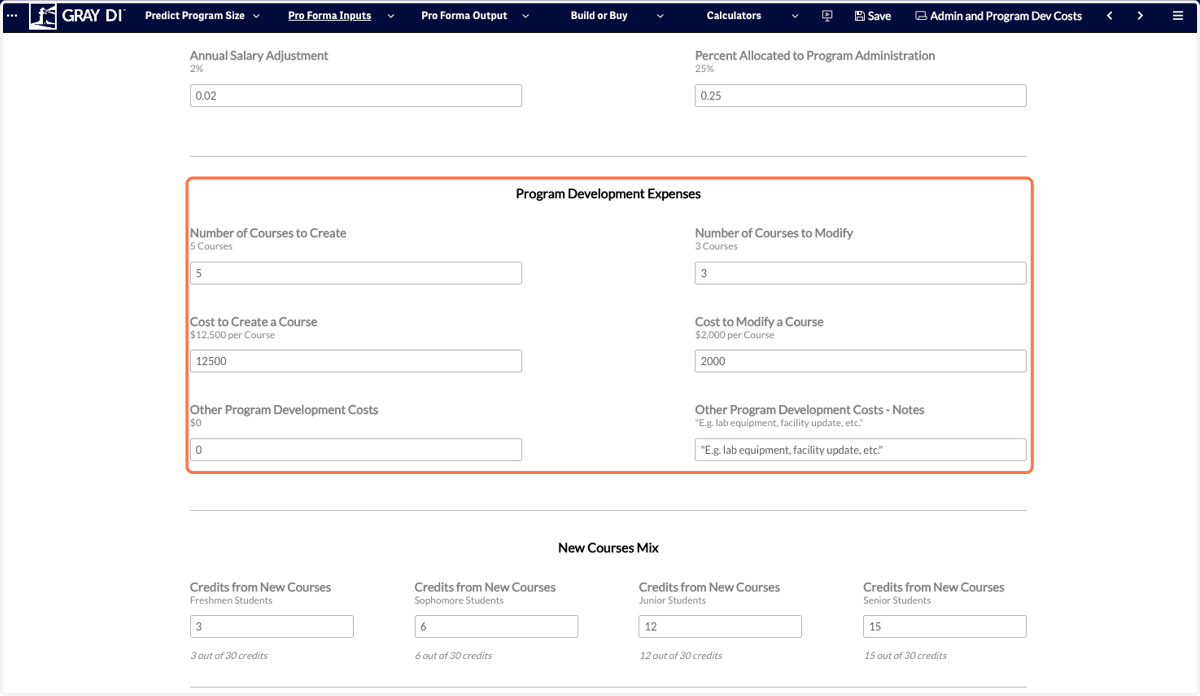
23. Next, enter the costs required to create or modify courses that will be required to launch this program.
This could include the cost to hire an outside consultant to build a curriculum or the release cost associated with using current faculty to develop these courses.
24. Next, enter the credits from new courses for each year of the program.
This will be used to calculate the instructional cost of the new courses for this program.
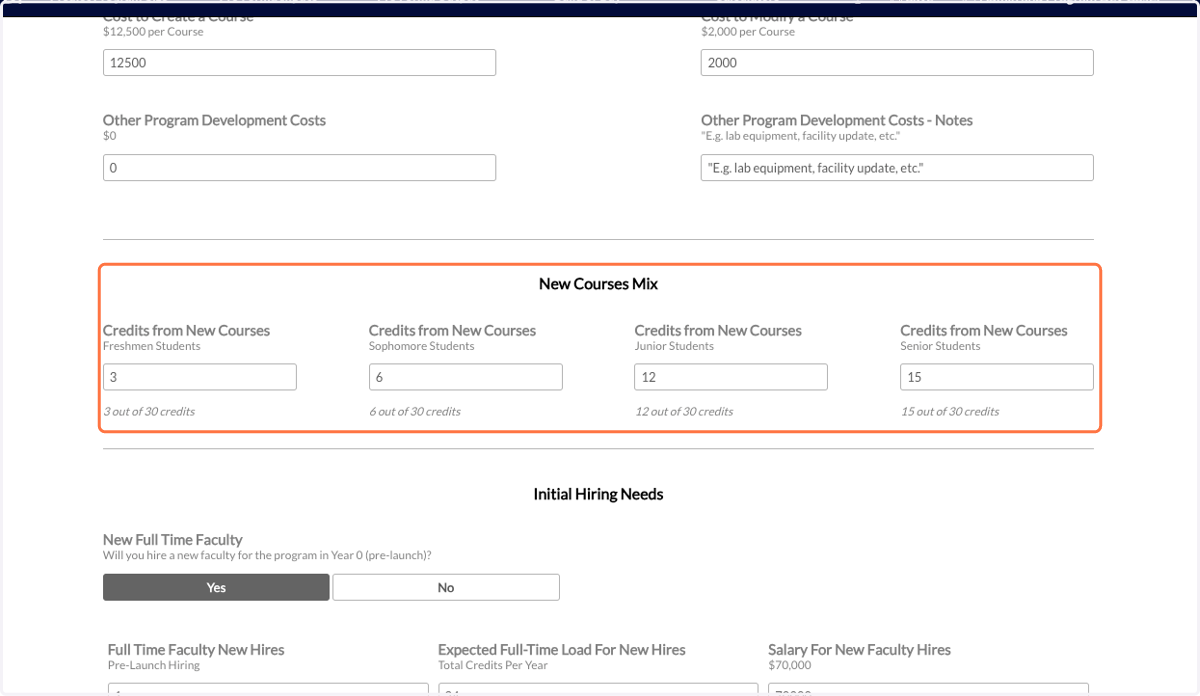
25. To understand the hiring needs related to this program, start by selecting if you intend to hire a new faculty member in year 0 (pre-launch) for this program.
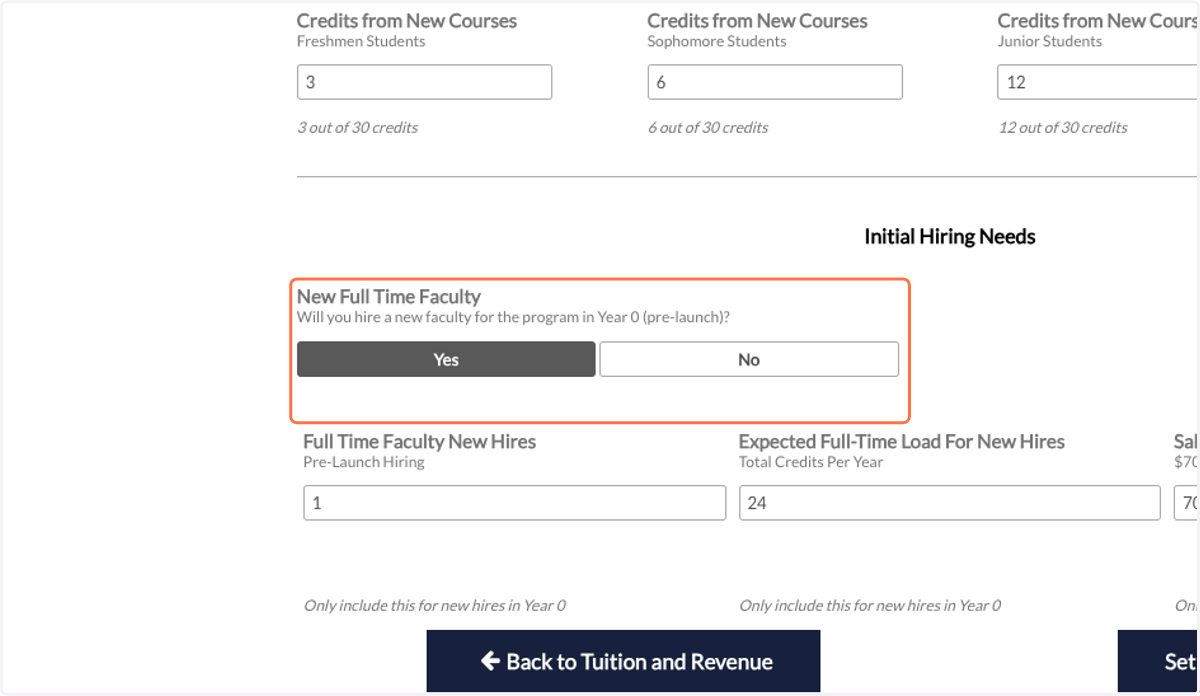
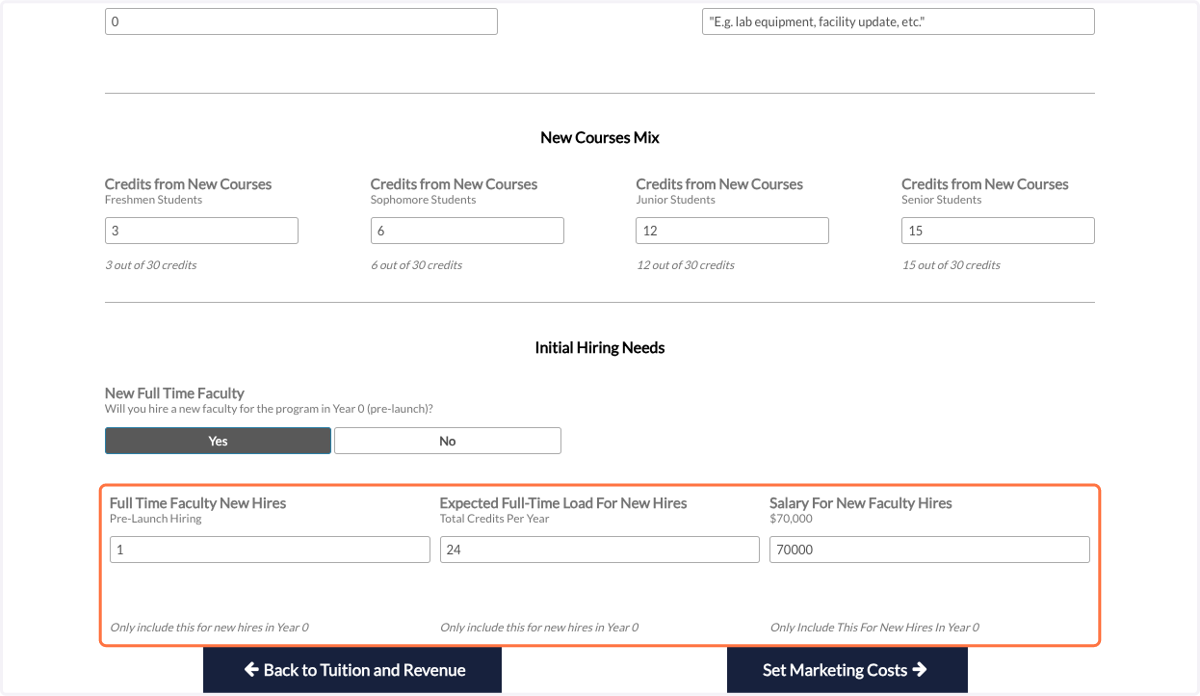
26. If you select yes, that you do intend to hire new faculty pre-launch, you will be asked for information regarding the salary and expected full-time load for those new hires.
27. If you select that you will not hire a new faculty member, select who will teach new courses (adjunct faculty or current faculty members).
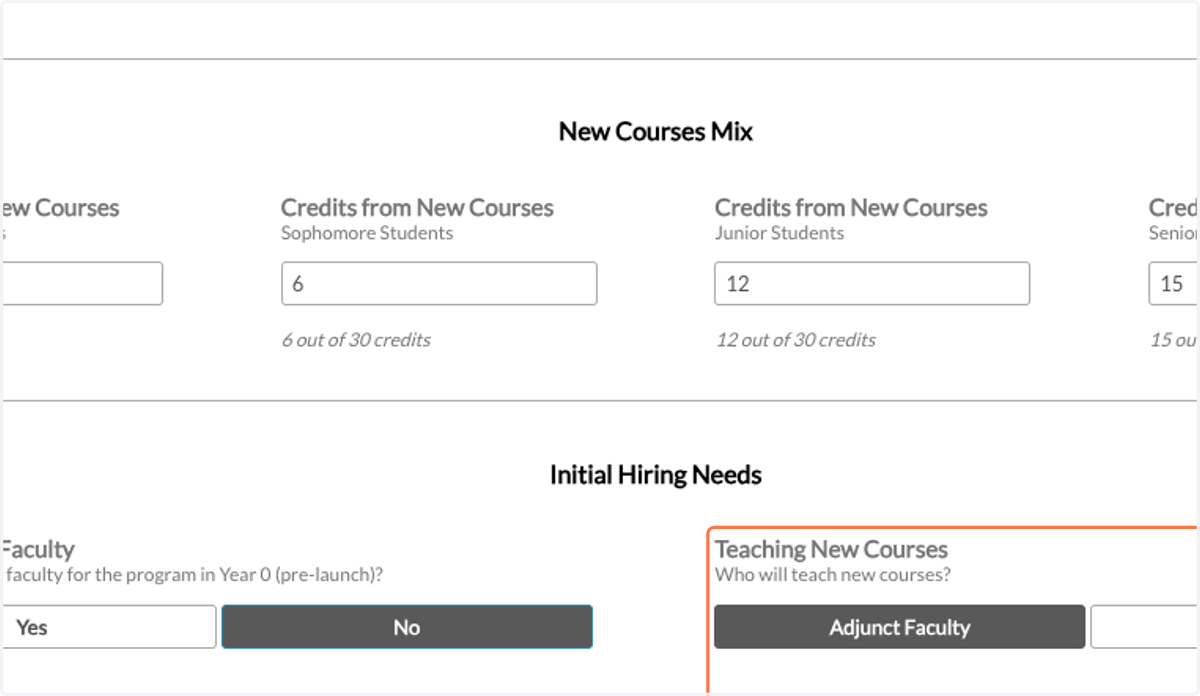
28. You will then be asked for adjunct pay and benefits rates.
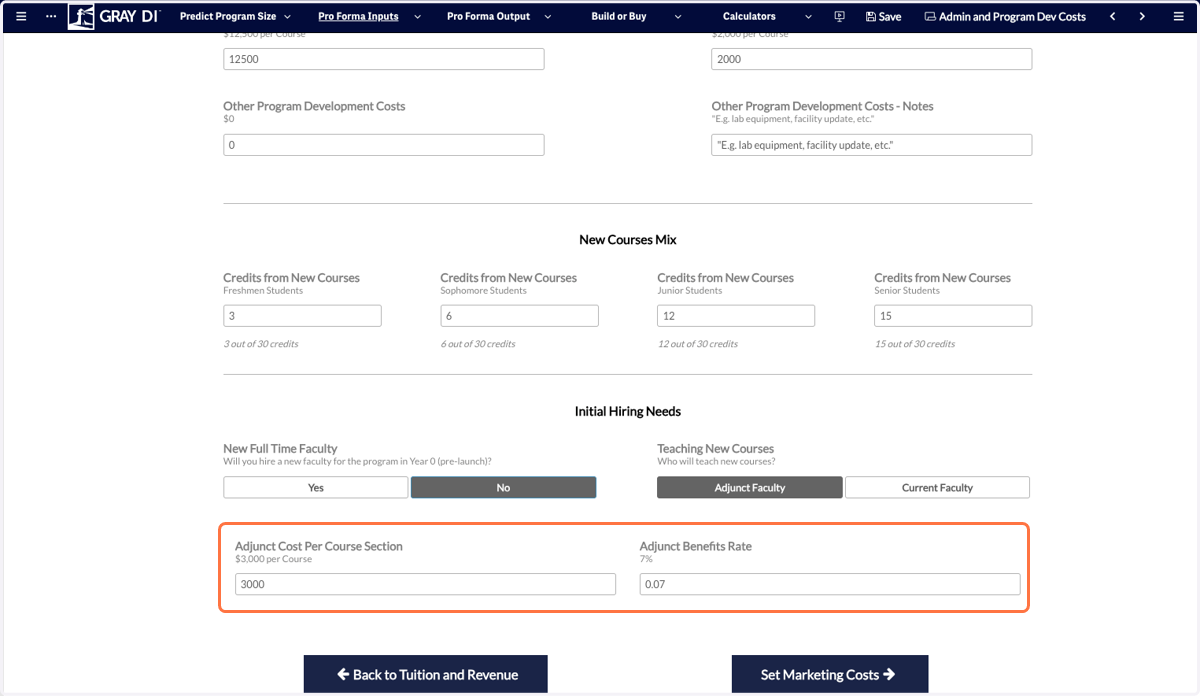
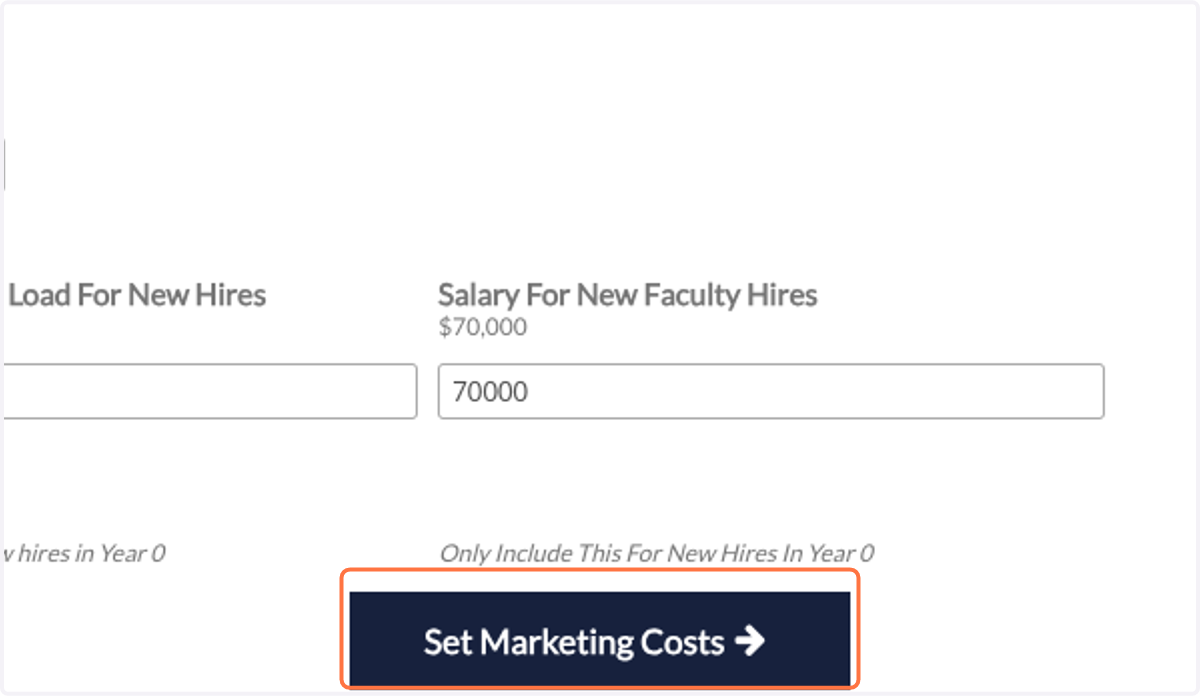
29. Click on the Set Marketing Costs button to move on.
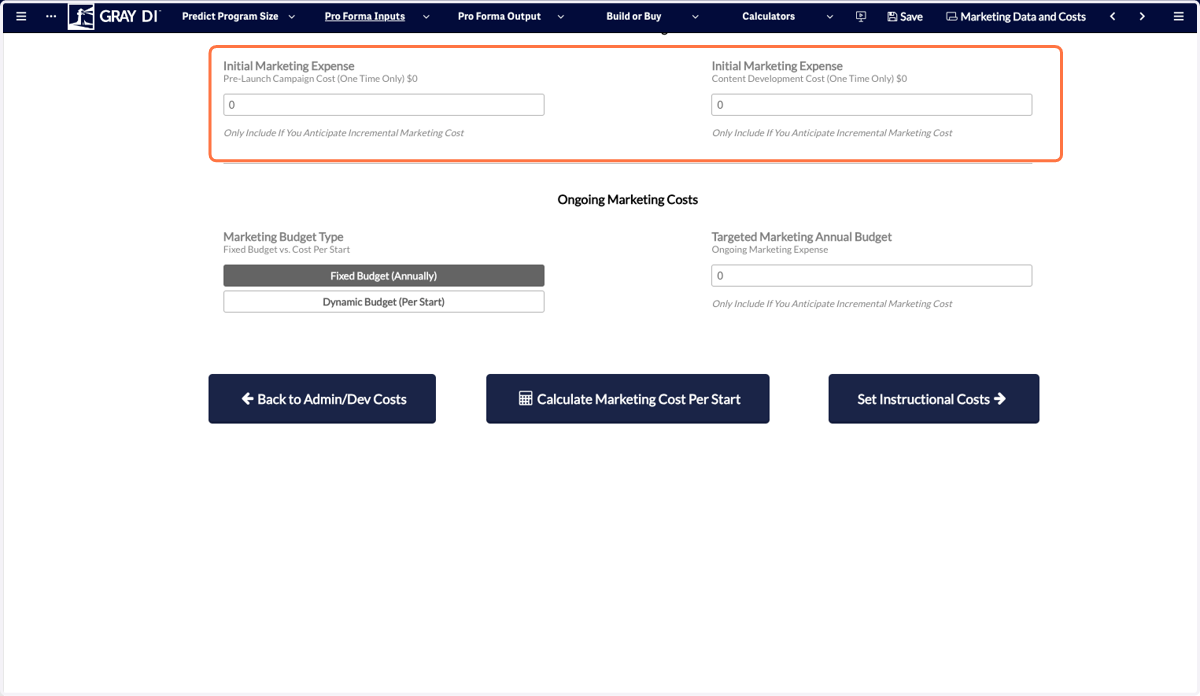
30. Start by entering your expected initial marketing expenses.
31. You can also enter your expected ongoing marketing costs.
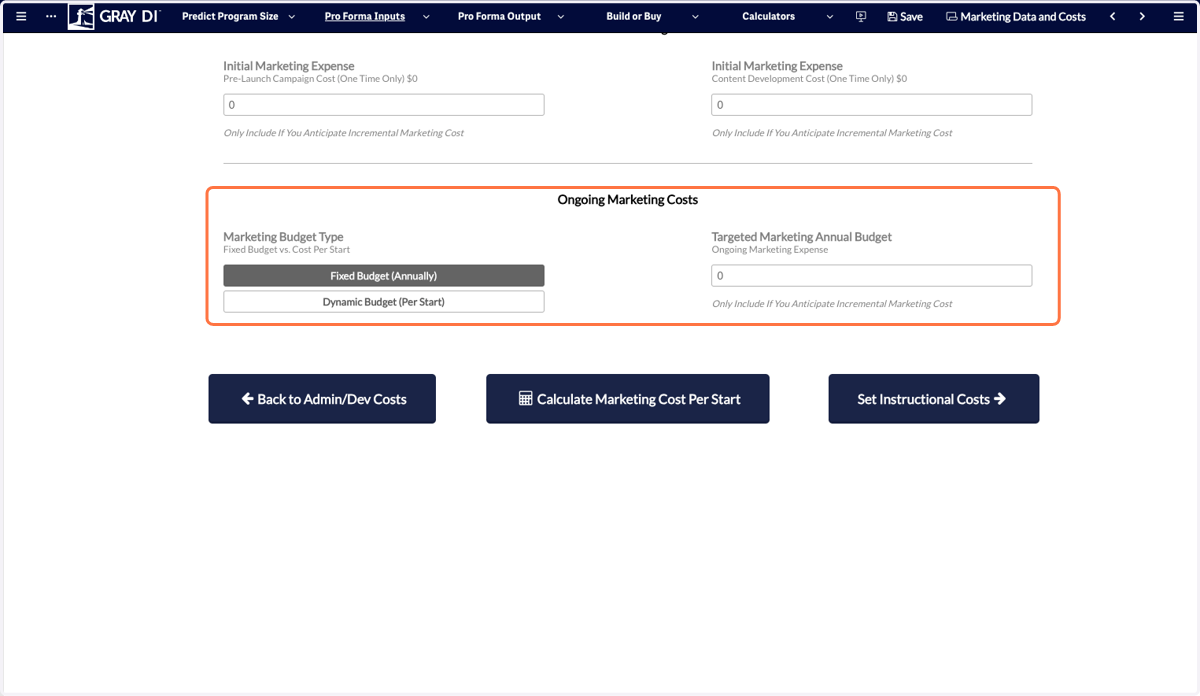
32. You can use a fixed annual budget or a dynamic cost per start.
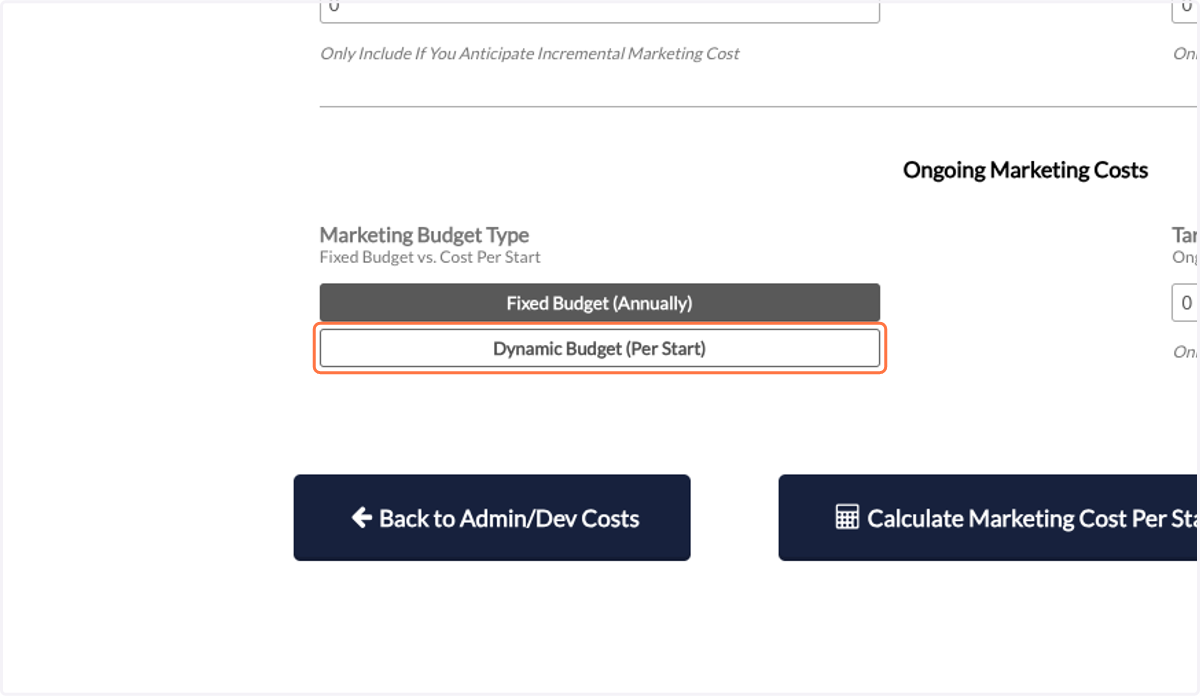
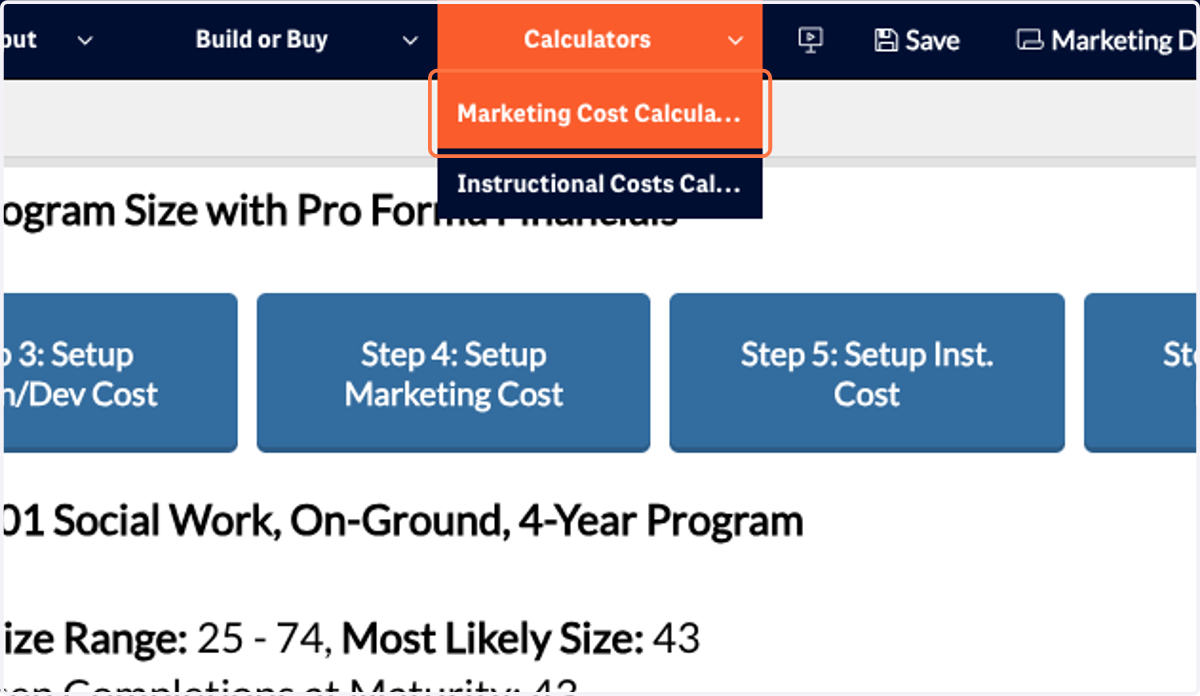
33. If you do not know your marketing costs, you can also use the marketing cost calculator to estimate what values you should input.
Note: this function is a calculator and you will need to enter the calculated values into the Pro Forma.
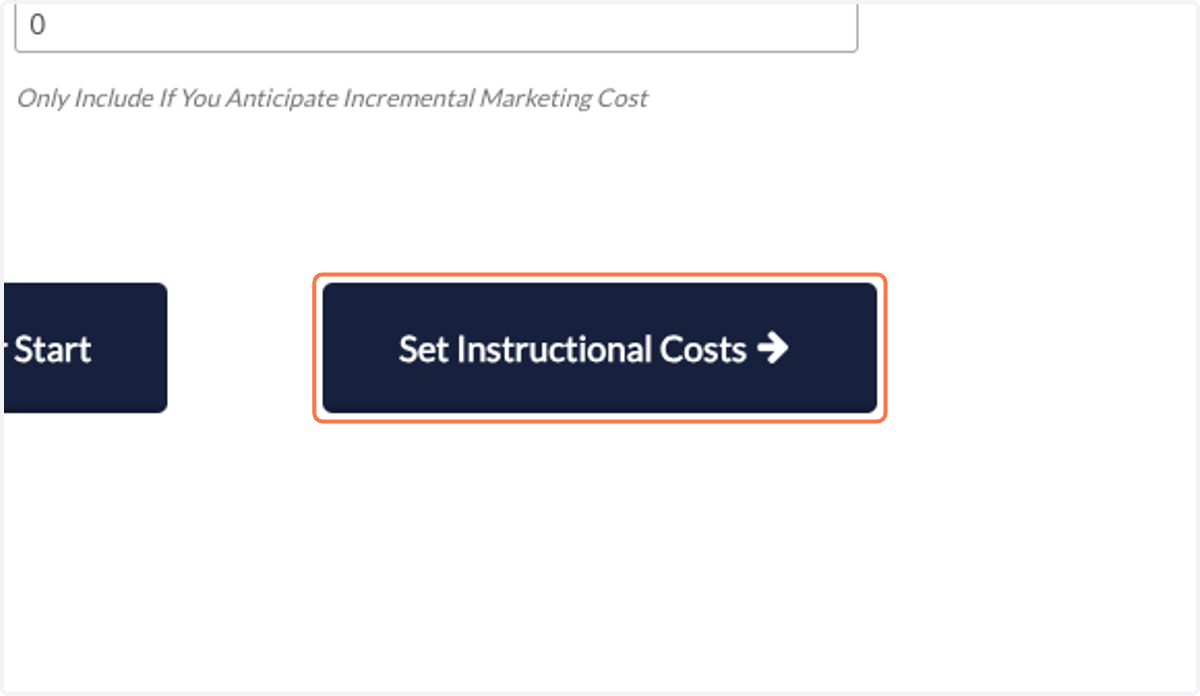
34. Click on the Set Instructional Costs button to move on.
35. To understand the instructional costs of delivering this program, you can use Gray DI's Economics Benchmarking Dataset.
Gray DI's Economics Benchmarking Dataset includes instructional cost data from Gray DI's PES Economics and Outcomes partners.
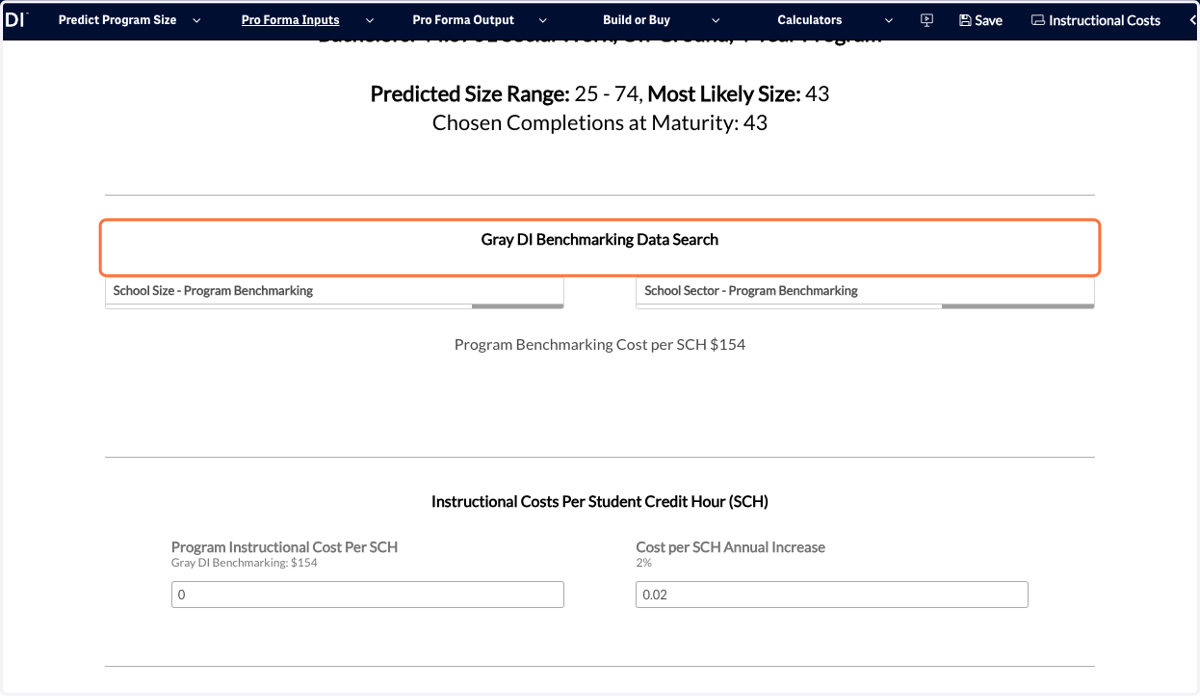
36. You can filter for a size range or a sector to see the Average Cost per SCH for your selected program from Gray DI's Benchmarking data.
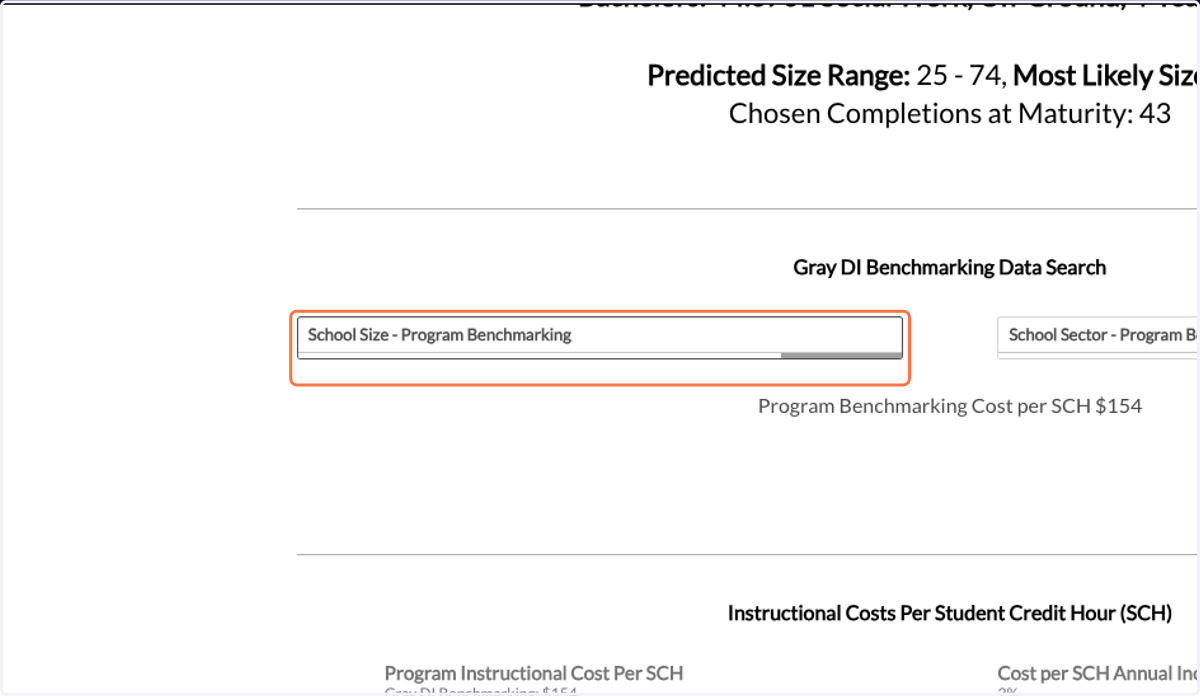
37. To filter the data, select from one of the dropdown menus.
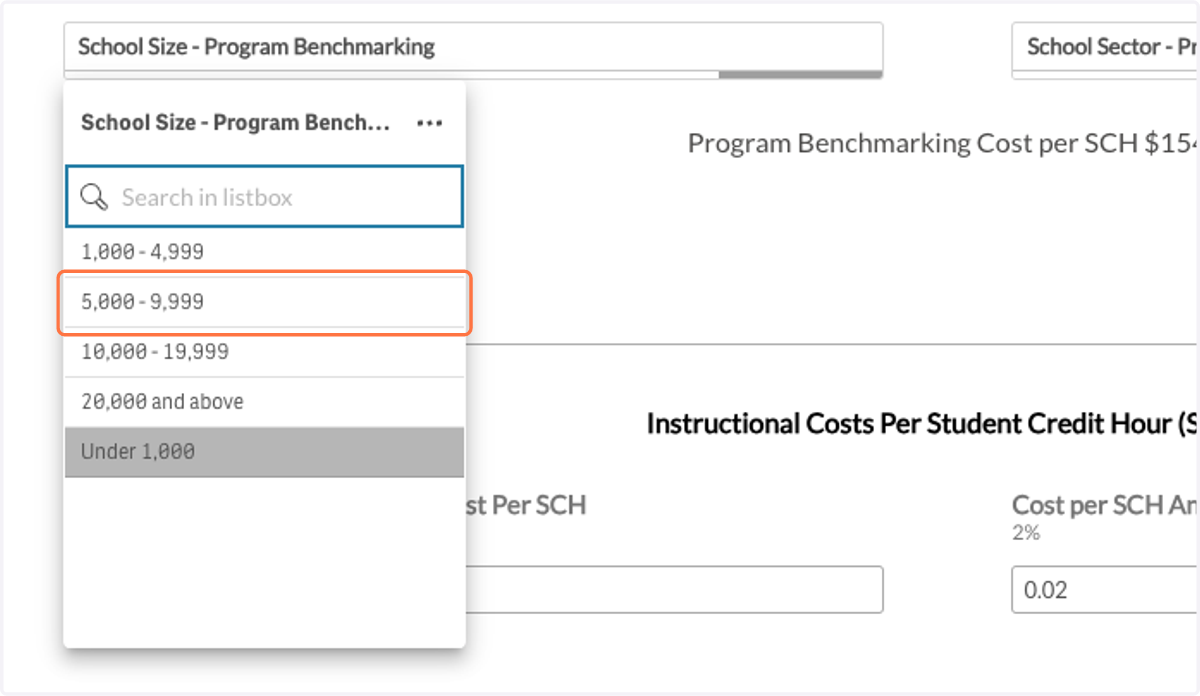
38. Now, you'll see the benchmark value for instructional cost per SCH.
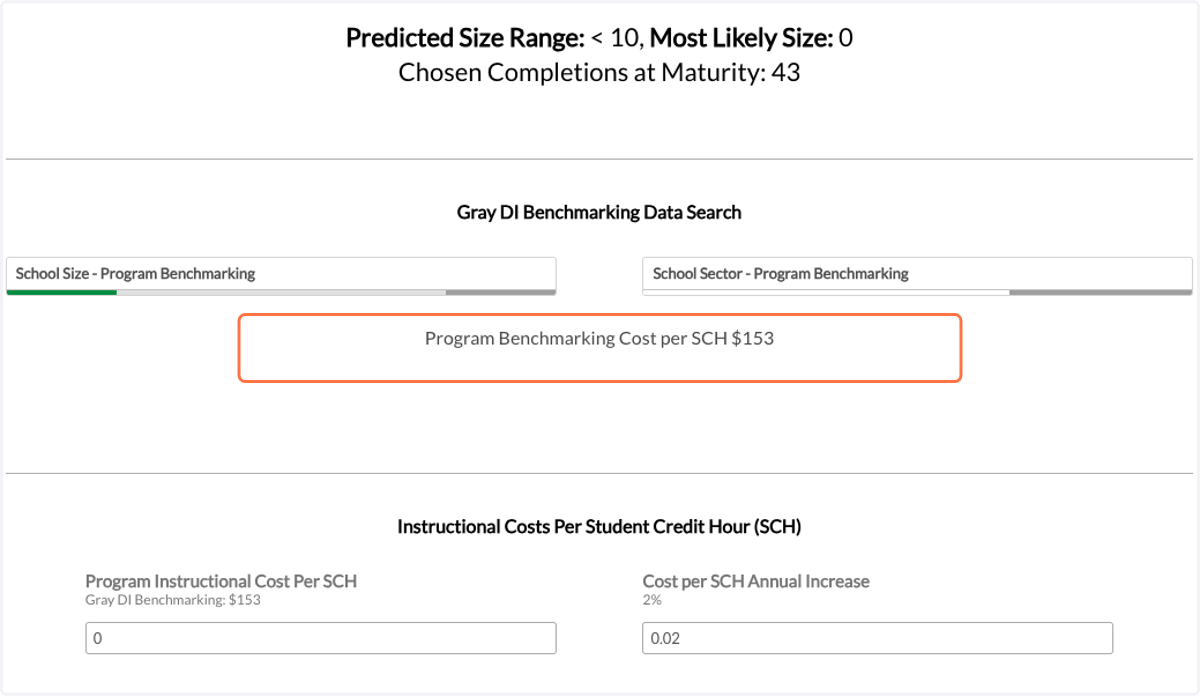
39. You can enter the cost per SCH that you would like to use.
If you are subscribed to the PES Economics and Outcomes module, you can find your historical instructional cost per SCH by program and award level using that app.
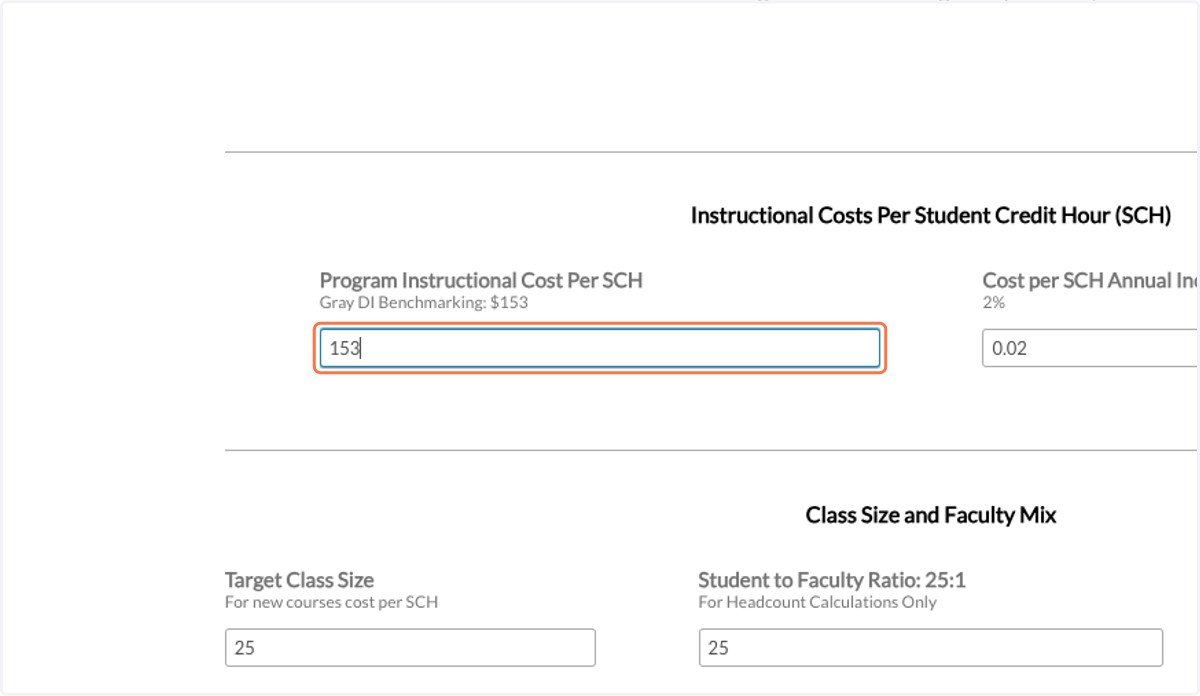
40. Next, enter the target class size, and faculty mix for this program.
The target class size will be used to calculate the instructional cost for new courses.
The student-to-faculty ratio and adjunct share of faculty are used to calculate the faculty FTEs, and not to calculate costs.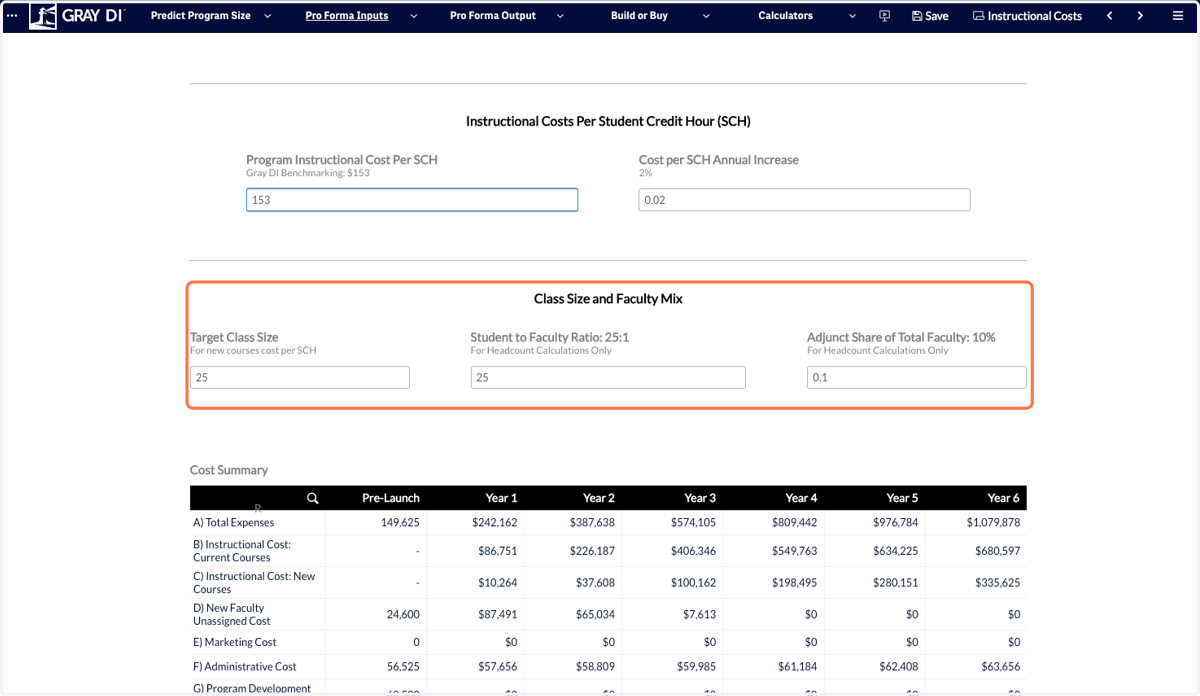
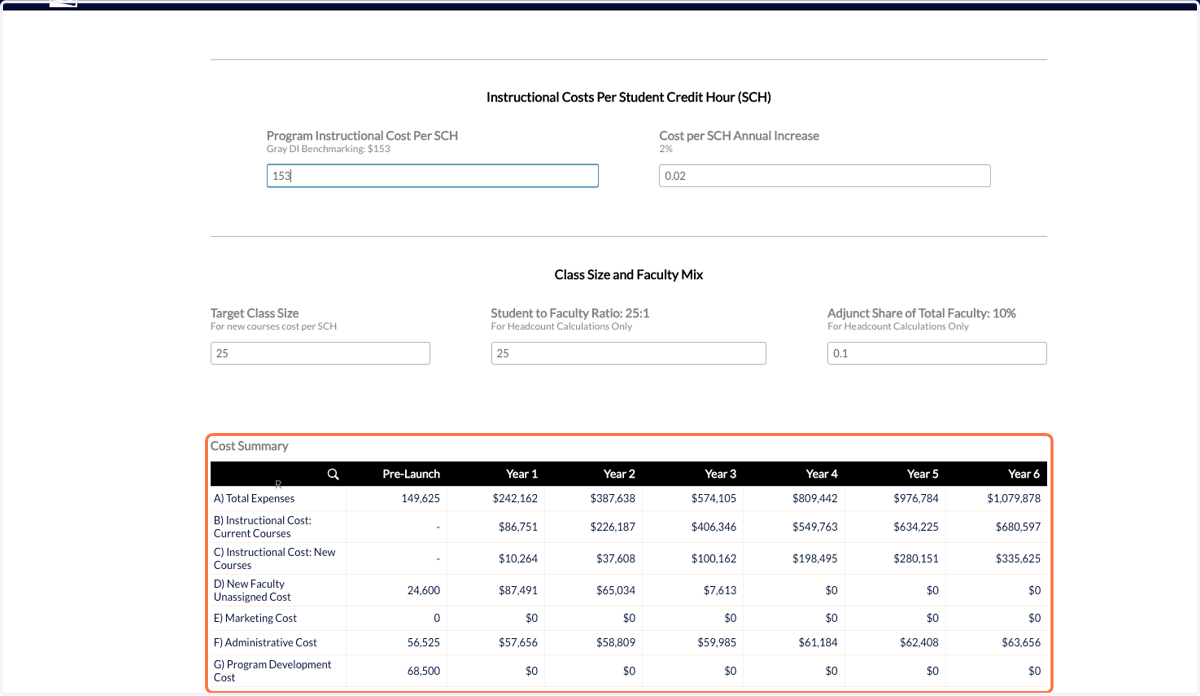
41. At the bottom of the sheet you will see the Cost Summary for this program.
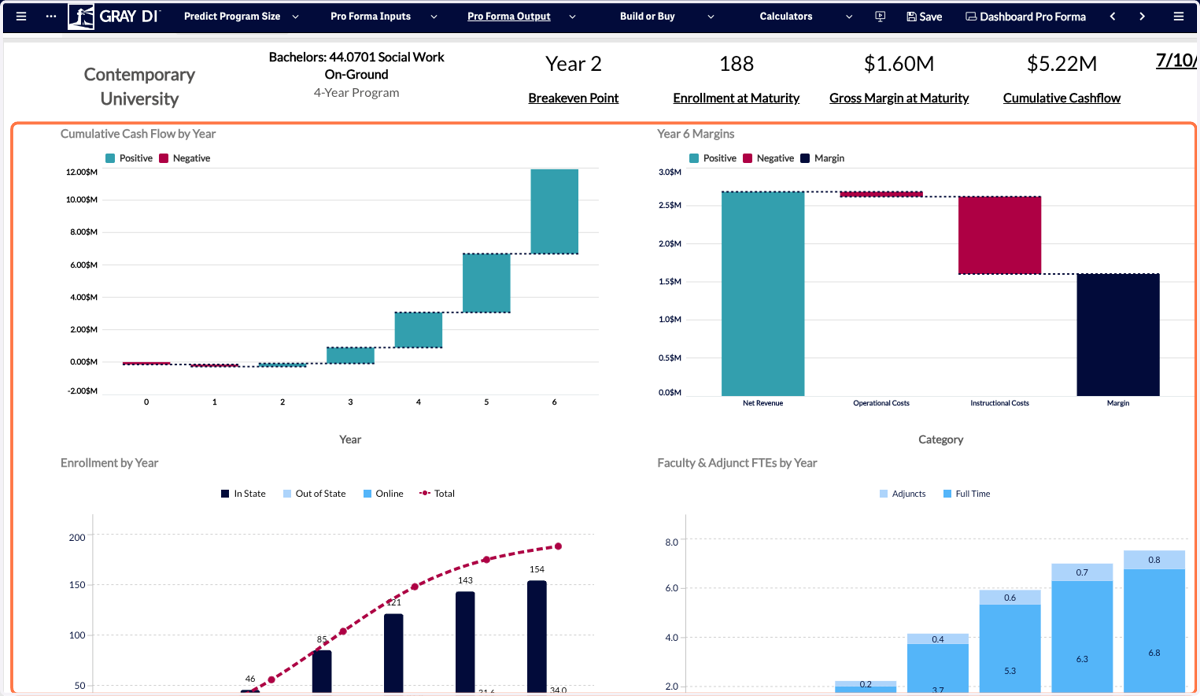
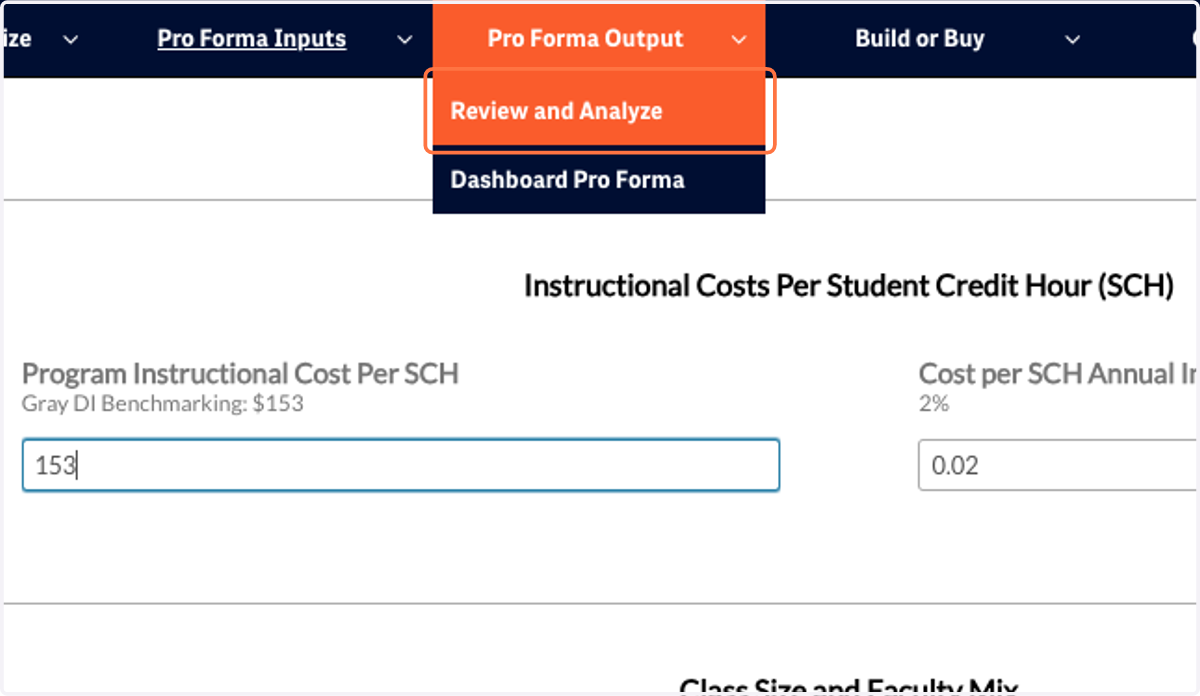
42. Now that you have filled out the Pro Forma inputs, use the dropdown menu to view the output. Start with Review and Analyze.
43. The top of the screen will show some KPIs of the Pro Forma including Breakeven Point, Enrollment at Maturity, and Gross Margin at Maturity.
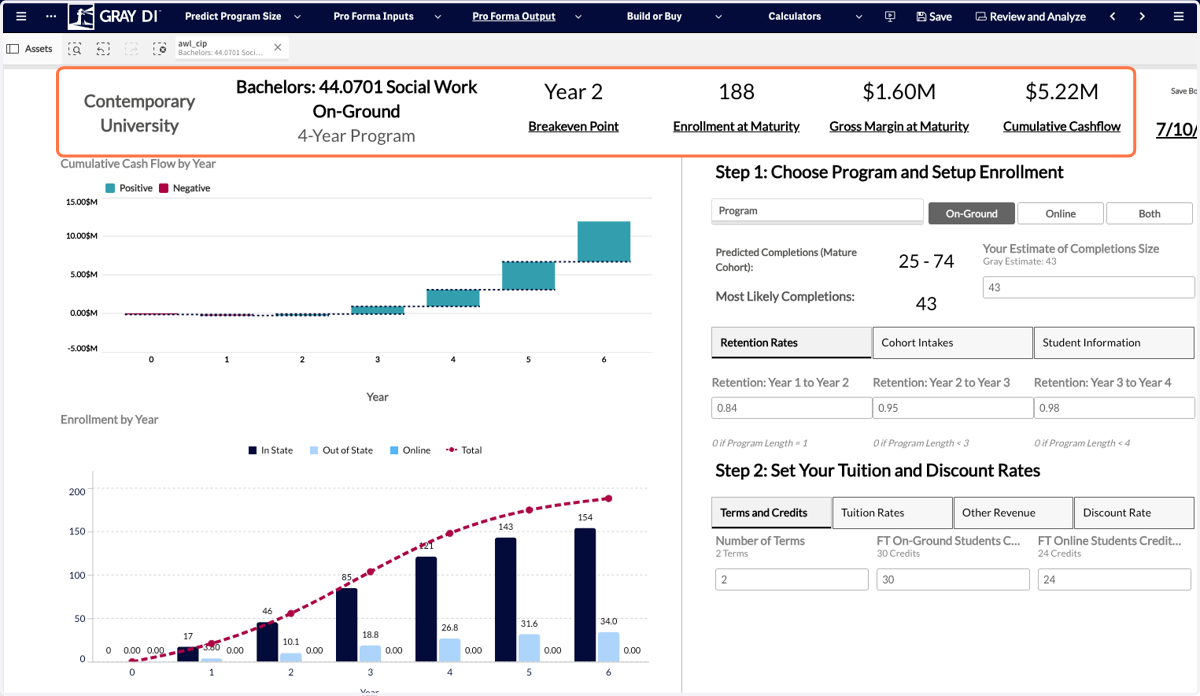
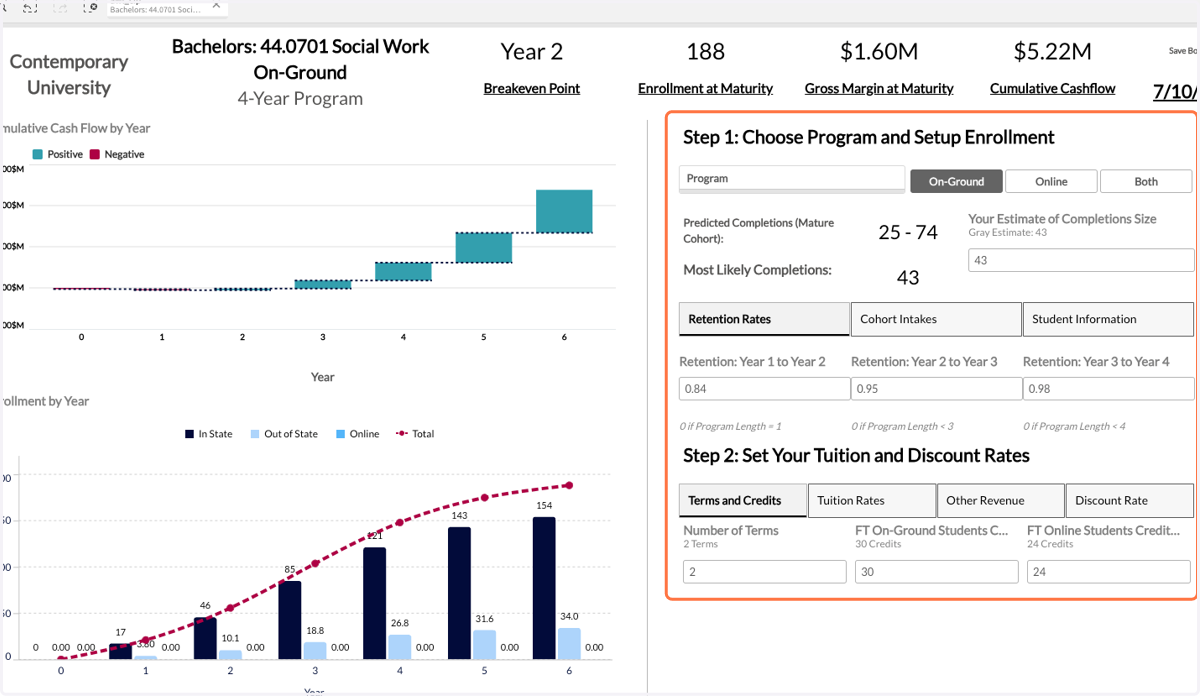
44. The right-hand side of the screen allows you to toggle through the Pro Forma inputs. You can change the inputs to analyze the effects of each variable.
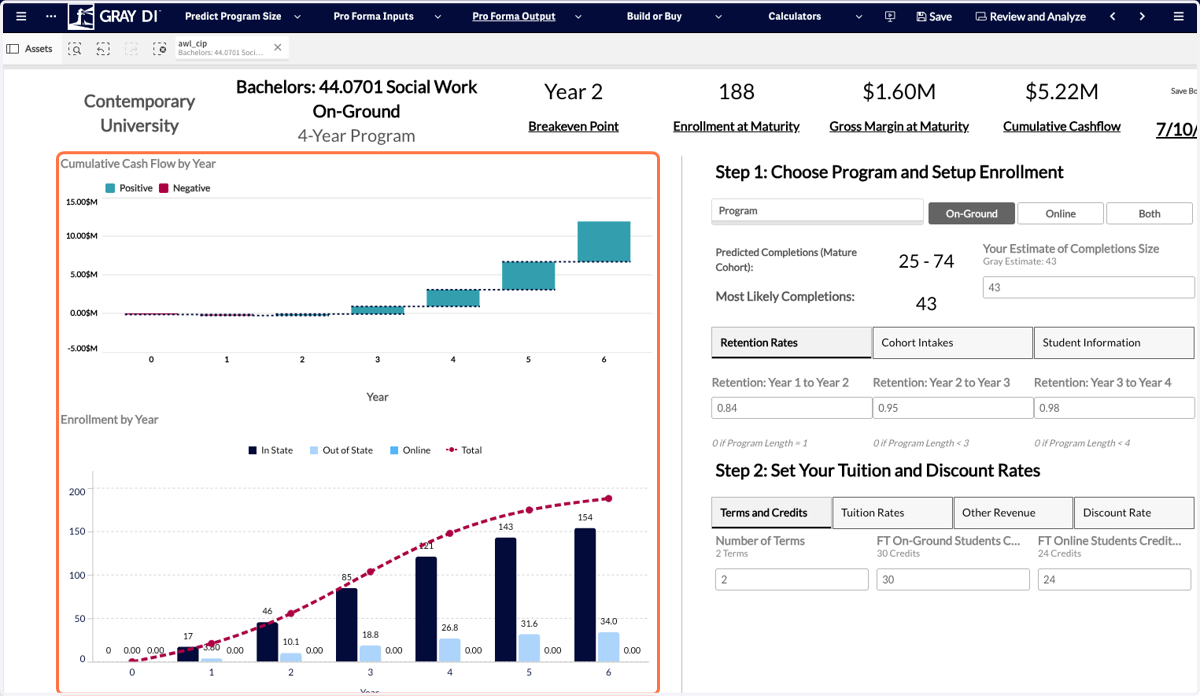
45. The left-hand side of the screen will show you the outputs of your Pro Forma inputs.
46. Lastly, move to the Dashboard Pro Forma.
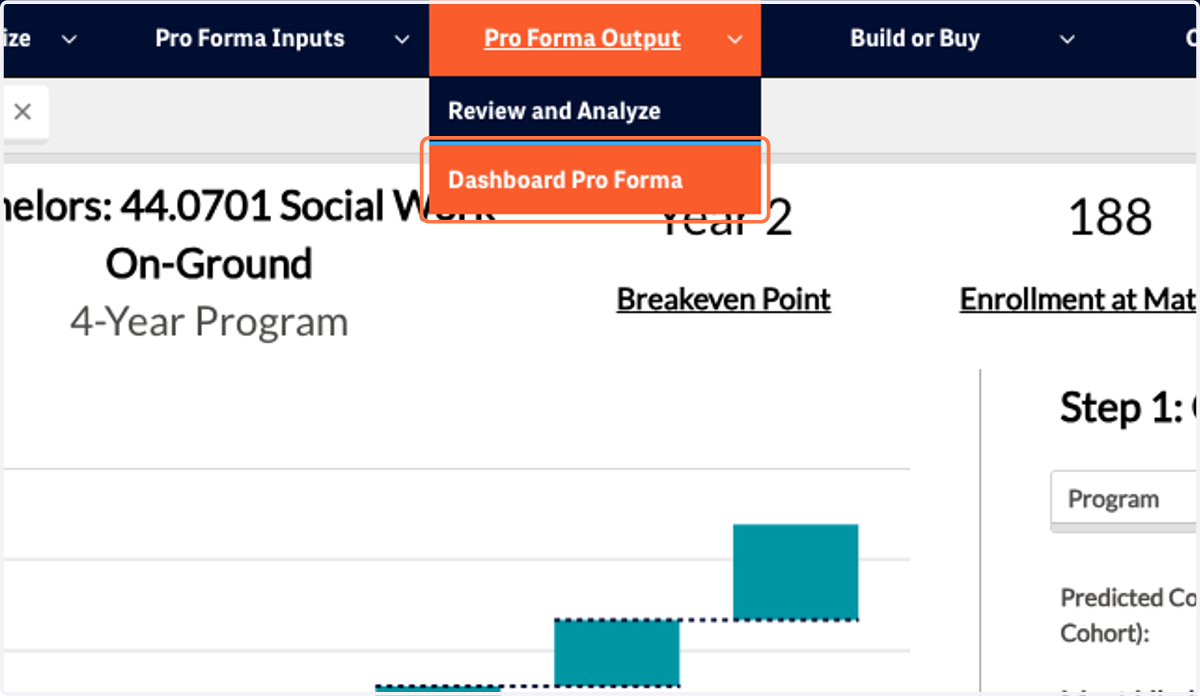
47. This view provides an all-in-one summary of the Pro Forma that you have just built.