B. Add faculty position details and the full DRAFT advertisement in Interfolio
Interfolio
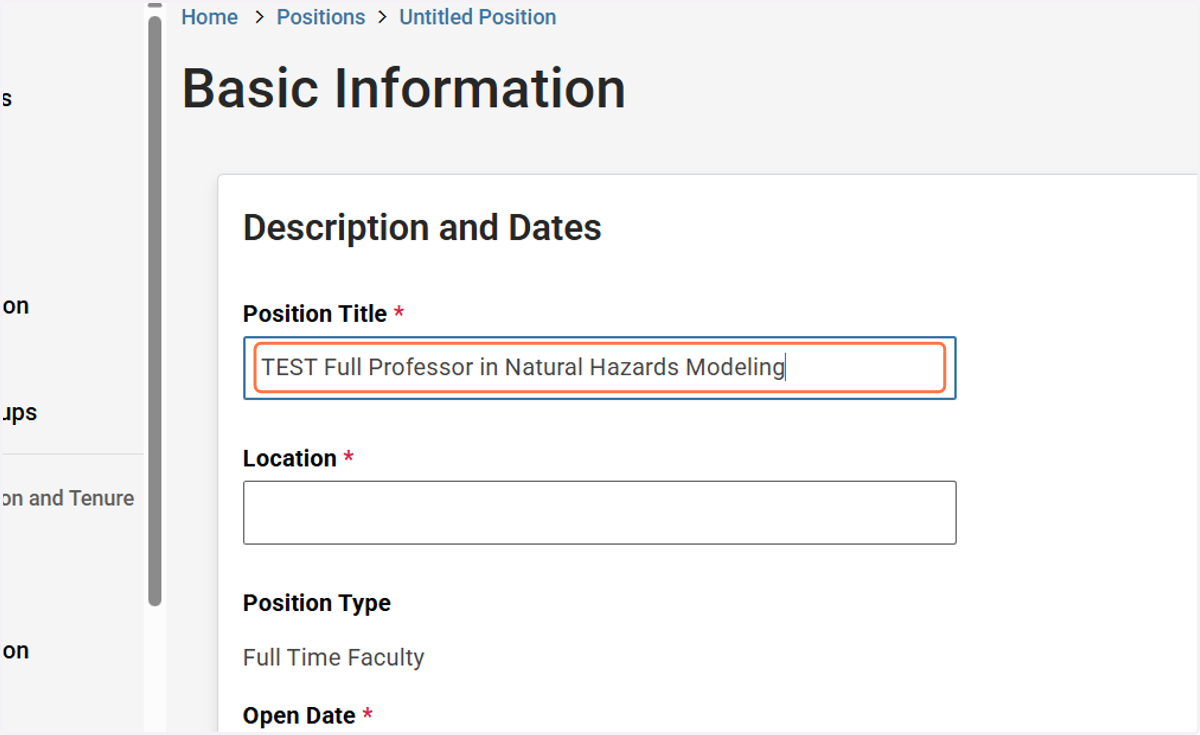
1. Type in the faculty position title
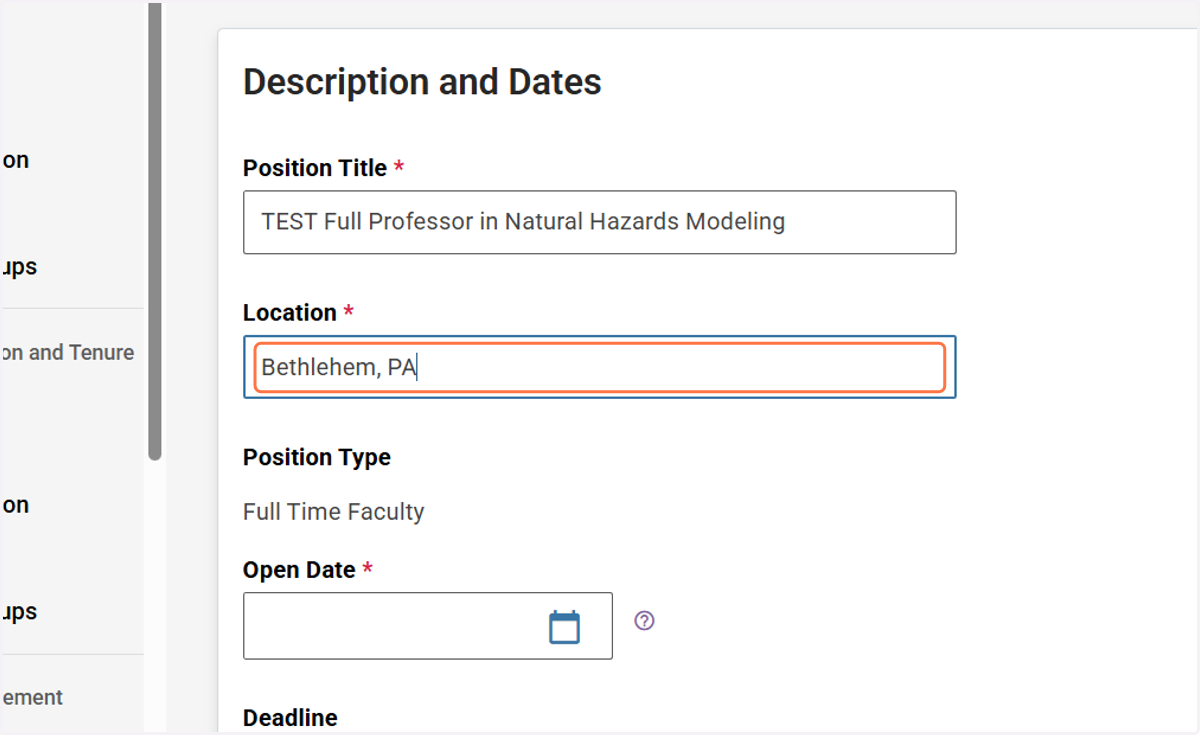
2. Type in "Bethlehem, PA" for all faculty positions
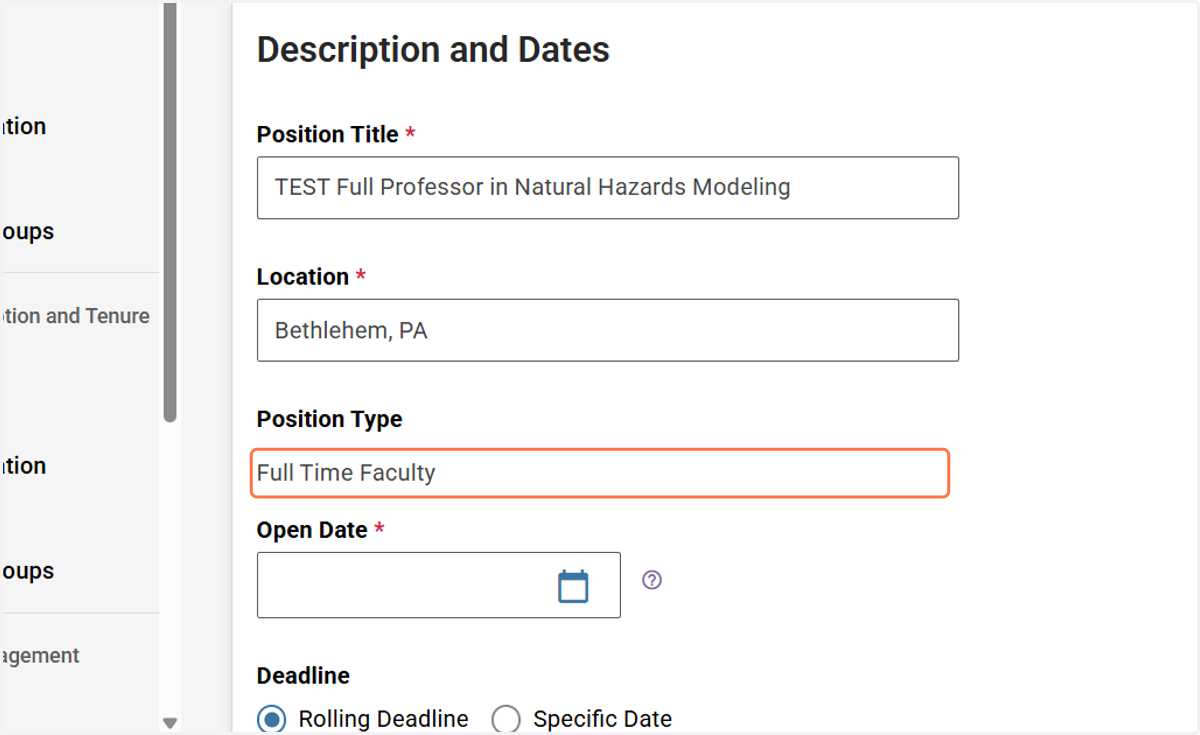
3. Select "Full Time Faculty" for Position Type
Full Time Faculty should be selected for all Provost Approved faculty searches.
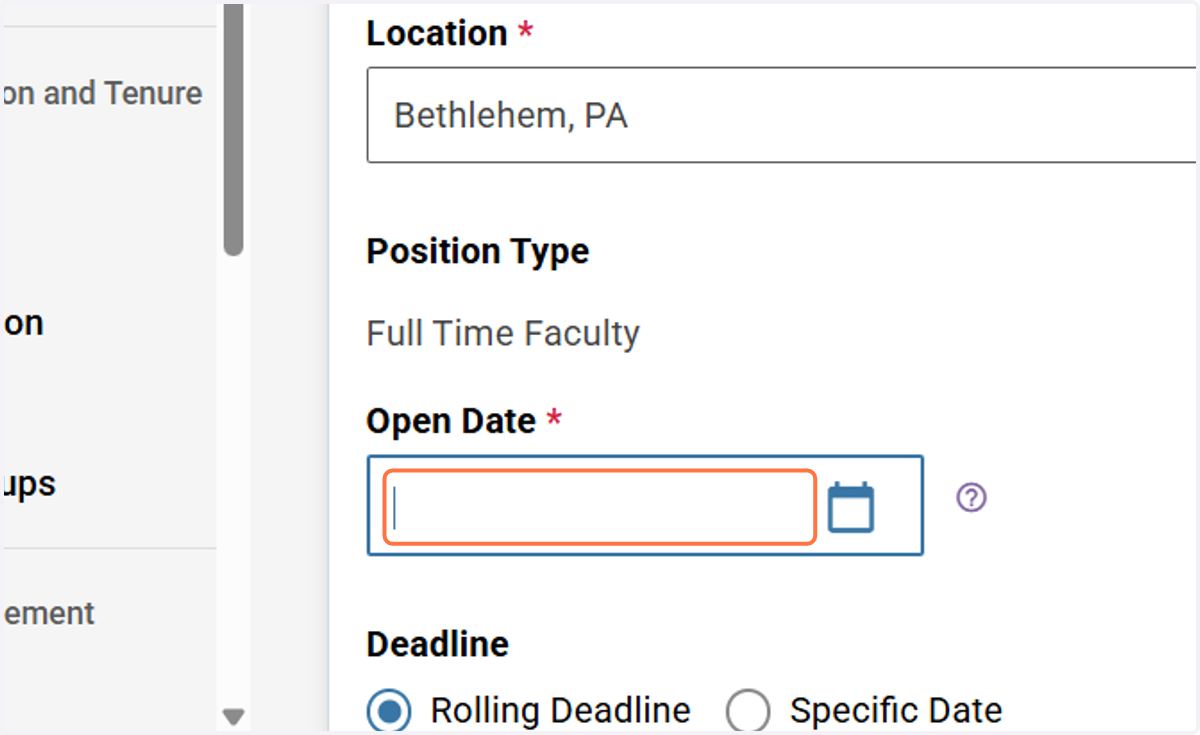
4. Click on "Open Date" and select a date approximately 2 weeks (in the future) from the date of your request.
Open Date is the date the advertisement is scheduled to post, IF the request is approved. Posting will NOT automatically occur until after the request is approved at the Provost level. If the Provost approves the position before the scheduled open date, you can go into the request and select an earlier time by changing the open date. The two week window is allowing time for all approvers to review the information, although we do not expect the approval process to take this long.
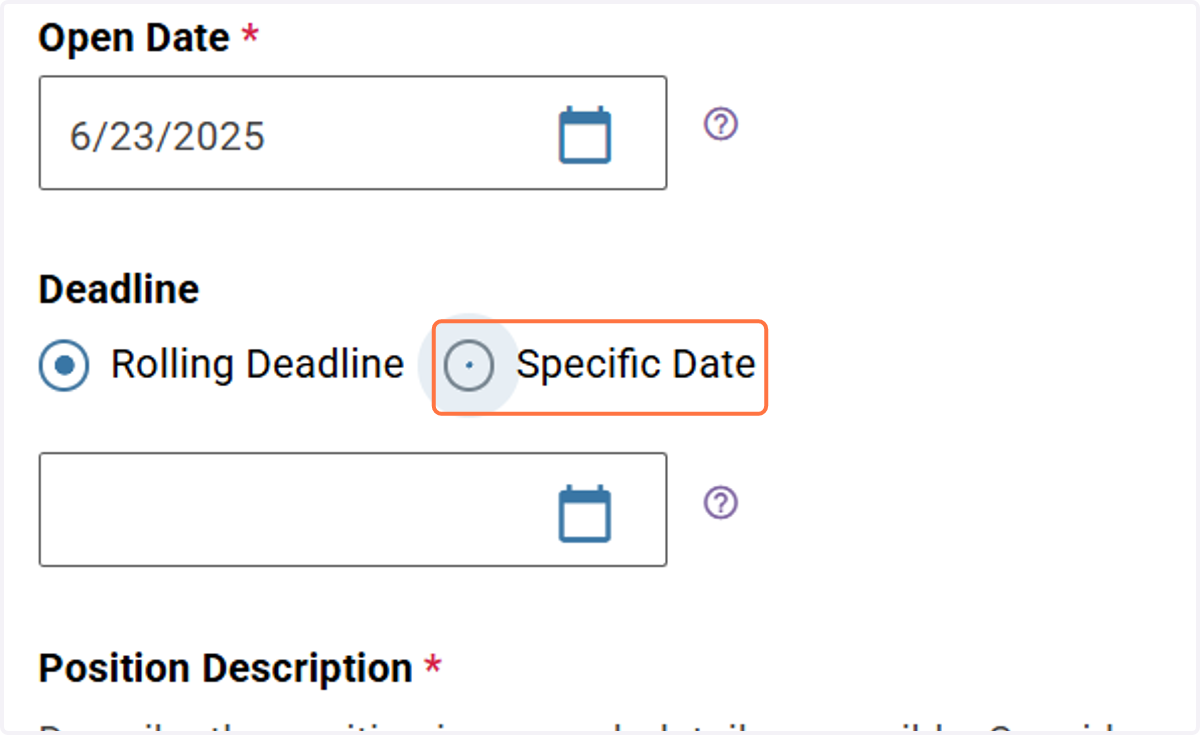
5. Depending on the preference of your Search Chair, please choose "Rolling Deadline" if an application deadline is not specified in your advertisement. If your advertisement specifies a specific deadline for application completion, please choose and enter "Specific Date".
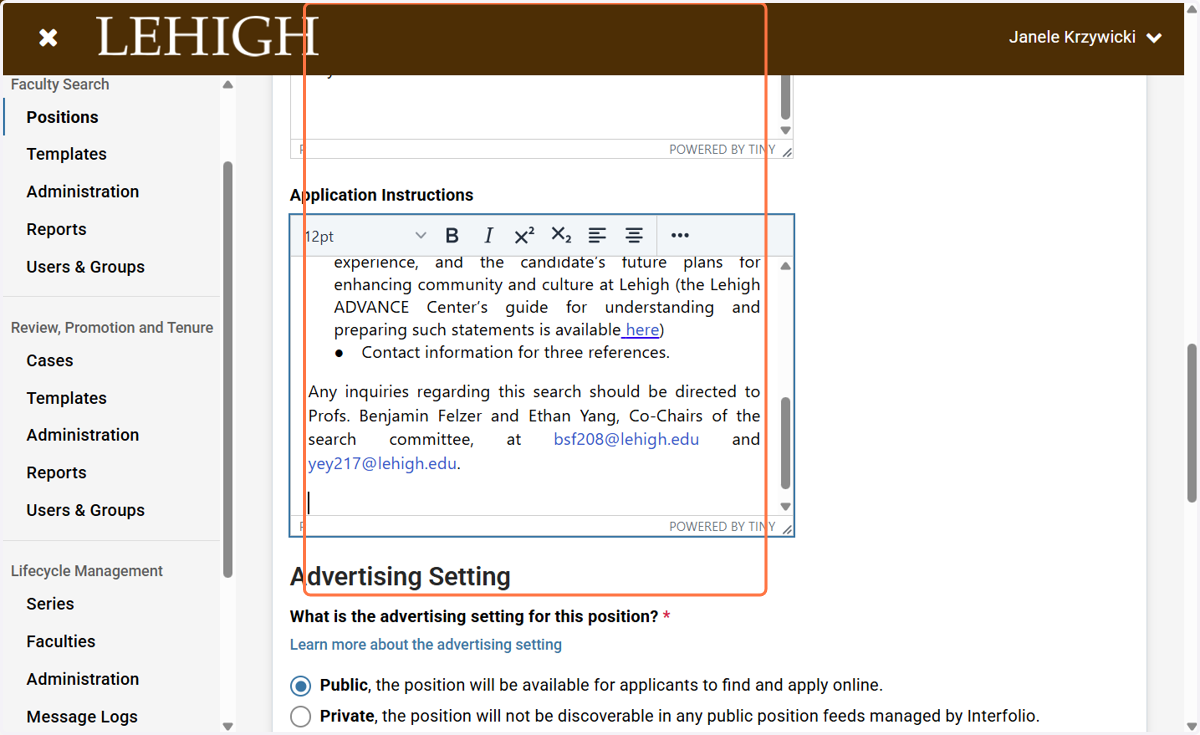
6. Next you will copy and paste your full advertisement into three categories "Position Description", "Qualification", and "Application Instructions"
The Job Ad Template on the Provost's website is color-coded to help divide the language into the three sections.
7. Leave the Advertising Setting defaulted to "Public" so that applicants can find and apply to your position online.
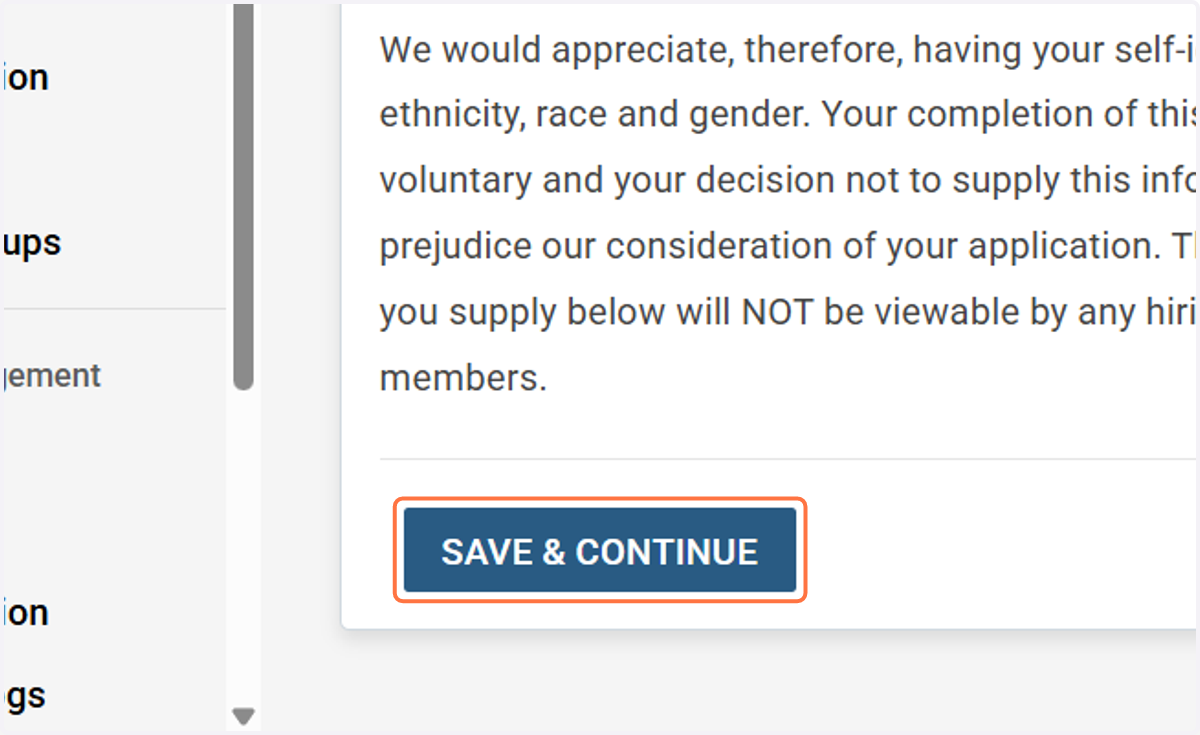
8. Click on SAVE & CONTINUE