Delete a page
This tutorial will show you how to delete a page from your website. You can move through the tutorial at your own pace using the NEXT button below.
Gpsurgery
1. Ensure that you are logged into your website. The black admin toolbar should be visible at the top of the screen.
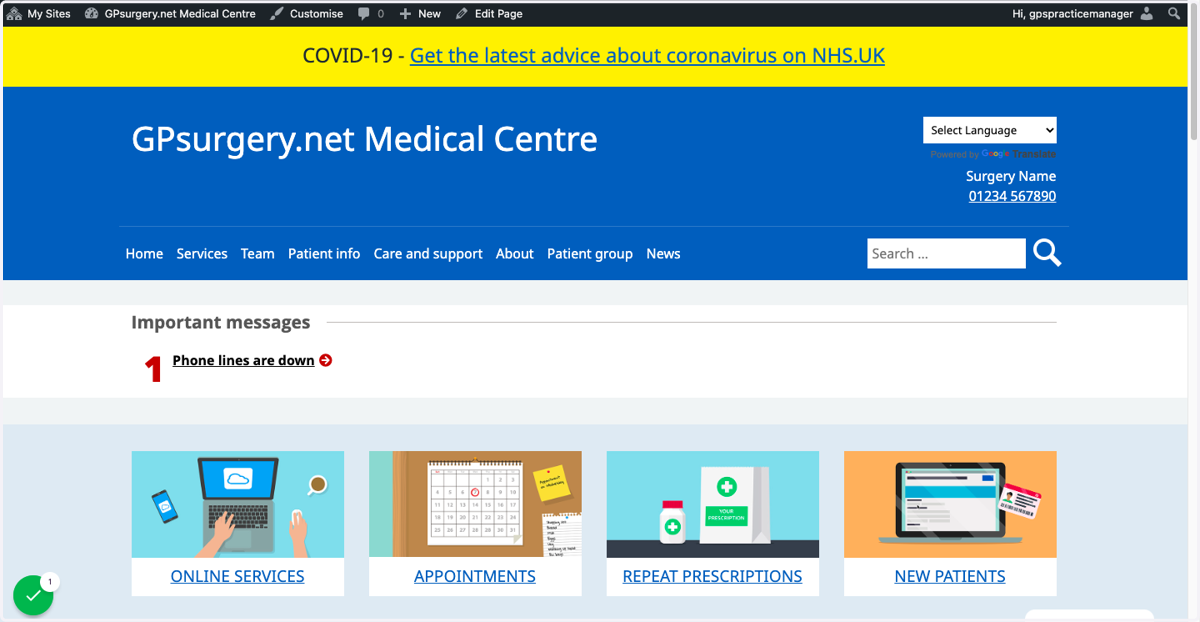
2. Go to the page that you would like to delete.
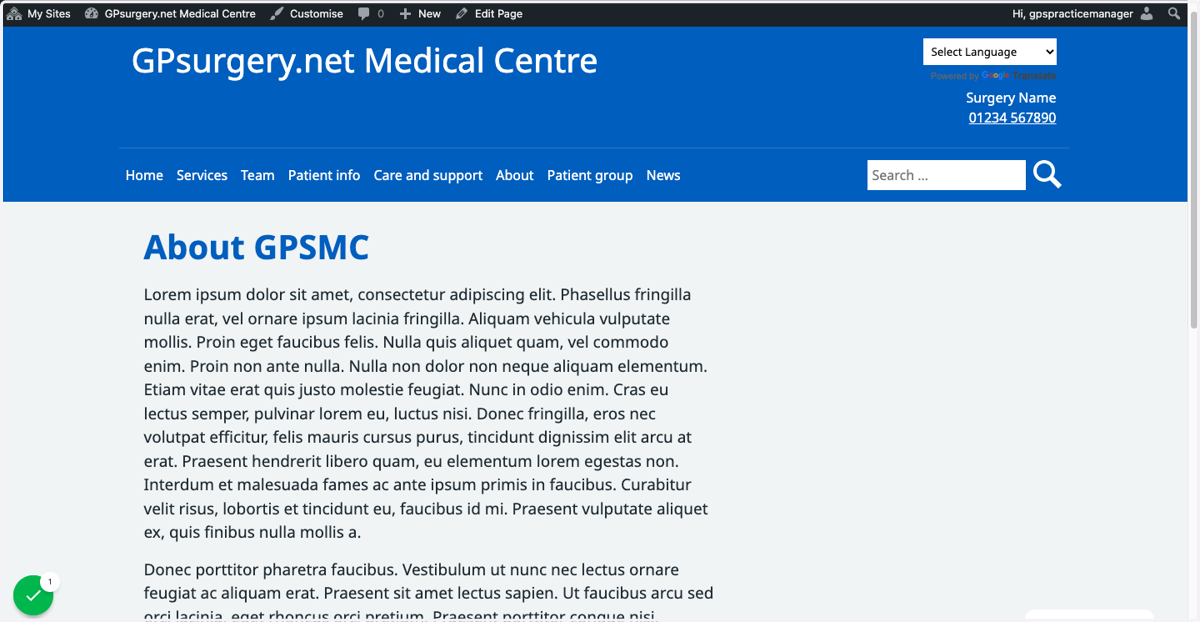
Gpsurgery
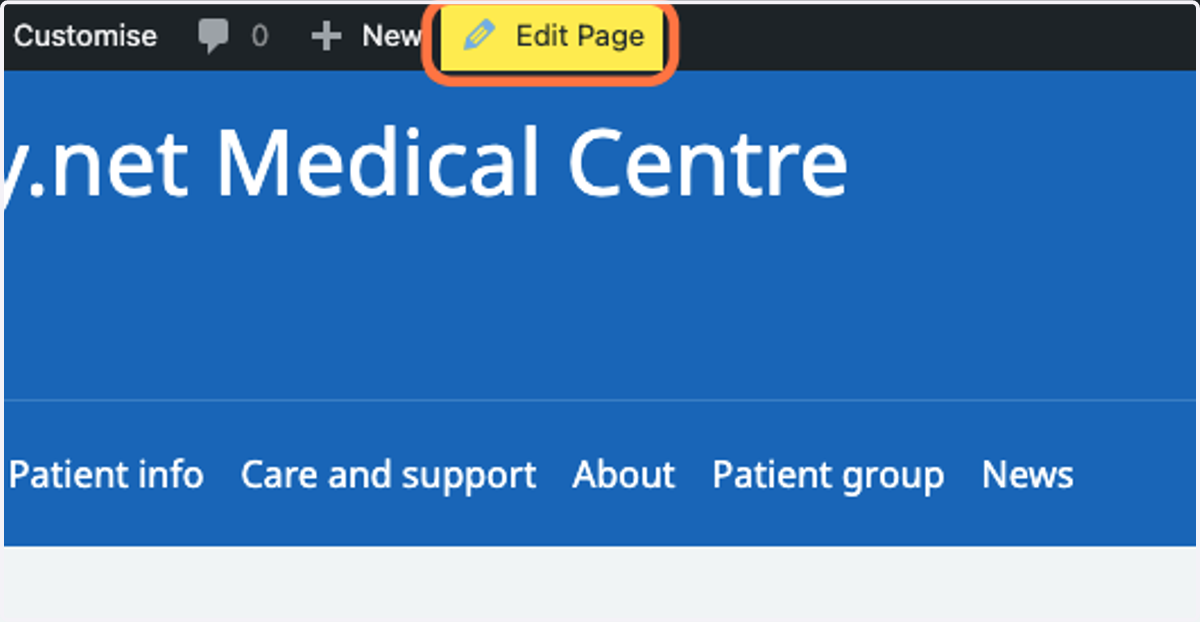
3. Click Edit Page in the admin toolbar. This will take you to the page editor.
4. In the Publish box on the right-hand side of the screen, click the Move to Bin link.
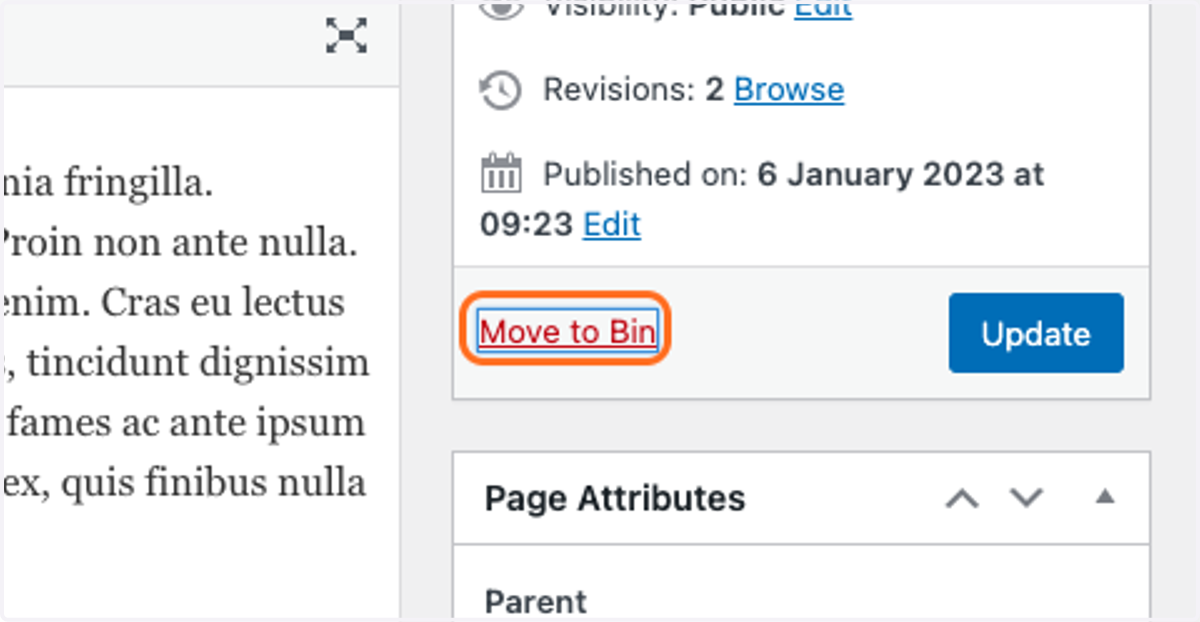
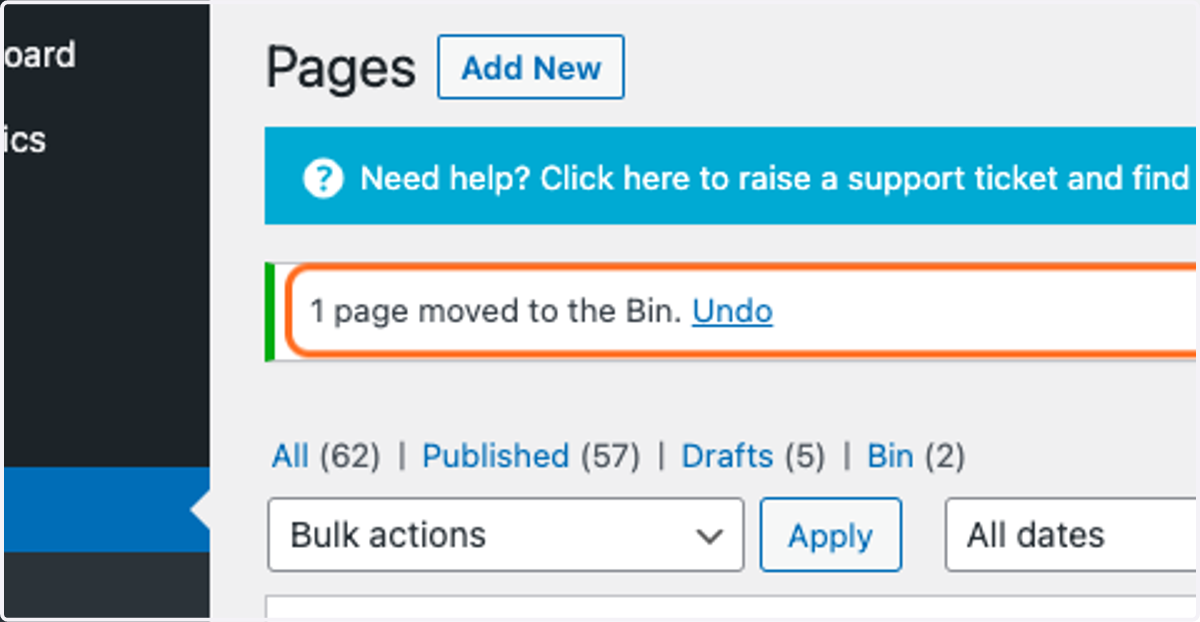
5. Your page is now in the Bin, and will not appear on the site.
If you have moved the wrong page, you can undo this by clicking the Undo link that appears immediately after you move a page to the bin.
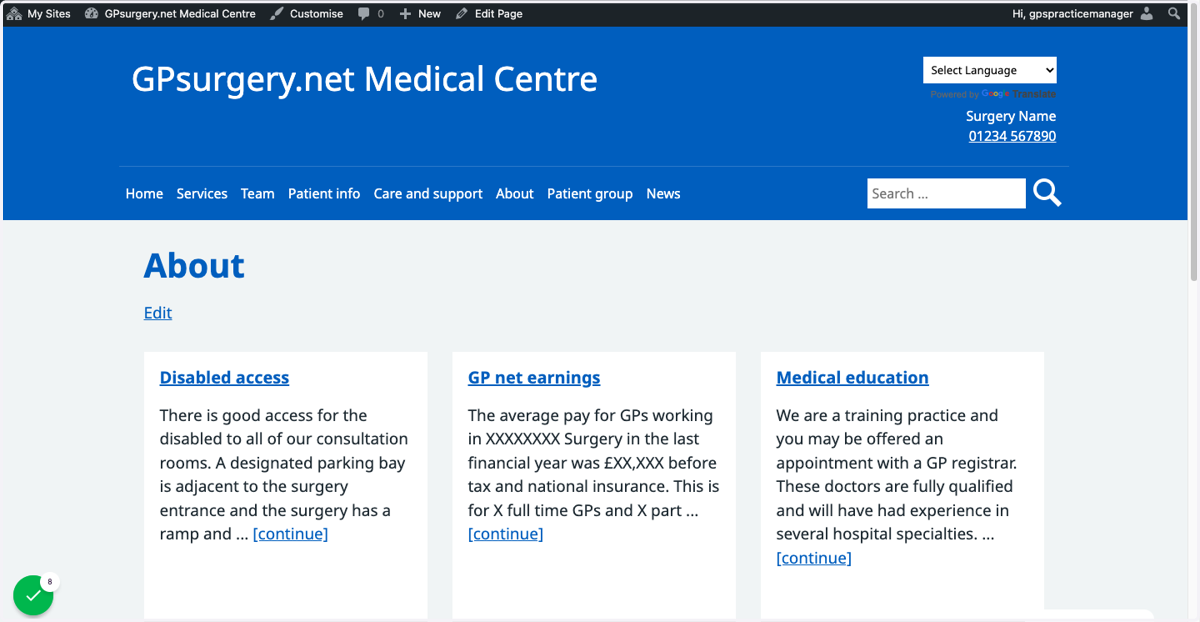
6. The page will also have disappeared from its Parent page.
7. Final thoughts: deleting Parents pages.
If you delete a Parent page from your website, your patients will not be able to access any of the pages which were set as Child pages to that page. If you do need to delete a Parent page, ensure that you change the Parent of all the Child pages to which it is attached.