TrustHQ - Creating a Loyalty Campaign
Log In to TrustHQ on ResellerRatings
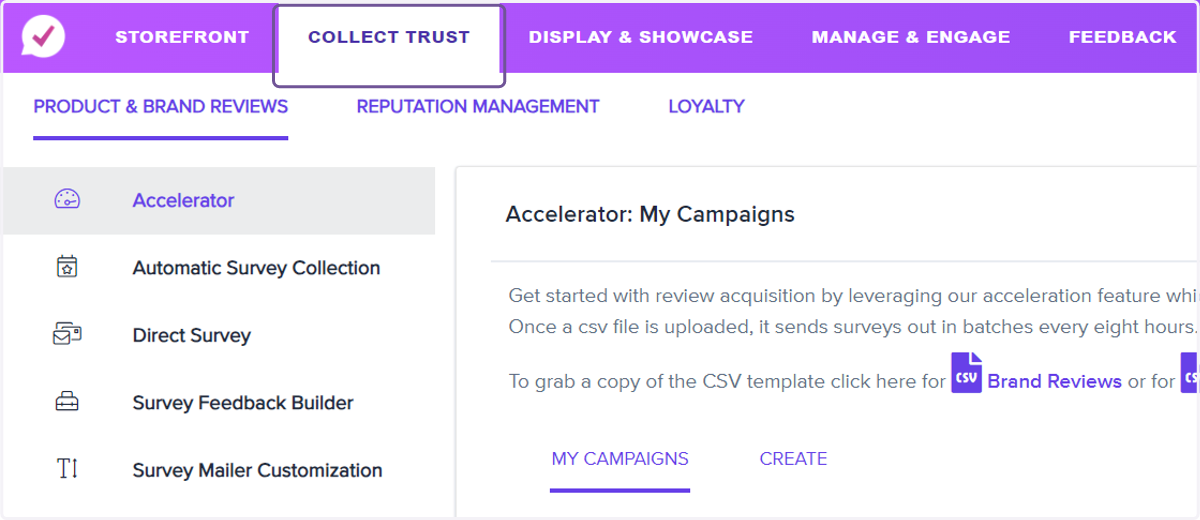
1. Click on Collect Trust
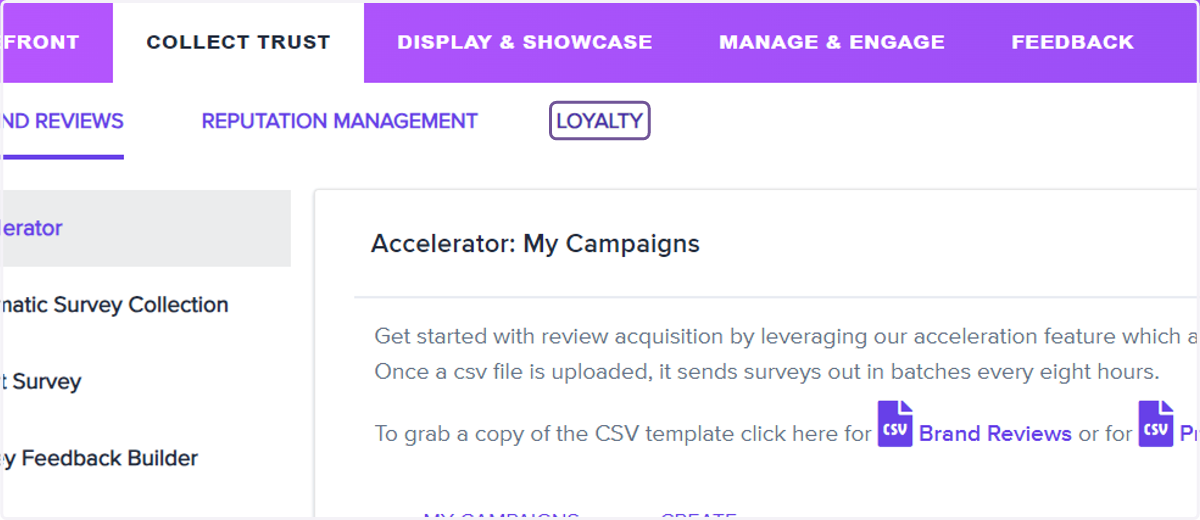
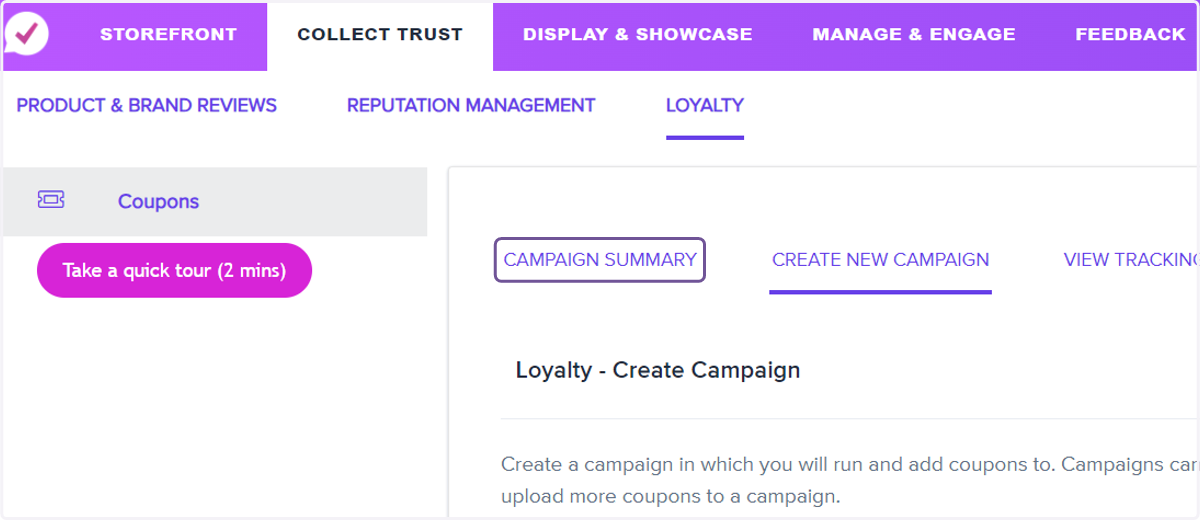
2. Click on LOYALTY
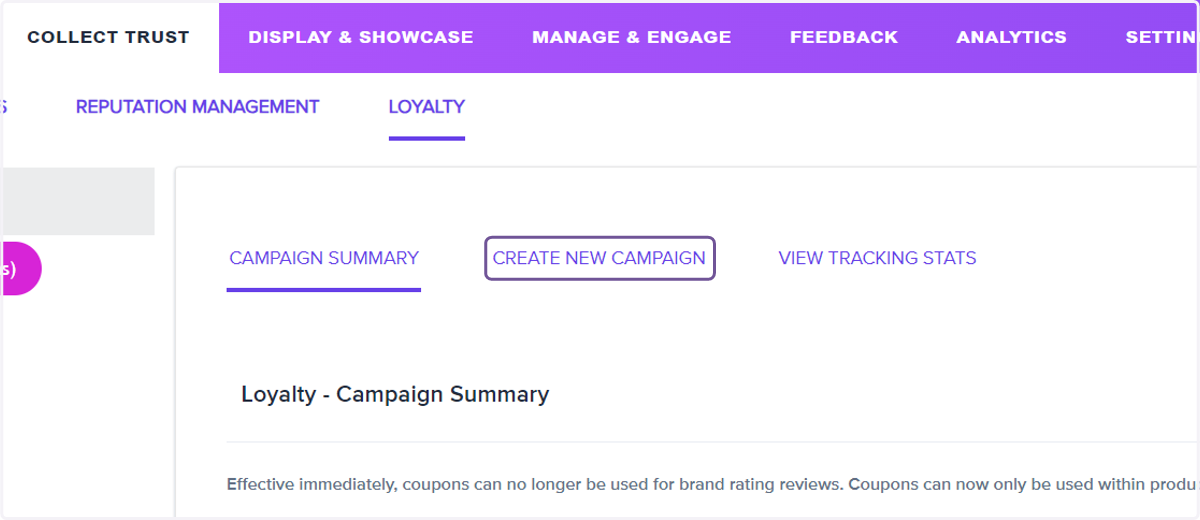
3. Click on CREATE NEW CAMPAIGN
4. Click on Campaign Title
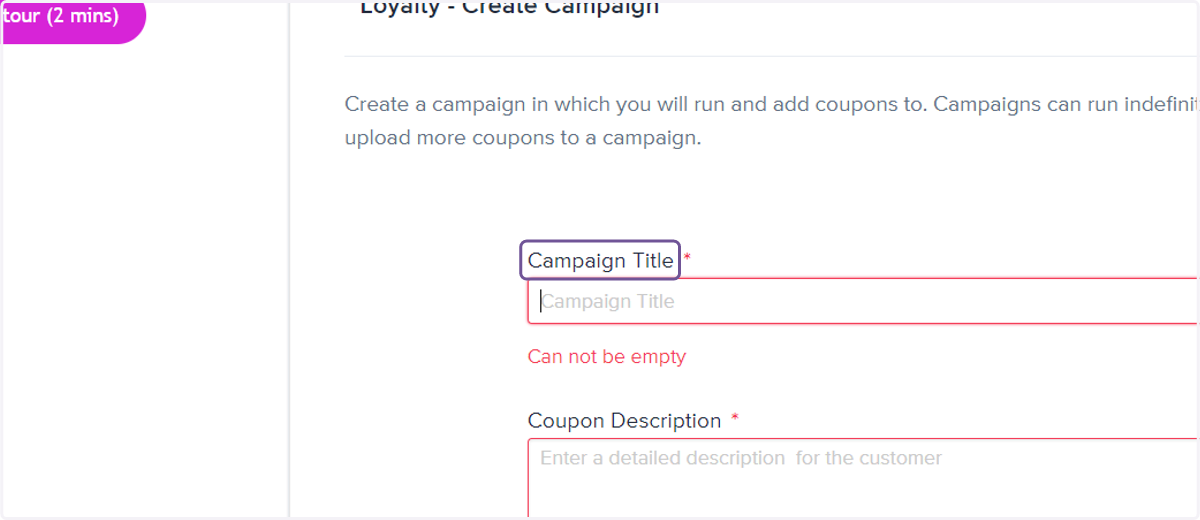
5. Give your Loyalty Campaign a Title
6. Click on Coupon Description
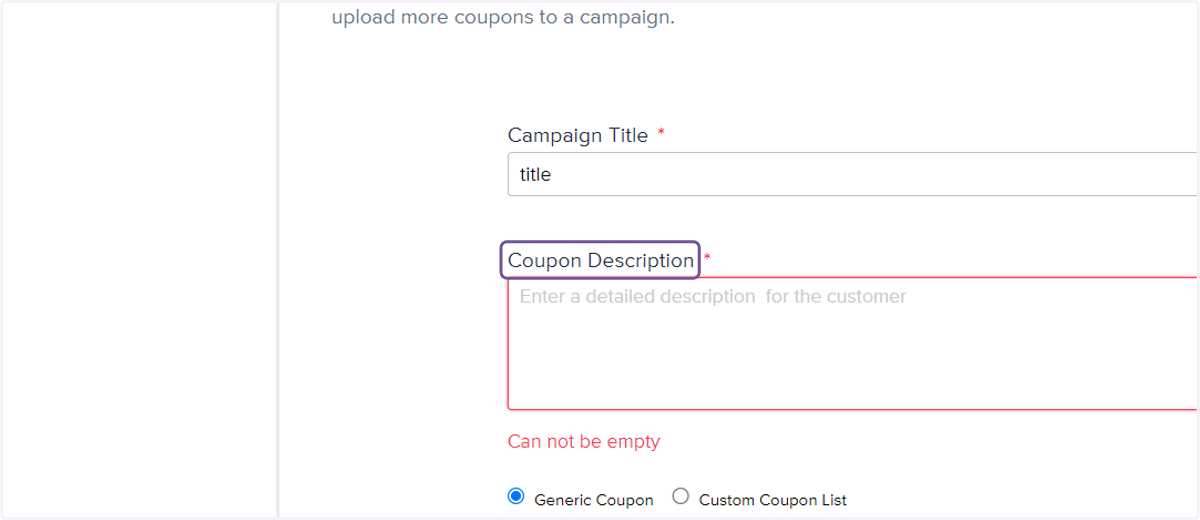
7. Give your Loyalty Campaign a Description
8. Select Custom Coupon List
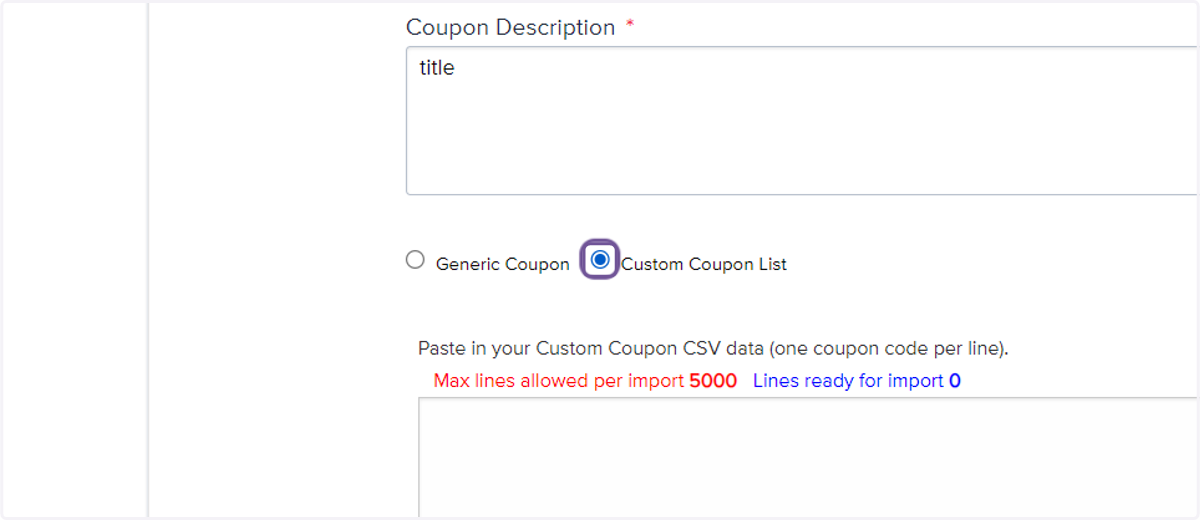
9. Custom Coupon List
You have the ability to upload a .CSV of unique coupon codes that will be served to customers who leave a review until the list has been depleted.
10. Select Generic Coupon
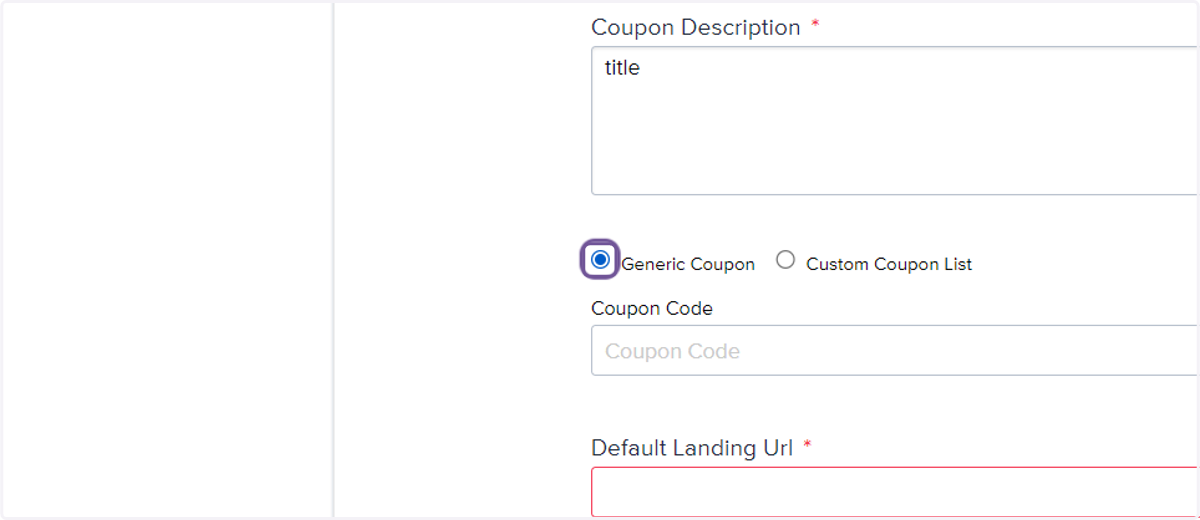
11. Generic Coupon Code
With the Generic Coupon Code, you can use a static code for every customer who leaves you a review. Codes such as "Review20" are a great starting point.
12. Click on Default Landing Url
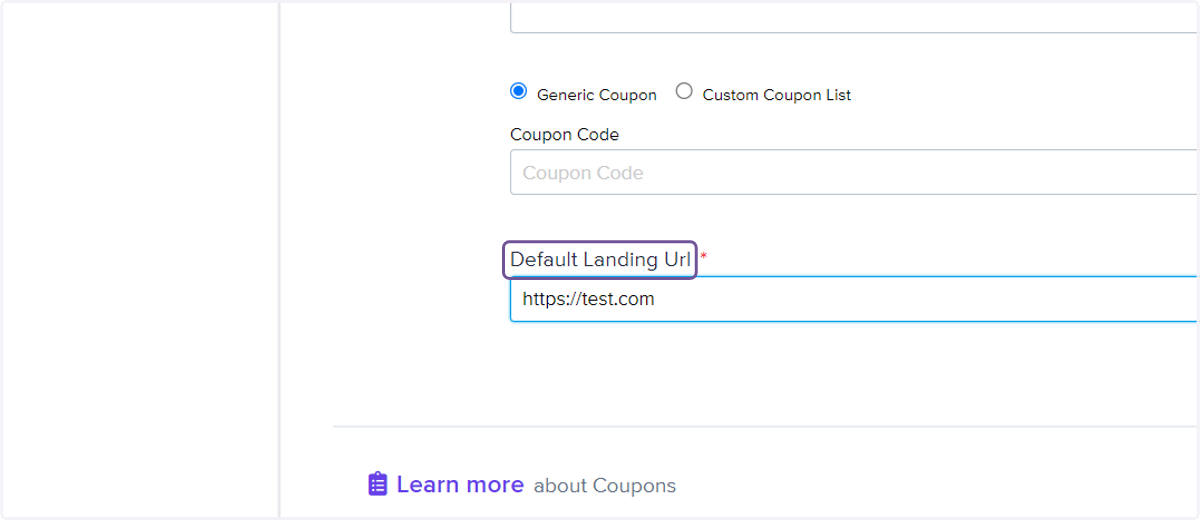
13. Default Landing URL
Here you will put in the landing page URL you want reviewers to land after they submit their review and claim their coupon code.
14. Click on Create Campaign
15. Click on CAMPAIGN SUMMARY
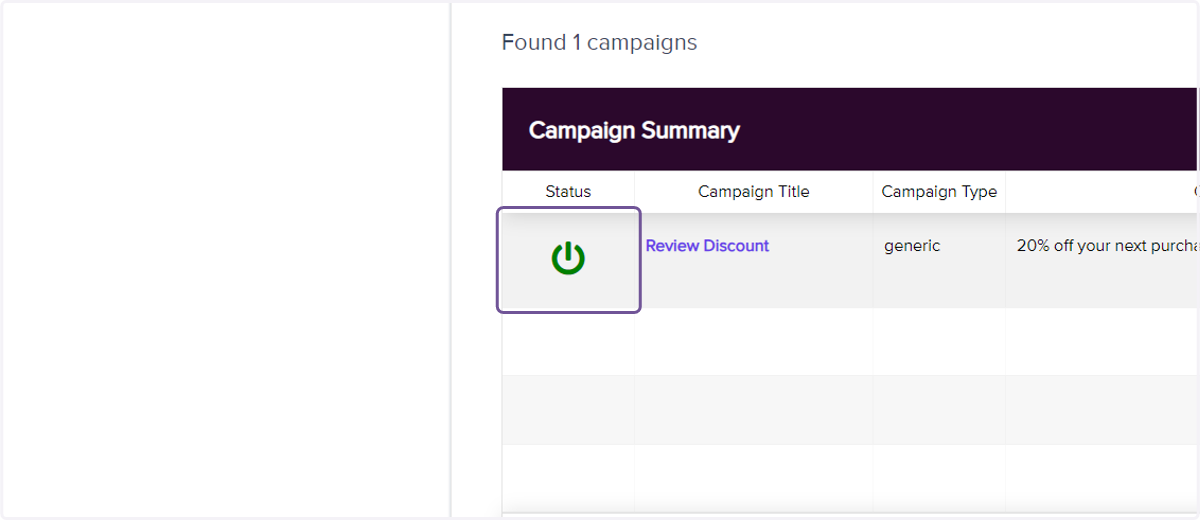
16. Click on the Power Button under Status to activate your loyalty campaign.