Configuring Connect: CERM
Here, we will learn how to configure the Connect: CERM integration, focusing primarily on it's Connect Settings screen.
This screen allows you to define the majority of the critical settings for setting up this integration, however we will also briefly discuss peripheral areas of Infigo which may need to be set up in tandem.
1. Navigate to Connect Settings
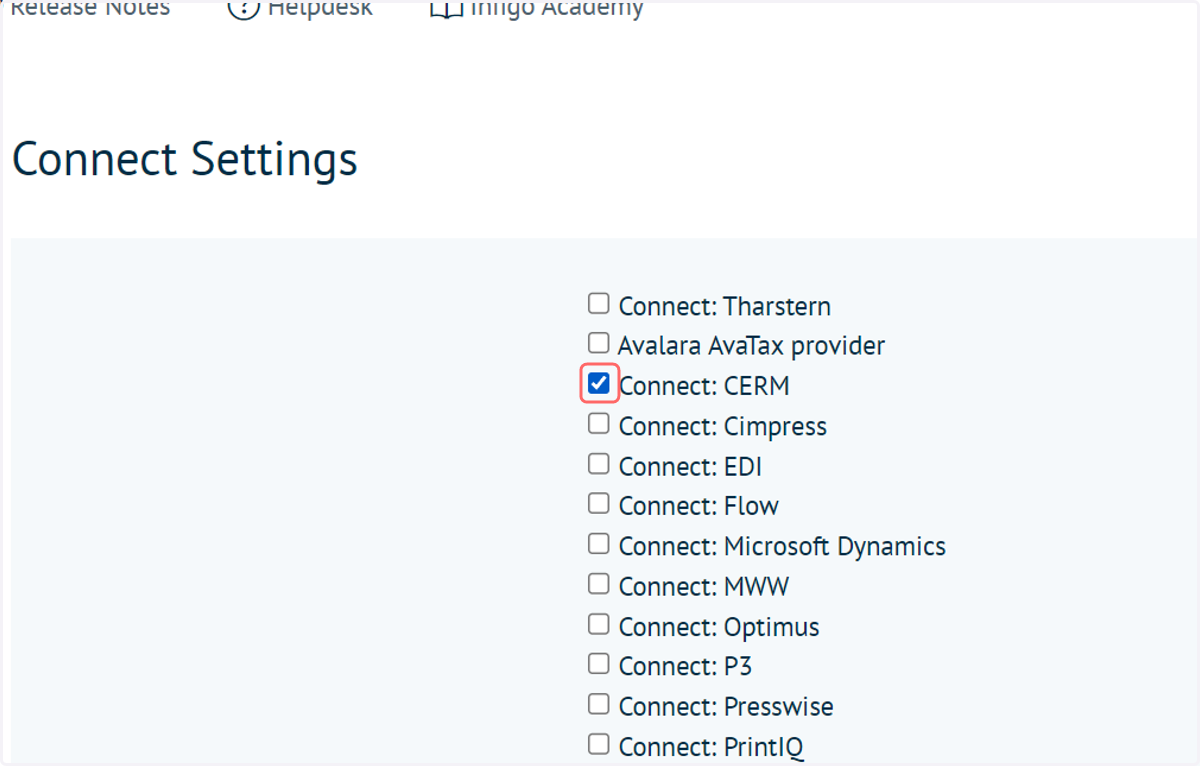
To begin, we must activate the Connect: CERM integration plugin.
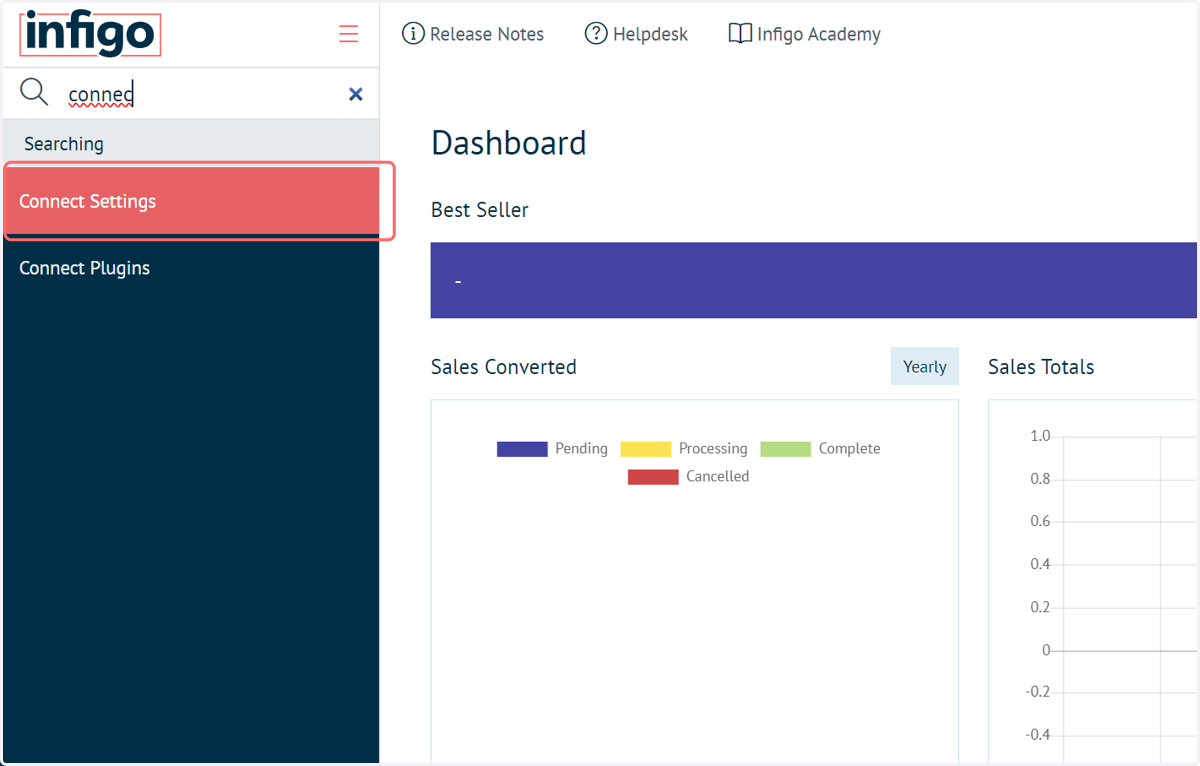
2. Check Connect: CERM
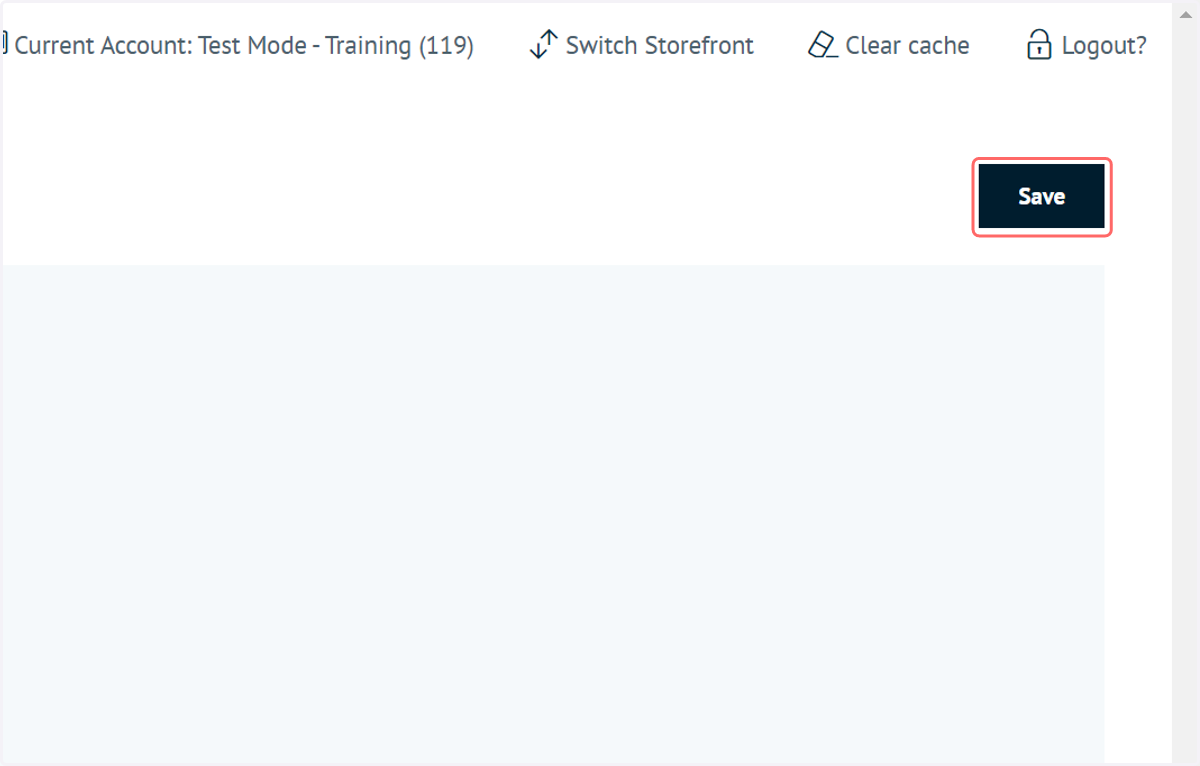
3. Click on Save
4. Click on Connect: CERM from Connect Plugin to Handle Price
This setting ensures CERM will be utilised for pricing displayed within the storefront
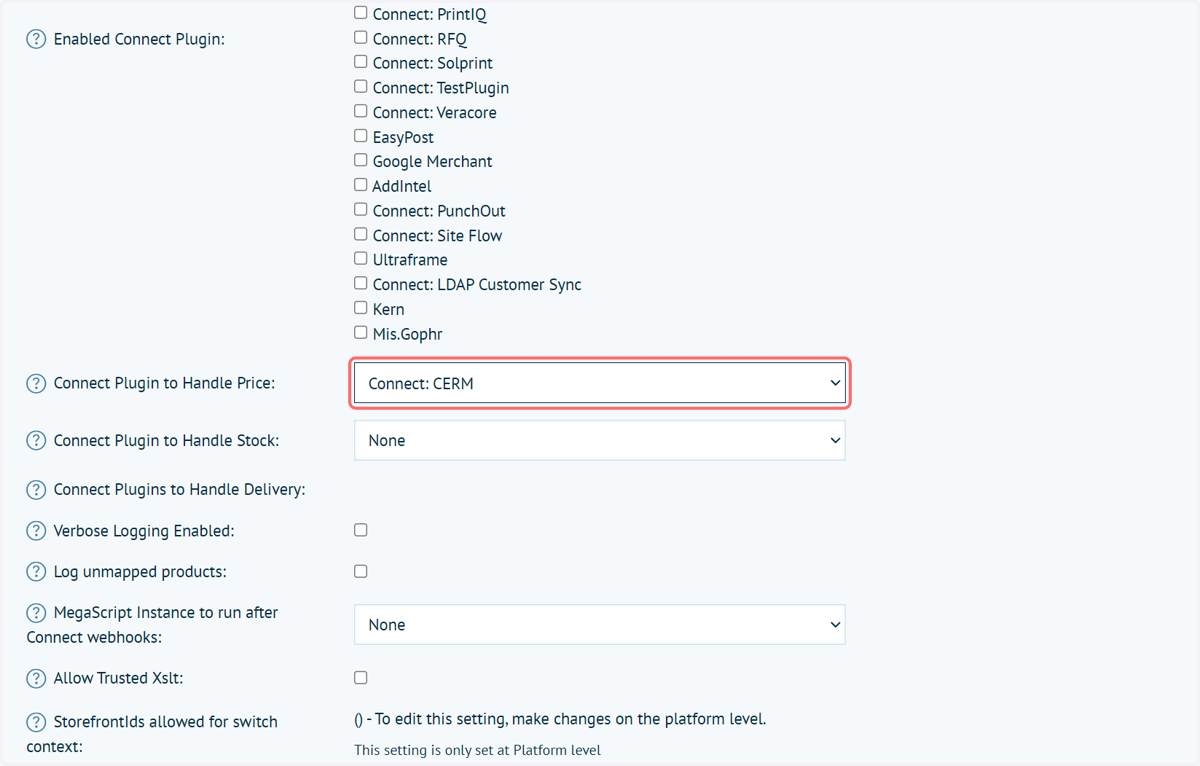
5. Click on Save
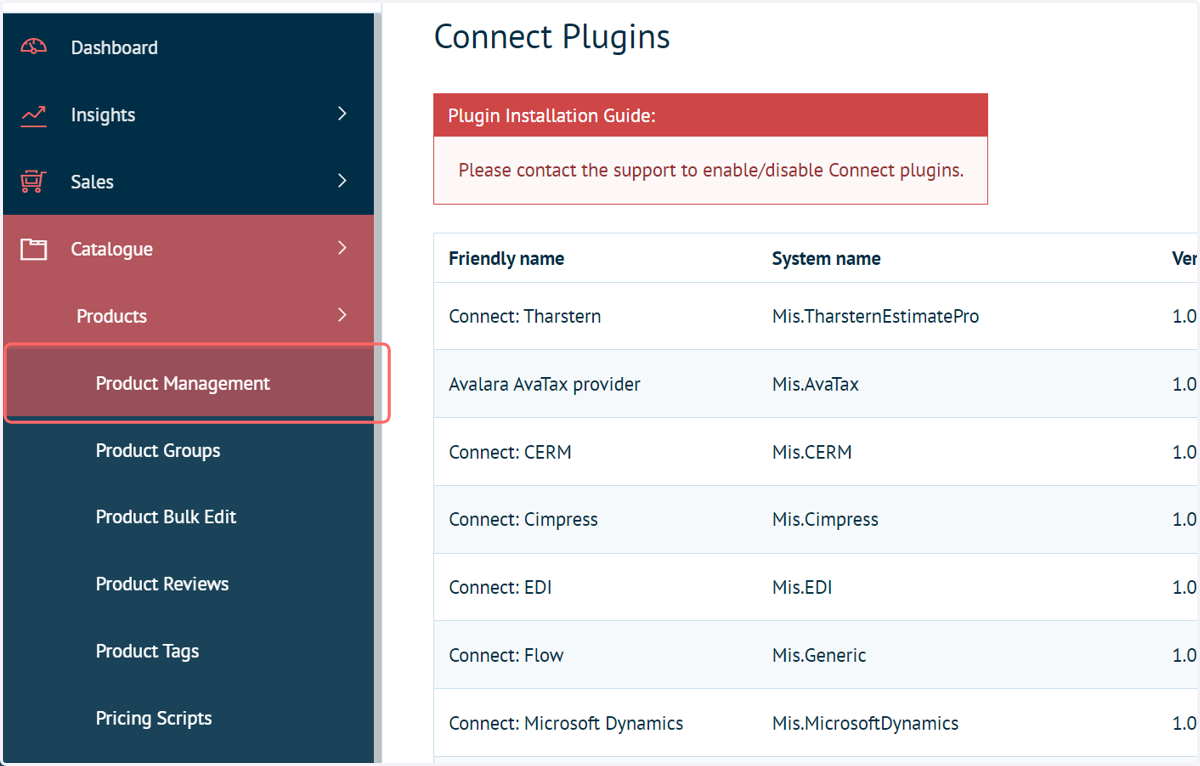
6. Navigate to Product Management
Next, we must ensure that we have two required template products available.
Generally, these will be automatically created during the configuration of your platform, however if they are not present can be easily created.
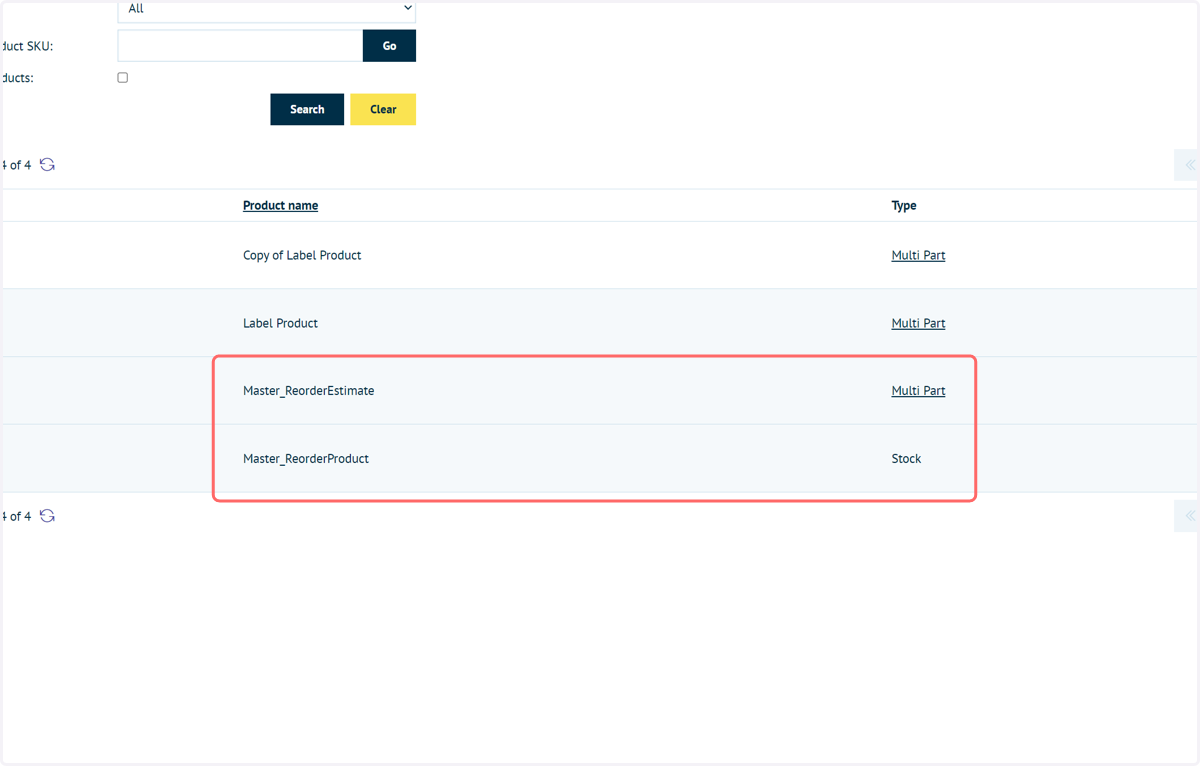
7. Check for or create two template products
The CERM integration requires two (Infigo) products with the naming prefix "Master_".
These are utilised during the reordering process of (CERM) estimates or (CERM) products, where the CERM system may not have an (Infigo) product to reference.
You should see / create two (Infigo) products. The names of both (Infigo) products should start with "Master_", anything after this is personal preference.
One of these (Infigo) products should be a Stock type. Discussed in more detail in later tutorials, this will be used when reordering (CERM) products , as there will be no dynamic elements and new artwork will not require submitting.
The other "Master_" (Infigo) product should be a Multi Part product. This will be used when reordering from (CERM) estimates, as, although most of the specification will remain the same, we are able to upload a new artwork.
8. Navigate to Connect Plugins
Next, we will begin to configure the Connect: CERM integration
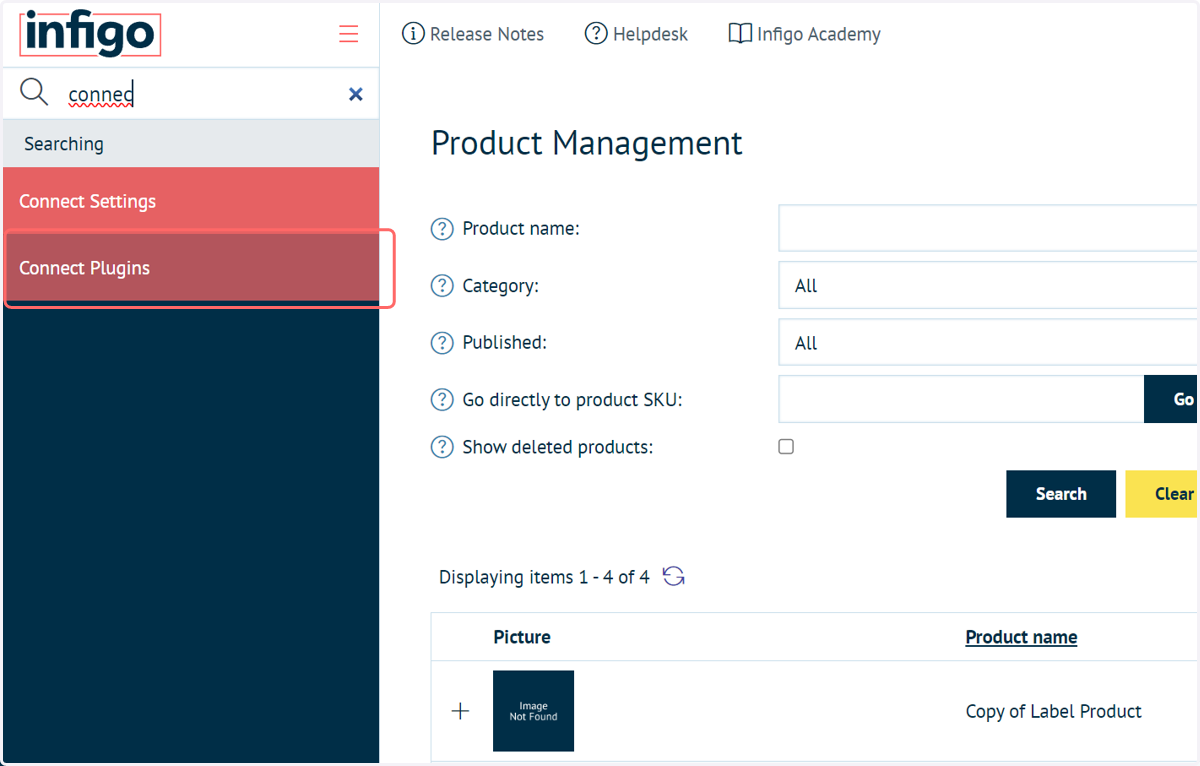
9. Click on Configure on the Mis.CERM row
This will launch the configuration page.
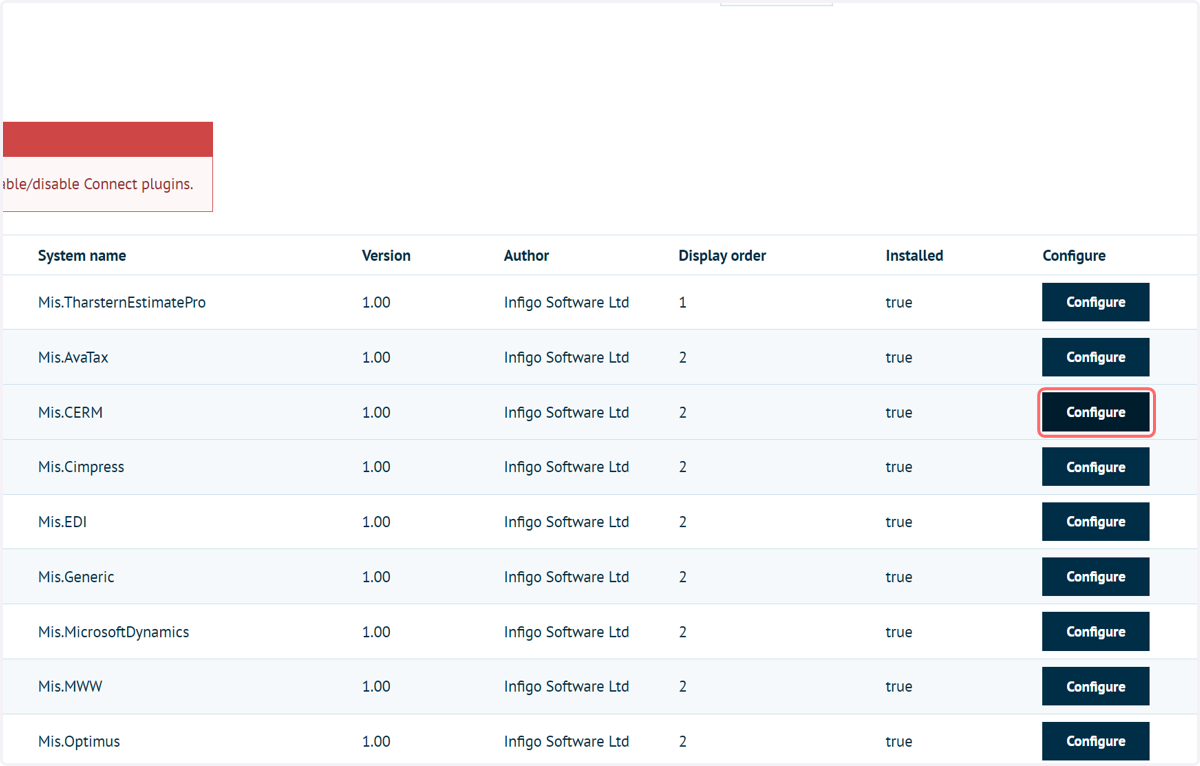
10. Enter your Base URL
This is simply the Base URL of your CERM instance, obtained from CERM.
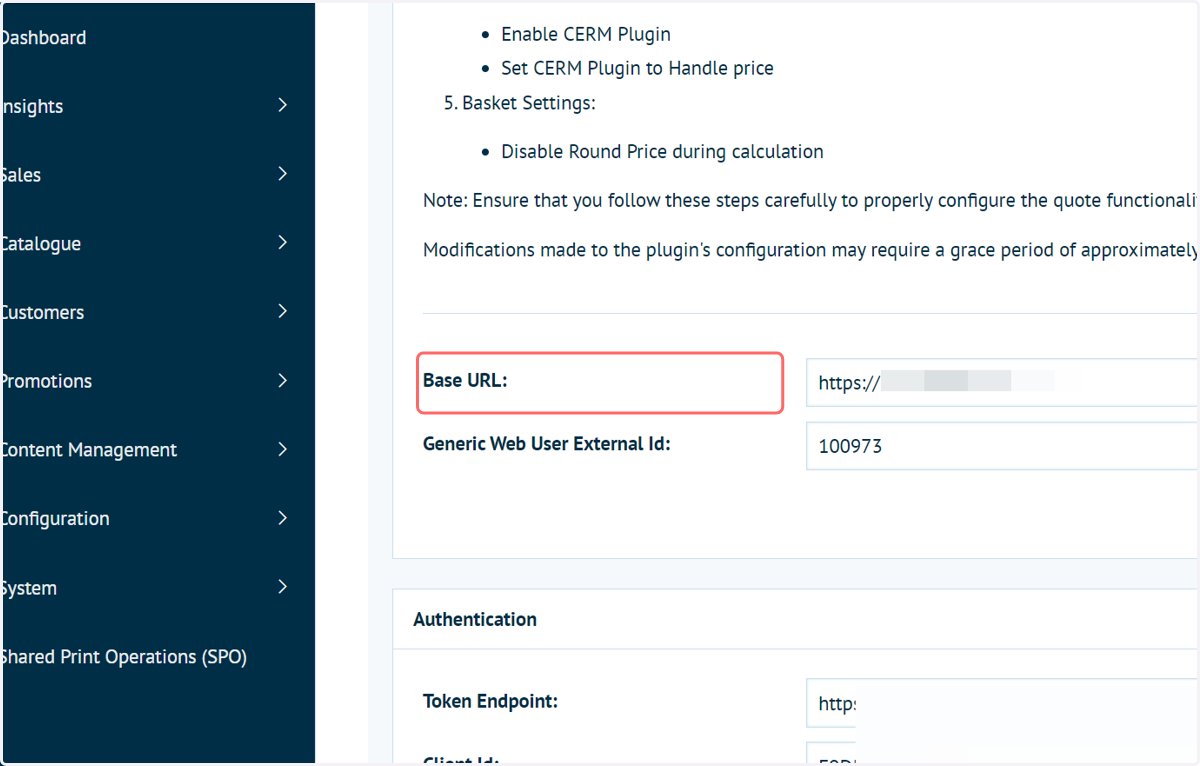
11. Generic Web User External ID
CERM requires that every (CERM) estimate has to be connected to a user.
In an ecommerce scenario, customers are potentially accessing your storefront and looking up prices without having an account within Infigo or CERM.
In order to offer this capability, it is required to create a generic web user on your CERM system. This will be used for every storefront user without an account.
When a non-logged in user browses your catalogue, any (CERM) estimate called whilst they browse your site will be created against the generic web user.
Once the user is ready to log in/register and place their order, that (CERM) estimate will be cloned and assigned to the newly logged in user.
This ultimately means that anyone can view the catalogue and request estimates from CERM, without having to be logged in.
You must create a Generic web user within with your CERM system and place the External ID of that user into this field.
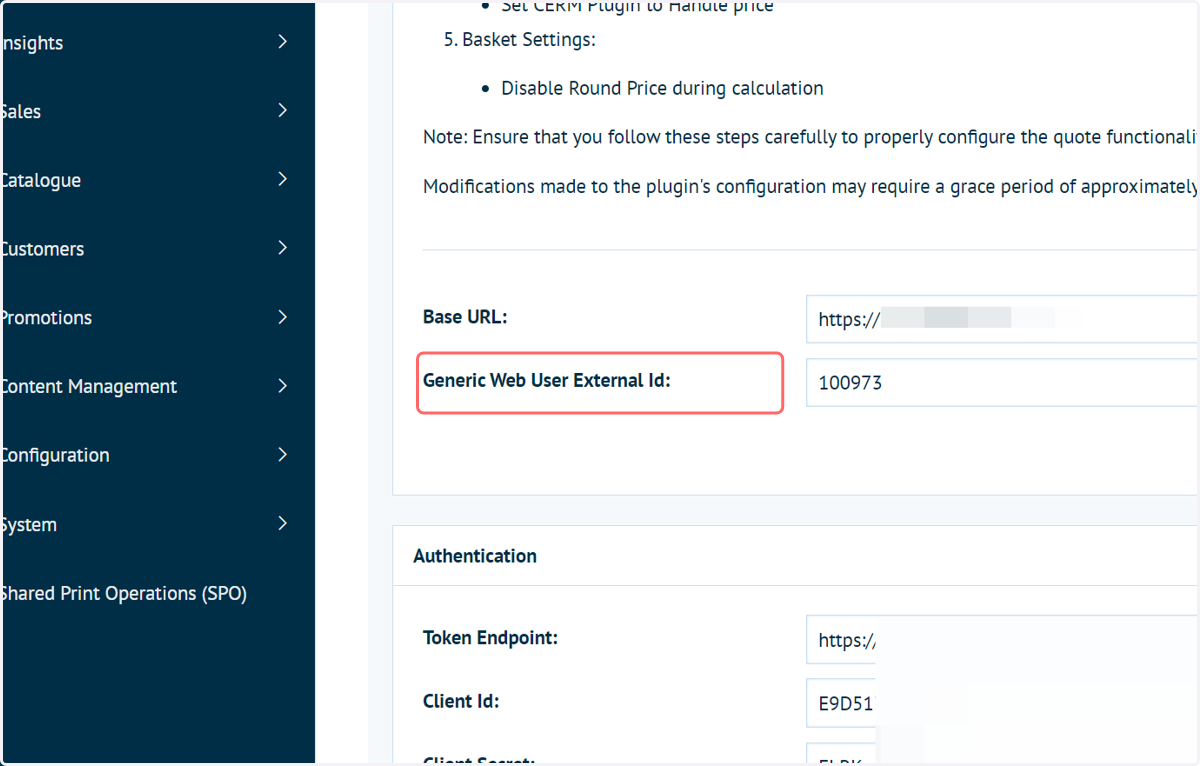
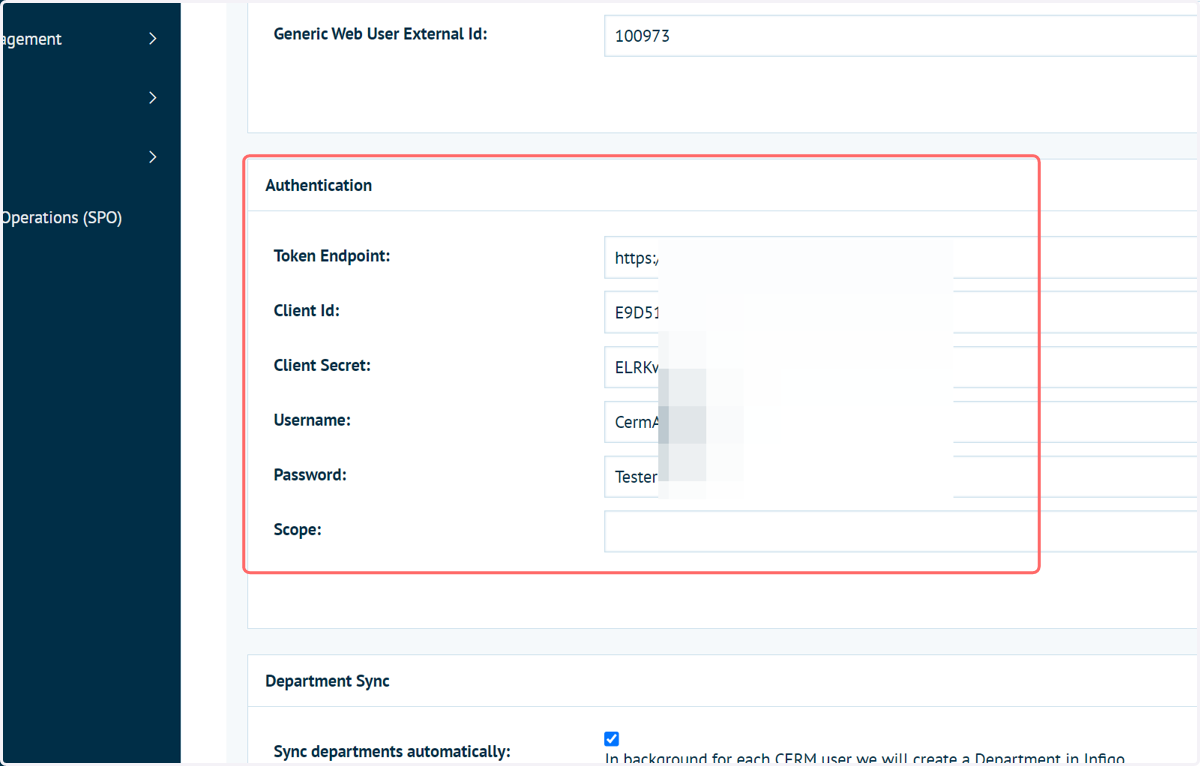
12. Enter your authentication details
These are the authentication details for your CERM system.
Please note, this authentication system uses Oauth.
13. Complete the Department Sync settings
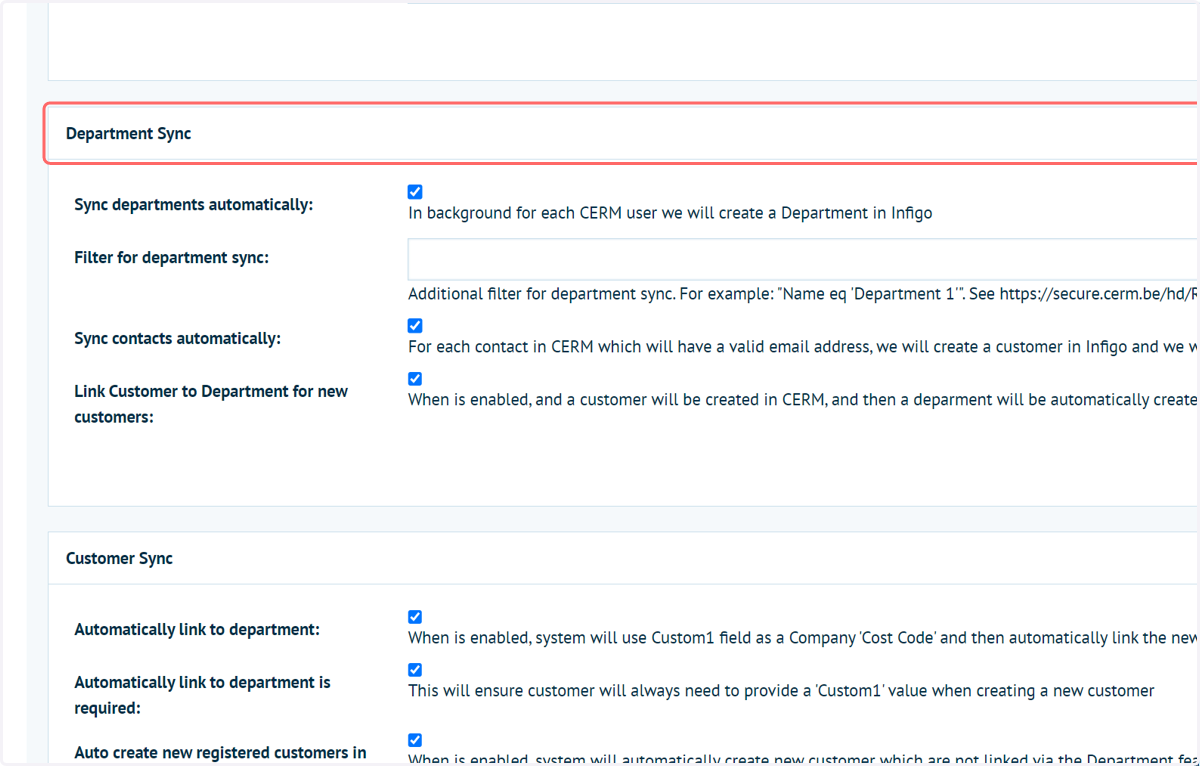
This section controls the integrations capability to automatically create (Infigo) Departments by pulling in (CERM) customer information. For each (CERM) customer an (Infigo) department will be created.
Please note this is an optional step, should you not wish to automate this process.
Sync departments automatically: A background task will initiate to create a new (Infigo) department for each (CERM) customer.
Filter for department sync: These allow filtering of department creation utilising CERM API methods. A link to these methods has been included in the field description.
By entering a specific filter string such as "Name eq Department 1", we can ensure that we will only create (Infigo) departments which are required for us. In this case, only where the (CERM) customer equals "Department 1".
Sync contacts automatically: Enables an automatic process where for each (CERM) Contact (with a valid email address) we will create an (Infigo) Customer and place it within the relevant (Infigo) department.
Link Customer to Department for new customers: Automatically creates a new (Infigo) Department when a new (CERM) Customer is created. These are automatically linked between the two systems.
14. Complete the Customer Sync settings
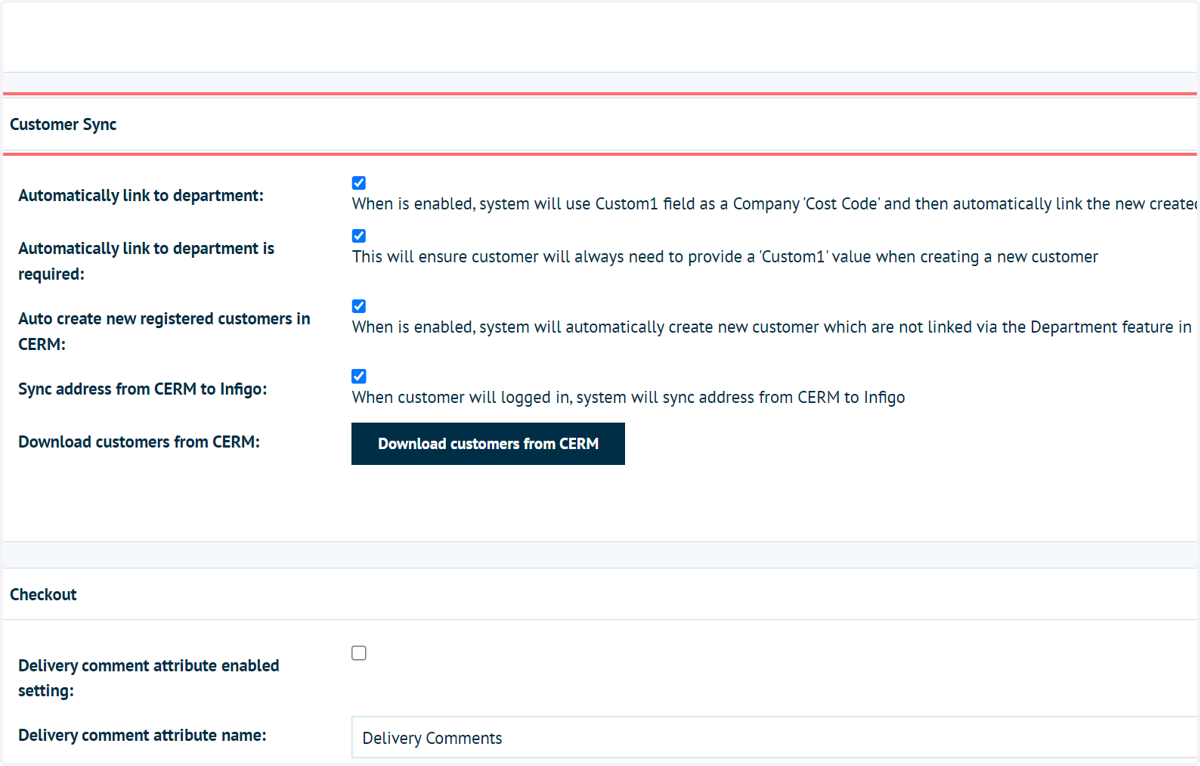
These settings generally control what actions are taken with newly registered users on the Infigo system.
Multiple of these settings utilise a field named "Custom 1" (discussed later), which is repurposed within CERM as a cost code.
Automatically link to department: An optional process, this allows automatic placing of newly registered (Infigo) customers into the relevant (Infigo) department.
If enabled on the storefront, users can register in Infigo and input their (CERM) cost code number.
If the (CERM) cost code matches with a (CERM) Customer already created (Infigo) Department, the new (Infigo) customer can automatically be placed in that department.
This is useful as, depending on (Infigo) department, a customer could receive access to specific products or obtain preferential pricing.
Note that registration will need to be enabled and configured in order to utilise this feature.
The "Custom 1" field is found within (Infigo) Customer Settings screen.
The language string of "Custom 1" can also be amended to show a more applicable phase to your registrants.
Automatically link to department is required: This ensures that the "Custom 1" registration field is mandatory on the registration form.
Auto create new registered customers in CERM: Any (Infigo) customer created via registration can automatically be registered in CERM. This setting only applies to registrants not automatically linked via the "Custom 1" (Infigo) Department link features discussed previously.
Sync address from CERM to Infigo: If an (Infigo) Customer has addresses associated with their linked CERM account, these are automatically synced with Infigo.
Download customers from CERM: Download (CERM)Customer data from within Infigo. This is a useful validation tool, as the resulting downloaded file shows the response Infigo get from CERM via the Connect: CERM integration.
15. Complete the Checkout settings
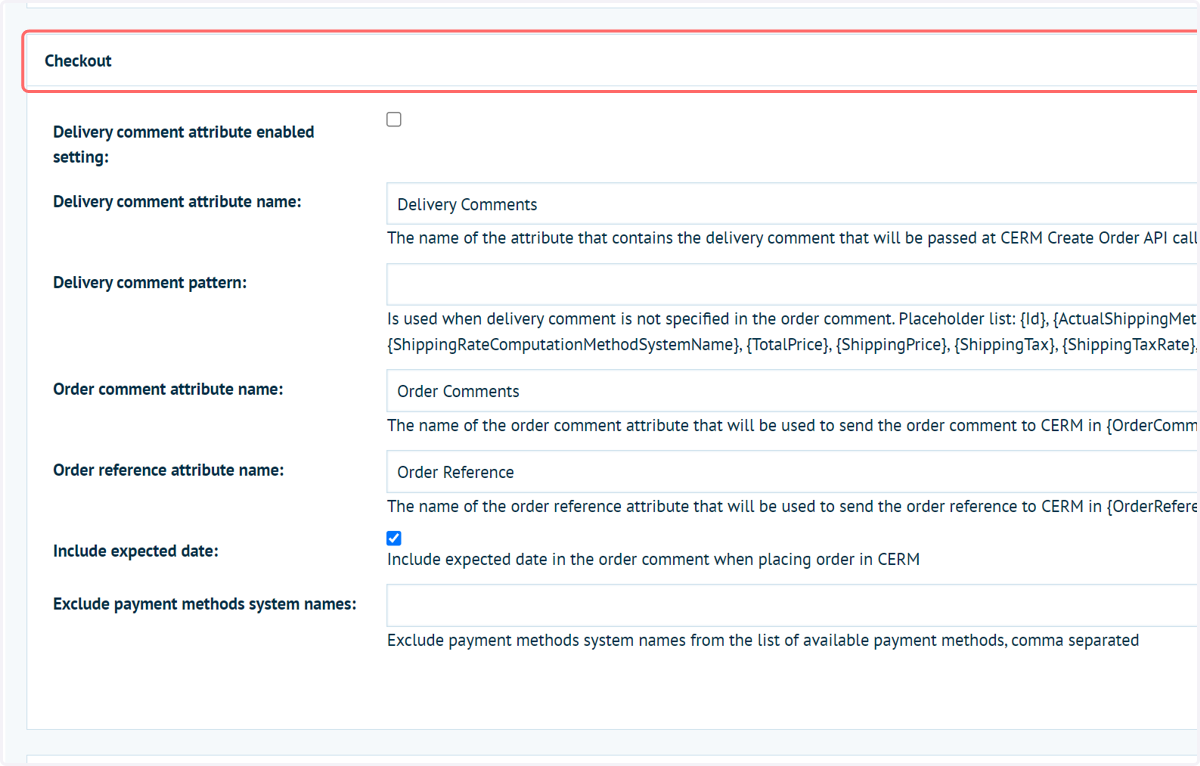
This section primarily involves the passing of additional information between Infigo and CERM when an order is placed.
Delivery Comment, Order Comments and Order Reference can be passed between the two systems.
Configuring these within Infigo requires the creation of three Checkout Attributes.
The names of these Checkout Attributes must then be placed within these Checkout fields.
Include expected date: This allows the inclusion of the calculated due date. This metric is a combination of your production and delivery/shipping restrictions, and is normally otherwise seen in Shared Print Operations (SPO). This checkbox specifies whether this information is sent to CERM.
Exclude payment methods system names: Exclude particular payment methods from the list of available payment methods during checkout.
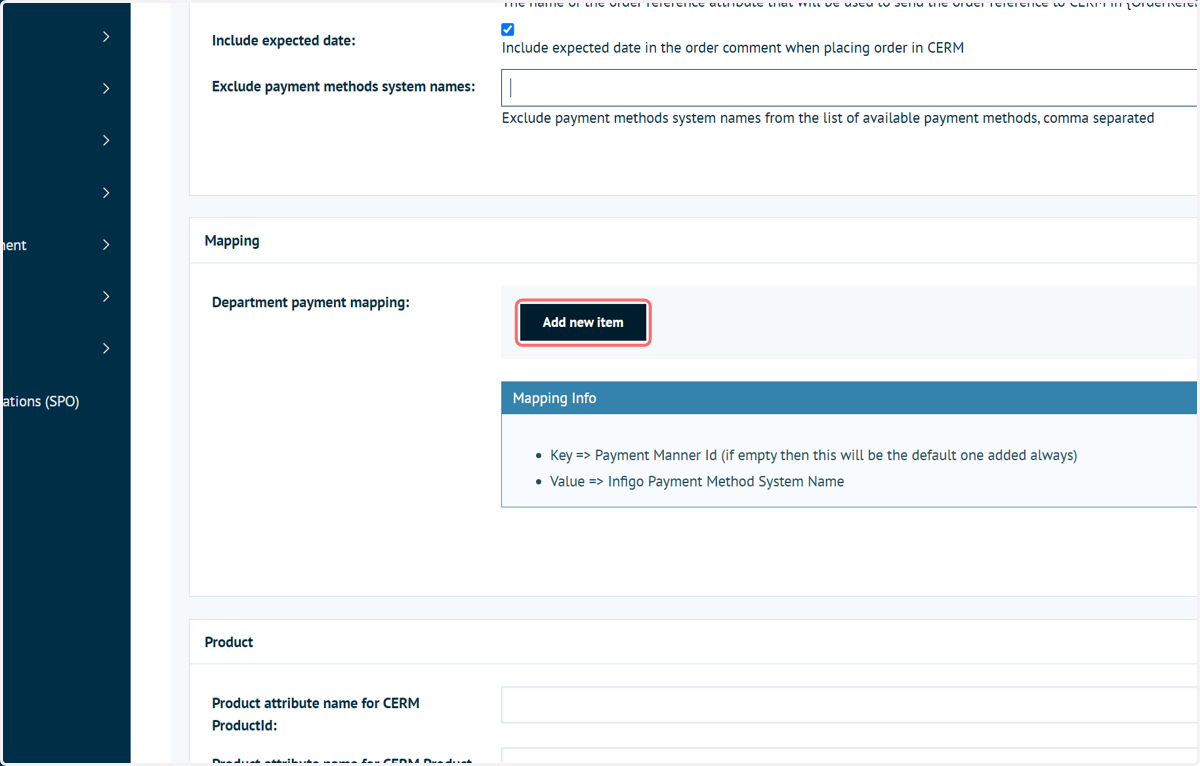
16. Click Add new item to begin payment method mapping
Allows a mapping to be created between (CERM) Payment Manner ID and (Infigo) Payment Method System Name.
This mapping ensures the system knows how the two sets of payment methods relate to one another.
By mapping all of the available payment methods, we can ensure (Infigo) Departments are set up from (CERM) Customers with the correct payment options available.
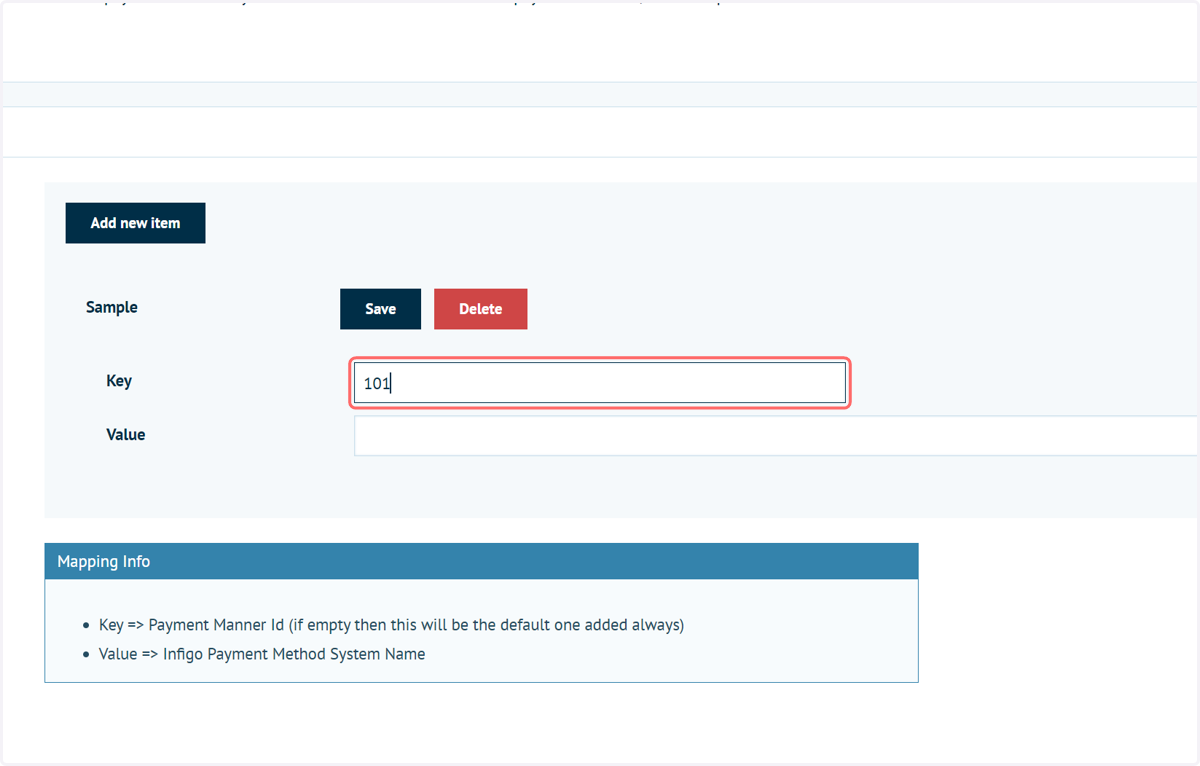
17. Type the (CERM) Payment Manner ID (such as "101") into the Key field
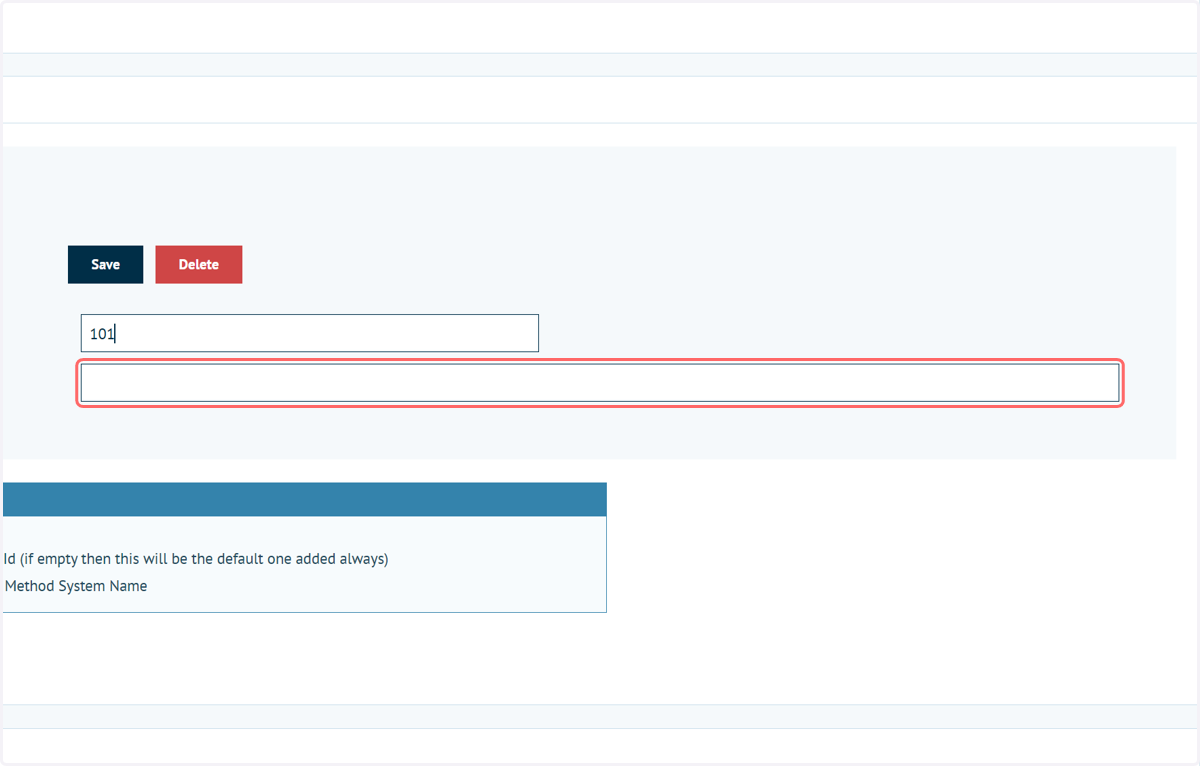
18. Type the (Infigo) Payment Method System Name into the Value field
Payment Method System Name can be found n the Payment Methods screen in Infigo.
Each payment method is listed with an additional column showing the system name.
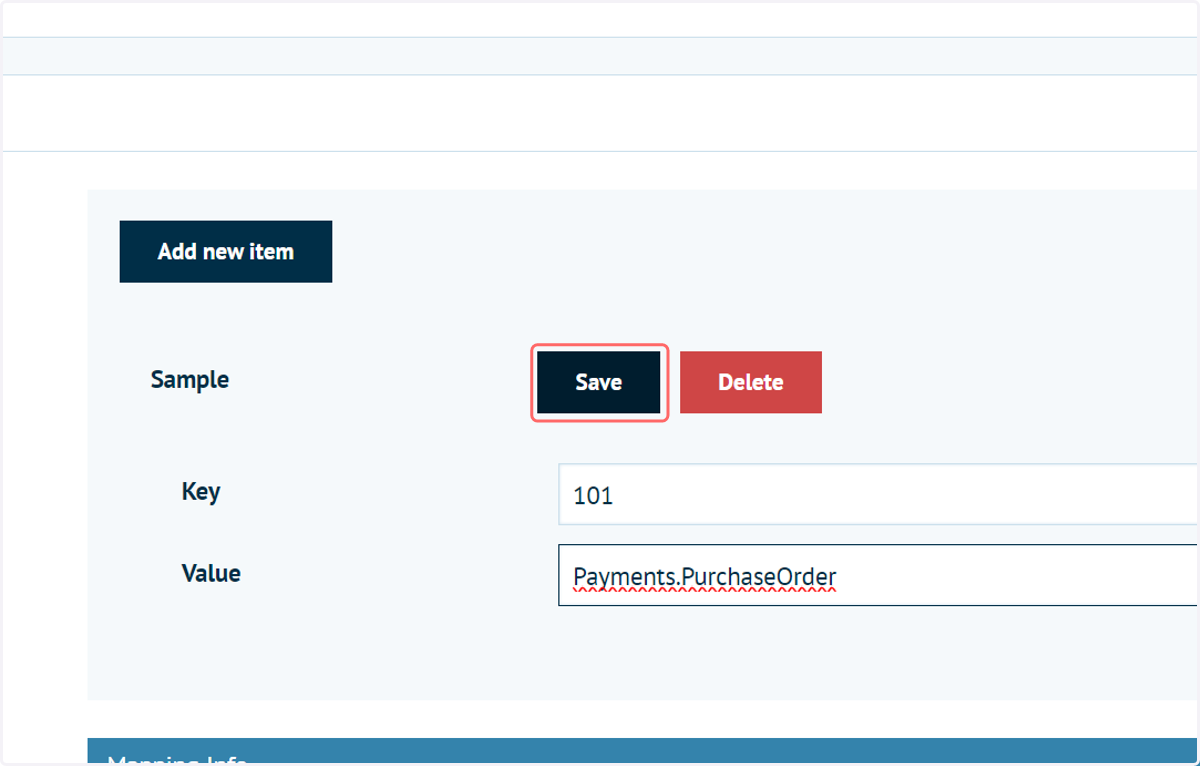
For example, the default "Purchase Order" payment method has the Payment Method System Name of "Payments.PurchaseOrder
19. Click on Save
Multiple mappings can be created by following this process.
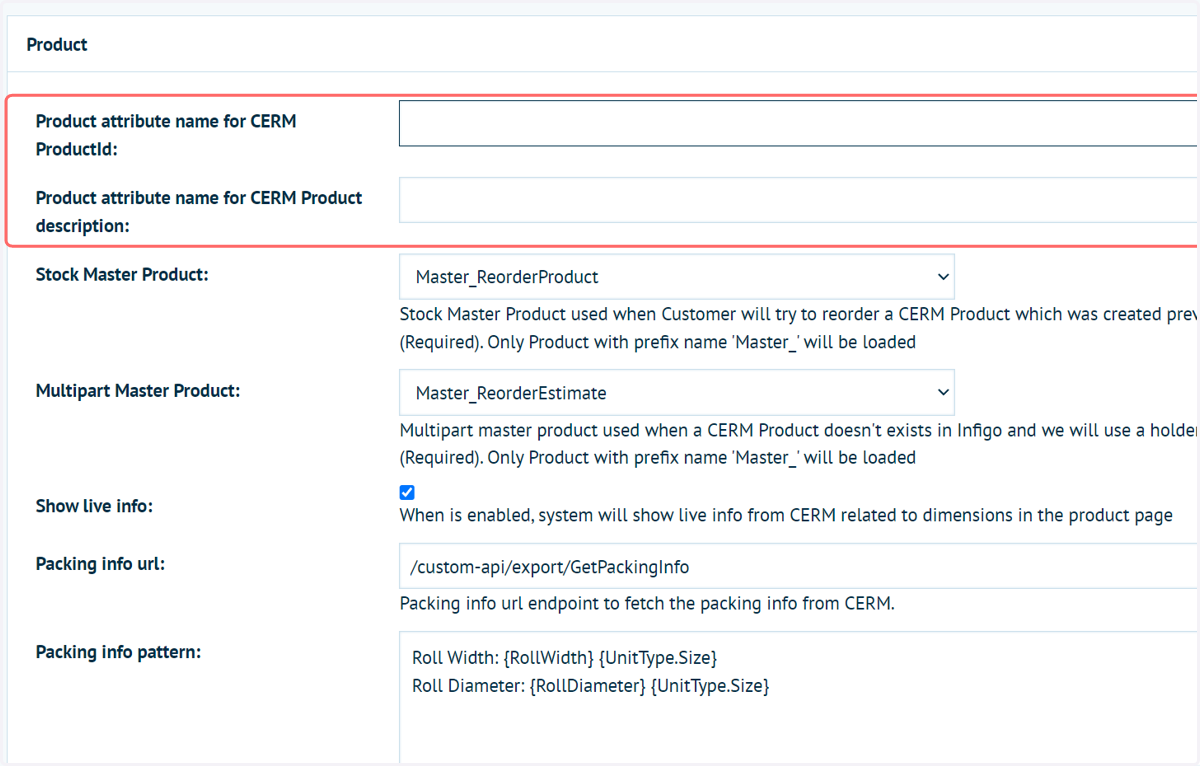
20. Input product attribute names for CERM ProductID and Product description values
(Infigo) product attributes are added to (Infigo) products to allow for detailed specification. Basic examples are things such as size and colour.
CERM contains two fields named ProductID and Product description.
As a reminder, a (CERM) product is the equivalent of an (Infigo) Job.
CERM ProductID and Product description can be transferred during the ordering process, by creating two (Infigo) Product Attributes.
The names of those (Infigo) attributes are to be input into the highlighted fields.
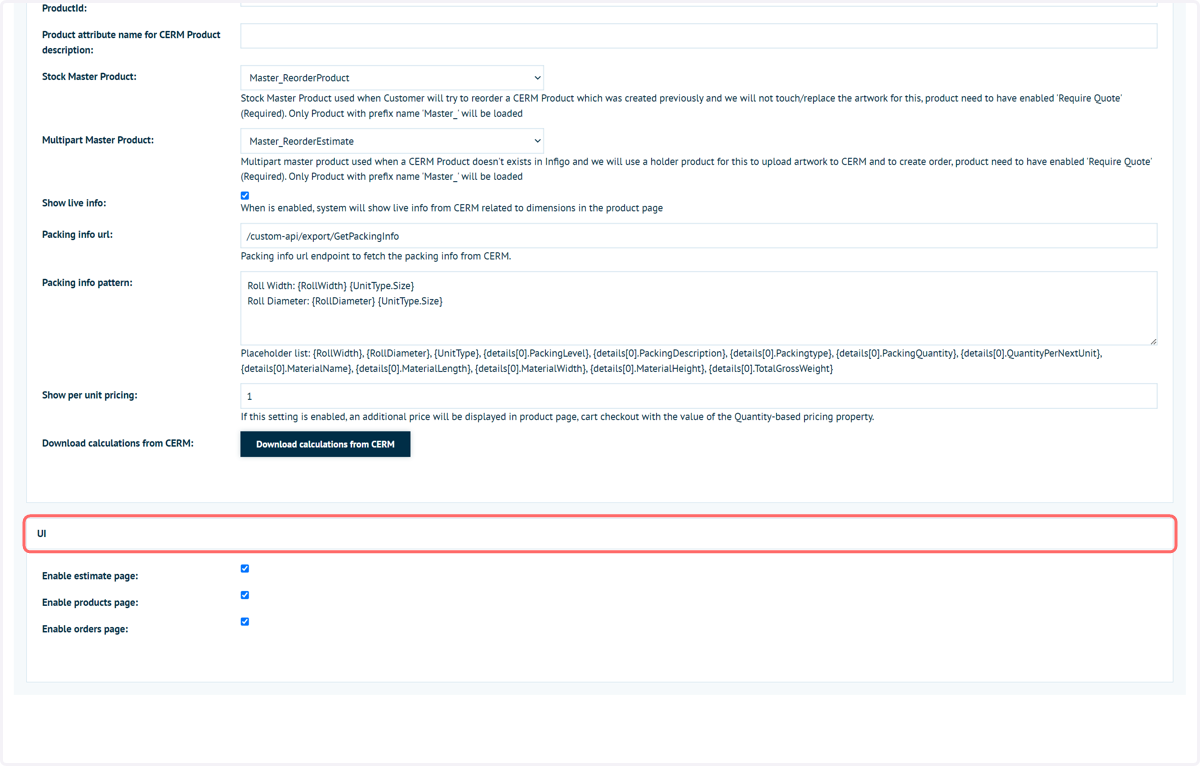
21. Link "Master_" products
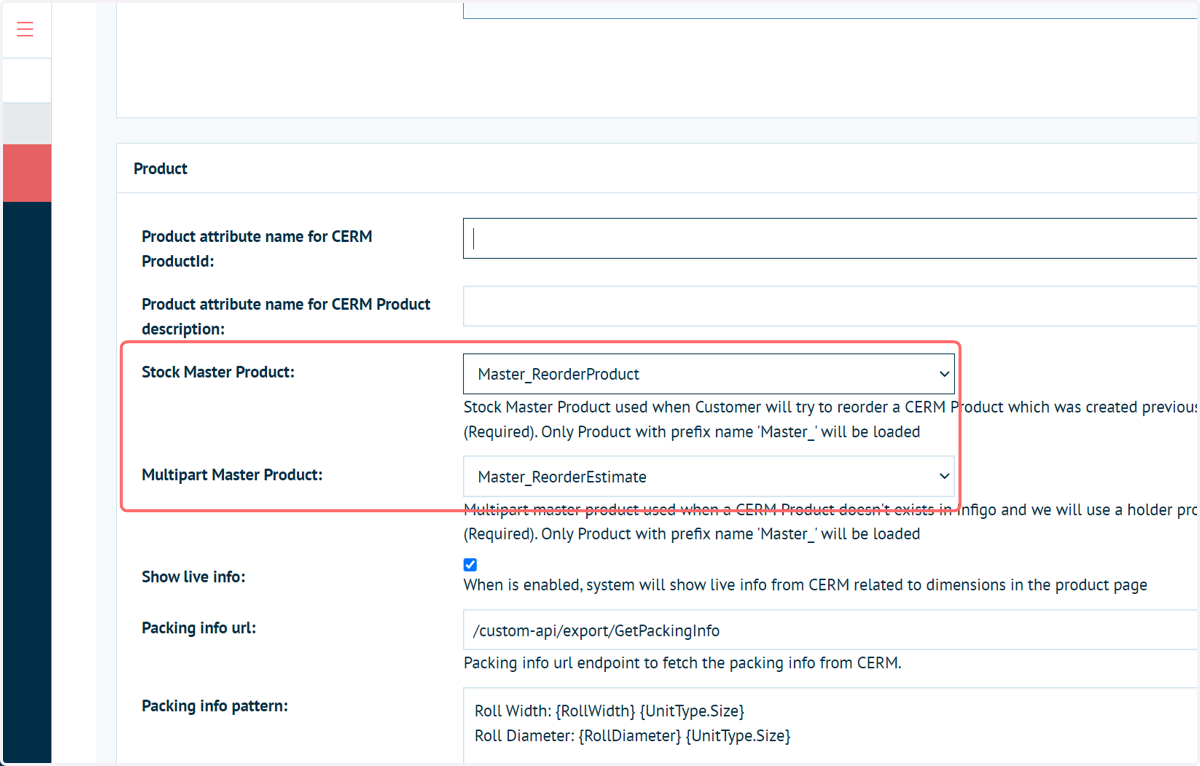
Earlier in this process, we ensured two template products were created with the prefix "Master_" to assist in the re-ordering of (CERM) Products or (CERM) Estimates should no related Infigo page be available.
These two settings in the Product section of the Connect: CERM configuration screen define which of your products you wish to assign to these two important positions.
22. Show live info:
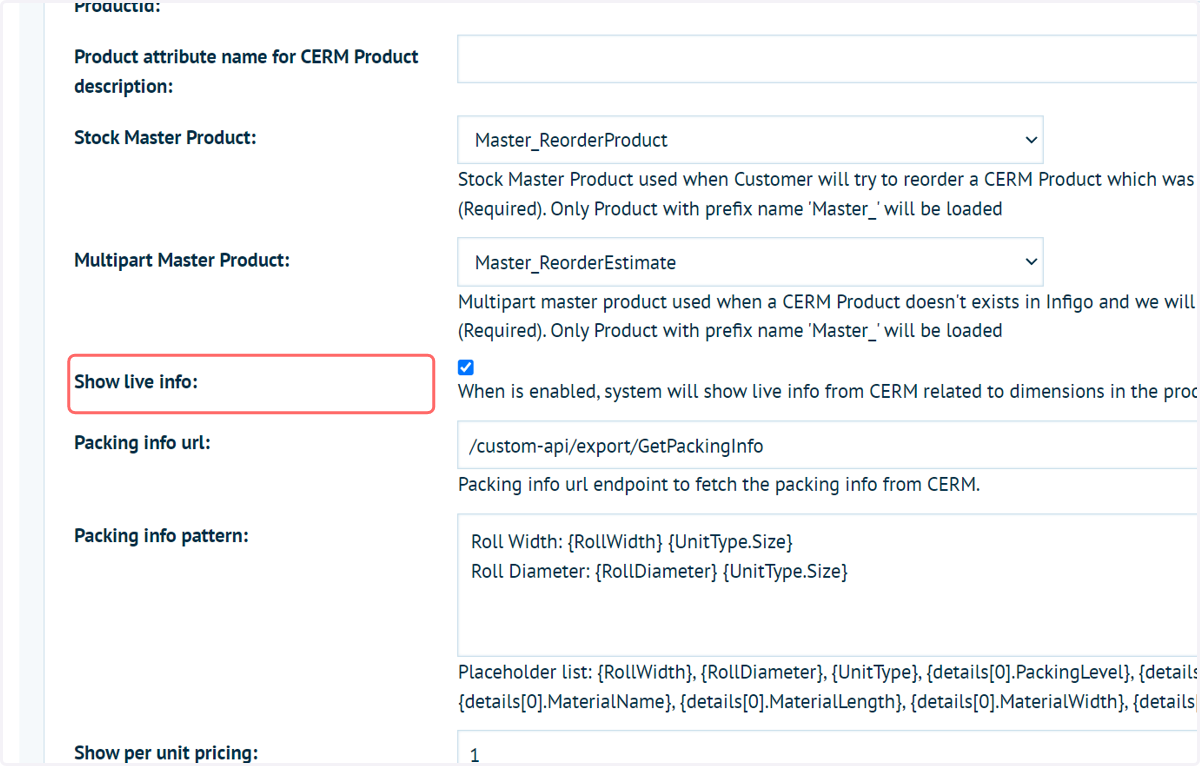
This checkbox enables functionality allowing live information from CERM to be displayed on the (Infigo) Product page.
Additional configuration is required to fully utilise these capabilities.
The CERM administrator will need to create a packing info URL endpoint, which fetches the packing information from the CERM system.
This URL endpoint is then copied into the Packing info URL field.
Administrators can also define the format of the packing information, using the Packing Info Pattern field.
This is a combination of static text and a selection of placeholders, which will display dynamic information.
The format of these patterns is up to you, but could be written as, for example:
Roll Width: {RollWidth} {UnitType.Size}
Roll Diameter: {RollDiameter} {UnitType.Size}
The placeholders which need to be made available to Infigo are listed below the Packing Info Pattern field, and consist of:
Placeholder list: {RollWidth}, {RollDiameter}, {UnitType}, {details[0].PackingLevel}, {details[0].PackingDescription}, {details[0].Packingtype}, {details[0].PackingQuantity}, {details[0].QuantityPerNextUnit}, {details[0].MaterialName}, {details[0].MaterialLength}, {details[0].MaterialWidth}, {details[0].MaterialHeight}, {details[0].TotalGrossWeight}
23. Download calculations from CERM
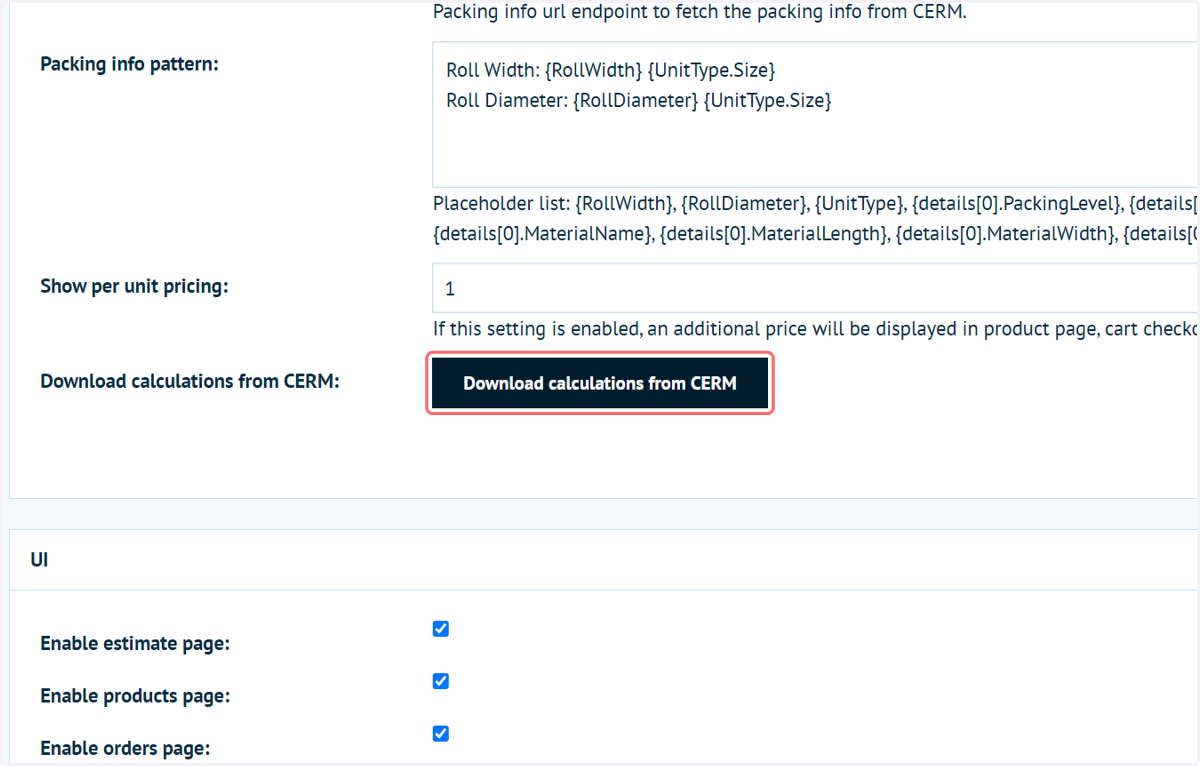
Download (CERM)Calculation or Estimate data from within Infigo. This is a useful validation tool, as the resulting downloaded file shows the response Infigo get from CERM via the Connect: CERM integration.
24. UI Options
Allows the administrator to control the additional tabs displayed to end users in the My Accounts section.
These tabs allow users to quickly reorder (CERM)Estimates and (CERM)Products without navigating through the main Infigo storefront.
These features are discussed in other tutorials.