Configuring Light Schedule

Go To app.aroya.io

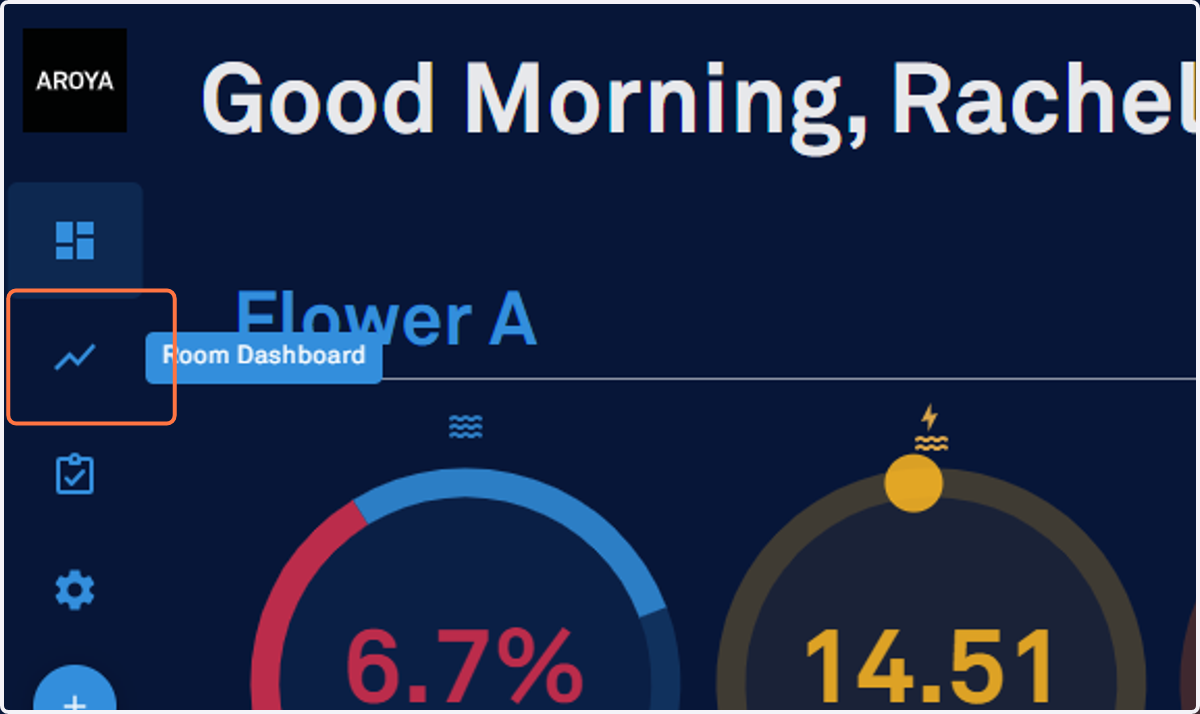
  1. 1. Click on Room Dashboard

    Click on Room Dashboard
  2. 2. Click on dropdown trigger

    Click on dropdown trigger
  3. 3. Click on Set Light Schedule

    Click on Set Light Schedule
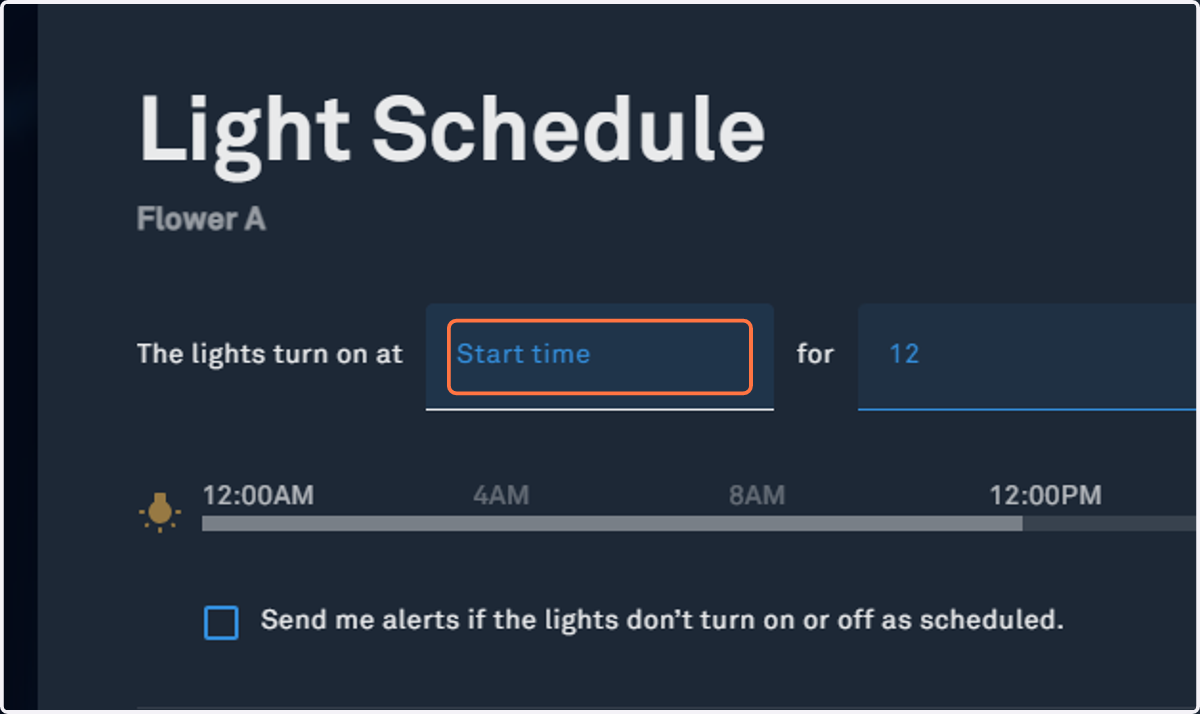
  4. 4. Click on startTime

    Click on startTime
  5. 5. Choose the desired start time

    Choose the desired start time
  6. 6. Click on OK

    Click on OK
  7. 7. Option to get alerts by Checking Send me alerts if the lights don’t turn on or off as scheduled.
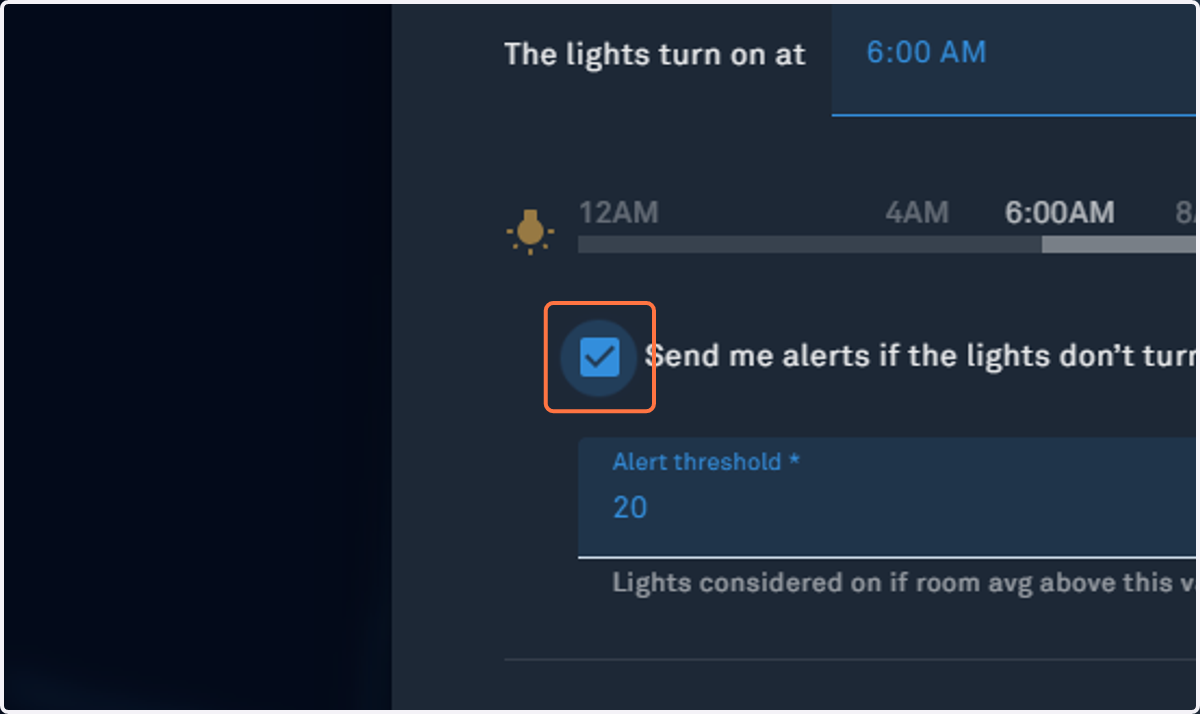
    Option to get alerts by Checking Send me alerts if the lights don’t turn on or off as scheduled.
  8. 8. Enter the desired threshold for when an alert should happen

    Enter the desired threshold for when an alert should happen
  9. 9. Enter the desired time before an alert should happen

    Enter the desired time before an alert should happen
  10. 10. Enter the date range this light schedule will run

    Enter the date range this light schedule will run
  11. 11. Click on Save

    Click on Save