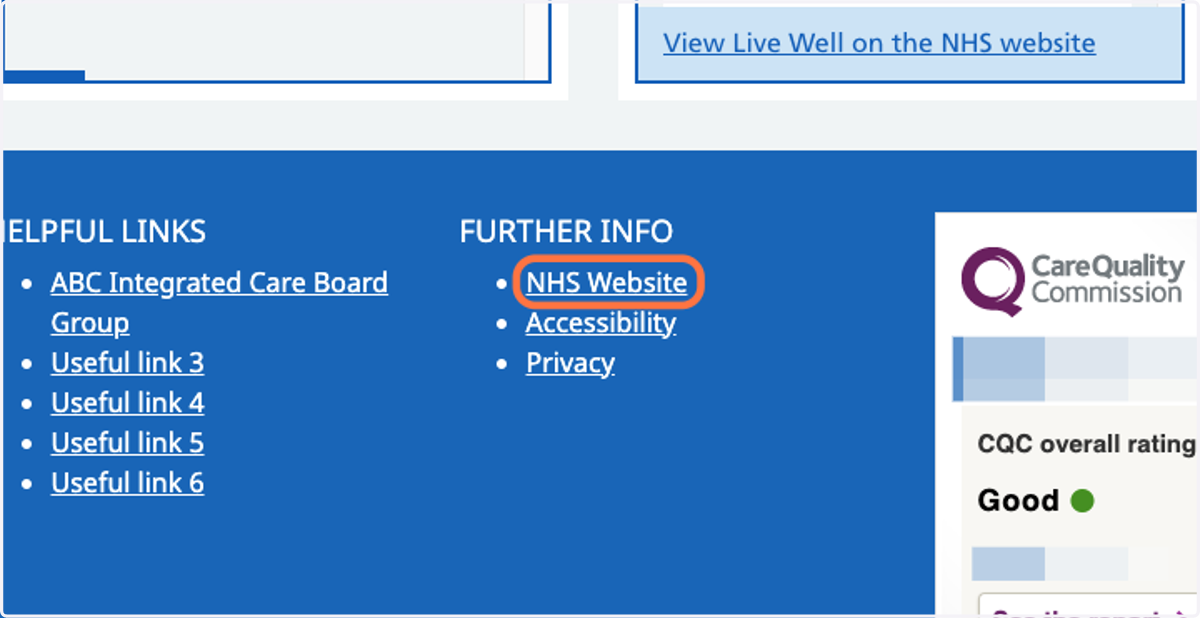
Add a link to the Footer links or Helpful links menu
This tutorial will show you how to add a link to the Footer Links (Further info) or Helpful Links menu. You can move through the tutorial at your own pace using the NEXT button below.
Gpsurgery
1. Ensure that you are logged into your website. The black admin toolbar should be visible at the top of the screen.
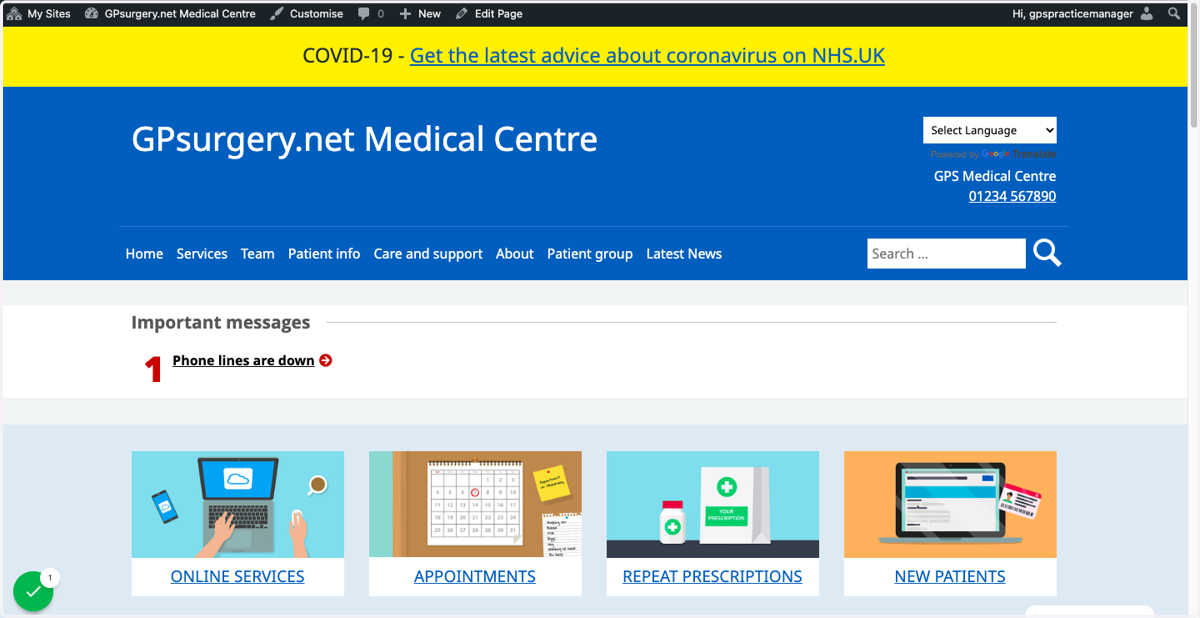
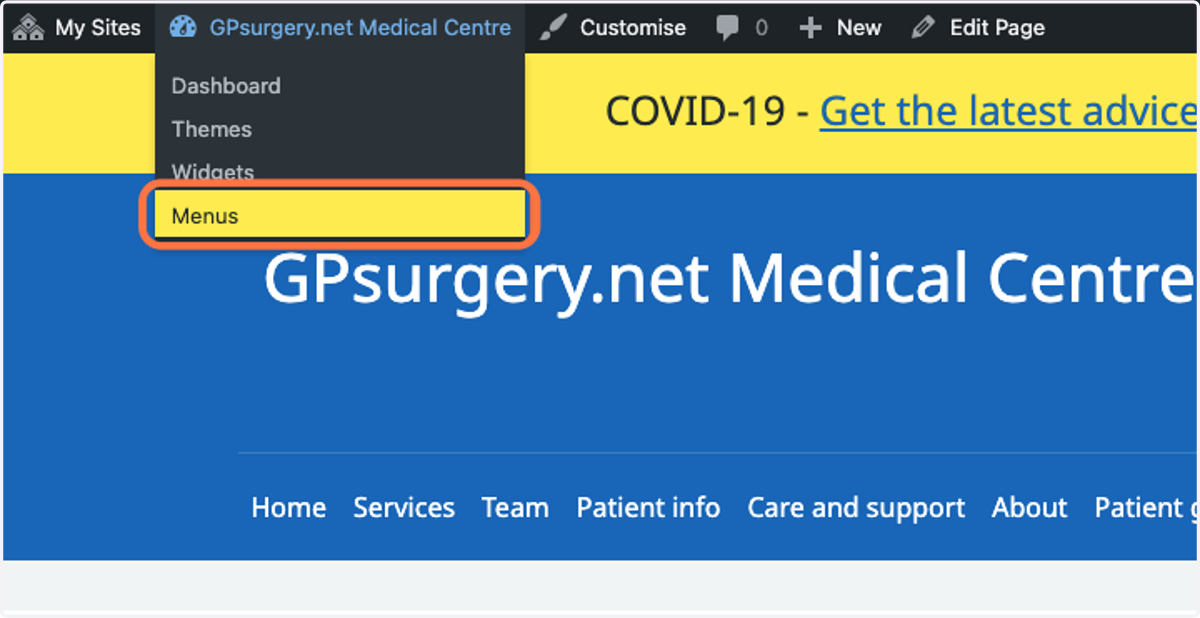
2. Hover your mouse over the name of your website in the admin toolbar. Select Menus from the drop-down menu that appears.
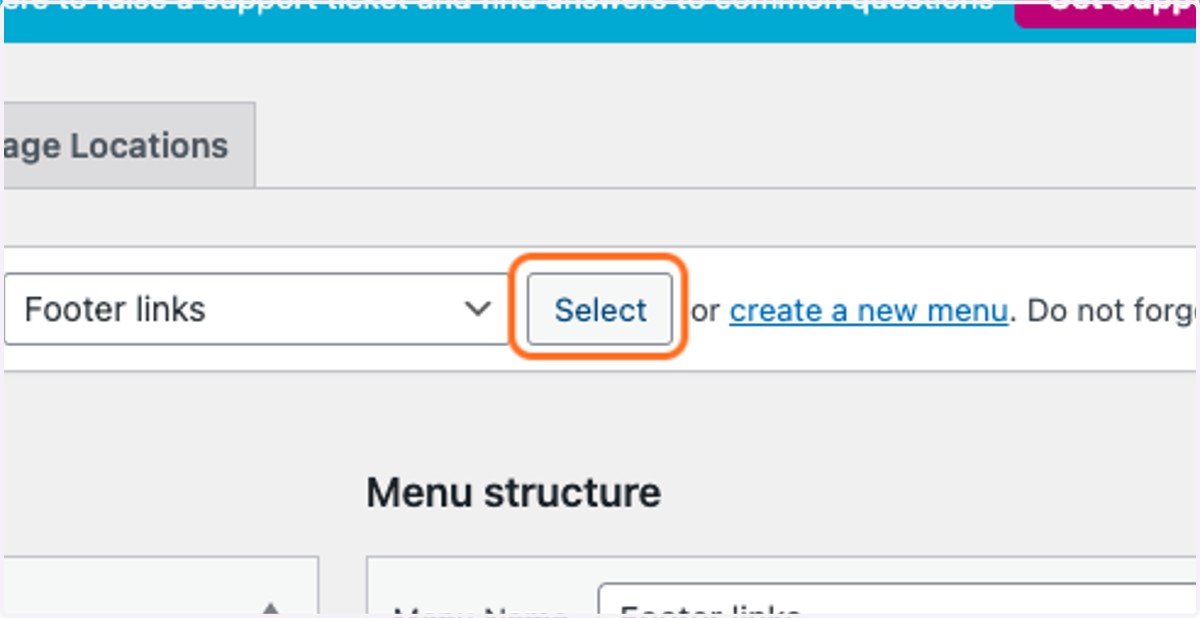
3. From the Select a menu to edit drop-down, choose the menu to which you would like to add the link.
For this example we are using the Footer links menu.
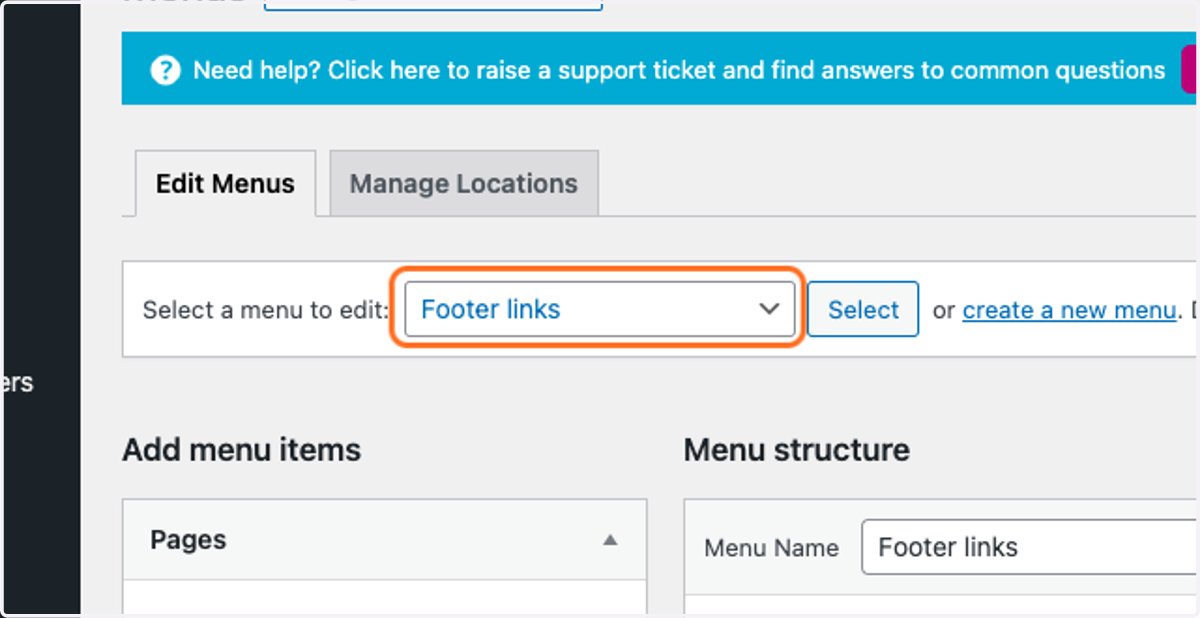
4. Click the Select button to ensure that you are going to be working on the correct menu.
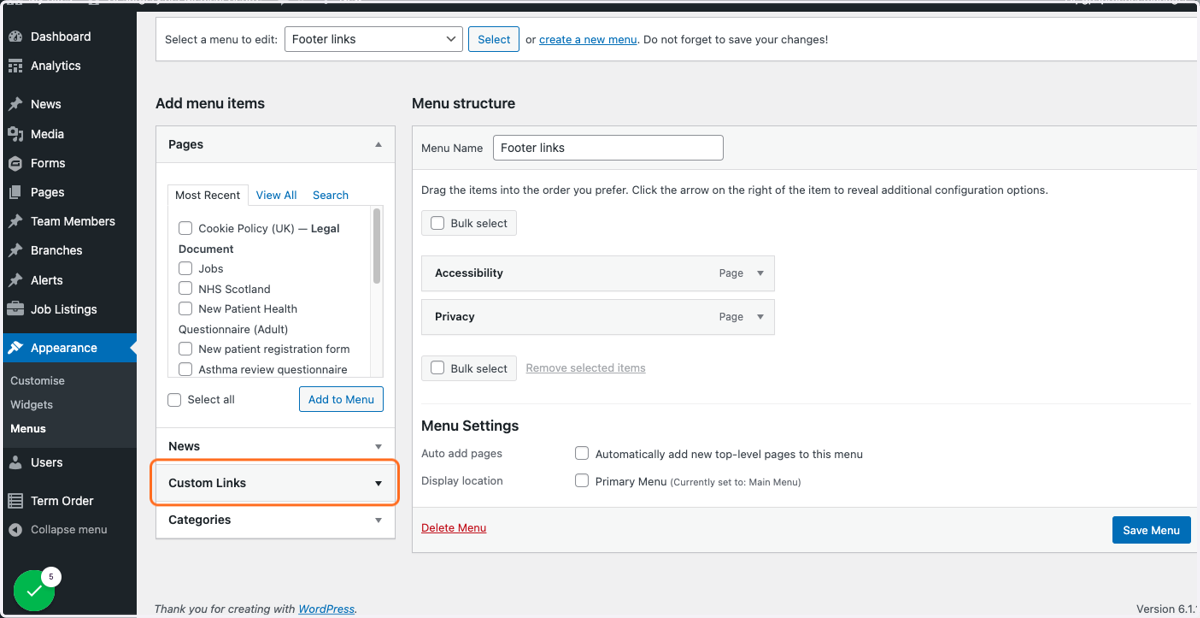
5. From the Add menu items column, select Custom Links to expand this option.
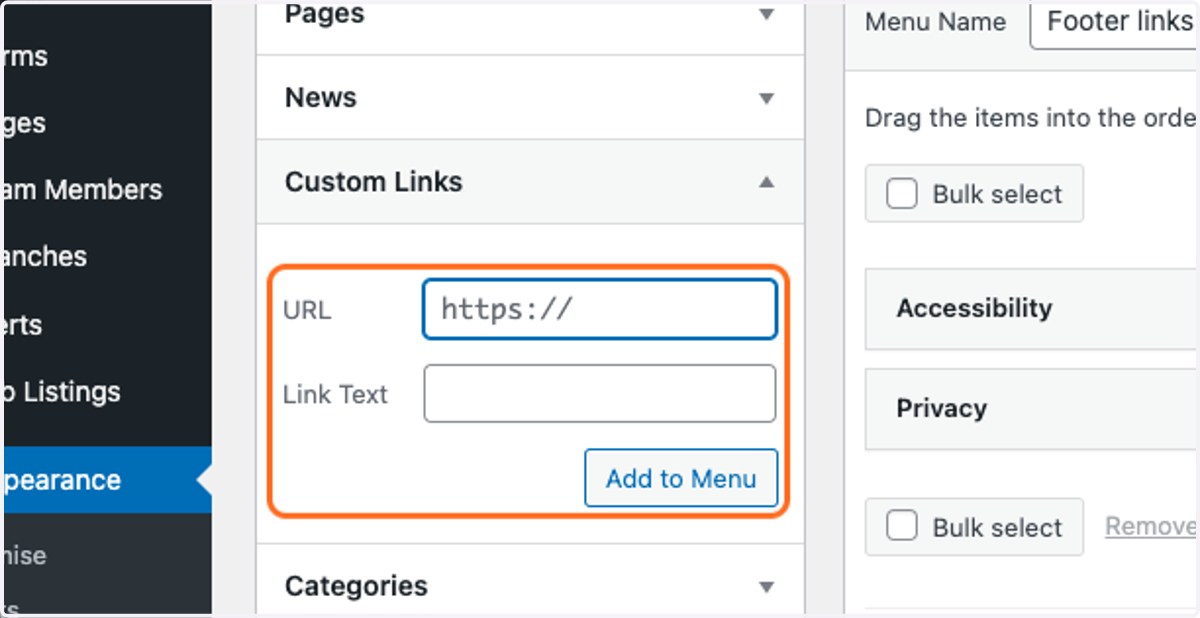
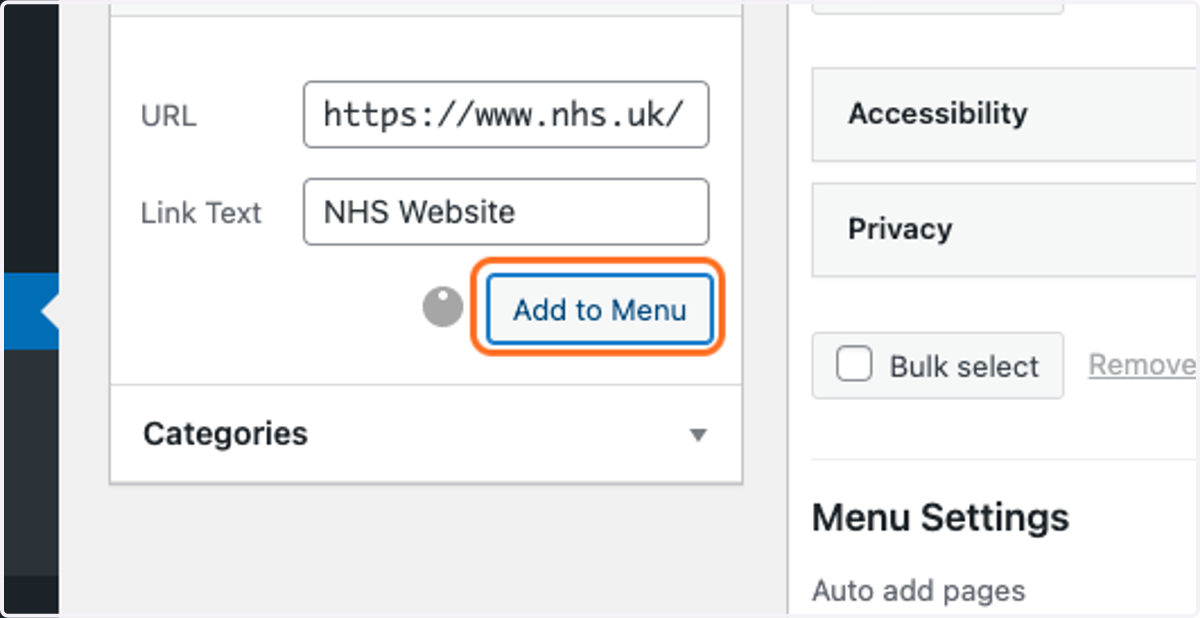
6. In the Custom Links box, paste your chosen link into the URL box.
7. In the Link Text box, type the item name as you would like it to display on the menu.
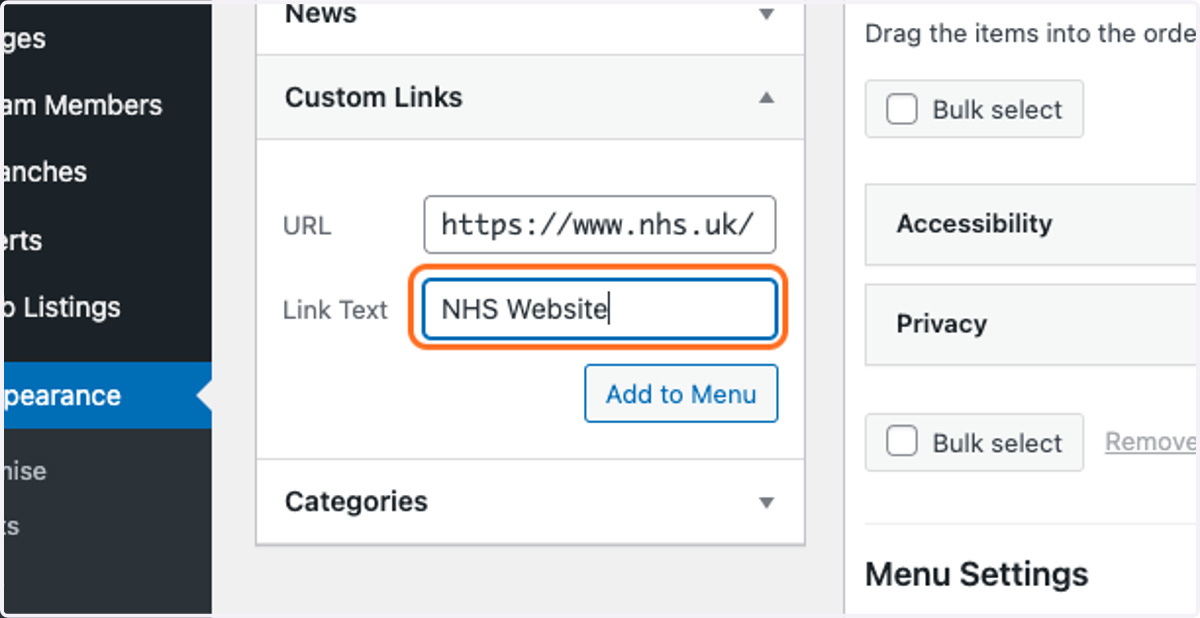
8. Once you are happy with your menu item, click the Add to Menu button.
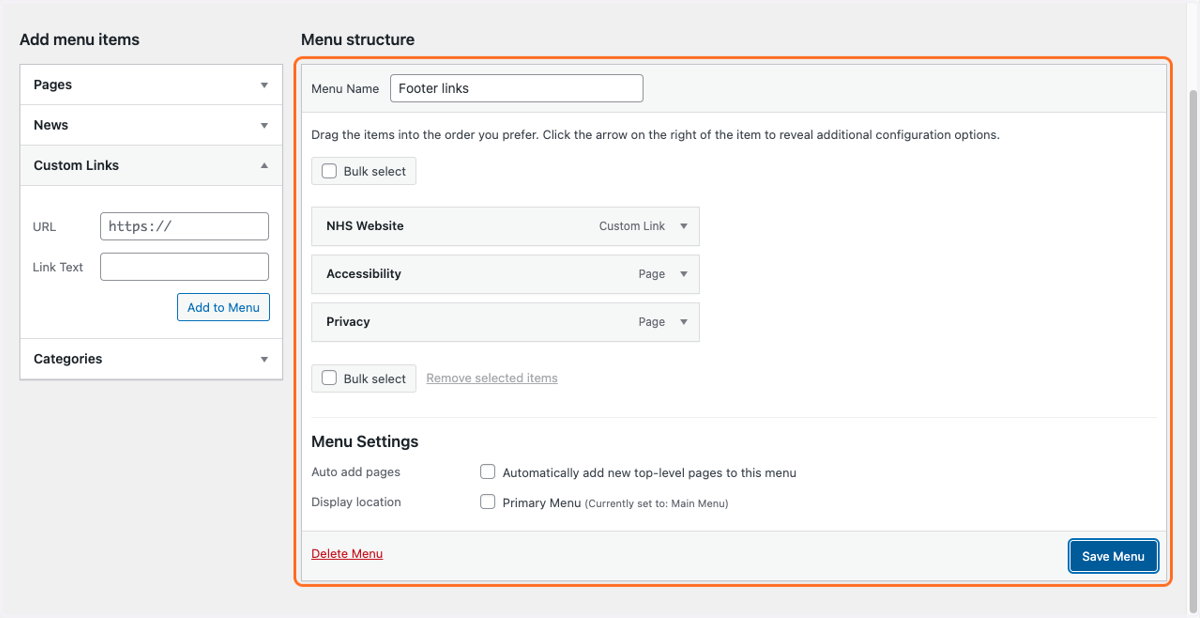
9. You should now see your new menu item in the list of menu items. You can drag and drop these items into the order you would like them to appear.
Gpsurgery
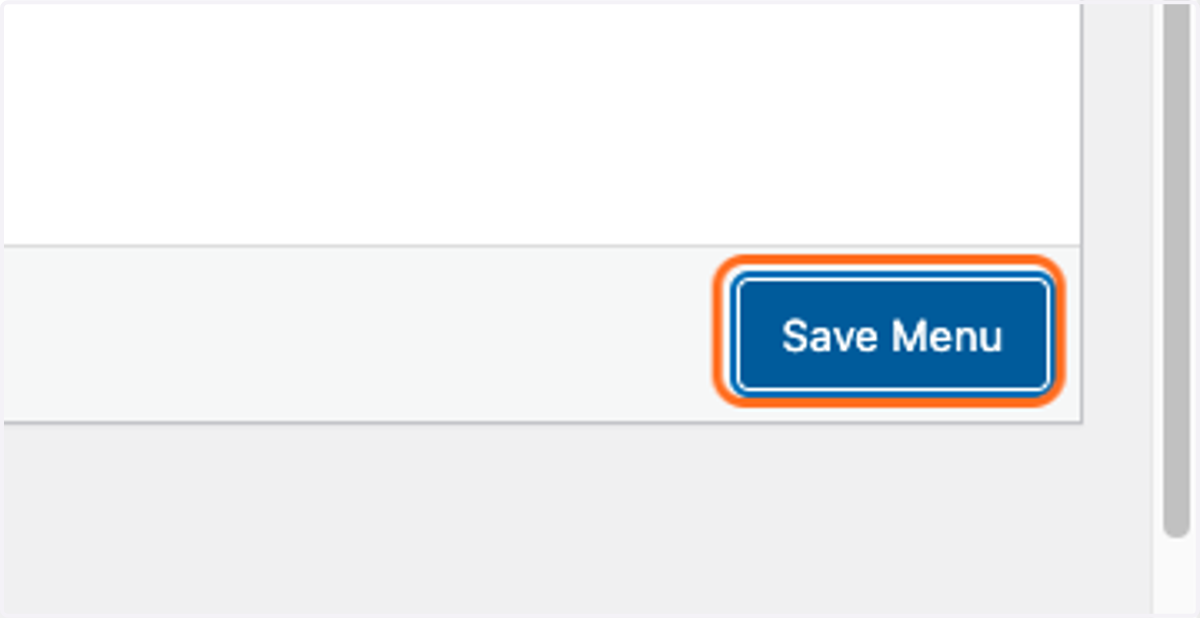
10. Once you are happy with the order of your menu items, click the Save Menu button. You must do this, even if you have not changed the order in which they appear, otherwise your changes to the menu will not be saved!
11. Your new menu item will now display in the menu you chose.