Custom AI Scorecards
1. Go to settings
2. Click on Enablement
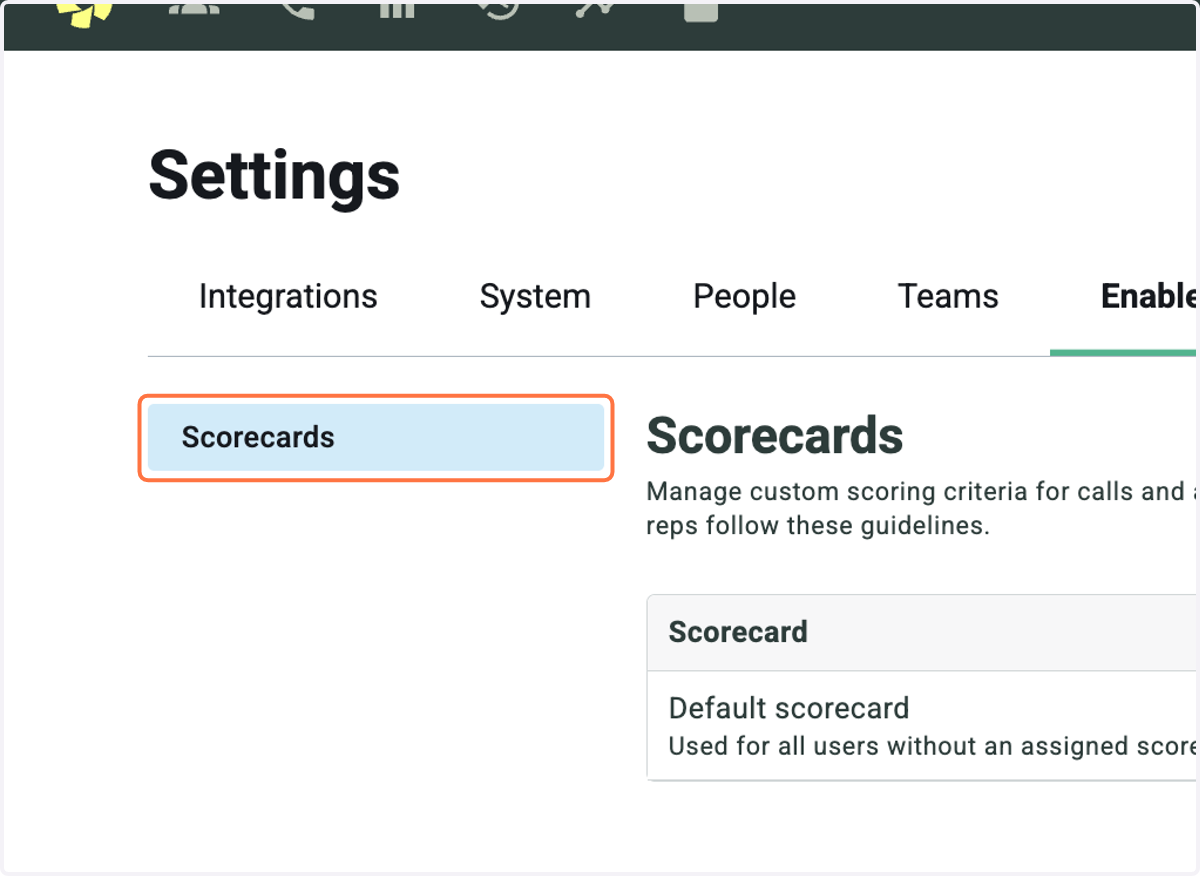
3. Click on Scorecards
4. Here, you can see your deafult and custom scorecards
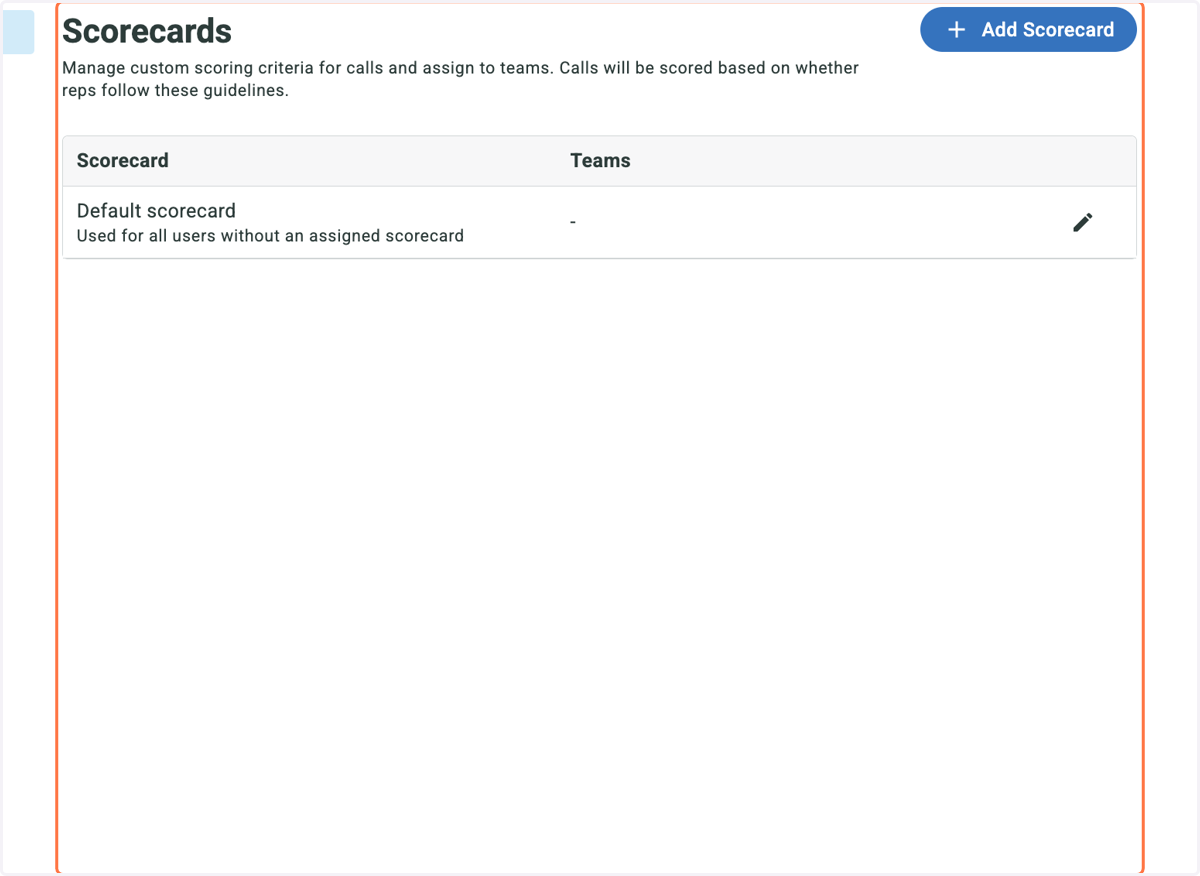
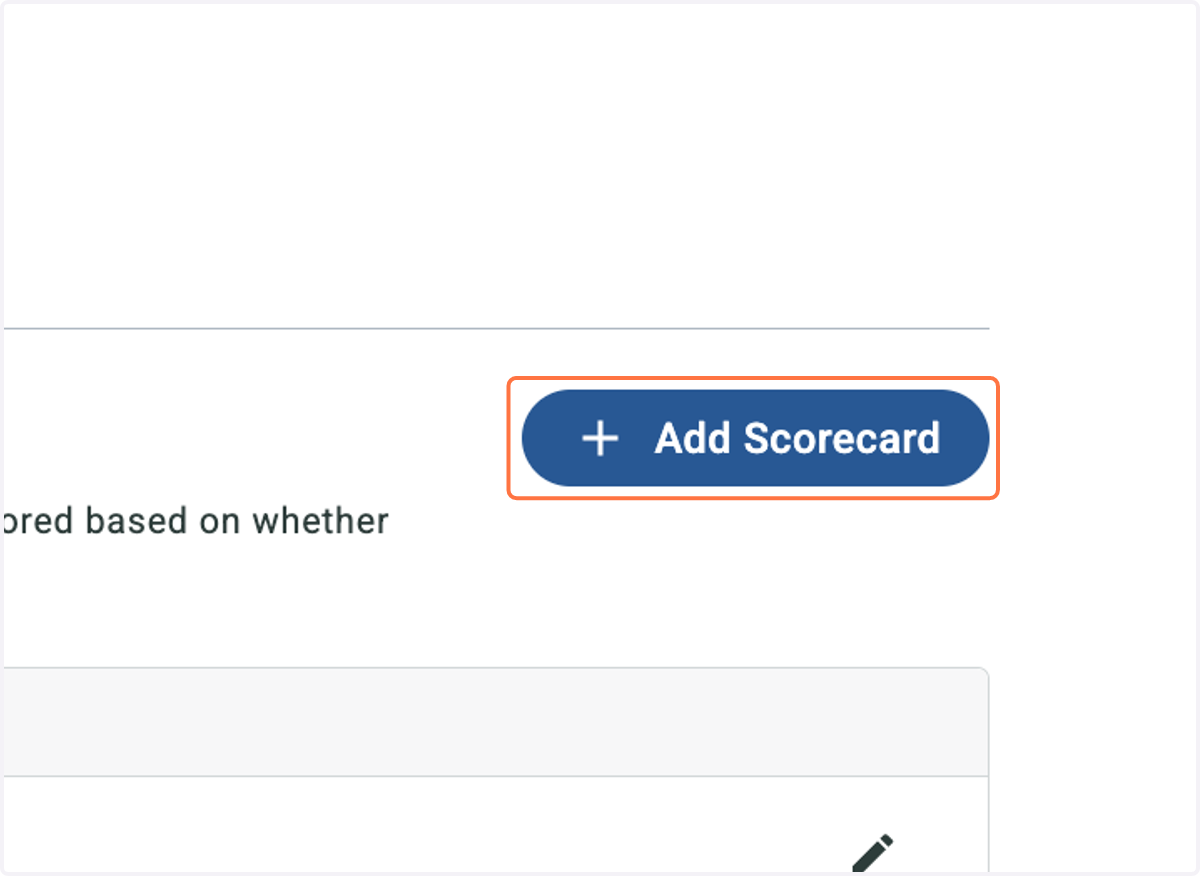
5. You can choose to add a new scorecard
This is recommended if you have specific teams selling specifics products or into different verticals.
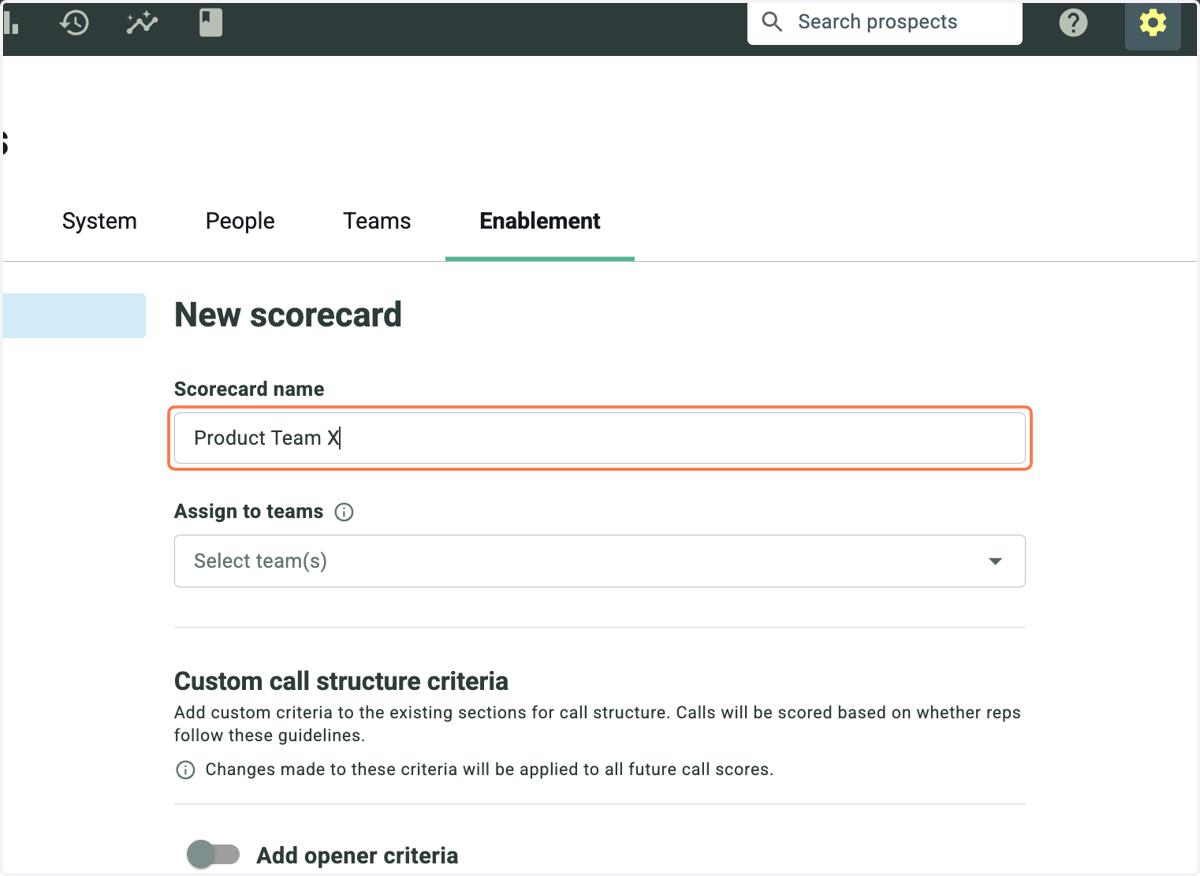
6. Add a name
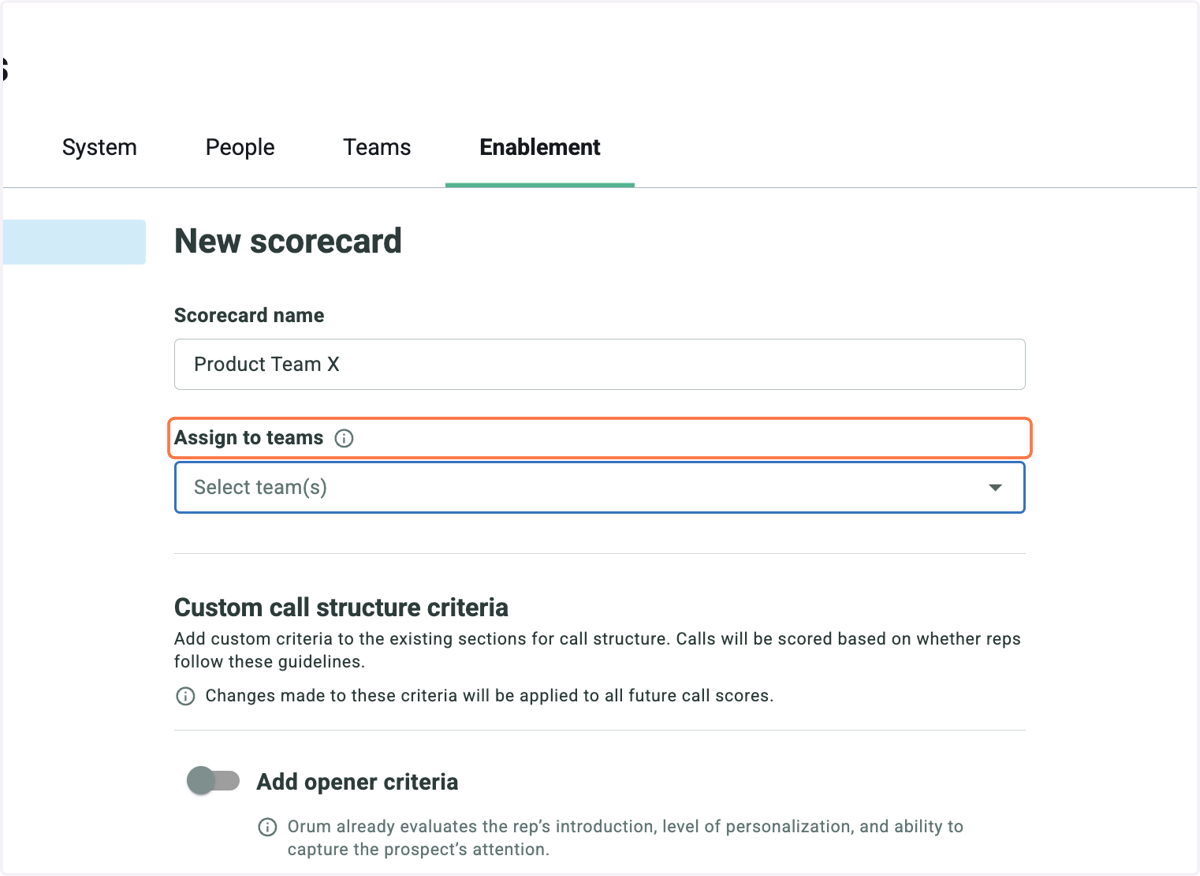
7. And assign to a team
8. The default scorecard is recommended if your teams are selling the same product into multiple verticals
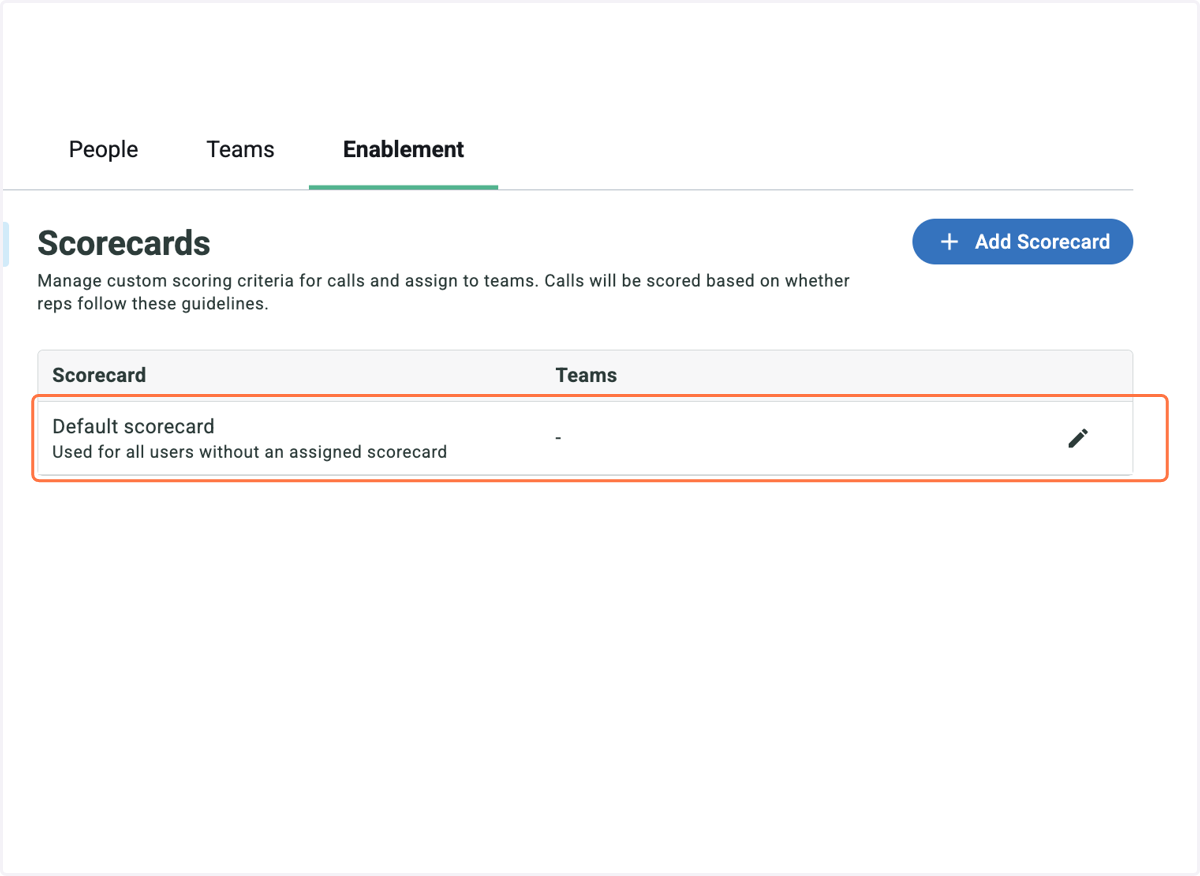
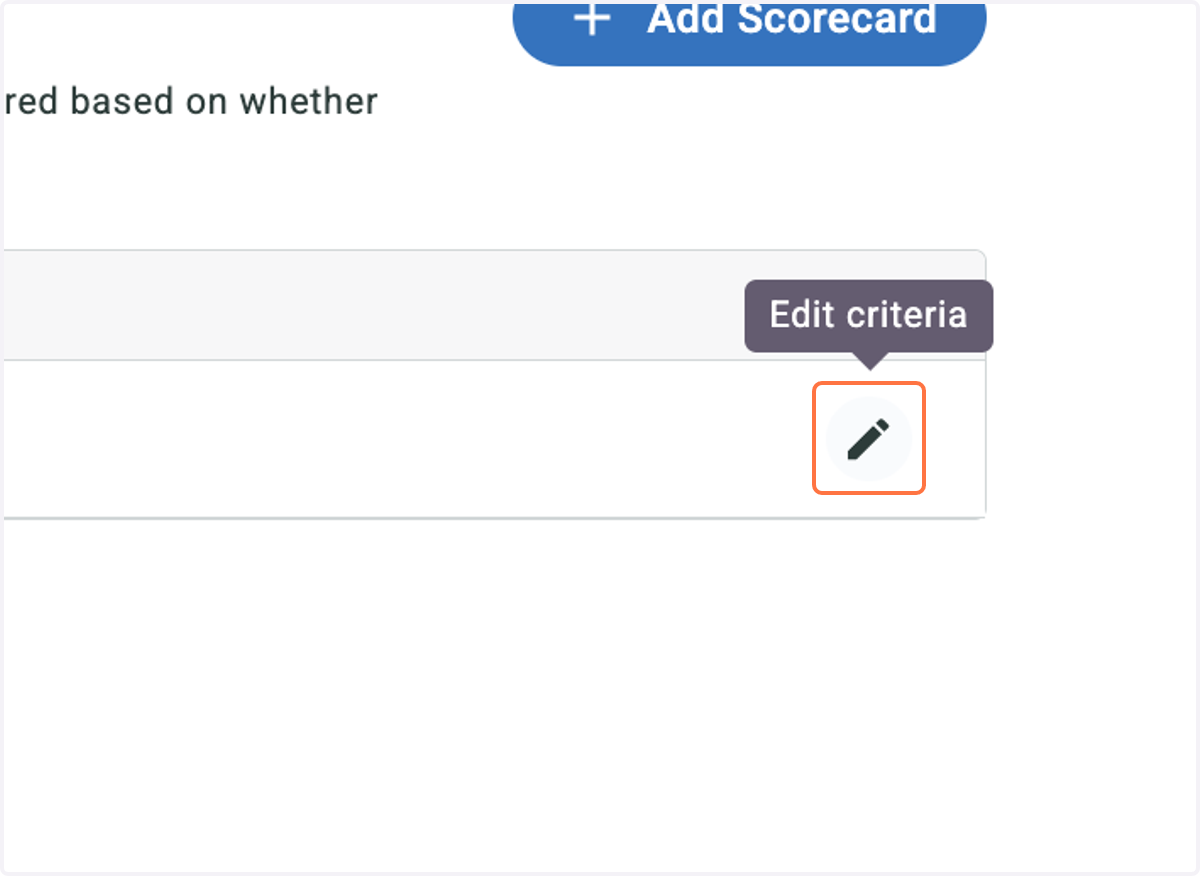
9. You can edit the default scorecard, the options for default and custom are the same
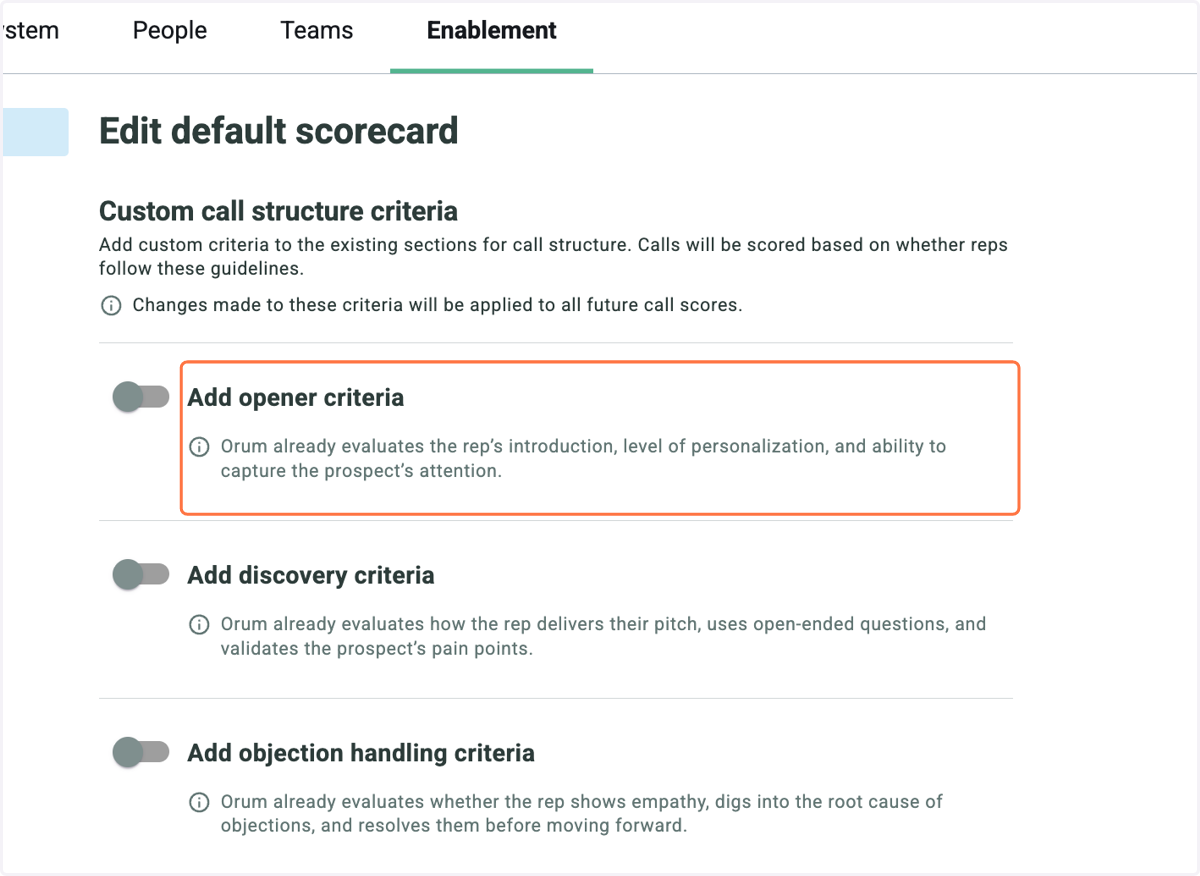
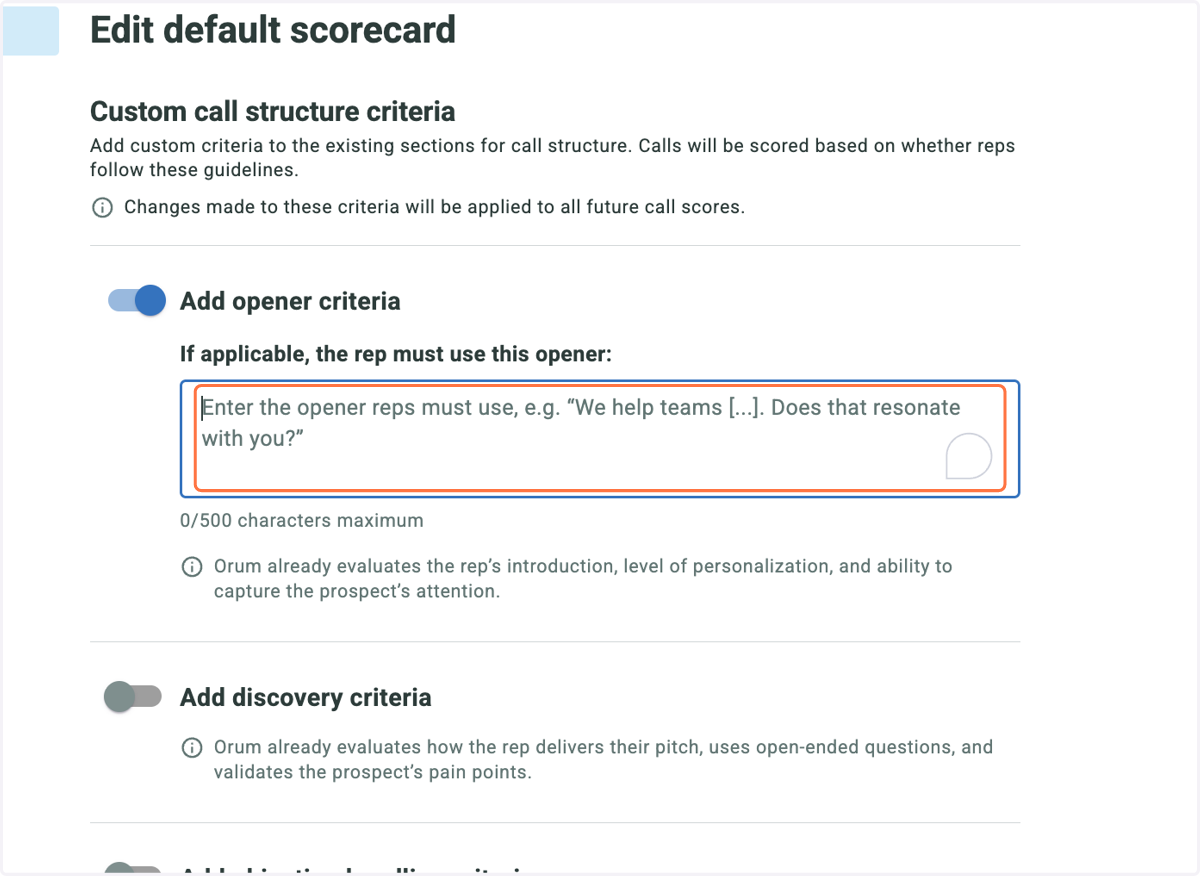
10. You can add more criteria to certain scoring sections in the call
11. Simply toggle on
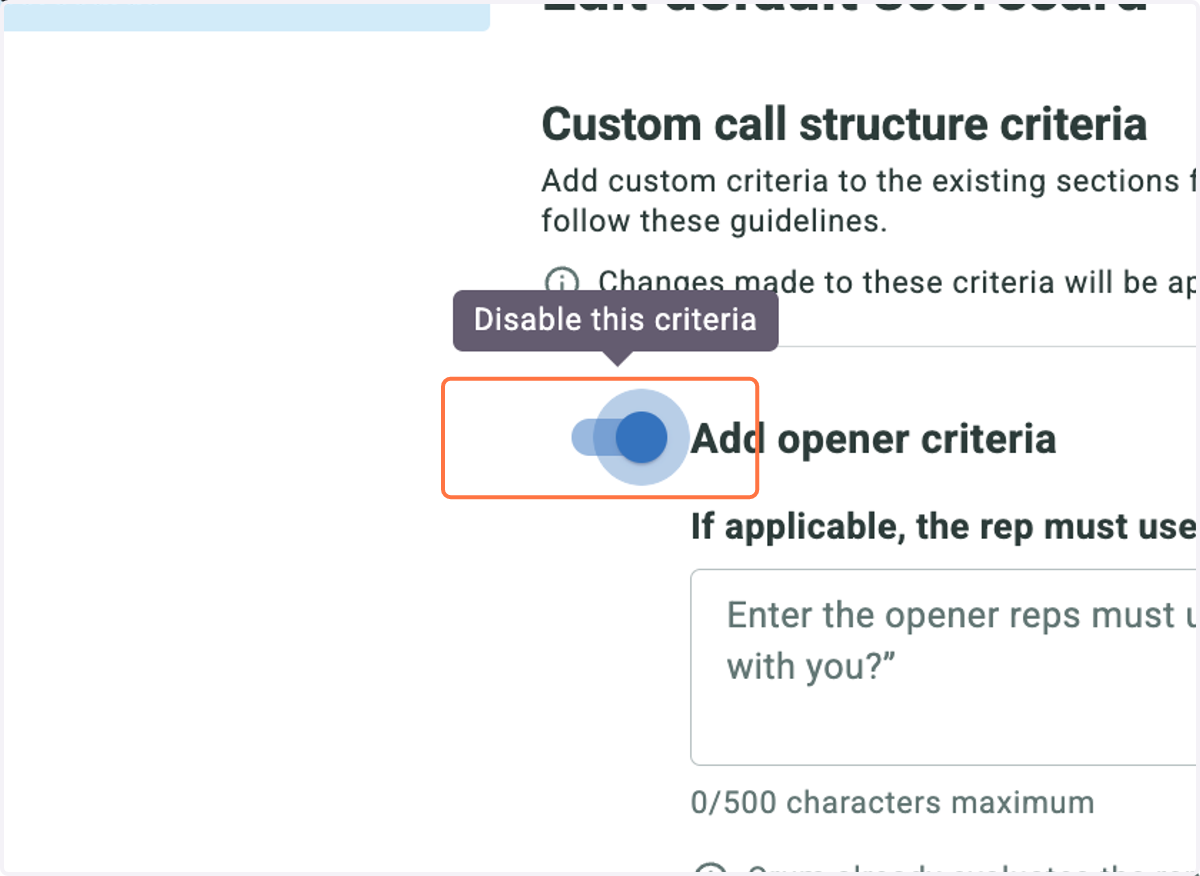
12. And add the criteria you'd like to add to the portion of that scorecard
13. You can also add a custom criteria section
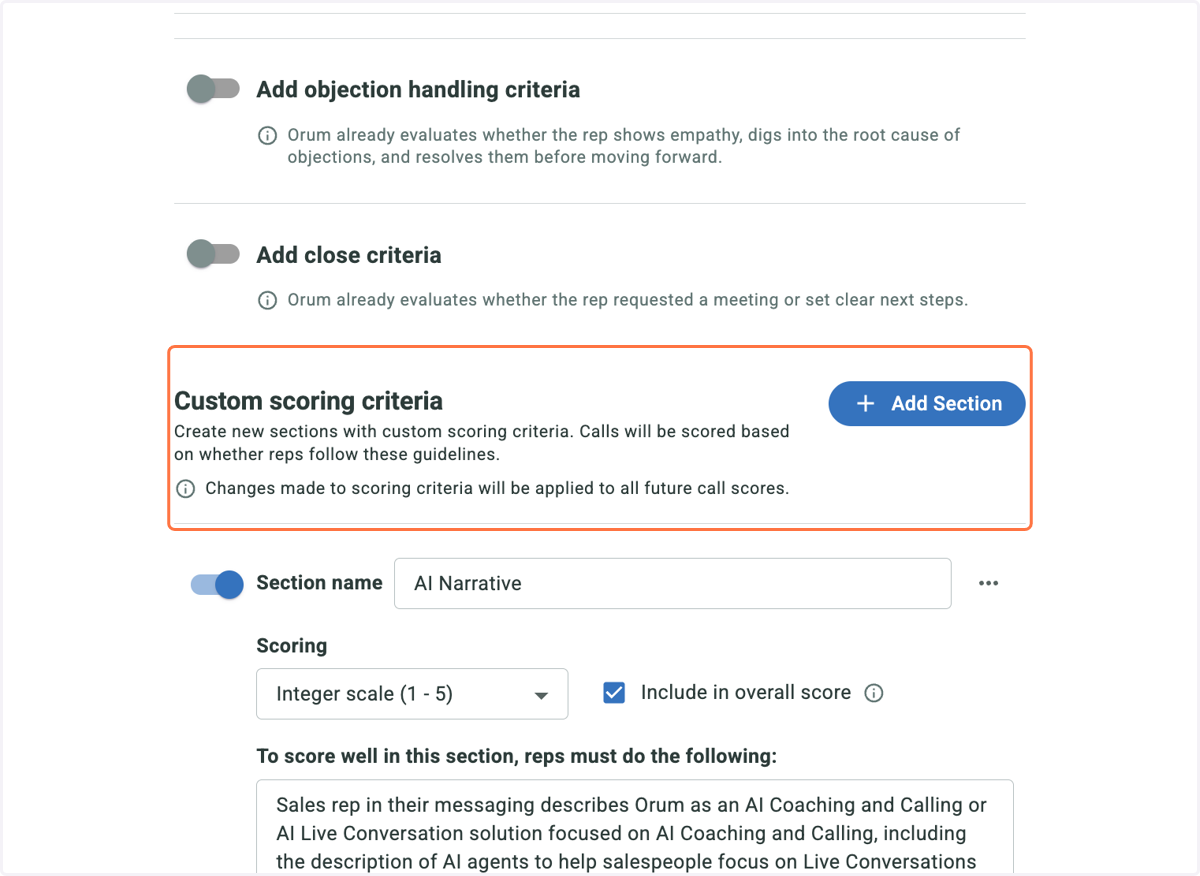
14. Just click add section
15. This is great for talk tracks you want to make sure reps are using
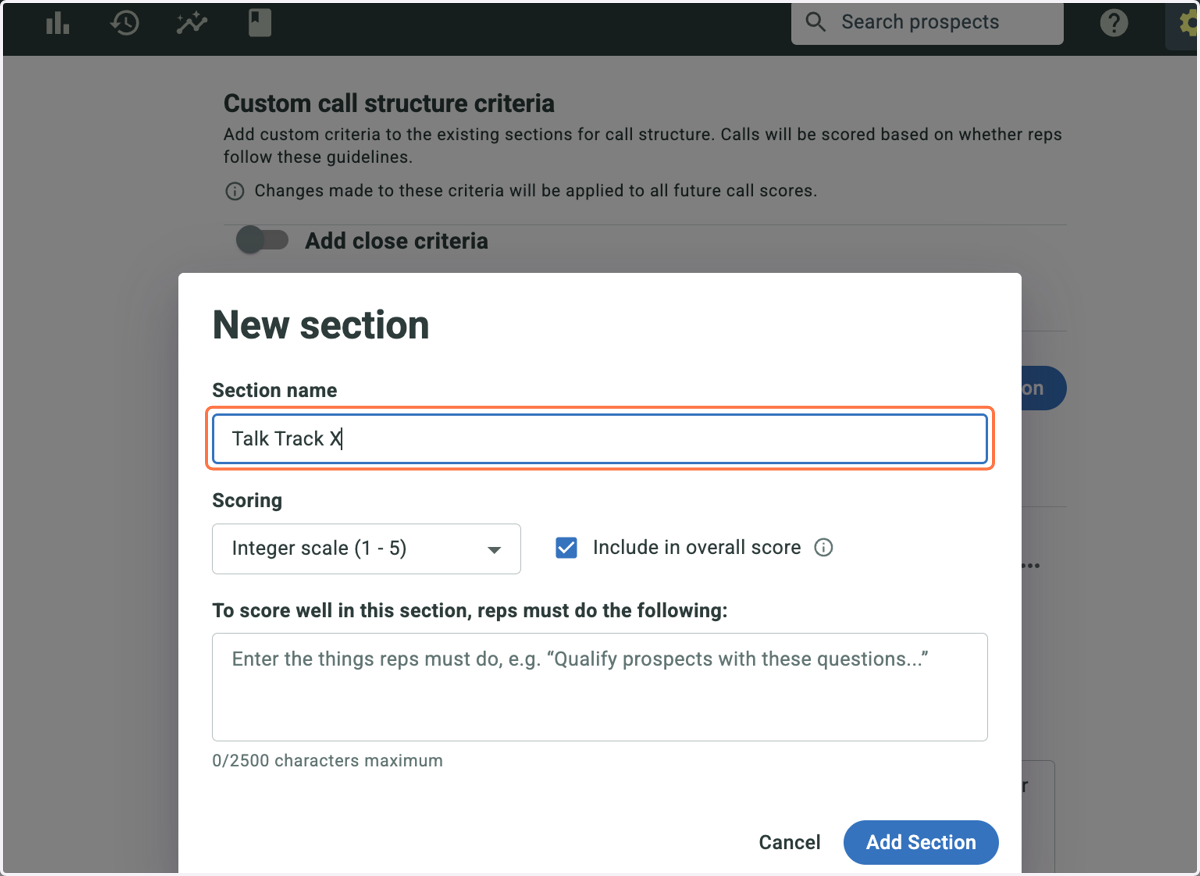
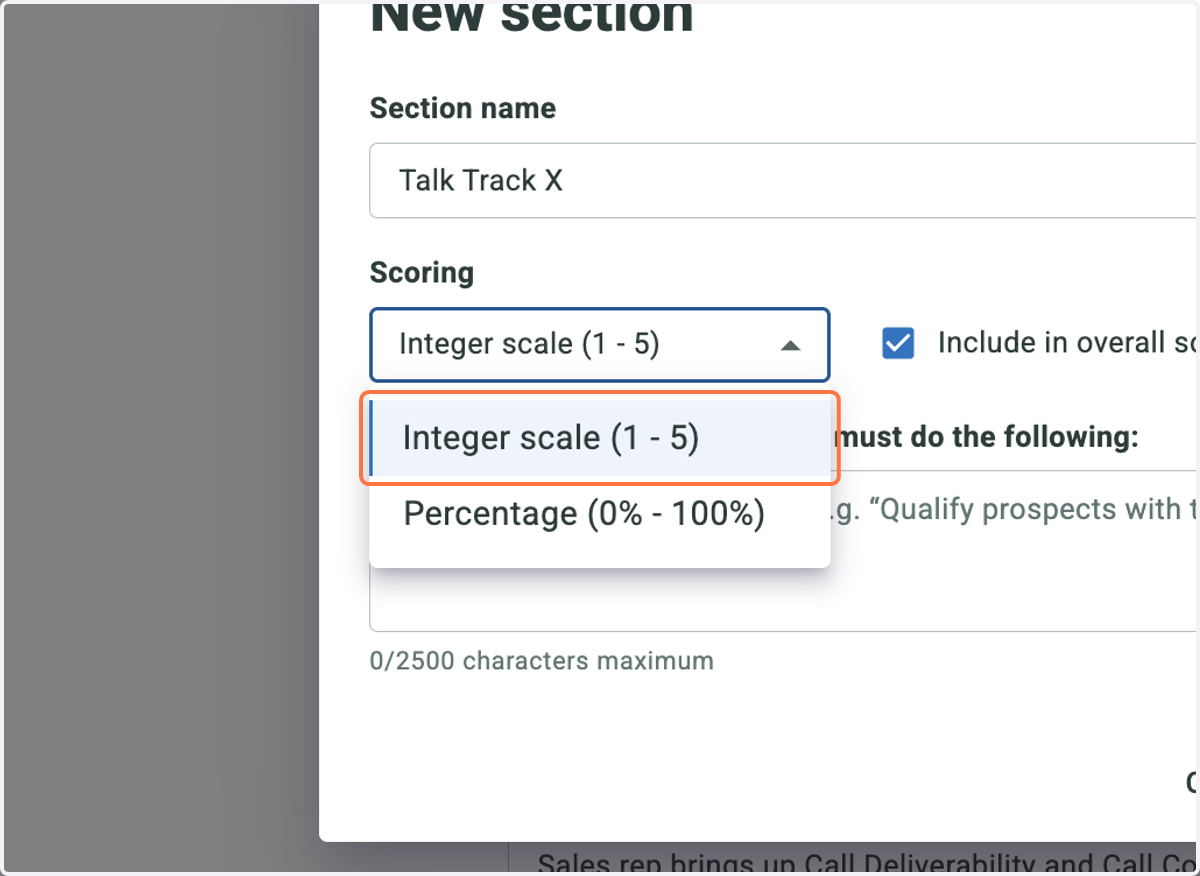
16. Choose a scoring type
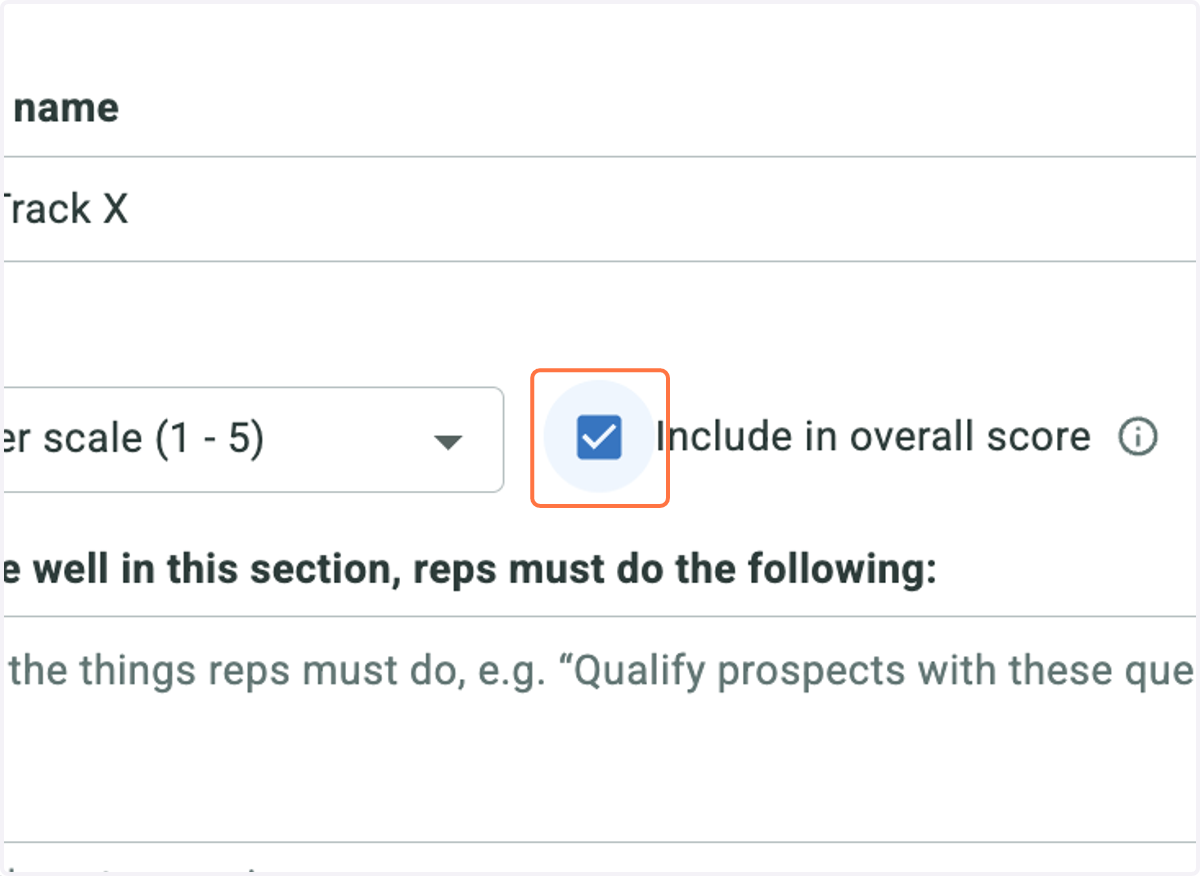
17. Check if you want to include this section in the overall score
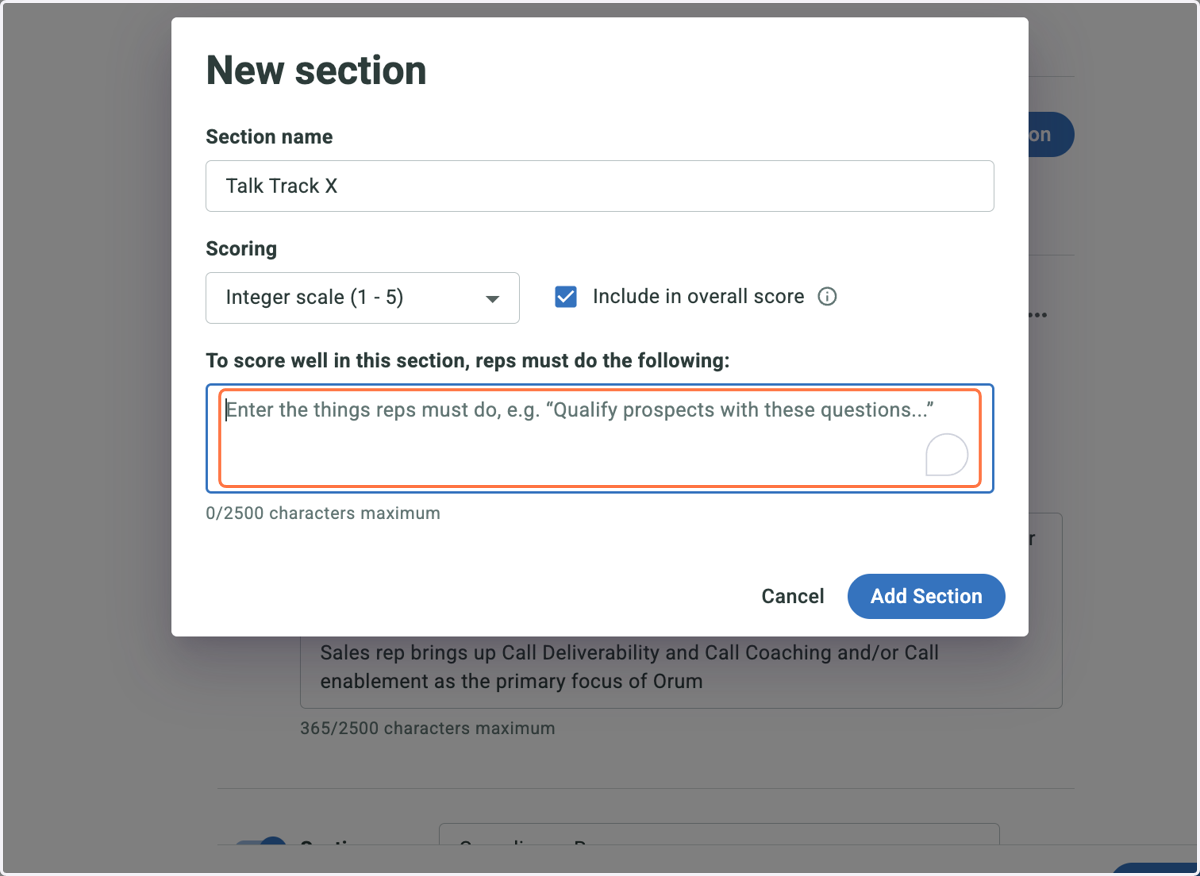
18. Add the prompt or talk track that you'd like to score reps against
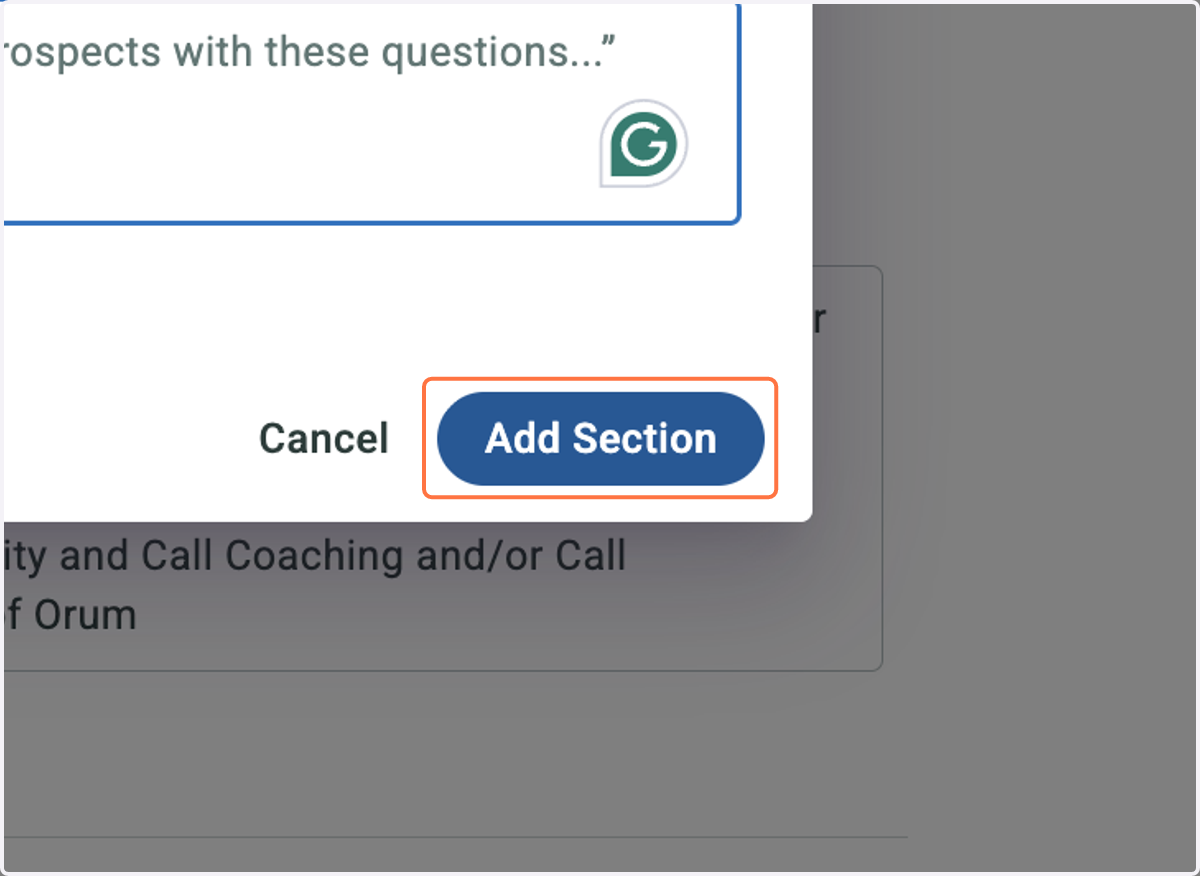
19. Click on Add Section
20. Here is an example of a finished custom criteria section
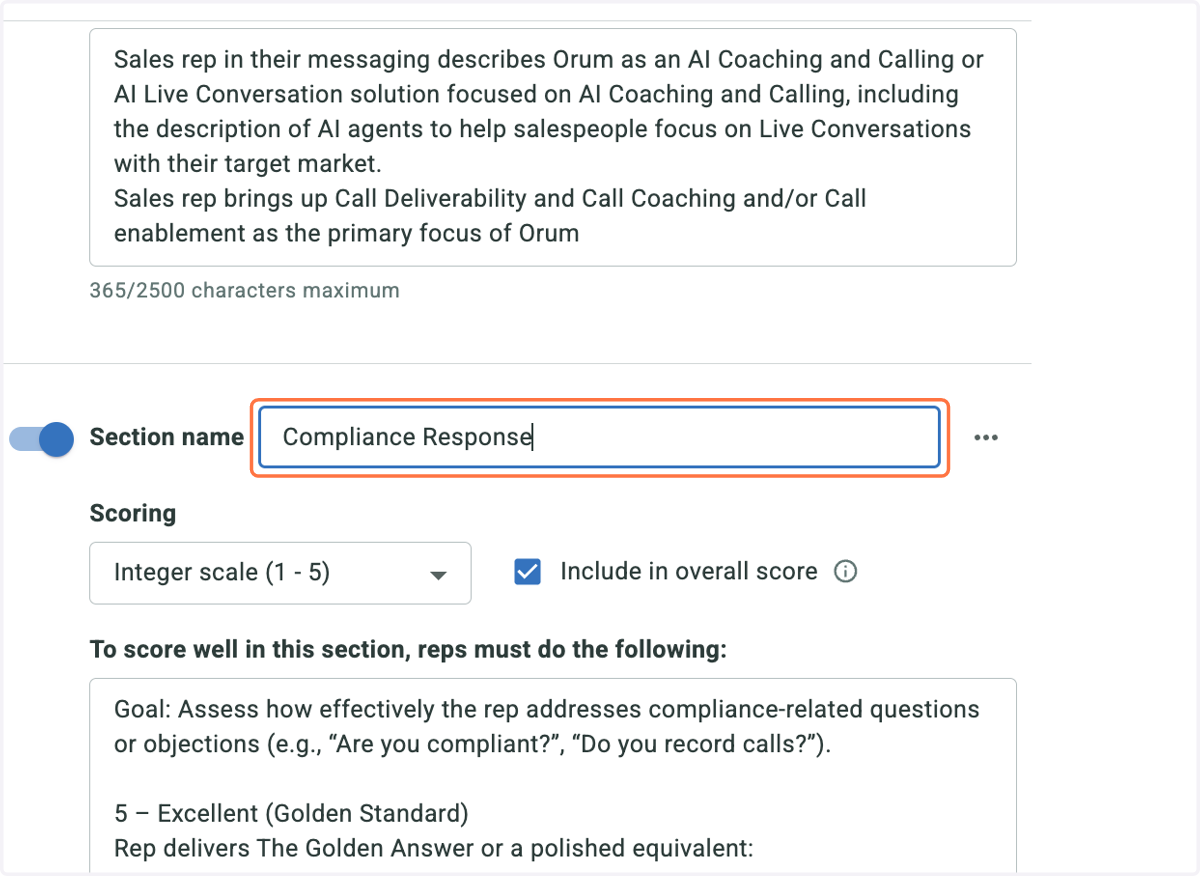
21. To score well, reps will need to meet the expectations set within the prompt
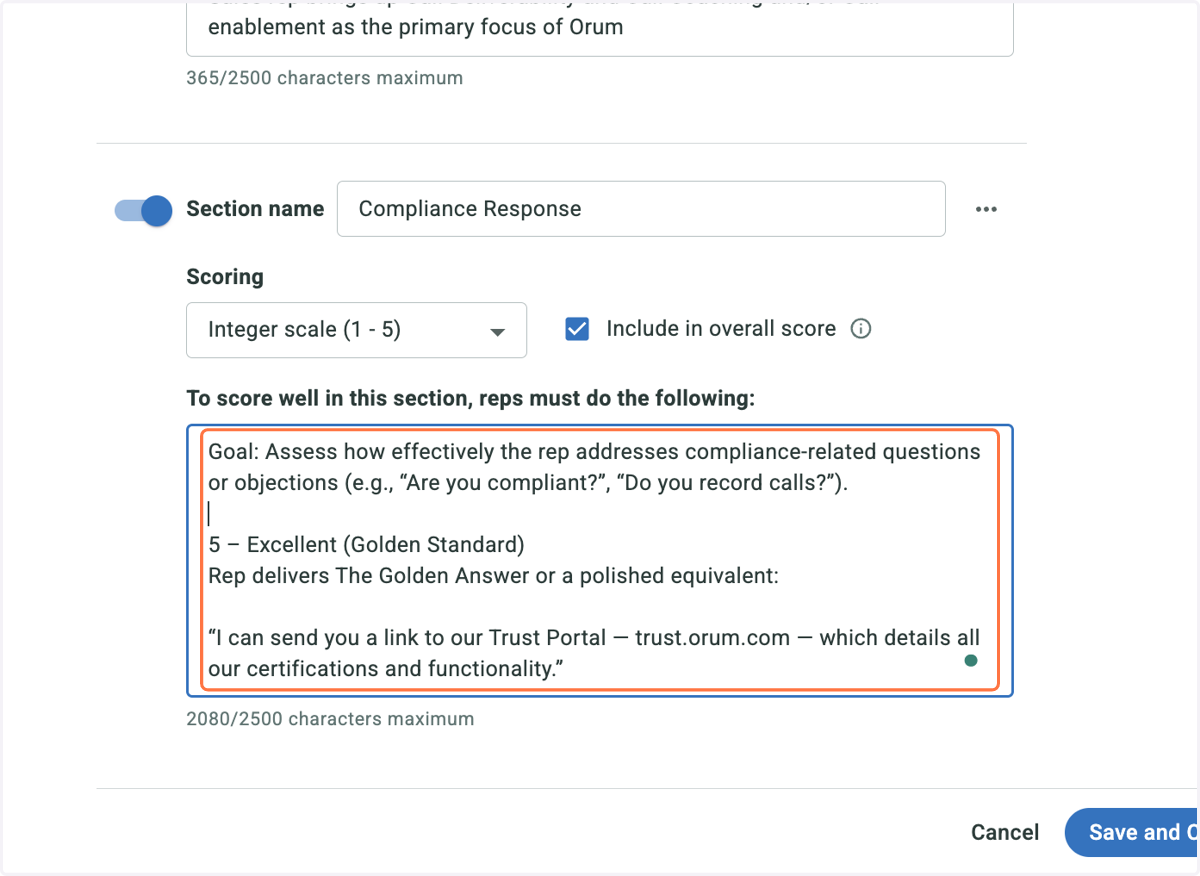
22. Lastly, click on Save and Close