Viewing your Email Analytics
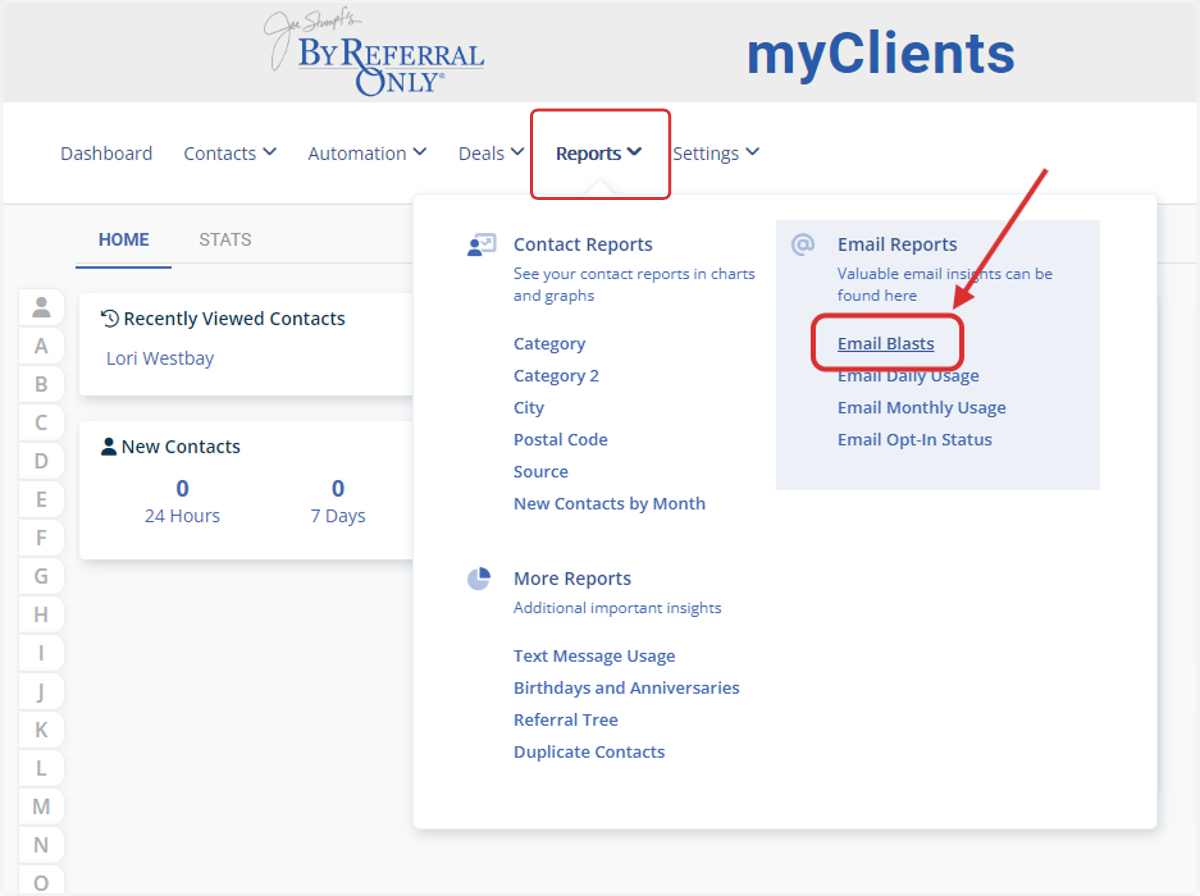
1. To locate your Email Blast Analytics in myClients, hover over Reports > Email Blasts
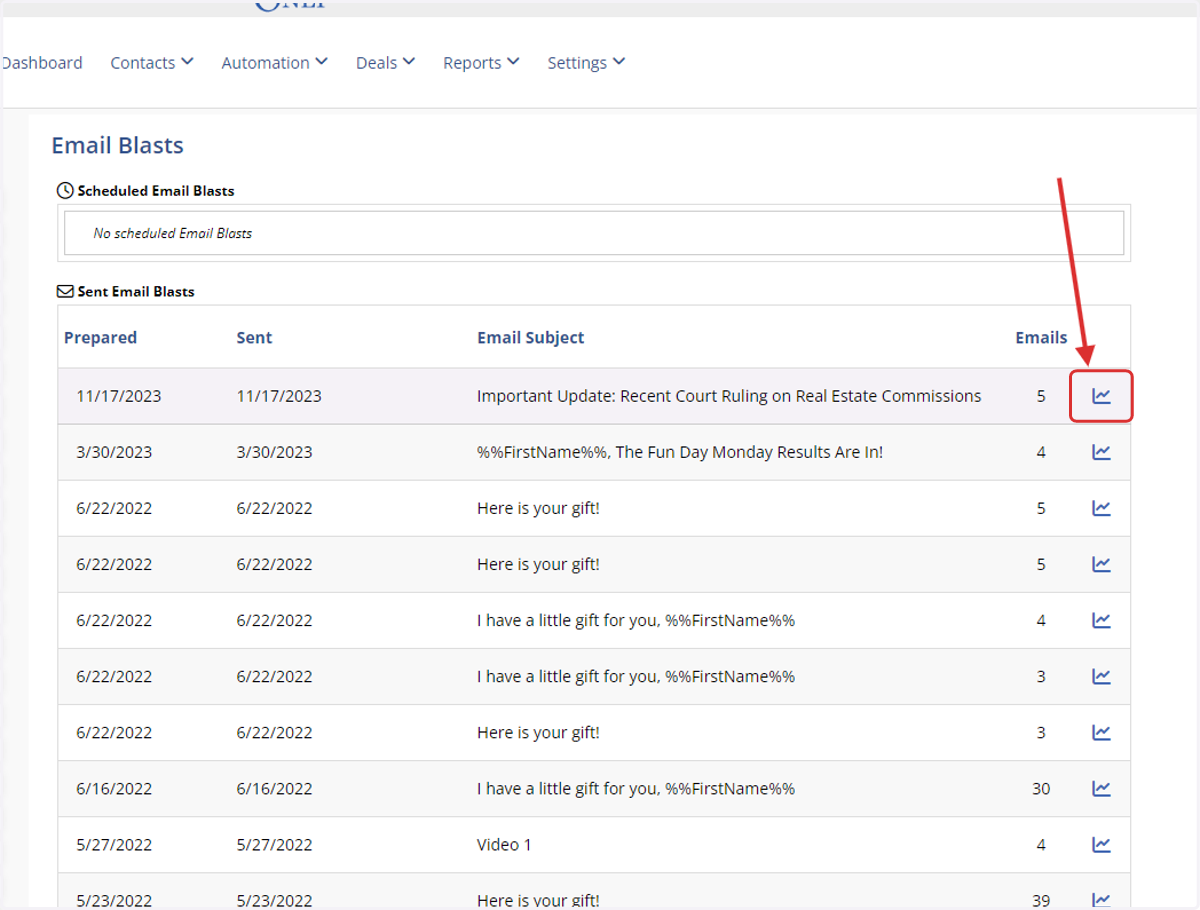
2. This will open a record of all of your emails previously sent through myClients.
Click the graph icon on the right to open the analytics for a specific email.
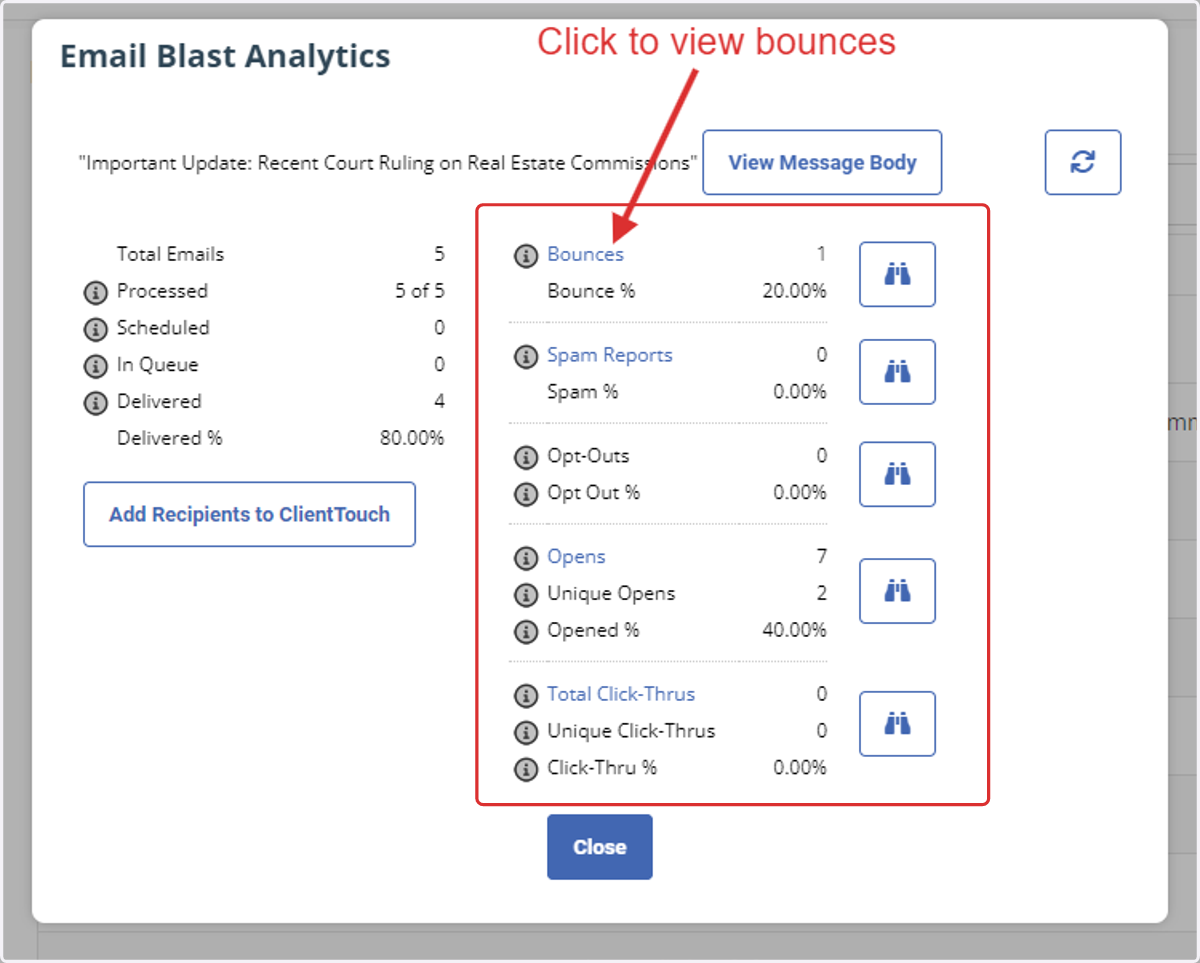
3. To view a specific group, like bounces, click on the blue link.
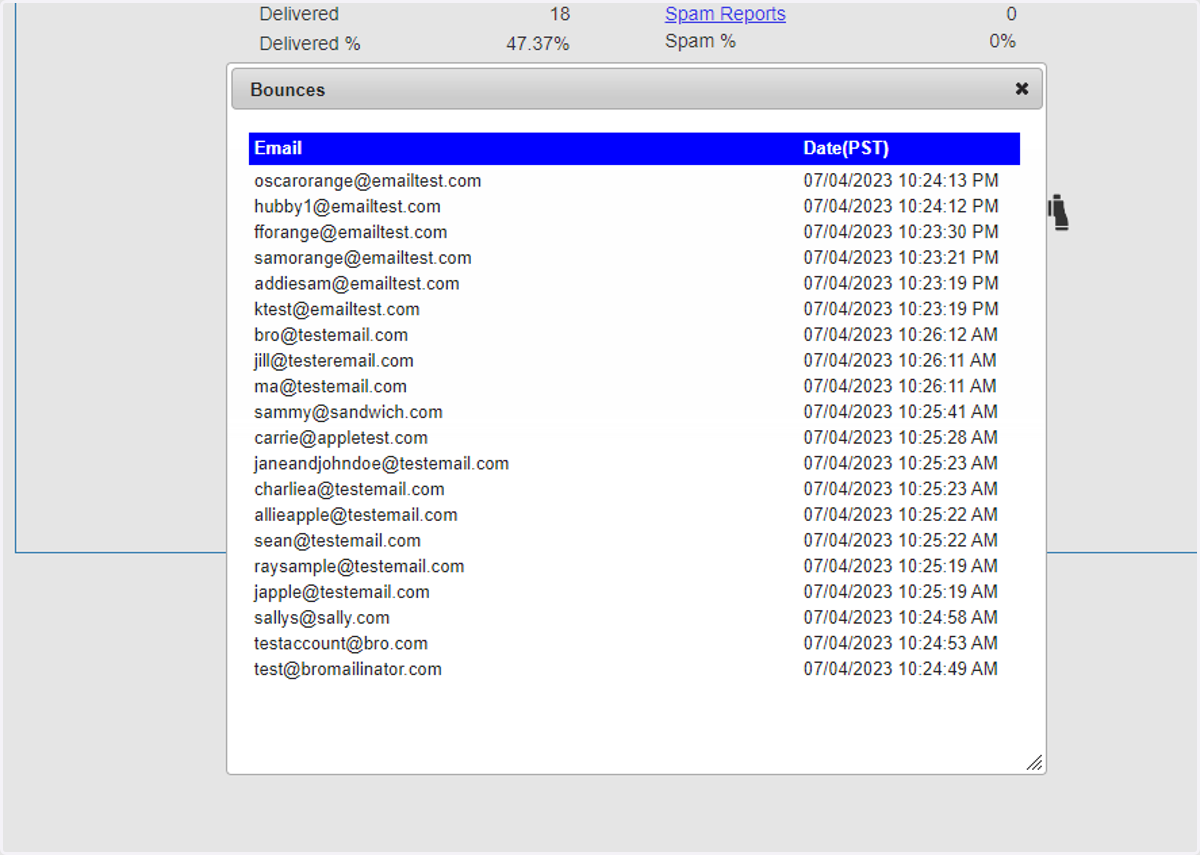
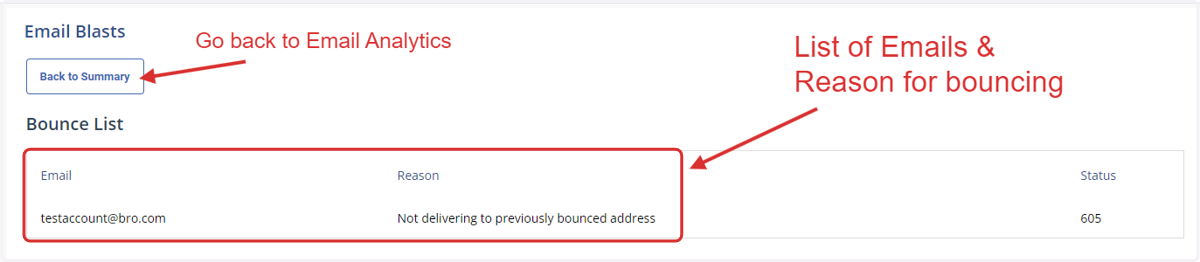
4. This will show you a list of the Bounced Emails & provide a reason for the email bouncing.
Click "Back to Summary" to go back to your email blast report.
Viewing your 7E Email Analytics
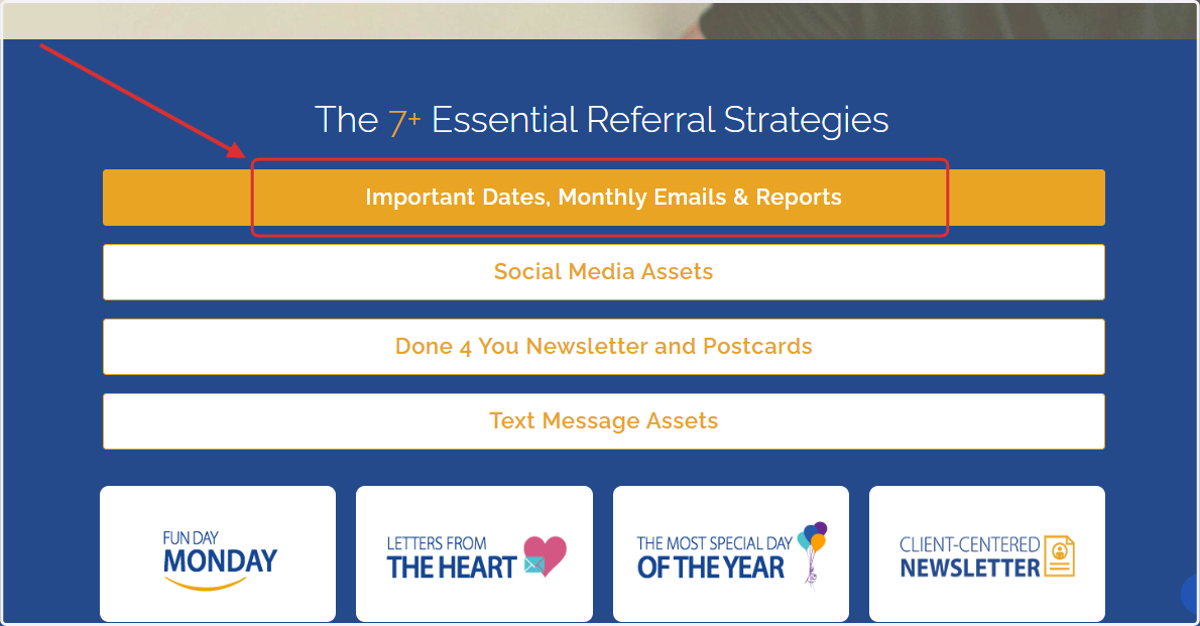
5. From the By Referral Only Homepage, click on Important Dates, Monthly Emails & Reports
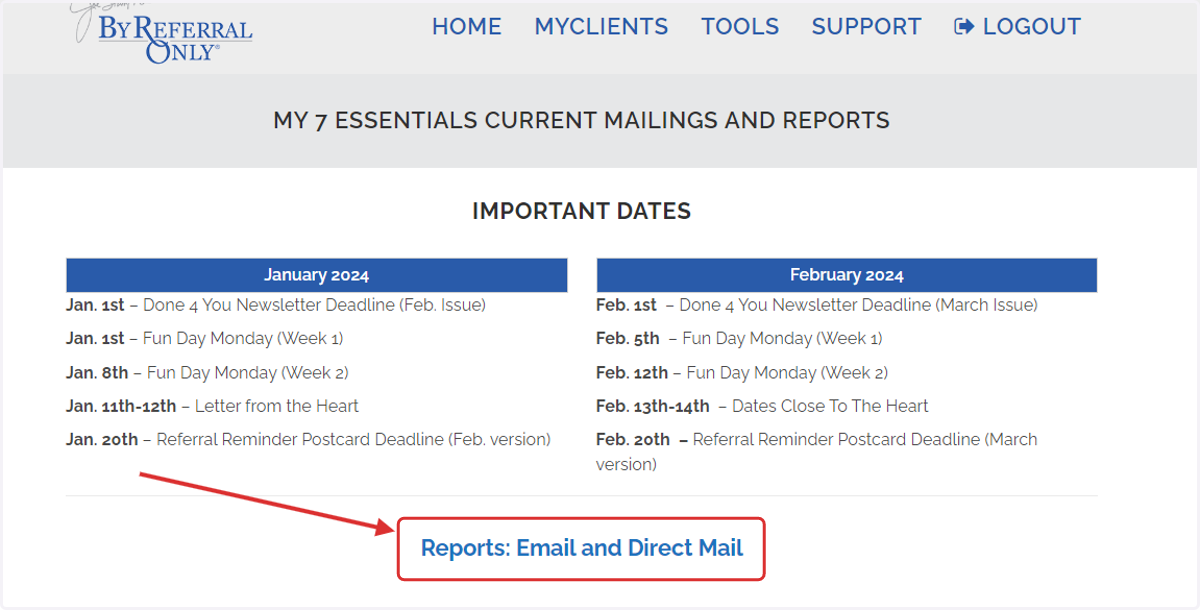
6. Click on Reports: Email and Direct Mail
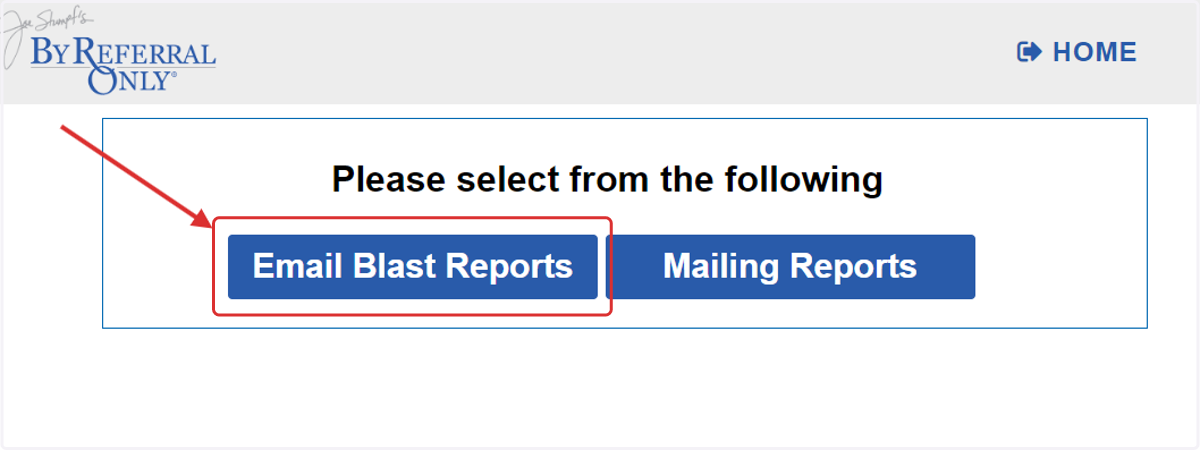
7. Click on Email Blast Reports
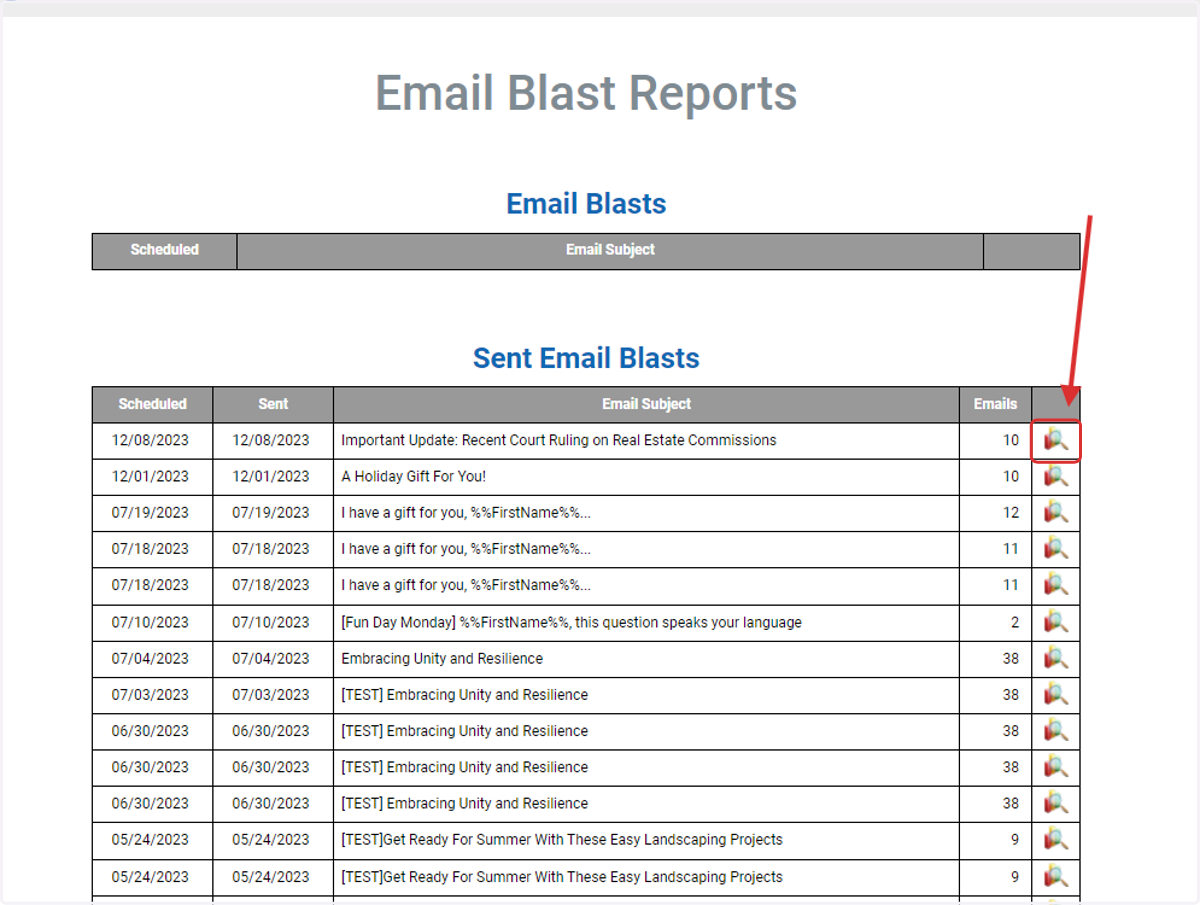
8. Click on the magnifing glass icon to view the analytics for a particular email
9. To view a specific group, like bounces, click on the blue link.
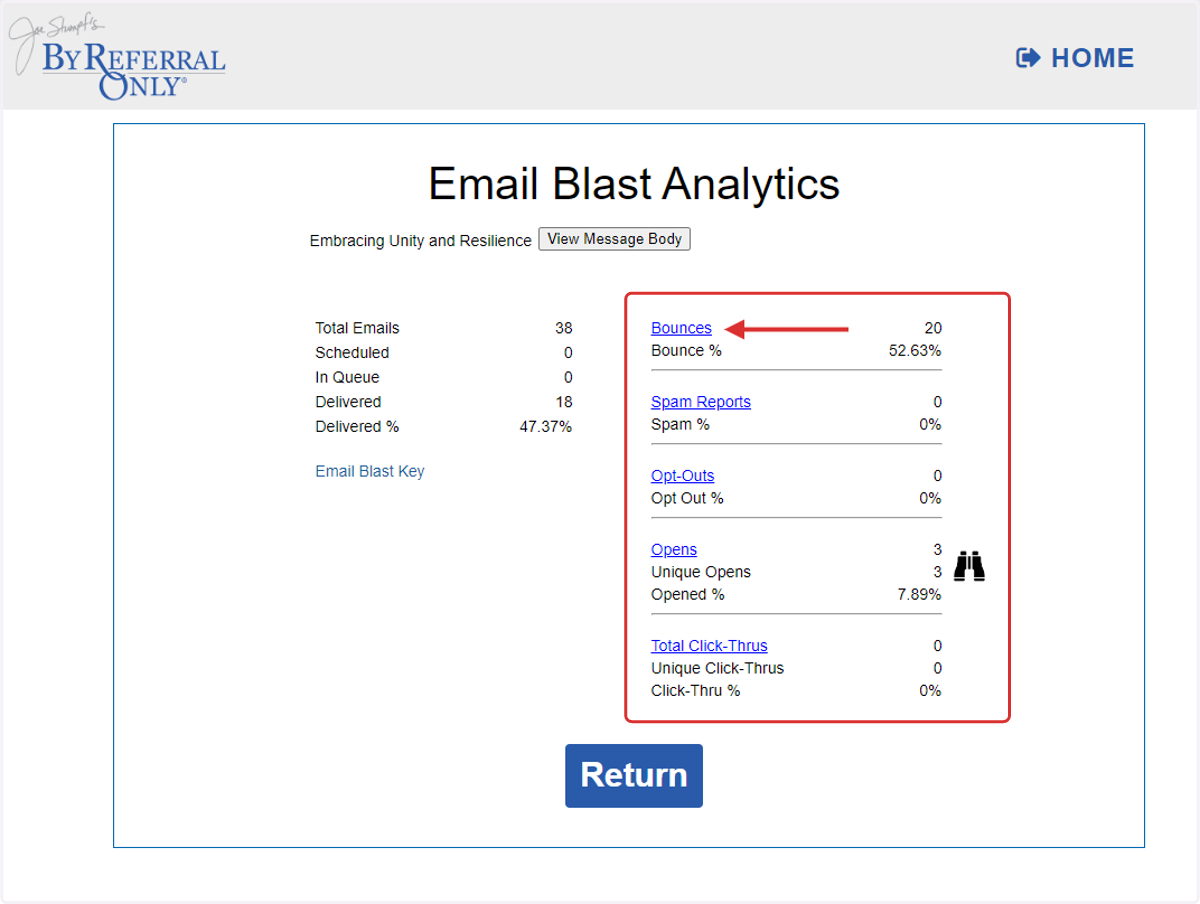
10. This will open up a list of emails that have bounced.