Reset User Password in CSO Data Kenya via Admin

CSO Data Kenya – Uniting Civil Society Through Shared Data Power.

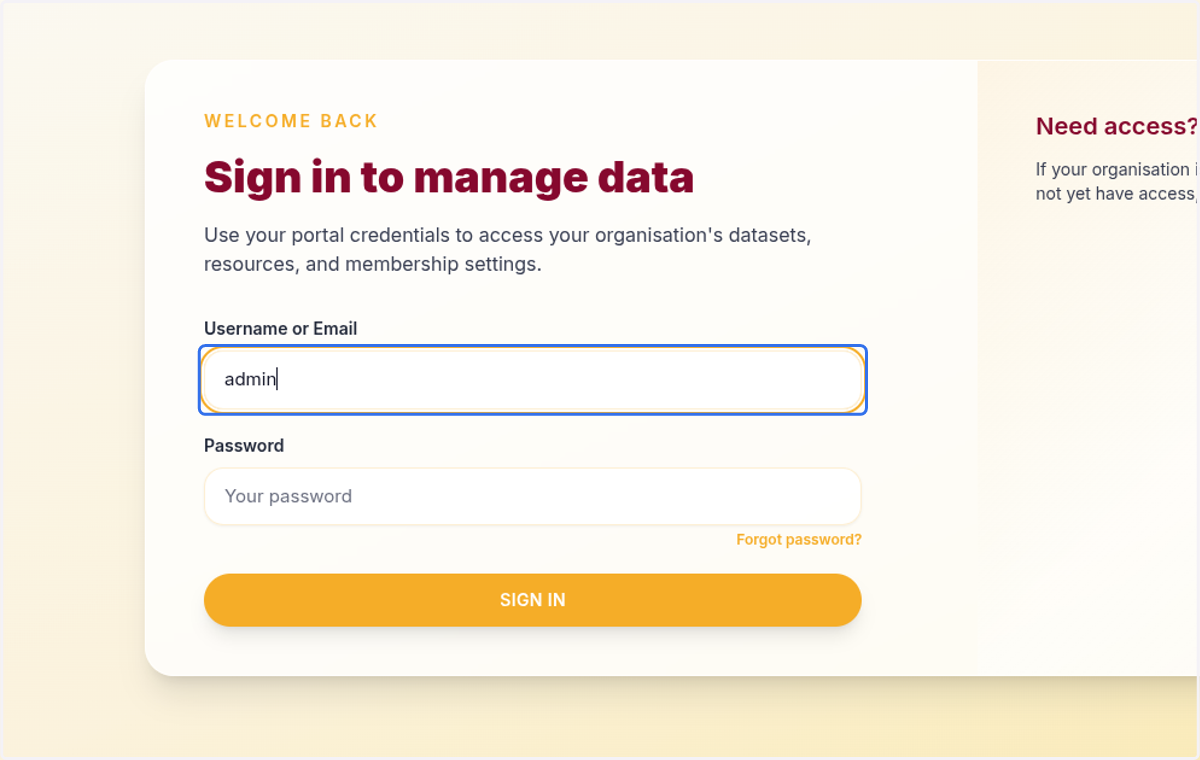
  1. 1. Log in as an admin account

    Log in as an admin account
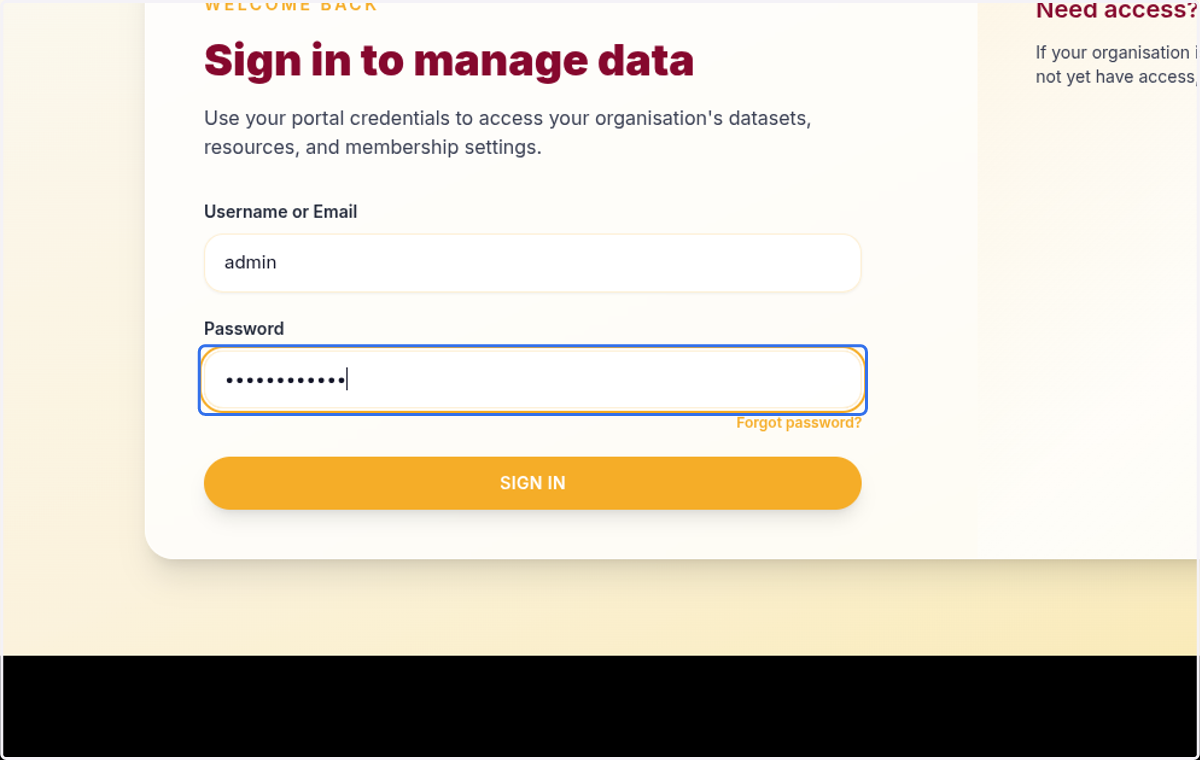
  2. 2. Type in your password

    Type in your password
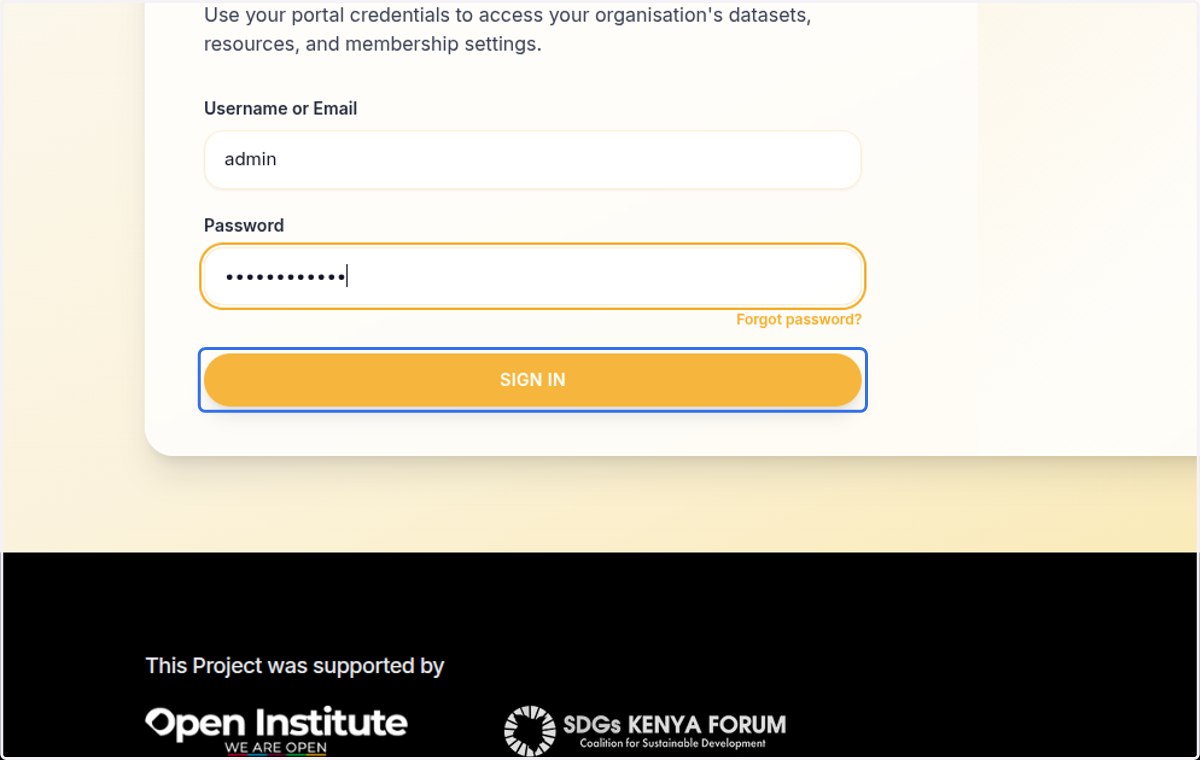
  3. 3. Click on SIGN IN

    Click on SIGN IN
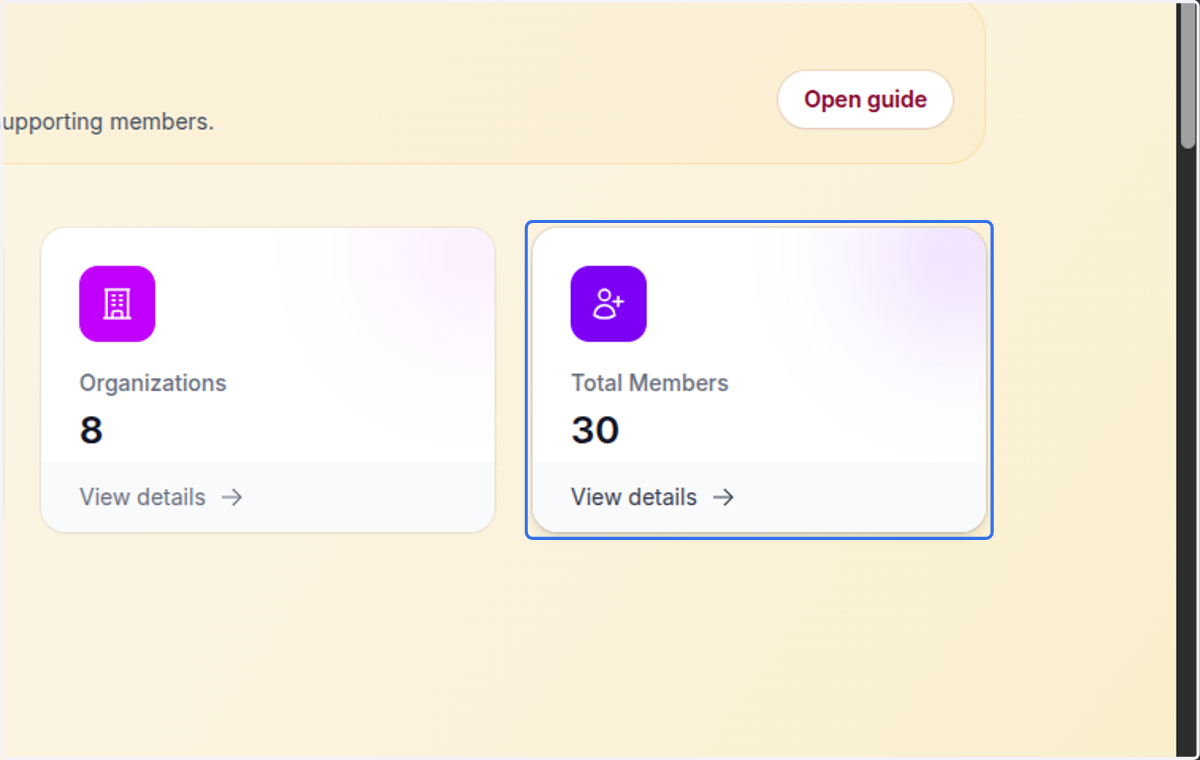
  4. 4. Click on Total Members…

    Click on Total Members…
  5. 5. Click on View Profile - this is the profile of the user you need to reset the password for their account
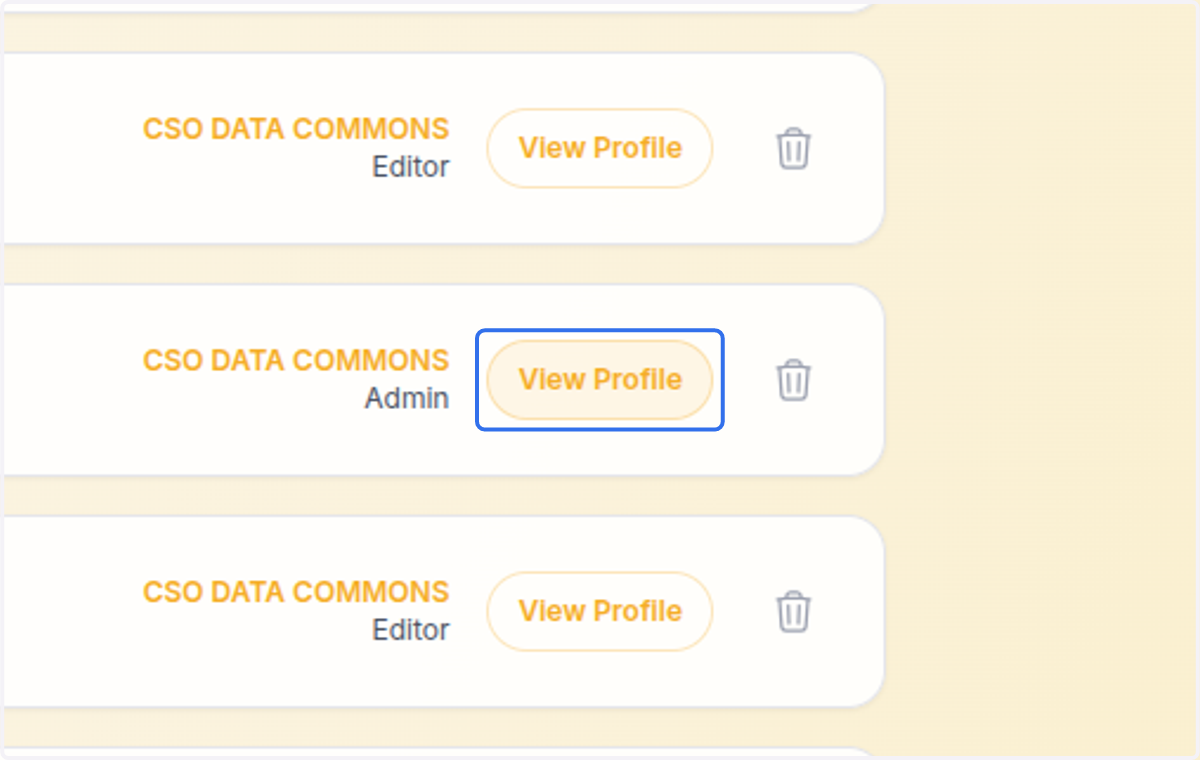
    Click on View Profile - this is the profile of the user you need to reset the password for their account
  6. 6. Click on Reset User Password (Admin Only)…
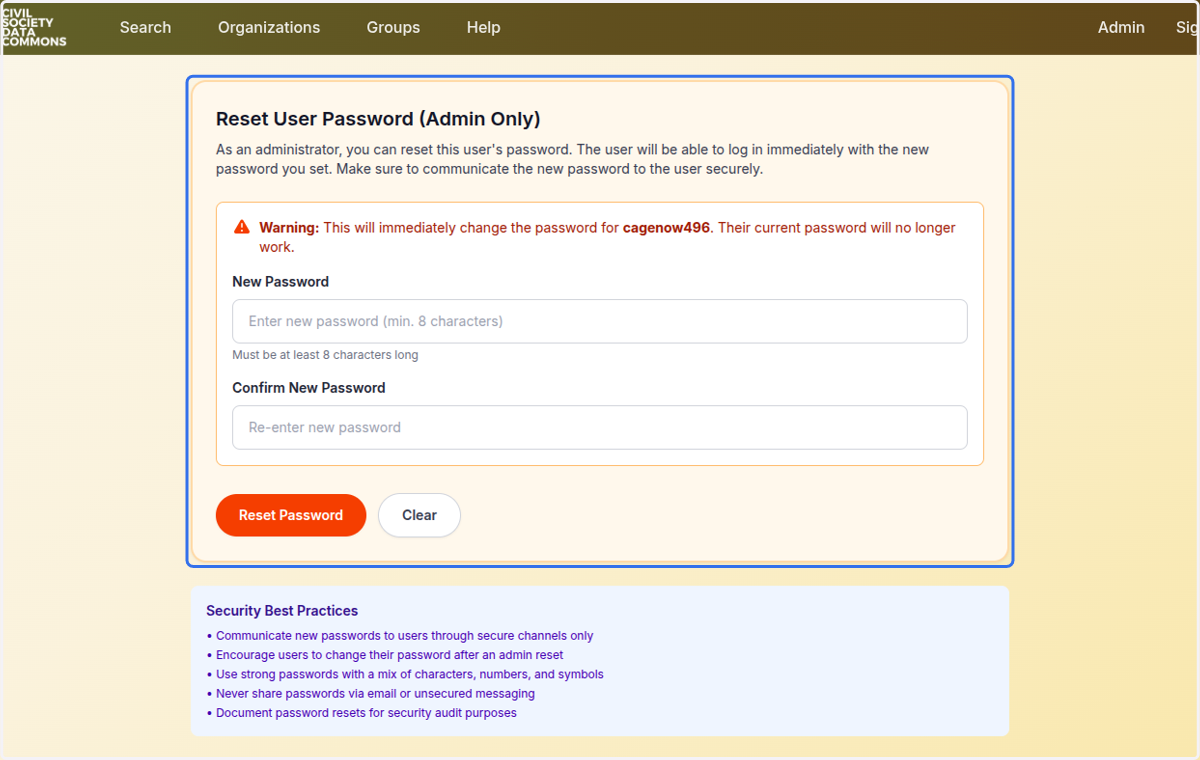
    Click on Reset User Password (Admin Only)…
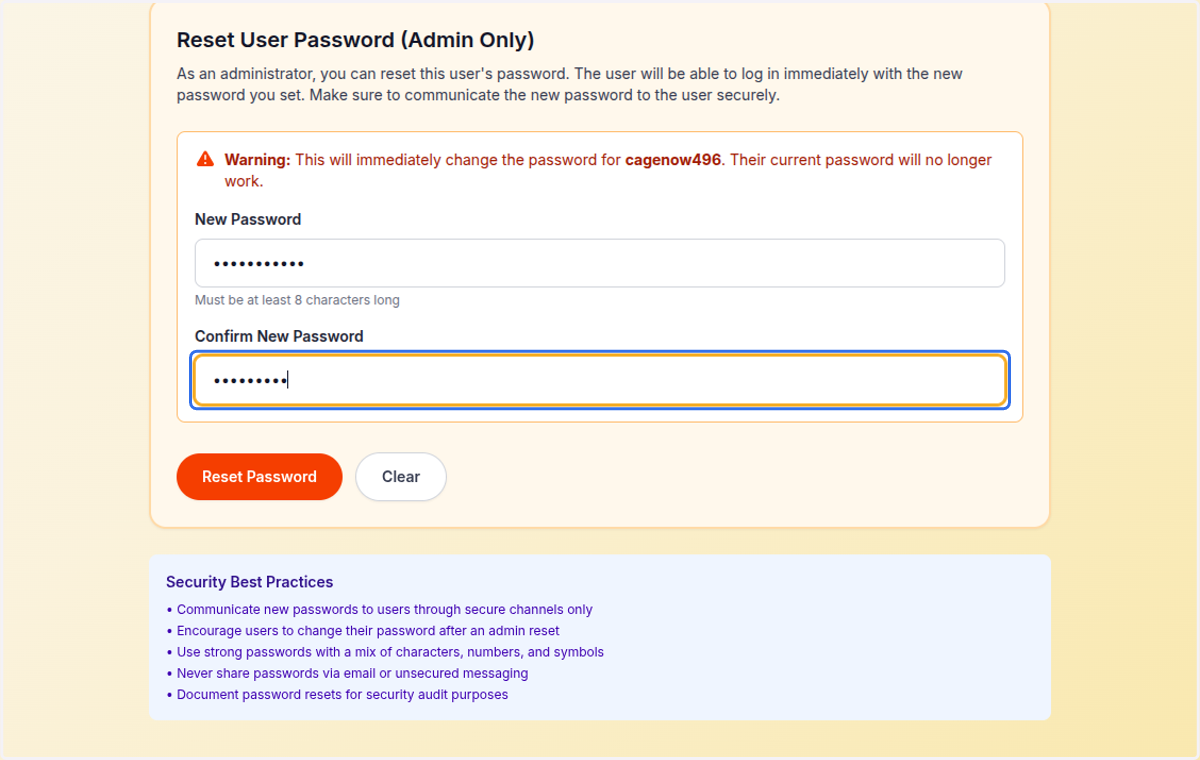
  7. 7. Type in the new password to reset to
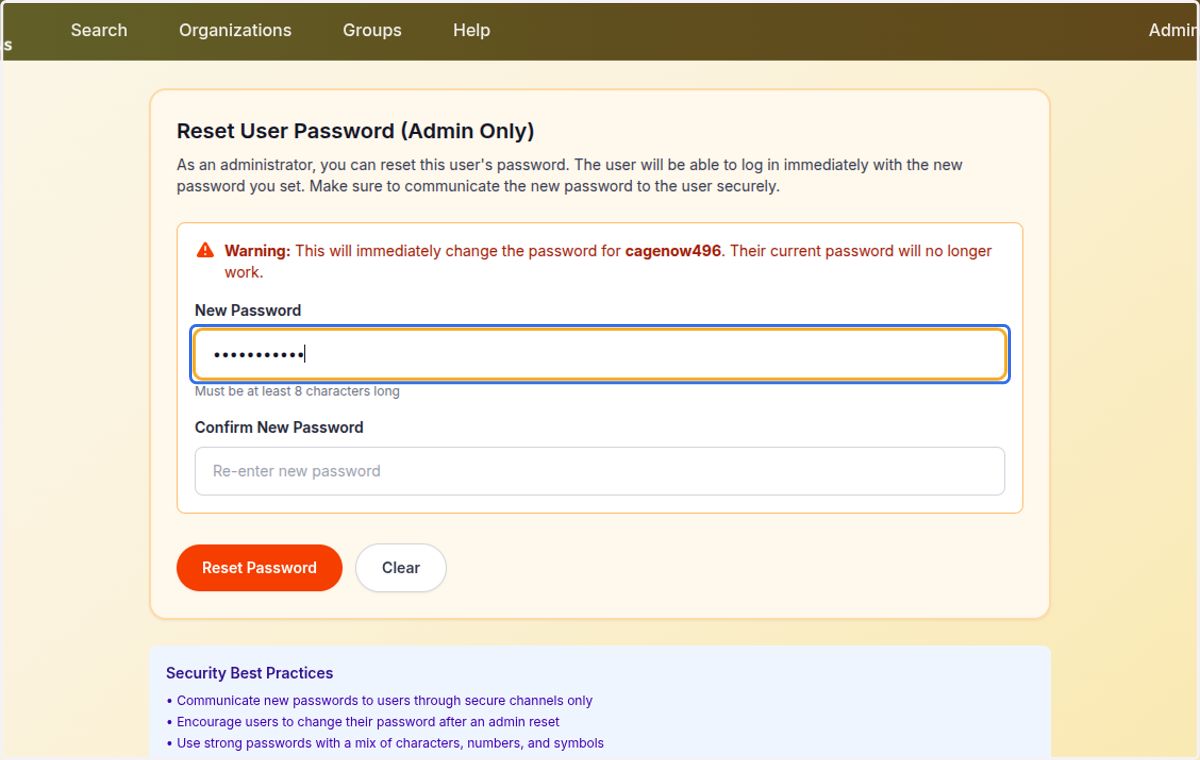
    Type in the new password to reset to
  8. 8. Confirm the new password

    Confirm the new password
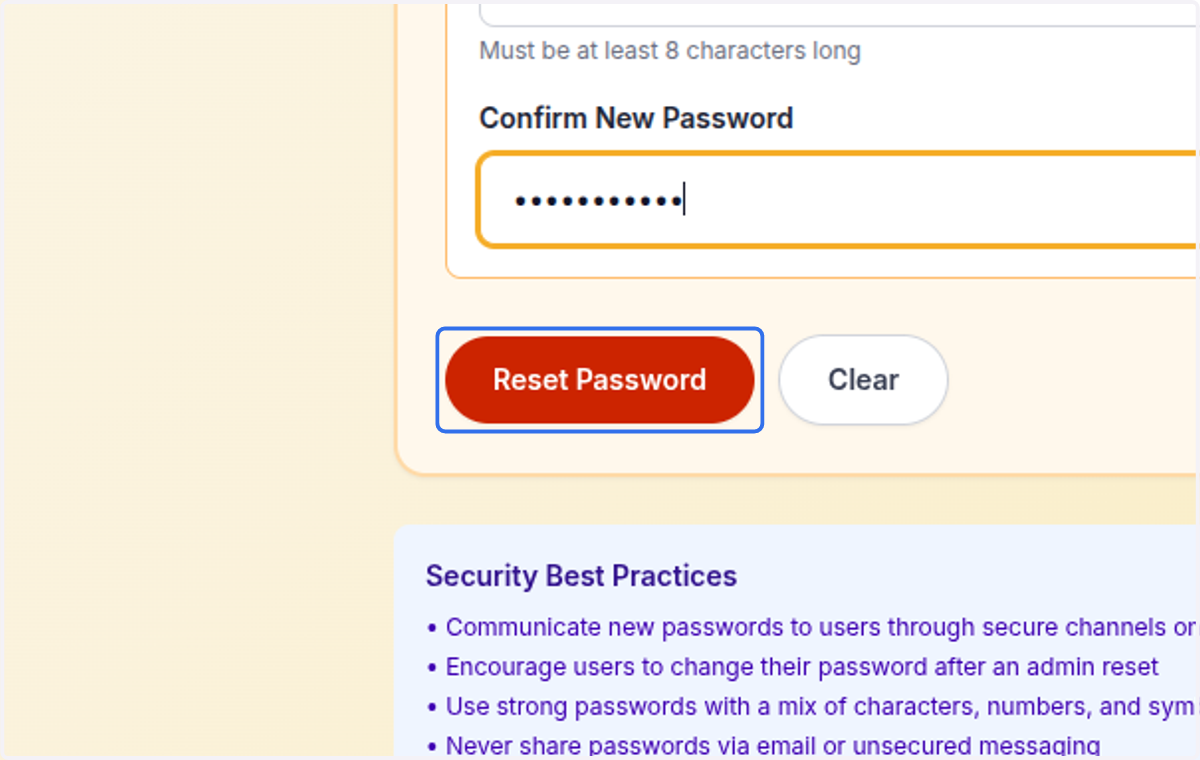
  9. 9. Click on Reset Password

    Click on Reset Password
  10. 10. The password has been successfully reset for this user
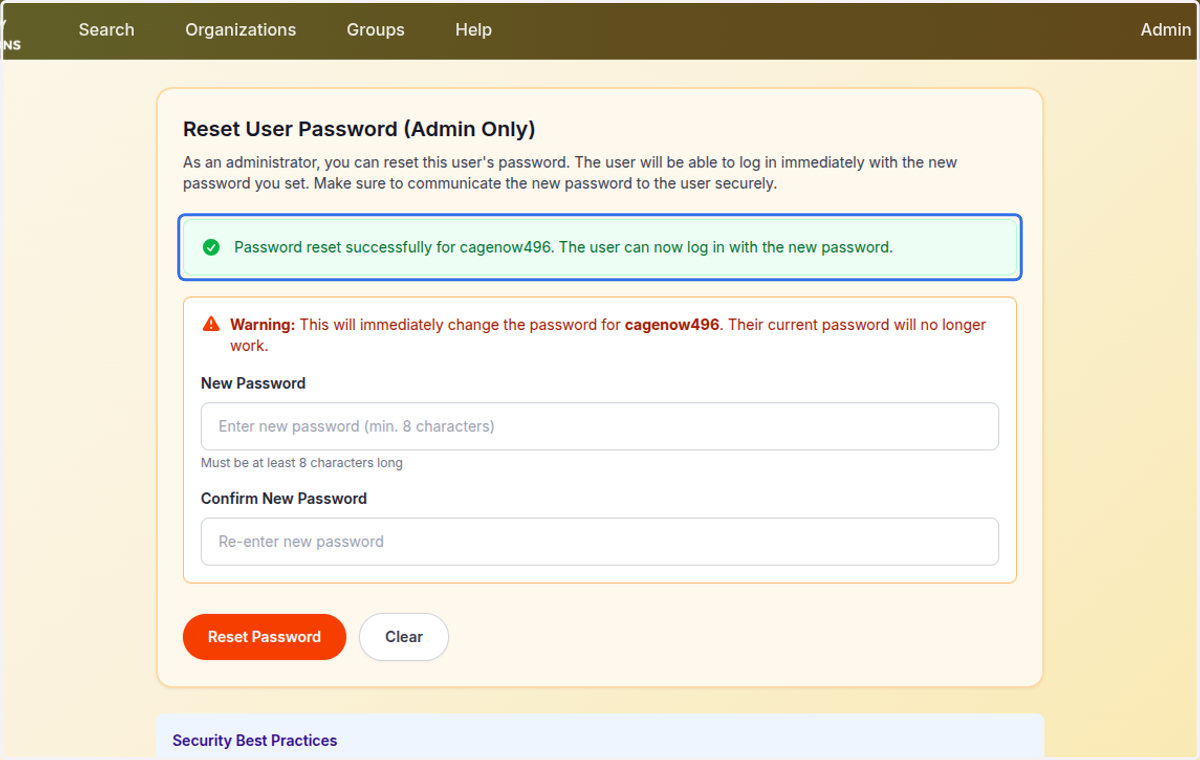
    The password has been successfully reset for this user
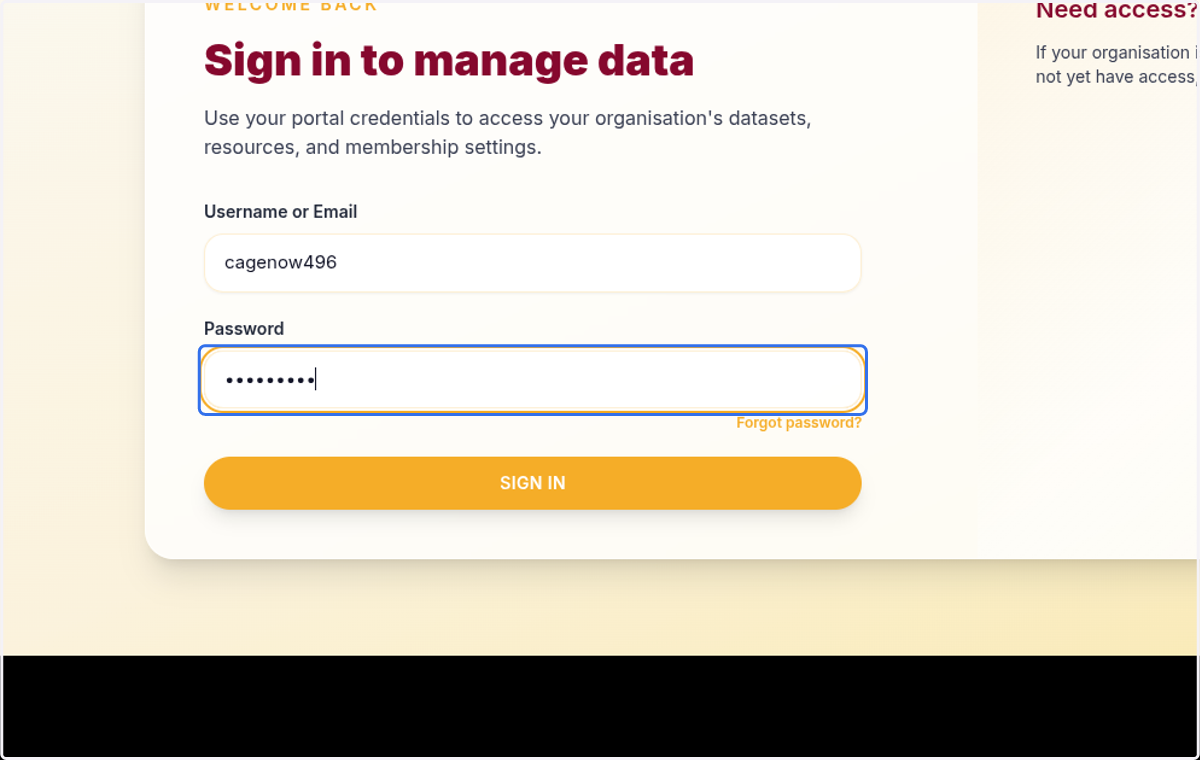
  11. 11. The account can now log in using the reset password
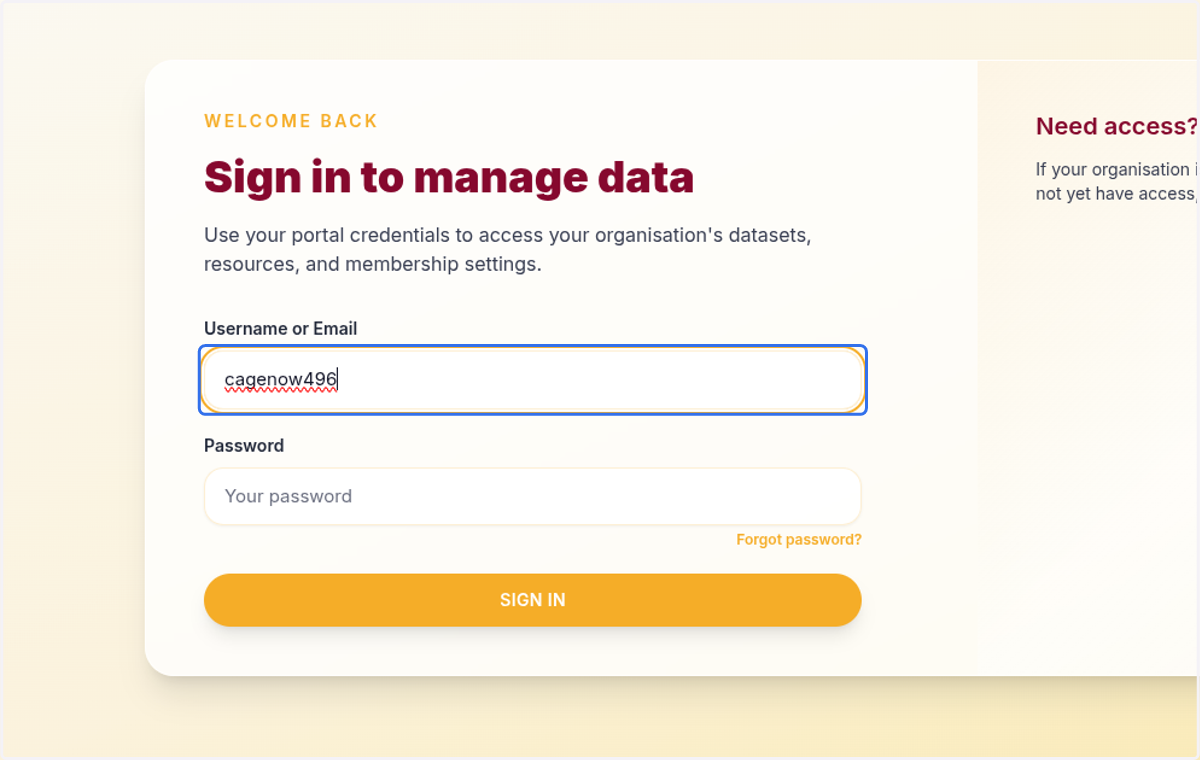
    The account can now log in using the reset password
  12. 12. Type in the new password

    Type in the new password
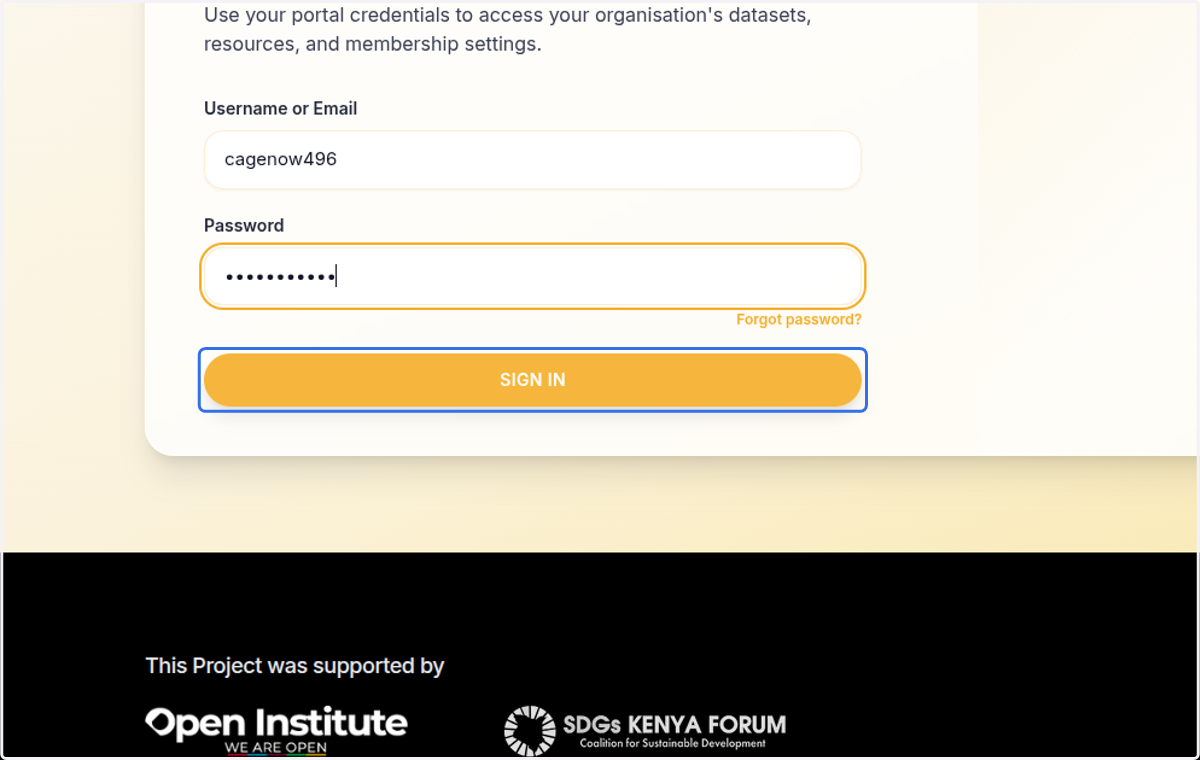
  13. 13. Click on SIGN IN

    Click on SIGN IN
  14. 14. The password reset was successful
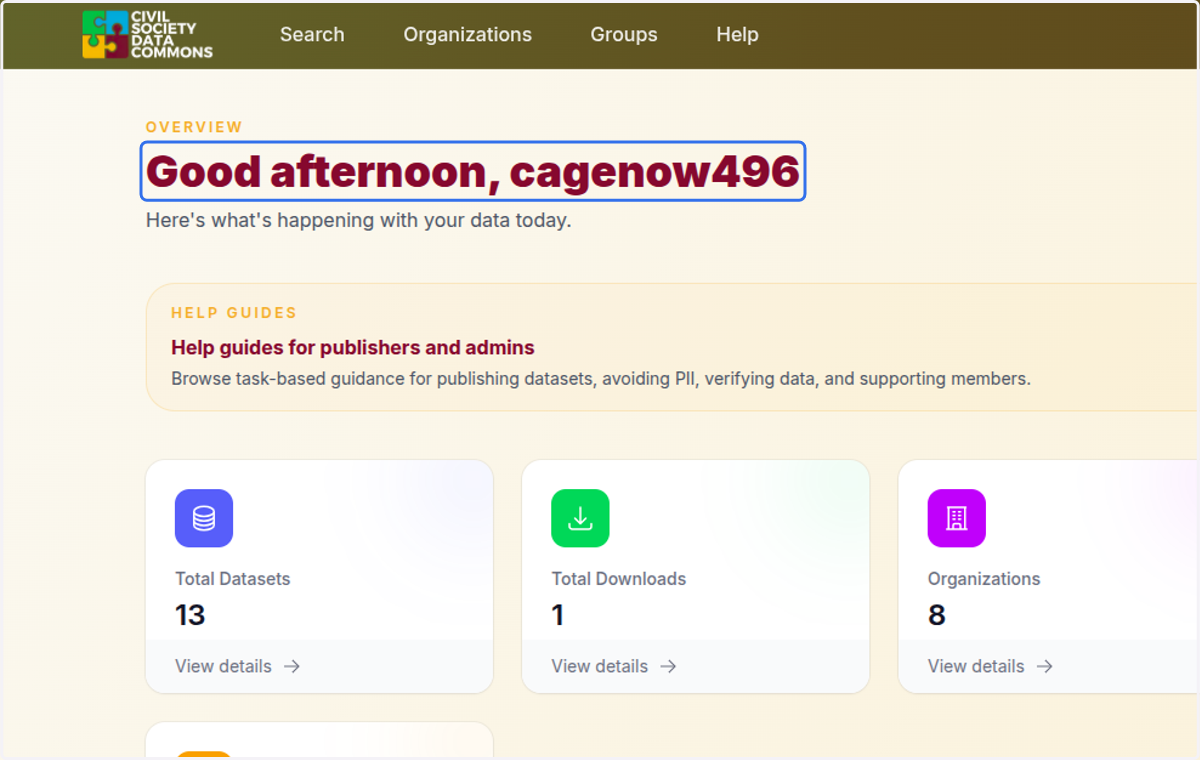
    The password reset was successful