Introducing Optional License Plate Collection (CompPass)
The Optional License Plate Collection feature creates a more flexible and seamless experience for drivers accepting a CompPass. Admins can now configure License Plate Information Collection as optional, allowing drivers to accept their CompPass without entering a license plate upfront. Note that drivers will still be required to have entered a license plate prior to the event.
If license plate information is skipped during acceptance, the driver will automatically receive reminder emails prior to the event prompting them to add their vehicle details.
💻 Admin:
1. Login to Suite and open Passes.
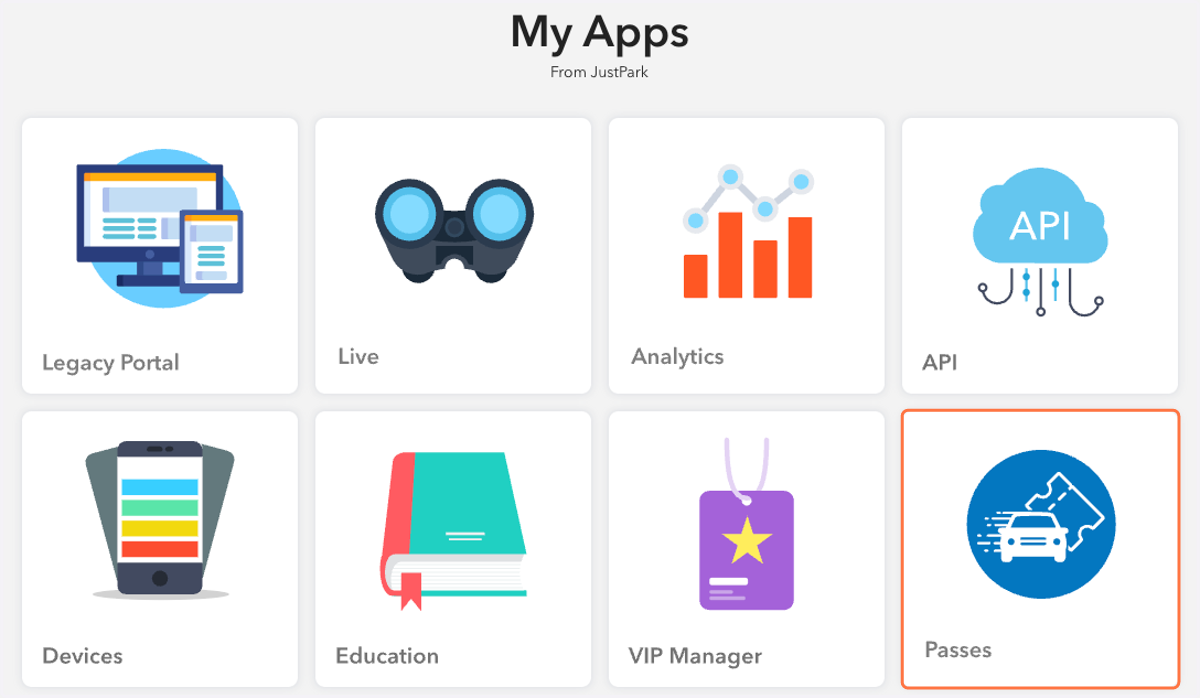
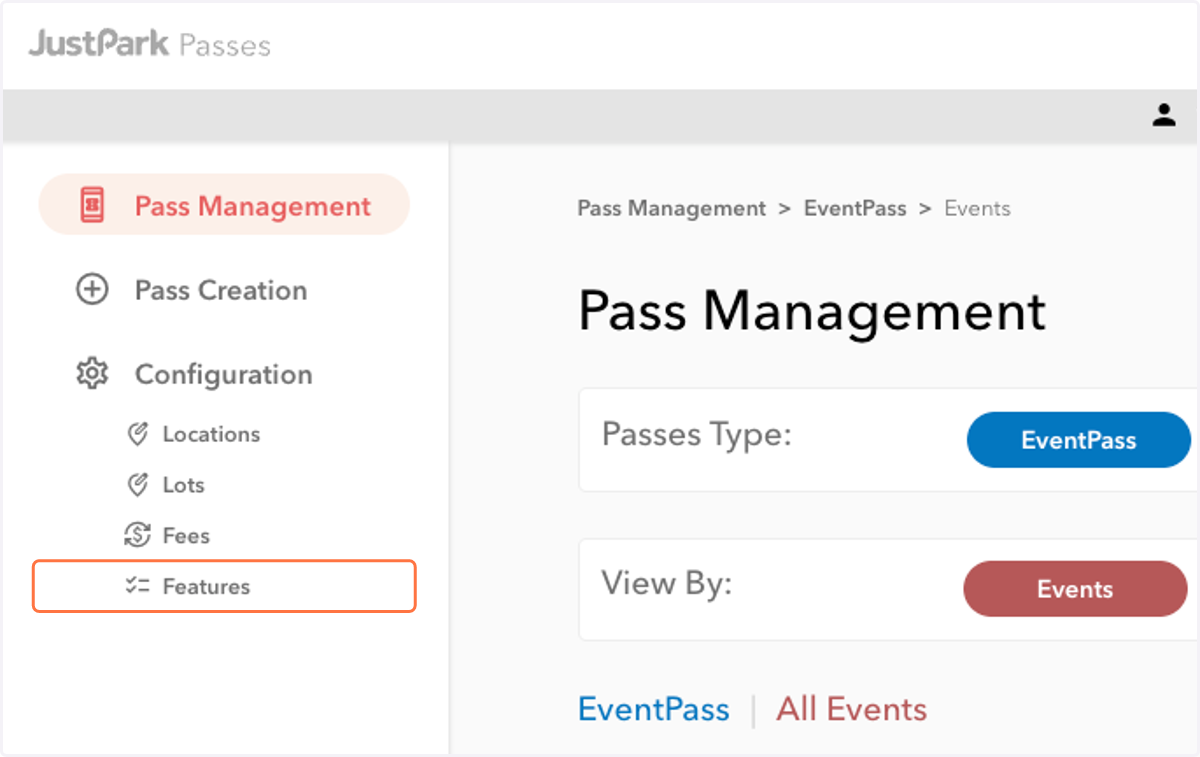
2. Navigate to the lefthand sidebar. Under Configuration, click on the Features tab.
3. Ensure that License Plate Information Collection is toggled on to access the feature.

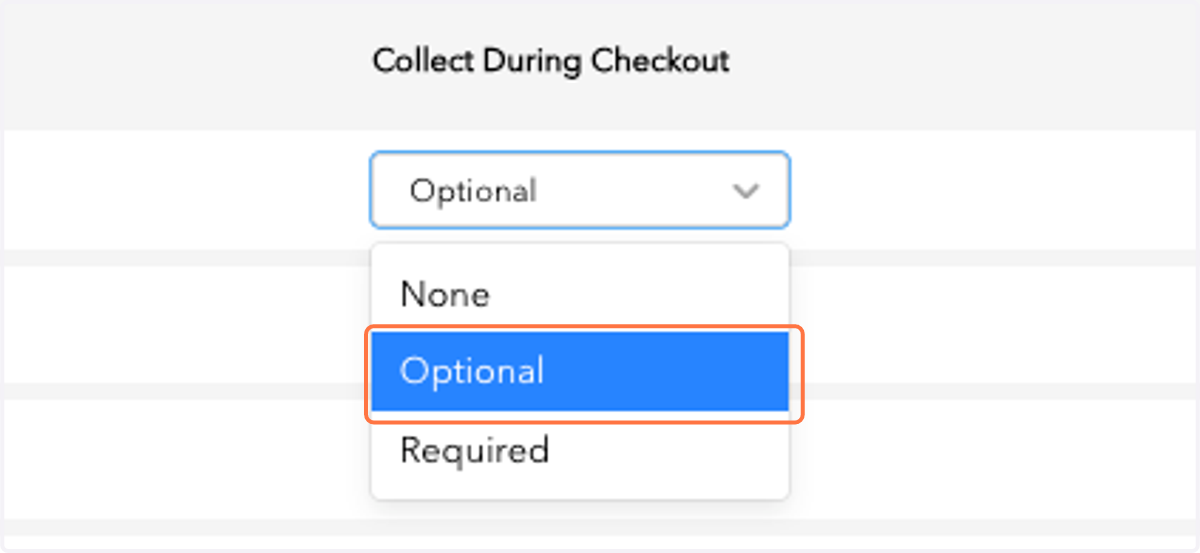
4. Under the Collect During Checkout column, select the appropriate License Plate Collection setting for each lot.
You can designate each lot as:
None: license plate information is not collected during or after acceptance
Optional: license plate information can be entered during or after acceptance
Required: license plate information must be entered during acceptance
You also have the ability to apply the same setting across all lots at once by selecting either Set All as Optional or Set All as Required.
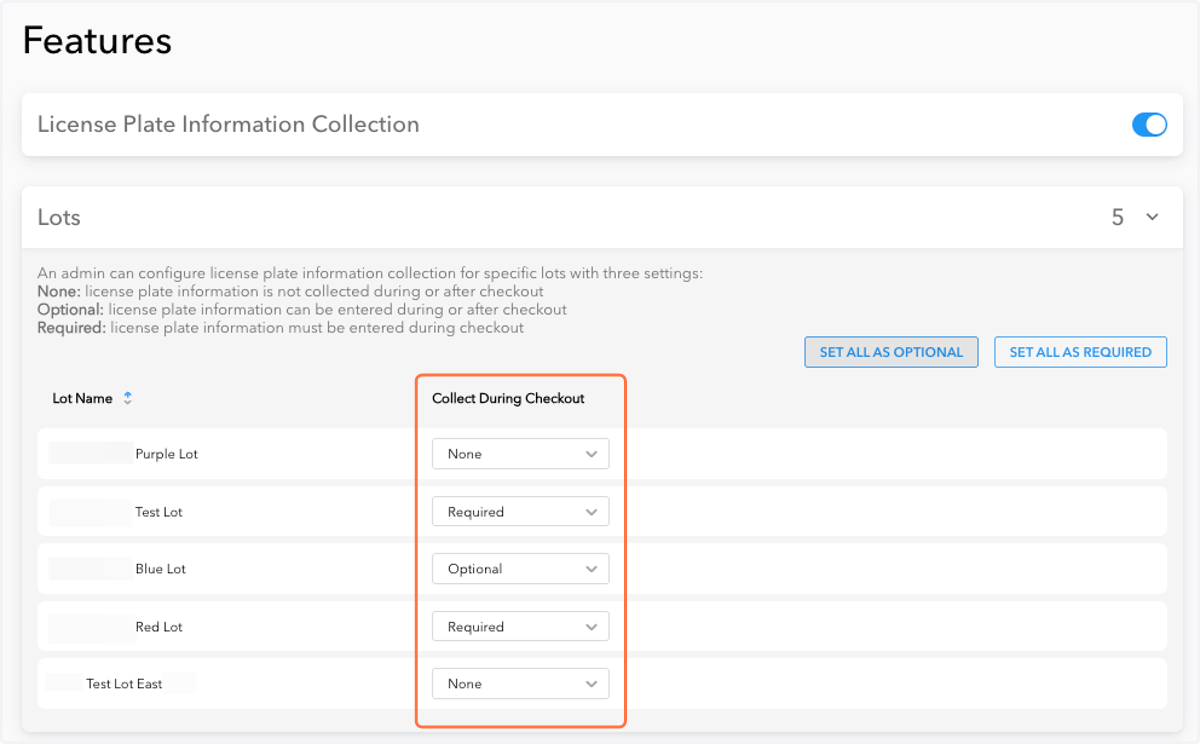
5. To enable the Optional License Plate Collection feature, you must select Optional.
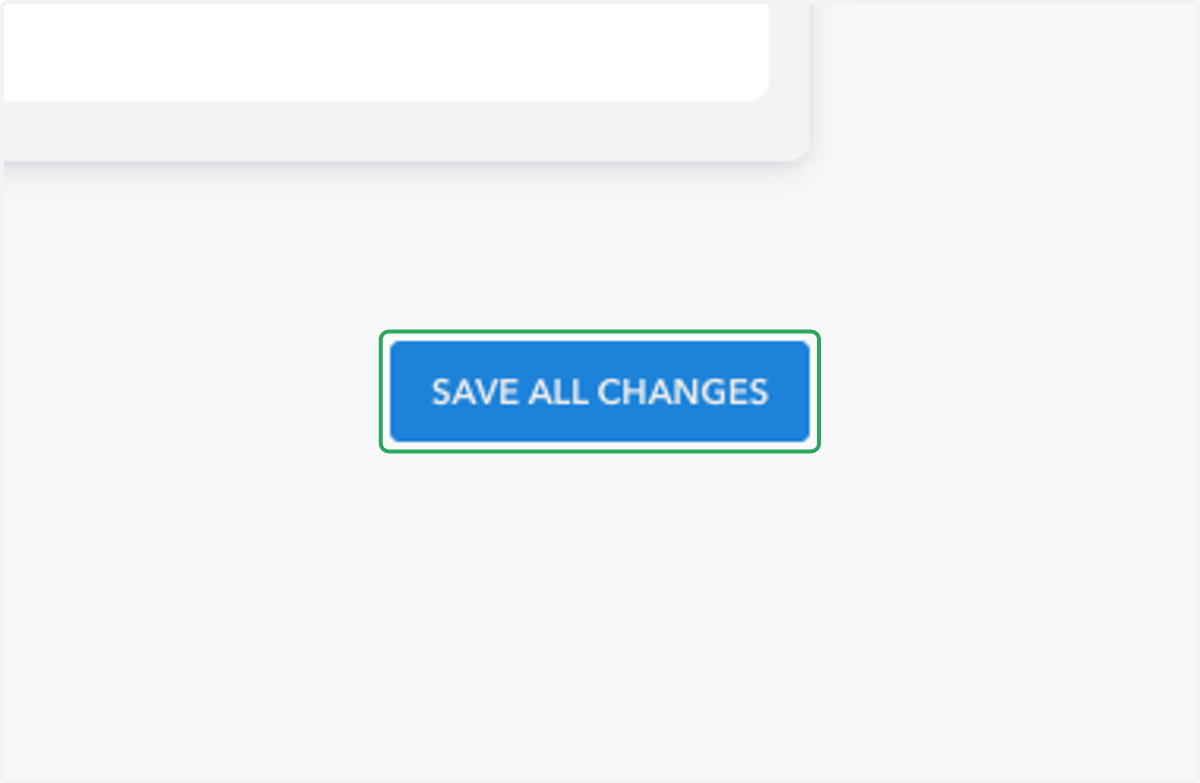
6. Click Save All Changes to ensure your updated License Plate Collection settings are applied.
🚗 Drivers:
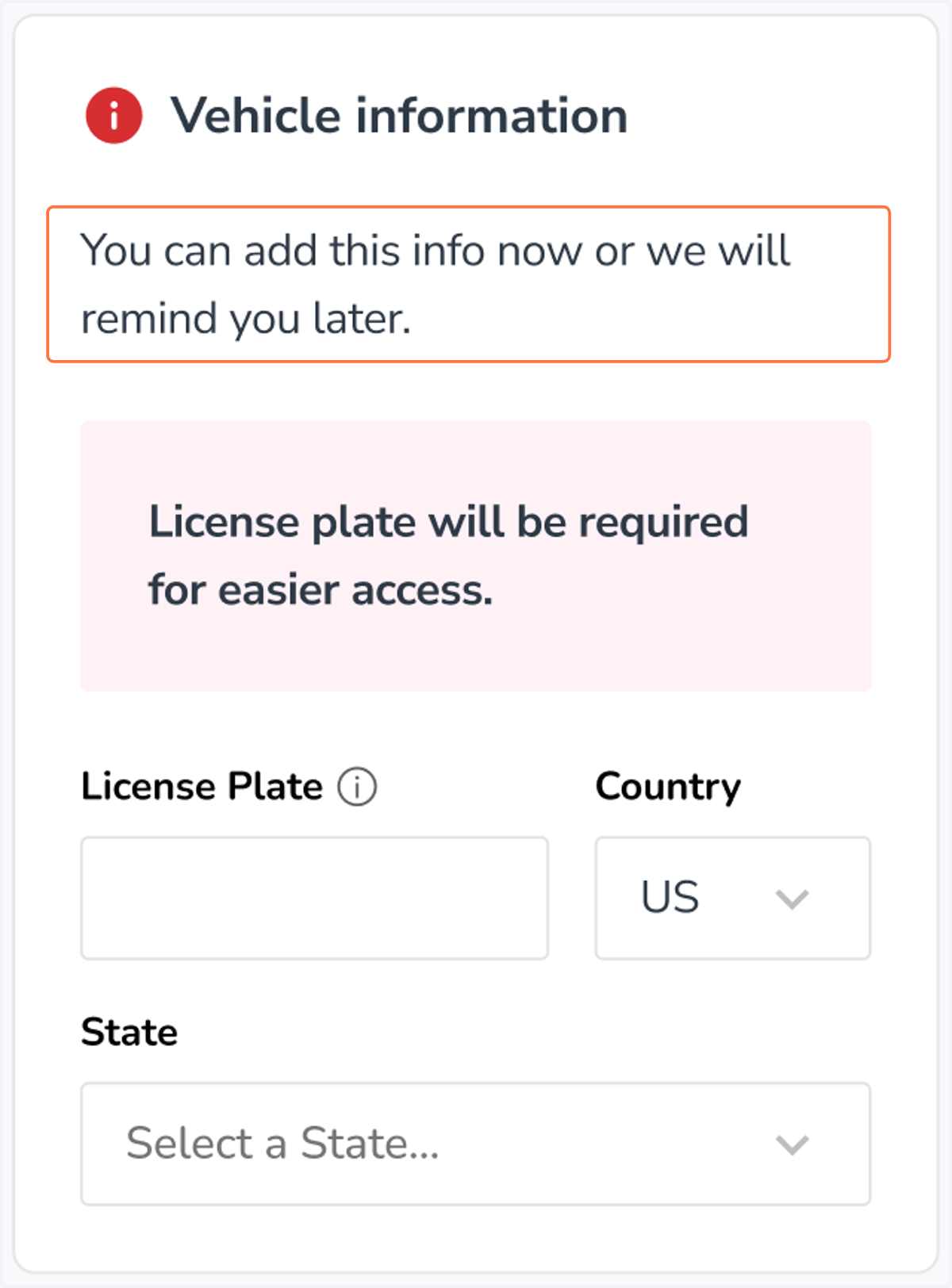
7. In the driver’s CompPass acceptance email, a Vehicle Information section will be included where they can enter their license plate details.
This section will include the message:
“You can add this information now or we will remind later.”
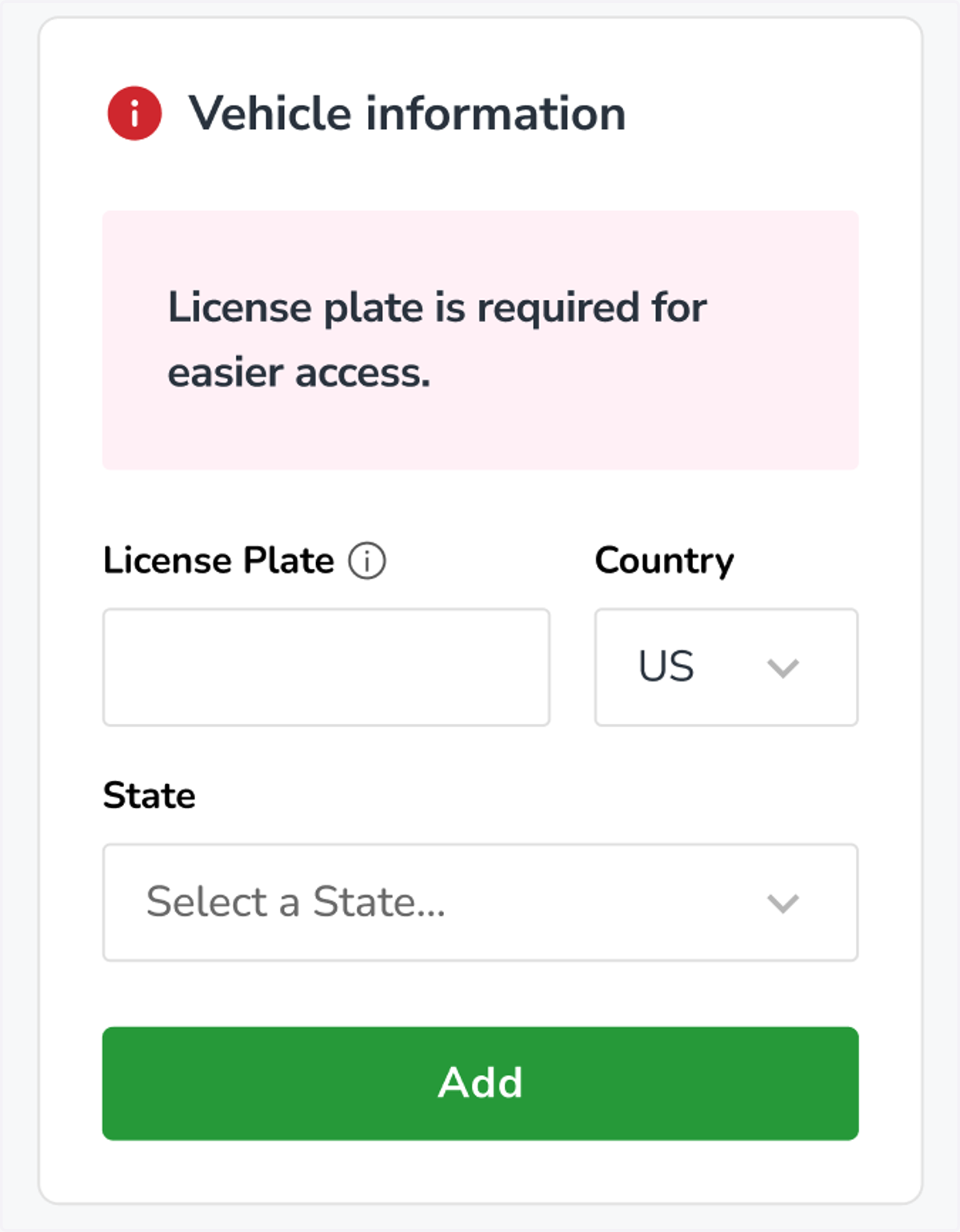
8. If the driver chooses to skip this step during acceptance, they will receive reminder emails prior to the event. These emails will include a similar Vehicle Information section (see below), allowing the driver to submit their license plate details at a later time.
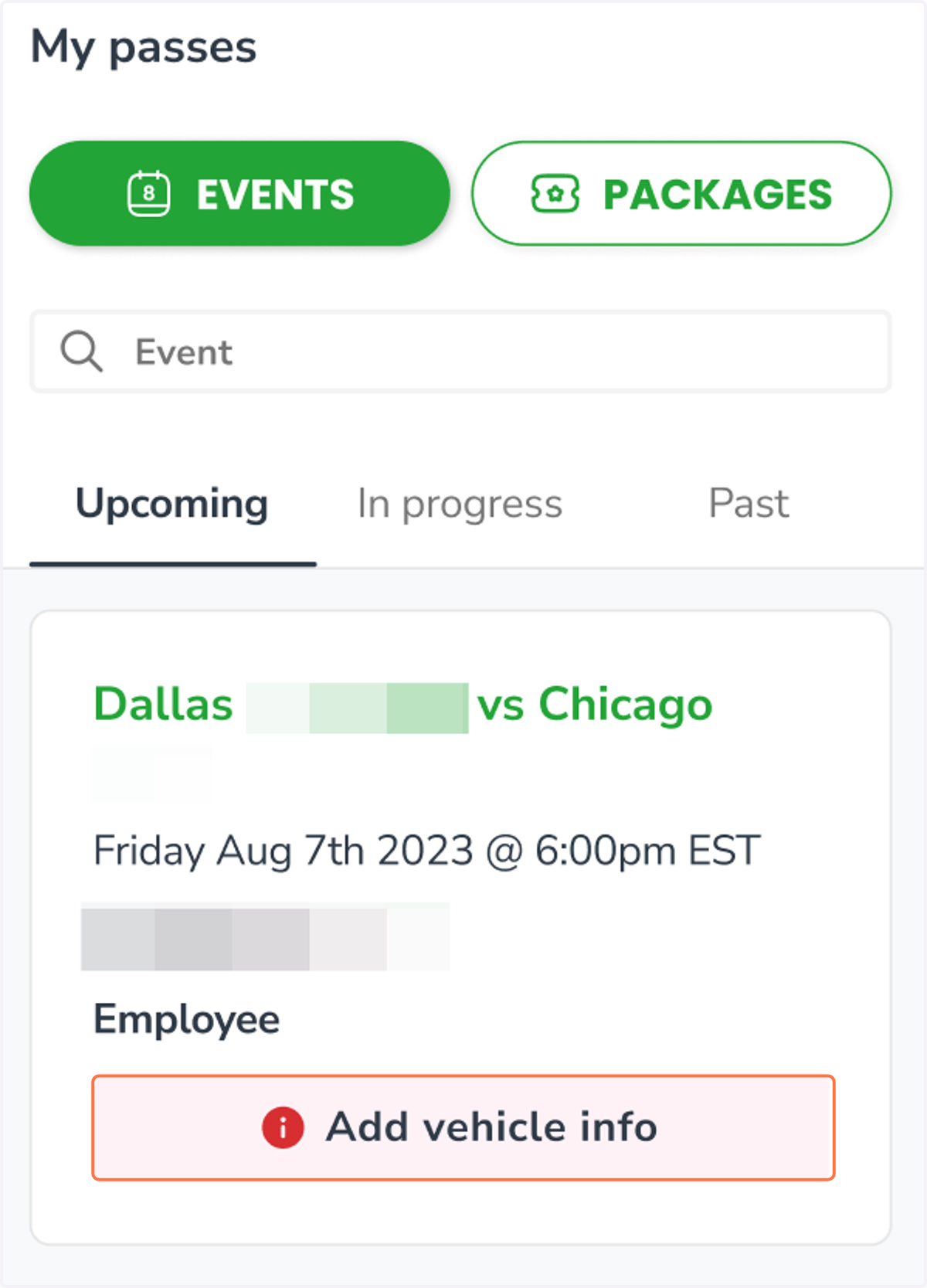
9. Alternatively, if a driver with an account logs into My Passes → Events, they will see an “Add Vehicle Info” notice displayed under any event where license plate information is missing. From there, they can enter and save their license plate details.