RentCafe: Non-Primary Payer one time EFTs and payments unapplied
This tango will cover the fix to the Aging Report if someone other then the primary payer (the person who has the charges applied to them) pays in the RentCafe portal. In some cases, this might need to be a bigger conversation with the resident/resident contact who has been making payments to see if they would like to assume responsibility for the charges. This also might not a necessary step, please try to apply prepayments and credits first.
1. From the Aging Report, you can see that there are payments made to the non-primary payer of one of our residents
In this case, the non primary has made a one time EFT payment for $12,111. Please take note of the prepayment amount, we will want to match it to the charge amounts that we will be moving over.

2. Click on Home and find the affected residents profile in Yardi Voyager

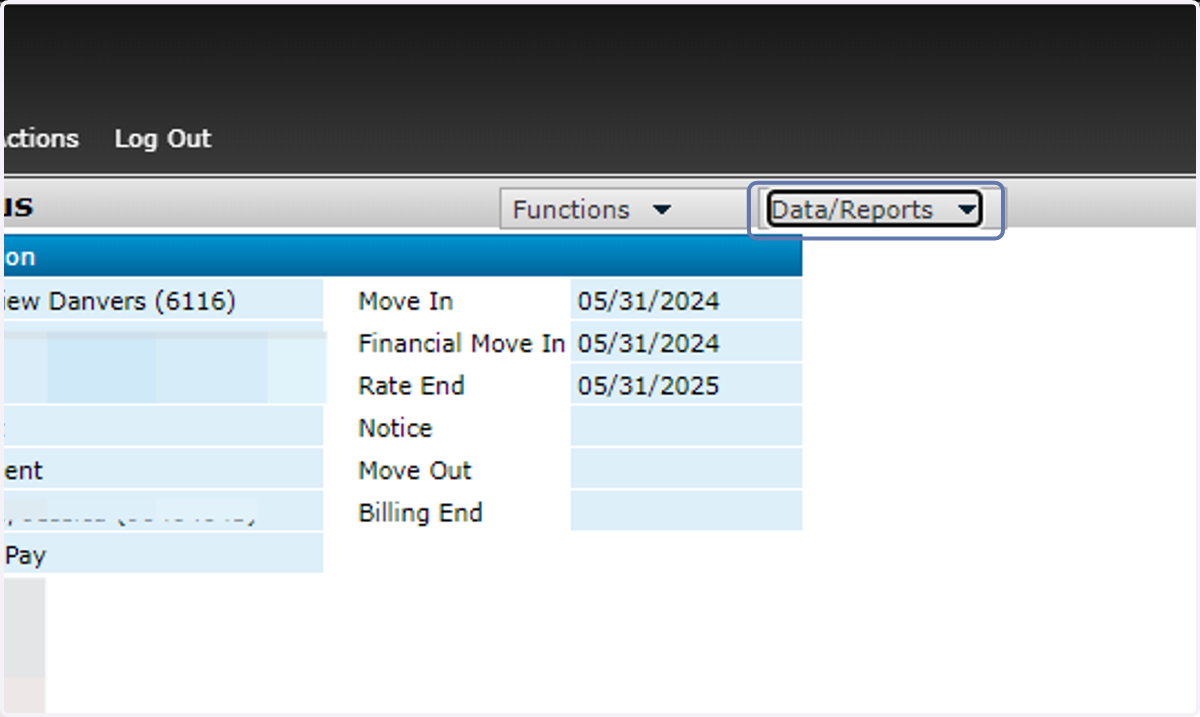
3. While in the resident profile, go to Data/Reports and click on the PRIMARY PAYERS record ( the one with the charges)
4. If this did not work for you, or if you are not comfortable doing this please reach out to the Help Desk and your RDBO for assistance.
5. Click on Functions under the primary Payer

6. Click on Transfer Unpaid Charges

7. Select the charges that add up to the prepayment made on the other payer. These charges will be moved from this payer, to the one that has the prepayment to 0 out.
Please make sure under "New Payer" it is the payer with the prepayment

8. Click on Save
This saves the charges to the other payer

9. Click on Apply Credits & Prepayments

10. Fill out the community and resident code affected and hit Submit and wait for the "Processing Complete" notification

11. You can verify that this worked by going back into the non-primary payer and seeing that the prepayment is no longer sitting on the ledger and rerunning the Aging and seeing if the prepayment is no longer sitting out unapplied.
