Leasing Workflow: Signing Roles
Senior CRM
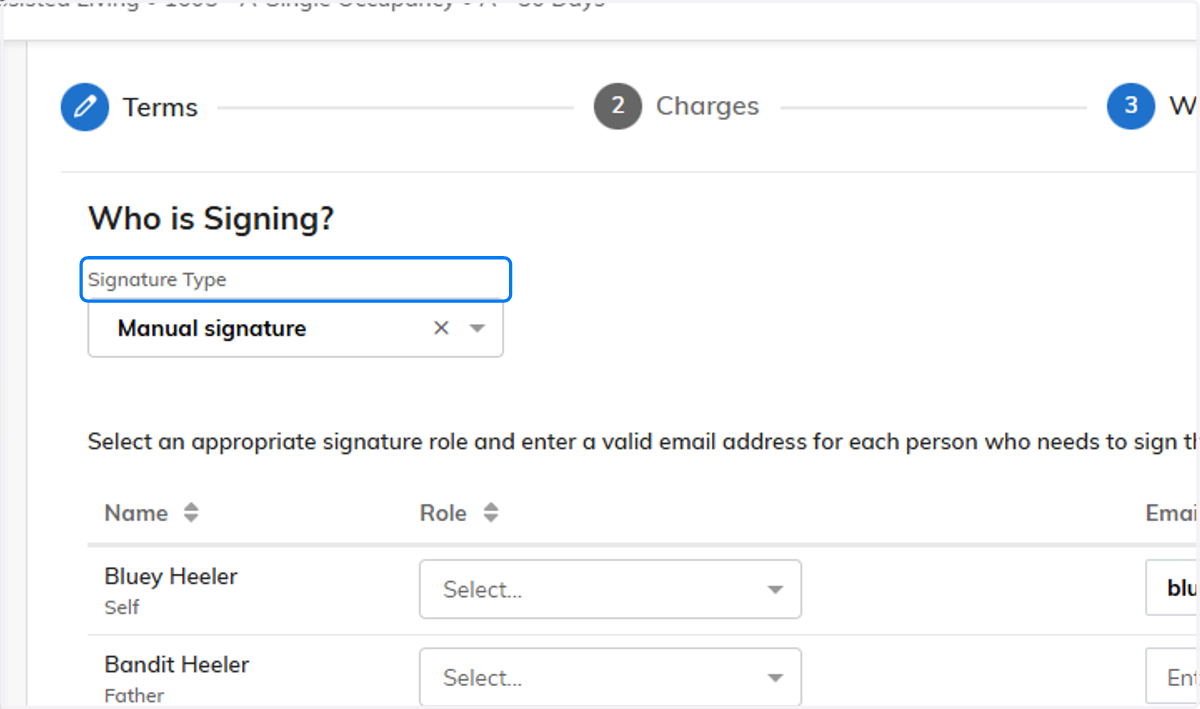
1. Click on Who is Signing?…
In this section you will find all applicants and contacts.
Under Signature type, you can select E-Signature for RentCafe and email signatures and Manual Signatures for all wet signatures.
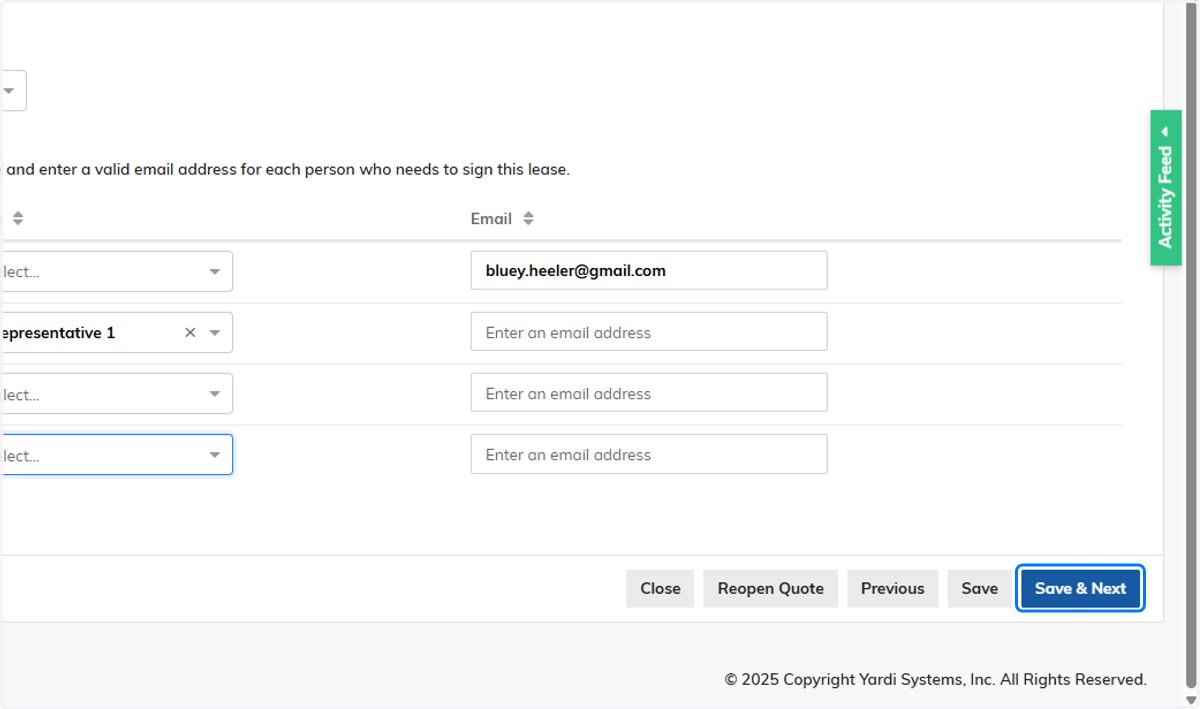
2. Under the Signing Role column, you can designate signing roles to the listed people
In the new Senior CRM, we only need to designate those that will be signing now!
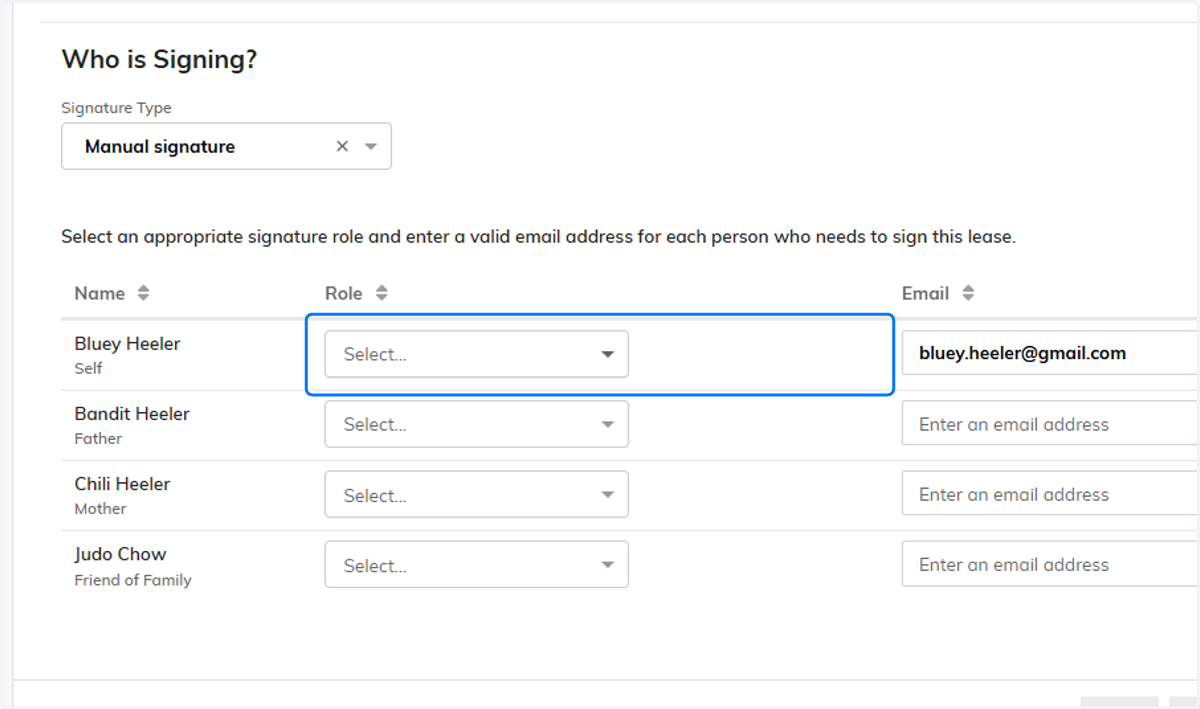
3. The future resident should be set as the applicant.
If there is a representative/POA for the applicant, the applicant is not required to sign unless the lease is for a PA community.

4. If they have Power of Attorney, have them set as Representative. Otherwise, they are not required a role.
****If a POA/Representative is signing, and they are doing electronically and we dont expect the resident to sign, do not have the resident flagged as Applicant as this will create an issue and the lease will get stuck.
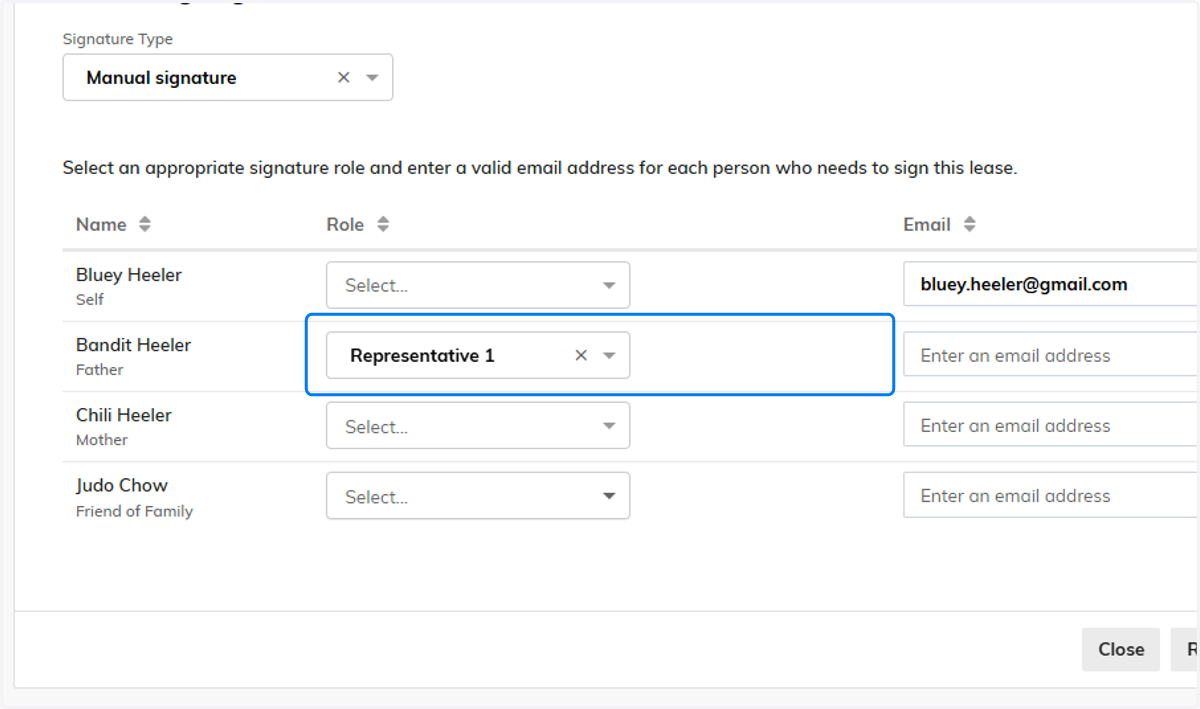
5. If there is a second resident for the lease, they dont need to be assigned a role unless they wish to sign as well, in which they can be listed as an Applicant 2 as well.

6. Once all the appropriate contacts have been designated a signing role, hit Save and Next
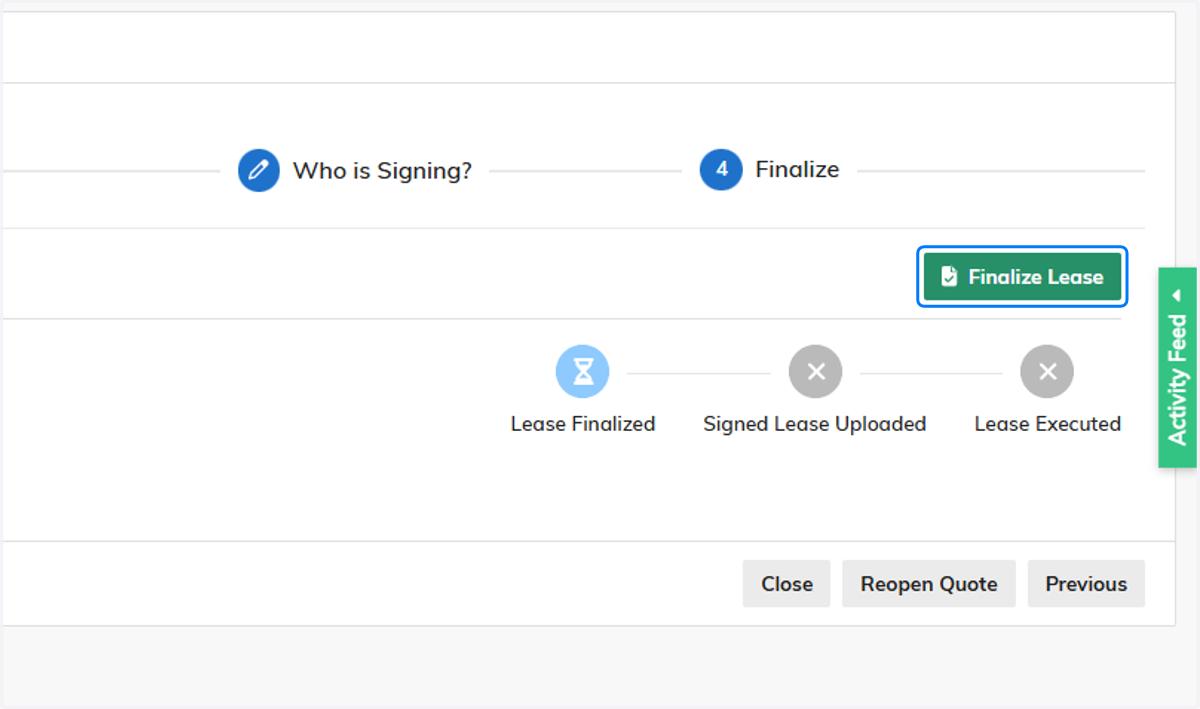
7. Click on Finalize Lease to lock the Lease and to be able to generate it.