Introducing Lot-Level Additional Charges
You can now configure Taxes and Additional Fees for Prime transactions at a much more granular level. Instead of applying charges across an entire location, this feature allows you to set them per individual parking lot.
When the feature is enabled, you can:
Configure Tax and Additional Fees at the lot level
Choose between fixed amounts or percentage-based charges
Apply charges to individual lots or share the same charges across multiple lots
This added flexibility makes it easier to reflect real-world pricing rules with varying tax and fee structures, ensuring accuracy and consistency across your parking operations.
1. Login to Suite and open up the Portal application.
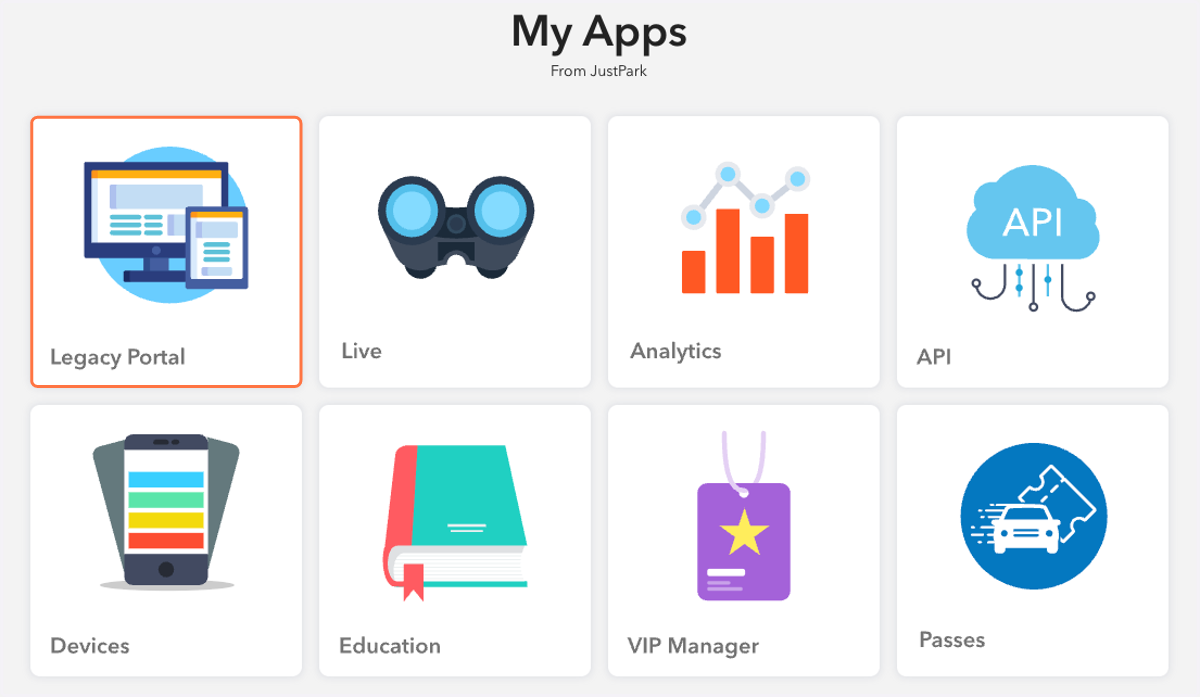
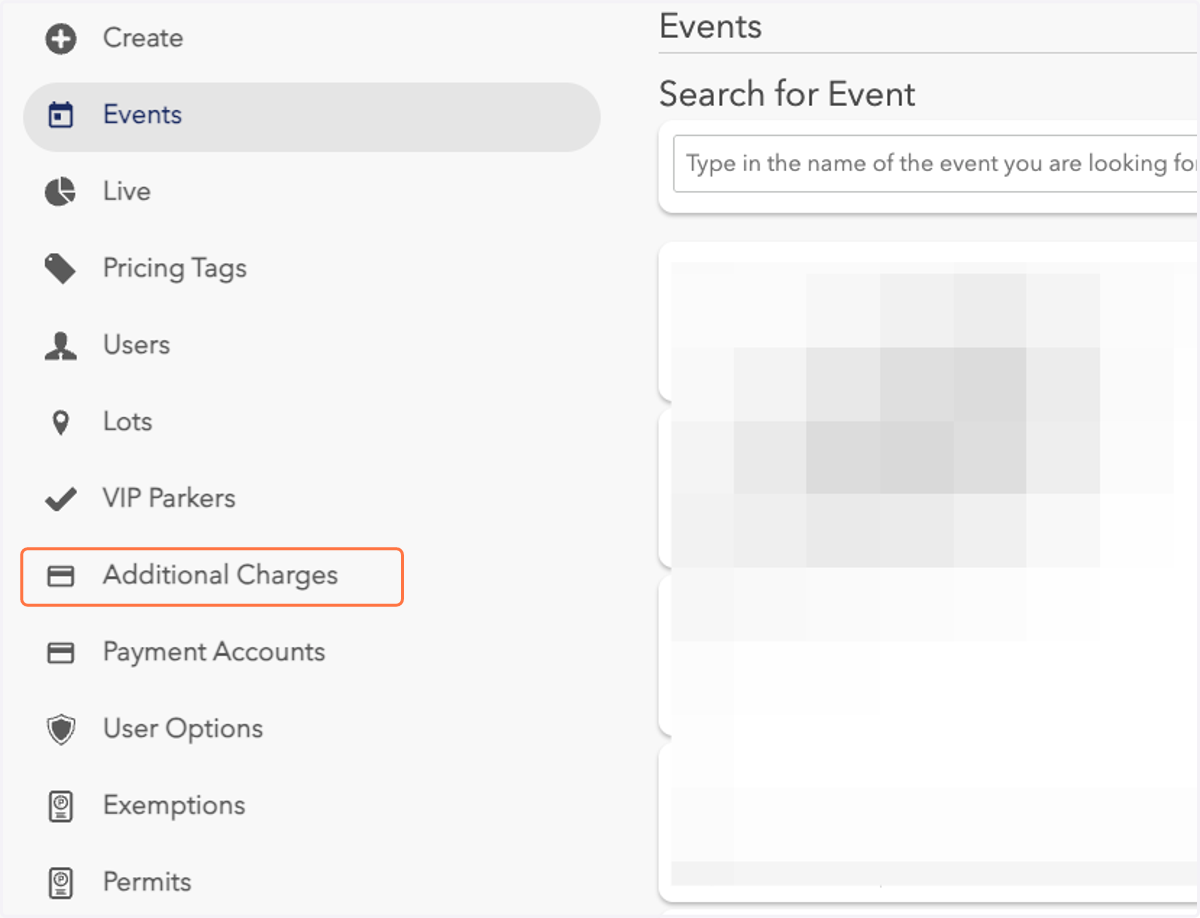
2. From the lefthand sidebar, click on Additional Charges.
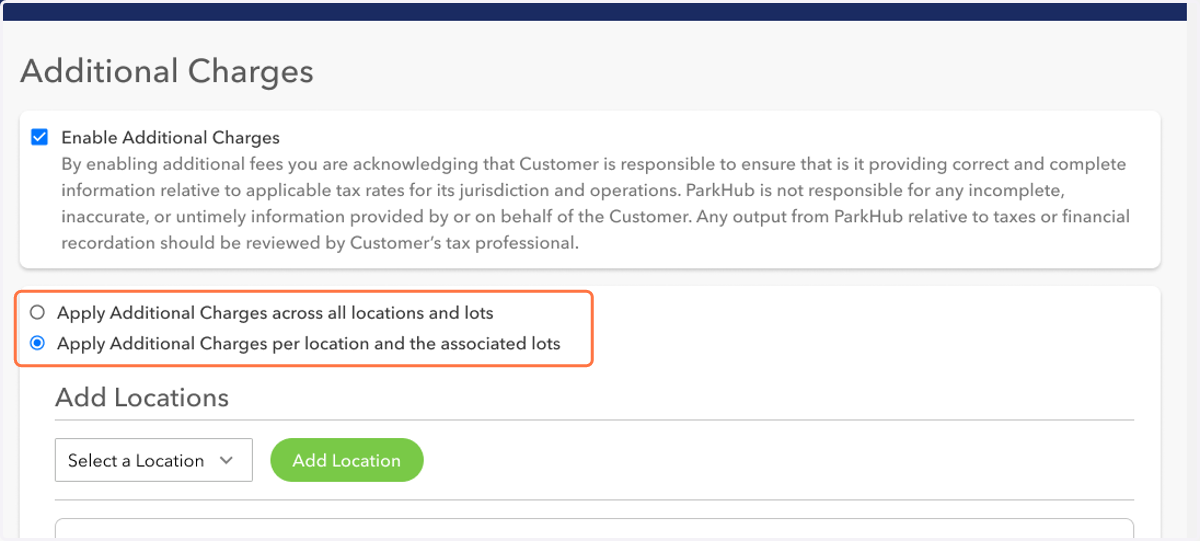
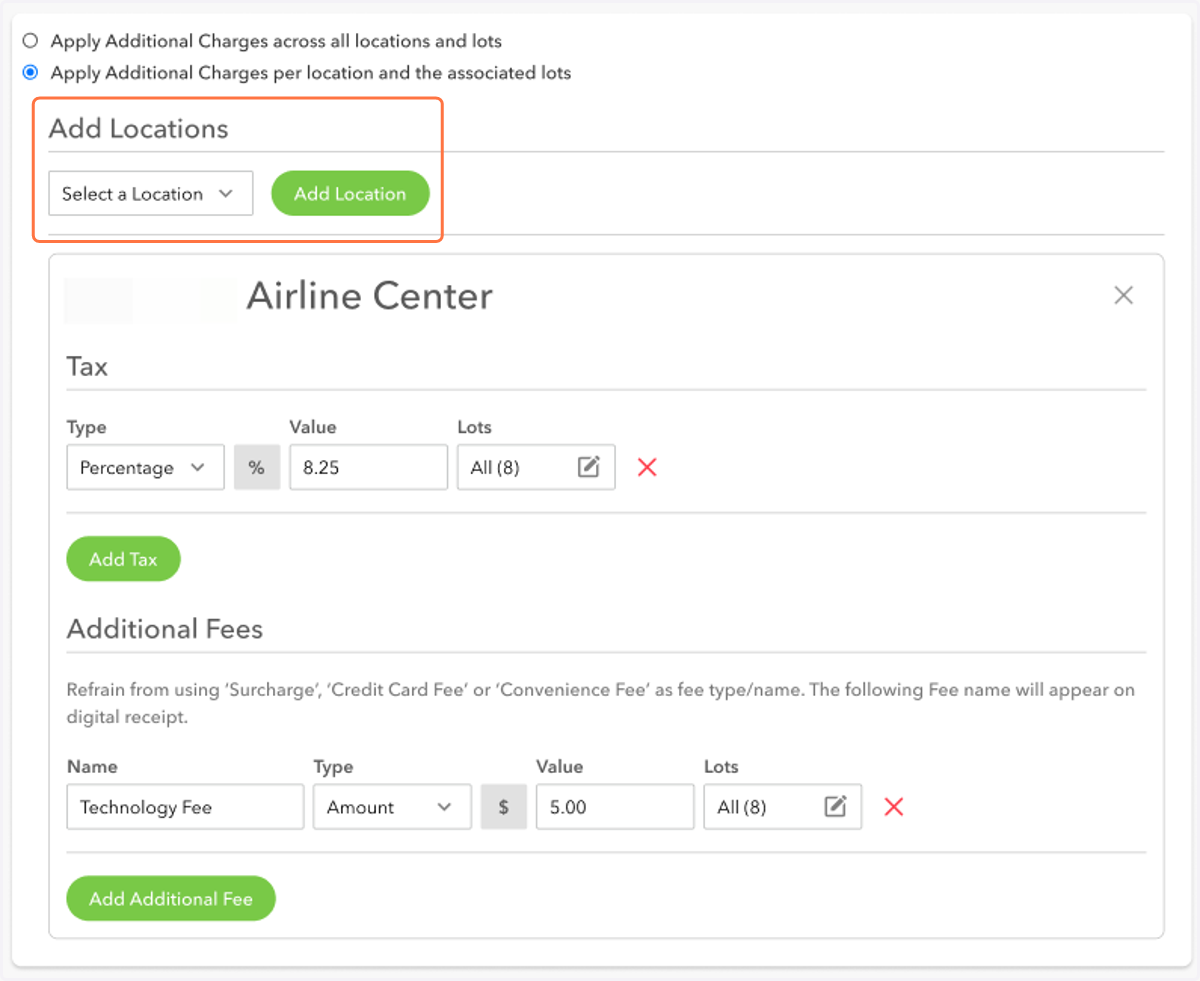
3. You will now see the following options: Option 1. Apply Additional Charges across all locations and lots Option 2. Apply Additional Charges per location and the associated lots
Enabling Option 1 configures Tax and Additional Fees across all locations and lots.
Enabling Option 2 activates the ability to configure Tax and Additional Fees per location and the associated lots.
Select Option 2 to learn more about the new feature.
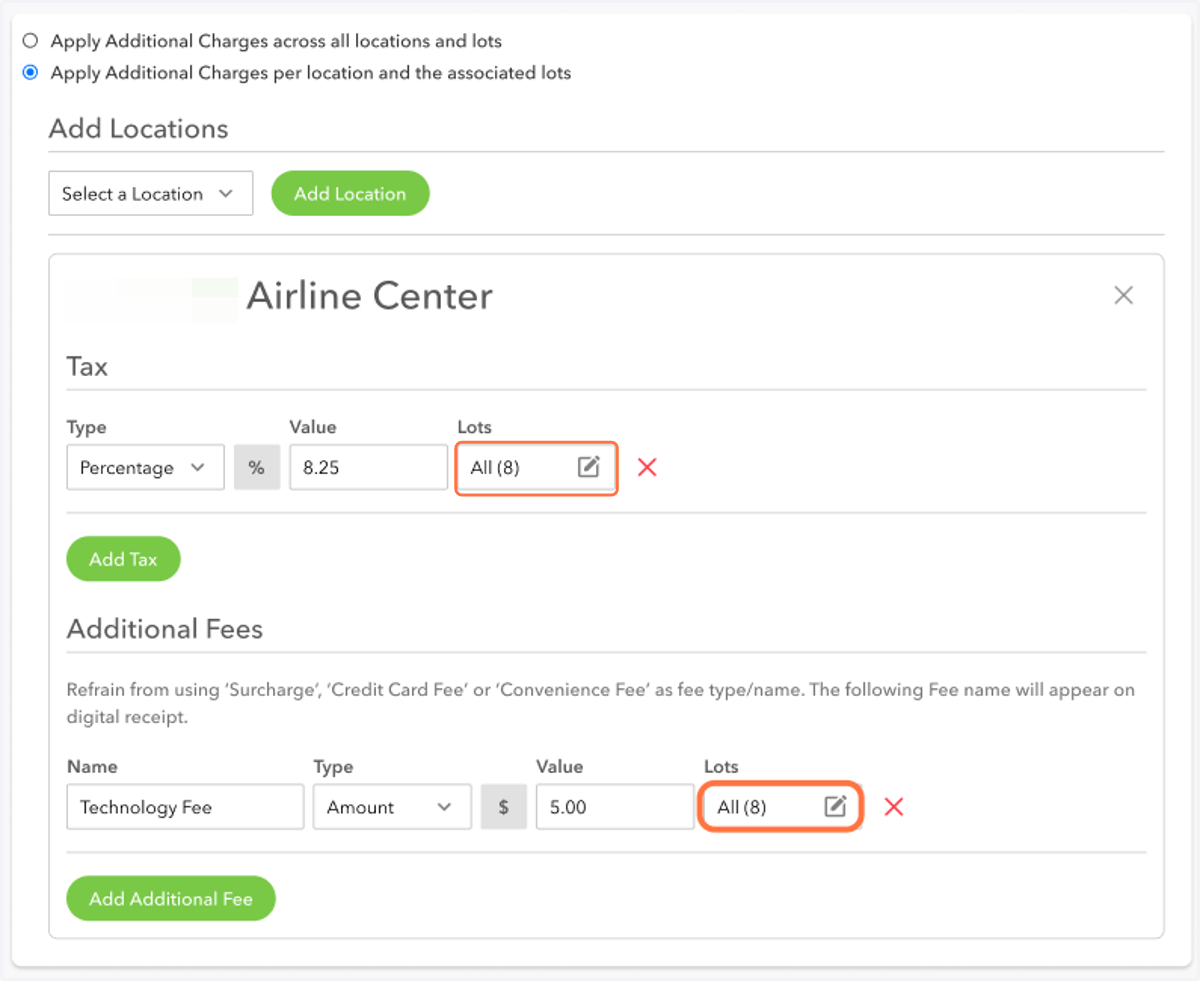
4. Select the location you want to configure from the dropdown to manage its Tax and Additional Fees. Or, to configure a new location, select Add Location.
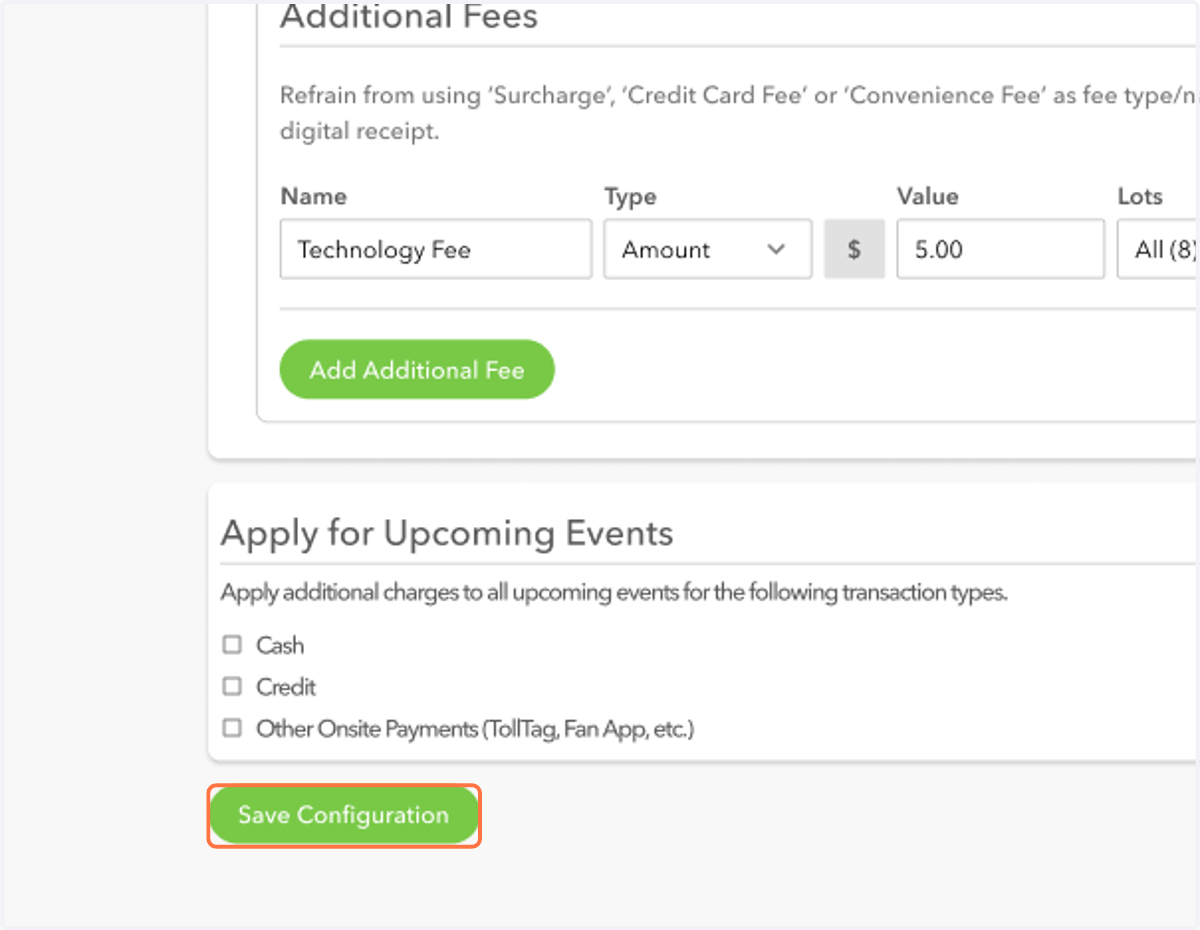
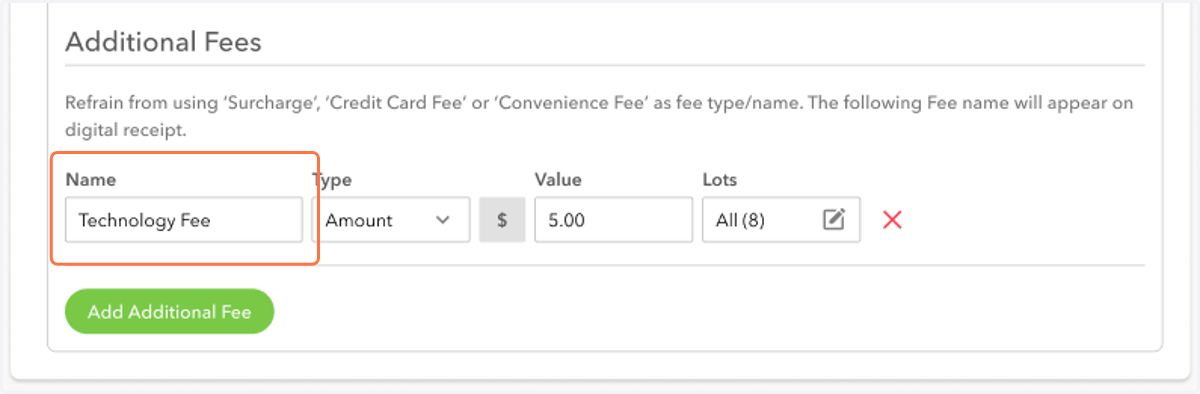
5. Name your Additional Fee (Step 8 applies to Additional Fees only).
Under Name, enter the Name of the Additional Fee.
Note that the name will appear on the digital receipt.
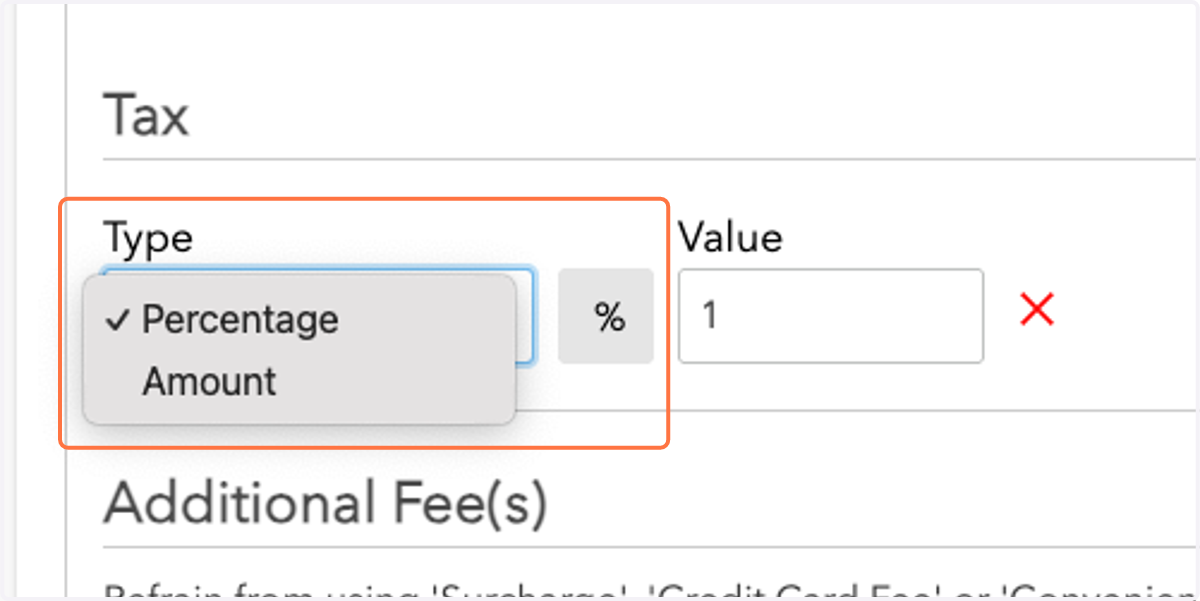
6. Configure your Tax and/or Additional Fees.
Under Type, you may use the drop down to select "Percentage" or "Amount" (flat rate).
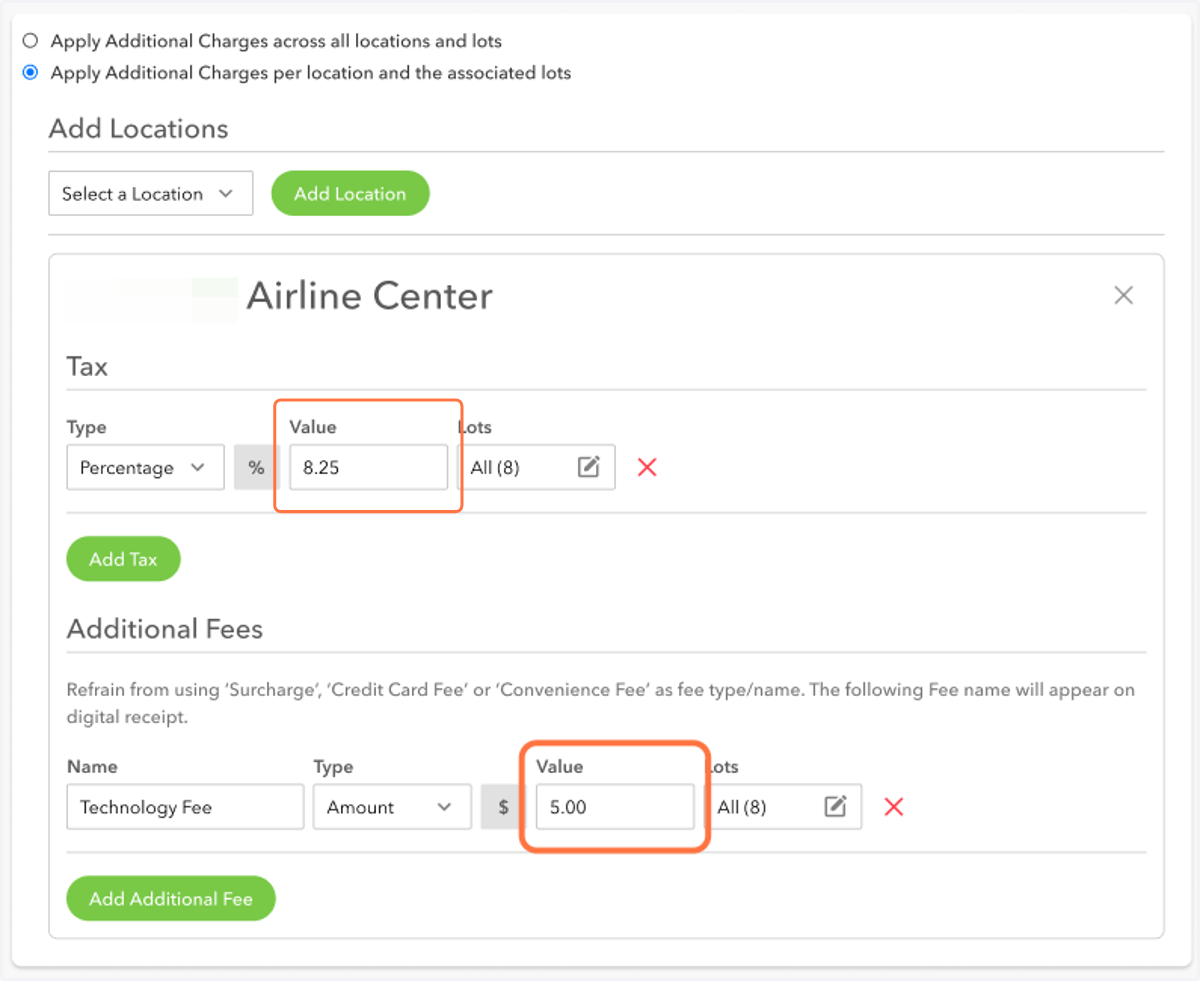
7. Enter the Value of your Tax and/or Additional Fees.
Under Value, enter the Percentage or Amount of the Tax or Additional Fee.
8. Configure your Tax and/or Additional Fees at the Lot-Level.
Click on the Lots field, to select the lots the lots where you would like this Tax or Additional Fee to apply.
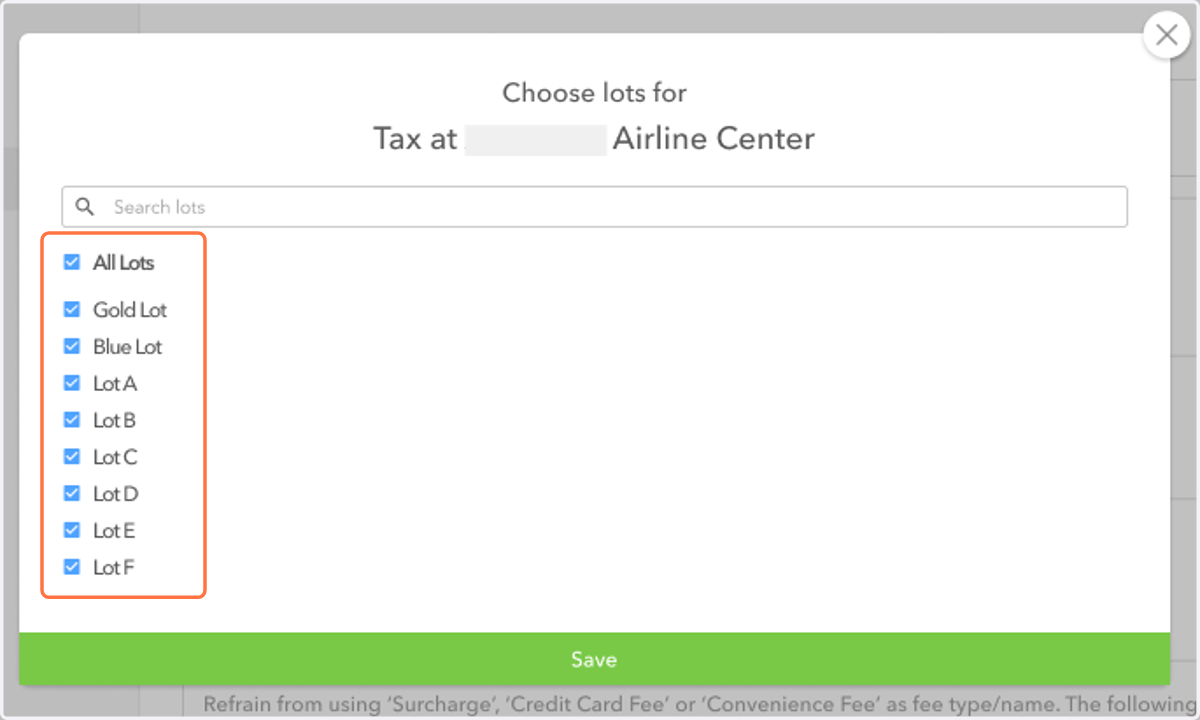
9. From your provided list of lots, select the lots where you would like this Tax or Additional Fee to apply.
You may select All Lots or select specific lots.
Be sure save your selections.
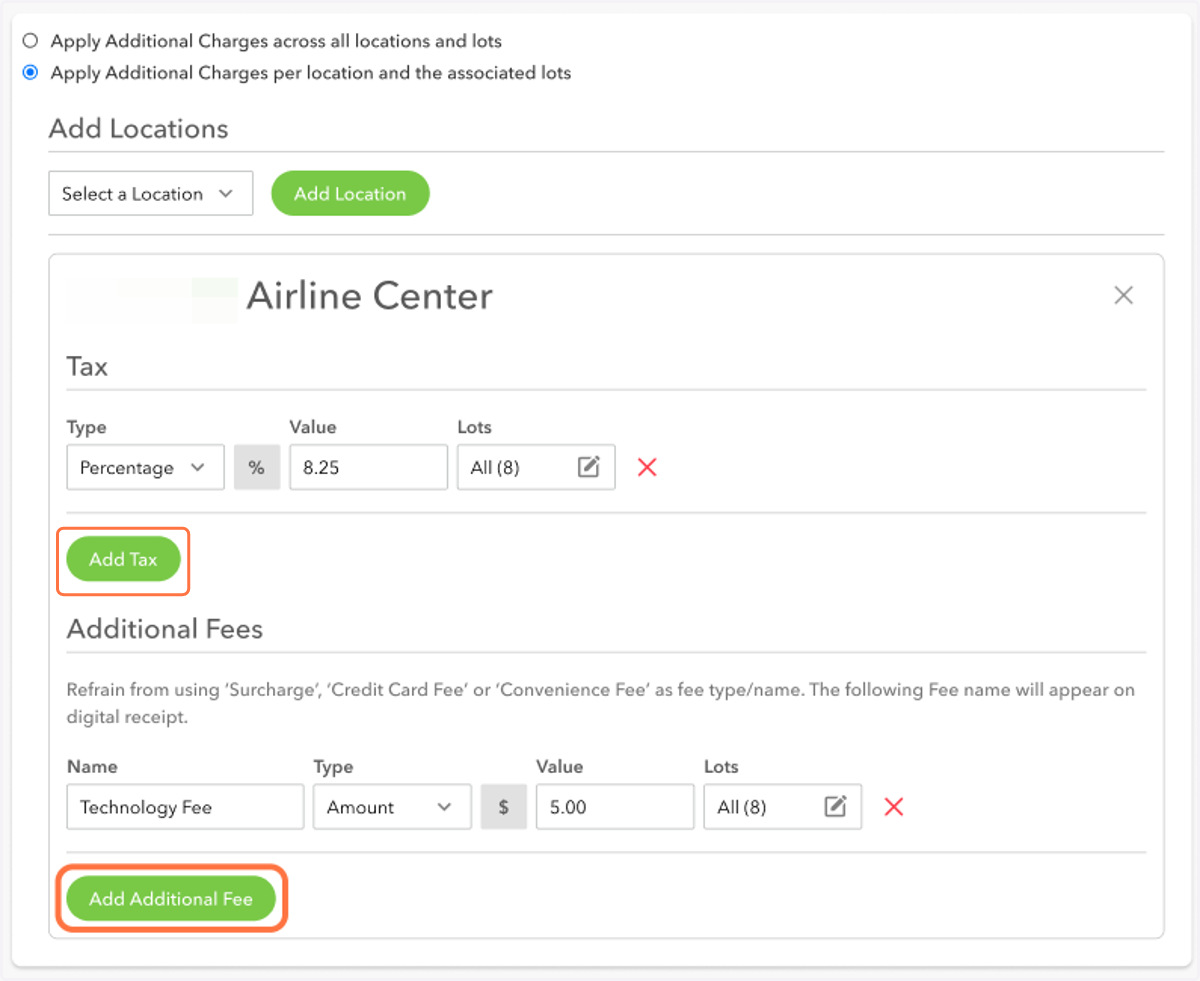
10. You may add another Tax or Additional Fee by clicking on the "Add Tax" and "Add Additional Fee" buttons.
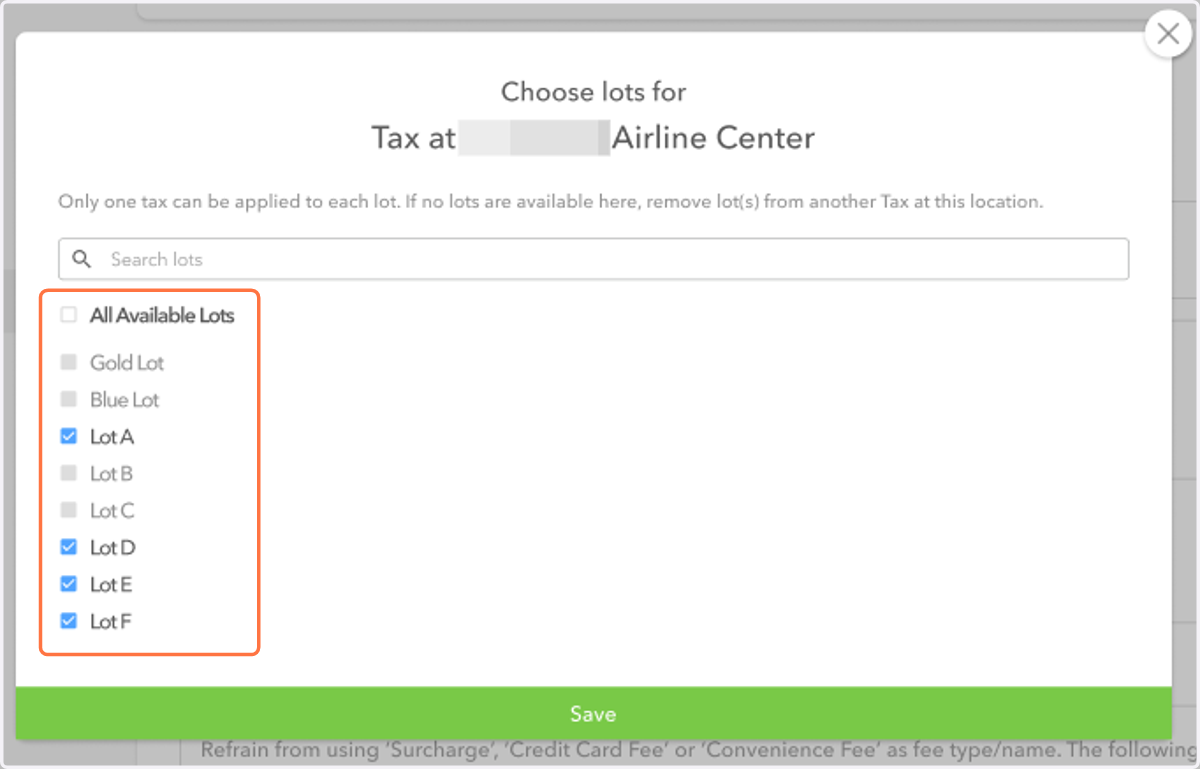
11. Note that only one Tax can be applied to each lot. If there are no lots available here, remove lot(s) from another Tax at this location.
You may select All Available Lots or select specific lots.
Be sure save your selections.
12. Click "Save Configuration" to ensure your configured Tax and/or Additional Fees are applied at the lot level.