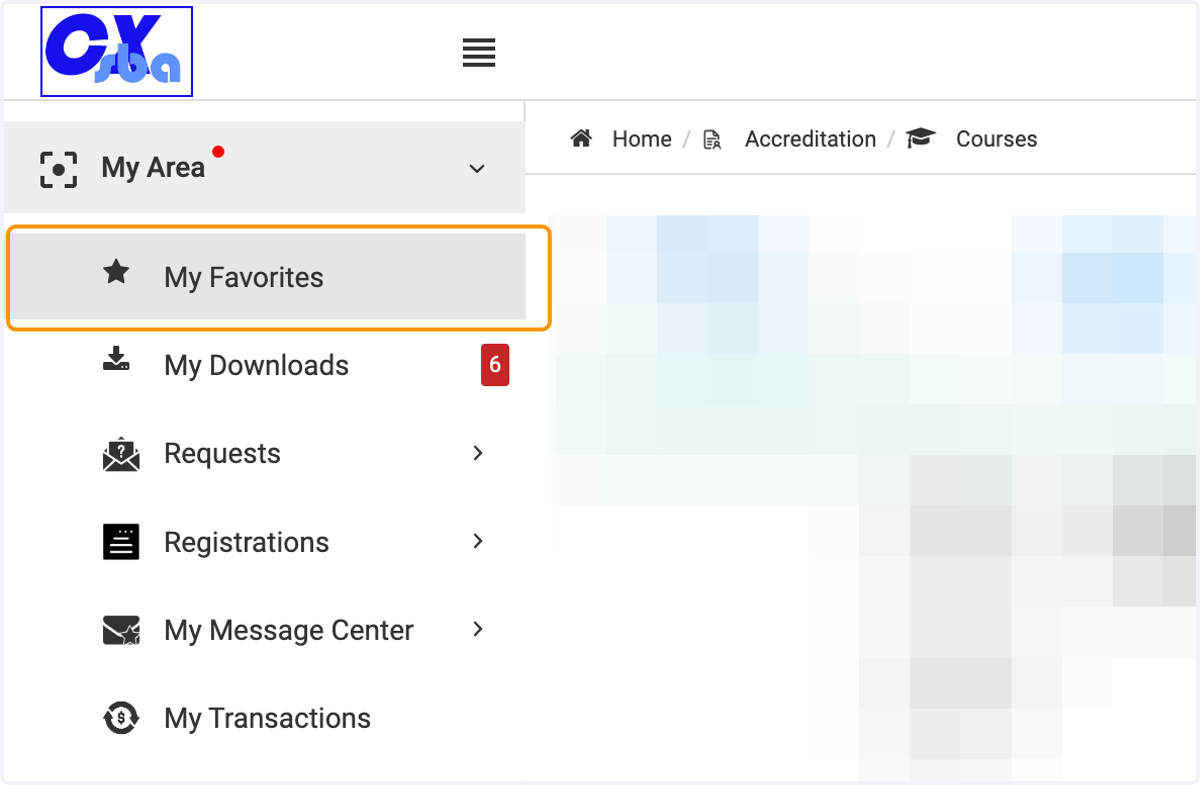
Marking and Finding Favorites

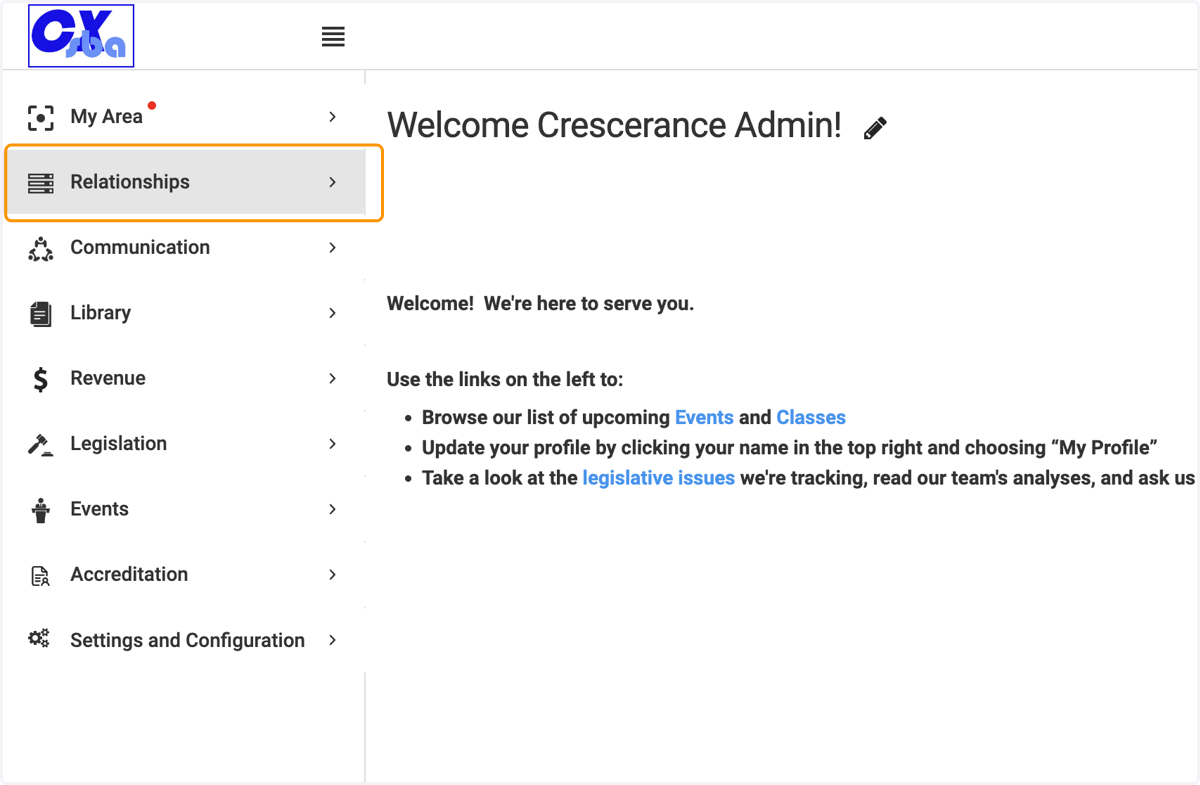
  1. 1. Click on Relationships

    Click on Relationships
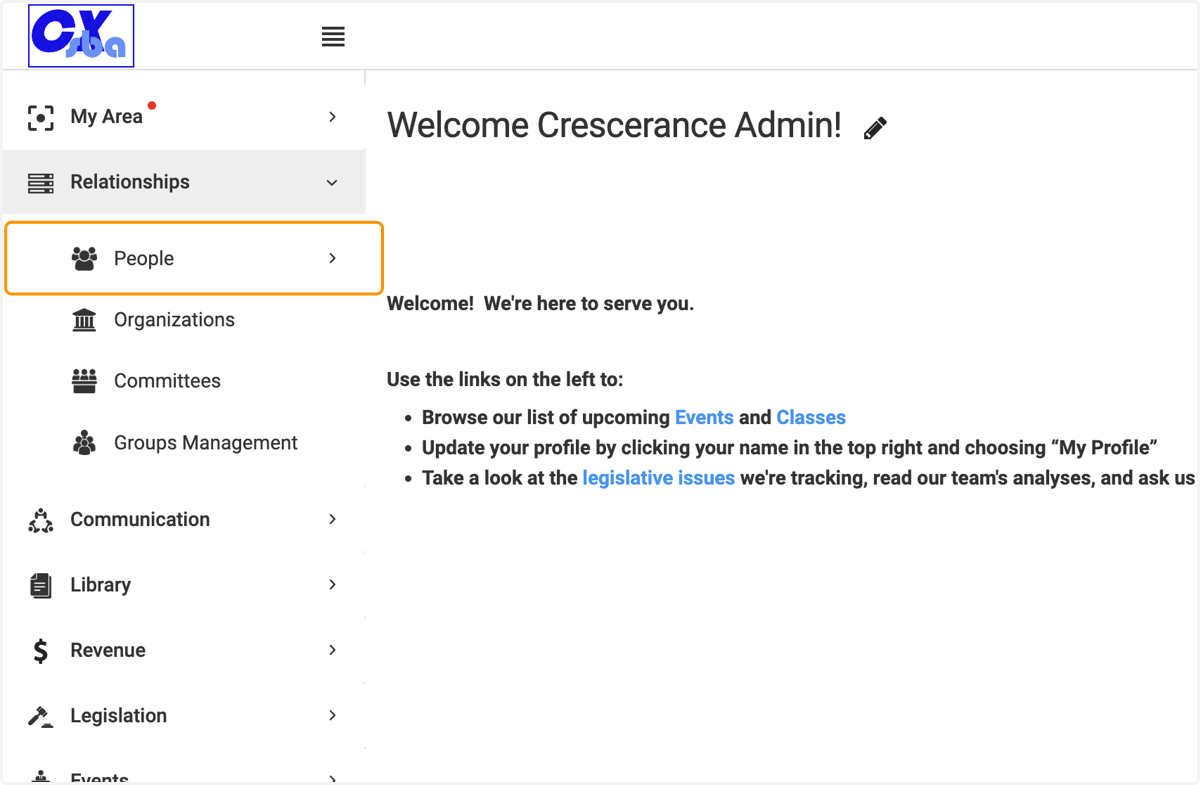
  2. 2. Click on People

    Click on People
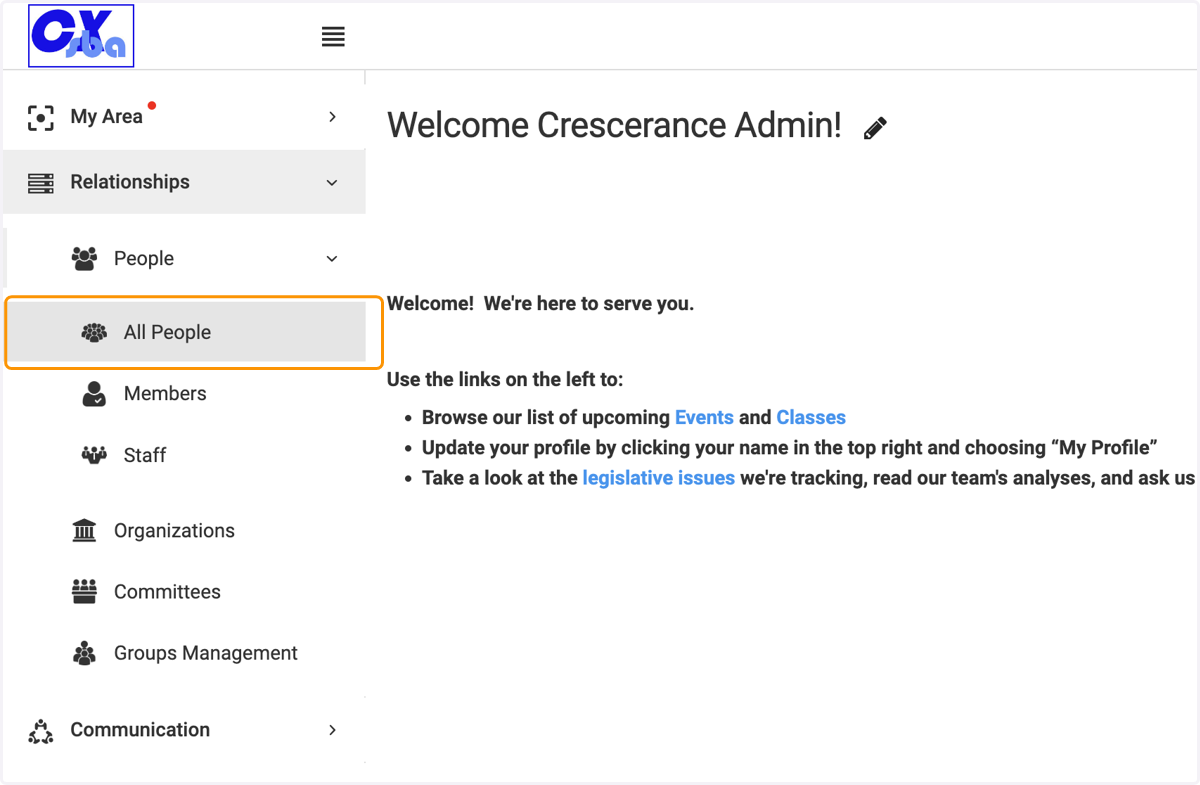
  3. 3. Click on All People

    Click on All People
  4. 4. Click on the star to specify the individual you wish to be part of the favorite list
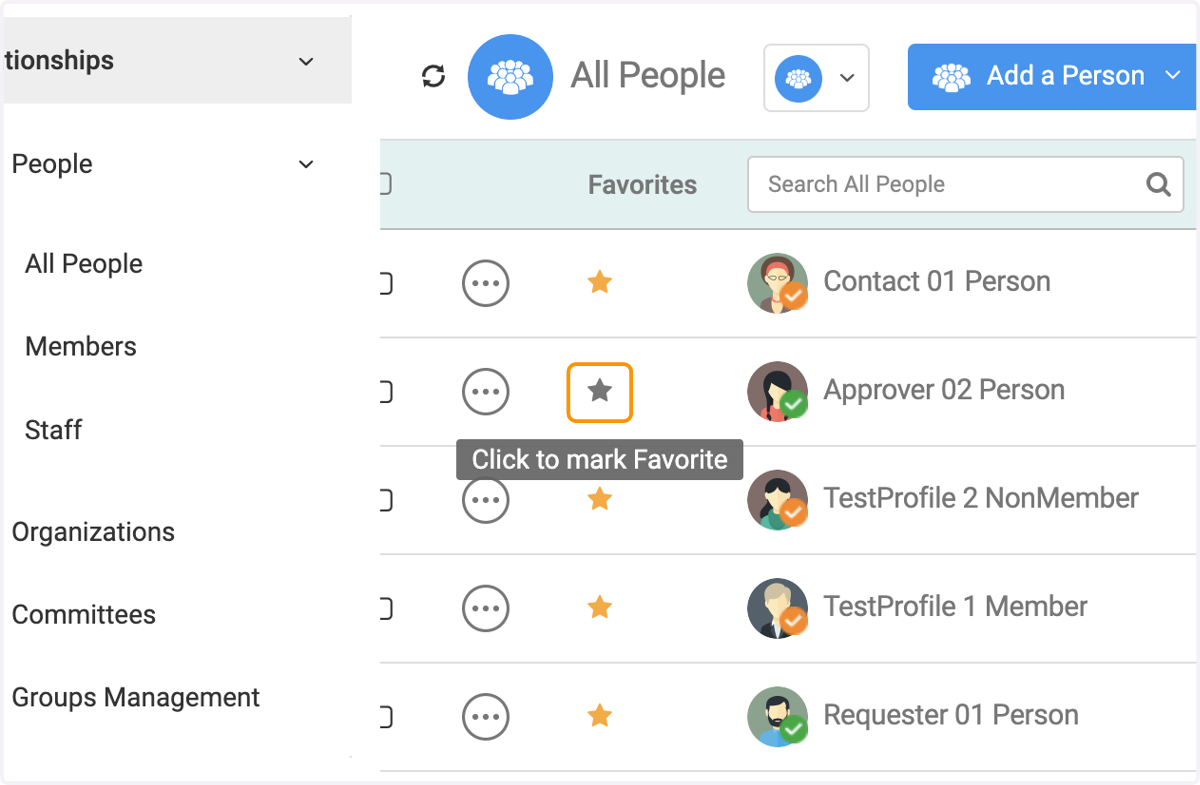
    Click on the star to specify the individual you wish to be part of the favorite list
  5. 5. Click on Organizations and the star to specify the organization you wish to be part of the favorite list
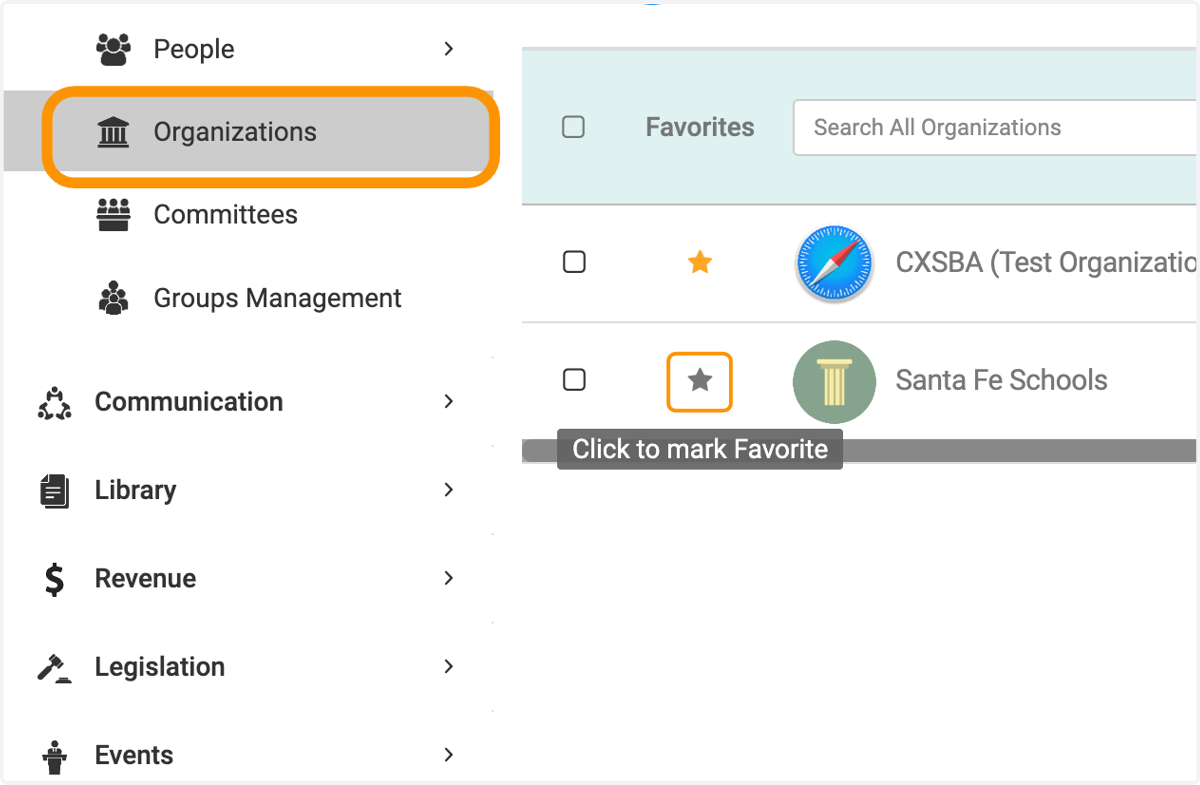
    Click on Organizations and the star to specify the organization you wish to be part of the favorite list
  6. 6. To favorite financial transactions, click on Revenue and then Transactions
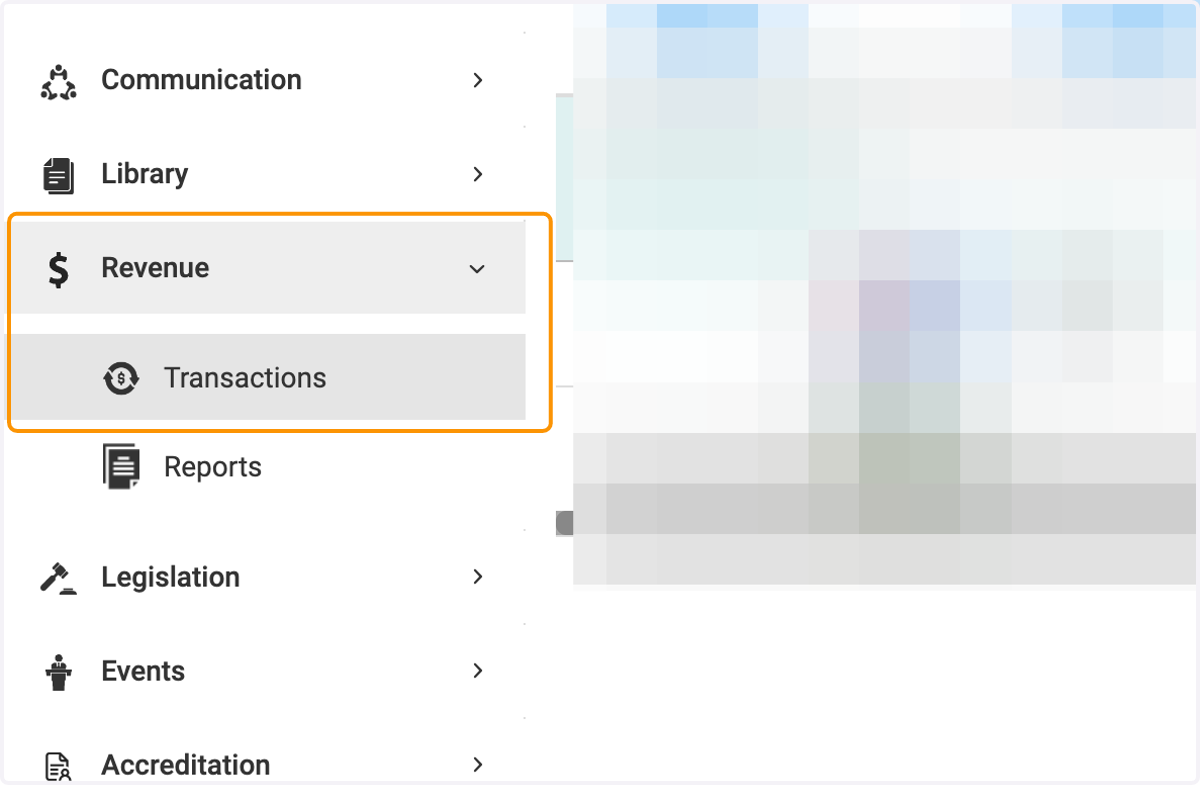
    To favorite financial transactions, click on Revenue and then Transactions
  7. 7. Click on the star to specify the transaction you wish to be part of the favorite list
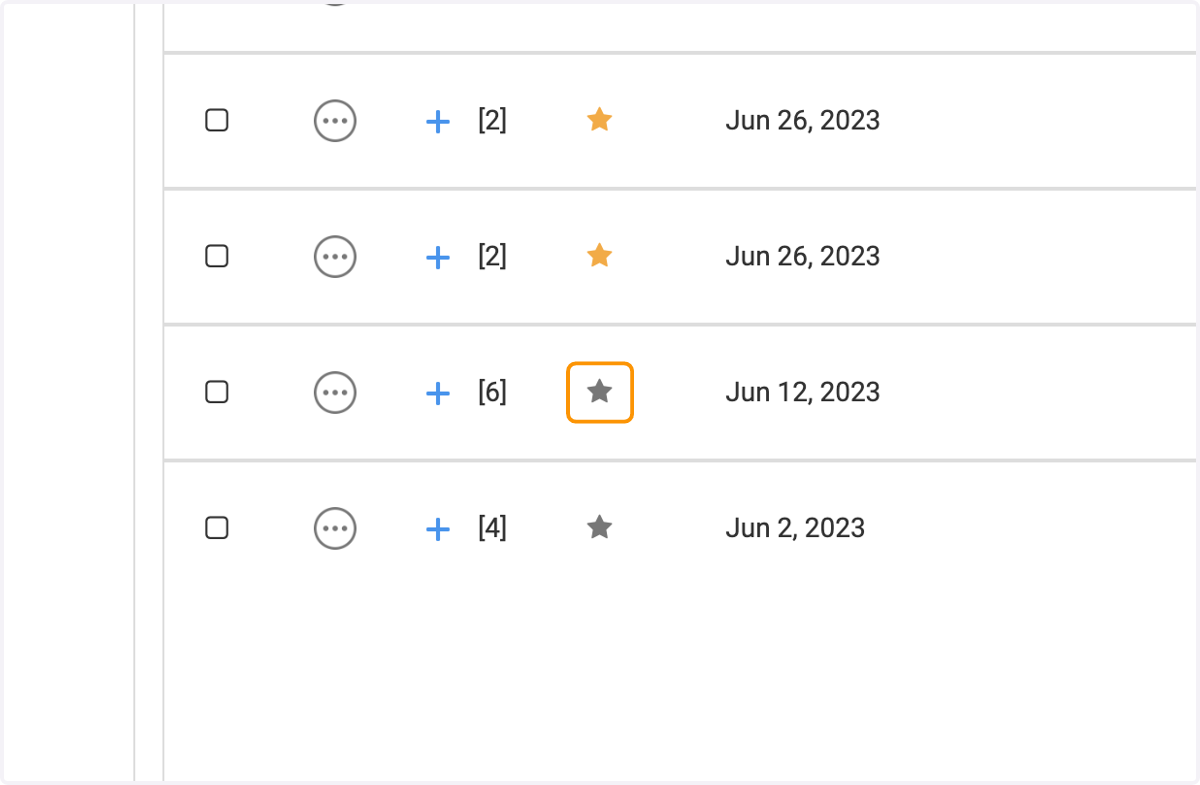
    Click on the star to specify the transaction you wish to be part of the favorite list
  8. 8. Click on All Events, and then All Events to mark events as Favorites
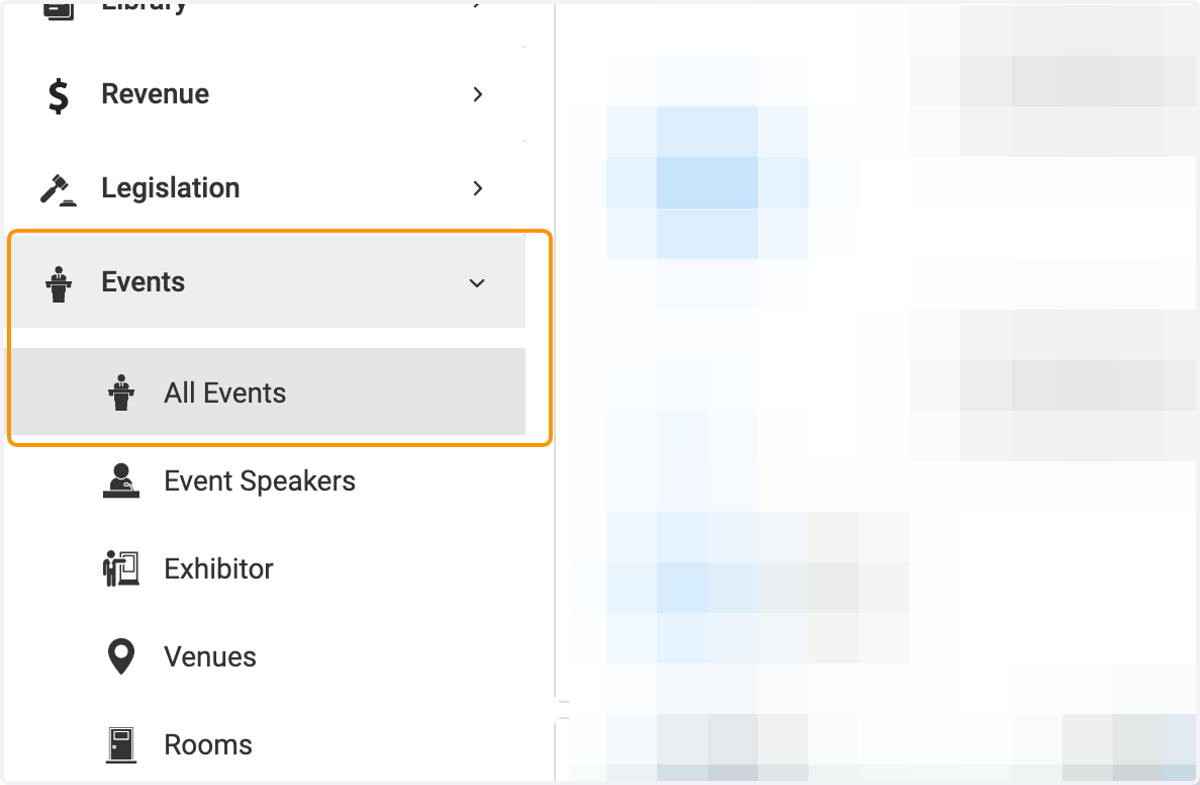
    Click on All Events, and then All Events to mark events as Favorites
  9. 9. Click on the star to specify the event you wish to be part of the favorite list
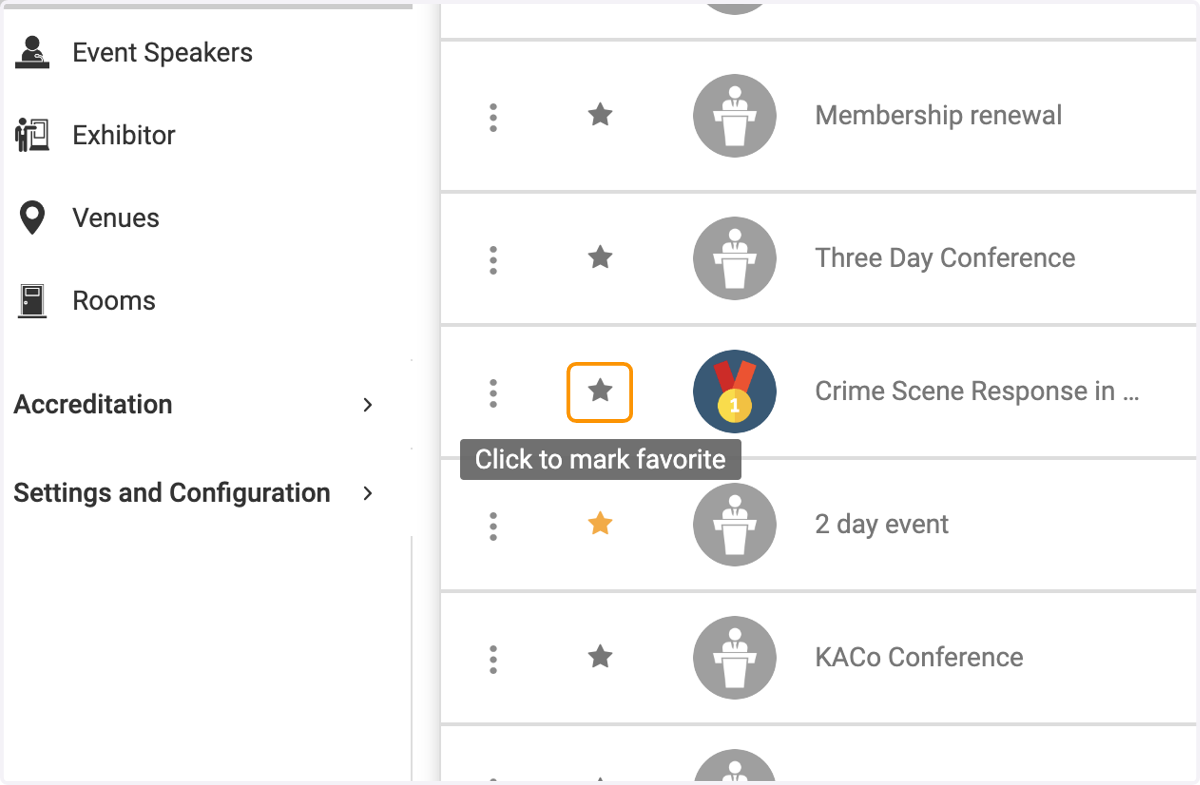
    Click on the star to specify the event you wish to be part of the favorite list
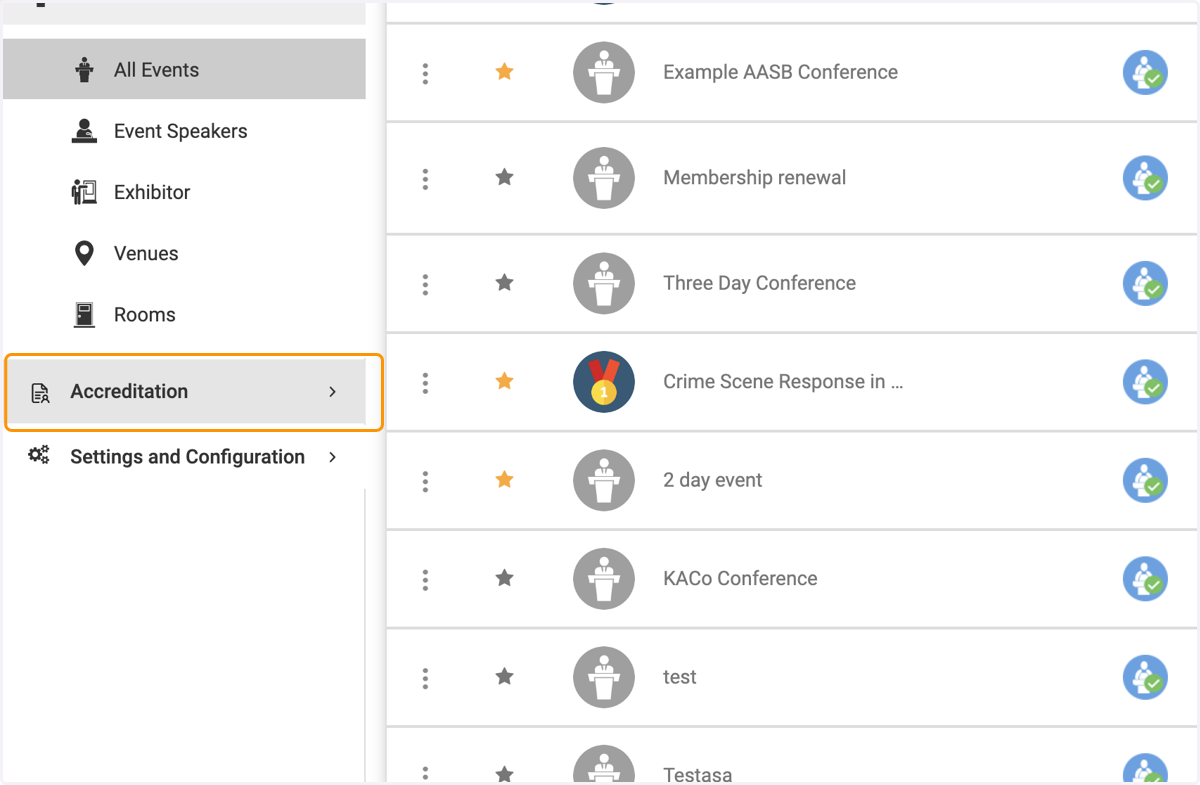
  10. 10. Click on Accreditation

    Click on Accreditation
  11. 11. Click Accreditation and select your favorite on the star to specify the Award, Course, Class or Venue you wish to be part of the favorite list
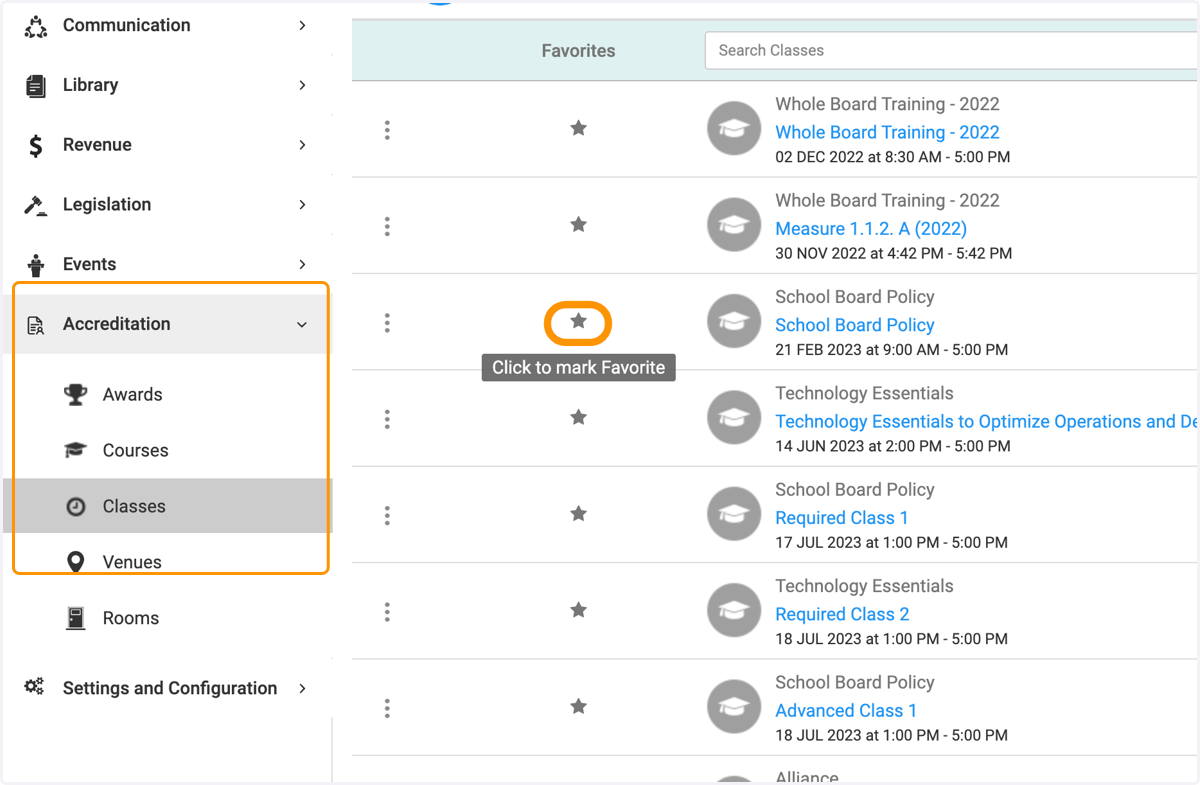
    Click Accreditation and select your favorite on the star to specify the Award, Course, Class or Venue you wish to be part of the favorite list
  12. 12. Click on My Area to view your favorite items
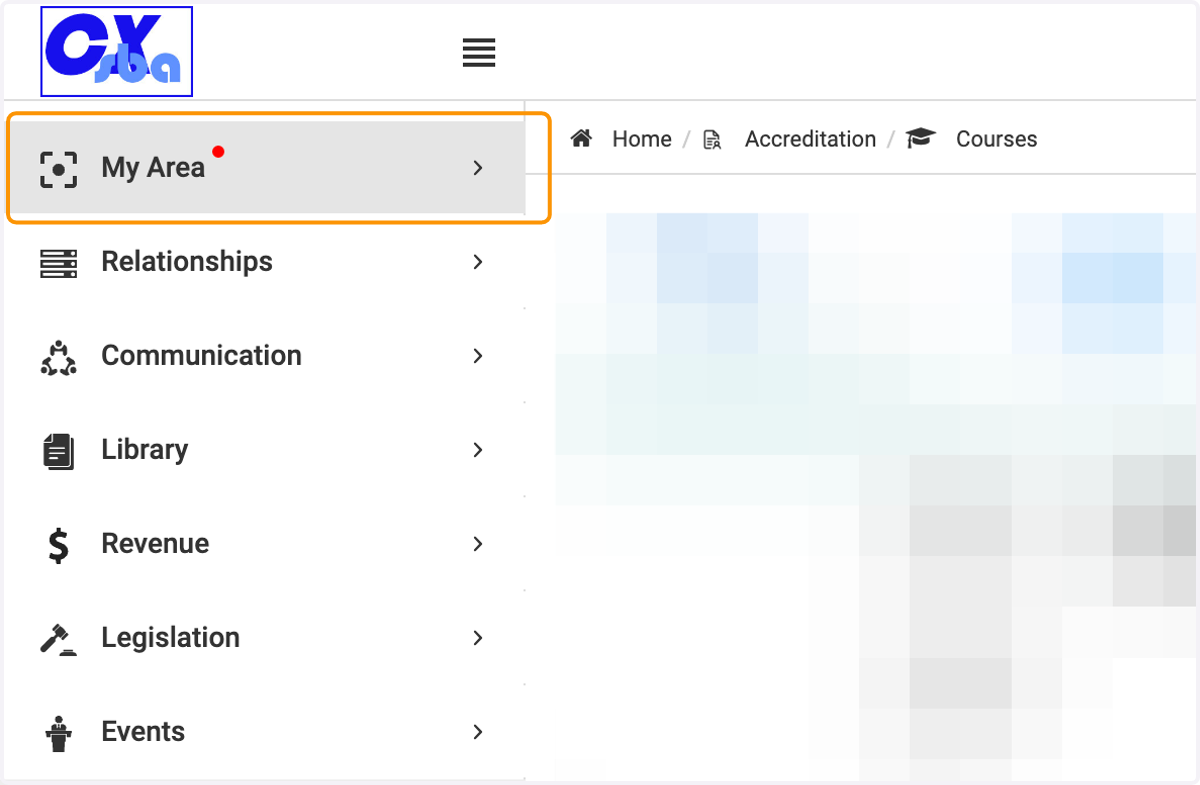
    Click on My Area to view your favorite items
  13. 13. Click on My Favorites

    Click on My Favorites
  14. 14. Click on the module to specify the favorite list you wish to view
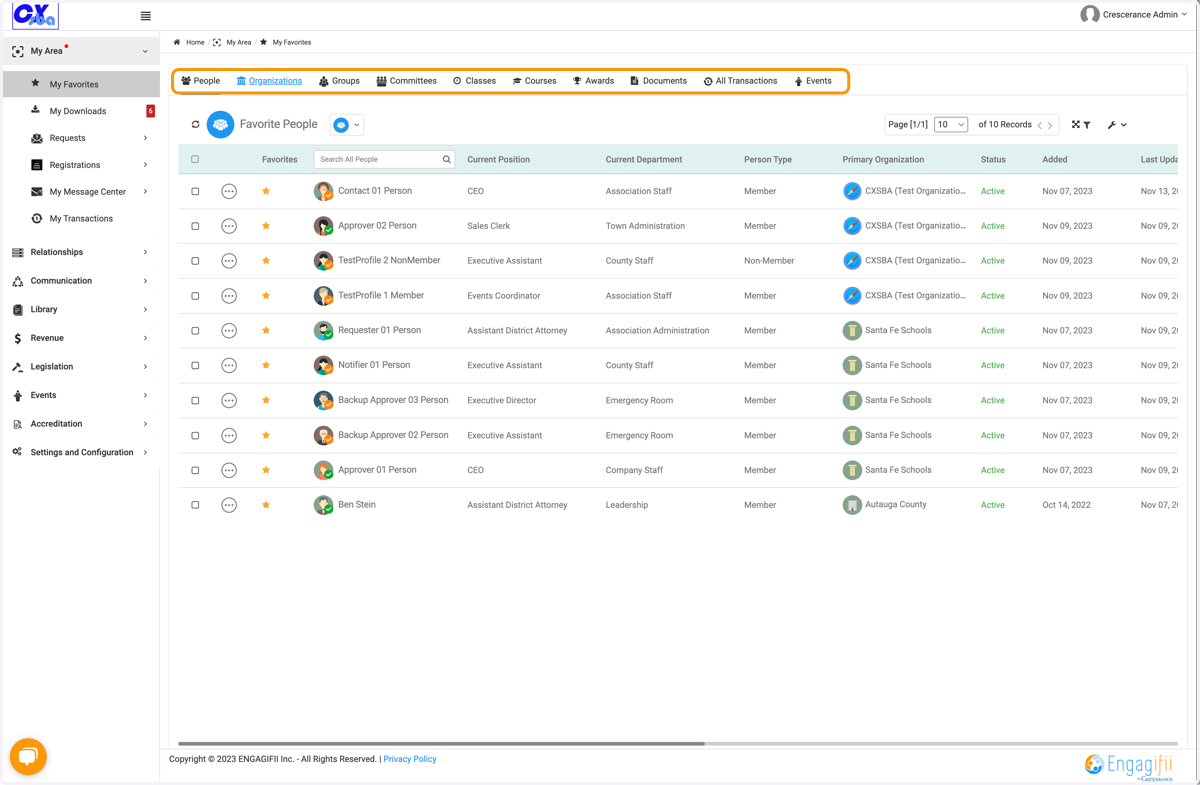
    Click on the module to specify the favorite list you wish to view