Creating an eSign Order
Step by Step walkthrough of creating an eSign Session.
Enotarylog
1. Go to dashboard.enotarylog.com
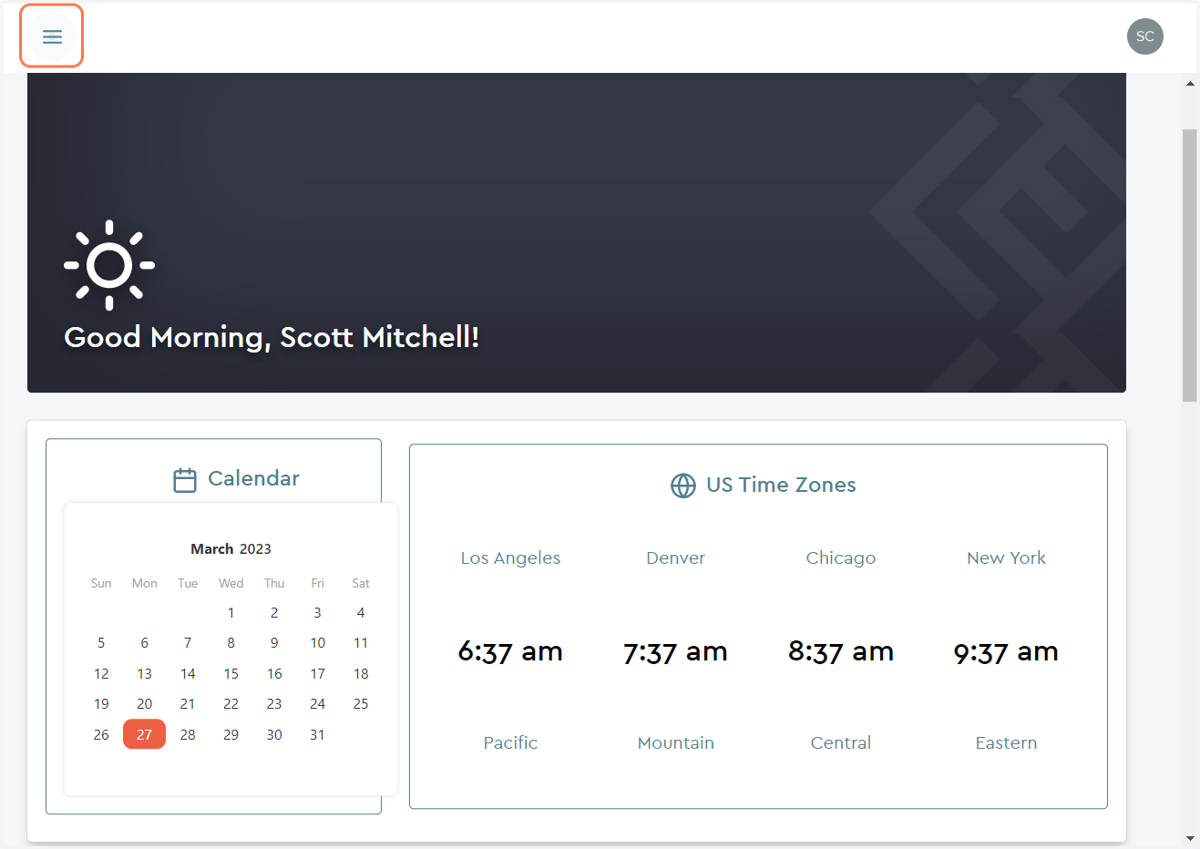
2. Click on Menu Icon at the top left of the page…
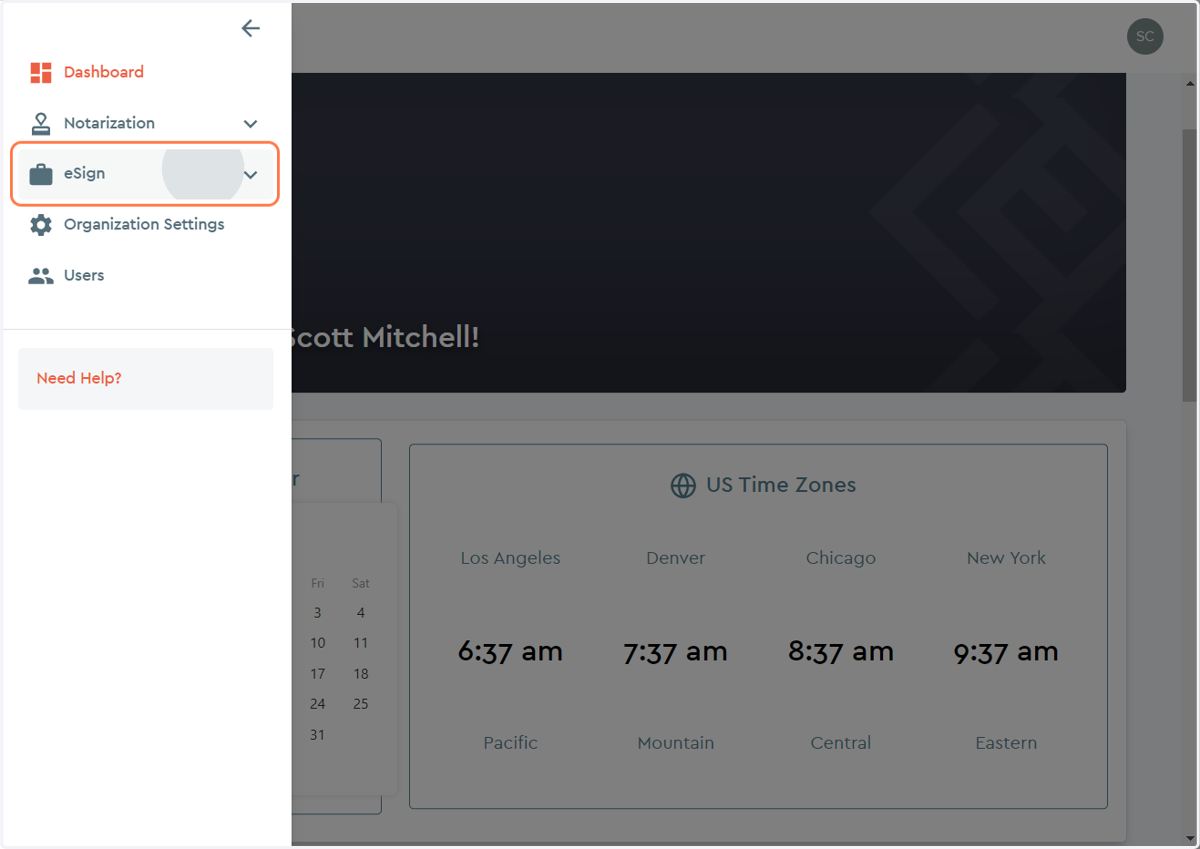
3. Click on eSign dropdown menu...
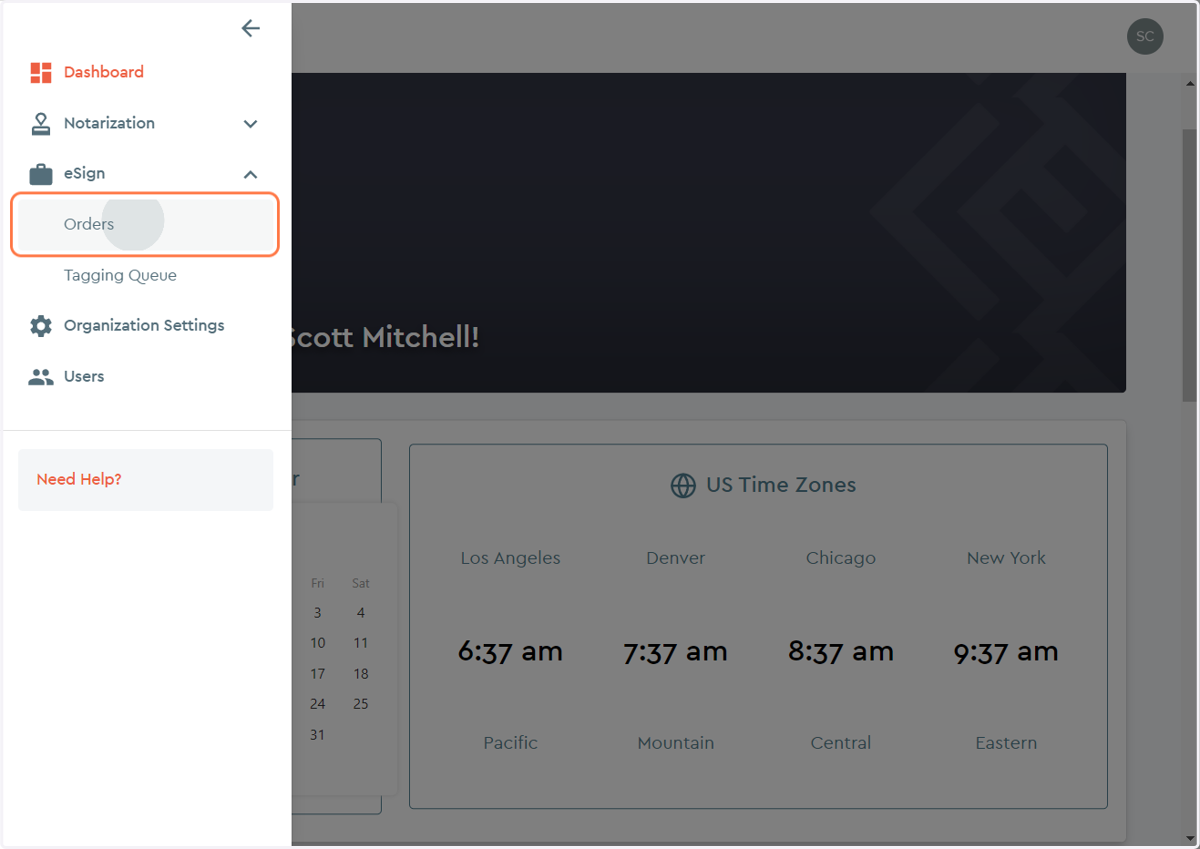
4. Click on Orders option...
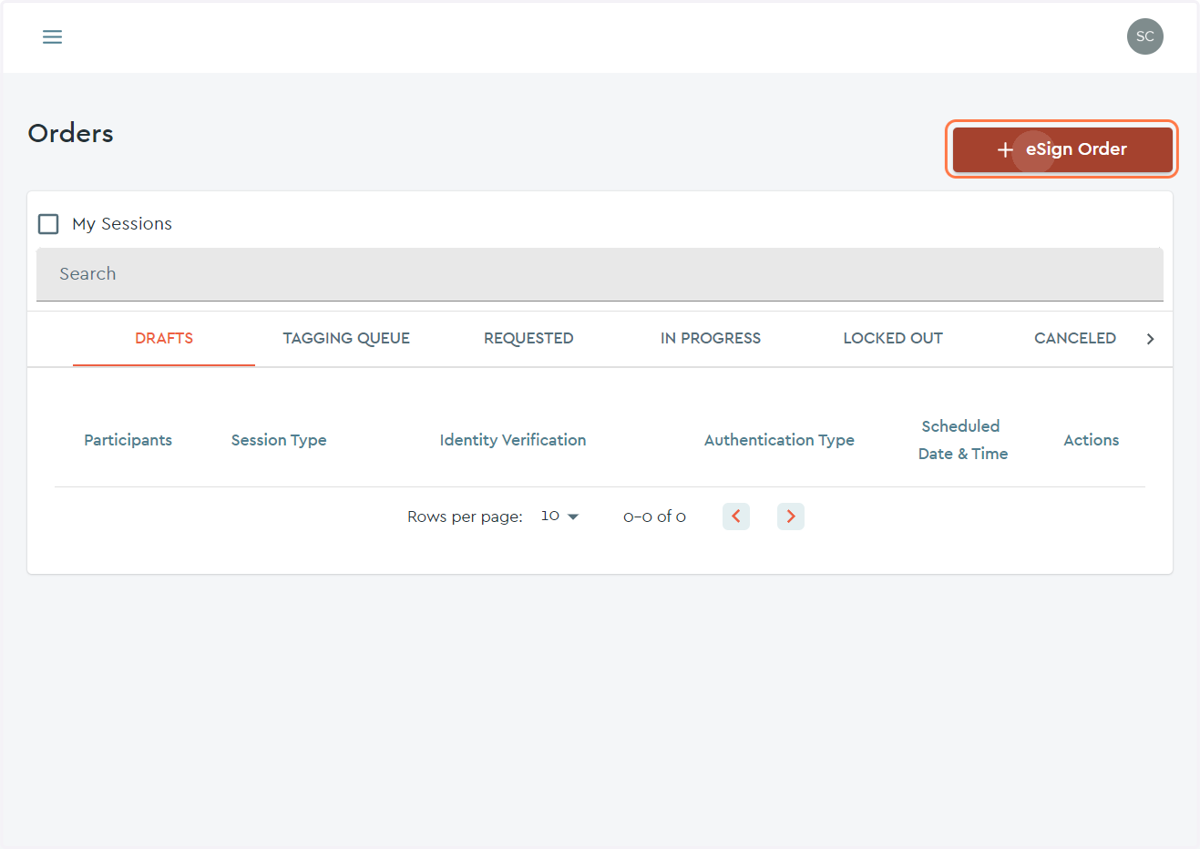
5. Click on the "+ eSign Order" button...
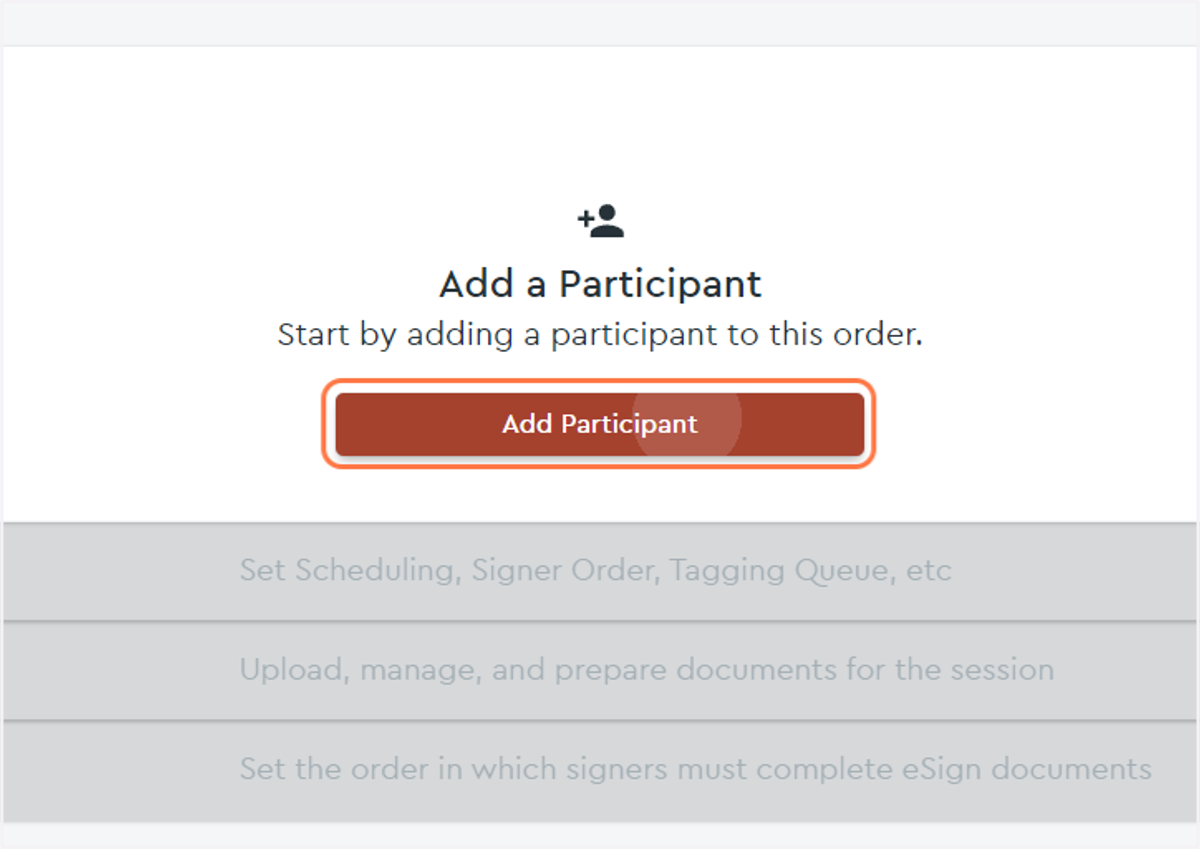
6. Click on Add Participant button...
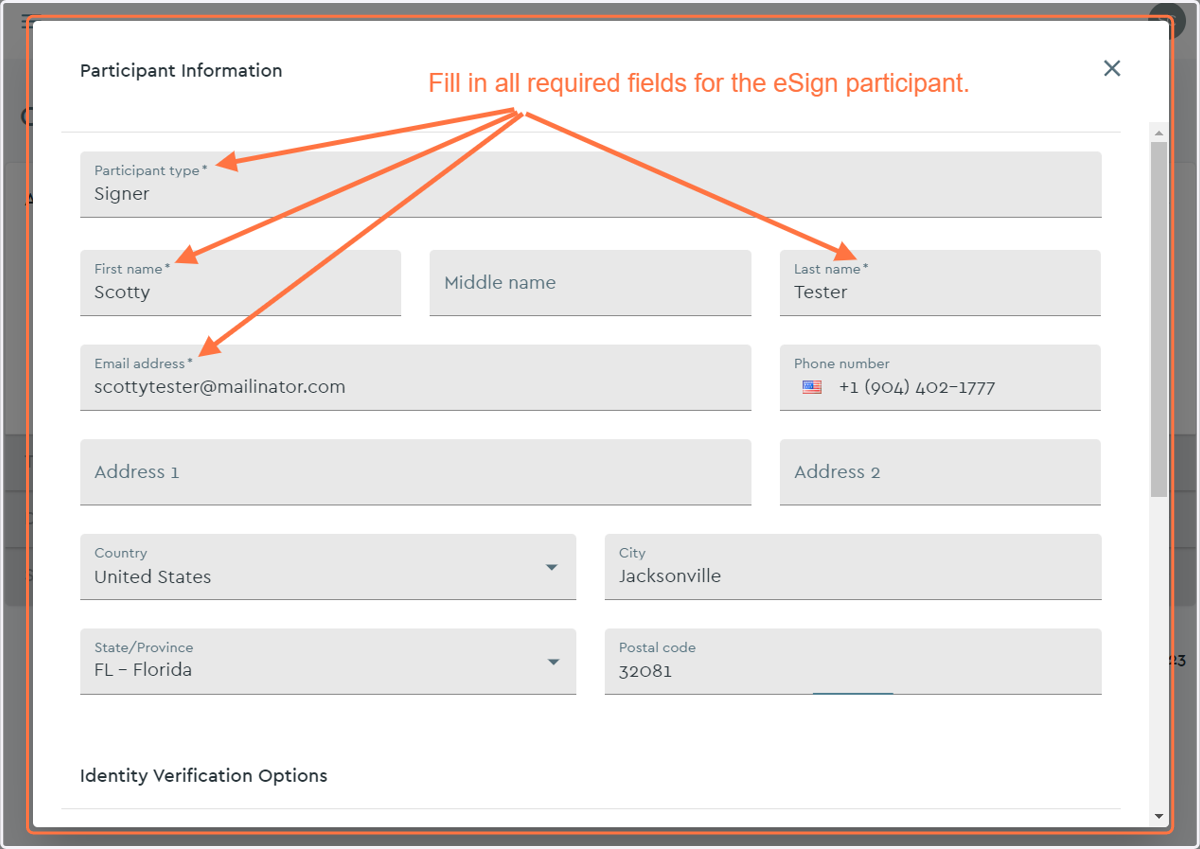
7. Fill out the required fields and any additional information as desired...
8. Scroll down to view and select Identity Verification Options...
Depending on the requirements of your eSign session you can assign your user to be verified by KBA questions or Credential Analysis.
Knowlege Based Analysis Questions will be questions generated from public records of the person the signer is claiming to be.
Credential Analysis will be a verification process utilizing a State ID, Driver's License, or Passport.
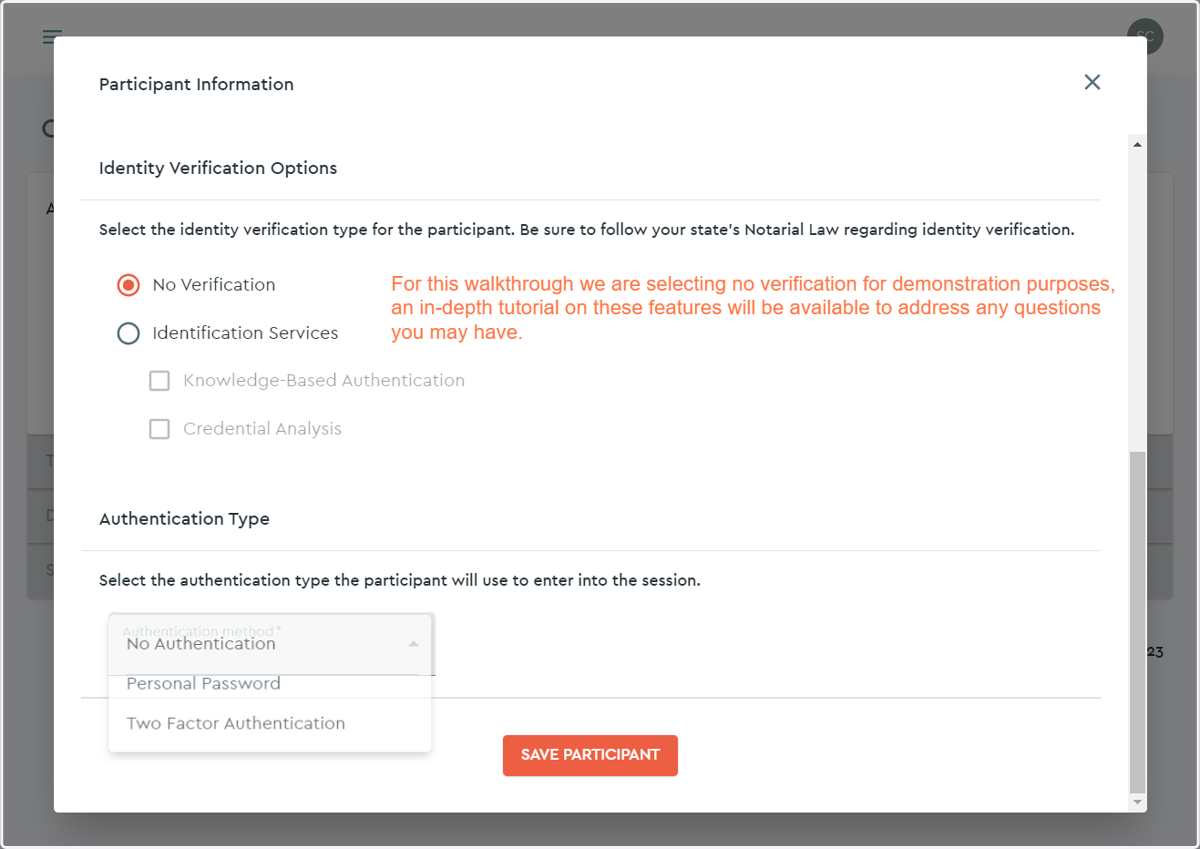
9. Select the appropriate Authentication Method...
Select from the following Authentication Methods,
No Authentication - This will add no additional security to confirm the intended signer has joined the session.
Personal Password - The signer will be given a password they will need to input to join the session.
Two Factor Authentication - The signer will input a given password as the first factor, then by phone they will be sent a code to input as the second factor.
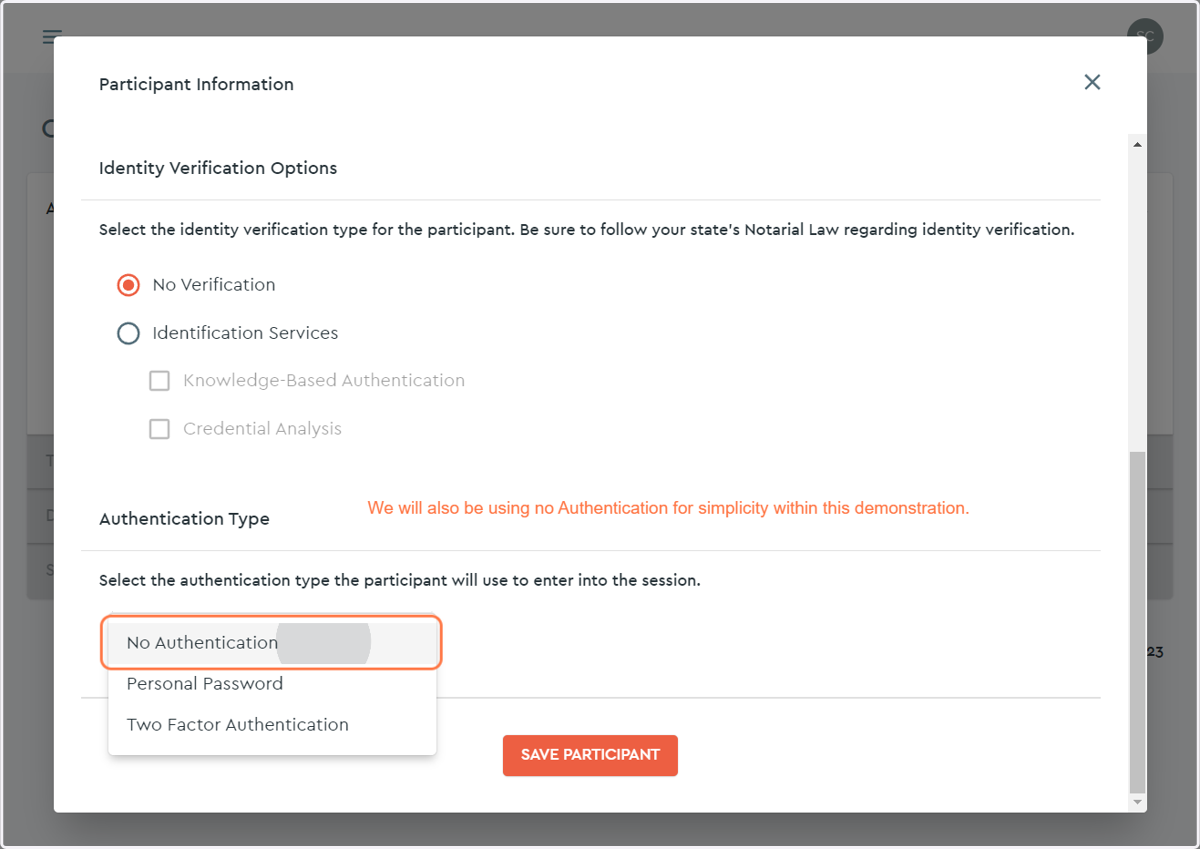
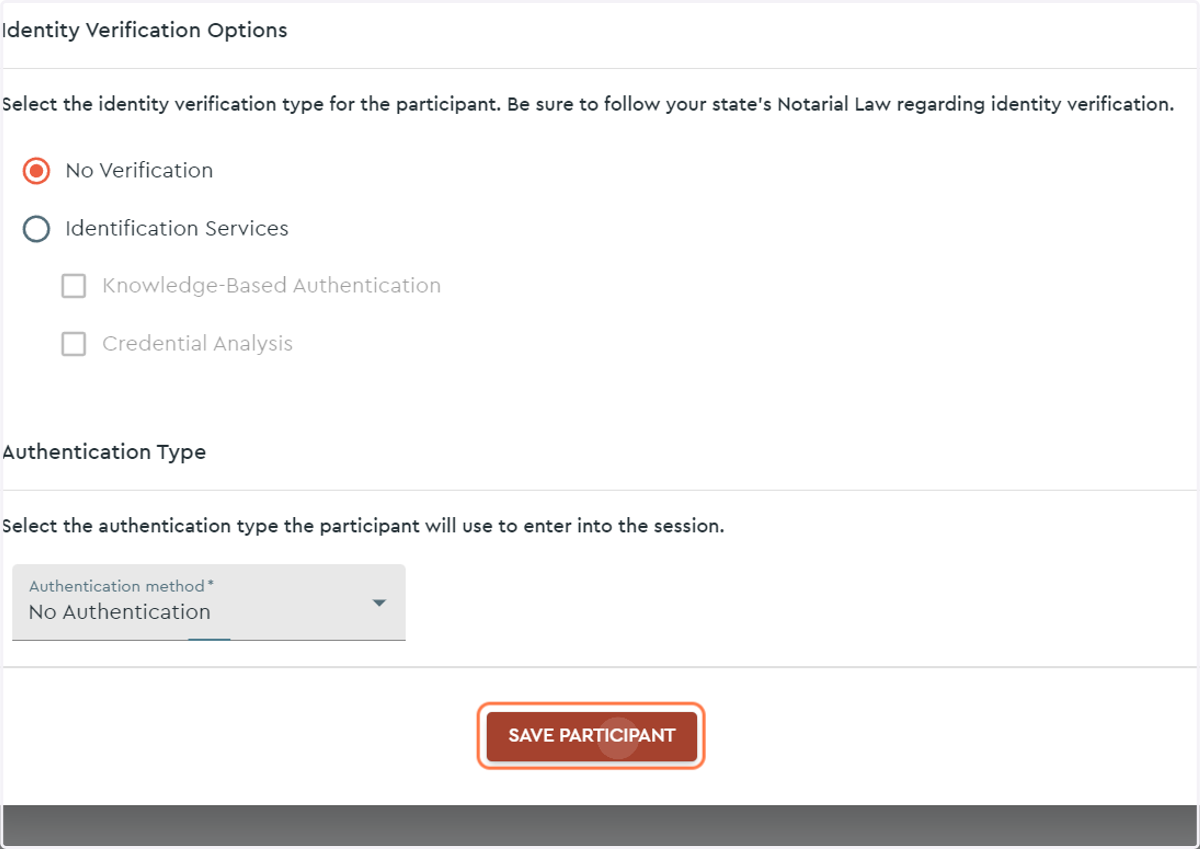
10. Click on SAVE PARTICIPANT button...
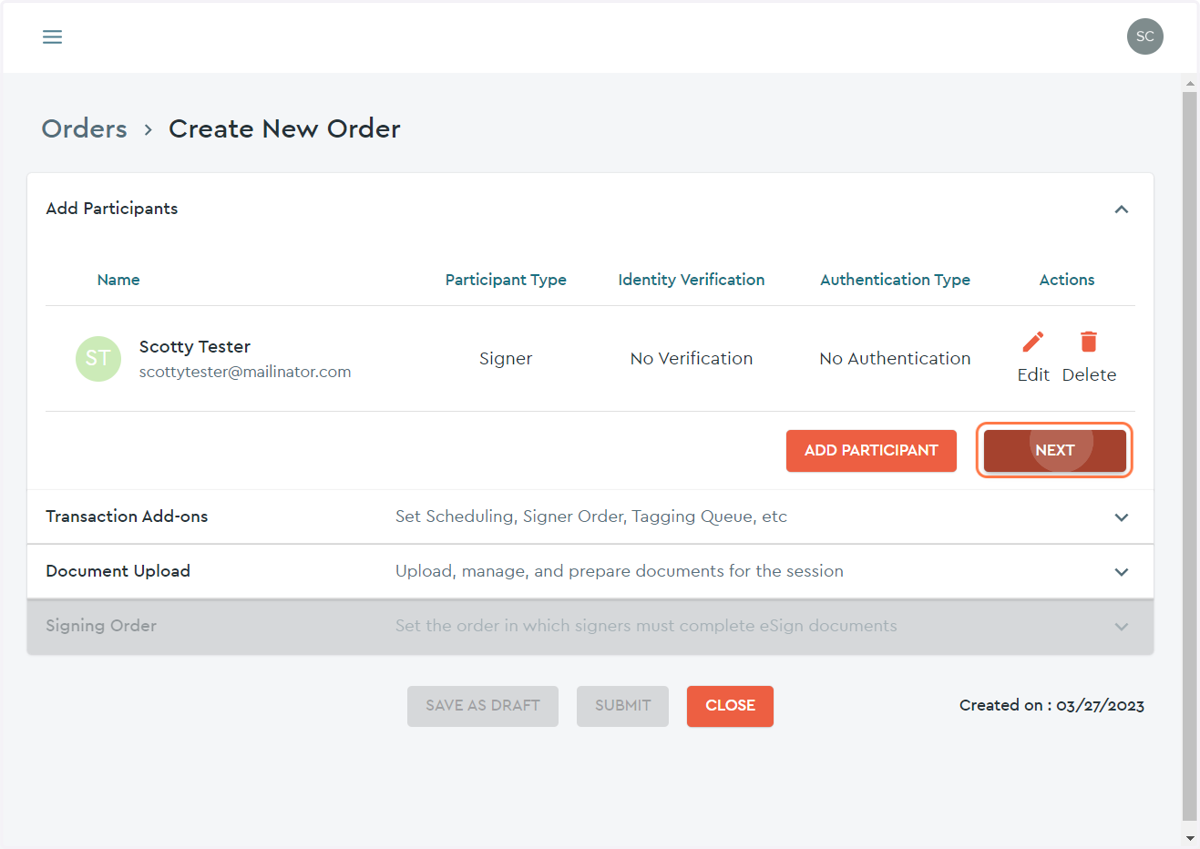
11. Click on the NEXT Button to move on from the "Participant" portion of the order...
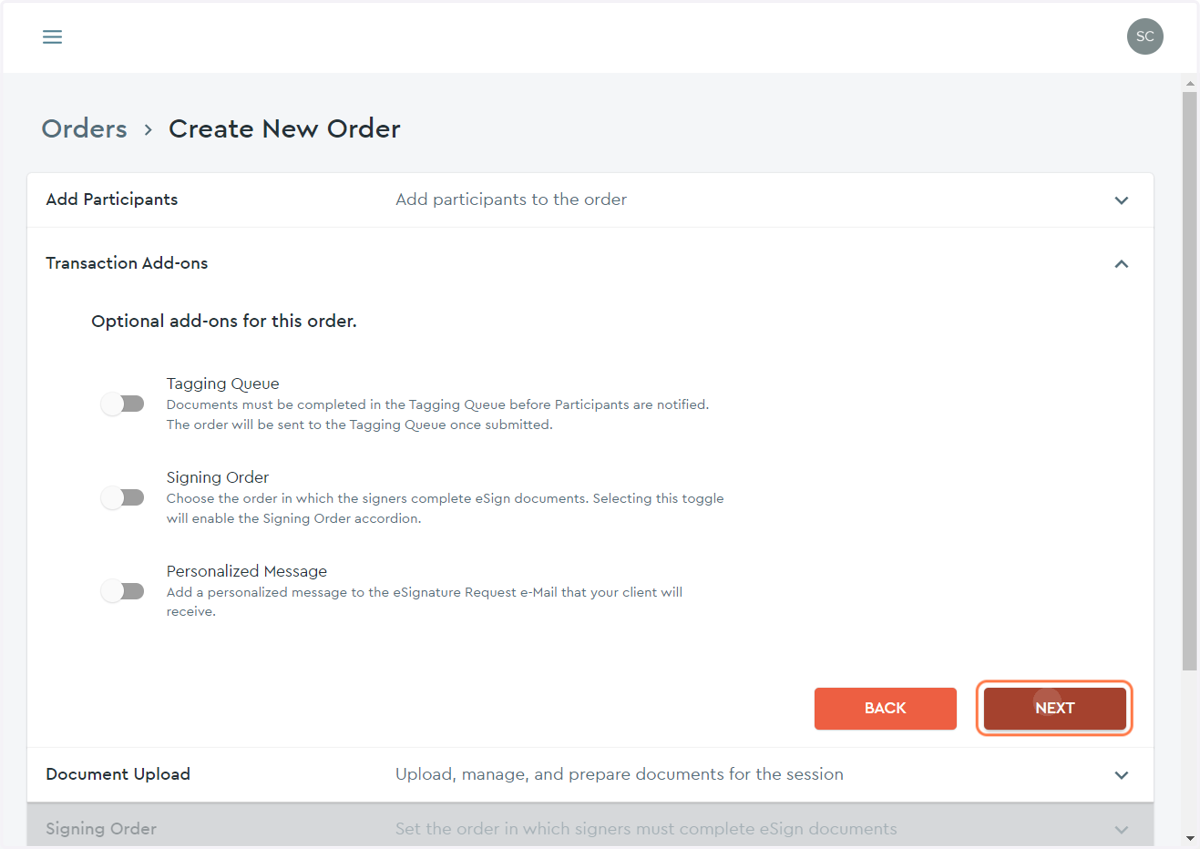
12. Click on the NEXT button to move on from the "Transaction Add-ons" portion of the order...
You can elect to add a few optional features to the order as desired.
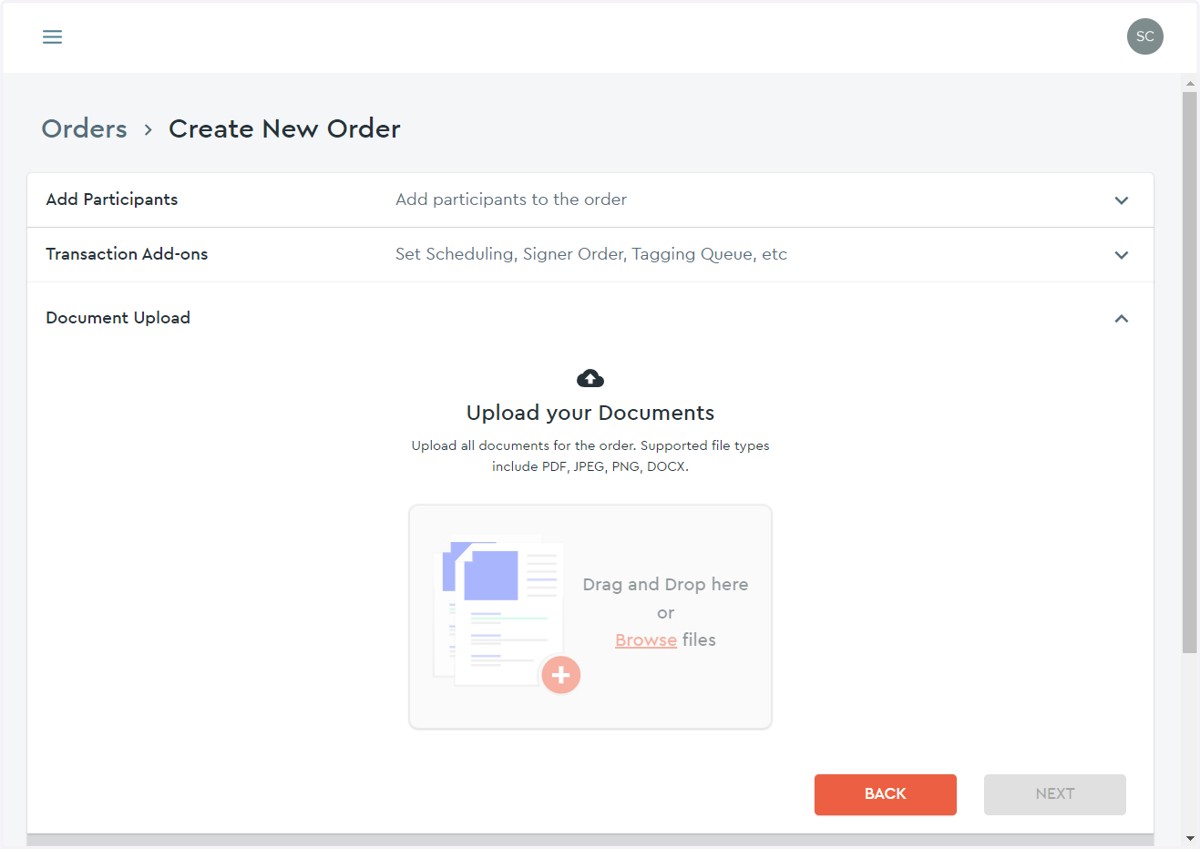
13. Click on "Browse files" or drag and drop the file into the darker area that you wish to have eSigned.
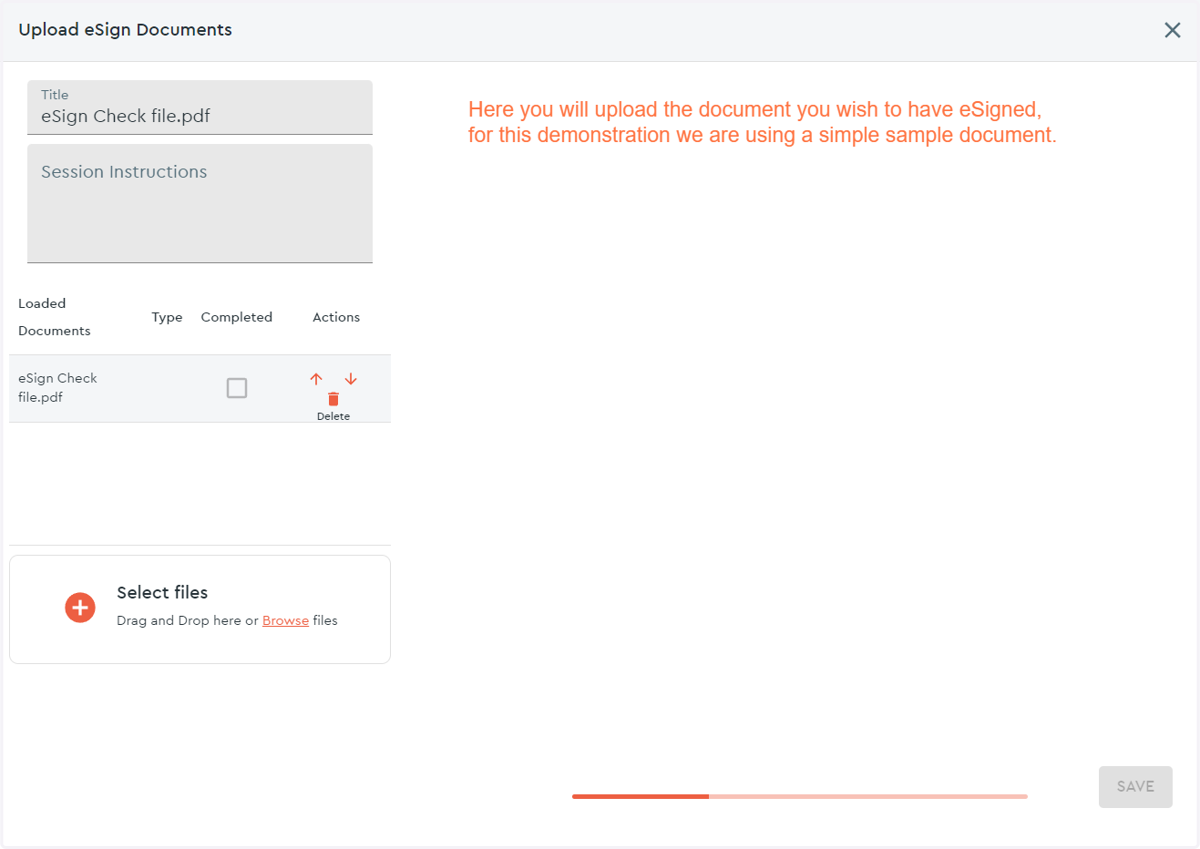
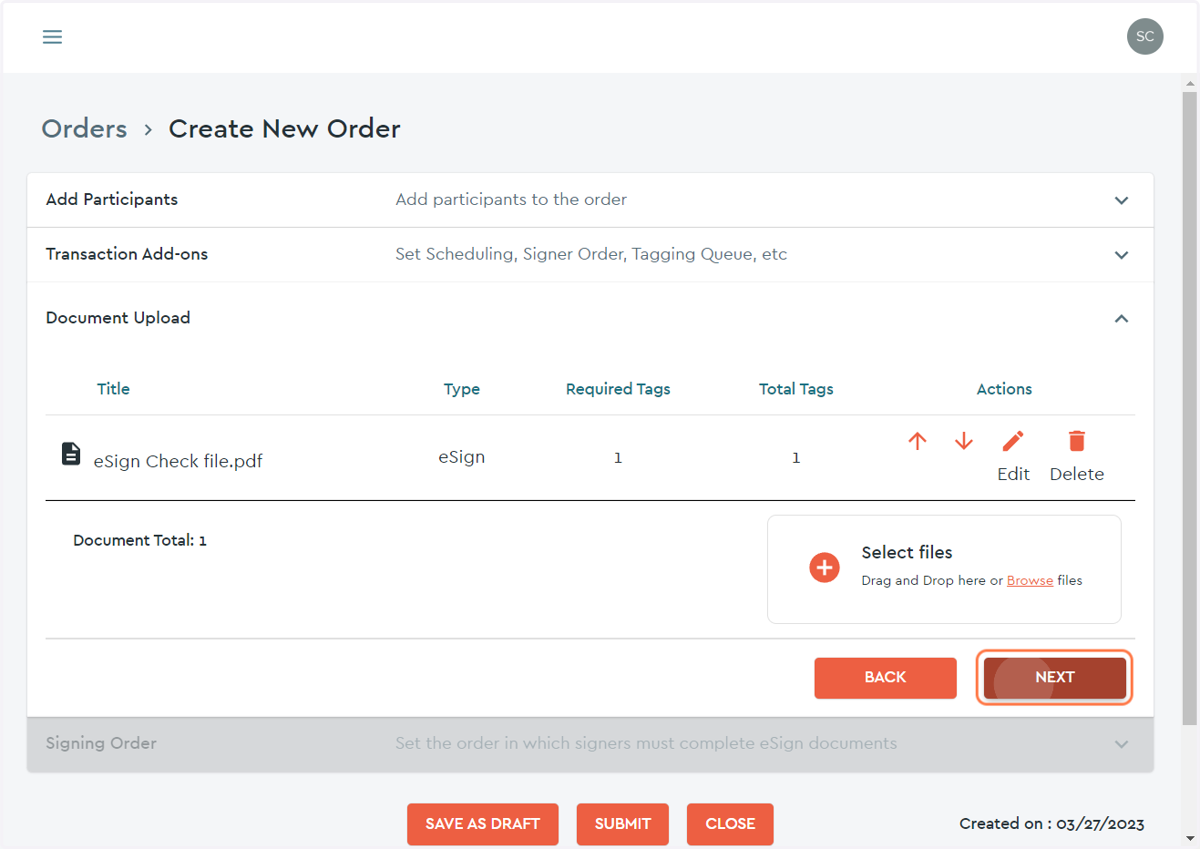
14. Here you can see your selected document....
From this page you can continue to add files, delete files from the order, or reorder them as desired.
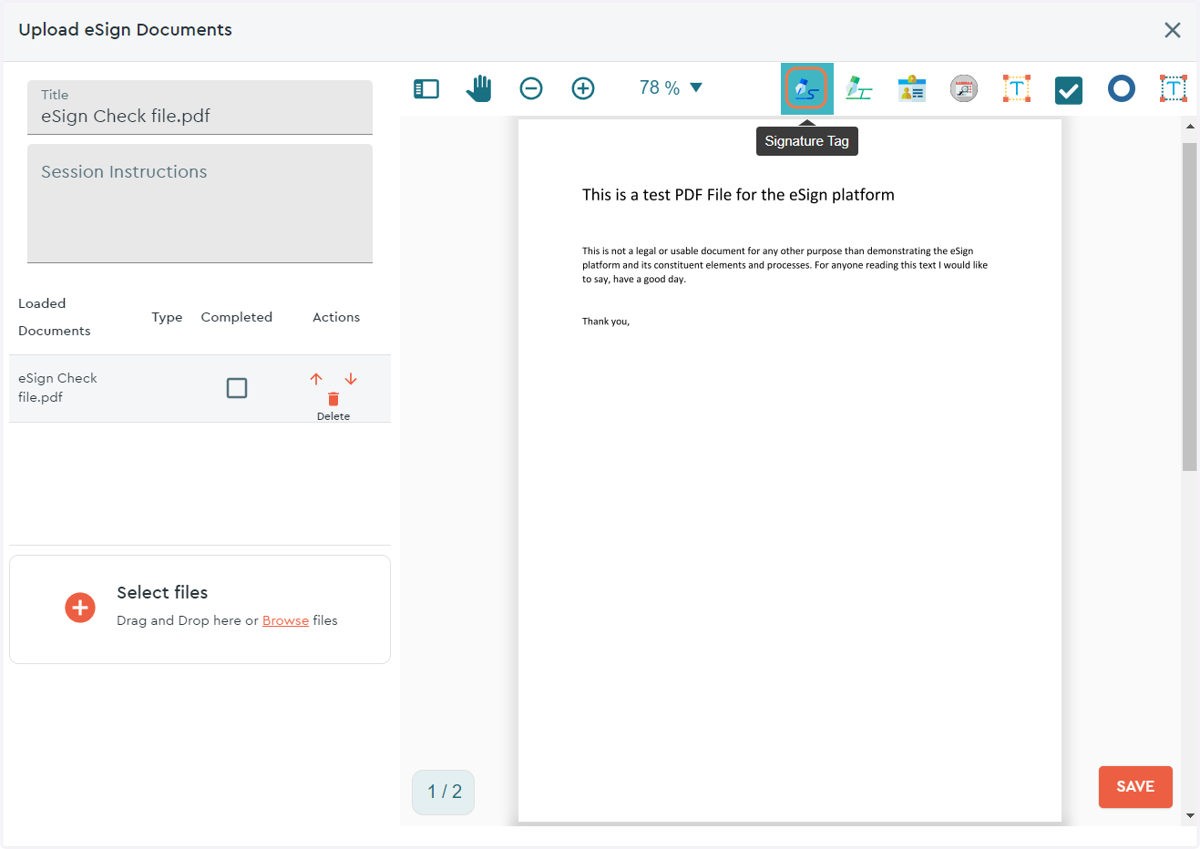
15. Once your file loads you may begin to tag it as needed...
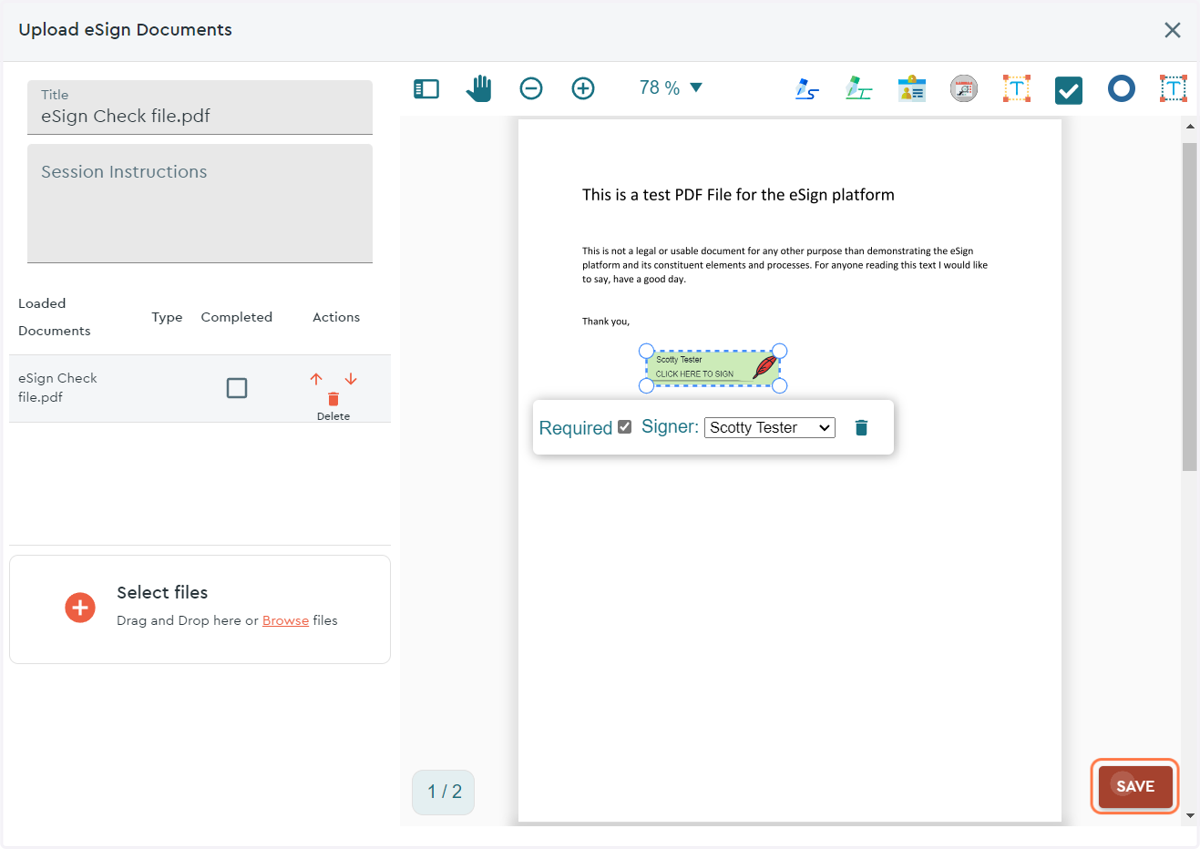
16. Once you are done tagging the document, click SAVE to keep your changes...
17. Review your order, if everything looks correct click the NEXT button...
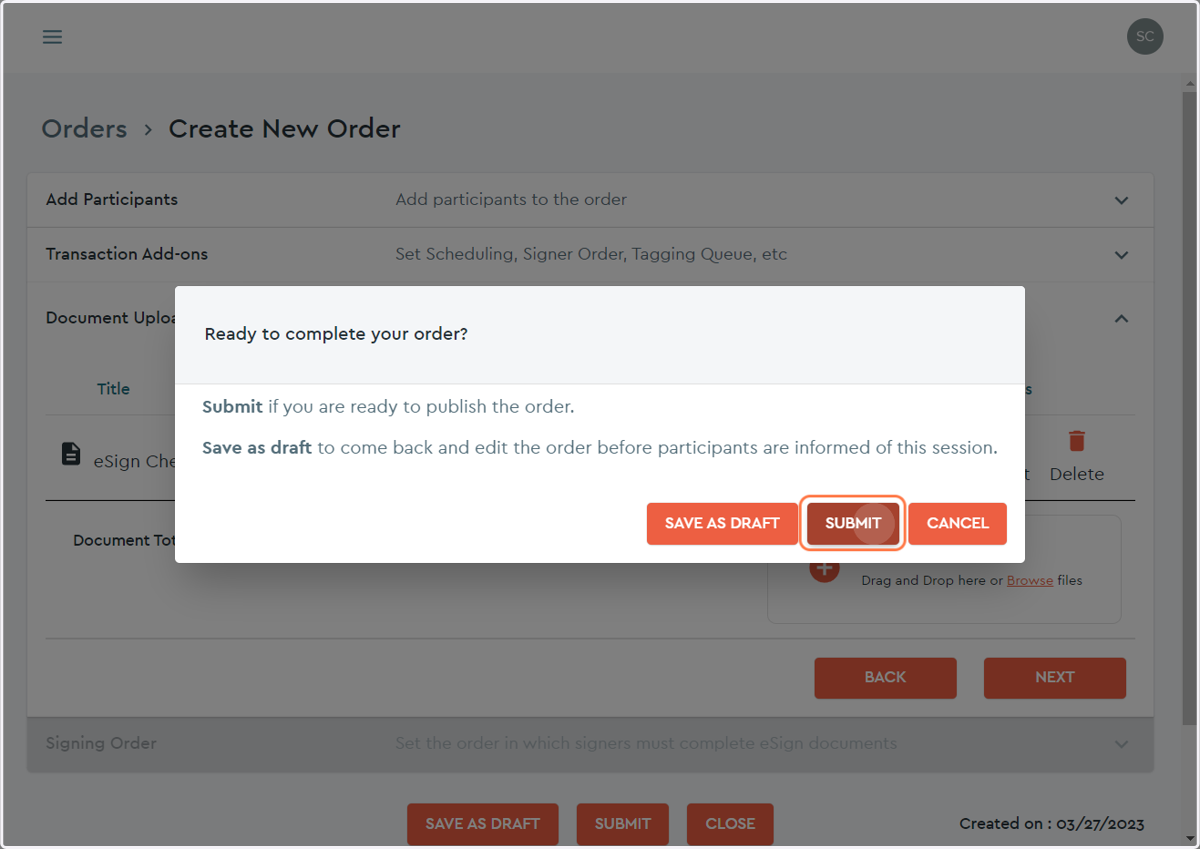
18. Having reviewed your order you can now either SUBMIT, SAVE AS DRAFT, or CANCEL your order...
SUBMIT will send an email to your signer(s) to invite them to complete the order.
SAVE AS DRAFT will keep your order ready to be submitted so that additions or changes can be made before inviting your signer(s) to the order for completion.
CANCEL will remove the order as if it had never been made.