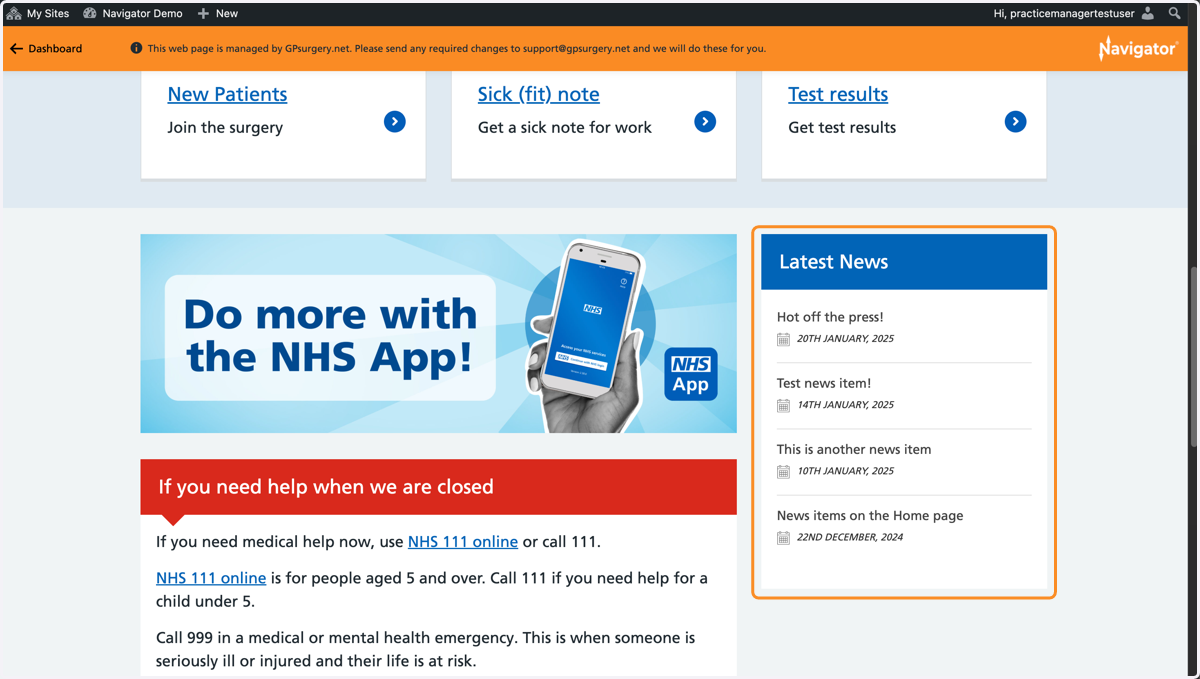
Delete a page or post from a Navigator website
This tutorial explains how to delete a Job/Alert/News item/Service/Clinic from a GPsurgery.net website. Any pages that you do not have access to edit can be edited by the GPsurgery.net support team.
1. Ensure you are logged into your website. The black admin toolbar and the orange Navigator toolbar should be visible at the top of the page.
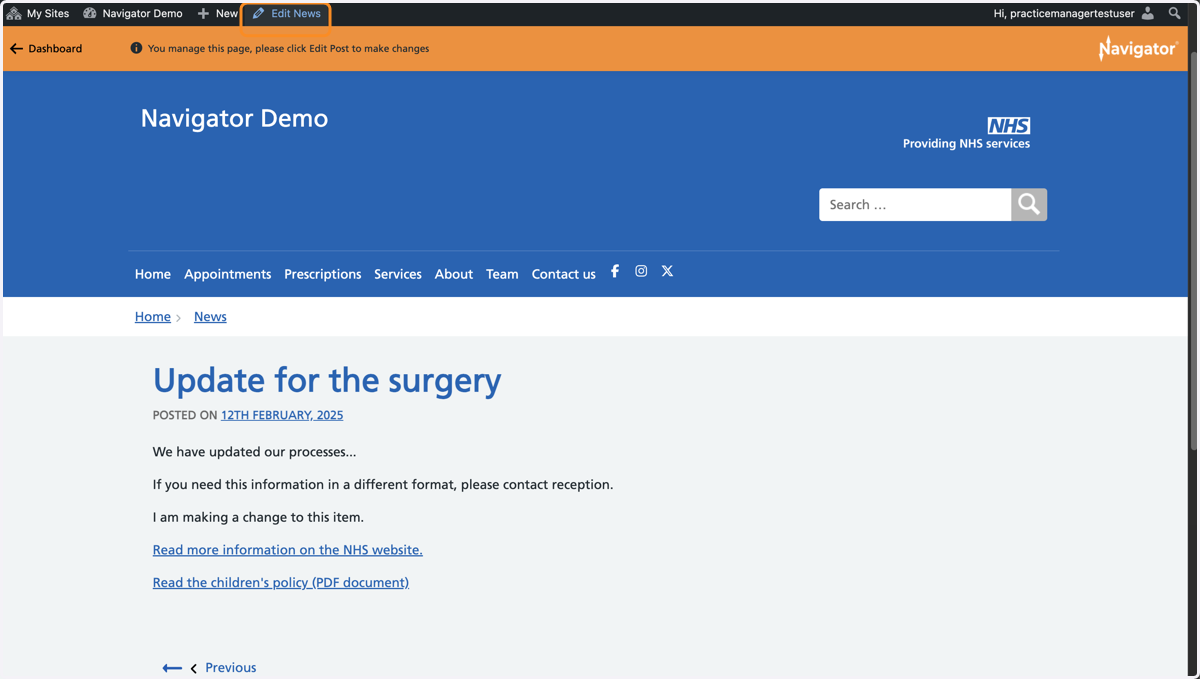
2. Go to the page or post you would like to delete. Select 'Edit' from the admin toolbar.
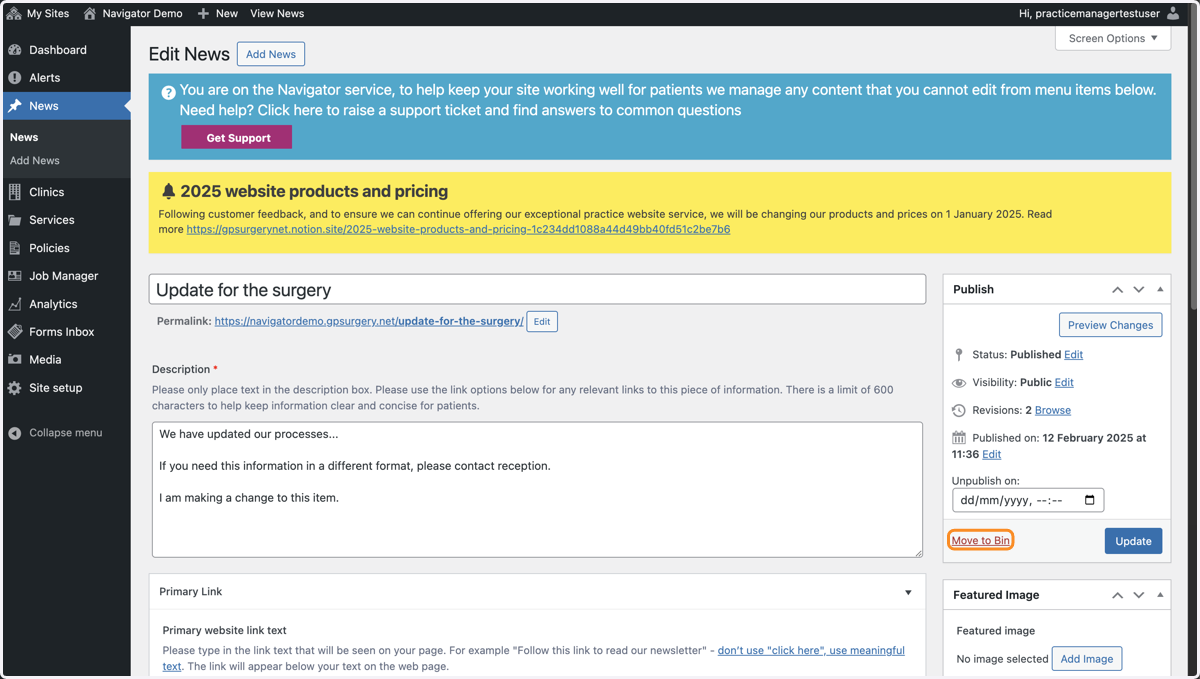
3. You are now in the Editor. Select the red 'Move to Bin' link in the white Publish box. This is on the right-hand side of the page.
4. You are now in the section of the dashboard for the type of page or post you have deleted. Select Bin to view the item in the bin.
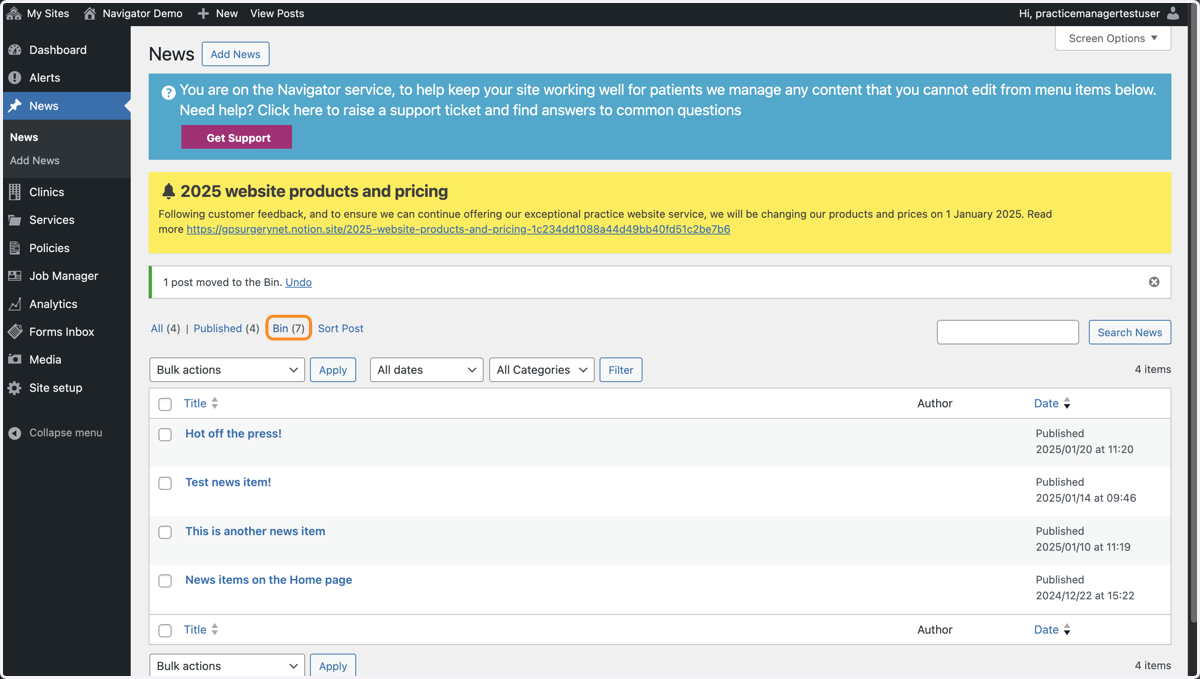
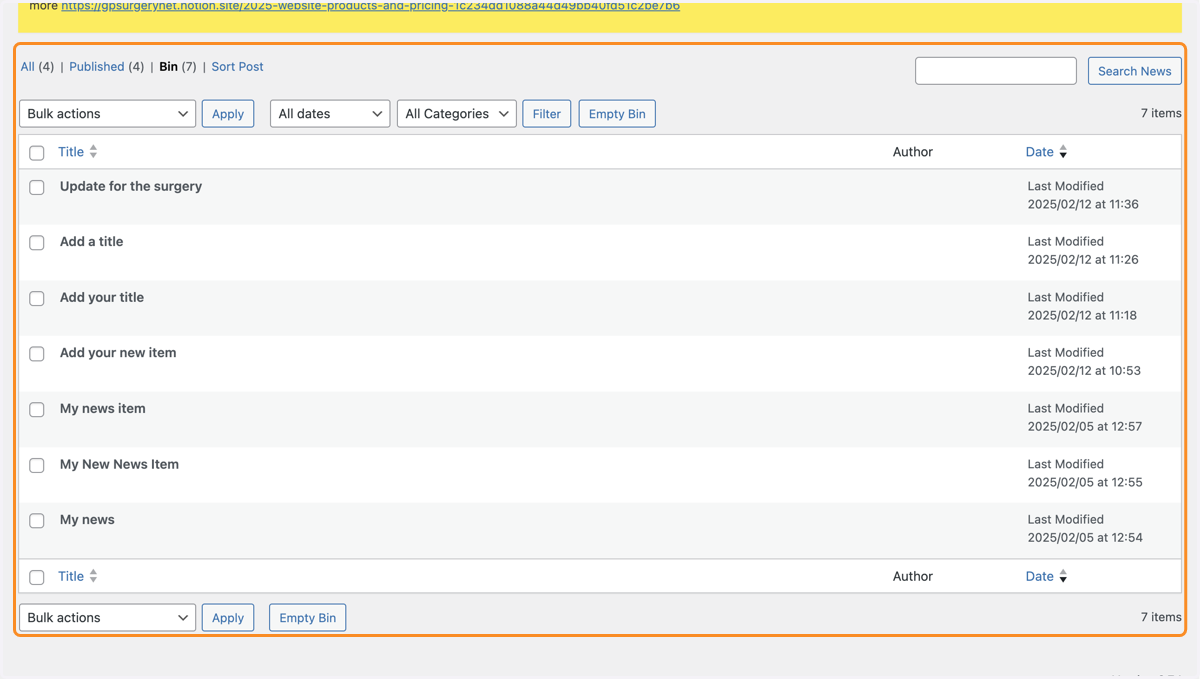
5. The item will stay in the bin for 30 days. It will then by automatically permanently deleted from your website.
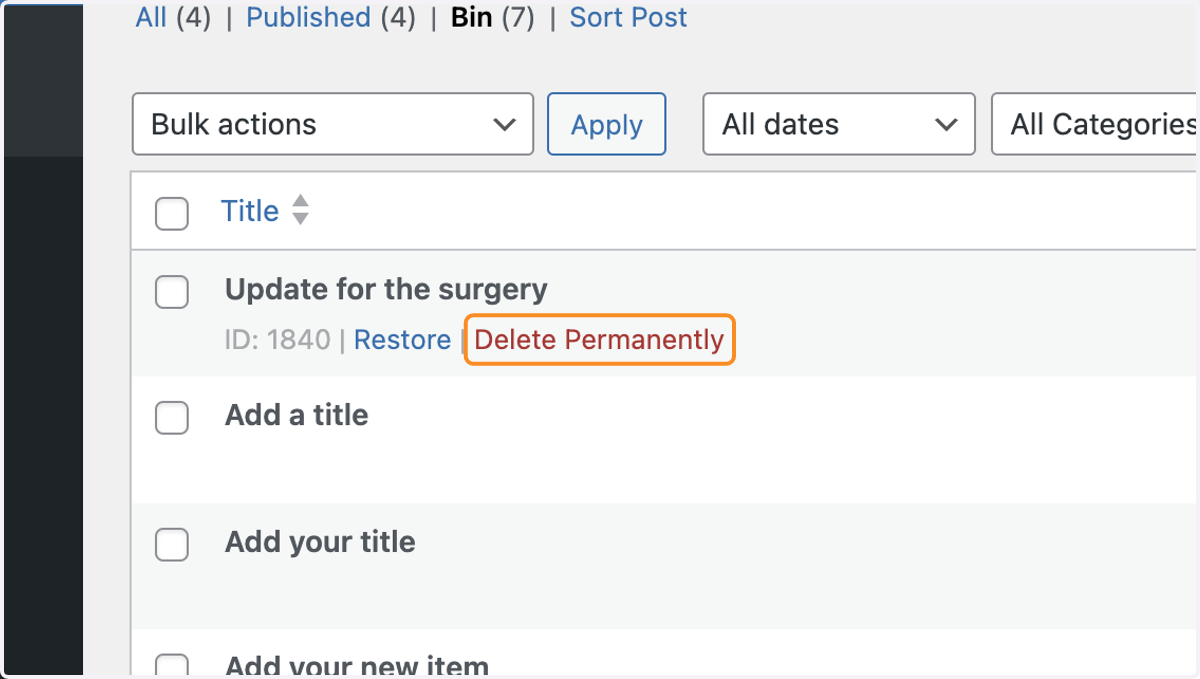
6. You can also permanently delete a news item manually. To do this, hover your mouse of the name of the page or post in the bin that you would like to delete, and select 'Delete permanently'.
TIP: You cannot restore permanently deleted posts, so only do this if you are absolutely sure you no longer need this content.
7. Your item is now permanently deleted from the website.
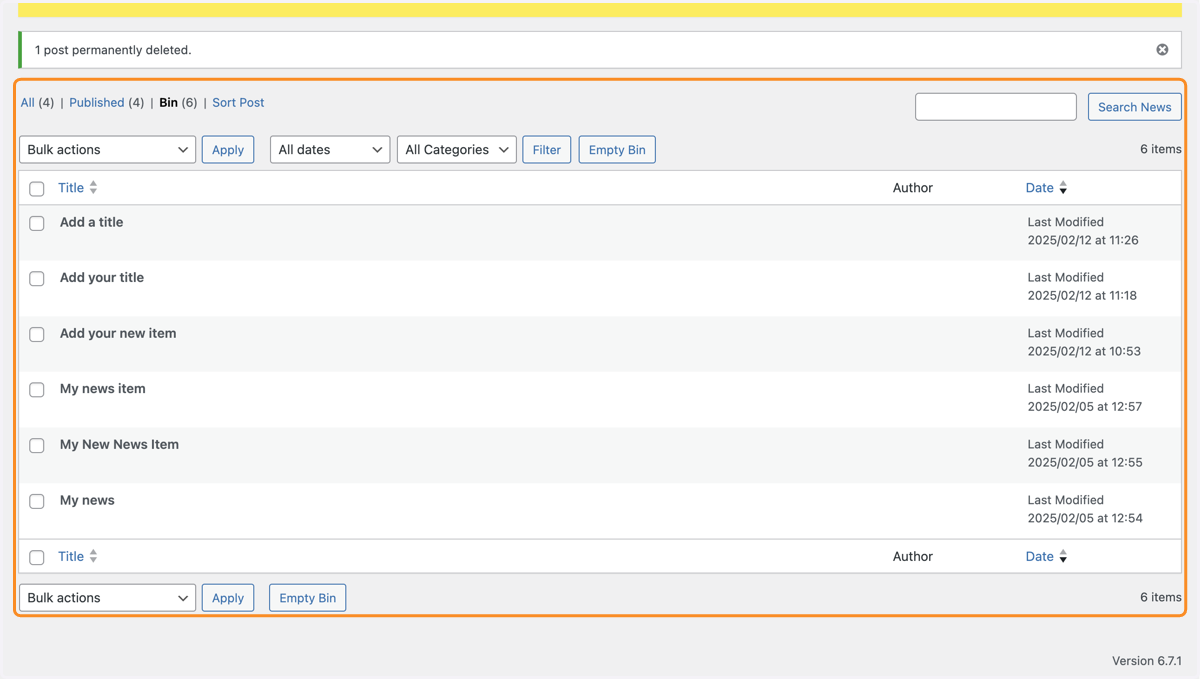
8. Your page or post is now no longer visible on your website.