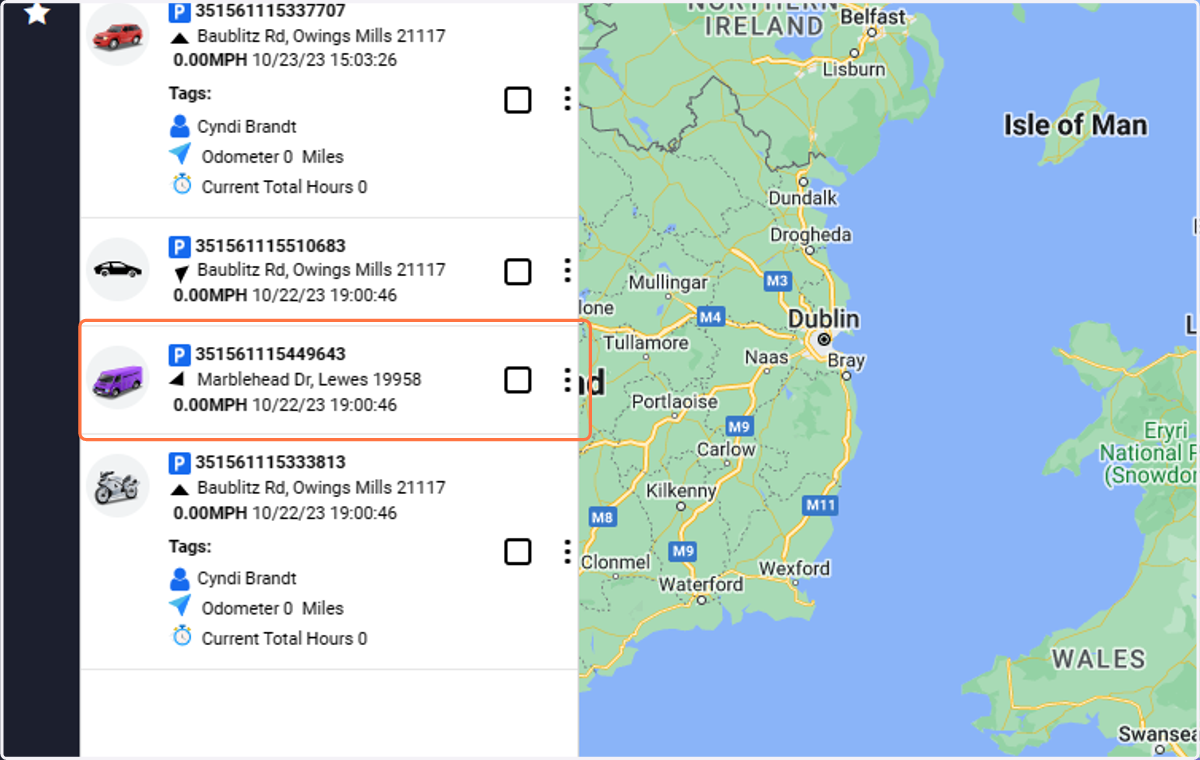
Guide: Navigating and Updating Vehicle/Asset Details
MatrixIQ Telematics
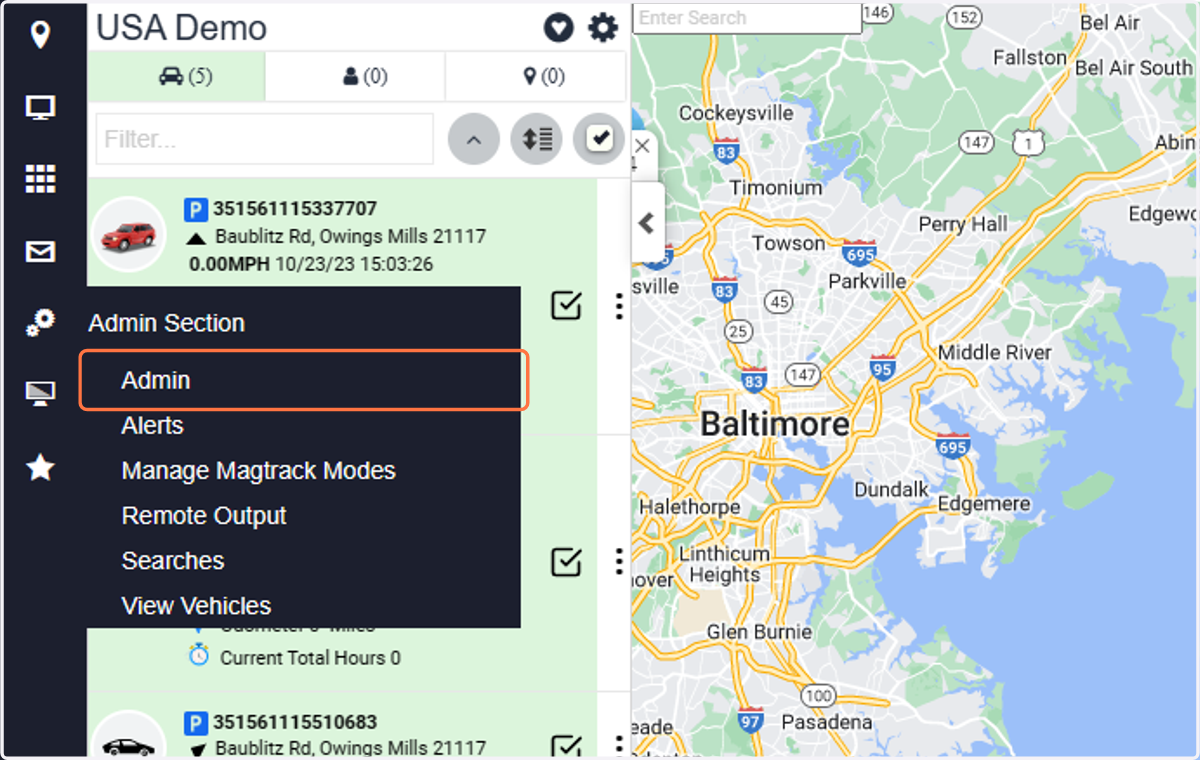
1. Click on Admin
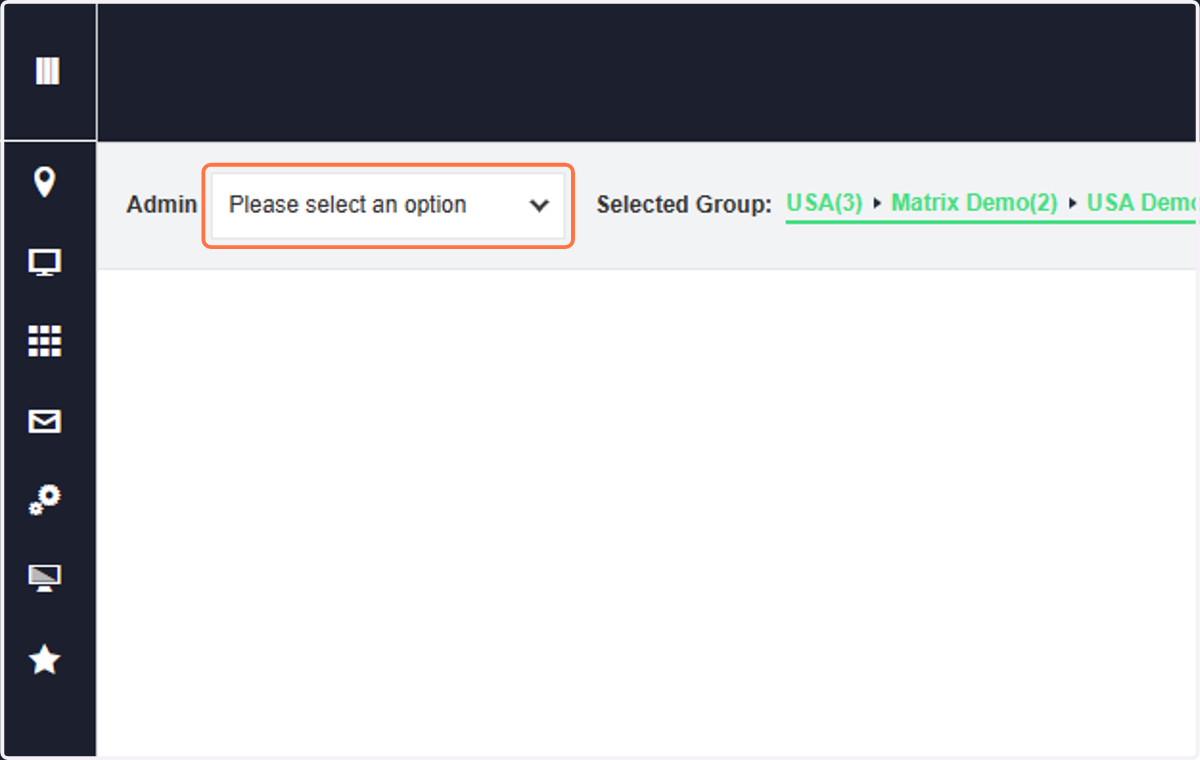
2. Click on Please select an option
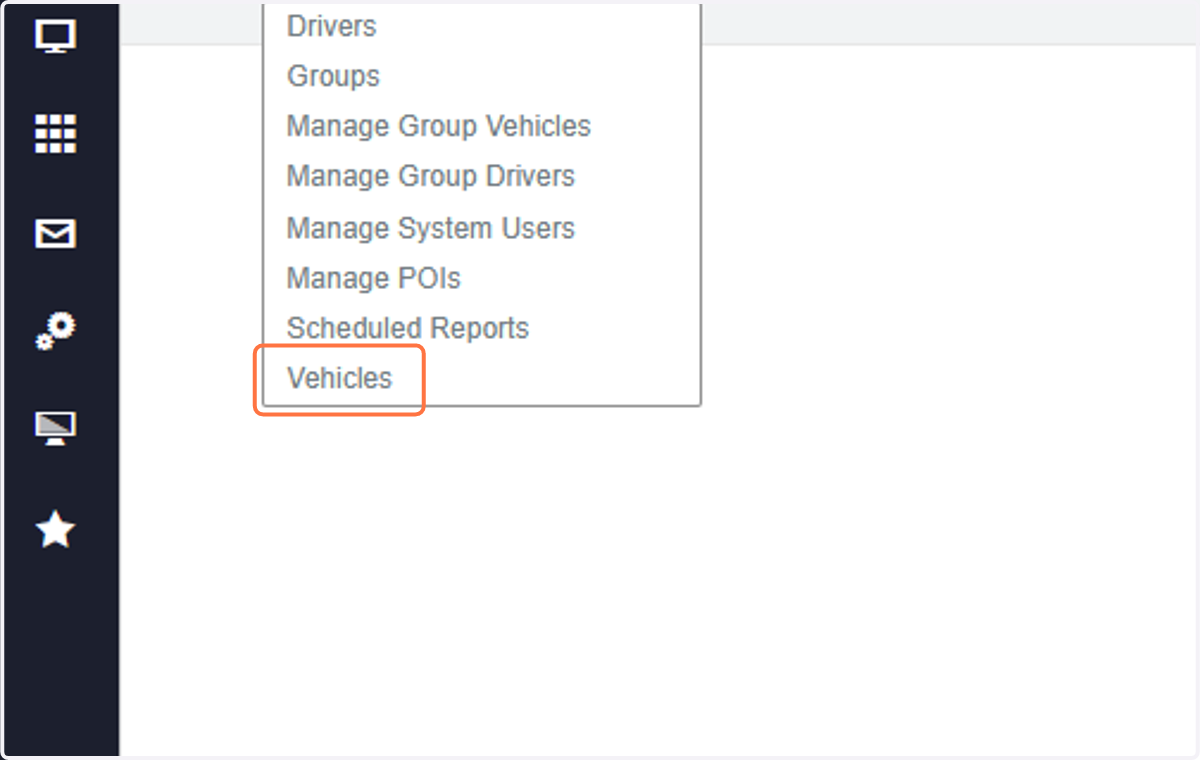
3. Click on Vehicles
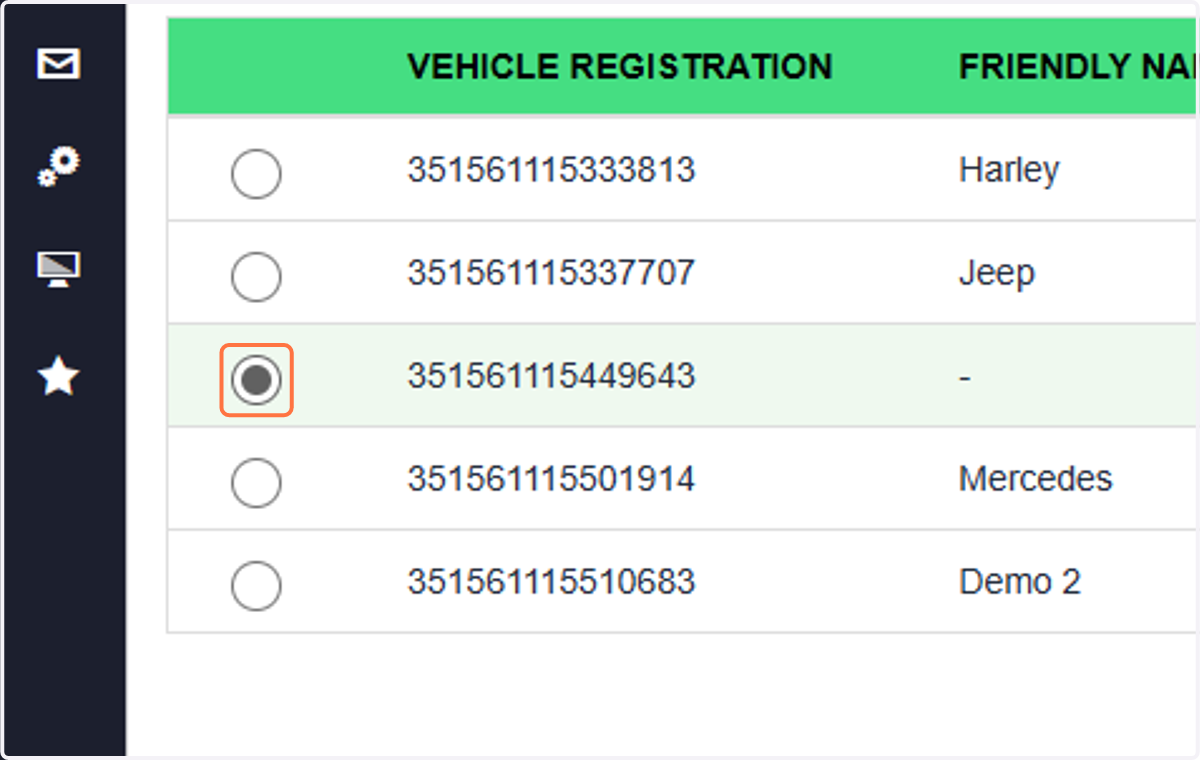
4. Select the vehicle you want to edit
We assume that each device is a "vehicle" and the IMEI number of the device is automatically populated in the Vehicle Registration field.
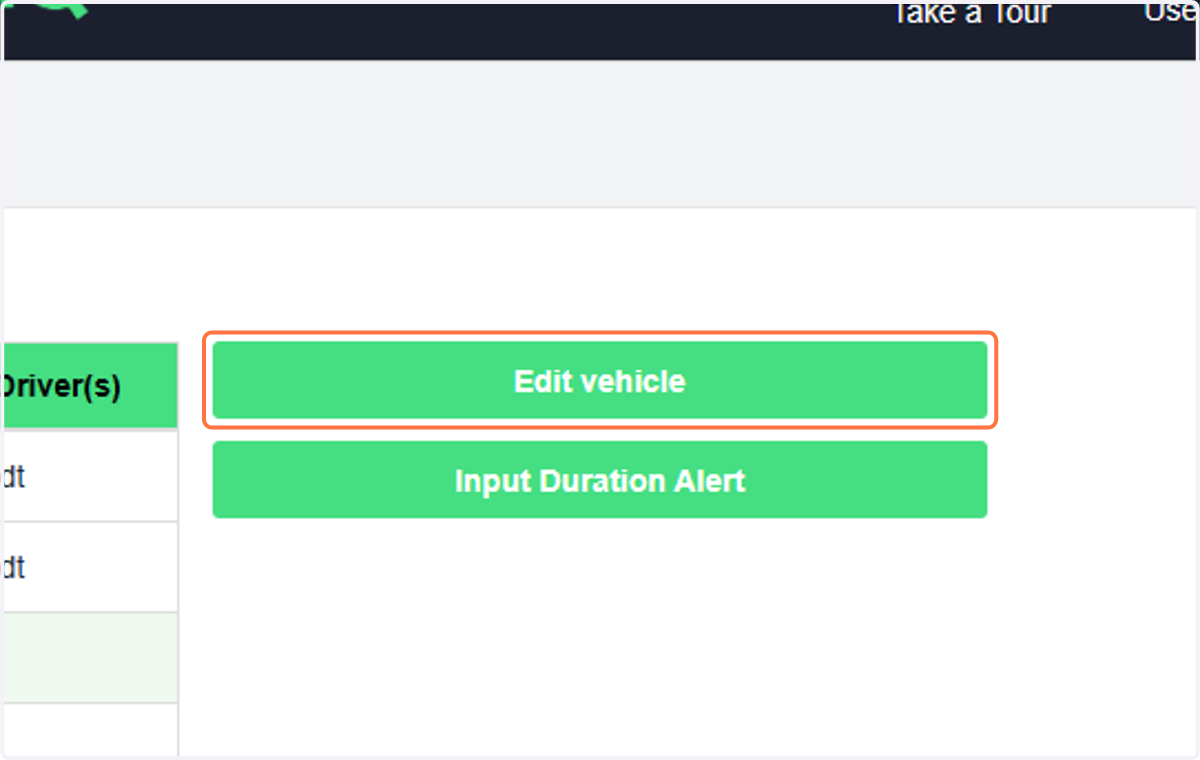
5. Click on Edit vehicle
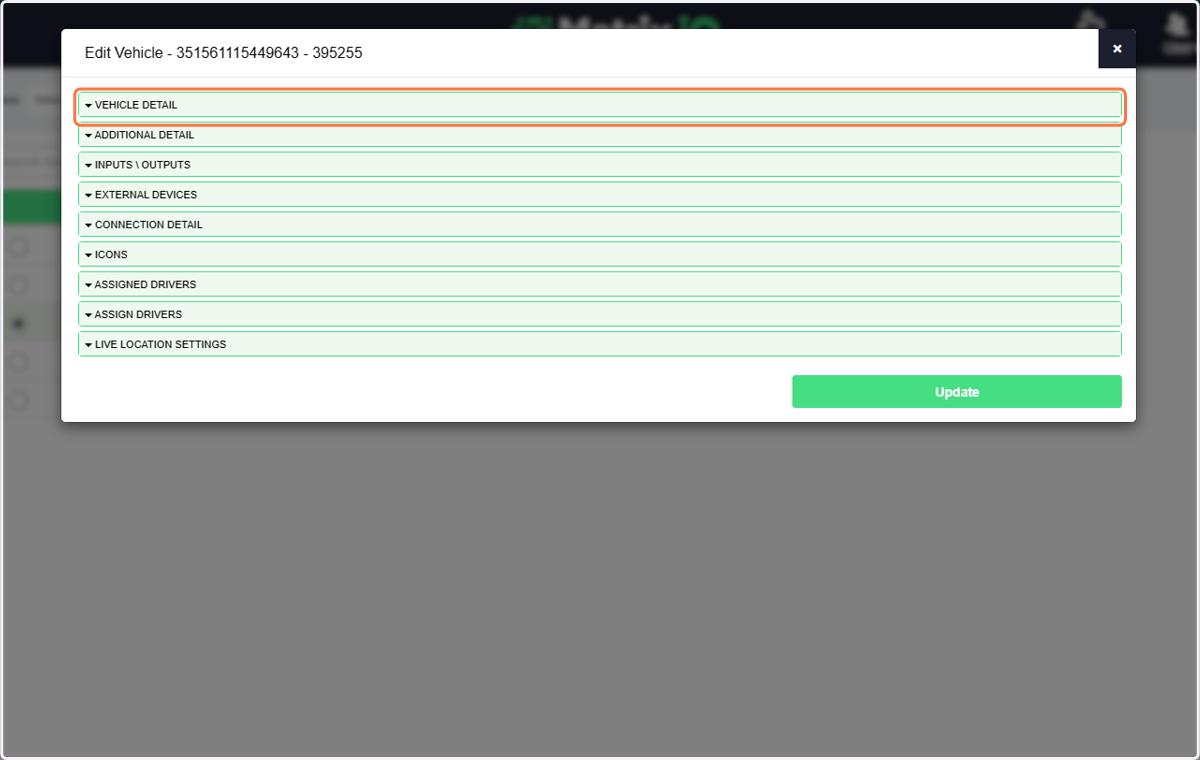
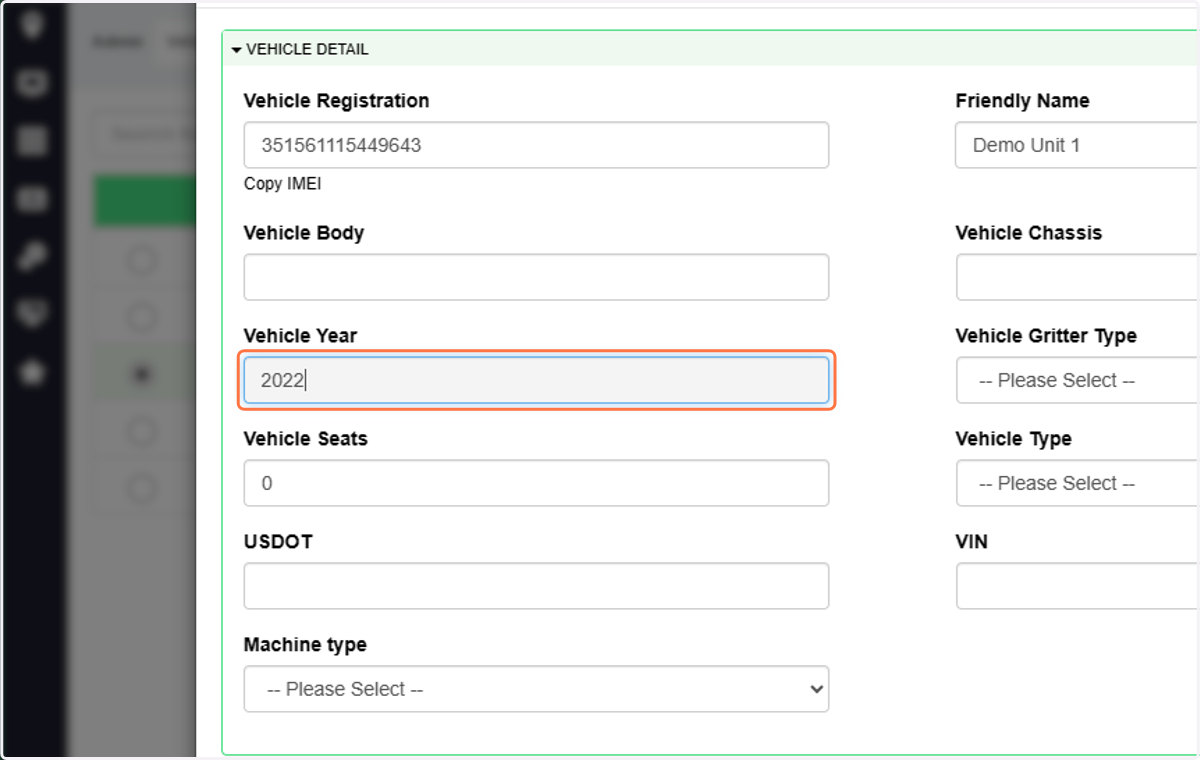
6. Click on VEHICLE DETAIL…
7. Type vehicle/asset name in Friendly Name
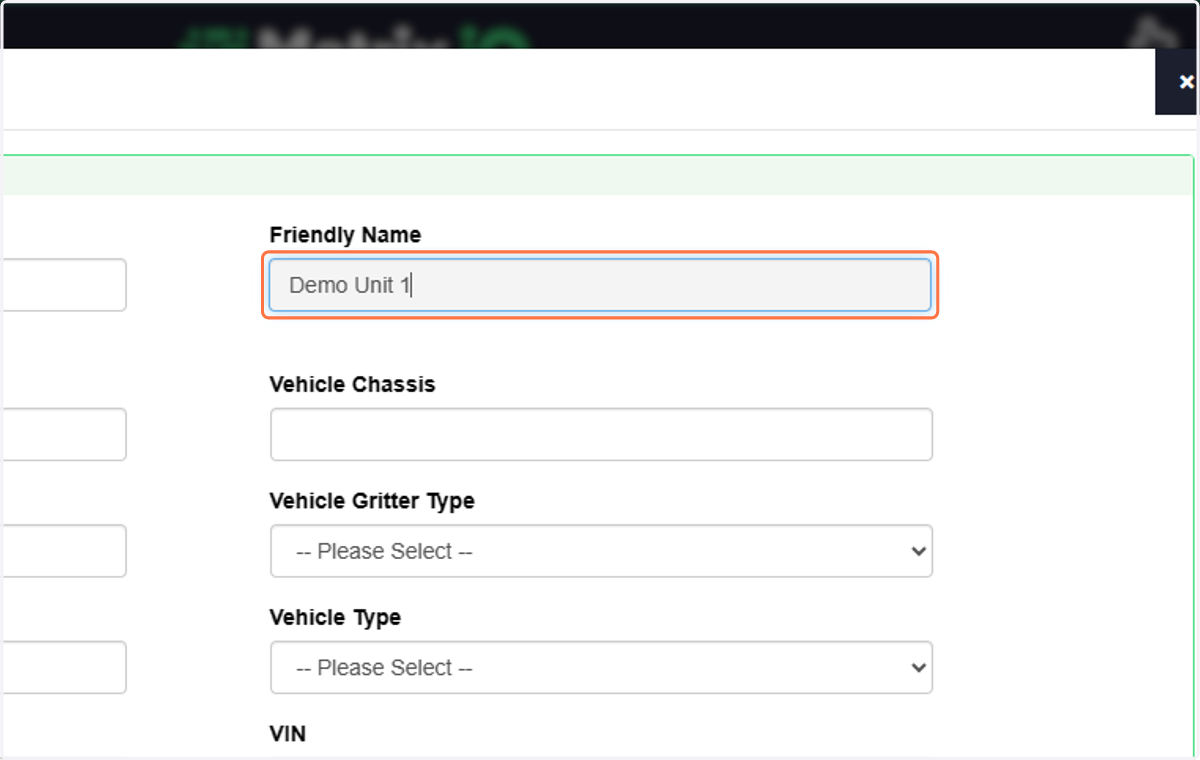
8. Add in any other vehicle/asset information desired.
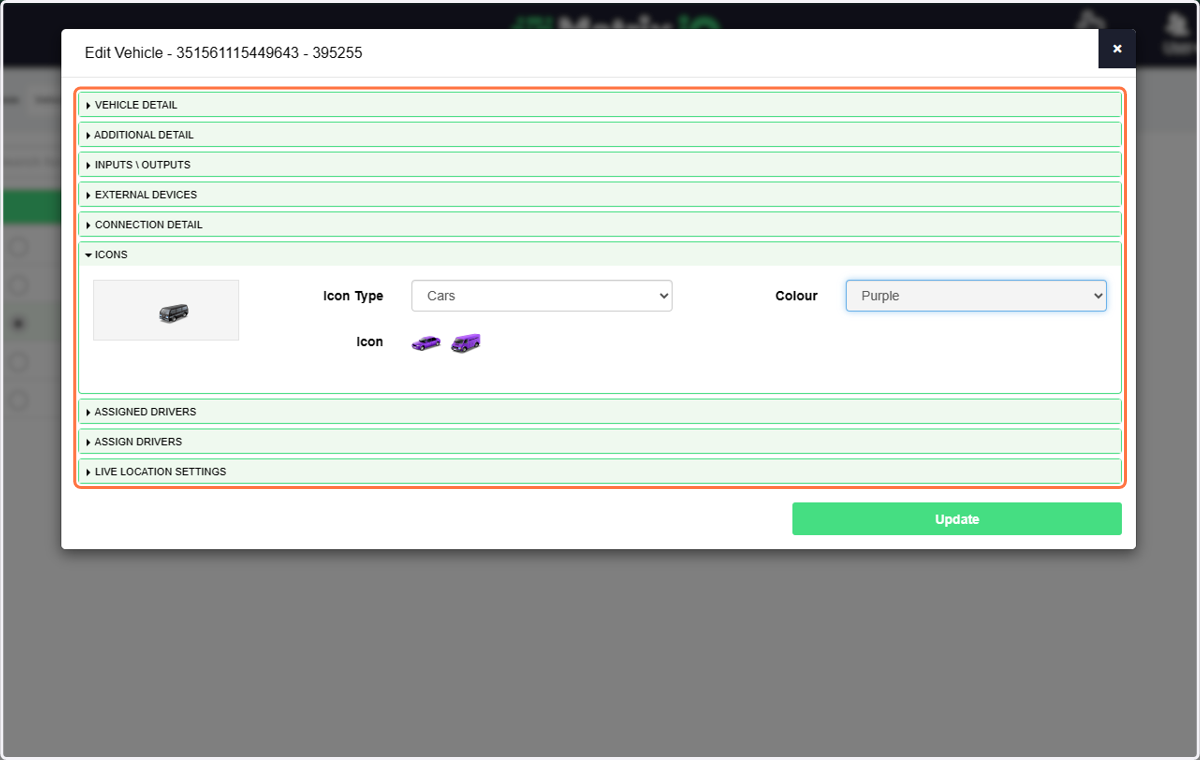
9. Click on Icons
If you want to add a colored icon to indicate what the device is attached to do it here.
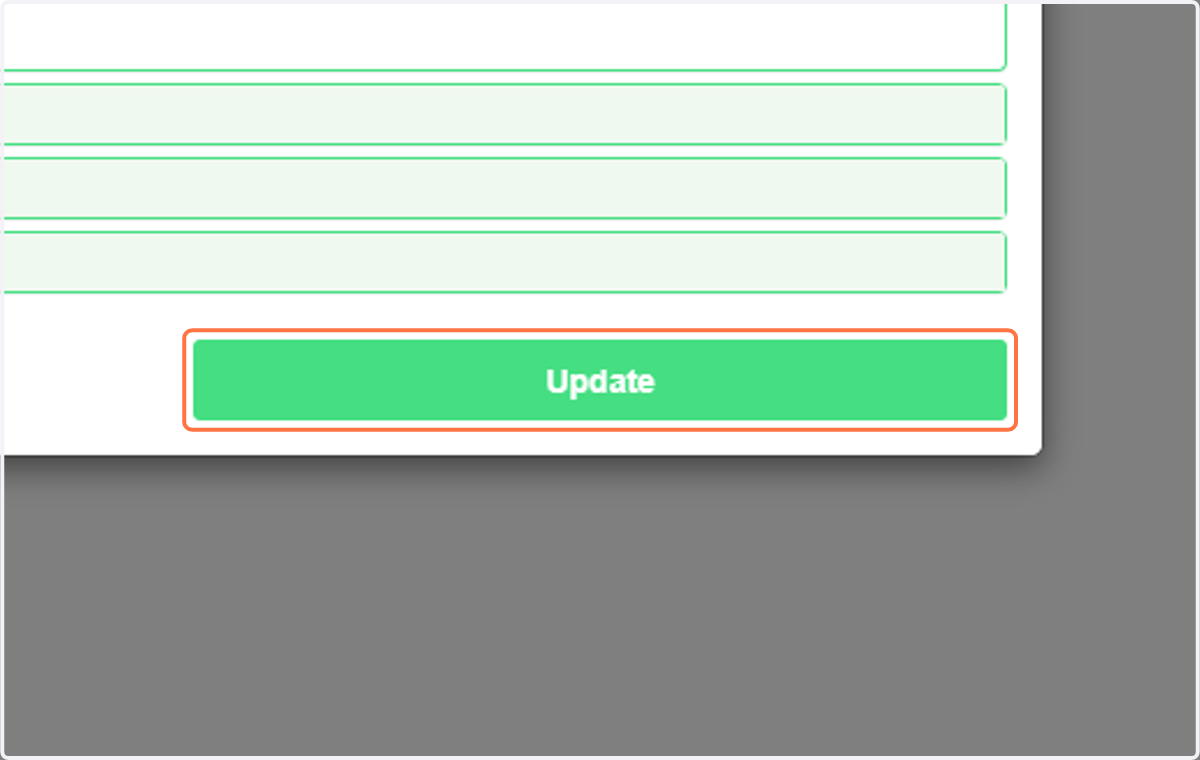
10. Click on Update
11. Click on Live Location
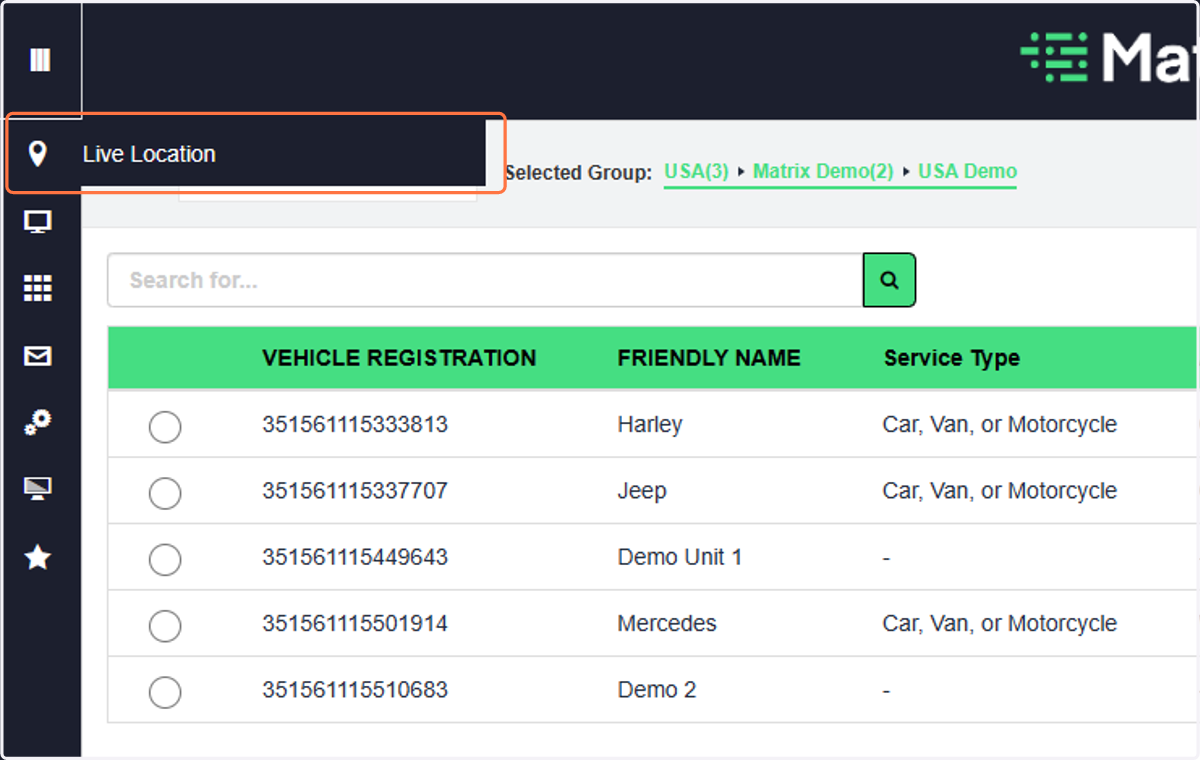
12. See the updates to your vehicle/asset.