How to Add or Edit Social Media Icons on Your Website

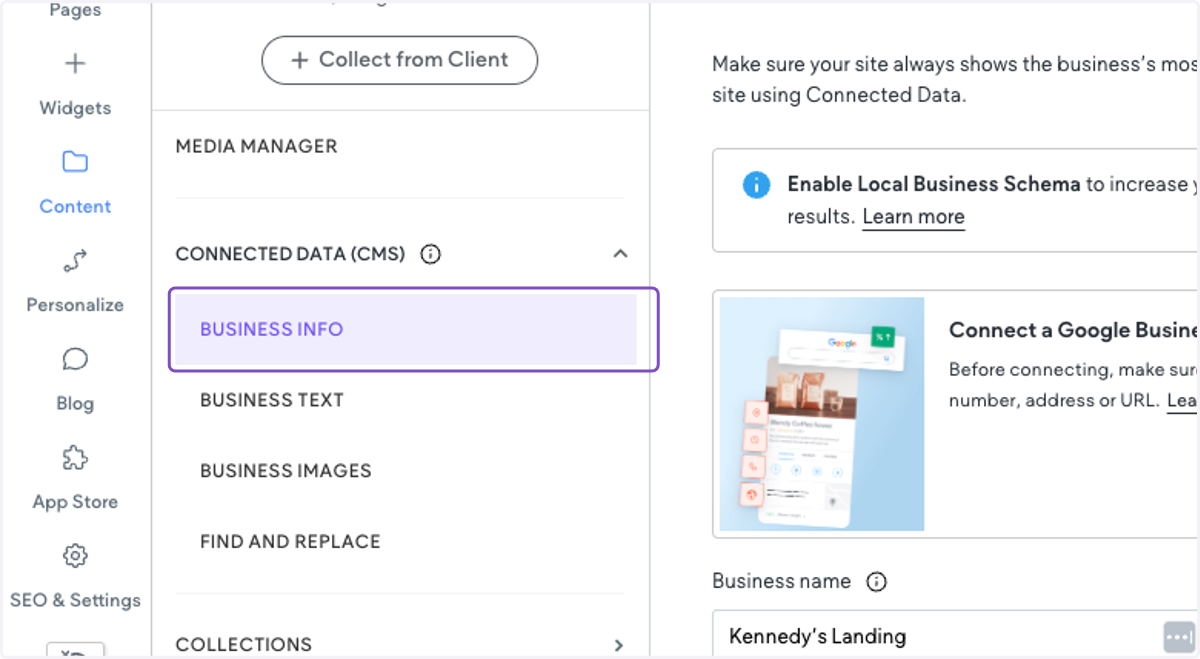
  1. 1. First, you'll want to make sure the social links are added into Business Info. Click on Content
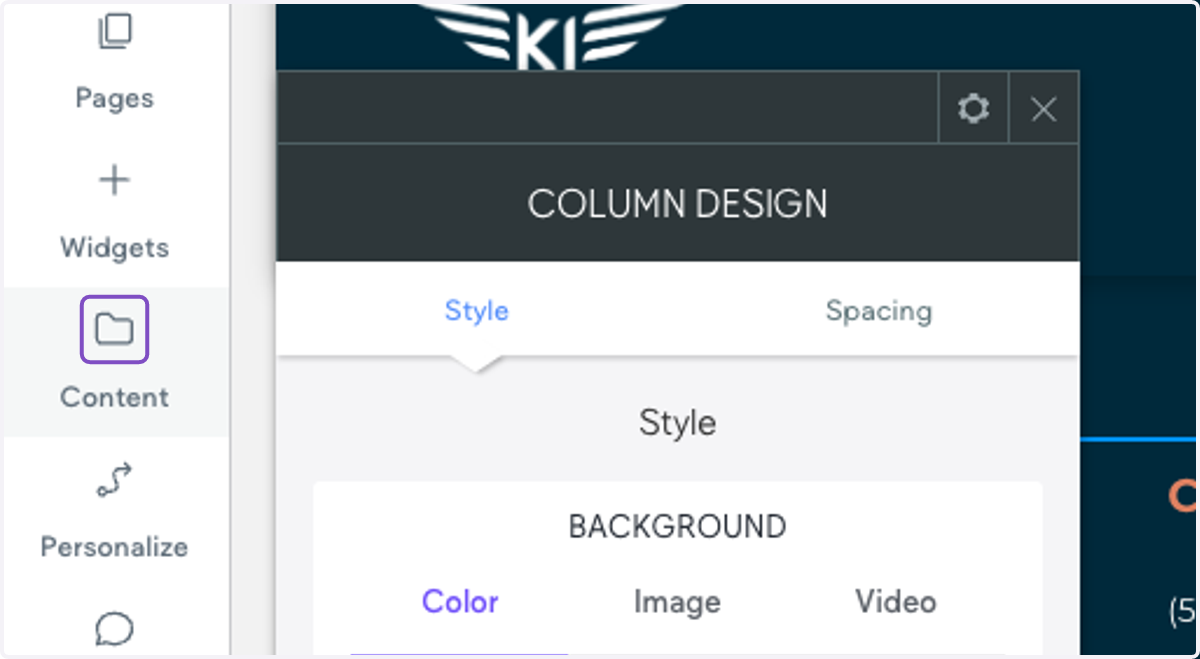
    First, you'll want to make sure the social links are added into Business Info. Click on Content
  2. 2. Click on BUSINESS INFO

    Click on BUSINESS INFO
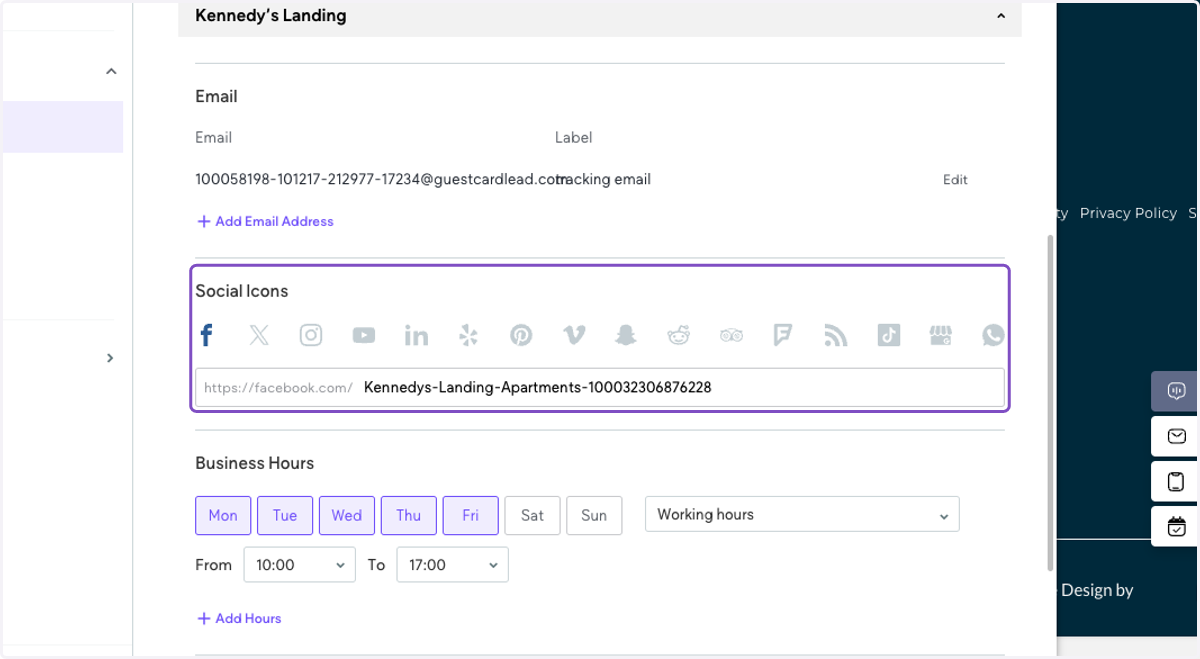
  3. 3. Click on each icon to add the URL

    Click on each icon to add the URL
  4. 4. Next, we want to make sure the social icons are connected to data. You will know if they are connected if there is a blue circle icon above the widget with linking circles in the center.
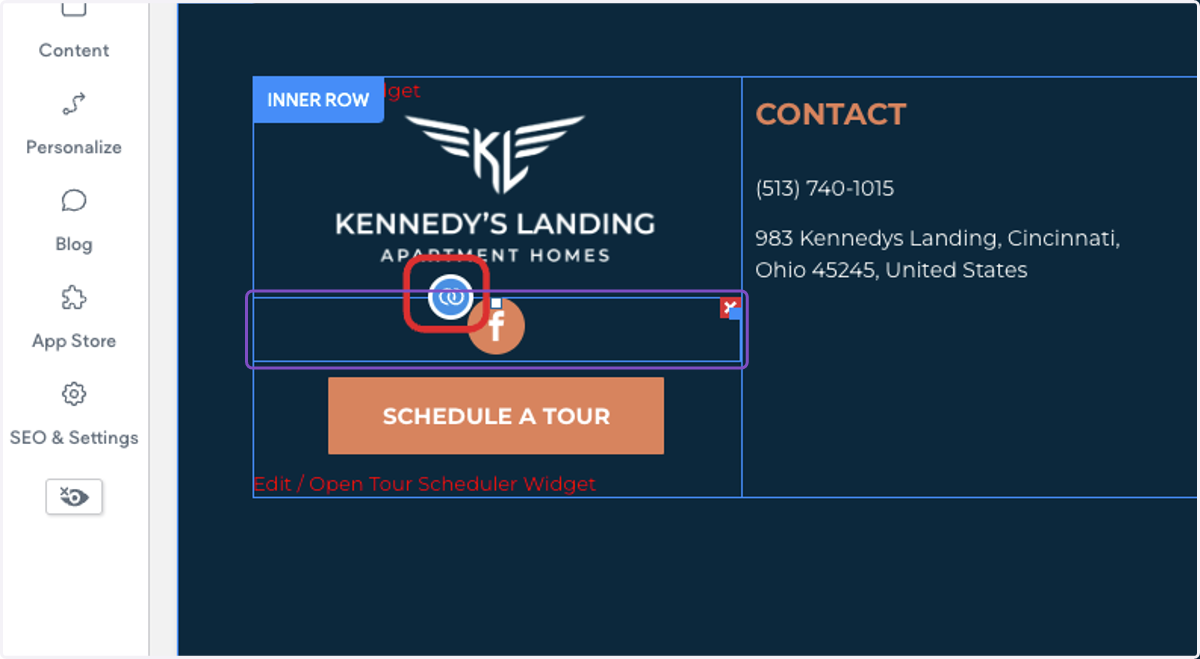
    Next, we want to make sure the social icons are connected to data. You will know if they are connected if there is a blue circle icon above the widget with linking circles in the center.
  5. 5. If it is not connected, you can connect it now that we've added the social URLs into Business Info. Click on the widget, then click the settings icon
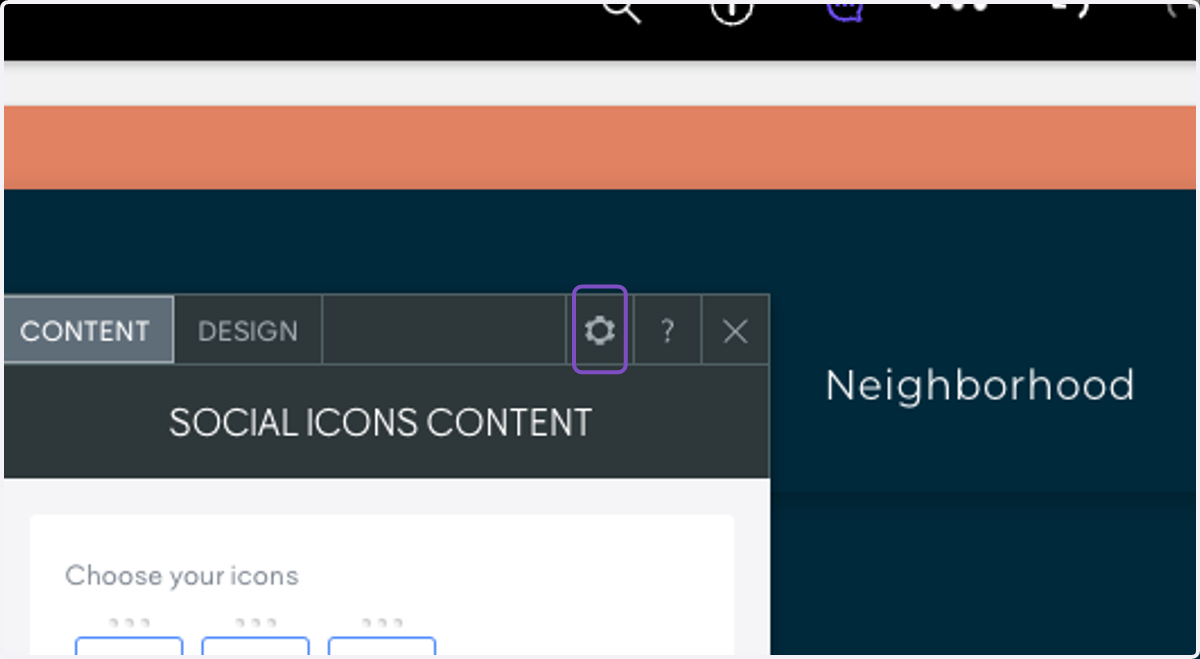
    If it is not connected, you can connect it now that we've added the social URLs into Business Info. Click on the widget, then click the settings icon
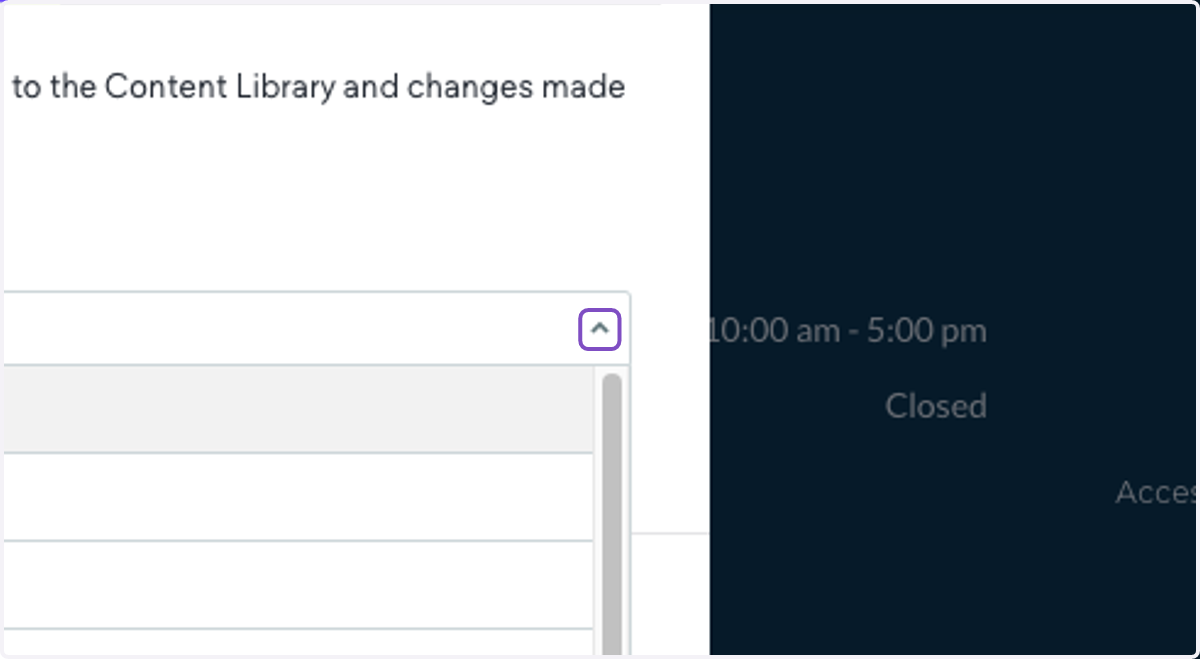
  6. 6. Click on the dropdown and select Social Accounts
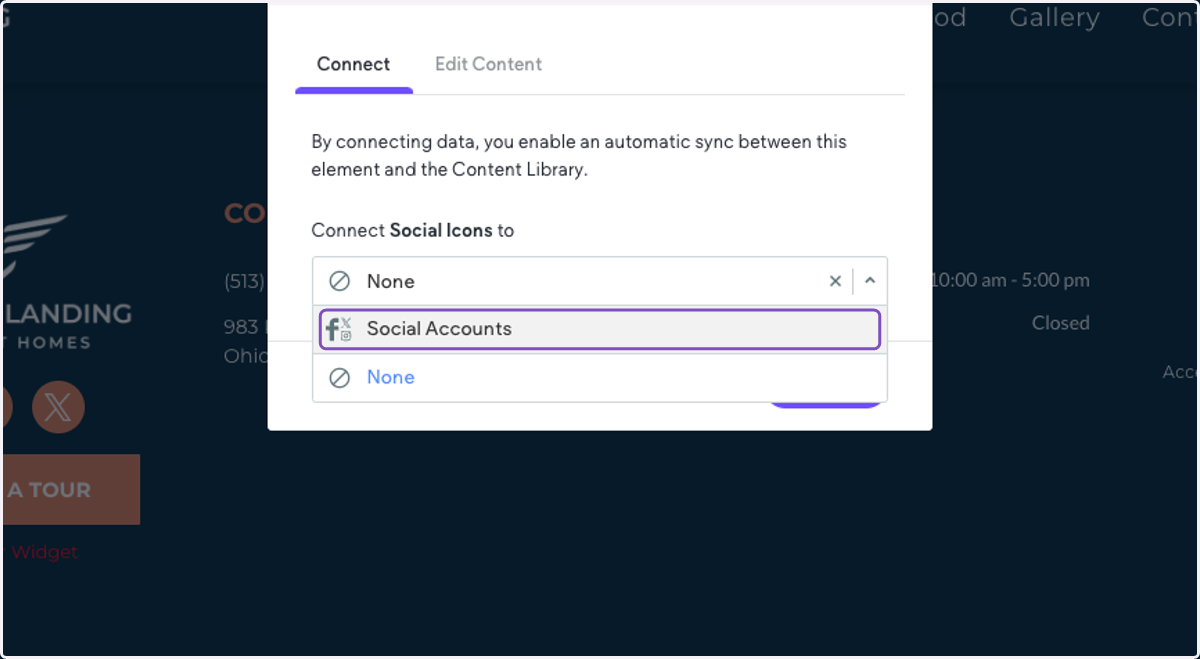
    Click on the dropdown and select Social Accounts
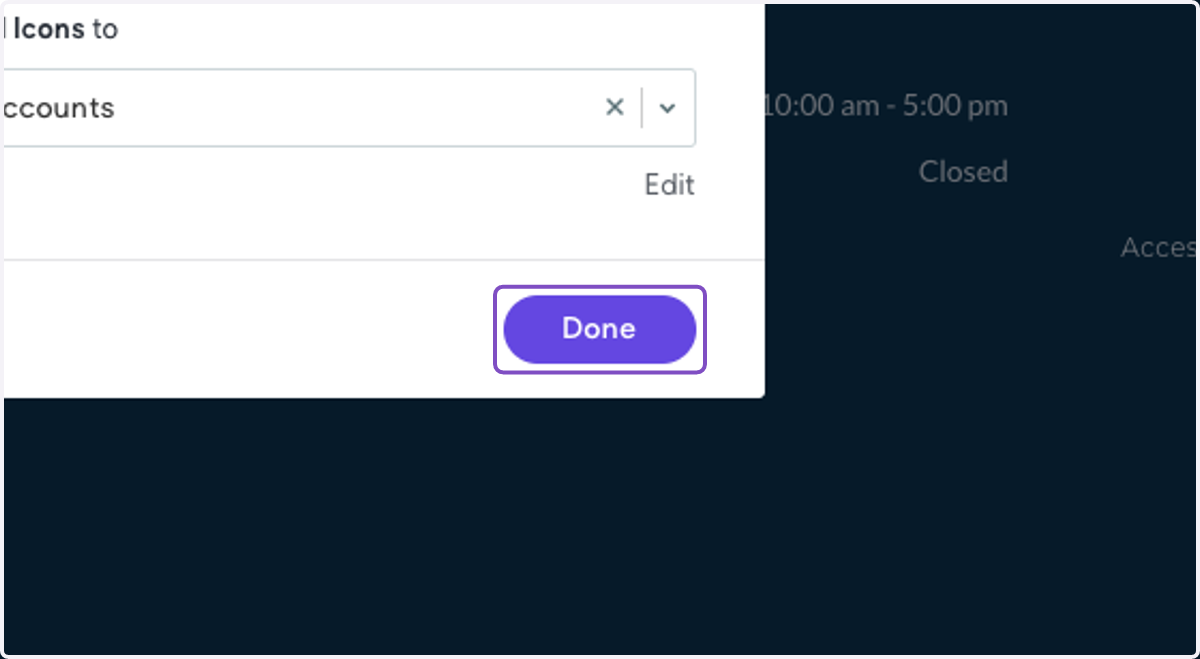
  7. 7. Click on Done

    Click on Done
  8. 8. Now the page will reload, and when you click on the social icons widget this time, it will show you a box that says the widget is connected to data
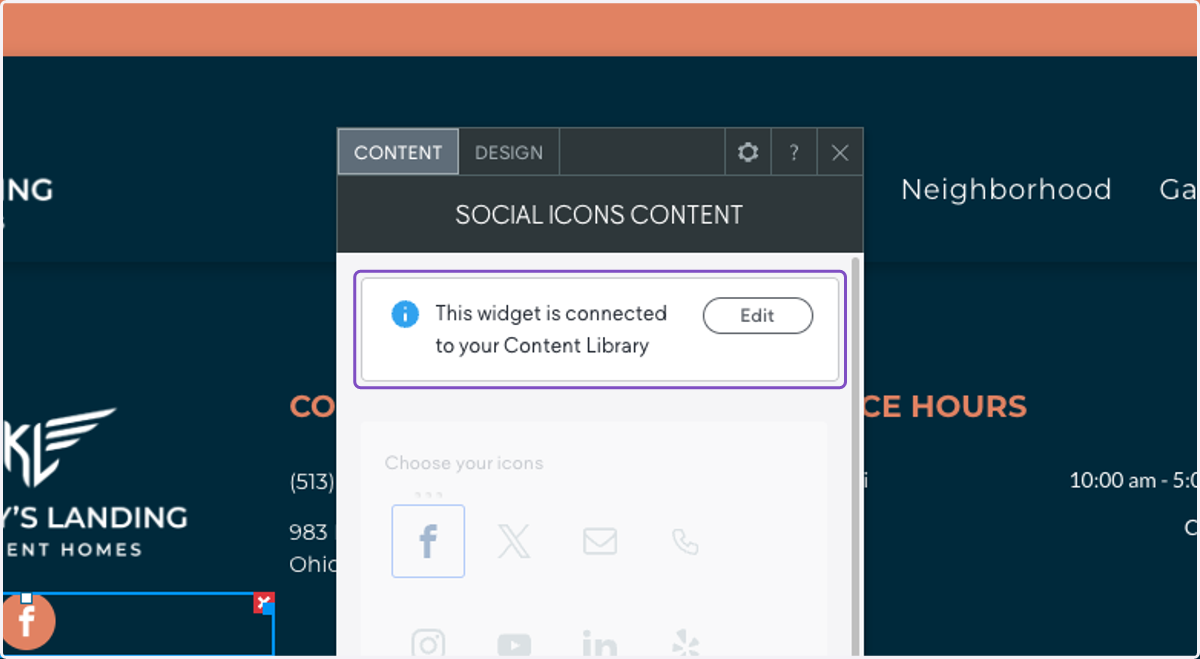
    Now the page will reload, and when you click on the social icons widget this time, it will show you a box that says the widget is connected to data
  9. 9. From here, any time you want to edit the icons, you can click Edit in this box
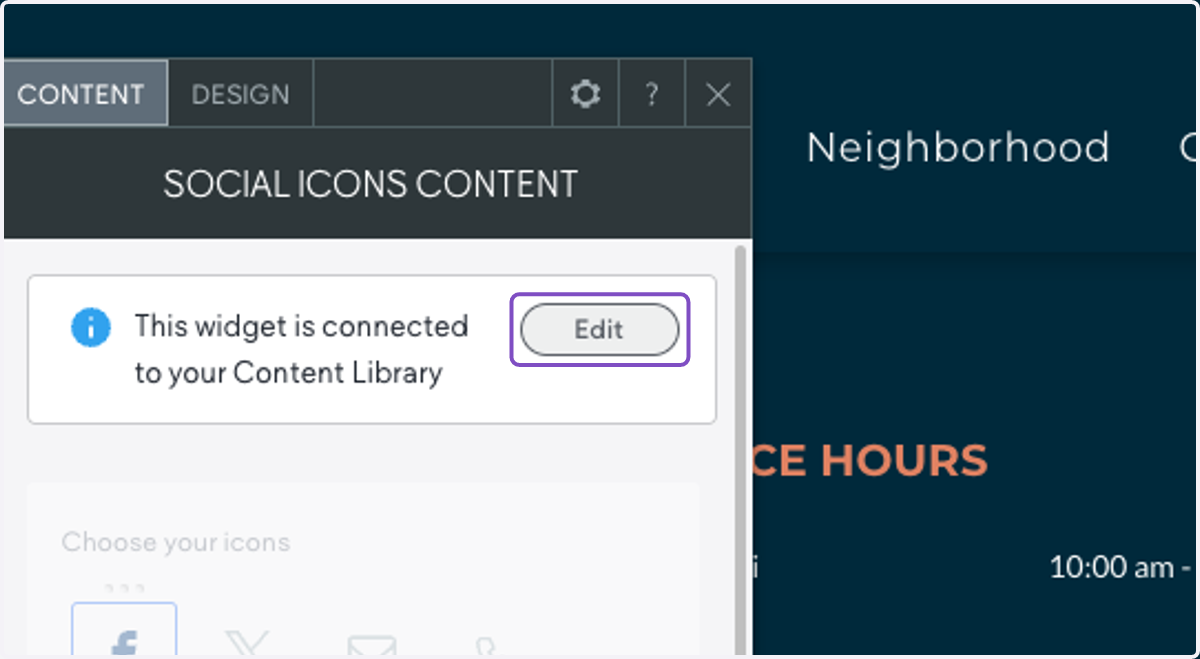
    From here, any time you want to edit the icons, you can click Edit in this box
  10. 10. It will open up the info you put in Business Info, and allow you to make updates.
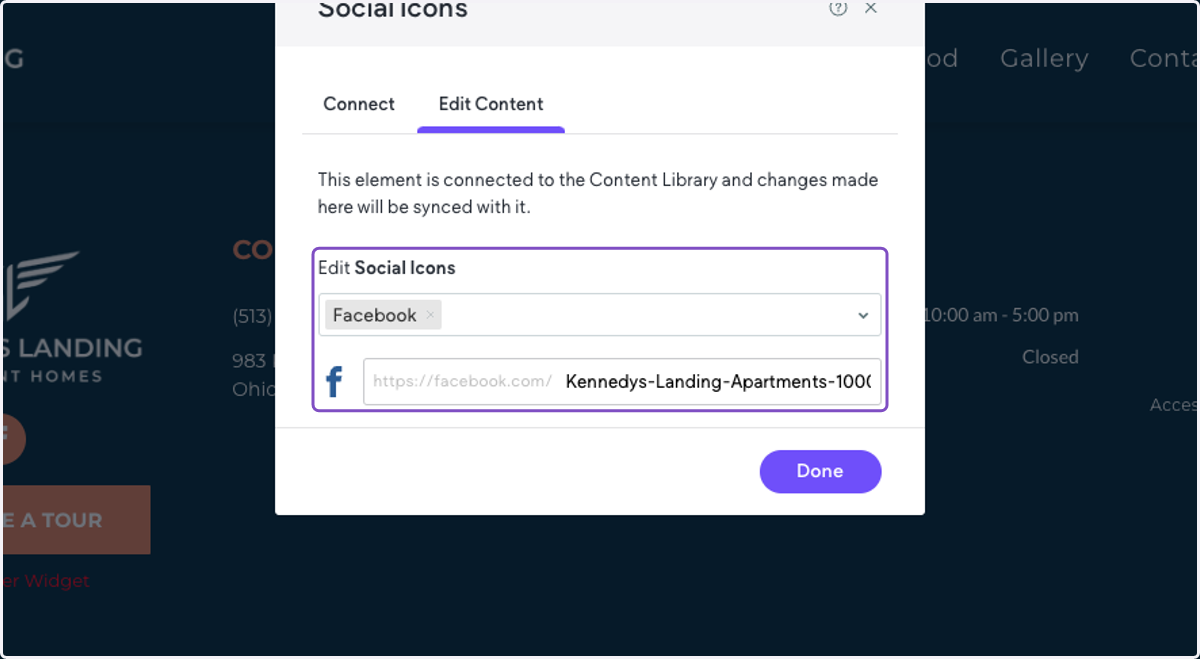
    It will open up the info you put in Business Info, and allow you to make updates.
  11. 11. Click on Social Icons…

    Click on Social Icons…
  12. 12. For example, you can add Instagram if it is not there and you wish to add it, or any other social account.
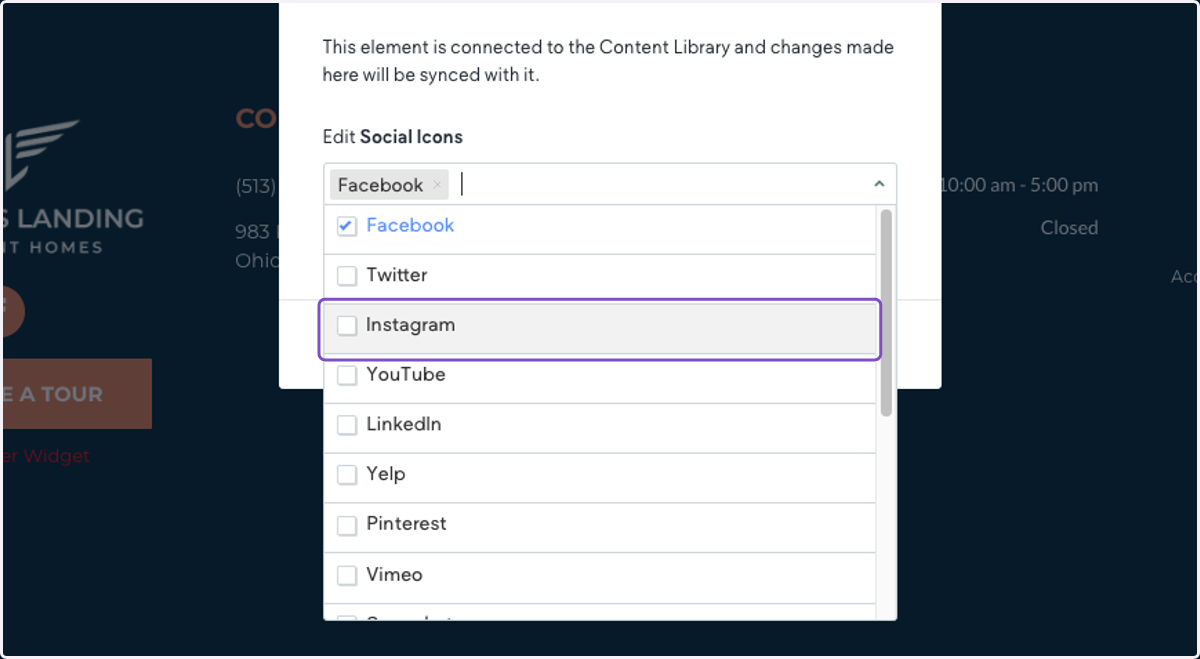
    For example, you can add Instagram if it is not there and you wish to add it, or any other social account.
  13. 13. The final thing you will want to do is make sure that everywhere the social icon widget appears, it is connected to data. For example, you may want to check the mobile menu.
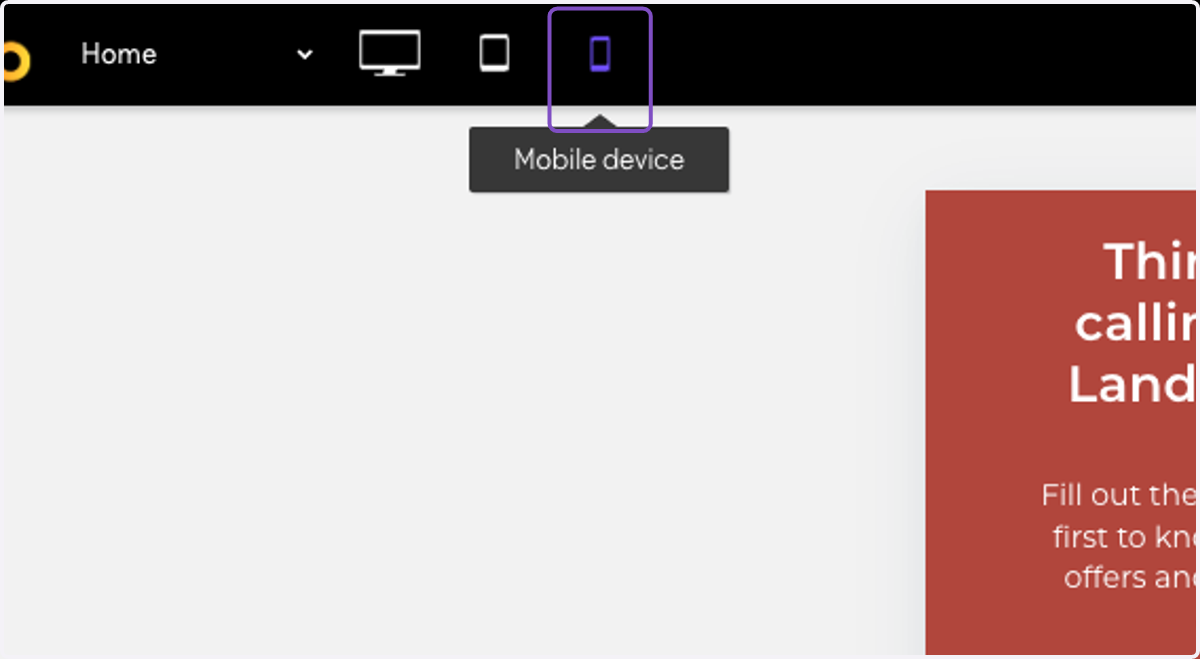
    The final thing you will want to do is make sure that everywhere the social icon widget appears, it is connected to data. For example, you may want to check the mobile menu.
  1. 14. Click on menu

    Click on menu
  2. 15. Click on the widget. You can see it is connected to data, so you are good to go here.
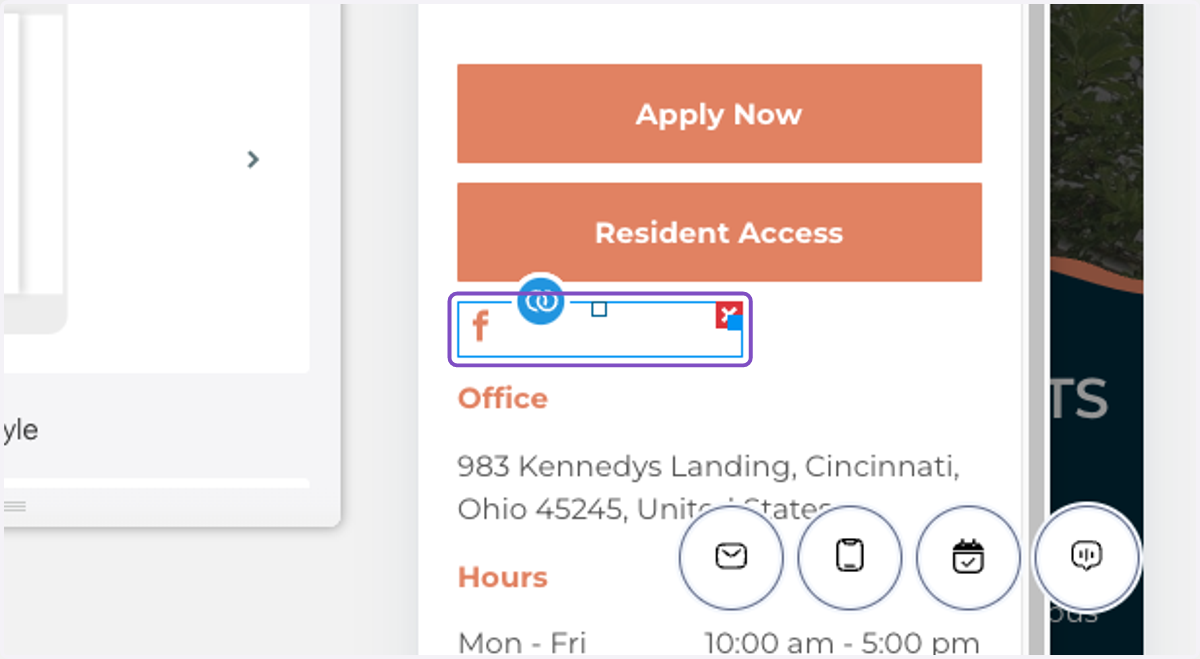
    Click on the widget. You can see it is connected to data, so you are good to go here.